
www my Blueprint ca MYBLUEPRINT COURSE SELECTION GUIDE

www. my. Blueprint. ca MYBLUEPRINT COURSE SELECTION GUIDE
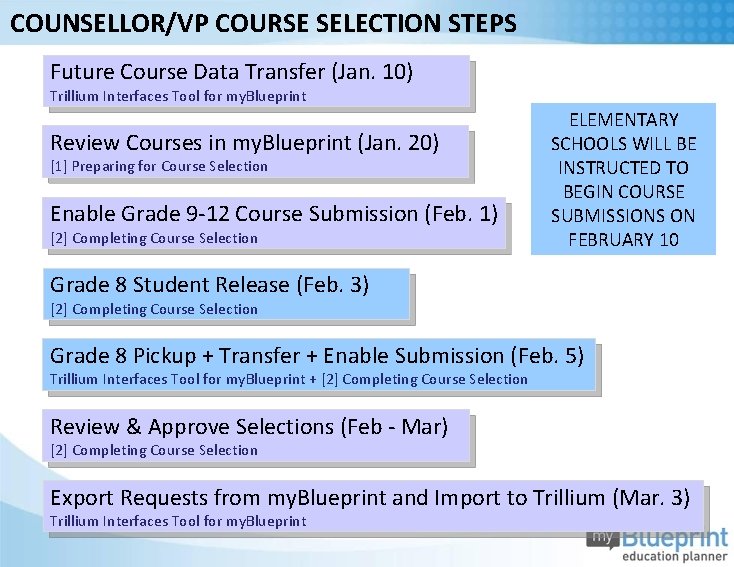
COUNSELLOR/VP COURSE SELECTION STEPS Future Course Data Transfer (Jan. 10) Trillium Interfaces Tool for my. Blueprint Review Courses in my. Blueprint (Jan. 20) [1] Preparing for Course Selection Enable Grade 9 -12 Course Submission (Feb. 1) [2] Completing Course Selection ELEMENTARY SCHOOLS WILL BE INSTRUCTED TO BEGIN COURSE SUBMISSIONS ON FEBRUARY 10 Grade 8 Student Release (Feb. 3) [2] Completing Course Selection Grade 8 Pickup + Transfer + Enable Submission (Feb. 5) Trillium Interfaces Tool for my. Blueprint + [2] Completing Course Selection Review & Approve Selections (Feb - Mar) [2] Completing Course Selection Export Requests from my. Blueprint and Import to Trillium (Mar. 3) Trillium Interfaces Tool for my. Blueprint

FUTURE COURSE DATA TRANSFER (JAN. 10) Complete FUTURE YEAR Export from Trillium (2014 -2015) Log into Counsellor Lead account Select CRSM. TXT & CSRL. TXT Files Start Course Import
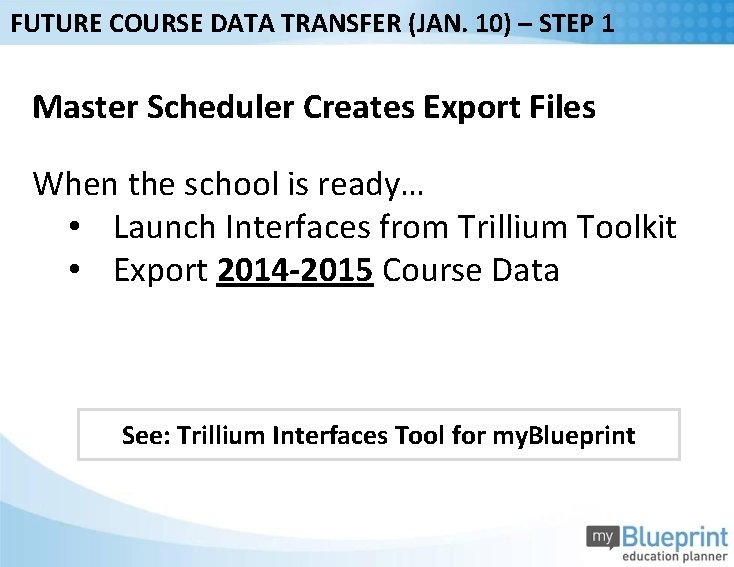
FUTURE COURSE DATA TRANSFER (JAN. 10) – STEP 1 Master Scheduler Creates Export Files When the school is ready… • Launch Interfaces from Trillium Toolkit • Export 2014 -2015 Course Data See: Trillium Interfaces Tool for my. Blueprint
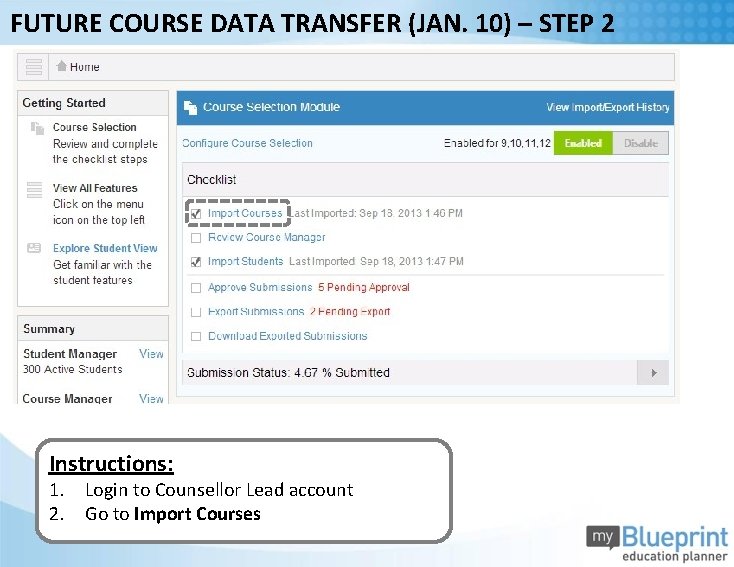
FUTURE COURSE DATA TRANSFER (JAN. 10) – STEP 2 Instructions: 1. Login to Counsellor Lead account 2. Go to Import Courses
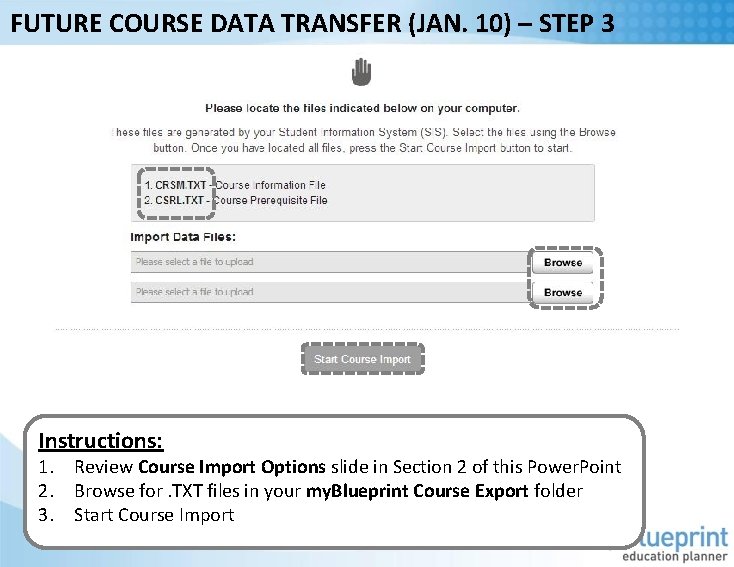
FUTURE COURSE DATA TRANSFER (JAN. 10) – STEP 3 Instructions: 1. Review Course Import Options slide in Section 2 of this Power. Point 2. Browse for. TXT files in your my. Blueprint Course Export folder 3. Start Course Import
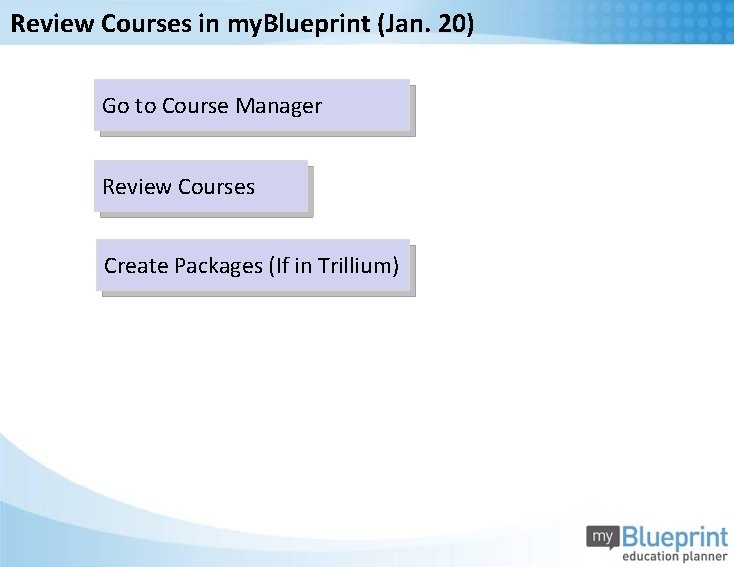
Review Courses in my. Blueprint (Jan. 20) Go to Course Manager Review Courses Create Packages (If in Trillium)
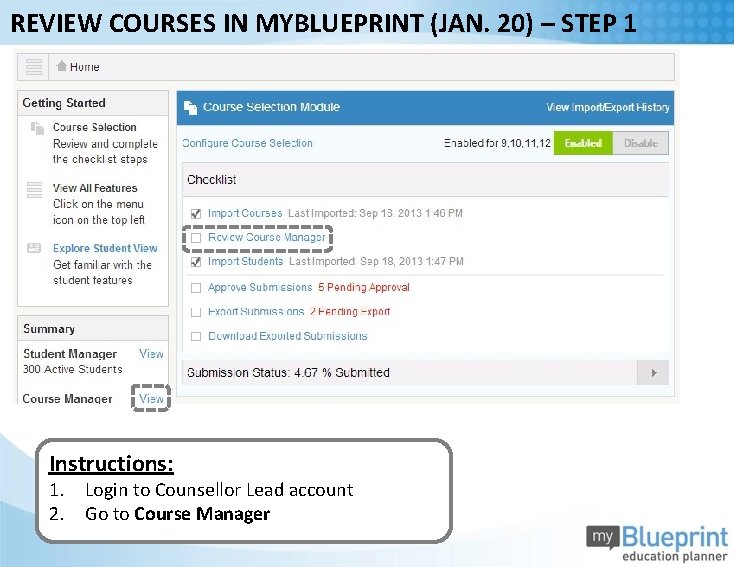
REVIEW COURSES IN MYBLUEPRINT (JAN. 20) – STEP 1 Instructions: 1. Login to Counsellor Lead account 2. Go to Course Manager
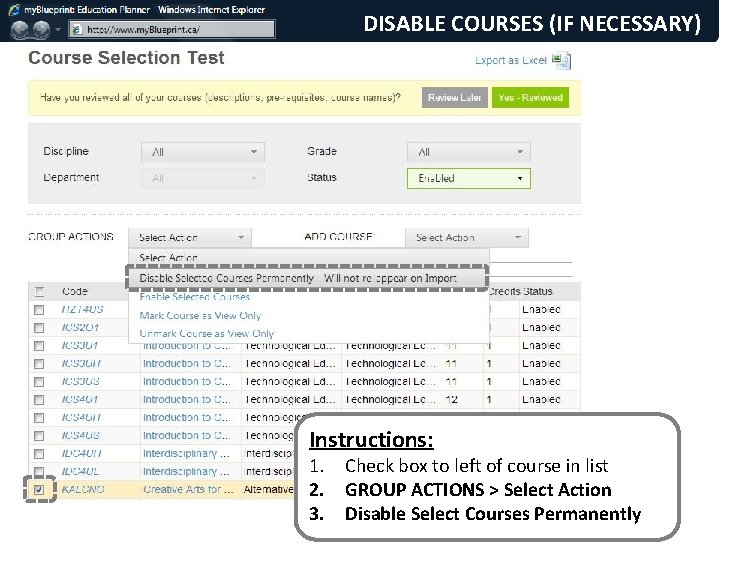
DISABLE COURSES (IF NECESSARY) Instructions: 1. Check box to left of course in list 2. GROUP ACTIONS > Select Action 3. Disable Select Courses Permanently
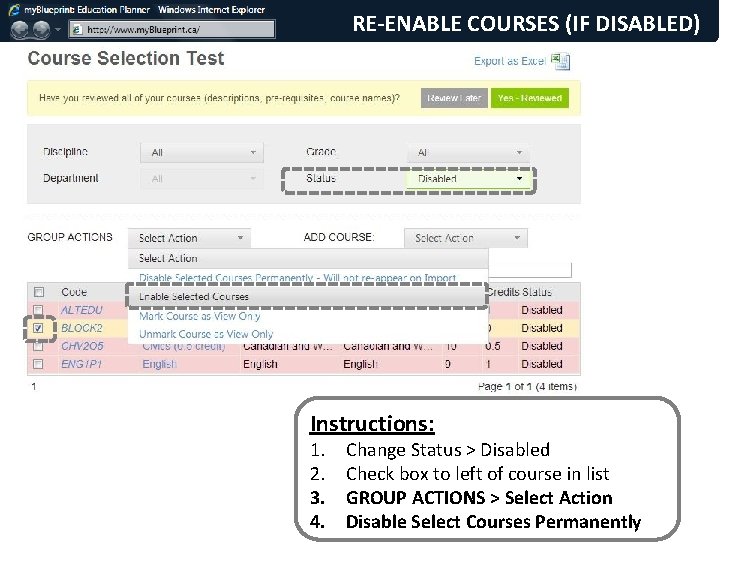
RE-ENABLE COURSES (IF DISABLED) Instructions: 1. 2. 3. 4. Change Status > Disabled Check box to left of course in list GROUP ACTIONS > Select Action Disable Select Courses Permanently
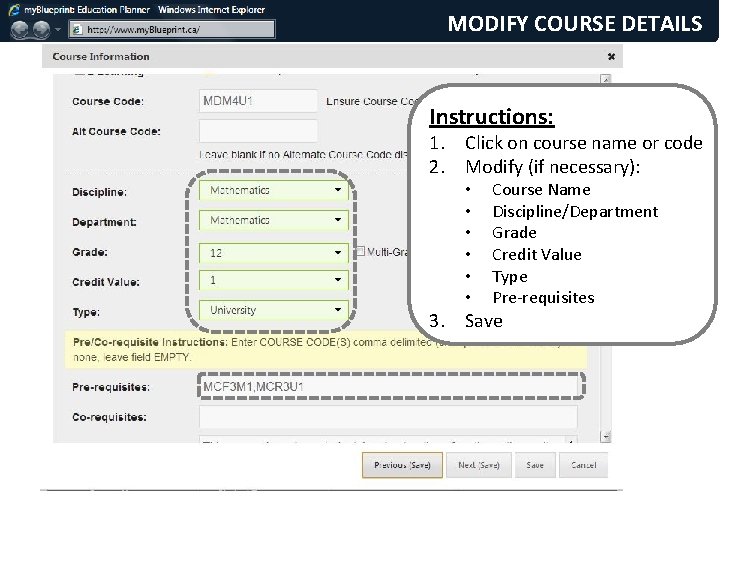
MODIFY COURSE DETAILS Instructions: 1. Click on course name or code 2. Modify (if necessary): • • • Course Name Discipline/Department Grade Credit Value Type Pre-requisites 3. Save
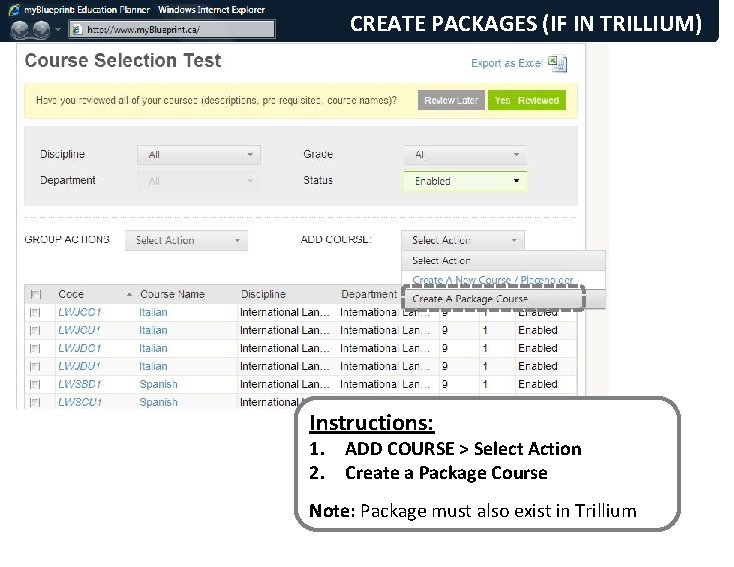
CREATE PACKAGES (IF IN TRILLIUM) Instructions: 1. ADD COURSE > Select Action 2. Create a Package Course Note: Package must also exist in Trillium
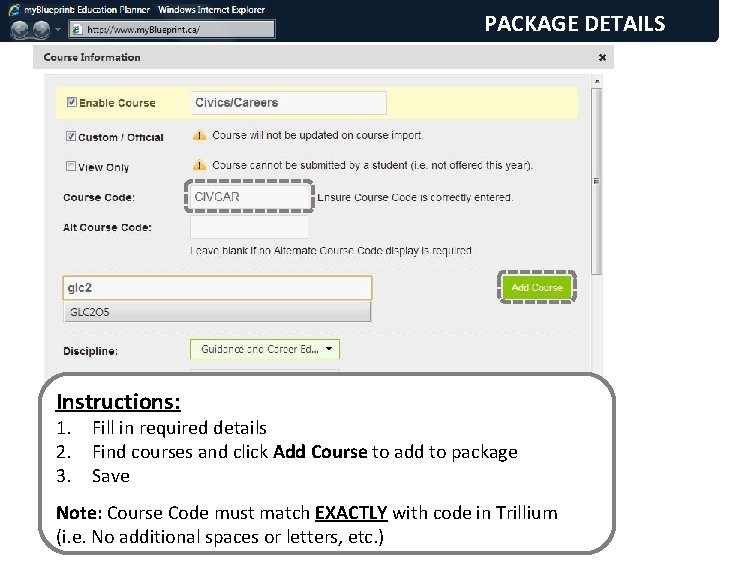
PACKAGE DETAILS Instructions: 1. Fill in required details 2. Find courses and click Add Course to add to package 3. Save Note: Course Code must match EXACTLY with code in Trillium (i. e. No additional spaces or letters, etc. )
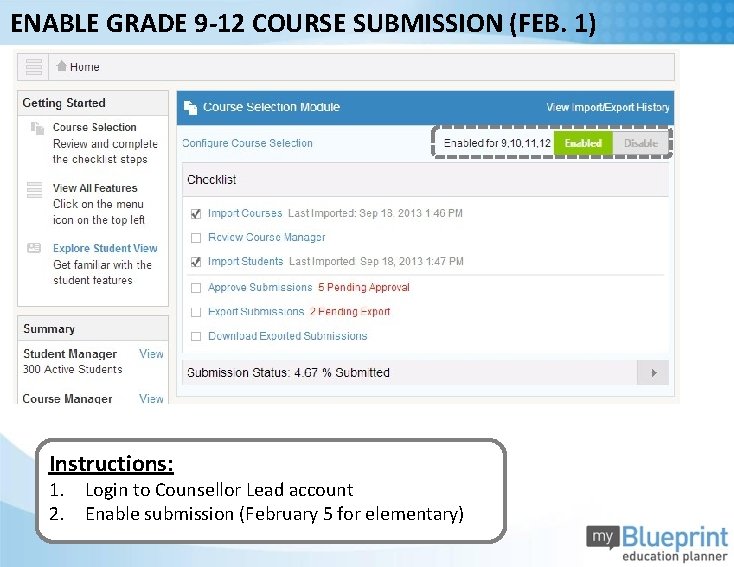
ENABLE GRADE 9 -12 COURSE SUBMISSION (FEB. 1) Instructions: 1. Login to Counsellor Lead account 2. Enable submission (February 5 for elementary)

GRADE 8 STUDENT RELEASE (FEB. 3) Elementary school will be release incoming Grade 8 s to Secondary school in Trillium Only students going to home school will be released. Optional attendances students will be completing course selection on paper.
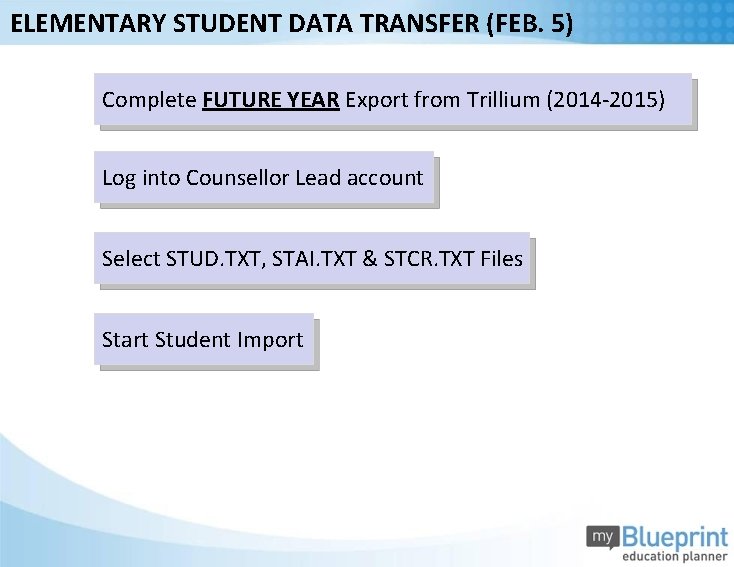
ELEMENTARY STUDENT DATA TRANSFER (FEB. 5) Complete FUTURE YEAR Export from Trillium (2014 -2015) Log into Counsellor Lead account Select STUD. TXT, STAI. TXT & STCR. TXT Files Start Student Import
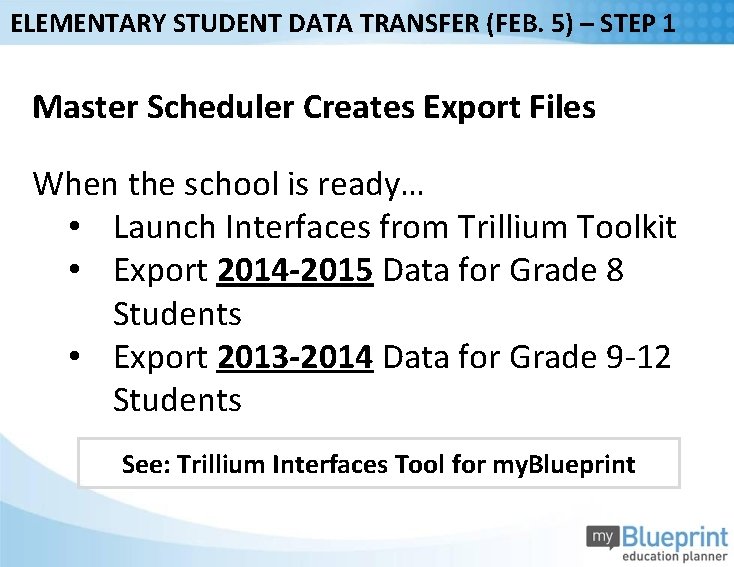
ELEMENTARY STUDENT DATA TRANSFER (FEB. 5) – STEP 1 Master Scheduler Creates Export Files When the school is ready… • Launch Interfaces from Trillium Toolkit • Export 2014 -2015 Data for Grade 8 Students • Export 2013 -2014 Data for Grade 9 -12 Students See: Trillium Interfaces Tool for my. Blueprint
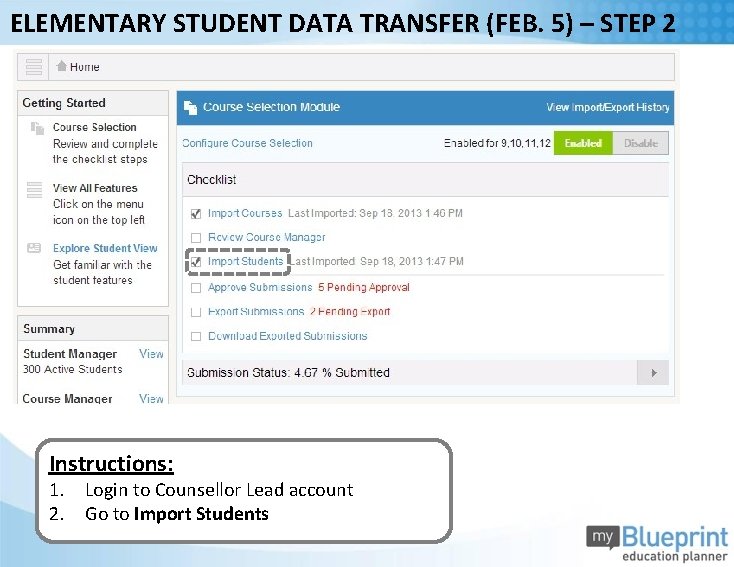
ELEMENTARY STUDENT DATA TRANSFER (FEB. 5) – STEP 2 Instructions: 1. Login to Counsellor Lead account 2. Go to Import Students
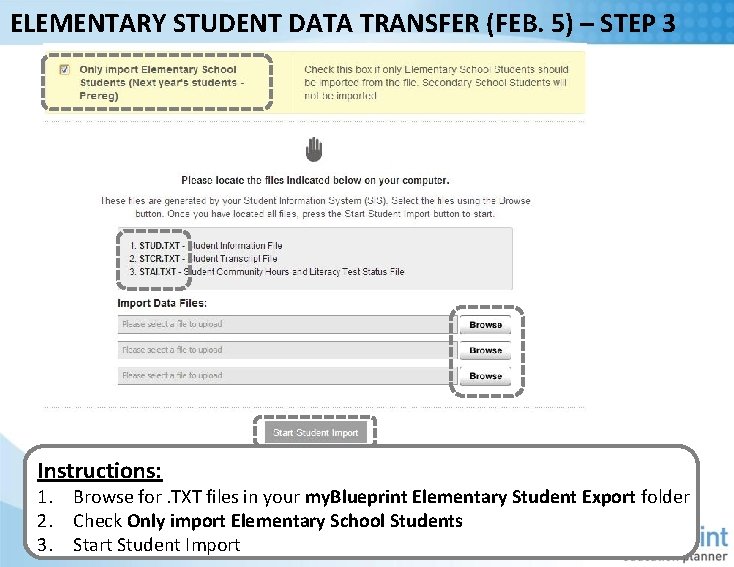
ELEMENTARY STUDENT DATA TRANSFER (FEB. 5) – STEP 3 Instructions: 1. Browse for. TXT files in your my. Blueprint Elementary Student Export folder 2. Check Only import Elementary School Students 3. Start Student Import
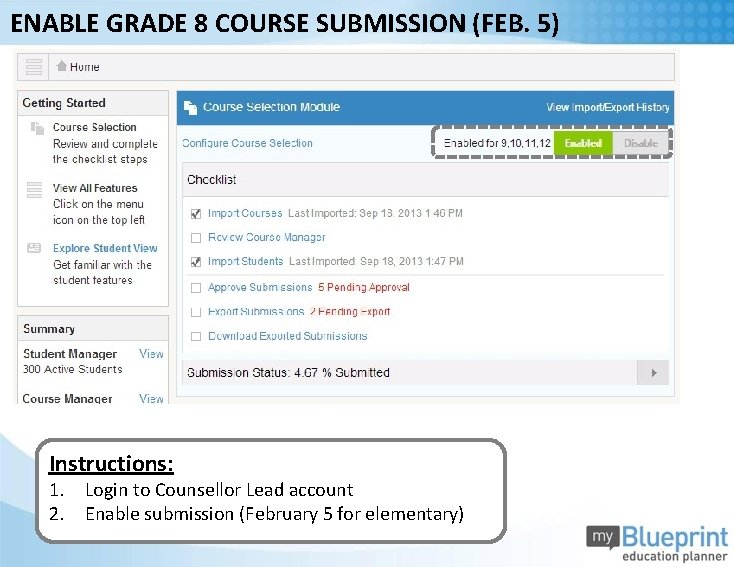
ENABLE GRADE 8 COURSE SUBMISSION (FEB. 5) Instructions: 1. Login to Counsellor Lead account 2. Enable submission (February 5 for elementary)
REVIEW & APPROVE SELECTIONS (FEB - MAR) Go to Approve Submissions Approve Student Selections
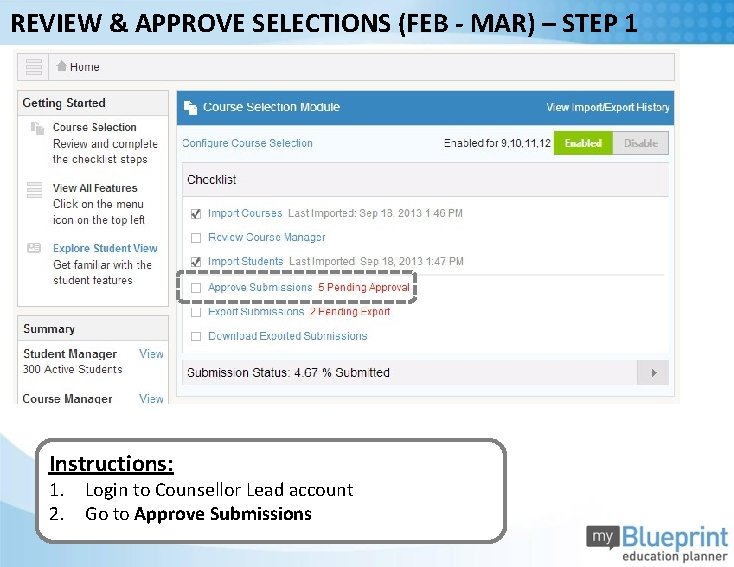
REVIEW & APPROVE SELECTIONS (FEB - MAR) – STEP 1 Instructions: 1. Login to Counsellor Lead account 2. Go to Approve Submissions
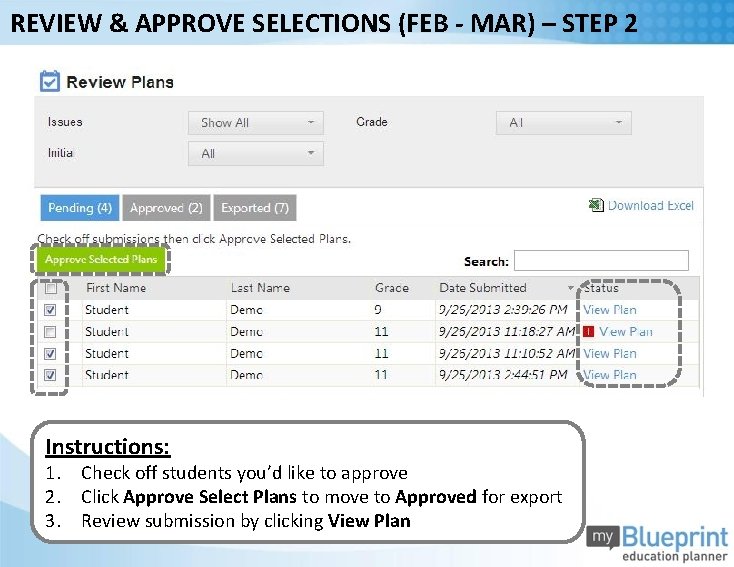
REVIEW & APPROVE SELECTIONS (FEB - MAR) – STEP 2 Instructions: 1. Check off students you’d like to approve 2. Click Approve Select Plans to move to Approved for export 3. Review submission by clicking View Plan
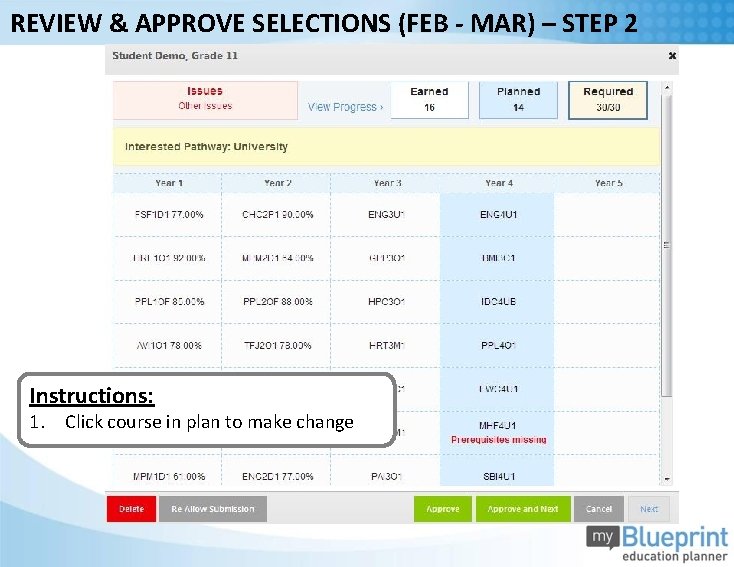
REVIEW & APPROVE SELECTIONS (FEB - MAR) – STEP 2 Instructions: 1. Click course in plan to make change
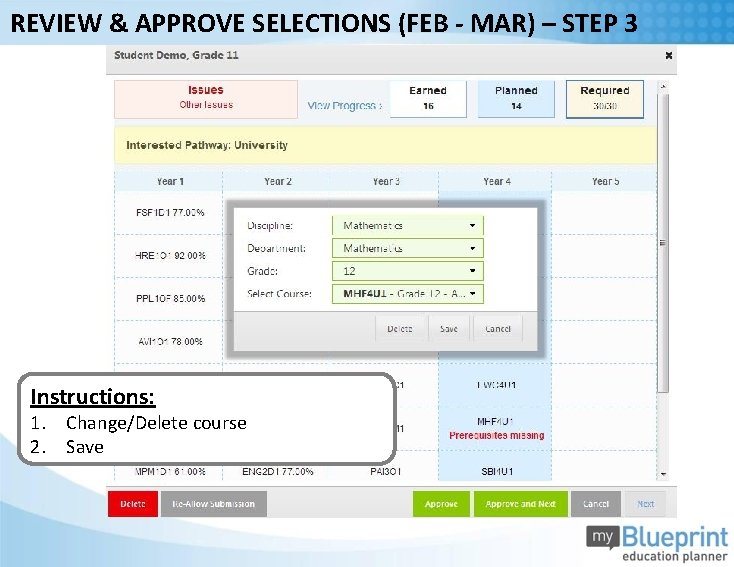
REVIEW & APPROVE SELECTIONS (FEB - MAR) – STEP 3 Instructions: 1. Change/Delete course 2. Save
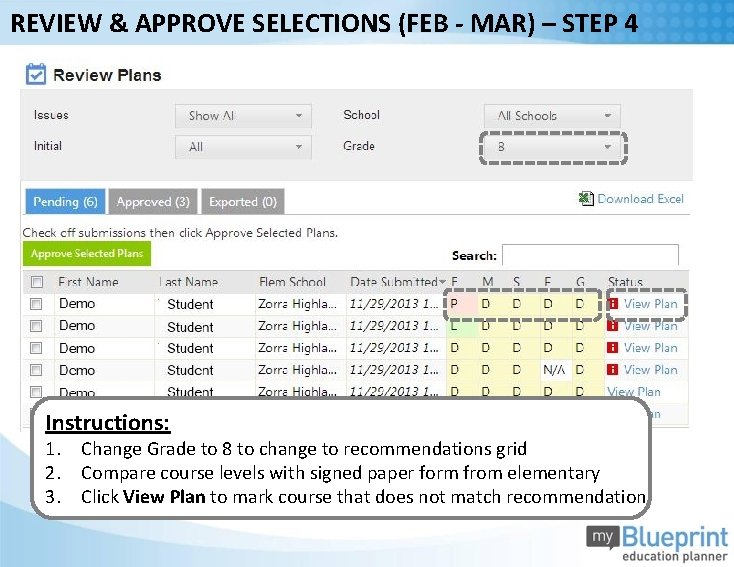
REVIEW & APPROVE SELECTIONS (FEB - MAR) – STEP 4 Instructions: 1. Change Grade to 8 to change to recommendations grid 2. Compare course levels with signed paper form from elementary 3. Click View Plan to mark course that does not match recommendation
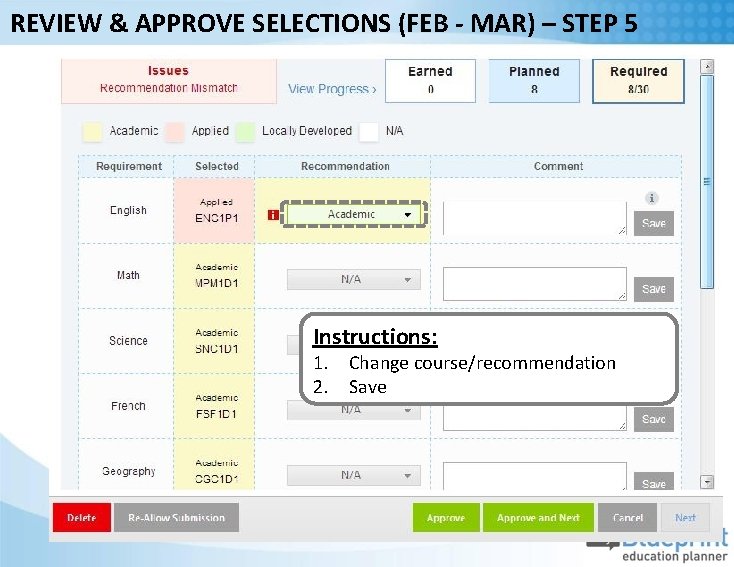
REVIEW & APPROVE SELECTIONS (FEB - MAR) – STEP 5 Instructions: 1. Change course/recommendation 2. Save
EXPORT REQUESTS & IMPORT TO TRILLIUM (MAR. 3) Export Student Selections from my. Blueprint Import Student Selections to Trillium
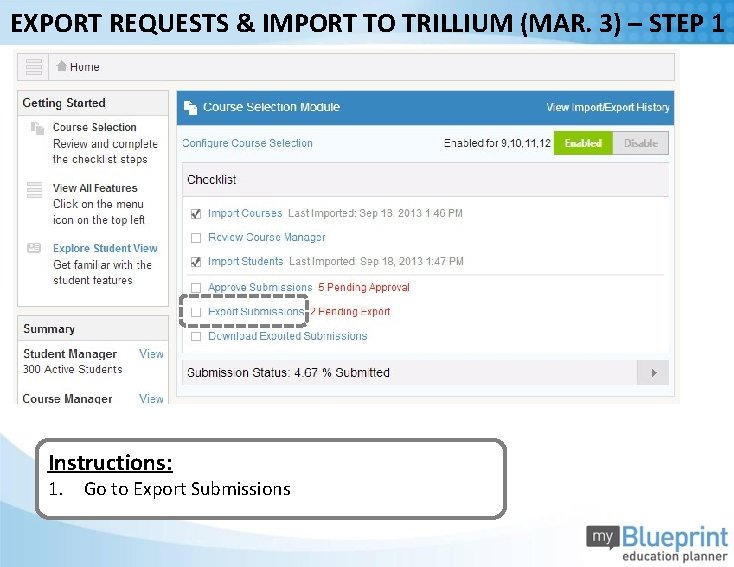
EXPORT REQUESTS & IMPORT TO TRILLIUM (MAR. 3) – STEP 1 Instructions: 1. Go to Export Submissions
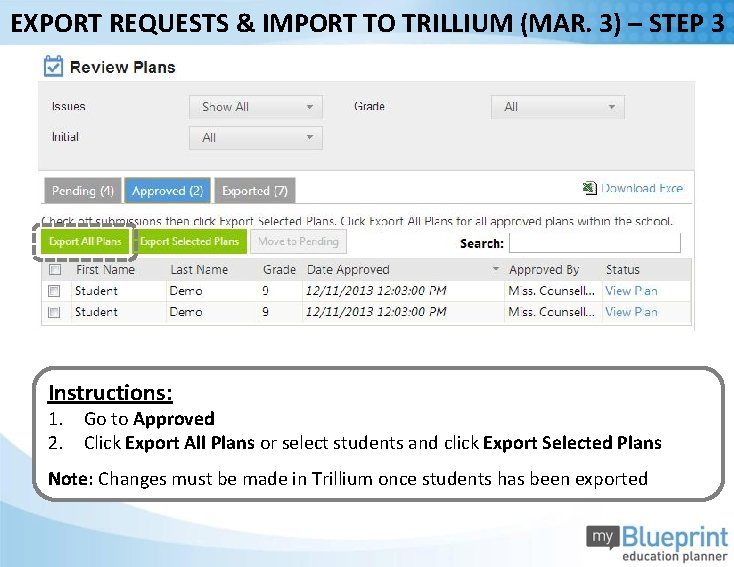
EXPORT REQUESTS & IMPORT TO TRILLIUM (MAR. 3) – STEP 3 Instructions: 1. Go to Approved 2. Click Export All Plans or select students and click Export Selected Plans Note: Changes must be made in Trillium once students has been exported
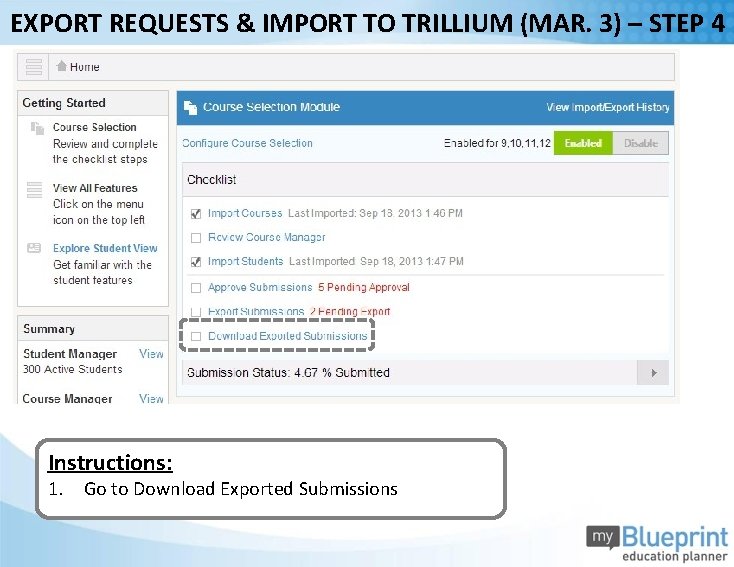
EXPORT REQUESTS & IMPORT TO TRILLIUM (MAR. 3) – STEP 4 Instructions: 1. Go to Download Exported Submissions
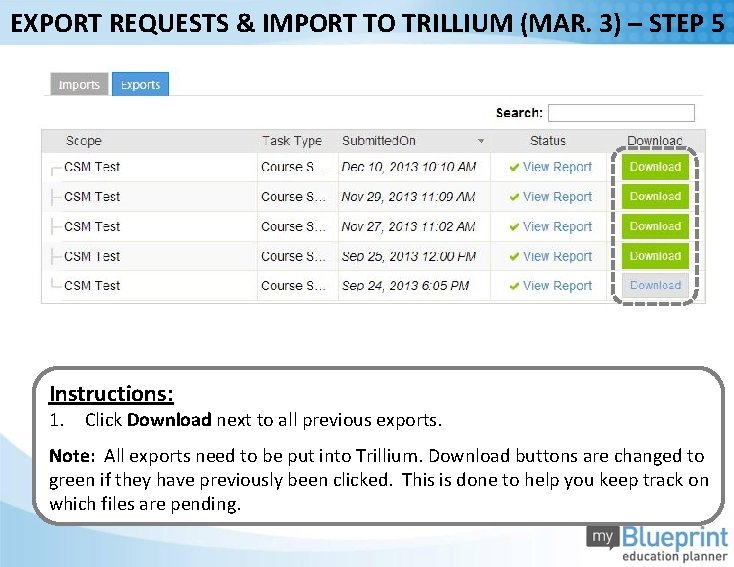
EXPORT REQUESTS & IMPORT TO TRILLIUM (MAR. 3) – STEP 5 Instructions: 1. Click Download next to all previous exports. Note: All exports need to be put into Trillium. Download buttons are changed to green if they have previously been clicked. This is done to help you keep track on which files are pending.

WWW. MYBLUEPRINT. CA/RESOURCES www. my. Blueprint. ca/tdsb help@my. Blueprint. ca 1 -888 -901 -5505
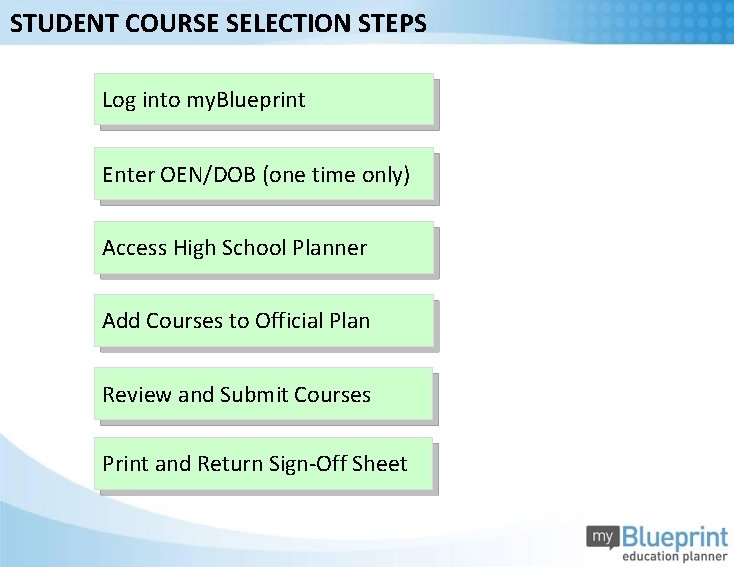
STUDENT COURSE SELECTION STEPS Log into my. Blueprint Enter OEN/DOB (one time only) Access High School Planner Add Courses to Official Plan Review and Submit Courses Print and Return Sign-Off Sheet
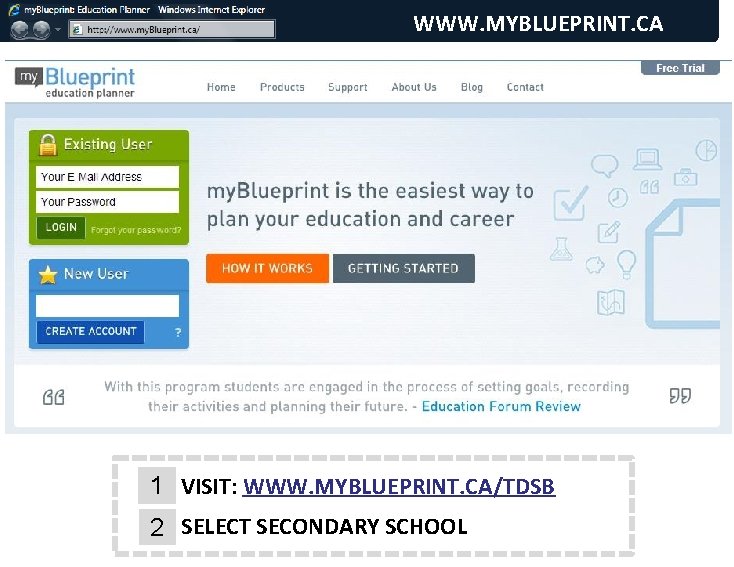
WWW. MYBLUEPRINT. CA 1 VISIT: WWW. MYBLUEPRINT. CA/TDSB 2 SELECT SECONDARY SCHOOL
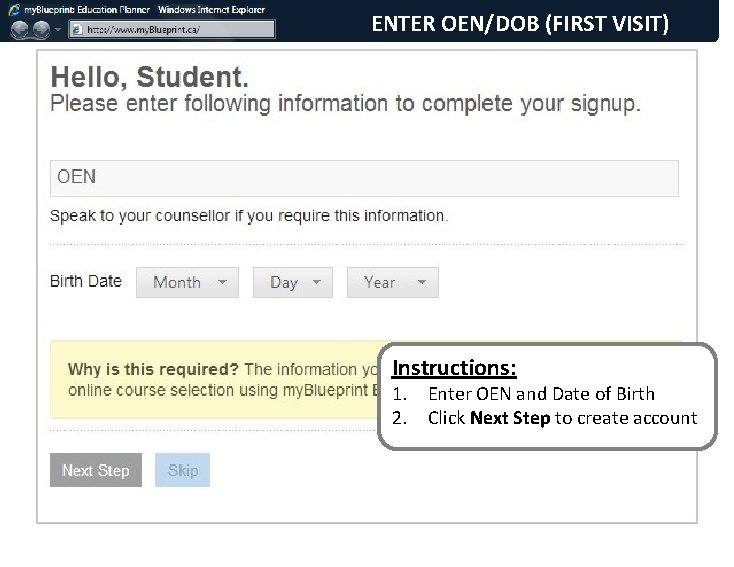
ENTER OEN/DOB (FIRST VISIT) Instructions: 1. Enter OEN and Date of Birth 2. Click Next Step to create account
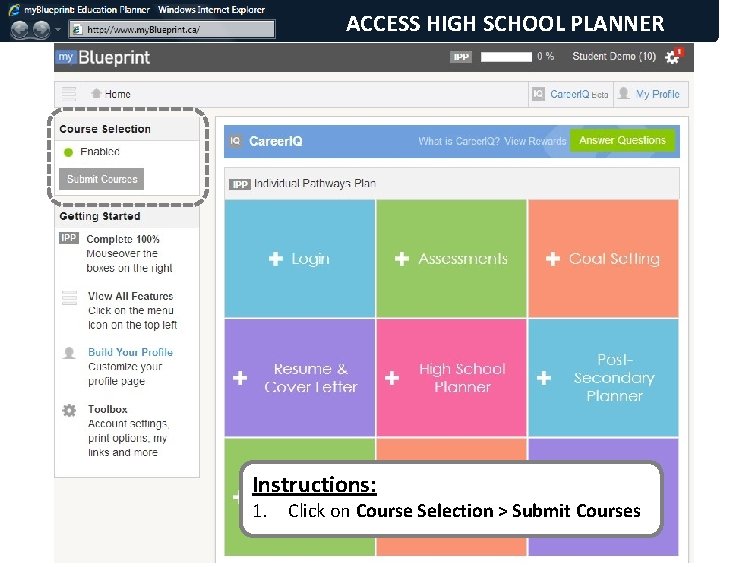
ACCESS HIGH SCHOOL PLANNER Instructions: 1. Click on Course Selection > Submit Courses
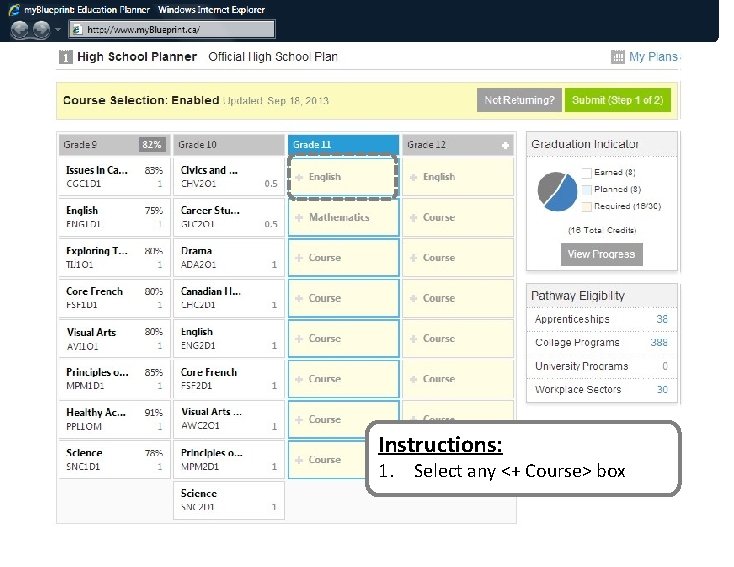
Instructions: 1. Select any <+ Course> box

Instructions: 1. Select a course on left 2. Click Add Course To Plan
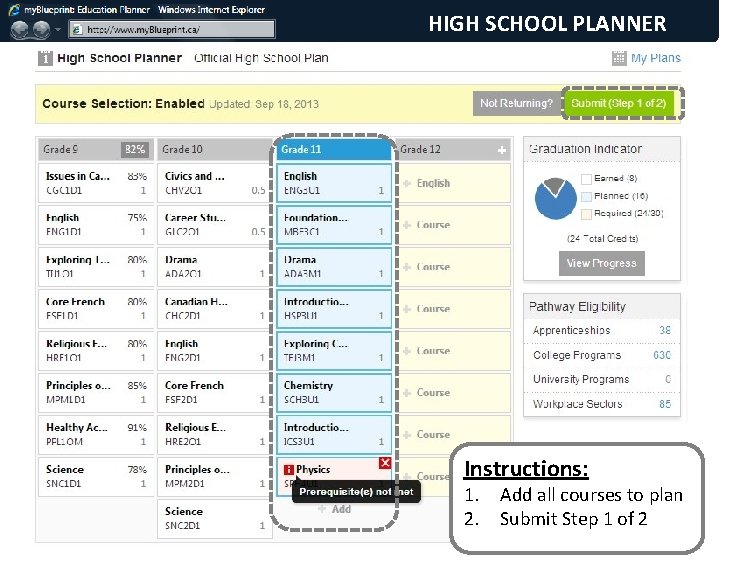
HIGH SCHOOL PLANNER Instructions: 1. Add all courses to plan 2. Submit Step 1 of 2
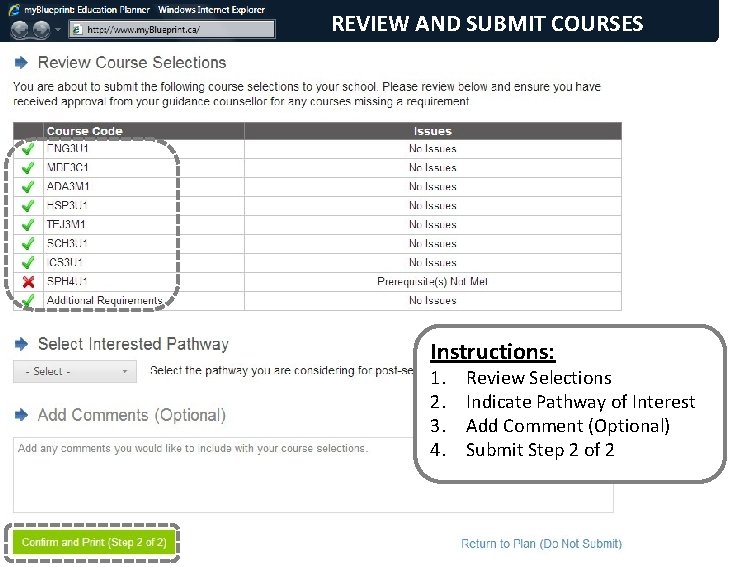
REVIEW AND SUBMIT COURSES Instructions: 1. 2. 3. 4. Review Selections Indicate Pathway of Interest Add Comment (Optional) Submit Step 2 of 2

RETURN SIGN-OFF SHEET
- Slides: 42