
www appusergroup org Civica APP FLARE New User

- Slides: 14
www. appusergroup. org
Civica APP FLARE New User Induction
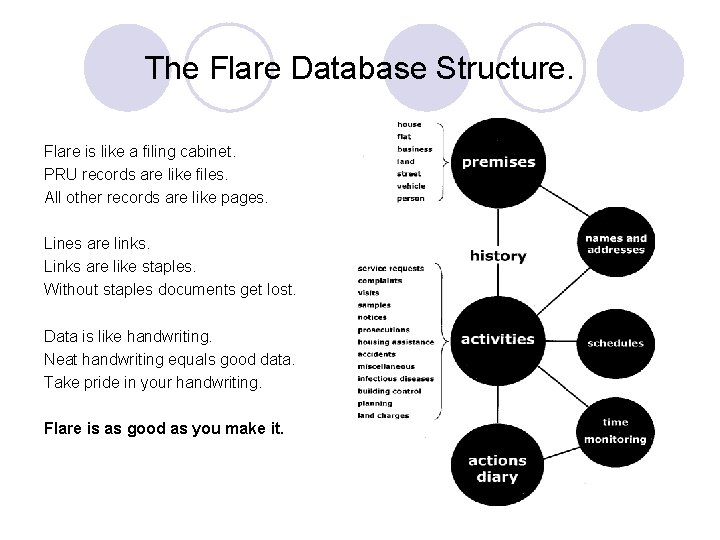
The Flare Database Structure. Flare is like a filing cabinet. PRU records are like files. All other records are like pages. Lines are links. Links are like staples. Without staples documents get lost. Data is like handwriting. Neat handwriting equals good data. Take pride in your handwriting. Flare is as good as you make it.
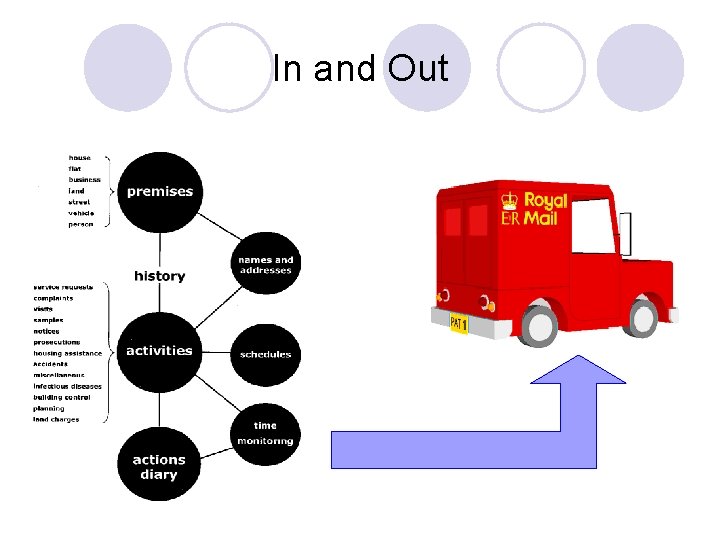
In and Out
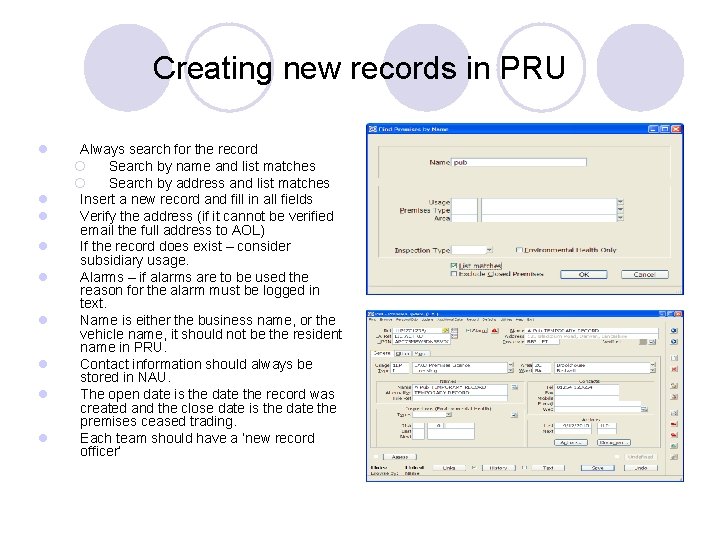
Creating new records in PRU l l l l l Always search for the record ¡ Search by name and list matches ¡ Search by address and list matches Insert a new record and fill in all fields Verify the address (if it cannot be verified email the full address to AOL) If the record does exist – consider subsidiary usage. Alarms – if alarms are to be used the reason for the alarm must be logged in text. Name is either the business name, or the vehicle name, it should not be the resident name in PRU. Contact information should always be stored in NAU. The open date is the date the record was created and the close date is the date the premises ceased trading. Each team should have a ‘new record officer’
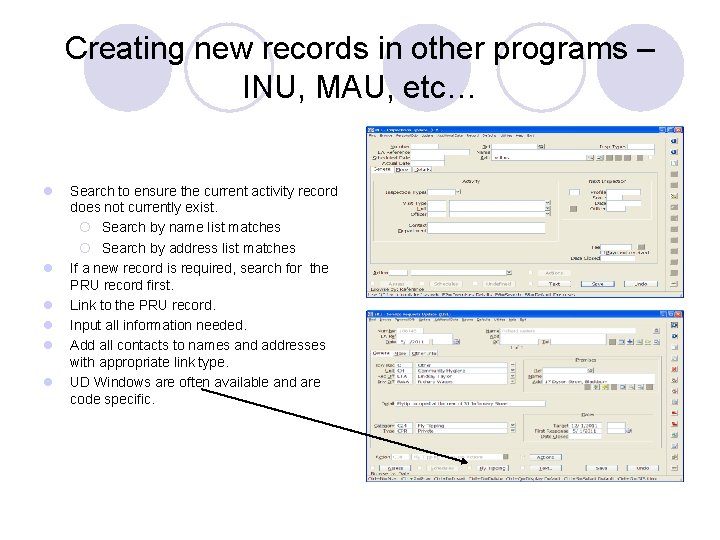
Creating new records in other programs – INU, MAU, etc… l l l Search to ensure the current activity record does not currently exist. ¡ Search by name list matches ¡ Search by address list matches If a new record is required, search for the PRU record first. Link to the PRU record. Input all information needed. Add all contacts to names and addresses with appropriate link type. UD Windows are often available and are code specific.
The use of TEXT l There is more than one text box Text button on the record Text icon in the Action Diary Text icon on the Action Item l All new text logs must be entered at the top of the text record to maintain continuity in a chronological order. l A date and officer stamp must always be used. l REMEMBER all entries must remain professional as this information could be requested through the freedom of information act. The use of text should be considered if: l you take a telephone message regarding a record l you give advice regarding a record l you try to make contact with a person regarding a record l you receive information about a record
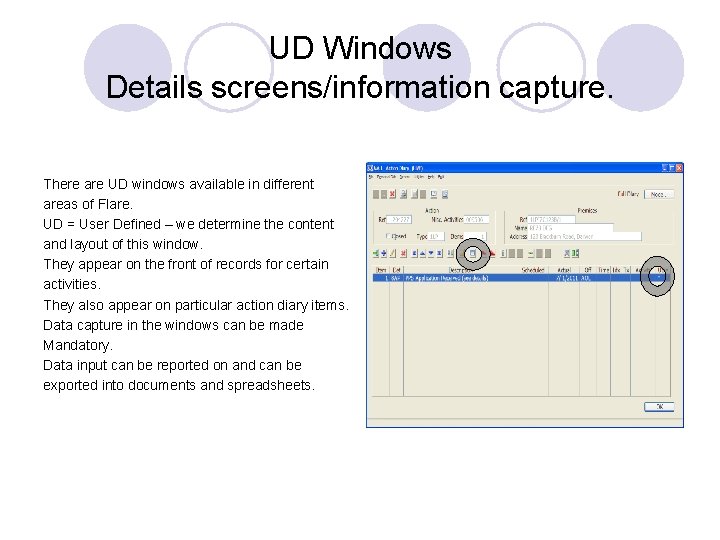
UD Windows Details screens/information capture. There are UD windows available in different areas of Flare. UD = User Defined – we determine the content and layout of this window. They appear on the front of records for certain activities. They also appear on particular action diary items. Data capture in the windows can be made Mandatory. Data input can be reported on and can be exported into documents and spreadsheets.
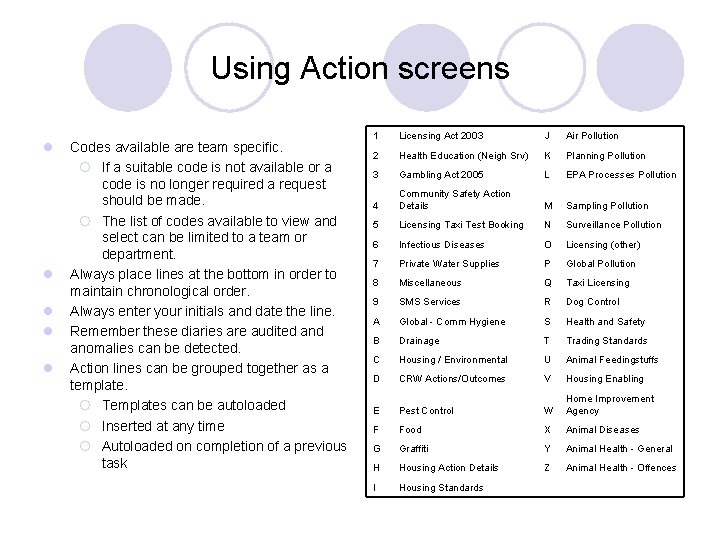
Using Action screens l l l Codes available are team specific. ¡ If a suitable code is not available or a code is no longer required a request should be made. ¡ The list of codes available to view and select can be limited to a team or department. Always place lines at the bottom in order to maintain chronological order. Always enter your initials and date the line. Remember these diaries are audited anomalies can be detected. Action lines can be grouped together as a template. ¡ Templates can be autoloaded ¡ Inserted at any time ¡ Autoloaded on completion of a previous task 1 Licensing Act 2003 J Air Pollution 2 Health Education (Neigh Srv) K Planning Pollution 3 Gambling Act 2005 L EPA Processes Pollution 4 Community Safety Action Details M Sampling Pollution 5 Licensing Taxi Test Booking N Surveillance Pollution 6 Infectious Diseases O Licensing (other) 7 Private Water Supplies P Global Pollution 8 Miscellaneous Q Taxi Licensing 9 SMS Services R Dog Control A Global - Comm Hygiene S Health and Safety B Drainage T Trading Standards C Housing / Environmental U Animal Feedingstuffs D CRW Actions/Outcomes V Housing Enabling E Pest Control W Home Improvement Agency F Food X Animal Diseases G Graffiti Y Animal Health - General H Housing Action Details Z Animal Health - Offences I Housing Standards
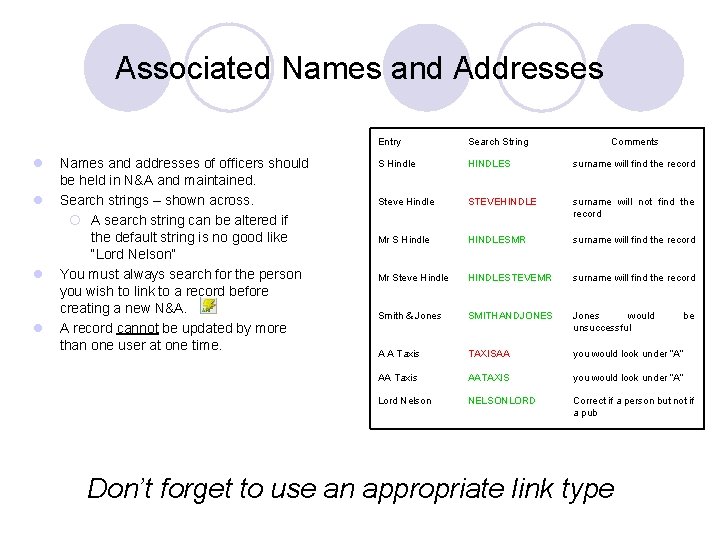
Associated Names and Addresses l l Names and addresses of officers should be held in N&A and maintained. Search strings – shown across. ¡ A search string can be altered if the default string is no good like “Lord Nelson” You must always search for the person you wish to link to a record before creating a new N&A. A record cannot be updated by more than one user at one time. Entry Search String Comments S Hindle HINDLES surname will find the record Steve Hindle STEVEHINDLE surname will not find the record Mr S Hindle HINDLESMR surname will find the record Mr Steve Hindle HINDLESTEVEMR surname will find the record Smith & Jones SMITHANDJONES Jones would unsuccessful A A Taxis TAXISAA you would look under “A” AA Taxis AATAXIS you would look under “A” Lord Nelson NELSONLORD Correct if a person but not if a pub Don’t forget to use an appropriate link type be
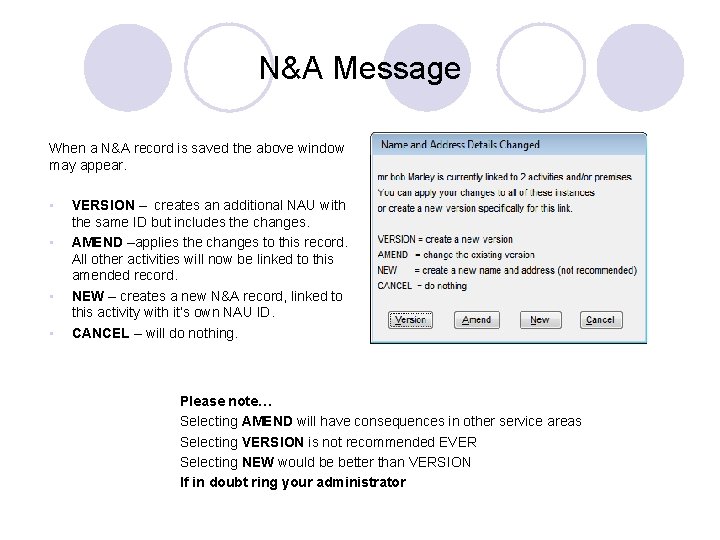
N&A Message When a N&A record is saved the above window may appear. • • VERSION – creates an additional NAU with the same ID but includes the changes. AMEND –applies the changes to this record. All other activities will now be linked to this amended record. NEW – creates a new N&A record, linked to this activity with it’s own NAU ID. CANCEL – will do nothing. Please note… Selecting AMEND will have consequences in other service areas Selecting VERSION is not recommended EVER Selecting NEW would be better than VERSION If in doubt ring your administrator
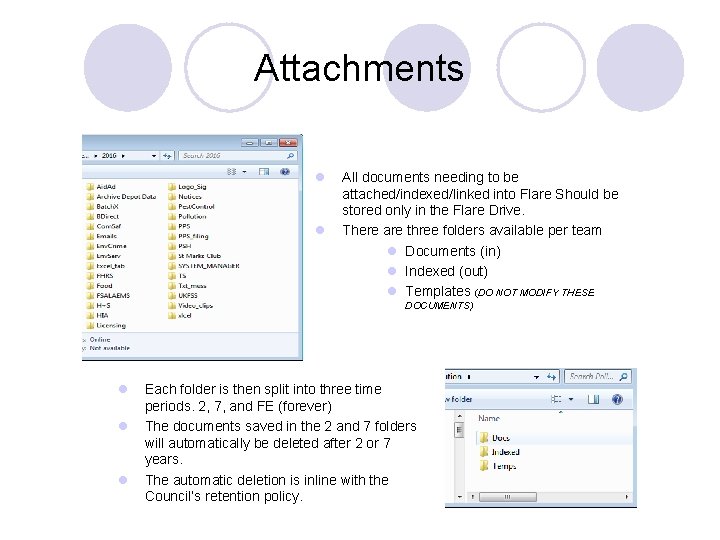
Attachments l l All documents needing to be attached/indexed/linked into Flare Should be stored only in the Flare Drive. There are three folders available per team l Documents (in) l Indexed (out) l Templates (DO NOT MODIFY THESE DOCUMENTS) l l l Each folder is then split into three time periods. 2, 7, and FE (forever) The documents saved in the 2 and 7 folders will automatically be deleted after 2 or 7 years. The automatic deletion is inline with the Council’s retention policy.
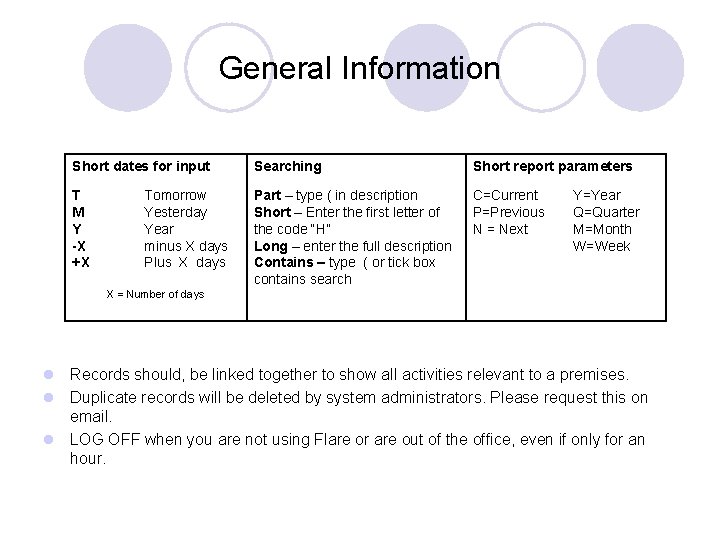
General Information Short dates for input Searching Short report parameters T M Y -X +X Part – type ( in description Short – Enter the first letter of the code “H” Long – enter the full description Contains – type ( or tick box contains search C=Current P=Previous N = Next Tomorrow Yesterday Year minus X days Plus X days Y=Year Q=Quarter M=Month W=Week X = Number of days l Records should, be linked together to show all activities relevant to a premises. l Duplicate records will be deleted by system administrators. Please request this on email. l LOG OFF when you are not using Flare or are out of the office, even if only for an hour.
Order Number #10 1. Enter the area you require SRU/MAU/INU/PCU etc. 2. Create or find the PRU and link it. 3. Input Data into front screen and save the Record – it’s a good idea to make a note of the number! 4. Update the Details Screen if there is one. 5. Add associated names and addresses to NAU with a link type. 6. Create the Action Diary. 7. Load the Action Template. 8. Update Actions Windows where necessary. 9. Add Text if appropriate. 10. Eat CAKE!