
WSM Support Tools Overview WSM Health Check l
- Slides: 17
WSM Support Tools
Overview WSM Health Check l SNAP l Call Tracing l Wjanitor Utility l
WSM Field Support WSN field support is shared by three tiers of support teams: – Tier 1: WLAN enterprise administrator or IT people. – Tier 2: Avaya system support teams. – Tier 3: Motorola system support teams.
WSM Support WSN field problems can be viewed in two categories: l System failure (Hardware or Software) related issues. – Which requires an application restart or FRU replacement. l Call service failure (Drop calls, No service, etc. ) related issues. – Which requires isolating the problem area. Introduce some tools to address the situations. l WHC and SNAP for handling system failure issues. l Call trace for isolating problems.
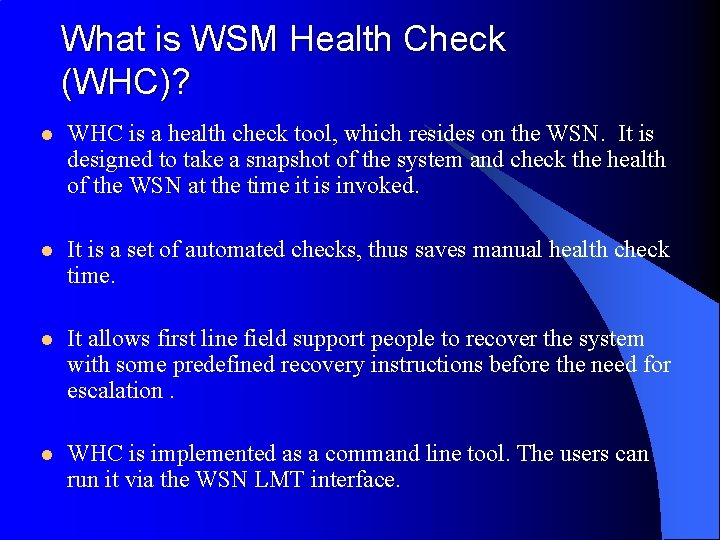
What is WSM Health Check (WHC)? l WHC is a health check tool, which resides on the WSN. It is designed to take a snapshot of the system and check the health of the WSN at the time it is invoked. l It is a set of automated checks, thus saves manual health check time. l It allows first line field support people to recover the system with some predefined recovery instructions before the need for escalation. l WHC is implemented as a command line tool. The users can run it via the WSN LMT interface.
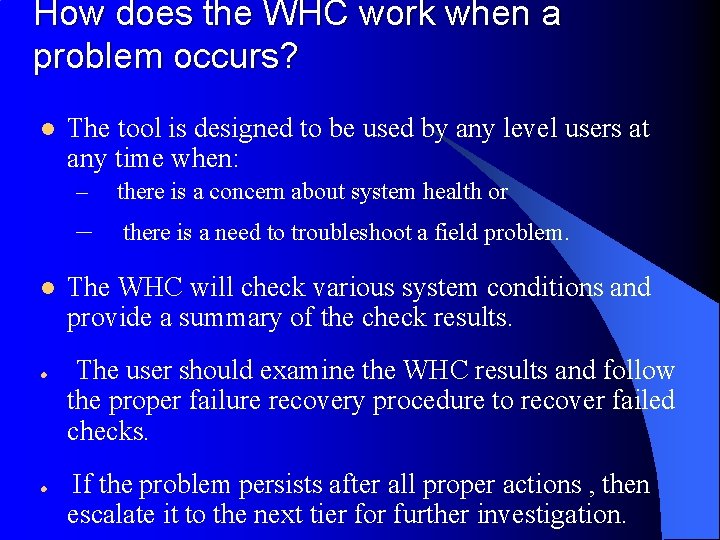
How does the WHC work when a problem occurs? l l The tool is designed to be used by any level users at any time when: – there is a concern about system health or – there is a need to troubleshoot a field problem. The WHC will check various system conditions and provide a summary of the check results. The user should examine the WHC results and follow the proper failure recovery procedure to recover failed checks. If the problem persists after all proper actions , then escalate it to the next tier for further investigation.
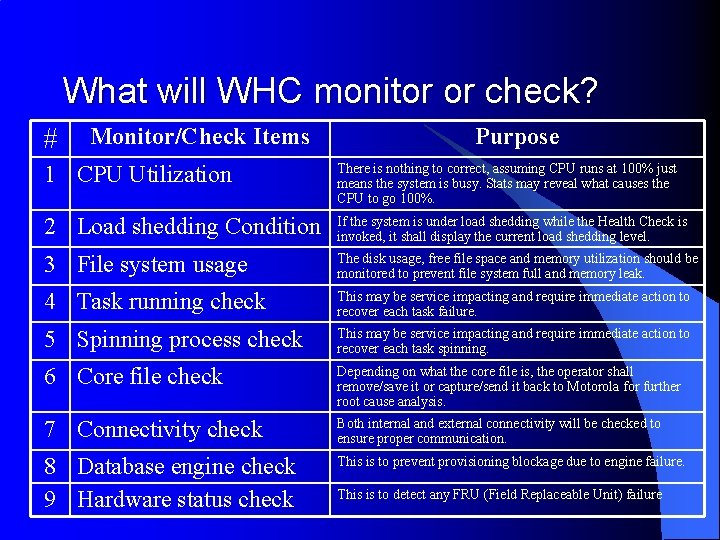
What will WHC monitor or check? # Monitor/Check Items Purpose 1 CPU Utilization There is nothing to correct, assuming CPU runs at 100% just means the system is busy. Stats may reveal what causes the CPU to go 100%. 2 Load shedding Condition If the system is under load shedding while the Health Check is invoked, it shall display the current load shedding level. 3 File system usage The disk usage, free file space and memory utilization should be monitored to prevent file system full and memory leak. 4 Task running check This may be service impacting and require immediate action to recover each task failure. 5 Spinning process check This may be service impacting and require immediate action to recover each task spinning. 6 Core file check Depending on what the core file is, the operator shall remove/save it or capture/send it back to Motorola for further root cause analysis. 7 Connectivity check Both internal and external connectivity will be checked to ensure proper communication. 8 Database engine check 9 Hardware status check This is to prevent provisioning blockage due to engine failure. This is to detect any FRU (Field Replaceable Unit) failure
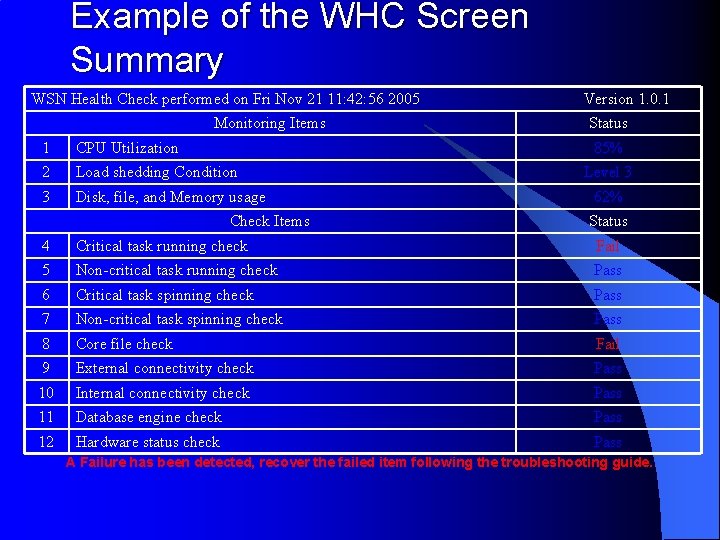
Example of the WHC Screen Summary WSN Health Check performed on Fri Nov 21 11: 42: 56 2005 Monitoring Items 1 CPU Utilization 2 Load shedding Condition 3 Disk, file, and Memory usage Version 1. 0. 1 Status 85% Check Items Level 3 62% Status 4 Critical task running check Fail 5 Non-critical task running check Pass 6 Critical task spinning check Pass 7 Non-critical task spinning check Pass 8 Core file check Fail 9 External connectivity check Pass 10 Internal connectivity check Pass 11 Database engine check Pass 12 Hardware status check Pass A Failure has been detected, recover the failed item following the troubleshooting guide.
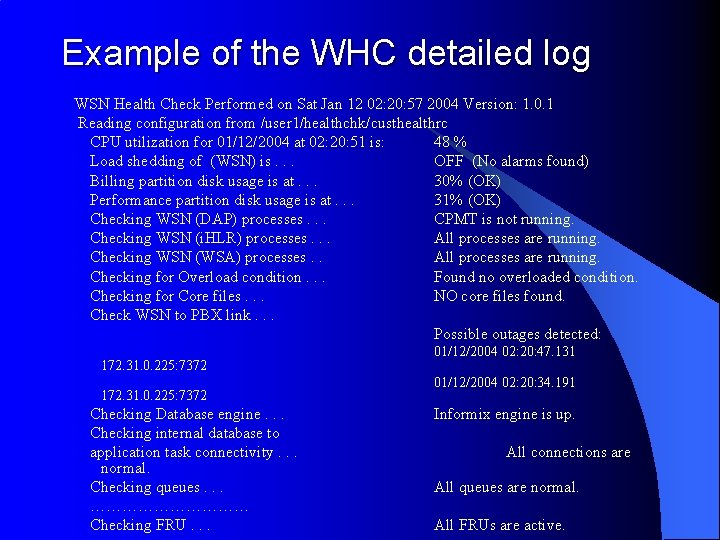
Example of the WHC detailed log WSN Health Check Performed on Sat Jan 12 02: 20: 57 2004 Version: 1. 0. 1 Reading configuration from /user 1/healthchk/custhealthrc CPU utilization for 01/12/2004 at 02: 20: 51 is: 48 % Load shedding of (WSN) is. . . OFF (No alarms found) Billing partition disk usage is at. . . 30% (OK) Performance partition disk usage is at. . . 31% (OK) Checking WSN (DAP) processes. . . CPMT is not running. Checking WSN (i. HLR) processes. . . All processes are running. Checking WSN (WSA) processes. . All processes are running. Checking for Overload condition. . . Found no overloaded condition. Checking for Core files. . . NO core files found. Check WSN to PBX link. . . Possible outages detected: 172. 31. 0. 225: 7372 Checking Database engine. . . Checking internal database to application task connectivity. . . normal. Checking queues. . . …………… Checking FRU. . . 01/12/2004 02: 20: 47. 131 01/12/2004 02: 20: 34. 191 Informix engine is up. All connections are All queues are normal. All FRUs are active.
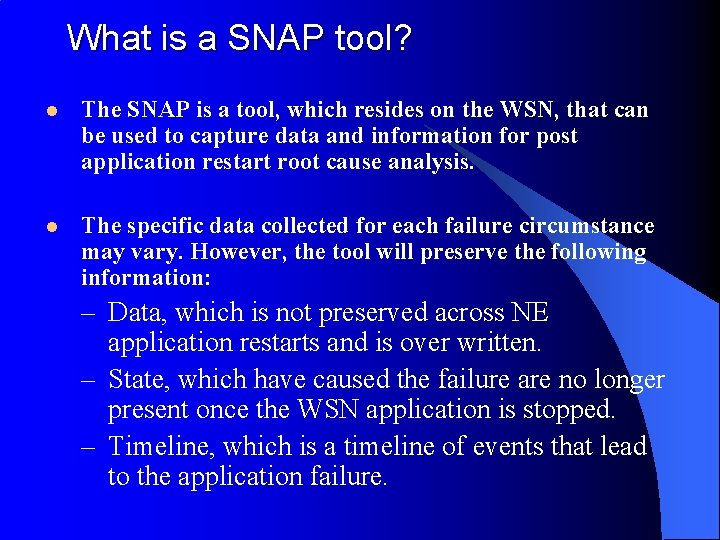
What is a SNAP tool? l The SNAP is a tool, which resides on the WSN, that can be used to capture data and information for post application restart root cause analysis. l The specific data collected for each failure circumstance may vary. However, the tool will preserve the following information: – Data, which is not preserved across NE application restarts and is over written. – State, which have caused the failure are no longer present once the WSN application is stopped. – Timeline, which is a timeline of events that lead to the application failure.
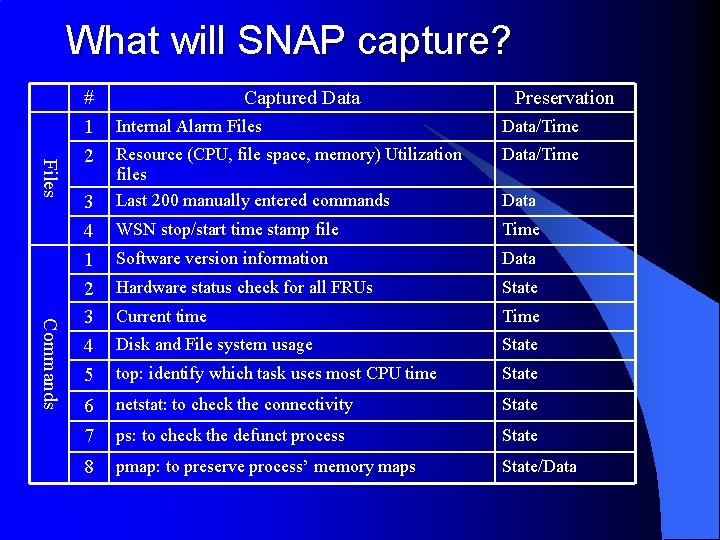
What will SNAP capture? Files # 1 2 Captured Data Preservation Commands Internal Alarm Files Data/Time Resource (CPU, file space, memory) Utilization files Last 200 manually entered commands Data/Time WSN stop/start time stamp file Time Software version information Data Hardware status check for all FRUs State Current time Time Disk and File system usage State top: identify which task uses most CPU time State 6 netstat: to check the connectivity State 7 ps: to check the defunct process State 8 pmap: to preserve process’ memory maps State/Data 3 4 1 2 3 4 5 Data
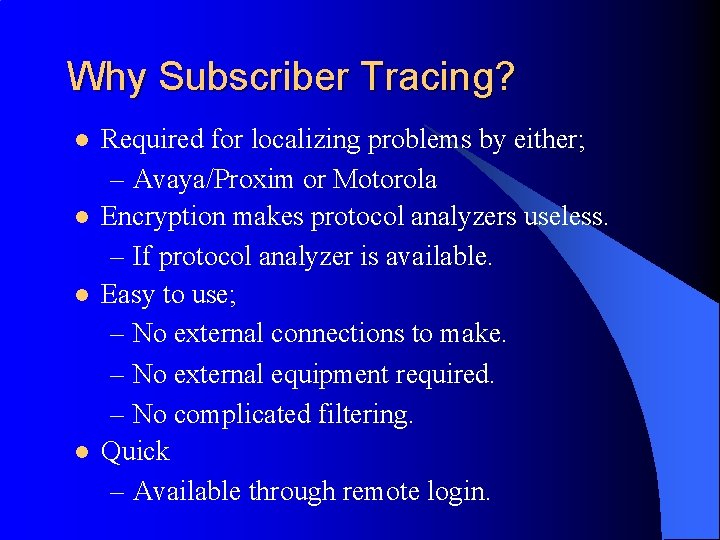
Why Subscriber Tracing? l l Required for localizing problems by either; – Avaya/Proxim or Motorola Encryption makes protocol analyzers useless. – If protocol analyzer is available. Easy to use; – No external connections to make. – No external equipment required. – No complicated filtering. Quick – Available through remote login.
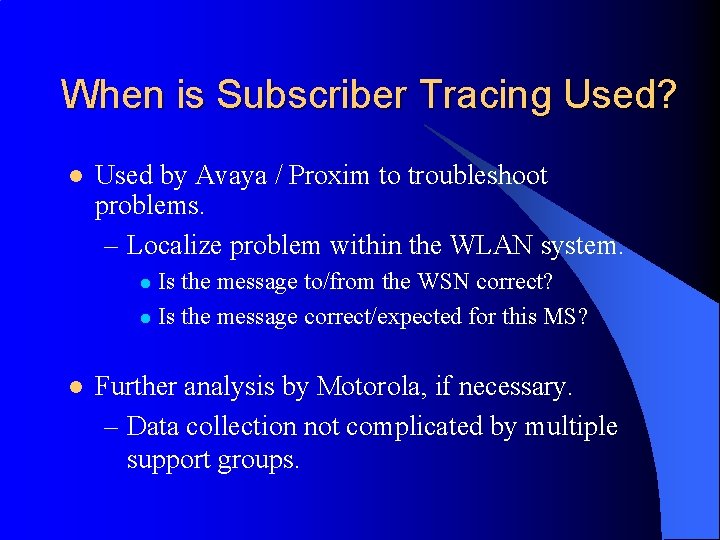
When is Subscriber Tracing Used? l Used by Avaya / Proxim to troubleshoot problems. – Localize problem within the WLAN system. Is the message to/from the WSN correct? l Is the message correct/expected for this MS? l l Further analysis by Motorola, if necessary. – Data collection not complicated by multiple support groups.
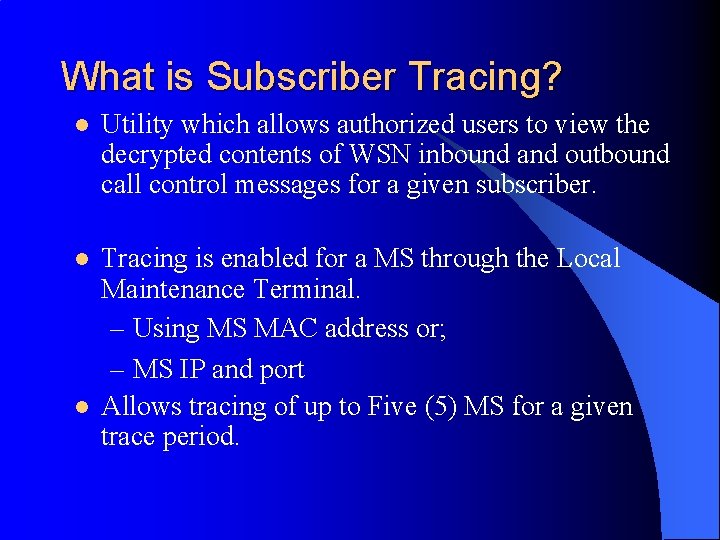
What is Subscriber Tracing? l Utility which allows authorized users to view the decrypted contents of WSN inbound and outbound call control messages for a given subscriber. l Tracing is enabled for a MS through the Local Maintenance Terminal. – Using MS MAC address or; – MS IP and port Allows tracing of up to Five (5) MS for a given trace period. l
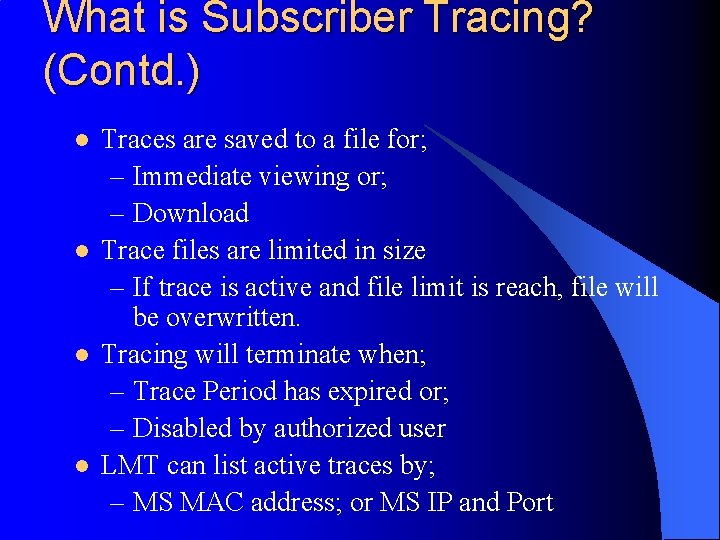
What is Subscriber Tracing? (Contd. ) l l Traces are saved to a file for; – Immediate viewing or; – Download Trace files are limited in size – If trace is active and file limit is reach, file will be overwritten. Tracing will terminate when; – Trace Period has expired or; – Disabled by authorized user LMT can list active traces by; – MS MAC address; or MS IP and Port
Wjanitor Utility The wjanitor utility is a menu-based utility that permits a user to change WSM system parameters. l Check RPM Status l
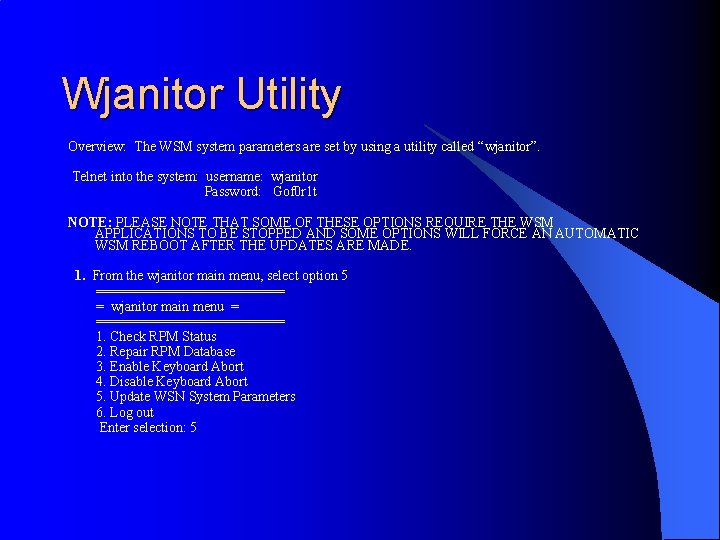
Wjanitor Utility Overview: The WSM system parameters are set by using a utility called “wjanitor”. Telnet into the system: username: wjanitor Password: Gof 0 r 1 t NOTE: PLEASE NOTE THAT SOME OF THESE OPTIONS REQUIRE THE WSM APPLICATIONS TO BE STOPPED AND SOME OPTIONS WILL FORCE AN AUTOMATIC WSM REBOOT AFTER THE UPDATES ARE MADE. 1. From the wjanitor main menu, select option 5 ============ = wjanitor main menu = ============ 1. Check RPM Status 2. Repair RPM Database 3. Enable Keyboard Abort 4. Disable Keyboard Abort 5. Update WSN System Parameters 6. Log out Enter selection: 5