
Writing Shell Scripts part 1 CSE 2031 Fall
- Slides: 31
Writing Shell Scripts ─ part 1 CSE 2031 Fall 2010 12/12/2021 1
What Is a Shell? • A program that interprets your request to run other programs • Most common Unix shells: – – Bourne shell (sh) C shell (csh) Korn shell (ksh) Bourne-again shell (bash) • In this course we focus on Bourne shell (sh). 2
The Bourne Shell l A high level programming language l Processes groups of commands stored in files called scripts l Includes ¡variables ¡control structures ¡processes ¡signals 3
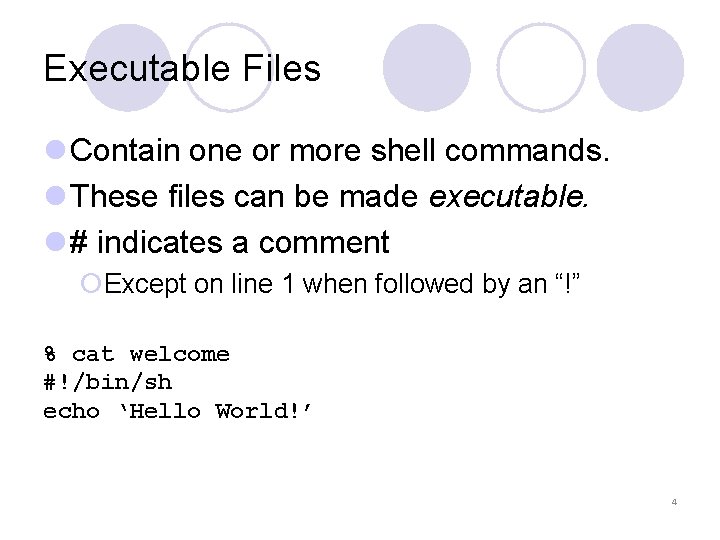
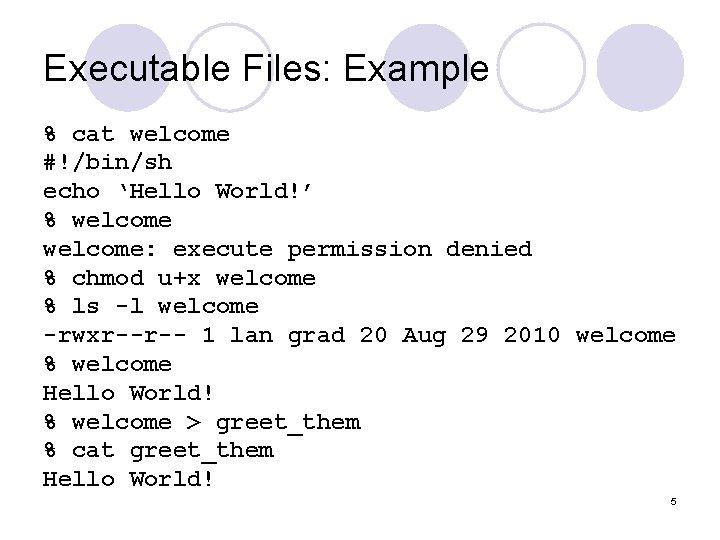
Executable Files l Contain one or more shell commands. l These files can be made executable. l # indicates a comment ¡Except on line 1 when followed by an “!” % cat welcome #!/bin/sh echo ‘Hello World!’ 4
Executable Files: Example % cat welcome #!/bin/sh echo ‘Hello World!’ % welcome: execute permission denied % chmod u+x welcome % ls -l welcome -rwxr--r-- 1 lan grad 20 Aug 29 2010 welcome % welcome Hello World! % welcome > greet_them % cat greet_them Hello World! 5
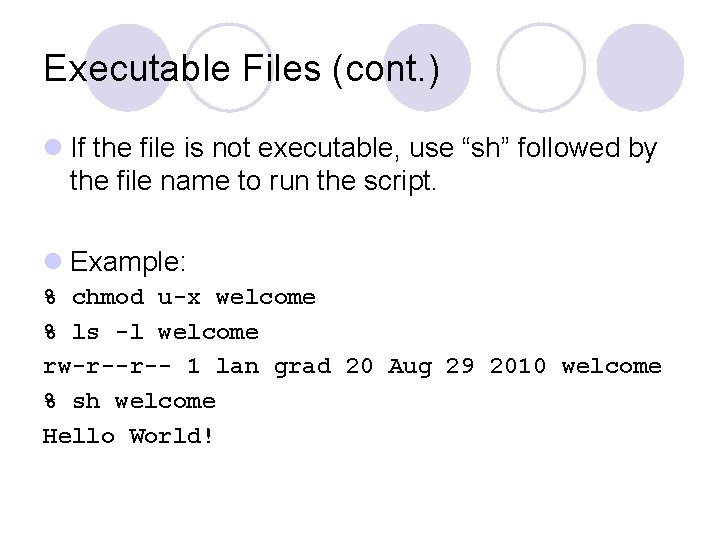
Executable Files (cont. ) l If the file is not executable, use “sh” followed by the file name to run the script. l Example: % chmod u-x welcome % ls -l welcome rw-r--r-- 1 lan grad 20 Aug 29 2010 welcome % sh welcome Hello World!
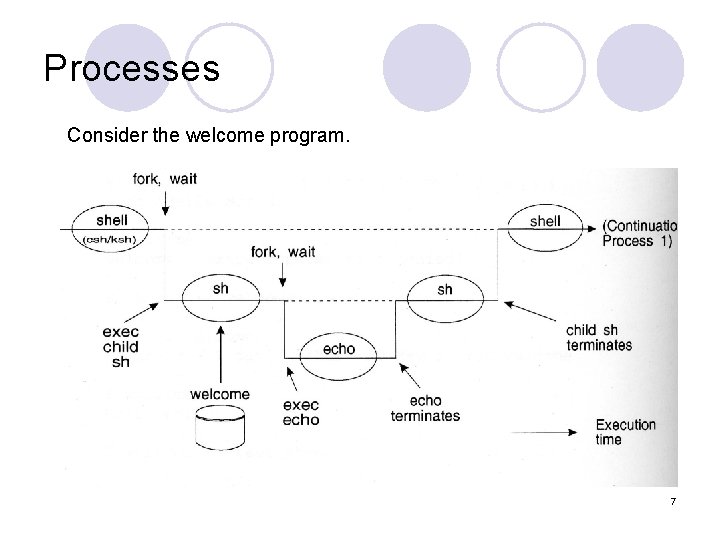
Processes Consider the welcome program. 7
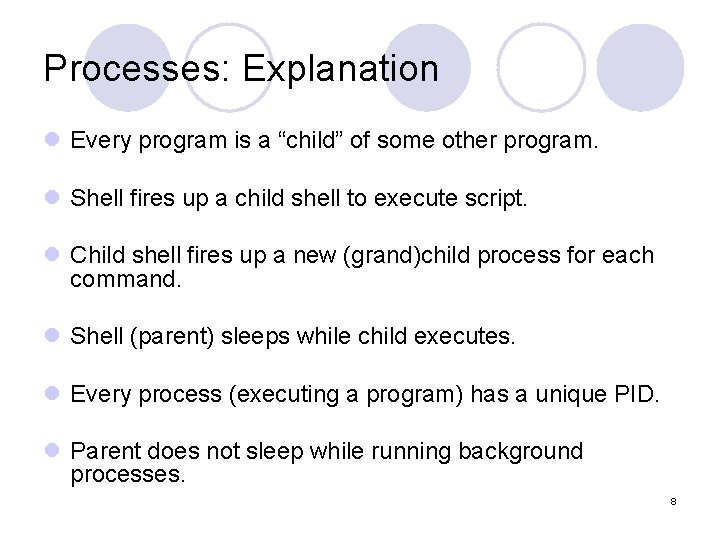
Processes: Explanation l Every program is a “child” of some other program. l Shell fires up a child shell to execute script. l Child shell fires up a new (grand)child process for each command. l Shell (parent) sleeps while child executes. l Every process (executing a program) has a unique PID. l Parent does not sleep while running background processes. 8
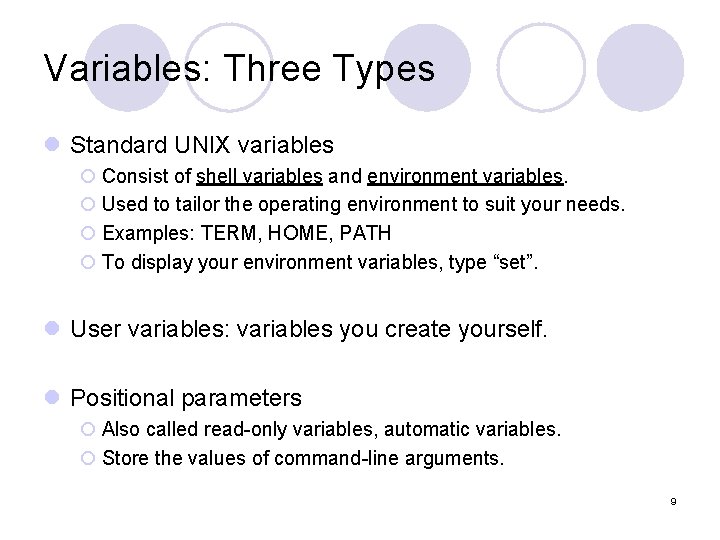
Variables: Three Types l Standard UNIX variables ¡ Consist of shell variables and environment variables. ¡ Used to tailor the operating environment to suit your needs. ¡ Examples: TERM, HOME, PATH ¡ To display your environment variables, type “set”. l User variables: variables you create yourself. l Positional parameters ¡ Also called read-only variables, automatic variables. ¡ Store the values of command-line arguments. 9
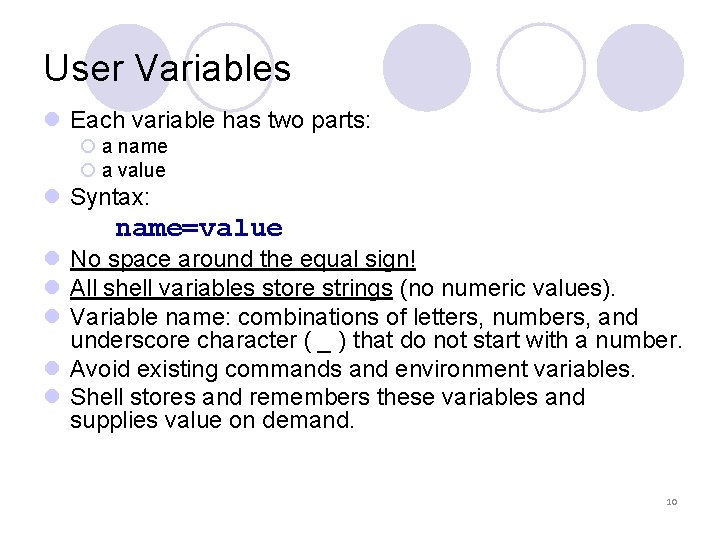
User Variables l Each variable has two parts: ¡ a name ¡ a value l Syntax: name=value l No space around the equal sign! l All shell variables store strings (no numeric values). l Variable name: combinations of letters, numbers, and underscore character ( _ ) that do not start with a number. l Avoid existing commands and environment variables. l Shell stores and remembers these variables and supplies value on demand. 10
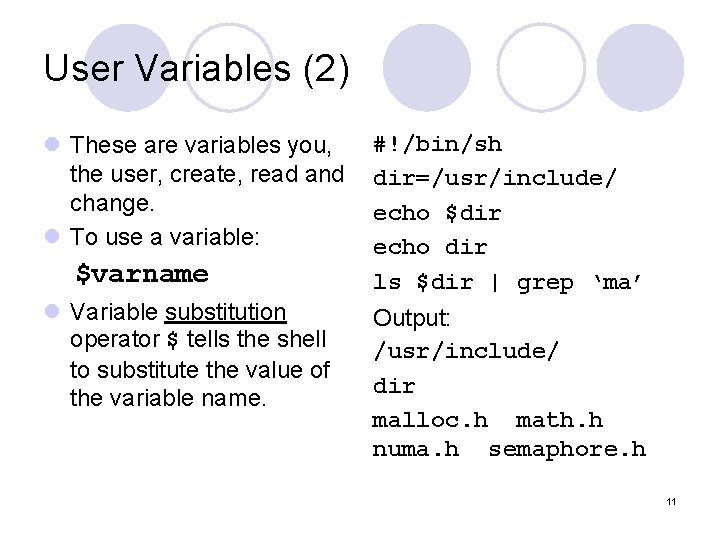
User Variables (2) l These are variables you, the user, create, read and change. l To use a variable: $varname l Variable substitution operator $ tells the shell to substitute the value of the variable name. #!/bin/sh dir=/usr/include/ echo $dir echo dir ls $dir | grep ‘ma’ Output: /usr/include/ dir malloc. h math. h numa. h semaphore. h 11
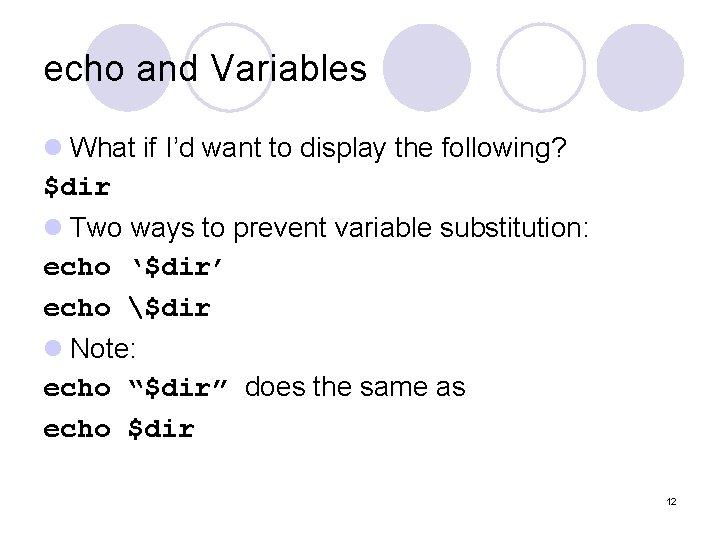
echo and Variables l What if I’d want to display the following? $dir l Two ways to prevent variable substitution: echo ‘$dir’ echo $dir l Note: echo “$dir” does the same as echo $dir 12
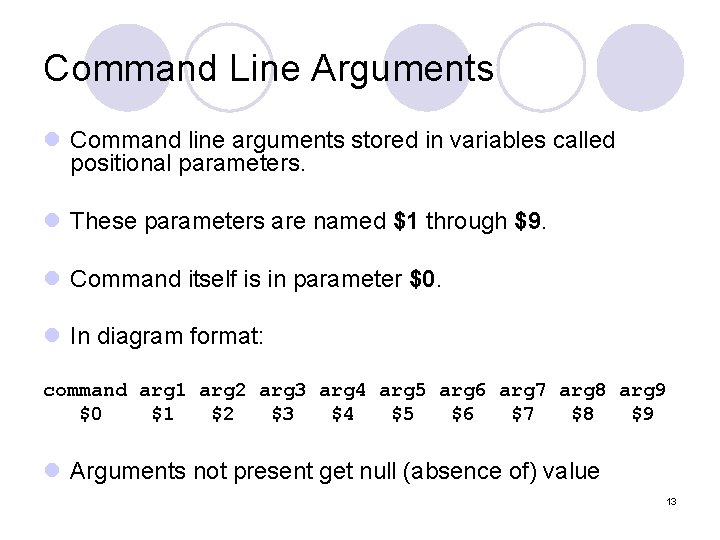
Command Line Arguments l Command line arguments stored in variables called positional parameters. l These parameters are named $1 through $9. l Command itself is in parameter $0. l In diagram format: command arg 1 arg 2 arg 3 arg 4 arg 5 arg 6 arg 7 arg 8 arg 9 $0 $1 $2 $3 $4 $5 $6 $7 $8 $9 l Arguments not present get null (absence of) value 13
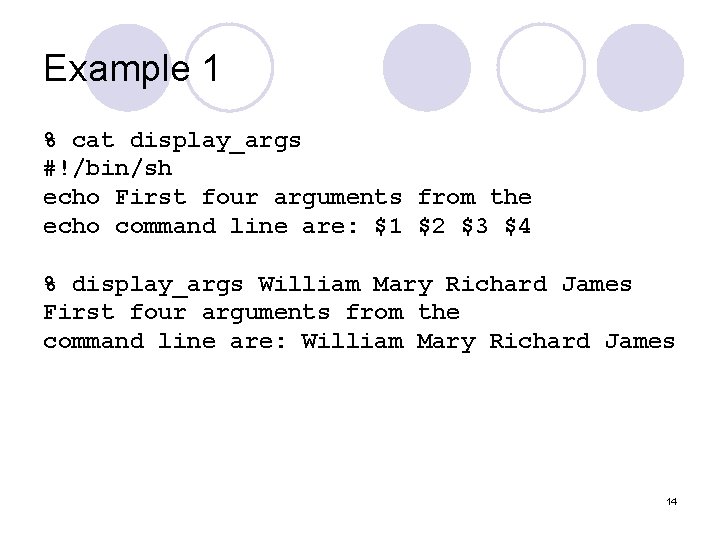
Example 1 % cat display_args #!/bin/sh echo First four arguments from the echo command line are: $1 $2 $3 $4 % display_args William Mary Richard James First four arguments from the command line are: William Mary Richard James 14
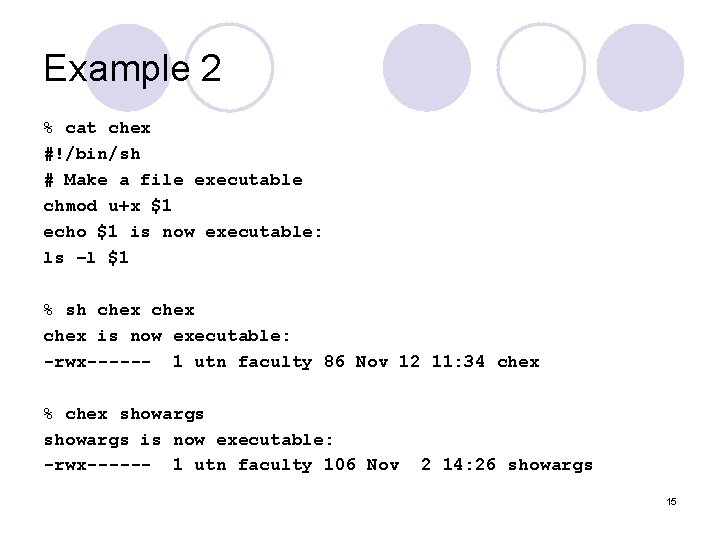
Example 2 % cat chex #!/bin/sh # Make a file executable chmod u+x $1 echo $1 is now executable: ls –l $1 % sh chex is now executable: -rwx------ 1 utn faculty 86 Nov 12 11: 34 chex % chex showargs is now executable: -rwx------ 1 utn faculty 106 Nov 2 14: 26 showargs 15
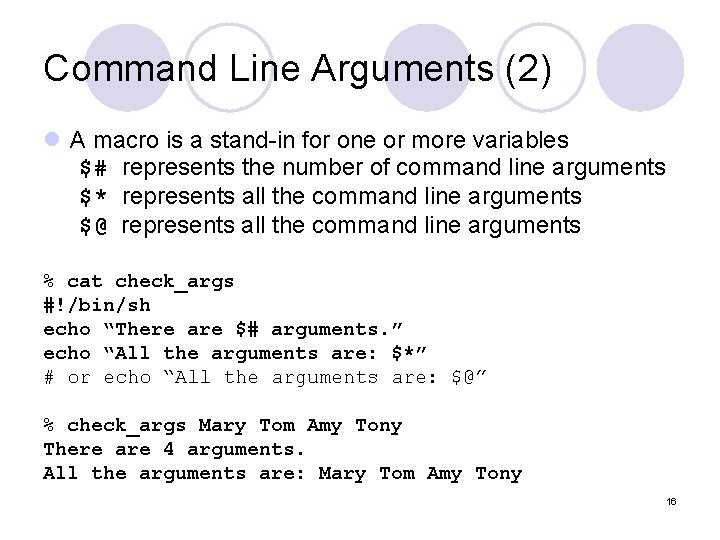
Command Line Arguments (2) l A macro is a stand-in for one or more variables $# represents the number of command line arguments $* represents all the command line arguments $@ represents all the command line arguments % cat check_args #!/bin/sh echo “There are $# arguments. ” echo “All the arguments are: $*” # or echo “All the arguments are: $@” % check_args Mary Tom Amy Tony There are 4 arguments. All the arguments are: Mary Tom Amy Tony 16
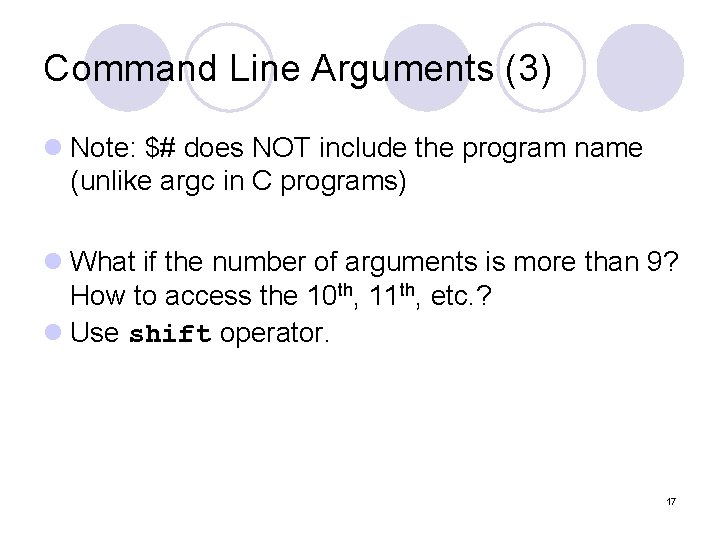
Command Line Arguments (3) l Note: $# does NOT include the program name (unlike argc in C programs) l What if the number of arguments is more than 9? How to access the 10 th, 11 th, etc. ? l Use shift operator. 17
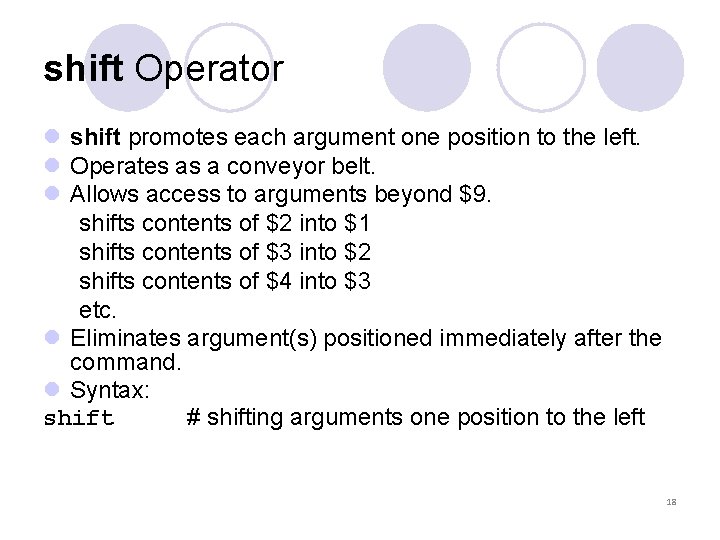
shift Operator l shift promotes each argument one position to the left. l Operates as a conveyor belt. l Allows access to arguments beyond $9. shifts contents of $2 into $1 shifts contents of $3 into $2 shifts contents of $4 into $3 etc. l Eliminates argument(s) positioned immediately after the command. l Syntax: shift # shifting arguments one position to the left 18
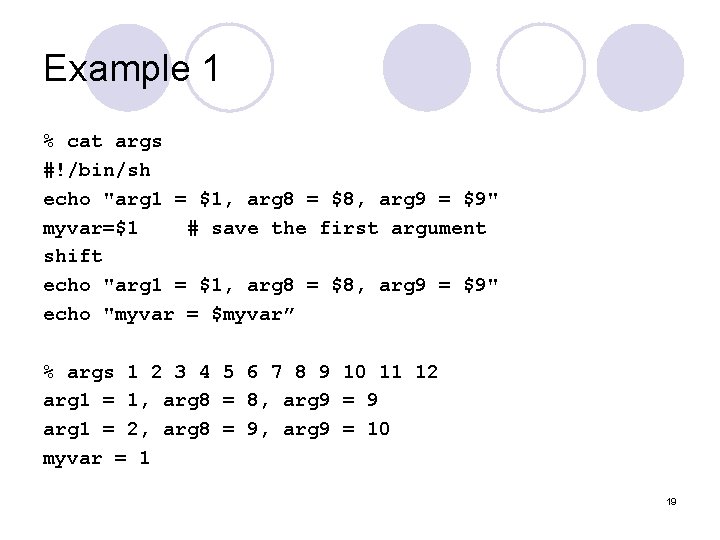
Example 1 % cat args #!/bin/sh echo "arg 1 = $1, arg 8 = $8, arg 9 = $9" myvar=$1 # save the first argument shift echo "arg 1 = $1, arg 8 = $8, arg 9 = $9" echo "myvar = $myvar” % args 1 2 3 4 5 6 7 8 9 10 11 12 arg 1 = 1, arg 8 = 8, arg 9 = 9 arg 1 = 2, arg 8 = 9, arg 9 = 10 myvar = 1 19
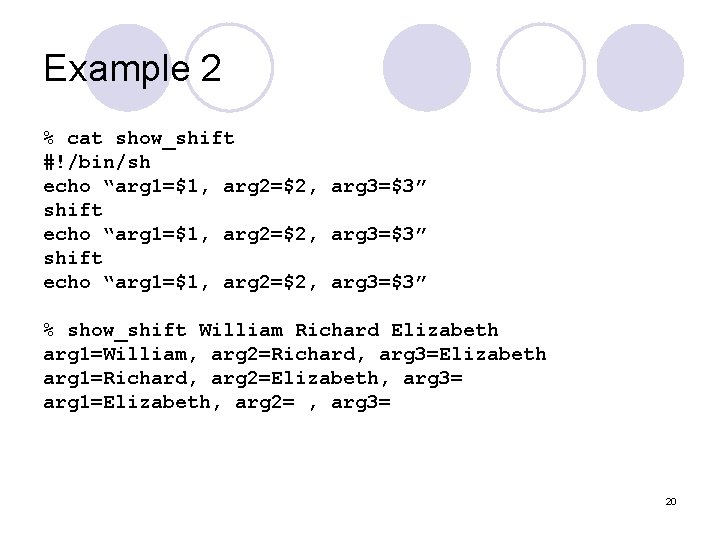
Example 2 % cat show_shift #!/bin/sh echo “arg 1=$1, arg 2=$2, arg 3=$3” shift echo “arg 1=$1, arg 2=$2, arg 3=$3” % show_shift William Richard Elizabeth arg 1=William, arg 2=Richard, arg 3=Elizabeth arg 1=Richard, arg 2=Elizabeth, arg 3= arg 1=Elizabeth, arg 2= , arg 3= 20
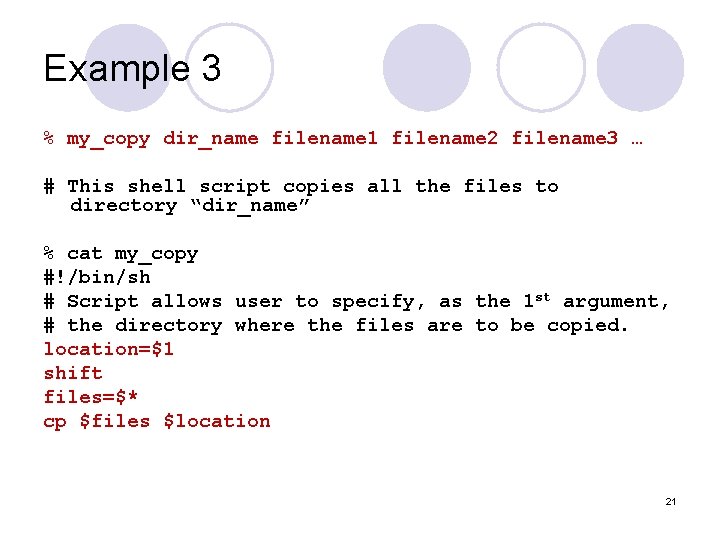
Example 3 % my_copy dir_name filename 1 filename 2 filename 3 … # This shell script copies all the files to directory “dir_name” % cat my_copy #!/bin/sh # Script allows user to specify, as the 1 st argument, # the directory where the files are to be copied. location=$1 shift files=$* cp $files $location 21
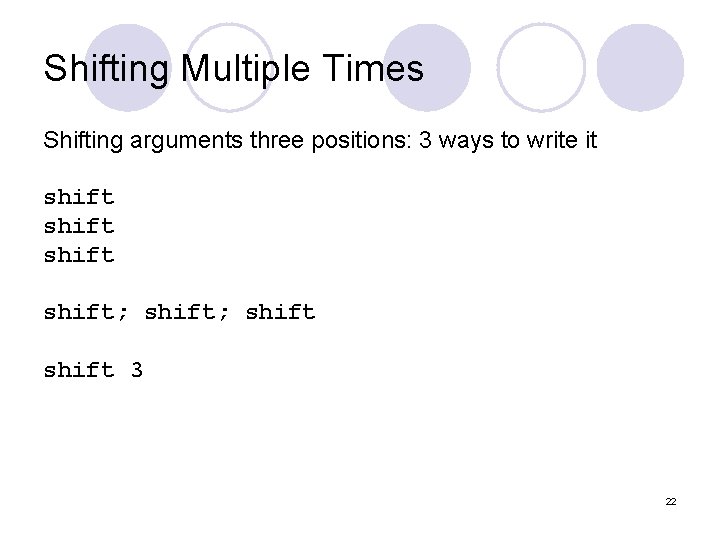
Shifting Multiple Times Shifting arguments three positions: 3 ways to write it shift; shift 3 22
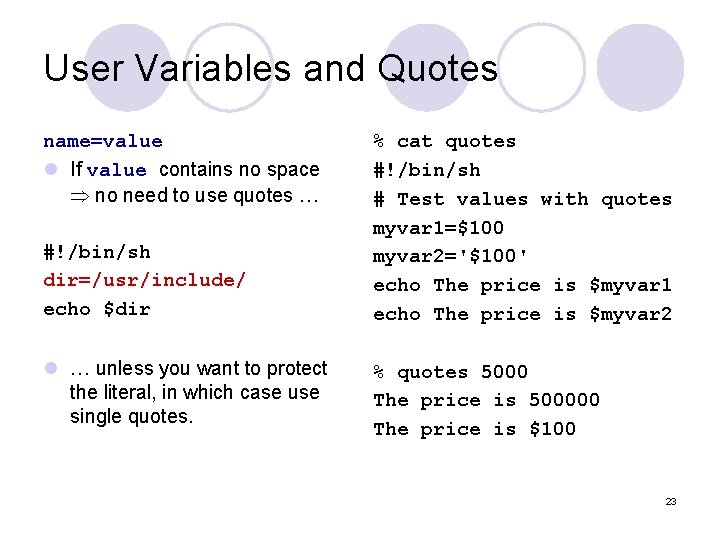
User Variables and Quotes name=value l If value contains no space no need to use quotes … #!/bin/sh dir=/usr/include/ echo $dir l … unless you want to protect the literal, in which case use single quotes. % cat quotes #!/bin/sh # Test values with quotes myvar 1=$100 myvar 2='$100' echo The price is $myvar 1 echo The price is $myvar 2 % quotes 5000 The price is 500000 The price is $100 23
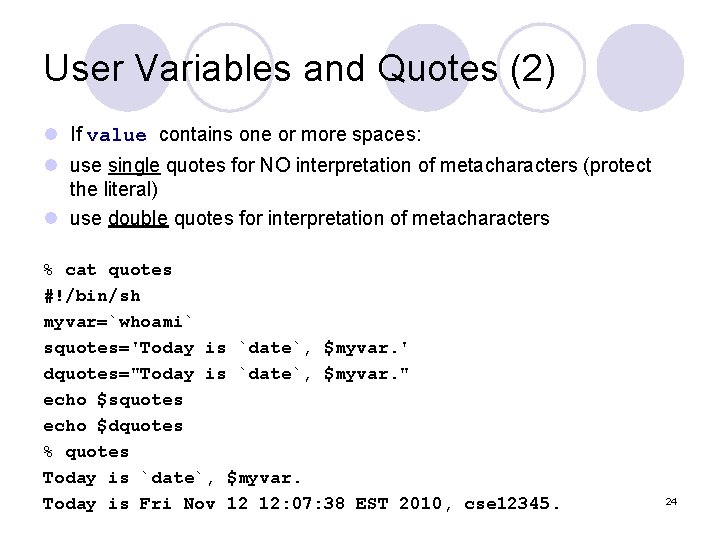
User Variables and Quotes (2) l If value contains one or more spaces: l use single quotes for NO interpretation of metacharacters (protect the literal) l use double quotes for interpretation of metacharacters % cat quotes #!/bin/sh myvar=`whoami` squotes='Today is `date`, $myvar. ' dquotes="Today is `date`, $myvar. " echo $squotes echo $dquotes % quotes Today is `date`, $myvar. Today is Fri Nov 12 12: 07: 38 EST 2010, cse 12345. 24
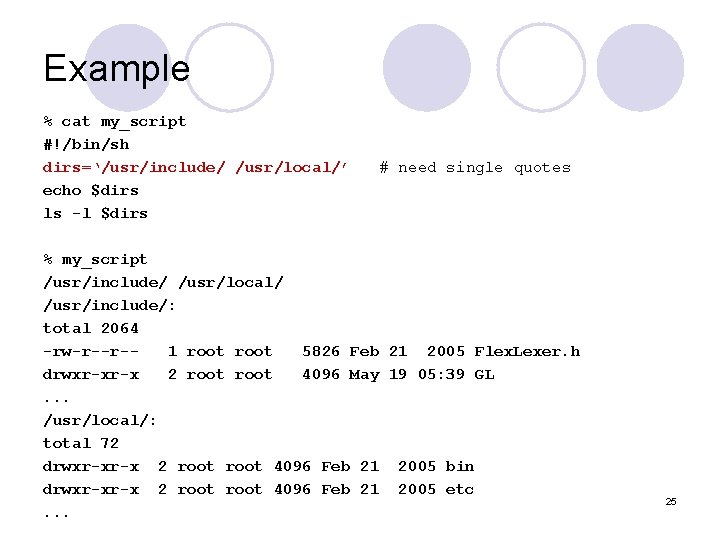
Example % cat my_script #!/bin/sh dirs=‘/usr/include/ /usr/local/’ echo $dirs ls -l $dirs # need single quotes % my_script /usr/include/ /usr/local/ /usr/include/: total 2064 -rw-r--r-1 root 5826 Feb 21 2005 Flex. Lexer. h drwxr-xr-x 2 root 4096 May 19 05: 39 GL. . . /usr/local/: total 72 drwxr-xr-x 2 root 4096 Feb 21 2005 bin drwxr-xr-x 2 root 4096 Feb 21 2005 etc. . . 25
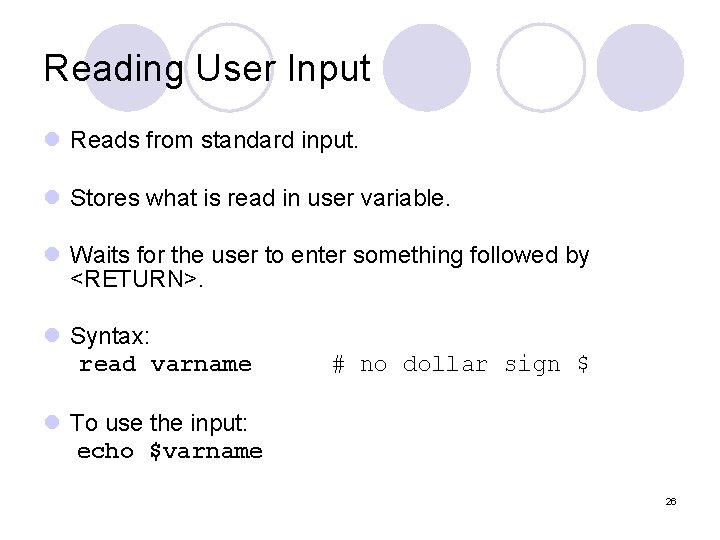
Reading User Input l Reads from standard input. l Stores what is read in user variable. l Waits for the user to enter something followed by <RETURN>. l Syntax: read varname # no dollar sign $ l To use the input: echo $varname 26
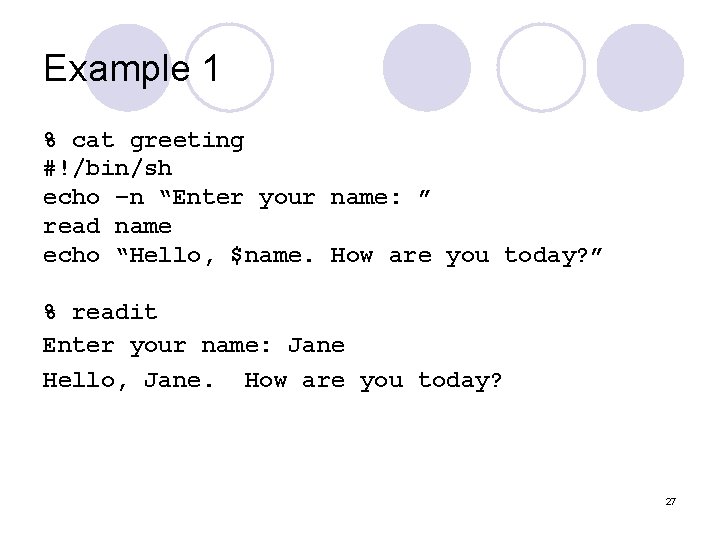
Example 1 % cat greeting #!/bin/sh echo –n “Enter your name: ” read name echo “Hello, $name. How are you today? ” % readit Enter your name: Jane Hello, Jane. How are you today? 27
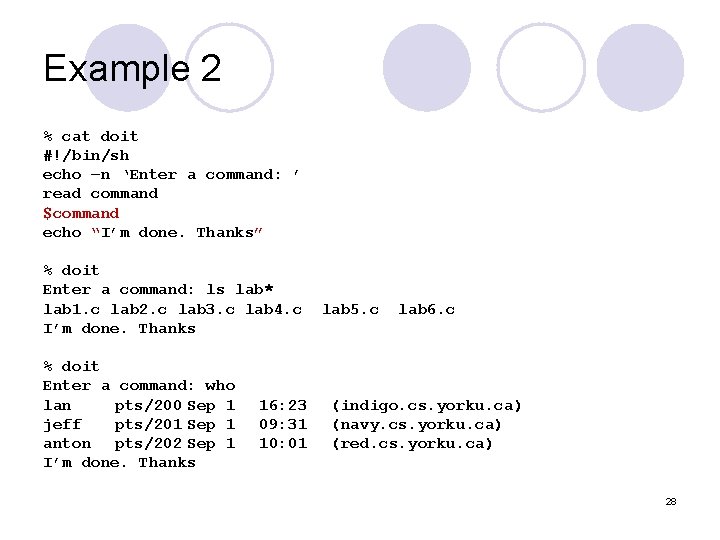
Example 2 % cat doit #!/bin/sh echo –n ‘Enter a command: ’ read command $command echo “I’m done. Thanks” % doit Enter a command: ls lab* lab 1. c lab 2. c lab 3. c lab 4. c I’m done. Thanks % doit Enter a command: who lan pts/200 Sep 1 jeff pts/201 Sep 1 anton pts/202 Sep 1 I’m done. Thanks 16: 23 09: 31 10: 01 lab 5. c lab 6. c (indigo. cs. yorku. ca) (navy. cs. yorku. ca) (red. cs. yorku. ca) 28
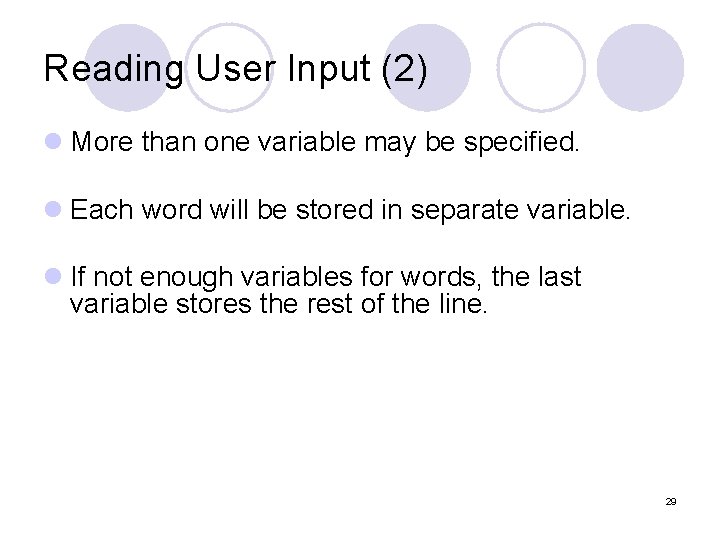
Reading User Input (2) l More than one variable may be specified. l Each word will be stored in separate variable. l If not enough variables for words, the last variable stores the rest of the line. 29
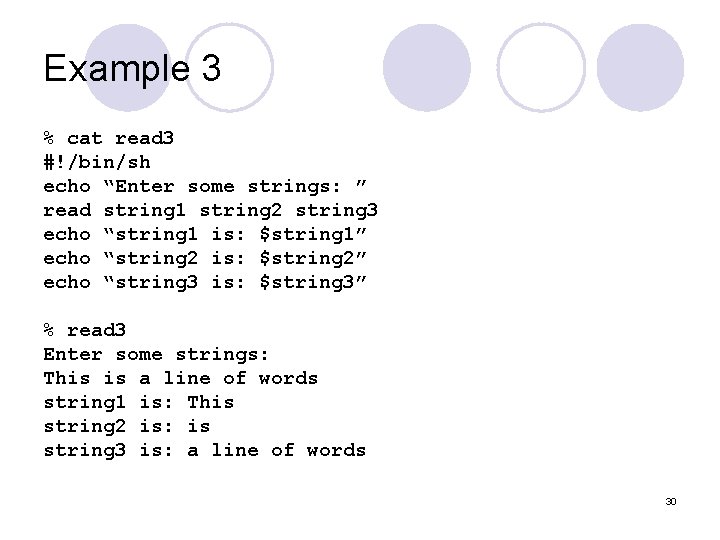
Example 3 % cat read 3 #!/bin/sh echo “Enter some strings: ” read string 1 string 2 string 3 echo “string 1 is: $string 1” echo “string 2 is: $string 2” echo “string 3 is: $string 3” % read 3 Enter some strings: This is a line of words string 1 is: This string 2 is: is string 3 is: a line of words 30
Next time … l Control structures (if, for, while, …) l Difference between $* and $@ l Shell variables l Reading for this lecture: tutorial from “Just Enough UNIX” 5 th edition by Paul K. Andersen 31