
Writing ODK Surveys in XLSFORM Dr Michael Marks

- Slides: 42
Writing ODK Surveys in XLSFORM Dr Michael Marks London School of Hygiene & Tropical Medicine opendatakit. lshtm. ac. uk odk@lshtm. ac. uk
Writing a survey • We write surveys in EXCEL • We use XLS Form Offline to – Check the excel file – Convert it to an XML ODK Form • This talk covers the basics • There are really nice instructions and examples at: xlsform. org – Everything in this talk is from xlsform. org
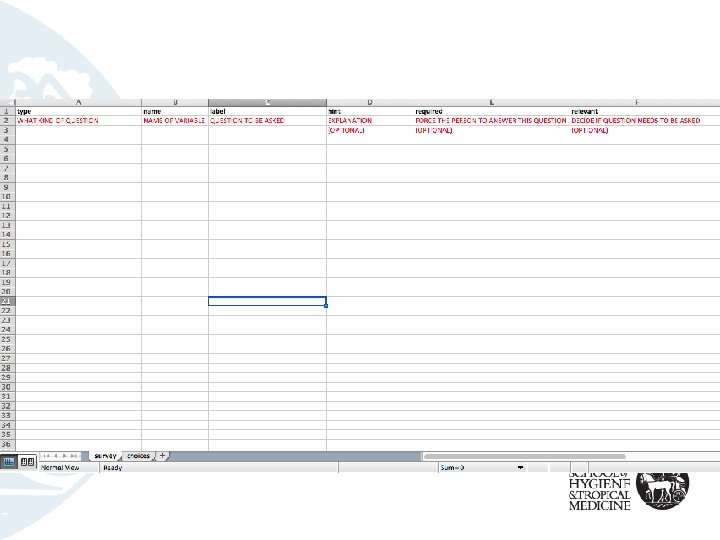
Writing a survey • Take a blank EXCEL file • Call one sheet: survey • Call second sheet: choices
Survey Sheet • This is the questions you will be asking • For each question we say – Type of Question – Name of Variable – Question +/- Explanation – Is the question mandatory to be completed – When should I ask this question (“skipping”)
Survey Sheet • The top row needs three columns a minimum – Type (CELL A 1) – Name (CELL B 1) – Label (CELL C 1) • It may also need other columns – hint – required – relevant – constraint_message – (Others)
IMPORTANT • You do need the black headings I am showing • The red sub-headings in these slides are just a teaching aid – you shouldn’t include these in your actual file • I’m only showing the columns needed for each example
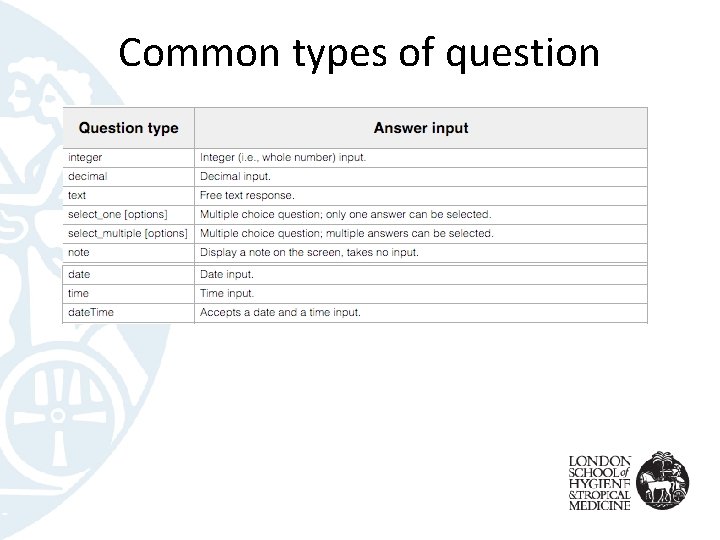
Common types of question
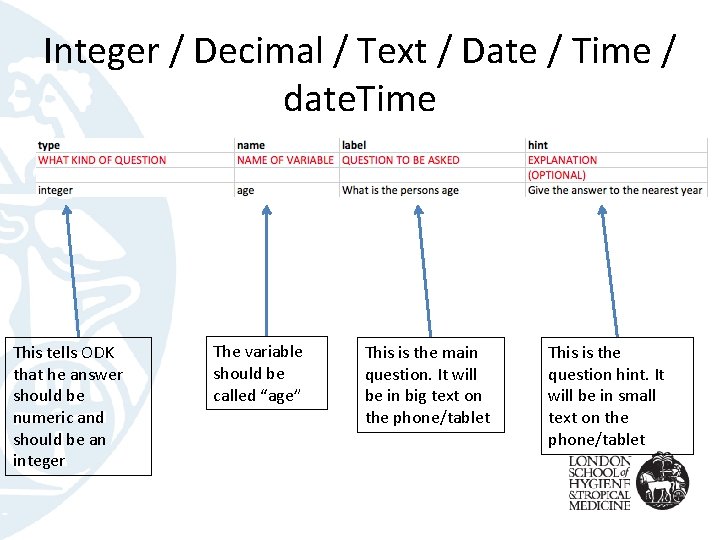
Integer / Decimal / Text / Date / Time / date. Time This tells ODK that he answer should be numeric and should be an integer The variable should be called “age” This is the main question. It will be in big text on the phone/tablet This is the question hint. It will be in small text on the phone/tablet
Notes • These are an instruction page • They don’t allow data entry
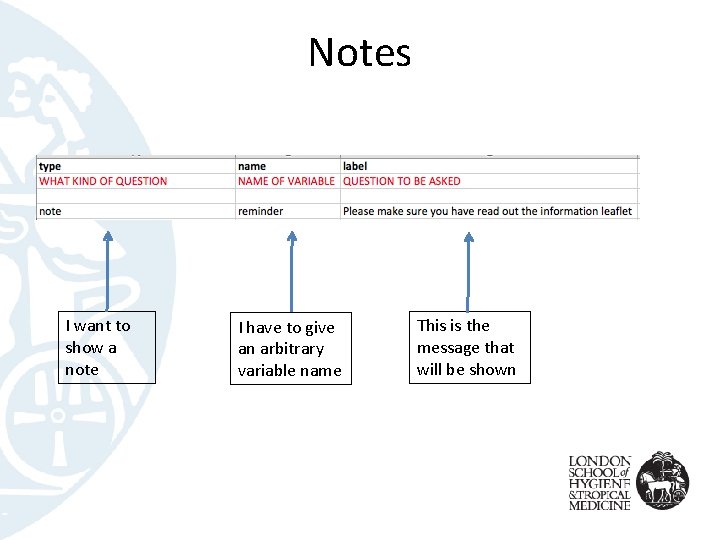
Notes I want to show a note I have to give an arbitrary variable name This is the message that will be shown
Option Lists • For some questions there might be specific options – e. g Multiple choice options • select_one = Only 1 option can be selected • select_multiple = Multiple options can be selected
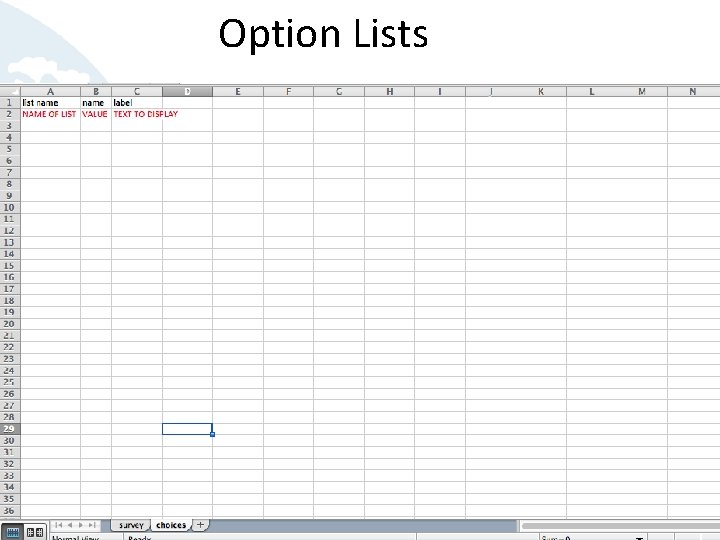
Option Lists • We put the look-up lists on the “CHOICES” worksheet • We need the following column headings in the first row – list name – label
Option Lists • We give each list of options a name: – select_one gender – The list for the question is called “gender” • We save the options on the CHOICES worksheet • You can use the same list for multiple questions – e. g Yes / No
Option Lists
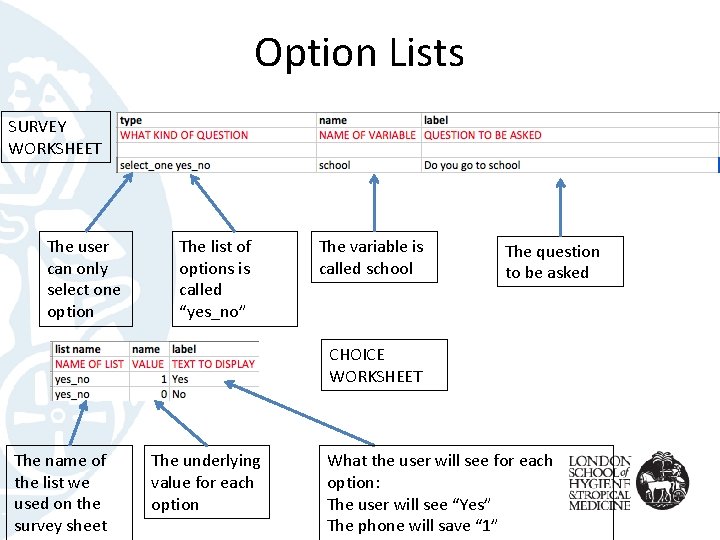
Option Lists SURVEY WORKSHEET The user can only select one option The list of options is called “yes_no” The variable is called school The question to be asked CHOICE WORKSHEET The name of the list we used on the survey sheet The underlying value for each option What the user will see for each option: The user will see “Yes” The phone will save “ 1”
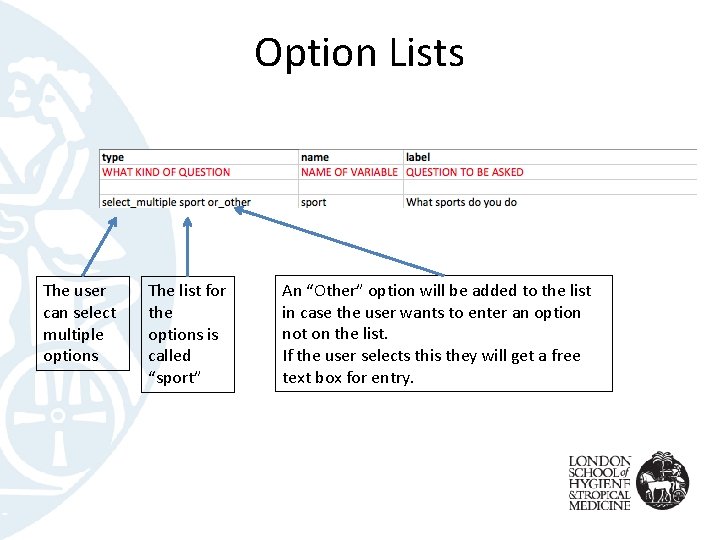
Option Lists • • You don’t always know all possible options You can add the “or_other” command This adds “Other” as an option to any List If the user selects “Other” they get a freetext box
Option Lists The user can select multiple options The list for the options is called “sport” An “Other” option will be added to the list in case the user wants to enter an option not on the list. If the user selects this they will get a free text box for entry.
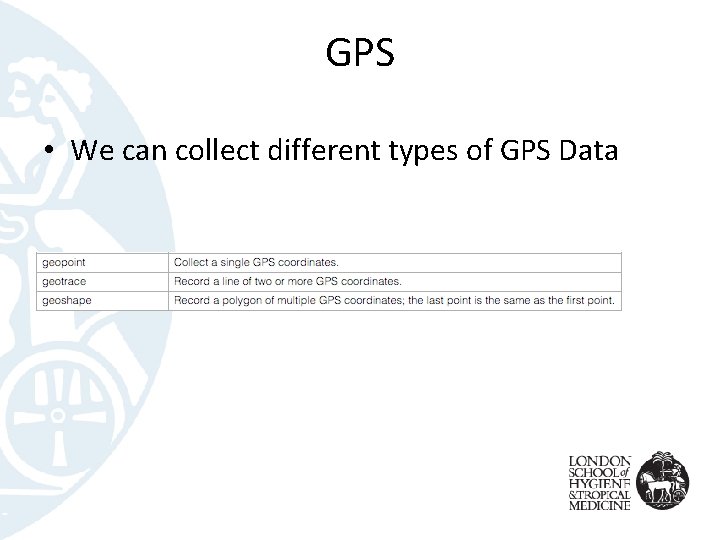
GPS • We can collect different types of GPS Data
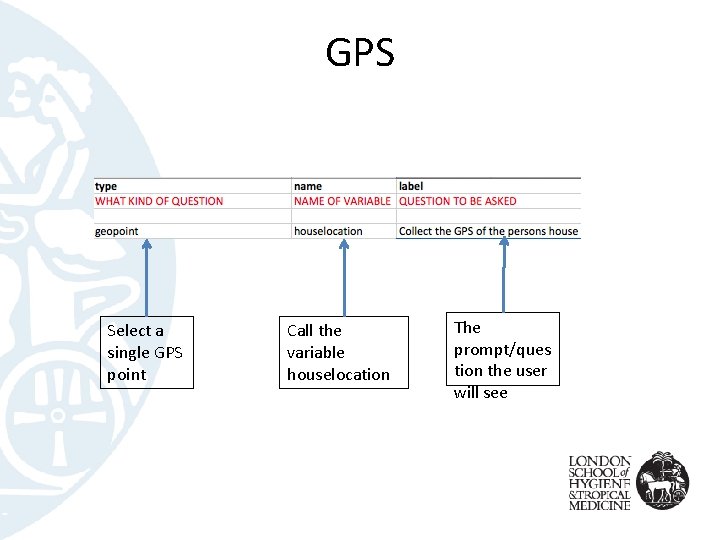
GPS Select a single GPS point Call the variable houselocation The prompt/ques tion the user will see
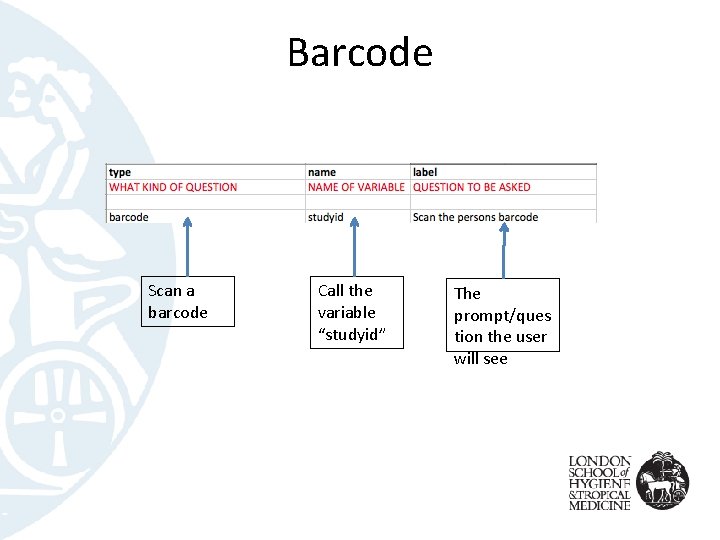
Barcode • We can scan barcodes • Device needs the BARCODE SCANNER APP – APP STORE – “ZXING TEAM”
Barcode Scan a barcode Call the variable “studyid” The prompt/ques tion the user will see
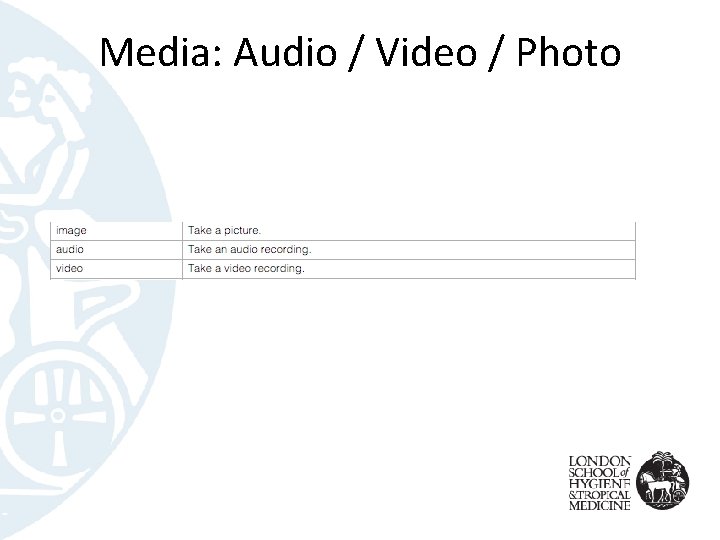
Media: Audio / Video / Photo
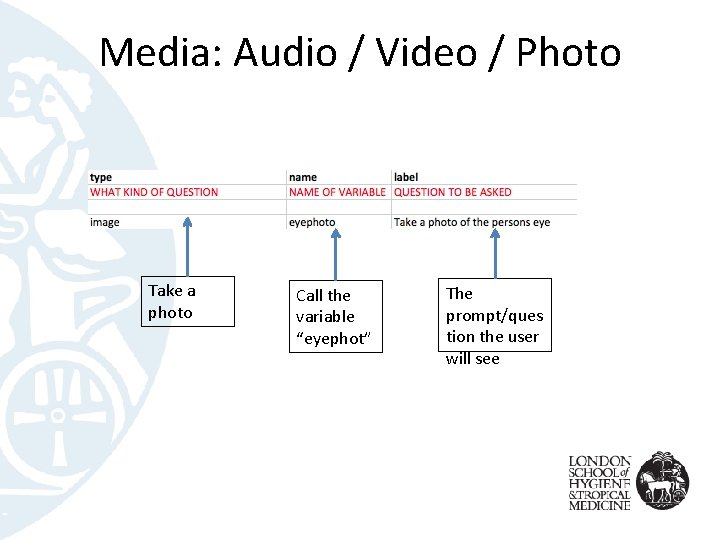
Media: Audio / Video / Photo Take a photo Call the variable “eyephot” The prompt/ques tion the user will see
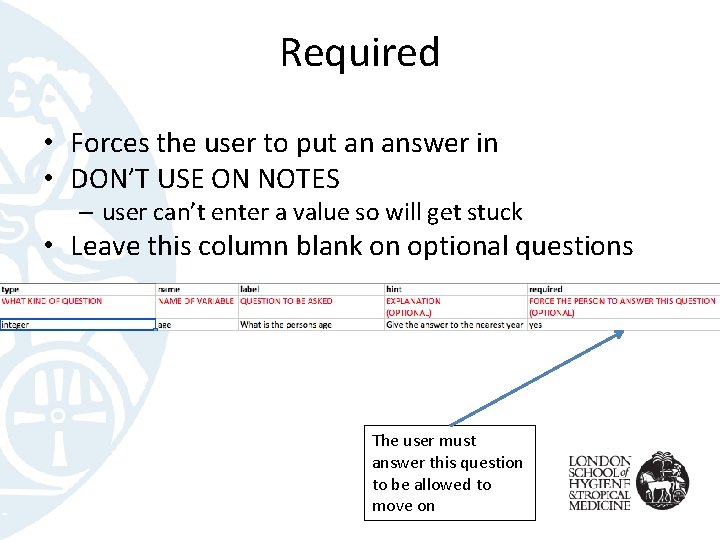
Required • Forces the user to put an answer in • DON’T USE ON NOTES – user can’t enter a value so will get stuck • Leave this column blank on optional questions The user must answer this question to be allowed to move on
Relevant and Constraints • We can make certain questions only appear in some circumstances: “RELEVANT” • We can make only some answers acceptable “CONSTRAINT”
Relevant and Constraints • We do this by completing the Relevant or Constraint Column • If the question doesn’t have specific criteria just leave RELEVANT and CONSTRAINT blank for that question
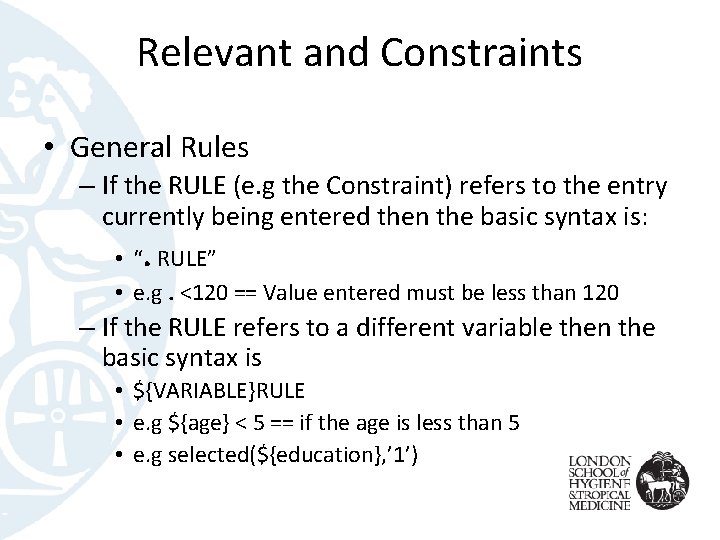
Relevant and Constraints • General Rules – If the RULE (e. g the Constraint) refers to the entry currently being entered then the basic syntax is: • “. RULE” • e. g. <120 == Value entered must be less than 120 – If the RULE refers to a different variable then the basic syntax is • ${VARIABLE}RULE • e. g ${age} < 5 == if the age is less than 5 • e. g selected(${education}, ’ 1’)
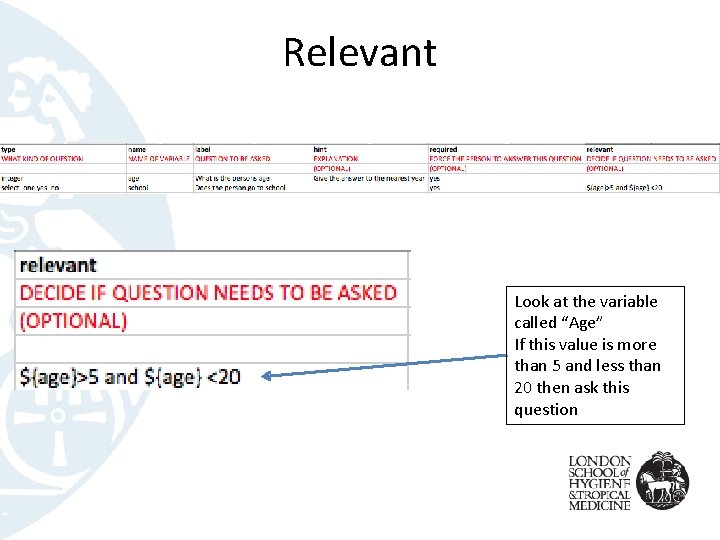
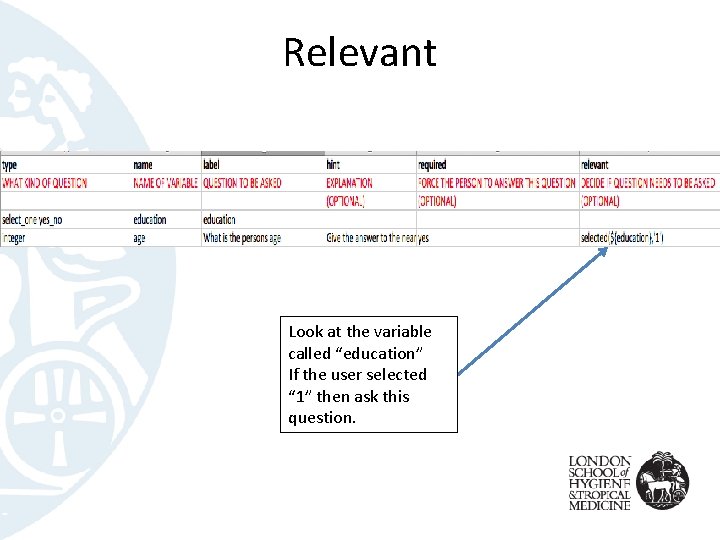
Relevant • Lets you define questions to be asked if certain other answers are given – e. g only ask Children about education
Relevant Look at the variable called “Age” If this value is more than 5 and less than 20 then ask this question
Relevant Look at the variable called “education” If the user selected “ 1” then ask this question.
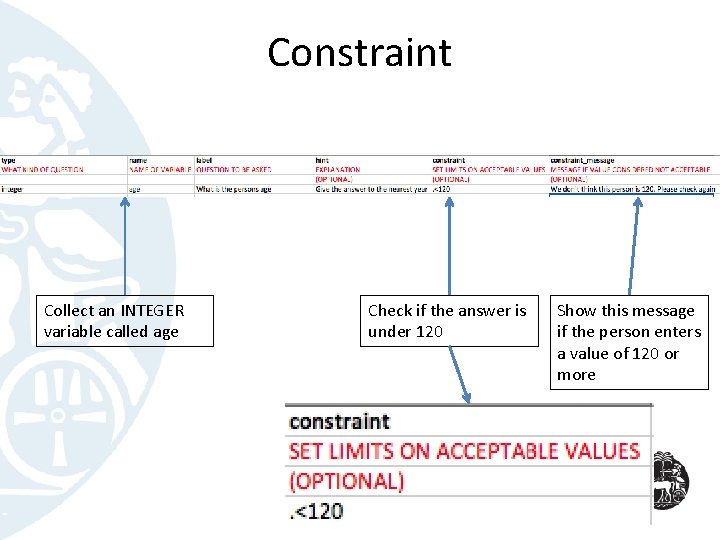
Constraint Collect an INTEGER variable called age Check if the answer is under 120 Show this message if the person enters a value of 120 or more
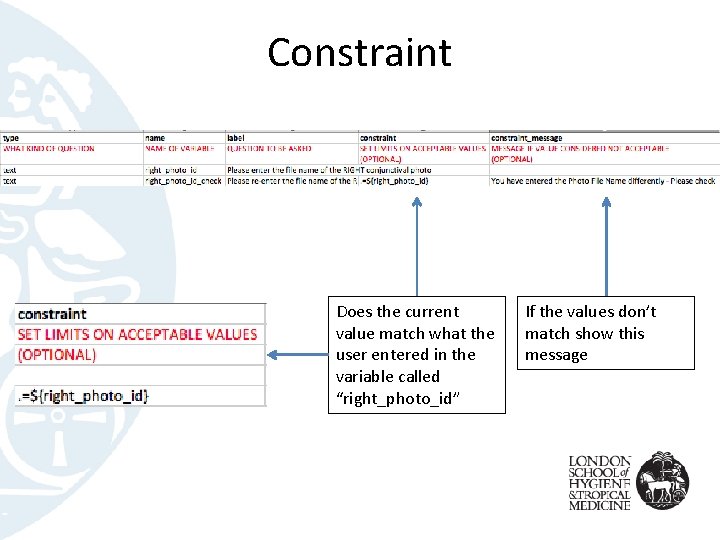
Constraint Does the current value match what the user entered in the variable called “right_photo_id” If the values don’t match show this message
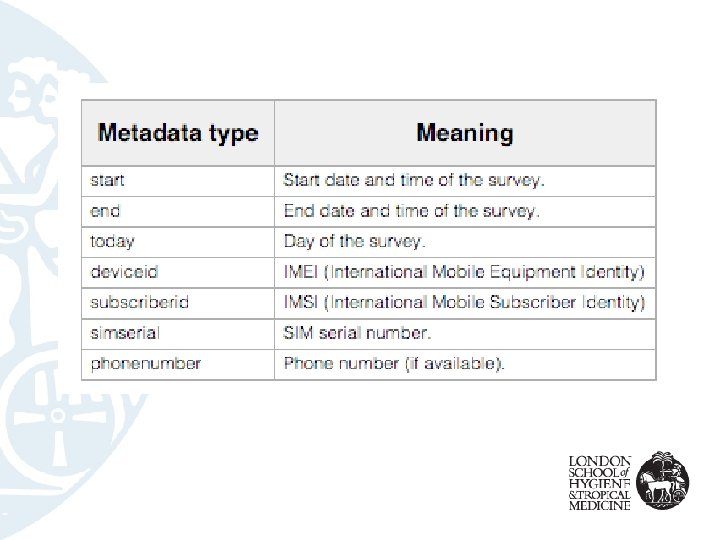
Metadata • You can easily collect Metadata in the background – Time/Date – Device ID
Metadata • Created just like any other variable • User won’t see anything – Data collected in background
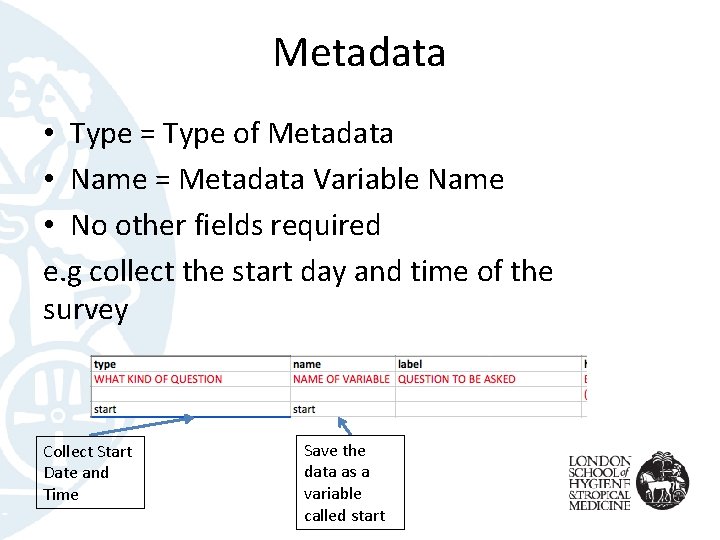
Metadata • Type = Type of Metadata • Name = Metadata Variable Name • No other fields required e. g collect the start day and time of the survey Collect Start Date and Time Save the data as a variable called start
Turning the excel into a survey • Once the excel file is finished we save it – Make sure there are no spaces in the name!
XLSFORM. ORG • You can do more clever things including – Calculations – Showing images – Grouping sets of questions • XLSFORM. ORG has nice examples of everything • Consult this for all questions!
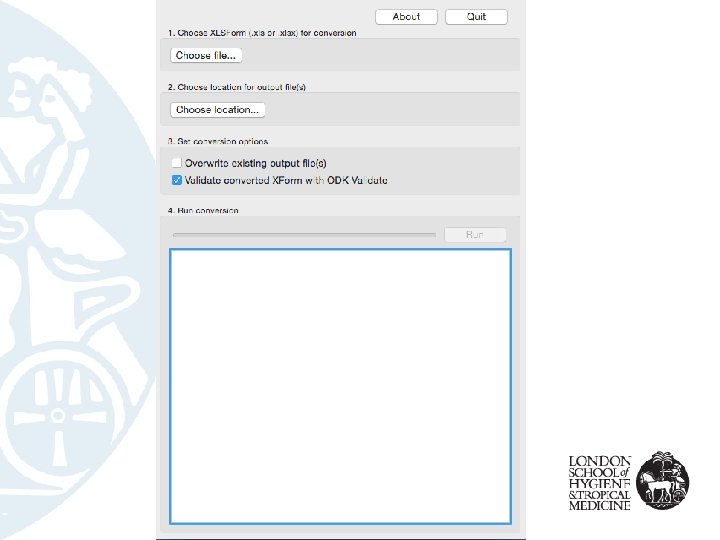
XLS Form Offline • Get XLS Form Offline – (it is free, set the price as 0) • • • We open XLS Form Offline We select the file we want Make sure “VALIDATE” checkbox is ticked Click “RUN” The software will make a new XML File – E. g survey. xml
YOU ARE DONE • This file can then be uploaded to an ODK Sever • The ODK @ LSHTM User Manual has instructions for – Uploading forms to the ODK server – Putting forms on mobile devices – Submitting data • The manual is at opendatakit. lshtm. ac. uk