
Workshop 5 2 Prestressed Modal Analysis Prestressed Modal
- Slides: 12
Workshop 5. 2 Prestressed Modal Analysis
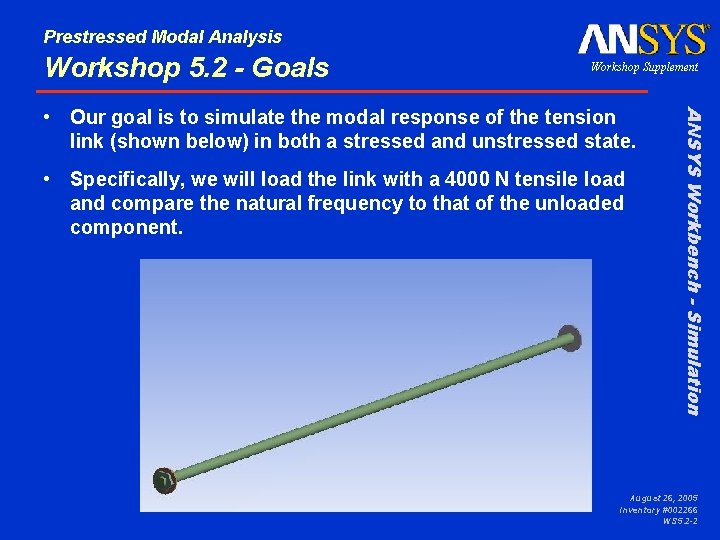
Prestressed Modal Analysis Workshop 5. 2 - Goals Workshop Supplement • Specifically, we will load the link with a 4000 N tensile load and compare the natural frequency to that of the unloaded component. ANSYS Workbench - Simulation • Our goal is to simulate the modal response of the tension link (shown below) in both a stressed and unstressed state. August 26, 2005 Inventory #002266 WS 5. 2 -2
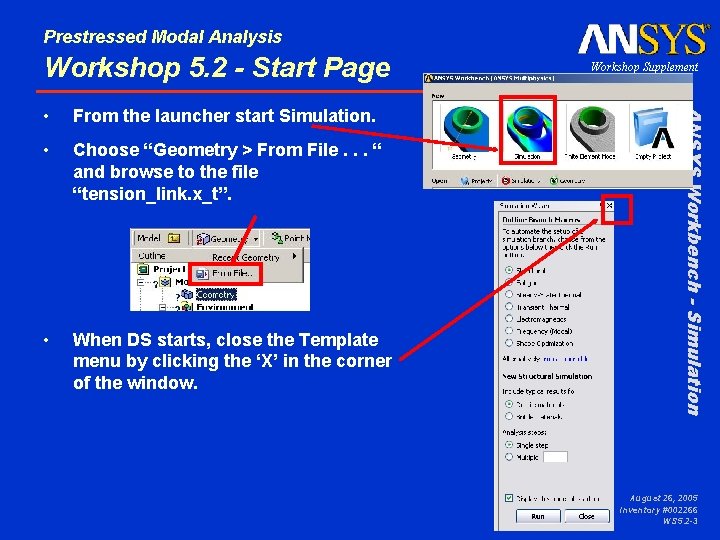
Prestressed Modal Analysis Workshop 5. 2 - Start Page From the launcher start Simulation. • Choose “Geometry > From File. . . “ and browse to the file “tension_link. x_t”. • When DS starts, close the Template menu by clicking the ‘X’ in the corner of the window. ANSYS Workbench - Simulation • Workshop Supplement August 26, 2005 Inventory #002266 WS 5. 2 -3
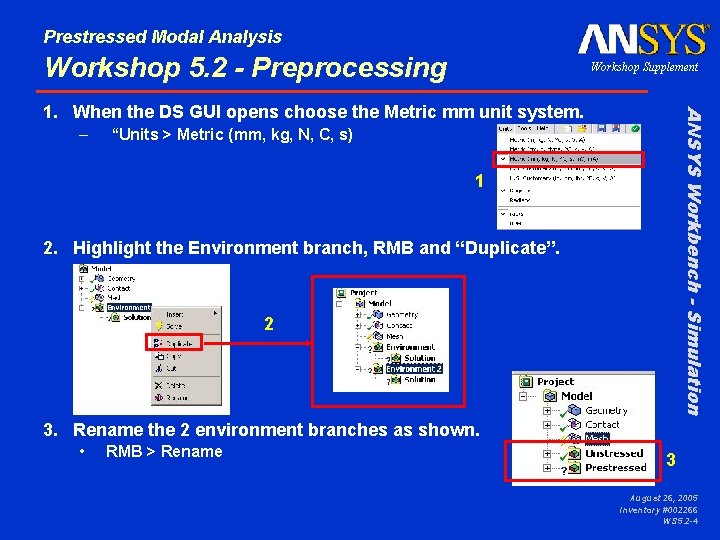
Prestressed Modal Analysis Workshop 5. 2 - Preprocessing Workshop Supplement – ANSYS Workbench - Simulation 1. When the DS GUI opens choose the Metric mm unit system. “Units > Metric (mm, kg, N, C, s) 1 2. Highlight the Environment branch, RMB and “Duplicate”. 2 3. Rename the 2 environment branches as shown. • RMB > Rename 3 August 26, 2005 Inventory #002266 WS 5. 2 -4
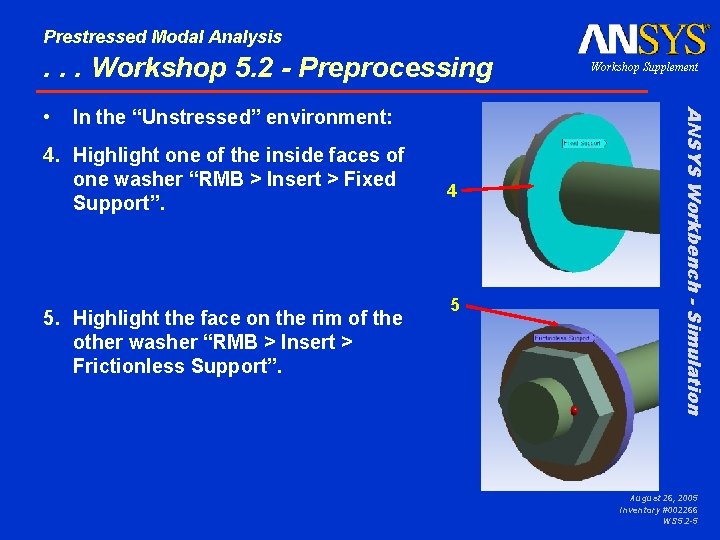
Prestressed Modal Analysis . . . Workshop 5. 2 - Preprocessing In the “Unstressed” environment: 4. Highlight one of the inside faces of one washer “RMB > Insert > Fixed Support”. 5. Highlight the face on the rim of the other washer “RMB > Insert > Frictionless Support”. 4 5 ANSYS Workbench - Simulation • Workshop Supplement August 26, 2005 Inventory #002266 WS 5. 2 -5
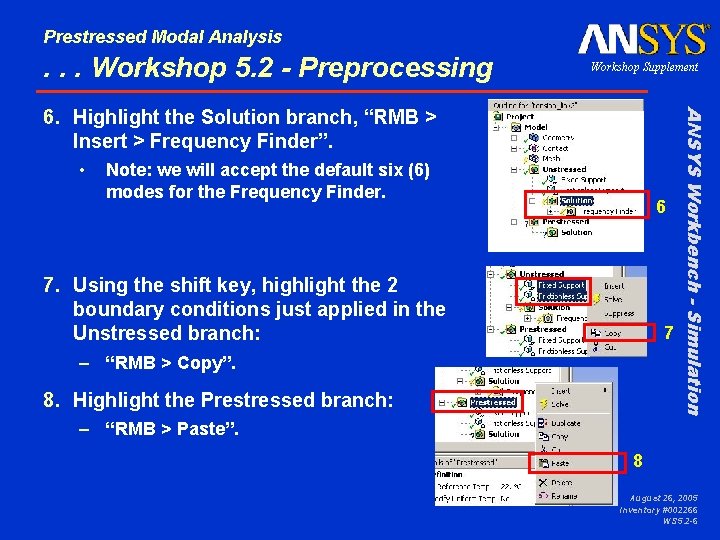
Prestressed Modal Analysis . . . Workshop 5. 2 - Preprocessing Workshop Supplement • Note: we will accept the default six (6) modes for the Frequency Finder. 6 7. Using the shift key, highlight the 2 boundary conditions just applied in the Unstressed branch: 7 – “RMB > Copy”. 8. Highlight the Prestressed branch: ANSYS Workbench - Simulation 6. Highlight the Solution branch, “RMB > Insert > Frequency Finder”. – “RMB > Paste”. 8 August 26, 2005 Inventory #002266 WS 5. 2 -6
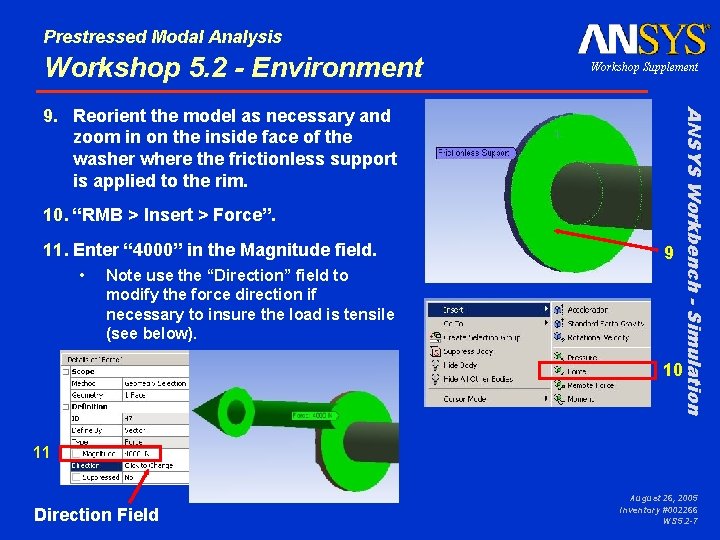
Prestressed Modal Analysis Workshop 5. 2 - Environment Workshop Supplement 10. “RMB > Insert > Force”. 11. Enter “ 4000” in the Magnitude field. • Note use the “Direction” field to modify the force direction if necessary to insure the load is tensile (see below). 9 ANSYS Workbench - Simulation 9. Reorient the model as necessary and zoom in on the inside face of the washer where the frictionless support is applied to the rim. 10 11 Direction Field August 26, 2005 Inventory #002266 WS 5. 2 -7
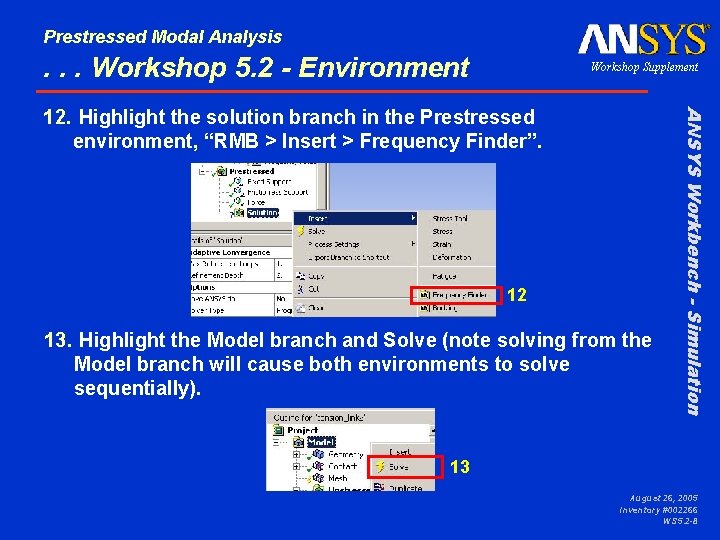
Prestressed Modal Analysis . . . Workshop 5. 2 - Environment Workshop Supplement 12 13. Highlight the Model branch and Solve (note solving from the Model branch will cause both environments to solve sequentially). ANSYS Workbench - Simulation 12. Highlight the solution branch in the Prestressed environment, “RMB > Insert > Frequency Finder”. 13 August 26, 2005 Inventory #002266 WS 5. 2 -8
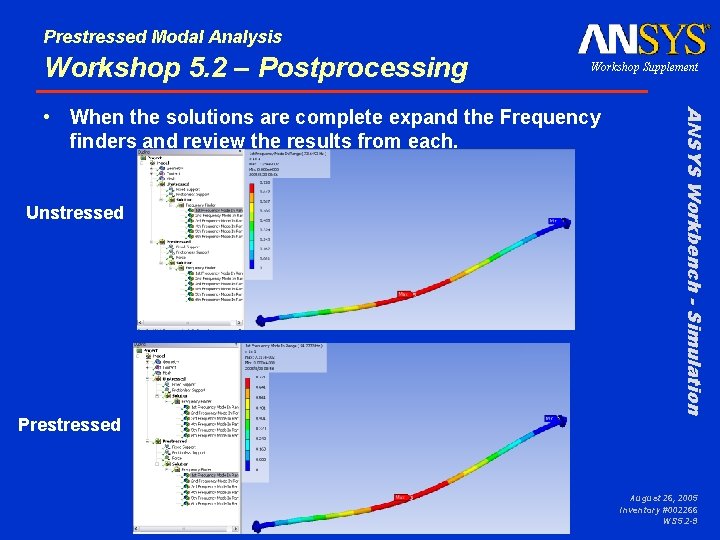
Prestressed Modal Analysis Workshop 5. 2 – Postprocessing Workshop Supplement Unstressed ANSYS Workbench - Simulation • When the solutions are complete expand the Frequency finders and review the results from each. Prestressed August 26, 2005 Inventory #002266 WS 5. 2 -9
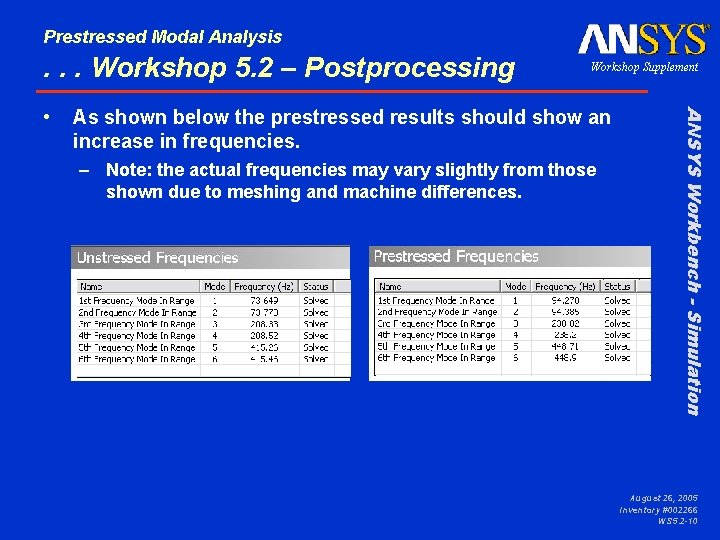
Prestressed Modal Analysis . . . Workshop 5. 2 – Postprocessing As shown below the prestressed results should show an increase in frequencies. – Note: the actual frequencies may vary slightly from those shown due to meshing and machine differences. ANSYS Workbench - Simulation • Workshop Supplement August 26, 2005 Inventory #002266 WS 5. 2 -10
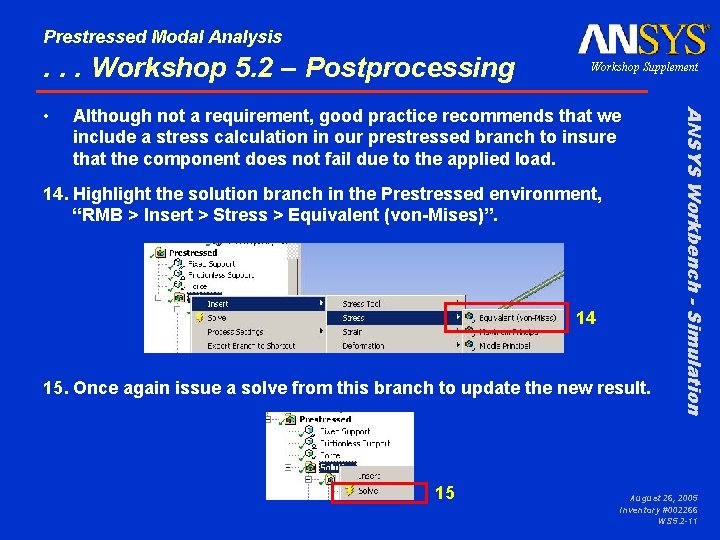
Prestressed Modal Analysis . . . Workshop 5. 2 – Postprocessing Although not a requirement, good practice recommends that we include a stress calculation in our prestressed branch to insure that the component does not fail due to the applied load. 14. Highlight the solution branch in the Prestressed environment, “RMB > Insert > Stress > Equivalent (von-Mises)”. 14 15. Once again issue a solve from this branch to update the new result. 15 ANSYS Workbench - Simulation • Workshop Supplement August 26, 2005 Inventory #002266 WS 5. 2 -11
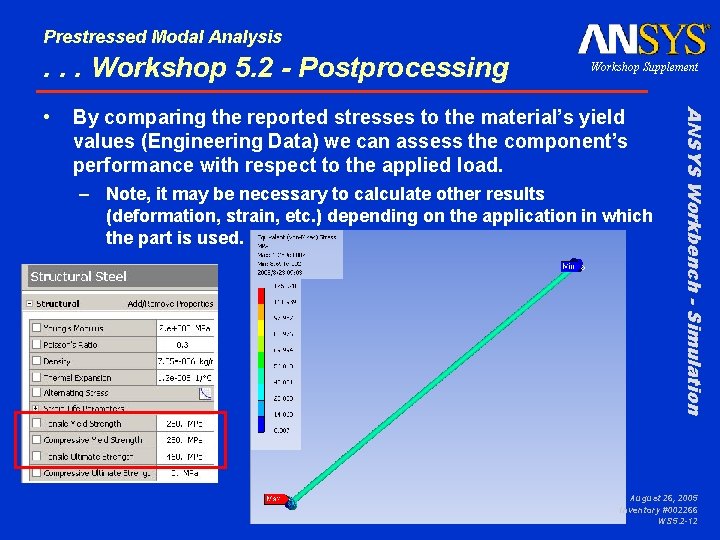
Prestressed Modal Analysis . . . Workshop 5. 2 - Postprocessing By comparing the reported stresses to the material’s yield values (Engineering Data) we can assess the component’s performance with respect to the applied load. – Note, it may be necessary to calculate other results (deformation, strain, etc. ) depending on the application in which the part is used. ANSYS Workbench - Simulation • Workshop Supplement August 26, 2005 Inventory #002266 WS 5. 2 -12