
Workshop 4 Beam Modeling Building Frame 4 Beam
Workshop 4 Beam Modeling Building Frame
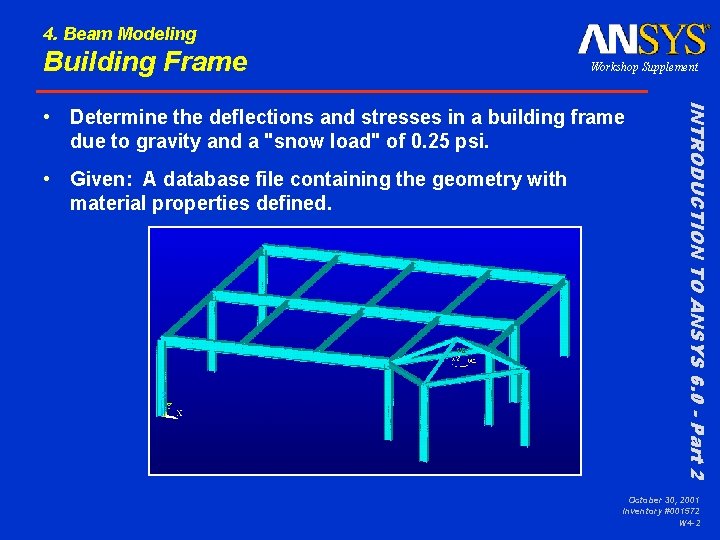
4. Beam Modeling Building Frame Workshop Supplement • Given: A database file containing the geometry with material properties defined. INTRODUCTION TO ANSYS 6. 0 - Part 2 • Determine the deflections and stresses in a building frame due to gravity and a "snow load" of 0. 25 psi. October 30, 2001 Inventory #001572 W 4 -2
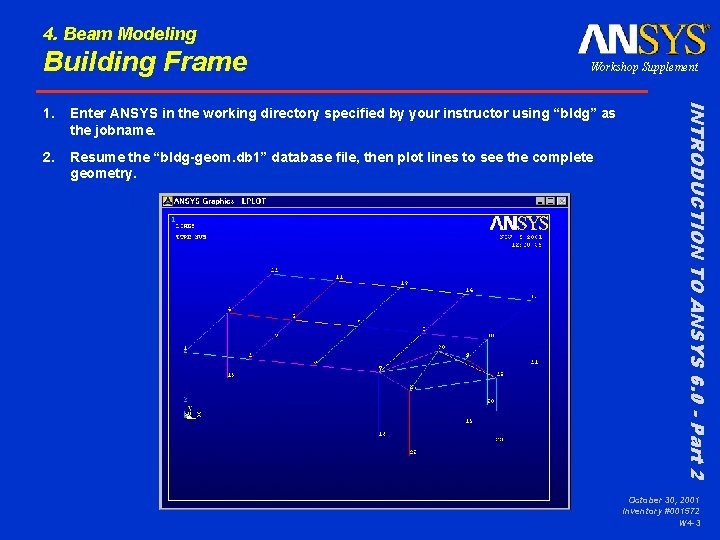
4. Beam Modeling Building Frame Workshop Supplement Enter ANSYS in the working directory specified by your instructor using “bldg” as the jobname. 2. Resume the “bldg-geom. db 1” database file, then plot lines to see the complete geometry. INTRODUCTION TO ANSYS 6. 0 - Part 2 1. October 30, 2001 Inventory #001572 W 4 -3
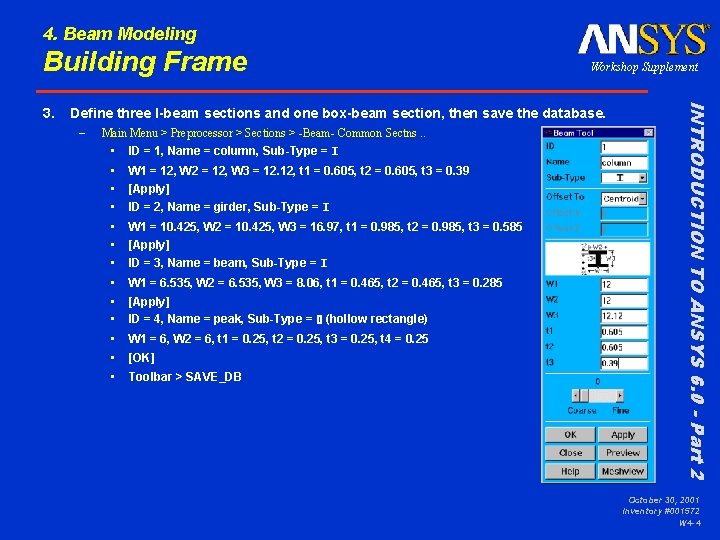
4. Beam Modeling Building Frame Define three I-beam sections and one box-beam section, then save the database. – Main Menu > Preprocessor > Sections > -Beam- Common Sectns. . • ID = 1, Name = column, Sub-Type = I • • • W 1 = 12, W 2 = 12, W 3 = 12. 12, t 1 = 0. 605, t 2 = 0. 605, t 3 = 0. 39 • • • W 1 = 10. 425, W 2 = 10. 425, W 3 = 16. 97, t 1 = 0. 985, t 2 = 0. 985, t 3 = 0. 585 • • • W 1 = 6. 535, W 2 = 6. 535, W 3 = 8. 06, t 1 = 0. 465, t 2 = 0. 465, t 3 = 0. 285 • • • W 1 = 6, W 2 = 6, t 1 = 0. 25, t 2 = 0. 25, t 3 = 0. 25, t 4 = 0. 25 [Apply] ID = 2, Name = girder, Sub-Type = I [Apply] ID = 3, Name = beam, Sub-Type = I [Apply] ID = 4, Name = peak, Sub-Type = (hollow rectangle) [OK] Toolbar > SAVE_DB INTRODUCTION TO ANSYS 6. 0 - Part 2 3. Workshop Supplement October 30, 2001 Inventory #001572 W 4 -4
4. Beam Modeling Building Frame (cont'd) – Or issue: • • • /PREP 7 SECTYPE, 1, BEAM, I, COLUMN SECDATA, 12, 12. 12, . 605, . 39 SECTYPE, 2, BEAM, I, GIRDER SECDATA, 10. 425, 16. 97, . 985, . 585 SECTYPE, 3, BEAM, I, BEAM SECDATA, 6. 535, 8. 06, . 465, . 285 SECTYPE, 4, BEAM, HREC, PEAK SECDATA, 6, 6, . 25, 0, 0 SAVE INTRODUCTION TO ANSYS 6. 0 - Part 2 3. Workshop Supplement October 30, 2001 Inventory #001572 W 4 -5
4. Beam Modeling Building Frame Mesh the vertical lines with "column" beams. – – – Utility Menu > Work. Plane > Change Active CS to > Global Cartesian Utility Menu > Select > Entities. . . • Choose Lines, By Location, Z Coordinates; Min, Max = 0, 119 • From Full, [Apply], [Plot] Main Menu > Preprocessor > Mesh. Tool … • – Element Attributes: set to [Lines] and press [Set] – [Pick All] – MAT = 1, TYPE = 1, SECT = 1, Pick Orientation keypoints = Yes, [OK] – Enter 102 in the Input Window for orientation keypoint and press the Enter key, then [OK] • Size Controls: Lines: press [Set] – [Pick All] – NDIV = 4, then [OK] • Mesh: set to [Lines] and press [Mesh] – [Pick All] Utility Menu > Plot. Ctrls > Style > Size and Shape. . . • • /ESHAPE = ON [OK] INTRODUCTION TO ANSYS 6. 0 - Part 2 4. Workshop Supplement October 30, 2001 Inventory #001572 W 4 -6
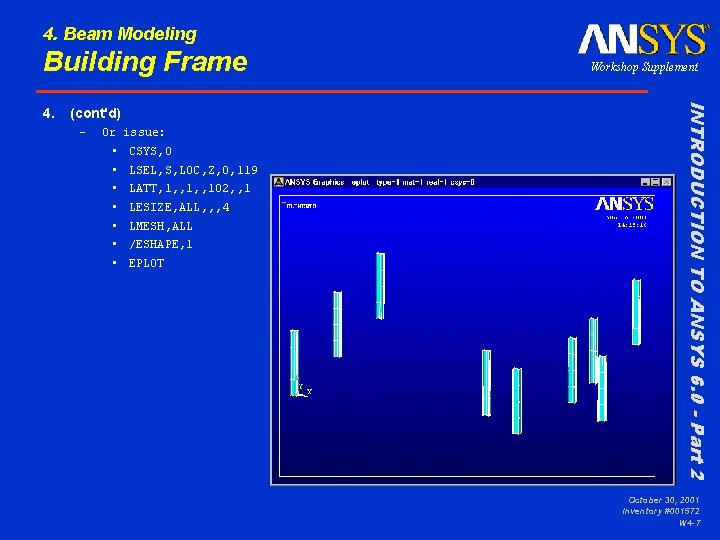
4. Beam Modeling Building Frame (cont'd) – Or issue: • • CSYS, 0 LSEL, S, LOC, Z, 0, 119 LATT, 1, , 102, , 1 LESIZE, ALL, , , 4 LMESH, ALL /ESHAPE, 1 EPLOT INTRODUCTION TO ANSYS 6. 0 - Part 2 4. Workshop Supplement October 30, 2001 Inventory #001572 W 4 -7
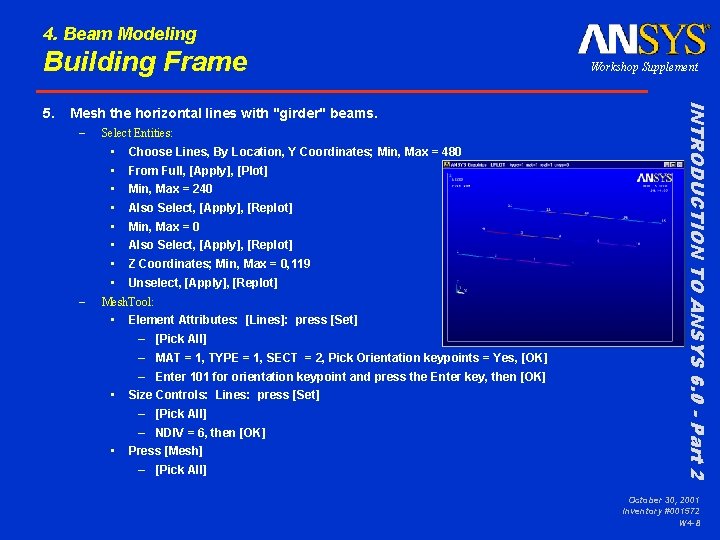
4. Beam Modeling Building Frame Mesh the horizontal lines with "girder" beams. – Select Entities: – • Choose Lines, By Location, Y Coordinates; Min, Max = 480 • From Full, [Apply], [Plot] • Min, Max = 240 • Also Select, [Apply], [Replot] • Min, Max = 0 • Also Select, [Apply], [Replot] • Z Coordinates; Min, Max = 0, 119 • Unselect, [Apply], [Replot] Mesh. Tool: • • • Element Attributes: [Lines]: press [Set] – [Pick All] – MAT = 1, TYPE = 1, SECT = 2, Pick Orientation keypoints = Yes, [OK] – Enter 101 for orientation keypoint and press the Enter key, then [OK] Size Controls: Lines: press [Set] – [Pick All] – NDIV = 6, then [OK] Press [Mesh] – [Pick All] INTRODUCTION TO ANSYS 6. 0 - Part 2 5. Workshop Supplement October 30, 2001 Inventory #001572 W 4 -8
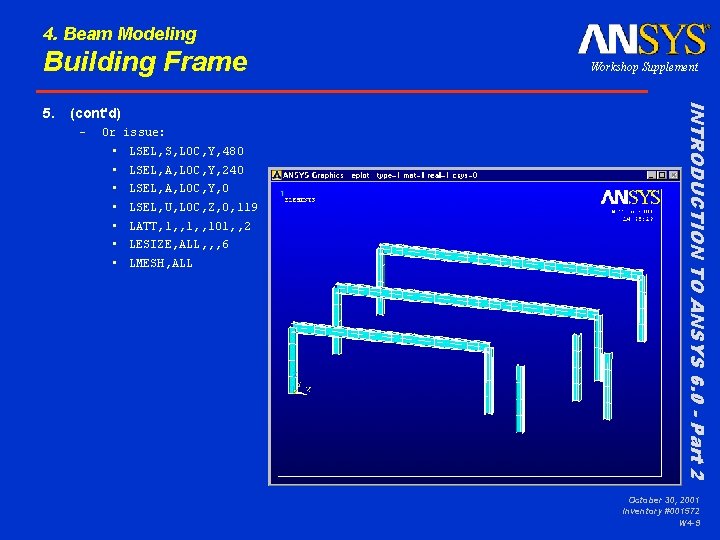
4. Beam Modeling Building Frame (cont'd) – Or issue: • • LSEL, S, LOC, Y, 480 LSEL, A, LOC, Y, 240 LSEL, A, LOC, Y, 0 LSEL, U, LOC, Z, 0, 119 LATT, 1, , 101, , 2 LESIZE, ALL, , , 6 LMESH, ALL INTRODUCTION TO ANSYS 6. 0 - Part 2 5. Workshop Supplement October 30, 2001 Inventory #001572 W 4 -9
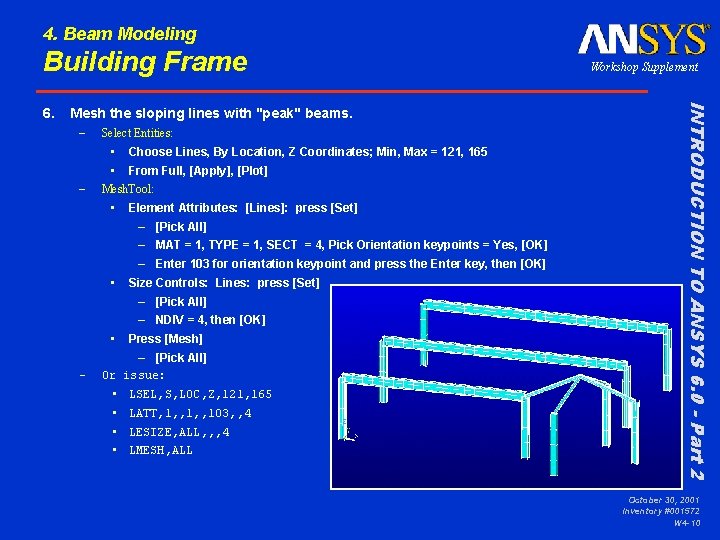
4. Beam Modeling Building Frame Mesh the sloping lines with "peak" beams. – Select Entities: – • Choose Lines, By Location, Z Coordinates; Min, Max = 121, 165 • From Full, [Apply], [Plot] Mesh. Tool: • • • – Or • • Element Attributes: [Lines]: press [Set] – [Pick All] – MAT = 1, TYPE = 1, SECT = 4, Pick Orientation keypoints = Yes, [OK] – Enter 103 for orientation keypoint and press the Enter key, then [OK] Size Controls: Lines: press [Set] – [Pick All] – NDIV = 4, then [OK] Press [Mesh] – [Pick All] issue: LSEL, S, LOC, Z, 121, 165 LATT, 1, , 103, , 4 LESIZE, ALL, , , 4 LMESH, ALL INTRODUCTION TO ANSYS 6. 0 - Part 2 6. Workshop Supplement October 30, 2001 Inventory #001572 W 4 -10
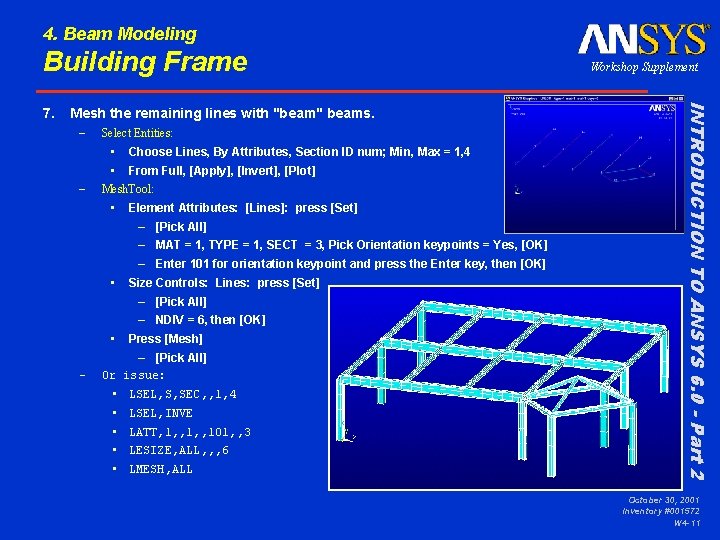
4. Beam Modeling Building Frame Mesh the remaining lines with "beam" beams. – Select Entities: – • Choose Lines, By Attributes, Section ID num; Min, Max = 1, 4 • From Full, [Apply], [Invert], [Plot] Mesh. Tool: • • • – Or • • • Element Attributes: [Lines]: press [Set] – [Pick All] – MAT = 1, TYPE = 1, SECT = 3, Pick Orientation keypoints = Yes, [OK] – Enter 101 for orientation keypoint and press the Enter key, then [OK] Size Controls: Lines: press [Set] – [Pick All] – NDIV = 6, then [OK] Press [Mesh] – [Pick All] issue: LSEL, S, SEC, , 1, 4 LSEL, INVE LATT, 1, , 101, , 3 LESIZE, ALL, , , 6 LMESH, ALL INTRODUCTION TO ANSYS 6. 0 - Part 2 7. Workshop Supplement October 30, 2001 Inventory #001572 W 4 -11
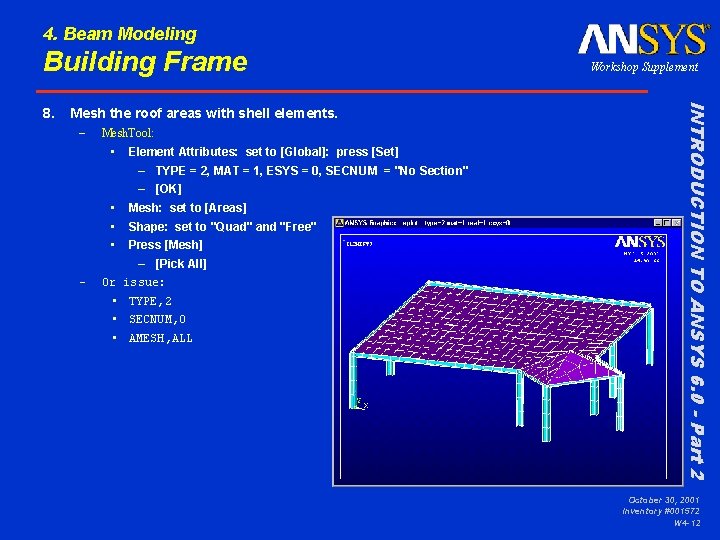
4. Beam Modeling Building Frame Mesh the roof areas with shell elements. – Mesh. Tool: • • – Or • • • Element Attributes: set to [Global]: press [Set] – TYPE = 2, MAT = 1, ESYS = 0, SECNUM = "No Section" – [OK] Mesh: set to [Areas] Shape: set to "Quad" and "Free" Press [Mesh] – [Pick All] issue: TYPE, 2 SECNUM, 0 AMESH, ALL INTRODUCTION TO ANSYS 6. 0 - Part 2 8. Workshop Supplement October 30, 2001 Inventory #001572 W 4 -12
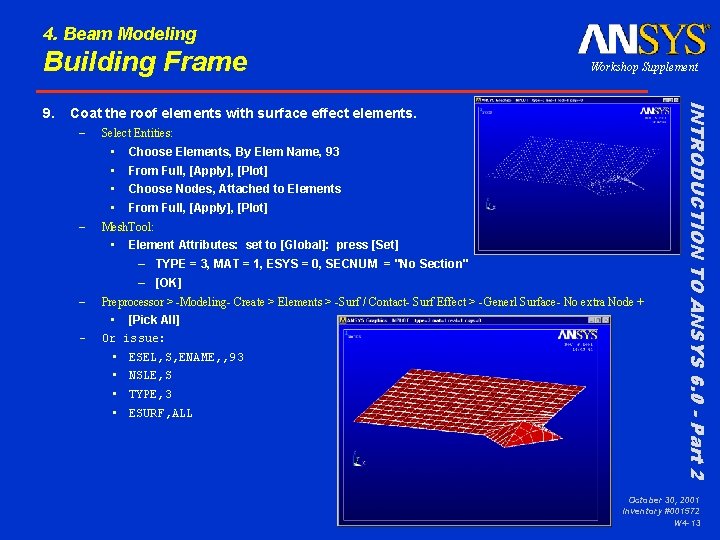
4. Beam Modeling Building Frame Coat the roof elements with surface effect elements. – Select Entities: – • Choose Elements, By Elem Name, 93 • From Full, [Apply], [Plot] • Choose Nodes, Attached to Elements • From Full, [Apply], [Plot] Mesh. Tool: • – – Element Attributes: set to [Global]: press [Set] – TYPE = 3, MAT = 1, ESYS = 0, SECNUM = "No Section" – [OK] Preprocessor > -Modeling- Create > Elements > -Surf / Contact- Surf Effect > -Generl Surface- No extra Node + • Or • • [Pick All] issue: ESEL, S, ENAME, , 93 NSLE, S TYPE, 3 ESURF, ALL INTRODUCTION TO ANSYS 6. 0 - Part 2 9. Workshop Supplement October 30, 2001 Inventory #001572 W 4 -13
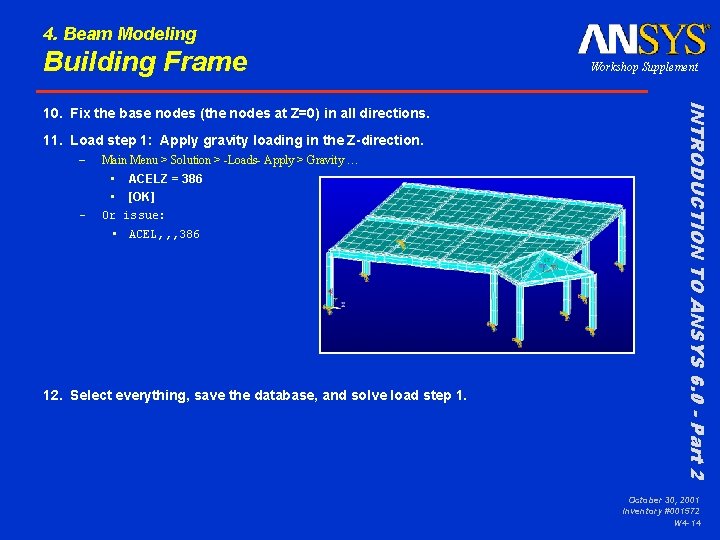
4. Beam Modeling Building Frame 11. Load step 1: Apply gravity loading in the Z-direction. – – Main Menu > Solution > -Loads- Apply > Gravity … • • Or • ACELZ = 386 [OK] issue: ACEL, , , 386 12. Select everything, save the database, and solve load step 1. INTRODUCTION TO ANSYS 6. 0 - Part 2 10. Fix the base nodes (the nodes at Z=0) in all directions. Workshop Supplement October 30, 2001 Inventory #001572 W 4 -14
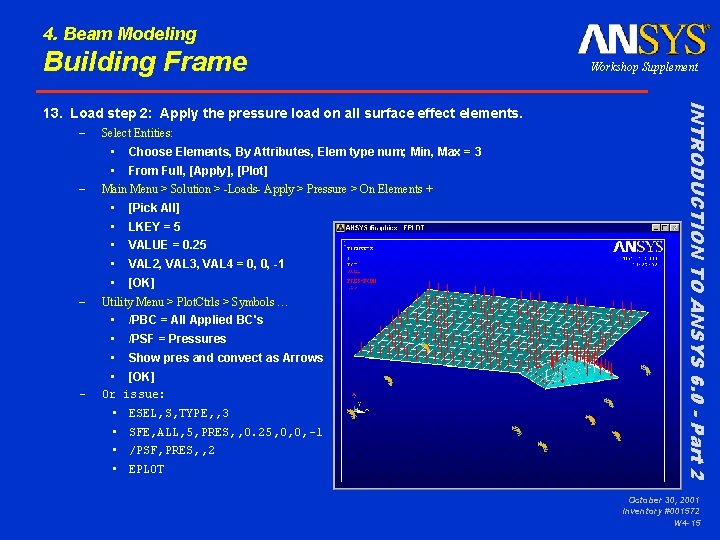
4. Beam Modeling Building Frame – Select Entities: – • Choose Elements, By Attributes, Elem type num; Min, Max = 3 • From Full, [Apply], [Plot] Main Menu > Solution > -Loads- Apply > Pressure > On Elements + – • [Pick All] • LKEY = 5 • VALUE = 0. 25 • VAL 2, VAL 3, VAL 4 = 0, 0, -1 • [OK] Utility Menu > Plot. Ctrls > Symbols … – • • Or • • /PBC = All Applied BC's /PSF = Pressures Show pres and convect as Arrows [OK] issue: ESEL, S, TYPE, , 3 SFE, ALL, 5, PRES, , 0. 25, 0, 0, -1 /PSF, PRES, , 2 EPLOT INTRODUCTION TO ANSYS 6. 0 - Part 2 13. Load step 2: Apply the pressure load on all surface effect elements. Workshop Supplement October 30, 2001 Inventory #001572 W 4 -15
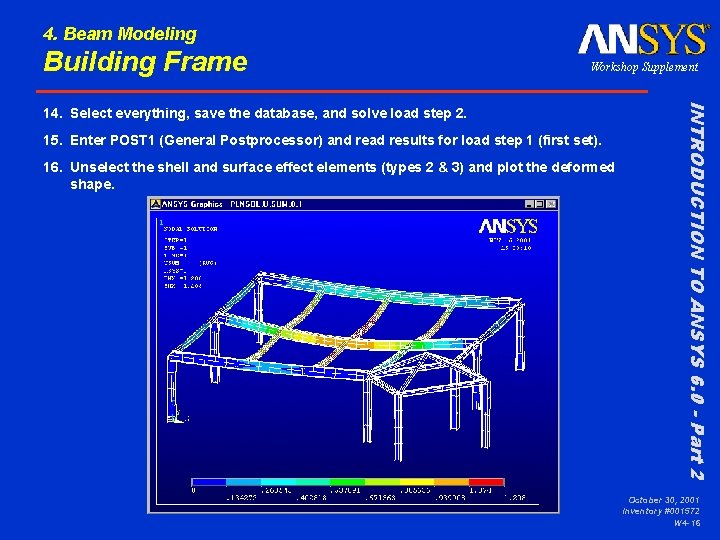
4. Beam Modeling Building Frame Workshop Supplement 15. Enter POST 1 (General Postprocessor) and read results for load step 1 (first set). 16. Unselect the shell and surface effect elements (types 2 & 3) and plot the deformed shape. INTRODUCTION TO ANSYS 6. 0 - Part 2 14. Select everything, save the database, and solve load step 2. October 30, 2001 Inventory #001572 W 4 -16
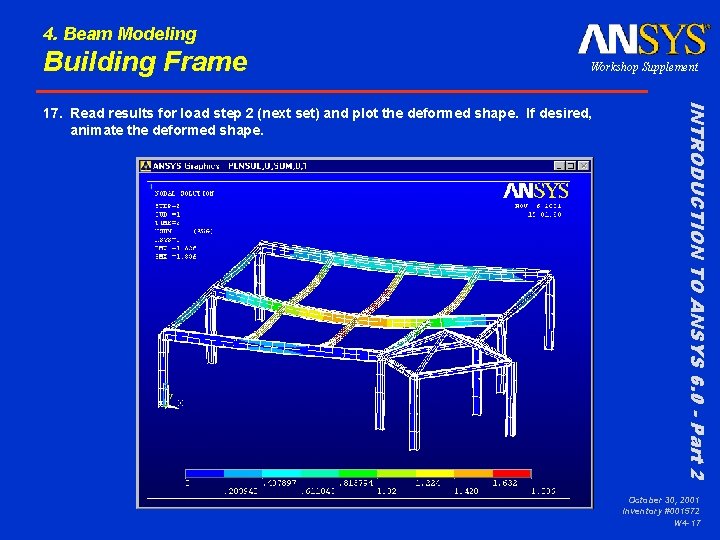
4. Beam Modeling Building Frame Workshop Supplement INTRODUCTION TO ANSYS 6. 0 - Part 2 17. Read results for load step 2 (next set) and plot the deformed shape. If desired, animate the deformed shape. October 30, 2001 Inventory #001572 W 4 -17
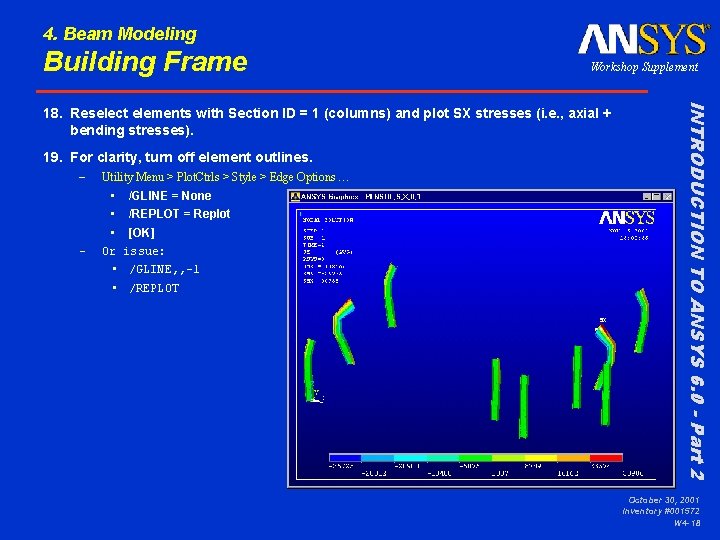
4. Beam Modeling Building Frame Workshop Supplement 19. For clarity, turn off element outlines. – – Utility Menu > Plot. Ctrls > Style > Edge Options … • • • Or • • /GLINE = None /REPLOT = Replot [OK] issue: /GLINE, , -1 /REPLOT INTRODUCTION TO ANSYS 6. 0 - Part 2 18. Reselect elements with Section ID = 1 (columns) and plot SX stresses (i. e. , axial + bending stresses). October 30, 2001 Inventory #001572 W 4 -18
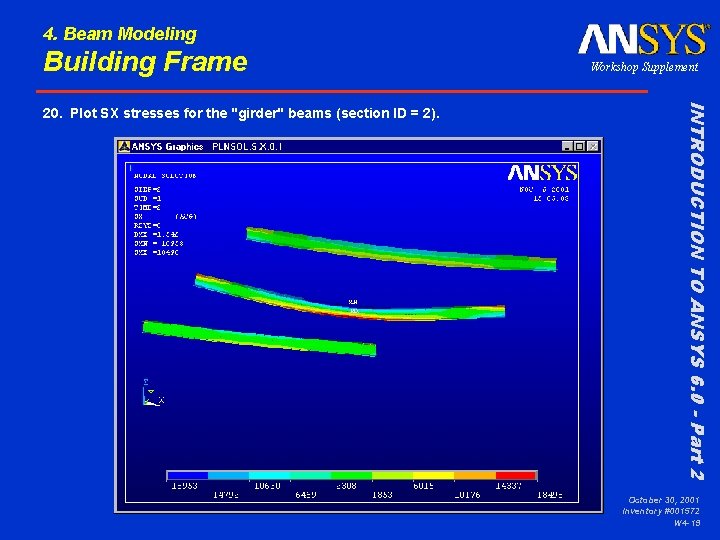
4. Beam Modeling Building Frame INTRODUCTION TO ANSYS 6. 0 - Part 2 20. Plot SX stresses for the "girder" beams (section ID = 2). Workshop Supplement October 30, 2001 Inventory #001572 W 4 -19
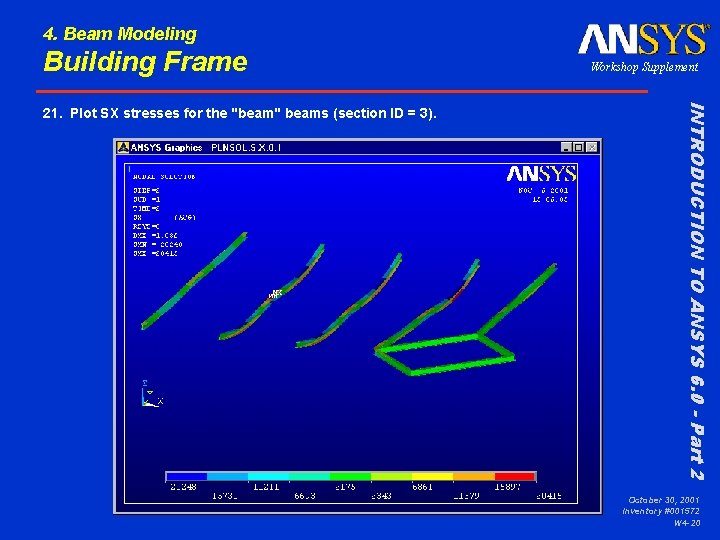
4. Beam Modeling Building Frame INTRODUCTION TO ANSYS 6. 0 - Part 2 21. Plot SX stresses for the "beam" beams (section ID = 3). Workshop Supplement October 30, 2001 Inventory #001572 W 4 -20
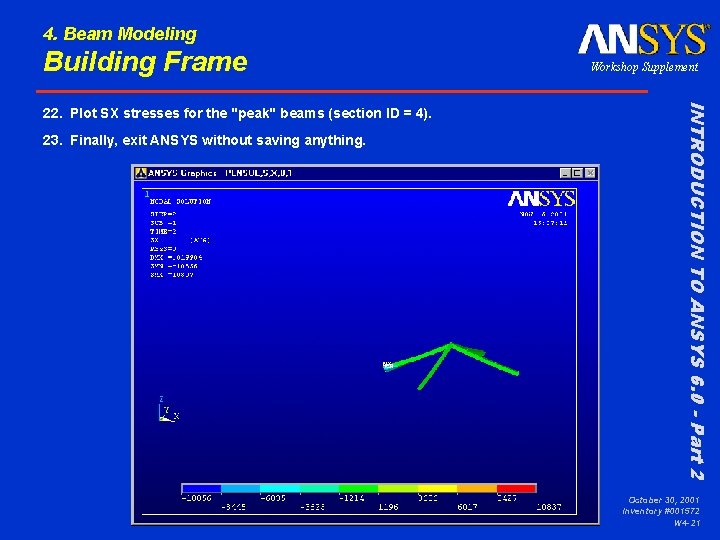
4. Beam Modeling Building Frame 23. Finally, exit ANSYS without saving anything. INTRODUCTION TO ANSYS 6. 0 - Part 2 22. Plot SX stresses for the "peak" beams (section ID = 4). Workshop Supplement October 30, 2001 Inventory #001572 W 4 -21
- Slides: 21