
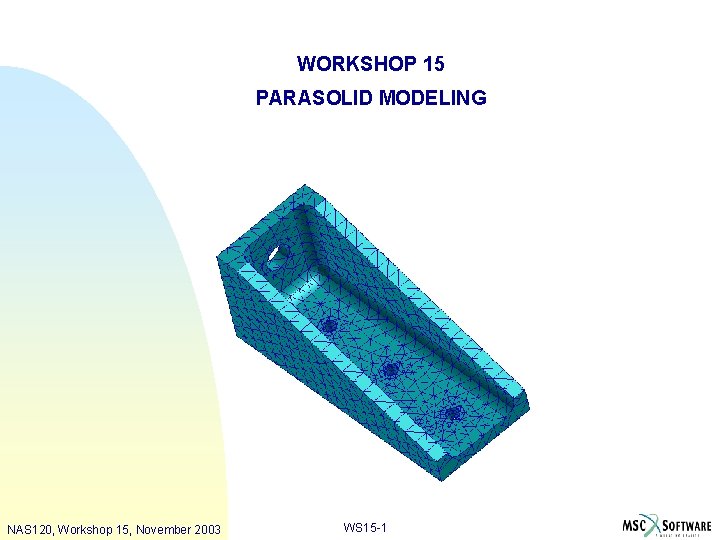
WORKSHOP 15 PARASOLID MODELING NAS 120 Workshop 15
- Slides: 34
WORKSHOP 15 PARASOLID MODELING NAS 120, Workshop 15, November 2003 WS 15 -1
NAS 120, Workshop 15, November 2003 WS 15 -2
n Problem Description u Create a parasolid model of a tension fitting using a number of the parasolid tools in MSC. Patran NAS 120, Workshop 15, November 2003 WS 15 -3
n Suggested Exercise Steps 1. 2. 3. 4. 5. 6. 7. 8. 9. 10. 11. 12. 13. 14. 15. 16. 17. Create a new database for the tension fitting model. Create all the necessary 2 D Geometry. Extrude the surface to begin creating the solid model. Create a solid shell by removing part of the solid. Create fillets for all inside edges of the solid. Create holes for the model by creating solid cylinders that pass through it, and then use boolean to subtract the cylinders. Create cylinders to imprint the model. Imprint the solid using the cylinders. Delete the cylinders used for imprinting. Tet. Mesh the completed solid Create loads and constraints on the model that will be used in the analysis. Create material properties for the model. Create the 3 D element properties. Check to see that the load case Default has the load and constraint. Run the analysis by sending the model to MSC. Nastran. Access the results by attaching the XDB file. Post-process the results from MSC Nastran. NAS 120, Workshop 15, November 2003 WS 15 -4
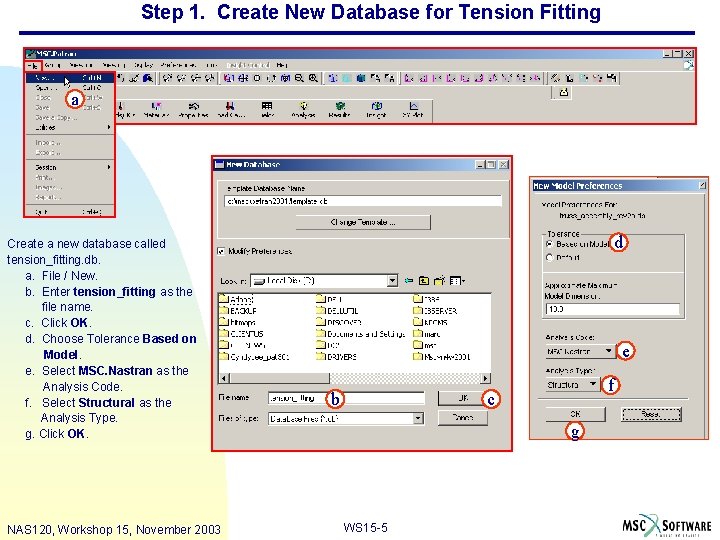
Step 1. Create New Database for Tension Fitting a Create a new database called tension_fitting. db. a. File / New. b. Enter tension_fitting as the file name. c. Click OK. d. Choose Tolerance Based on Model. e. Select MSC. Nastran as the Analysis Code. f. Select Structural as the Analysis Type. g. Click OK. NAS 120, Workshop 15, November 2003 d e b f c g WS 15 -5
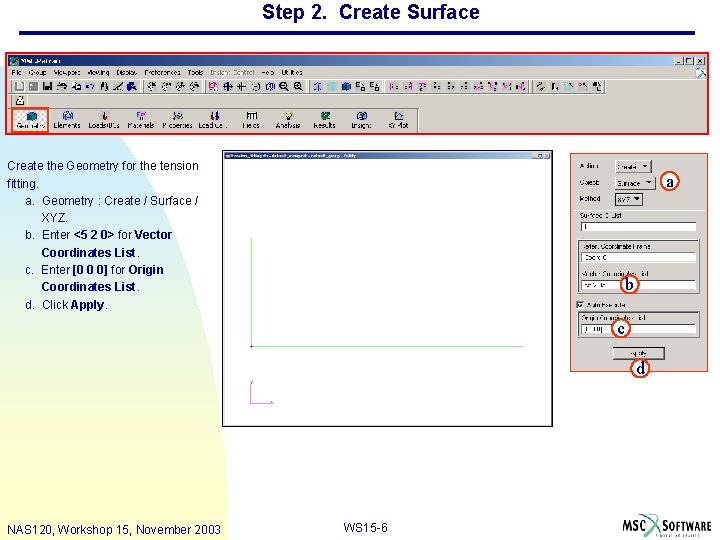
Step 2. Create Surface Create the Geometry for the tension fitting. a. Geometry : Create / Surface / XYZ. b. Enter <5 2 0> for Vector Coordinates List. c. Enter [0 0 0] for Origin Coordinates List. d. Click Apply. a b c d NAS 120, Workshop 15, November 2003 WS 15 -6
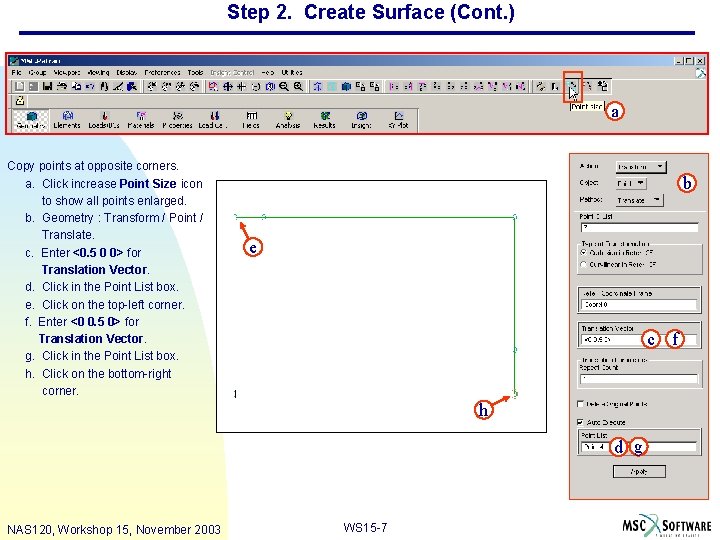
Step 2. Create Surface (Cont. ) a Copy points at opposite corners. a. Click increase Point Size icon to show all points enlarged. b. Geometry : Transform / Point / Translate. c. Enter <0. 5 0 0> for Translation Vector. d. Click in the Point List box. e. Click on the top-left corner. f. Enter <0 0. 5 0> for Translation Vector. g. Click in the Point List box. h. Click on the bottom-right corner. b e c f h d g NAS 120, Workshop 15, November 2003 WS 15 -7
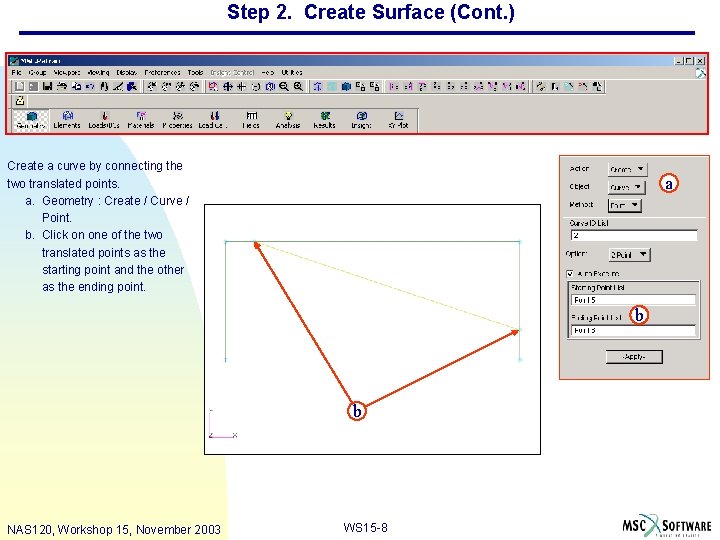
Step 2. Create Surface (Cont. ) Create a curve by connecting the two translated points. a. Geometry : Create / Curve / Point. b. Click on one of the two translated points as the starting point and the other as the ending point. a b b NAS 120, Workshop 15, November 2003 WS 15 -8
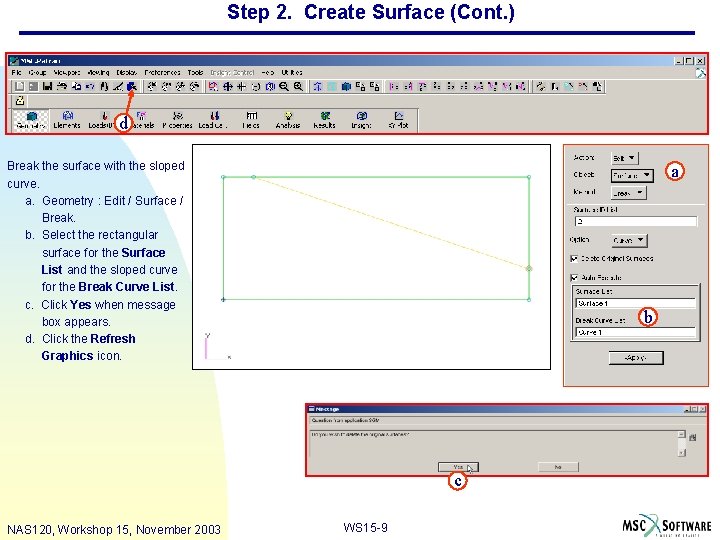
Step 2. Create Surface (Cont. ) d Break the surface with the sloped curve. a. Geometry : Edit / Surface / Break. b. Select the rectangular surface for the Surface List and the sloped curve for the Break Curve List. c. Click Yes when message box appears. d. Click the Refresh Graphics icon. a b c NAS 120, Workshop 15, November 2003 WS 15 -9
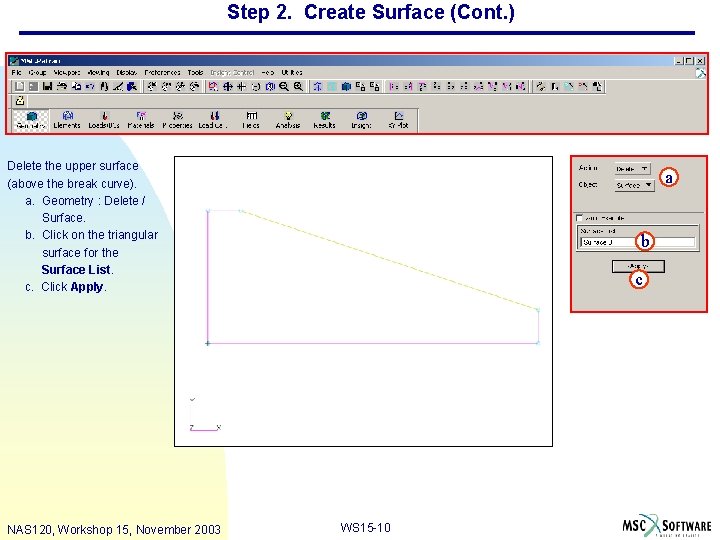
Step 2. Create Surface (Cont. ) Delete the upper surface (above the break curve). a. Geometry : Delete / Surface. b. Click on the triangular surface for the Surface List. c. Click Apply. NAS 120, Workshop 15, November 2003 a b c WS 15 -10
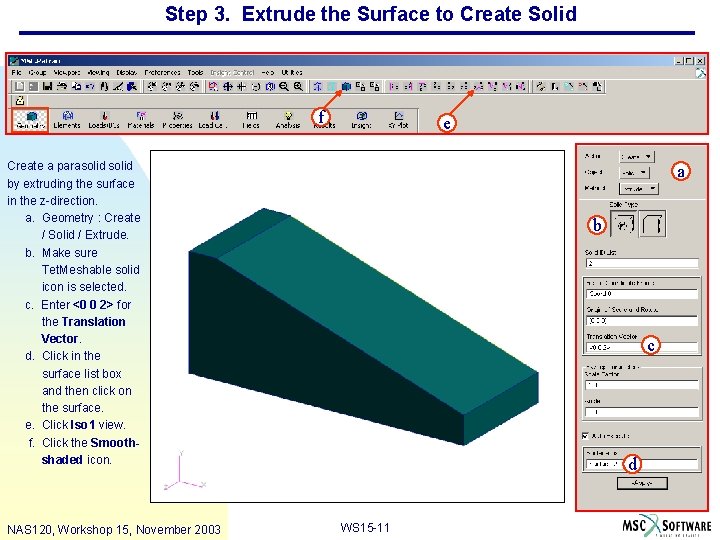
Step 3. Extrude the Surface to Create Solid f e Create a parasolid by extruding the surface in the z-direction. a. Geometry : Create / Solid / Extrude. b. Make sure Tet. Meshable solid icon is selected. c. Enter <0 0 2> for the Translation Vector. d. Click in the surface list box and then click on the surface. e. Click Iso 1 view. f. Click the Smoothshaded icon. NAS 120, Workshop 15, November 2003 a b c d WS 15 -11
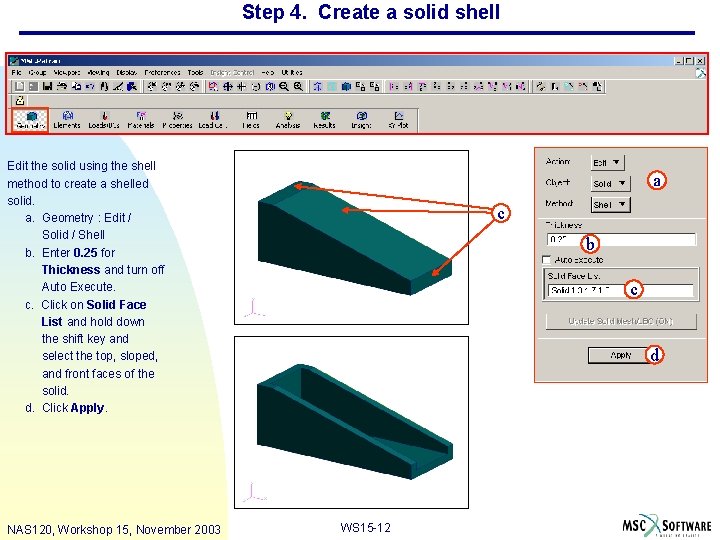
Step 4. Create a solid shell Edit the solid using the shell method to create a shelled solid. a. Geometry : Edit / Solid / Shell b. Enter 0. 25 for Thickness and turn off Auto Execute. c. Click on Solid Face List and hold down the shift key and select the top, sloped, and front faces of the solid. d. Click Apply. NAS 120, Workshop 15, November 2003 a c b c d WS 15 -12
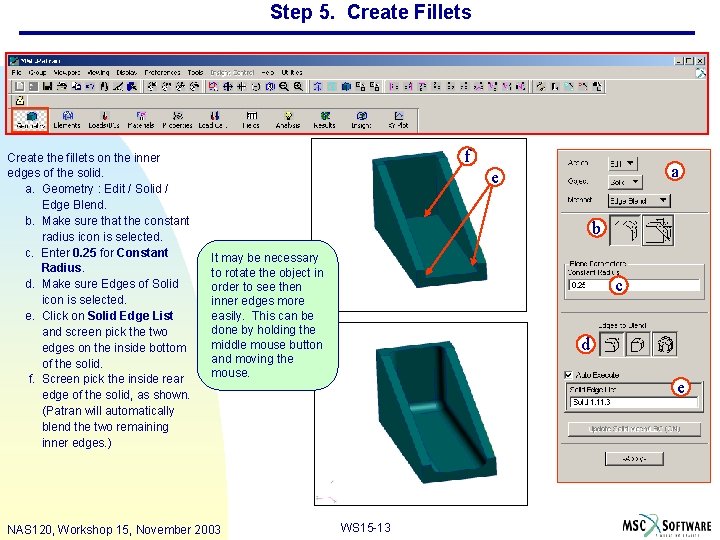
Step 5. Create Fillets Create the fillets on the inner edges of the solid. a. Geometry : Edit / Solid / Edge Blend. b. Make sure that the constant radius icon is selected. c. Enter 0. 25 for Constant Radius. d. Make sure Edges of Solid icon is selected. e. Click on Solid Edge List and screen pick the two edges on the inside bottom of the solid. f. Screen pick the inside rear edge of the solid, as shown. (Patran will automatically blend the two remaining inner edges. ) f a e b It may be necessary to rotate the object in order to see then inner edges more easily. This can be done by holding the middle mouse button and moving the mouse. NAS 120, Workshop 15, November 2003 c d e WS 15 -13
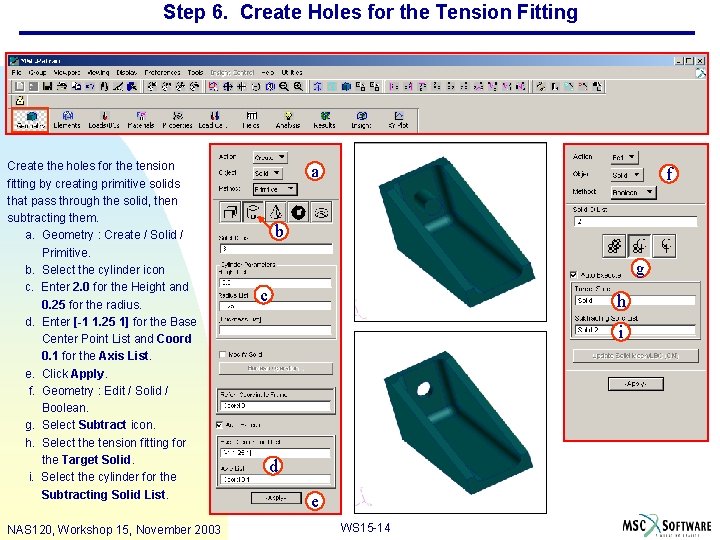
Step 6. Create Holes for the Tension Fitting Create the holes for the tension fitting by creating primitive solids that pass through the solid, then subtracting them. a. Geometry : Create / Solid / Primitive. b. Select the cylinder icon c. Enter 2. 0 for the Height and 0. 25 for the radius. d. Enter [-1 1. 25 1] for the Base Center Point List and Coord 0. 1 for the Axis List. e. Click Apply. f. Geometry : Edit / Solid / Boolean. g. Select Subtract icon. h. Select the tension fitting for the Target Solid. i. Select the cylinder for the Subtracting Solid List. NAS 120, Workshop 15, November 2003 a f b g c h i d e WS 15 -14
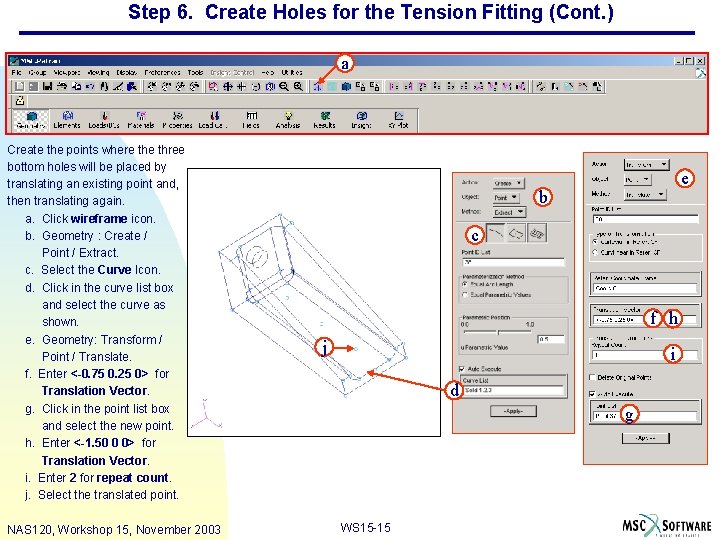
Step 6. Create Holes for the Tension Fitting (Cont. ) a Create the points where three bottom holes will be placed by translating an existing point and, then translating again. a. Click wireframe icon. b. Geometry : Create / Point / Extract. c. Select the Curve Icon. d. Click in the curve list box and select the curve as shown. e. Geometry: Transform / Point / Translate. f. Enter <-0. 75 0. 25 0> for Translation Vector. g. Click in the point list box and select the new point. h. Enter <-1. 50 0 0> for Translation Vector. i. Enter 2 for repeat count. j. Select the translated point. NAS 120, Workshop 15, November 2003 e b c f h j i d g WS 15 -15
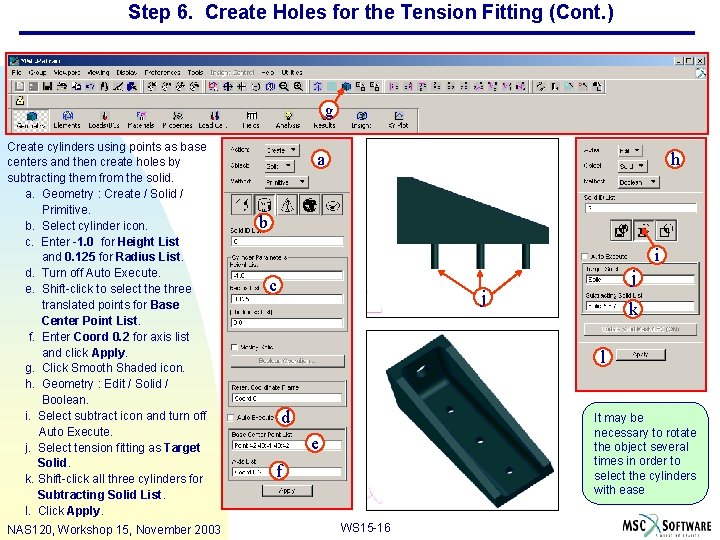
Step 6. Create Holes for the Tension Fitting (Cont. ) g Create cylinders using points as base centers and then create holes by subtracting them from the solid. a. Geometry : Create / Solid / Primitive. b. Select cylinder icon. c. Enter -1. 0 for Height List and 0. 125 for Radius List. d. Turn off Auto Execute. e. Shift-click to select the three translated points for Base Center Point List. f. Enter Coord 0. 2 for axis list and click Apply. g. Click Smooth Shaded icon. h. Geometry : Edit / Solid / Boolean. i. Select subtract icon and turn off Auto Execute. j. Select tension fitting as Target Solid. k. Shift-click all three cylinders for Subtracting Solid List. l. Click Apply. NAS 120, Workshop 15, November 2003 a h b i c j j k l d It may be necessary to rotate the object several times in order to select the cylinders with ease e f WS 15 -16
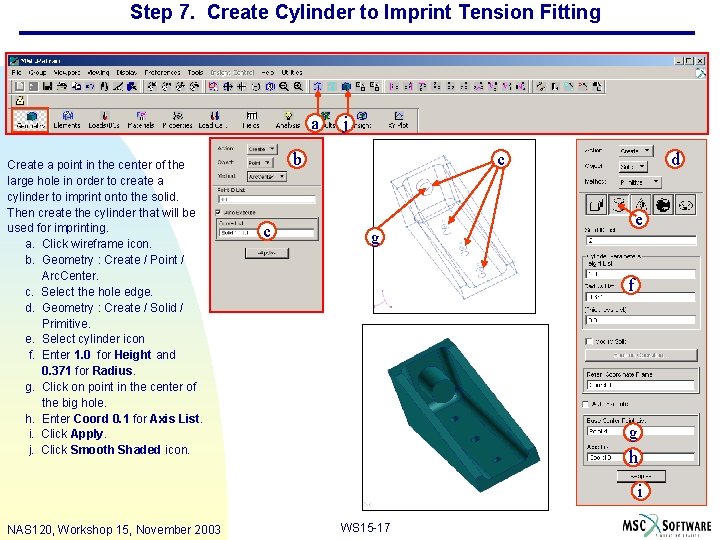
Step 7. Create Cylinder to Imprint Tension Fitting a Create a point in the center of the large hole in order to create a cylinder to imprint onto the solid. Then create the cylinder that will be used for imprinting. a. Click wireframe icon. b. Geometry : Create / Point / Arc. Center. c. Select the hole edge. d. Geometry : Create / Solid / Primitive. e. Select cylinder icon f. Enter 1. 0 for Height and 0. 371 for Radius. g. Click on point in the center of the big hole. h. Enter Coord 0. 1 for Axis List. i. Click Apply. j. Click Smooth Shaded icon. j b c c d e g f g h i NAS 120, Workshop 15, November 2003 WS 15 -17
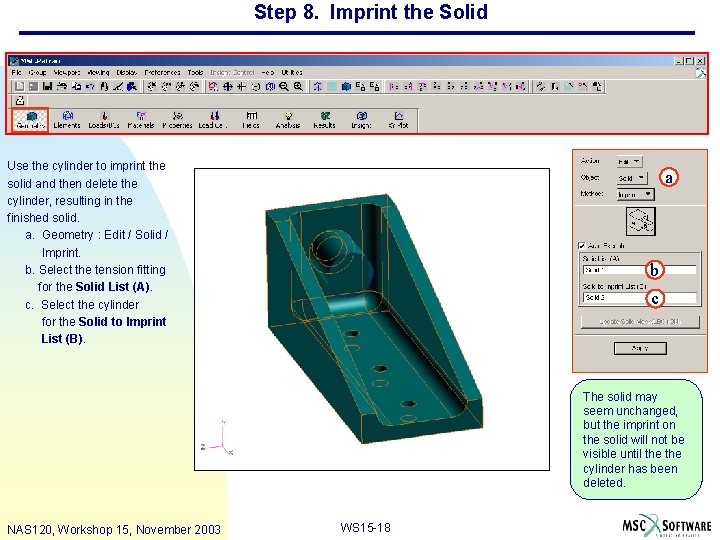
Step 8. Imprint the Solid Use the cylinder to imprint the solid and then delete the cylinder, resulting in the finished solid. a. Geometry : Edit / Solid / Imprint. b. Select the tension fitting for the Solid List (A). c. Select the cylinder for the Solid to Imprint List (B). a b c The solid may seem unchanged, but the imprint on the solid will not be visible until the cylinder has been deleted. NAS 120, Workshop 15, November 2003 WS 15 -18
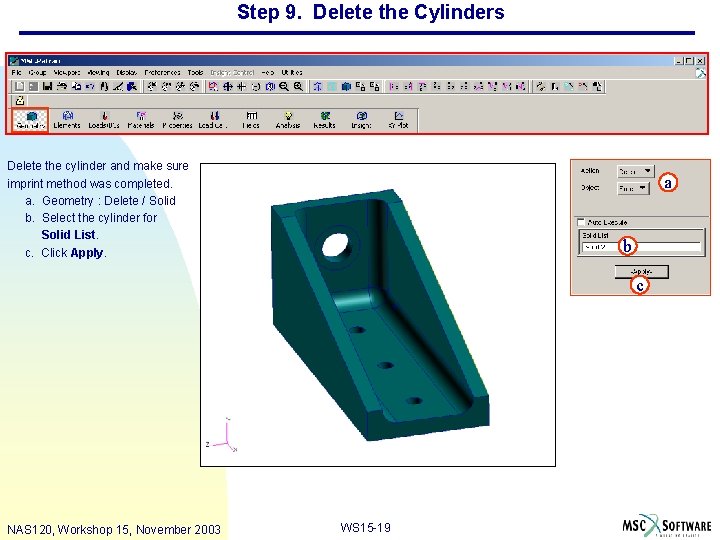
Step 9. Delete the Cylinders Delete the cylinder and make sure imprint method was completed. a. Geometry : Delete / Solid b. Select the cylinder for Solid List. c. Click Apply. a b c NAS 120, Workshop 15, November 2003 WS 15 -19
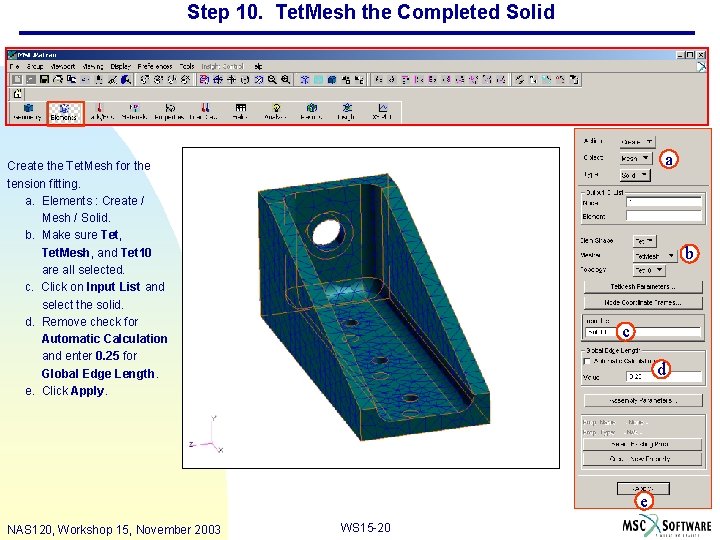
Step 10. Tet. Mesh the Completed Solid a Create the Tet. Mesh for the tension fitting. a. Elements : Create / Mesh / Solid. b. Make sure Tet, Tet. Mesh, and Tet 10 are all selected. c. Click on Input List and select the solid. d. Remove check for Automatic Calculation and enter 0. 25 for Global Edge Length. e. Click Apply. b c d e NAS 120, Workshop 15, November 2003 WS 15 -20
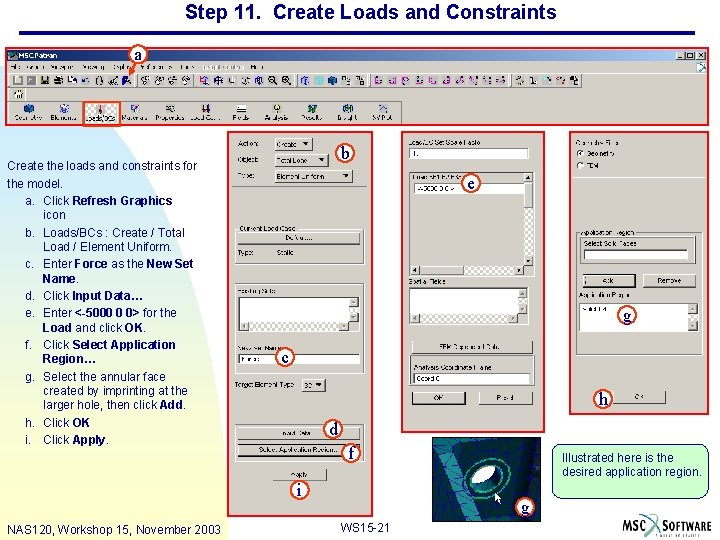
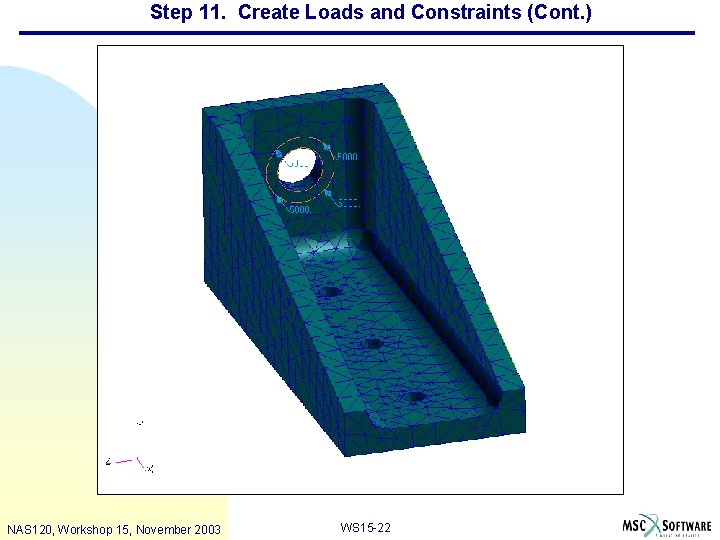
Step 11. Create Loads and Constraints a Create the loads and constraints for the model. a. Click Refresh Graphics icon b. Loads/BCs : Create / Total Load / Element Uniform. c. Enter Force as the New Set Name. d. Click Input Data… e. Enter <-5000 0 0> for the Load and click OK. f. Click Select Application Region… g. Select the annular face created by imprinting at the larger hole, then click Add. h. Click OK i. Click Apply. b e g c h d f i NAS 120, Workshop 15, November 2003 Illustrated here is the desired application region. g WS 15 -21
Step 11. Create Loads and Constraints (Cont. ) NAS 120, Workshop 15, November 2003 WS 15 -22
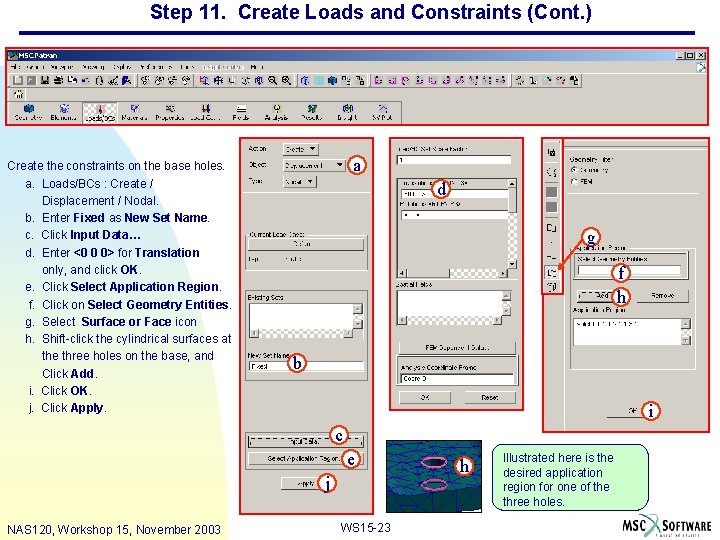
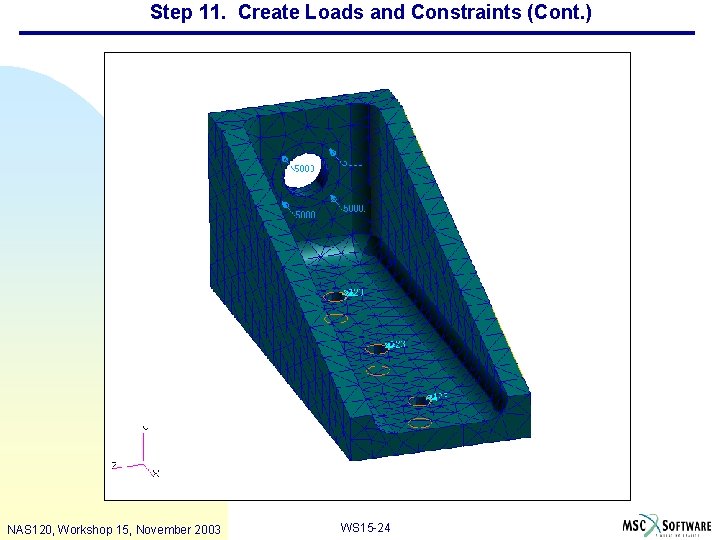
Step 11. Create Loads and Constraints (Cont. ) Create the constraints on the base holes. a. Loads/BCs : Create / Displacement / Nodal. b. Enter Fixed as New Set Name. c. Click Input Data… d. Enter <0 0 0> for Translation only, and click OK. e. Click Select Application Region. f. Click on Select Geometry Entities. g. Select Surface or Face icon h. Shift-click the cylindrical surfaces at the three holes on the base, and Click Add. i. Click OK. j. Click Apply. a d g f h b i c e j NAS 120, Workshop 15, November 2003 WS 15 -23 h Illustrated here is the desired application region for one of the three holes.
Step 11. Create Loads and Constraints (Cont. ) NAS 120, Workshop 15, November 2003 WS 15 -24
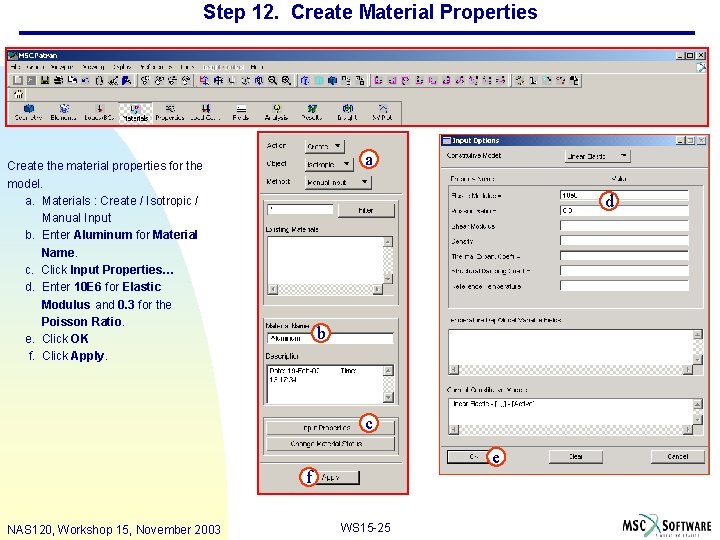
Step 12. Create Material Properties a Create the material properties for the model. a. Materials : Create / Isotropic / Manual Input b. Enter Aluminum for Material Name. c. Click Input Properties… d. Enter 10 E 6 for Elastic Modulus and 0. 3 for the Poisson Ratio. e. Click OK f. Click Apply. d b c e f NAS 120, Workshop 15, November 2003 WS 15 -25
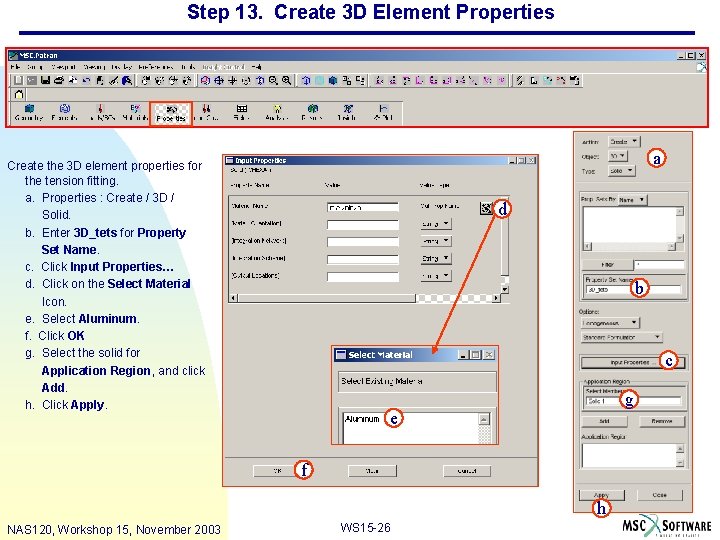
Step 13. Create 3 D Element Properties a Create the 3 D element properties for the tension fitting. a. Properties : Create / 3 D / Solid. b. Enter 3 D_tets for Property Set Name. c. Click Input Properties… d. Click on the Select Material Icon. e. Select Aluminum. f. Click OK g. Select the solid for Application Region, and click Add. h. Click Apply. d b c g e f h NAS 120, Workshop 15, November 2003 WS 15 -26
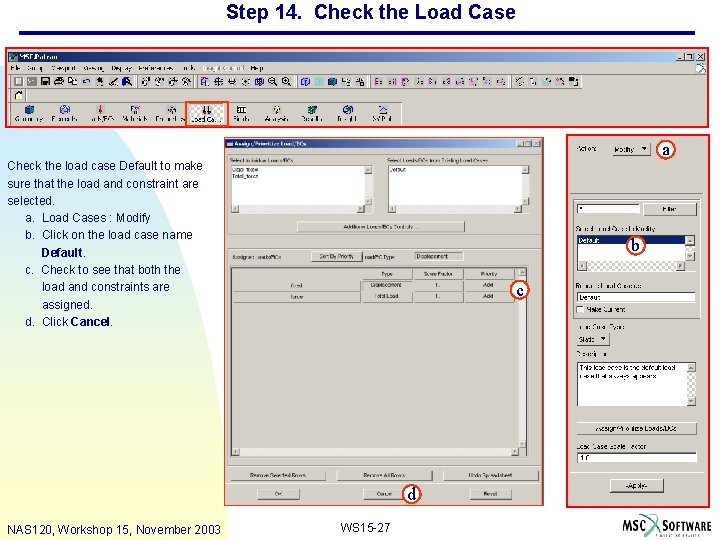
Step 14. Check the Load Case a Check the load case Default to make sure that the load and constraint are selected. a. Load Cases : Modify b. Click on the load case name Default. c. Check to see that both the load and constraints are assigned. d. Click Cancel. b c d NAS 120, Workshop 15, November 2003 WS 15 -27
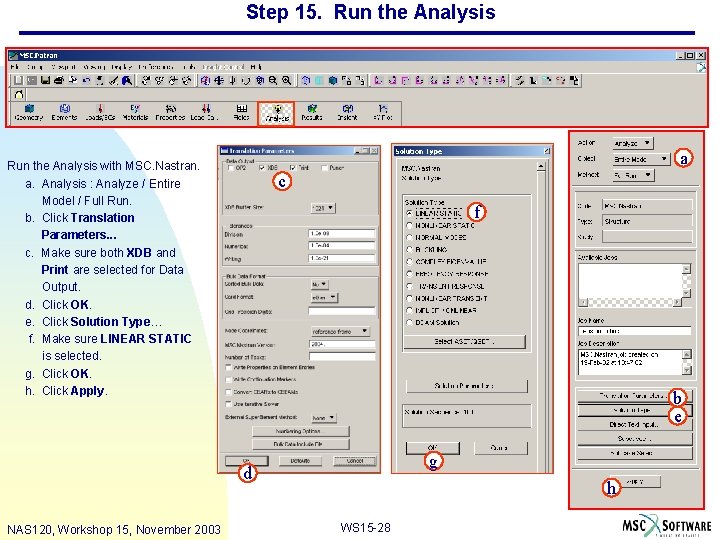
Step 15. Run the Analysis a Run the Analysis with MSC. Nastran. a. Analysis : Analyze / Entire Model / Full Run. b. Click Translation Parameters. . . c. Make sure both XDB and Print are selected for Data Output. d. Click OK. e. Click Solution Type… f. Make sure LINEAR STATIC is selected. g. Click OK. h. Click Apply. c f b e g d NAS 120, Workshop 15, November 2003 h WS 15 -28
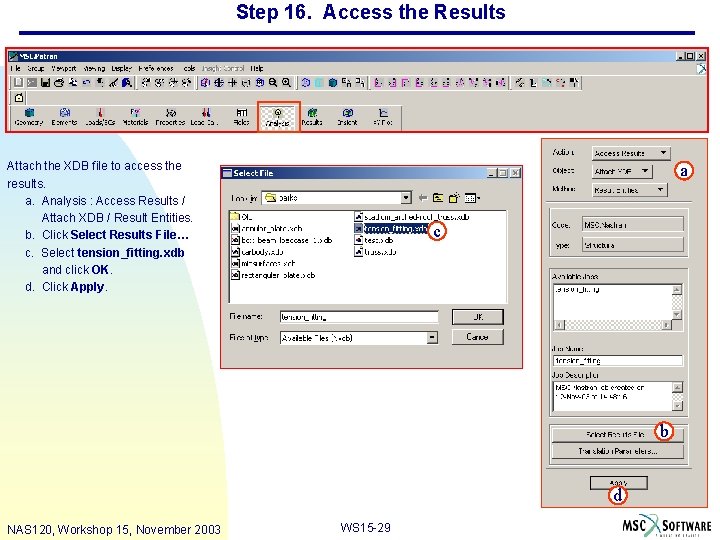
Step 16. Access the Results Attach the XDB file to access the results. a. Analysis : Access Results / Attach XDB / Result Entities. b. Click Select Results File… c. Select tension_fitting. xdb and click OK. d. Click Apply. a c b d NAS 120, Workshop 15, November 2003 WS 15 -29
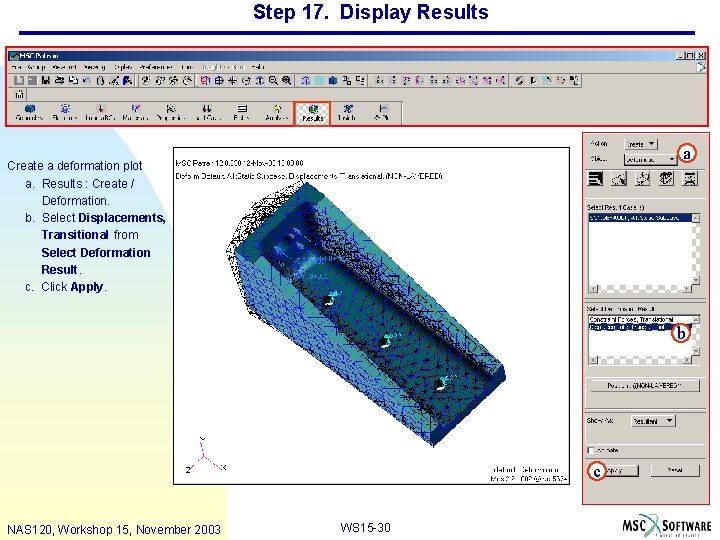
Step 17. Display Results a Create a deformation plot a. Results : Create / Deformation. b. Select Displacements, Transitional from Select Deformation Result. c. Click Apply. b c NAS 120, Workshop 15, November 2003 WS 15 -30
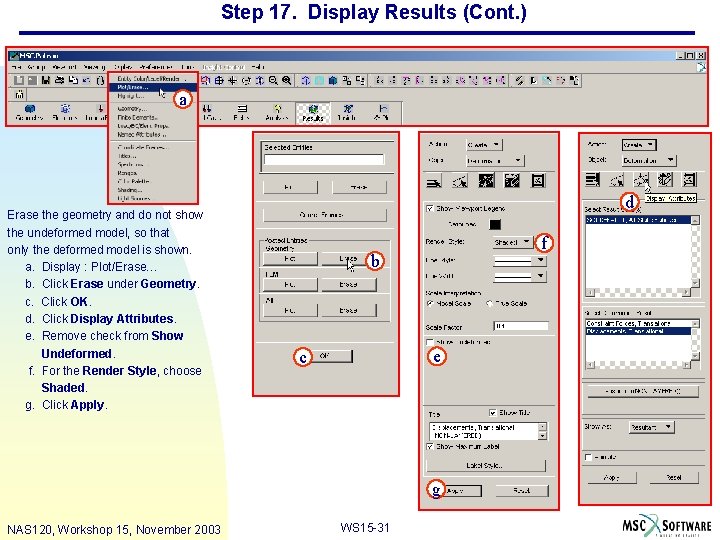
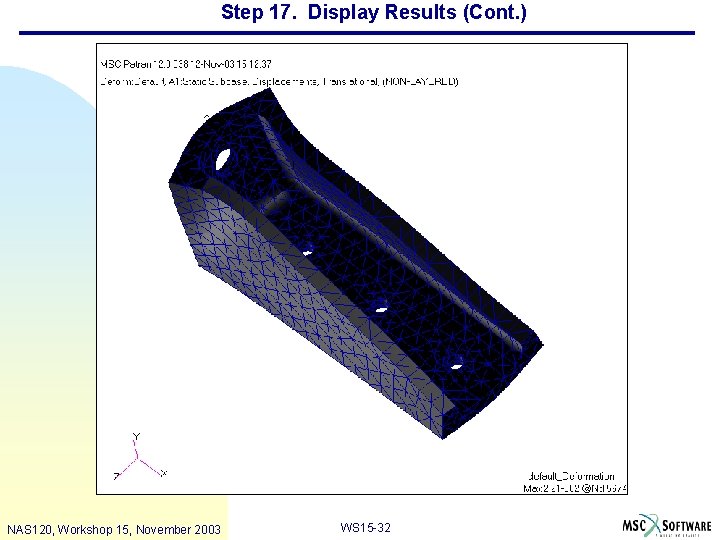
Step 17. Display Results (Cont. ) a Erase the geometry and do not show the undeformed model, so that only the deformed model is shown. a. Display : Plot/Erase… b. Click Erase under Geometry. c. Click OK. d. Click Display Attributes. e. Remove check from Show Undeformed. f. For the Render Style, choose Shaded. g. Click Apply. d f b e c g NAS 120, Workshop 15, November 2003 WS 15 -31
Step 17. Display Results (Cont. ) NAS 120, Workshop 15, November 2003 WS 15 -32
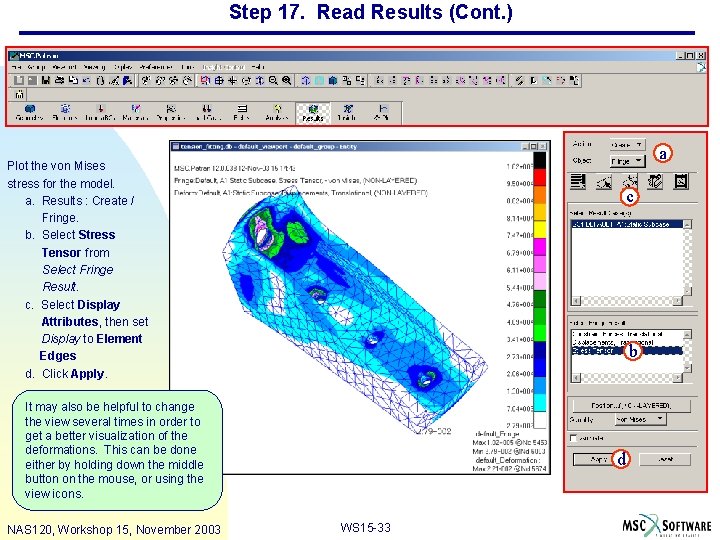
Step 17. Read Results (Cont. ) a Plot the von Mises stress for the model. a. Results : Create / Fringe. b. Select Stress Tensor from Select Fringe Result. c. Select Display Attributes, then set Display to Element Edges d. Click Apply. c b It may also be helpful to change the view several times in order to get a better visualization of the deformations. This can be done either by holding down the middle button on the mouse, or using the view icons. NAS 120, Workshop 15, November 2003 d WS 15 -33
NAS 120, Workshop 15, November 2003 WS 15 -34