
WORKSHOP 1 Designing a survey in Qualtrics Methods
- Slides: 34
WORKSHOP 1 Designing a survey in Qualtrics Methods Desk Communication Science 22 October 2019 Monika Simon
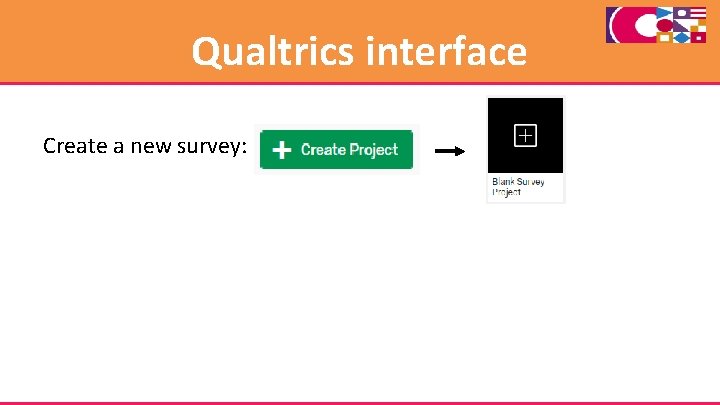
Qualtrics interface Create a new survey:
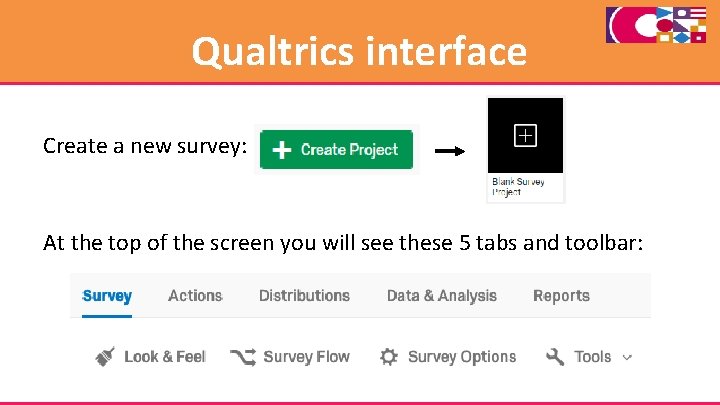
Qualtrics interface Create a new survey: At the top of the screen you will see these 5 tabs and toolbar:
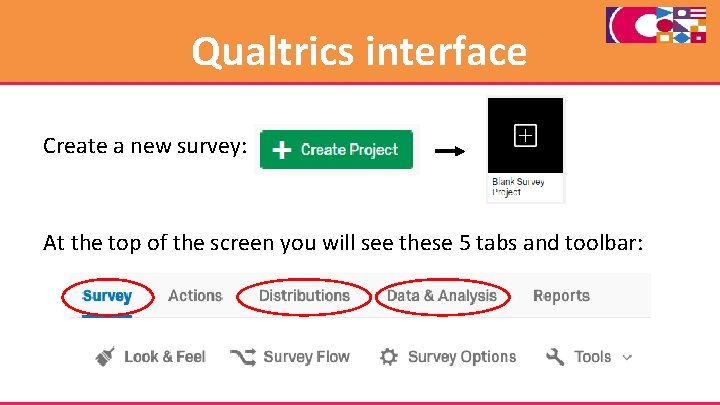
Qualtrics interface Create a new survey: At the top of the screen you will see these 5 tabs and toolbar:
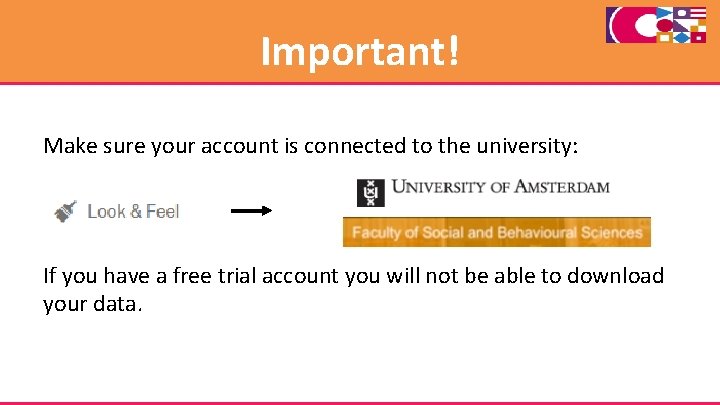
Important! Make sure your account is connected to the university: If you have a free trial account you will not be able to download your data.
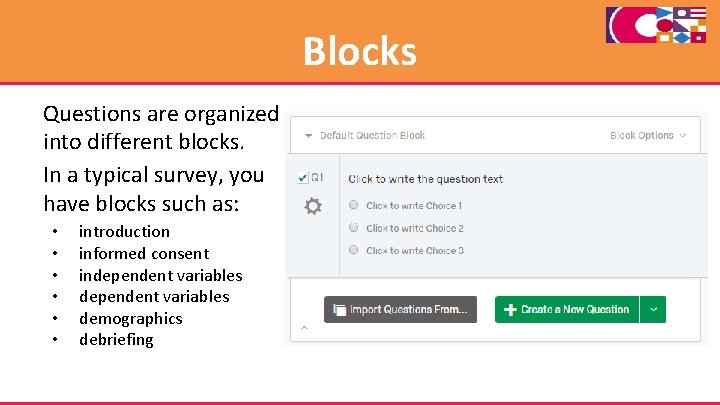
Blocks Questions are organized into different blocks. In a typical survey, you have blocks such as: • • • introduction informed consent independent variables demographics debriefing
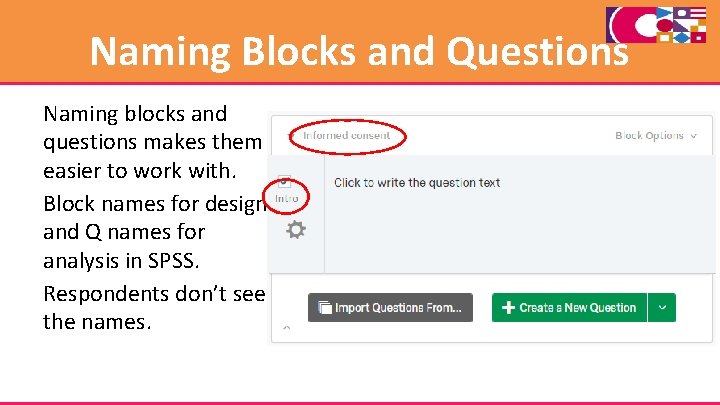
Naming Blocks and Questions Naming blocks and questions makes them easier to work with. Block names for design and Q names for analysis in SPSS. Respondents don’t see the names.
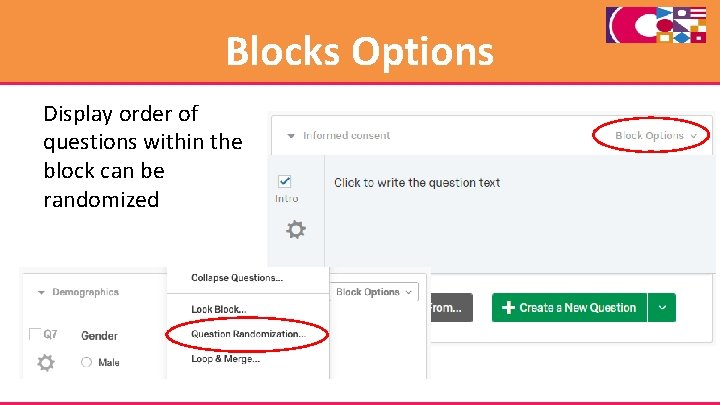
Blocks Options Display order of questions within the block can be randomized
Exercise 1 Make a few blocks: • Introduction and informed consent • Experimental manipulation or stimulus, 2 or more • DV • Demographics Remember to name the blocks so you know which is which. We will use these to make an experiment
Questions You can create a new question using this button: Or this one: Qualtrics often has many ways to do the same thing : )
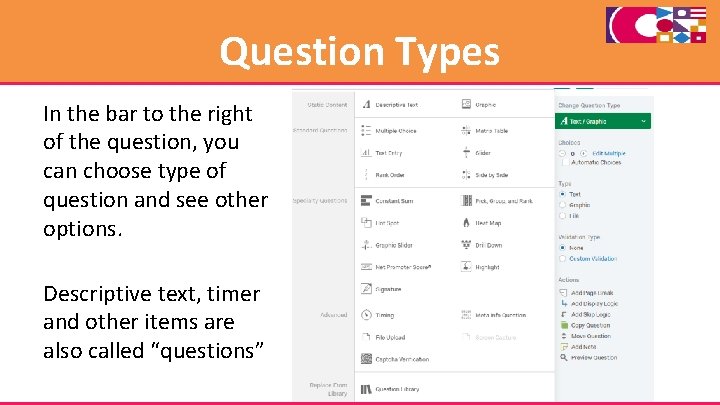
Question Types In the bar to the right of the question, you can choose type of question and see other options. Descriptive text, timer and other items are also called “questions”
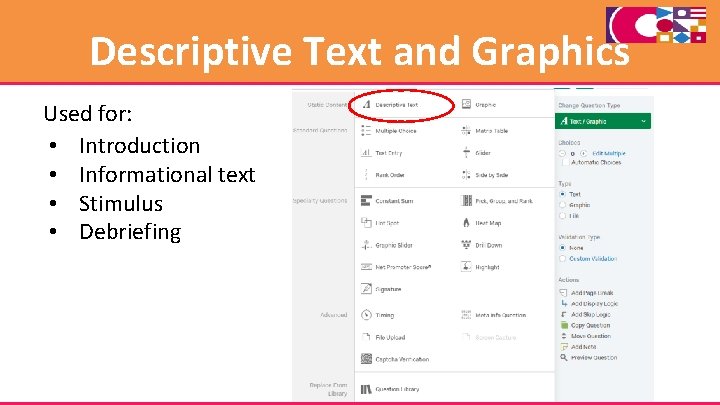
Descriptive Text and Graphics Used for: • Introduction • Informational text • Stimulus • Debriefing
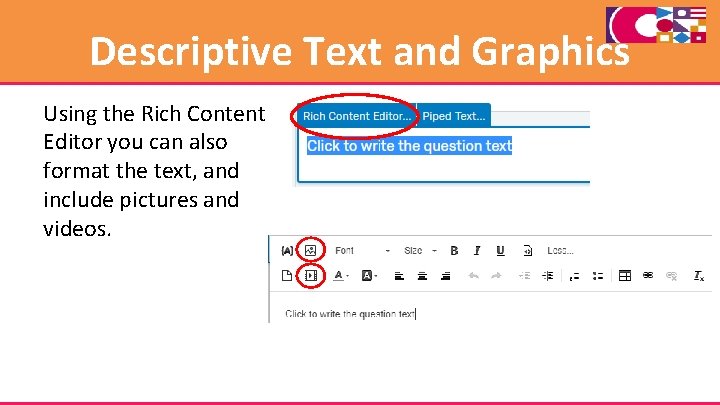
Descriptive Text and Graphics Using the Rich Content Editor you can also format the text, and include pictures and videos.
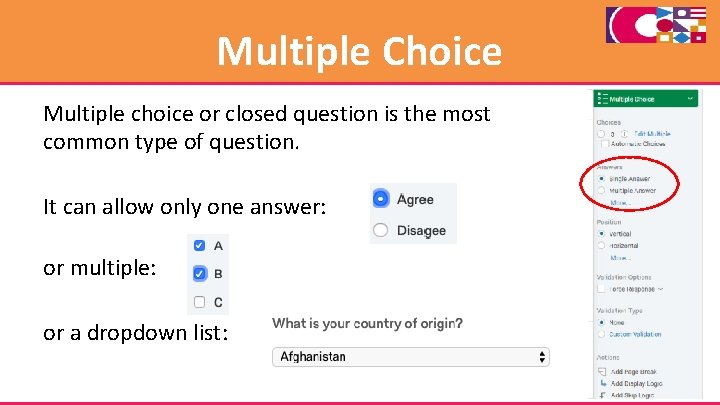
Multiple Choice Multiple choice or closed question is the most common type of question. It can allow only one answer: or multiple: or a dropdown list:
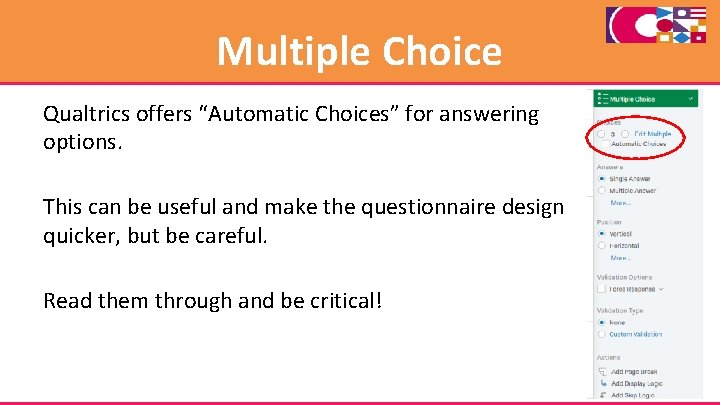
Multiple Choice Qualtrics offers “Automatic Choices” for answering options. This can be useful and make the questionnaire design quicker, but be careful. Read them through and be critical!
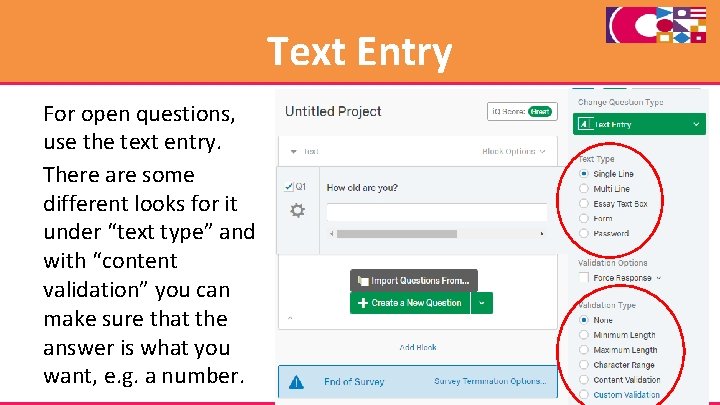
Text Entry For open questions, use the text entry. There are some different looks for it under “text type” and with “content validation” you can make sure that the answer is what you want, e. g. a number.
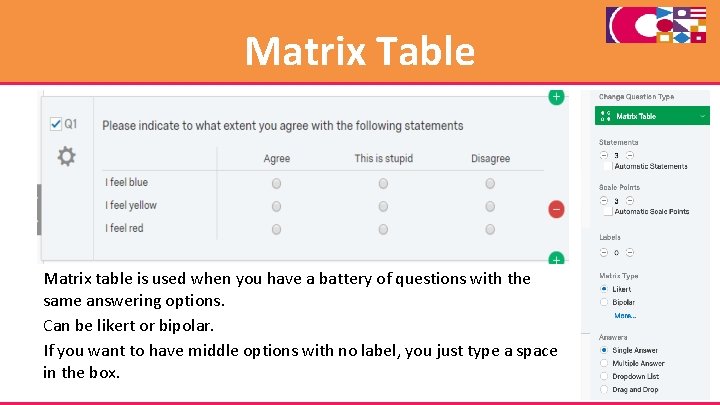
Matrix Table Matrix table is used when you have a battery of questions with the same answering options. Can be likert or bipolar. If you want to have middle options with no label, you just type a space in the box.
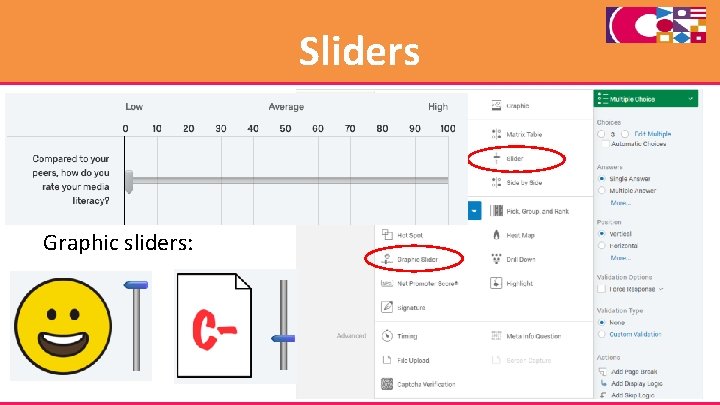
Sliders Graphic sliders:
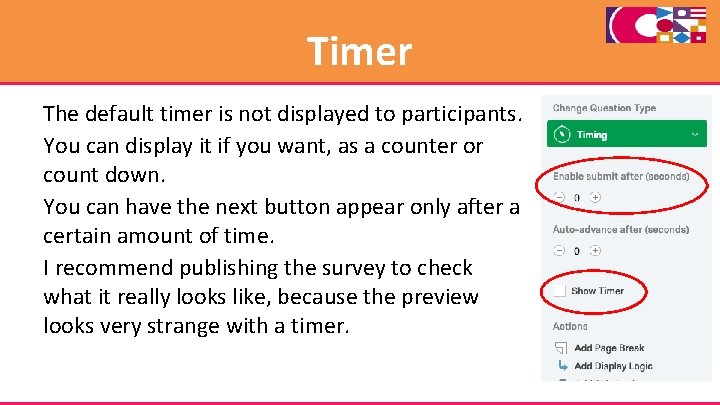
Timer The default timer is not displayed to participants. You can display it if you want, as a counter or count down. You can have the next button appear only after a certain amount of time. I recommend publishing the survey to check what it really looks like, because the preview looks very strange with a timer.
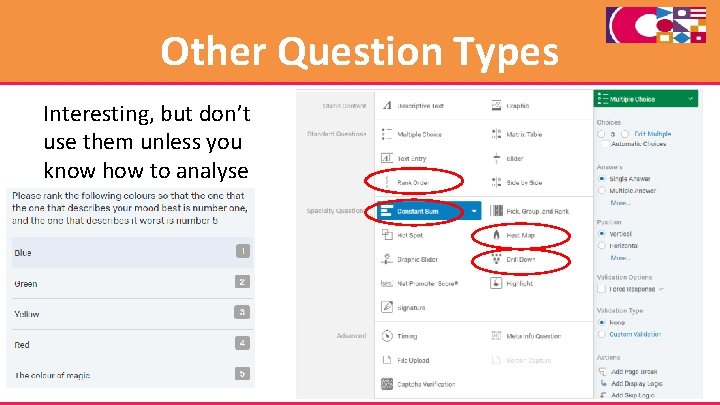
Other Question Types Interesting, but don’t use them unless you know how to analyse the data
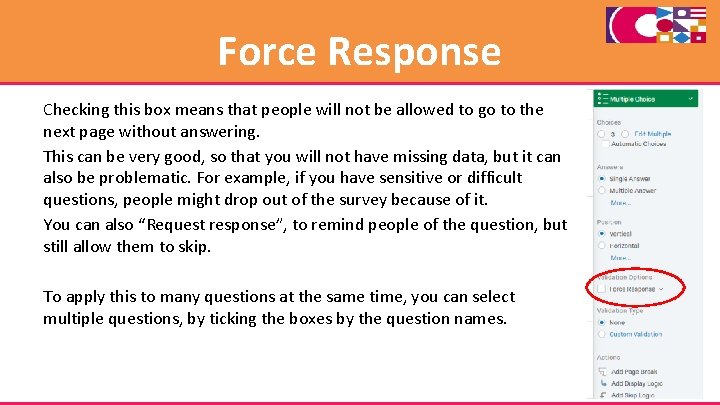
Force Response Checking this box means that people will not be allowed to go to the next page without answering. This can be very good, so that you will not have missing data, but it can also be problematic. For example, if you have sensitive or difficult questions, people might drop out of the survey because of it. You can also “Request response”, to remind people of the question, but still allow them to skip. To apply this to many questions at the same time, you can select multiple questions, by ticking the boxes by the question names.
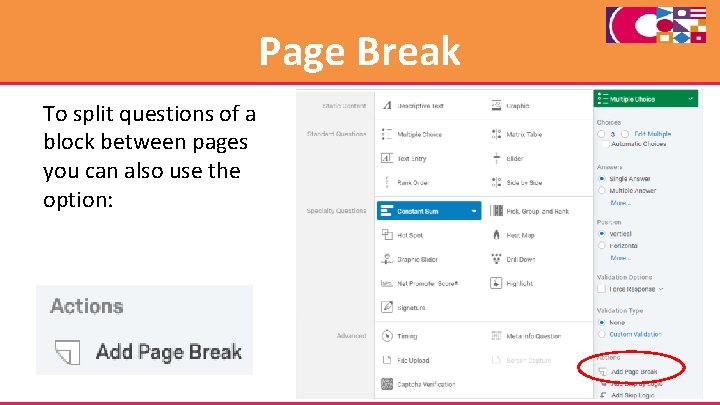
Page Break To split questions of a block between pages you can also use the option:
Exercise 2 Try using some of the techniques you have learned to fill your blocks with questions and other items. • Introduction and informed consent (with page break) • Stimulus with a video • Stimulus with a picture • Dependent variables block with multiple choice questions • Demographics block
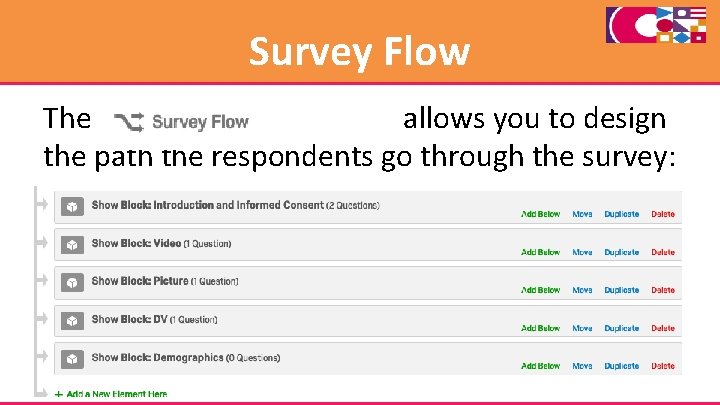
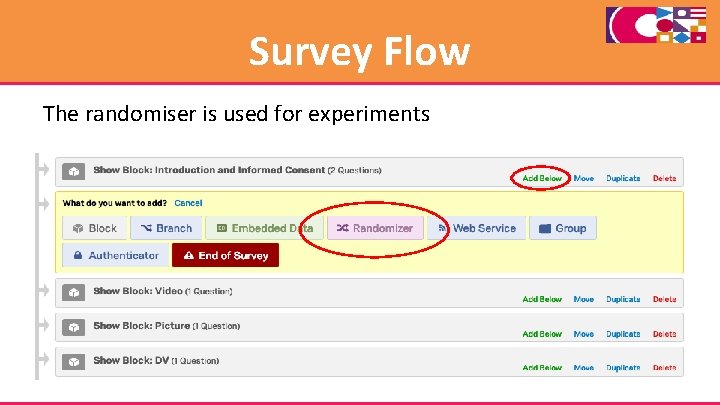
Survey Flow The allows you to design the path the respondents go through the survey:
Survey Flow The randomiser is used for experiments
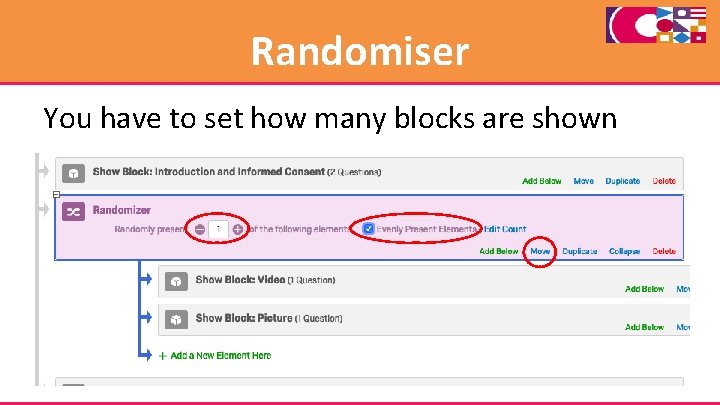
Randomiser You have to set how many blocks are shown
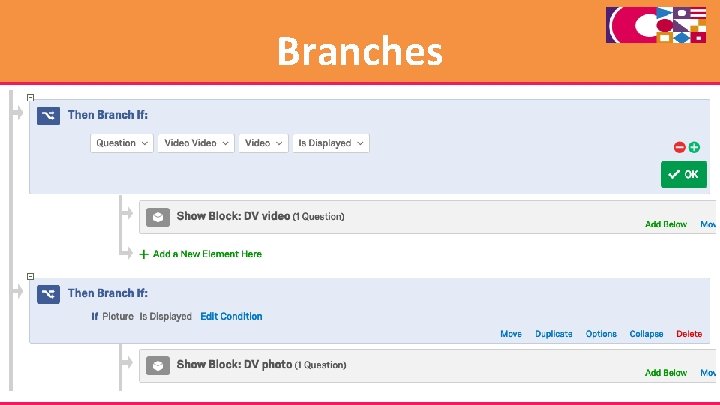
Branches
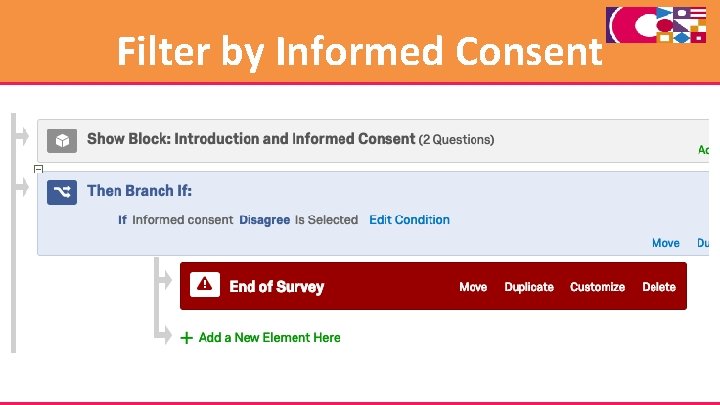
Filter by Informed Consent
Exercise 3 Make an experiment where participants are exposed to one stimulus and questions about that stimulus. Also, if they do not accept the informed consent form, redirect them to the end of the survey.
Survey Options The options, including a back button. offers many advanced You should always check the “Anonymize Response” button to make sure the survey confirms with GDPR and what you promise respondents is in the informed consent is true.
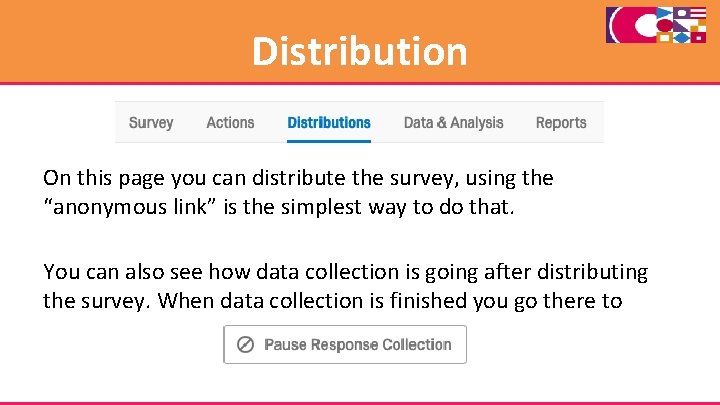
Distribution On this page you can distribute the survey, using the “anonymous link” is the simplest way to do that. You can also see how data collection is going after distributing the survey. When data collection is finished you go there to
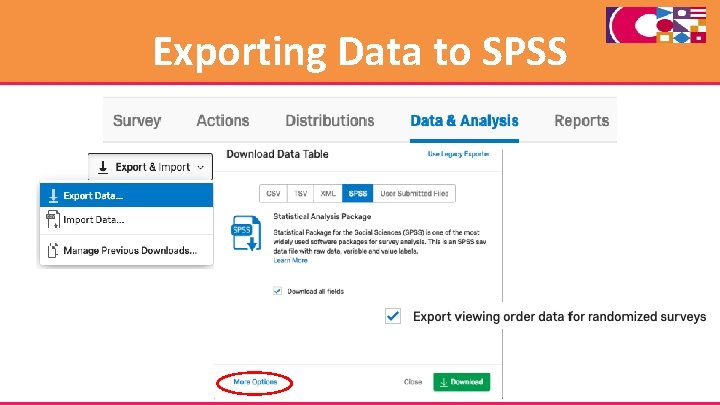
Exporting Data to SPSS
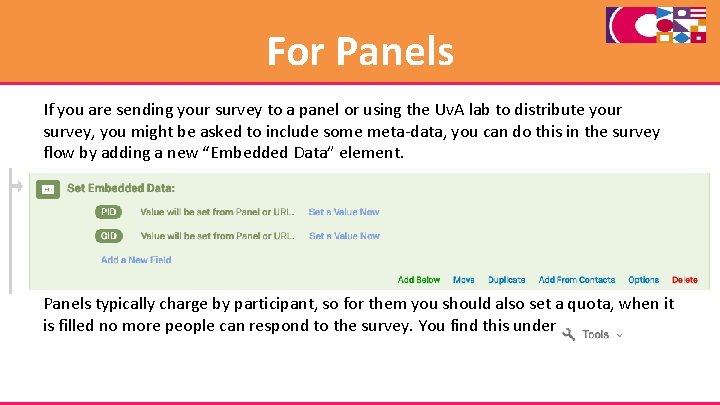
For Panels If you are sending your survey to a panel or using the Uv. A lab to distribute your survey, you might be asked to include some meta-data, you can do this in the survey flow by adding a new “Embedded Data” element. Panels typically charge by participant, so for them you should also set a quota, when it is filled no more people can respond to the survey. You find this under
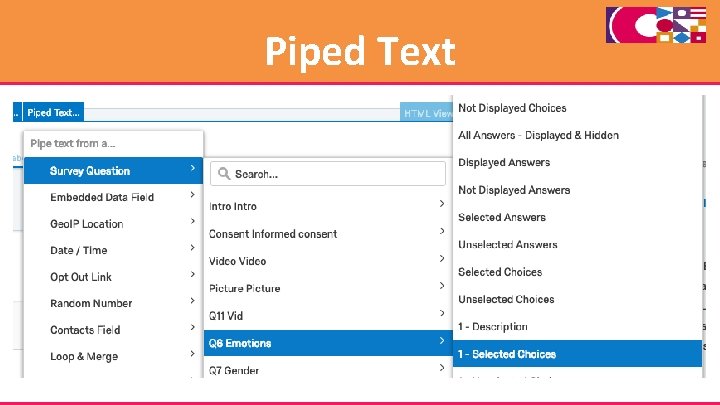
Piped Text