
Working with Tables 2 Geog 314 GIS Creating
Working with Tables 2 Geog. 314: GIS
Creating a field • Field Definition: includes field name, data width, data type, number of decimal places • Field name 1. should be short and indicative of the type of data you intend to put in. e. g. Pop_den for population density, length_Km for length in Km 2. Length vary depending on software e. g. Arc. GIS, length should exceed 10 characters 3. It does not allow spaces. So where you want to put space, use the underscore
How to create a field • In ARCGIS, you can create a field or remove a field when you are not in editing session. • You can create field in ARCMap or ARCCatalog • In Arc. Map, open the table by right clicking on the layer and click on open attribute table • Click the options button at bottom right of the table and click add field • Define the parameters required in the dialog box the opens and click ok.
Properties of Data types • numbers : 1. Precision – number of digits that can be stored in a field e. g. 456. 675 has precision = 6. Also 34567 has precision = 5 2. Scale – number of digits after decimal point e. g. 456. 675 has scale = 3 • Text or string 1. Length – the number of characters to be stored in a field including spaces.
Creating a field in arccatalog • In Arc. Catalog, double click the shapefile or Dbase table you want to create the field • Alternatively click on it the highlight it. Go to file and click properties. • Click on the field tab and define you field name in the empty rows under field name and click row next to the field name under the data type and choose the appropriate property.
Deleting a field • To delete a field in Arc. Map, stop editing if you are in editing mode and right click on the field name and click delete. • In Arc. Catalog, go the small gray box beside the field name. when you are on it, the pointer turns to an arrow. Click on it to highlight or select it. Press the delete key on the keyboard
Importing from other Databases • You can add other database tables to Arc. Map by clicking the add data button. The common ones you are likely to meet are excel and Access. • In excel 2003, you can convert the spread sheet to dbase table by selecting the information that you want. Use the save as option and in the save as type, click on the drop down arrow and scroll down to select dbase IV. • Before you do any of the above you must define the data types including headings as text, numbers, dates, etc.
Attribute data Entry • Create a field • Type your data in using the keyboard. This is possible only in edit session • Using field calculator I. Simple field calculations a. click on the field you want enter data and select field calculator b. Type the data in the text box provided below and click ok c. If the data is text, put it within double quotation marks
Attribute data Entry d. You can also build expressions using the fields and functions provided e. g. suppose you want to calculate population. - Create a field called pop_den and right click it and select field calculator. - Click in the expression box, double click the population field, click the divide sign and double click the area field. - Click ok.
Attribute data Entry II. Advance field calculations - Used to make calculations such as areas, perimeters, lengths and coordinates - To do this, click on the check box by advance - Type the VBA code for the calculation - You copy VBA code from the help and paste - N. B: Field calculations basically involves two operations: creating a field and computing the field values
Normalization • Is a process of decomposition, taking a table with all the attribute data and breaking it down to small tables while maintaining the necessary linkages between them (Vetter, 1987). • The objectives of normalization are to: 1. Avoid redundant data in tables that waste space and may cause integrity problems 2. Ensure that attribute data in separate tables are maintained and updated separately and can be linked whenever necessary 3. Facilitate a distributed database
Join and Relate (or Link) • Join brings two tables together using a common key (primary and foreign keys) • With join the tables are physically connected • Recommended for one-o-one and many-to-one relationships • Relate or link connects the tables temporarily using a common key • The two tables exist separately though they are linked. • Can be used for all types of relationships • Relate can work with 3 or more tables simultaneously
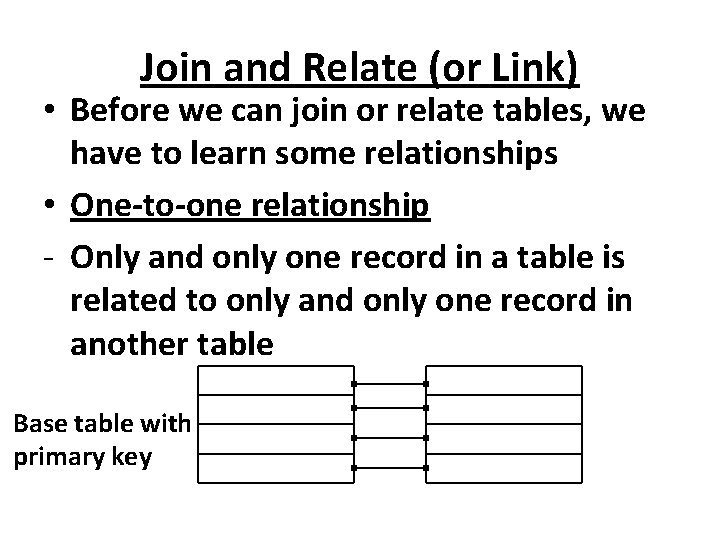
Join and Relate (or Link) • Before we can join or relate tables, we have to learn some relationships • One-to-one relationship - Only and only one record in a table is related to only and only one record in another table Base table with primary key
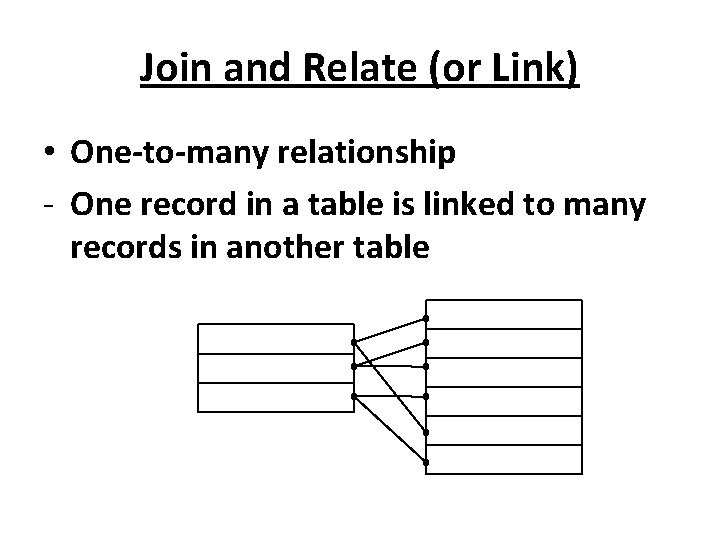
Join and Relate (or Link) • One-to-many relationship - One record in a table is linked to many records in another table
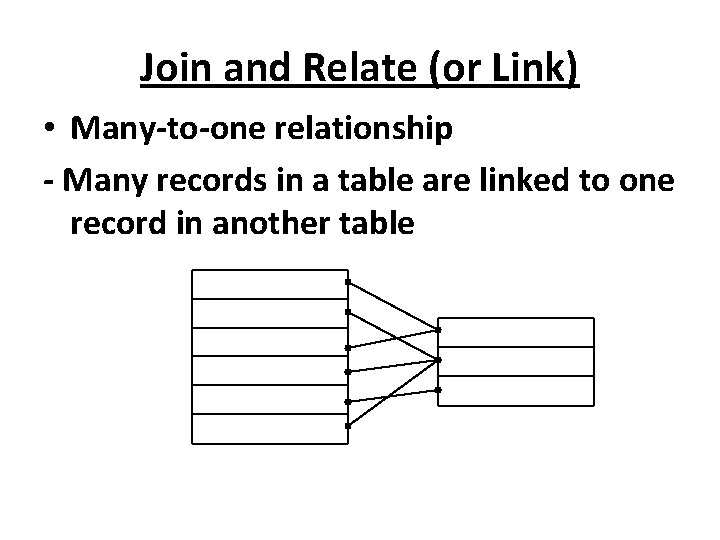
Join and Relate (or Link) • Many-to-one relationship - Many records in a table are linked to one record in another table
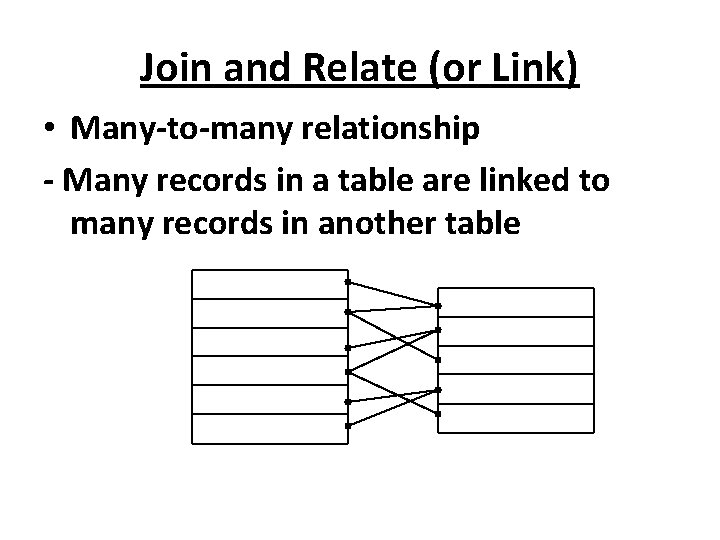
Join and Relate (or Link) • Many-to-many relationship - Many records in a table are linked to many records in another table
Attribute data mgt Edit Copy Cut Paste Delete Verification 1 st: check to sure that attribute data are properly linked to spatial data: the object ID should be unique and should contain null (empty) values - 2 nd: verify the accuracy of attribute data • • -
Attribute data verification • At least two methods: 1. Manual checking: print the data and cross check with the original data 2. Automated checking: computer programs can be written to check for inaccuracies
Attribute data query • Retrieves a data subset from a map by working with its attribute data • To do attribute data query in Arc. GIS, click on the selection menu and click select by attribute OR in the attribute table, click on options and then select by attribute • Then build your expression and click ok
Query expressions • Query expressions follow Boolean algebra • The simplest Boolean expression contains two operands and a logical operator • Operands - field names - Numbers - Strings • Logical operators - Equal sign (=), not equal (<>) - Greater than (>), Less than (<) - Greater or equal (>=), Less than or equal (<=)
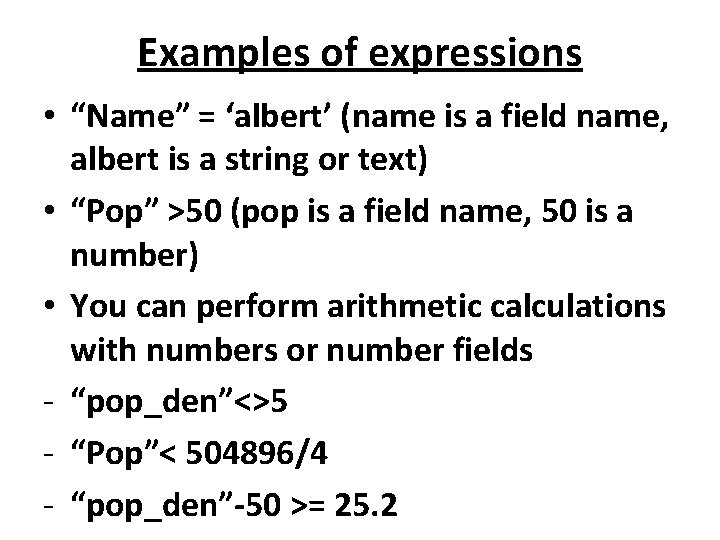
Examples of expressions • “Name” = ‘albert’ (name is a field name, albert is a string or text) • “Pop” >50 (pop is a field name, 50 is a number) • You can perform arithmetic calculations with numbers or number fields - “pop_den”<>5 - “Pop”< 504896/4 - “pop_den”-50 >= 25. 2
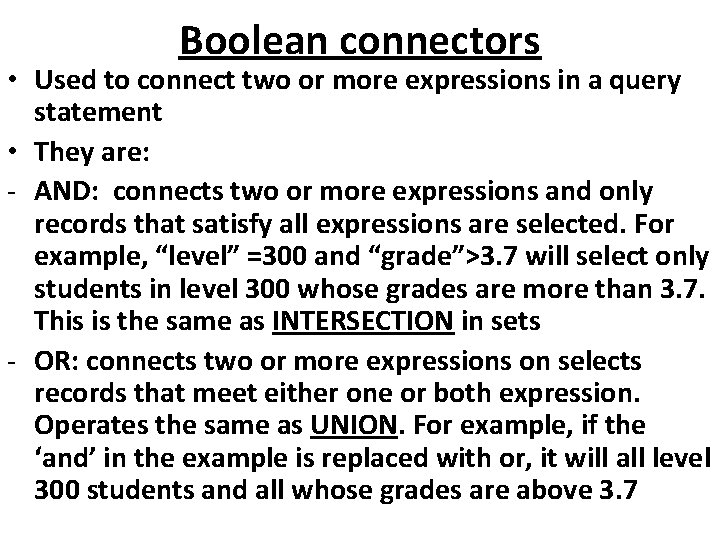
Boolean connectors • Used to connect two or more expressions in a query statement • They are: - AND: connects two or more expressions and only records that satisfy all expressions are selected. For example, “level” =300 and “grade”>3. 7 will select only students in level 300 whose grades are more than 3. 7. This is the same as INTERSECTION in sets - OR: connects two or more expressions on selects records that meet either one or both expression. Operates the same as UNION. For example, if the ‘and’ in the example is replaced with or, it will all level 300 students and all whose grades are above 3. 7
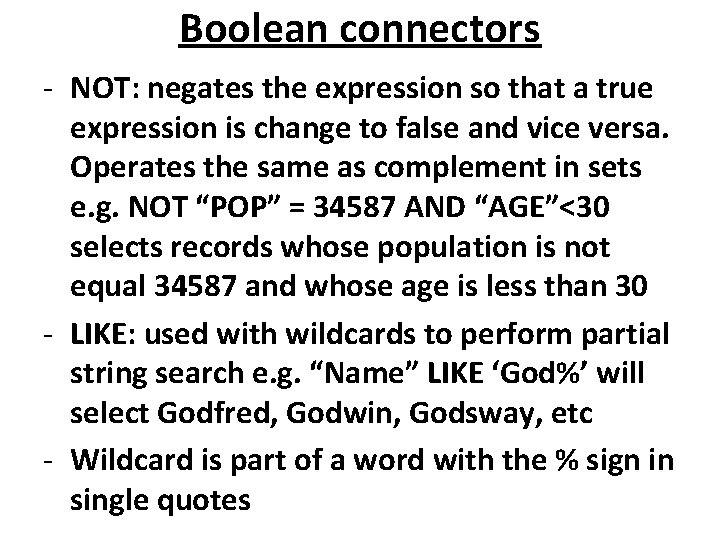
Boolean connectors - NOT: negates the expression so that a true expression is change to false and vice versa. Operates the same as complement in sets e. g. NOT “POP” = 34587 AND “AGE”<30 selects records whose population is not equal 34587 and whose age is less than 30 - LIKE: used with wildcards to perform partial string search e. g. “Name” LIKE ‘God%’ will select Godfred, Godwin, Godsway, etc - Wildcard is part of a word with the % sign in single quotes
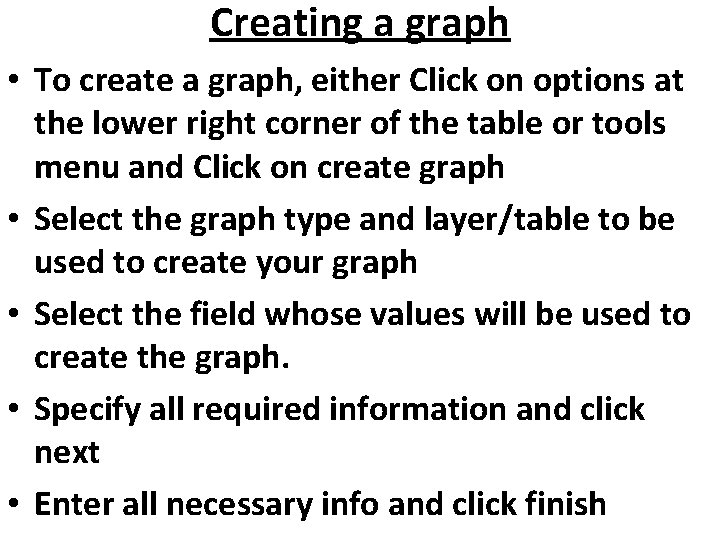
Creating a graph • To create a graph, either Click on options at the lower right corner of the table or tools menu and Click on create graph • Select the graph type and layer/table to be used to create your graph • Select the field whose values will be used to create the graph. • Specify all required information and click next • Enter all necessary info and click finish
- Slides: 24