
Working with Callbacks Programming Event driven input Objectives
Working with Callbacks Programming Event driven input
Objectives • Learn to build interactive programs using GLUT callbacks –Mouse –Keyboard –Reshape • Introduce menus in GLUT
The mouse callback glut. Mouse. Func(mymouse) void mymouse(GLint button, GLint state, GLint x, GLint y) • Returns –which button caused event (GLUT_LEFT_BUTTON, GLUT_MIDDLE_BUTTON, GLUT_RIGHT_BUTTON) – state of that button (GLUT_UP, GLUT_DOWN) –Position in window
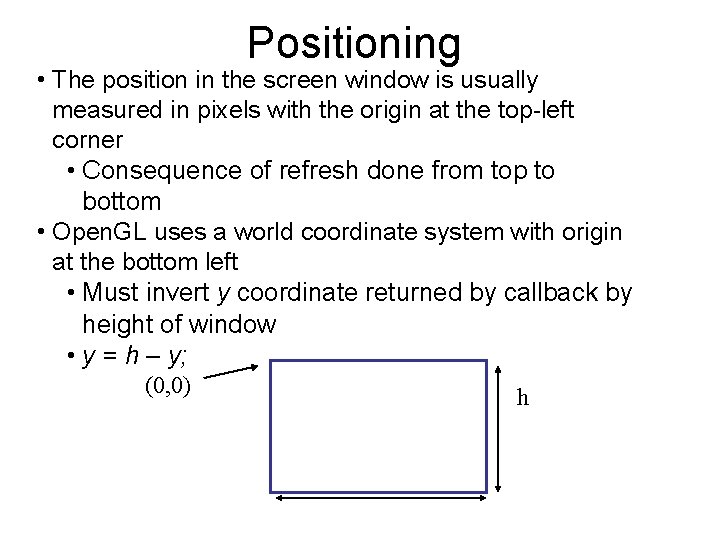
Positioning • The position in the screen window is usually measured in pixels with the origin at the top-left corner • Consequence of refresh done from top to bottom • Open. GL uses a world coordinate system with origin at the bottom left • Must invert y coordinate returned by callback by height of window • y = h – y; (0, 0) h
Obtaining the window size • To invert the y position we need the window height –Height can change during program execution –Track with a global variable –New height returned to reshape callback that we will look at in detail soon –Can also use query functions related to state int glut. Get(GLenum state) GLUT_WINDOW_WIDTH, GLUT_WINDOW_HEIGHT to obtain any value that is part of the state

Terminating a program • In our original programs, there was no way to terminate them through Open. GL • We can use the simple mouse callback void mouse(int btn, int state, int x, int y) { if(btn==GLUT_RIGHT_BUTTON && state==GLUT_DOWN) exit(0); }
Using the mouse position • In the next example, we draw a small square at the location of the mouse each time the left mouse button is clicked • This example does not use the display callback but one is required by GLUT; We can use the empty display callback function mydisplay(){}
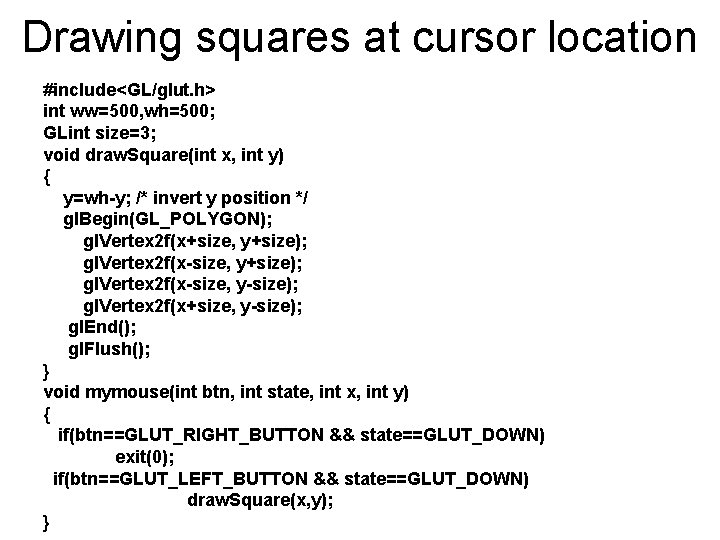
Drawing squares at cursor location #include<GL/glut. h> int ww=500, wh=500; GLint size=3; void draw. Square(int x, int y) { y=wh-y; /* invert y position */ gl. Begin(GL_POLYGON); gl. Vertex 2 f(x+size, y+size); gl. Vertex 2 f(x-size, y-size); gl. Vertex 2 f(x+size, y-size); gl. End(); gl. Flush(); } void mymouse(int btn, int state, int x, int y) { if(btn==GLUT_RIGHT_BUTTON && state==GLUT_DOWN) exit(0); if(btn==GLUT_LEFT_BUTTON && state==GLUT_DOWN) draw. Square(x, y); }
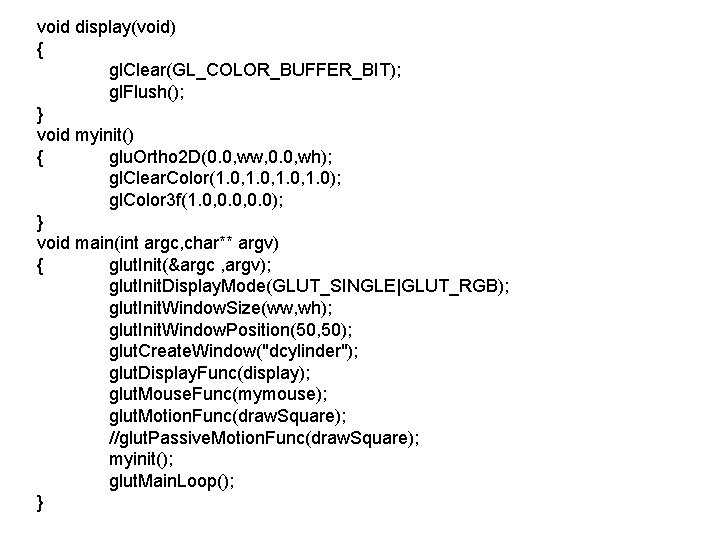
void display(void) { gl. Clear(GL_COLOR_BUFFER_BIT); gl. Flush(); } void myinit() { glu. Ortho 2 D(0. 0, ww, 0. 0, wh); gl. Clear. Color(1. 0, 1. 0); gl. Color 3 f(1. 0, 0. 0); } void main(int argc, char** argv) { glut. Init(&argc , argv); glut. Init. Display. Mode(GLUT_SINGLE|GLUT_RGB); glut. Init. Window. Size(ww, wh); glut. Init. Window. Position(50, 50); glut. Create. Window("dcylinder"); glut. Display. Func(display); glut. Mouse. Func(mymouse); glut. Motion. Func(draw. Square); //glut. Passive. Motion. Func(draw. Square); myinit(); glut. Main. Loop(); }
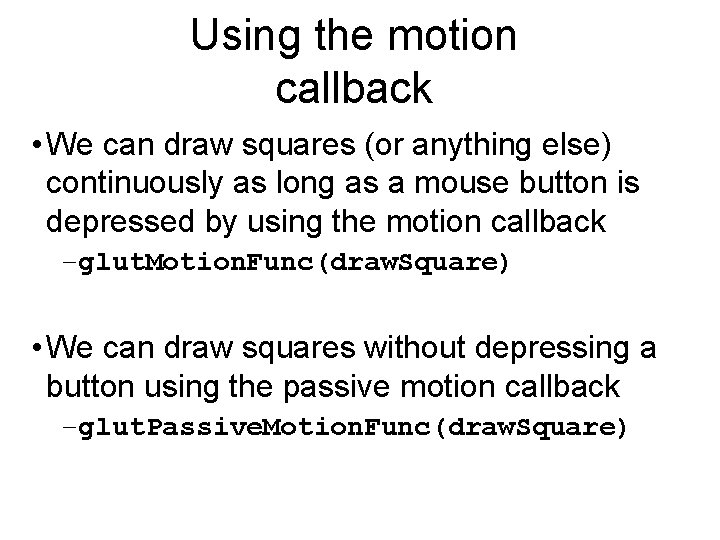
Using the motion callback • We can draw squares (or anything else) continuously as long as a mouse button is depressed by using the motion callback –glut. Motion. Func(draw. Square) • We can draw squares without depressing a button using the passive motion callback –glut. Passive. Motion. Func(draw. Square)
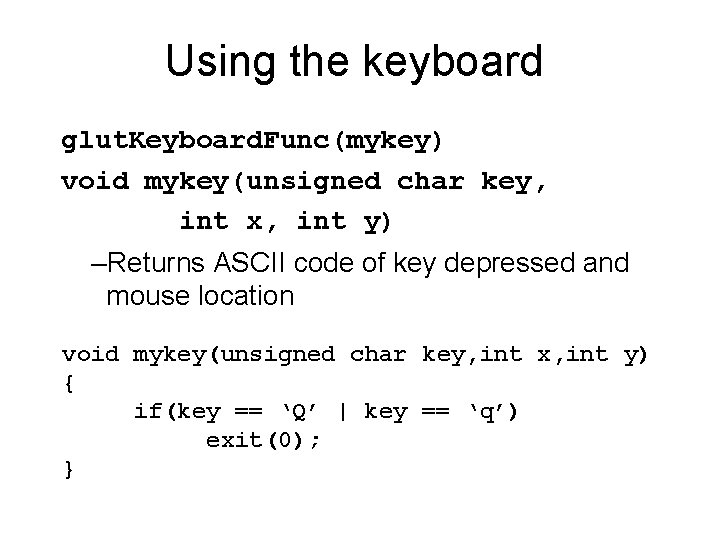
Using the keyboard glut. Keyboard. Func(mykey) void mykey(unsigned char key, int x, int y) –Returns ASCII code of key depressed and mouse location void mykey(unsigned char key, int x, int y) { if(key == ‘Q’ | key == ‘q’) exit(0); }
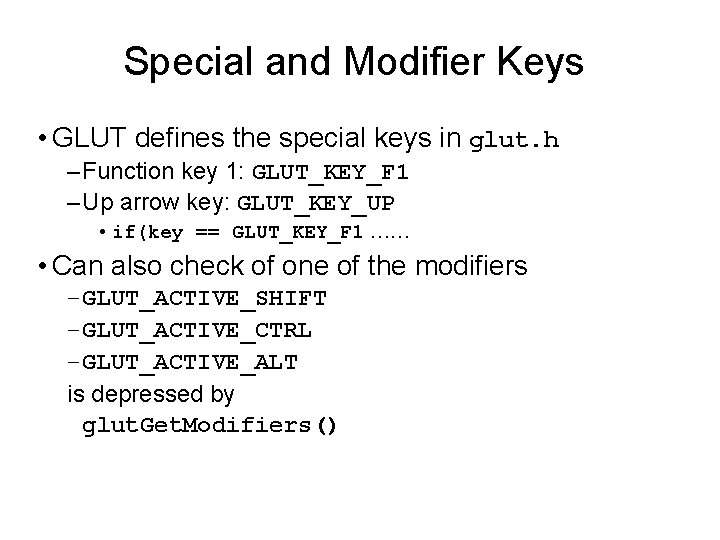
Special and Modifier Keys • GLUT defines the special keys in glut. h – Function key 1: GLUT_KEY_F 1 – Up arrow key: GLUT_KEY_UP • if(key == GLUT_KEY_F 1 …… • Can also check of one of the modifiers –GLUT_ACTIVE_SHIFT –GLUT_ACTIVE_CTRL –GLUT_ACTIVE_ALT is depressed by glut. Get. Modifiers()
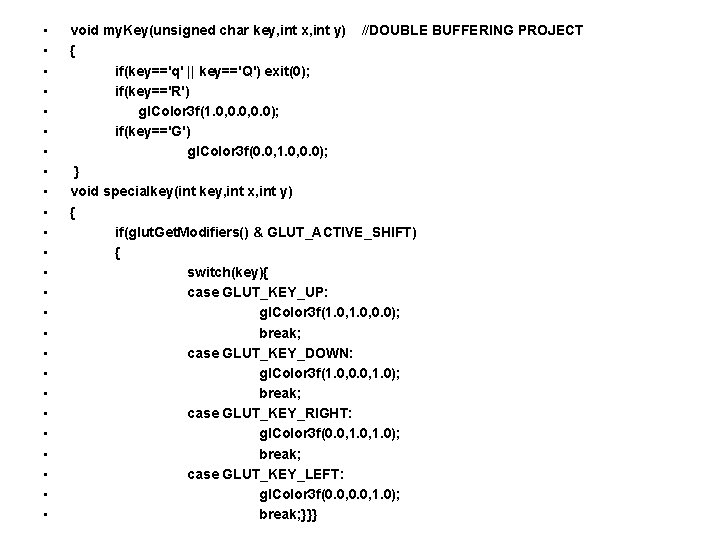
• • • • • • • void my. Key(unsigned char key, int x, int y) //DOUBLE BUFFERING PROJECT { if(key=='q' || key=='Q') exit(0); if(key=='R') gl. Color 3 f(1. 0, 0. 0); if(key=='G') gl. Color 3 f(0. 0, 1. 0, 0. 0); } void specialkey(int key, int x, int y) { if(glut. Get. Modifiers() & GLUT_ACTIVE_SHIFT) { switch(key){ case GLUT_KEY_UP: gl. Color 3 f(1. 0, 0. 0); break; case GLUT_KEY_DOWN: gl. Color 3 f(1. 0, 0. 0, 1. 0); break; case GLUT_KEY_RIGHT: gl. Color 3 f(0. 0, 1. 0); break; case GLUT_KEY_LEFT: gl. Color 3 f(0. 0, 1. 0); break; }}}
Reshaping the window • We can reshape and resize the Open. GL display window by pulling the corner of the window • What happens to the display? –Must redraw from application –Two possibilities • Display part of world • Display whole world but force to fit in new window – Can alter aspect ratio
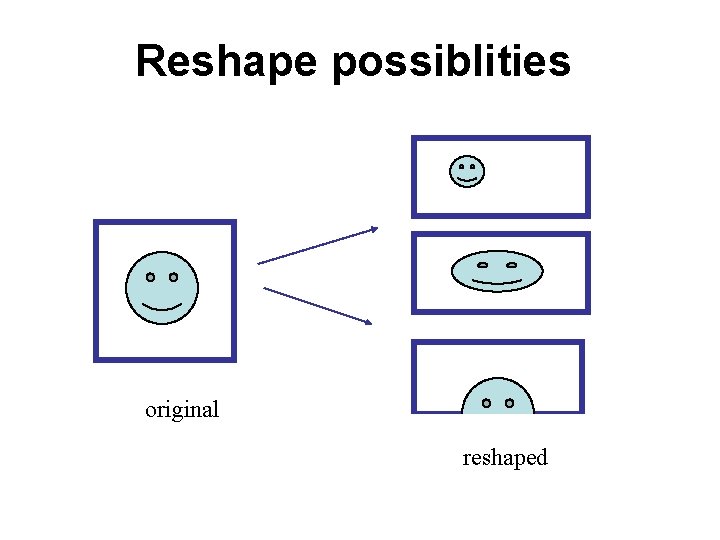
Reshape possiblities original reshaped
The Reshape callback glut. Reshape. Func(myreshape) void myreshape( int w, int h) –Returns width and height of new window (in pixels) –A redisplay is posted automatically at end of execution of the callback –GLUT has a default reshape callback but you probably want to define your own • The reshape callback is good place to put viewing functions because it is invoked when the window is first opened
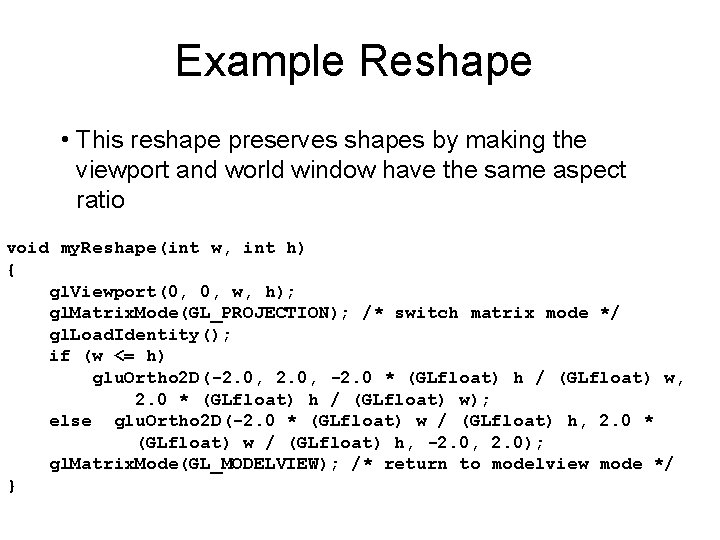
Example Reshape • This reshape preserves shapes by making the viewport and world window have the same aspect ratio void my. Reshape(int w, int h) { gl. Viewport(0, 0, w, h); gl. Matrix. Mode(GL_PROJECTION); /* switch matrix mode */ gl. Load. Identity(); if (w <= h) glu. Ortho 2 D(-2. 0, -2. 0 * (GLfloat) h / (GLfloat) w, 2. 0 * (GLfloat) h / (GLfloat) w); else glu. Ortho 2 D(-2. 0 * (GLfloat) w / (GLfloat) h, -2. 0, 2. 0); gl. Matrix. Mode(GL_MODELVIEW); /* return to modelview mode */ }
Toolkits and Widgets • Most window systems provide a toolkit or library of functions for building user interfaces that use special types of windows called widgets • Widget sets include tools such as – Menus – Slidebars – Dials – Input boxes • But toolkits tend to be platform dependent • GLUT provides a few widgets including menus
Menus • GLUT supports pop-up menus –A menu can have submenus • Three steps –Define entries for the menu –Define action for each menu item • Action carried out if entry selected –Attach menu to a mouse button
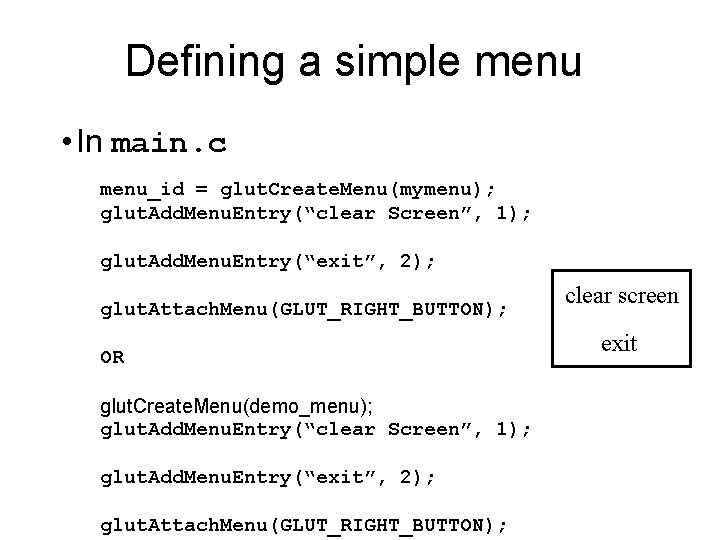
Defining a simple menu • In main. c menu_id = glut. Create. Menu(mymenu); glut. Add. Menu. Entry(“clear Screen”, 1); glut. Add. Menu. Entry(“exit”, 2); glut. Attach. Menu(GLUT_RIGHT_BUTTON); OR glut. Create. Menu(demo_menu); glut. Add. Menu. Entry(“clear Screen”, 1); glut. Add. Menu. Entry(“exit”, 2); glut. Attach. Menu(GLUT_RIGHT_BUTTON); clear screen exit
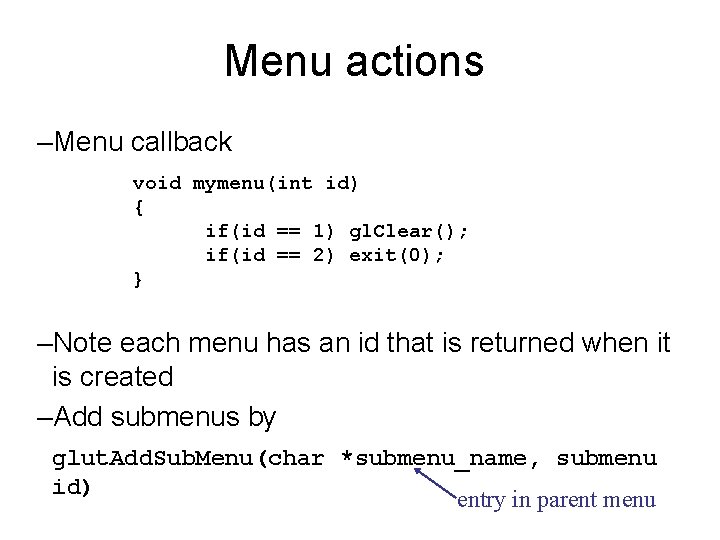
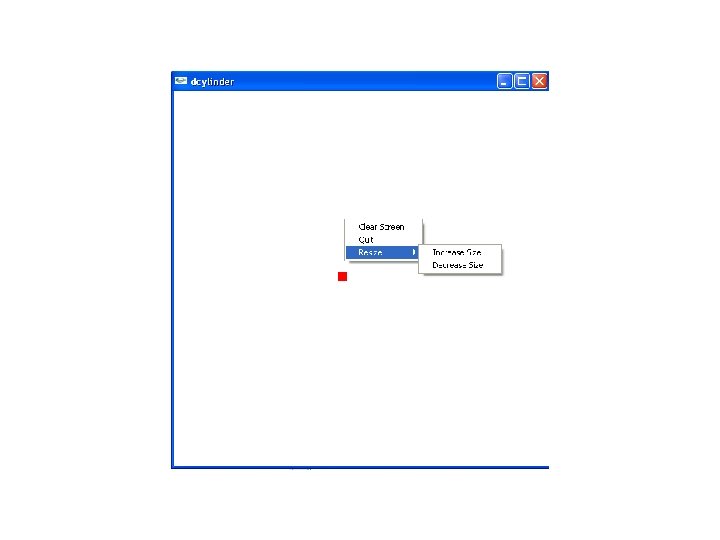
Menu actions –Menu callback void mymenu(int id) { if(id == 1) gl. Clear(); if(id == 2) exit(0); } –Note each menu has an id that is returned when it is created –Add submenus by glut. Add. Sub. Menu(char *submenu_name, submenu id) entry in parent menu
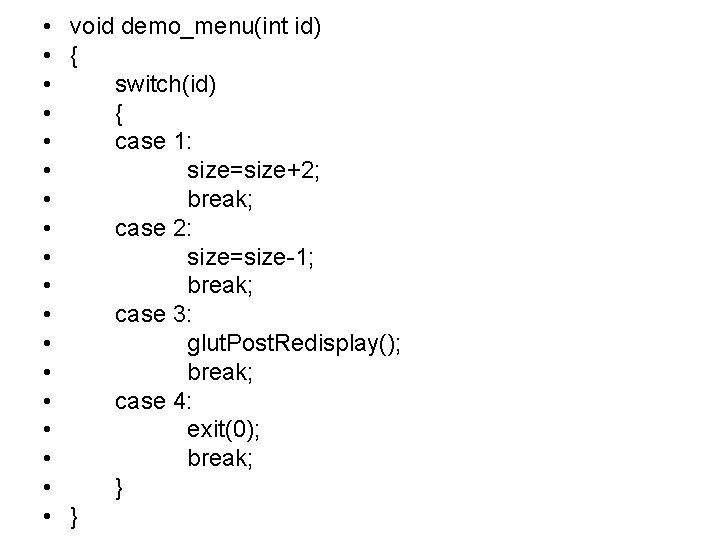
• void demo_menu(int id) • { • switch(id) • { • case 1: • size=size+2; • break; • case 2: • size=size-1; • break; • case 3: • glut. Post. Redisplay(); • break; • case 4: • exit(0); • break; • }
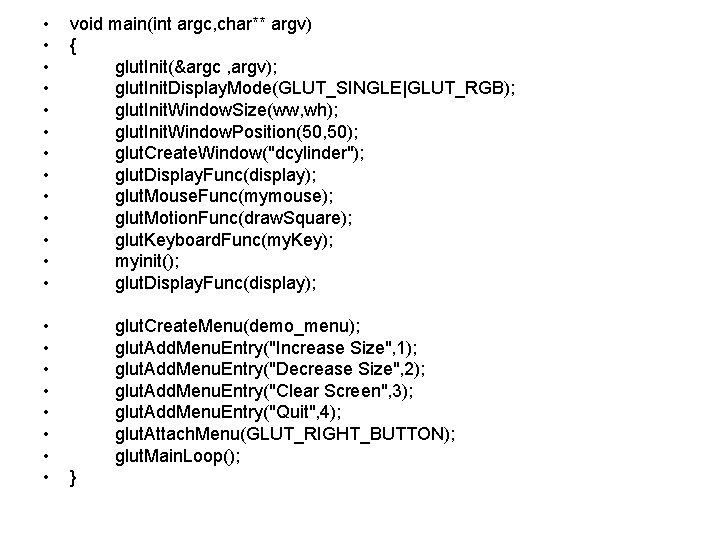
• • • • • • void main(int argc, char** argv) { glut. Init(&argc , argv); glut. Init. Display. Mode(GLUT_SINGLE|GLUT_RGB); glut. Init. Window. Size(ww, wh); glut. Init. Window. Position(50, 50); glut. Create. Window("dcylinder"); glut. Display. Func(display); glut. Mouse. Func(mymouse); glut. Motion. Func(draw. Square); glut. Keyboard. Func(my. Key); myinit(); glut. Display. Func(display); glut. Create. Menu(demo_menu); glut. Add. Menu. Entry("Increase Size", 1); glut. Add. Menu. Entry("Decrease Size", 2); glut. Add. Menu. Entry("Clear Screen", 3); glut. Add. Menu. Entry("Quit", 4); glut. Attach. Menu(GLUT_RIGHT_BUTTON); glut. Main. Loop(); }
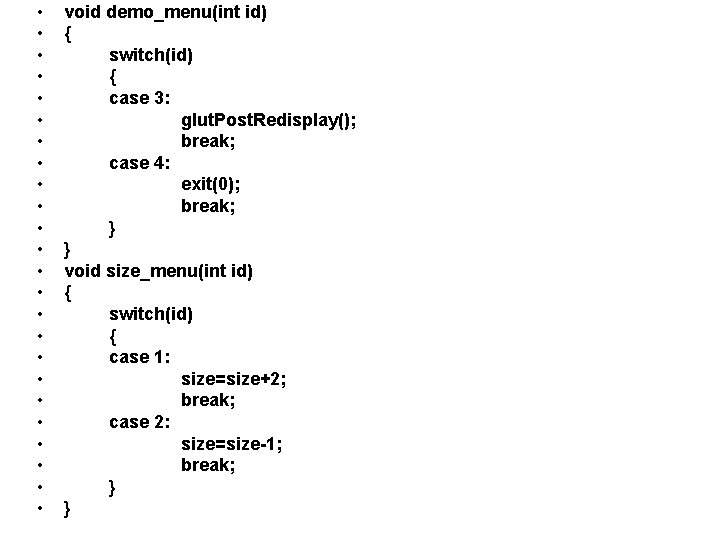
• • • • • • void demo_menu(int id) { switch(id) { case 3: glut. Post. Redisplay(); break; case 4: exit(0); break; } } void size_menu(int id) { switch(id) { case 1: size=size+2; break; case 2: size=size-1; break; } }
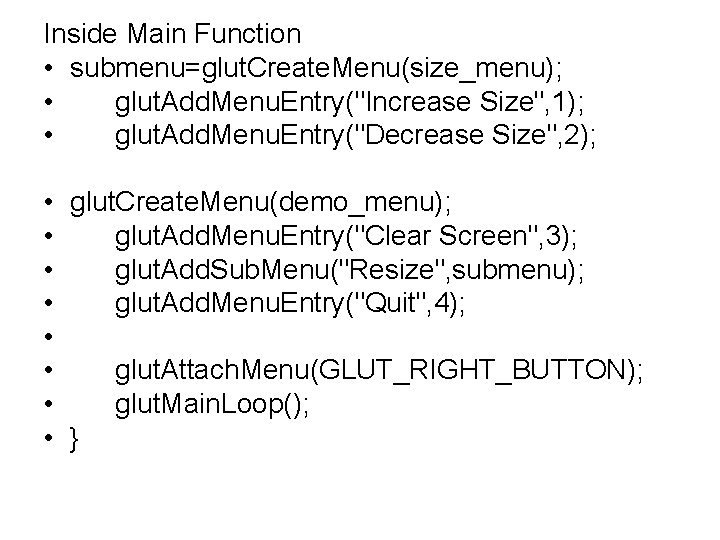
Inside Main Function • submenu=glut. Create. Menu(size_menu); • glut. Add. Menu. Entry("Increase Size", 1); • glut. Add. Menu. Entry("Decrease Size", 2); • glut. Create. Menu(demo_menu); • glut. Add. Menu. Entry("Clear Screen", 3); • glut. Add. Sub. Menu("Resize", submenu); • glut. Add. Menu. Entry("Quit", 4); • • glut. Attach. Menu(GLUT_RIGHT_BUTTON); • glut. Main. Loop(); • }
- Slides: 26