
Workforce Timekeeper Employee Training Manual For DR Reddys

- Slides: 32
Workforce Timekeeper™ Employee Training Manual For DR. Reddy’s
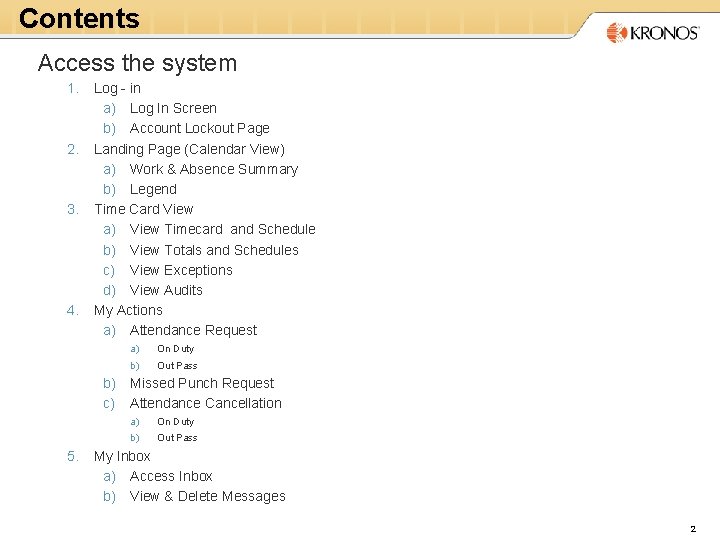
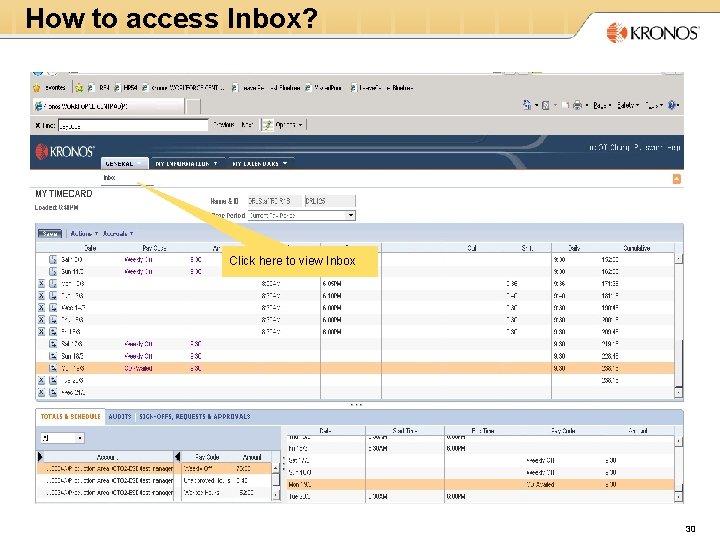
Contents Access the system 1. 2. 3. 4. Log - in a) Log In Screen b) Account Lockout Page Landing Page (Calendar View) a) Work & Absence Summary b) Legend Time Card View a) View Timecard and Schedule b) View Totals and Schedules c) View Exceptions d) View Audits My Actions a) Attendance Request a) On Duty b) Out Pass b) Missed Punch Request c) Attendance Cancellation 5. a) On Duty b) Out Pass My Inbox a) Access Inbox b) View & Delete Messages 2
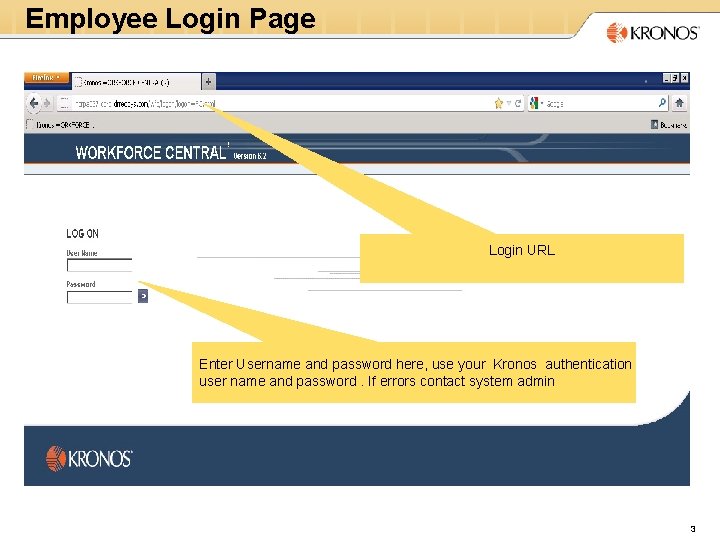
Employee Login Page Login URL Enter Username and password here, use your Kronos authentication user name and password. If errors contact system admin 3
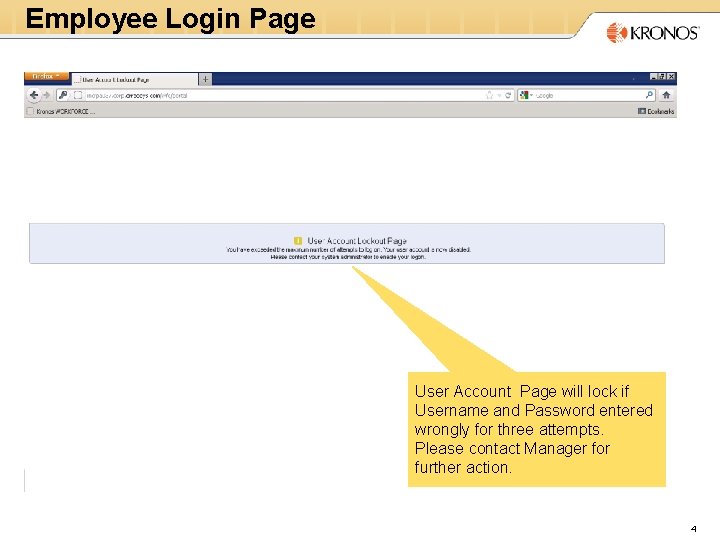
Employee Login Page User Account Page will lock if Username and Password entered wrongly for three attempts. Please contact Manager for further action. 4
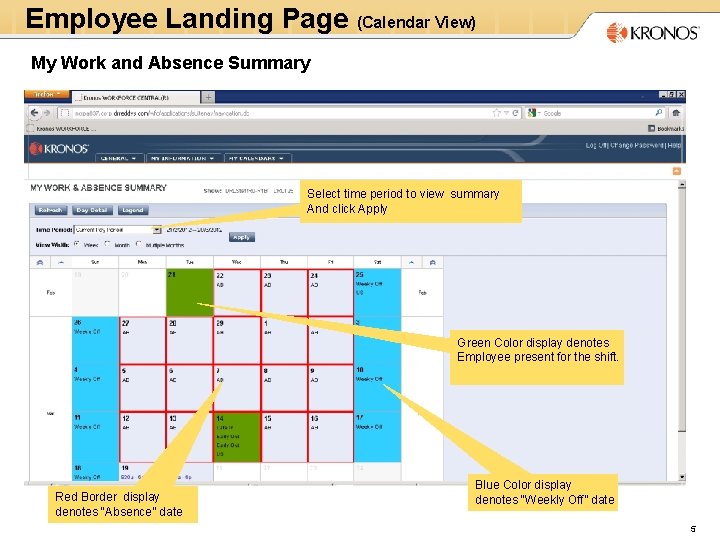
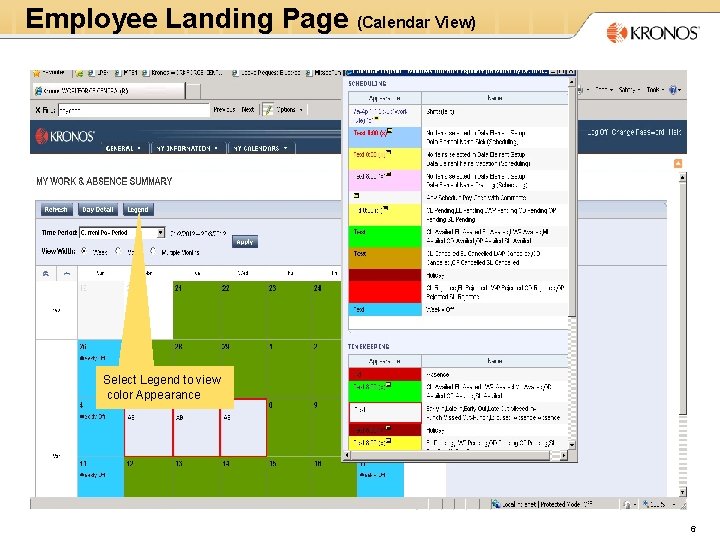
Employee Landing Page (Calendar View) My Work and Absence Summary Select time period to view summary And click Apply Green Color display denotes Employee present for the shift. Red Border display denotes “Absence” date Blue Color display denotes “Weekly Off” date 5
Employee Landing Page (Calendar View) Select Legend to view color Appearance 6
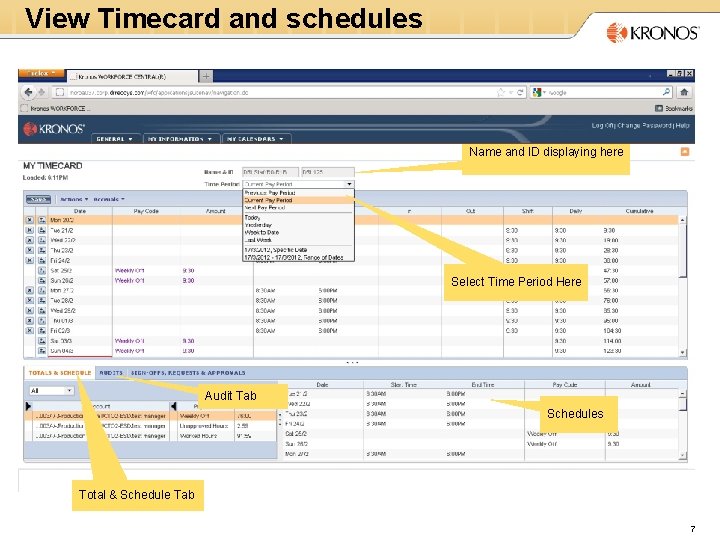
View Timecard and schedules Name and ID displaying here Select Time Period Here Audit Tab Schedules Total & Schedule Tab 7
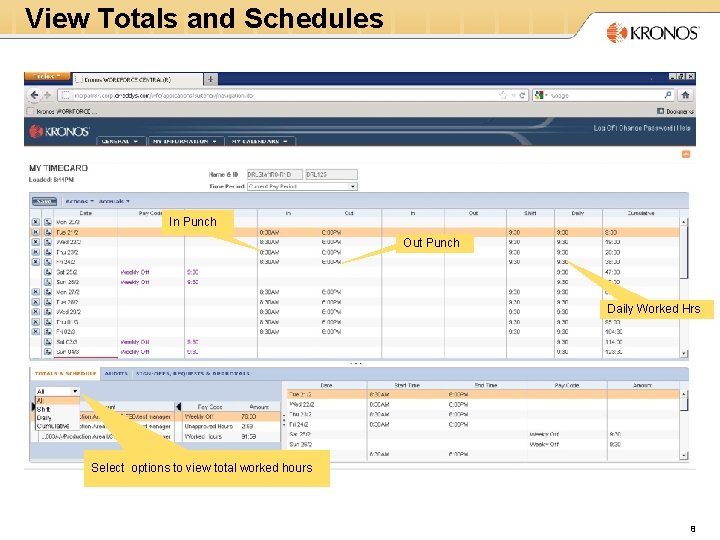
View Totals and Schedules In Punch Out Punch Daily Worked Hrs Select options to view total worked hours 8
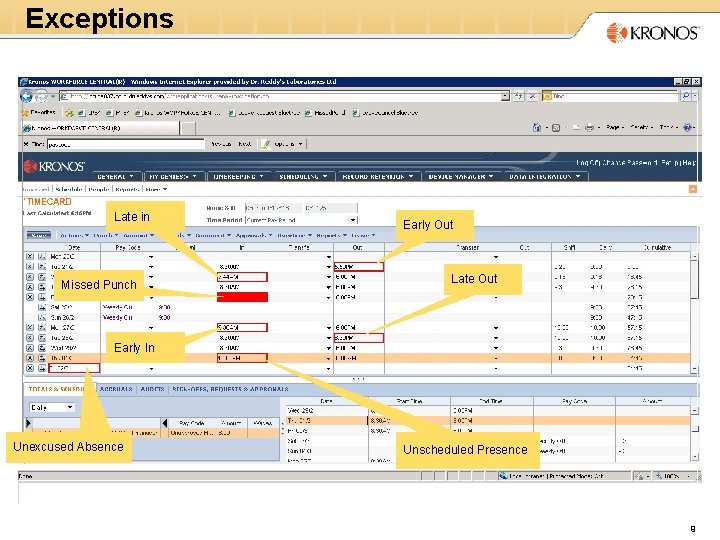
Exceptions Late in Missed Punch Early Out Late Out Early In Unexcused Absence Unscheduled Presence 9
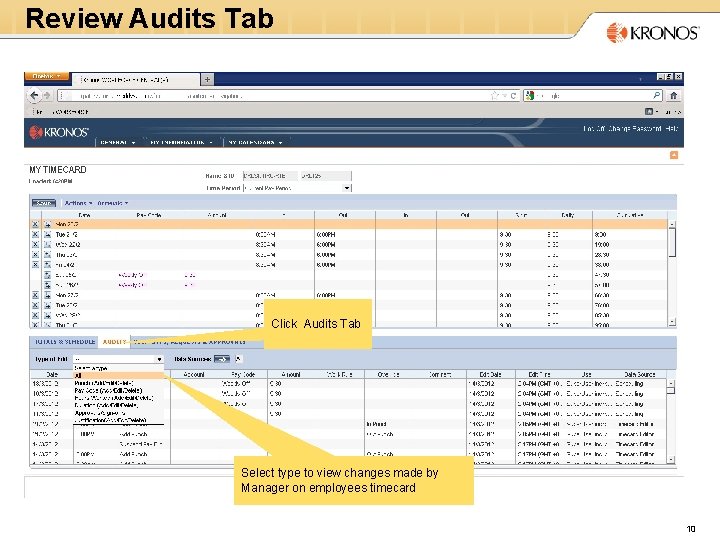
Review Audits Tab Click Audits Tab Select type to view changes made by Manager on employees timecard 10
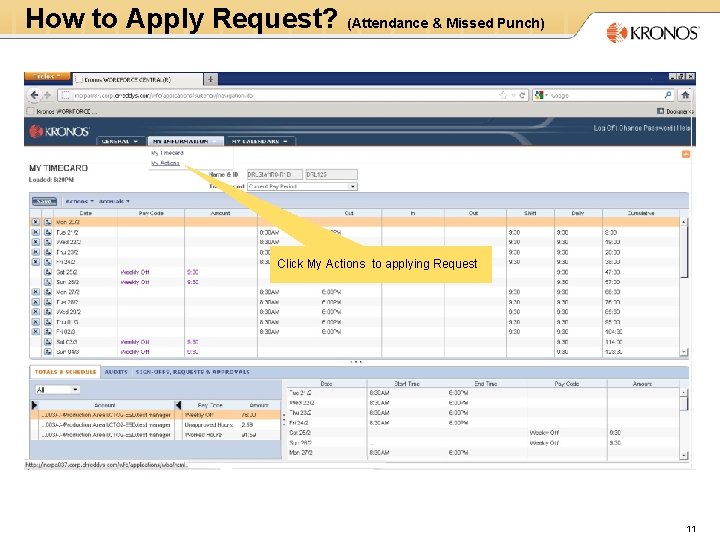
How to Apply Request? (Attendance & Missed Punch) Click My Actions to applying Request 11
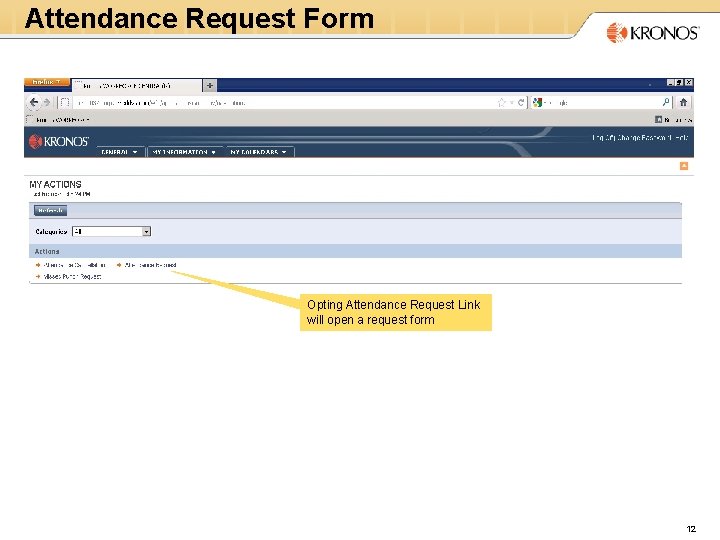
Attendance Request Form Opting Attendance Request Link will open a request form 12
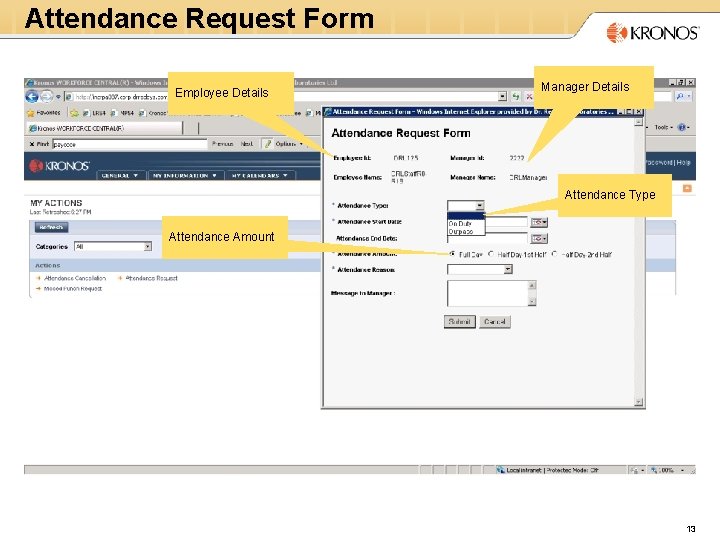
Attendance Request Form Employee Details Manager Details Attendance Type Attendance Amount 13
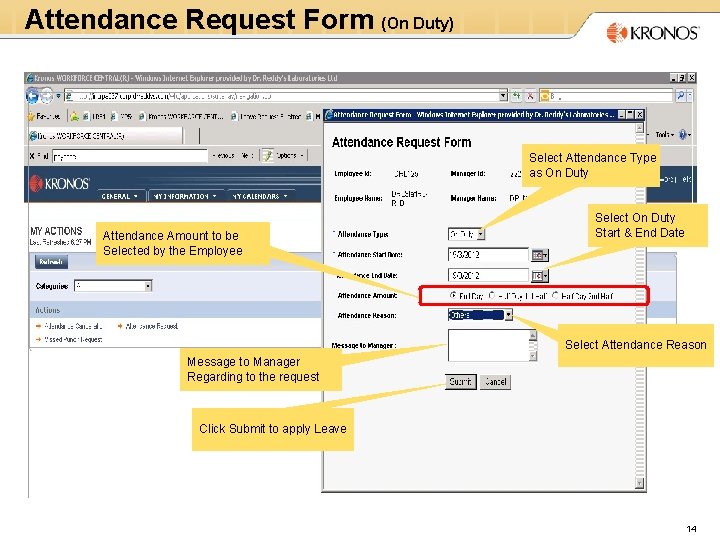
Attendance Request Form (On Duty) Select Attendance Type as On Duty Attendance Amount to be Selected by the Employee Select On Duty Start & End Date Select Attendance Reason Message to Manager Regarding to the request Click Submit to apply Leave 14
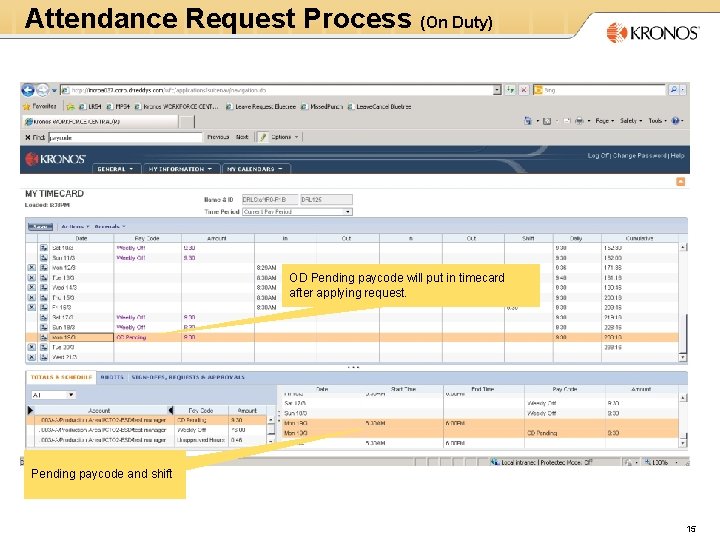
Attendance Request Process (On Duty) OD Pending paycode will put in timecard after applying request. Pending paycode and shift 15
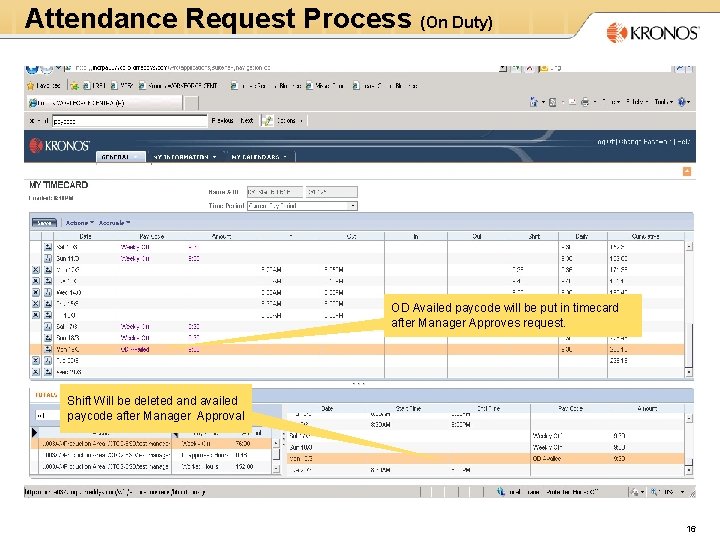
Attendance Request Process (On Duty) OD Availed paycode will be put in timecard after Manager Approves request. Shift Will be deleted and availed paycode after Manager Approval 16
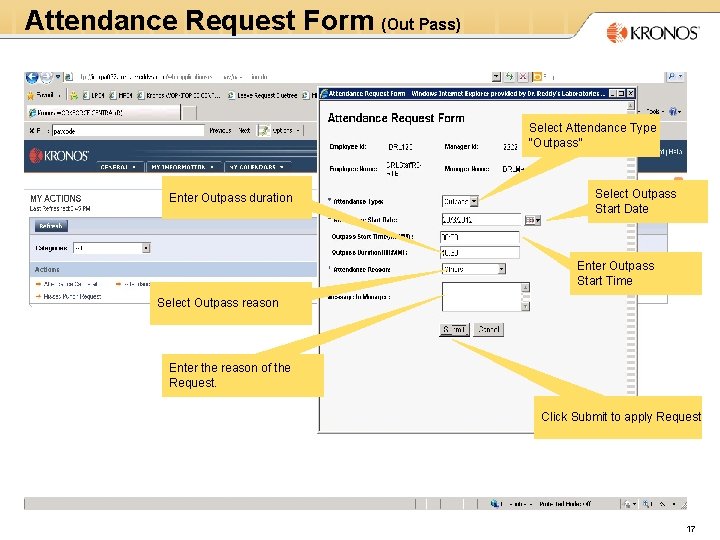
Attendance Request Form (Out Pass) Select Attendance Type “Outpass” Enter Outpass duration Select Outpass Start Date Enter Outpass Start Time Select Outpass reason Enter the reason of the Request. Click Submit to apply Request 17
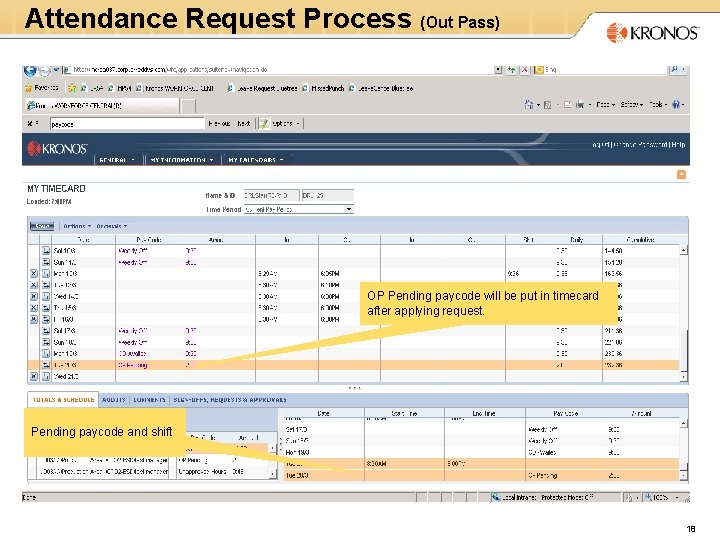
Attendance Request Process (Out Pass) OP Pending paycode will be put in timecard after applying request. Pending paycode and shift 18
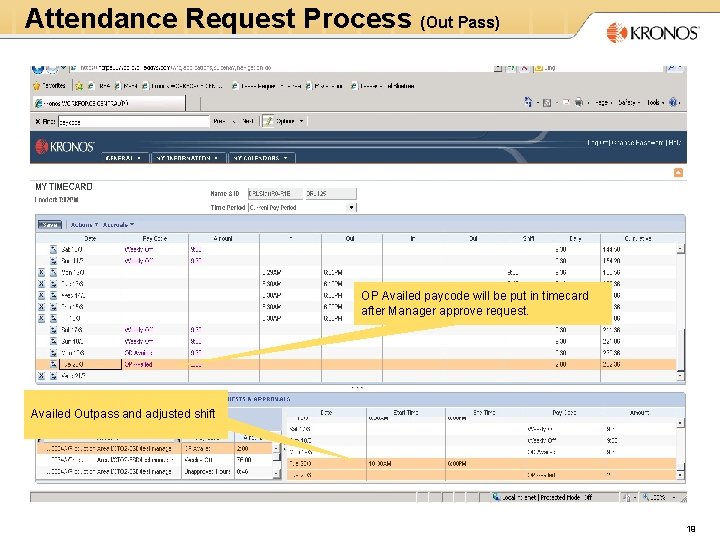
Attendance Request Process (Out Pass) OP Availed paycode will be put in timecard after Manager approve request. Availed Outpass and adjusted shift 19
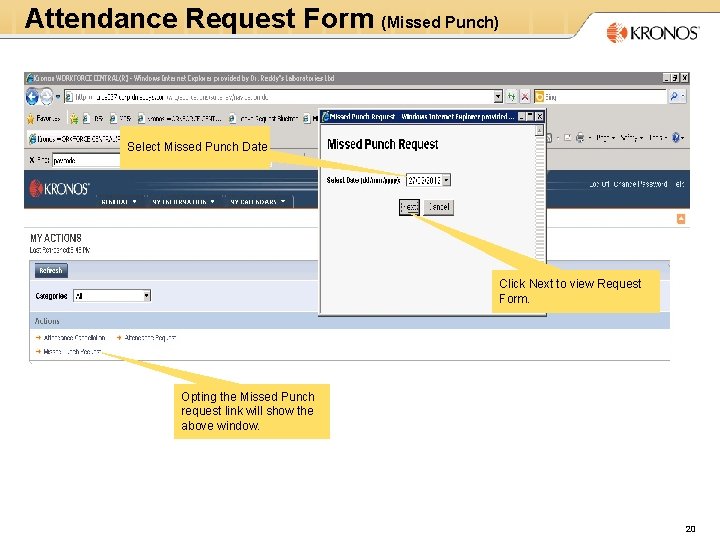
Attendance Request Form (Missed Punch) Select Missed Punch Date Click Next to view Request Form. Opting the Missed Punch request link will show the above window. 20
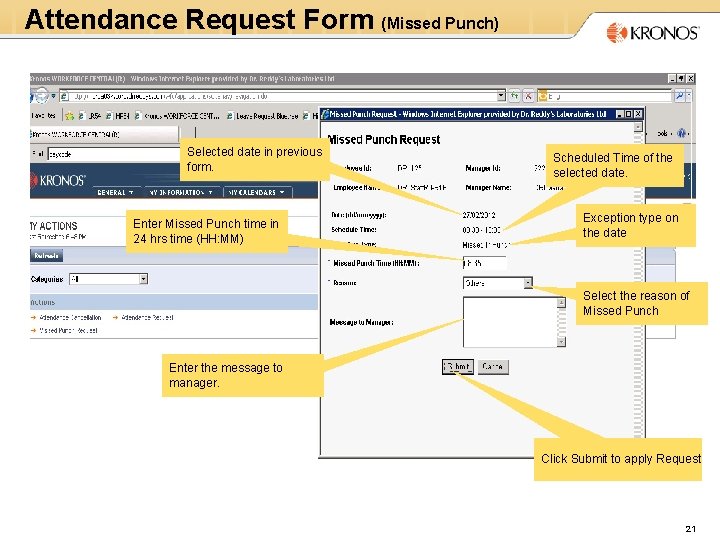
Attendance Request Form (Missed Punch) Selected date in previous form. Enter Missed Punch time in 24 hrs time (HH: MM) Scheduled Time of the selected date. Exception type on the date Select the reason of Missed Punch Enter the message to manager. Click Submit to apply Request 21
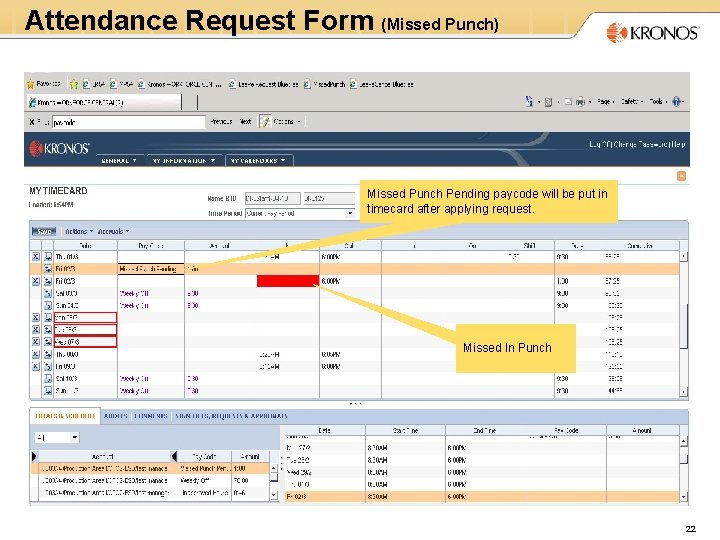
Attendance Request Form (Missed Punch) Missed Punch Pending paycode will be put in timecard after applying request. Missed In Punch 22
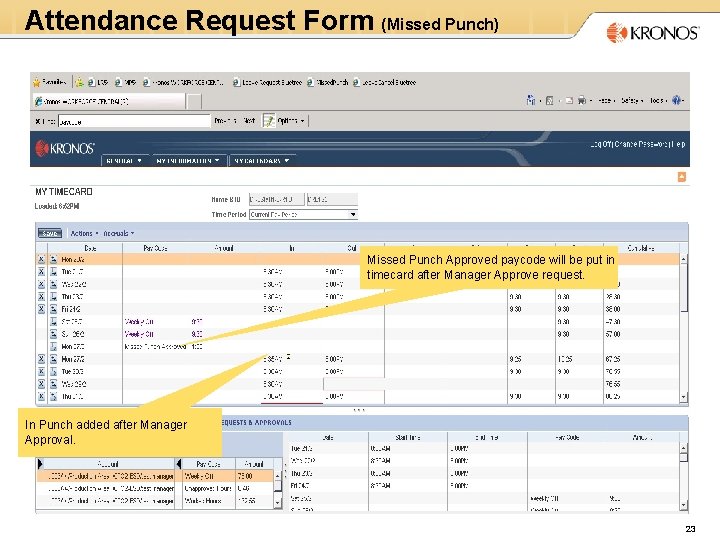
Attendance Request Form (Missed Punch) Missed Punch Approved paycode will be put in timecard after Manager Approve request. In Punch added after Manager Approval. 23
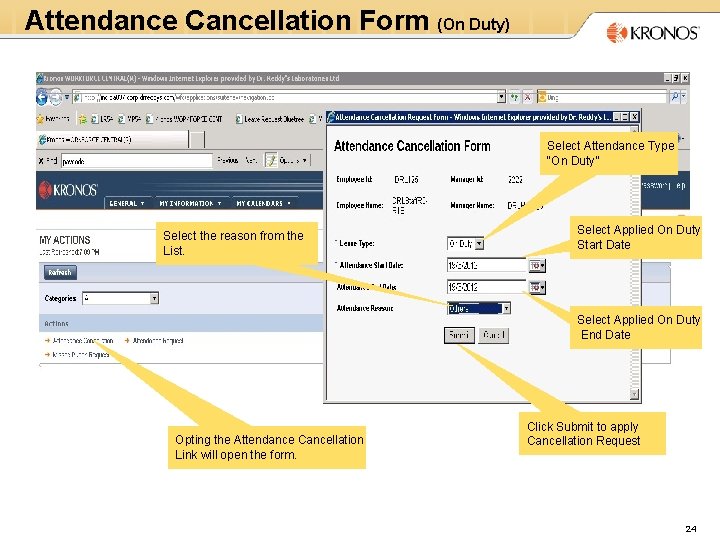
Attendance Cancellation Form (On Duty) Select Attendance Type “On Duty” Select the reason from the List. Select Applied On Duty Start Date Select Applied On Duty End Date Opting the Attendance Cancellation Link will open the form. Click Submit to apply Cancellation Request 24
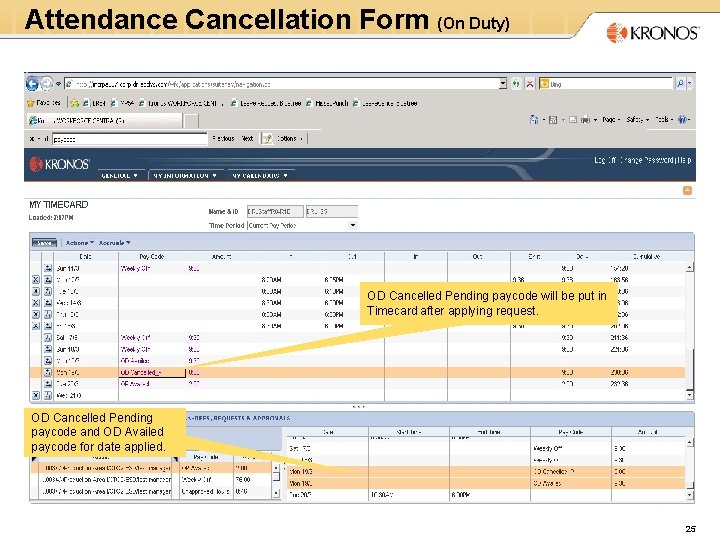
Attendance Cancellation Form (On Duty) OD Cancelled Pending paycode will be put in Timecard after applying request. OD Cancelled Pending paycode and OD Availed paycode for date applied. 25
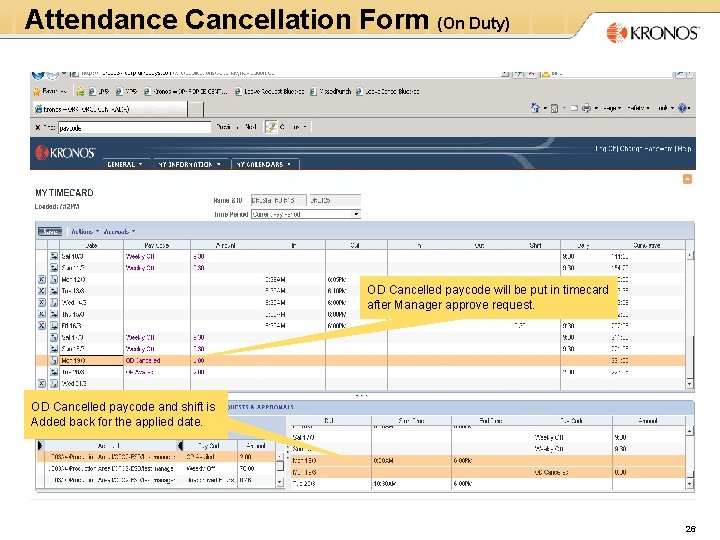
Attendance Cancellation Form (On Duty) OD Cancelled paycode will be put in timecard after Manager approve request. OD Cancelled paycode and shift is Added back for the applied date. 26
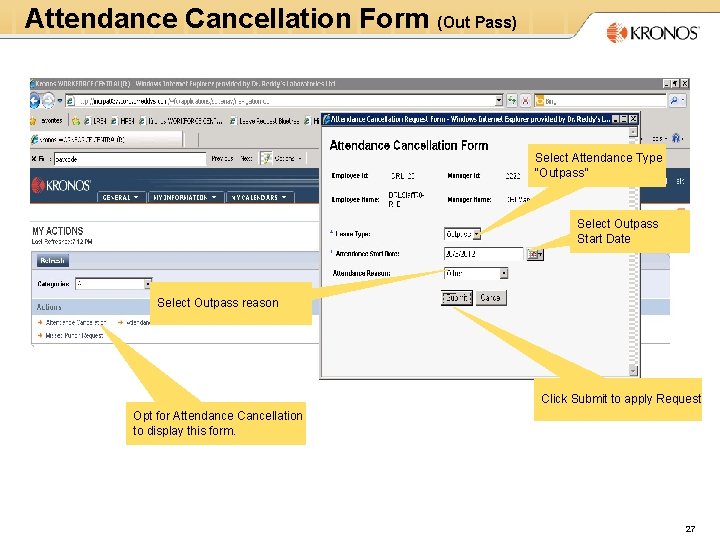
Attendance Cancellation Form (Out Pass) Select Attendance Type “Outpass” Select Outpass Start Date Select Outpass reason Click Submit to apply Request Opt for Attendance Cancellation to display this form. 27
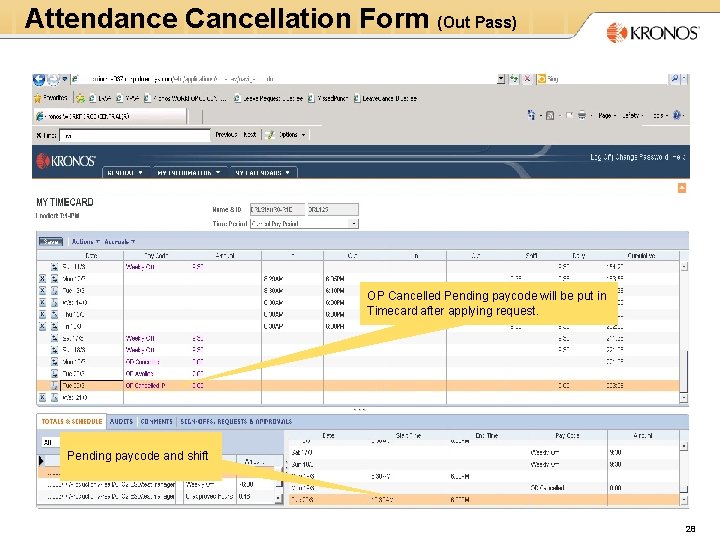
Attendance Cancellation Form (Out Pass) OP Cancelled Pending paycode will be put in Timecard after applying request. Pending paycode and shift 28
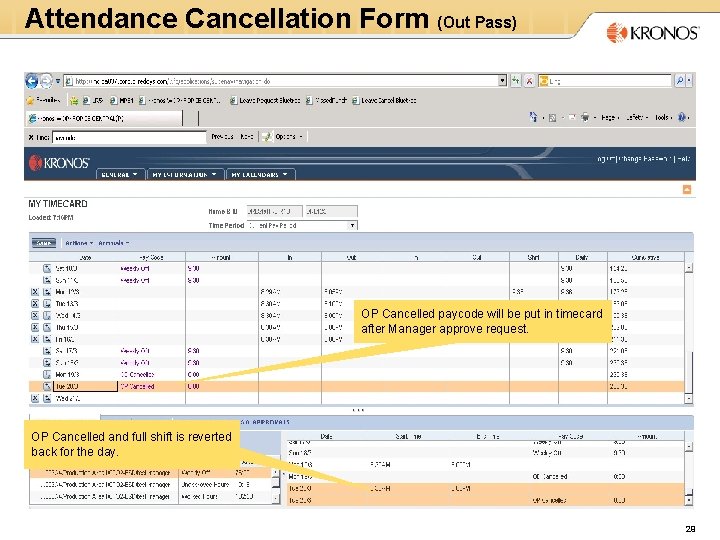
Attendance Cancellation Form (Out Pass) OP Cancelled paycode will be put in timecard after Manager approve request. OP Cancelled and full shift is reverted back for the day. 29
How to access Inbox? Click here to view Inbox 30
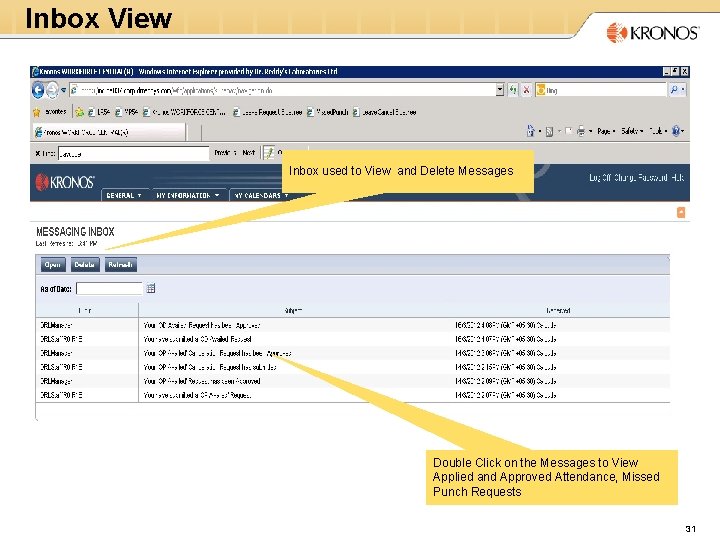
Inbox View Inbox used to View and Delete Messages Double Click on the Messages to View Applied and Approved Attendance, Missed Punch Requests 31
Thank You © 2007, Kronos Incorporated. Kronos, and the Kronos logo are registered trademarks and “Improving the Performance of People and Business” is a trademark of Kronos Incorporated or a related company. All other products or company names mentioned are used for identification purposes only and may be trademarks of their respective owners. All rights reserved. Printed in the U. S. A. 32