
Workforce Timekeeper Common Tasks for Managers Common timekeeping

- Slides: 2
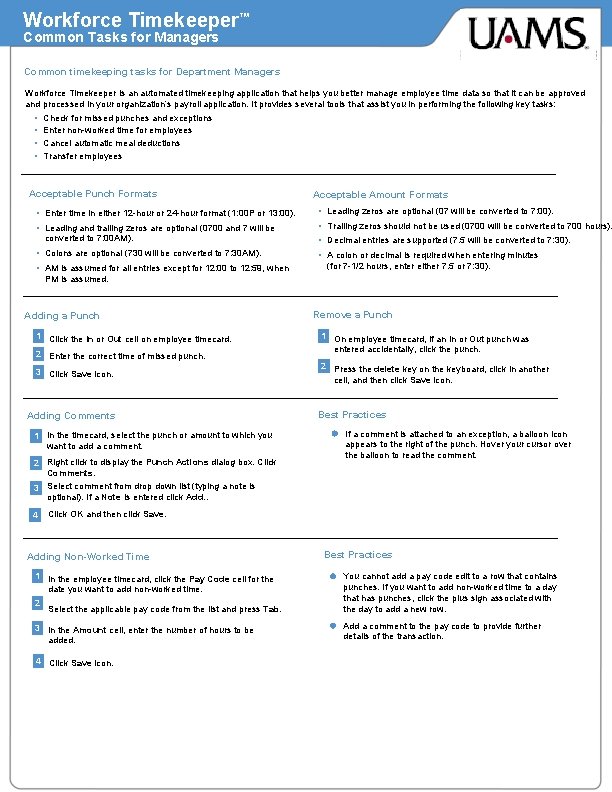
Workforce Timekeeper™ Common Tasks for Managers Common timekeeping tasks for Department Managers Workforce Timekeeper is an automated timekeeping application that helps you better manage employee time data so that it can be approved and processed in your organization’s payroll application. It provides several tools that assist you in performing the following key tasks: • • Check for missed punches and exceptions Enter non-worked time for employees Cancel automatic meal deductions Transfer employees Acceptable Punch Formats Acceptable Amount Formats • Enter time in either 12 -hour or 24 -hour format (1: 00 P or 13: 00). • Leading zeros are optional (07 will be converted to 7: 00). • Leading and trailing zeros are optional (0700 and 7 will be • Trailing zeros should not be used (0700 will be converted to 700 hours). converted to 7: 00 AM). • Colons are optional (730 will be converted to 7: 30 AM). • AM is assumed for all entries except for 12: 00 to 12: 59, when • Decimal entries are supported (7. 5 will be converted to 7: 30). • A colon or decimal is required when entering minutes (for 7 -1/2 hours, enter either 7. 5 or 7: 30). PM is assumed. Adding a Punch 1 Click the In or Out cell on employee timecard. 2 Enter the correct time of missed punch. 3 Click Save icon. Adding Comments 1 In the timecard, select the punch or amount to which you want to add a comment. 2 Right click to display the Punch Actions dialog box. Click Comments. Remove a Punch 1 On employee timecard, if an In or Out punch was entered accidentally, click the punch. 2 Press the delete key on the keyboard, click in another cell, and then click Save icon. Best Practices If a comment is attached to an exception, a balloon icon appears to the right of the punch. Hover your cursor over the balloon to read the comment. 3 Select comment from drop down list (typing a note is optional). If a Note is entered click Add. . 4 Click OK and then click Save. Adding Non-Worked Time Best Practices 1 In the employee timecard, click the Pay Code cell for the date you want to add non-worked time. 2 Select the applicable pay code from the list and press Tab. You cannot add a pay code edit to a row that contains punches. If you want to add non-worked time to a day that has punches, click the plus sign associated with the day to add a new row. 3 In the Amount cell, enter the number of hours to be added. Add a comment to the pay code to provide further details of the transaction. 4 Click Save icon.
Workforce Timekeeper™ Common Tasks for Managers Canceling Automatic Meal Deductions 1 In the employee timecard, select the punch for which you want to cancel the deduction. 2 Right-click to display the Punch Actions dialog box. Click Edit. 3 From the Cancel Deduction drop-down list, select the applicable deduction (Lunch 1 HR or Lunch 30) 4 Click OK Transferring Hours to alternate cost center in Employee’s Timecard 1 Access the employee timecard. 2 Enter the in-punch for the transfer (if employee did not clock). 3 Click the Transfer cell for the applicable shift. Either select an entry from the list or click Search to choose the new cost center. 4 Enter the out-punch in the corresponding Out cell (if employee did not clock). NOTES: Best Practices Apply the deduction to either an in-punch or outpunch; we suggest you always apply the deduction to an out-punch. To reverse the canceled deduction, select <None>.