
Workday Create Position HCM 108 ILT Ground Rules



- Slides: 52
Workday Create Position HCM 108; ILT
Ground Rules (1 of 3) To ensure a positive, productive training environment, please adhere to the following rules throughout the duration of the training session: • Mute your microphones to eliminate distractions. • To ask questions, use the “raise hand” feature or submit your questions via the Zoom chat window. Questions will be moderated and addressed during the training session. 2
Ground Rules (2 of 3) • If you have a question you would prefer not be discussed during the training, you may submit a ticket to support. workday. wsu. edu. • Please be considerate of the language and tone of Zoom chat interactions and questions. During sessions, aim for an inclusive, positive, and constructive dialogue as we all learn to use Workday together. 3
Ground Rules (3 of 3) • Please remember that the most important goal of your training session is to learn the material as presented by your trainer. • Keep in mind that Workday business processes were designed and built with standardization in mind. Your trainer does not have control over process design or workflow. If you have questions or concerns about process design please submit a ticket to support. workday. wsu. edu. 4
Course Overview Course Description Audience This course will provide information on how to create positions in Workday. This course is for: • HR Partners • Appointing Authority
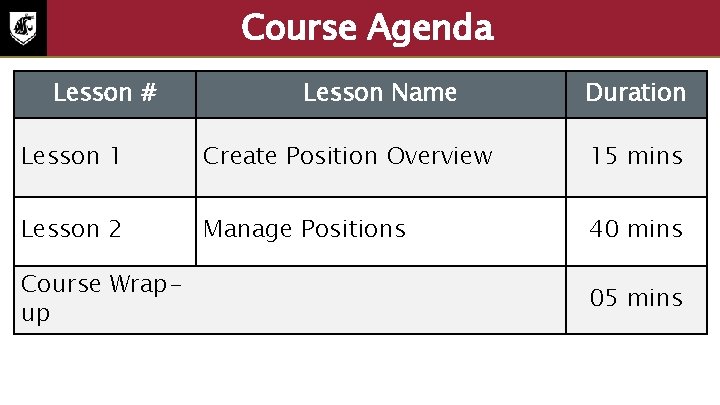
Course Agenda Lesson # Lesson Name Duration Lesson 1 Create Position Overview 15 mins Lesson 2 Manage Positions 40 mins Course Wrapup 05 mins
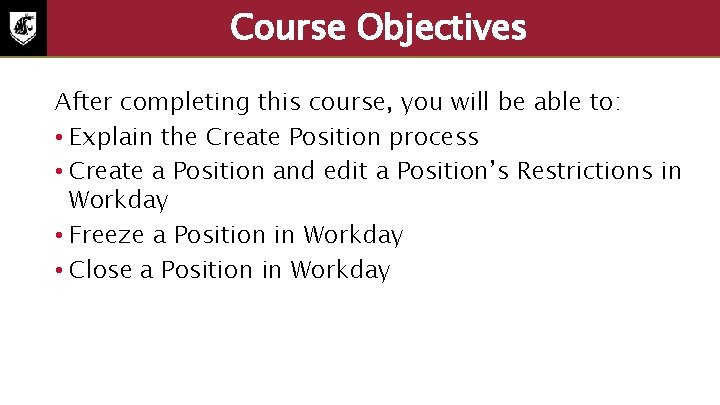
Course Objectives After completing this course, you will be able to: • Explain the Create Position process • Create a Position and edit a Position’s Restrictions in Workday • Freeze a Position in Workday • Close a Position in Workday
Lesson One Create Position Overview Lesson 1
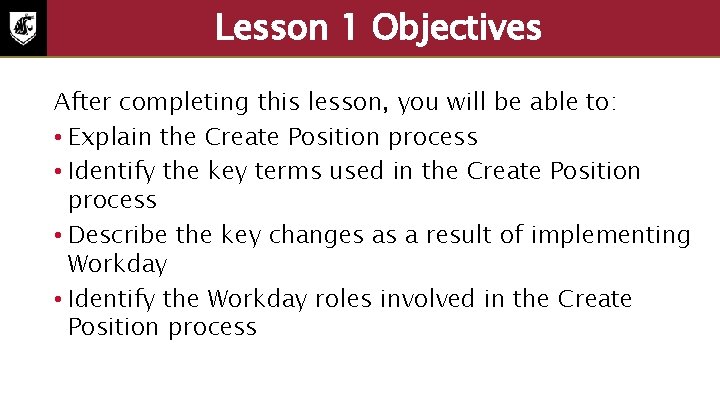
Lesson 1 Objectives After completing this lesson, you will be able to: • Explain the Create Position process • Identify the key terms used in the Create Position process • Describe the key changes as a result of implementing Workday • Identify the Workday roles involved in the Create Position process
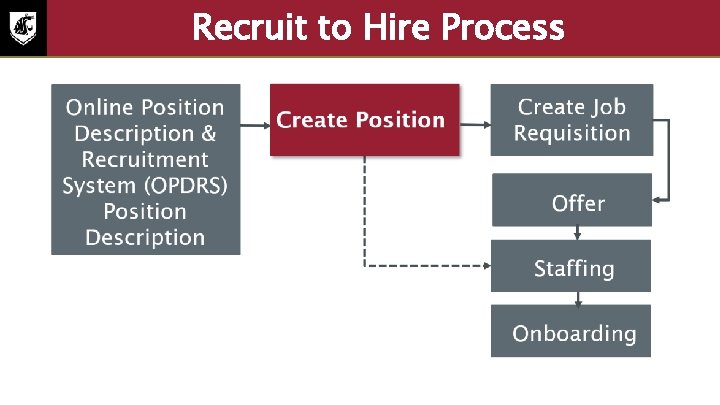
Recruit to Hire Process
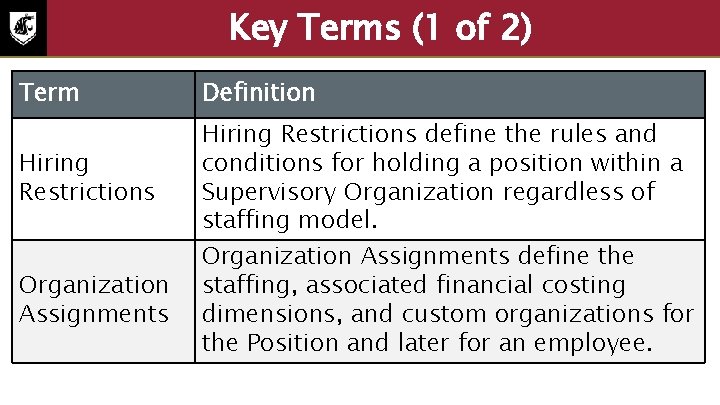
Key Terms (1 of 2) Term Definition Hiring Restrictions define the rules and conditions for holding a position within a Supervisory Organization regardless of staffing model. Organization Assignments define the staffing, associated financial costing dimensions, and custom organizations for the Position and later for an employee.
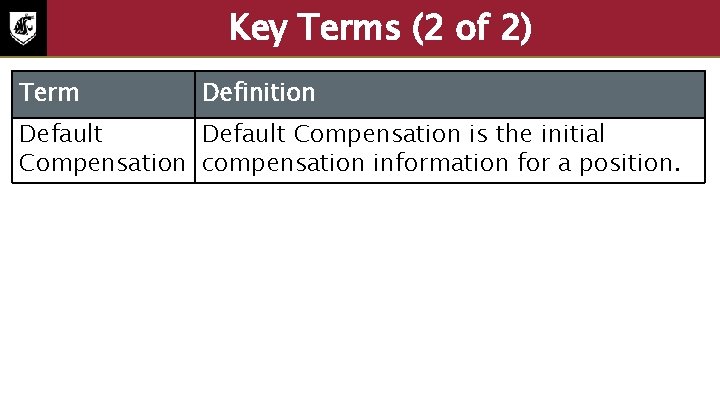
Key Terms (2 of 2) Term Definition Default Compensation is the initial Compensation compensation information for a position.
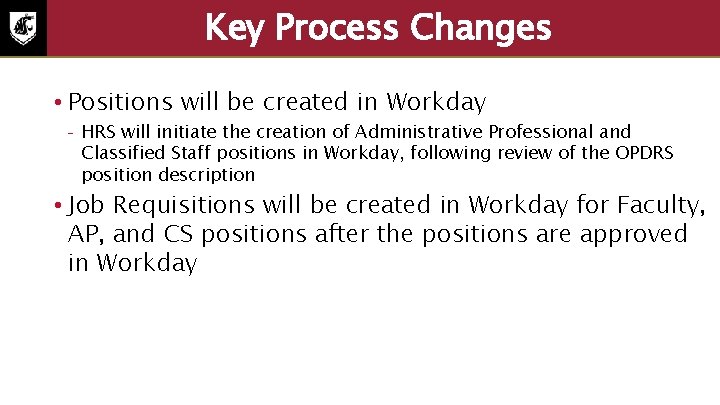
Key Process Changes • Positions will be created in Workday – HRS will initiate the creation of Administrative Professional and Classified Staff positions in Workday, following review of the OPDRS position description • Job Requisitions will be created in Workday for Faculty, AP, and CS positions after the positions are approved in Workday
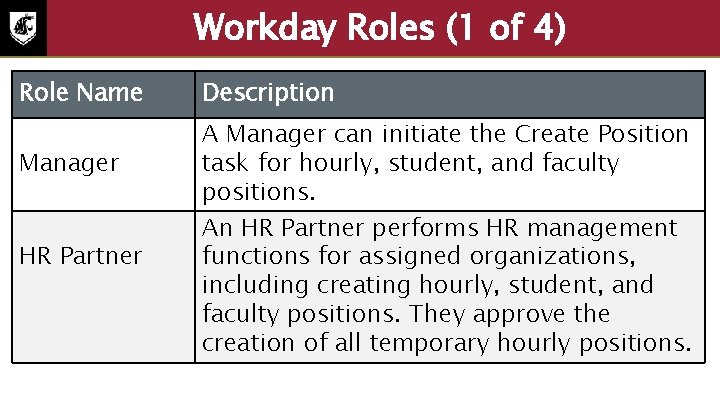
Workday Roles (1 of 4) Role Name Description Manager A Manager can initiate the Create Position task for hourly, student, and faculty positions. HR Partner An HR Partner performs HR management functions for assigned organizations, including creating hourly, student, and faculty positions. They approve the creation of all temporary hourly positions.
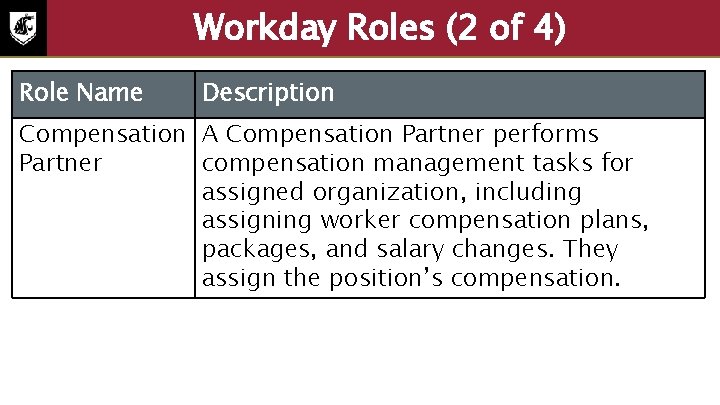
Workday Roles (2 of 4) Role Name Description Compensation A Compensation Partner performs Partner compensation management tasks for assigned organization, including assigning worker compensation plans, packages, and salary changes. They assign the position’s compensation.
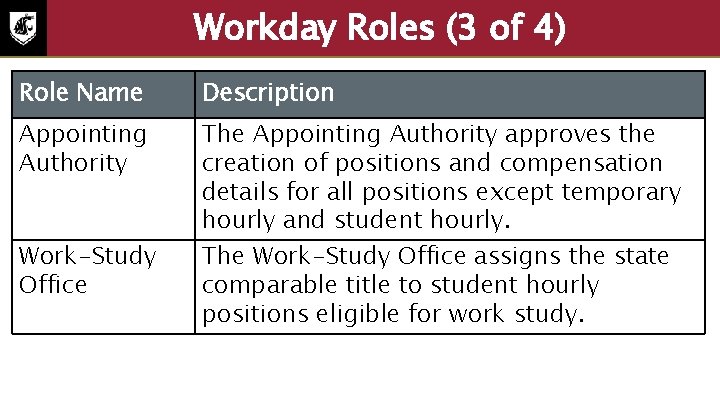
Workday Roles (3 of 4) Role Name Description Appointing Authority The Appointing Authority approves the creation of positions and compensation details for all positions except temporary hourly and student hourly. Work-Study Office The Work-Study Office assigns the state comparable title to student hourly positions eligible for work study.
Workday Roles (4 of 4) Role Name Description HRS Employment This group initiates the Create Position process in Workday for AP and CS positions following review of the OPDRS position description. HRS Records can initiate the creation of any position. They also approve Create Position tasks for temporary hourly positions.
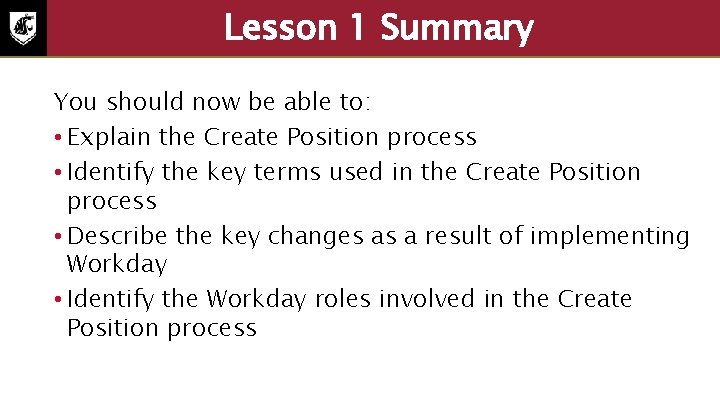
Lesson 1 Summary You should now be able to: • Explain the Create Position process • Identify the key terms used in the Create Position process • Describe the key changes as a result of implementing Workday • Identify the Workday roles involved in the Create Position process
Lesson Two Manage Positions Lesson 2
Lesson 2 Objectives After completing this lesson, you will be able to: • Create a Position and edit a Position’s Restrictions • Freeze and close a Position
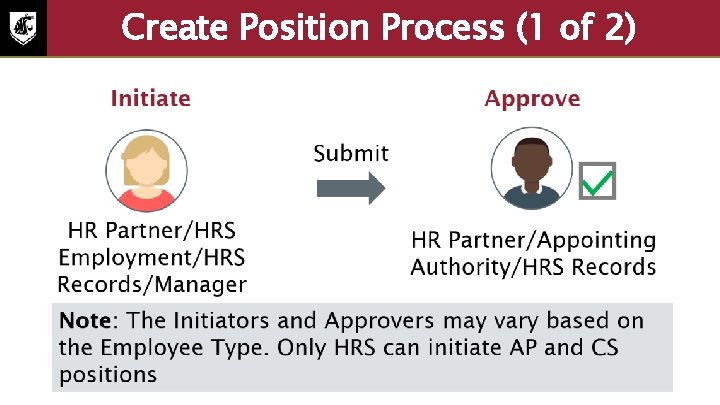
Create Position Process (1 of 2) • The Create Position process can be initiated by either the HR Partner, HRS Employment, HRS Records, or the Manager • The HR Partner changes the Organization Assignments • The task is automatically routed to the Compensation Partner who assigns the Default Compensation for the Position • After the compensation is assigned, the Position is routed for the approval to the HR Partner, if the job family is temp hourly • The Appointing Authority approves the request for everyone • The HRS reviews the OPDRS description against the Position • The Central Payroll Process team assigns the Pay Group for the Position Restrictions • The Security Administrator assigns the Security Roles to the Position
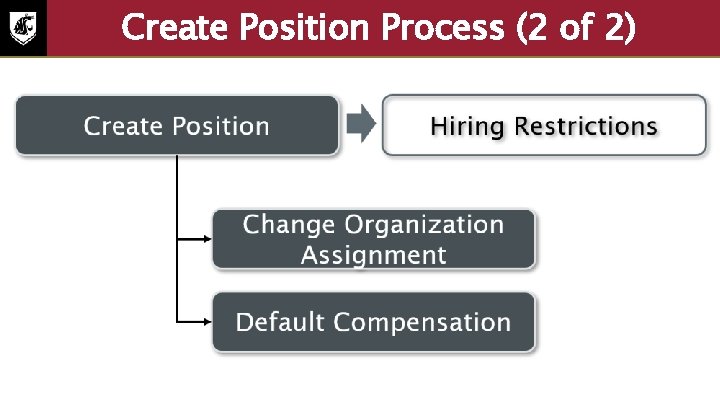
Create Position Process (2 of 2) • The Create Position process triggers the following two sub-processes: 1. Change Organization Assignment: The Workday screen for this sub-process will show the Position in question, the Supervisory Organization, and the effective date. Most of the information on this screen will default from the assigned Supervisory Organization but you need to validate and confirm if the organizations are correct. The fields on the Change Organization Assignments screen include Company, Cost Center, Region, Grant, Fund, Gift, Function, Grad Waiver, and Position Term. The later slides in this lesson display the relevant screenshots for this task. Additionally, you can reach out to Sabrina, Jim, or the Finance team for more details. 2. Default Compensation: This sub-process is initiated by the Compensation Partner. • Default Compensation screen displays the following fields: • • • Total Base Pay: This field will update automatically once the salary data is entered. This is a non-editable field. Finally, the Assign Costing Allocations process is triggered. After all the required approvals are acquired, the Position is created in Workday. • Effective Date & Reason: This field shows the effective date selected for the Position and reason for processing.
Employee Types The different types of employee types at WSU are: • Administrative Professional • Classified • Coach • Faculty • Graduate Assistant • Non-Student Hourly • Student Hourly
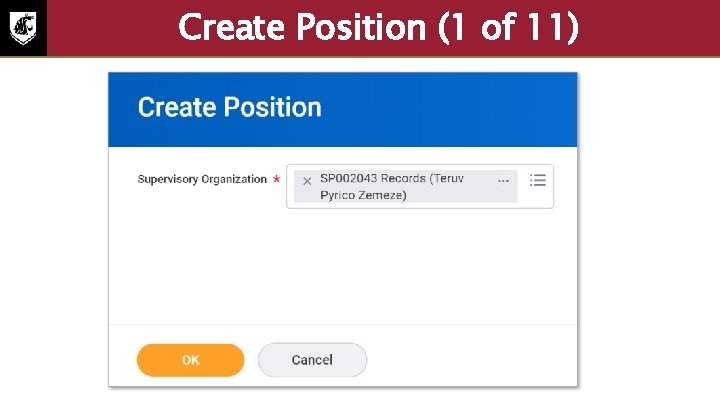
Create Position (1 of 11) To create a position in Workday: 1. Access the Create Position task through the Search field 2. 3. On the Create Position page, enter the Supervisory Organization to which this position will be reporting Select the OK button
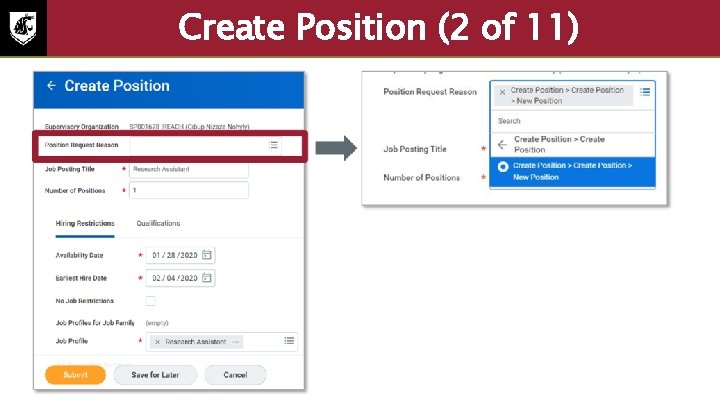
Create Position (2 of 11) To create a position in the Workday system: 4. Provide the required information on the expanded Create Position page. 5. All fields marked with red asterisks are mandatory and must be populated including: • Position Request Reason is a budgeted or unbudgeted reason for creating the Position. This is not a mandatory field. • Job Posting Title is the name of the job posted on the external and internal sites. • Number of Positions specify the number of positions you want to create. Note: positions created at the same time must have the same position restrictions (such as Job Profile). • Availability Date defaults to today’s date. • Earliest Hire Date defaults to today’s date. You can update this to the possible joining date. • Job Profile is the official name of the job for compensation purposes which drives the Default Compensation. This information is recorded in the job catalog and cannot be edited by the standard user.
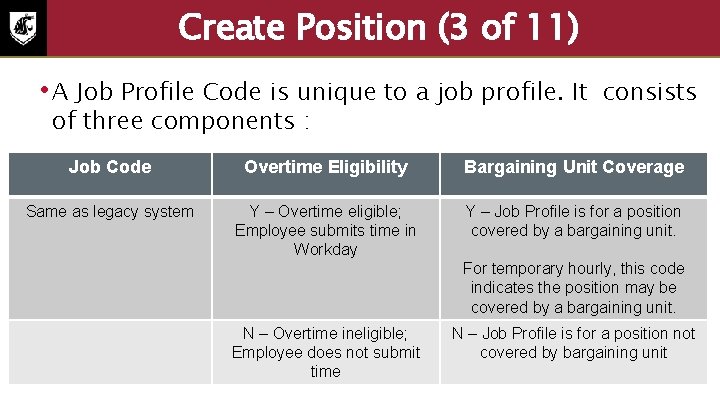
Create Position (3 of 11) • A Job Profile Code is unique to a job profile. It of three components : consists Job Code Overtime Eligibility Bargaining Unit Coverage Same as legacy system Y – Overtime eligible; Employee submits time in Workday Y – Job Profile is for a position covered by a bargaining unit. For temporary hourly, this code indicates the position may be covered by a bargaining unit. N – Overtime ineligible; Employee does not submit time N – Job Profile is for a position not covered by bargaining unit
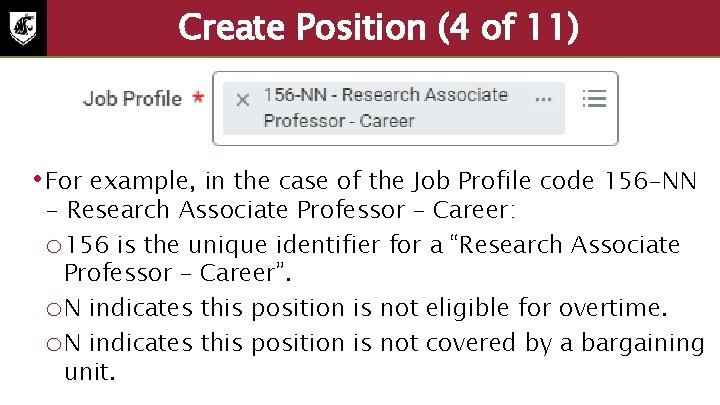
Create Position (4 of 11) • For example, in the case of the Job Profile code 156 -NN - Research Associate Professor – Career: o 156 is the unique identifier for a “Research Associate Professor – Career”. o. N indicates this position is not eligible for overtime. o. N indicates this position is not covered by a bargaining unit.
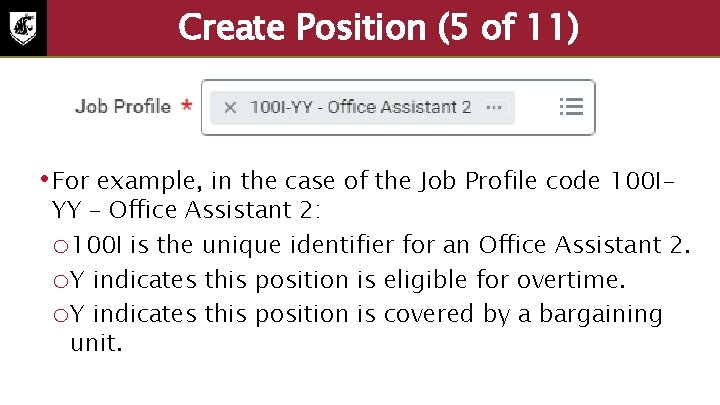
Create Position (5 of 11) • For example, in the case of the Job Profile code 100 I- YY – Office Assistant 2: o 100 I is the unique identifier for an Office Assistant 2. o. Y indicates this position is eligible for overtime. o. Y indicates this position is covered by a bargaining unit.
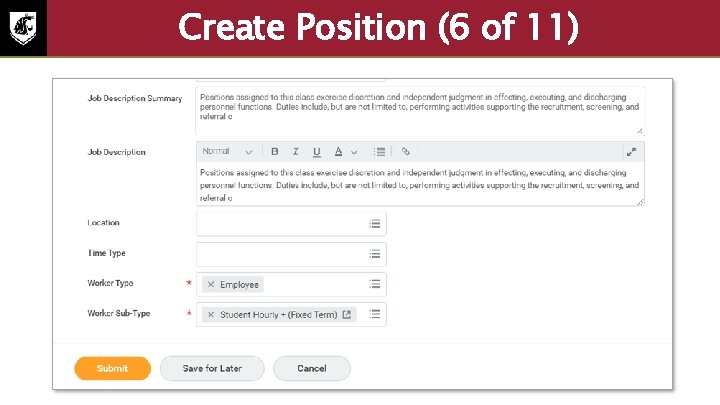
Create Position (6 of 11) To create a position in the Workday system: 6. Select the required value in the Location, Time Type, Worker Type and Worker Sub-Type fields 7. Select the Submit button to move to the next step in the process
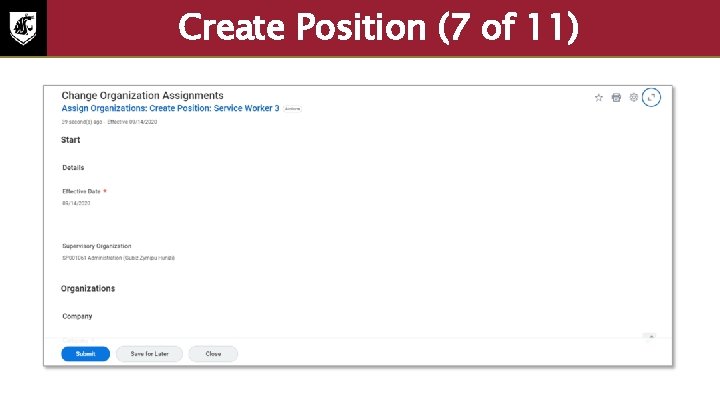
Create Position (7 of 11) The next step in the Create Position process is to change the organization assignment. This step is completed by the HR Partner. In this step, the details on how the position will be related to the costing dimensions, region, and other custom objects are provided. The screenshot displays the Change Organization Assignments screen. All the following fields are mandatory. • Company: There is only one company for the entire university, Washington State University.
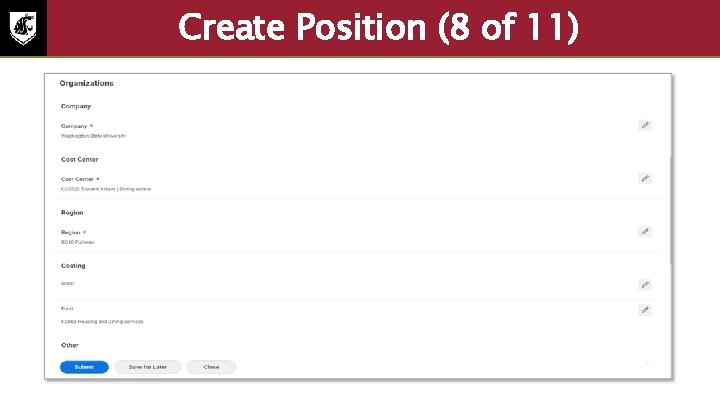
Create Position (8 of 11) The next step in the Create Position process is to change the organization assignment. This step is completed by the HR Partner. In this step, the details on how the position will be related to the costing dimensions, region, and other custom objects are provided. The screenshot displays the Change Organization Assignments screen. All the following fields are mandatory. • Company: There is only one company for the entire university, Washington State University. • Cost Center: It displays the Cost Center of the new position. Please check with the Finance Department if you are not sure of the Cost Center. • • • Region Grant Fund
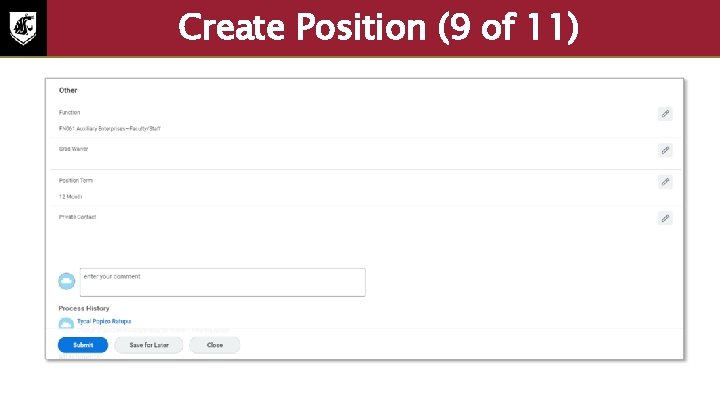
Create Position (9 of 11) The next step in the Create Position process is to change the organization assignment. This step is completed by the HR Partner. In this step, the details on how the position will be related to the costing dimensions, region, and other custom objects are provided. The screenshot displays the Change Organization Assignments screen. All the following fields are mandatory. • • • Function Grad Waiver Position Term
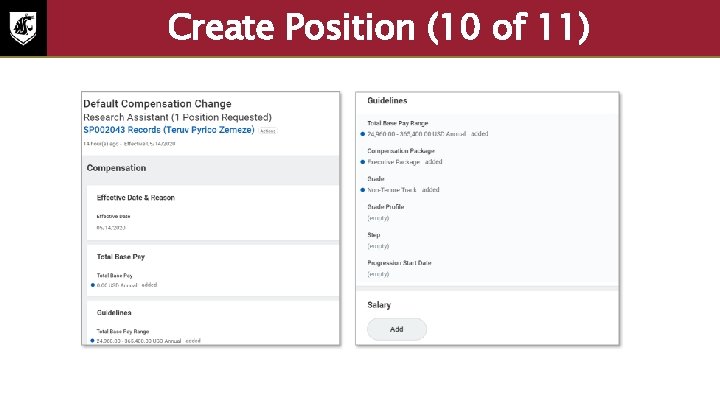
Create Position (10 of 11) The next step in the Create Position process is to specify the compensation details applicable for the new position. This step will be completed by the Compensation Partner. In this step, add the compensation information for the new position. If a Salary or Hourly amount is included, this amount should be within the Total Base Pay range and be sure that the frequency of payment, compensation plan, and grade is correct. The values in the Profile and Step fields will default from the compensation grade. Note: Some of the sections like Period Salary, Unit Salary, Allowance, Merit, Bonus, and Commission are not displayed in this screenshot due to the space constraints.
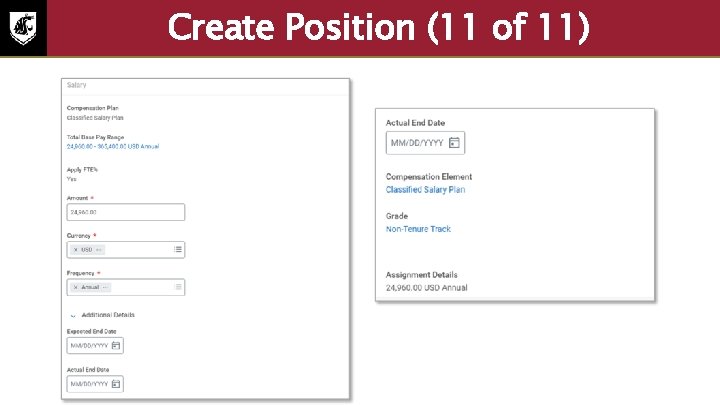
Create Position (11 of 11) The next step in the Create Position process is to specify the compensation details applicable for the new position. This step will be completed by the Compensation Partner. In this step, add the compensation information for the new position. If a Salary or Hourly amount is included, this amount should be within the Total Base Pay range and be sure that the frequency of payment, compensation plan, and grade is correct. The values in the Profile and Step fields will default from the compensation grade. Note: Some of the sections like Period Salary, Unit Salary, Allowance, Merit, Bonus, and Commission are not displayed in this screenshot due to the space constraints.
Practice 2. 1 Activity: Create a position in Workday 1. Log in to the Workday system 2. Follow the steps to complete the task Duration 15 minutes
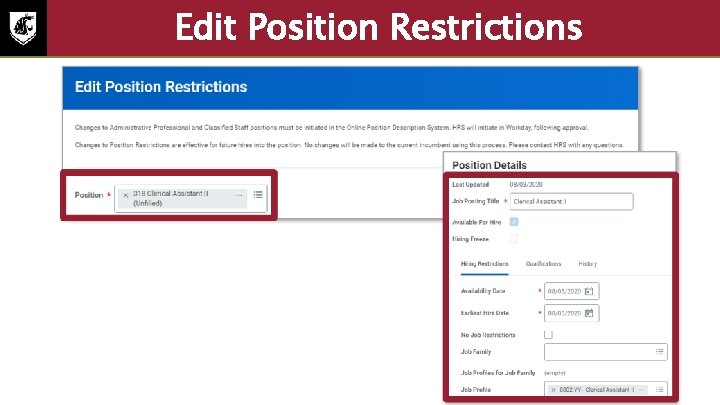
Edit Position Restriction (1 of 2) • Used to edit the details of a vacant or filled position o If filled, the changes will not take effect until the position becomes vacant. o When Edit Position Restriction is initiated, this will not impact the current employee’s job details. o The next employee to fill the position will have the updated position details. o HRS will initiate this task for Administrative Professional and Classified Staff positions in Workday following review of the OPDRS position description.
Edit Position Restriction (2 of 2) • If the Job Profile changed, Default Compensation will need to be set by the Compensation Partner. • HRS Records approves changes to the position restrictions and the position’s default compensation for Faculty and Hourly positions.
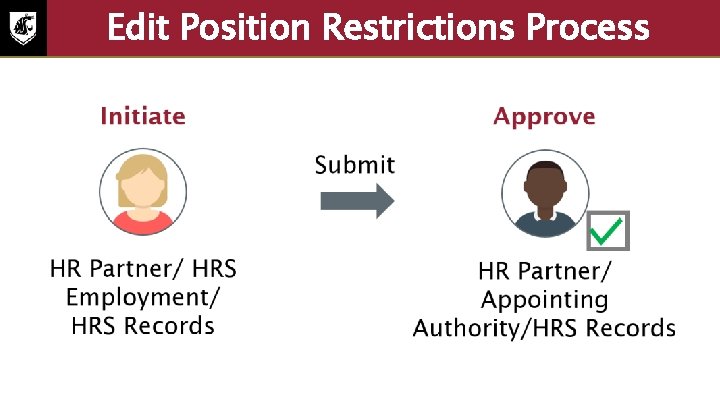
Edit Position Restrictions Process • The Edit Position Restrictions process can be initiated by HR Partner/HRS Employment/HRS Records • • Default Compensation will be initiated if the job profile changed. It will be completed by Compensation Partner HRS Employment will approve if the position type is AP, CS, Faculty, Coaches HRS Records will approve if the position type is Hourly, Student Hourly or Graduate Assistant The approvers won't be assigned if they initiated it Note: Once initiated, the position is changed; however, the title and salary of the employee occupying the position has not. The title and salary will need to be changed using the Change Job process.
Edit Position Restrictions To edit a position in Workday: 1. Access the Edit Position Restriction task through the Search field 2. On the initial screen, select the Position 3. On the extended Edit Position Restrictions, review and edit fields like Job Posting Title, Availability Date, Earliest Hire Date, Job Profile, Time-Type, Worker Type, and Worker Sub-Type 4. Select the Submit button
Freeze Position Process • Freezing positions makes the position temporarily unavailable for staffing. • Use this task when a position should not be closed, but there is no budget available to fill the vacant position. • The Manager or HR Partner can initiate the Freeze Position process in Workday. If the process is initiated by the HR Partner no further approval is required. If the process is initiated by the Manager, the Manager’s Manager will need to approve.
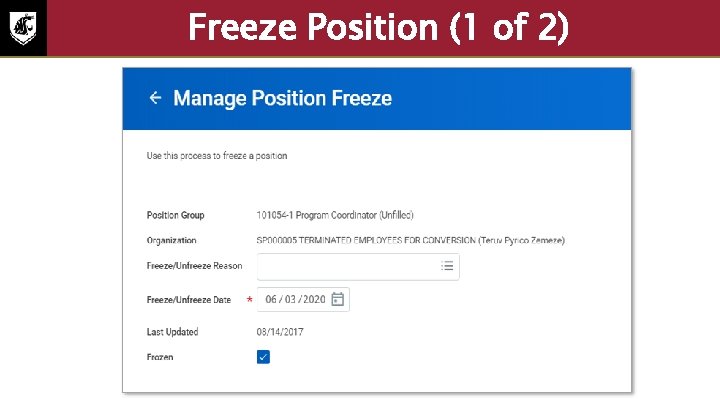
Freeze Position (1 of 2) To freeze a position in Workday: 1. Access the Manage Position Freeze – Task through the Search field 2. Select the position that needs to be frozen 3. On the expanded Manage Position Freeze page, select the appropriate value in the Freeze/Unfreeze Reason and Freeze/Unfreeze Date fields 4. Select the Frozen checkbox 5. Select the Submit button to submit the request
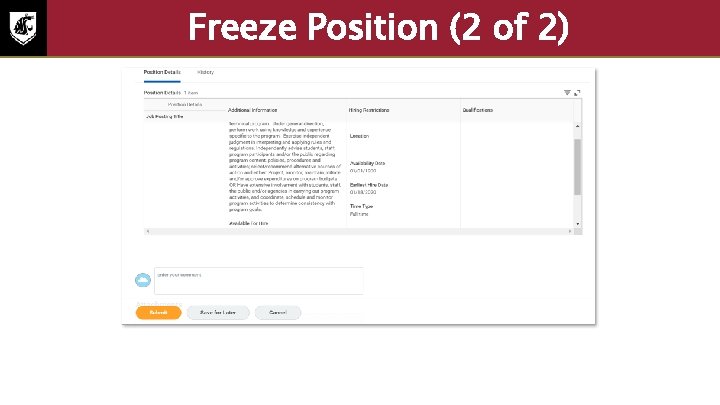
Freeze Position (2 of 2) The screenshot displays the sample position details that will be available in the archive after someone has initiated or approved a new Position or taken any actions on the Position.
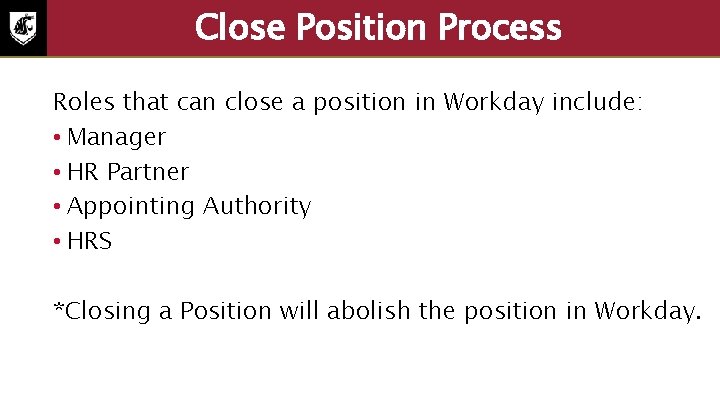
Close Position Process Roles that can close a position in Workday include: • Manager • HR Partner • Appointing Authority • HRS *Closing a Position will abolish the position in Workday.
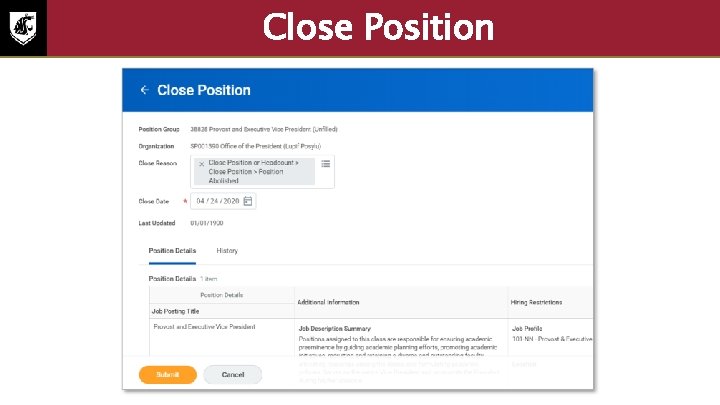
Close Position To close a position in Workday: 1. Access the Close Position – Task through the Search field 2. In the initial page, select the Position that needs to be closed • Note: You can only close positions in the organizations that you manage or have the relevant roles in. Refer to the Workday Recruiting Guide: Create and Close Position Reference Guide for more information.
Lesson 2 Summary Now that you have completed this lesson, you should be able to: • Create a Position • Edit a Position’s Restrictions • Freeze a Position, and • Close a Position
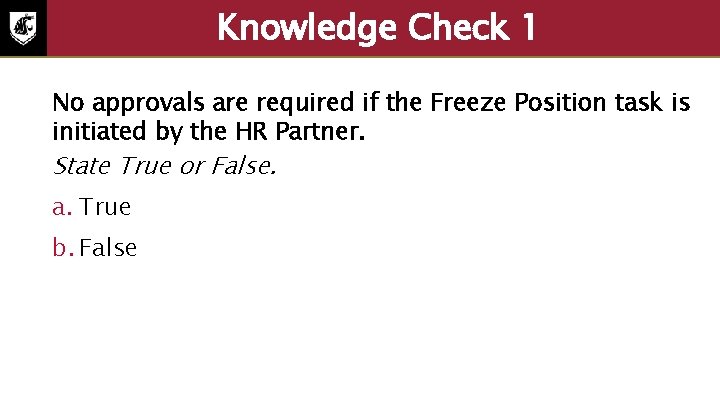
Knowledge Check 1 No approvals are required if the Freeze Position task is initiated by the HR Partner. State True or False. a. True b. False
Knowledge Check 1 Answer a. True b. False
Additional Resources Helpful resources are available to perform Workday related tasks: WSU Knowledge Base • Workday Staffing Guide: Create and Close Position
Course Summary You should now be able to: • Explain the Create Position process • Create and Edit a Position’s Restrictions in Workday • Freeze a Position in Workday • Close a Position in Workday
Course Evaluation Please take a moment to complete a brief survey providing us feedback on today’s training session. Your feedback will help us improve Workday training materials. https: //wsu. co 1. qualtrics. com/jfe/form/SV_3 ql 1 szts. F wp 0 zn 7
Workday Support • Knowledge Base • Mod. Help/Workday Support • Training Catalog • Modernization Website • Change Network Directory
You have successfully completed the Workday Create Position course! Questions? Please contact support. workday. wsu. edu