
Work Placement Logbook An introduction to your digital
Work Placement Logbook An introduction to your digital work placement logbook

Topics covered in this guide 1. 2. 3. 4. 5. Introduction to Grofar Communications you will receive Log in to your work placement logbook Add Grofar to your mobile home screen Using your work placement logbook 1. 2. 3. 4. 5. 6. Creating a placement Setting goals and targets Adding Health & Safety details Logging hours Logging experience Completing assessments and feedback 6. Support
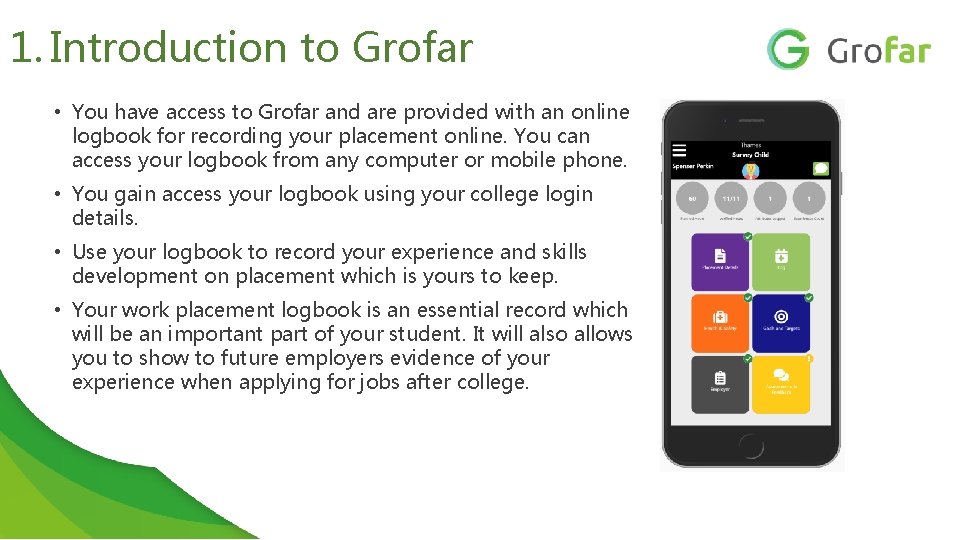
1. Introduction to Grofar • You have access to Grofar and are provided with an online logbook for recording your placement online. You can access your logbook from any computer or mobile phone. • You gain access your logbook using your college login details. • Use your logbook to record your experience and skills development on placement which is yours to keep. • Your work placement logbook is an essential record which will be an important part of your student. It will also allows you to show to future employers evidence of your experience when applying for jobs after college.

Your Student Portal My Placements Access all your placement details here My Opportunities Search through and shortlist Placement opportunities that the college has listed on Grofar My Applications Review the placement opportunities you have registered an interest in My Job Roles Select job roles you are interested in across a range of different sectors.
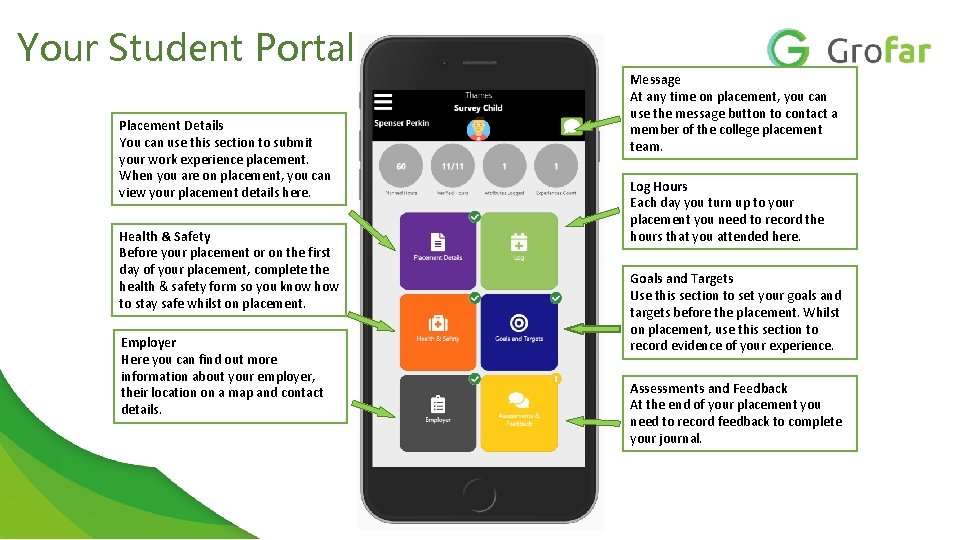
Your Student Portal Placement Details You can use this section to submit your work experience placement. When you are on placement, you can view your placement details here. Health & Safety Before your placement or on the first day of your placement, complete the health & safety form so you know how to stay safe whilst on placement. Employer Here you can find out more information about your employer, their location on a map and contact details. Message At any time on placement, you can use the message button to contact a member of the college placement team. Log Hours Each day you turn up to your placement you need to record the hours that you attended here. Goals and Targets Use this section to set your goals and targets before the placement. Whilst on placement, use this section to record evidence of your experience. Assessments and Feedback At the end of your placement you need to record feedback to complete your journal.

2. Communications you will Receive At each stage of the Placement you will receive emails that will inform you about • A Placement being Setup • When your Placement has been confirmed • What your Targets an Objectives will be when you are on Placement • When you need to complete assessments and feedback. When you click the ‘Student Portal’ button it will load your Grofar Application.
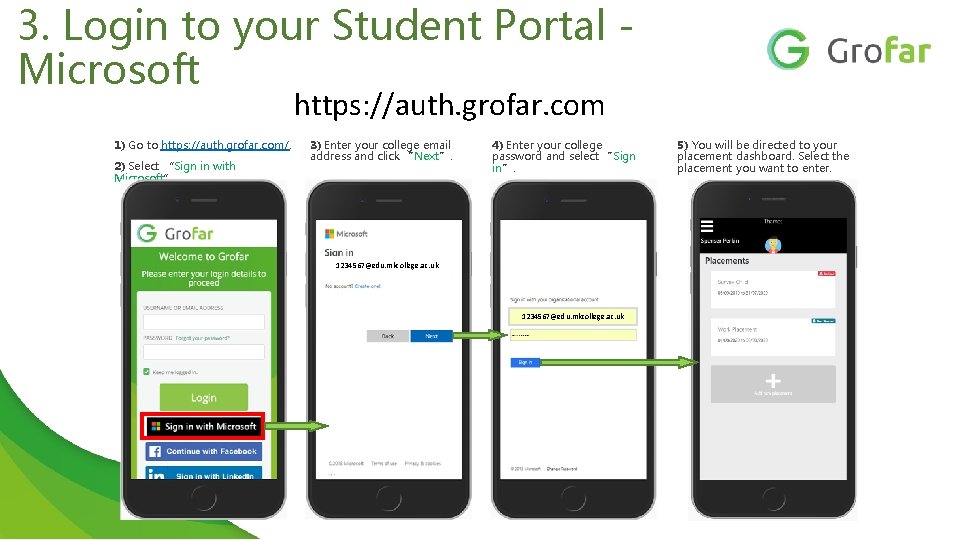
3. Login to your Student Portal Microsoft https: //auth. grofar. com 1) Go to https: //auth. grofar. com/. 2) Select “Sign in with Microsoft”. 3) Enter your college email address and click “Next”. 4) Enter your college password and select “Sign in”. 1234567@edu. mkcollege. ac. uk 5) You will be directed to your placement dashboard. Select the placement you want to enter.

3. Login to your Student Portal - Google 1) Go to https: //auth. grofar. com/. 2) Select “Sign in with Google”. 3) Enter your college email address and click “Next”. 4) Enter your college password and select “Next”. me@college. ac. uk 5) You will be directed to your placement dashboard. Select the placement you want to enter.
4. Add Grofar to your mobile home screen Grofar works on any device – smartphone, computer, tablet. To easily access Grofar on your i. Phone or i. Pad, add the Grofar homepage to your Home Screen. Follow the instructions on the next pages to add Grofar to your Home Screen on your i. Phone or Android mobile.
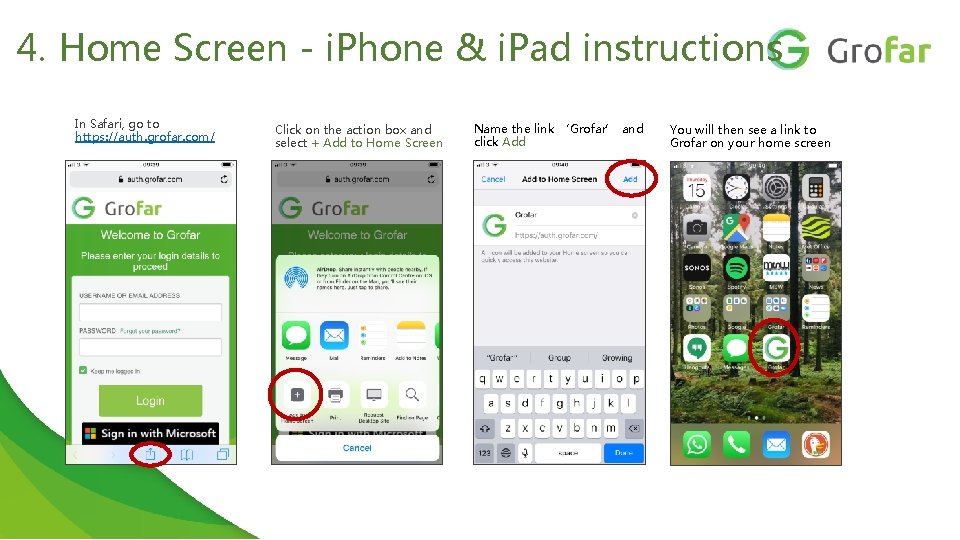
4. Home Screen - i. Phone & i. Pad instructions In Safari, go to https: //auth. grofar. com/ Click on the action box and select + Add to Home Screen Name the link ‘Grofar’ and click Add You will then see a link to Grofar on your home screen
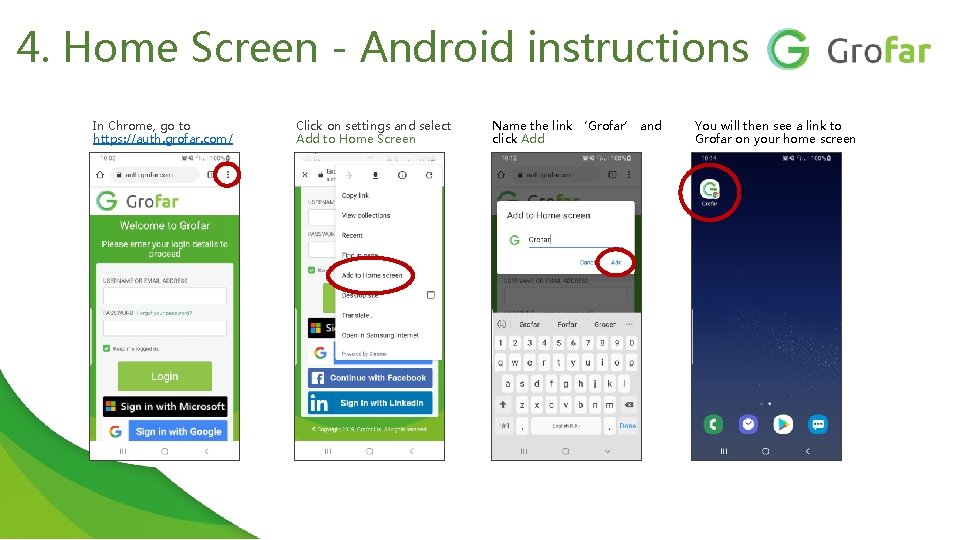
4. Home Screen - Android instructions In Chrome, go to https: //auth. grofar. com/ Click on settings and select Add to Home Screen Name the link ‘Grofar’ and click Add You will then see a link to Grofar on your home screen
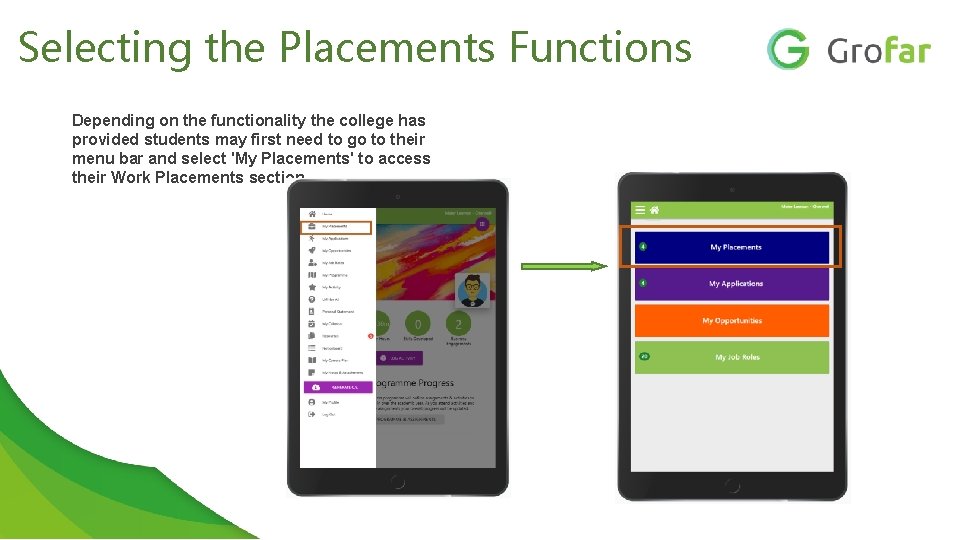
Selecting the Placements Functions Depending on the functionality the college has provided students may first need to go to their menu bar and select 'My Placements' to access their Work Placements section
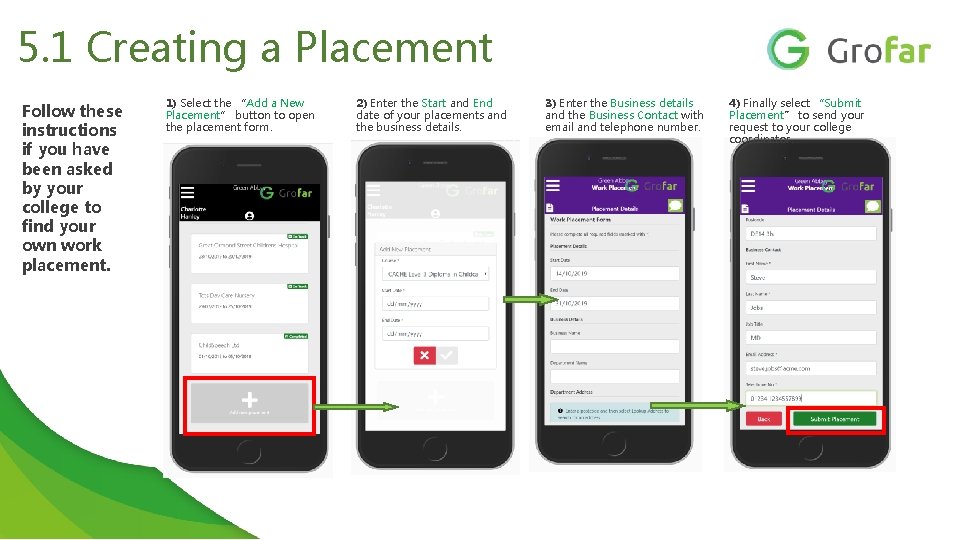
5. 1 Creating a Placement Follow these instructions if you have been asked by your college to find your own work placement. 1) Select the “Add a New Placement” button to open the placement form. 2) Enter the Start and End date of your placements and the business details. 3) Enter the Business details and the Business Contact with email and telephone number. 4) Finally select “Submit Placement” to send your request to your college coordinator.
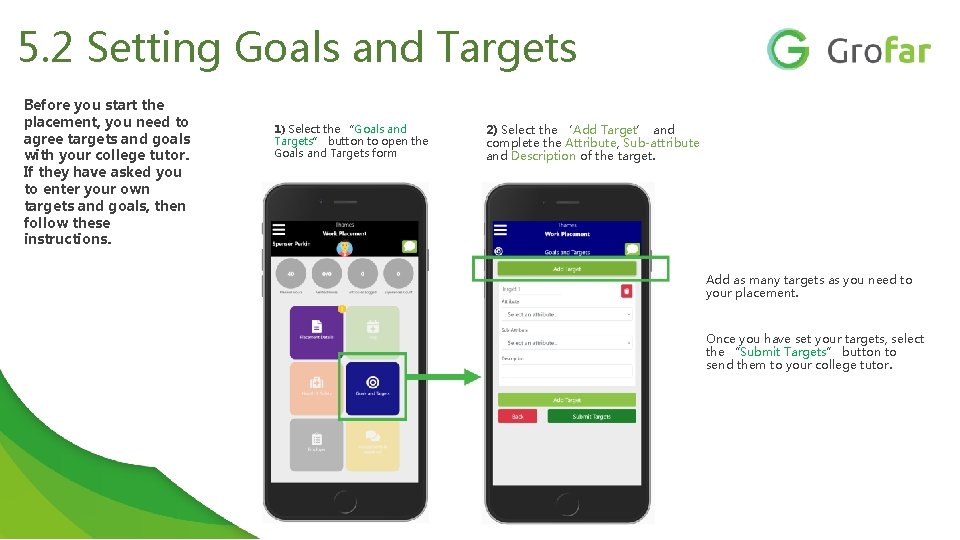
5. 2 Setting Goals and Targets Before you start the placement, you need to agree targets and goals with your college tutor. If they have asked you to enter your own targets and goals, then follow these instructions. 1) Select the “Goals and Targets” button to open the Goals and Targets form 2) Select the ‘Add Target’ and complete the Attribute, Sub-attribute and Description of the target. Add as many targets as you need to your placement. Once you have set your targets, select the “Submit Targets” button to send them to your college tutor.
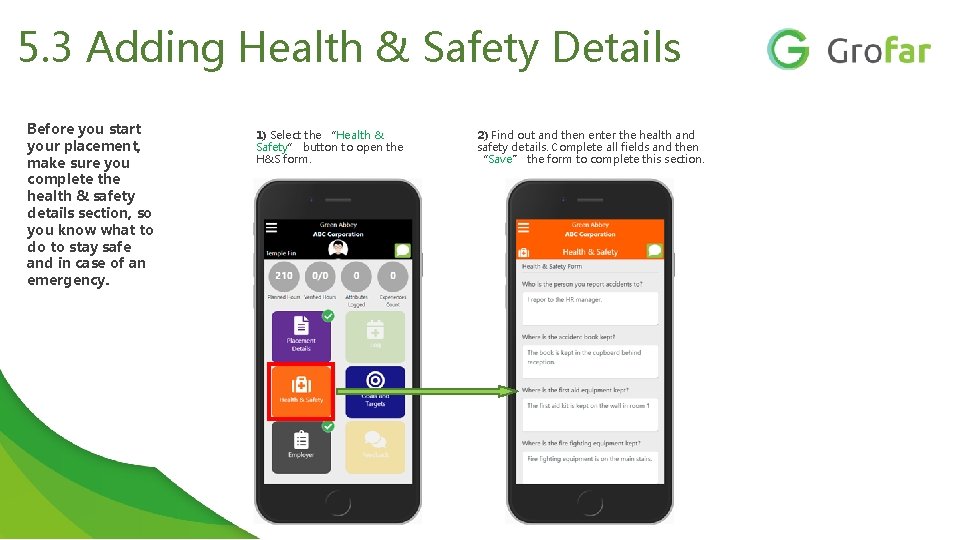
5. 3 Adding Health & Safety Details Before you start your placement, make sure you complete the health & safety details section, so you know what to do to stay safe and in case of an emergency. 1) Select the “Health & Safety” button to open the H&S form. 2) Find out and then enter the health and safety details. Complete all fields and then “Save” the form to complete this section.
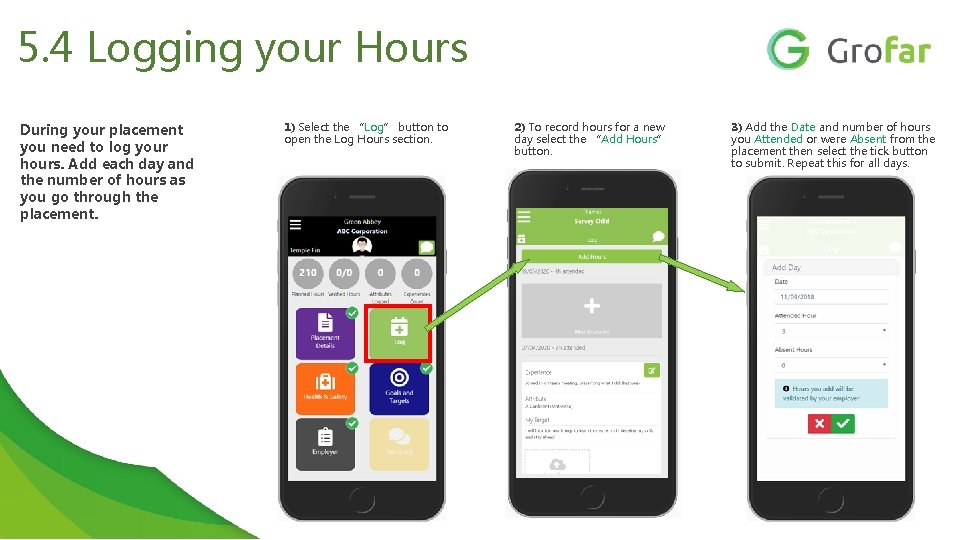
5. 4 Logging your Hours During your placement you need to log your hours. Add each day and the number of hours as you go through the placement. 1) Select the “Log” button to open the Log Hours section. 2) To record hours for a new day select the “Add Hours” button. 3) Add the Date and number of hours you Attended or were Absent from the placement then select the tick button to submit. Repeat this for all days.
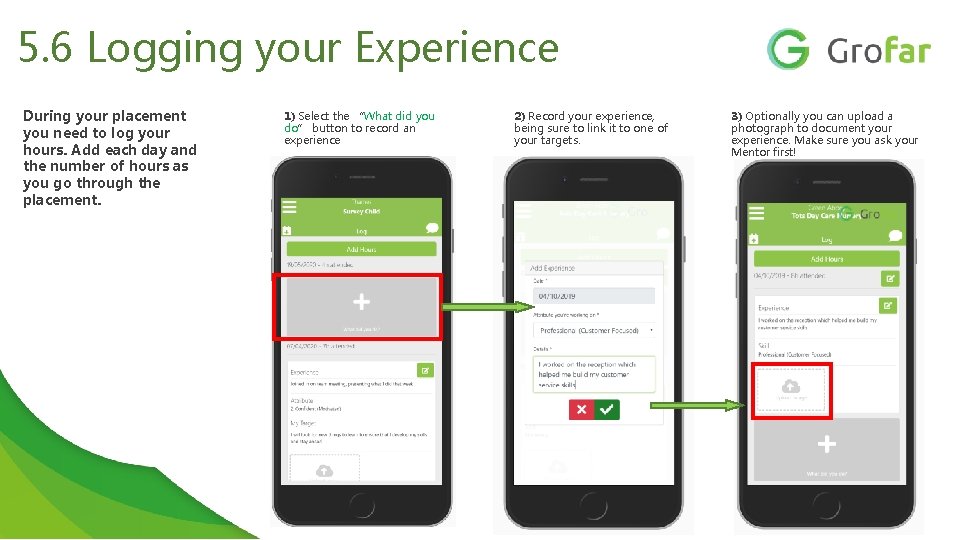
5. 6 Logging your Experience During your placement you need to log your hours. Add each day and the number of hours as you go through the placement. 1) Select the “What did you do” button to record an experience 2) Record your experience, being sure to link it to one of your targets. 3) Optionally you can upload a photograph to document your experience. Make sure you ask your Mentor first!
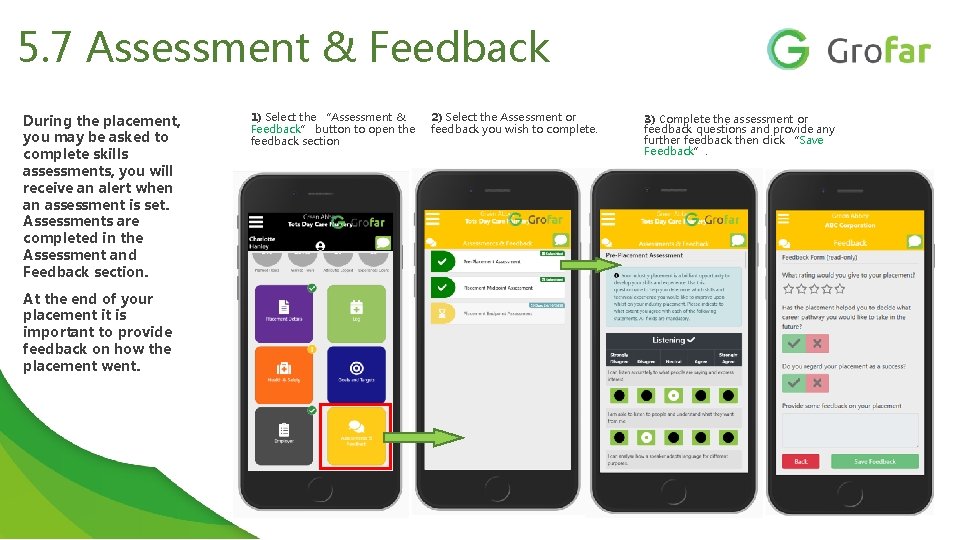
5. 7 Assessment & Feedback During the placement, you may be asked to complete skills assessments, you will receive an alert when an assessment is set. Assessments are completed in the Assessment and Feedback section. At the end of your placement it is important to provide feedback on how the placement went. 1) Select the “Assessment & Feedback” button to open the feedback section 2) Select the Assessment or feedback you wish to complete. 3) Complete the assessment or feedback questions and provide any further feedback then click “Save Feedback”.
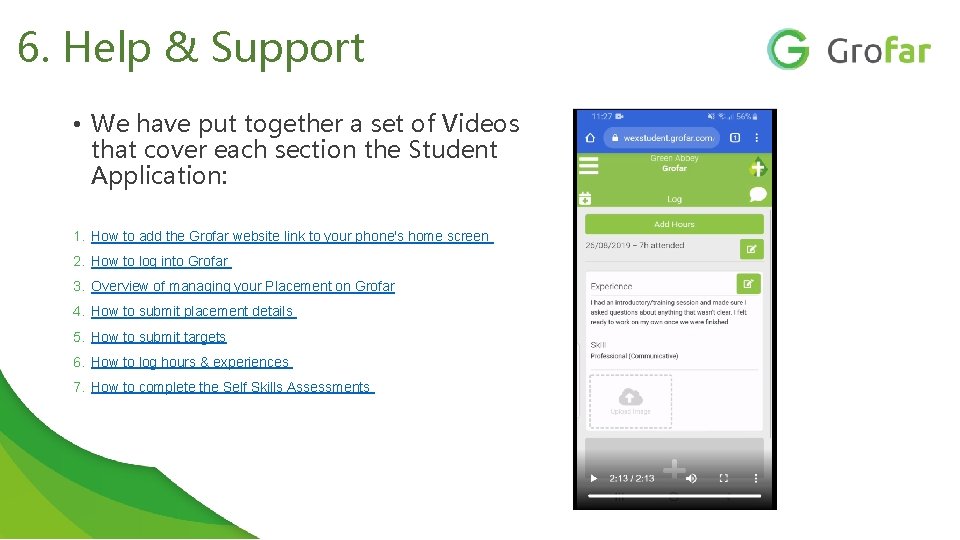
6. Help & Support • We have put together a set of Videos that cover each section the Student Application: 1. How to add the Grofar website link to your phone's home screen 2. How to log into Grofar 3. Overview of managing your Placement on Grofar 4. How to submit placement details 5. How to submit targets 6. How to log hours & experiences 7. How to complete the Self Skills Assessments
- Slides: 19