
Work Orders How to Submit and Monitor Work
Work Orders How to Submit and Monitor Work Orders Using Re. ADY Request Dec. 17, 2019
What is Re. ADY Request? . . . a user-friendly, integrated facility service request solution that streamlines communication across our campus and speeds up request to resolution. . replaces our previous work order system, for submitting work orders. . available to all faculty and staff.
What’s The Same ● For submitting routine and preventative maintenance needs of our campus. ● Not to be used for emergency maintenance needs. ● Campus Community accessibility to enter work orders for the Facilities Management Department.
What’s New ● ● New work order entry program. Quick topics to select for ease of user entry. Monitor progress via system notifications. Easy communication between requestor and facilities staff.
Priority 1 - Emergencies - Immediate Response An "emergency" is defined as any disaster, unusual occurrence, utility malfunction, or equipment failure which presents an imminent danger to life, health, or property. In the event of the following emergencies, CALL 911 IMMEDIATELY: • Explosion • Fire, smoke, or burning odors • Natural gas odors • Chemical, biological, or radioactive spill • Elevator breakdown with trapped individuals • Live electrical wire exposed In the event of any of the following types of emergencies, DO NOT call 911. Please contact Facilities Management IMMEDIATELY at 518 -255 -5228 (24 hours/7 days a week throughout Fall and Winter. During Summer, Facilities Management is open M-F 7: 30 a. m. - 3: 30 p. m. ; for all other times, please contact University Police at 518 -255 -5555). If you do not immediately reach a Facilities Management staff member, do not leave a message. • Loss of electrical power or water • Broken or gushing water, flood, or blocked toilet • Steam line break with steam escaping • Building security problems, door will not lock, etc. • Heating or ventilation failure • Nuisance animal removal from buildings
Priority 2 - Do-It-Now (DIN) - Within 72 hour Response A "Do-It-Now" is a situation that if not addressed will have a long-term detrimental effect on life, safety, or property. In addition, a "DIN" is a need that shall be addressed within three (3) working days after work order was received by Facilities Management, when proper advance notice or planning was impossible. A scheduled event is not considered a DIN. Examples of DINs include: • Flickering lights • Toilets or urinals not operating properly • Hot or cold calls Priority 3 - Scheduled Events "Scheduled event" requests must be received five (5) working days prior to event. If an estimate is required, submit request a minimum of 14 working days prior to the event. Examples include: • Concerts and theatre events • Special meetings, conferences, and programs • Dinners and luncheons Priority 4 - Routine Requests All other requests fall into the category of a routine work order. "Routine requests" are generally placed in a queue and addressed on a first-come, first-serve basis. Response timing is contingent upon level of current backlog. Examples of routine work orders include: • Routine plumbing or electrical work (dripping faucets) • Special cleaning requests • Minor renovations • Lost file cabinet keys (must provide key number on lock)
How To Submit Work Orders 1. From the SUNY Cobleskill homepage click the Re. ADY Request link. Re. ADY Request can also be accessed via Facilities Management webpage and on Sharepoint.
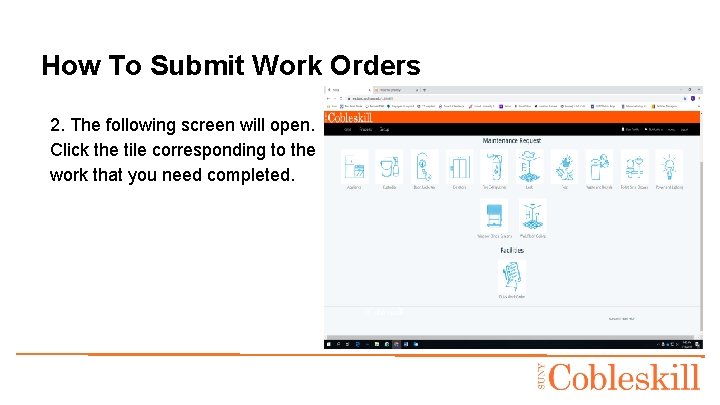
How To Submit Work Orders 2. The following screen will open. Click the tile corresponding to the work that you need completed.
How To Submit Work Orders 3. You will be asked to enter contact information and location of the work to be completed. ● Please supply an additional contact if you are not the individual in need of the work. ● Be sure all information entered is accurate.
How To Submit Work Orders 4. Follow the prompts to specify what work needs to be completed. Check appropriate boxes according to needs. ● A circle means only one item can be selected. ● A square means that you can select all items that apply.
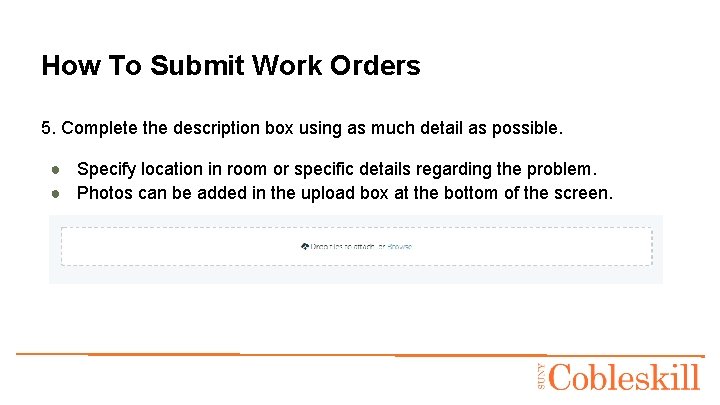
How To Submit Work Orders 5. Complete the description box using as much detail as possible. ● Specify location in room or specific details regarding the problem. ● Photos can be added in the upload box at the bottom of the screen.
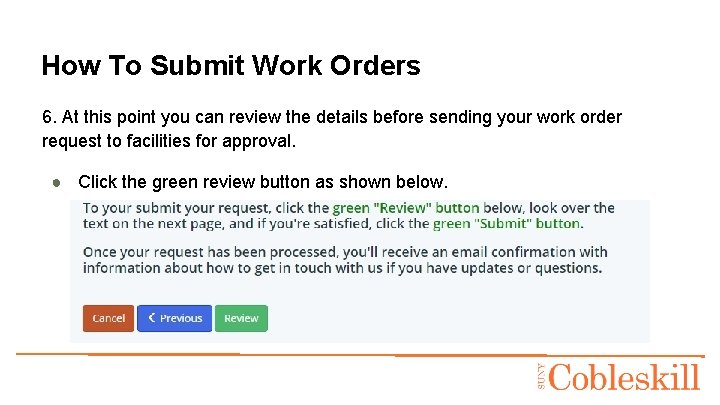
How To Submit Work Orders 6. At this point you can review the details before sending your work order request to facilities for approval. ● Click the green review button as shown below.
How To Submit Work Orders 7. Once clicking review you will see a screen with all of the details of your request. ● Review the information for accuracy. ● Click the green submit button. (see image on next slide)
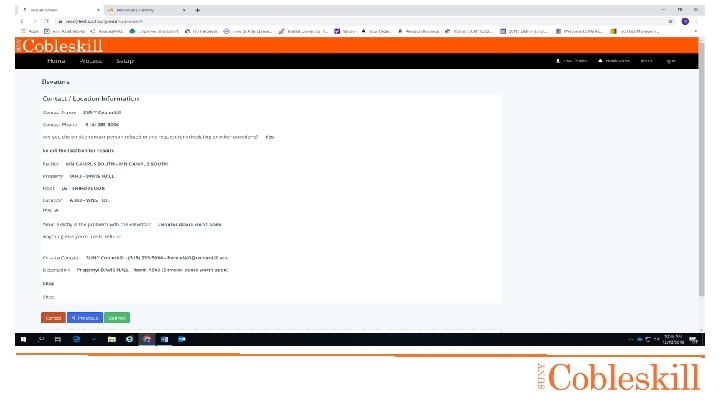
Example of “review” screen…
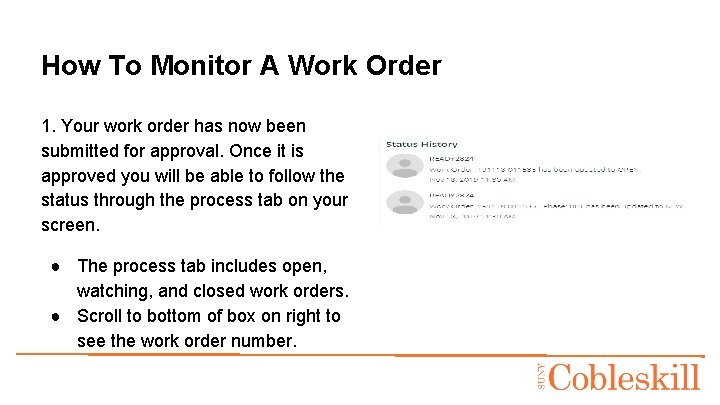
How To Monitor A Work Order 1. Your work order has now been submitted for approval. Once it is approved you will be able to follow the status through the process tab on your screen. ● The process tab includes open, watching, and closed work orders. ● Scroll to bottom of box on right to see the work order number.
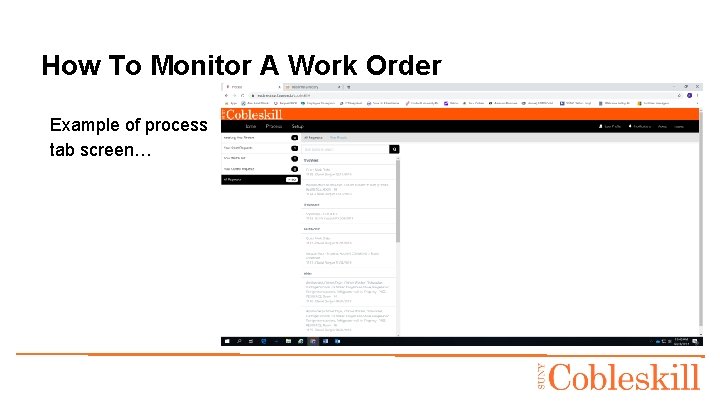
How To Monitor A Work Order Example of process tab screen…
How To Communicate About Work Order 1. Comments can be sent to facilities staff in the process screen. ● Additional faculty/staff can be tagged in the comments by typing the @ symbol and the individual’s name without spaces (ex. @johnsmith). This allows that individual to follow the work request as well. (See next slide for comment section details screen. )
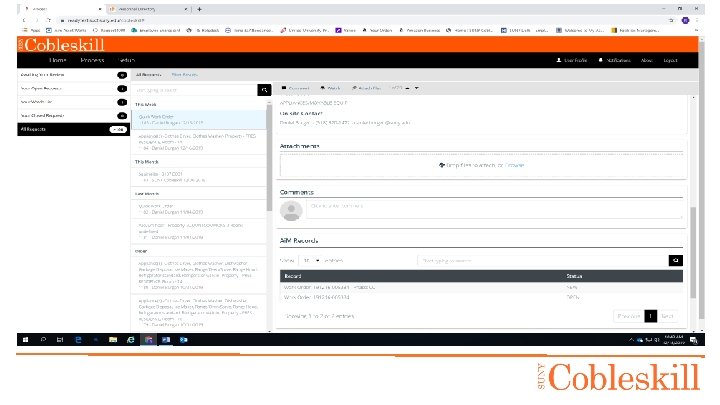
Comments box is as shown…
How To Communicate About Work Order 2. In the comments box you can communicate directly with facilities staff to receive updates on the work request. ● NOTE: All comments can be read by all parties so please be respectful in your communications.
Frequently Asked Questions ● Where can I find the link for Re. ADY Request? ○ The link can be found on the SUNY Cobleskill homepage or on the Facilities Management webpage and on Sharepoint. ● How do I follow up on my request? ○ All work order details can be found through the Re. ADY Request link and clicking “process”. ● Additional questions can be added as they arise.
Questions? Facilities Management (518) 255 -5228 Facilities. Management@Cobleskill. edu
- Slides: 21