
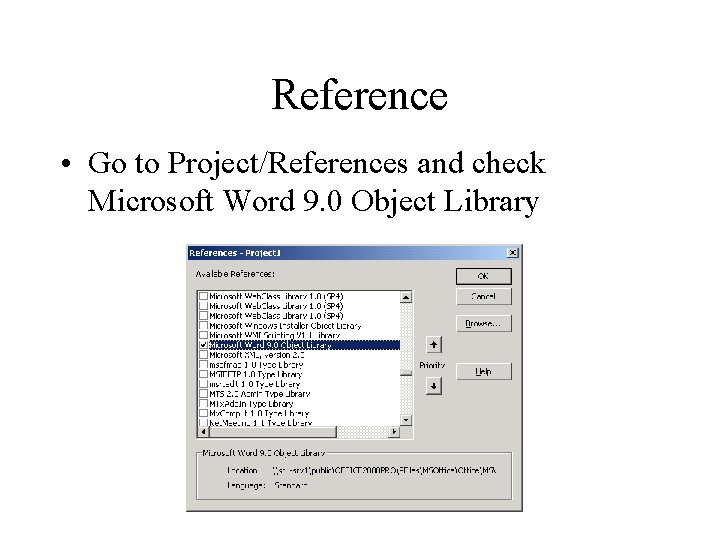
Word Reference Go to ProjectReferences and check Microsoft

- Slides: 45
Word
Reference • Go to Project/References and check Microsoft Word 9. 0 Object Library
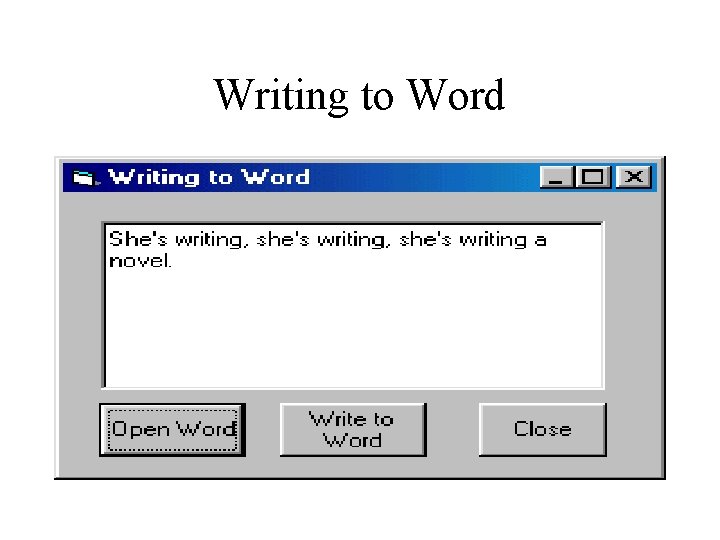
Writing to Word
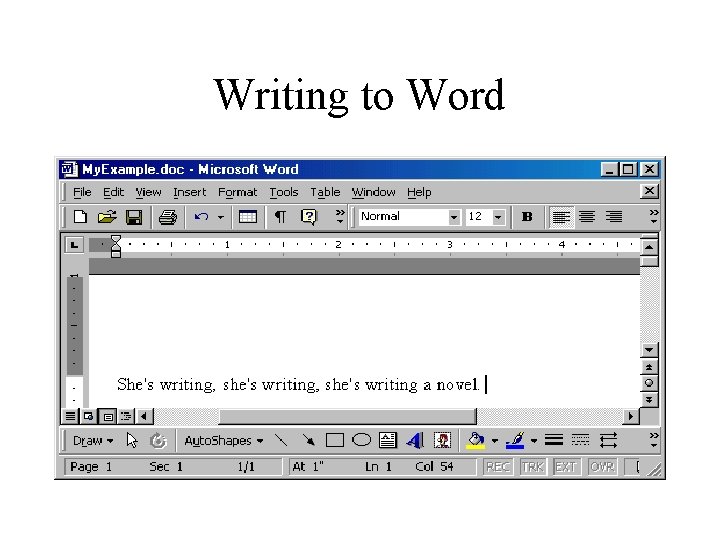
Writing to Word
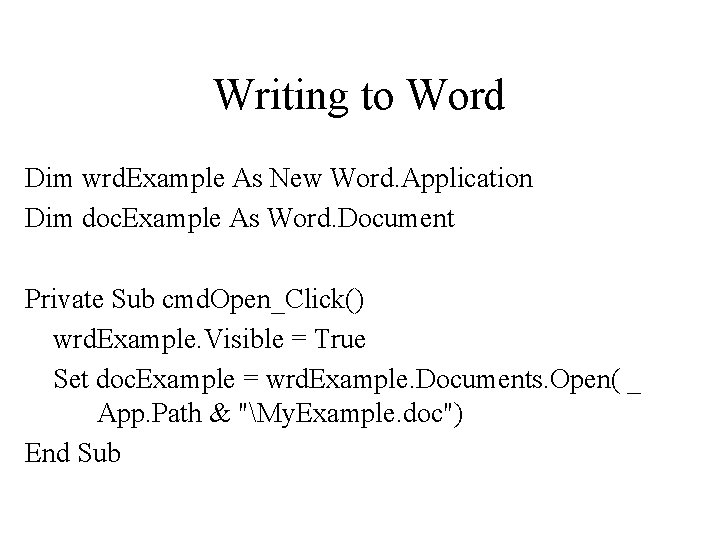
Writing to Word Dim wrd. Example As New Word. Application Dim doc. Example As Word. Document Private Sub cmd. Open_Click() wrd. Example. Visible = True Set doc. Example = wrd. Example. Documents. Open( _ App. Path & "My. Example. doc") End Sub
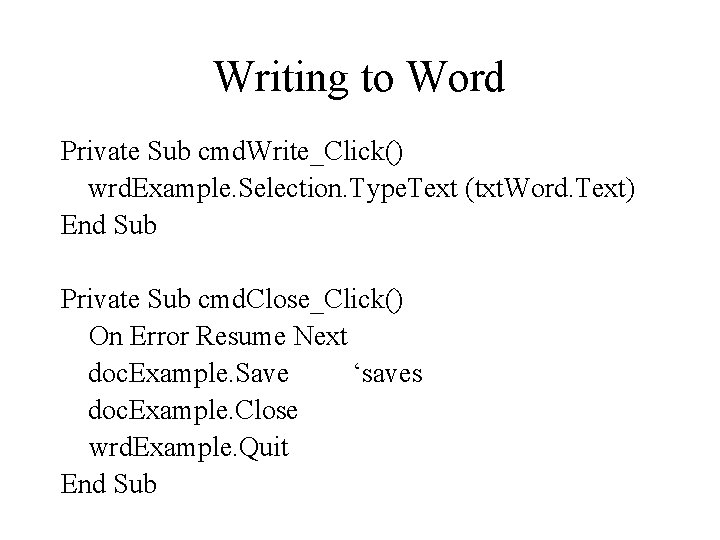
Writing to Word Private Sub cmd. Write_Click() wrd. Example. Selection. Type. Text (txt. Word. Text) End Sub Private Sub cmd. Close_Click() On Error Resume Next doc. Example. Save ‘saves doc. Example. Close wrd. Example. Quit End Sub
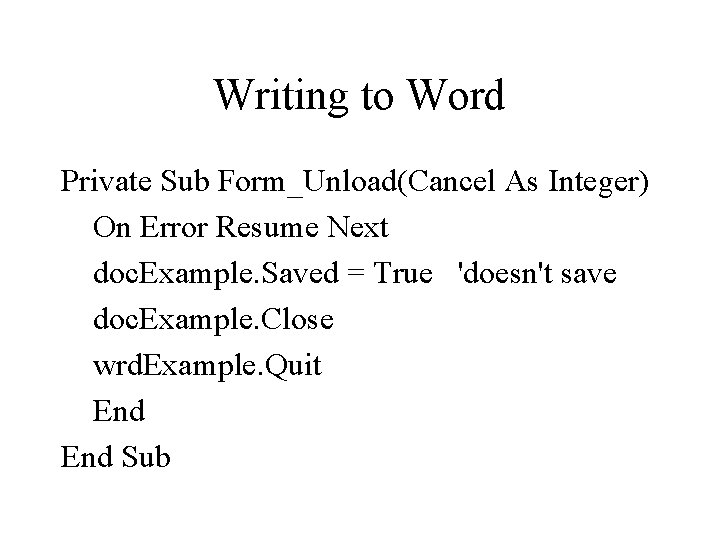
Writing to Word Private Sub Form_Unload(Cancel As Integer) On Error Resume Next doc. Example. Saved = True 'doesn't save doc. Example. Close wrd. Example. Quit End Sub
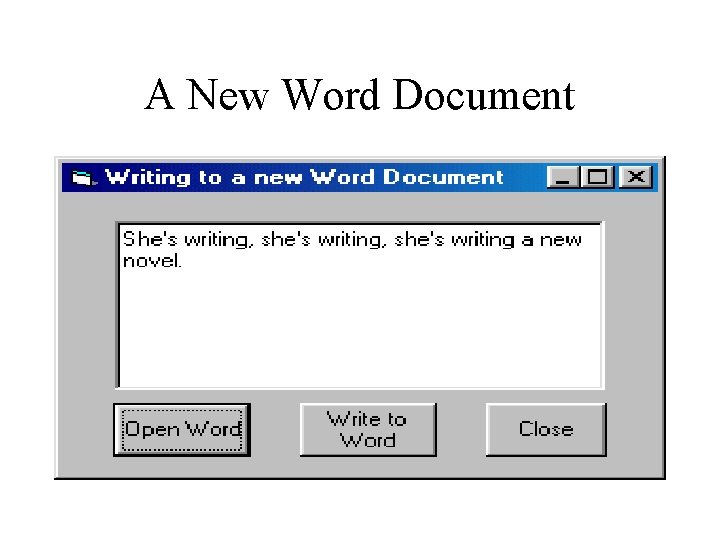
A New Word Document
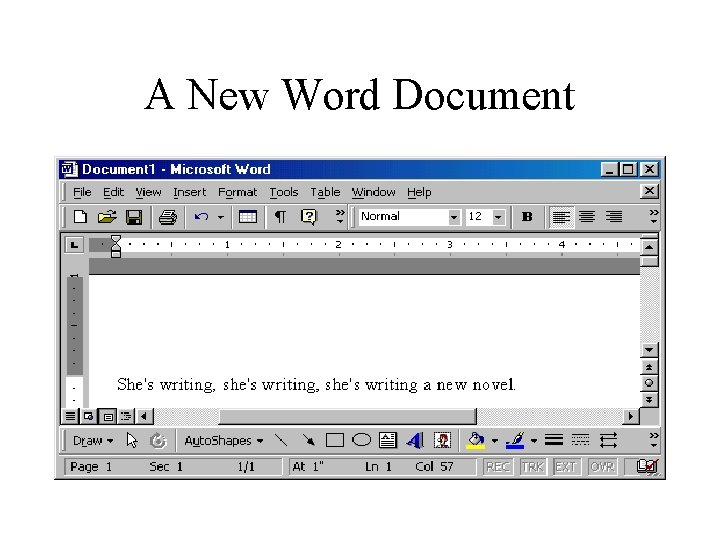
A New Word Document
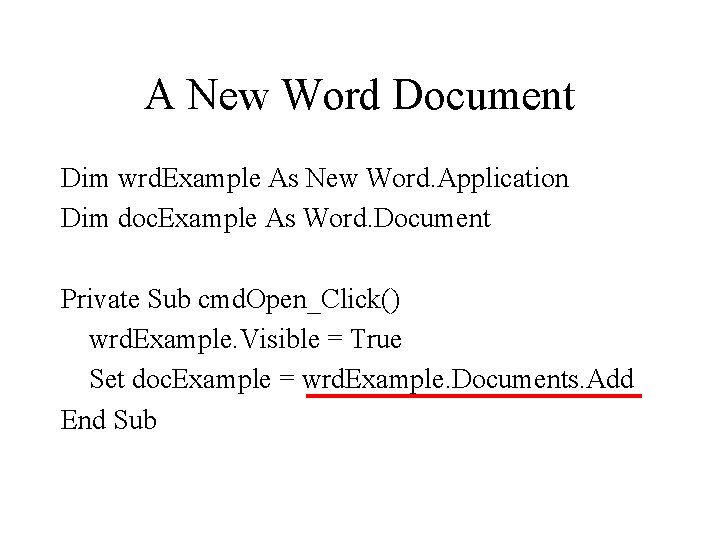
A New Word Document Dim wrd. Example As New Word. Application Dim doc. Example As Word. Document Private Sub cmd. Open_Click() wrd. Example. Visible = True Set doc. Example = wrd. Example. Documents. Add End Sub
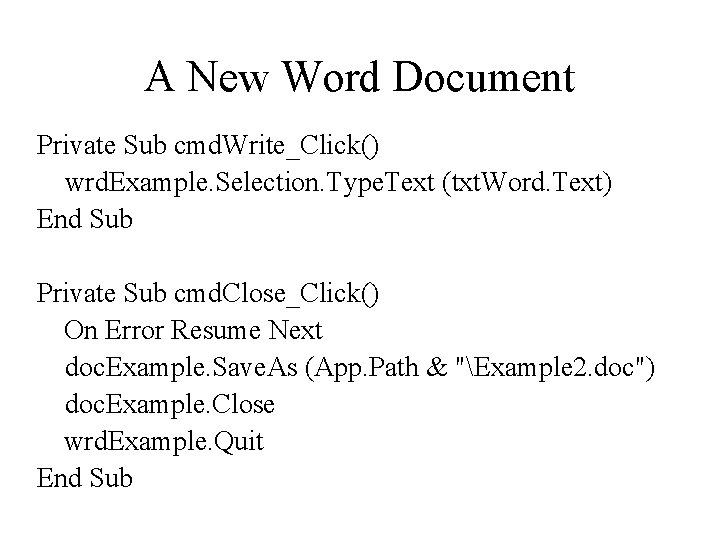
A New Word Document Private Sub cmd. Write_Click() wrd. Example. Selection. Type. Text (txt. Word. Text) End Sub Private Sub cmd. Close_Click() On Error Resume Next doc. Example. Save. As (App. Path & "Example 2. doc") doc. Example. Close wrd. Example. Quit End Sub
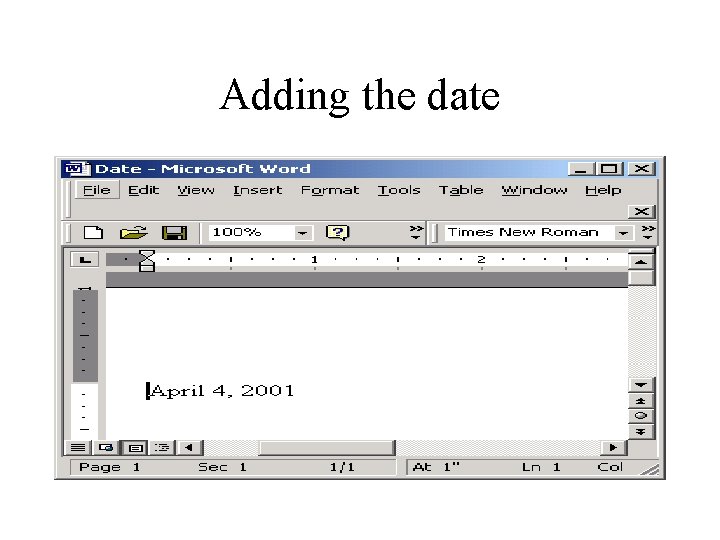
Automating Letters in Word • One might want to start with a date at the top • In Word, one would go to Insert/Date and Time and then select the desired format • Recording a macro of those actions yields code which can be adapted to a VB program
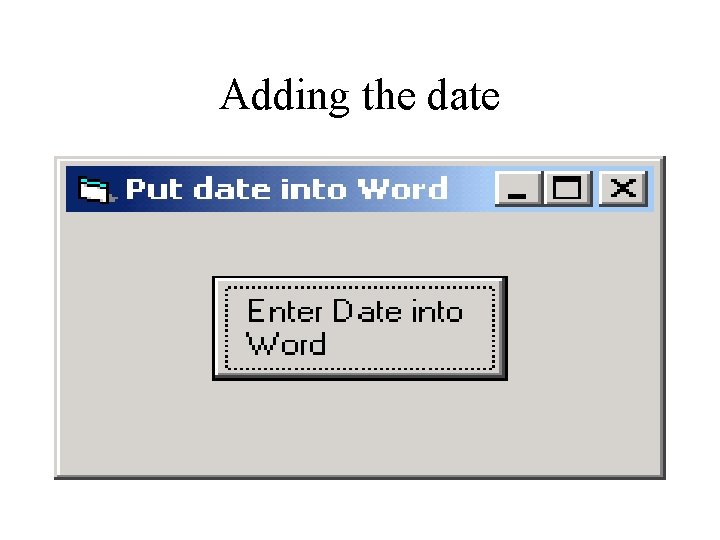
Adding the date
Adding the date
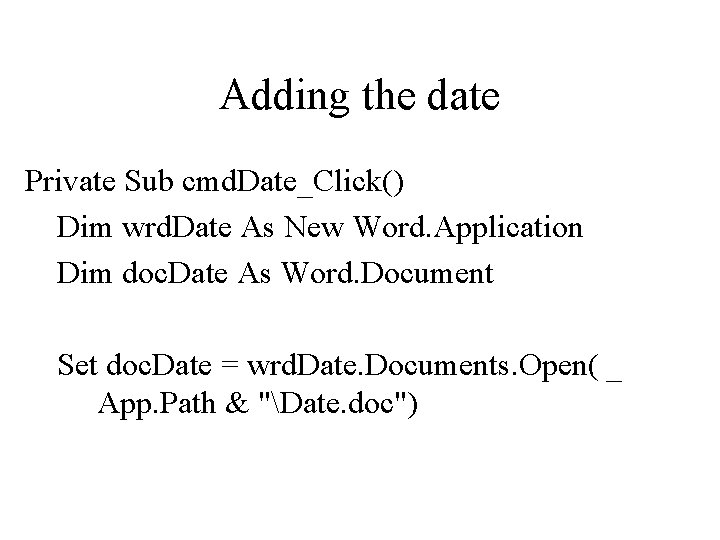
Adding the date Private Sub cmd. Date_Click() Dim wrd. Date As New Word. Application Dim doc. Date As Word. Document Set doc. Date = wrd. Date. Documents. Open( _ App. Path & "Date. doc")
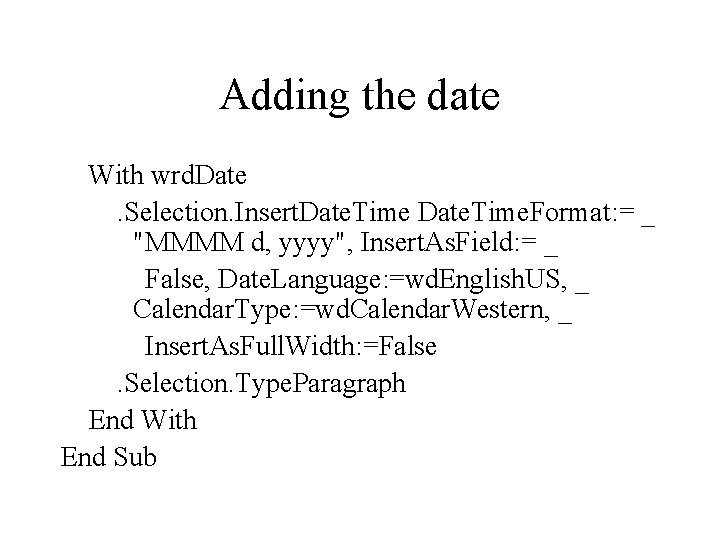
Adding the date With wrd. Date. Selection. Insert. Date. Time. Format: = _ "MMMM d, yyyy", Insert. As. Field: = _ False, Date. Language: =wd. English. US, _ Calendar. Type: =wd. Calendar. Western, _ Insert. As. Full. Width: =False. Selection. Type. Paragraph End With End Sub
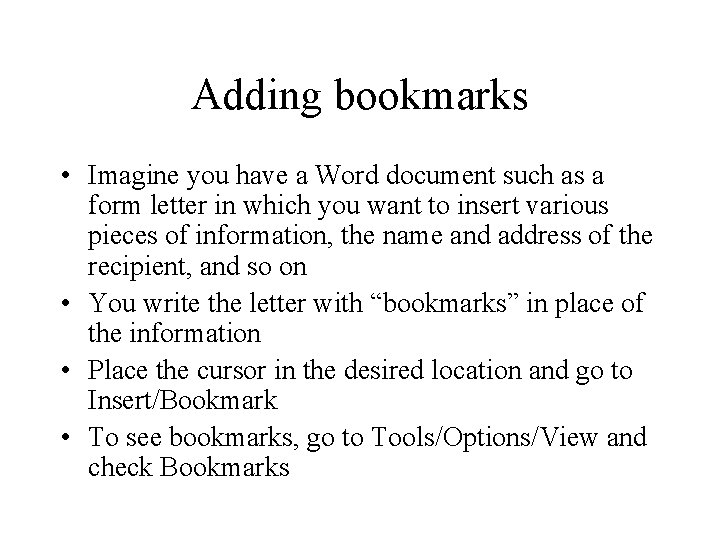
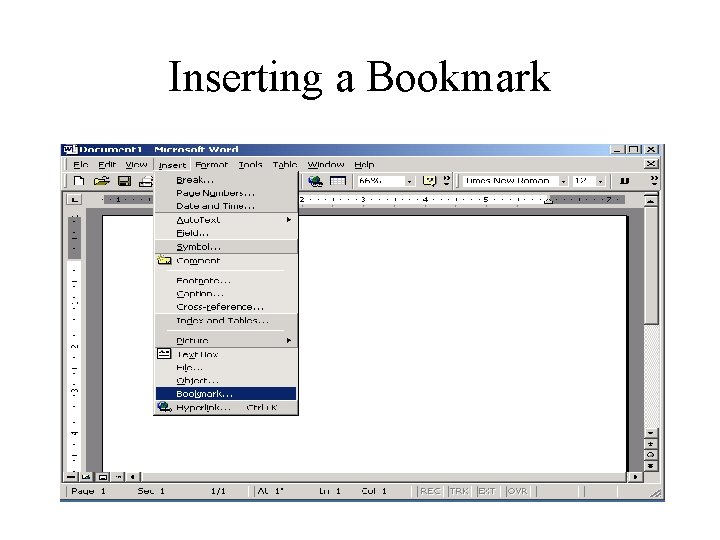
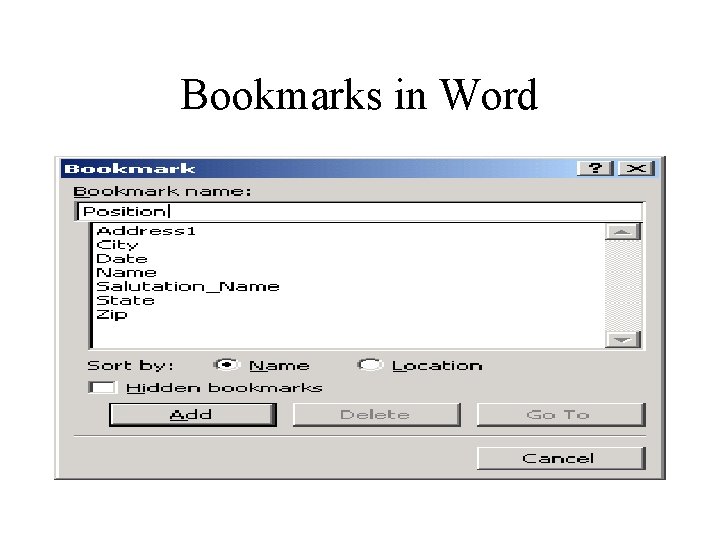
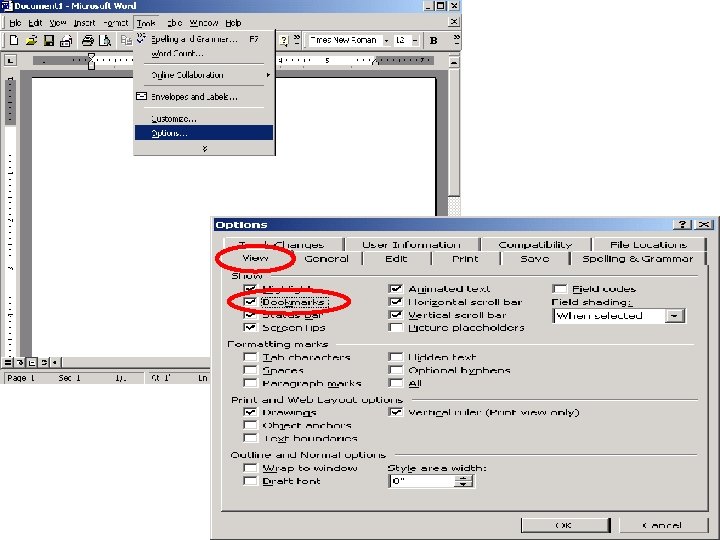
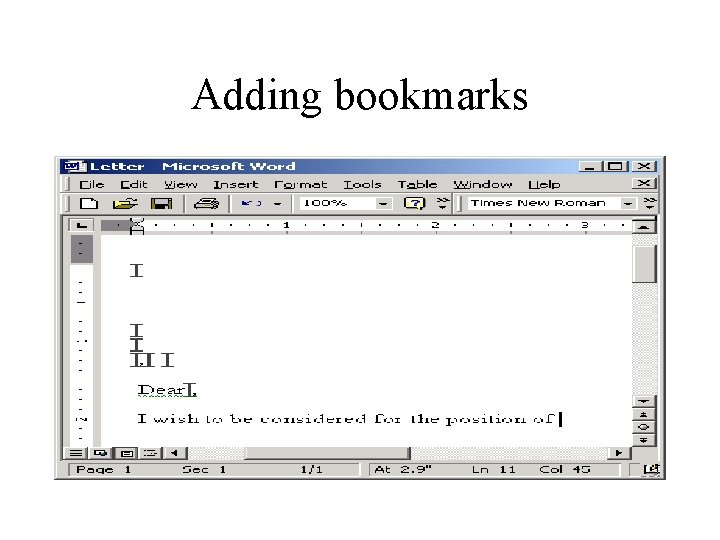
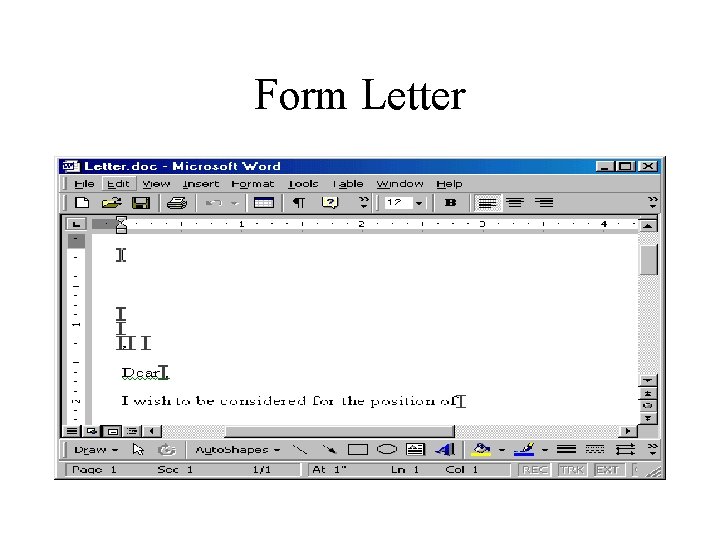
Adding bookmarks • Imagine you have a Word document such as a form letter in which you want to insert various pieces of information, the name and address of the recipient, and so on • You write the letter with “bookmarks” in place of the information • Place the cursor in the desired location and go to Insert/Bookmark • To see bookmarks, go to Tools/Options/View and check Bookmarks
Inserting a Bookmark
Bookmarks in Word
Adding bookmarks
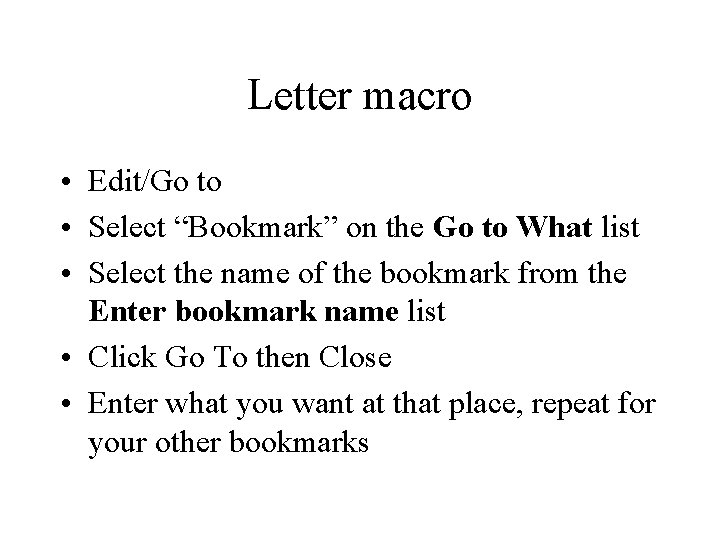
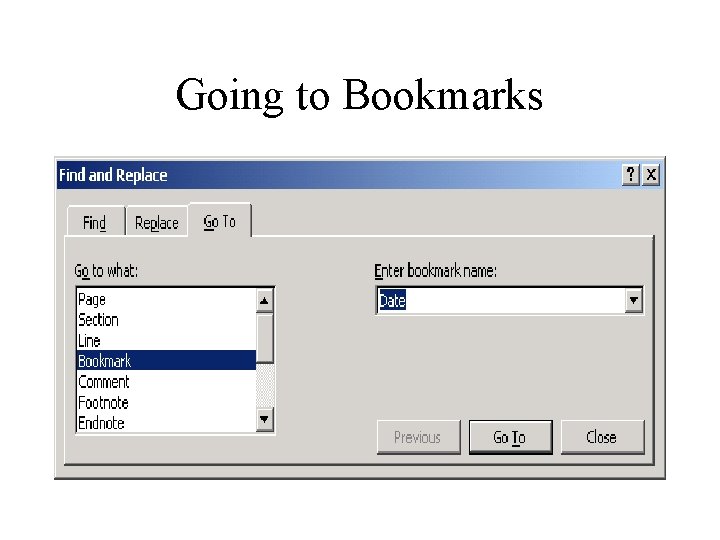
Letter macro • Edit/Go to • Select “Bookmark” on the Go to What list • Select the name of the bookmark from the Enter bookmark name list • Click Go To then Close • Enter what you want at that place, repeat for your other bookmarks
Going to Bookmarks
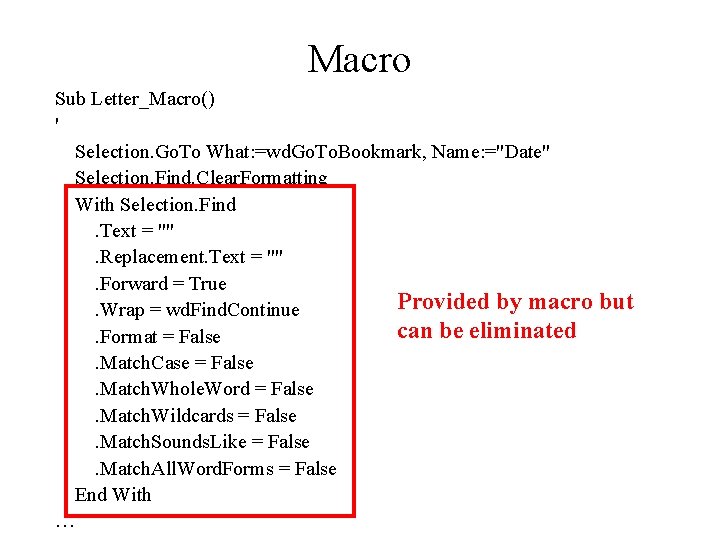
Macro Sub Letter_Macro() ' Selection. Go. To What: =wd. Go. To. Bookmark, Name: ="Date" Selection. Find. Clear. Formatting With Selection. Find. Text = "". Replacement. Text = "". Forward = True Provided by macro. Wrap = wd. Find. Continue can be eliminated. Format = False. Match. Case = False. Match. Whole. Word = False. Match. Wildcards = False. Match. Sounds. Like = False. Match. All. Word. Forms = False End With … but
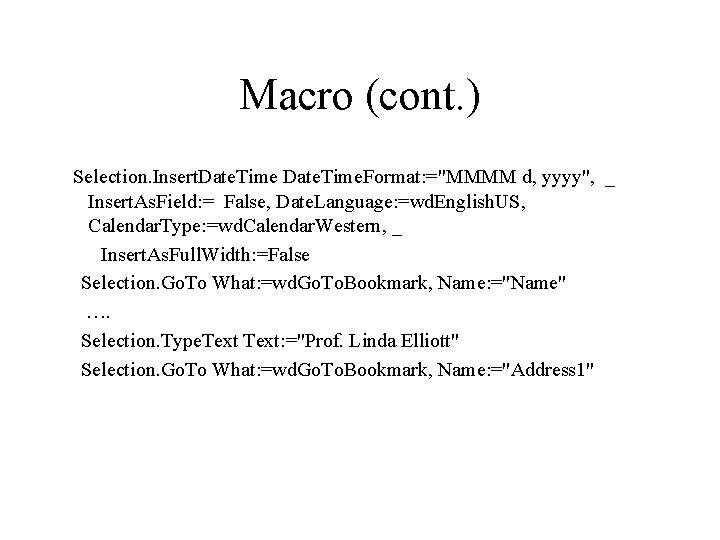
Macro (cont. ) Selection. Insert. Date. Time. Format: ="MMMM d, yyyy", _ Insert. As. Field: = False, Date. Language: =wd. English. US, Calendar. Type: =wd. Calendar. Western, _ Insert. As. Full. Width: =False Selection. Go. To What: =wd. Go. To. Bookmark, Name: ="Name" …. Selection. Type. Text: ="Prof. Linda Elliott" Selection. Go. To What: =wd. Go. To. Bookmark, Name: ="Address 1"
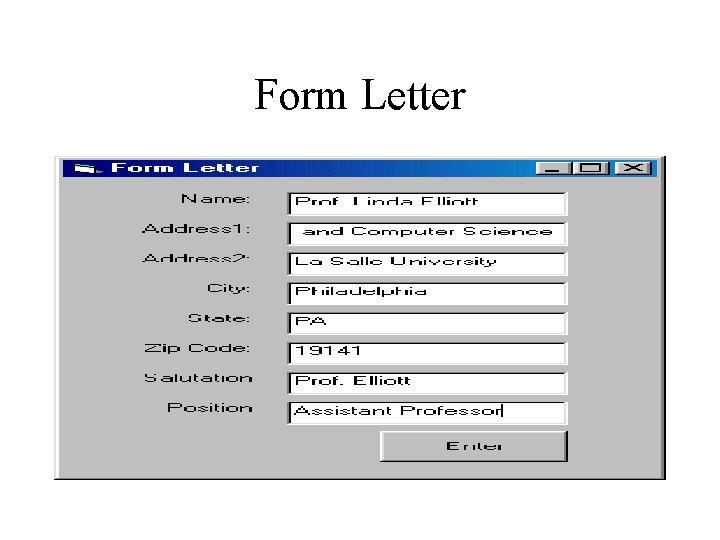
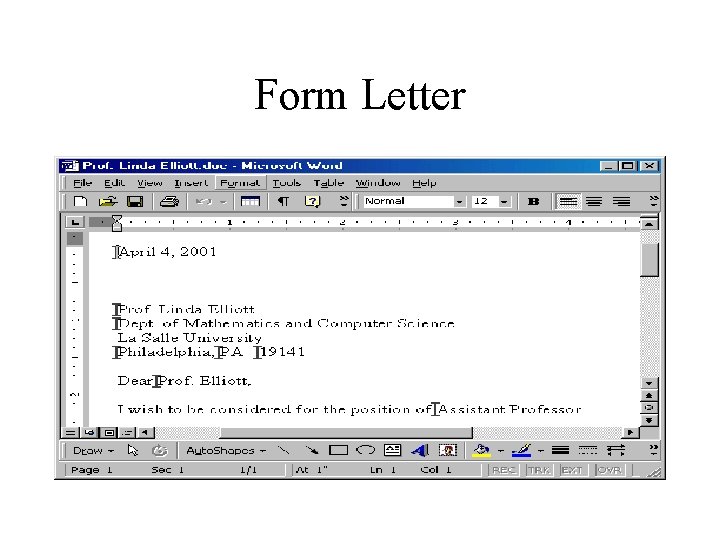
Form Letter
Form Letter
Form Letter
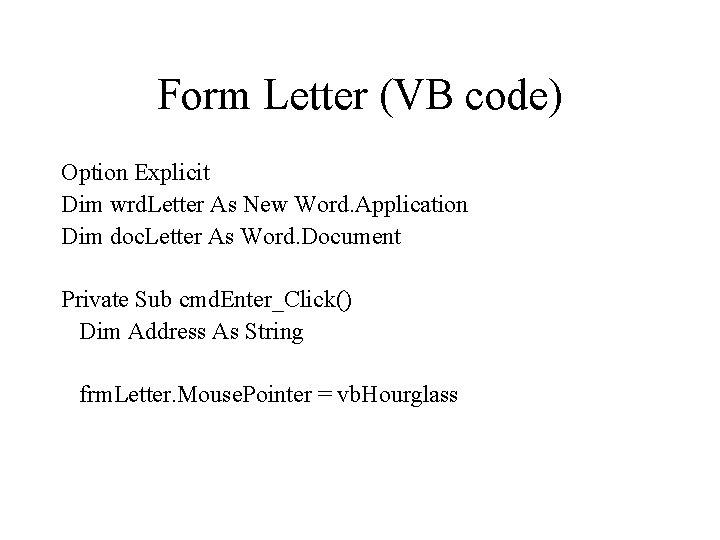
Form Letter (VB code) Option Explicit Dim wrd. Letter As New Word. Application Dim doc. Letter As Word. Document Private Sub cmd. Enter_Click() Dim Address As String frm. Letter. Mouse. Pointer = vb. Hourglass
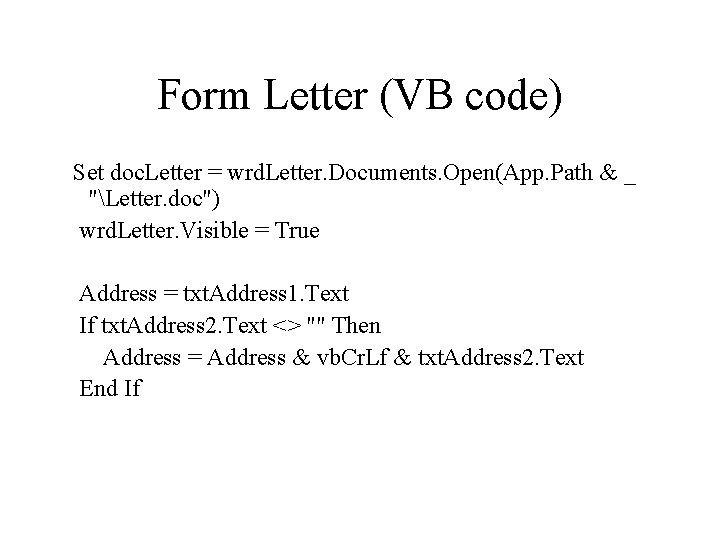
Form Letter (VB code) Set doc. Letter = wrd. Letter. Documents. Open(App. Path & _ "Letter. doc") wrd. Letter. Visible = True Address = txt. Address 1. Text If txt. Address 2. Text <> "" Then Address = Address & vb. Cr. Lf & txt. Address 2. Text End If
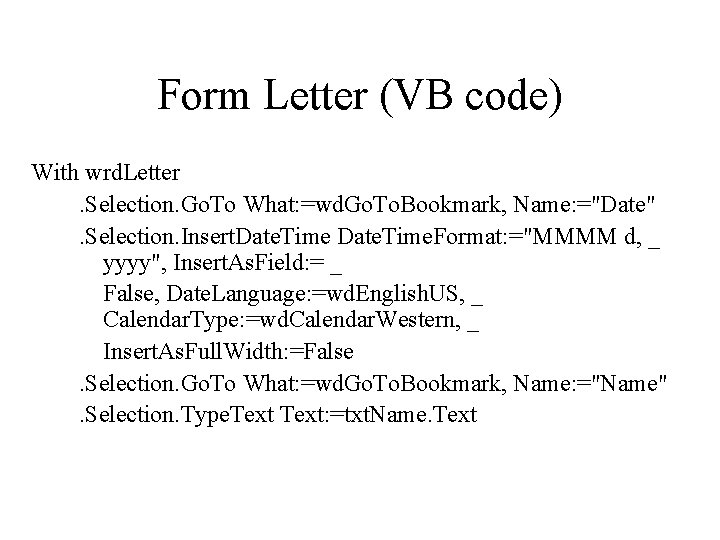
Form Letter (VB code) With wrd. Letter. Selection. Go. To What: =wd. Go. To. Bookmark, Name: ="Date". Selection. Insert. Date. Time. Format: ="MMMM d, _ yyyy", Insert. As. Field: = _ False, Date. Language: =wd. English. US, _ Calendar. Type: =wd. Calendar. Western, _ Insert. As. Full. Width: =False. Selection. Go. To What: =wd. Go. To. Bookmark, Name: ="Name". Selection. Type. Text: =txt. Name. Text
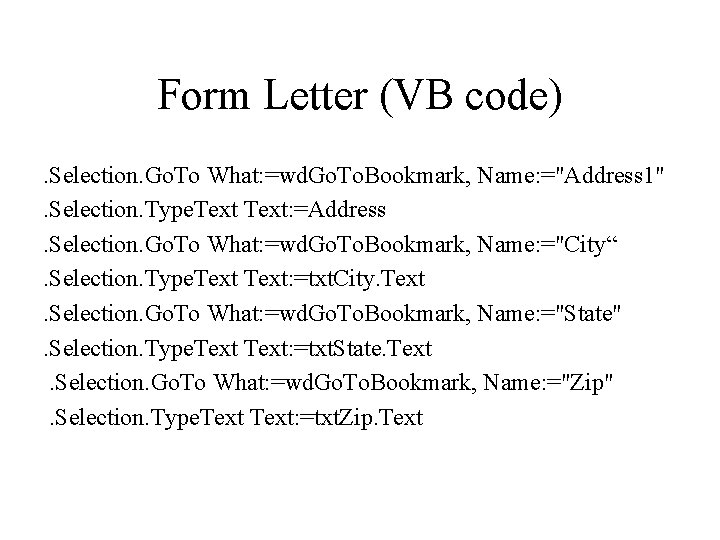
Form Letter (VB code). Selection. Go. To What: =wd. Go. To. Bookmark, Name: ="Address 1". Selection. Type. Text: =Address. Selection. Go. To What: =wd. Go. To. Bookmark, Name: ="City“. Selection. Type. Text: =txt. City. Text. Selection. Go. To What: =wd. Go. To. Bookmark, Name: ="State". Selection. Type. Text: =txt. State. Text. Selection. Go. To What: =wd. Go. To. Bookmark, Name: ="Zip". Selection. Type. Text: =txt. Zip. Text
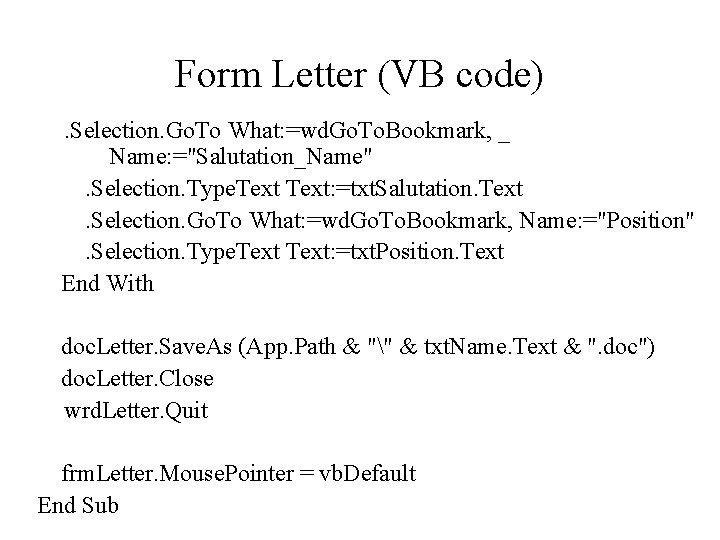
Form Letter (VB code). Selection. Go. To What: =wd. Go. To. Bookmark, _ Name: ="Salutation_Name". Selection. Type. Text: =txt. Salutation. Text. Selection. Go. To What: =wd. Go. To. Bookmark, Name: ="Position". Selection. Type. Text: =txt. Position. Text End With doc. Letter. Save. As (App. Path & "" & txt. Name. Text & ". doc") doc. Letter. Close wrd. Letter. Quit frm. Letter. Mouse. Pointer = vb. Default End Sub
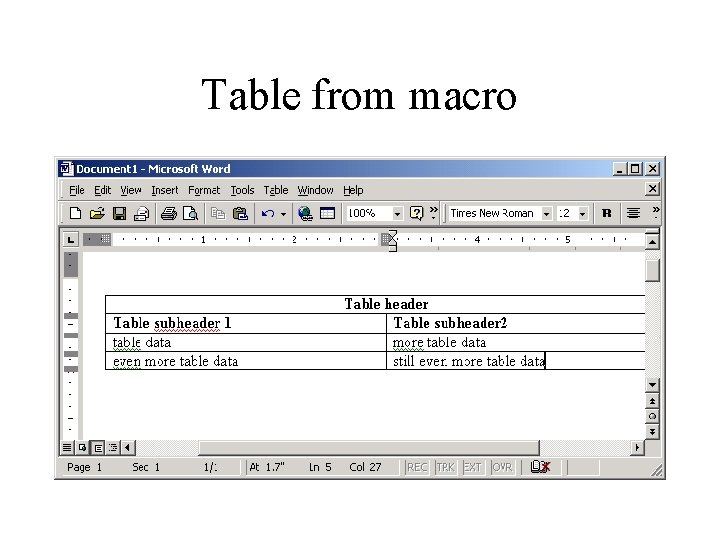
Word Table Macro The slides that follow show the code generated recording a macro that creates a table
Table from macro
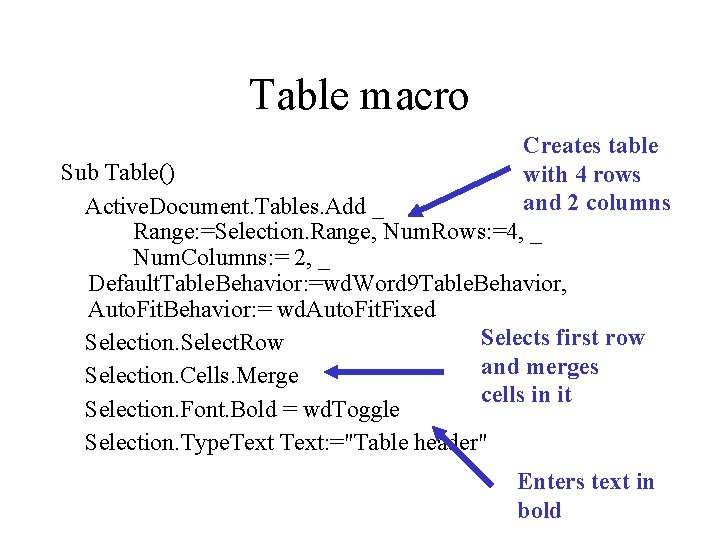
Table macro Creates table Sub Table() with 4 rows and 2 columns Active. Document. Tables. Add _ Range: =Selection. Range, Num. Rows: =4, _ Num. Columns: = 2, _ Default. Table. Behavior: =wd. Word 9 Table. Behavior, Auto. Fit. Behavior: = wd. Auto. Fit. Fixed Selects first row Selection. Select. Row and merges Selection. Cells. Merge cells in it Selection. Font. Bold = wd. Toggle Selection. Type. Text: ="Table header" Enters text in bold
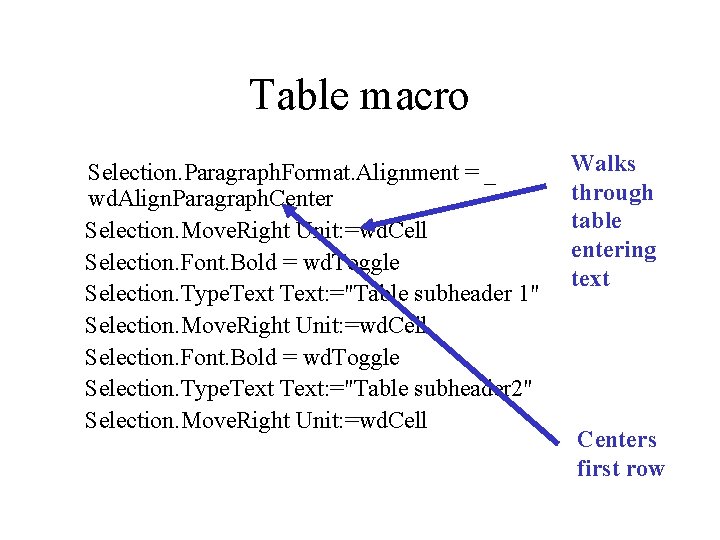
Table macro Selection. Paragraph. Format. Alignment = _ wd. Align. Paragraph. Center Selection. Move. Right Unit: =wd. Cell Selection. Font. Bold = wd. Toggle Selection. Type. Text: ="Table subheader 1" Selection. Move. Right Unit: =wd. Cell Selection. Font. Bold = wd. Toggle Selection. Type. Text: ="Table subheader 2" Selection. Move. Right Unit: =wd. Cell Walks through table entering text Centers first row
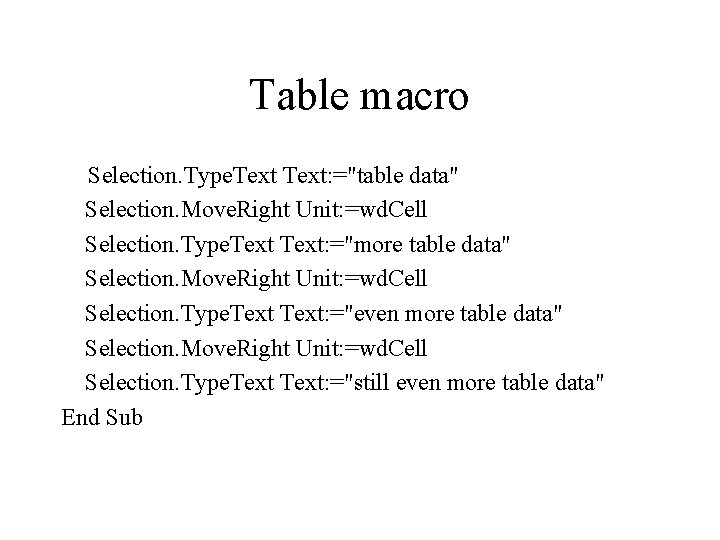
Table macro Selection. Type. Text: ="table data" Selection. Move. Right Unit: =wd. Cell Selection. Type. Text: ="more table data" Selection. Move. Right Unit: =wd. Cell Selection. Type. Text: ="even more table data" Selection. Move. Right Unit: =wd. Cell Selection. Type. Text: ="still even more table data" End Sub
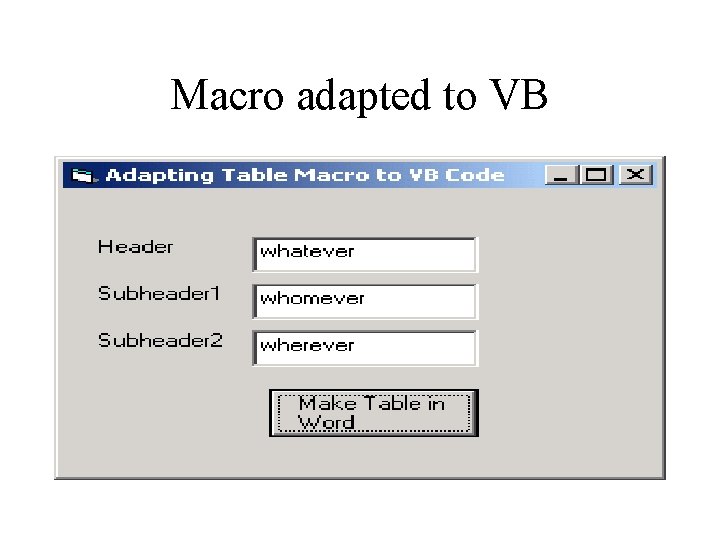
Macro adapted to VB
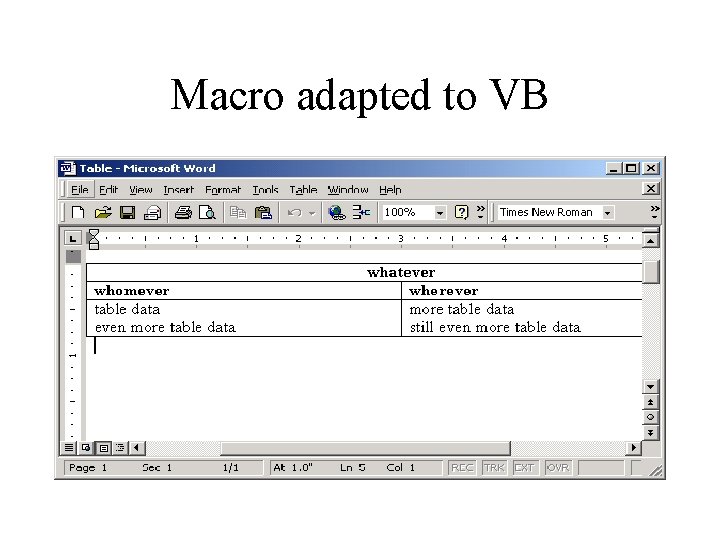
Macro adapted to VB
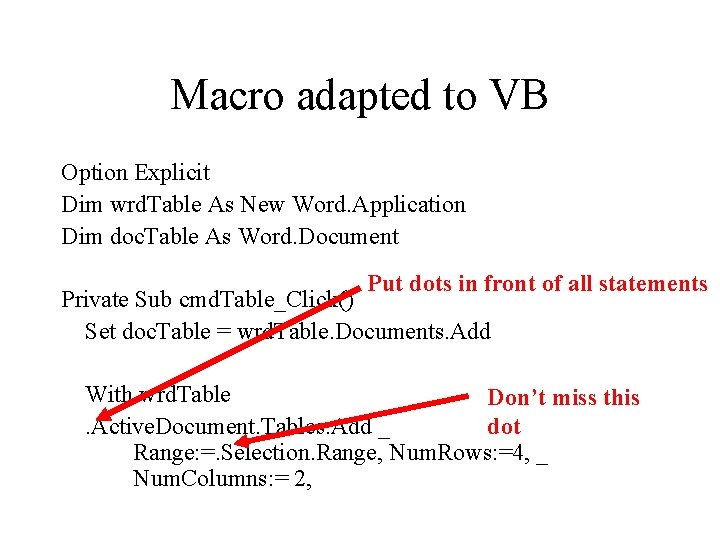
Macro adapted to VB Option Explicit Dim wrd. Table As New Word. Application Dim doc. Table As Word. Document Put dots in front of all statements Private Sub cmd. Table_Click() Set doc. Table = wrd. Table. Documents. Add With wrd. Table Don’t miss this dot. Active. Document. Tables. Add _ Range: =. Selection. Range, Num. Rows: =4, _ Num. Columns: = 2,
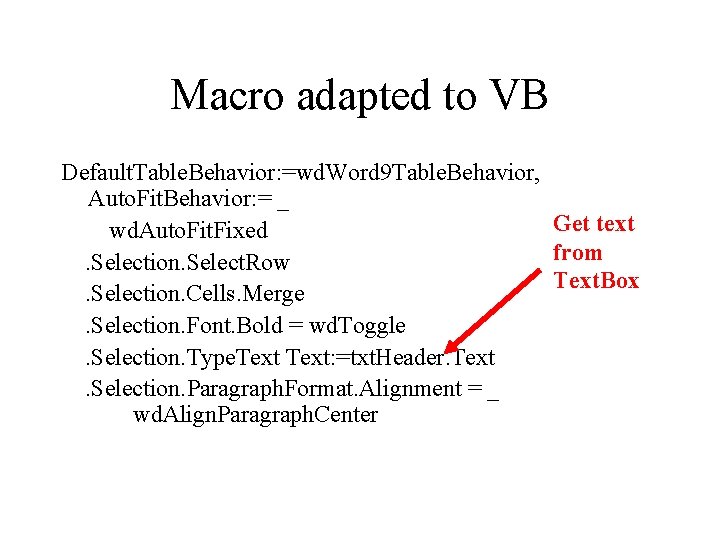
Macro adapted to VB Default. Table. Behavior: =wd. Word 9 Table. Behavior, Auto. Fit. Behavior: = _ Get text wd. Auto. Fit. Fixed from. Selection. Select. Row Text. Box. Selection. Cells. Merge. Selection. Font. Bold = wd. Toggle. Selection. Type. Text: =txt. Header. Text. Selection. Paragraph. Format. Alignment = _ wd. Align. Paragraph. Center
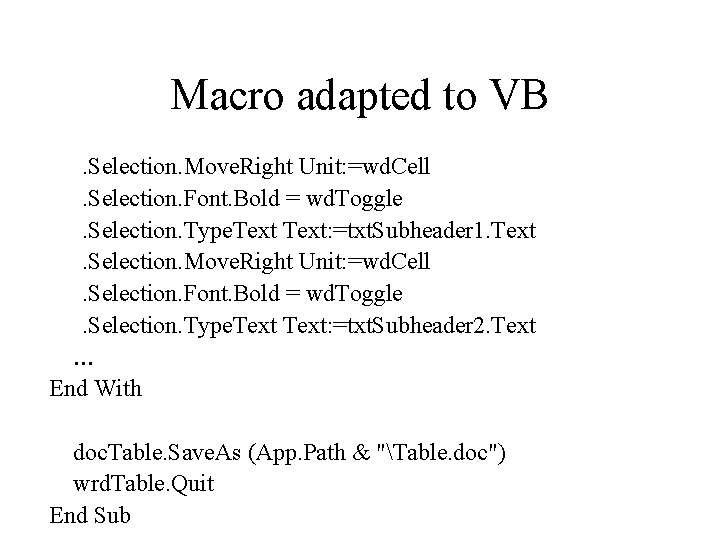
Macro adapted to VB. Selection. Move. Right Unit: =wd. Cell. Selection. Font. Bold = wd. Toggle. Selection. Type. Text: =txt. Subheader 1. Text. Selection. Move. Right Unit: =wd. Cell. Selection. Font. Bold = wd. Toggle. Selection. Type. Text: =txt. Subheader 2. Text … End With doc. Table. Save. As (App. Path & "Table. doc") wrd. Table. Quit End Sub
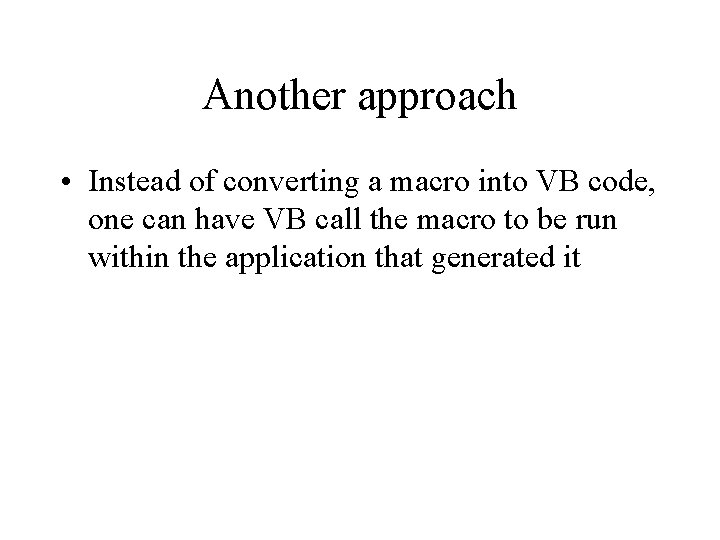
Another approach • Instead of converting a macro into VB code, one can have VB call the macro to be run within the application that generated it
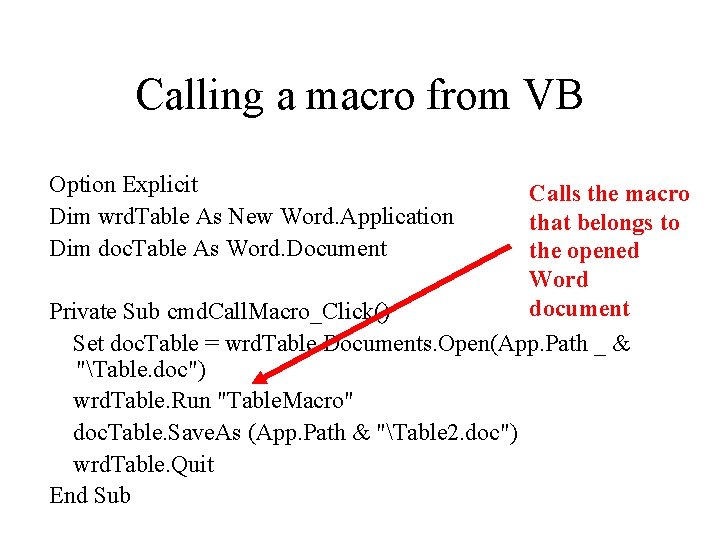
Calling a macro from VB Option Explicit Dim wrd. Table As New Word. Application Dim doc. Table As Word. Document Calls the macro that belongs to the opened Word document Private Sub cmd. Call. Macro_Click() Set doc. Table = wrd. Table. Documents. Open(App. Path _ & "Table. doc") wrd. Table. Run "Table. Macro" doc. Table. Save. As (App. Path & "Table 2. doc") wrd. Table. Quit End Sub