
Word Processing Grade 12 CAT Vera Castleman Term




- Slides: 26
Word Processing Grade 12 CAT © Vera Castleman
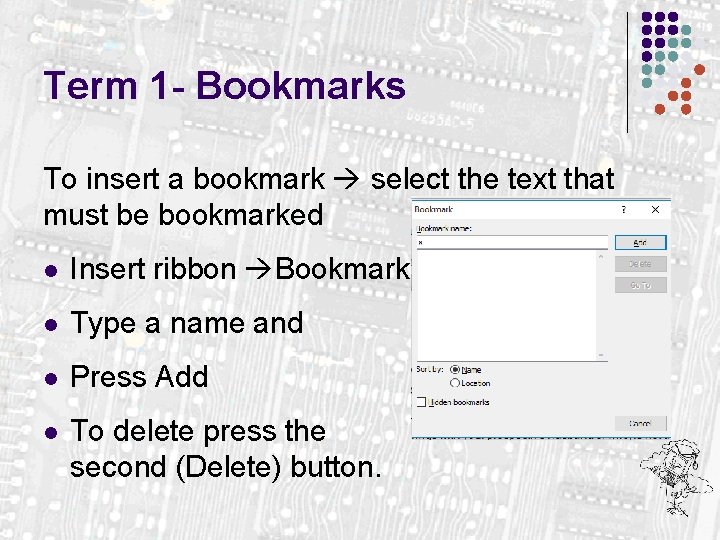
Term 1 - Bookmarks To insert a bookmark select the text that must be bookmarked l Insert ribbon Bookmark l Type a name and l Press Add l To delete press the second (Delete) button.
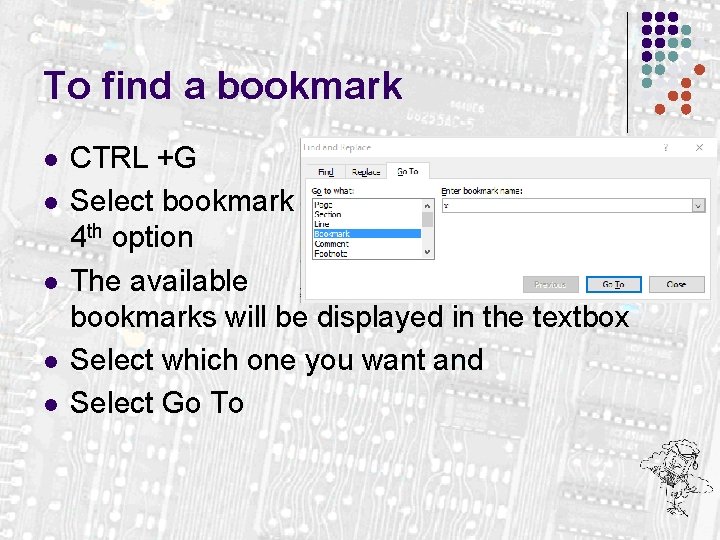
To find a bookmark l l l CTRL +G Select bookmark 4 th option The available bookmarks will be displayed in the textbox Select which one you want and Select Go To
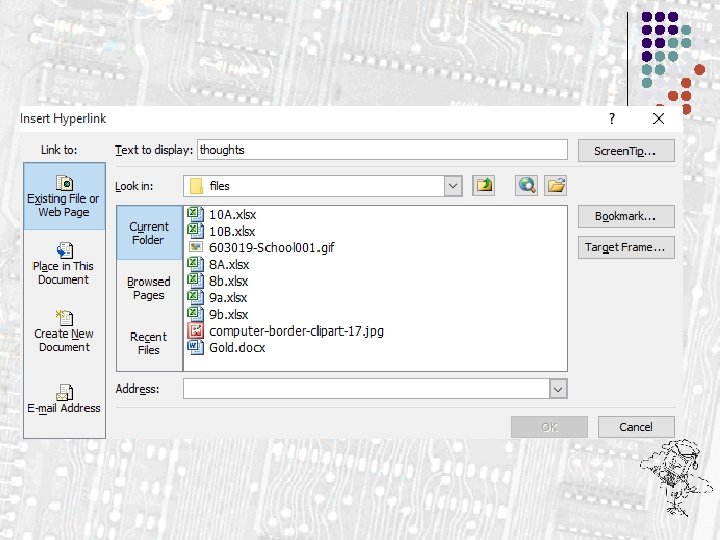
Hyperlinks Word is able to hyperlink to: l A bookmark in the document l Another file (does not have to be a Word document) l A web page l A new document l An email address l You can display text when people hover on the hyperlink
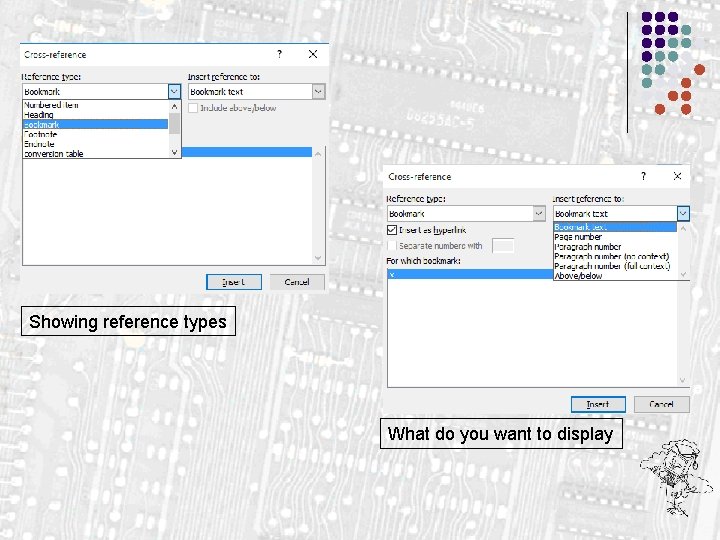
Cross Reference l l This is similar to a hyperlink in that you can tie in to a word or picture in the document You can various reference types And you can decide what you want to display e. g. page number You can also choose to hyperlink to the original
Showing reference types What do you want to display
Reviewing and tracking changes l l We use this when we are sharing a document between people Pages 184 to 187 deals with this topic
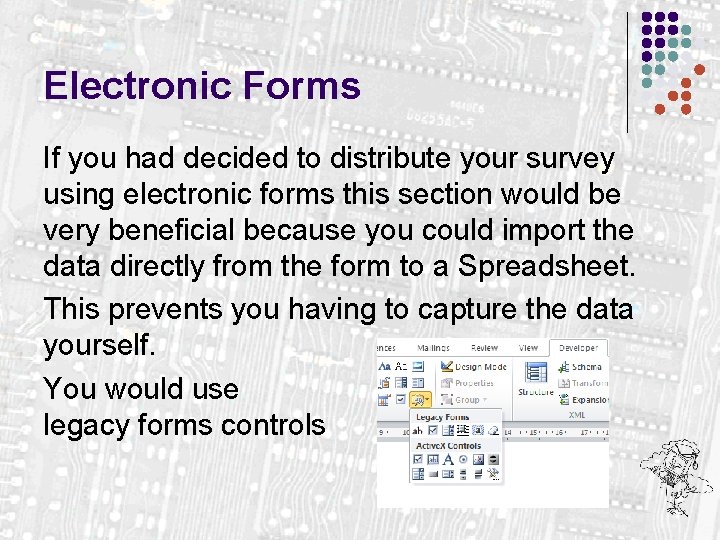
Electronic Forms If you had decided to distribute your survey using electronic forms this section would be very beneficial because you could import the data directly from the form to a Spreadsheet. This prevents you having to capture the data yourself. You would use legacy forms controls
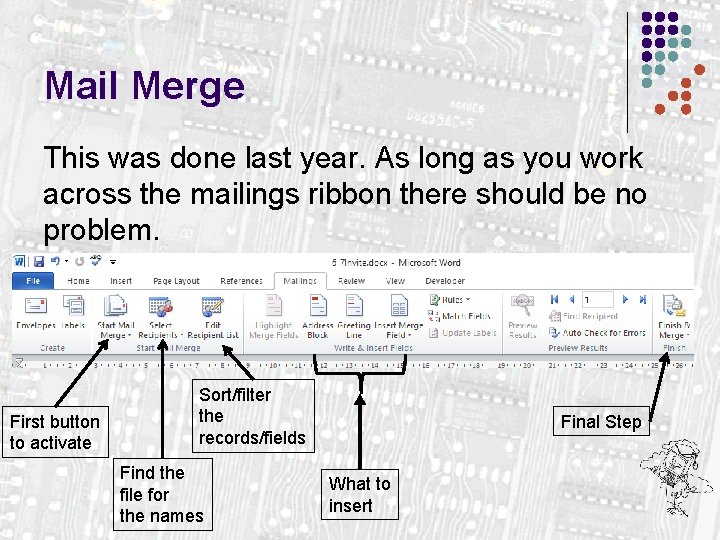
Mail Merge This was done last year. As long as you work across the mailings ribbon there should be no problem. First button to activate Sort/filter the records/fields Find the file for the names Final Step What to insert
Done