
Word processing Computer Literacy 2 25 Sep 2007
- Slides: 30
Word processing Computer Literacy 2 25 Sep 2007
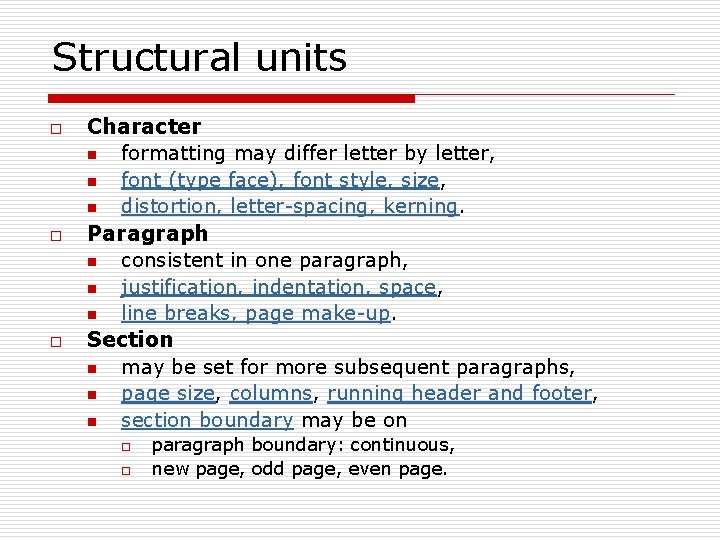
Structural units o o o Character n formatting may differ letter by letter, n font (type face), font style, size, n distortion, letter-spacing, kerning. Paragraph n consistent in one paragraph, n justification, indentation, space, n line breaks, page make-up. Section n may be set for more subsequent paragraphs, n page size, columns, running header and footer, n section boundary may be on o o paragraph boundary: continuous, new page, odd page, even page.
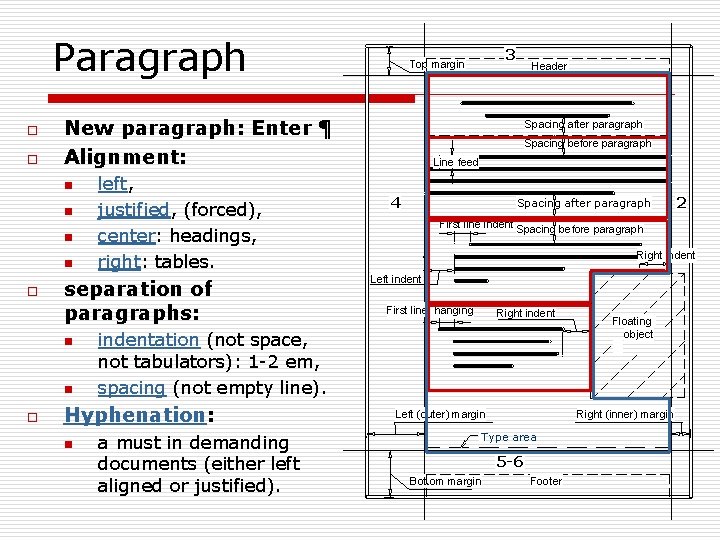
Paragraph o o New paragraph: Enter ¶ Alignment: n n o separation of paragraphs: n n o left, justified, (forced), center: headings, right: tables. Header Spacing after paragraph Spacing before paragraph Line feed 4 Spacing after paragraph a must in demanding documents (either left aligned or justified). 2 First line indent Spacing before paragraph Right indent Left indent First line: hanging Right indentation (not space, not tabulators): 1 -2 em, spacing (not empty line). Hyphenation: n 3 Top margin Left (outer) margin Right (inner) margin Type area 5 -6 Bottom margin Floating object Footer
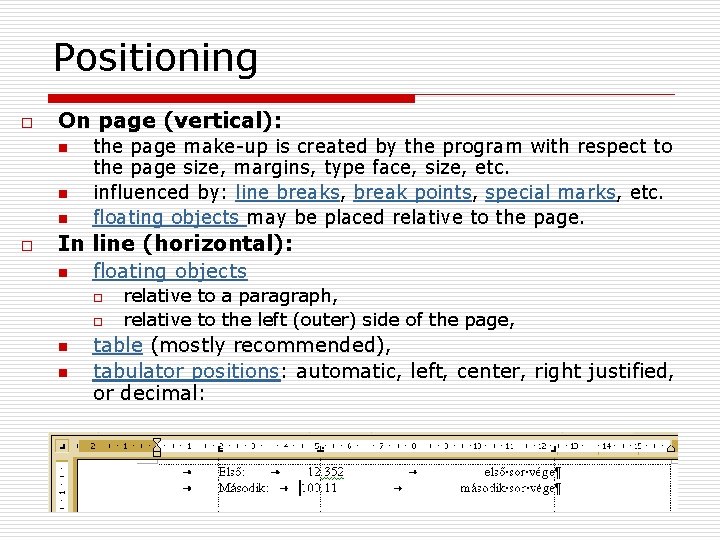
Positioning o On page (vertical): n n n o the page make-up is created by the program with respect to the page size, margins, type face, size, etc. influenced by: line breaks, break points, special marks, etc. floating objects may be placed relative to the page. In line (horizontal): n floating objects o o n n relative to a paragraph, relative to the left (outer) side of the page, table (mostly recommended), tabulator positions: automatic, left, center, right justified, or decimal:
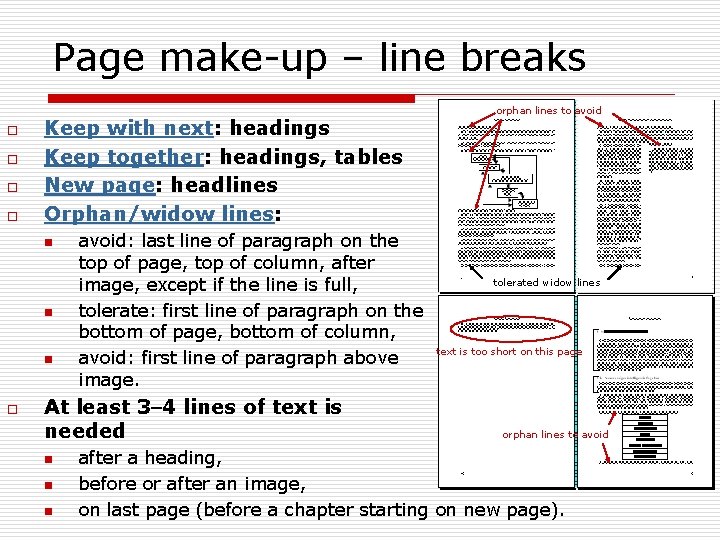
Page make-up – line breaks o o Keep with next: headings Keep together: headings, tables New page: headlines Orphan/widow lines: n n n o avoid: last line of paragraph on the top of page, top of column, after image, except if the line is full, tolerate: first line of paragraph on the bottom of page, bottom of column, avoid: first line of paragraph above image. At least 3 4 lines of text is needed n n n orphan lines to avoid tolerated widow lines text is too short on this page orphan lines to avoid after a heading, before or after an image, on last page (before a chapter starting on new page).
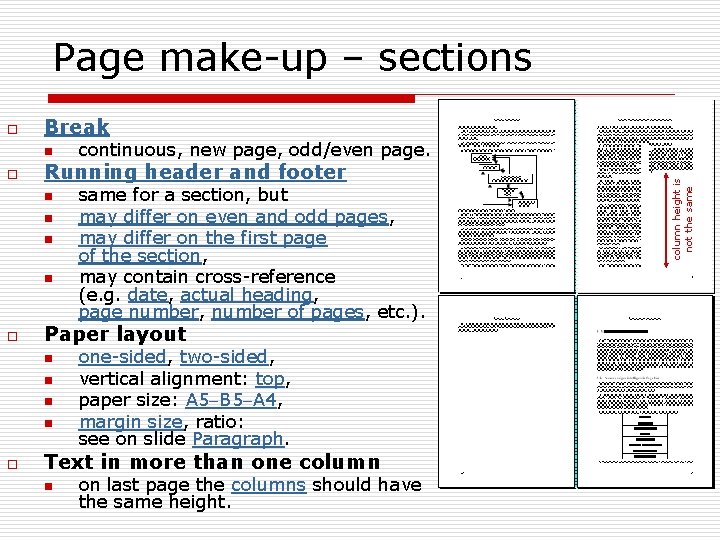
Page make-up – sections Break n o Running header and footer n n o same for a section, but may differ on even and odd pages, may differ on the first page of the section, may contain cross-reference (e. g. date, actual heading, page number, number of pages, etc. ). Paper layout n n o continuous, new page, odd/even page. one-sided, two-sided, vertical alignment: top, paper size: A 5 B 5 A 4, margin size, ratio: see on slide Paragraph. Text in more than one column n on last page the columns should have the same height. column height is not the same o
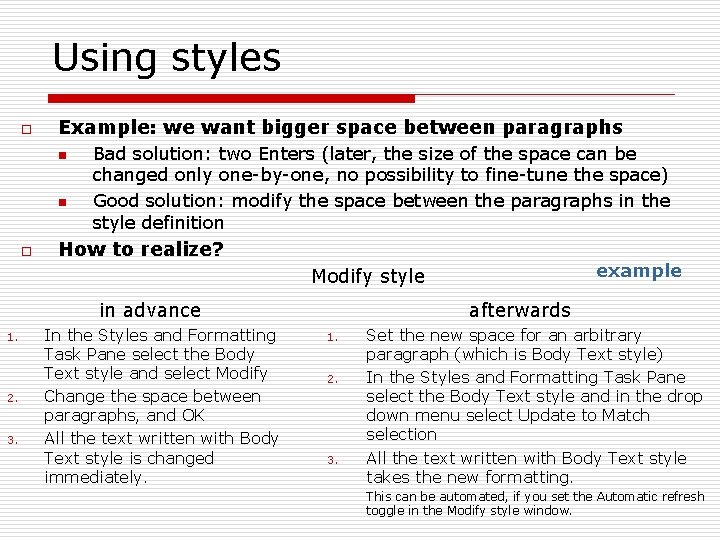
Using styles o Example: we want bigger space between paragraphs n n o Bad solution: two Enters (later, the size of the space can be changed only one-by-one, no possibility to fine-tune the space) Good solution: modify the space between the paragraphs in the style definition How to realize? example Modify style in advance 1. 2. 3. In the Styles and Formatting Task Pane select the Body Text style and select Modify Change the space between paragraphs, and OK All the text written with Body Text style is changed immediately. afterwards 1. 2. 3. Set the new space for an arbitrary paragraph (which is Body Text style) In the Styles and Formatting Task Pane select the Body Text style and in the drop down menu select Update to Match selection All the text written with Body Text style takes the new formatting. This can be automated, if you set the Automatic refresh toggle in the Modify style window.
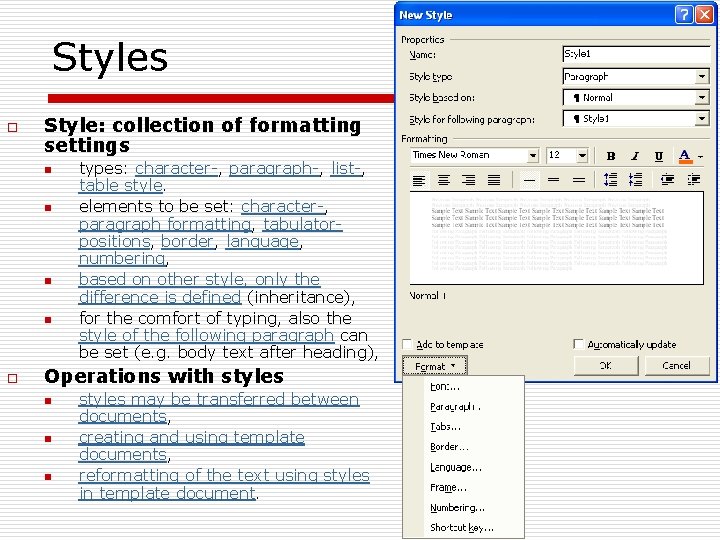
Styles o Style: collection of formatting settings n n o types: character-, paragraph-, list-, table style. elements to be set: character-, paragraph formatting, tabulatorpositions, border, language, numbering, based on other style, only the difference is defined (inheritance), for the comfort of typing, also the style of the following paragraph can be set (e. g. body text after heading), Operations with styles n n n styles may be transferred between documents, creating and using template documents, reformatting of the text using styles in template document.
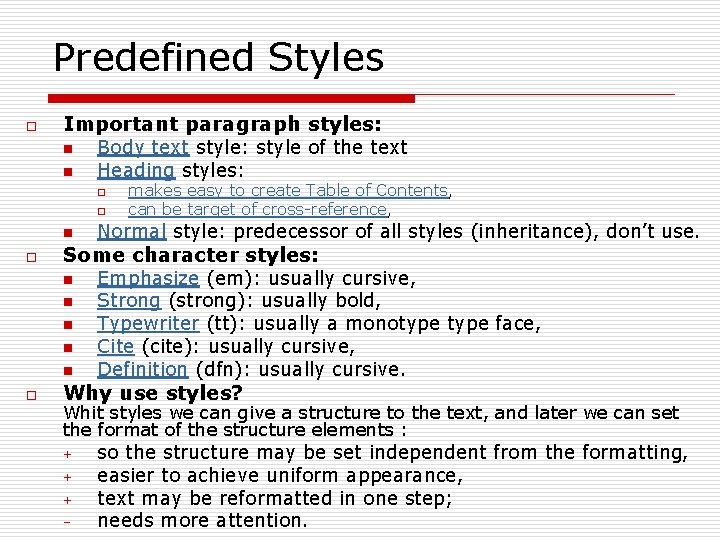
Predefined Styles o Important paragraph styles: n n Body text style: style of the text Heading styles: o o n o Normal style: predecessor of all styles (inheritance), don’t use. Some character styles: n n n o makes easy to create Table of Contents, can be target of cross-reference, Emphasize (em): usually cursive, Strong (strong): usually bold, Typewriter (tt): usually a monotype face, Cite (cite): usually cursive, Definition (dfn): usually cursive. Why use styles? Whit styles we can give a structure to the text, and later we can set the format of the structure elements : + + + – so the structure may be set independent from the formatting, easier to achieve uniform appearance, text may be reformatted in one step; needs more attention.
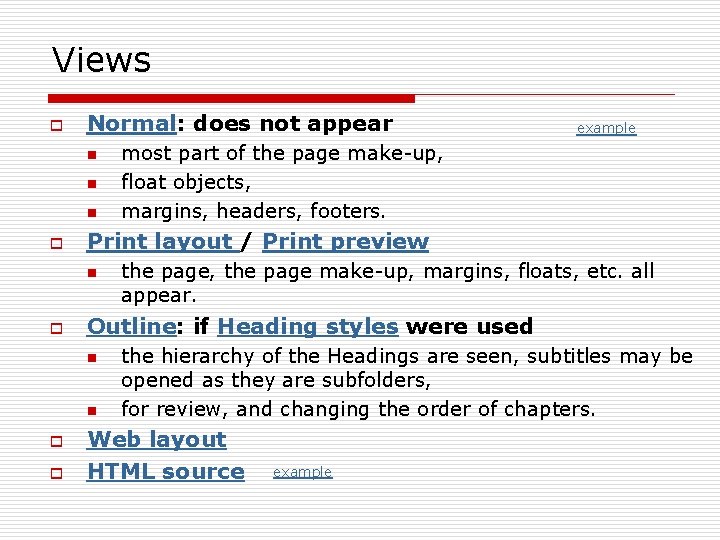
Views o Normal: does not appear n n n o the page, the page make-up, margins, floats, etc. all appear. Outline: if Heading styles were used n o most part of the page make-up, float objects, margins, headers, footers. Print layout / Print preview n o example the hierarchy of the Headings are seen, subtitles may be opened as they are subfolders, for review, and changing the order of chapters. Web layout HTML source example
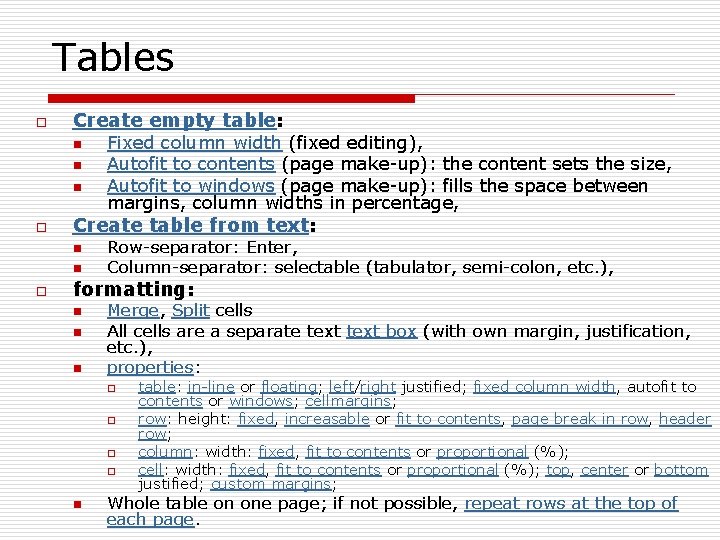
Tables o Create empty table: n n n o Create table from text: n n o Fixed column width (fixed editing), Autofit to contents (page make-up): the content sets the size, Autofit to windows (page make-up): fills the space between margins, column widths in percentage, Row-separator: Enter, Column-separator: selectable (tabulator, semi-colon, etc. ), formatting: n n n Merge, Split cells All cells are a separate text box (with own margin, justification, etc. ), properties: o o n table: in-line or floating; left/right justified; fixed column width, autofit to contents or windows; cellmargins; row: height: fixed, increasable or fit to contents, page break in row, header row; column: width: fixed, fit to contents or proportional (%); cell: width: fixed, fit to contents or proportional (%); top, center or bottom justified; custom margins; Whole table on one page; if not possible, repeat rows at the top of each page.
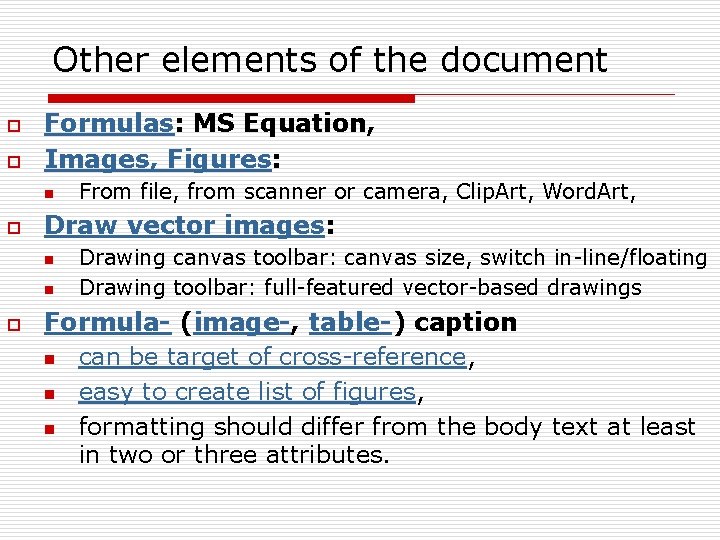
Other elements of the document o o Formulas: MS Equation, Images, Figures: n o Draw vector images: n n o From file, from scanner or camera, Clip. Art, Word. Art, Drawing canvas toolbar: canvas size, switch in-line/floating Drawing toolbar: full-featured vector-based drawings Formula- (image-, table-) caption n can be target of cross-reference, n easy to create list of figures, n formatting should differ from the body text at least in two or three attributes.
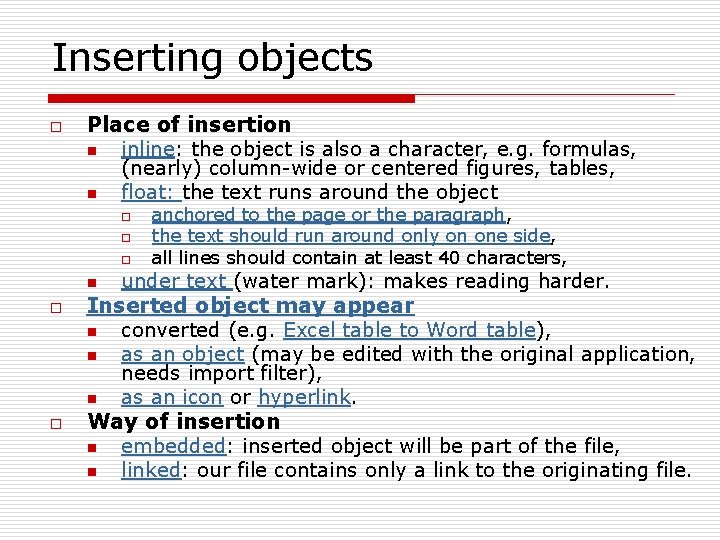
Inserting objects o Place of insertion n inline: the object is also a character, e. g. formulas, (nearly) column-wide or centered figures, tables, n float: the text runs around the object o o o n o o anchored to the page or the paragraph, the text should run around only on one side, all lines should contain at least 40 characters, under text (water mark): makes reading harder. Inserted object may appear n converted (e. g. Excel table to Word table), n as an object (may be edited with the original application, needs import filter), n as an icon or hyperlink. Way of insertion n embedded: inserted object will be part of the file, n linked: our file contains only a link to the originating file.
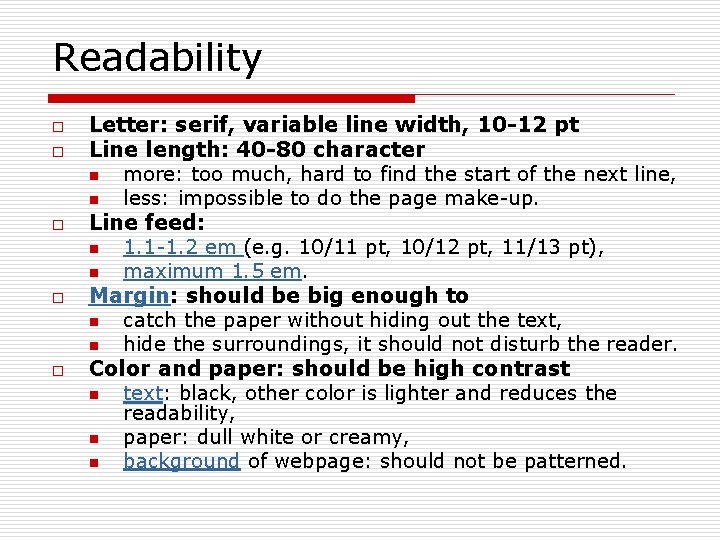
Readability o o o Letter: serif, variable line width, 10 -12 pt Line length: 40 -80 character n more: too much, hard to find the start of the next line, n less: impossible to do the page make-up. Line feed: n 1. 1 -1. 2 em (e. g. 10/11 pt, 10/12 pt, 11/13 pt), n maximum 1. 5 em. Margin: should be big enough to n catch the paper without hiding out the text, n hide the surroundings, it should not disturb the reader. Color and paper: should be high contrast n text: black, other color is lighter and reduces the readability, n paper: dull white or creamy, n background of webpage: should not be patterned.
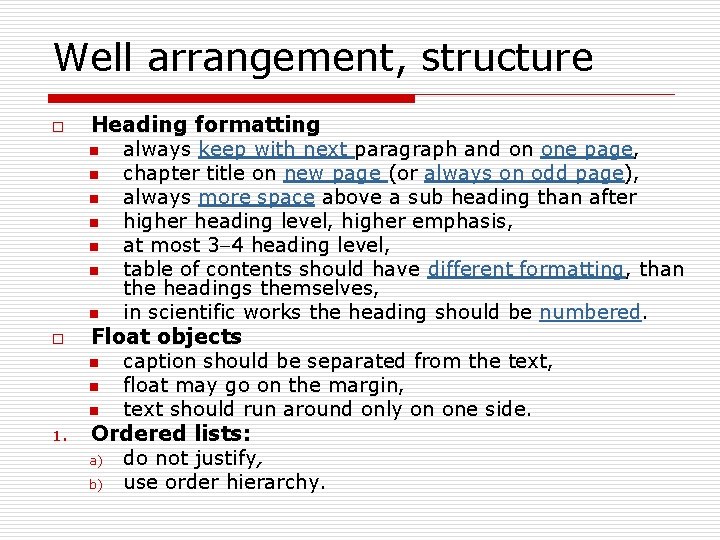
Well arrangement, structure o o 1. Heading formatting n always keep with next paragraph and on one page, n chapter title on new page (or always on odd page), n always more space above a sub heading than after n higher heading level, higher emphasis, n at most 3 4 heading level, n table of contents should have different formatting, than the headings themselves, n in scientific works the heading should be numbered. Float objects n caption should be separated from the text, n float may go on the margin, n text should run around only on one side. Ordered lists: a) do not justify, b) use order hierarchy.
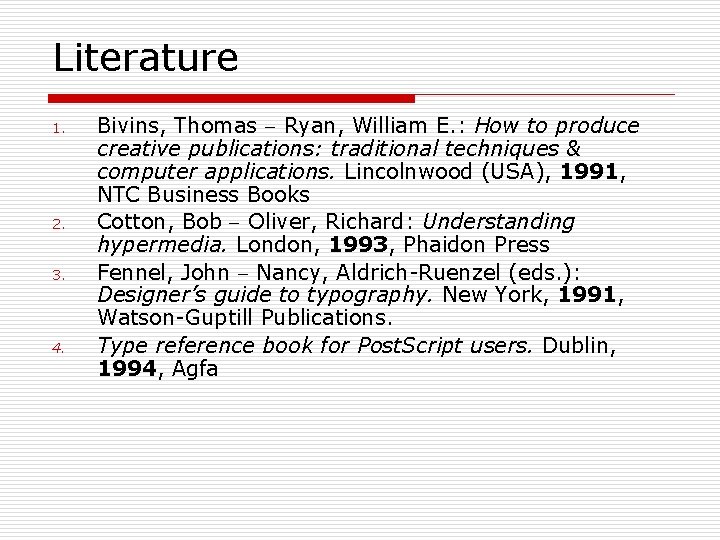
Literature 1. 2. 3. 4. Bivins, Thomas Ryan, William E. : How to produce creative publications: traditional techniques & computer applications. Lincolnwood (USA), 1991, NTC Business Books Cotton, Bob Oliver, Richard: Understanding hypermedia. London, 1993, Phaidon Press Fennel, John Nancy, Aldrich-Ruenzel (eds. ): Designer’s guide to typography. New York, 1991, Watson-Guptill Publications. Type reference book for Post. Script users. Dublin, 1994, Agfa
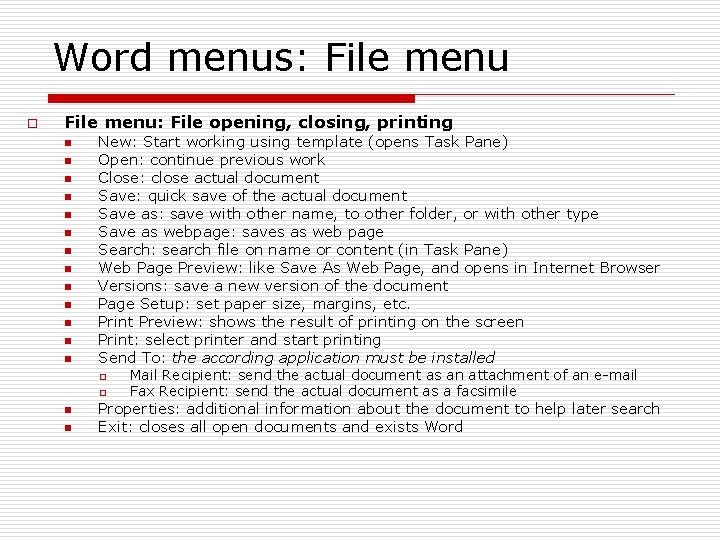
Word menus: File menu o File menu: File opening, closing, printing n n n n New: Start working using template (opens Task Pane) Open: continue previous work Close: close actual document Save: quick save of the actual document Save as: save with other name, to other folder, or with other type Save as webpage: saves as web page Search: search file on name or content (in Task Pane) Web Page Preview: like Save As Web Page, and opens in Internet Browser Versions: save a new version of the document Page Setup: set paper size, margins, etc. Print Preview: shows the result of printing on the screen Print: select printer and start printing Send To: the according application must be installed o o n n Mail Recipient: send the actual document as an attachment of an e-mail Fax Recipient: send the actual document as a facsimile Properties: additional information about the document to help later search Exit: closes all open documents and exists Word
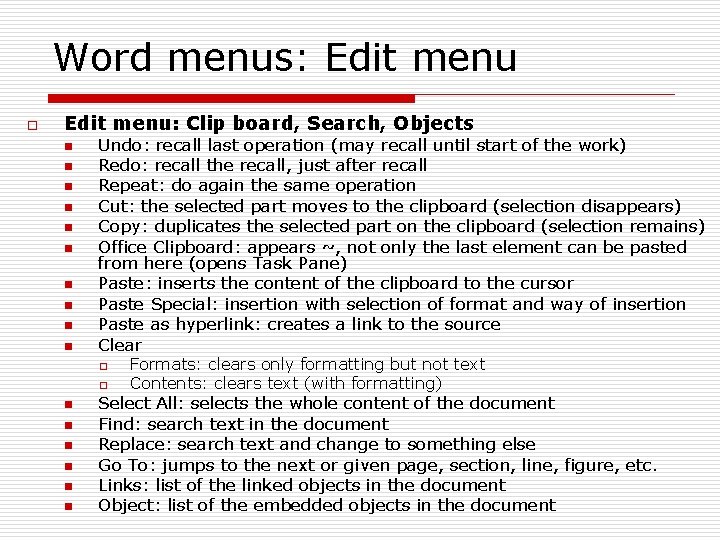
Word menus: Edit menu o Edit menu: Clip board, Search, Objects n n n n n Undo: recall last operation (may recall until start of the work) Redo: recall the recall, just after recall Repeat: do again the same operation Cut: the selected part moves to the clipboard (selection disappears) Copy: duplicates the selected part on the clipboard (selection remains) Office Clipboard: appears ~, not only the last element can be pasted from here (opens Task Pane) Paste: inserts the content of the clipboard to the cursor Paste Special: insertion with selection of format and way of insertion Paste as hyperlink: creates a link to the source Clear o o n n n Formats: clears only formatting but not text Contents: clears text (with formatting) Select All: selects the whole content of the document Find: search text in the document Replace: search text and change to something else Go To: jumps to the next or given page, section, line, figure, etc. Links: list of the linked objects in the document Object: list of the embedded objects in the document
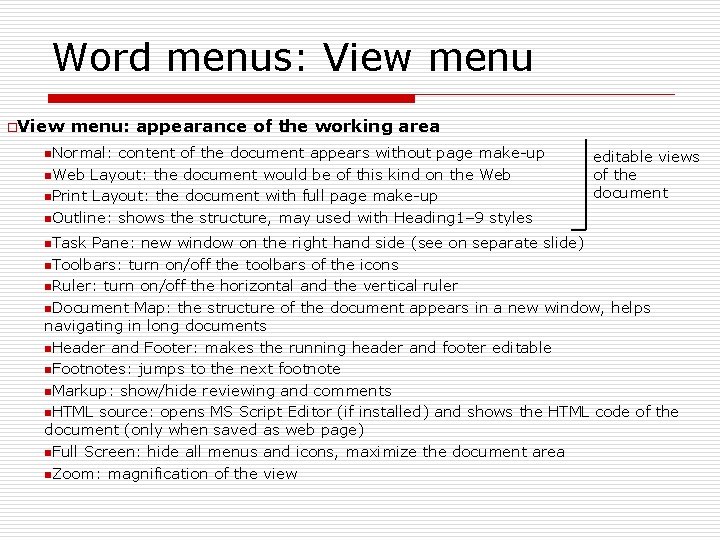
Word menus: View menu o. View menu: appearance of the working area n. Normal: content of the document appears without page make-up n. Web Layout: the document would be of this kind on the Web n. Print Layout: the document with full page make-up n. Outline: shows the structure, may used with Heading 1– 9 styles n. Task editable views of the document Pane: new window on the right hand side (see on separate slide) n. Toolbars: turn on/off the toolbars of the icons n. Ruler: turn on/off the horizontal and the vertical ruler n. Document Map: the structure of the document appears in a new window, helps navigating in long documents n. Header and Footer: makes the running header and footer editable n. Footnotes: jumps to the next footnote n. Markup: show/hide reviewing and comments n. HTML source: opens MS Script Editor (if installed) and shows the HTML code of the document (only when saved as web page) n. Full Screen: hide all menus and icons, maximize the document area n. Zoom: magnification of the view
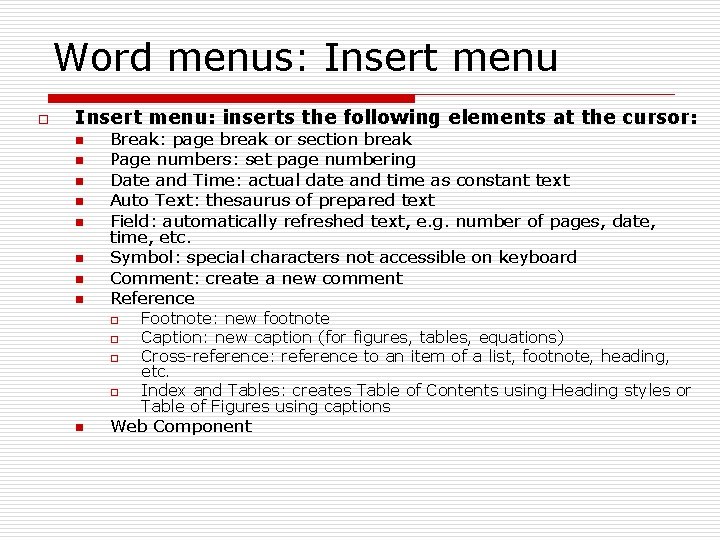
Word menus: Insert menu o Insert menu: inserts the following elements at the cursor: n n n n Break: page break or section break Page numbers: set page numbering Date and Time: actual date and time as constant text Auto Text: thesaurus of prepared text Field: automatically refreshed text, e. g. number of pages, date, time, etc. Symbol: special characters not accessible on keyboard Comment: create a new comment Reference o o n Footnote: new footnote Caption: new caption (for figures, tables, equations) Cross-reference: reference to an item of a list, footnote, heading, etc. Index and Tables: creates Table of Contents using Heading styles or Table of Figures using captions Web Component
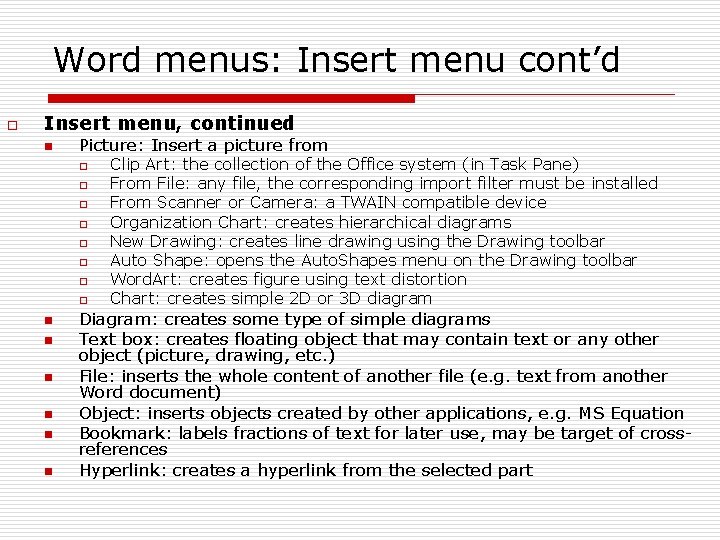
Word menus: Insert menu cont’d o Insert menu, continued n Picture: Insert a picture from o o o o n n n Clip Art: the collection of the Office system (in Task Pane) From File: any file, the corresponding import filter must be installed From Scanner or Camera: a TWAIN compatible device Organization Chart: creates hierarchical diagrams New Drawing: creates line drawing using the Drawing toolbar Auto Shape: opens the Auto. Shapes menu on the Drawing toolbar Word. Art: creates figure using text distortion Chart: creates simple 2 D or 3 D diagram Diagram: creates some type of simple diagrams Text box: creates floating object that may contain text or any other object (picture, drawing, etc. ) File: inserts the whole content of another file (e. g. text from another Word document) Object: inserts objects created by other applications, e. g. MS Equation Bookmark: labels fractions of text for later use, may be target of crossreferences Hyperlink: creates a hyperlink from the selected part
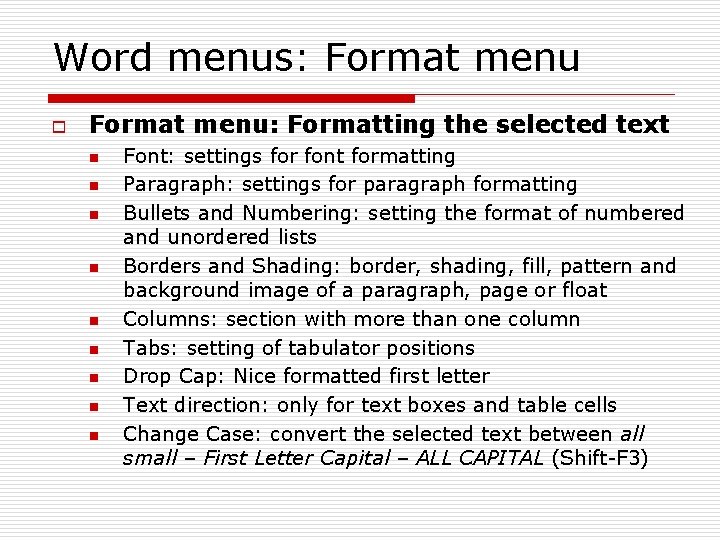
Word menus: Format menu o Format menu: Formatting the selected text n n n n n Font: settings for font formatting Paragraph: settings for paragraph formatting Bullets and Numbering: setting the format of numbered and unordered lists Borders and Shading: border, shading, fill, pattern and background image of a paragraph, page or float Columns: section with more than one column Tabs: setting of tabulator positions Drop Cap: Nice formatted first letter Text direction: only for text boxes and table cells Change Case: convert the selected text between all small – First Letter Capital – ALL CAPITAL (Shift-F 3)
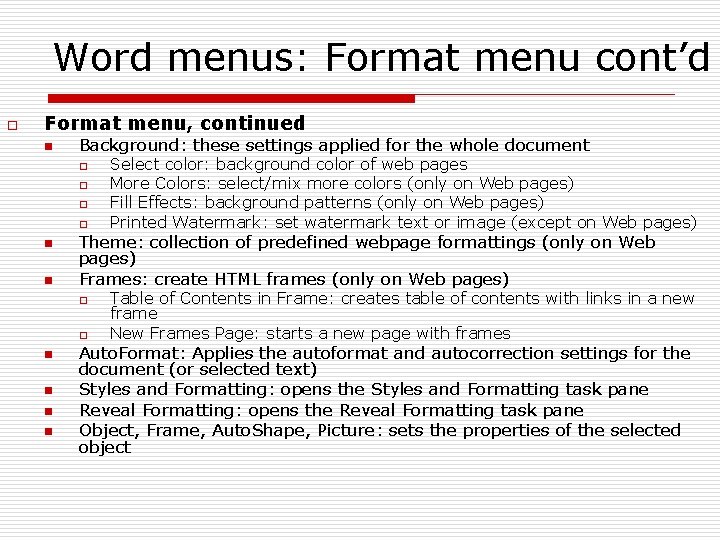
Word menus: Format menu cont’d o Format menu, continued n Background: these settings applied for the whole document o o n n Theme: collection of predefined webpage formattings (only on Web pages) Frames: create HTML frames (only on Web pages) o o n n Select color: background color of web pages More Colors: select/mix more colors (only on Web pages) Fill Effects: background patterns (only on Web pages) Printed Watermark: set watermark text or image (except on Web pages) Table of Contents in Frame: creates table of contents with links in a new frame New Frames Page: starts a new page with frames Auto. Format: Applies the autoformat and autocorrection settings for the document (or selected text) Styles and Formatting: opens the Styles and Formatting task pane Reveal Formatting: opens the Reveal Formatting task pane Object, Frame, Auto. Shape, Picture: sets the properties of the selected object
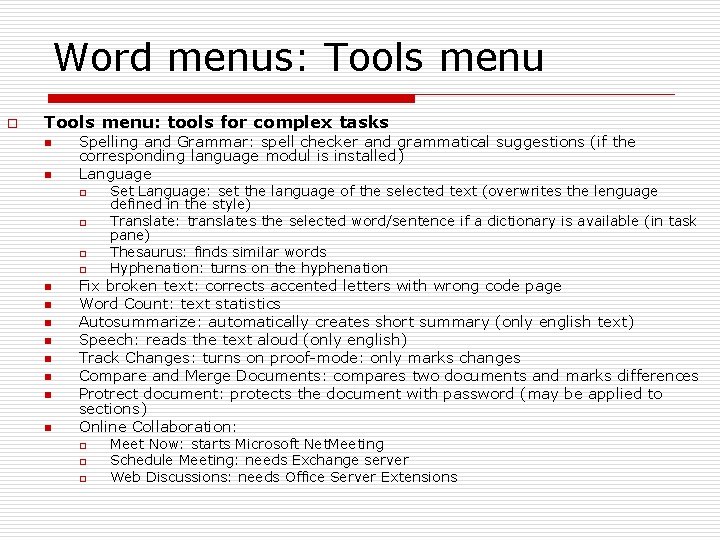
Word menus: Tools menu o Tools menu: tools for complex tasks n n Spelling and Grammar: spell checker and grammatical suggestions (if the corresponding language modul is installed) Language o o n n n n Set Language: set the language of the selected text (overwrites the lenguage defined in the style) Translate: translates the selected word/sentence if a dictionary is available (in task pane) Thesaurus: finds similar words Hyphenation: turns on the hyphenation Fix broken text: corrects accented letters with wrong code page Word Count: text statistics Autosummarize: automatically creates short summary (only english text) Speech: reads the text aloud (only english) Track Changes: turns on proof-mode: only marks changes Compare and Merge Documents: compares two documents and marks differences Protrect document: protects the document with password (may be applied to sections) Online Collaboration: o o o Meet Now: starts Microsoft Net. Meeting Schedule Meeting: needs Exchange server Web Discussions: needs Office Server Extensions
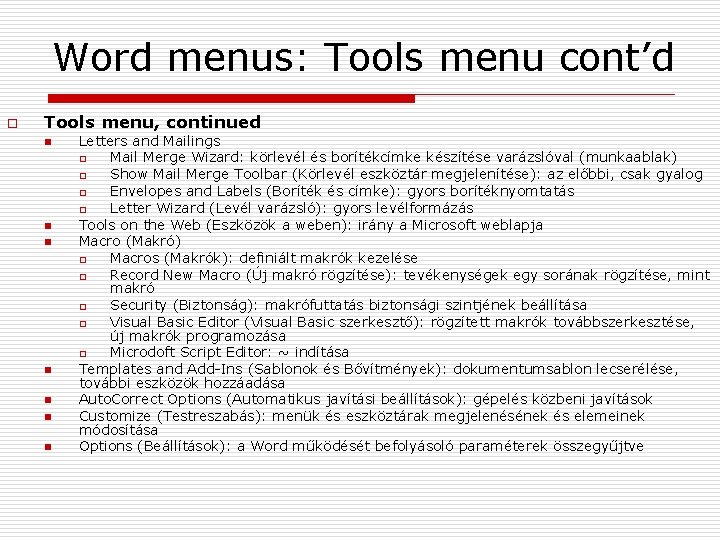
Word menus: Tools menu cont’d o Tools menu, continued n n n n Letters and Mailings o Mail Merge Wizard: körlevél és borítékcímke készítése varázslóval (munkaablak) o Show Mail Merge Toolbar (Körlevél eszköztár megjelenítése): az előbbi, csak gyalog o Envelopes and Labels (Boríték és címke): gyors borítéknyomtatás o Letter Wizard (Levél varázsló): gyors levélformázás Tools on the Web (Eszközök a weben): irány a Microsoft weblapja Macro (Makró) o Macros (Makrók): definiált makrók kezelése o Record New Macro (Új makró rögzítése): tevékenységek egy sorának rögzítése, mint makró o Security (Biztonság): makrófuttatás biztonsági szintjének beállítása o Visual Basic Editor (Visual Basic szerkesztő): rögzített makrók továbbszerkesztése, új makrók programozása o Microdoft Script Editor: ~ indítása Templates and Add-Ins (Sablonok és Bővítmények): dokumentumsablon lecserélése, további eszközök hozzáadása Auto. Correct Options (Automatikus javítási beállítások): gépelés közbeni javítások Customize (Testreszabás): menük és eszköztárak megjelenésének és elemeinek módosítása Options (Beállítások): a Word működését befolyásoló paraméterek összegyűjtve
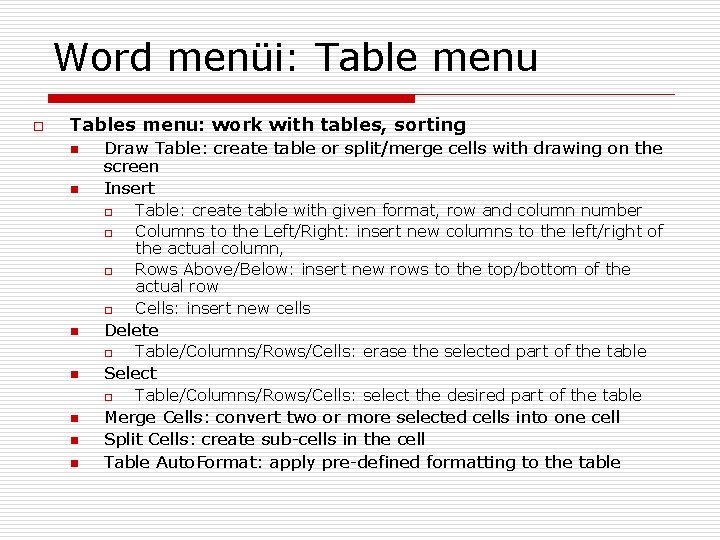
Word menüi: Table menu o Tables menu: work with tables, sorting n n Draw Table: create table or split/merge cells with drawing on the screen Insert o o n Delete o n n n Table/Columns/Rows/Cells: erase the selected part of the table Select o n Table: create table with given format, row and column number Columns to the Left/Right: insert new columns to the left/right of the actual column, Rows Above/Below: insert new rows to the top/bottom of the actual row Cells: insert new cells Table/Columns/Rows/Cells: select the desired part of the table Merge Cells: convert two or more selected cells into one cell Split Cells: create sub-cells in the cell Table Auto. Format: apply pre-defined formatting to the table
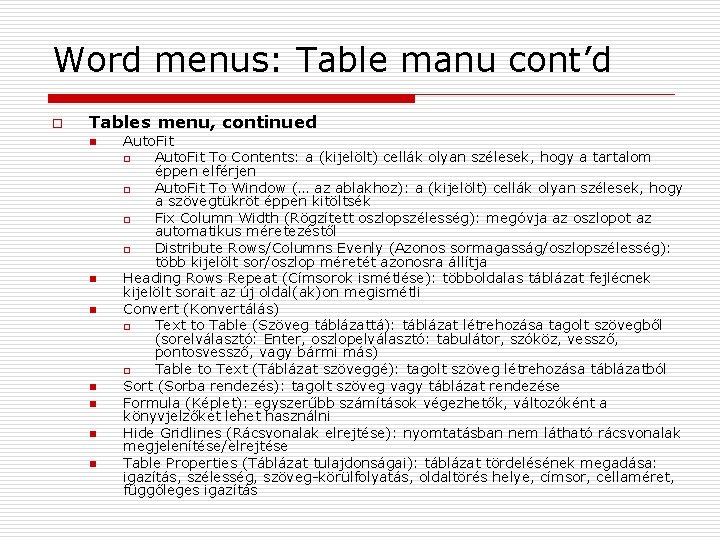
Word menus: Table manu cont’d o Tables menu, continued n n n n Auto. Fit o Auto. Fit To Contents: a (kijelölt) cellák olyan szélesek, hogy a tartalom éppen elférjen o Auto. Fit To Window (… az ablakhoz): a (kijelölt) cellák olyan szélesek, hogy a szövegtükröt éppen kitöltsék o Fix Column Width (Rögzített oszlopszélesség): megóvja az oszlopot az automatikus méretezéstől o Distribute Rows/Columns Evenly (Azonos sormagasság/oszlopszélesség): több kijelölt sor/oszlop méretét azonosra állítja Heading Rows Repeat (Címsorok ismétlése): többoldalas táblázat fejlécnek kijelölt sorait az új oldal(ak)on megismétli Convert (Konvertálás) o Text to Table (Szöveg táblázattá): táblázat létrehozása tagolt szövegből (sorelválasztó: Enter, oszlopelválasztó: tabulátor, szóköz, vessző, pontosvessző, vagy bármi más) o Table to Text (Táblázat szöveggé): tagolt szöveg létrehozása táblázatból Sort (Sorba rendezés): tagolt szöveg vagy táblázat rendezése Formula (Képlet): egyszerűbb számítások végezhetők, változóként a könyvjelzőket lehet használni Hide Gridlines (Rácsvonalak elrejtése): nyomtatásban nem látható rácsvonalak megjelenítése/elrejtése Table Properties (Táblázat tulajdonságai): táblázat tördelésének megadása: igazítás, szélesség, szöveg-körülfolyatás, oldaltörés helye, címsor, cellaméret, függőleges igazítás
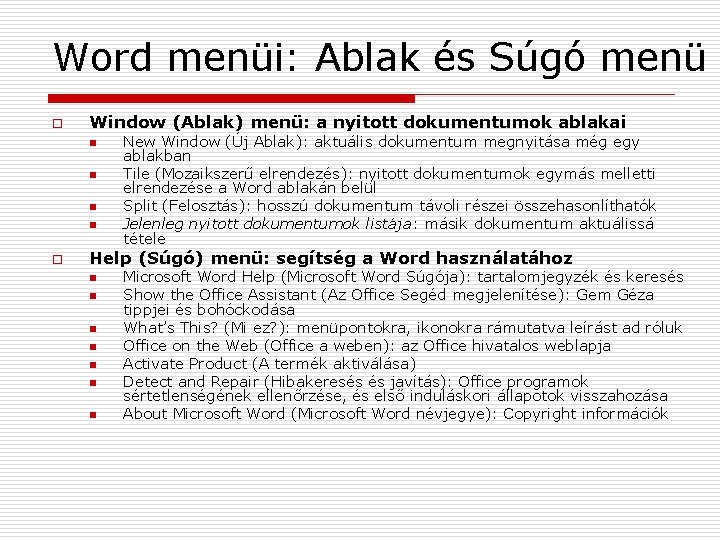
Word menüi: Ablak és Súgó menü o Window (Ablak) menü: a nyitott dokumentumok ablakai n n o New Window (Új Ablak): aktuális dokumentum megnyitása még egy ablakban Tile (Mozaikszerű elrendezés): nyitott dokumentumok egymás melletti elrendezése a Word ablakán belül Split (Felosztás): hosszú dokumentum távoli részei összehasonlíthatók Jelenleg nyitott dokumentumok listája: másik dokumentum aktuálissá tétele Help (Súgó) menü: segítség a Word használatához n n n n Microsoft Word Help (Microsoft Word Súgója): tartalomjegyzék és keresés Show the Office Assistant (Az Office Segéd megjelenítése): Gem Géza tippjei és bohóckodása What’s This? (Mi ez? ): menüpontokra, ikonokra rámutatva leírást ad róluk Office on the Web (Office a weben): az Office hivatalos weblapja Activate Product (A termék aktiválása) Detect and Repair (Hibakeresés és javítás): Office programok sértetlenségének ellenőrzése, és első induláskori állapotok visszahozása About Microsoft Word (Microsoft Word névjegye): Copyright információk
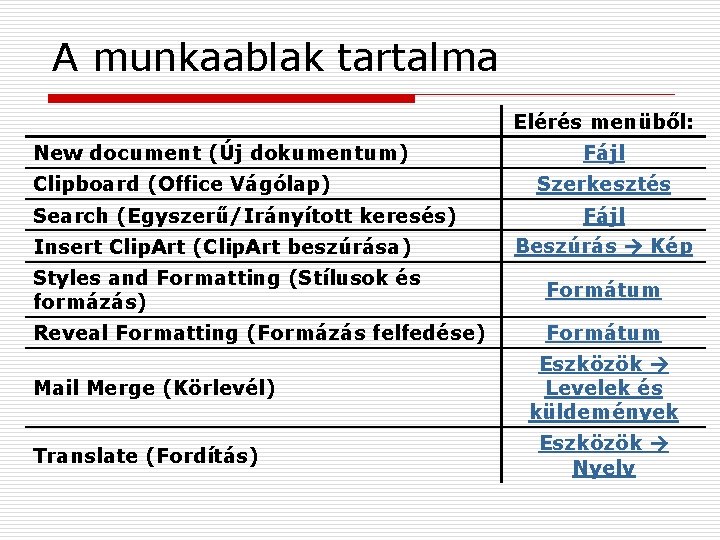
A munkaablak tartalma Elérés menüből: New document (Új dokumentum) Clipboard (Office Vágólap) Search (Egyszerű/Irányított keresés) Fájl Szerkesztés Fájl Insert Clip. Art (Clip. Art beszúrása) Beszúrás Kép Styles and Formatting (Stílusok és formázás) Formátum Reveal Formatting (Formázás felfedése) Formátum Mail Merge (Körlevél) Translate (Fordítás) Eszközök Levelek és küldemények Eszközök Nyelv
Copyright © BUTE Dept. Of Architectural Representation Team of the Department (József Peredy, Mihály Szoboszlai, Zsolt Kiss, László Strommer, Pál Ledneczki, Imre Batta, Péter Juhász, Tamás Fejér, András Kovács, András Zsolt Kovács), 1998 -2004.