
Word Lesson 3 Helpful Word Features Microsoft Office
- Slides: 27
Word Lesson 3 Helpful Word Features Microsoft Office 2010 Introductory Pasewark & Pasewark
Objectives l Word Lesson 3 l 2 l l l Use Auto. Correct. Use Auto. Format As You Type. Create, insert, and delete Quick Parts. Use Auto. Complete. Insert the current date and time. Pasewark & Pasewark Microsoft Office 2010 Introductory
Objectives (continued) Word Lesson 3 l l Check the spelling and grammar in a document. Use the Thesaurus. Insert symbols. Pasewark & Pasewark Microsoft Office 2010 Introductory
Vocabulary l l Word Lesson 3 l 4 l l Auto. Complete Auto. Correct Auto. Format As You Type automatic grammar checking automatic spell checking Pasewark & Pasewark l l l building block contextual spell checking format Quick Part Thesaurus Microsoft Office 2010 Introductory
Using Automatic Features l Word provides many helpful features and commands including the ability to: Word Lesson 3 – 5 – – Correct errors automatically Format text automatically Save and reuse text that is used often Check spelling and grammar Find synonyms for a word Pasewark & Pasewark Microsoft Office 2010 Introductory
Understanding Automatic Features Word Lesson 3 l 6 l l The Auto. Correct feature corrects errors as you type, and Auto. Format As You Type applies built-in formats as you type. You can create and use Quick Parts to insert frequently used text. The Auto. Complete feature “guesses” days of the week and month names as you type, and then suggests the complete word. Pasewark & Pasewark Microsoft Office 2010 Introductory
Using Auto. Correct Word Lesson 3 l 7 l l Auto. Correct corrects common capitalization, spelling, grammar, and typing errors as you type. You can customize Auto. Correct by adding or removing words or by changing the types of corrections made. When using Auto. Correct, the correction occurs after you press the spacebar or Enter. Pasewark & Pasewark Microsoft Office 2010 Introductory
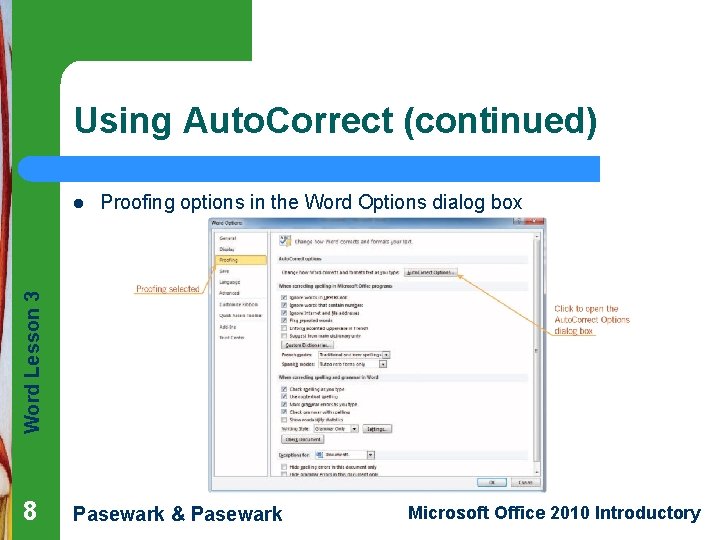
Using Auto. Correct (continued) Proofing options in the Word Options dialog box Word Lesson 3 l 8 Pasewark & Pasewark Microsoft Office 2010 Introductory
Using Auto. Correct (continued) Word Lesson 3 l 9 l You can add or remove words from the Auto. Correct list and change the Auto. Correct options. You can also open the Auto. Correct dialog box using the Auto. Correct Options button. Pasewark & Pasewark Microsoft Office 2010 Introductory
Understanding Formatting l Word Lesson 3 l 10 l l Formatting means to change the look of text. You can format words or paragraphs. Examples of text formatting are adding bold, italics, or underlining to words. Examples of paragraph formatting are indenting the first line of a paragraph or double-spacing text in a paragraph. Pasewark & Pasewark Microsoft Office 2010 Introductory
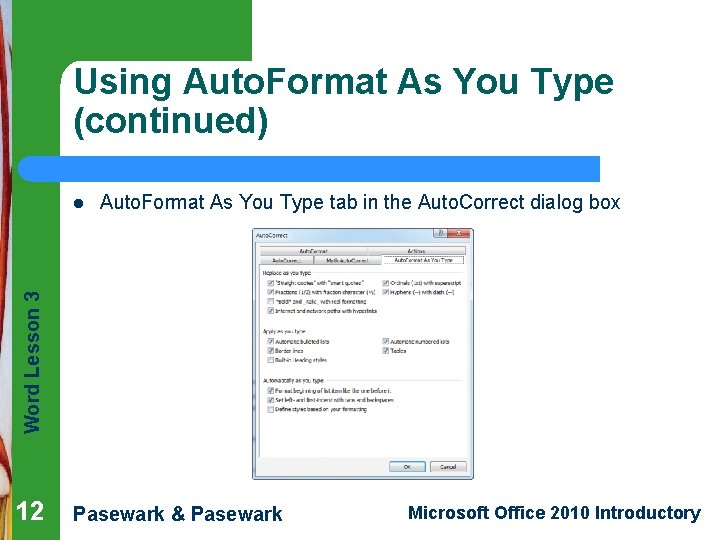
Using Auto. Format As You Type Word Lesson 3 l 11 l The Auto. Format As You Type feature automatically applies built-in formats to text as you type. You can choose which automatic formatting options you want to use on the Auto. Format As You Type tab in the Auto. Correct dialog box. Pasewark & Pasewark Microsoft Office 2010 Introductory
Using Auto. Format As You Type (continued) Auto. Format As You Type tab in the Auto. Correct dialog box Word Lesson 3 l 12 Pasewark & Pasewark Microsoft Office 2010 Introductory
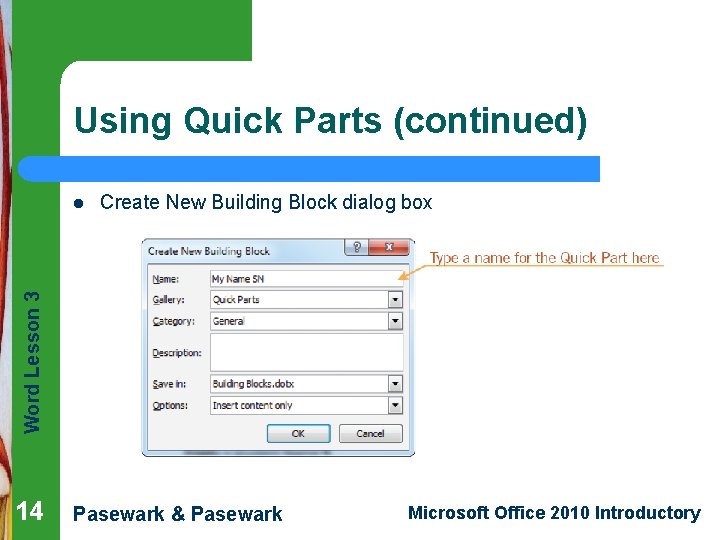
Using Quick Parts Word Lesson 3 l 13 l l Building blocks are document parts that are stored and reused. Quick Parts are building blocks you create from frequently used text and then save and access quickly by clicking the Quick Parts button in the Text group on the Insert tab. Building blocks are organized into galleries. A Quick Part you create is stored in the Quick Parts gallery. Pasewark & Pasewark Microsoft Office 2010 Introductory
Using Quick Parts (continued) Create New Building Block dialog box Word Lesson 3 l 14 Pasewark & Pasewark Microsoft Office 2010 Introductory
Using Auto. Complete Word Lesson 3 l 15 l Auto. Complete is a feature in Word that automatically completes the spelling of days of the week and months of the year that have more than five letters in their names. After you type the first four letters, Auto. Complete suggests the complete word. Pasewark & Pasewark Microsoft Office 2010 Introductory
Inserting the Date and Time Word Lesson 3 l 16 l You can easily insert the current date and time into a document. You can also display the current date whenever you open the document. – For example, if you create a report on a regular basis, you would probably want the current date displayed each time you opened the document Pasewark & Pasewark Microsoft Office 2010 Introductory
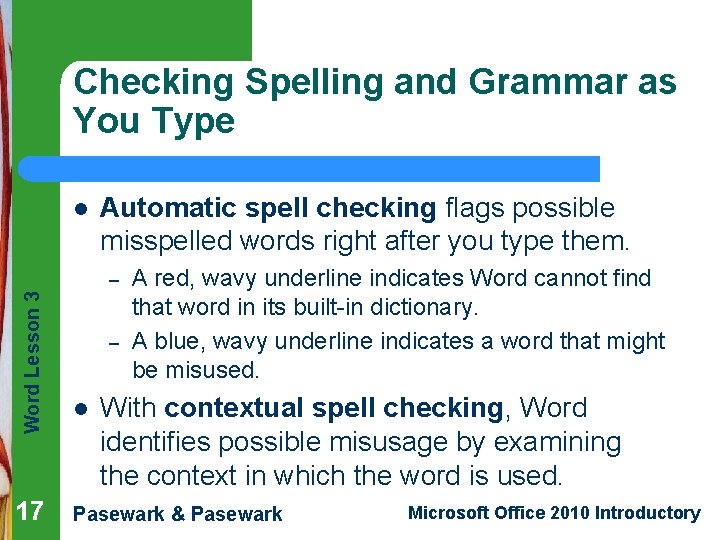
Checking Spelling and Grammar as You Type l Automatic spell checking flags possible misspelled words right after you type them. Word Lesson 3 – 17 – l A red, wavy underline indicates Word cannot find that word in its built-in dictionary. A blue, wavy underline indicates a word that might be misused. With contextual spell checking, Word identifies possible misusage by examining the context in which the word is used. Pasewark & Pasewark Microsoft Office 2010 Introductory
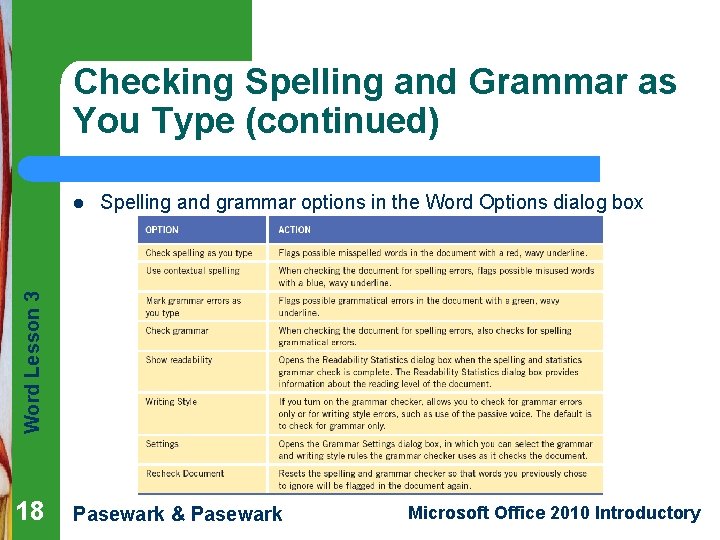
Checking Spelling and Grammar as You Type (continued) Spelling and grammar options in the Word Options dialog box Word Lesson 3 l 18 Pasewark & Pasewark Microsoft Office 2010 Introductory
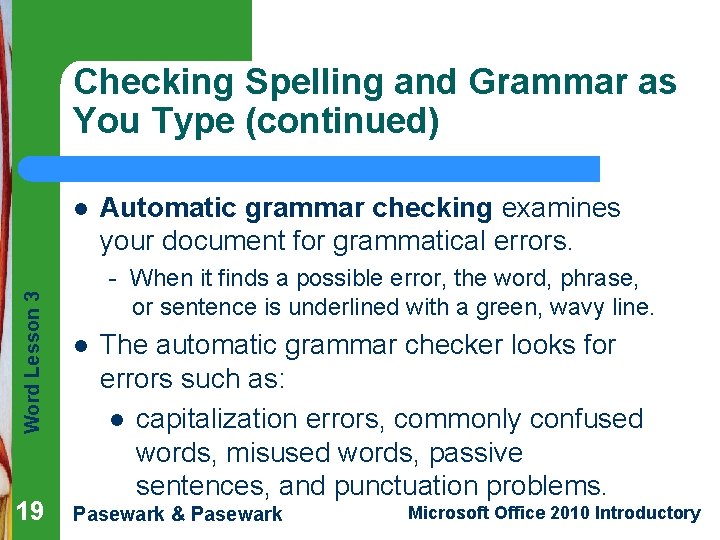
Checking Spelling and Grammar as You Type (continued) Word Lesson 3 l 19 Automatic grammar checking examines your document for grammatical errors. - When it finds a possible error, the word, phrase, or sentence is underlined with a green, wavy line. l The automatic grammar checker looks for errors such as: l capitalization errors, commonly confused words, misused words, passive sentences, and punctuation problems. Pasewark & Pasewark Microsoft Office 2010 Introductory
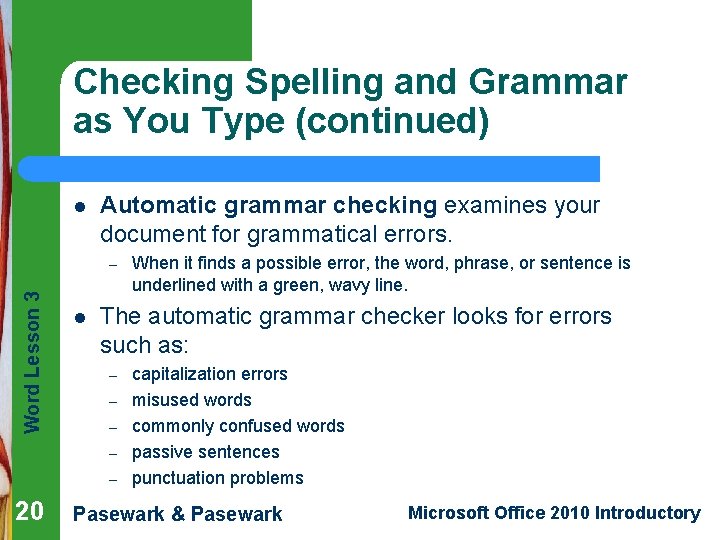
Checking Spelling and Grammar as You Type (continued) l Automatic grammar checking examines your document for grammatical errors. Word Lesson 3 – l The automatic grammar checker looks for errors such as: – – – 20 When it finds a possible error, the word, phrase, or sentence is underlined with a green, wavy line. capitalization errors misused words commonly confused words passive sentences punctuation problems Pasewark & Pasewark Microsoft Office 2010 Introductory
Using the Spelling and Grammar Checker Word Lesson 3 l 21 l You can use the Spelling and Grammar dialog box to check a document’s spelling and grammar after you finish typing. You can check an entire document or a selected portion of a document. The options in the Spelling and Grammar dialog box change depending on the nature of the current error. Pasewark & Pasewark Microsoft Office 2010 Introductory
Using the Thesaurus Word Lesson 3 l 22 l Thesaurus is a useful feature for finding a synonym (a word with a similar meaning) for a word in your document. For some words, the Thesaurus also lists antonyms, or words with opposite meanings. Pasewark & Pasewark Microsoft Office 2010 Introductory
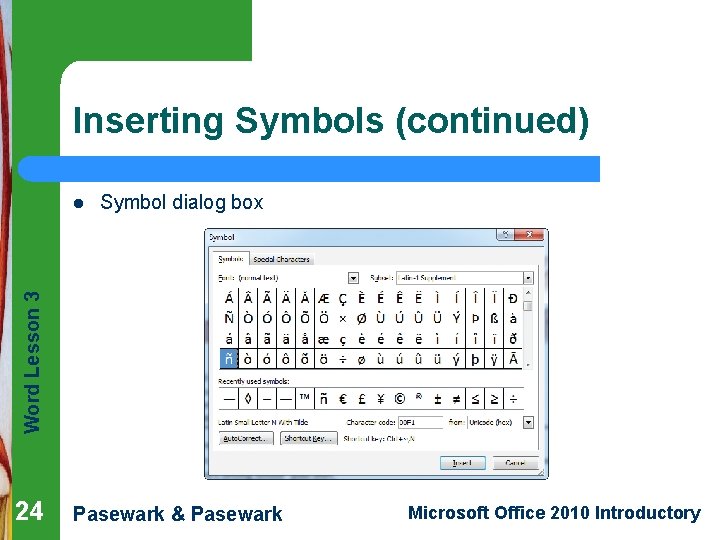
Inserting Symbols l Word Lesson 3 l 23 Commonly used symbols are on the menu. If a symbol is not on the menu, click More Symbols to open the Symbol dialog box. Once inserted, the new symbol will replace one of the other symbols on the menu to make it easier for you to insert it again. Pasewark & Pasewark Microsoft Office 2010 Introductory
Inserting Symbols (continued) Symbol dialog box Word Lesson 3 l 24 Pasewark & Pasewark Microsoft Office 2010 Introductory
Word Lesson 3 Summary 25 In this lesson, you learned: l Auto. Correct automatically corrects common capitalization and spelling errors as you type. The Auto. Format As You Type feature automatically applies built-in formats to text as you type. l You can create Quick Parts to store frequently used text so you don’t have to retype the text each time. Quick Parts are a type of building block. l Auto. Complete automatically completes the spelling of days of the week and months with more than five letters in their names. Pasewark & Pasewark Microsoft Office 2010 Introductory
Summary (continued) l Word Lesson 3 l 26 l You can automatically insert the date and time in a document using the Date & Time button. Automatic spell checking identifies misspelled words and words that are not in Word’s dictionary by underlining them with a red, wavy underline immediately after you type them. Contextual spell checking identifies words that might be used incorrectly by underlining them with a blue, wavy line. Automatic grammar checking identifies grammatical errors by underlining the word, phrase, or sentence with a green, wavy line. Pasewark & Pasewark Microsoft Office 2010 Introductory
Summary (continued) Word Lesson 3 l 27 l l The Spelling and Grammar dialog box contains options that allow you to check the spelling and grammar of words, make changes, and add words to your own custom dictionary. You can use the Thesaurus to find a synonym for a word in your document. For some words, the Thesaurus also lists antonyms. You can insert symbols and special characters not found on the keyboard using the Symbol button on the Insert tab. Pasewark & Pasewark Microsoft Office 2010 Introductory