
Wireless LAB Test Preparation Guide Version 1 0
Wireless LAB Test Preparation Guide Version 1. 0
DCP LAB Sample Test Revision History Revision Number Date 1 2013/03/31 Revision Content first release Revised By Karl Hsieh 2 3 4 5 2
DCP LAB Sample Test LAB Test Rules and Policies The candidate needs to finish the test within 3 hours. The passing score for DCP-Wireless LAB Examination is 70 marks. Talking, eating and discussion are not allowed during the lab test session. All mobile devices must be switched off during the session. If a candidate needs to go to the restroom during the session, the candidate must first seek the proctor’s consent. Time of absence for session is counted in the total examination time. If a candidate has a question, the candidate should raise his or her hand signal the proctor for help. All DCP LAB test materials including, but not limited to the examination sheet, work sheet and answer sheet must not be taken out from the lab testing area. If any event occurs during the lab test session, follow the proctor’s instruction. The proctor retains the right to cancel and stop a candidate’s lab examination. 3
DCP LAB Sample Test LAB Test Rules and Policies Before ending the test session … Please review your answers carefully Remember to save all the configurations Raise your hand to signal the proctor if you want to end the session LEAVE the test sheets on the table Please Note: Candidates who violate any rule or policy of this test will automatically fail the test. 4
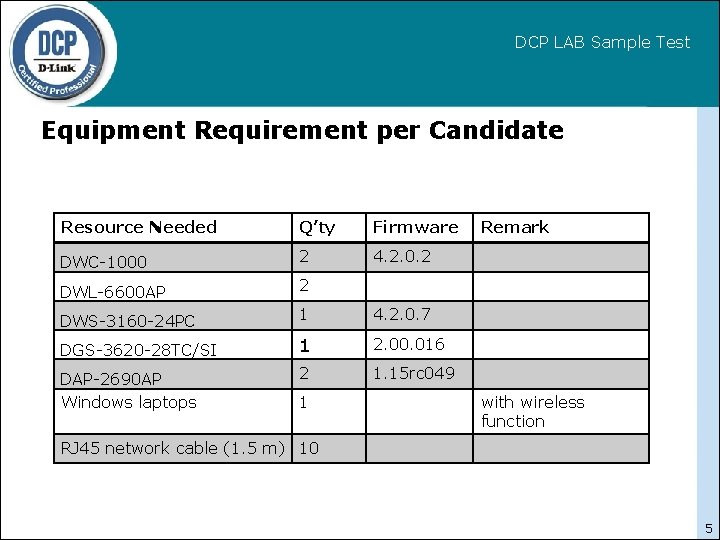
DCP LAB Sample Test Equipment Requirement per Candidate Resource Needed Q’ty Firmware DWC-1000 2 4. 2. 0. 2 DWL-6600 AP 2 DWS-3160 -24 PC 1 4. 2. 0. 7 DGS-3620 -28 TC/SI 1 2. 00. 016 DAP-2690 AP Windows laptops 2 1. 15 rc 049 1 Remark with wireless function RJ 45 network cable (1. 5 m) 10 5
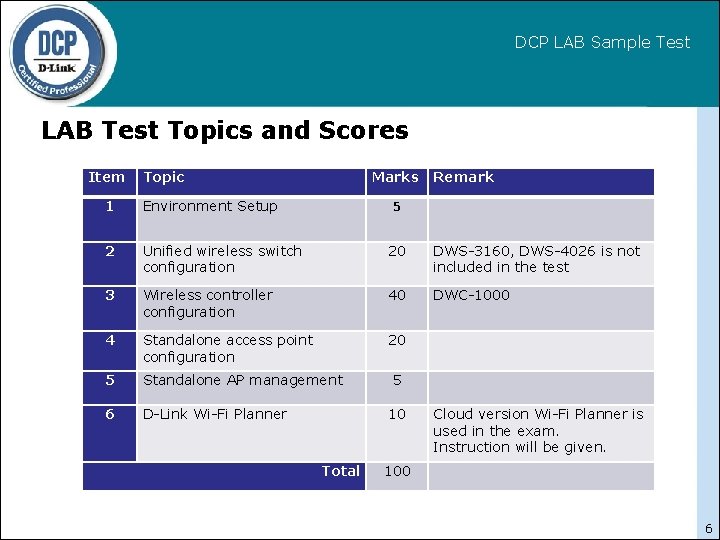
DCP LAB Sample Test LAB Test Topics and Scores Item Topic Marks Remark 5 1 Environment Setup 2 Unified wireless switch configuration 20 DWS-3160, DWS-4026 is not included in the test 3 Wireless controller configuration 40 DWC-1000 4 Standalone access point configuration 20 5 Standalone AP management 6 D-Link Wi-Fi Planner 5 10 Total Cloud version Wi-Fi Planner is used in the exam. Instruction will be given. 100 6
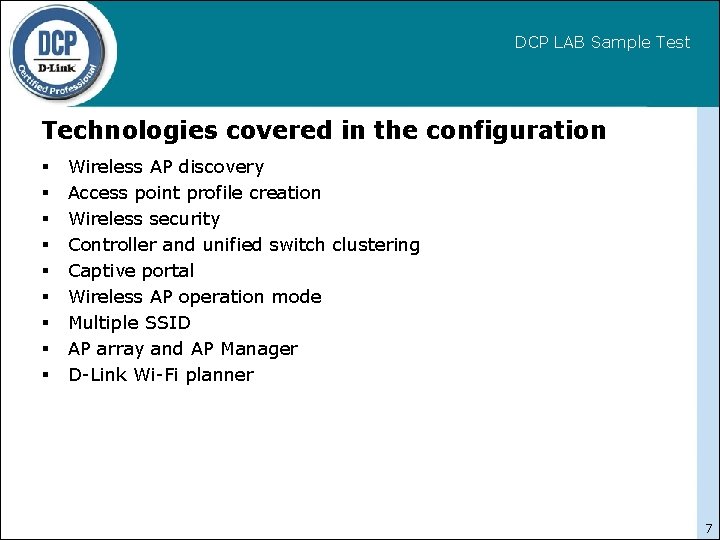
DCP LAB Sample Test Technologies covered in the configuration Wireless AP discovery Access point profile creation Wireless security Controller and unified switch clustering Captive portal Wireless AP operation mode Multiple SSID AP array and AP Manager D-Link Wi-Fi planner 7
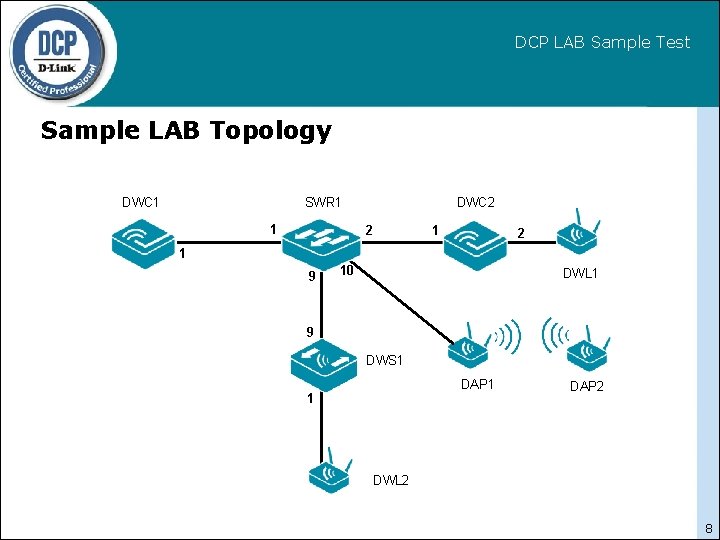
DCP LAB Sample Test Sample LAB Topology DWC 1 SWR 1 1 DWC 2 2 1 9 10 DWL 1 9 DWS 1 DAP 1 1 DAP 2 DWL 2 8
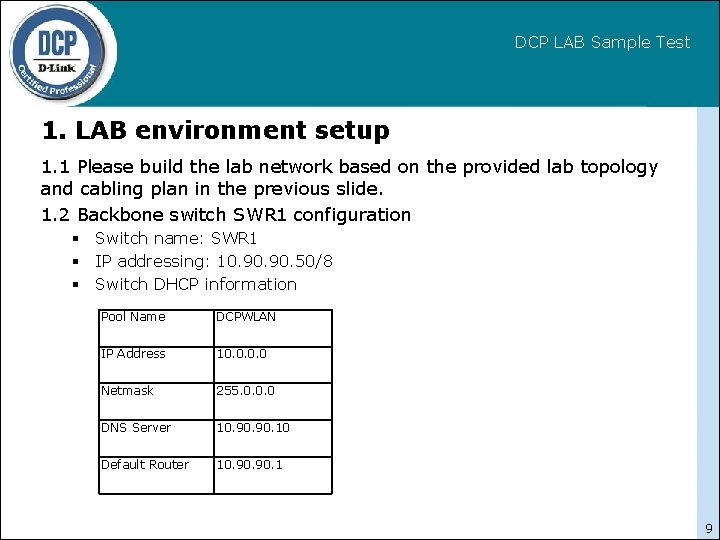
DCP LAB Sample Test 1. LAB environment setup 1. 1 Please build the lab network based on the provided lab topology and cabling plan in the previous slide. 1. 2 Backbone switch SWR 1 configuration Switch name: SWR 1 IP addressing: 10. 90. 50/8 Switch DHCP information Pool Name DCPWLAN IP Address 10. 0 Netmask 255. 0. 0. 0 DNS Server 10. 90. 10 Default Router 10. 90. 1 9
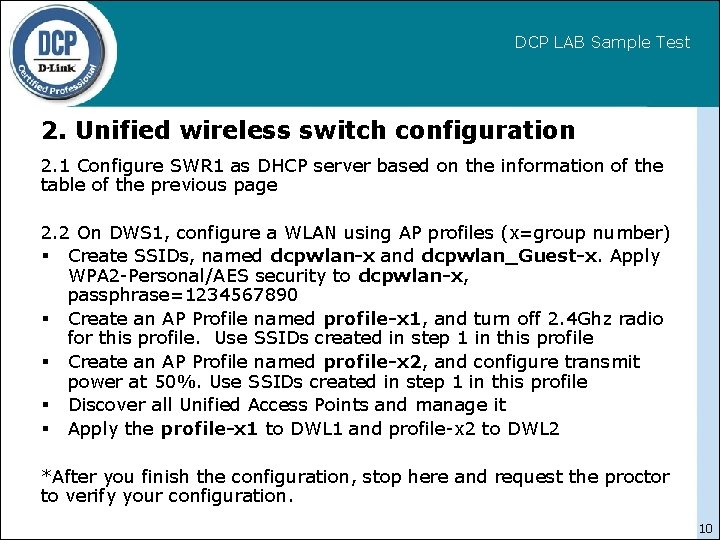
DCP LAB Sample Test 2. Unified wireless switch configuration 2. 1 Configure SWR 1 as DHCP server based on the information of the table of the previous page 2. 2 On DWS 1, configure a WLAN using AP profiles (x=group number) Create SSIDs, named dcpwlan-x and dcpwlan_Guest-x. Apply WPA 2 -Personal/AES security to dcpwlan-x, passphrase=1234567890 Create an AP Profile named profile-x 1, and turn off 2. 4 Ghz radio for this profile. Use SSIDs created in step 1 in this profile Create an AP Profile named profile-x 2, and configure transmit power at 50%. Use SSIDs created in step 1 in this profile Discover all Unified Access Points and manage it Apply the profile-x 1 to DWL 1 and profile-x 2 to DWL 2 *After you finish the configuration, stop here and request the proctor to verify your configuration. 10
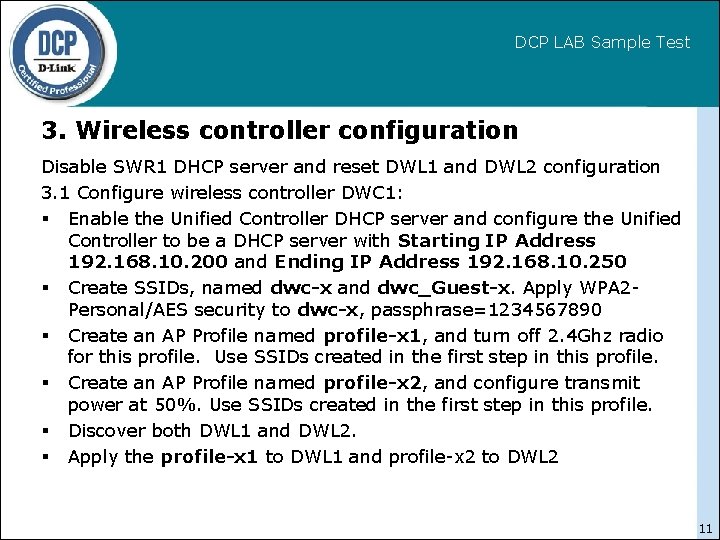
DCP LAB Sample Test 3. Wireless controller configuration Disable SWR 1 DHCP server and reset DWL 1 and DWL 2 configuration 3. 1 Configure wireless controller DWC 1: Enable the Unified Controller DHCP server and configure the Unified Controller to be a DHCP server with Starting IP Address 192. 168. 10. 200 and Ending IP Address 192. 168. 10. 250 Create SSIDs, named dwc-x and dwc_Guest-x. Apply WPA 2 Personal/AES security to dwc-x, passphrase=1234567890 Create an AP Profile named profile-x 1, and turn off 2. 4 Ghz radio for this profile. Use SSIDs created in the first step in this profile. Create an AP Profile named profile-x 2, and configure transmit power at 50%. Use SSIDs created in the first step in this profile. Discover both DWL 1 and DWL 2. Apply the profile-x 1 to DWL 1 and profile-x 2 to DWL 2 11
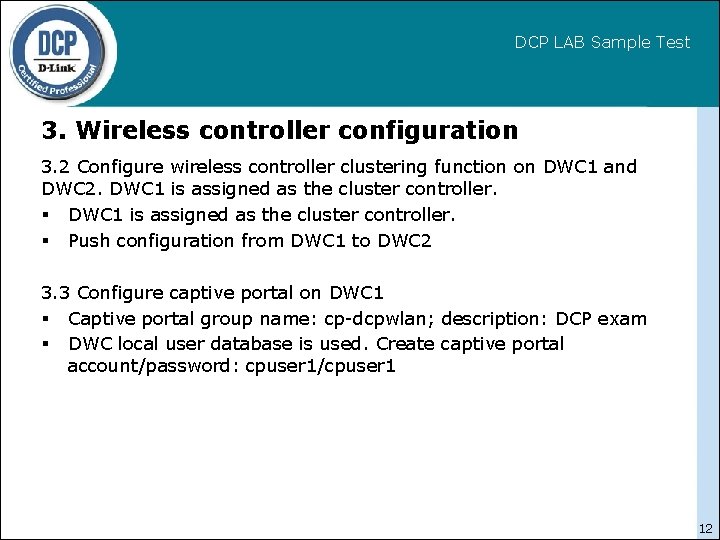
DCP LAB Sample Test 3. Wireless controller configuration 3. 2 Configure wireless controller clustering function on DWC 1 and DWC 2. DWC 1 is assigned as the cluster controller. Push configuration from DWC 1 to DWC 2 3. 3 Configure captive portal on DWC 1 Captive portal group name: cp-dcpwlan; description: DCP exam DWC local user database is used. Create captive portal account/password: cpuser 1/cpuser 1 12
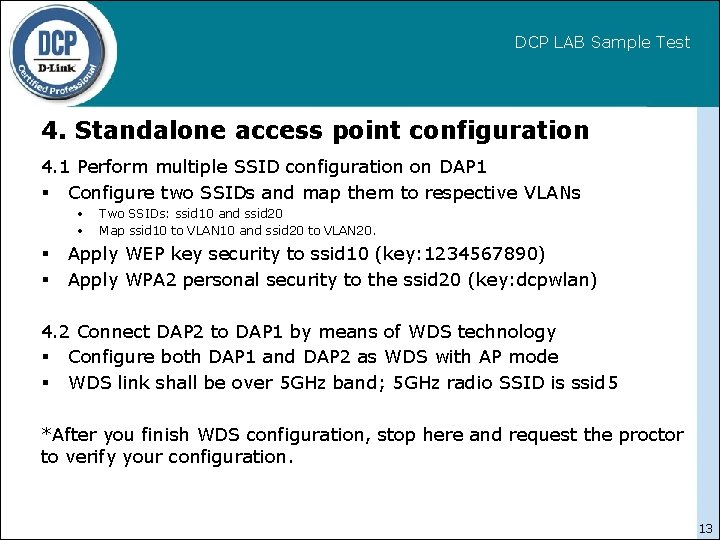
DCP LAB Sample Test 4. Standalone access point configuration 4. 1 Perform multiple SSID configuration on DAP 1 Configure two SSIDs and map them to respective VLANs • • Two SSIDs: ssid 10 and ssid 20 Map ssid 10 to VLAN 10 and ssid 20 to VLAN 20. Apply WEP key security to ssid 10 (key: 1234567890) Apply WPA 2 personal security to the ssid 20 (key: dcpwlan) 4. 2 Connect DAP 2 to DAP 1 by means of WDS technology Configure both DAP 1 and DAP 2 as WDS with AP mode WDS link shall be over 5 GHz band; 5 GHz radio SSID is ssid 5 *After you finish WDS configuration, stop here and request the proctor to verify your configuration. 13
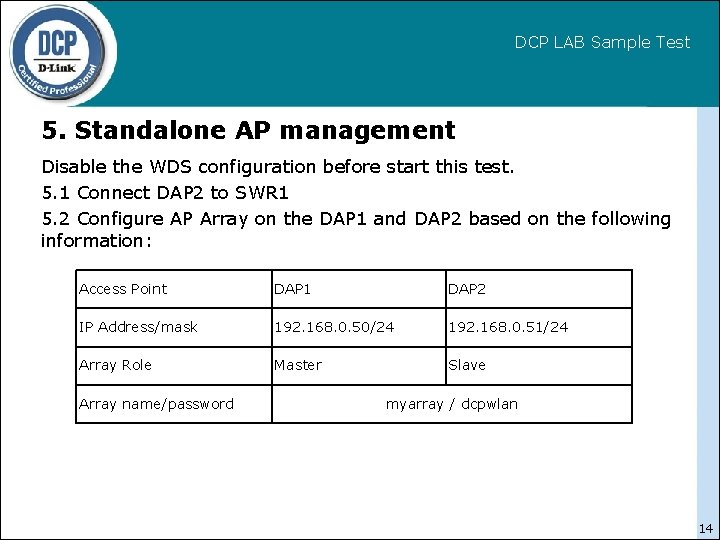
DCP LAB Sample Test 5. Standalone AP management Disable the WDS configuration before start this test. 5. 1 Connect DAP 2 to SWR 1 5. 2 Configure AP Array on the DAP 1 and DAP 2 based on the following information: Access Point DAP 1 DAP 2 IP Address/mask 192. 168. 0. 50/24 192. 168. 0. 51/24 Array Role Master Slave Array name/password myarray / dcpwlan 14
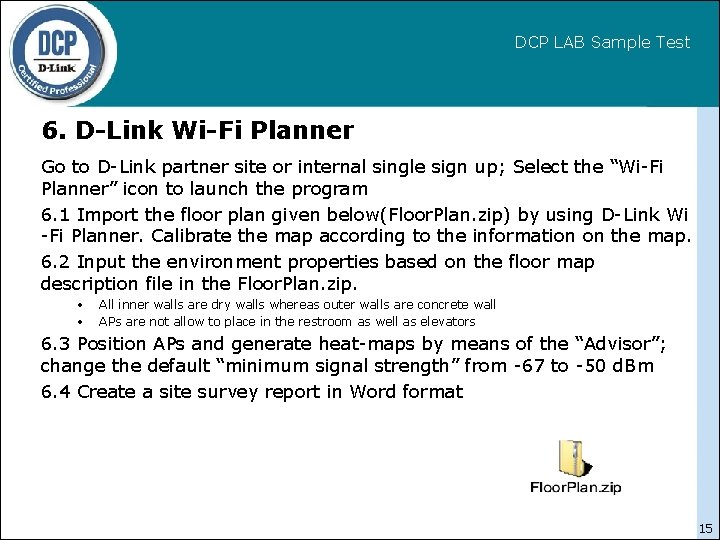
DCP LAB Sample Test 6. D-Link Wi-Fi Planner Go to D-Link partner site or internal single sign up; Select the “Wi-Fi Planner” icon to launch the program 6. 1 Import the floor plan given below(Floor. Plan. zip) by using D-Link Wi -Fi Planner. Calibrate the map according to the information on the map. 6. 2 Input the environment properties based on the floor map description file in the Floor. Plan. zip. • • All inner walls are dry walls whereas outer walls are concrete wall APs are not allow to place in the restroom as well as elevators 6. 3 Position APs and generate heat-maps by means of the “Advisor”; change the default “minimum signal strength” from -67 to -50 d. Bm 6. 4 Create a site survey report in Word format 15
- Slides: 15