
WIOA Performance Indicator Reports in VOS How to



- Slides: 23
WIOA Performance Indicator Reports in VOS How to check your outcomes quarterly. Jennifer Snow 04/2018
Calculating Current Outcome Rates
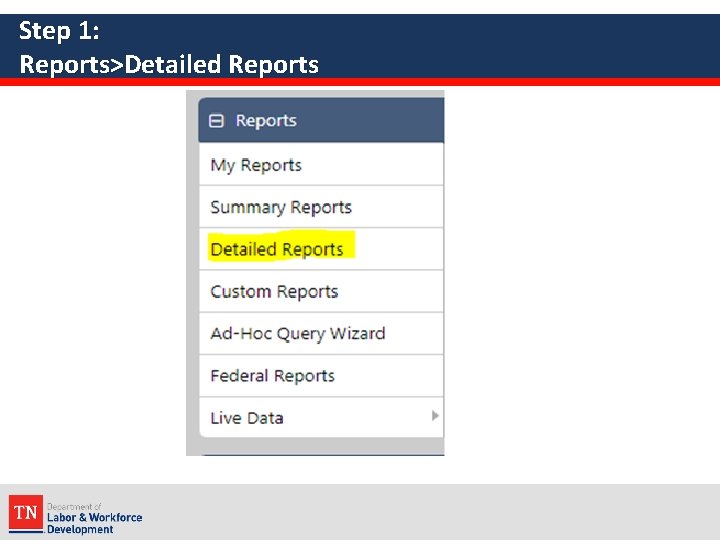
Step 1: Reports>Detailed Reports
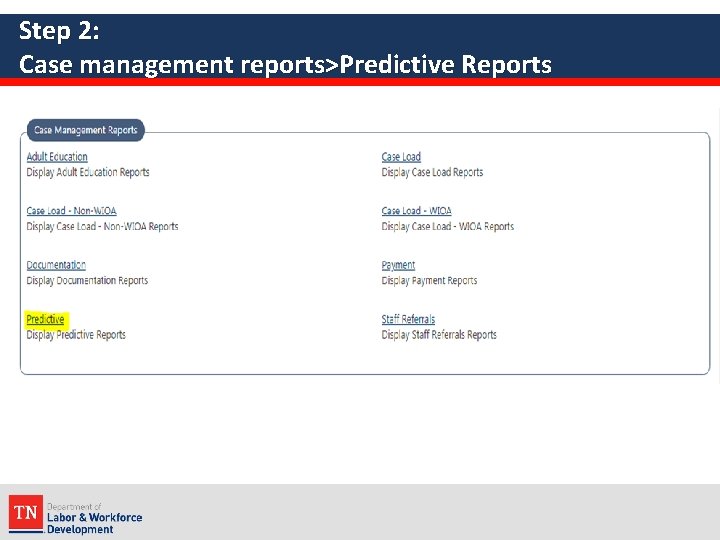
Step 2: Case management reports>Predictive Reports
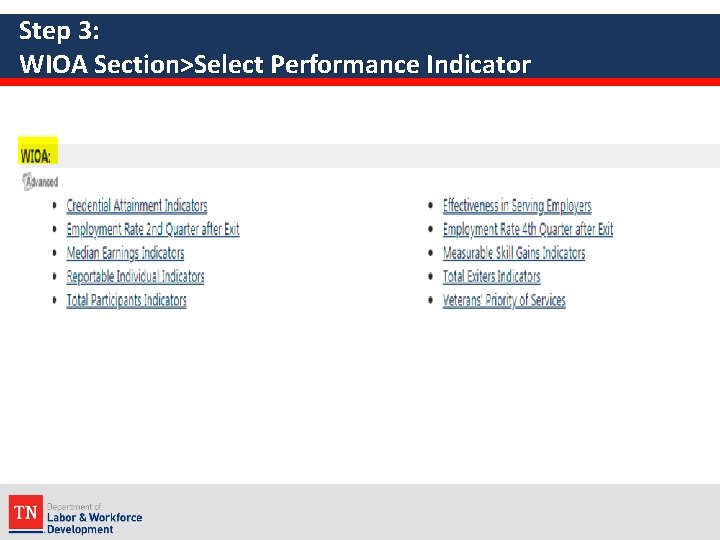
Step 3: WIOA Section>Select Performance Indicator
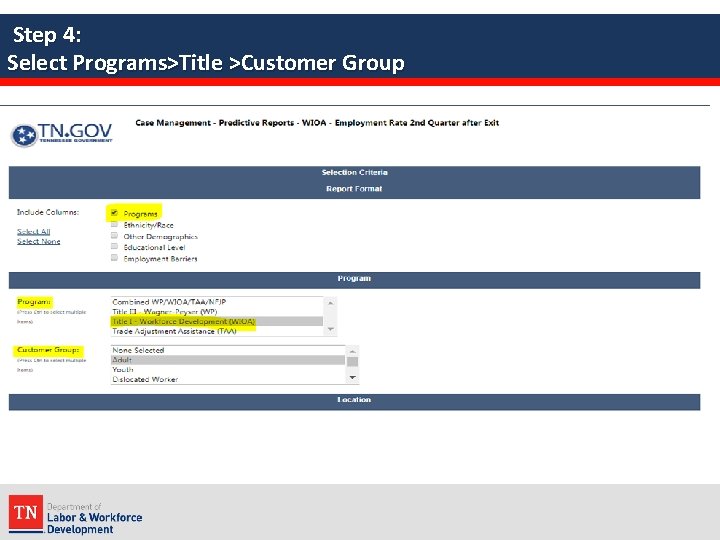
Step 4: Select Programs>Title >Customer Group
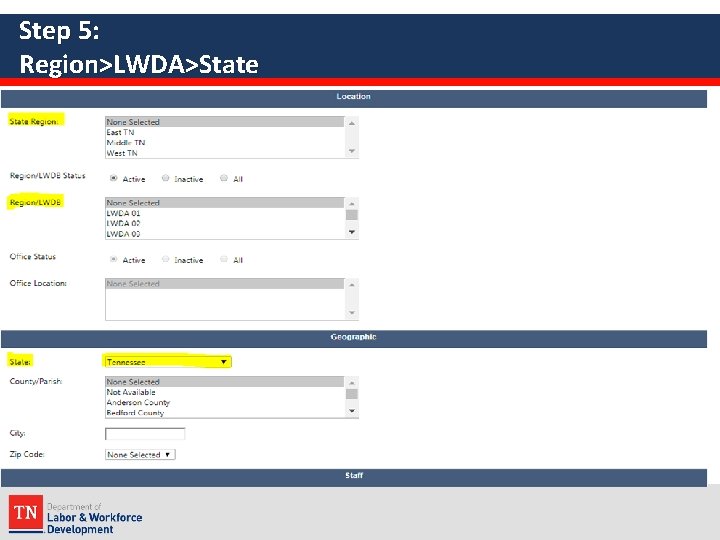
Step 5: Region>LWDA>State
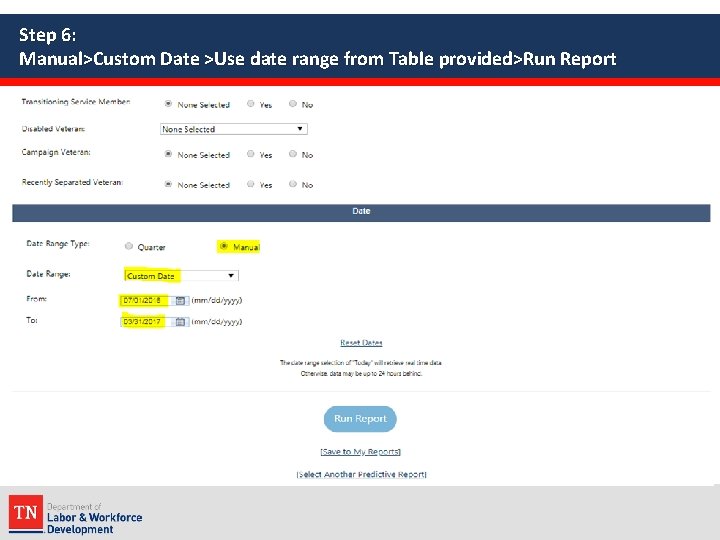
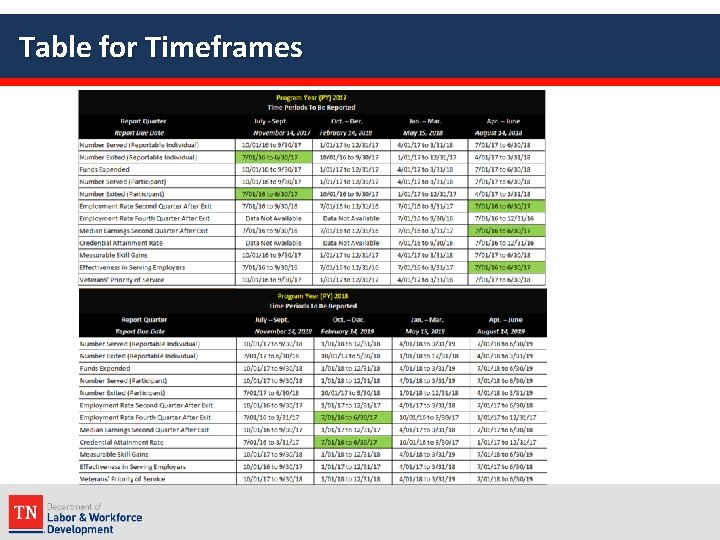
Step 6: Manual>Custom Date >Use date range from Table provided>Run Report
Table for Timeframes
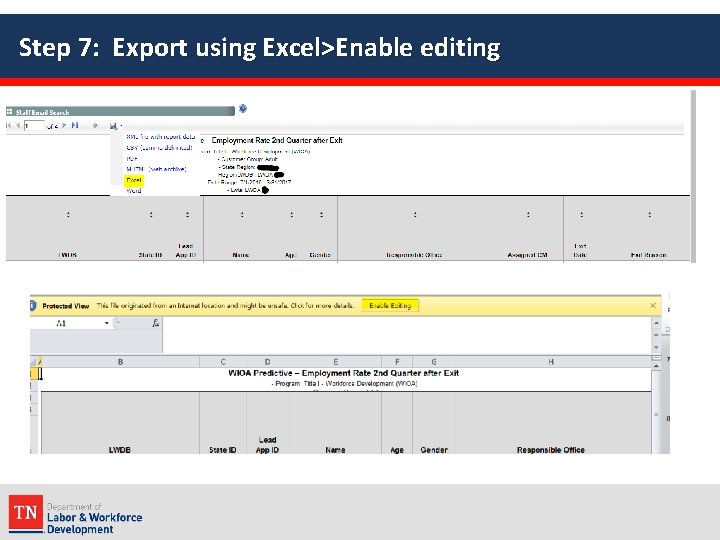
Step 7: Export using Excel>Enable editing
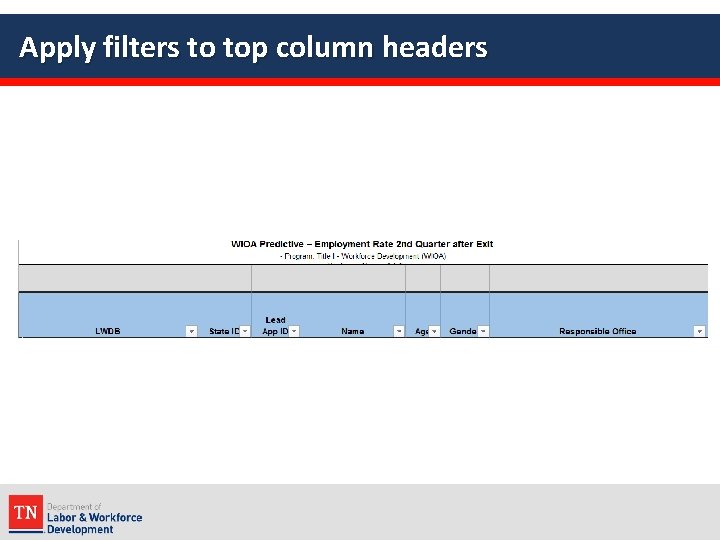
Apply filters to top column headers
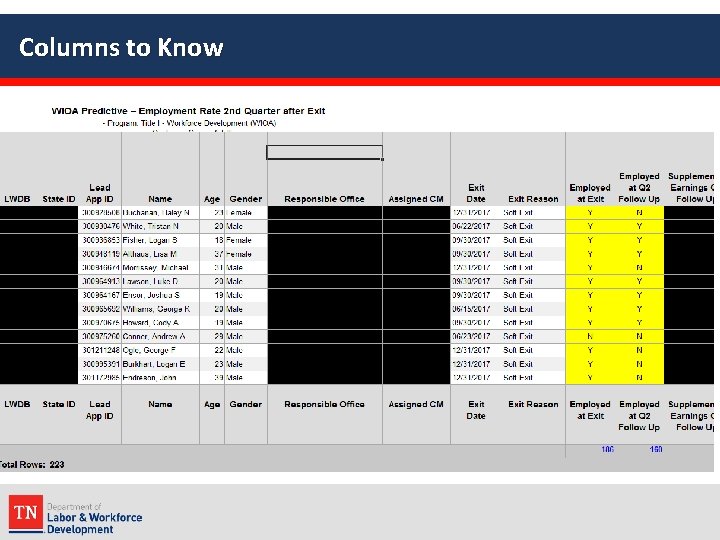
Columns to Know
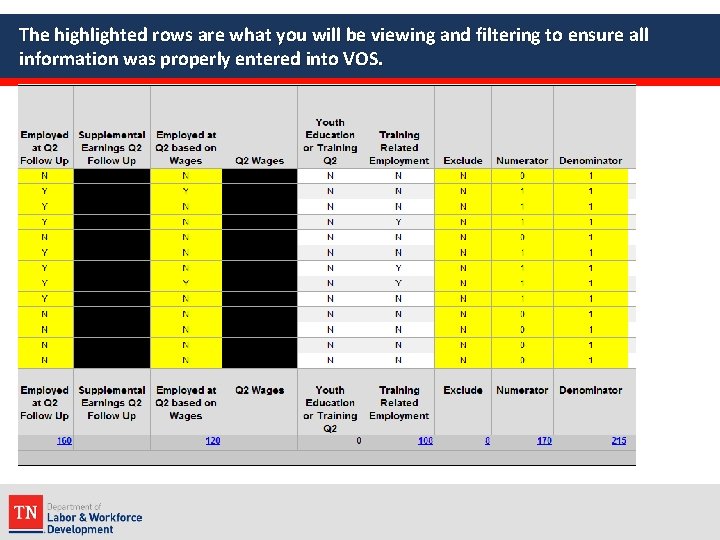
The highlighted rows are what you will be viewing and filtering to ensure all information was properly entered into VOS.
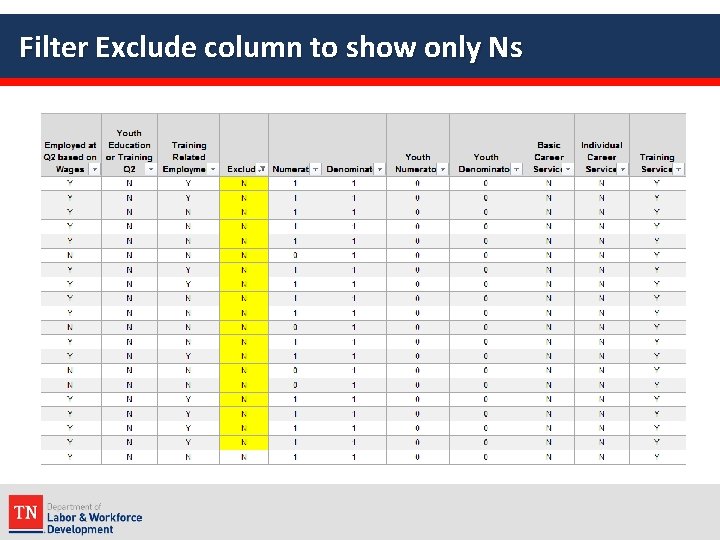
Filter Exclude column to show only Ns
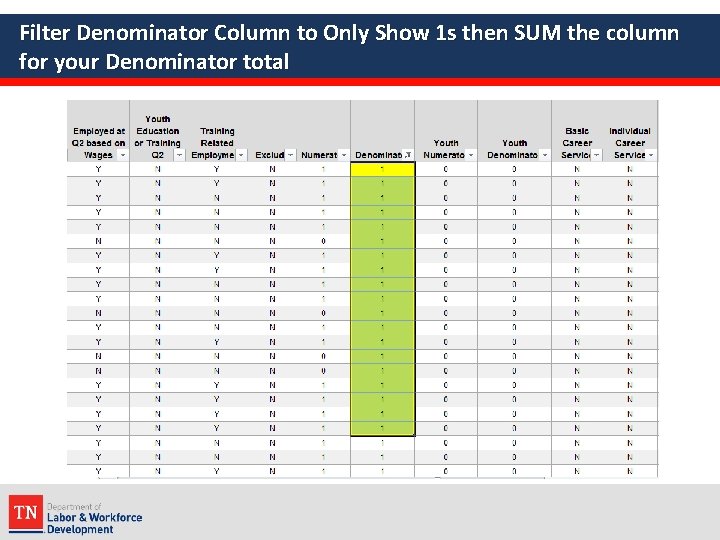
Filter Denominator Column to Only Show 1 s then SUM the column for your Denominator total
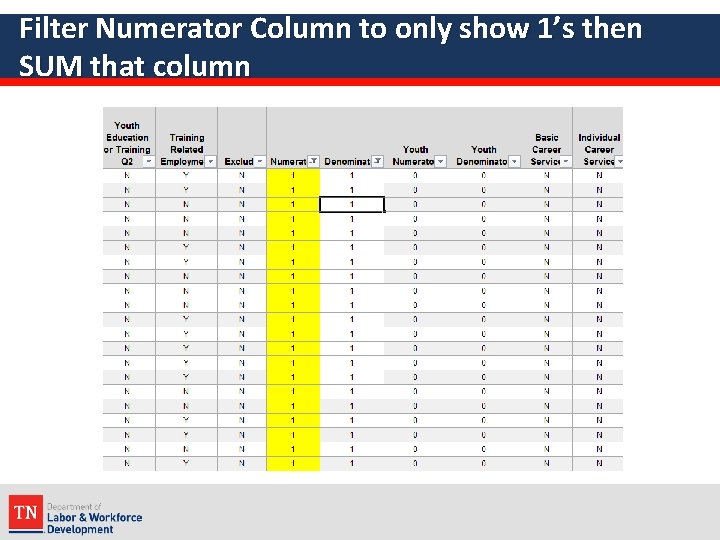
Filter Numerator Column to only show 1’s then SUM that column
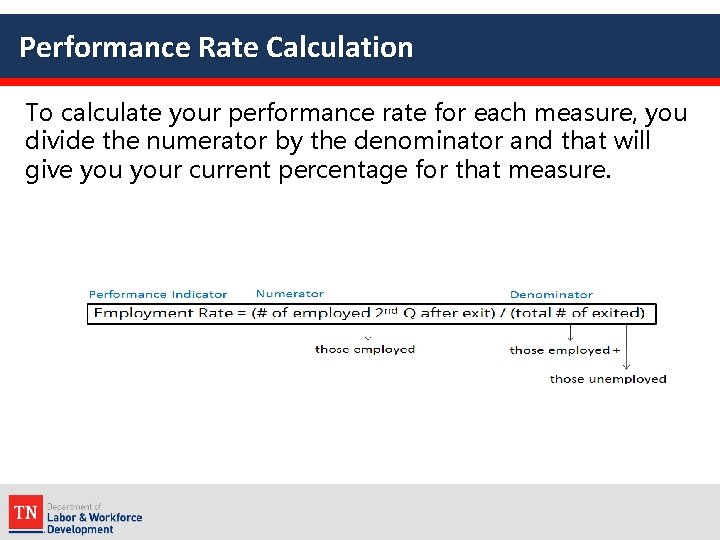
Performance Rate Calculation To calculate your performance rate for each measure, you divide the numerator by the denominator and that will give your current percentage for that measure.
ANY QUESTIONS?
Revealing Negative Outcomes within the Measure
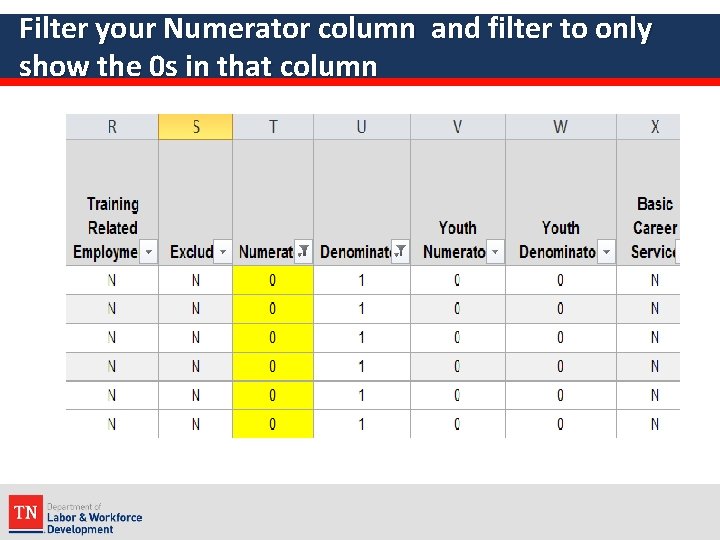
Filter your Numerator column and filter to only show the 0 s in that column
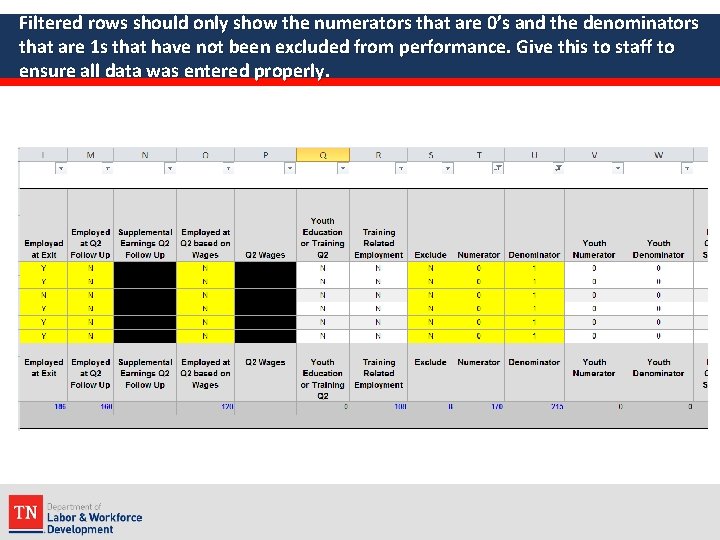
Filtered rows should only show the numerators that are 0’s and the denominators that are 1 s that have not been excluded from performance. Give this to staff to ensure all data was entered properly.
ANY QUESTIONS?
The End