
Winlink Express Pactor setup formally RMS Express Starting
- Slides: 19
“Winlink Express” Pactor setup (formally RMS Express) Starting with Airmail 2000 for HF Radio and SCS Pactor TNC setup
This Power Point will assist you in setting up your HF Radio and SCS Pactor TNC These are things you will need to know before you start. HF RADIO: 1. Make & Model of your HF Radio 2. Has the radio got a Serial port or USB to control the radio 3. What port is it on and the port speed PACTOR TNC: 1. Make & Model of you SCS Pactor TNC 2. Has it got a Serial port or USB to control the TNC 3. What port is it on and the port speed Write them down you will need these for use during Airmail & RMS Express setup HF Radio – Comport ? Speed? SCS Pactor TNC – Comport ? Speed?
HF RADIO SETTINGS Newer HF radios have Input and Output level adjustments. They can be set within the menu system. Example: Kenwood TS-480 SAT/HX 46 – AF Input 47 – AF Output Kenwood TS-590 64 – AF Input 65 – AF Output I find that the Kenwoods are usually best set at 2/2
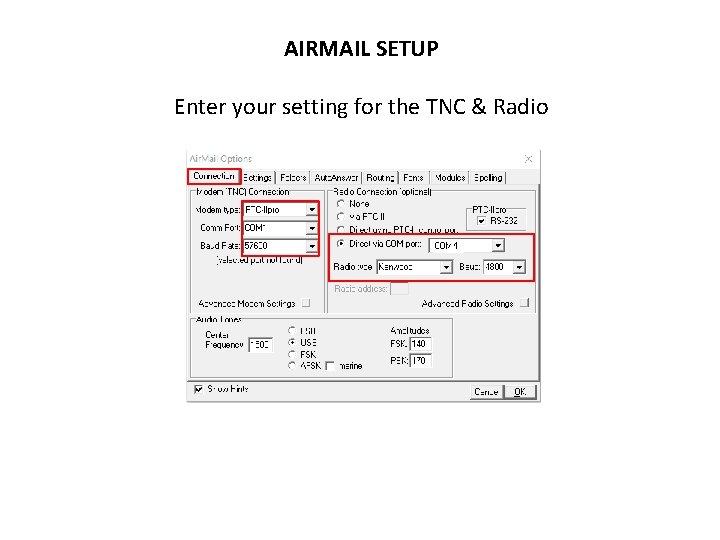
AIRMAIL SETUP Enter your setting for the TNC & Radio
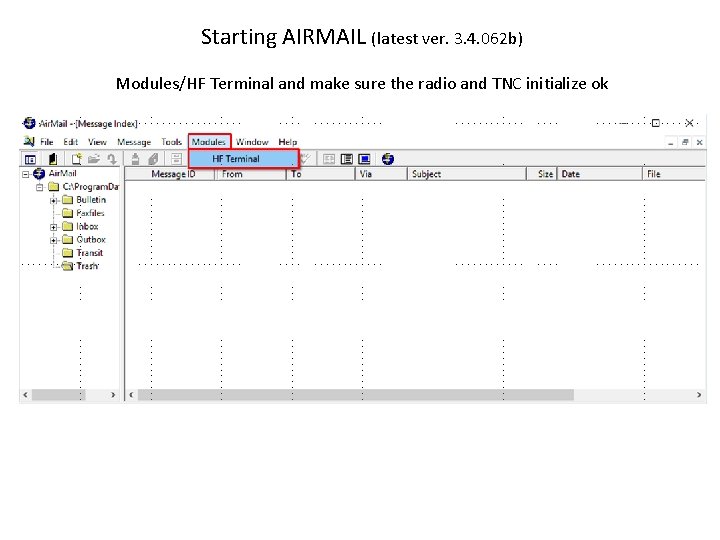
Starting AIRMAIL (latest ver. 3. 4. 062 b) Modules/HF Terminal and make sure the radio and TNC initialize ok
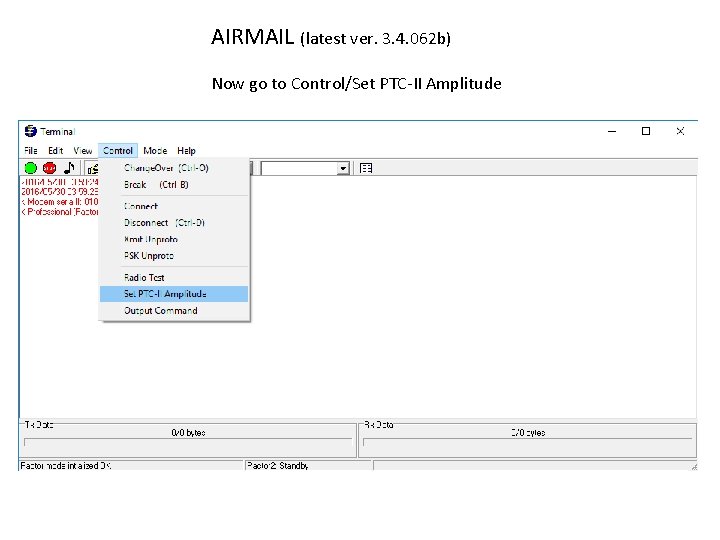
AIRMAIL (latest ver. 3. 4. 062 b) Now go to Control/Set PTC-II Amplitude
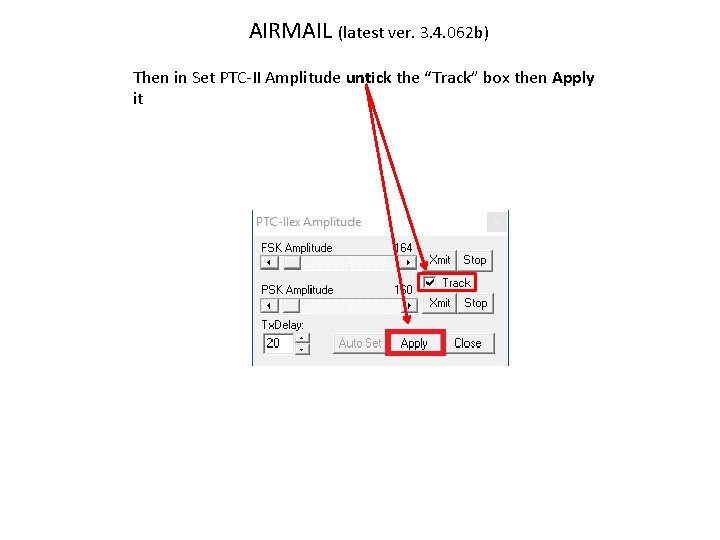
AIRMAIL (latest ver. 3. 4. 062 b) Then in Set PTC-II Amplitude untick the “Track” box then Apply it
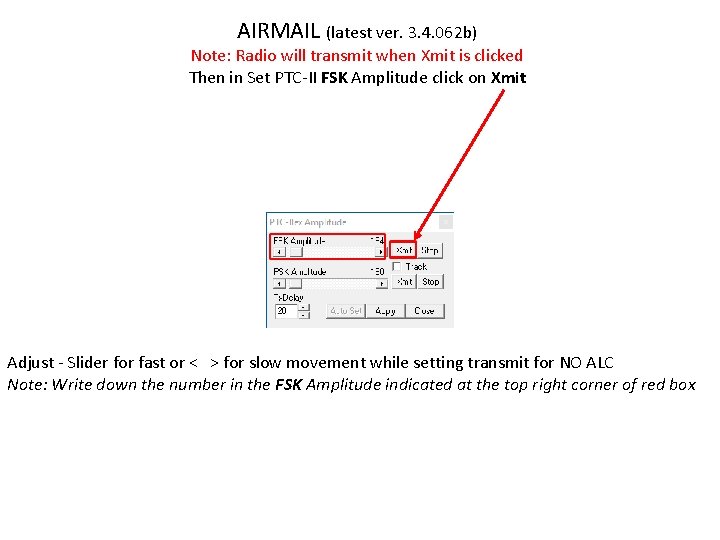
AIRMAIL (latest ver. 3. 4. 062 b) Note: Radio will transmit when Xmit is clicked Then in Set PTC-II FSK Amplitude click on Xmit Adjust - Slider for fast or < > for slow movement while setting transmit for NO ALC Note: Write down the number in the FSK Amplitude indicated at the top right corner of red box
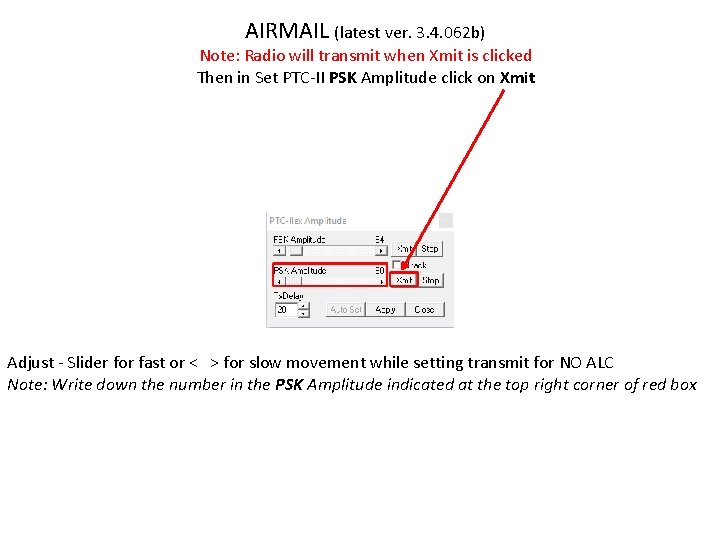
AIRMAIL (latest ver. 3. 4. 062 b) Note: Radio will transmit when Xmit is clicked Then in Set PTC-II PSK Amplitude click on Xmit Adjust - Slider for fast or < > for slow movement while setting transmit for NO ALC Note: Write down the number in the PSK Amplitude indicated at the top right corner of red box
AIRMAIL (latest ver. 3. 4. 062 b) At this point you will have the following information. HF Radio – type of comport, USB or Serial and it ‘s Comport number along with the baud speed SCS TNC – Level numbers for FSK & PSK
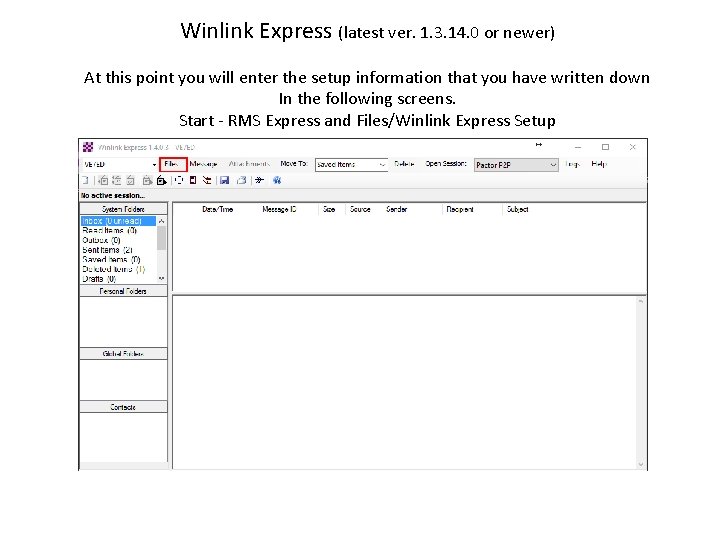
Winlink Express (latest ver. 1. 3. 14. 0 or newer) At this point you will enter the setup information that you have written down In the following screens. Start - RMS Express and Files/Winlink Express Setup
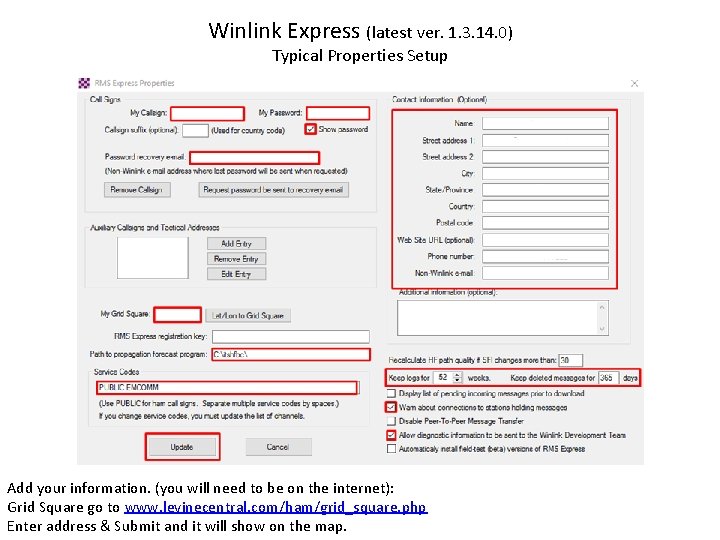
Winlink Express (latest ver. 1. 3. 14. 0) Typical Properties Setup Add your information. (you will need to be on the internet): Grid Square go to www. levinecentral. com/ham/grid_square. php Enter address & Submit and it will show on the map.
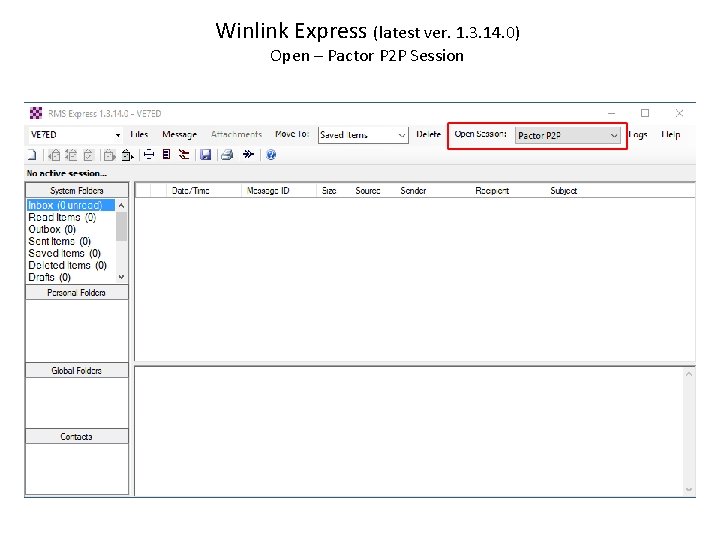
Winlink Express (latest ver. 1. 3. 14. 0) Open – Pactor P 2 P Session
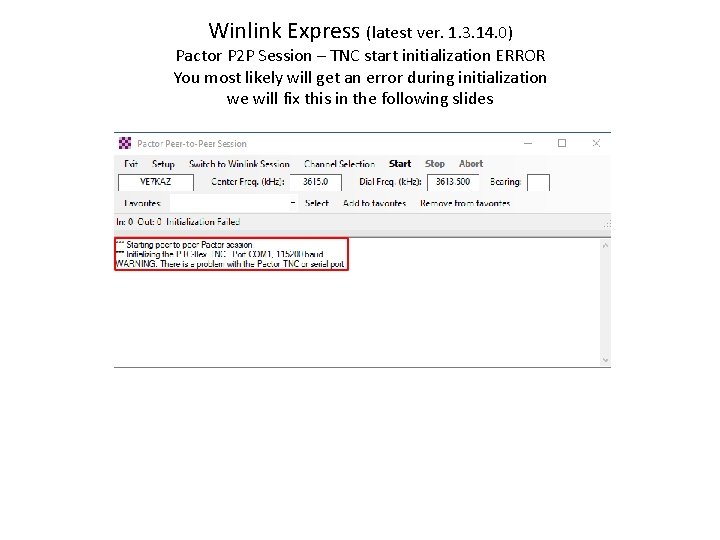
Winlink Express (latest ver. 1. 3. 14. 0) Pactor P 2 P Session – TNC start initialization ERROR You most likely will get an error during initialization we will fix this in the following slides
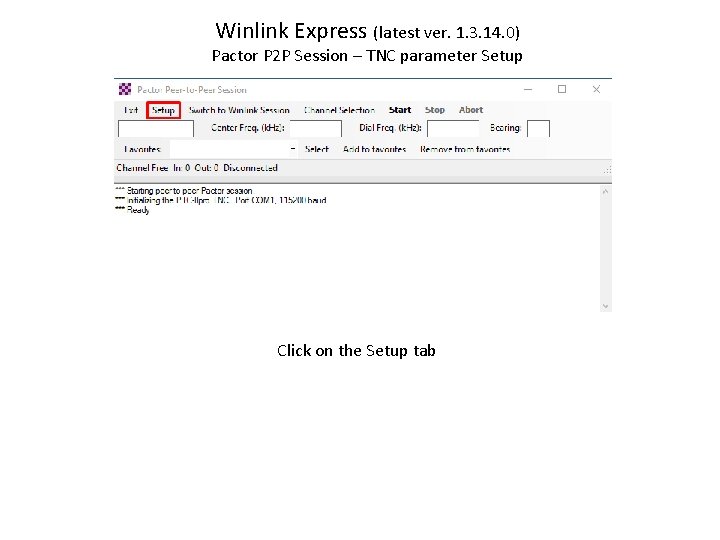
Winlink Express (latest ver. 1. 3. 14. 0) Pactor P 2 P Session – TNC parameter Setup Click on the Setup tab
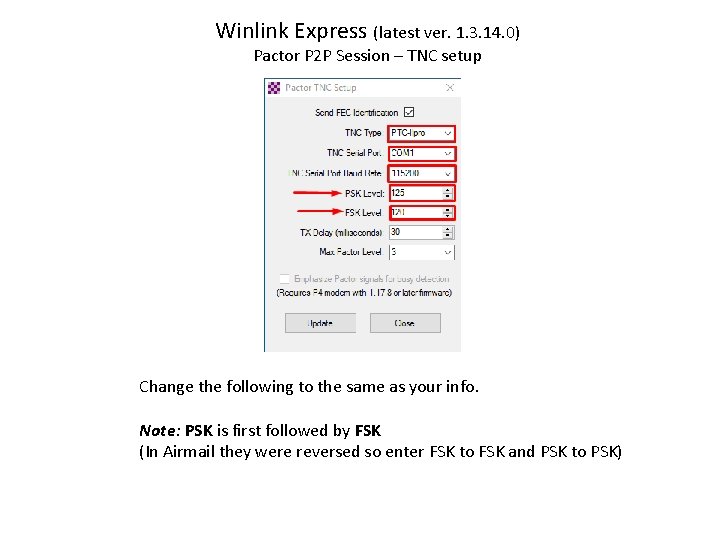
Winlink Express (latest ver. 1. 3. 14. 0) Pactor P 2 P Session – TNC setup Change the following to the same as your info. Note: PSK is first followed by FSK (In Airmail they were reversed so enter FSK to FSK and PSK to PSK)
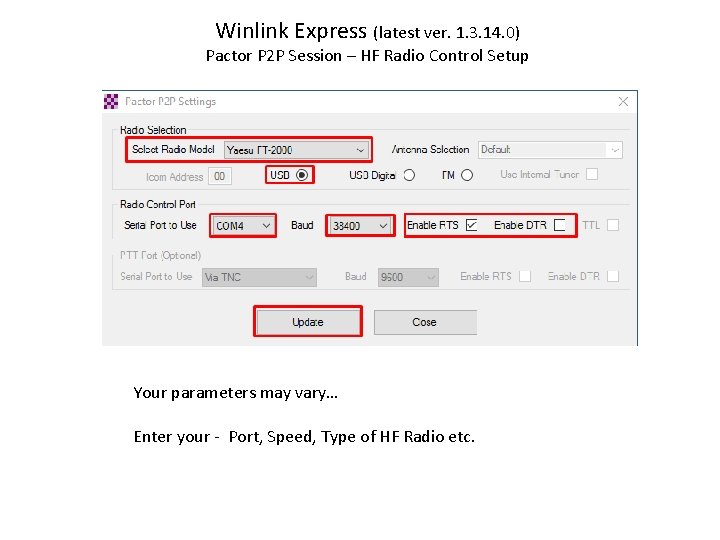
Winlink Express (latest ver. 1. 3. 14. 0) Pactor P 2 P Session – HF Radio Control Setup Your parameters may vary… Enter your - Port, Speed, Type of HF Radio etc.
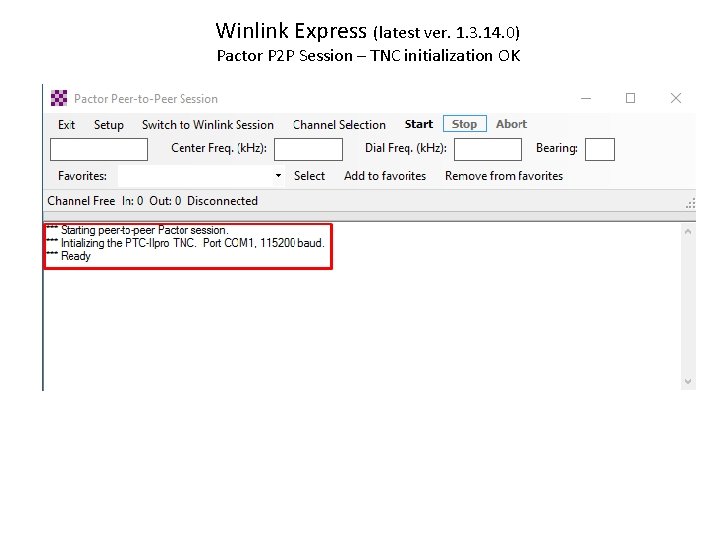
Winlink Express (latest ver. 1. 3. 14. 0) Pactor P 2 P Session – TNC initialization OK
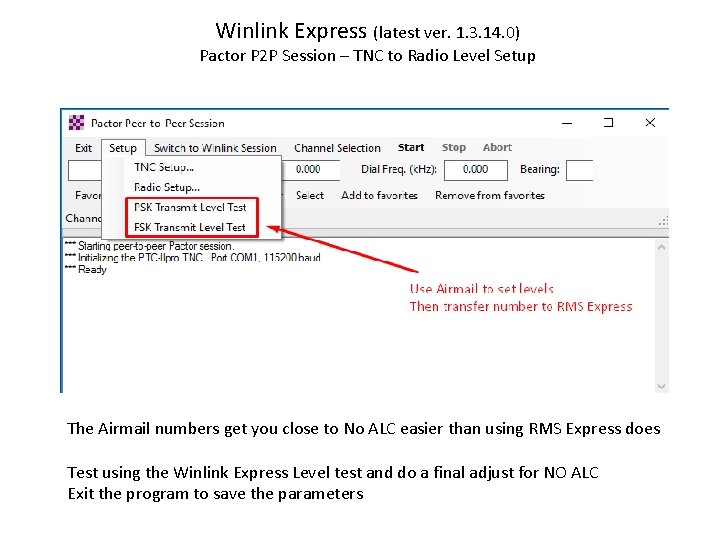
Winlink Express (latest ver. 1. 3. 14. 0) Pactor P 2 P Session – TNC to Radio Level Setup The Airmail numbers get you close to No ALC easier than using RMS Express does Test using the Winlink Express Level test and do a final adjust for NO ALC Exit the program to save the parameters