
Windows Vista Inside Out Chapter 28 Managing Disks


- Slides: 43
Windows Vista Inside Out Chapter 28 - Managing Disks and Drives Last modified 11 -12 -07
Editions Ø Disk management is the same in all editions of Windows Vista
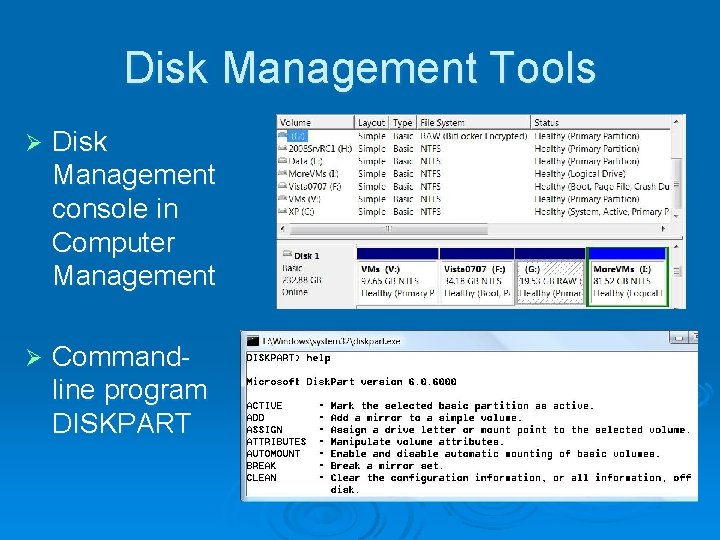
Disk Management Tools Ø Disk Management console in Computer Management Ø Commandline program DISKPART
New Features in Vista Ø Can now shrink partitions as well as expand them Ø Universal Disk Format (UDF) support for writeable CDs and DVDs Ø Dynamic disk for USB or IEEE 1394 removable hard drives
Running Disk Management Ø At any command prompt, enter DISKMGMT. MSC, or Ø Right-click the My Computer icon on the Start menu, choose Manage l And then select Disk Management on the left side of the Computer Management window Ø Control Panel, System and Maintenance l Under "Administrative Tools", choose "Create And Format Hard Disk Partitions"
Disk Management Lets You Ø Check the size, file system, status, and other properties of disks and volumes Ø Create, format, and delete partitions, logical drives, and dynamic volumes Ø Assign drive letters Ø Create mounted drives
Disk Management Lets You Ø Convert basic disks to dynamic disks, and vice versa Ø Create spanned volumes and striped volumes Ø Extend or shrink partitions
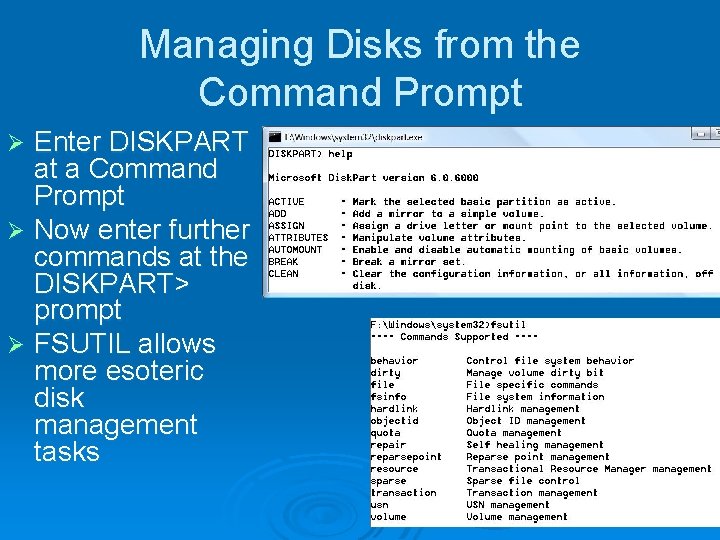
Managing Disks from the Command Prompt Enter DISKPART at a Command Prompt Ø Now enter further commands at the DISKPART> prompt Ø FSUTIL allows more esoteric disk management tasks Ø
Why Use the Command Prompt? Ø To automate disk management tasks with scripts Ø To manage disks from the Windows Recovery Environment l Disk Management is not available there Ø (Also to manage disks in Windows 2008 Server Core, which has no Graphical User Interface (GUI))
Disk Management Terminology Ø Volume l l A disk or subdivision of a disk that is formatted and available for storage Usually assigned a drive letter, like C: Ø Mounted l l drive A volume mapped to an empty folder on an NTFS-formatted disk Has no drive letter
Disk Management Terminology Ø Format l l Ø To prepare a disk for storage Using a particular file system, such as NTFS File System l l A method for organizing folders (directories) and files on a storage medium Vista supports • • FAT (File Allocation Table) NTFS (NT File System) CDFS (Compact Disc File System) (also called ISO-9660) UDF (Universal Disk Format)
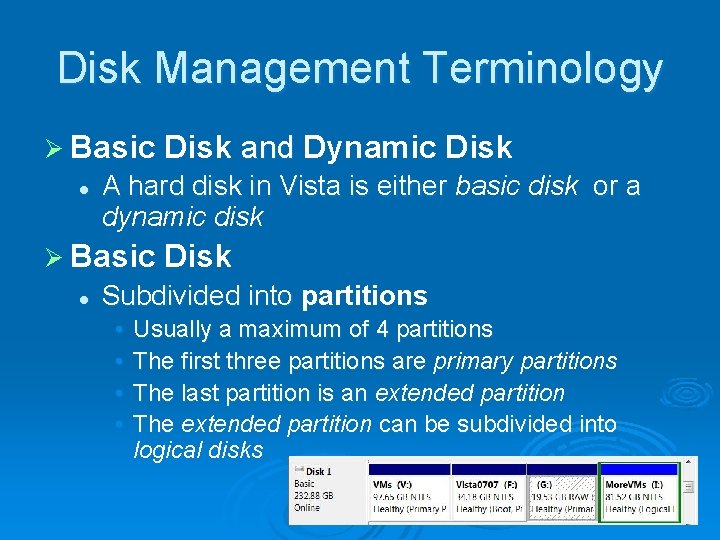
Disk Management Terminology Ø Basic l A hard disk in Vista is either basic disk or a dynamic disk Ø Basic l Disk and Dynamic Disk Subdivided into partitions • • Usually a maximum of 4 partitions The first three partitions are primary partitions The last partition is an extended partition The extended partition can be subdivided into logical disks
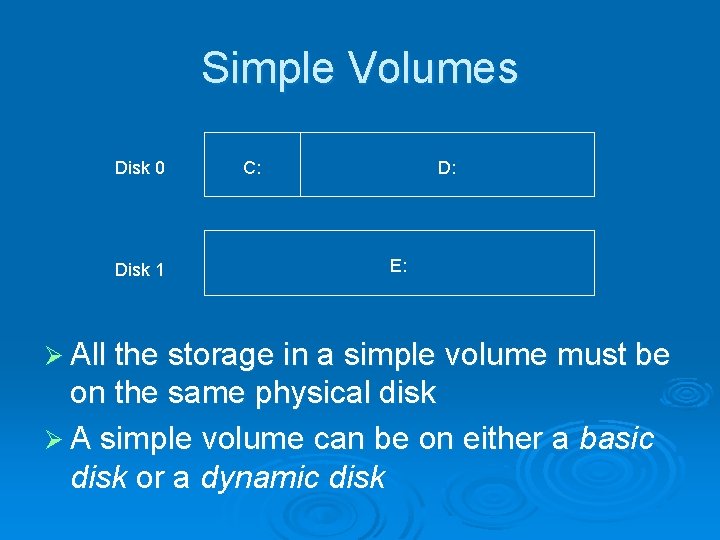
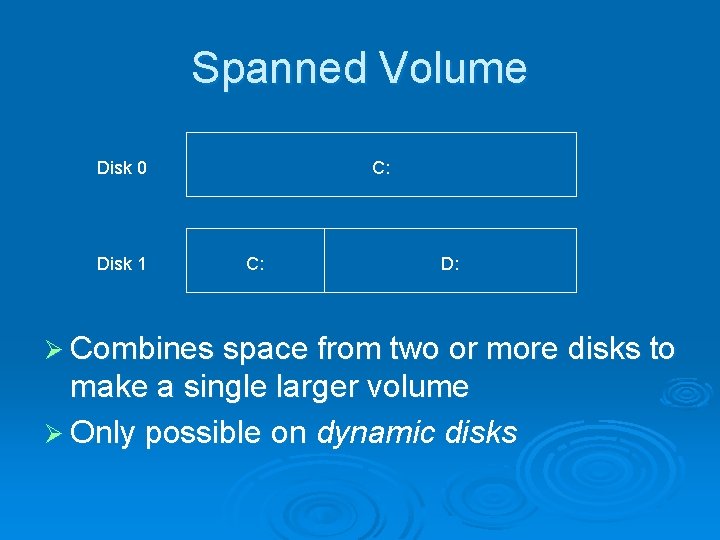
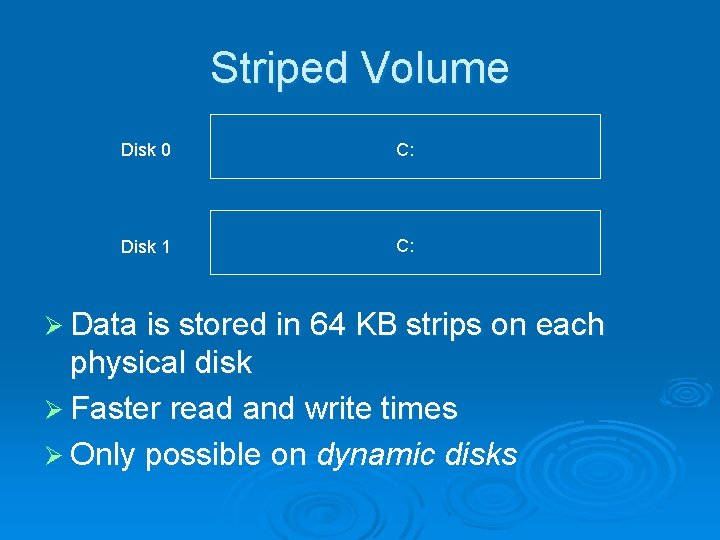
Disk Management Terminology Ø Dynamic Disk allows these disk structures l Simple volume • A volume contained entirely on a single physical disk • On a basic disk, a simple volume is also known as a partition l Spanned volume • Combines space from physically separate disks • Only available on dynamic disks l Striped volume • Data is stored in 64 KB strips across physically separate disks in order to improve performance • Only available on dynamic disks
Simple Volumes Disk 0 Disk 1 C: D: E: Ø All the storage in a simple volume must be on the same physical disk Ø A simple volume can be on either a basic disk or a dynamic disk
Spanned Volume Disk 0 Disk 1 C: D: Ø Combines space from two or more disks to make a single larger volume Ø Only possible on dynamic disks
Striped Volume Disk 0 C: Disk 1 C: Ø Data is stored in 64 KB strips on each physical disk Ø Faster read and write times Ø Only possible on dynamic disks
Mirrored and RAID-5 volumes Ø Not available in Windows Vista Ø Combinations of disks that provide tolerance l l Data is not lost when disks fail See link Ch 28 a fault
Active Partition Ø The active partition on a basic disk is the one from which an x 86 -based computer boots l l The Master Boot Record on the physical disk containing the active partition is used to begin startup The active partition is usually on the first physical hard disk (Disk 0)
System and Boot Partitions Ø The system partition l Contains the bootstrap files that Windows XP uses to start your system and display the boot menu Ø The boot partition l The partition where the Windows system files are located
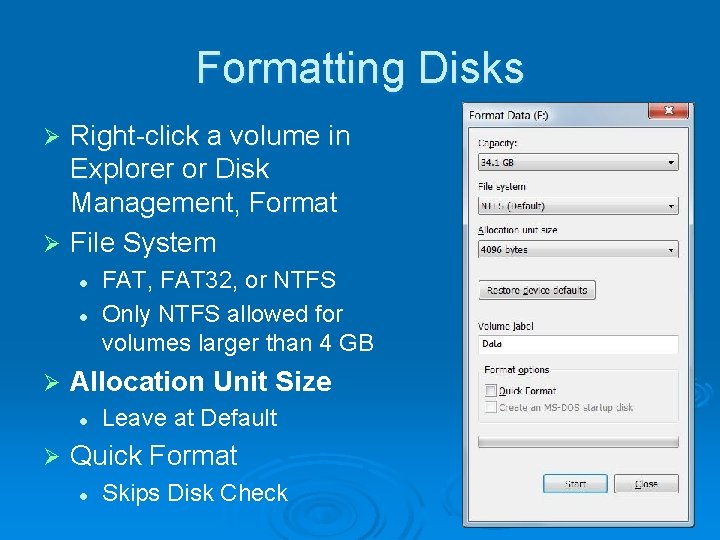
Formatting Disks Right-click a volume in Explorer or Disk Management, Format Ø File System Ø l l Ø Allocation Unit Size l Ø FAT, FAT 32, or NTFS Only NTFS allowed for volumes larger than 4 GB Leave at Default Quick Format l Skips Disk Check
Formatting Doesn't Erase Data Ø It just makes it inaccessible Ø It can still be recovered with third-party utilities like "Recover My Files" l Link Ch 28 b Ø To really erase data, use Ø FORMAT /P: x l x is the number of passes, or Ø CIPHER /W
Choosing a File System Ø Usually you want NTFS for hard disks l l FAT and FAT 32 are old and limited The only reason for FAT and FAT 32 is for machines that multiboot with Win 9 x Ø Removable devices like floppies and USB flash drives often use FAT
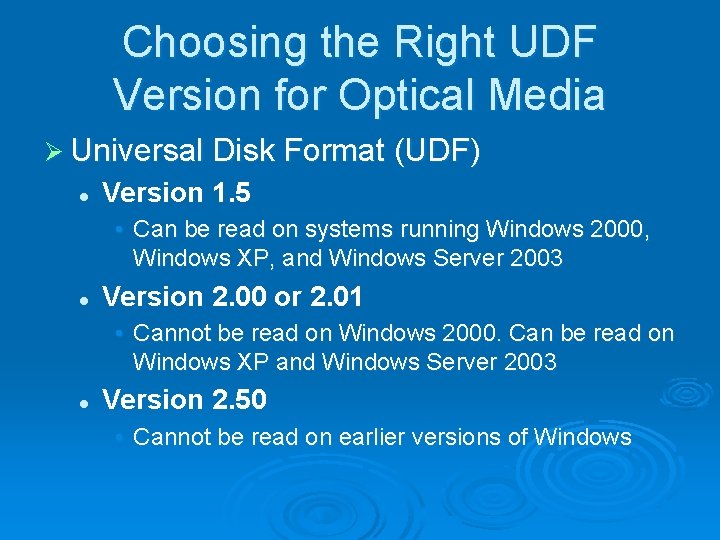
Choosing the Right UDF Version for Optical Media Ø Universal Disk Format (UDF) l Version 1. 5 • Can be read on systems running Windows 2000, Windows XP, and Windows Server 2003 l Version 2. 00 or 2. 01 • Cannot be read on Windows 2000. Can be read on Windows XP and Windows Server 2003 l Version 2. 50 • Cannot be read on earlier versions of Windows
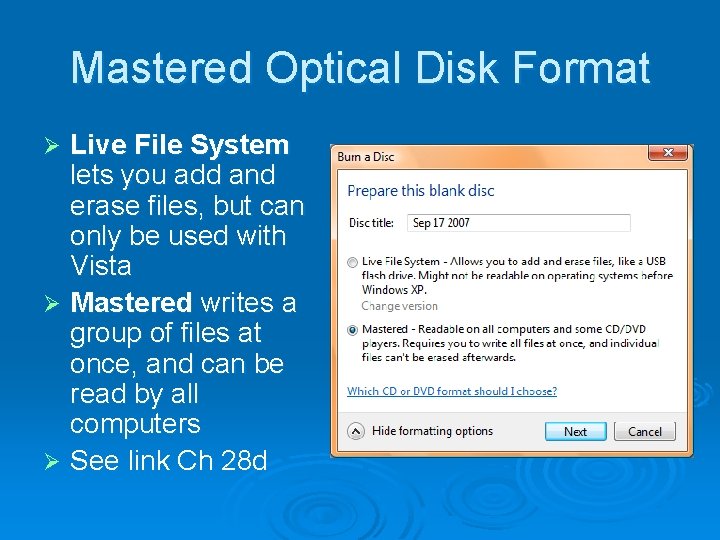
Mastered Optical Disk Format Live File System lets you add and erase files, but can only be used with Vista Ø Mastered writes a group of files at once, and can be read by all computers Ø See link Ch 28 d Ø
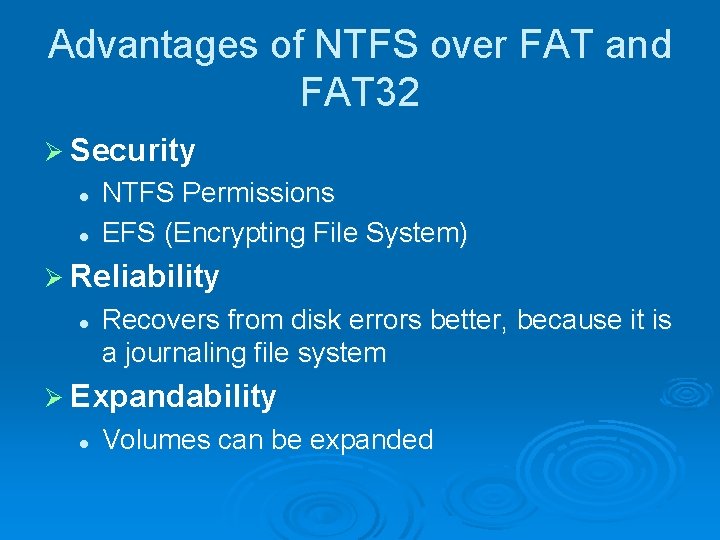
Advantages of NTFS over FAT and FAT 32 Ø Security l l NTFS Permissions EFS (Encrypting File System) Ø Reliability l Recovers from disk errors better, because it is a journaling file system Ø Expandability l Volumes can be expanded
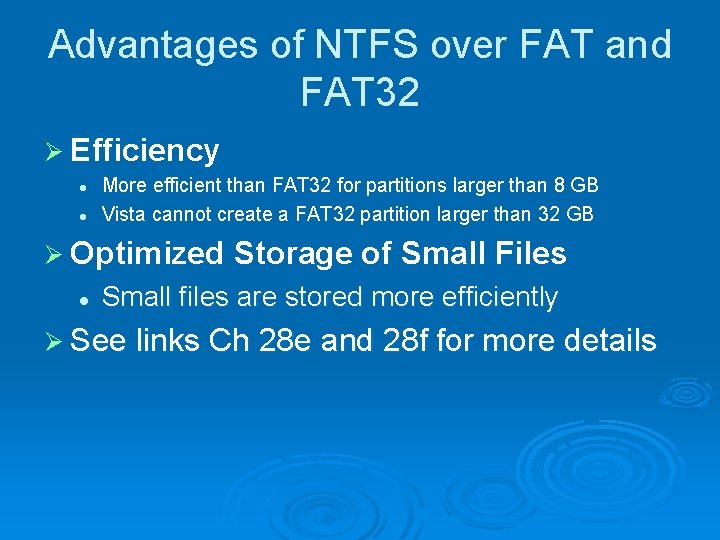
Advantages of NTFS over FAT and FAT 32 Ø Efficiency l l More efficient than FAT 32 for partitions larger than 8 GB Vista cannot create a FAT 32 partition larger than 32 GB Ø Optimized l Storage of Small Files Small files are stored more efficiently Ø See links Ch 28 e and 28 f for more details
Converting a FAT 32 Disk to NTFS Ø At a Command Prompt l convert d: /fs: ntfs • d: is the drive you want to convert
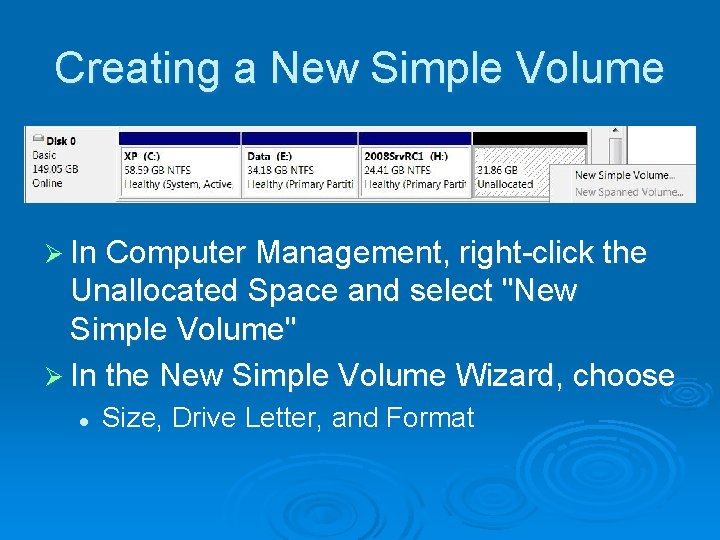
Creating a New Simple Volume Ø In Computer Management, right-click the Unallocated Space and select "New Simple Volume" Ø In the New Simple Volume Wizard, choose l Size, Drive Letter, and Format
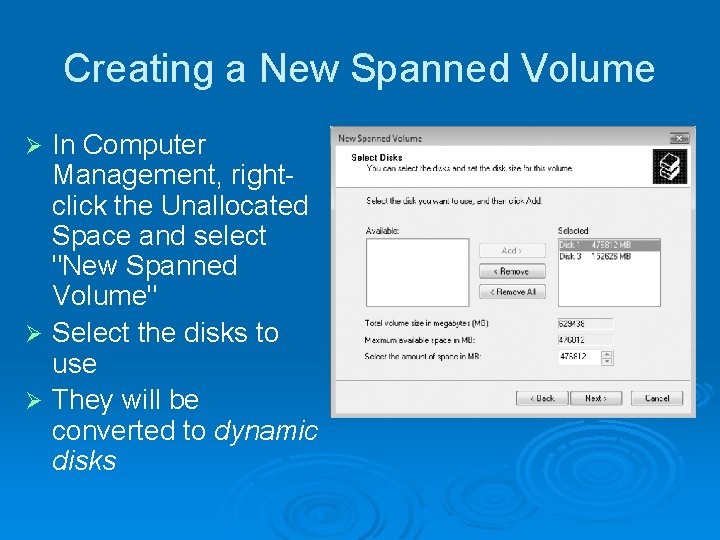
Creating a New Spanned Volume In Computer Management, rightclick the Unallocated Space and select "New Spanned Volume" Ø Select the disks to use Ø They will be converted to dynamic disks Ø
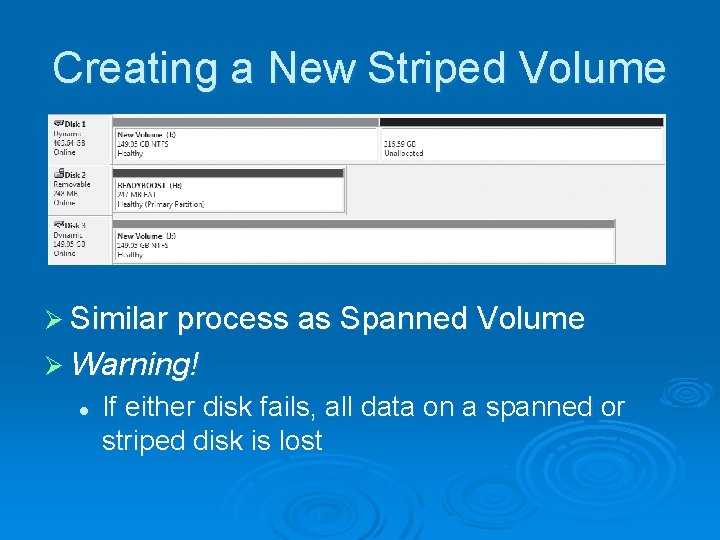
Creating a New Striped Volume Ø Similar process as Spanned Volume Ø Warning! l If either disk fails, all data on a spanned or striped disk is lost
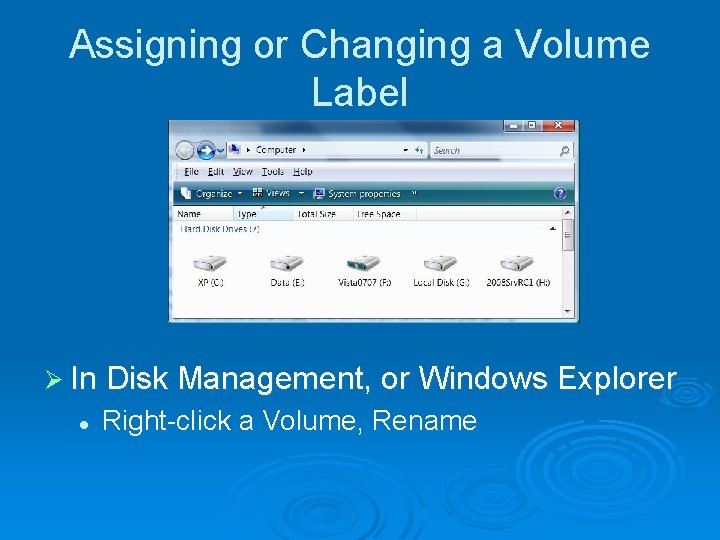
Assigning or Changing a Volume Label Ø In Disk Management, or Windows Explorer l Right-click a Volume, Rename
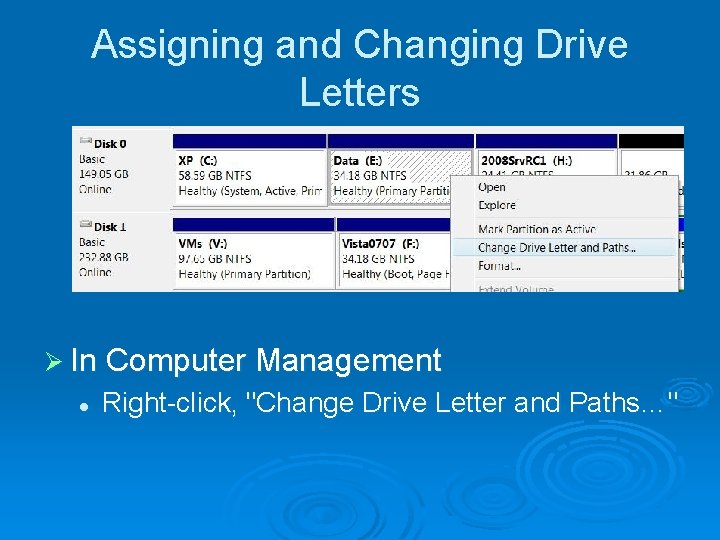
Assigning and Changing Drive Letters Ø In Computer Management l Right-click, "Change Drive Letter and Paths…"
Mapping a Volume to an NTFS Folder Ø Suppose C: is full, but you don't want to bother moving the system to a new drive l You could add a drive and map it to C: Programs Ø In Computer Management l Right-click, "Change Drive Letter and Paths…", Add, "Mount In The Following Empty NTFS Folder"
Extending a Volume Ø An NTFS volume can be extended, as long as there is space available Ø In Disk Management, right-click the volume, "Extend Volume" l If you extend a volume using space on another disk, or noncontiguous space on the same disk, the disk(s) will be converted to Dynamic Disk
Volume Extension Limitations Ø Only NTFS-formatted volumes can be extended Ø A logical drive can be extended only within the extended partition that contains it Ø The system and boot partitions can be extended only into contiguous unallocated space Ø You cannot extend a striped volume.
Shrinking a Volume Ø You can shrink an NTFS volume, as long as it's not full of files Ø In Disk Management, right-click the volume, "Shrink Volume" Ø Disk Management defragments the disk, and then performs the shrink
Deleting a Volume Ø In Disk Management, right-click the volume, "Delete Volume" Ø Deleting a volume is easy—and irreversible Ø All data is lost in the process Ø The volume reverts to unallocated space,
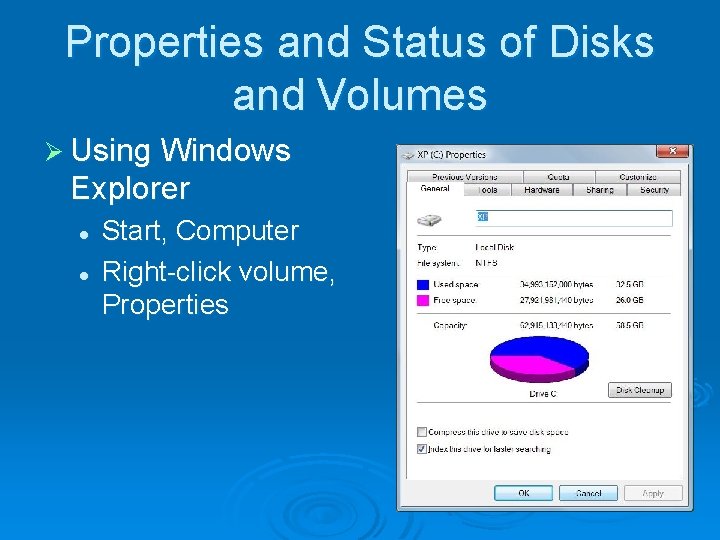
Properties and Status of Disks and Volumes Ø Using Windows Explorer l l Start, Computer Right-click volume, Properties
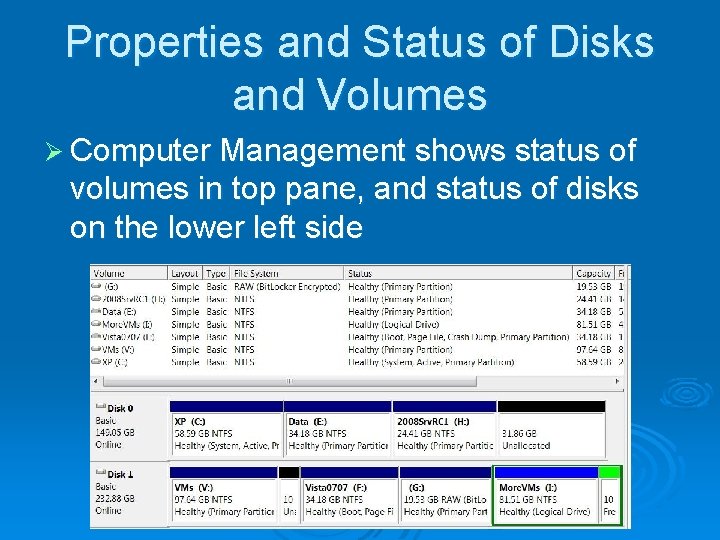
Properties and Status of Disks and Volumes Ø Computer Management shows status of volumes in top pane, and status of disks on the lower left side
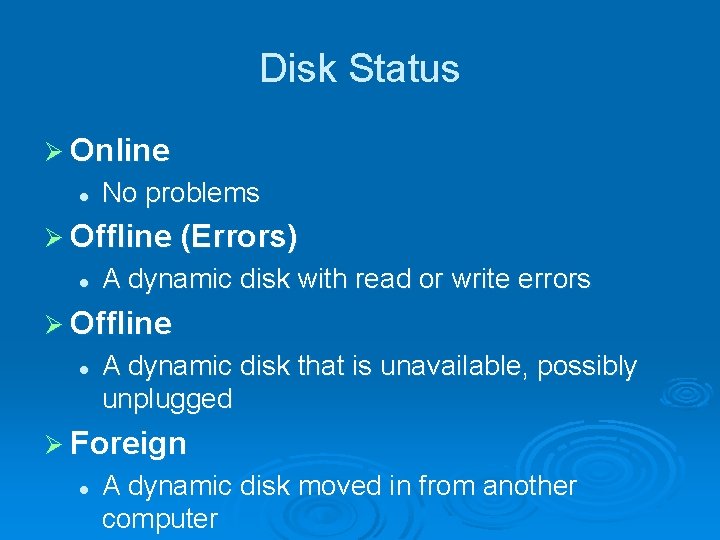
Disk Status Ø Online l No problems Ø Offline (Errors) l A dynamic disk with read or write errors Ø Offline l A dynamic disk that is unavailable, possibly unplugged Ø Foreign l A dynamic disk moved in from another computer
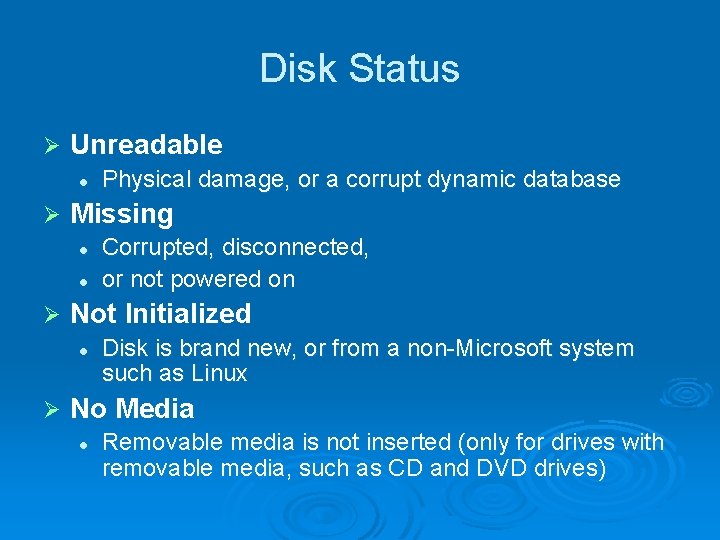
Disk Status Ø Unreadable l Ø Missing l l Ø Corrupted, disconnected, or not powered on Not Initialized l Ø Physical damage, or a corrupt dynamic database Disk is brand new, or from a non-Microsoft system such as Linux No Media l Removable media is not inserted (only for drives with removable media, such as CD and DVD drives)
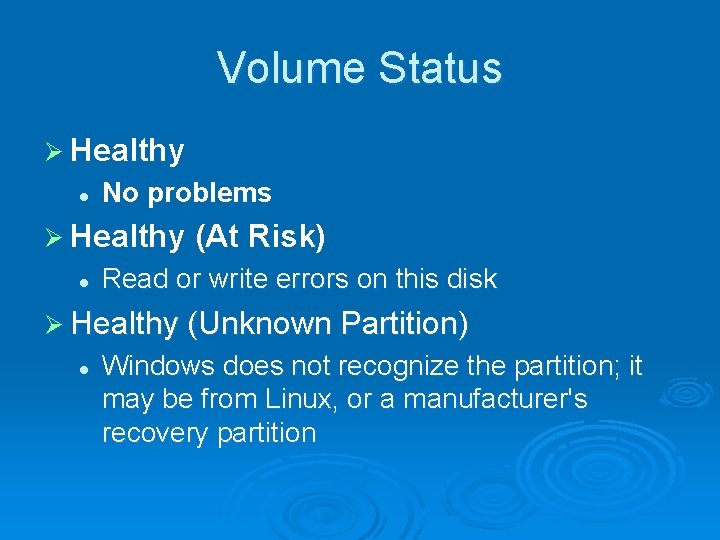
Volume Status Ø Healthy l No problems Ø Healthy l (At Risk) Read or write errors on this disk Ø Healthy (Unknown Partition) l Windows does not recognize the partition; it may be from Linux, or a manufacturer's recovery partition
Volume Status Ø Initializing l Disk management is preparing a dynamic disk for use Ø Failed l The dynamic disk is damaged or the file system is corrupted