
Windows Tutorial 10 Improving Your Computers Performance Microsoft
- Slides: 30
Windows Tutorial 10 Improving Your Computer’s Performance Microsoft Windows 7 ® ®
Objectives XP Optimize computer performance Monitor system tasks Examine system information Increase memory capacity with Ready. Boost Troubleshoot typical computer problems Respond to software and operating system errors • Use the Problem Steps Recorder • Manage remote assistance • • • New Perspectives on Microsoft Windows 7 2
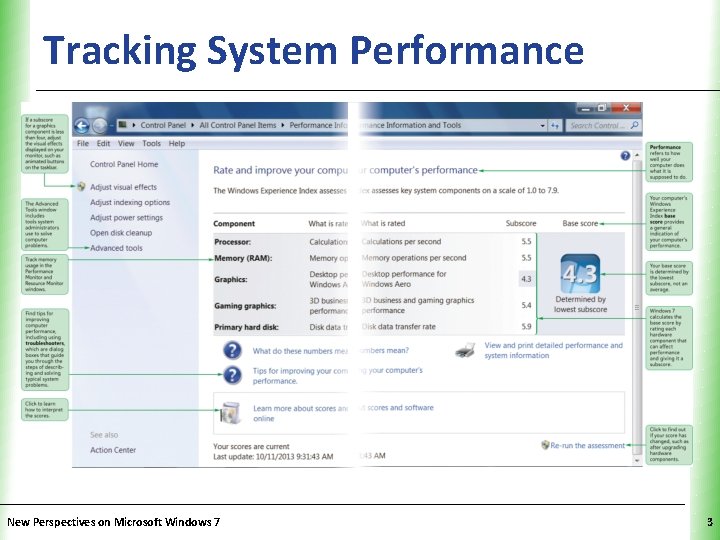
Tracking System Performance New Perspectives on Microsoft Windows 7 XP 3
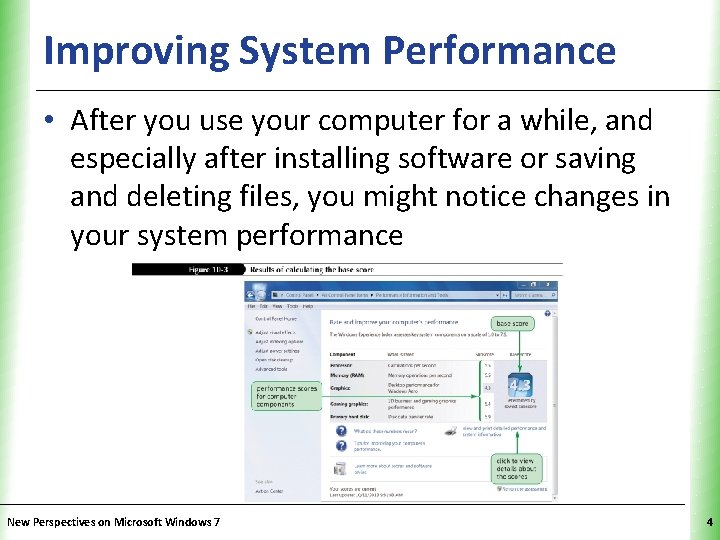
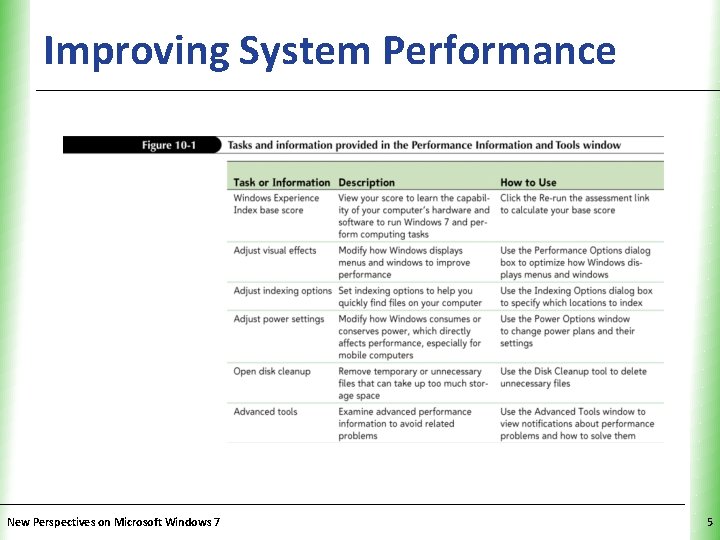
Improving System Performance XP • After you use your computer for a while, and especially after installing software or saving and deleting files, you might notice changes in your system performance New Perspectives on Microsoft Windows 7 4
Improving System Performance New Perspectives on Microsoft Windows 7 XP 5
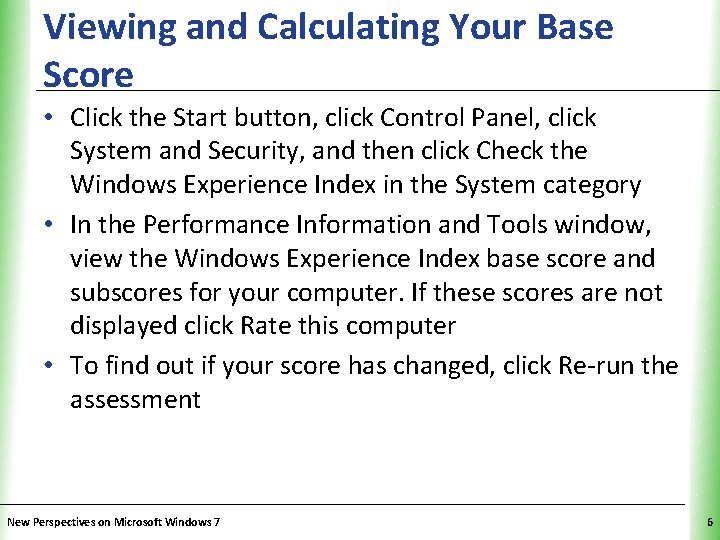
Viewing and Calculating Your Base Score XP • Click the Start button, click Control Panel, click System and Security, and then click Check the Windows Experience Index in the System category • In the Performance Information and Tools window, view the Windows Experience Index base score and subscores for your computer. If these scores are not displayed click Rate this computer • To find out if your score has changed, click Re-run the assessment New Perspectives on Microsoft Windows 7 6
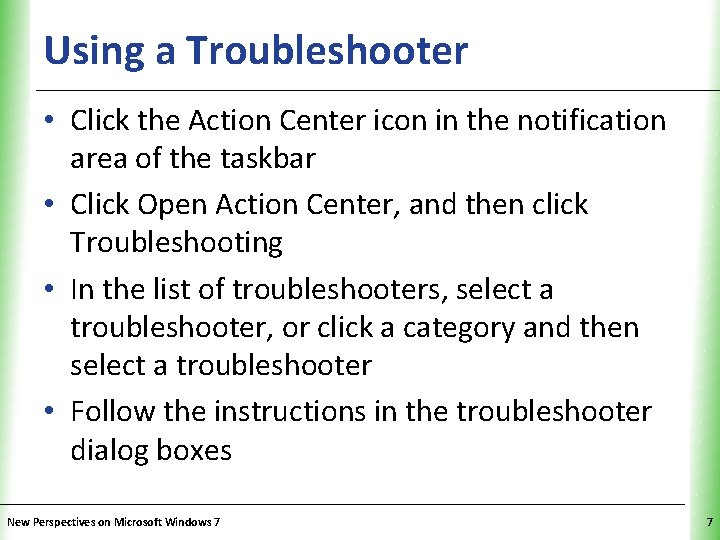
Using a Troubleshooter XP • Click the Action Center icon in the notification area of the taskbar • Click Open Action Center, and then click Troubleshooting • In the list of troubleshooters, select a troubleshooter, or click a category and then select a troubleshooter • Follow the instructions in the troubleshooter dialog boxes New Perspectives on Microsoft Windows 7 7
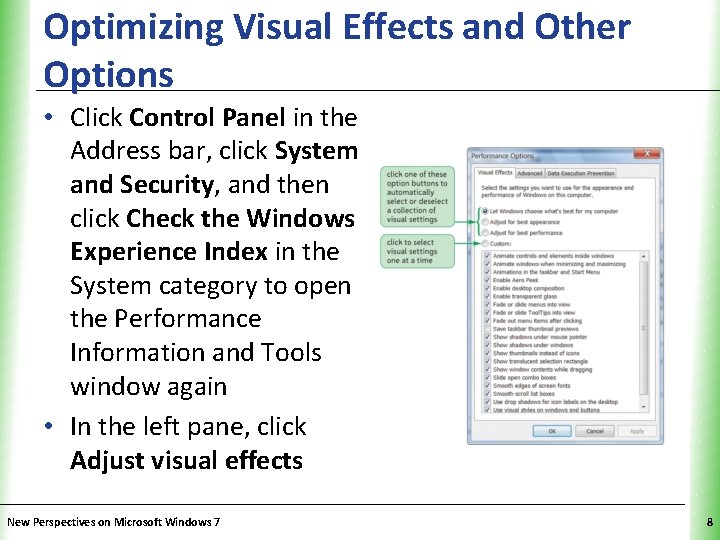
Optimizing Visual Effects and Other Options XP • Click Control Panel in the Address bar, click System and Security, and then click Check the Windows Experience Index in the System category to open the Performance Information and Tools window again • In the left pane, click Adjust visual effects New Perspectives on Microsoft Windows 7 8
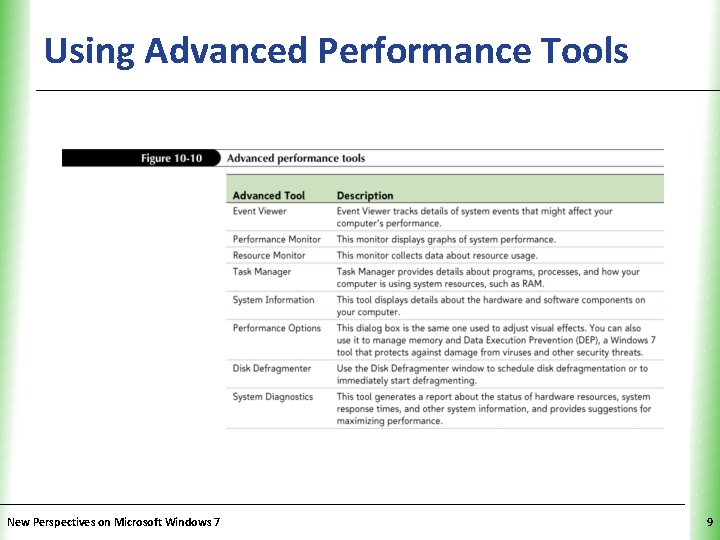
Using Advanced Performance Tools New Perspectives on Microsoft Windows 7 XP 9
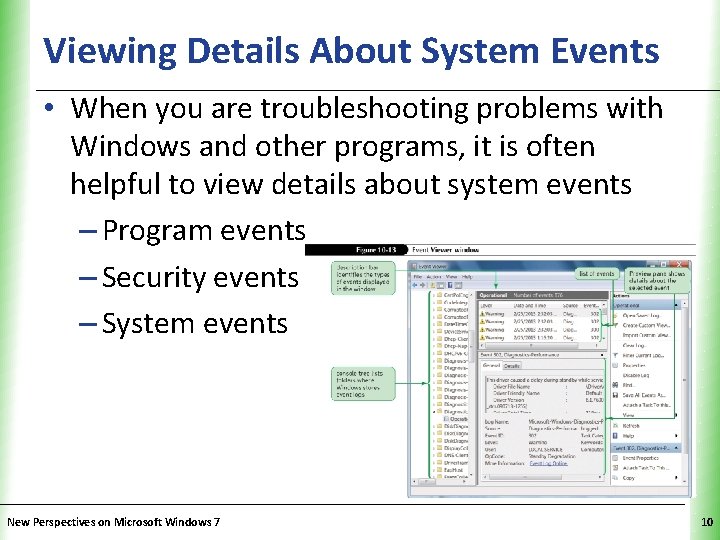
Viewing Details About System Events. XP • When you are troubleshooting problems with Windows and other programs, it is often helpful to view details about system events – Program events – Security events – System events New Perspectives on Microsoft Windows 7 10
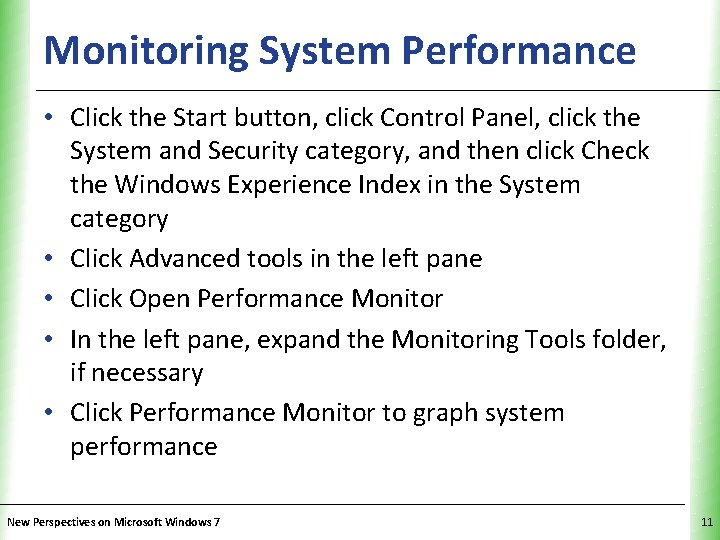
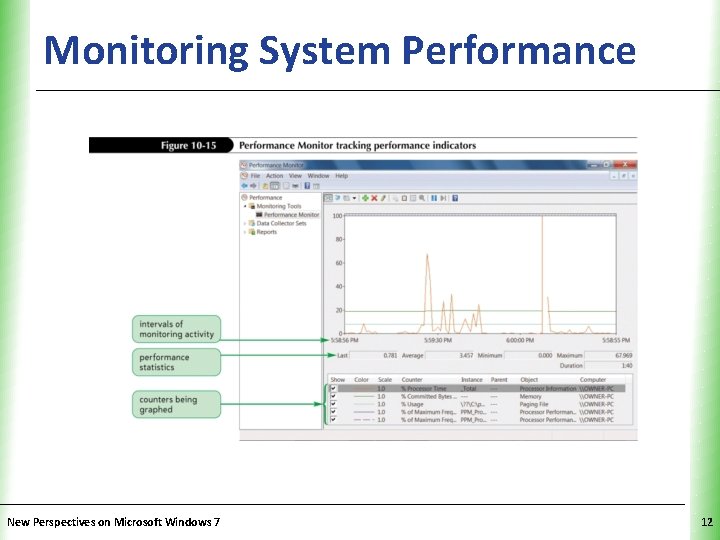
Monitoring System Performance XP • Click the Start button, click Control Panel, click the System and Security category, and then click Check the Windows Experience Index in the System category • Click Advanced tools in the left pane • Click Open Performance Monitor • In the left pane, expand the Monitoring Tools folder, if necessary • Click Performance Monitor to graph system performance New Perspectives on Microsoft Windows 7 11
Monitoring System Performance New Perspectives on Microsoft Windows 7 XP 12
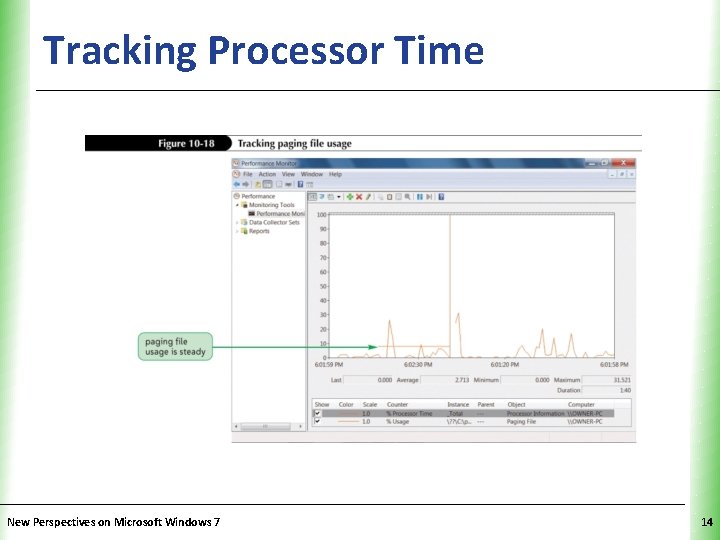
Tracking Processor Time XP • In the Advanced Tools window, click Open Performance Monitor • In the left pane of the Performance Monitor window, expand the Monitoring Tools folder, if necessary, and then click Performance Monitor • Click the Add button on the Performance Monitor toolbar • Click % Usage, and then click the Add button • Click the OK button New Perspectives on Microsoft Windows 7 13
Tracking Processor Time New Perspectives on Microsoft Windows 7 XP 14
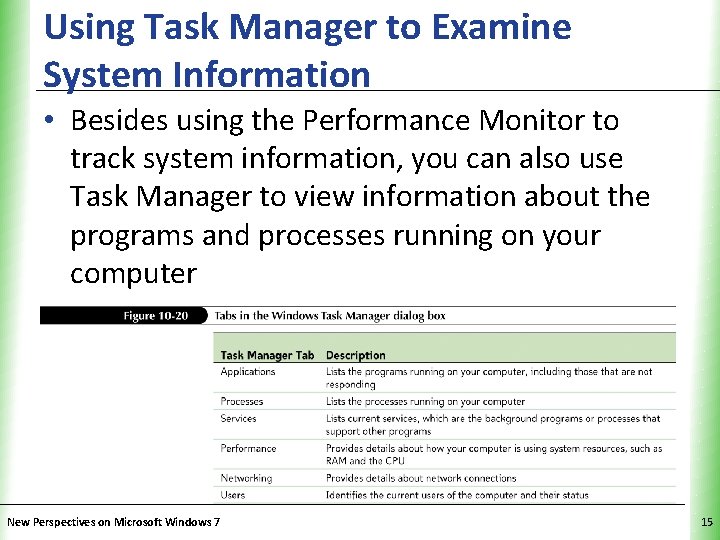
Using Task Manager to Examine System Information XP • Besides using the Performance Monitor to track system information, you can also use Task Manager to view information about the programs and processes running on your computer New Perspectives on Microsoft Windows 7 15
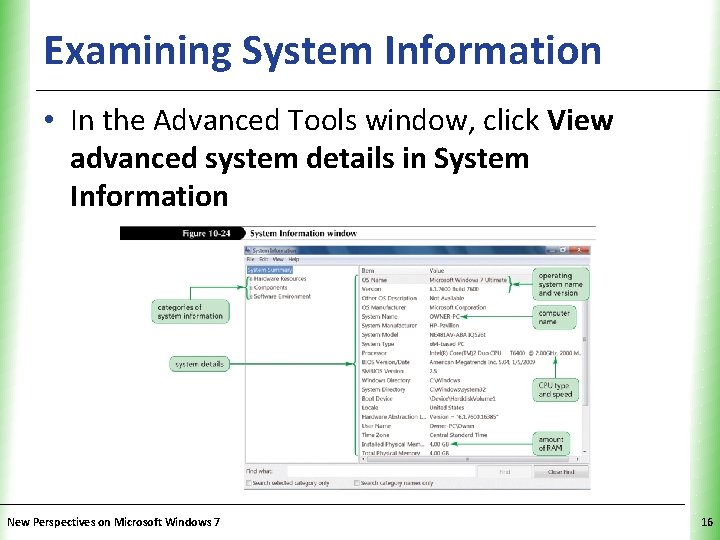
Examining System Information XP • In the Advanced Tools window, click View advanced system details in System Information New Perspectives on Microsoft Windows 7 16
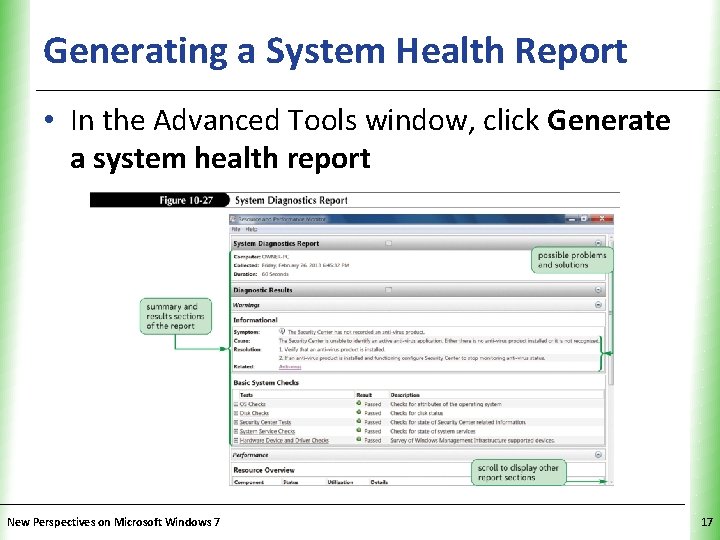
Generating a System Health Report XP • In the Advanced Tools window, click Generate a system health report New Perspectives on Microsoft Windows 7 17
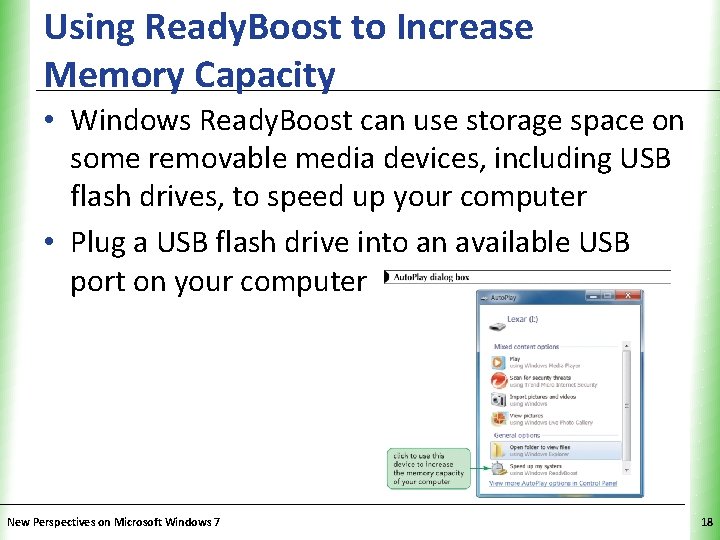
Using Ready. Boost to Increase Memory Capacity XP • Windows Ready. Boost can use storage space on some removable media devices, including USB flash drives, to speed up your computer • Plug a USB flash drive into an available USB port on your computer New Perspectives on Microsoft Windows 7 18
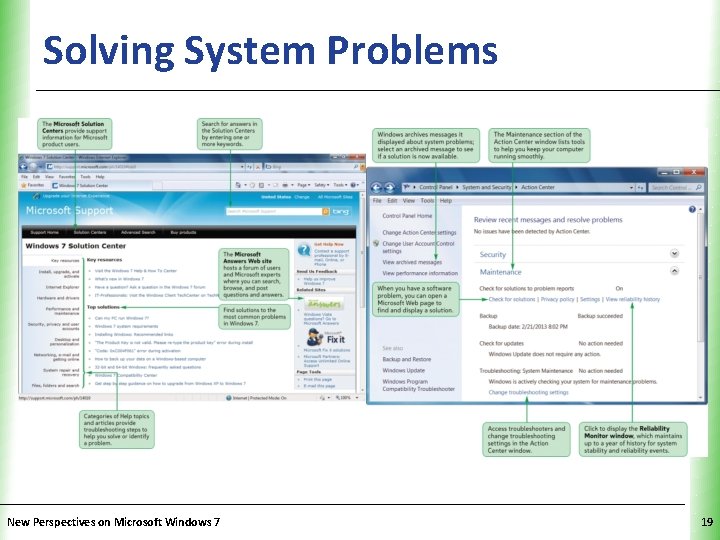
Solving System Problems New Perspectives on Microsoft Windows 7 XP 19
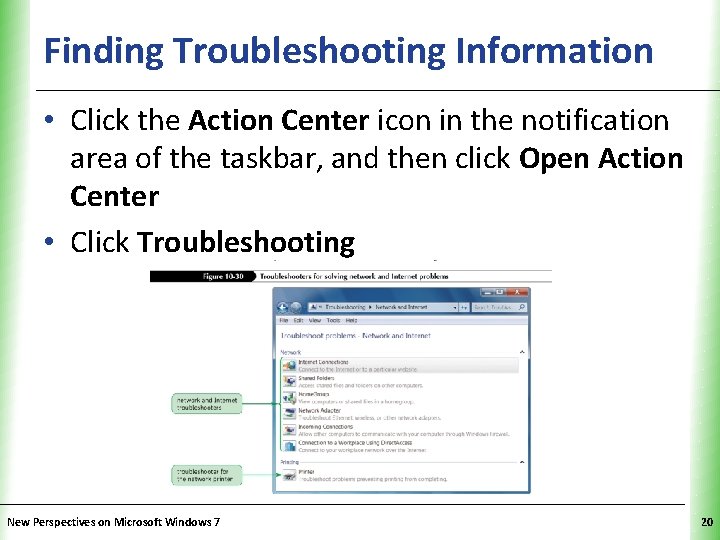
Finding Troubleshooting Information XP • Click the Action Center icon in the notification area of the taskbar, and then click Open Action Center • Click Troubleshooting New Perspectives on Microsoft Windows 7 20
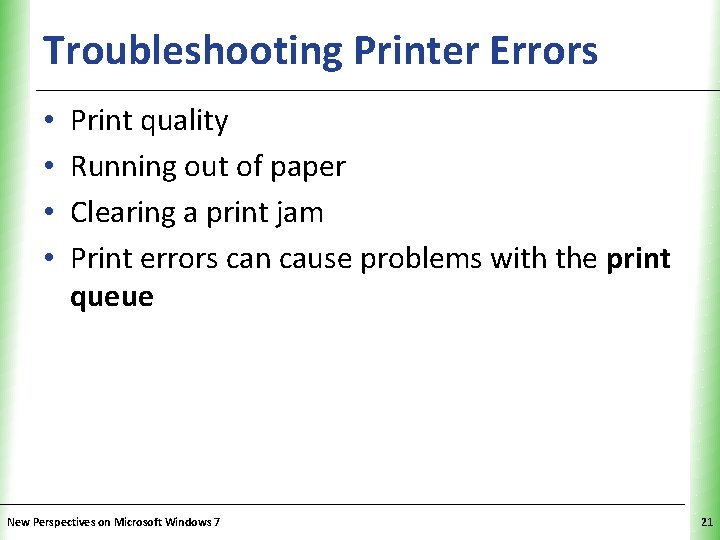
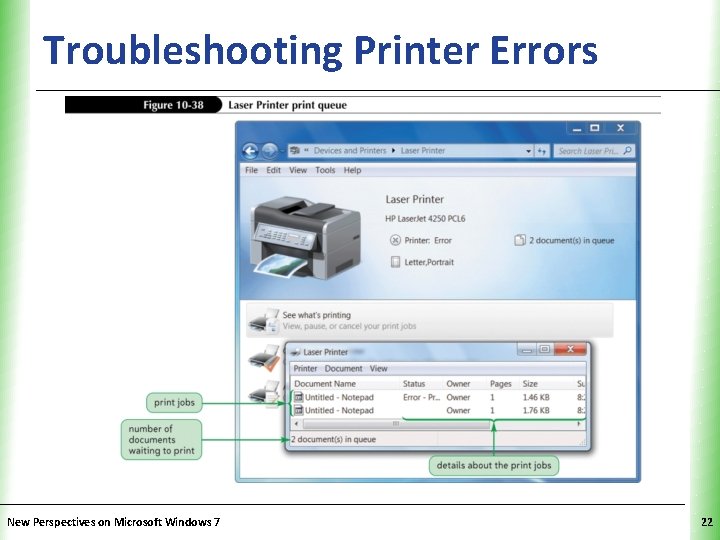
Troubleshooting Printer Errors • • XP Print quality Running out of paper Clearing a print jam Print errors can cause problems with the print queue New Perspectives on Microsoft Windows 7 21
Troubleshooting Printer Errors New Perspectives on Microsoft Windows 7 XP 22
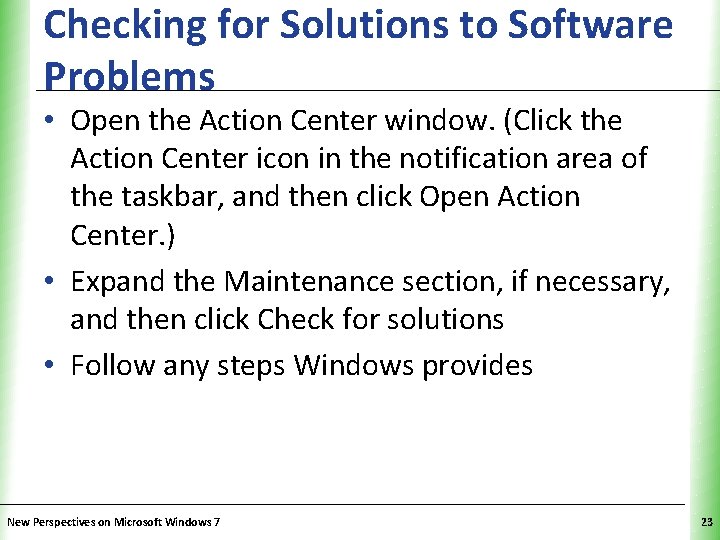
Checking for Solutions to Software. XP Problems • Open the Action Center window. (Click the Action Center icon in the notification area of the taskbar, and then click Open Action Center. ) • Expand the Maintenance section, if necessary, and then click Check for solutions • Follow any steps Windows provides New Perspectives on Microsoft Windows 7 23
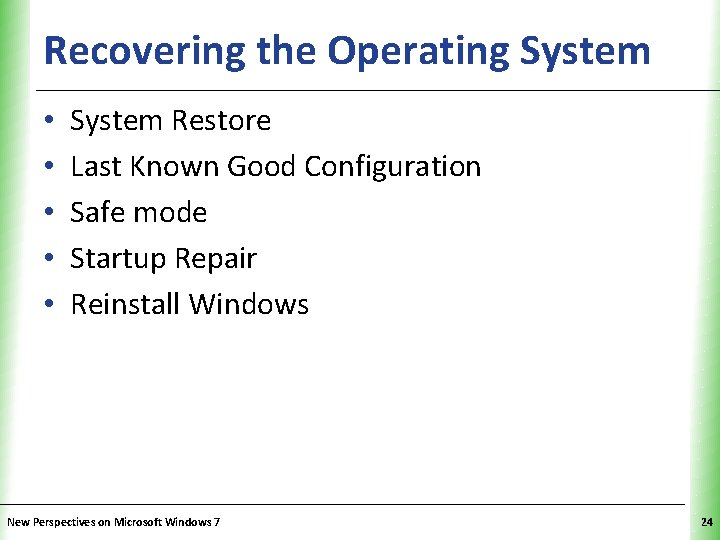
Recovering the Operating System XP • • • System Restore Last Known Good Configuration Safe mode Startup Repair Reinstall Windows New Perspectives on Microsoft Windows 7 24
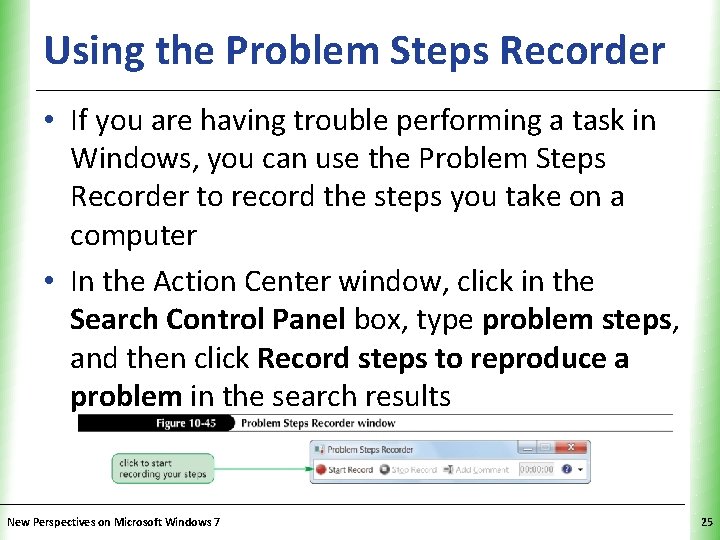
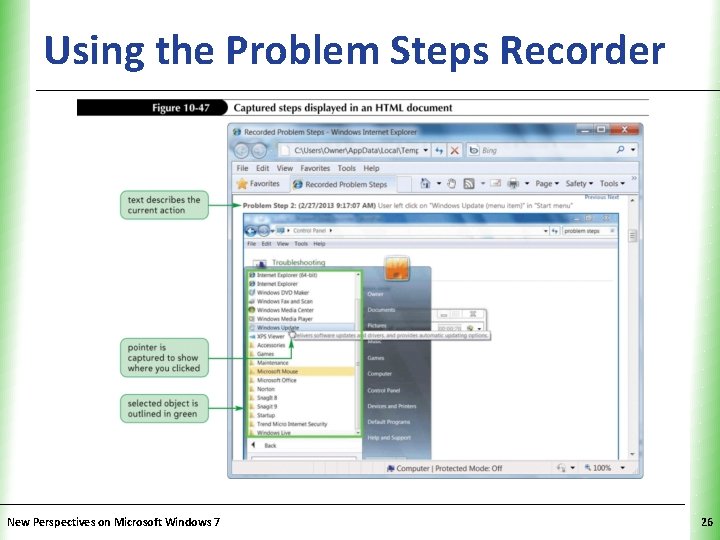
Using the Problem Steps Recorder. XP • If you are having trouble performing a task in Windows, you can use the Problem Steps Recorder to record the steps you take on a computer • In the Action Center window, click in the Search Control Panel box, type problem steps, and then click Record steps to reproduce a problem in the search results New Perspectives on Microsoft Windows 7 25
Using the Problem Steps Recorder. XP New Perspectives on Microsoft Windows 7 26
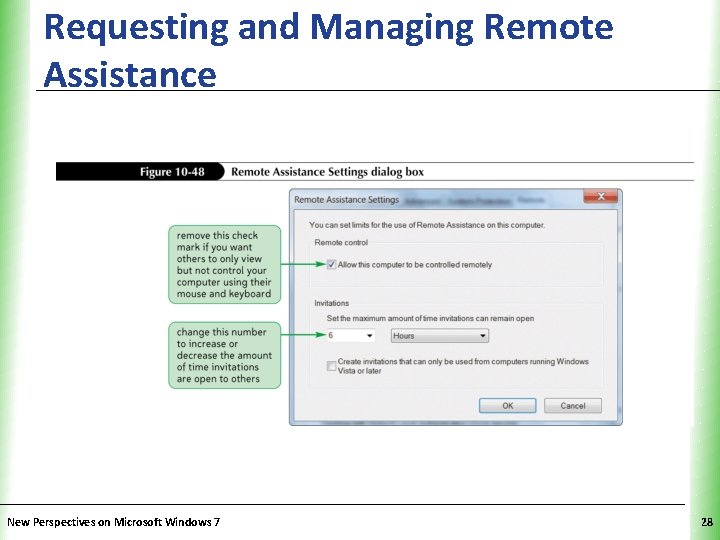
Requesting and Managing Remote Assistance XP • In the Address bar of the Control Panel window, click the arrow button after Control Panel, and then click System and Security • In the System and Security window, click System • Click Remote settings in the left pane • If necessary, click the Allow Remote Assistance connections to this computer to insert a check mark New Perspectives on Microsoft Windows 7 27
Requesting and Managing Remote Assistance New Perspectives on Microsoft Windows 7 XP 28
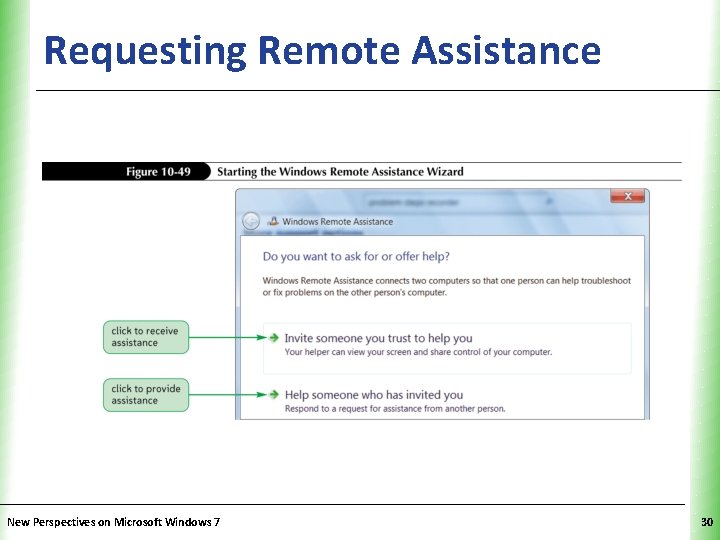
Requesting Remote Assistance XP • Click the Start button on the taskbar, and then click Help and Support • Click the Ask button on the toolbar • In the Ask a person for help section of the window, click Windows Remote Assistance New Perspectives on Microsoft Windows 7 29
Requesting Remote Assistance New Perspectives on Microsoft Windows 7 XP 30