
WINDOWS POWERSHELL IN ACTION Agenda for Powershell Level
![All Variables are Object [int]$Age=22 $Age. Get. Type() $Age Get. Type(). Name $Age |](https://slidetodoc.com/presentation_image_h/d647f3507485be83de57af48133d46c1/image-17.jpg "All Variables are Object [int]$Age=22 $Age. Get. Type() $Age Get. Type(). Name $Age |")
![Switch…… default Switch [-regex|-wildcard|-exact][-casesensitive] -file <filename> (< variable >) { < Pattern 1> {](https://slidetodoc.com/presentation_image_h/d647f3507485be83de57af48133d46c1/image-32.jpg "Switch…… default Switch [-regex|-wildcard|-exact][-casesensitive] -file <filename> (< variable >) { < Pattern 1> {")
![Function Arguments PS > Function Show-Str { Write-Host $args[0] } PS > Show-Str “Hello](https://slidetodoc.com/presentation_image_h/d647f3507485be83de57af48133d46c1/image-41.jpg "Function Arguments PS > Function Show-Str { Write-Host $args[0] } PS > Show-Str “Hello")
![Function Return Values PS > Function Aand. B([int]$x=10, [int]$y=90) { >> $x + $y](https://slidetodoc.com/presentation_image_h/d647f3507485be83de57af48133d46c1/image-42.jpg "Function Return Values PS > Function Aand. B([int]$x=10, [int]$y=90) { >> $x + $y")
- Slides: 45
WINDOWS POWERSHELL IN ACTION
Agenda for Powershell (Level: 200) Powershell Introduction Variable & Object Powershell Operator Loop and Flow Control Function and Debug Powershell in Action
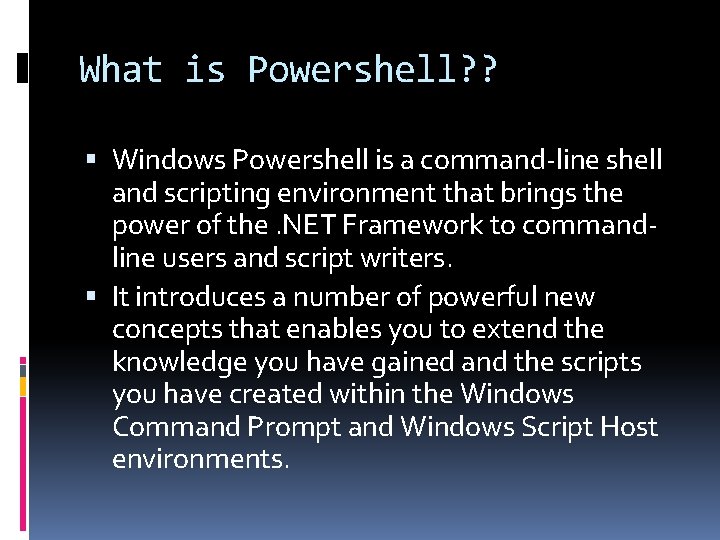
What is Powershell? ? Windows Powershell is a command-line shell and scripting environment that brings the power of the. NET Framework to commandline users and script writers. It introduces a number of powerful new concepts that enables you to extend the knowledge you have gained and the scripts you have created within the Windows Command Prompt and Windows Script Host environments.
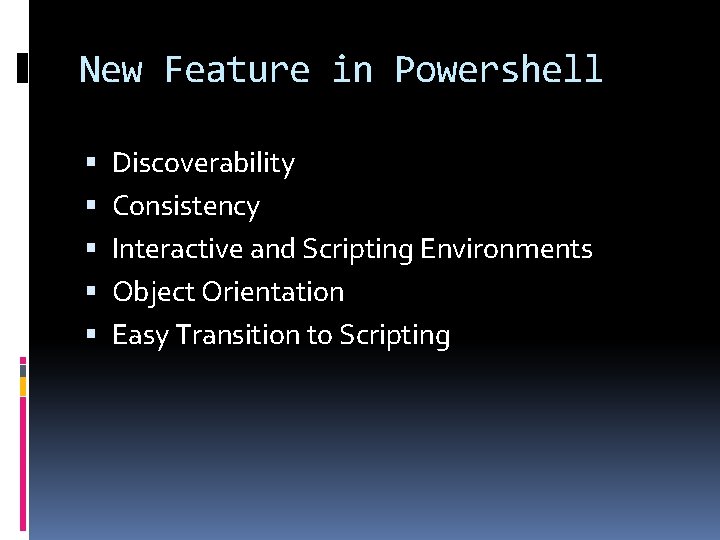
New Feature in Powershell Discoverability Consistency Interactive and Scripting Environments Object Orientation Easy Transition to Scripting
Powershell fundamental Revolutionary interactive shell and scripting language Based on. NET New set of built-in tools (~130) New language to take advantage of. NET An “object-based” pipeline view Can continue to use current tools Can continue to use current instrumentation (COM, ADSI, WMI, ADO, XML, Text, …)
Frequently Asked Questions Do I need to learn. NET before I can use Powershell? No - you can continue to use existing tools Do I need to rewrite all my existing tools? No - existing tools will run just fine Do I need to learn the new language? No - You can easily run existing commands without modification Many Unix and DOS commands work… try them…
To begin working… Commands are built with logic Verb-noun Pipeline “ | ” Some good starters Get-Help Get-Command | more Get-Command | sort-object noun | format-table -group noun Get-Alias | more Get-Help stop-service -detailed | more
Learning and Documentation Online help is full of examples Many books and documentation are available already Microsoft Press – Microsoft Windows Power. Shell Step By Step Manning – Windows Power. Shell in Action Sams – Windows Power. Shell Unleashed Sapien Press – Microsoft Windows Power. Shell Tech. Net - Scripting with Windows Power. Shell
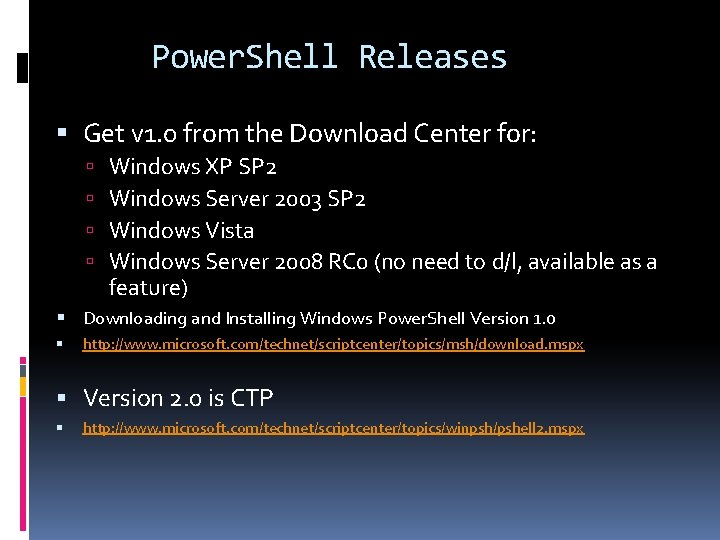
Power. Shell Releases Get v 1. 0 from the Download Center for: Windows XP SP 2 Windows Server 2003 SP 2 Windows Vista Windows Server 2008 RC 0 (no need to d/l, available as a feature) Downloading and Installing Windows Power. Shell Version 1. 0 http: //www. microsoft. com/technet/scriptcenter/topics/msh/download. mspx Version 2. 0 is CTP http: //www. microsoft. com/technet/scriptcenter/topics/winpsh/pshell 2. mspx
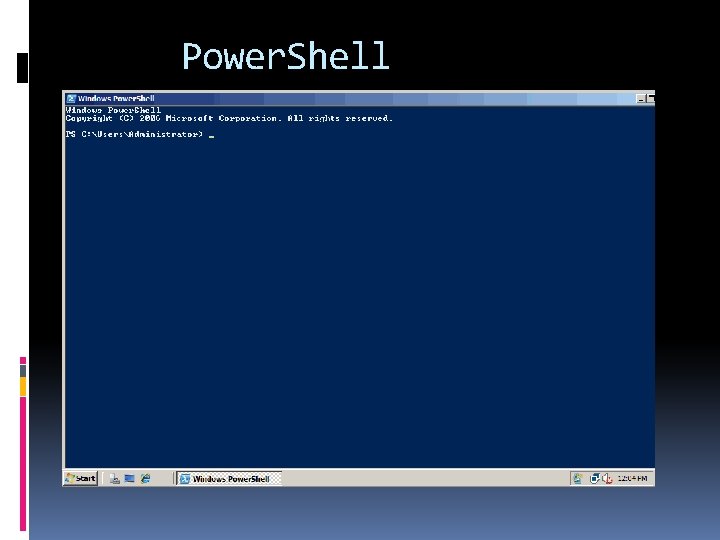
Power. Shell
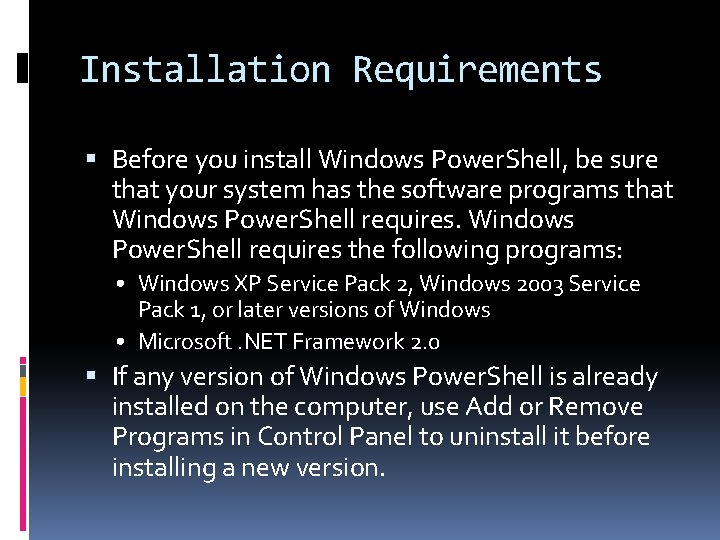
Installation Requirements Before you install Windows Power. Shell, be sure that your system has the software programs that Windows Power. Shell requires the following programs: • Windows XP Service Pack 2, Windows 2003 Service Pack 1, or later versions of Windows • Microsoft. NET Framework 2. 0 If any version of Windows Power. Shell is already installed on the computer, use Add or Remove Programs in Control Panel to uninstall it before installing a new version.
Session 1 Ending Demo and Q&A
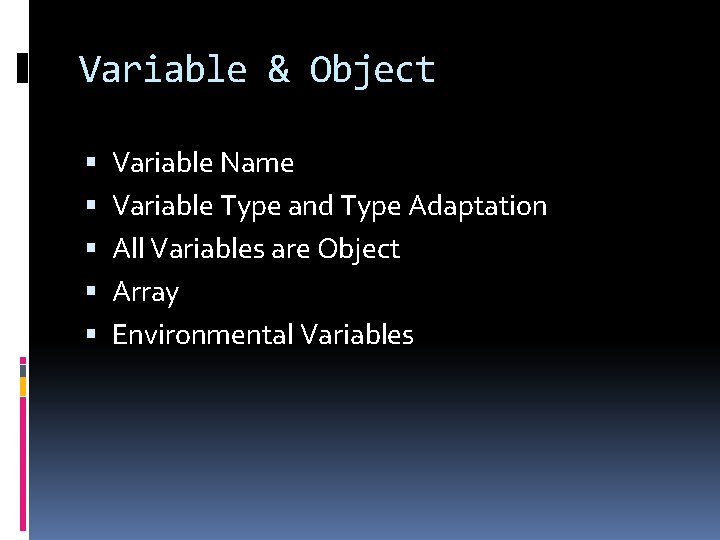
Variable & Object Variable Name Variable Type and Type Adaptation All Variables are Object Array Environmental Variables
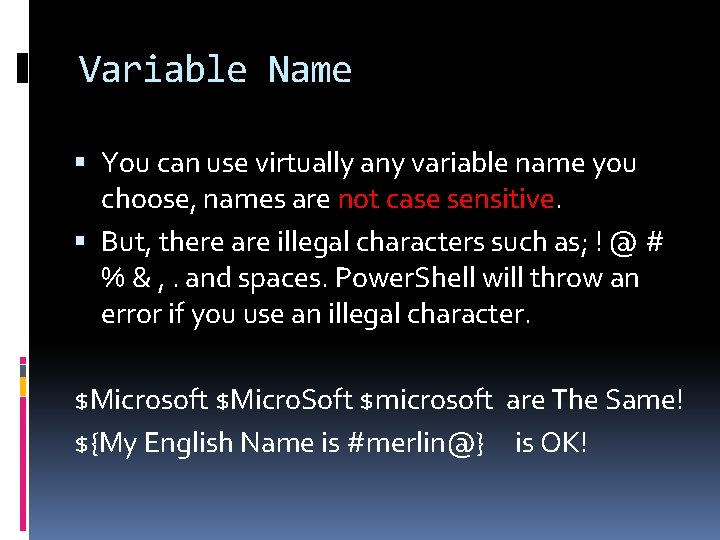
Variable Name You can use virtually any variable name you choose, names are not case sensitive. But, there are illegal characters such as; ! @ # % & , . and spaces. Power. Shell will throw an error if you use an illegal character. $Microsoft $Micro. Soft $microsoft are The Same! ${My English Name is #merlin@} is OK!
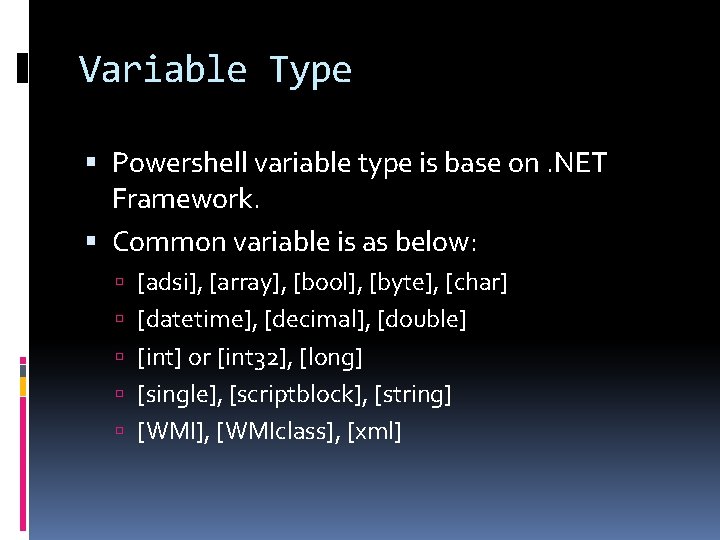
Variable Type Powershell variable type is base on. NET Framework. Common variable is as below: [adsi], [array], [bool], [byte], [char] [datetime], [decimal], [double] [int] or [int 32], [long] [single], [scriptblock], [string] [WMI], [WMIclass], [xml]
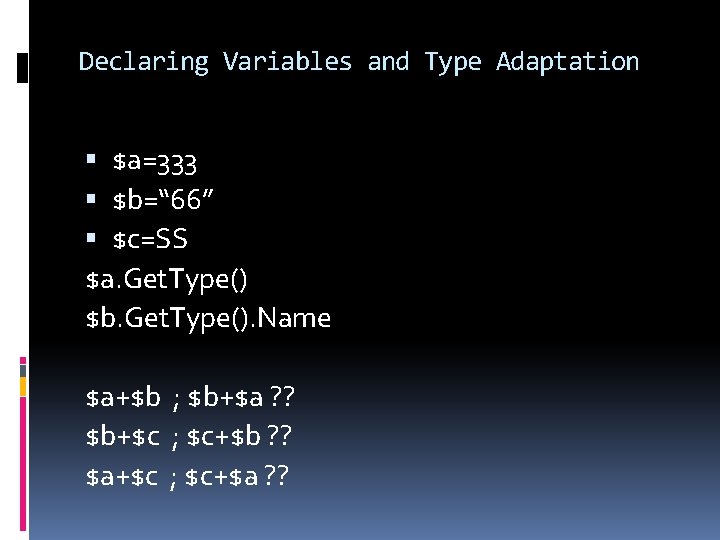
Declaring Variables and Type Adaptation $a=333 $b=“ 66” $c=SS $a. Get. Type() $b. Get. Type(). Name $a+$b ; $b+$a ? ? $b+$c ; $c+$b ? ? $a+$c ; $c+$a ? ?
All Variables are Object [int]$Age=22 $Age. Get. Type() $Age Get. Type(). Name $Age | Get-Member $Title=“manager” $Title. length $Title. Compare. To()
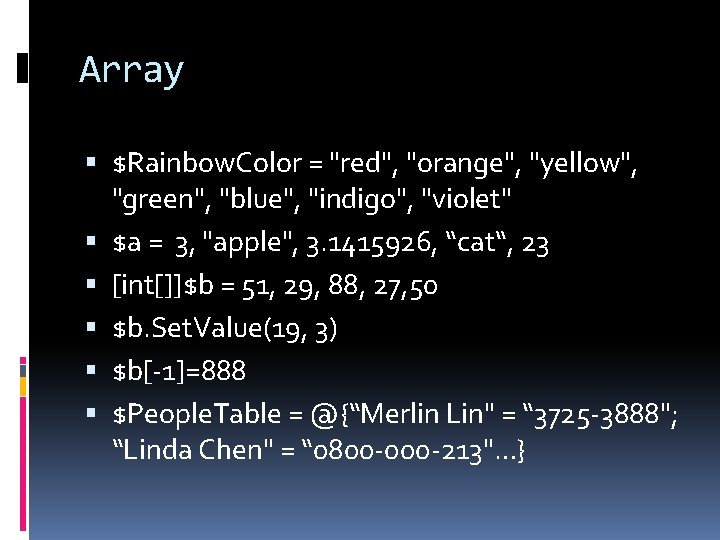
Array $Rainbow. Color = "red", "orange", "yellow", "green", "blue", "indigo", "violet" $a = 3, "apple", 3. 1415926, “cat“, 23 [int[]]$b = 51, 29, 88, 27, 50 $b. Set. Value(19, 3) $b[-1]=888 $People. Table = @{“Merlin Lin" = “ 3725 -3888"; “Linda Chen" = “ 0800 -000 -213"…}
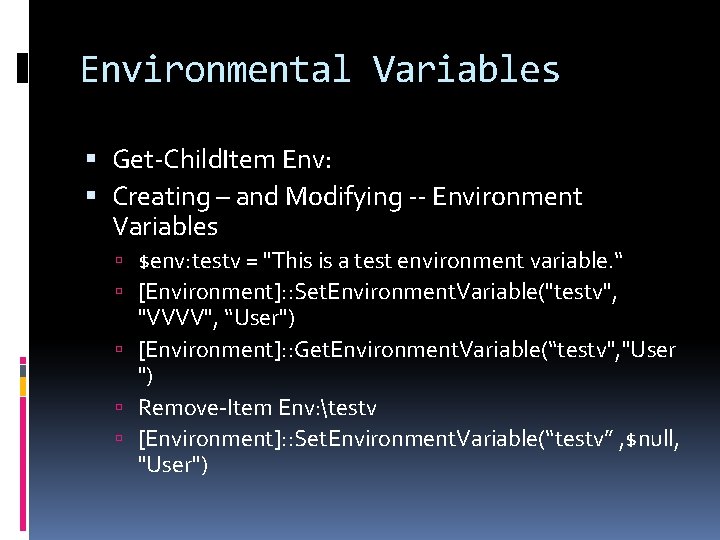
Environmental Variables Get-Child. Item Env: Creating – and Modifying -- Environment Variables $env: testv = "This is a test environment variable. “ [Environment]: : Set. Environment. Variable("testv", "VVVV", “User") [Environment]: : Get. Environment. Variable(“testv", "User ") Remove-Item Env: testv [Environment]: : Set. Environment. Variable(“testv” , $null, "User")
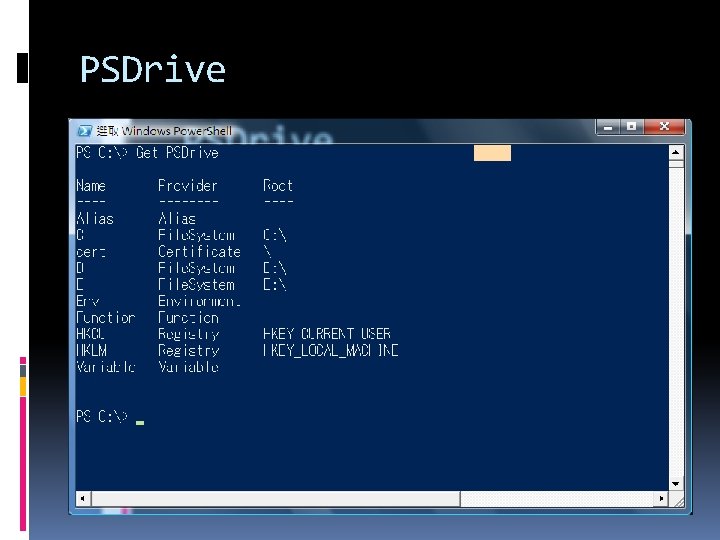
PSDrive
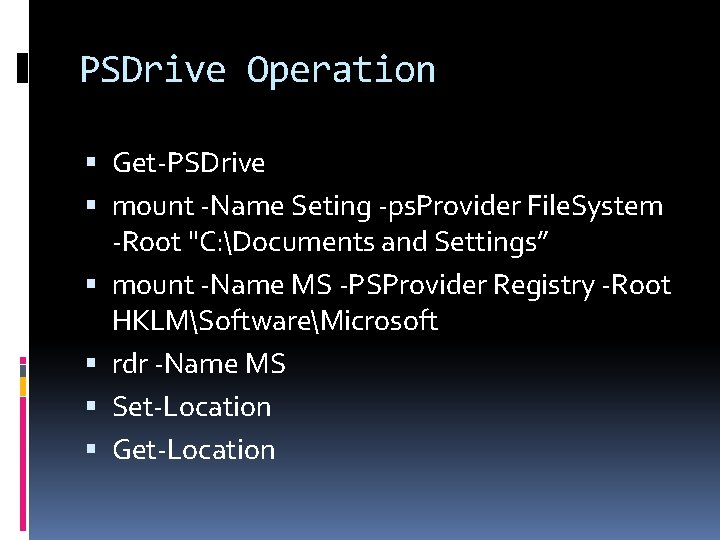
PSDrive Operation Get-PSDrive mount -Name Seting -ps. Provider File. System -Root "C: Documents and Settings” mount -Name MS -PSProvider Registry -Root HKLMSoftwareMicrosoft rdr -Name MS Set-Location Get-Location
Session 2 Ending Demo, Q&A and Break
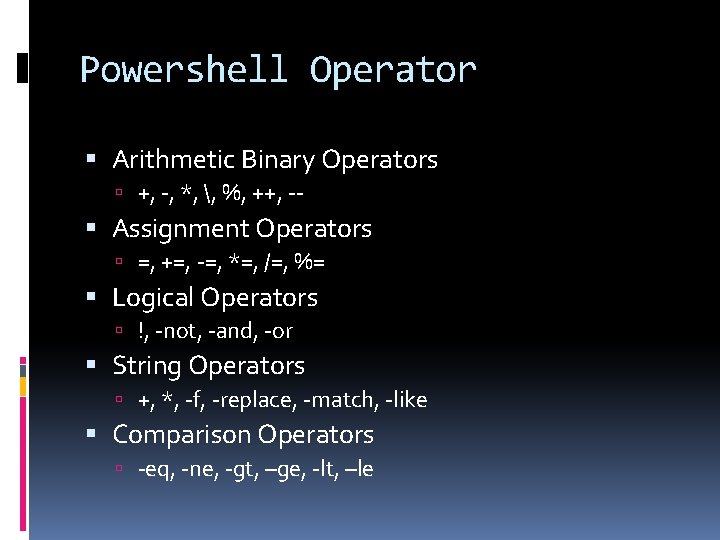
Powershell Operator Arithmetic Binary Operators +, -, *, , %, ++, -- Assignment Operators =, +=, -=, *=, /=, %= Logical Operators !, -not, -and, -or String Operators +, *, -f, -replace, -match, -like Comparison Operators -eq, -ne, -gt, –ge, -lt, –le
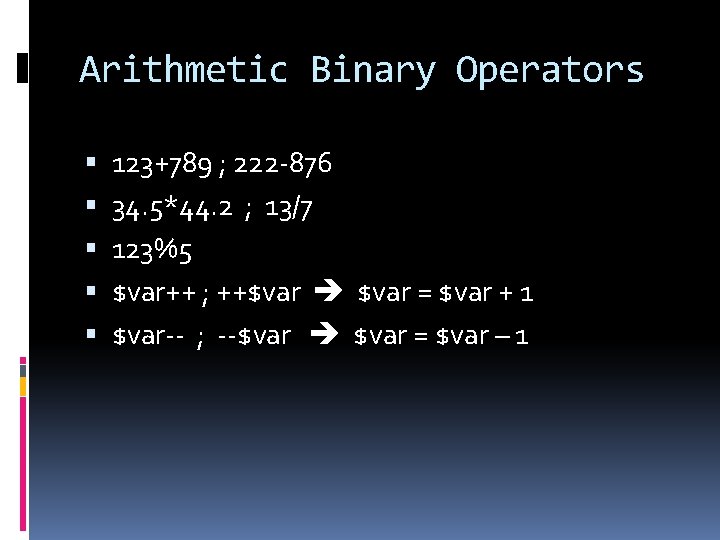
Arithmetic Binary Operators 123+789 ; 222 -876 34. 5*44. 2 ; 13/7 123%5 $var++ ; ++$var = $var + 1 $var-- ; --$var = $var – 1
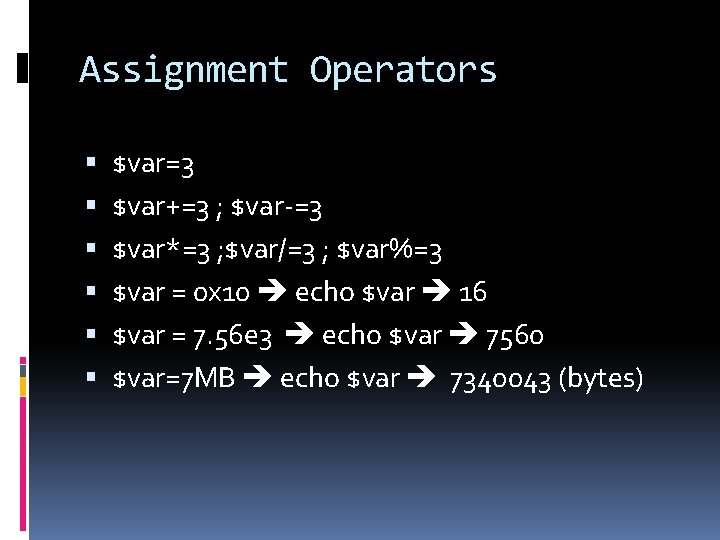
Assignment Operators $var=3 $var+=3 ; $var-=3 $var*=3 ; $var/=3 ; $var%=3 $var = 0 x 10 echo $var 16 $var = 7. 56 e 3 echo $var 7560 $var=7 MB echo $var 7340043 (bytes)
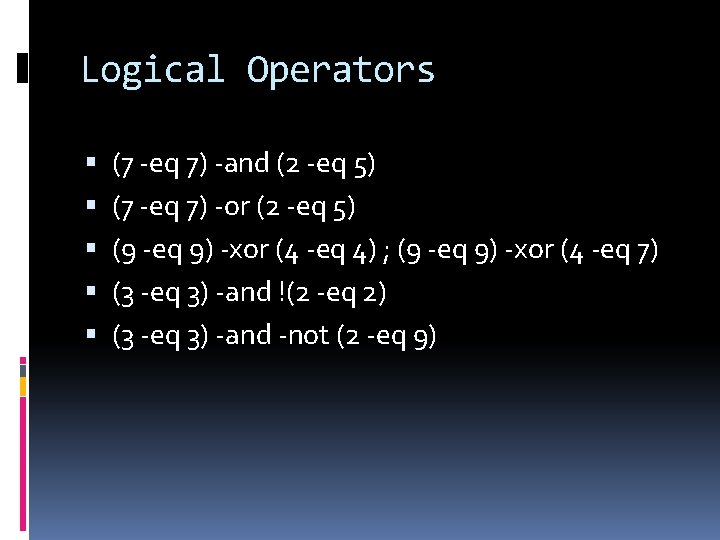
Logical Operators (7 -eq 7) -and (2 -eq 5) (7 -eq 7) -or (2 -eq 5) (9 -eq 9) -xor (4 -eq 4) ; (9 -eq 9) -xor (4 -eq 7) (3 -eq 3) -and !(2 -eq 2) (3 -eq 3) -and -not (2 -eq 9)
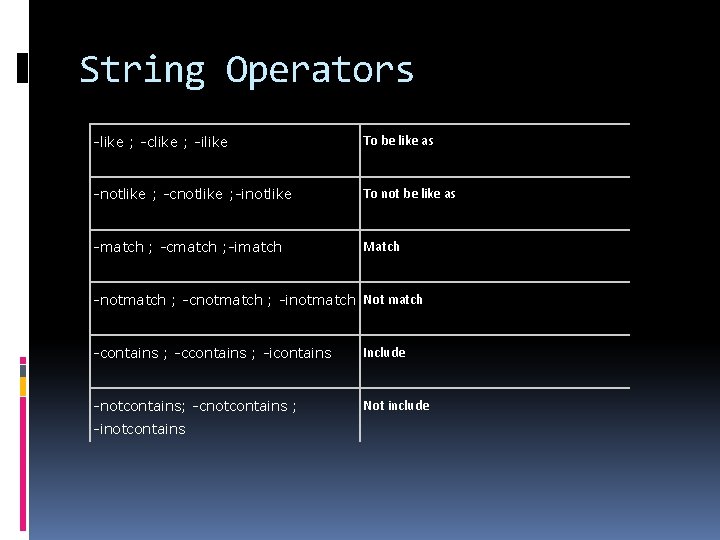
String Operators -like ; -clike ; -ilike To be like as -notlike ; -cnotlike ; -inotlike To not be like as -match ; -cmatch ; -imatch Match -notmatch ; -cnotmatch ; -inotmatch Not match -contains ; -ccontains ; -icontains Include -notcontains; -cnotcontains ; Not include -inotcontains
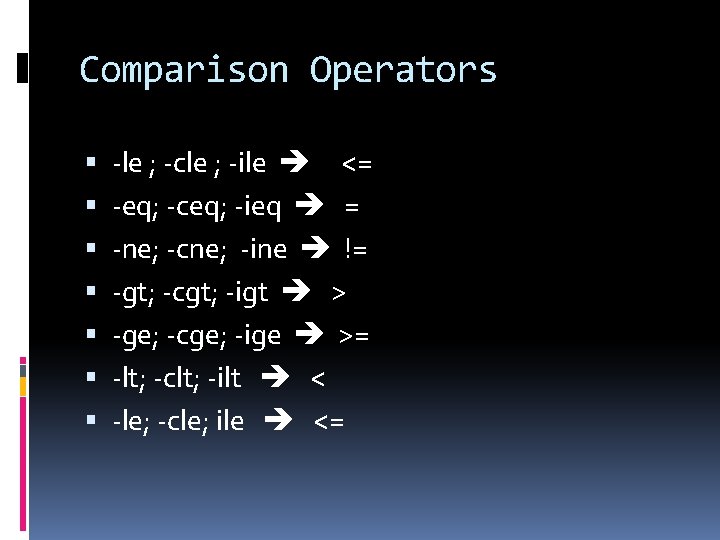
Comparison Operators -le ; -cle ; -ile <= -eq; -ceq; -ieq = -ne; -cne; -ine != -gt; -cgt; -igt > -ge; -cge; -ige >= -lt; -clt; -ilt < -le; -cle; ile <=
Session 3 Ending Demo and Q&A
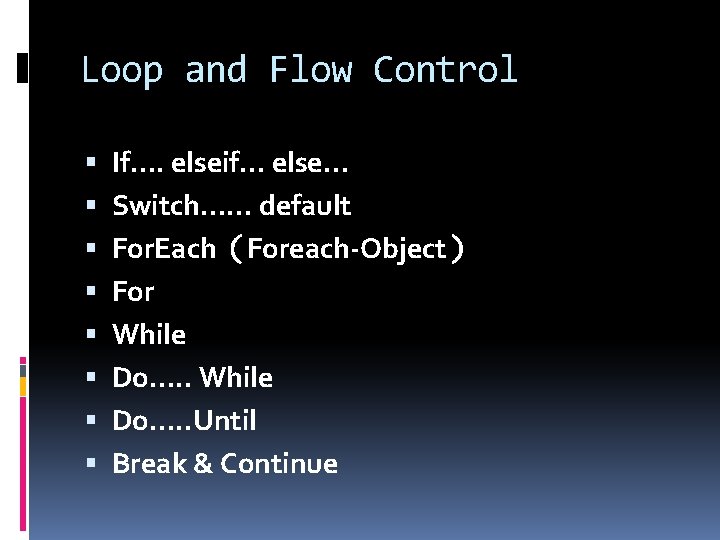
Loop and Flow Control If…. elseif… else… Switch…… default For. Each(Foreach-Object) For While Do…. . Until Break & Continue
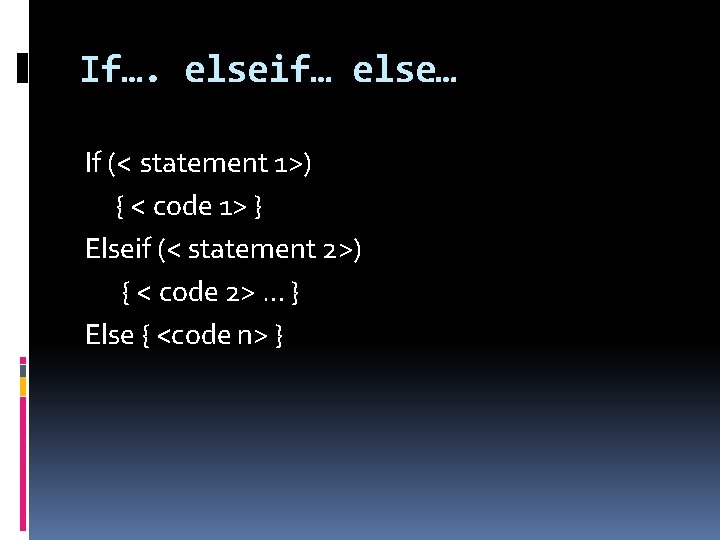
If…. elseif… else… If (< statement 1>) { < code 1> } Elseif (< statement 2>) { < code 2> … } Else { <code n> }
Switch…… default Switch [-regex|-wildcard|-exact][-casesensitive] -file <filename> (< variable >) { < Pattern 1> { code 1 } < Pattern 2> { code 2 } < Pattern 3> { code 3 } … Default { code n } }
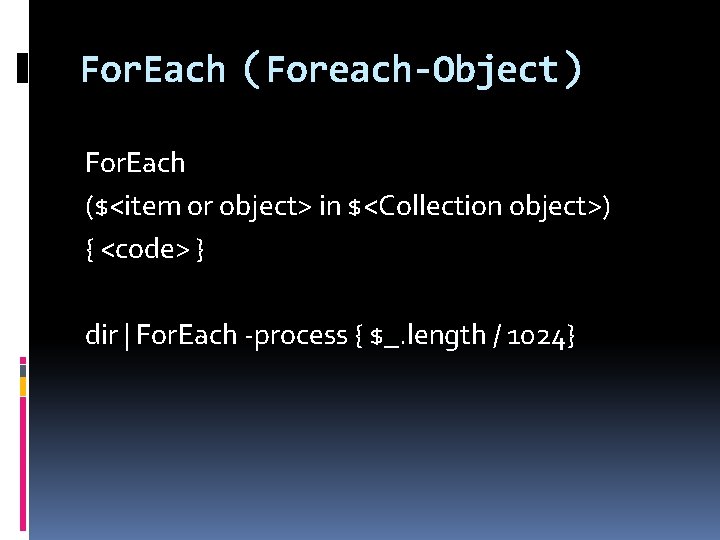
For. Each(Foreach-Object) For. Each ($<item or object> in $<Collection object>) { <code> } dir | For. Each -process { $_. length / 1024}
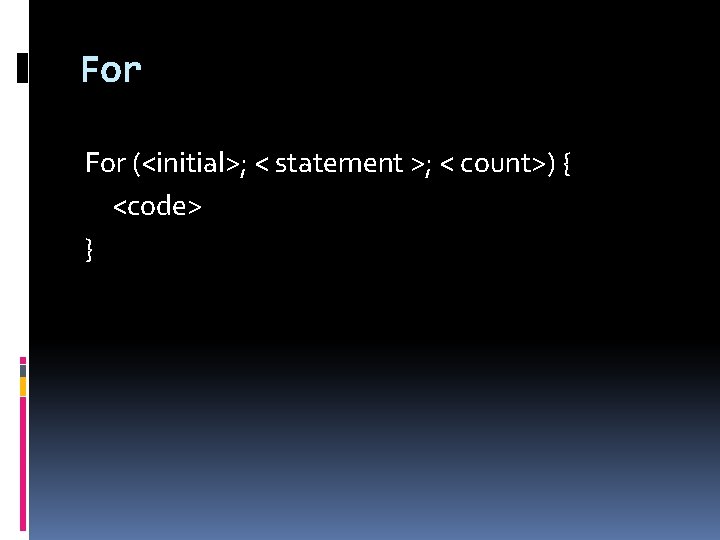
For (<initial>; < statement >; < count>) { <code> }
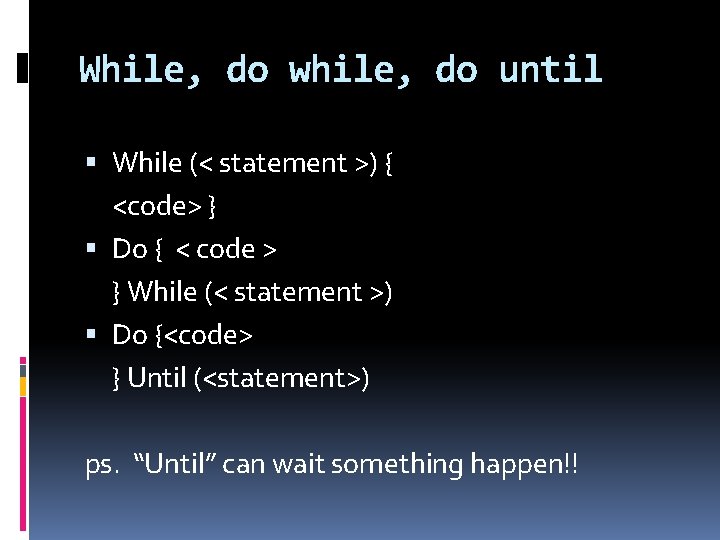
While, do while, do until While (< statement >) { <code> } Do { < code > } While (< statement >) Do {<code> } Until (<statement>) ps. “Until” can wait something happen!!
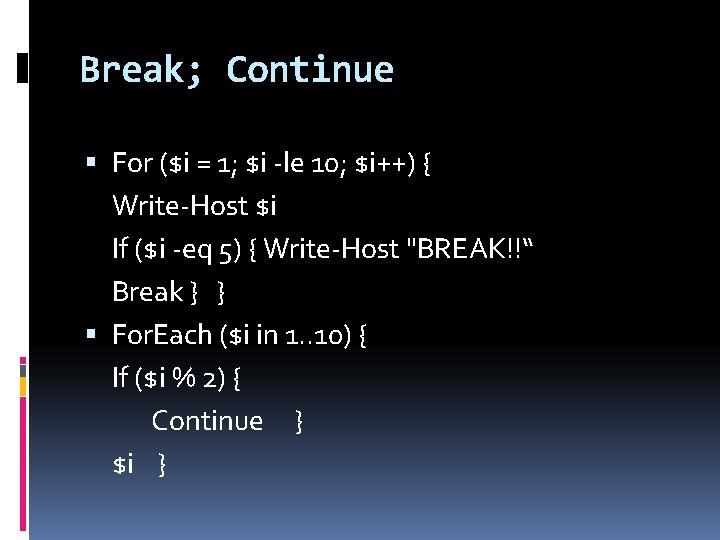
Break; Continue For ($i = 1; $i -le 10; $i++) { Write-Host $i If ($i -eq 5) { Write-Host "BREAK!!“ Break } } For. Each ($i in 1. . 10) { If ($i % 2) { Continue } $i }
Session 4 Ending Demo, Q&A and Break
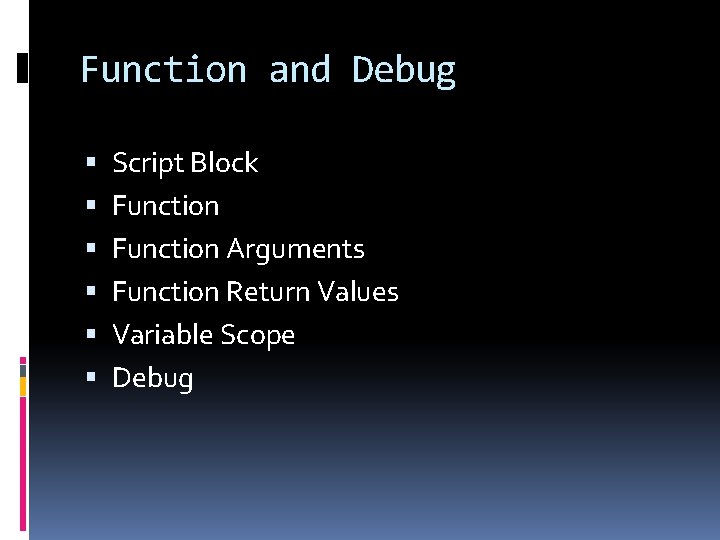
Function and Debug Script Block Function Arguments Function Return Values Variable Scope Debug
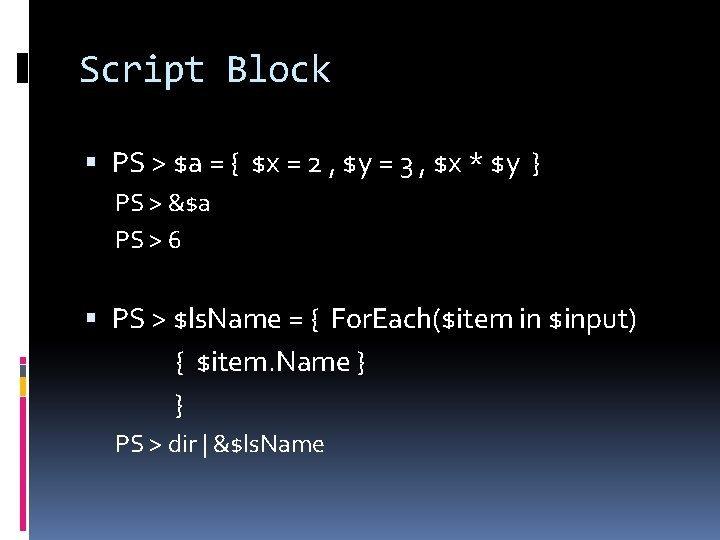
Script Block PS > $a = { $x = 2 , $y = 3 , $x * $y } PS > &$a PS > 6 PS > $ls. Name = { For. Each($item in $input) { $item. Name } PS > dir | &$ls. Name
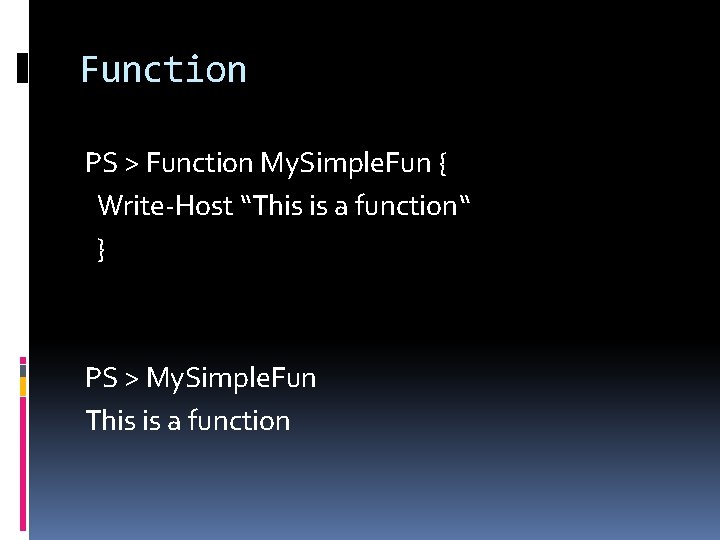
Function PS > Function My. Simple. Fun { Write-Host “This is a function“ } PS > My. Simple. Fun This is a function
Function Arguments PS > Function Show-Str { Write-Host $args[0] } PS > Show-Str “Hello , First Arg!!” Hello, First Arg!!
Function Return Values PS > Function Aand. B([int]$x=10, [int]$y=90) { >> $x + $y >> $x - $y >> $x * $y >> } >> PS > Aand. B 8 2 10 6 16 PS > $rst = Aand. B 8 2 PS > $rst. Length 3
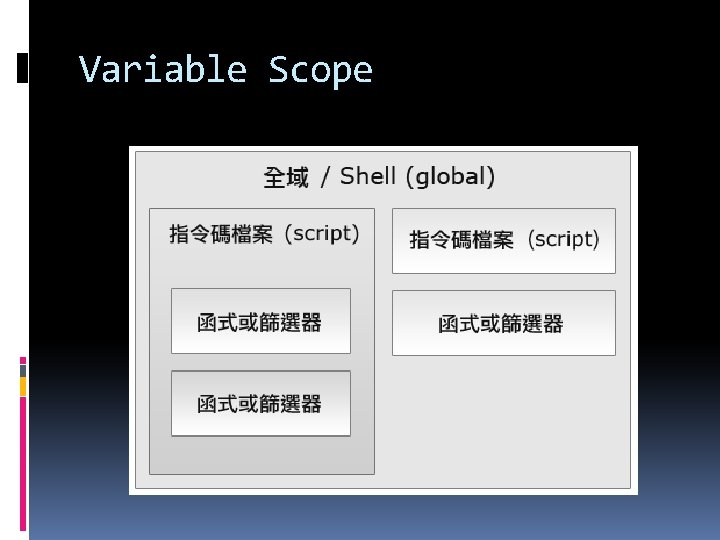
Variable Scope
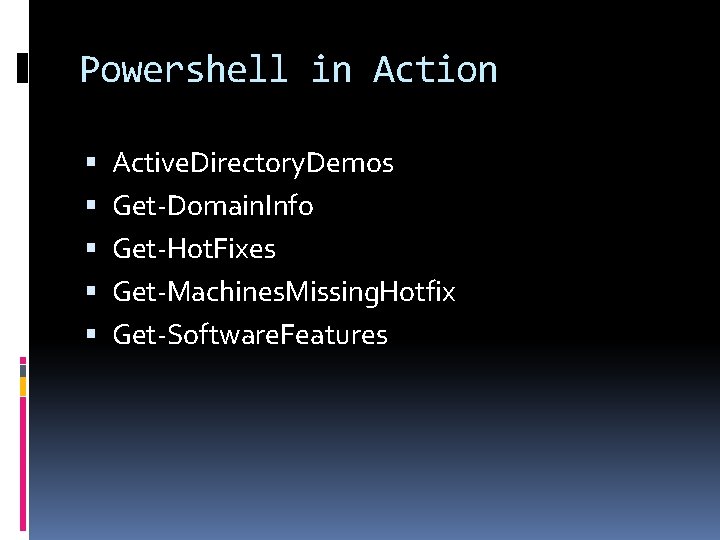
Powershell in Action Active. Directory. Demos Get-Domain. Info Get-Hot. Fixes Get-Machines. Missing. Hotfix Get-Software. Features