
WINDOWS CUSTOMIZATION Unit 7 Objectives Describe the PC
WINDOWS CUSTOMIZATION Unit 7
Objectives ■ Describe the PC settings screen and the Control Panel ■ Change the background ■ Personalize the desktop ■ Set accessibility options ■ Customize power options ■ Set up and change a user account
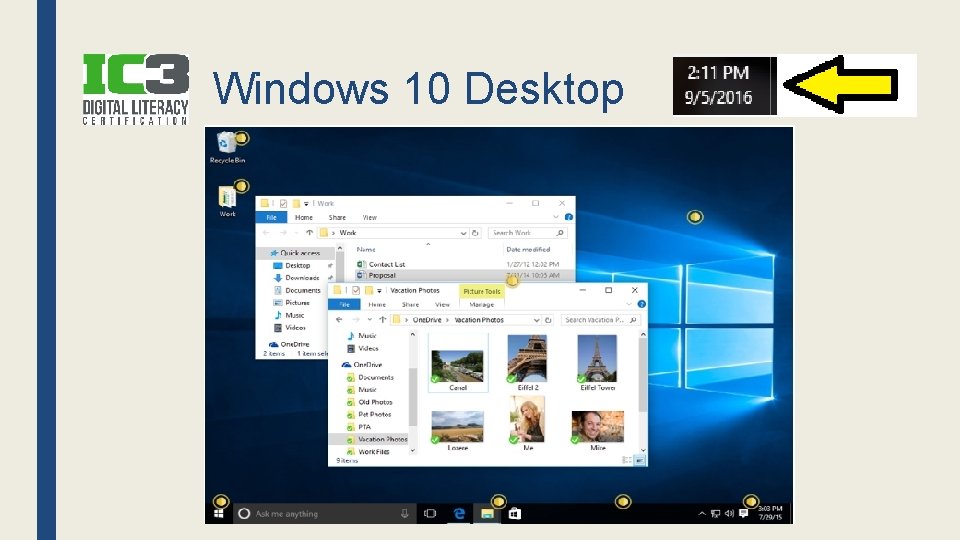
Windows 10 Desktop
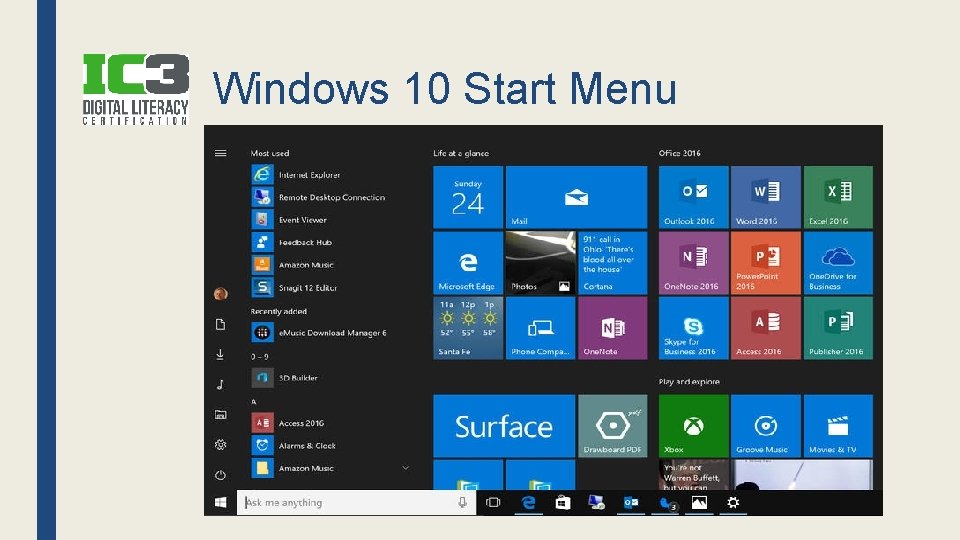
Windows 10 Start Menu
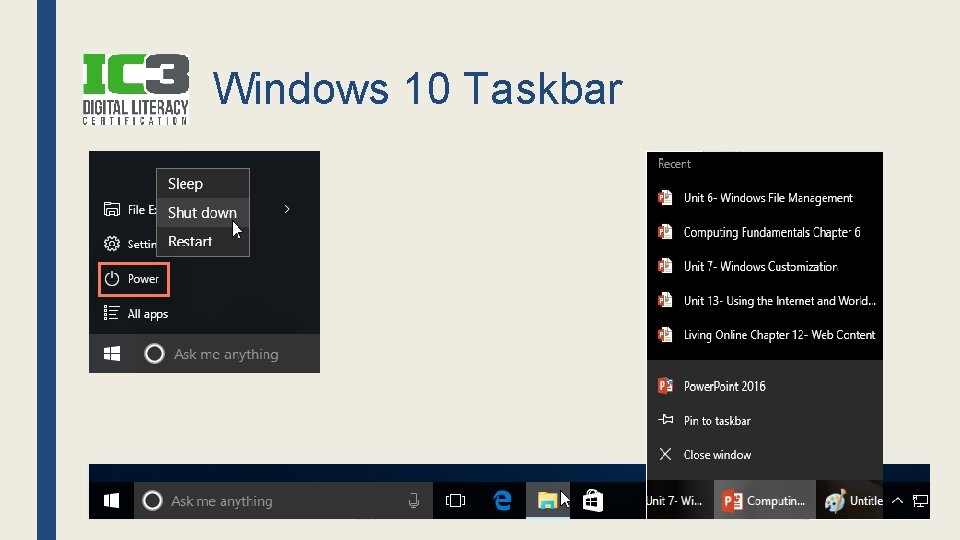
Windows 10 Taskbar
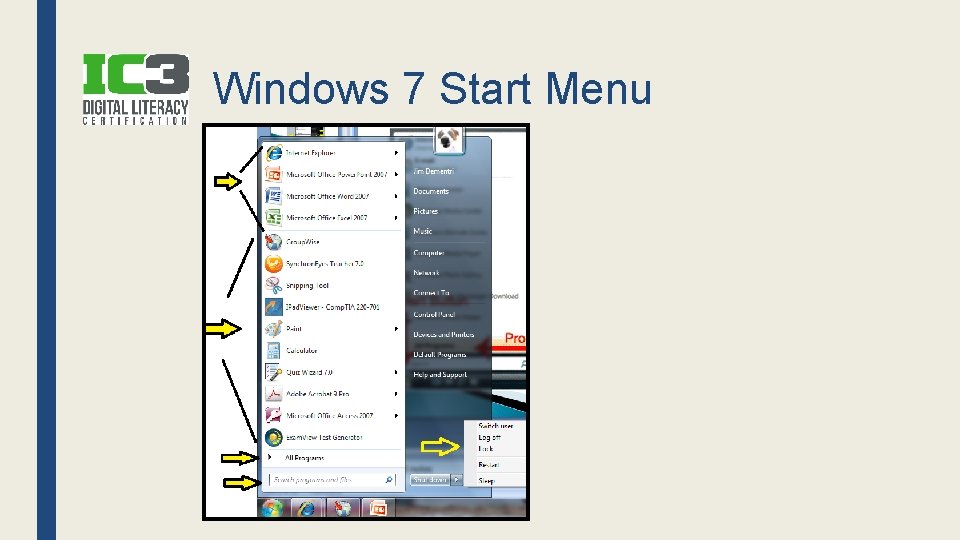
Windows 7 Start Menu
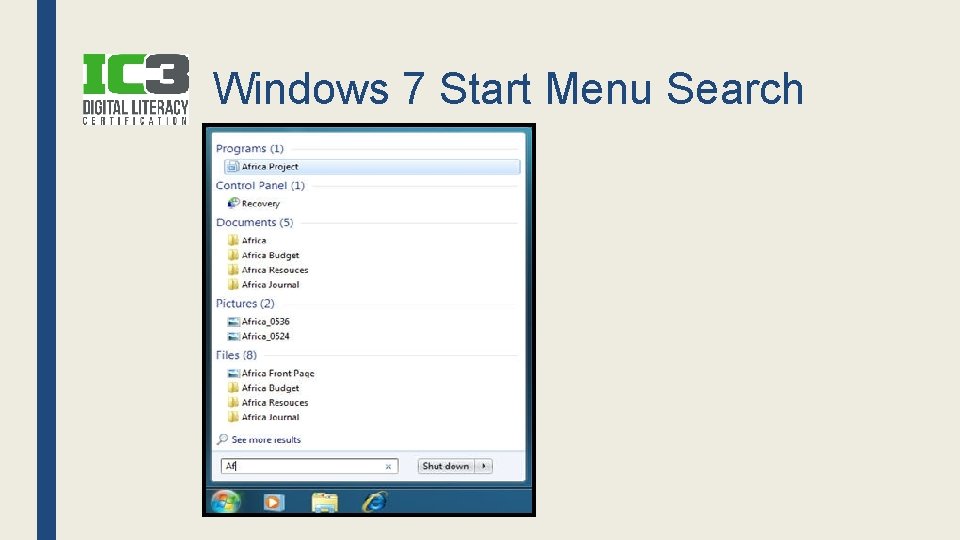
Windows 7 Start Menu Search
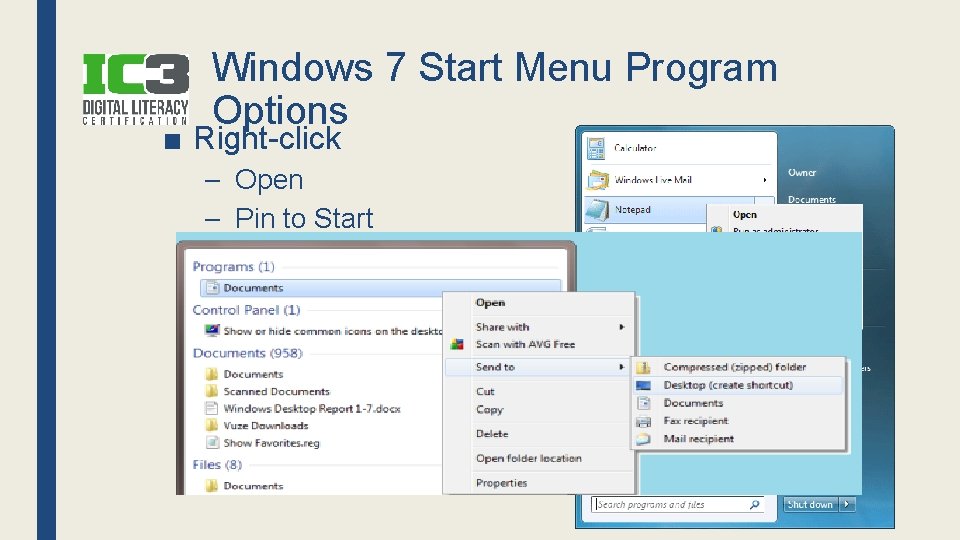
Windows 7 Start Menu Program Options ■ Right-click – Open – Pin to Start Menu – Pin to Desktop – Send To…Desktop
Review ■ When you click the Start button, what are the programs in the top area above the separator line in Windows 7? – Pinned items ■ What is the bar that goes across the bottom of the desktop? – Taskbar ■ Name the area with the clock & the programs running in the background. – Notification area
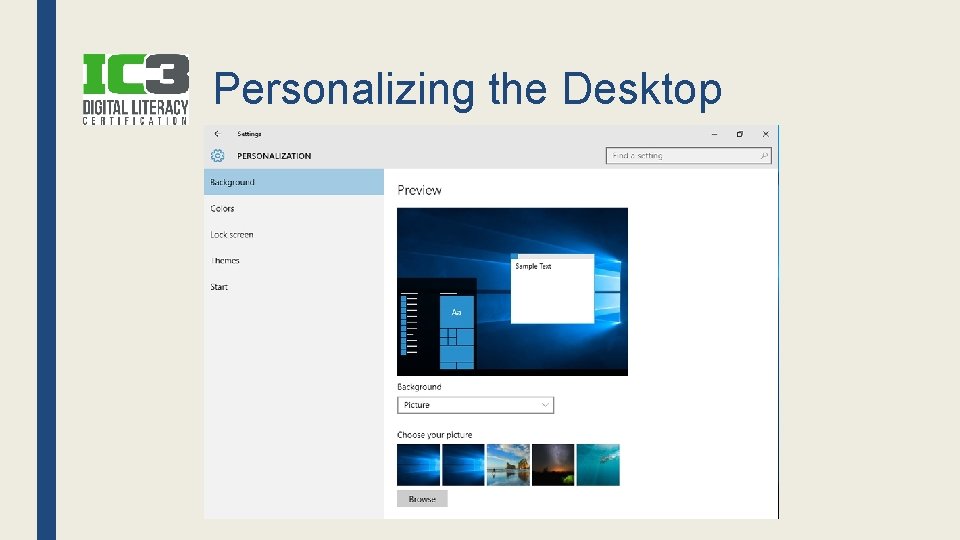
Personalizing the Desktop

Control Panel
Activity ■ Complete the handout for Control Panel – Draw icons – Describe what’s in each
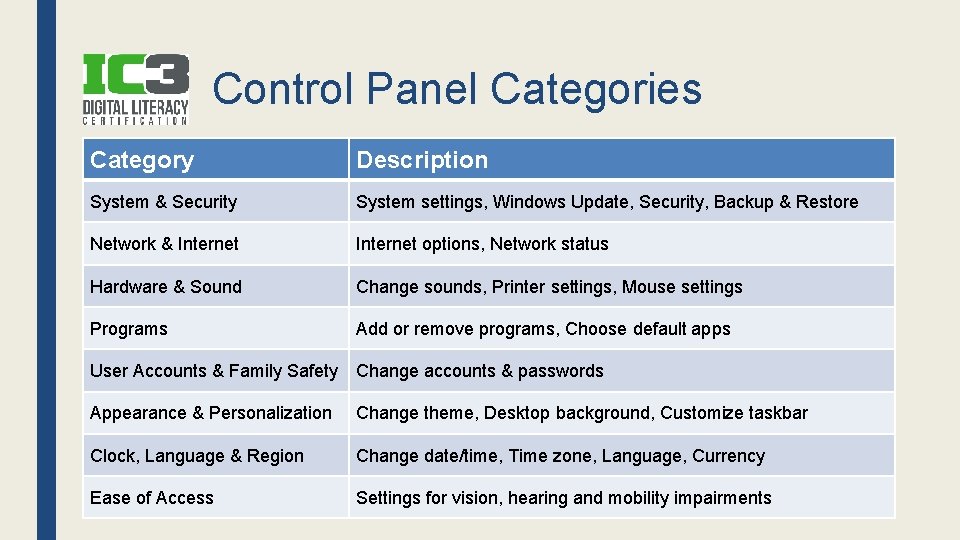
Control Panel Categories Category Description System & Security System settings, Windows Update, Security, Backup & Restore Network & Internet options, Network status Hardware & Sound Change sounds, Printer settings, Mouse settings Programs Add or remove programs, Choose default apps User Accounts & Family Safety Change accounts & passwords Appearance & Personalization Change theme, Desktop background, Customize taskbar Clock, Language & Region Change date/time, Time zone, Language, Currency Ease of Access Settings for vision, hearing and mobility impairments
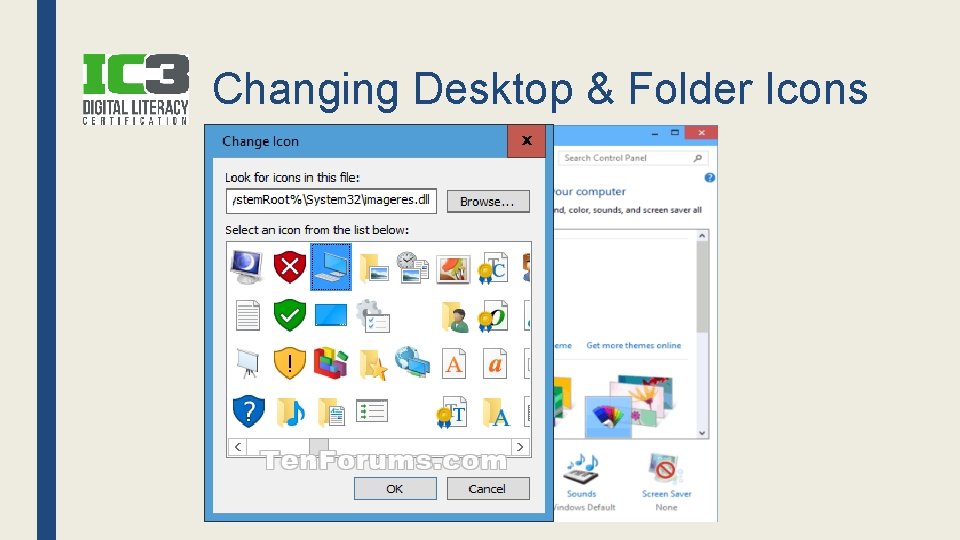
Changing Desktop & Folder Icons
Try This ■ Go to Class Press website ■ Click File…Send…Shortcut to Desktop – Or copy link, go to desktop, right-click, new…shortcut ■ Change the icon – Use shell 32. dll
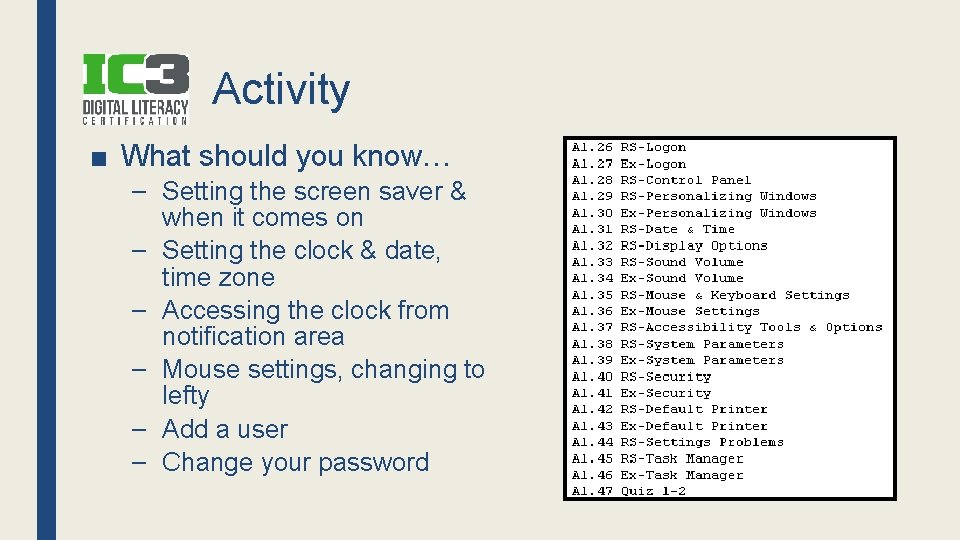
Activity ■ What should you know… – Setting the screen saver & when it comes on – Setting the clock & date, time zone – Accessing the clock from notification area – Mouse settings, changing to lefty – Add a user – Change your password
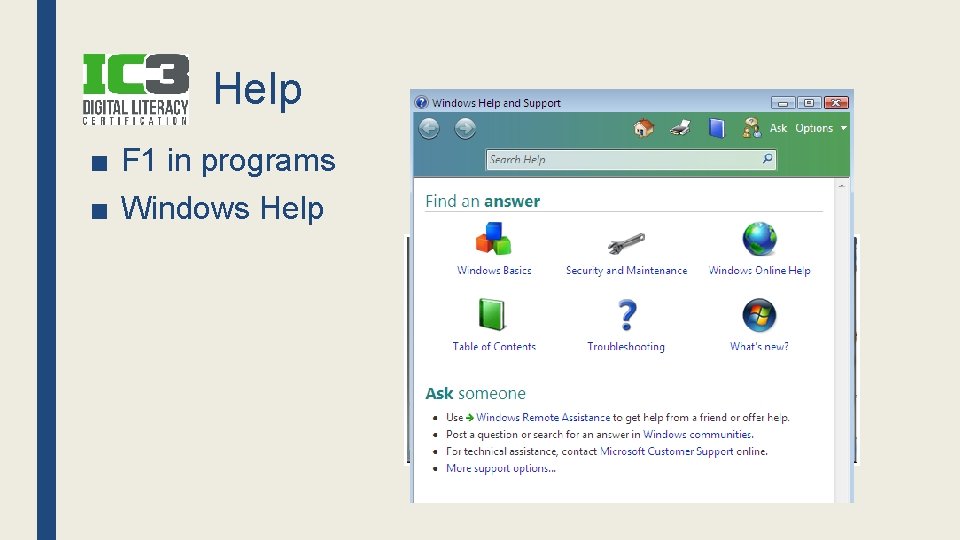
Help ■ F 1 in programs ■ Windows Help
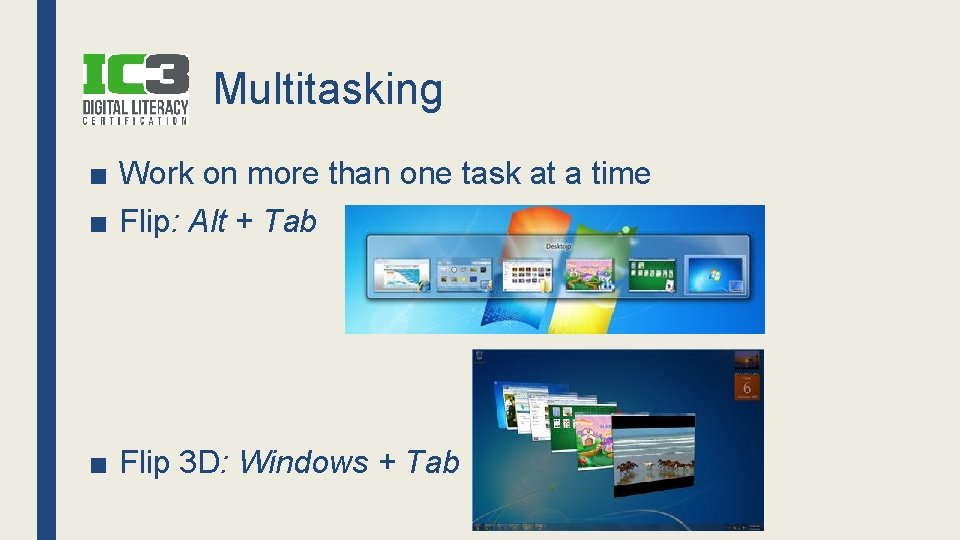
Multitasking ■ Work on more than one task at a time ■ Flip: Alt + Tab ■ Flip 3 D: Windows + Tab
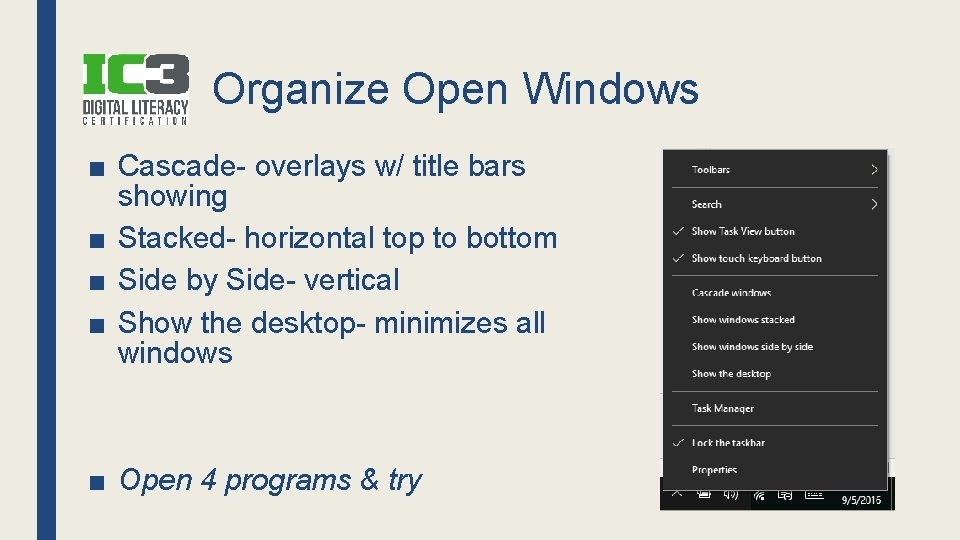
Organize Open Windows ■ Cascade- overlays w/ title bars showing ■ Stacked- horizontal top to bottom ■ Side by Side- vertical ■ Show the desktop- minimizes all windows ■ Open 4 programs & try
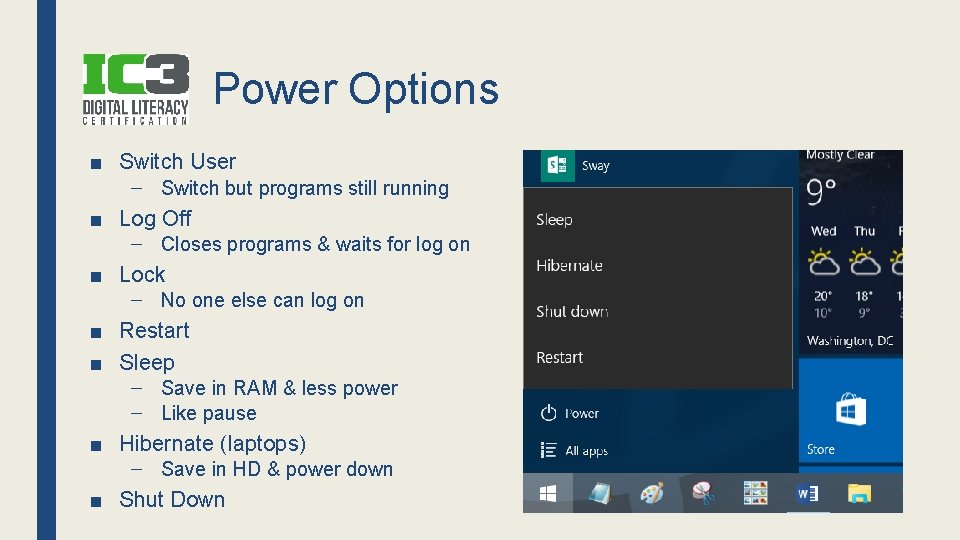
Power Options ■ Switch User – Switch but programs still running ■ Log Off – Closes programs & waits for log on ■ Lock – No one else can log on ■ Restart ■ Sleep – Save in RAM & less power – Like pause ■ Hibernate (laptops) – Save in HD & power down ■ Shut Down
Power Options Settings ■ Password on Wakeup ■ What the power button does ■ What closing the lid does – Nothing, sleep, hibernate, shut down ■ When to turn off display ■ When the computer sleeps
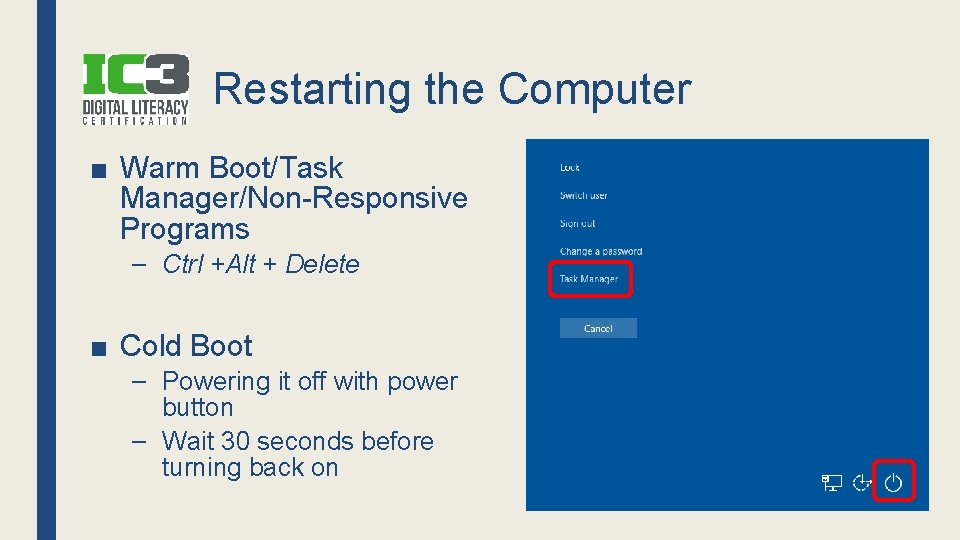
Restarting the Computer ■ Warm Boot/Task Manager/Non-Responsive Programs – Ctrl +Alt + Delete ■ Cold Boot – Powering it off with power button – Wait 30 seconds before turning back on
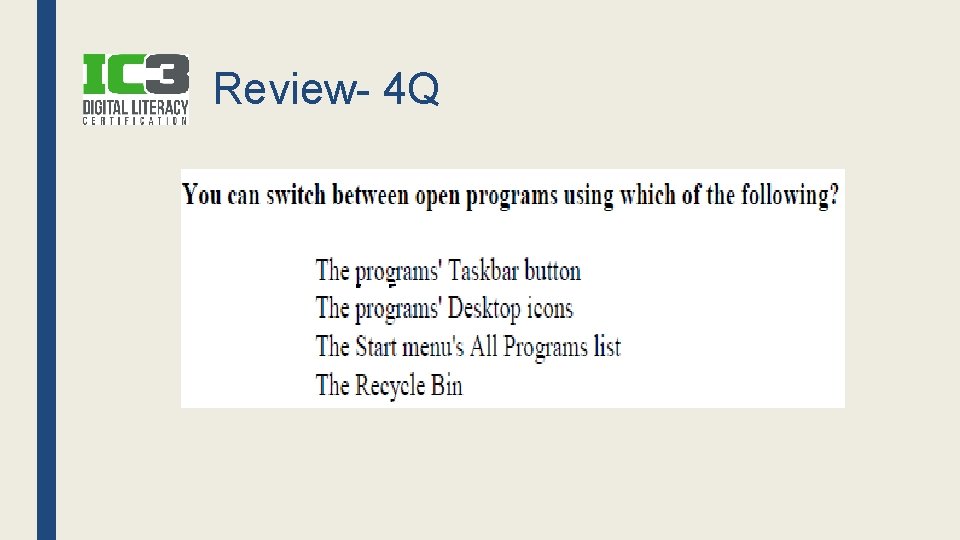
Review- 4 Q
Review- 3 Q ■ Which keyboard command will cycle through open programs? – Alt+Tab or Windows+Tab ■ Which keyboard command will allow you to end a non -responsive program or shutdown/restart a computer? – Ctrl + Alt + Del ■ To access Help in Windows or most programs, which key would you press? – F 1
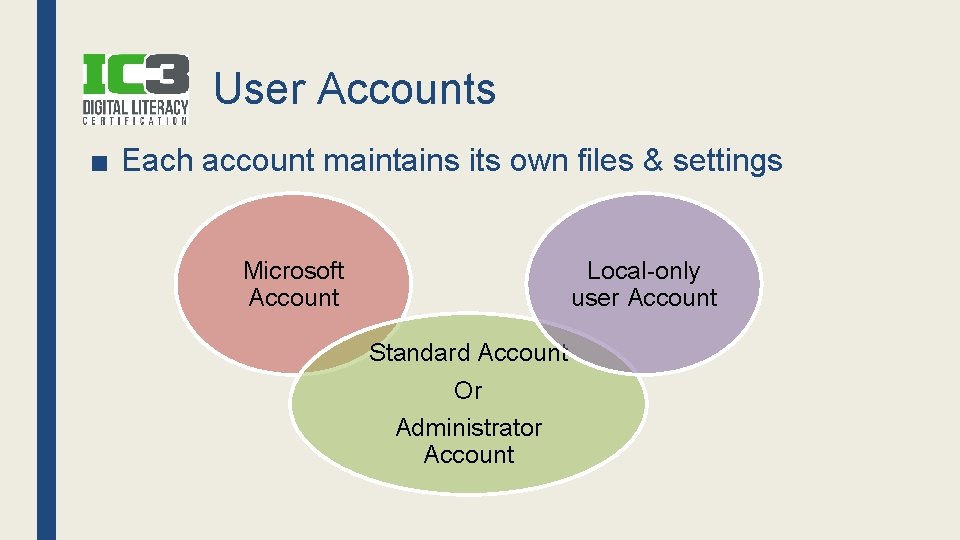
User Accounts ■ Each account maintains its own files & settings Microsoft Account Local-only user Account Standard Account Or Administrator Account
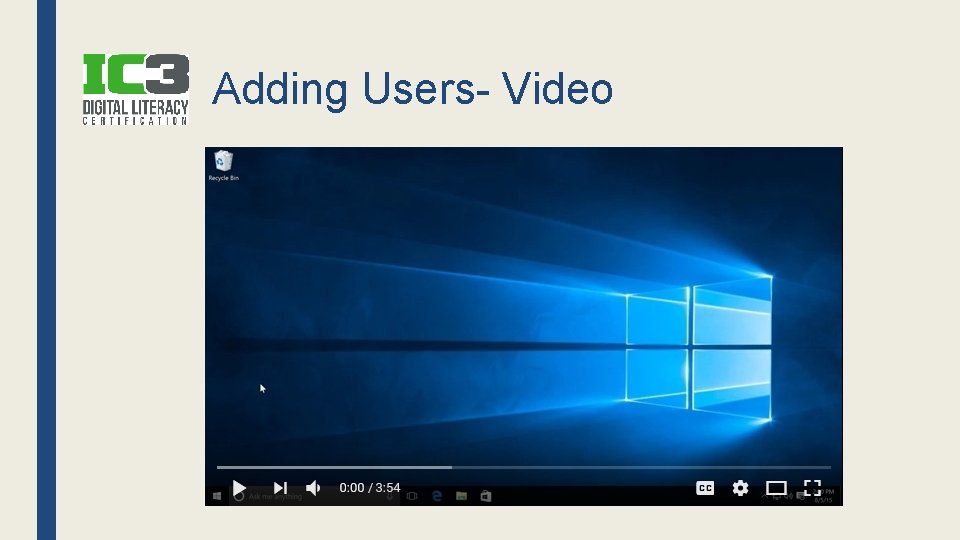
Adding Users- Video
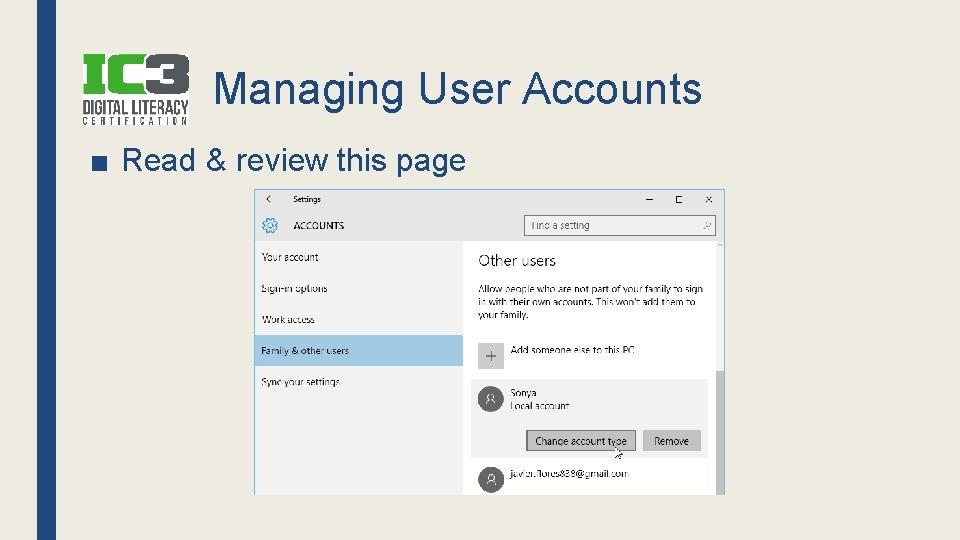
Managing User Accounts ■ Read & review this page
WINDOWS CUSTOMIZATION Unit 7
- Slides: 28