
Windows 7 Inside Out Chapter 23 Recovering From

- Slides: 66
Windows 7 Inside Out Chapter 23 – Recovering From an Computer Crash Last modified 4 -25 -10
Editions Ø The troubleshooting tools described in this chapter are available in all editions
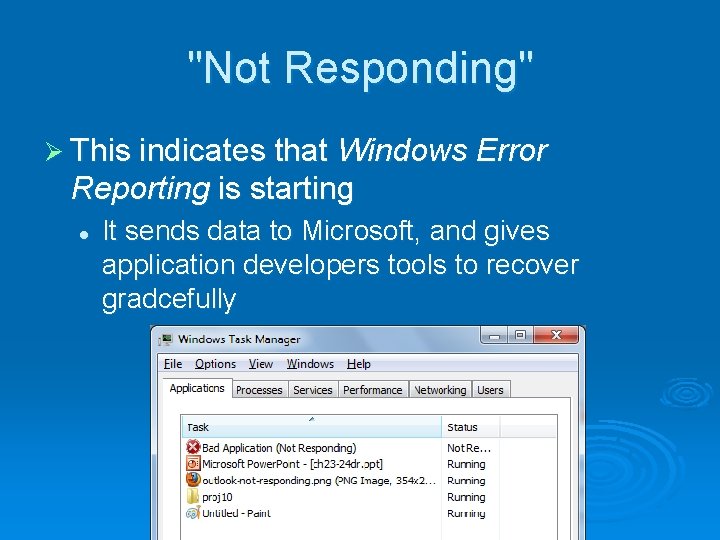
"Not Responding" Ø This indicates that Windows Error Reporting is starting l It sends data to Microsoft, and gives application developers tools to recover gradcefully
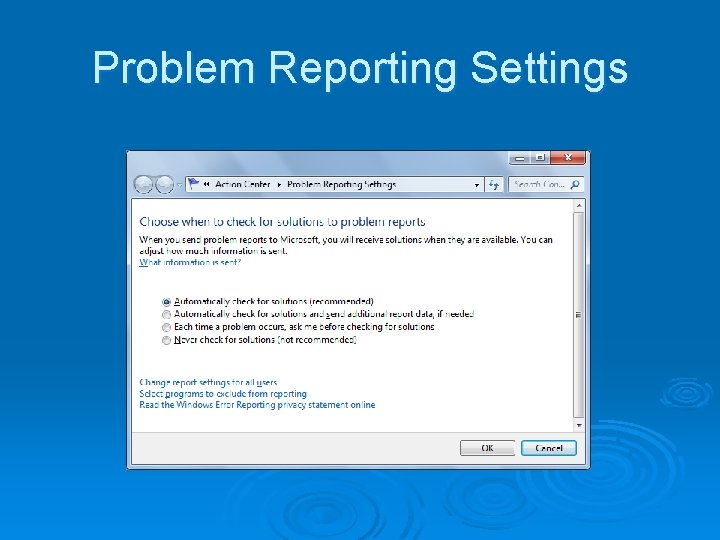
Problem Reporting Settings
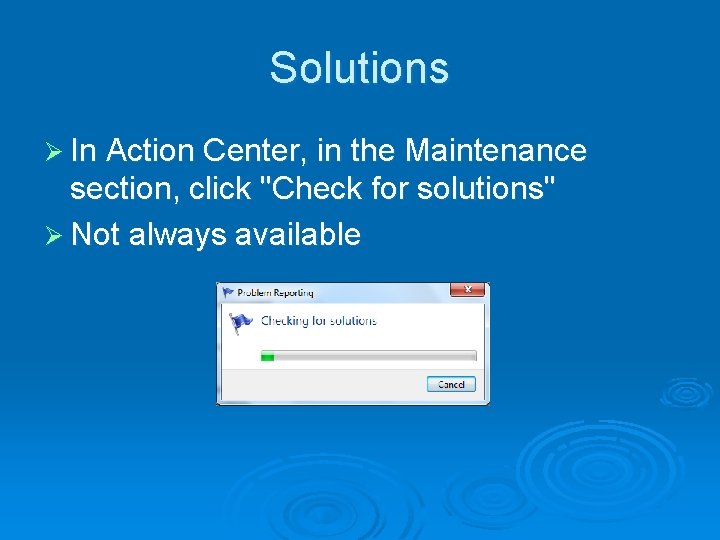
Solutions Ø In Action Center, in the Maintenance section, click "Check for solutions" Ø Not always available
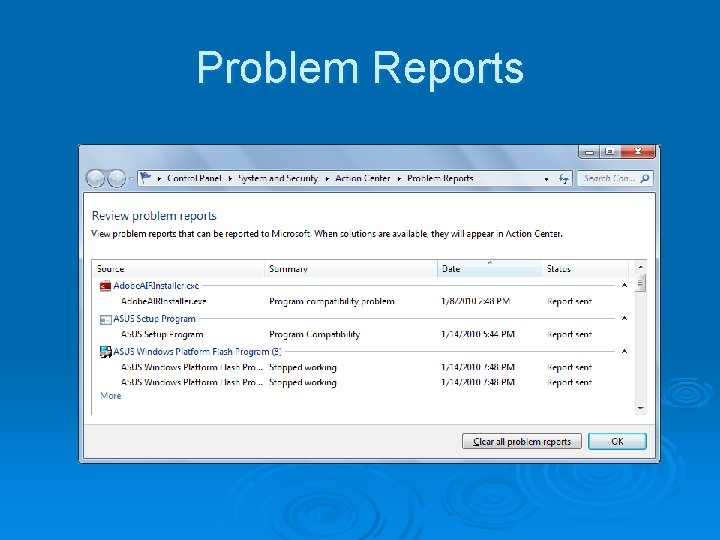
Problem Reports
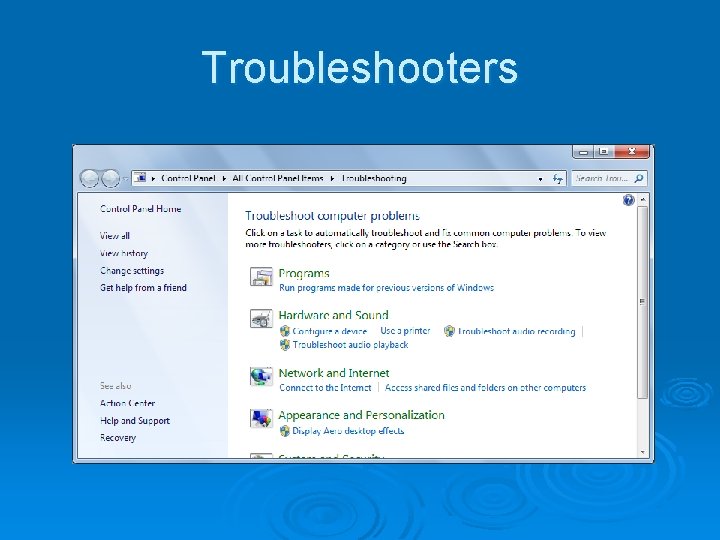
Troubleshooters
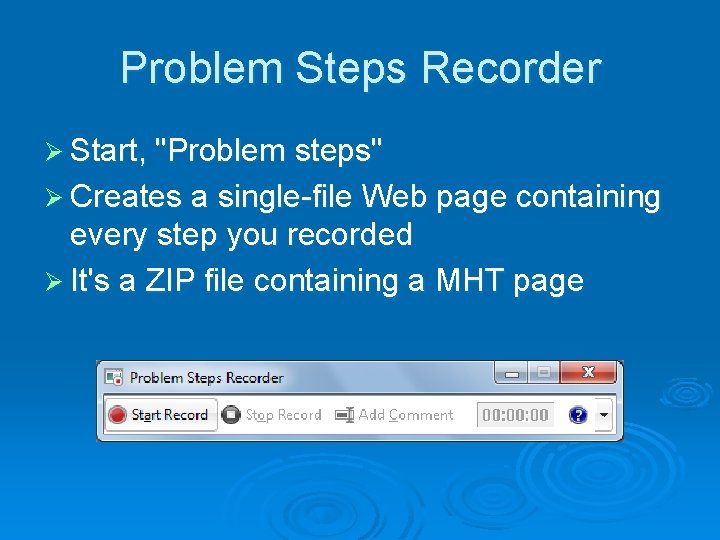
Problem Steps Recorder Ø Start, "Problem steps" Ø Creates a single-file Web page containing every step you recorded Ø It's a ZIP file containing a MHT page
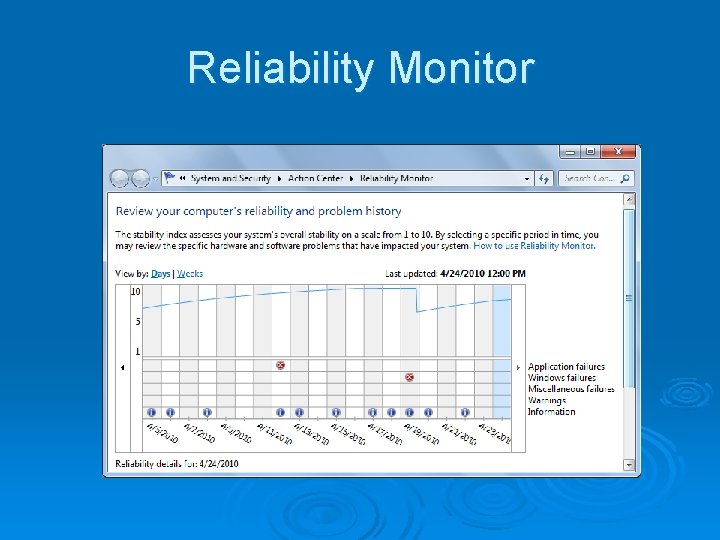
Reliability Monitor
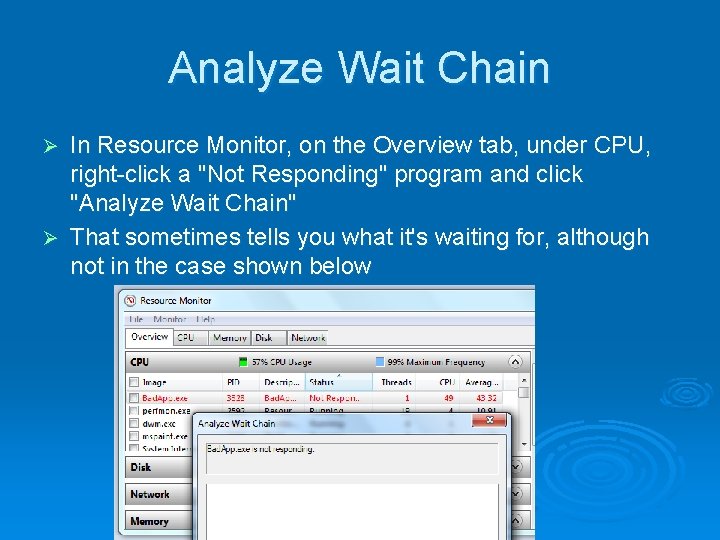
Analyze Wait Chain In Resource Monitor, on the Overview tab, under CPU, right-click a "Not Responding" program and click "Analyze Wait Chain" Ø That sometimes tells you what it's waiting for, although not in the case shown below Ø
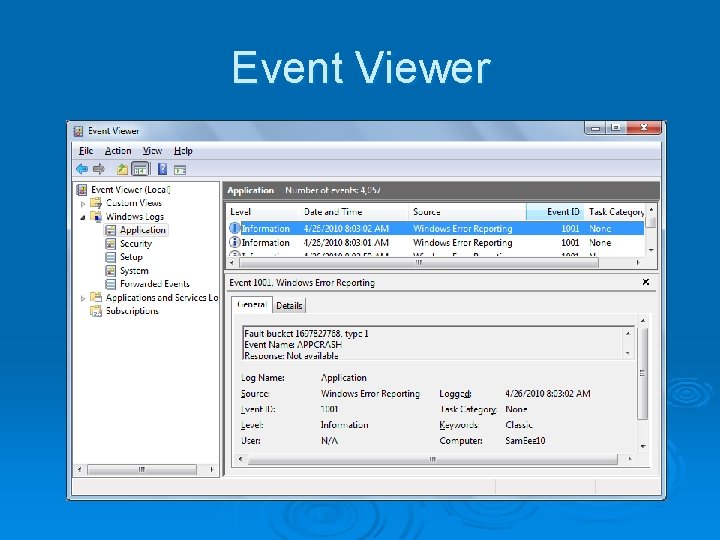
Event Viewer
Event Log Service Ø Records noteworthy occurrences in these log files l l l Application Security Setup System Forwarded Events
Event Viewer
New Features Ø View events from multiple logs simultaneously Ø Create and save filtered selections as custom views Ø Create a task to run automatically when a particular event occurs Ø Create a subscription to specified events on other networked computers
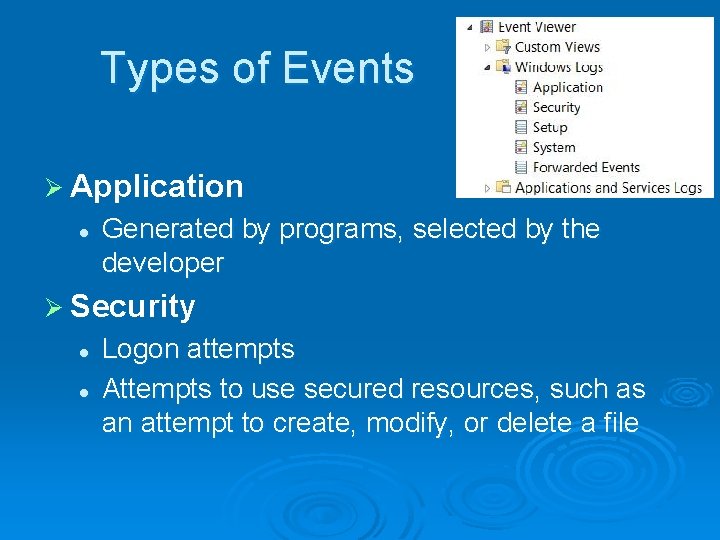
Types of Events Ø Application l Generated by programs, selected by the developer Ø Security l l Logon attempts Attempts to use secured resources, such as an attempt to create, modify, or delete a file
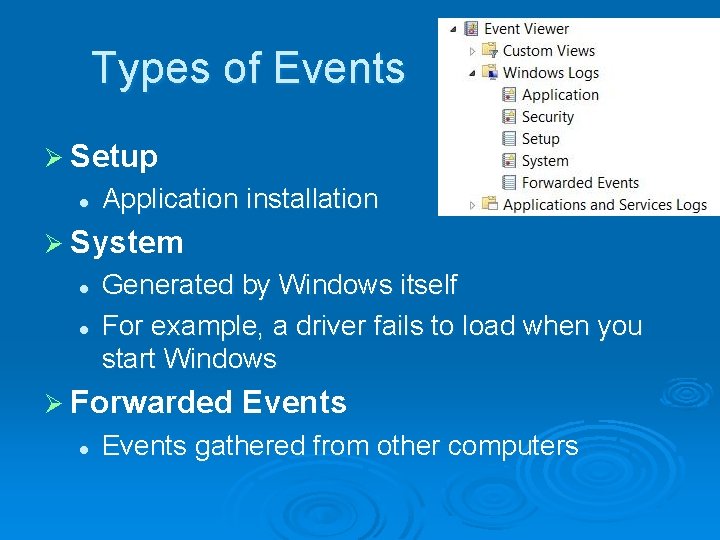
Types of Events Ø Setup l Application installation Ø System l l Generated by Windows itself For example, a driver fails to load when you start Windows Ø Forwarded l Events gathered from other computers
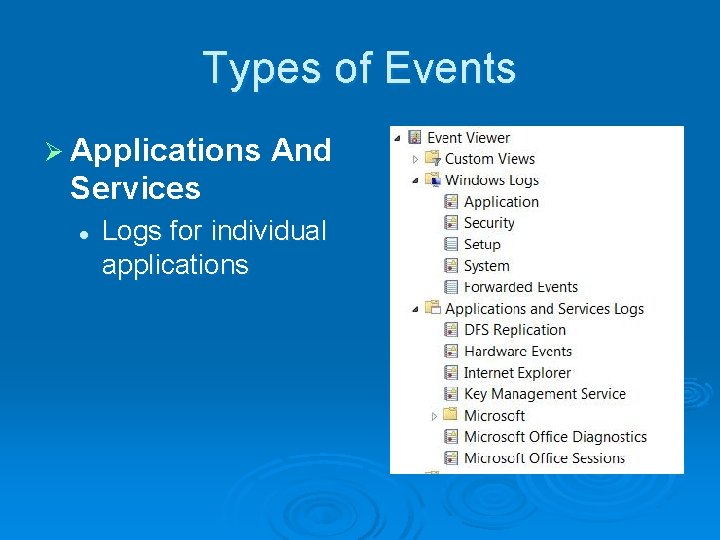
Types of Events Ø Applications And Services l Logs for individual applications
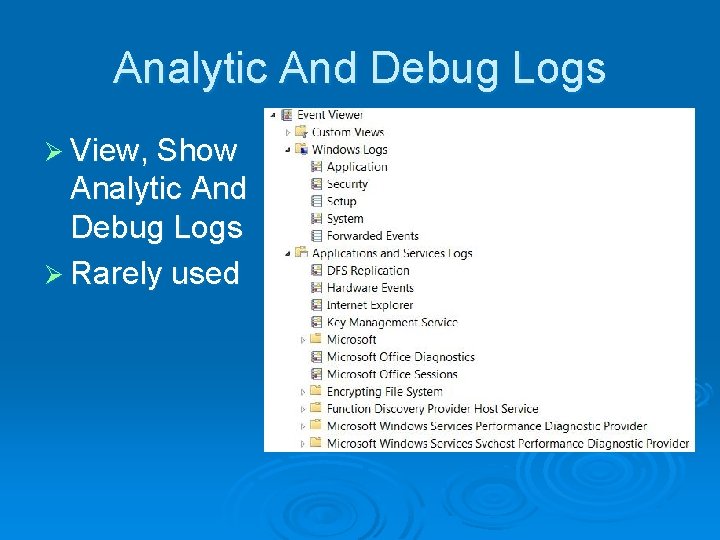
Analytic And Debug Logs Ø View, Show Analytic And Debug Logs Ø Rarely used
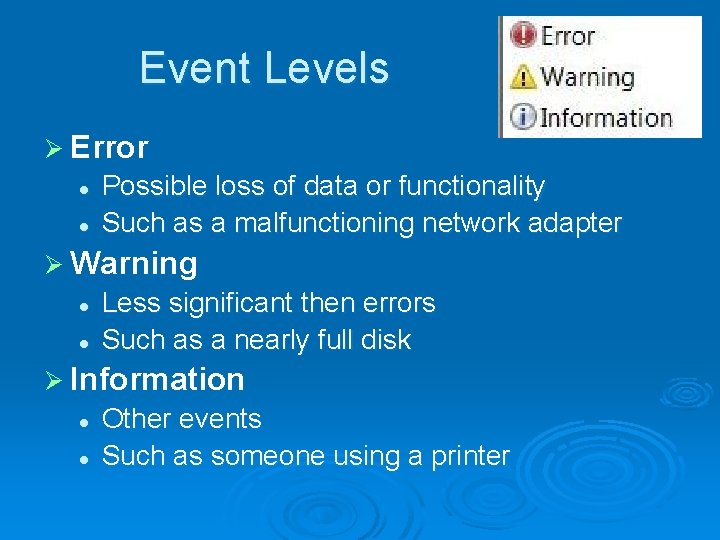
Event Levels Ø Error l l Possible loss of data or functionality Such as a malfunctioning network adapter Ø Warning l l Less significant then errors Such as a nearly full disk Ø Information l l Other events Such as someone using a printer
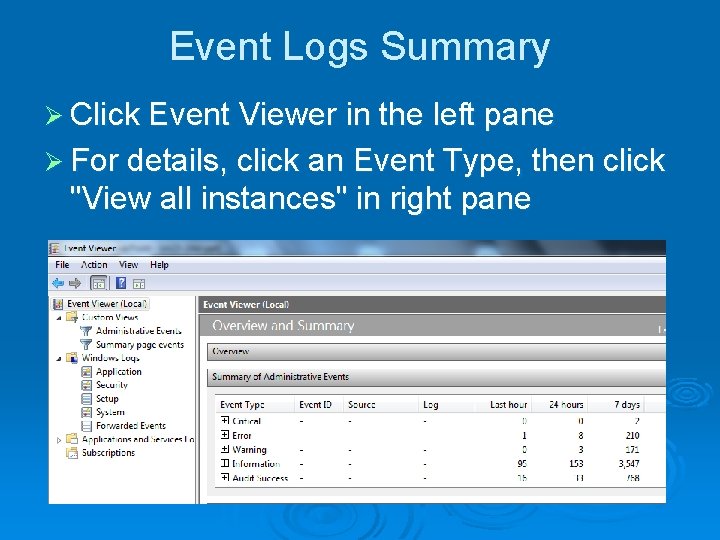
Event Logs Summary Ø Click Event Viewer in the left pane Ø For details, click an Event Type, then click "View all instances" in right pane
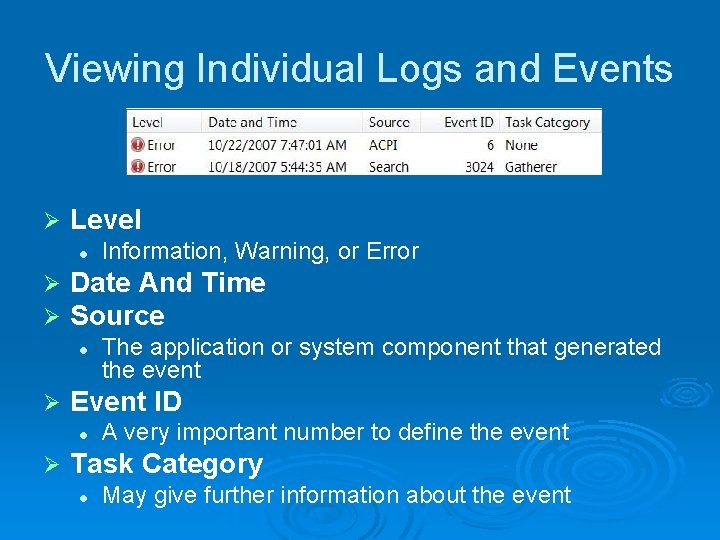
Viewing Individual Logs and Events Ø Level l Ø Ø Date And Time Source l Ø The application or system component that generated the event Event ID l Ø Information, Warning, or Error A very important number to define the event Task Category l May give further information about the event
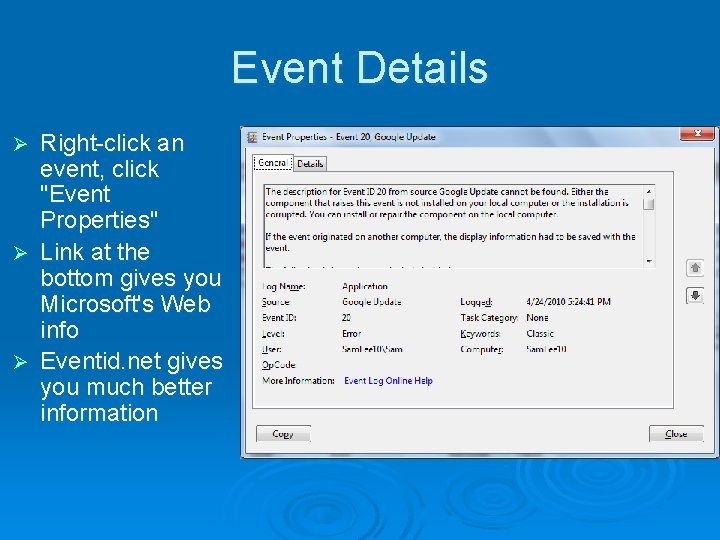
Event Details Right-click an event, click "Event Properties" Ø Link at the bottom gives you Microsoft's Web info Ø Eventid. net gives you much better information Ø
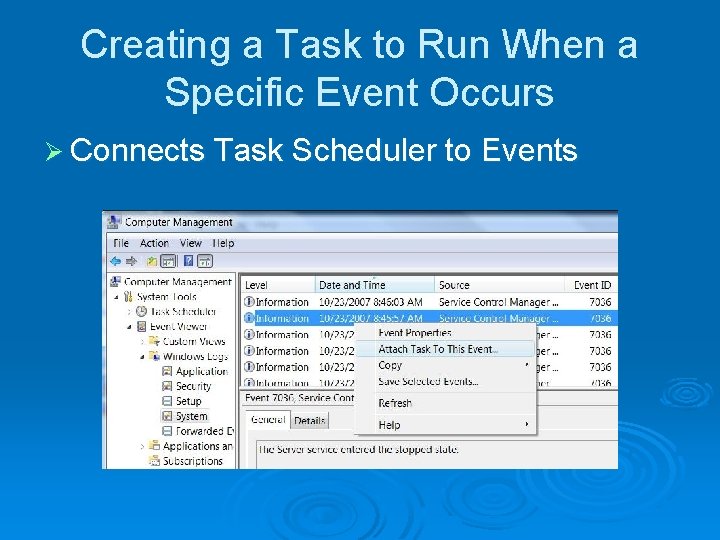
Creating a Task to Run When a Specific Event Occurs Ø Connects Task Scheduler to Events
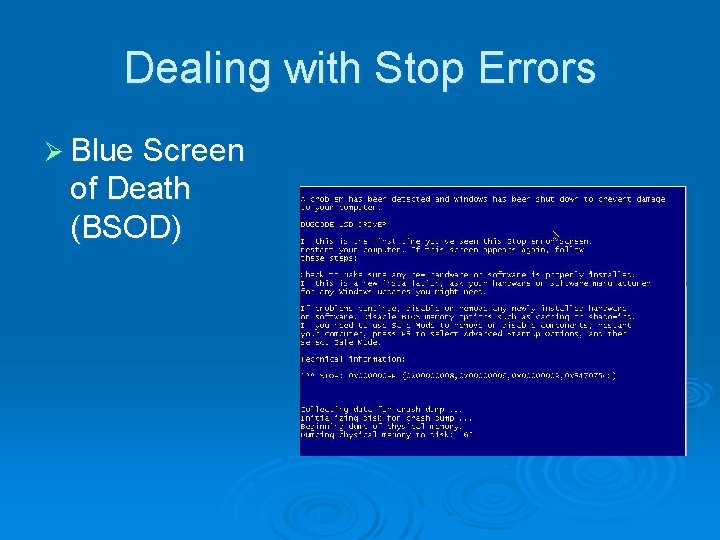
Dealing with Stop Errors Ø Blue Screen of Death (BSOD)
How Windows Handles Stop Errors Ø Displays a STOP error (BSOD) Ø Writes debugging information to the page file l When the system restarts, this information is saved as a crash dump file Ø By default, the system restarts
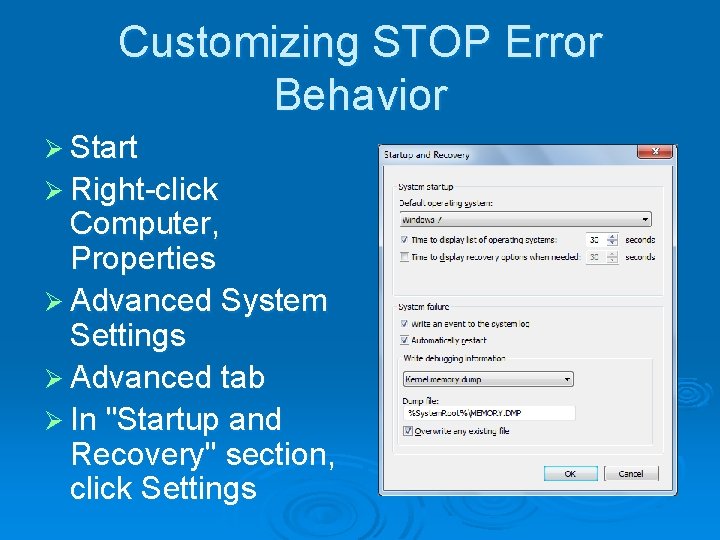
Customizing STOP Error Behavior Ø Start Ø Right-click Computer, Properties Ø Advanced System Settings Ø Advanced tab Ø In "Startup and Recovery" section, click Settings
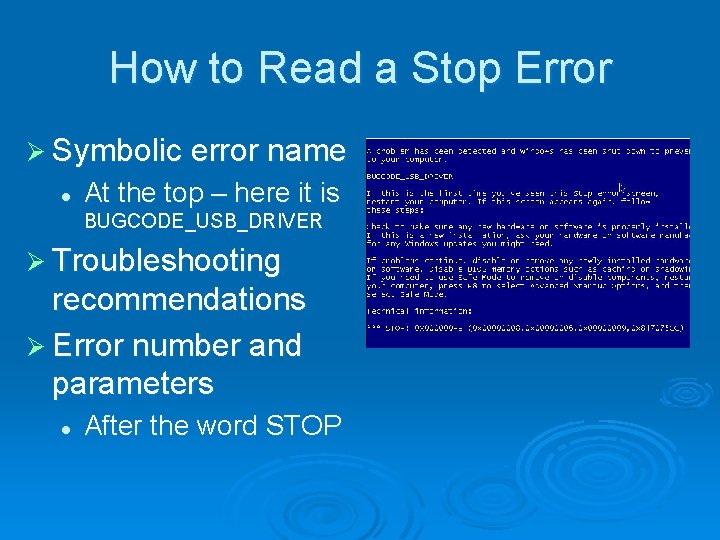
How to Read a Stop Error Ø Symbolic error name l At the top – here it is BUGCODE_USB_DRIVER Ø Troubleshooting recommendations Ø Error number and parameters l After the word STOP
Advice for Dealing with Stop Errors Ø Look for a driver name Ø Don’t rule out hardware problems Ø Check your memory l Logo, MEM for Memory Diagnostics Ø Ask yourself, “What’s new? ” Ø Search the Knowledge Base
Advice for Dealing with Stop Errors Ø Check your system BIOS for updates Ø Are you low on system resources? l Check RAM and disk space Ø Try starting in Safe Mode l If that works, it's probably a driver problem Ø Try an alternative driver l Even one made for a different hardware model in the same family
Recovering from a Crash
Recovery Tools Ø Advanced Boot Options l l Press F 8 during startup Safe Mode Ø The Windows Recovery Environment (Win. RE) l l Boot from DVD Replaces Windows XP's Recovery Console
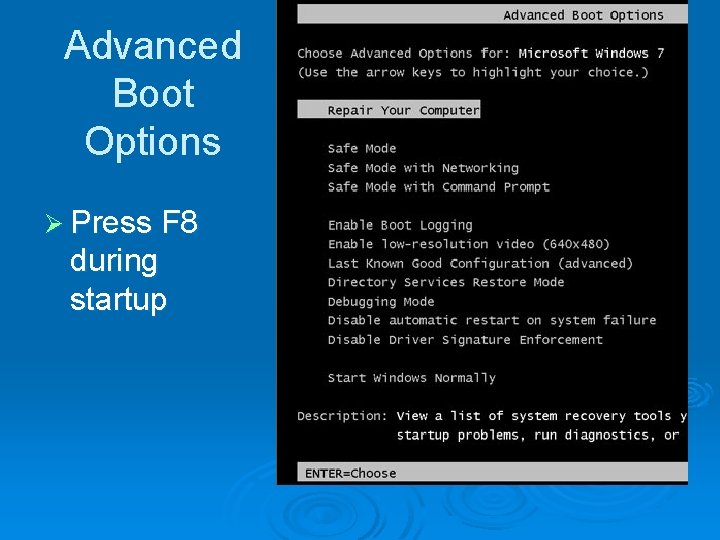
Advanced Boot Options Ø Press F 8 during startup
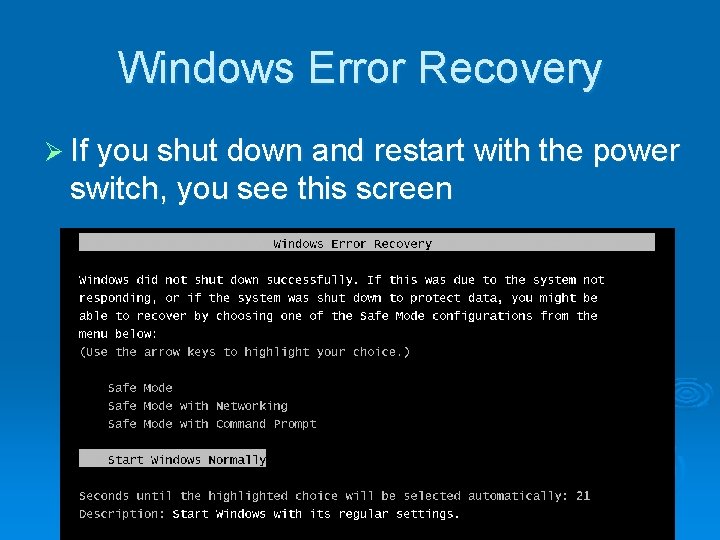
Windows Error Recovery Ø If you shut down and restart with the power switch, you see this screen
Safe Mode Ø Uses only those services and drivers that are absolutely required to start your system Ø Generic video driver at 800 x 600 resolution Ø USB flash drives, hard disks, keyboard, and mouse will be supported Ø No audio devices Ø No Startup folder programs
Safe Mode Ø These configuration tools are available l l l Device Manager System Restore Registry Editor Help And Support Online help (if you use Safe Mode with Networking)
Safe Mode Ø Backup and Restore Center is not available l To restore a Complete PC Backup, use the Windows Recovery Environment, not Safe Mode
Other Safe Mode Options Ø Safe Mode With Networking l Safe Mode plus drivers and services required to start Windows networking Ø Safe Mode With Command Prompt l l Safe Mode with no graphics Uses Cmd. exe only
Last Known Good Configuration Ø Every time Windows starts in normal mode l l It makes a record of all currently installed drivers and the contents of the registry key HKLMSYSTEMCurrent. Control. Set Ø Last Known Good Configuration (Advanced) restores the previous, working registry key Ø If you just installed a driver that makes the system hang, this is an easy fix Ø System Restore is more reliable
Other Startup Options Ø Enable l l Lists the names and status of all drivers loaded %System. Root%Ntbtlog. txt Ø Enable l Boot Logging Low-Resolution Video 640 x 480 Ø Directory l Services Restore Mode Ignore it, it only applies to domain controllers
Other Startup Options Ø Debugging l Mode Kernel debug mode—rarely used Ø Disable Automatic Restart On System Failure l Stops an endless cycle of restarting Ø Disable l Driver Signature Enforcement Use this option if Windows is refusing to start because of an unsigned driver
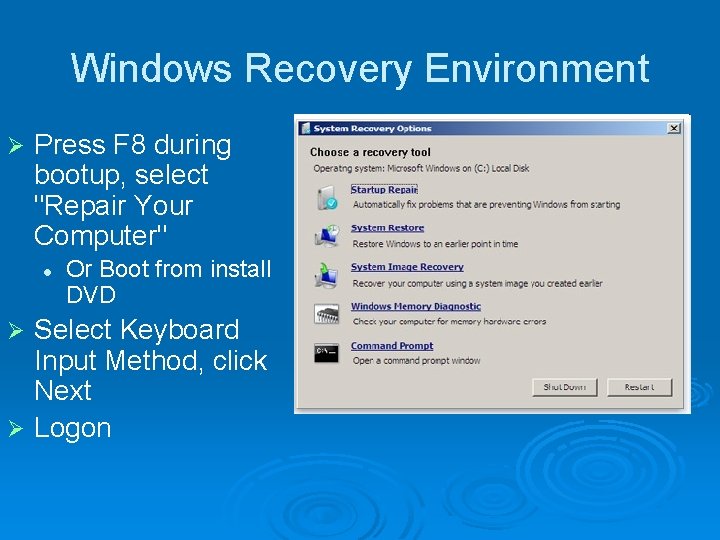
Windows Recovery Environment Ø Press F 8 during bootup, select "Repair Your Computer" l Or Boot from install DVD Select Keyboard Input Method, click Next Ø Logon Ø
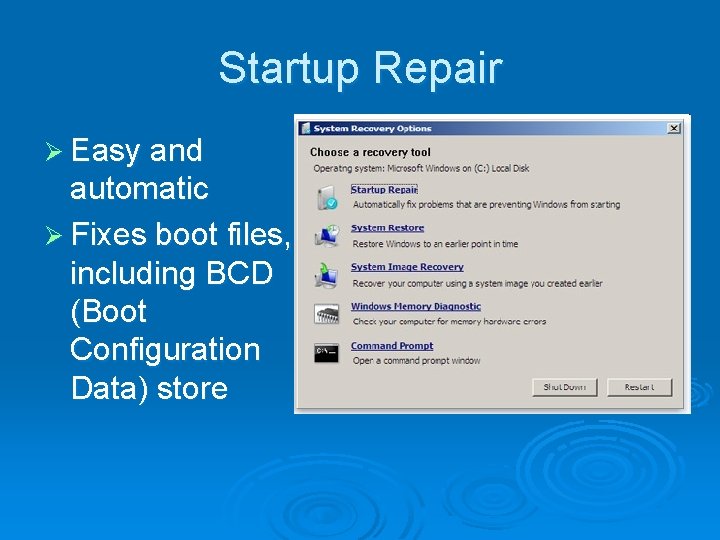
Startup Repair Ø Easy and automatic Ø Fixes boot files, including BCD (Boot Configuration Data) store
System Restore Ø Runs as usual, but cannot create a restore point first l So there's no way to undo a System Restore made from Windows Recovery Environment
System Image Recovery Ø You must have previously used Windows Backup to create an image backup of your system disk Ø Formats your disk and completely replaces it with the backup copy l l You will lose recent documents on the System disk Copy them to a USB drive with the Command Prompt first
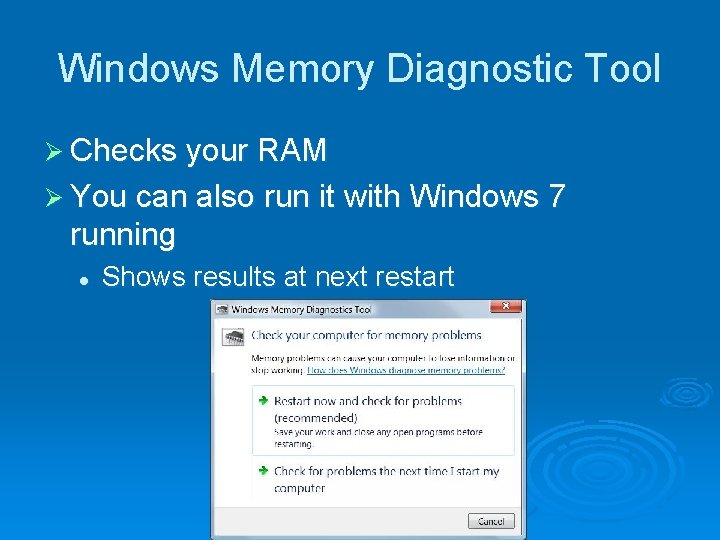
Windows Memory Diagnostic Tool Ø Checks your RAM Ø You can also run it with Windows 7 running l Shows results at next restart
Working at the Command Prompt Ø The Command Prompt option in Windows RE Ø You can run all commands, including l l DISKPART to manage disk partitions Networking is not available unless you run the WPEINIT command Ø You run with the System account l So anyone who can boot from DVD can completely control your computer • Unless you use encryption
Windows 7 Inside Out Ch 24: Setting Up and Configuring Hardware
Editions Ø The tools described in this chapter are available in all editions
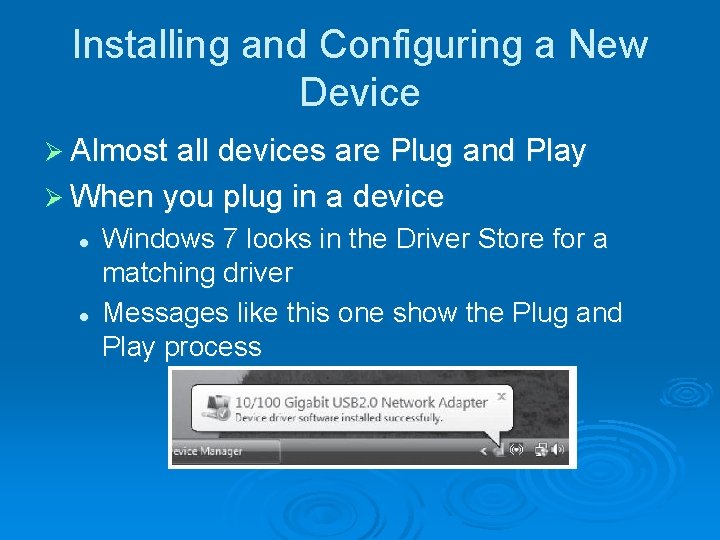
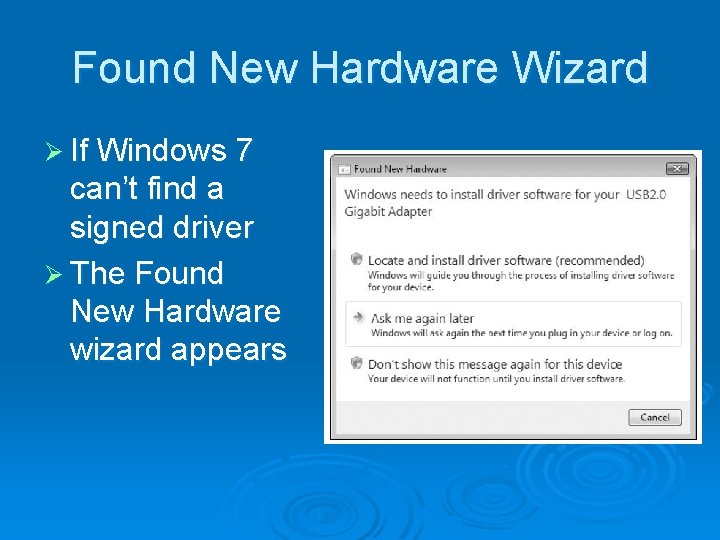
Installing and Configuring a New Device Ø Almost all devices are Plug and Play Ø When you plug in a device l l Windows 7 looks in the Driver Store for a matching driver Messages like this one show the Plug and Play process
Found New Hardware Wizard Ø If Windows 7 can’t find a signed driver Ø The Found New Hardware wizard appears
Run Setup Software First Ø If the device comes with a setup CD, run it before plugging in the device for the first time l Unless the device documents say otherwise
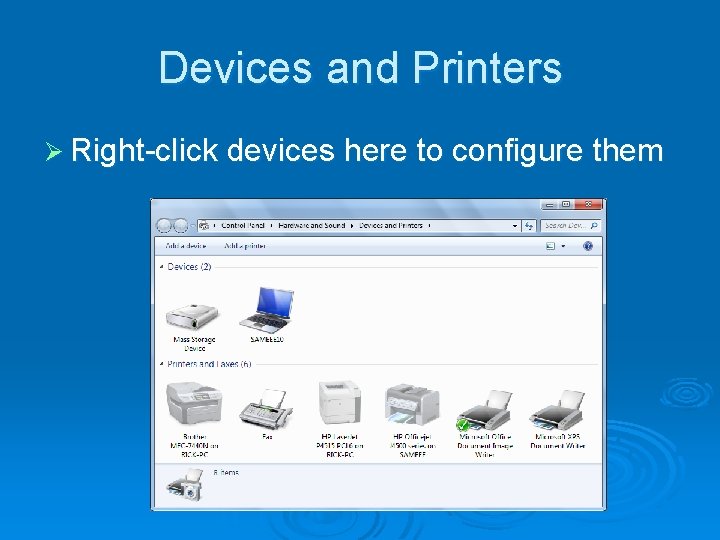
Devices and Printers Ø Right-click devices here to configure them
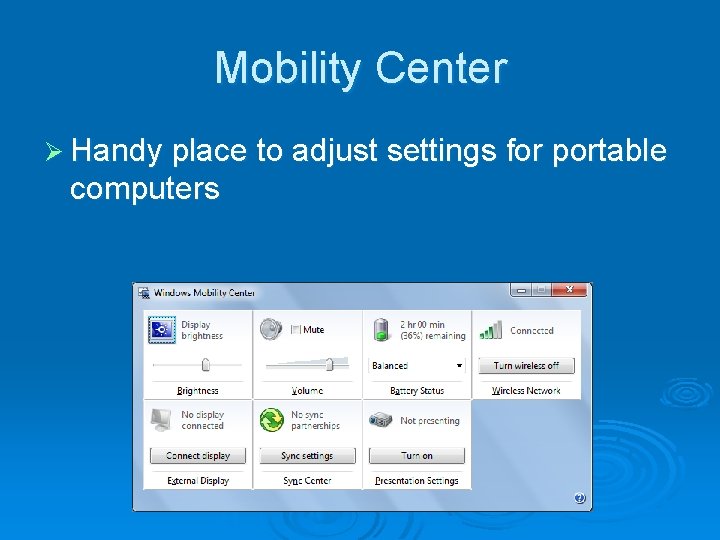
Mobility Center Ø Handy place to adjust settings for portable computers
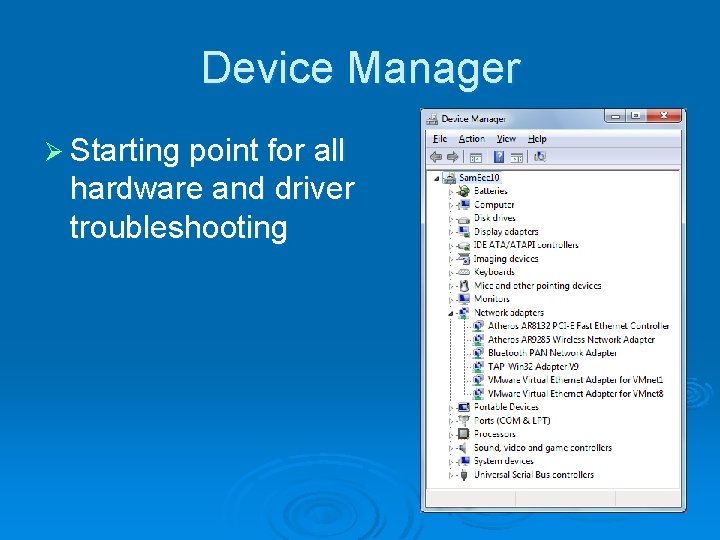
Device Manager Ø Starting point for all hardware and driver troubleshooting
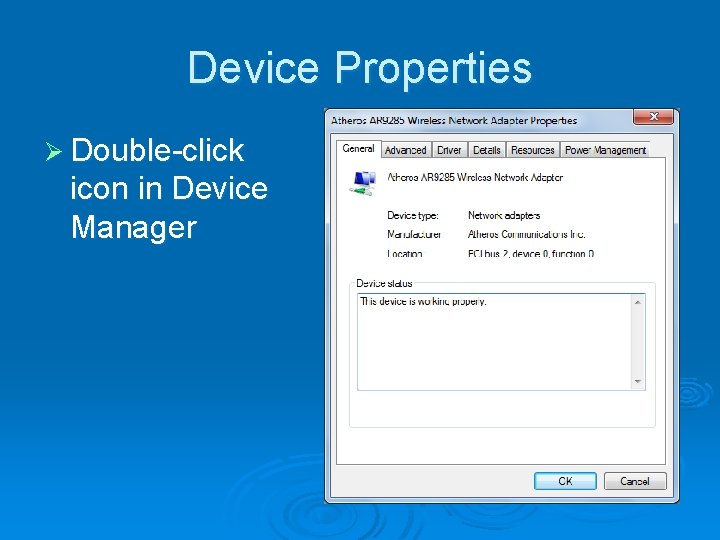
Device Properties Ø Double-click icon in Device Manager
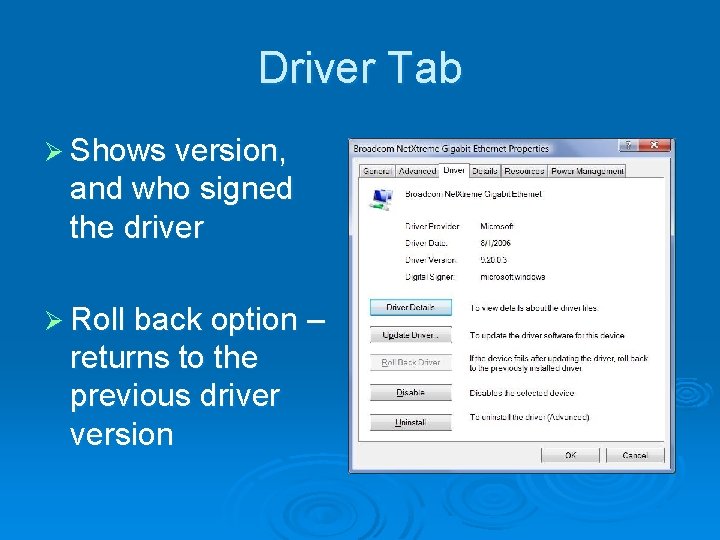
Driver Tab Ø Shows version, and who signed the driver Ø Roll back option – returns to the previous driver version
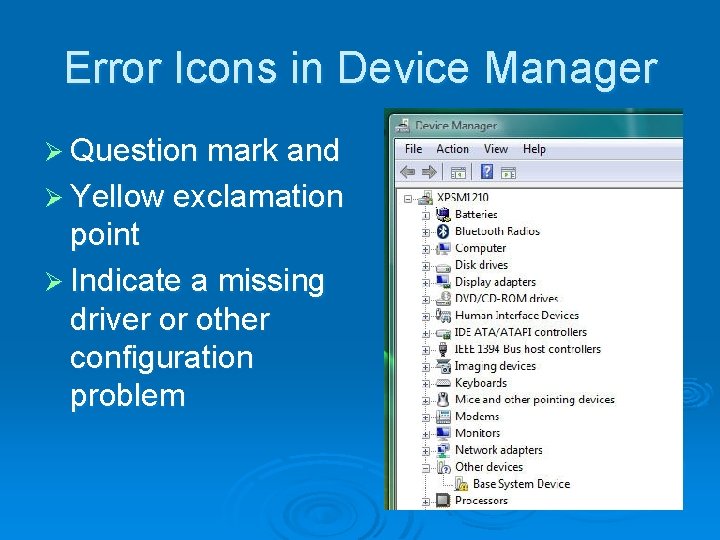
Error Icons in Device Manager Ø Question mark and Ø Yellow exclamation point Ø Indicate a missing driver or other configuration problem
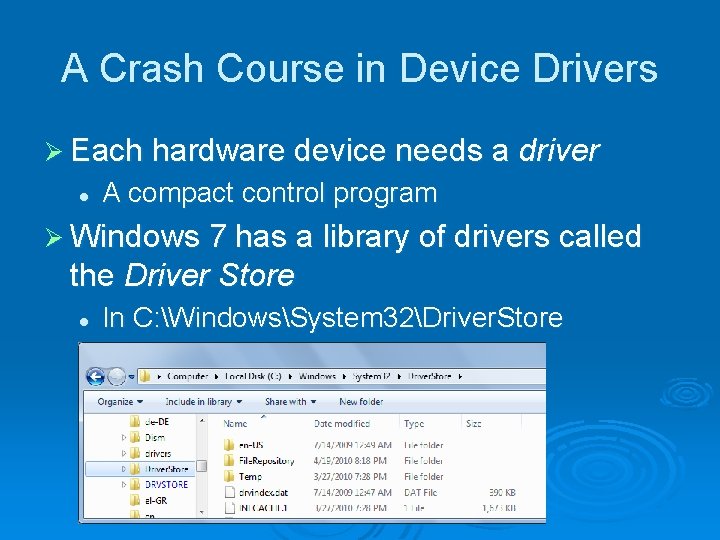
A Crash Course in Device Drivers Ø Each hardware device needs a driver l A compact control program Ø Windows 7 has a library of drivers called the Driver Store l In C: WindowsSystem 32Driver. Store
Using the Driver Store Ø Any user can read and execute files in the Driver Store l Ø No Administrator credentials are required The Driver Store is created when Windows 7 is installed l l l Windows Update can add drivers to it Installers can add to it, with Administrator credentials Administrators can add other drivers to the store, even ones that are not Microsoft approved or signed
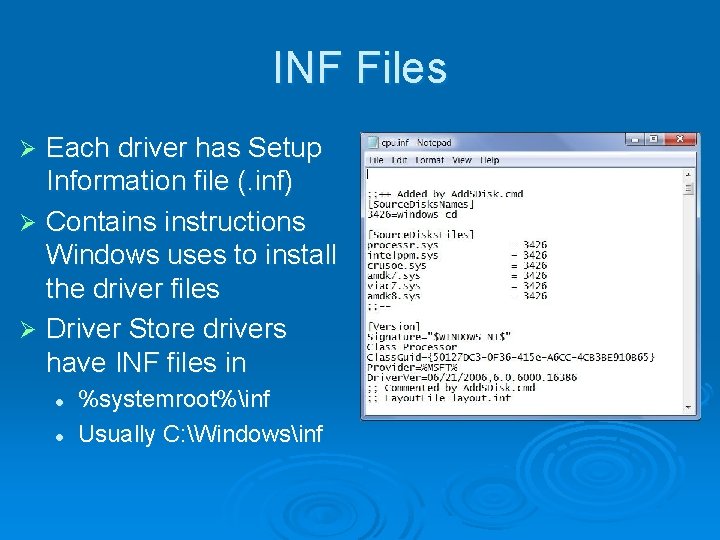
INF Files Each driver has Setup Information file (. inf) Ø Contains instructions Windows uses to install the driver files Ø Driver Store drivers have INF files in Ø l l %systemroot%inf Usually C: Windowsinf
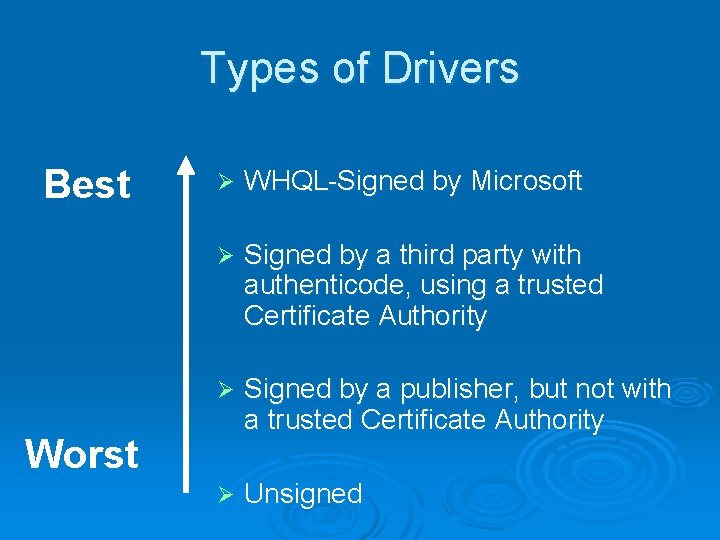
Types of Drivers Best Ø WHQL-Signed by Microsoft Ø Signed by a third party with authenticode, using a trusted Certificate Authority Ø Signed by a publisher, but not with a trusted Certificate Authority Ø Unsigned Worst
WHQL-Signed Drivers Ø Windows Logo Program l l l Signed by Microsoft’s Windows Hardware Quality Lab (WHQL) Proves the driver has not been altered Also proves the driver has been thoroughly tested so it won’t crash Windows Ø The most trustworthy drivers l Can be installed by any user with no warnings
Drivers Signed by a Third Party Ø Signed with digital certificates called “Authenticode Signatures” l l Proves the driver has not been altered Not tested by Microsoft, may cause Windows to crash
Unsigned Drivers Ø No guarantee that the driver has not been altered Ø No guarantee that anyone has tested it l Driver may cause a system crash or contain a trojan Ø Can be installed only by Administrators l Can not be used at all on 64 -bit Windows 7
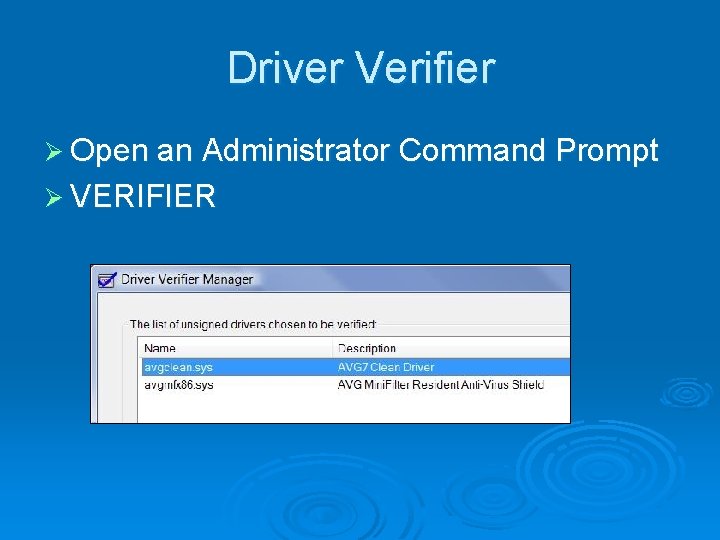
Driver Verifier Ø If your computer has blue-screens, lockups, or other strange behavior Ø Driver Verifier will thoroughly test all drivers at startup, and stop if it finds any problems l Then you can fix the problem, and turn Driver Verifier off again
Driver Verifier Ø Open an Administrator Command Prompt Ø VERIFIER