
Windows 7 Inside Out Ch 5 Adding Removing
- Slides: 67
Windows 7 Inside Out Ch 5: Adding, Removing, and Managing Programs
What's in Your Edition? Ø Everything in this chapter is the same in all editions, except Windows XP Mode Ø Windows XP Mode requires Windows 7 Professional, Enterprise, or Ultimate
Add or Remove Programs is Gone Ø No one ever used it to add programs anyway Ø Programs come with installers. You just have to deal with: l l User Account Control (UAC) Compatibility issues
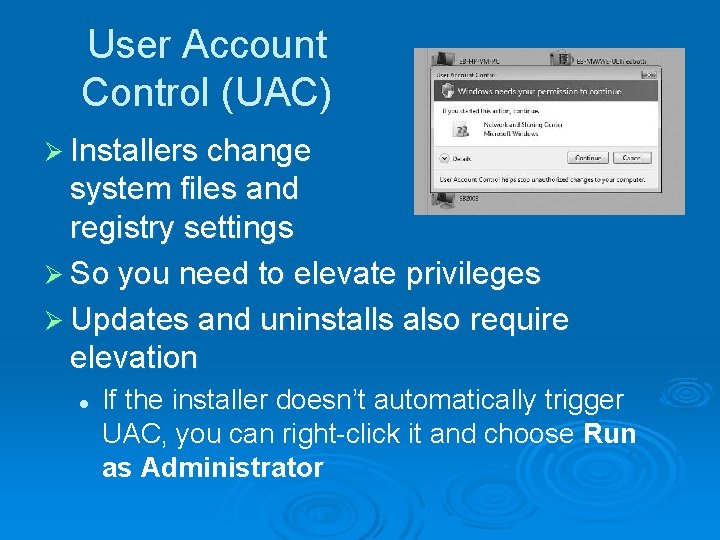
User Account Control (UAC) Ø Installers change system files and registry settings Ø So you need to elevate privileges Ø Updates and uninstalls also require elevation l If the installer doesn’t automatically trigger UAC, you can right-click it and choose Run as Administrator
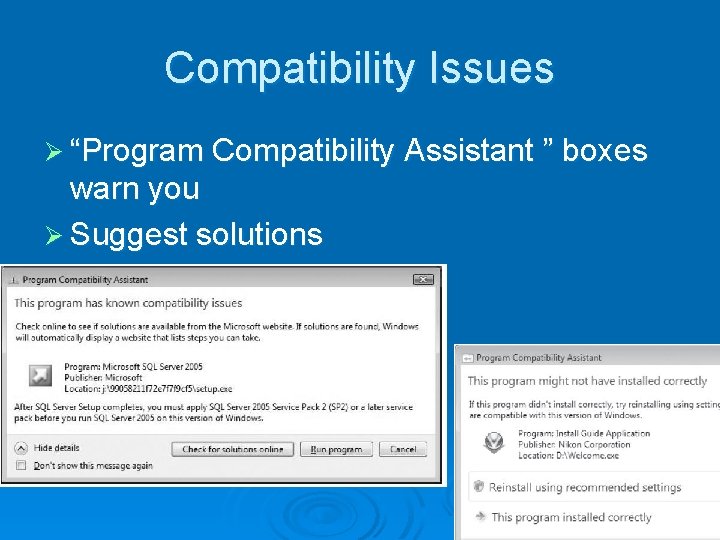
Compatibility Issues Ø “Program Compatibility Assistant ” boxes warn you Ø Suggest solutions
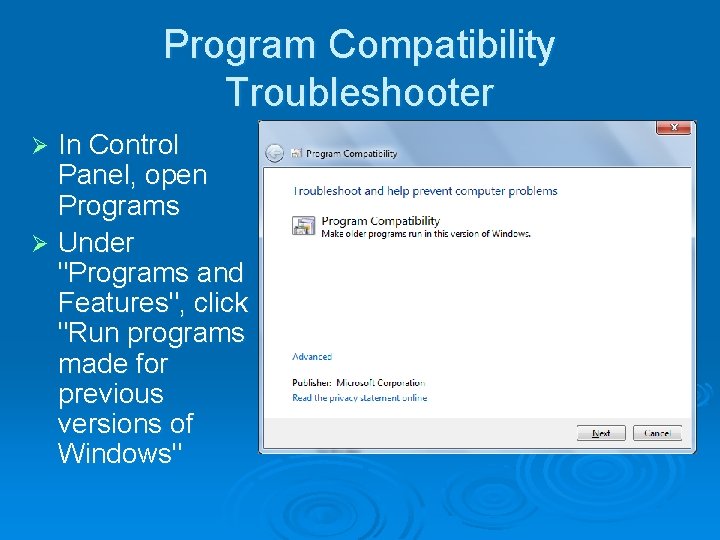
Program Compatibility Troubleshooter In Control Panel, open Programs Ø Under "Programs and Features", click "Run programs made for previous versions of Windows" Ø
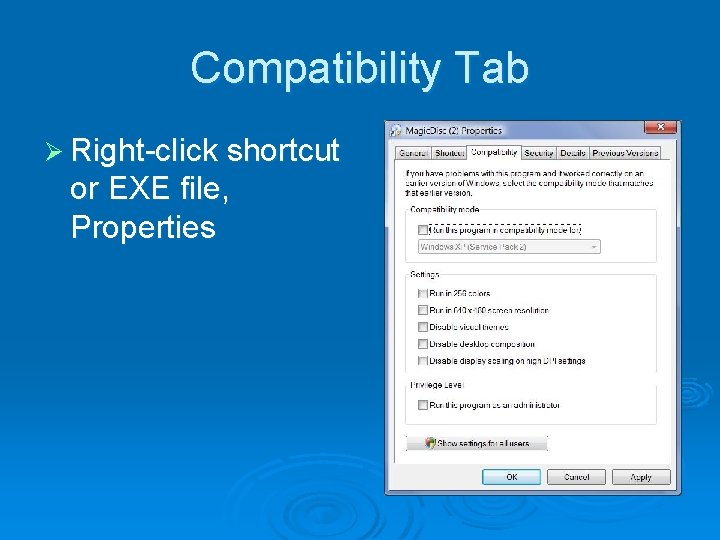
Compatibility Tab Ø Right-click shortcut or EXE file, Properties
Windows XP Mode
Requirements for XP Mode Ø Runs a virtual machine with Windows XP seamlessly within Windows 7 Ø Windows 7 Professional, Enterprise, or Ultimate Ø Processor must support hardwareassisted virtualization Ø The hardware virtualization must be enabled in the BIOS
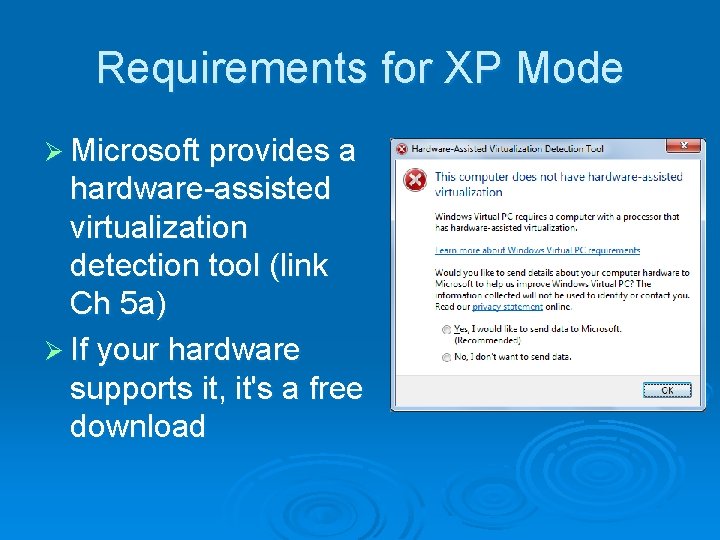
Requirements for XP Mode Ø Microsoft provides a hardware-assisted virtualization detection tool (link Ch 5 a) Ø If your hardware supports it, it's a free download
Installing Programs on 64 -bit Versions of Windows 16 -bit programs won’t install Ø 32 -bit programs install into the “Program Files (x 86)” folder Ø 64 -bit programs install into the “Program Files” folder Ø l l l Many programs, including IE, install both 32 -bit and 64 -bit versions on 64 -bit Windows 7 By default, the 32 -bit version runs, for compatibility You can identify 32 -bit programs in Task Manager
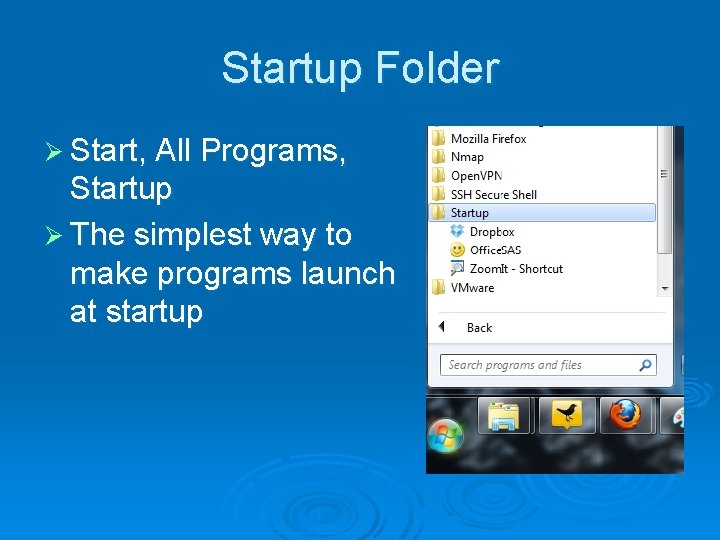
Startup Folder Ø Start, All Programs, Startup Ø The simplest way to make programs launch at startup
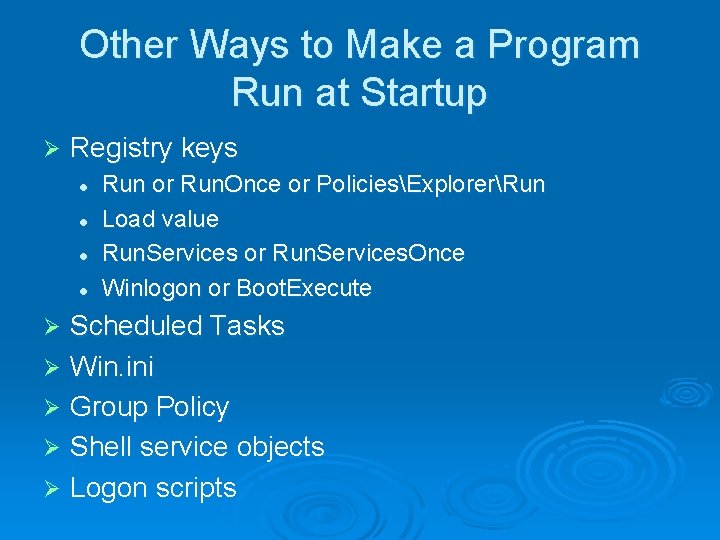
Other Ways to Make a Program Run at Startup Ø Registry keys l l Run or Run. Once or PoliciesExplorerRun Load value Run. Services or Run. Services. Once Winlogon or Boot. Execute Scheduled Tasks Ø Win. ini Ø Group Policy Ø Shell service objects Ø Logon scripts Ø
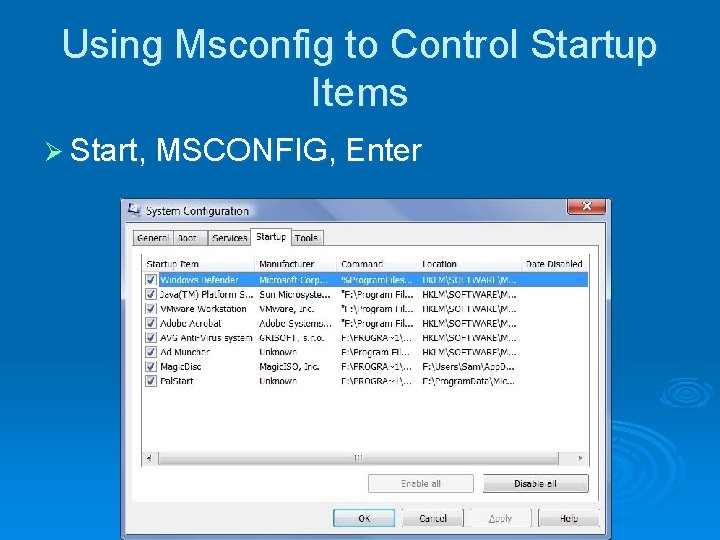
Using Msconfig to Control Startup Items Ø Start, MSCONFIG, Enter
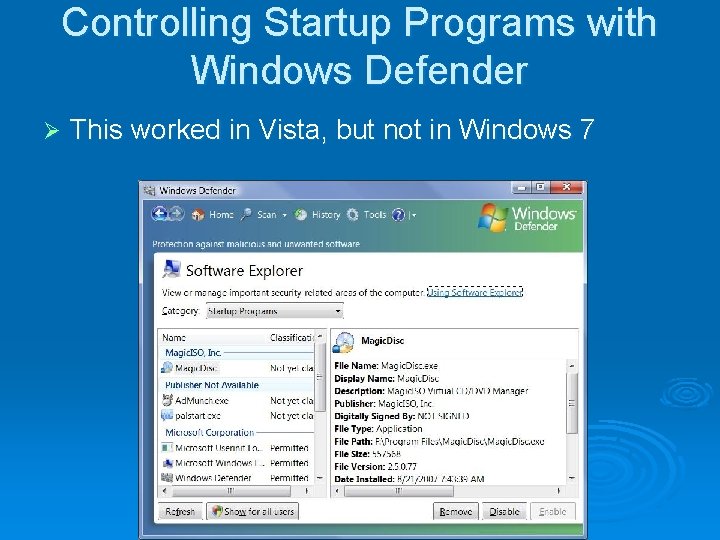
Controlling Startup Programs with Windows Defender Ø This worked in Vista, but not in Windows 7
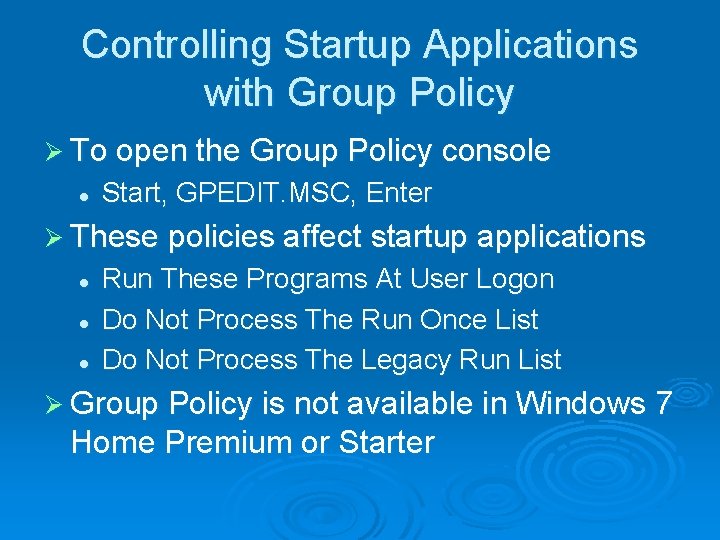
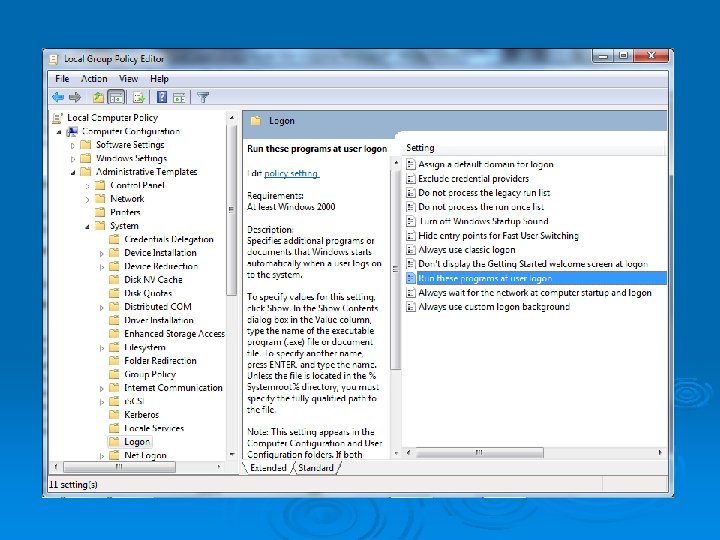
Controlling Startup Applications with Group Policy Ø To open the Group Policy console l Start, GPEDIT. MSC, Enter Ø These policies affect startup applications l l l Run These Programs At User Logon Do Not Process The Run Once List Do Not Process The Legacy Run List Ø Group Policy is not available in Windows 7 Home Premium or Starter
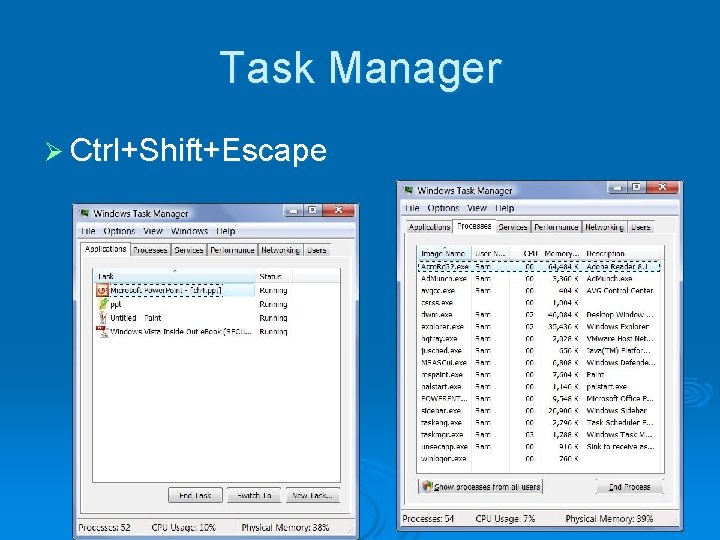
Task Manager Ø Ctrl+Shift+Escape
Task Manager Tabs Ø Applications l Shows running programs with status Ø Processes l l Information about programs and services “Show processes from all users” reveals processes running under system accounts Ø You can shut down processes here, but it can cause loss of data or a system crash
Running a Program as an Administrator Ø Right-click it and choose “Run as Administrator” Ø Launch it from the Administrator Command Prompt Ø Start, type in program name, press Ctrl+Shift+Enter
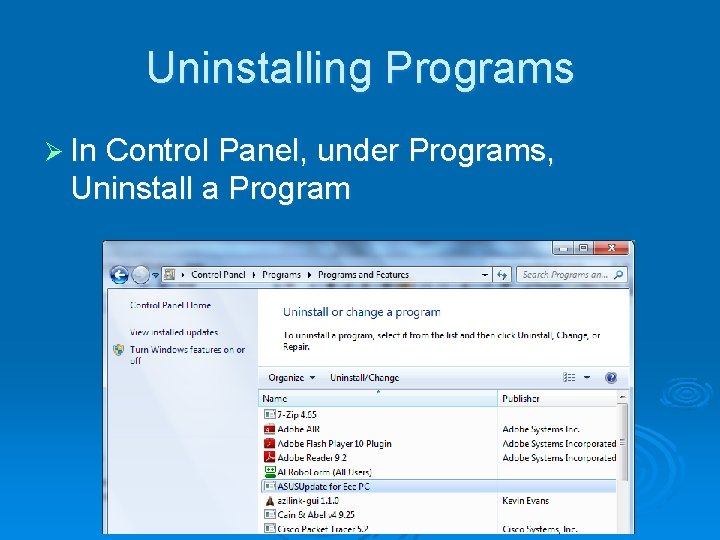
Uninstalling Programs Ø In Control Panel, under Programs, Uninstall a Program
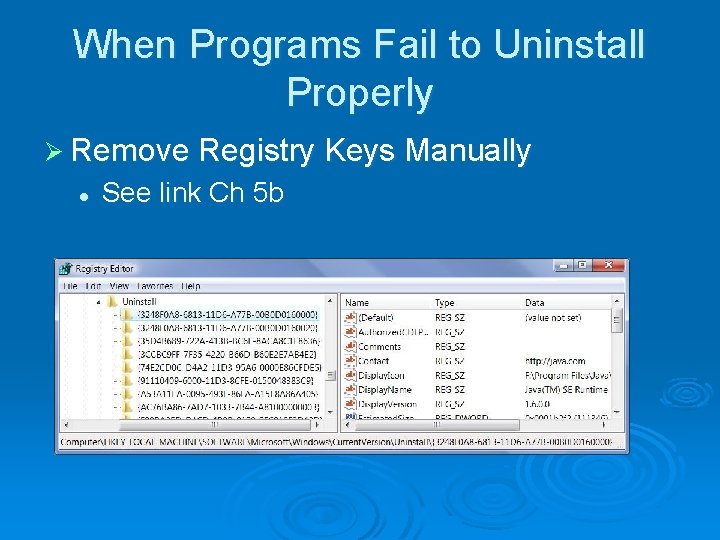
When Programs Fail to Uninstall Properly Ø Remove Registry Keys Manually l See link Ch 5 b
Default Programs and File Type Associations
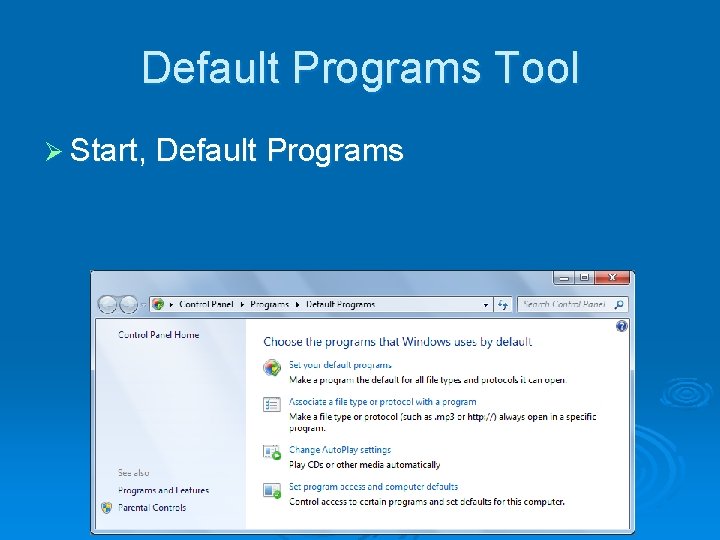
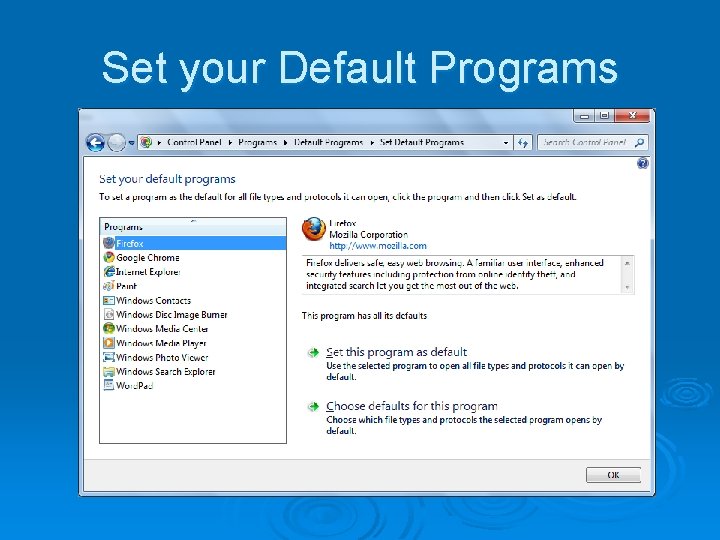
Default Programs Tool Ø Start, Default Programs
Set your Default Programs
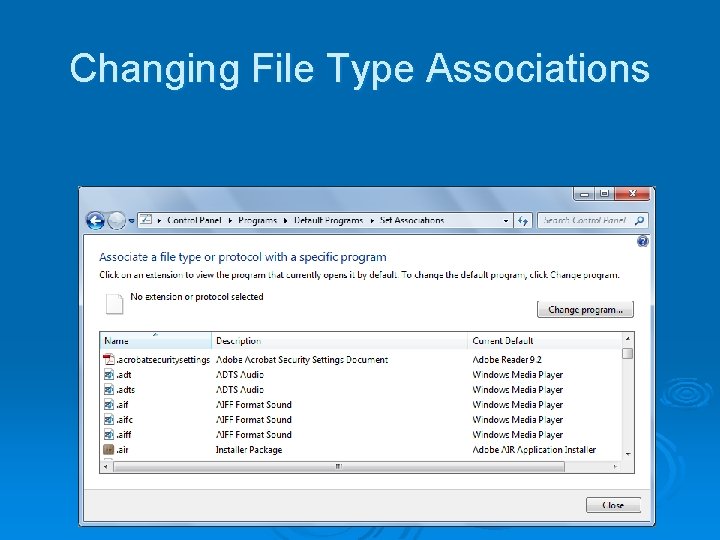
Changing File Type Associations
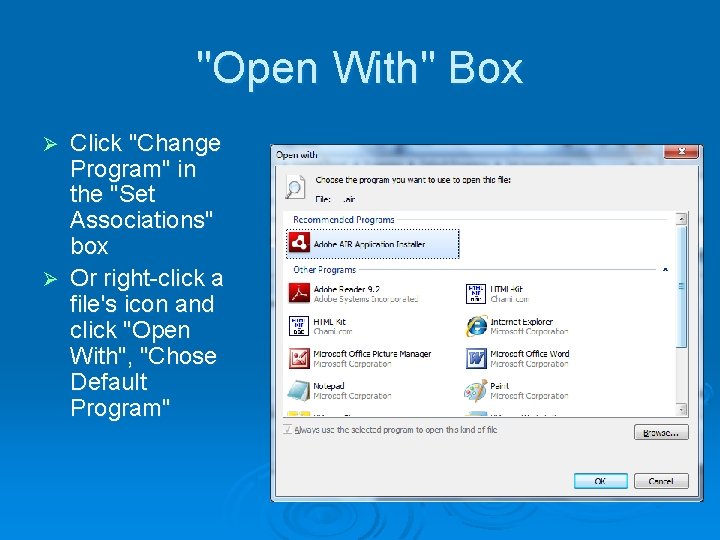
"Open With" Box Click "Change Program" in the "Set Associations" box Ø Or right-click a file's icon and click "Open With", "Chose Default Program" Ø
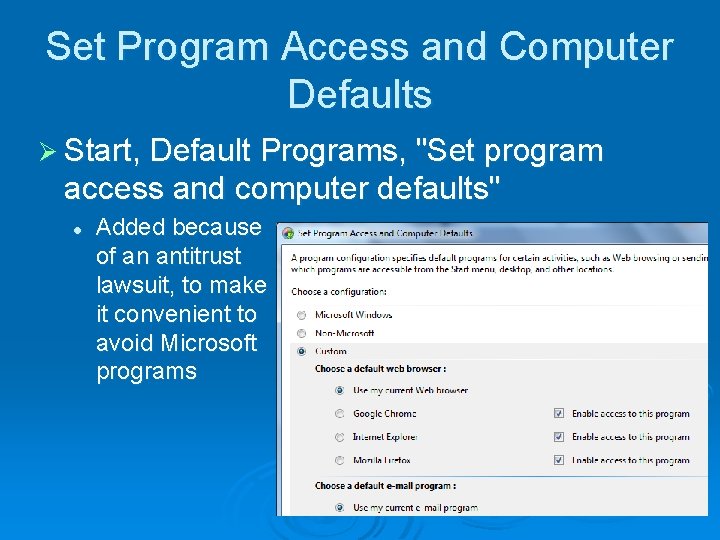
Set Program Access and Computer Defaults Ø Start, Default Programs, "Set program access and computer defaults" l Added because of an antitrust lawsuit, to make it convenient to avoid Microsoft programs
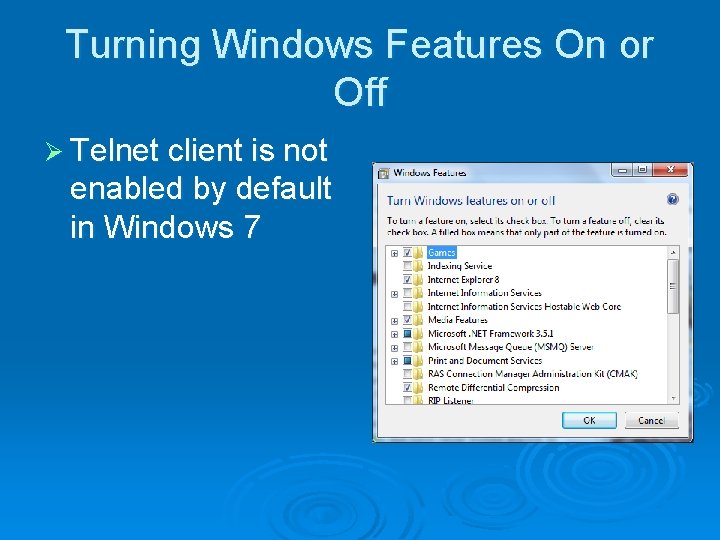
Turning Windows Features On or Off Ø Telnet client is not enabled by default in Windows 7
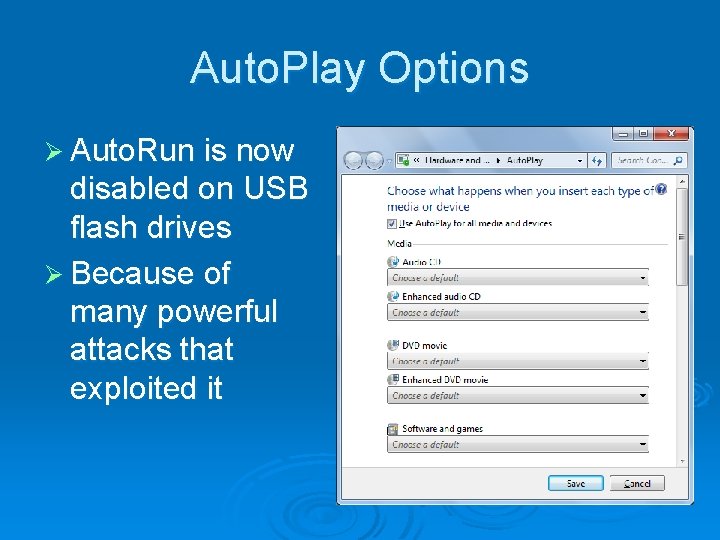
Auto. Play Options Ø Auto. Run is now disabled on USB flash drives Ø Because of many powerful attacks that exploited it
Windows 7 Inside Out Ch 6: Internet Explorer 8
What's in Your Edition? Ø Everything in this chapter is the same in all editions
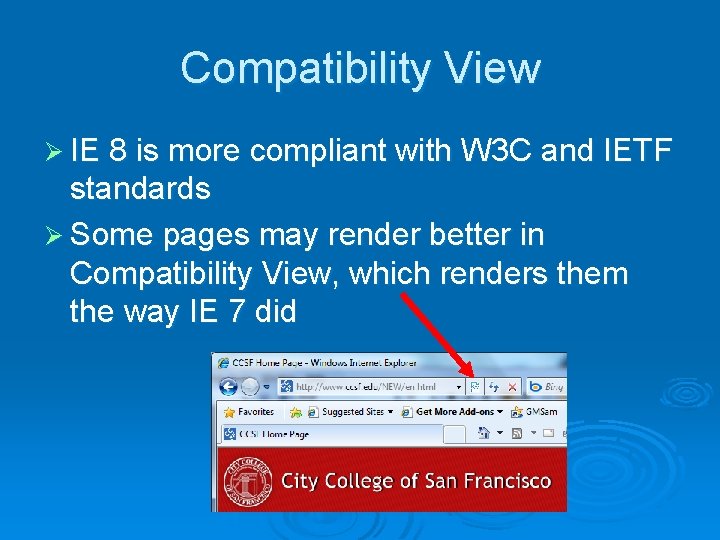
Compatibility View Ø IE 8 is more compliant with W 3 C and IETF standards Ø Some pages may render better in Compatibility View, which renders them the way IE 7 did
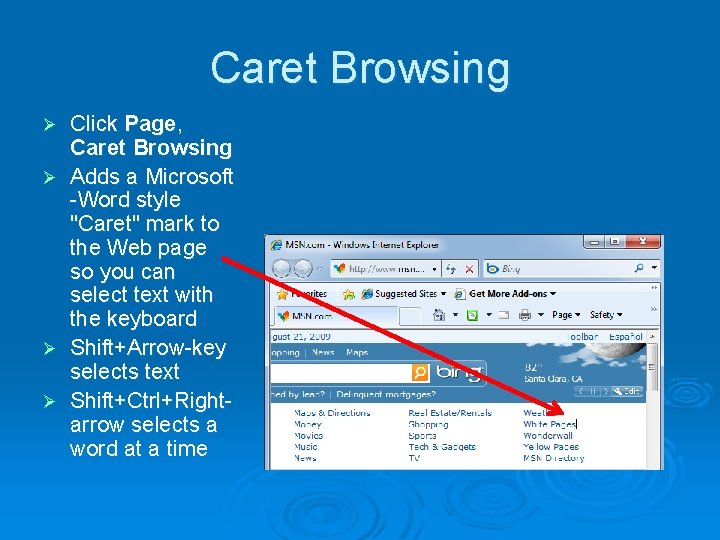
Caret Browsing Ø Ø Click Page, Caret Browsing Adds a Microsoft -Word style "Caret" mark to the Web page so you can select text with the keyboard Shift+Arrow-key selects text Shift+Ctrl+Rightarrow selects a word at a time
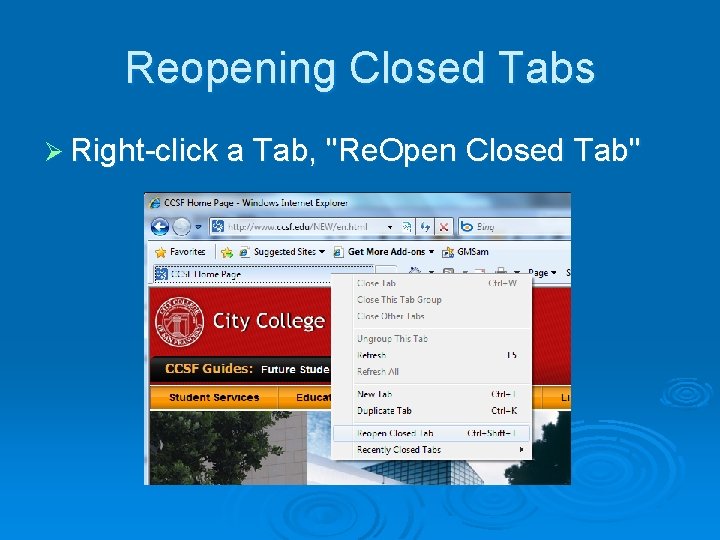
Reopening Closed Tabs Ø Right-click a Tab, "Re. Open Closed Tab"
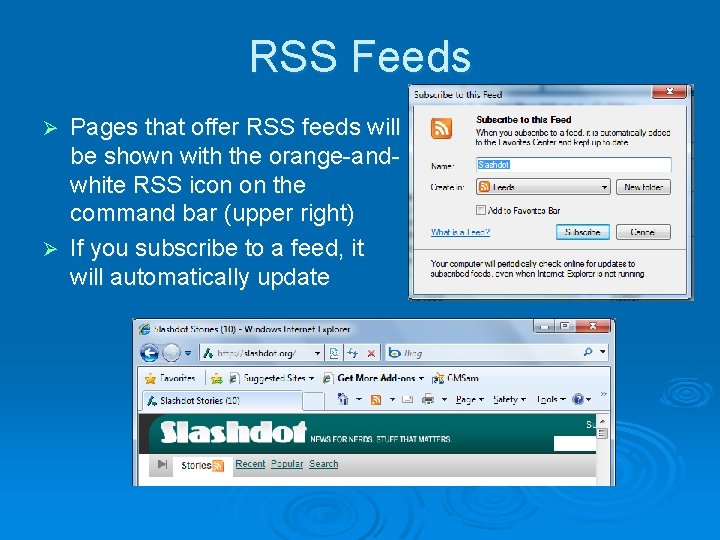
RSS Feeds Pages that offer RSS feeds will be shown with the orange-andwhite RSS icon on the command bar (upper right) Ø If you subscribe to a feed, it will automatically update Ø
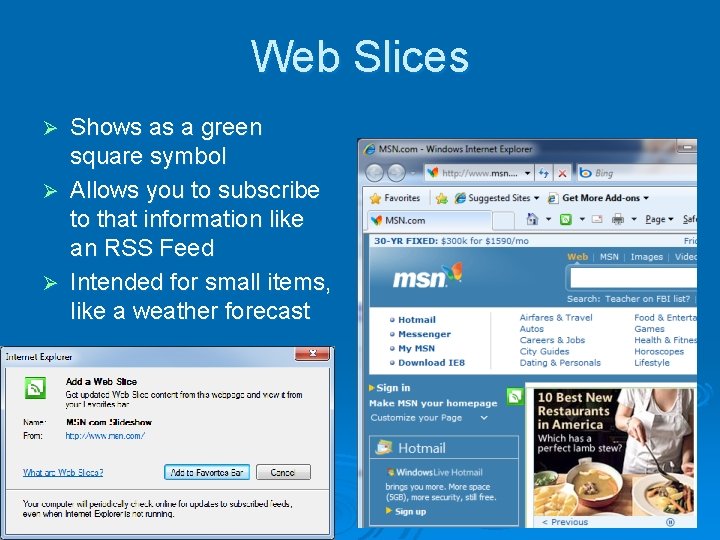
Web Slices Shows as a green square symbol Ø Allows you to subscribe to that information like an RSS Feed Ø Intended for small items, like a weather forecast Ø
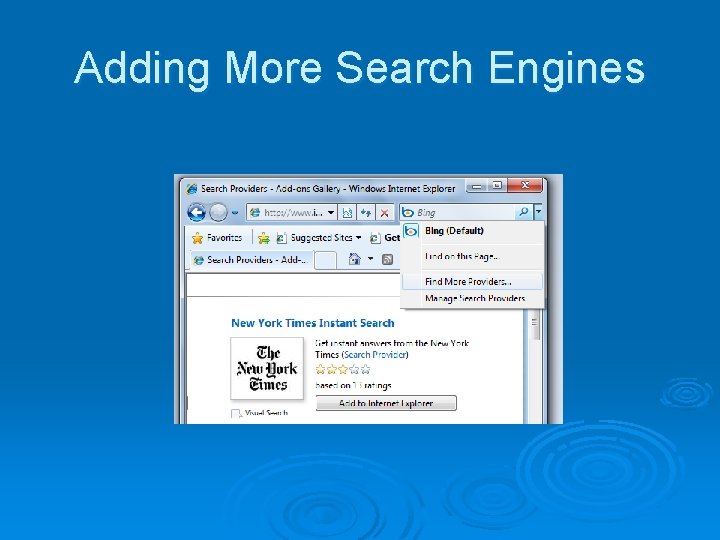
Adding More Search Engines
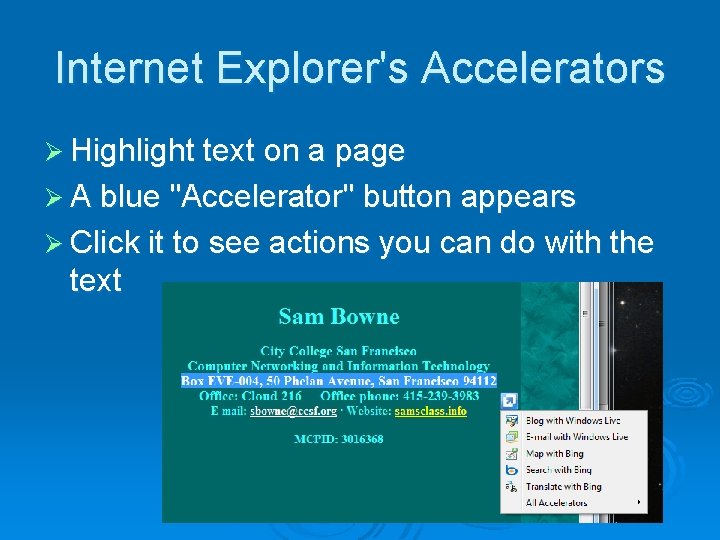
Internet Explorer's Accelerators Ø Highlight text on a page Ø A blue "Accelerator" button appears Ø Click it to see actions you can do with the text
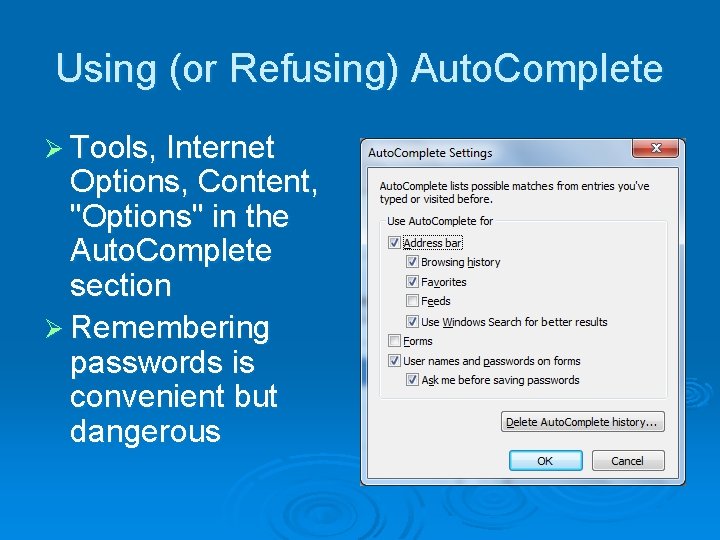
Using (or Refusing) Auto. Complete Ø Tools, Internet Options, Content, "Options" in the Auto. Complete section Ø Remembering passwords is convenient but dangerous
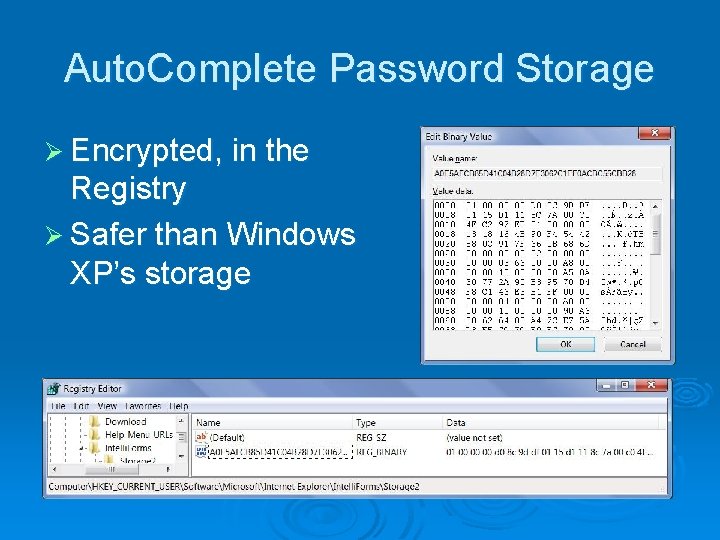
Auto. Complete Password Storage Ø Encrypted, in the Registry Ø Safer than Windows XP’s storage
Security and Privacy Options
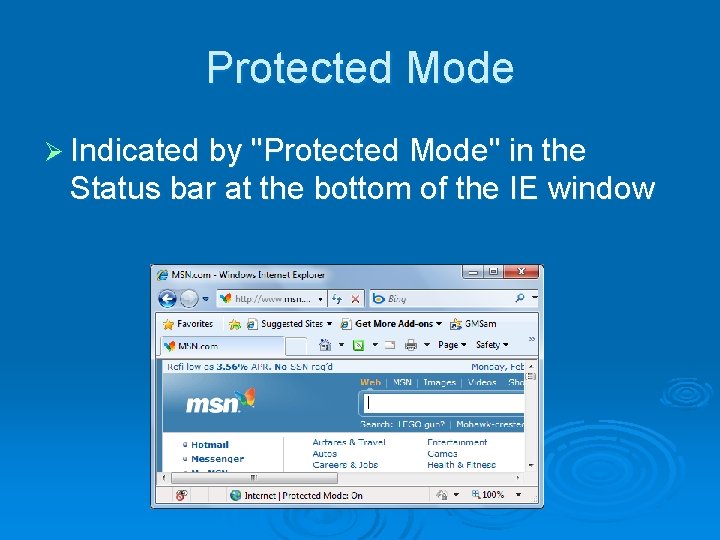
Protected Mode Ø Indicated by "Protected Mode" in the Status bar at the bottom of the IE window
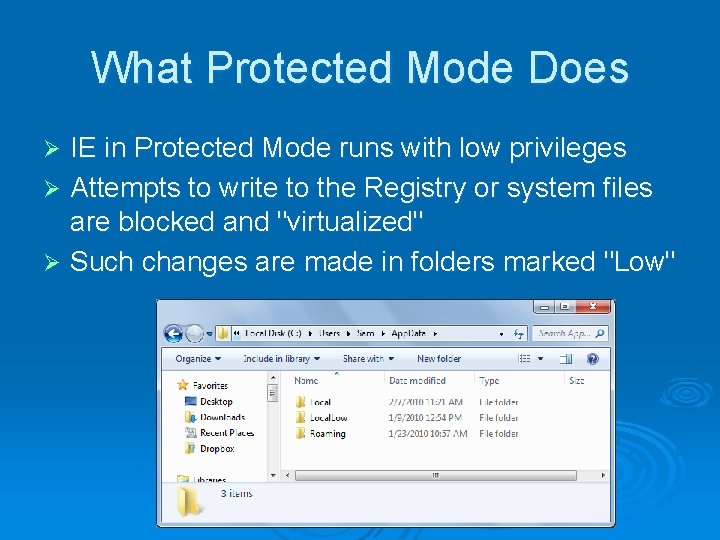
What Protected Mode Does IE in Protected Mode runs with low privileges Ø Attempts to write to the Registry or system files are blocked and "virtualized" Ø Such changes are made in folders marked "Low" Ø
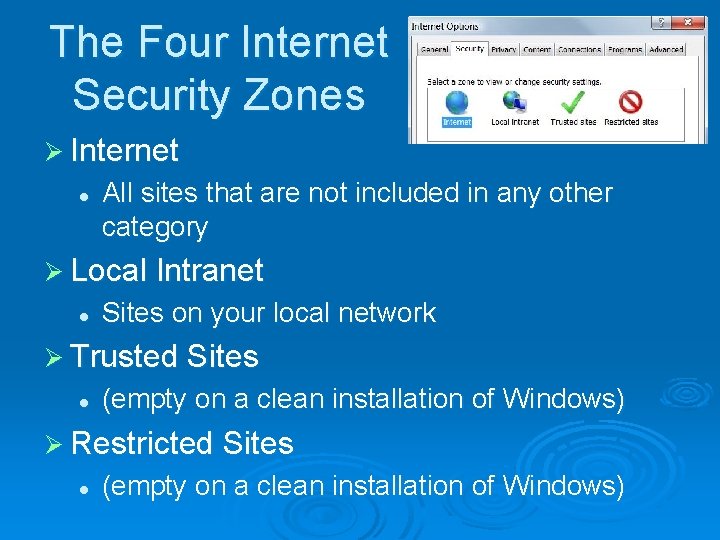
The Four Internet Security Zones Ø Internet l All sites that are not included in any other category Ø Local Intranet l Sites on your local network Ø Trusted Sites l (empty on a clean installation of Windows) Ø Restricted Sites l (empty on a clean installation of Windows)
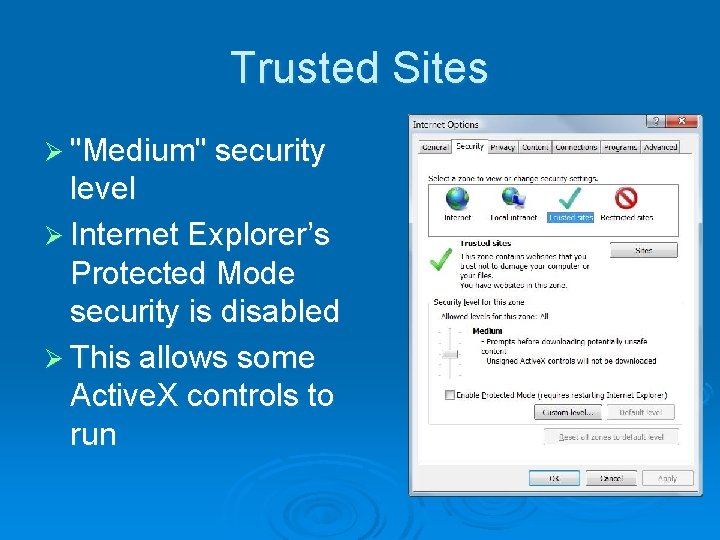
Trusted Sites Ø "Medium" security level Ø Internet Explorer’s Protected Mode security is disabled Ø This allows some Active. X controls to run
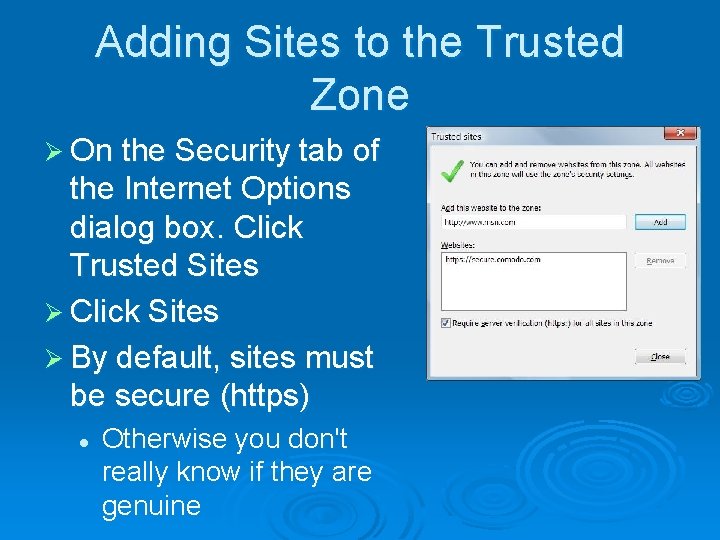
Adding Sites to the Trusted Zone Ø On the Security tab of the Internet Options dialog box. Click Trusted Sites Ø Click Sites Ø By default, sites must be secure (https) l Otherwise you don't really know if they are genuine
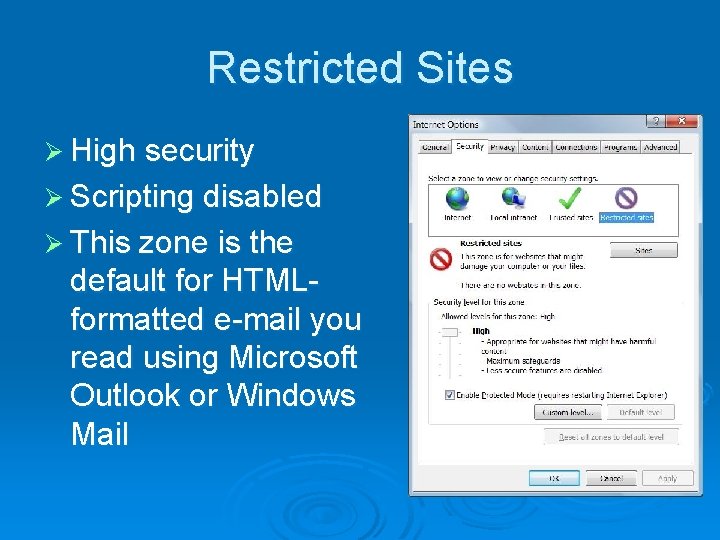
Restricted Sites Ø High security Ø Scripting disabled Ø This zone is the default for HTMLformatted e-mail you read using Microsoft Outlook or Windows Mail
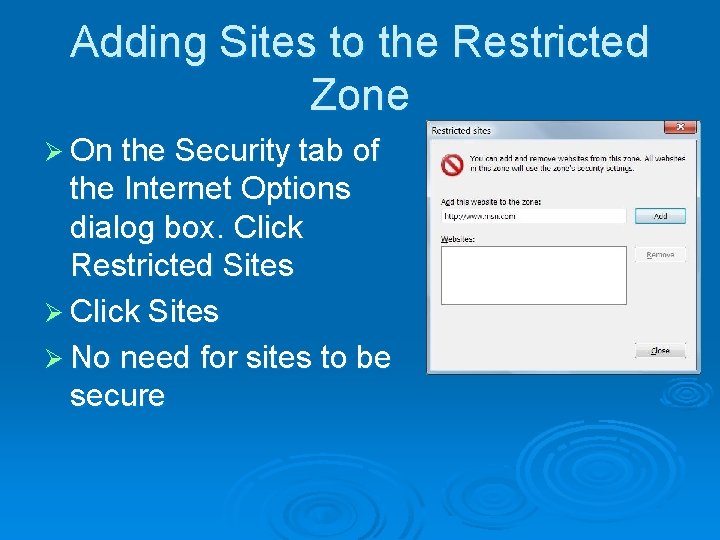
Adding Sites to the Restricted Zone Ø On the Security tab of the Internet Options dialog box. Click Restricted Sites Ø Click Sites Ø No need for sites to be secure
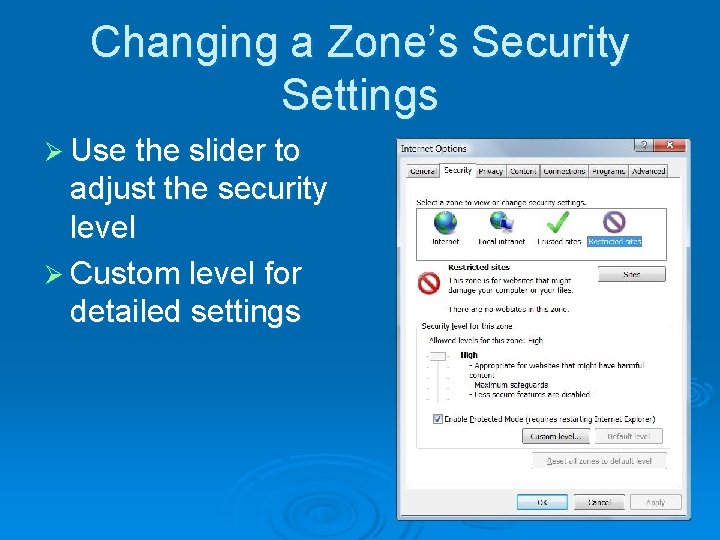
Changing a Zone’s Security Settings Ø Use the slider to adjust the security level Ø Custom level for detailed settings
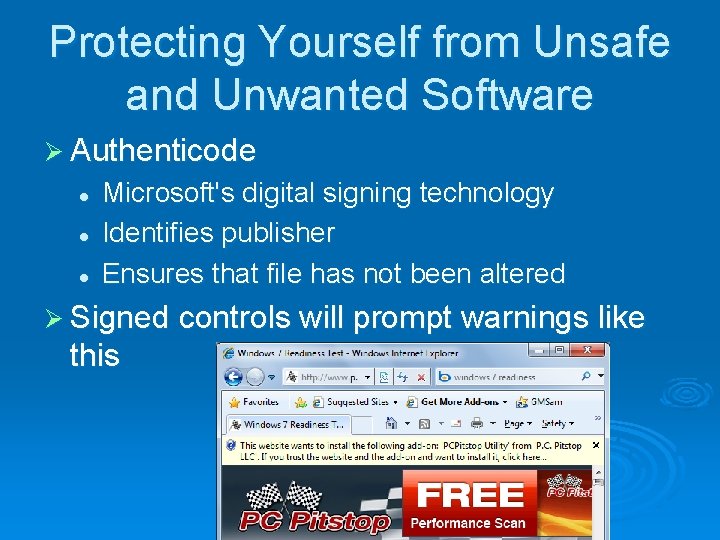
Protecting Yourself from Unsafe and Unwanted Software Ø Authenticode l l l Microsoft's digital signing technology Identifies publisher Ensures that file has not been altered Ø Signed controls will prompt warnings like this
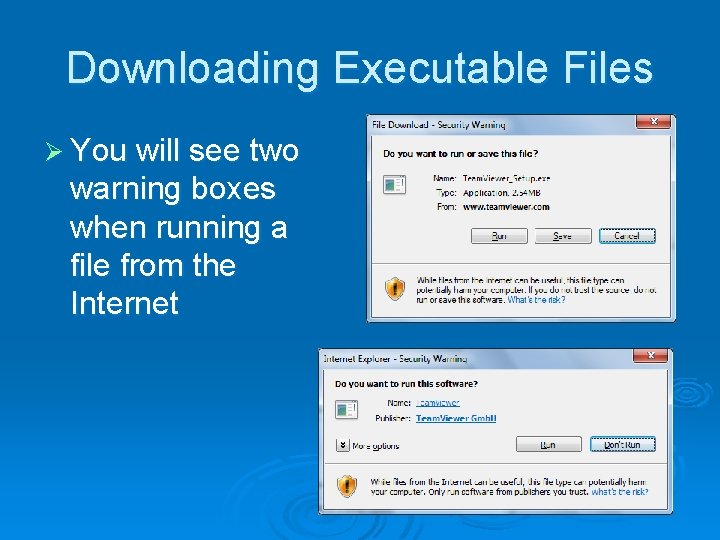
Downloading Executable Files Ø You will see two warning boxes when running a file from the Internet
Controlling Active. X Ø Active. X controls are small programs that enhance the functionality of a Web site Ø They work only in IE, on Windows Ø Windows Update uses Active. X Ø Active. X controls are like executables that you run from the Start menu or a command line Ø They have full access to your computer's resources
Active. X and Viruses Ø You cannot download an Active. X control, scan it for viruses, and install it separately Ø Active. X controls must be installed on the fly Ø You're protected from known viruses if you've configured your antivirus software to perform real-time scanning for hostile code
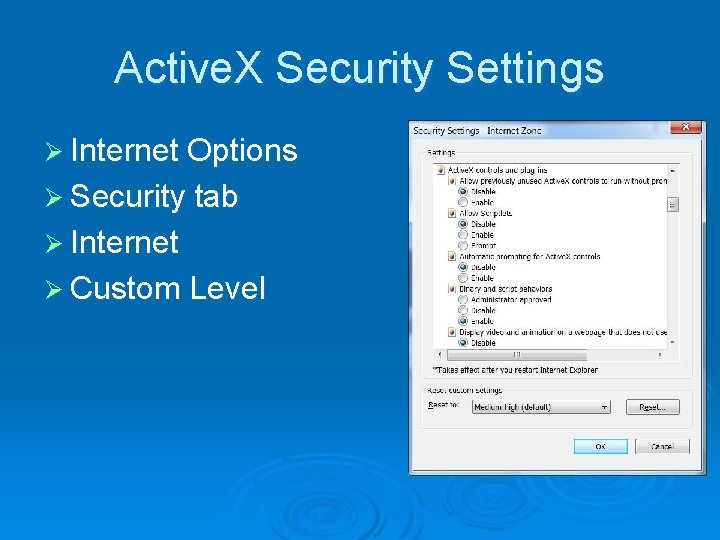
Active. X Security Settings Ø Internet Options Ø Security tab Ø Internet Ø Custom Level
Using Scripts Wisely Ø Scripts are small programs Ø Written in a scripting language such as Java. Script or VBScript Ø Scripts run on the client computer
Using Scripts Wisely Ø Hostile scripts can be embedded in Web pages or in HTML-formatted e-mail messages Ø You can disable scripts in Internet Options, the same way you control Active. X control security l Tip: For real safe browsing, use Firefox with the Noscript extension
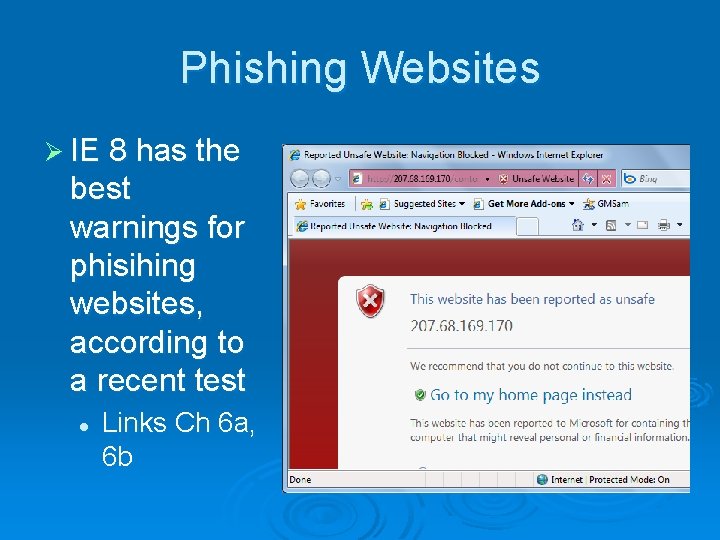
Phishing Websites Ø IE 8 has the best warnings for phisihing websites, according to a recent test l Links Ch 6 a, 6 b
Managing Cookies Ø A cookie is a small text file Ø It enables a Web site to personalize its offerings in some way Ø Stored in %User. Profile%App. DataRoaming MicrosoftWindowsCookies Ø Cookies are used recording logon information, shopping preferences, etc.
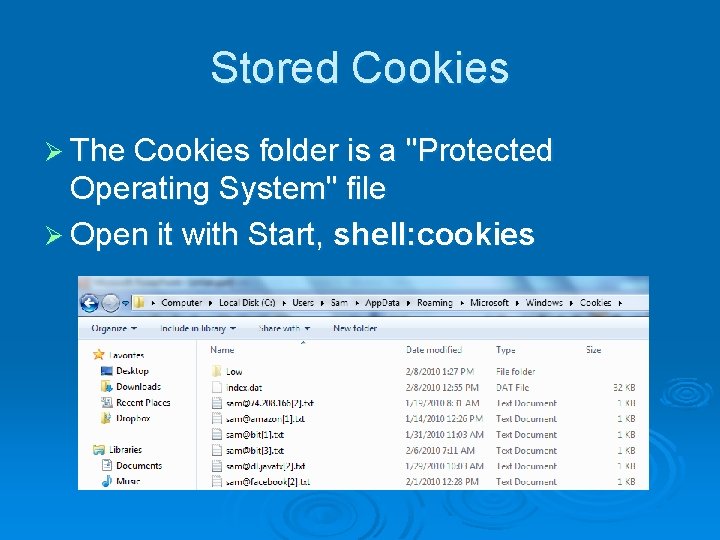
Stored Cookies Ø The Cookies folder is a "Protected Operating System" file Ø Open it with Start, shell: cookies
Privacy Concerns Ø Cookies may contain information you typed into a Web page Ø This information can be read only by the site that created the cookie l BUT: Third-party cookies cheat and get around this rule (See link Ch 6 c)
Platform for Privacy Preferences P 3 P Ø Internet Explorer 8 supports the Platform for Privacy Preferences (P 3 P) standard Ø You can choose to block certain kinds of cookies, while allowing the rest
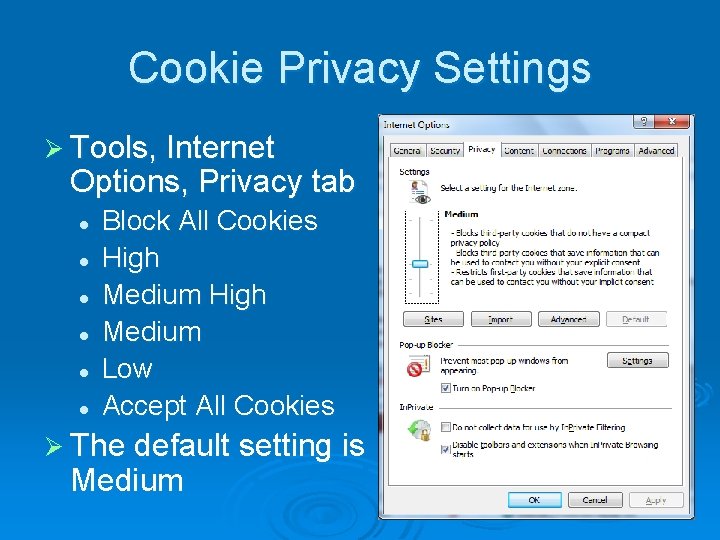
Cookie Privacy Settings Ø Tools, Internet Options, Privacy tab l l l Block All Cookies High Medium Low Accept All Cookies Ø The default setting is Medium
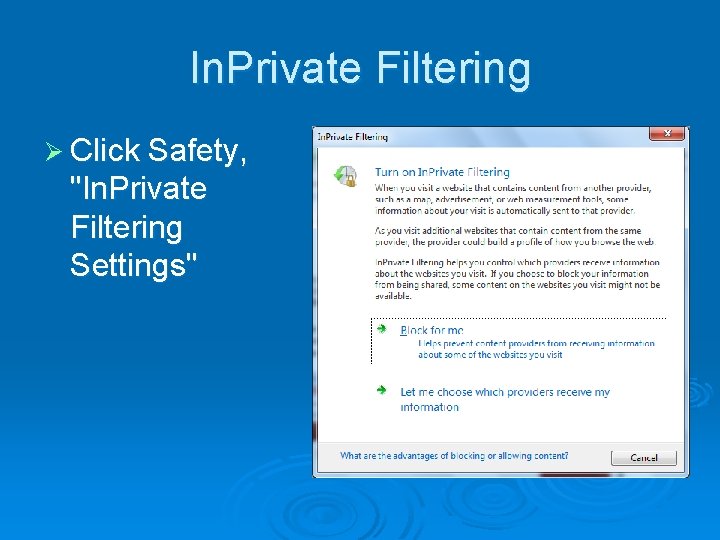
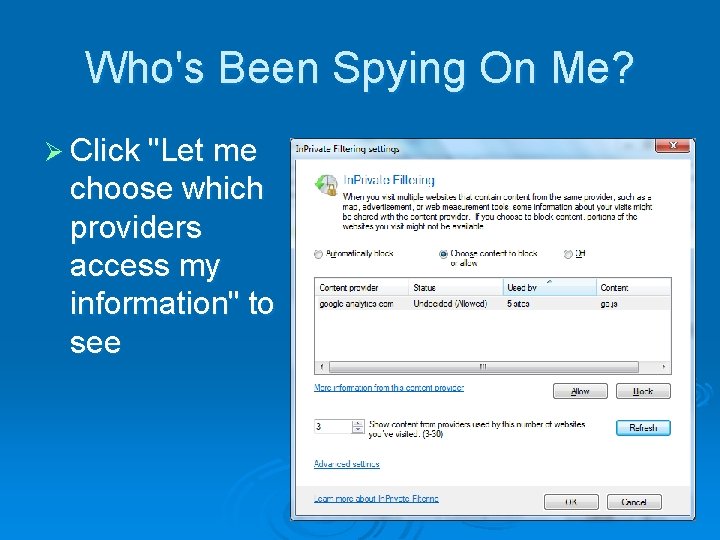
In. Private Filtering Ø Click Safety, "In. Private Filtering Settings"
Who's Been Spying On Me? Ø Click "Let me choose which providers access my information" to see
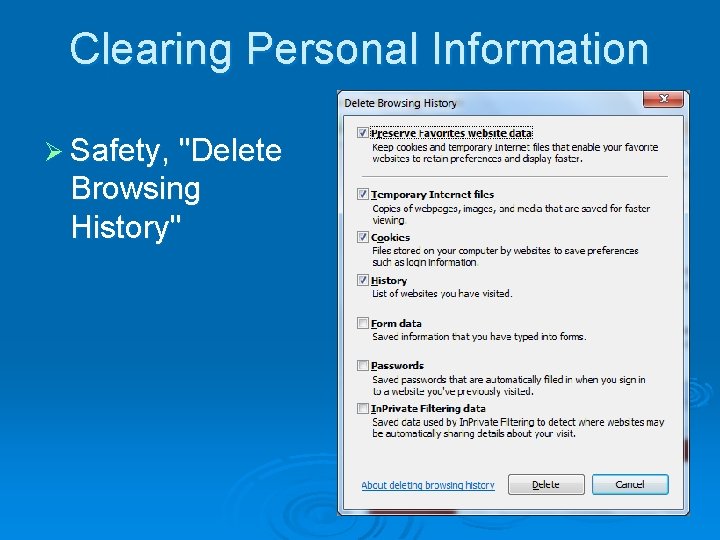
Clearing Personal Information Ø Safety, "Delete Browsing History"
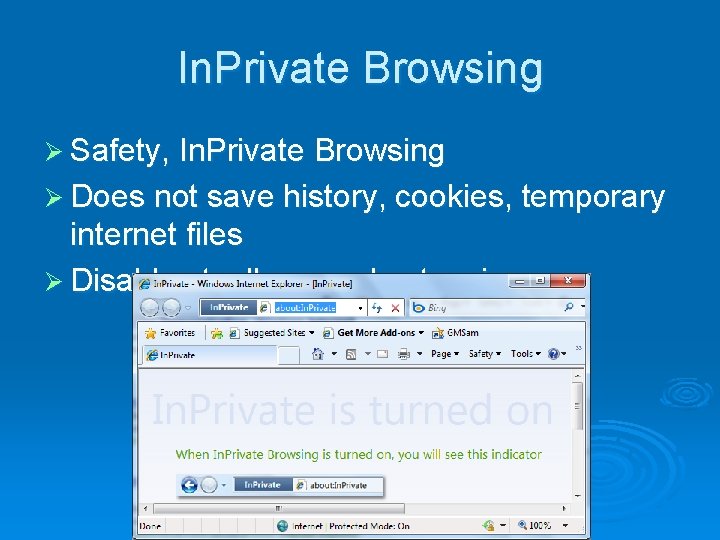
In. Private Browsing Ø Safety, In. Private Browsing Ø Does not save history, cookies, temporary internet files Ø Disables toolbars and extensions