
Win TR20 Project Formulation Hydrology Computer Program Basic
Win. TR-20 Project Formulation Hydrology Computer Program Basic Input and Output Presented by: Win. TR-20 Development Team
● This presentation demonstrates the new Win. TR-20 computer program model. Using a simple example, you will learn how to: – Create an Input File – Run Win. TR-20 – View Output Win. TR-20 Basic Input & Output June 2015 2
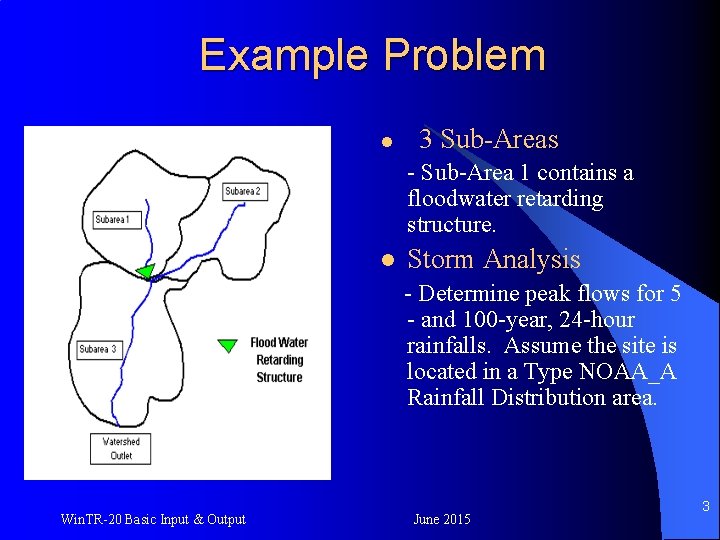
Example Problem l 3 Sub-Areas - Sub-Area 1 contains a floodwater retarding structure. l Storm Analysis - Determine peak flows for 5 - and 100 -year, 24 -hour rainfalls. Assume the site is located in a Type NOAA_A Rainfall Distribution area. Win. TR-20 Basic Input & Output June 2015 3
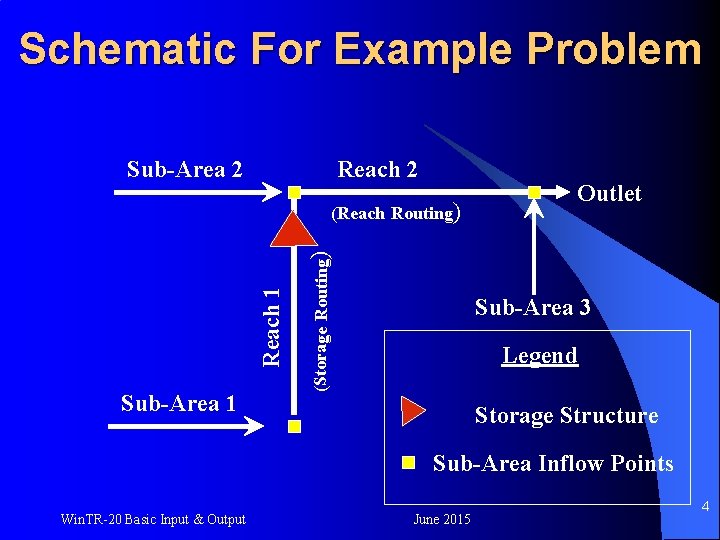
Schematic For Example Problem Reach 2 Sub-Area 1 (Storage Routing) Reach 1 (Reach Routing) Outlet Sub-Area 3 Legend Storage Structure Sub-Area Inflow Points Win. TR-20 Basic Input & Output June 2015 4
Data Sources ● ● The data presented in the next 5 slides have been gathered prior to inputting into Win. TR-20. The data includes: – Sub-Area Watershed Characteristics – Stream Reach Hydraulics – Storage Structure Hydraulics – Evaluation Storm Amounts and Distribution Win. TR-20 Basic Input & Output June 2015 5
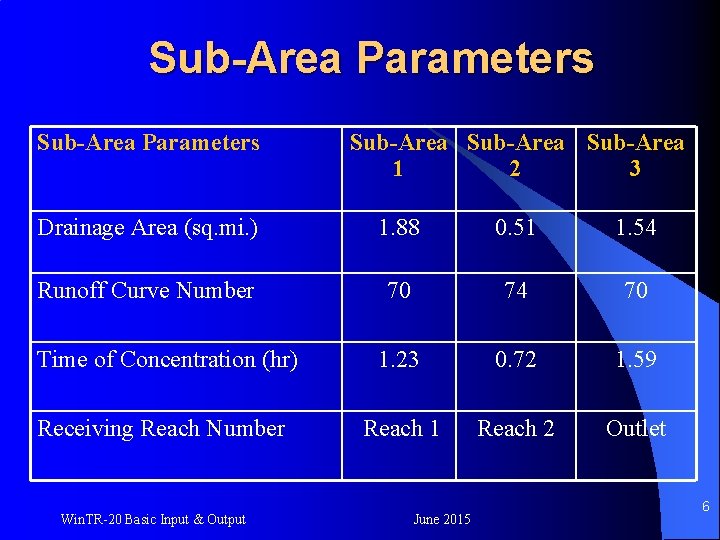
Sub-Area Parameters Sub-Area 1 2 3 Drainage Area (sq. mi. ) 1. 88 0. 51 1. 54 Runoff Curve Number 70 74 70 Time of Concentration (hr) 1. 23 0. 72 1. 59 Receiving Reach Number Reach 1 Reach 2 Outlet Win. TR-20 Basic Input & Output June 2015 6
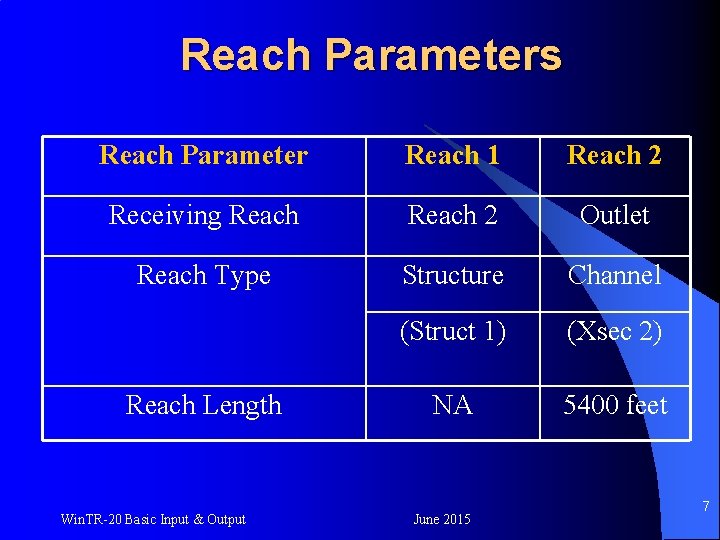
Reach Parameters Reach Parameter Reach 1 Reach 2 Receiving Reach 2 Outlet Reach Type Structure Channel (Struct 1) (Xsec 2) NA 5400 feet Reach Length Win. TR-20 Basic Input & Output June 2015 7
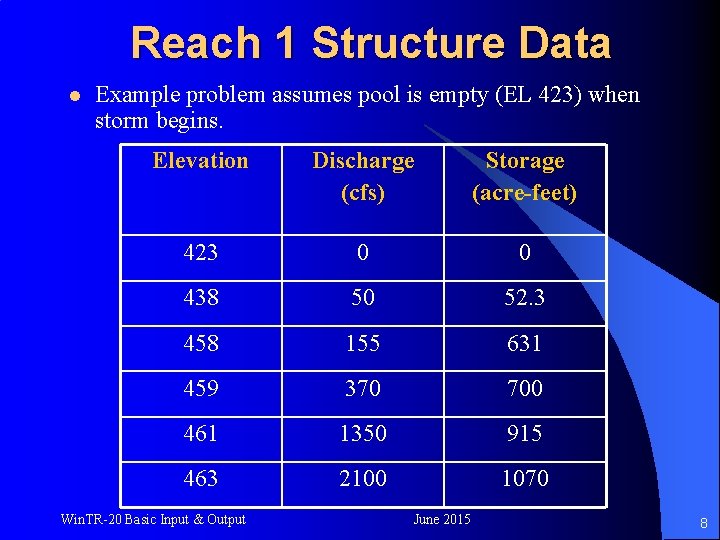
Reach 1 Structure Data l Example problem assumes pool is empty (EL 423) when storm begins. Elevation Discharge (cfs) Storage (acre-feet) 423 0 0 438 50 52. 3 458 155 631 459 370 700 461 1350 915 463 2100 1070 Win. TR-20 Basic Input & Output June 2015 8
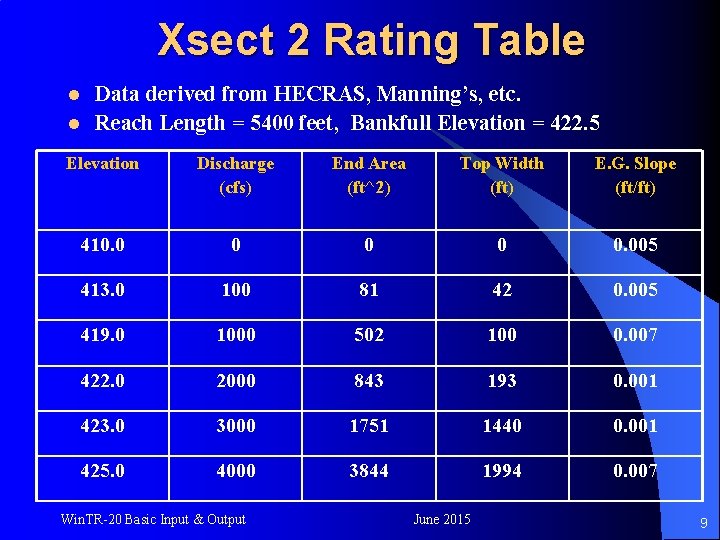
Xsect 2 Rating Table l l Data derived from HECRAS, Manning’s, etc. Reach Length = 5400 feet, Bankfull Elevation = 422. 5 Elevation Discharge (cfs) End Area (ft^2) Top Width (ft) E. G. Slope (ft/ft) 410. 0 0 0. 005 413. 0 100 81 42 0. 005 419. 0 1000 502 100 0. 007 422. 0 2000 843 193 0. 001 423. 0 3000 1751 1440 0. 001 425. 0 4000 3844 1994 0. 007 Win. TR-20 Basic Input & Output June 2015 9
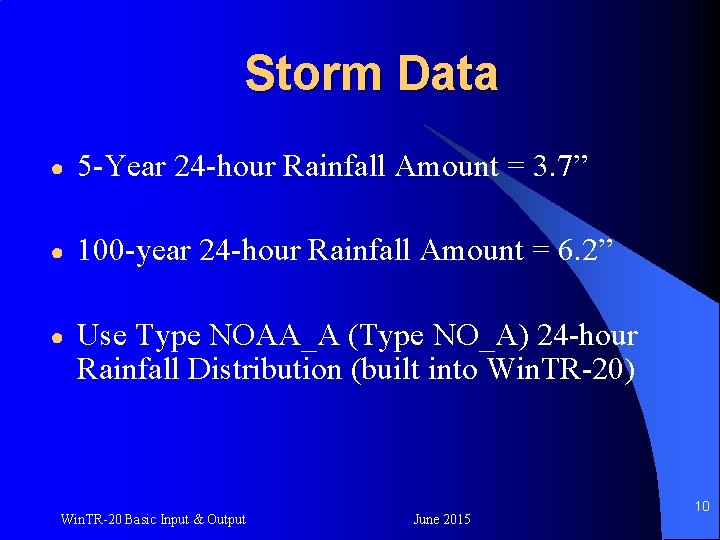
Storm Data ● 5 -Year 24 -hour Rainfall Amount = 3. 7” ● 100 -year 24 -hour Rainfall Amount = 6. 2” ● Use Type NOAA_A (Type NO_A) 24 -hour Rainfall Distribution (built into Win. TR-20) Win. TR-20 Basic Input & Output June 2015 10
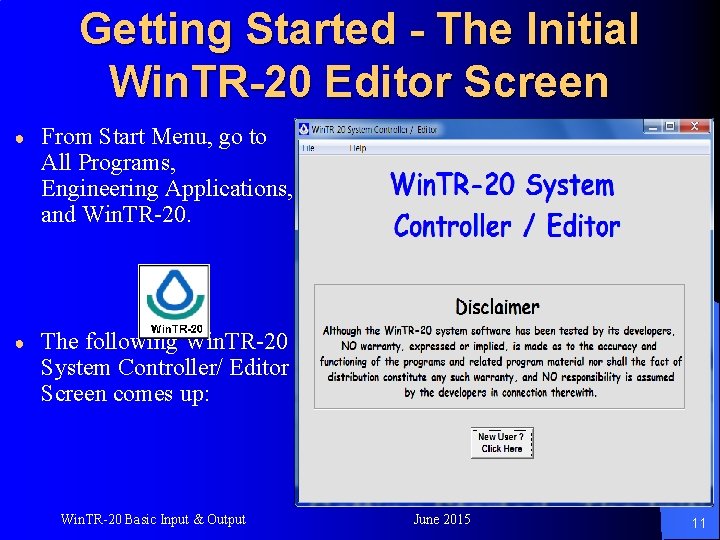
Getting Started - The Initial Win. TR-20 Editor Screen ● From Start Menu, go to All Programs, Engineering Applications, and Win. TR-20. ● The following Win. TR-20 System Controller/ Editor Screen comes up: Win. TR-20 Basic Input & Output June 2015 11
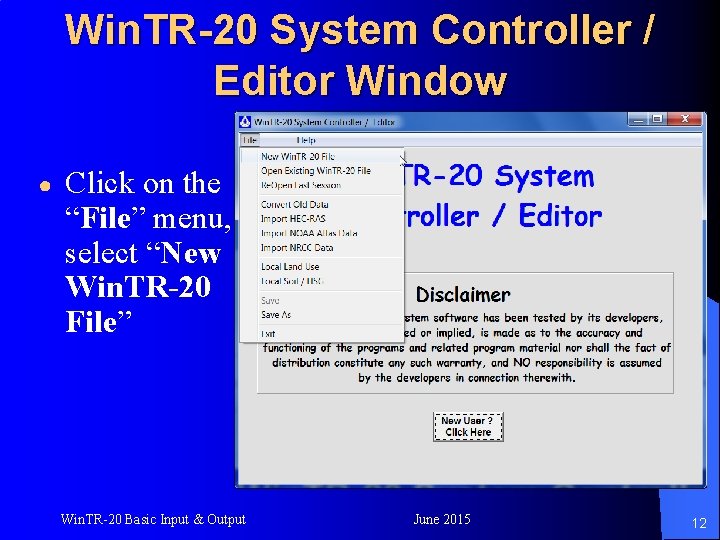
Win. TR-20 System Controller / Editor Window ● Click on the “File” menu, select “New Win. TR-20 File” Win. TR-20 Basic Input & Output June 2015 12
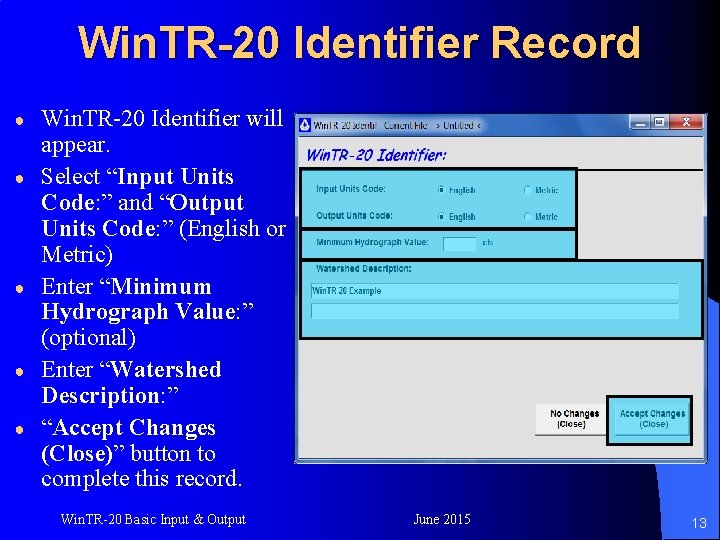
Win. TR-20 Identifier Record ● ● ● Win. TR-20 Identifier will appear. Select “Input Units Code: ” and “Output Units Code: ” (English or Metric) Enter “Minimum Hydrograph Value: ” (optional) Enter “Watershed Description: ” “Accept Changes (Close)” button to complete this record. Win. TR-20 Basic Input & Output June 2015 13
Suggested Input Entry Order 1. 2. 3. 4. 5. Enter storm event data Enter all sub-area(s) information Enter all reach(es) information Enter cross section rating data (elev, discharge, end area, top width, energy grade slope) and storage rating data (elev, discharge, storage) if model has reach or storage routing Global output preferences Win. TR-20 Basic Input & Output June 2015 14
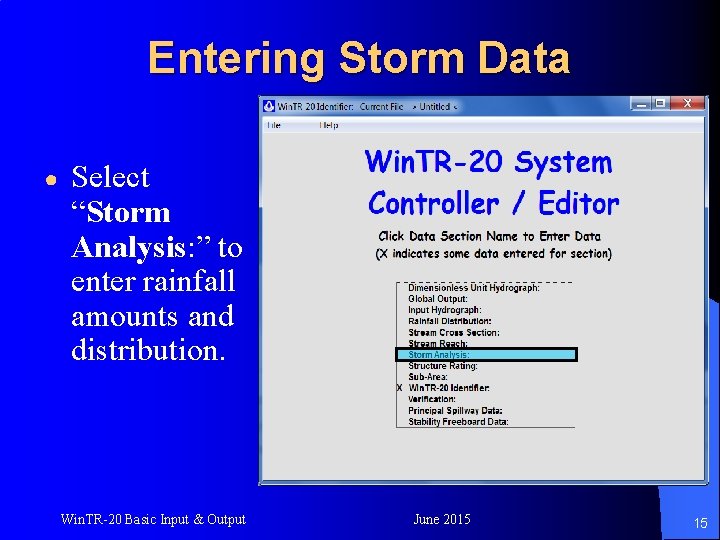
Entering Storm Data ● Select “Storm Analysis: ” to enter rainfall amounts and distribution. Win. TR-20 Basic Input & Output June 2015 15
Storm Data ● 5 -Year 24 -hour Rainfall Amount = 3. 7” ● 100 -year 24 -hour Rainfall Amount = 6. 2” ● Use Type NOAA_A (Type NO_A) 24 -hour Rainfall Distribution (built-in to Win. TR-20) Win. TR-20 Basic Input & Output June 2015 16
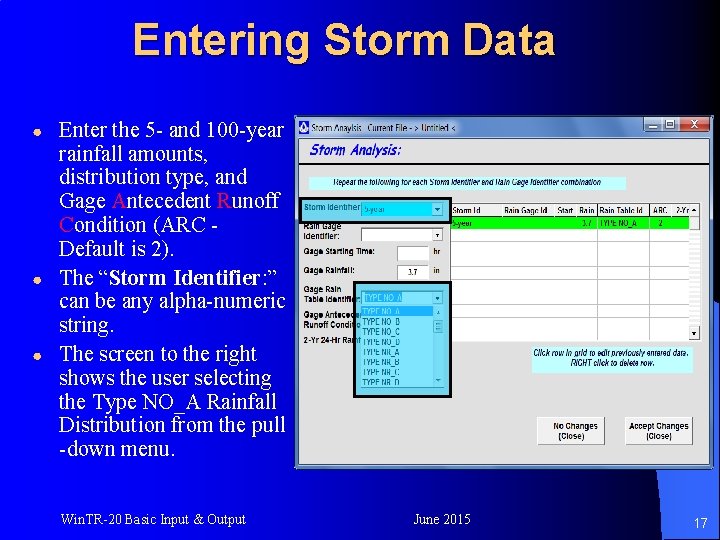
Entering Storm Data ● ● ● Enter the 5 - and 100 -year rainfall amounts, distribution type, and Gage Antecedent Runoff Condition (ARC Default is 2). The “Storm Identifier: ” can be any alpha-numeric string. The screen to the right shows the user selecting the Type NO_A Rainfall Distribution from the pull -down menu. Win. TR-20 Basic Input & Output June 2015 17
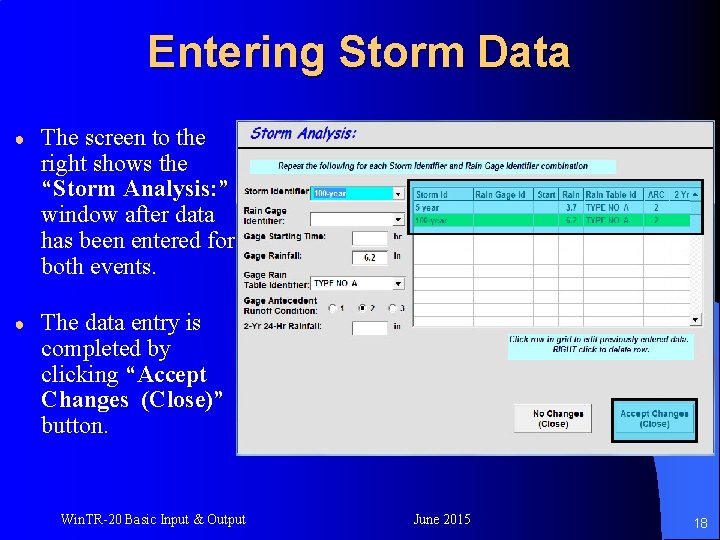
Entering Storm Data ● The screen to the right shows the “Storm Analysis: ” window after data has been entered for both events. ● The data entry is completed by clicking “Accept Changes (Close)” button. Win. TR-20 Basic Input & Output June 2015 18
Entering Storm Data l Storm Analysis Input Notes 4“Rain Gage Identifier: ” is not required if Win. TR-20 is executed using the same rainfall amount and distribution over the entire watershed. 4“ 2 -Yr 24 -Hr Rainfall: ” is not required unless the Velocity Method is used to compute Time of Concentration for any Sub-Area. Win. TR-20 Basic Input & Output June 2015 19
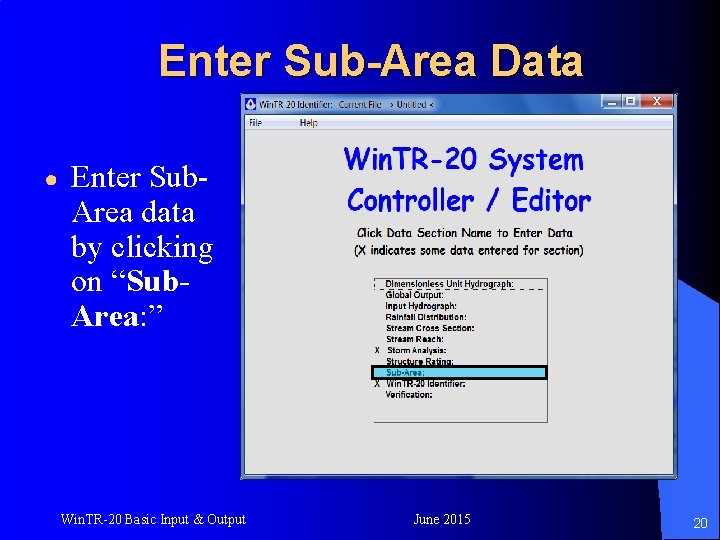
Enter Sub-Area Data ● Enter Sub. Area data by clicking on “Sub. Area: ” Win. TR-20 Basic Input & Output June 2015 20
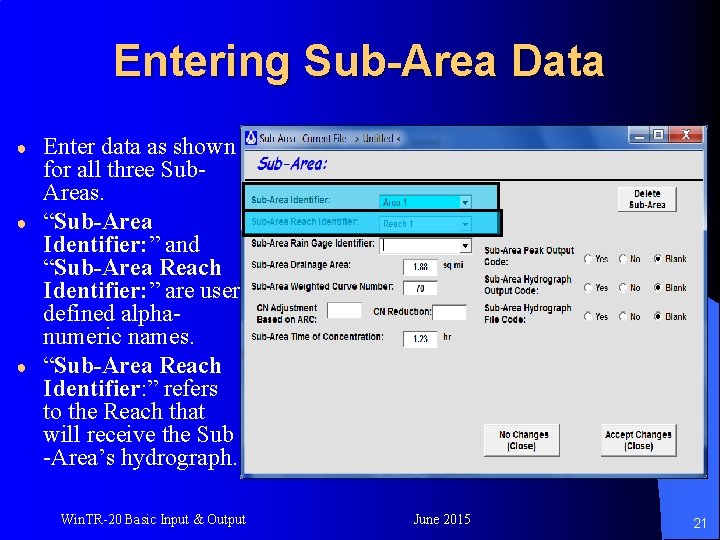
Entering Sub-Area Data ● ● ● Enter data as shown for all three Sub. Areas. “Sub-Area Identifier: ” and “Sub-Area Reach Identifier: ” are user defined alphanumeric names. “Sub-Area Reach Identifier: ” refers to the Reach that will receive the Sub -Area’s hydrograph. Win. TR-20 Basic Input & Output June 2015 21
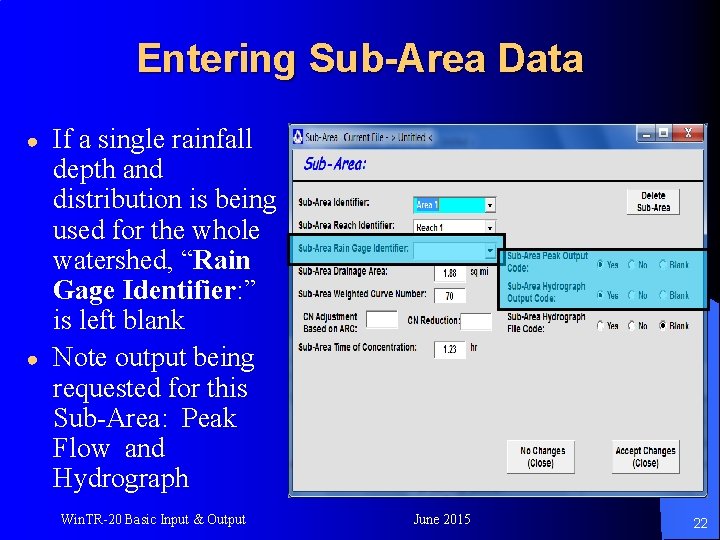
Entering Sub-Area Data ● ● If a single rainfall depth and distribution is being used for the whole watershed, “Rain Gage Identifier: ” is left blank Note output being requested for this Sub-Area: Peak Flow and Hydrograph Win. TR-20 Basic Input & Output June 2015 22
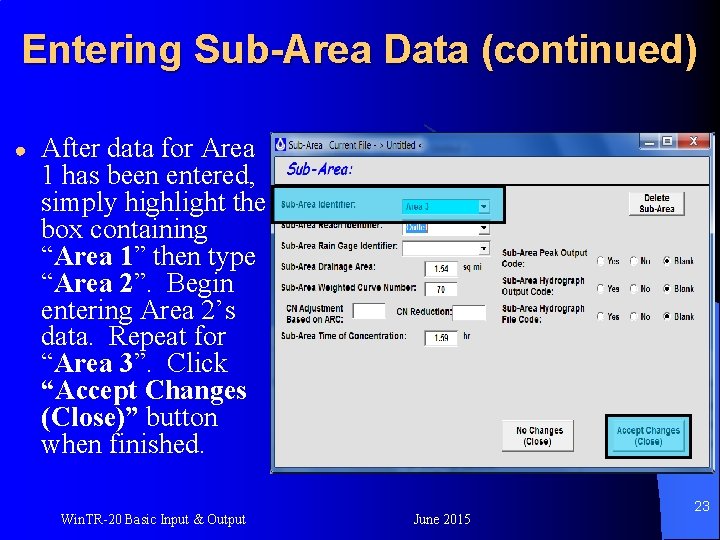
Entering Sub-Area Data (continued) ● After data for Area 1 has been entered, simply highlight the box containing “Area 1” then type “Area 2”. Begin entering Area 2’s data. Repeat for “Area 3”. Click “Accept Changes (Close)” button when finished. Win. TR-20 Basic Input & Output June 2015 23
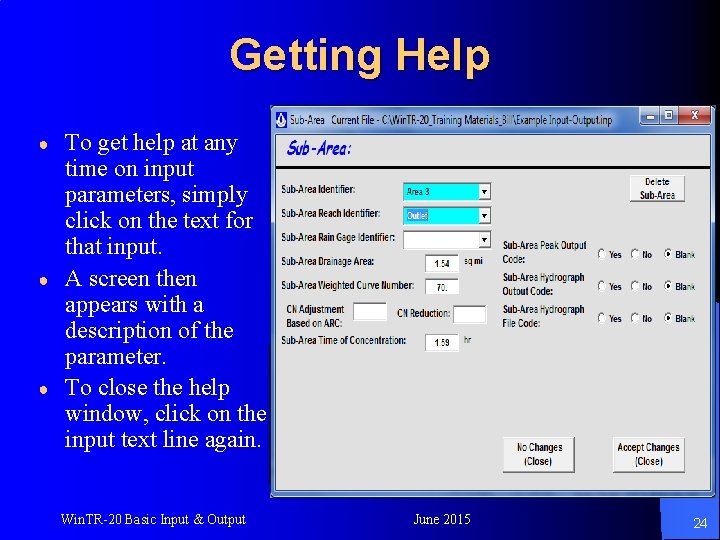
Getting Help ● ● ● To get help at any time on input parameters, simply click on the text for that input. A screen then appears with a description of the parameter. To close the help window, click on the input text line again. Win. TR-20 Basic Input & Output June 2015 24
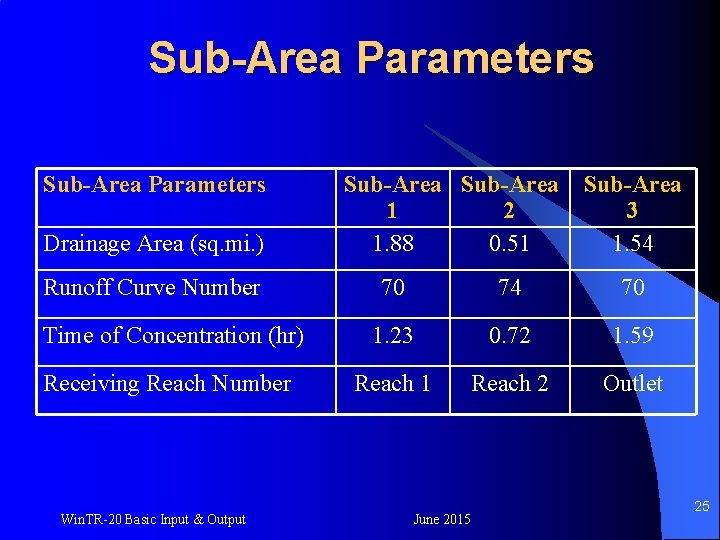
Sub-Area Parameters Drainage Area (sq. mi. ) Runoff Curve Number Sub-Area 1 2 1. 88 0. 51 Sub-Area 3 1. 54 70 74 70 Time of Concentration (hr) 1. 23 0. 72 1. 59 Receiving Reach Number Reach 1 Reach 2 Outlet Win. TR-20 Basic Input & Output June 2015 25
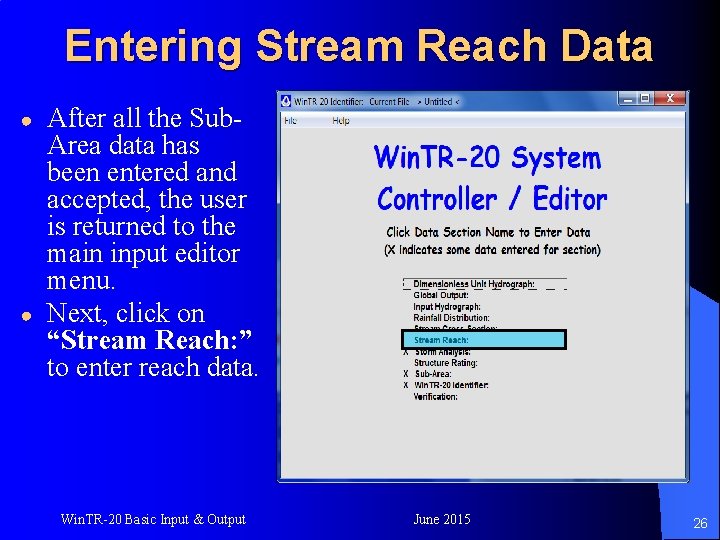
Entering Stream Reach Data ● ● After all the Sub. Area data has been entered and accepted, the user is returned to the main input editor menu. Next, click on “Stream Reach: ” to enter reach data. Win. TR-20 Basic Input & Output June 2015 26
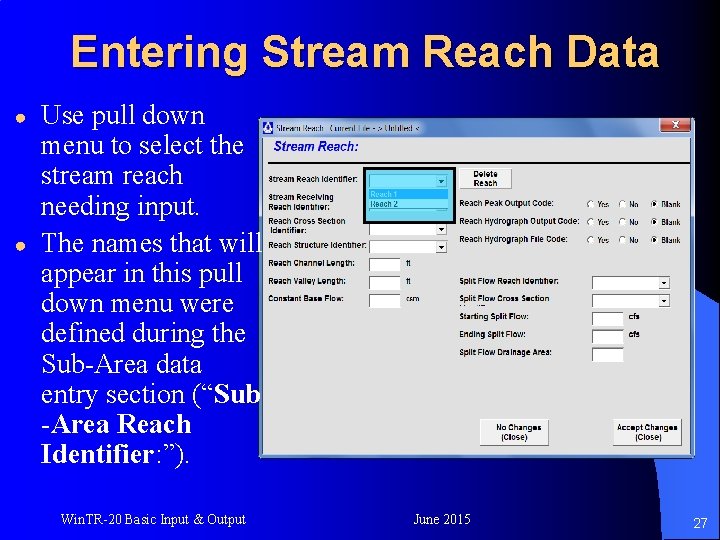
Entering Stream Reach Data ● ● Use pull down menu to select the stream reach needing input. The names that will appear in this pull down menu were defined during the Sub-Area data entry section (“Sub -Area Reach Identifier: ”). Win. TR-20 Basic Input & Output June 2015 27
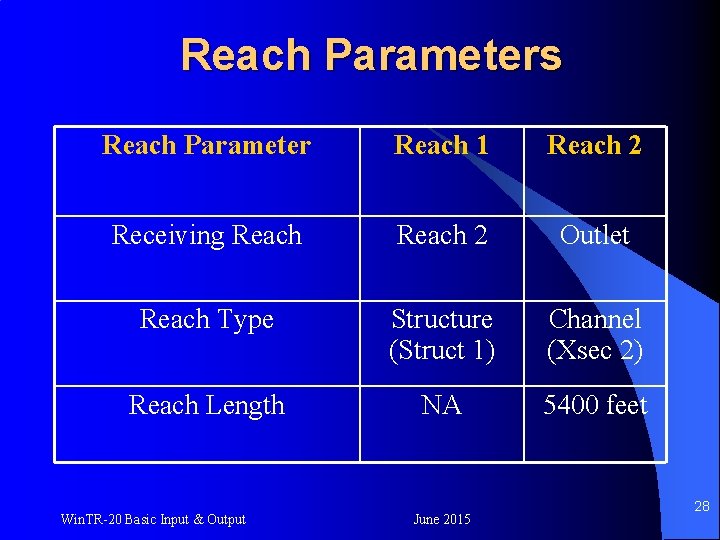
Reach Parameters Reach Parameter Reach 1 Reach 2 Receiving Reach 2 Outlet Reach Type Structure (Struct 1) Channel (Xsec 2) Reach Length NA 5400 feet Win. TR-20 Basic Input & Output June 2015 28
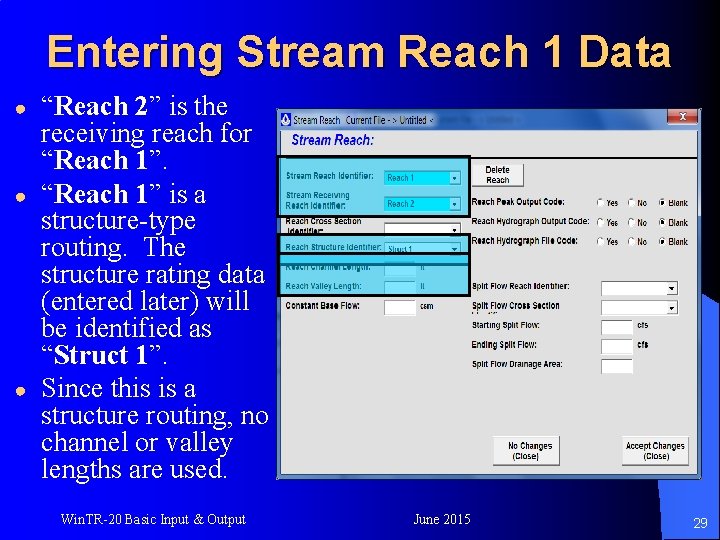
Entering Stream Reach 1 Data ● ● ● “Reach 2” is the receiving reach for “Reach 1” is a structure-type routing. The structure rating data (entered later) will be identified as “Struct 1”. Since this is a structure routing, no channel or valley lengths are used. Win. TR-20 Basic Input & Output June 2015 29
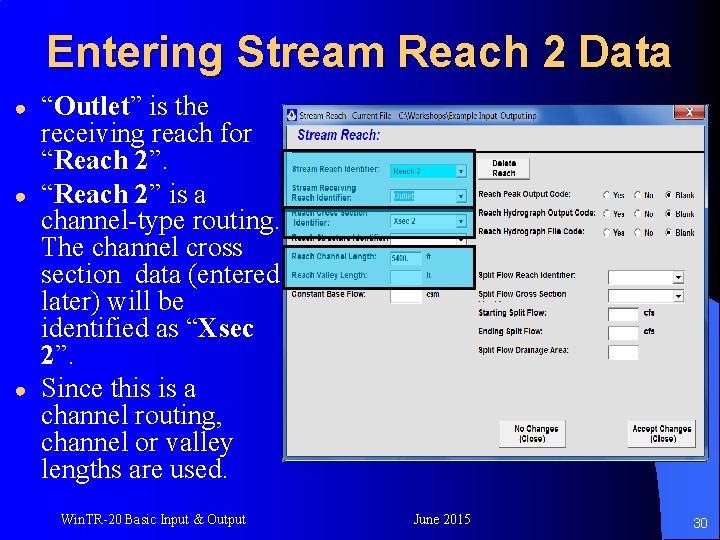
Entering Stream Reach 2 Data ● ● ● “Outlet” is the receiving reach for “Reach 2” is a channel-type routing. The channel cross section data (entered later) will be identified as “Xsec 2”. Since this is a channel routing, channel or valley lengths are used. Win. TR-20 Basic Input & Output June 2015 30
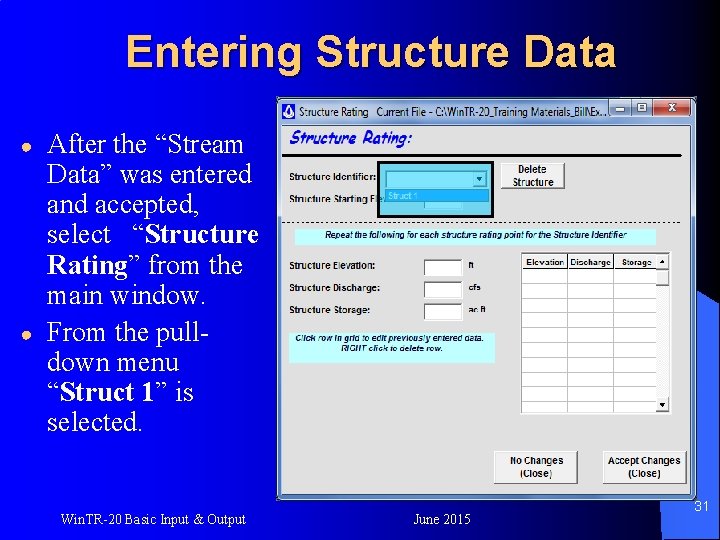
Entering Structure Data ● ● After the “Stream Data” was entered and accepted, select “Structure Rating” from the main window. From the pulldown menu “Struct 1” is selected. Win. TR-20 Basic Input & Output June 2015 31
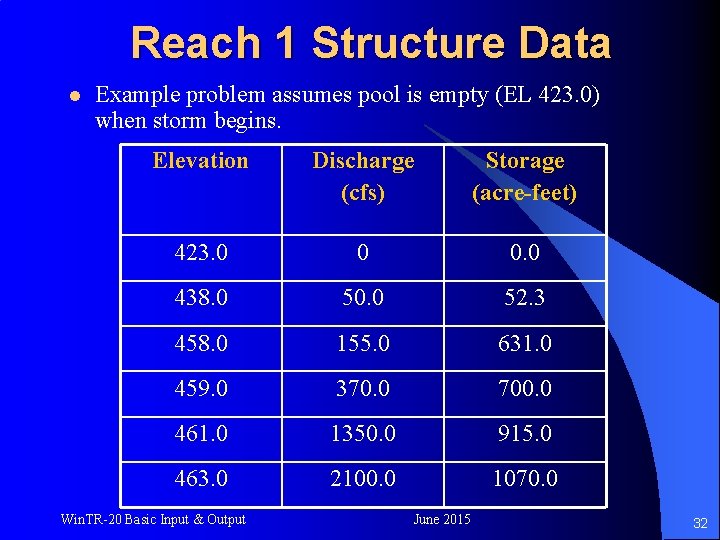
Reach 1 Structure Data l Example problem assumes pool is empty (EL 423. 0) when storm begins. Elevation Discharge (cfs) Storage (acre-feet) 423. 0 0 0. 0 438. 0 50. 0 52. 3 458. 0 155. 0 631. 0 459. 0 370. 0 700. 0 461. 0 1350. 0 915. 0 463. 0 2100. 0 1070. 0 Win. TR-20 Basic Input & Output June 2015 32
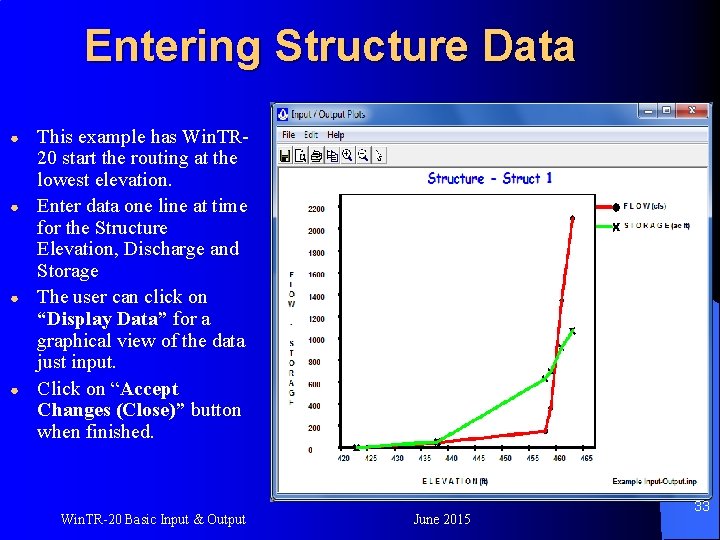
Entering Structure Data ● ● This example has Win. TR 20 start the routing at the lowest elevation. Enter data one line at time for the Structure Elevation, Discharge and Storage The user can click on “Display Data” for a graphical view of the data just input. Click on “Accept Changes (Close)” button when finished. Win. TR-20 Basic Input & Output June 2015 33
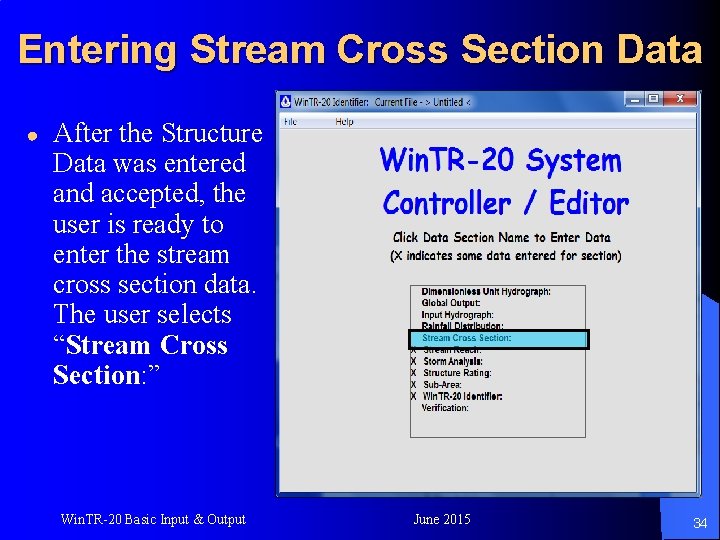
Entering Stream Cross Section Data ● After the Structure Data was entered and accepted, the user is ready to enter the stream cross section data. The user selects “Stream Cross Section: ” Win. TR-20 Basic Input & Output June 2015 34
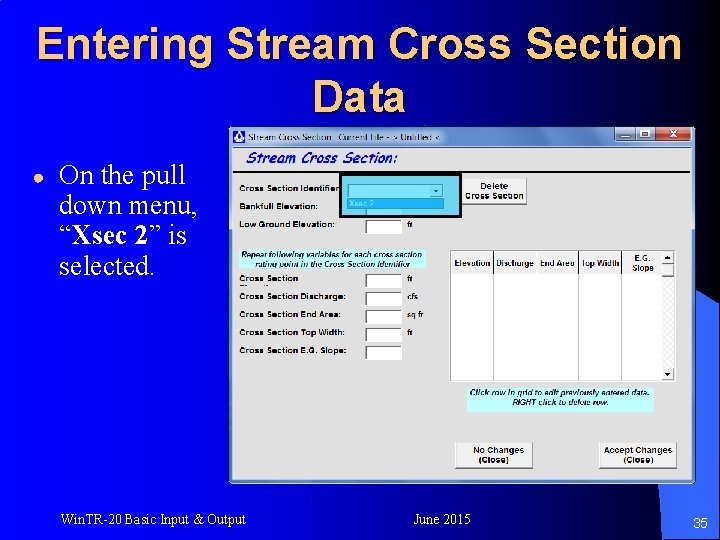
Entering Stream Cross Section Data ● On the pull down menu, “Xsec 2” is selected. Win. TR-20 Basic Input & Output June 2015 35
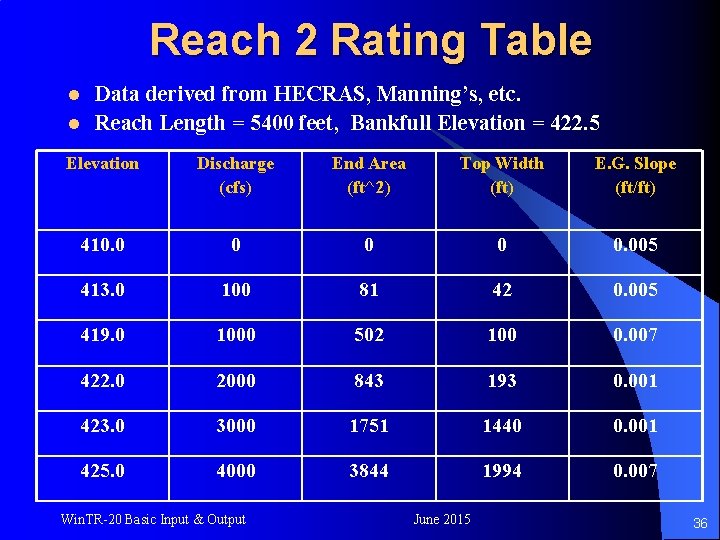
Reach 2 Rating Table l l Data derived from HECRAS, Manning’s, etc. Reach Length = 5400 feet, Bankfull Elevation = 422. 5 Elevation Discharge (cfs) End Area (ft^2) Top Width (ft) E. G. Slope (ft/ft) 410. 0 0 0. 005 413. 0 100 81 42 0. 005 419. 0 1000 502 100 0. 007 422. 0 2000 843 193 0. 001 423. 0 3000 1751 1440 0. 001 425. 0 4000 3844 1994 0. 007 Win. TR-20 Basic Input & Output June 2015 36
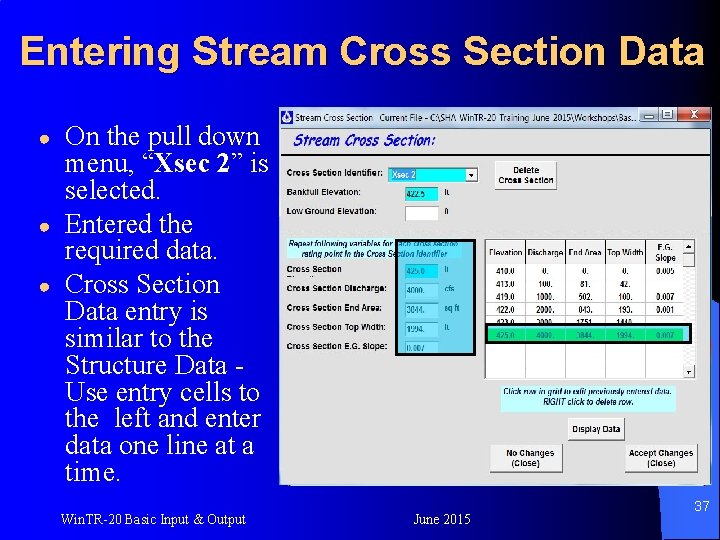
Entering Stream Cross Section Data ● ● ● On the pull down menu, “Xsec 2” is selected. Entered the required data. Cross Section Data entry is similar to the Structure Data Use entry cells to the left and enter data one line at a time. Win. TR-20 Basic Input & Output June 2015 37
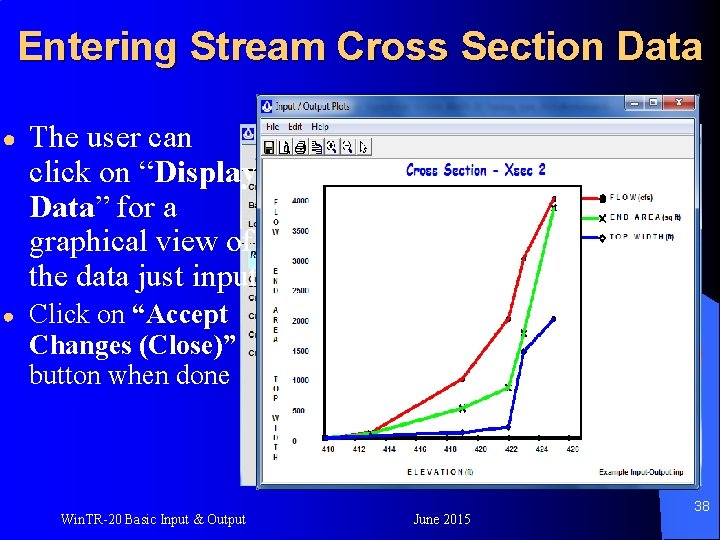
Entering Stream Cross Section Data ● The user can click on “Display Data” for a graphical view of the data just input. ● Click on “Accept Changes (Close)” button when done Win. TR-20 Basic Input & Output June 2015 38
Entering Stream Cross Section Data l Notes on Cross Section Data: 4 Data usually prepared ahead of time using water surface profile programs such as HEC-RAS. 4“Bankfull Elevation” represents the right or left channel bank whichever is lower. 4 Low ground represents the elevation where flood plain storage begins. If blank, it defaults to bankfull elevation. Win. TR-20 Basic Input & Output June 2015 39
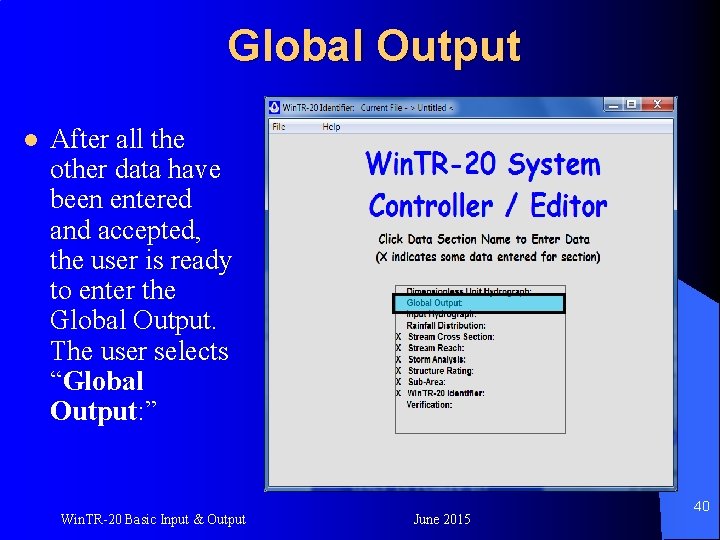
Global Output l After all the other data have been entered and accepted, the user is ready to enter the Global Output. The user selects “Global Output: ” Win. TR-20 Basic Input & Output June 2015 40
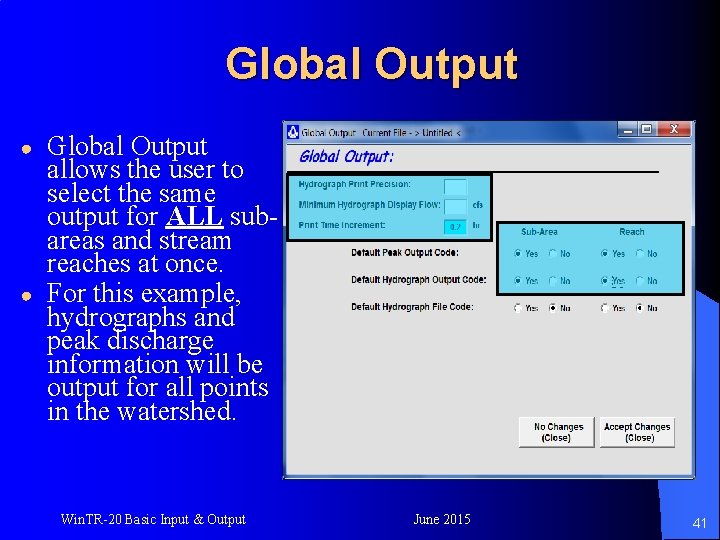
Global Output ● ● Global Output allows the user to select the same output for ALL subareas and stream reaches at once. For this example, hydrographs and peak discharge information will be output for all points in the watershed. Win. TR-20 Basic Input & Output June 2015 41
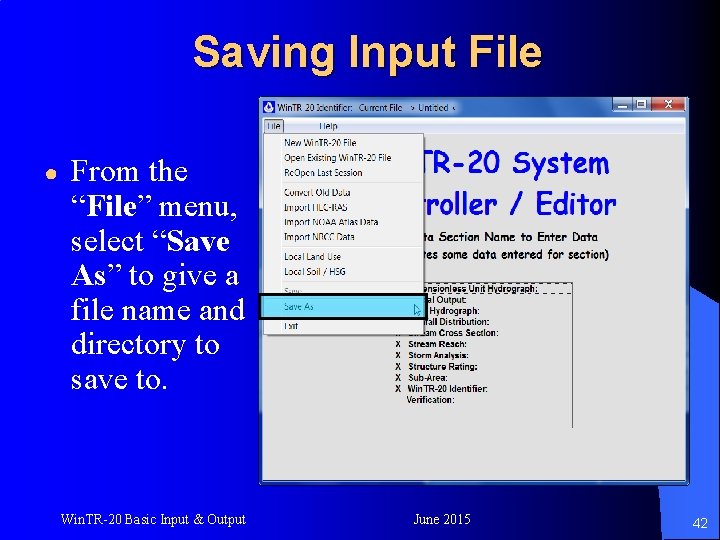
Saving Input File ● From the “File” menu, select “Save As” to give a file name and directory to save to. Win. TR-20 Basic Input & Output June 2015 42
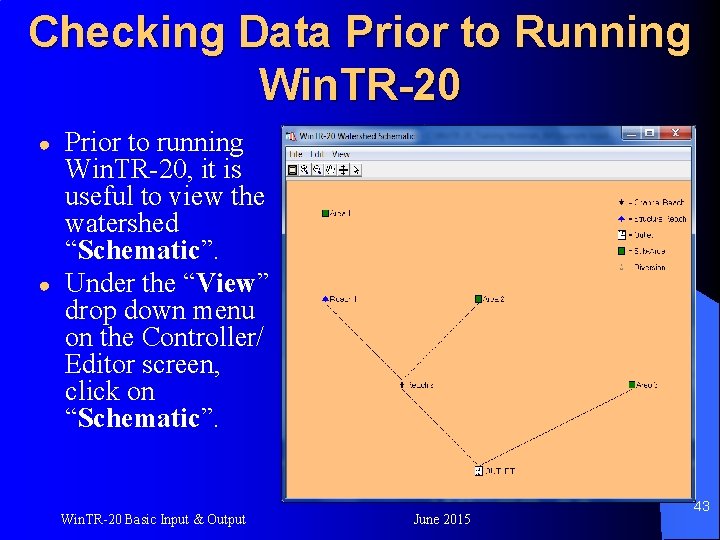
Checking Data Prior to Running Win. TR-20 ● ● Prior to running Win. TR-20, it is useful to view the watershed “Schematic”. Under the “View” drop down menu on the Controller/ Editor screen, click on “Schematic”. Win. TR-20 Basic Input & Output June 2015 43
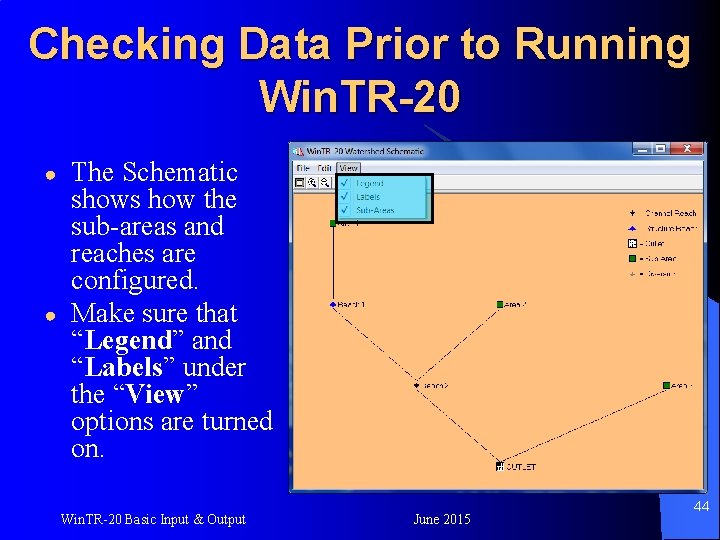
Checking Data Prior to Running Win. TR-20 ● ● The Schematic shows how the sub-areas and reaches are configured. Make sure that “Legend” and “Labels” under the “View” options are turned on. Win. TR-20 Basic Input & Output June 2015 44
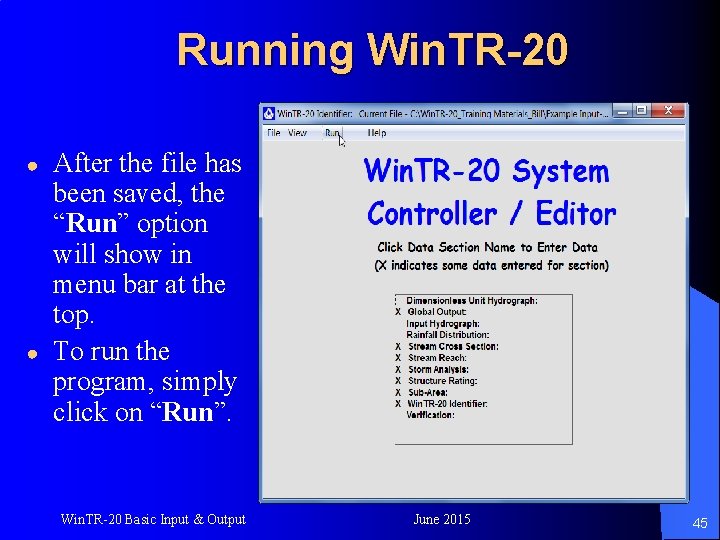
Running Win. TR-20 ● ● After the file has been saved, the “Run” option will show in menu bar at the top. To run the program, simply click on “Run”. Win. TR-20 Basic Input & Output June 2015 45
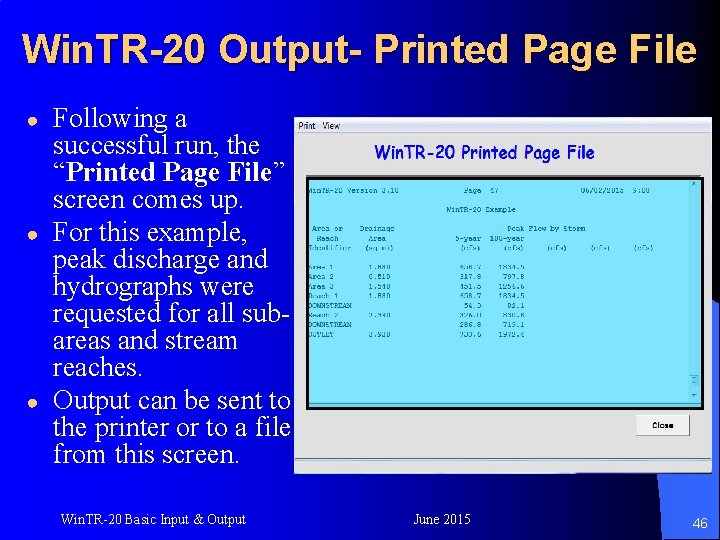
Win. TR-20 Output- Printed Page File ● ● ● Following a successful run, the “Printed Page File” screen comes up. For this example, peak discharge and hydrographs were requested for all subareas and stream reaches. Output can be sent to the printer or to a file from this screen. Win. TR-20 Basic Input & Output June 2015 46
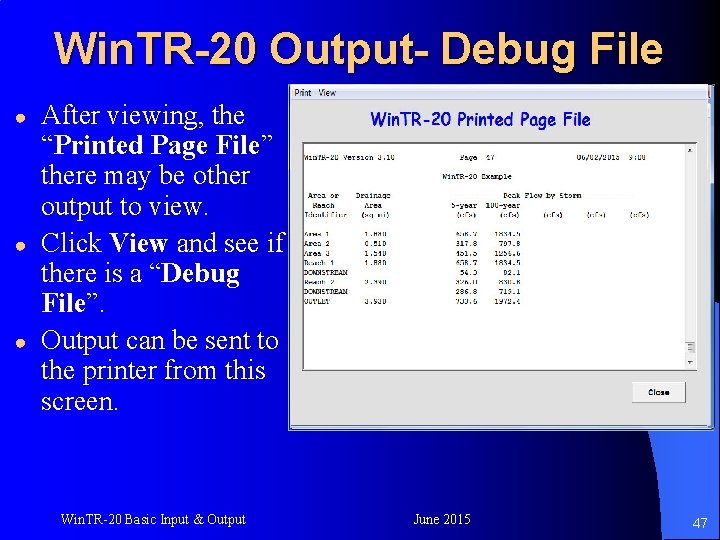
Win. TR-20 Output- Debug File ● ● ● After viewing, the “Printed Page File” there may be other output to view. Click View and see if there is a “Debug File”. Output can be sent to the printer from this screen. Win. TR-20 Basic Input & Output June 2015 47
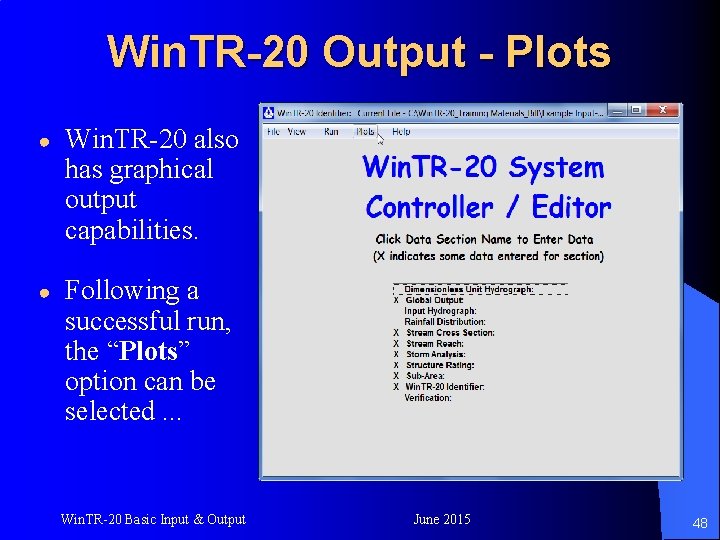
Win. TR-20 Output - Plots ● Win. TR-20 also has graphical output capabilities. ● Following a successful run, the “Plots” option can be selected. . . Win. TR-20 Basic Input & Output June 2015 48
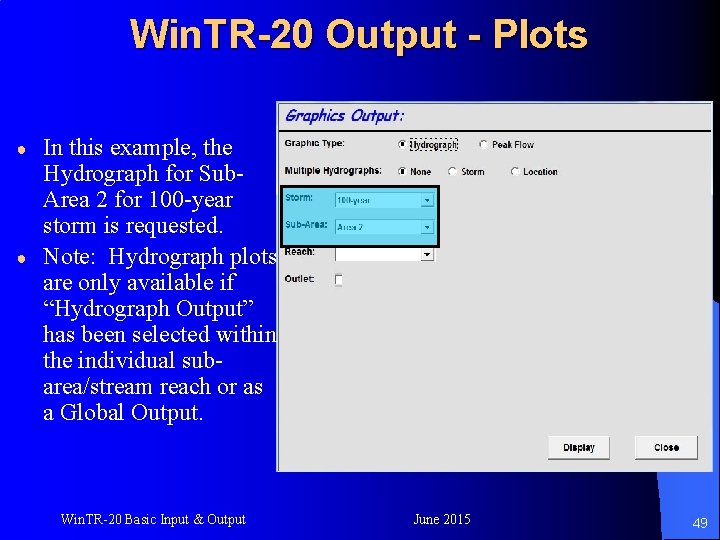
Win. TR-20 Output - Plots ● ● In this example, the Hydrograph for Sub. Area 2 for 100 -year storm is requested. Note: Hydrograph plots are only available if “Hydrograph Output” has been selected within the individual subarea/stream reach or as a Global Output. Win. TR-20 Basic Input & Output June 2015 49
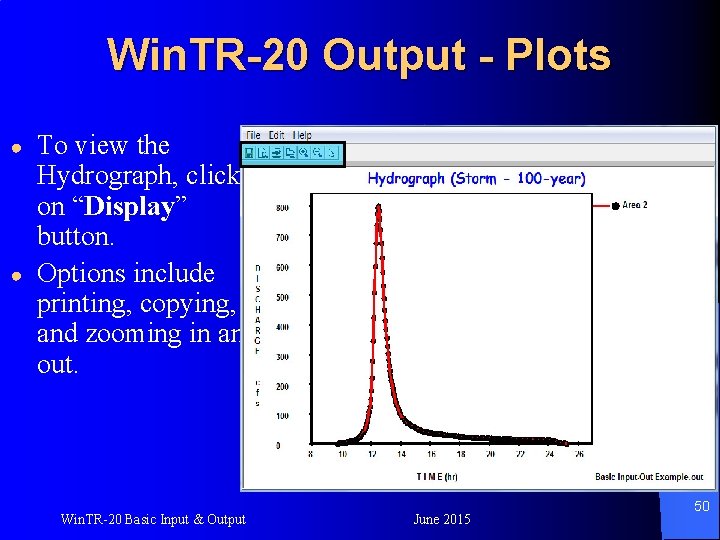
Win. TR-20 Output - Plots ● ● To view the Hydrograph, click on “Display” button. Options include printing, copying, and zooming in and out. Win. TR-20 Basic Input & Output June 2015 50
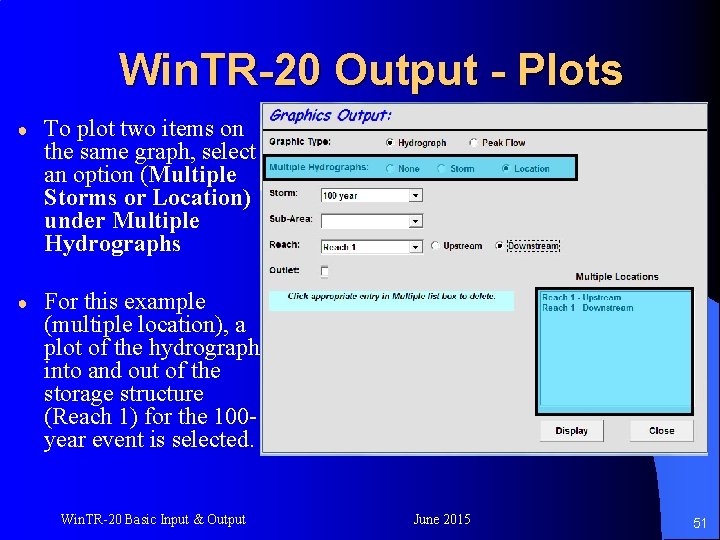
Win. TR-20 Output - Plots ● To plot two items on the same graph, select an option (Multiple Storms or Location) under Multiple Hydrographs ● For this example (multiple location), a plot of the hydrograph into and out of the storage structure (Reach 1) for the 100 year event is selected. Win. TR-20 Basic Input & Output June 2015 51
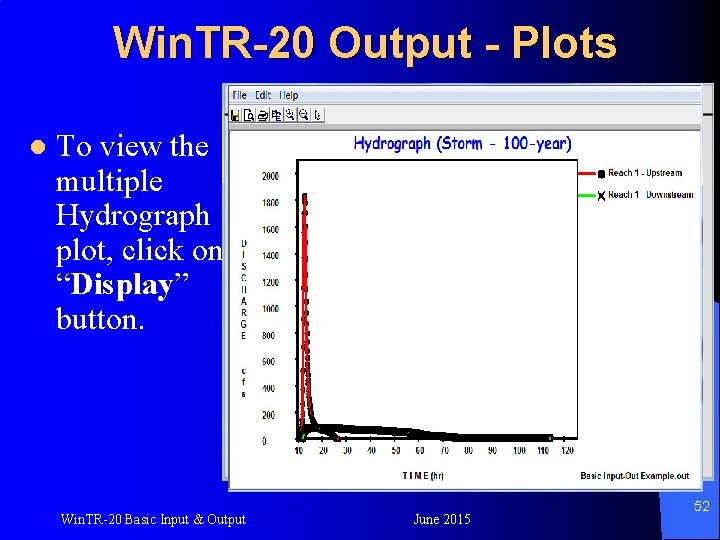
Win. TR-20 Output - Plots l To view the multiple Hydrograph plot, click on “Display” button. Win. TR-20 Basic Input & Output June 2015 52
Some Important Considerations: ● ● ● Each time a change is made to the input data, the file must be saved before the “Run” option is presented. When bringing in an existing file, select “ No Changes (Close) ” to get the “Run” option to appear. All data input require a positive entry (i. e. carriage return, tab, or left mouse click in another data box) to be recognized. Win. TR-20 Basic Input & Output June 2015 53

The End Win. TR-20 Basic Input & Output June 2015 54

Win. TR-20 Basic Input & Output June 2015 55
- Slides: 55