
Win AVR and C Debugging Tutorial By Adam
Win. AVR and C Debugging Tutorial By Adam Bailin ECE 353 Fall ‘ 06 ECE 353
Introduction § Win. AVR is a set of developing tools for Atmel AVR RISC microprocessors § Programs written in C, compiled with GCC and avr-libc § Open source, obtained at: winavr. sourceforge. net ECE 353 2
Installing § Fairly easy to install (for use at home) § http: //winavr. sourceforge. net/ § Comes with all the tools you need: Programmer’s Notepad, MFile ECE 353 3
Programmer’s Notepad § Programmer’s Notepad is the main tool you will be using to write your C code § Just like any other compiler • syntax highlighting • Support for different programming languages • Ability to compile your code (using gcc compiler) ECE 353 4
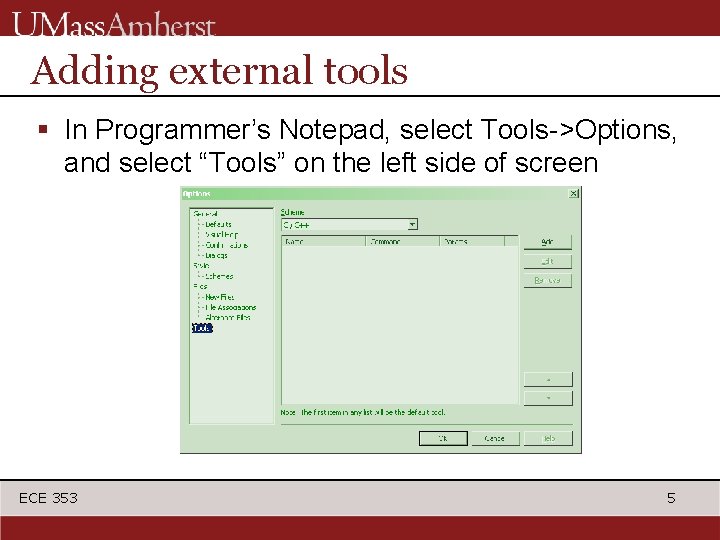
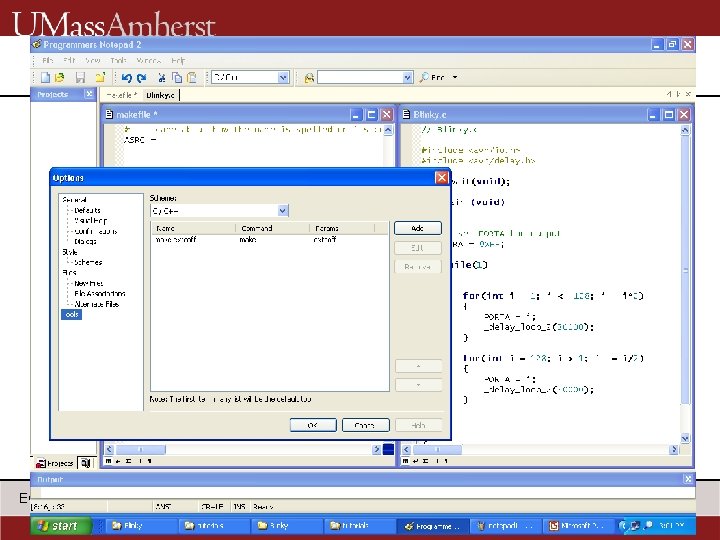
Adding external tools § In Programmer’s Notepad, select Tools->Options, and select “Tools” on the left side of screen ECE 353 5
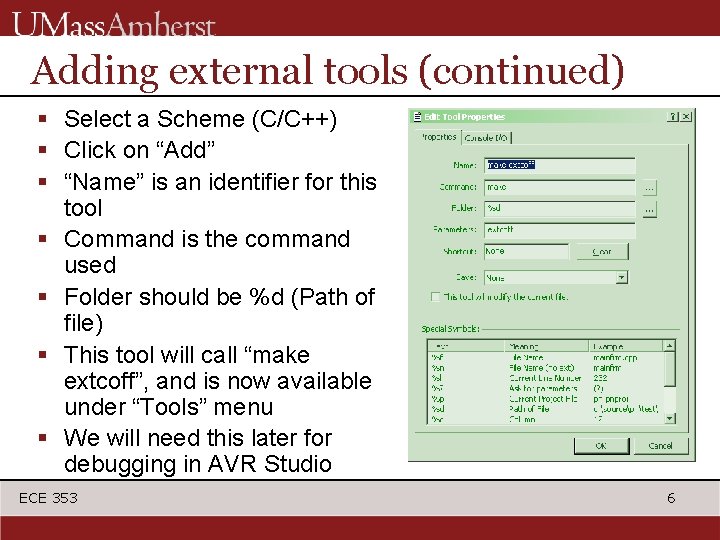
Adding external tools (continued) § Select a Scheme (C/C++) § Click on “Add” § “Name” is an identifier for this tool § Command is the command used § Folder should be %d (Path of file) § This tool will call “make extcoff”, and is now available under “Tools” menu § We will need this later for debugging in AVR Studio ECE 353 6
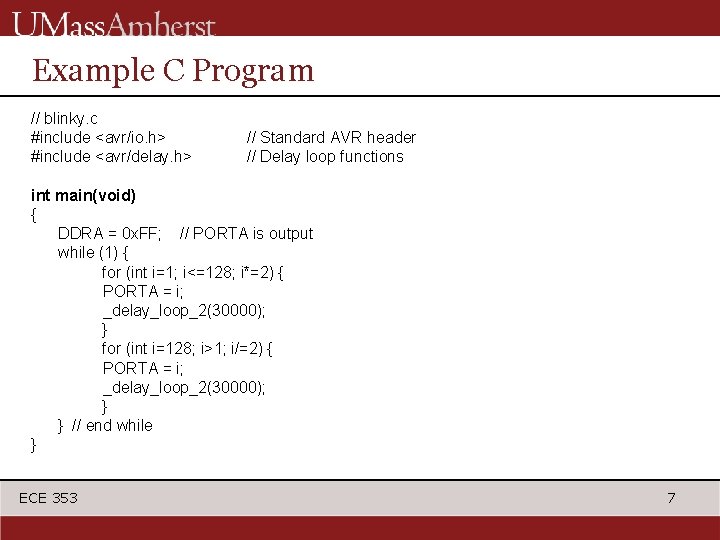
Example C Program // blinky. c #include <avr/io. h> #include <avr/delay. h> // Standard AVR header // Delay loop functions int main(void) { DDRA = 0 x. FF; // PORTA is output while (1) { for (int i=1; i<=128; i*=2) { PORTA = i; _delay_loop_2(30000); } for (int i=128; i>1; i/=2) { PORTA = i; _delay_loop_2(30000); } } // end while } ECE 353 7
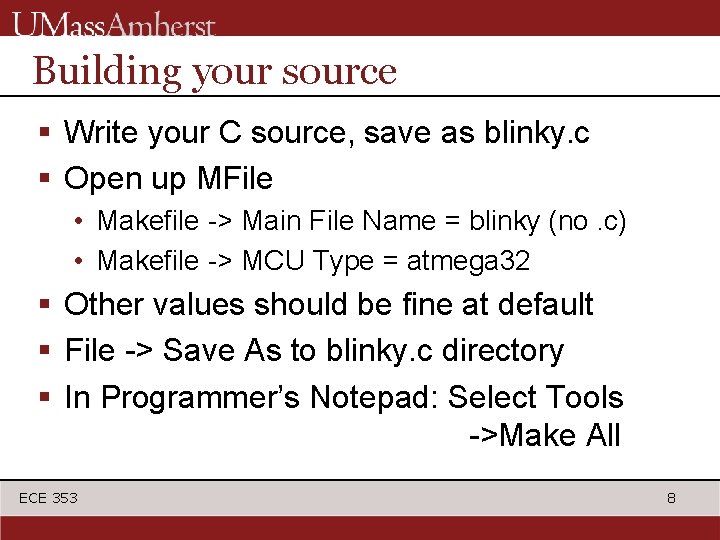
Building your source § Write your C source, save as blinky. c § Open up MFile • Makefile -> Main File Name = blinky (no. c) • Makefile -> MCU Type = atmega 32 § Other values should be fine at default § File -> Save As to blinky. c directory § In Programmer’s Notepad: Select Tools ->Make All ECE 353 8
MFile § Simple program to make Makefiles for compiling your C code § A Makefile is a configuration file that tells the compiler how to compile your code • What chip you’re using (atmega 32) • Target filename (blinky. c) ECE 353 9
GNU Make § Win. AVR uses “Makefiles” when building projects, with GNU Make § GNU Make builds dependencies and then source files § Will only rebuild files from updated or new source (saves time) § Very powerful tool: see C: Win. AVRdocgnumake. html for more info ECE 353 10
Makefiles (continued) § Makefiles are tab-sensitive: tab != space § Lines starting with tab are executed as commands § Misuse of tabs will lead to “improper separator” error ECE 353 11
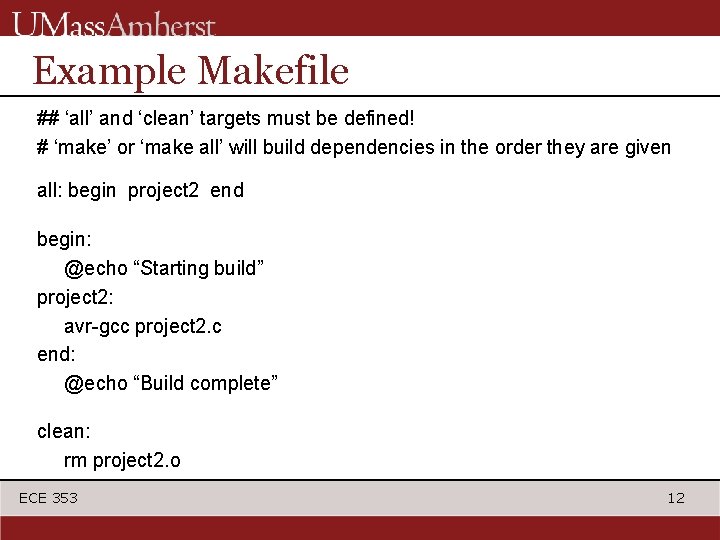
Example Makefile ## ‘all’ and ‘clean’ targets must be defined! # ‘make’ or ‘make all’ will build dependencies in the order they are given all: begin project 2 end begin: @echo “Starting build” project 2: avr-gcc project 2. c end: @echo “Build complete” clean: rm project 2. o ECE 353 12
Programming your ATmega 32 § To program your chip with the C code you wrote: • • Go to AVR Studio Connect to your chip using JTAG ICE Go to Fuses tab, make sure Ext Clock is set In Program tab, flash your chip with the. hex file you compiled in Programmer’s Notepad • That’s it! ECE 353 13
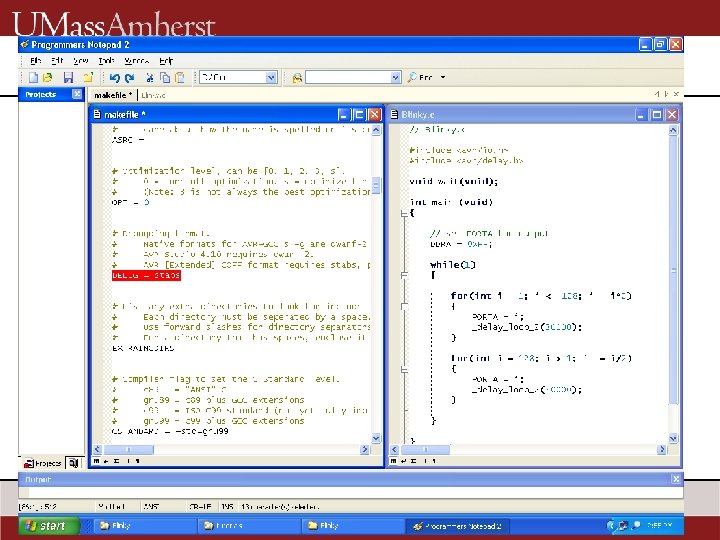
C Debugging in AVR Studio provides a way to debug both the C source code and the assembly code. To do that you just need to change the type of the COF file generated by the compiler. Open the Programmer’s Notepad (Win. AVR) § Use the editor to edit the flags in makefile: DEBUG = stabs OPT = 0 optimization // will allow for C debugging // will turn off compiler’s § Save the makefile ECE 353 14
ECE 353 15
Building C code for Debugging In the Programmer’s Notepad (Win. AVR): § Go to Tools Options Tools § Pull down the Schemes window and click on C/C++ option § A make extcoff option will appear; click OK § Click on Tools again § Click on make extcoff to generate the COF file (this will generate the correct debug file for AVR Studio that includes the C code information) ECE 353 16
ECE 353 17
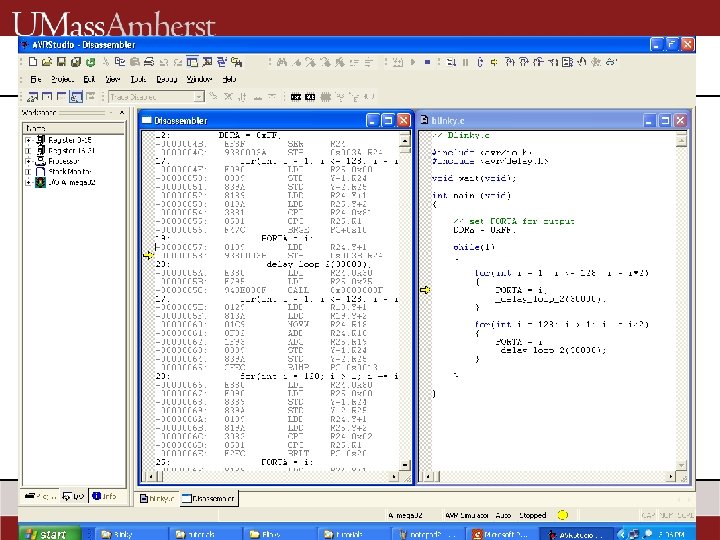
Debugging in AVR Studio § Connect Olimex to PC and JTAG § Open the AVR Studio • Open the COF file (it will guide you to select the debug platform (JTAG) and the device (Atmega 32)) • The C code will appear in the main window • Optional (useful!) view the assembly code: go to View Dissassembler • You can put assembly code next to C code (tile vertically) and step through both codes! ECE 353 18
ECE 353 19
Additional Information § Additional Information can be found at the Win. AVR website: winavr. sourceforge. net ECE 353 20
- Slides: 20