
Win 202 Database Administration Introduction Welcome to Open
Win 202 Database Administration
Introduction • Welcome to Open. Edge. • Type 2 Storage Areas. • • • One of the big selling points for the Open. Edge platform and Win 202 has already been configured to take advantage. Progress Appserver – coming soon, maybe even for 10. 1. 0. 0 in September Increased performance • We hope you have noticed faster job times since your upgrade to Progress OE and Win 202 v 10. Improved Stability • The new database environment is more stable than ever, and thankfully we are back on a vendor supported platform just in case we have trouble. After Imaging • This process can save you hours of lost work in the event of a disaster. Finally we can make use of it. How Was the Conversion? • Problems since conversion?
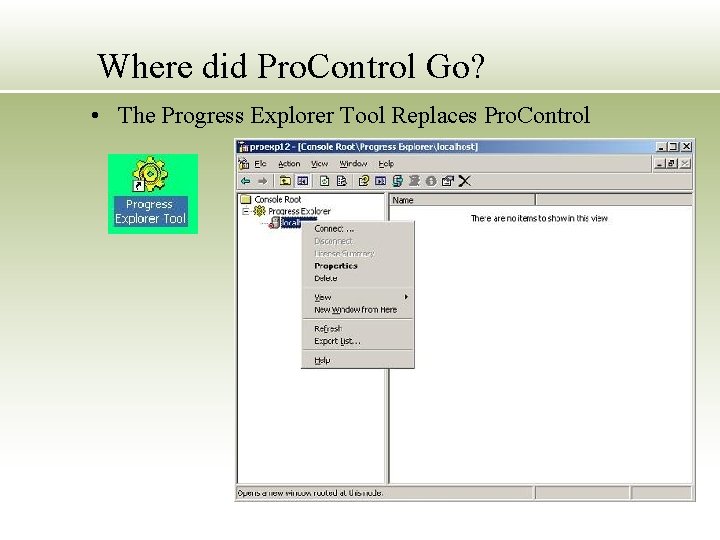
Where did Pro. Control Go? • The Progress Explorer Tool Replaces Pro. Control
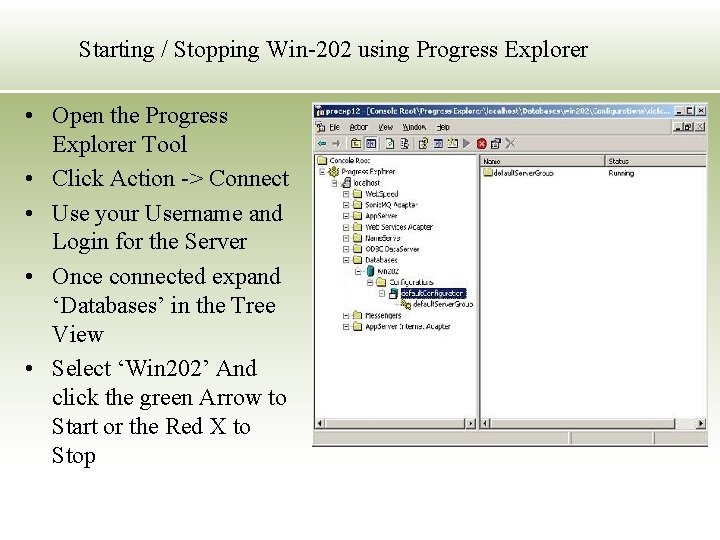
Starting / Stopping Win-202 using Progress Explorer • Open the Progress Explorer Tool • Click Action -> Connect • Use your Username and Login for the Server • Once connected expand ‘Databases’ in the Tree View • Select ‘Win 202’ And click the green Arrow to Start or the Red X to Stop
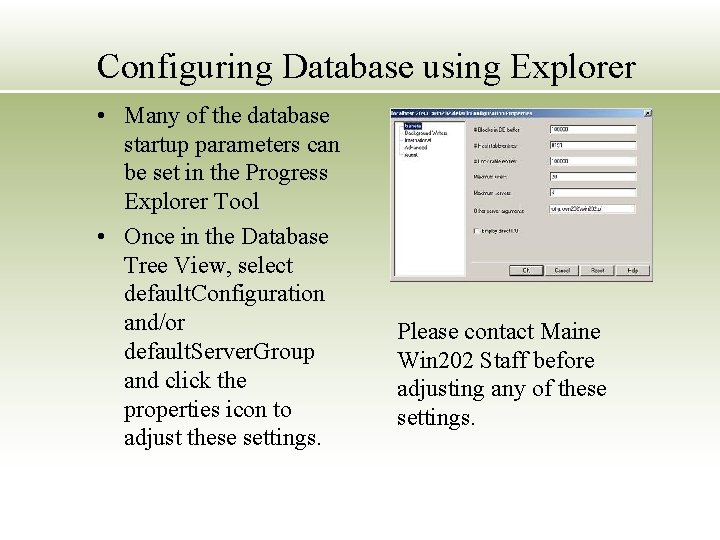
Configuring Database using Explorer • Many of the database startup parameters can be set in the Progress Explorer Tool • Once in the Database Tree View, select default. Configuration and/or default. Server. Group and click the properties icon to adjust these settings. Please contact Maine Win 202 Staff before adjusting any of these settings.
Scheduled Tasks • The “win 202 service” account • We have created a local or network user account in all of the states. This user is who the database is and various admin jobs are run as on the server. • Batchmanager • No longer in Pro. Control, start and stop using the Scheduled task folder. • Right click the Batchmanager Task and Click ‘Run’ to start the Batchmanager, and ‘End Task’ To stop the batchmanager. • Always ensure that the batchmanager is disconnected using Promon before launching it again. Having 2 running instances of the batchmanager can cause database resource contention and cause jobs to crash. Call Maine if you have questions or need assistance. • • Backups • Only 1 backup per day now. AI Archive Cleanup • Make sure this job runs or your disk drive will clog up with old ai archive files.
Promon – some things never change! • To create a promon icon: • Right click the desktop and select New Shortcut • In the target type • “C: progressopenedgebinpromon. bat [path to the db]win 202” without the quotes • Use Promon to monitor WIN 202 database activity, locks and connected users.
What to watch for? • Extent growth • Using type 2 storage area’s the database now has several files named with this pattern: • Win 202_NN. dx. • Make sure the last dx of each NN is not rapidly approaching 2 GB or your db will crash when it does. • Disk Usage • Monitor all disks on the server at least weekly. Ensure you have sufficient free space to load new data, and produce reports. • Backups • Ensure your backup runs daily. Win 202 10. 0. 1. 0 has a feature to warn you when it does not. • Performance • Tuning as an ongoing process. Maine will be monitoring the performance of each database and help make improvements where possible.
Contact information • http: //www. win-202. org • Win-202@maine. gov • Phone • • Chris (207) 621 -5186 Penny (207) 621 -5188 Jeff (207) 621 -5055 Ryan (207) 621 -5045
- Slides: 9