
WIMS User Guide Objectives Obtain Password for NAP
WIMS User Guide

Objectives • Obtain Password for NAP (NESS Application Portal) • Login to WIMS via NAP • Navigation Methods • Menus • Fast. Paths • What are Fast. Paths • How Fast. Paths work • Navigation Tree • Query Blocks • Editing/Displaying Observations • Printing/Exporting Observations Accessing WIMS 2
FAMWEB • Web Address – http: //fam. nwcg. gov/fam-web/ • Where WIMS, and several other applications are located including KCFast, SIT 209, etc • Located at NITC (USDA National Information Technology Center) • Access WIMS through NAP (NESS Application Portal) • NAP also used to access ROSS (Resource Ordering and Status System) Accessing WIMS 3
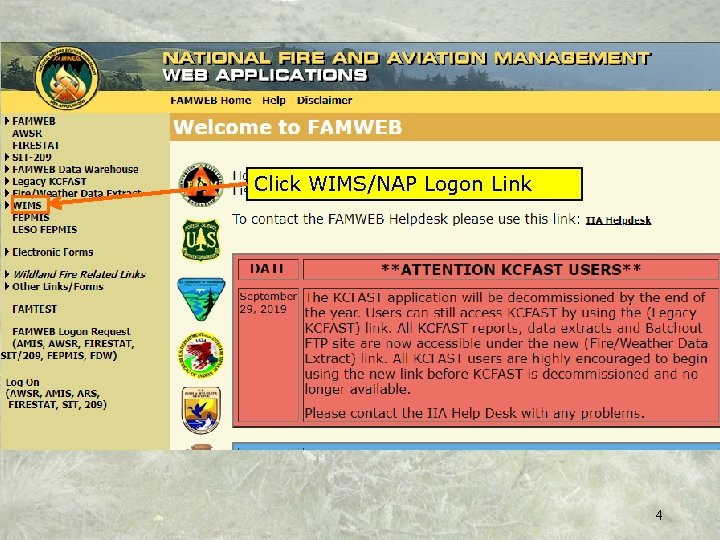
Click WIMS/NAP Logon Link 4
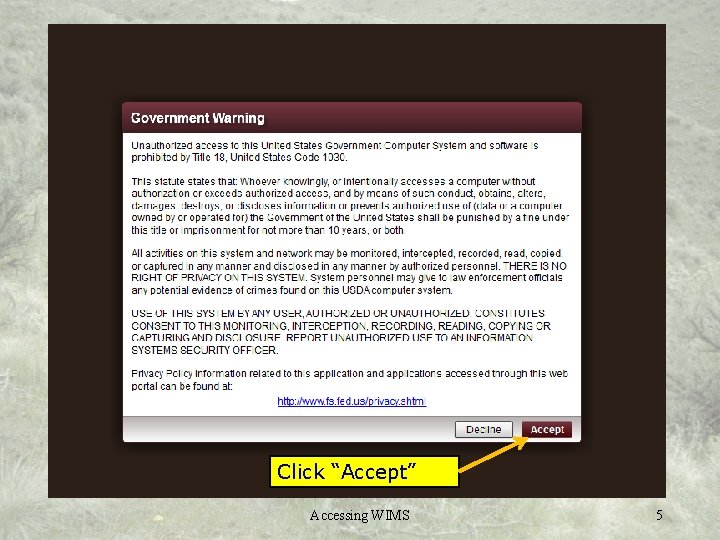
Click “Accept” Accessing WIMS 5
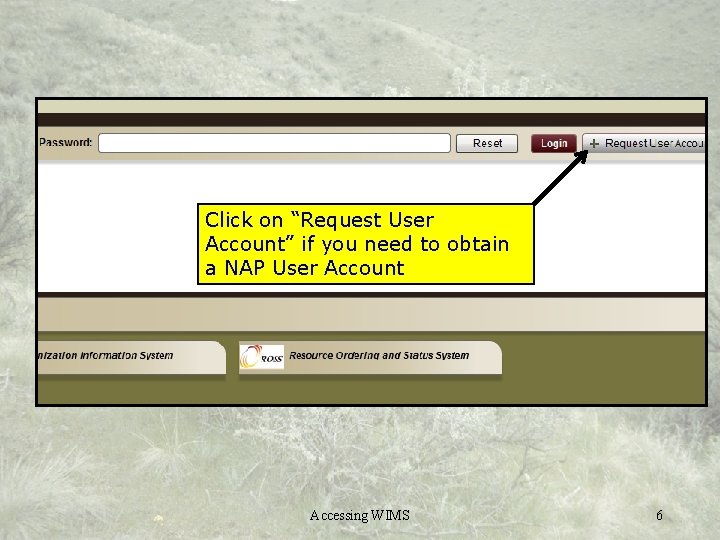
Click on “Request User Account” if you need to obtain a NAP User Account Accessing WIMS 6
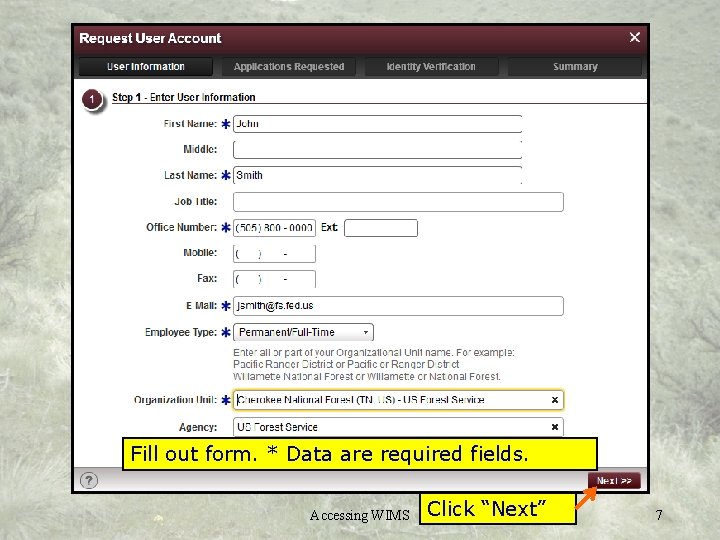
Fill out form. * Data are required fields. Accessing WIMS Click “Next” 7
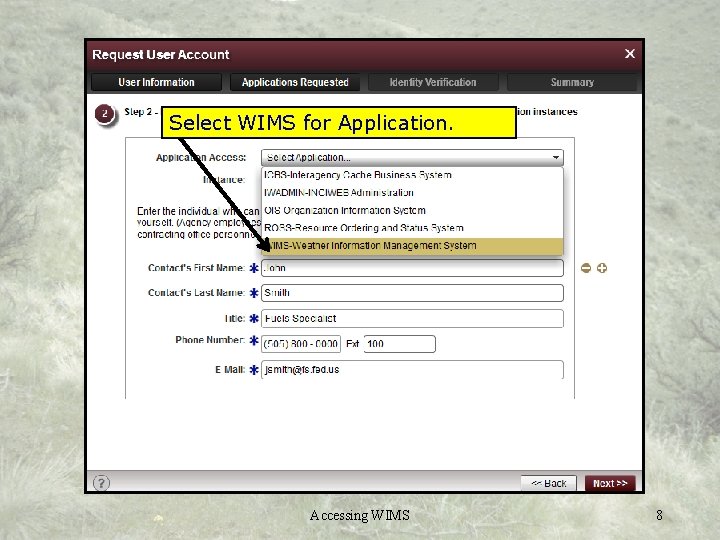
Select WIMS for Application. Accessing WIMS 8
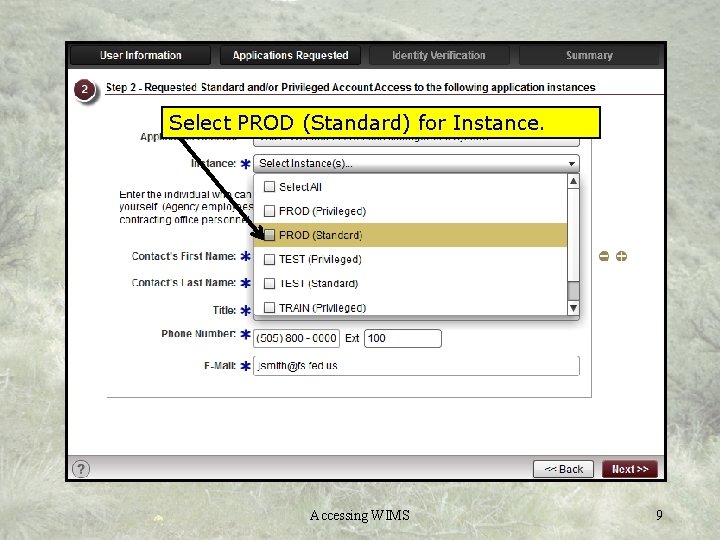
Select PROD (Standard) for Instance. Fill out form. E-mail or FAX to FAMWEB Help Desk Accessing WIMS 9
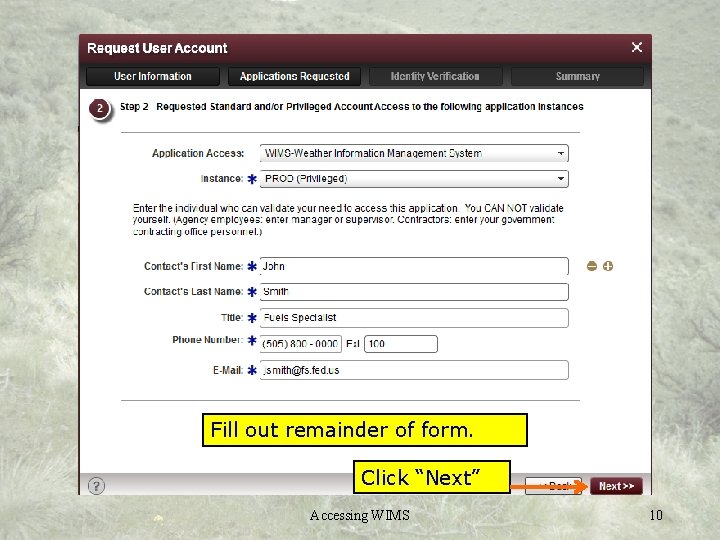
Fill out remainder of form. Click “Next” Accessing WIMS 10
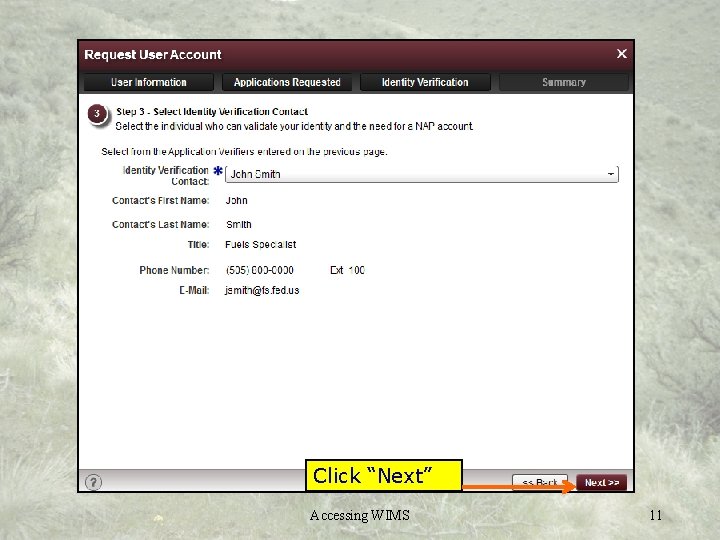
Fill out form. E-mail or FAX to FAMWEB Help Desk Click “Next” Accessing WIMS 11
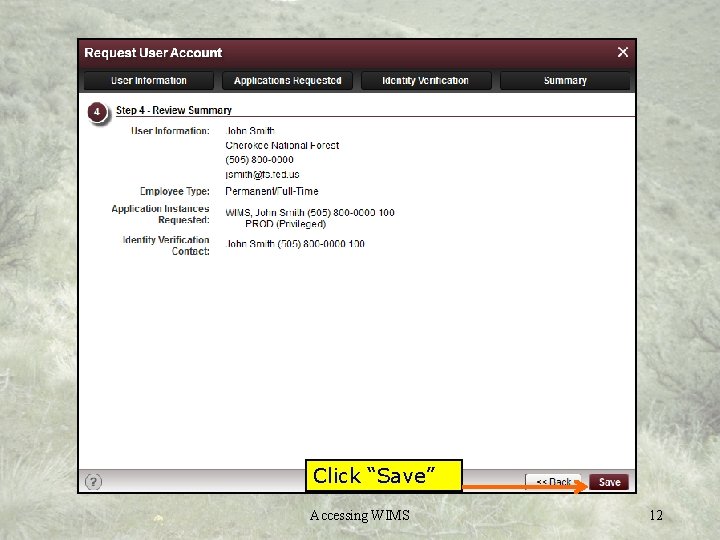
Fill out form. E-mail or FAX to FAMWEB Help Desk Click “Save” Accessing WIMS 12
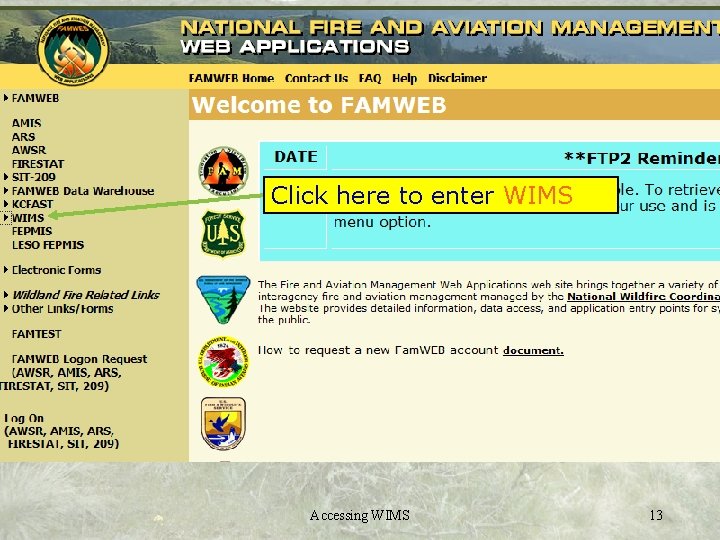
Click here to enter WIMS Accessing WIMS 13
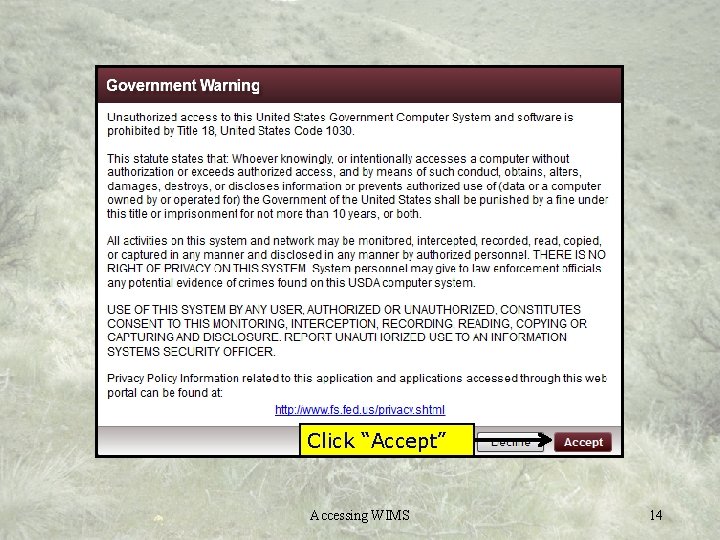
Click “Accept” Accessing WIMS 14
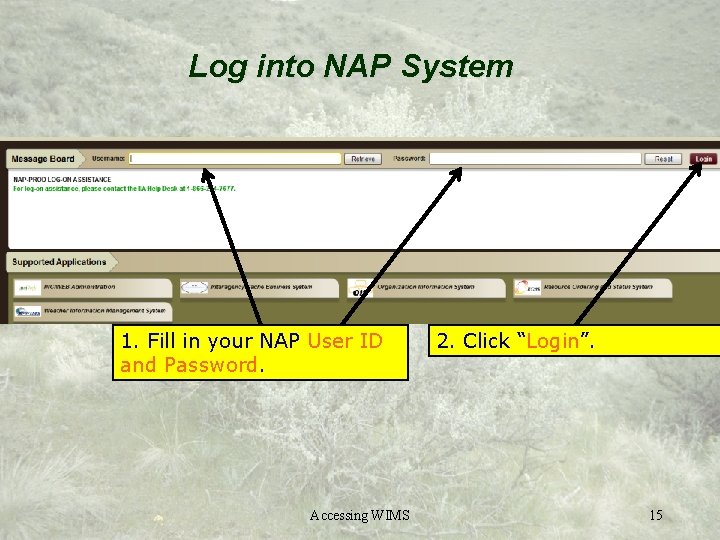
Log into NAP System 1. Fill in your NAP User ID and Password. Accessing WIMS 2. Click “Login”. 15
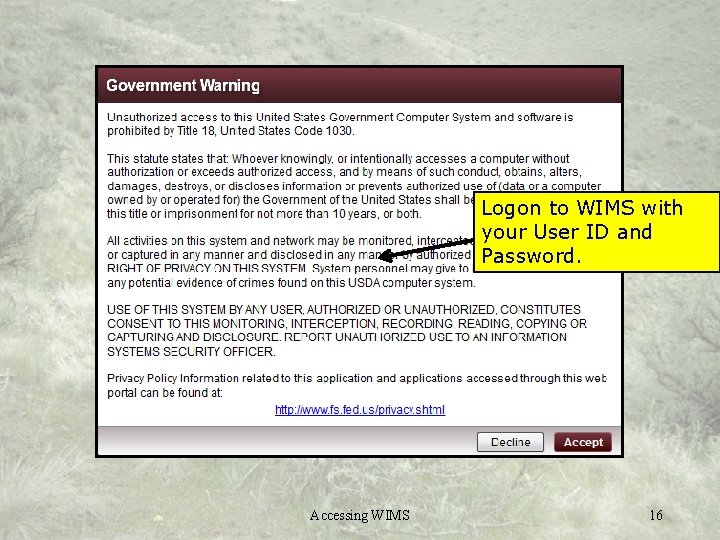
Logon to WIMS with your User ID and Password. Accessing WIMS 16
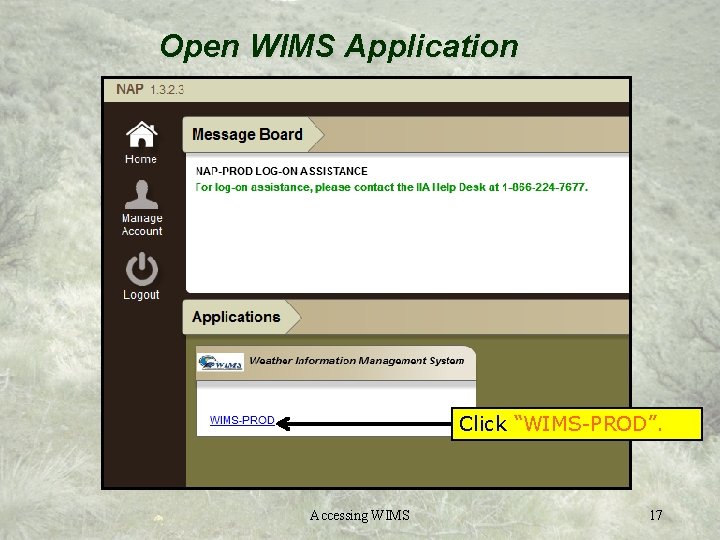
Open WIMS Application Click “WIMS-PROD”. Accessing WIMS 17
Navigating in WIMS • Clicking the links on Menus • Fast. Paths • Navigation Tree • Query Blocks 18
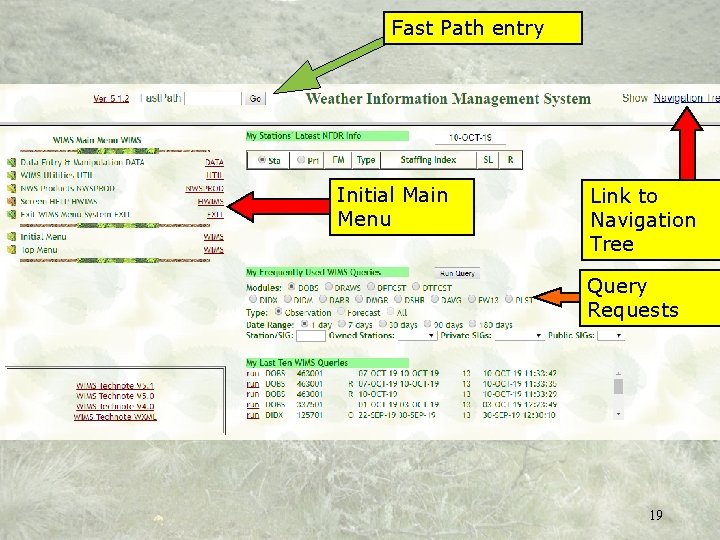
Fast Path entry Initial Main Menu Link to Navigation Tree Query Requests 19
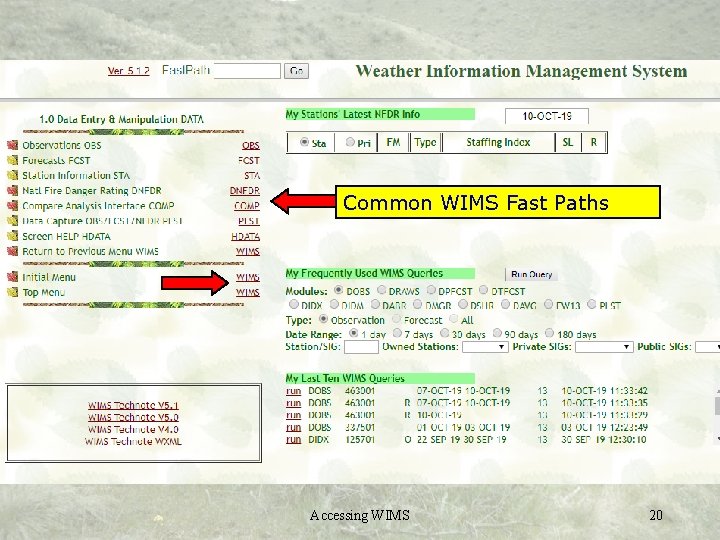
Common WIMS Fast Paths Accessing WIMS 20
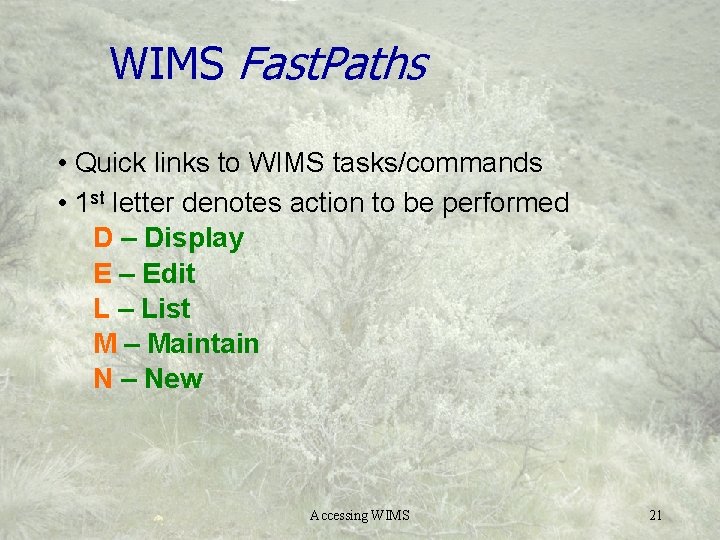
WIMS Fast. Paths • Quick links to WIMS tasks/commands • 1 st letter denotes action to be performed D – Display E – Edit L – List M – Maintain N – New Accessing WIMS 21
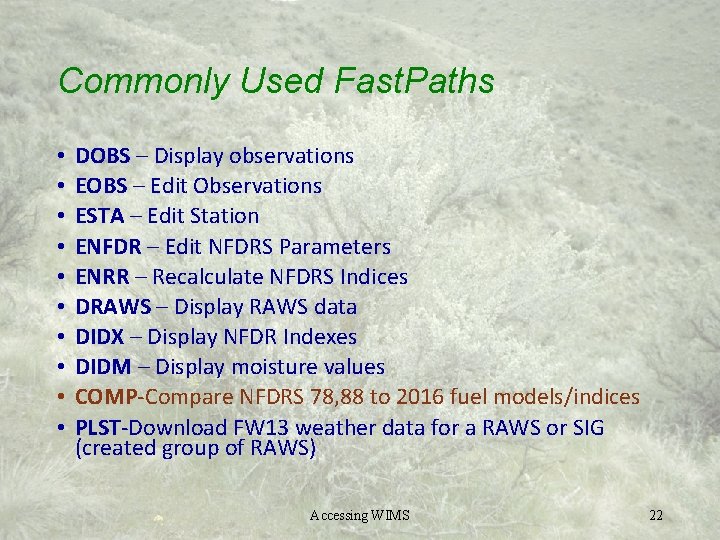
Commonly Used Fast. Paths • • • DOBS – Display observations EOBS – Edit Observations ESTA – Edit Station ENFDR – Edit NFDRS Parameters ENRR – Recalculate NFDRS Indices DRAWS – Display RAWS data DIDX – Display NFDR Indexes DIDM – Display moisture values COMP-Compare NFDRS 78, 88 to 2016 fuel models/indices PLST-Download FW 13 weather data for a RAWS or SIG (created group of RAWS) Accessing WIMS 22
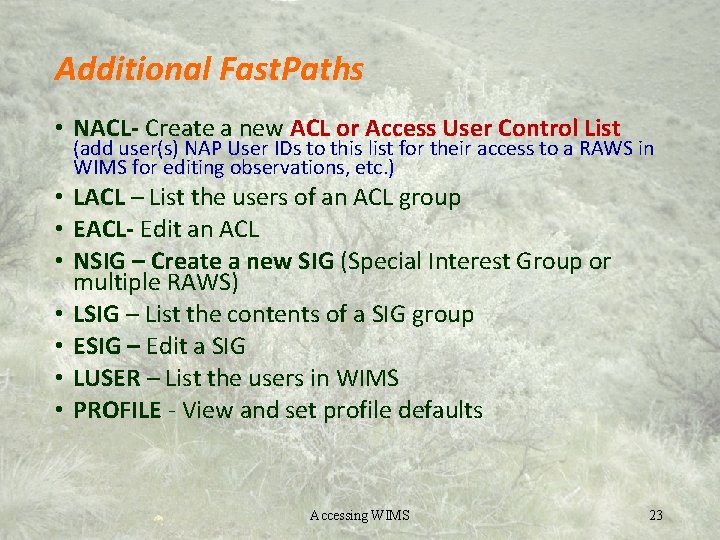
Additional Fast. Paths • NACL- Create a new ACL or Access User Control List (add user(s) NAP User IDs to this list for their access to a RAWS in WIMS for editing observations, etc. ) • LACL – List the users of an ACL group • EACL- Edit an ACL • NSIG – Create a new SIG (Special Interest Group or multiple RAWS) • LSIG – List the contents of a SIG group • ESIG – Edit a SIG • LUSER – List the users in WIMS • PROFILE - View and set profile defaults Accessing WIMS 23
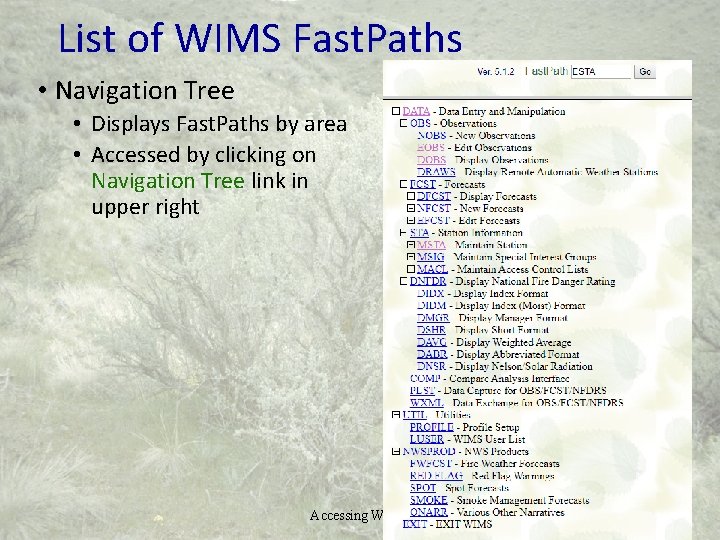
List of WIMS Fast. Paths • Navigation Tree • Displays Fast. Paths by area • Accessed by clicking on Navigation Tree link in upper right Accessing WIMS 24
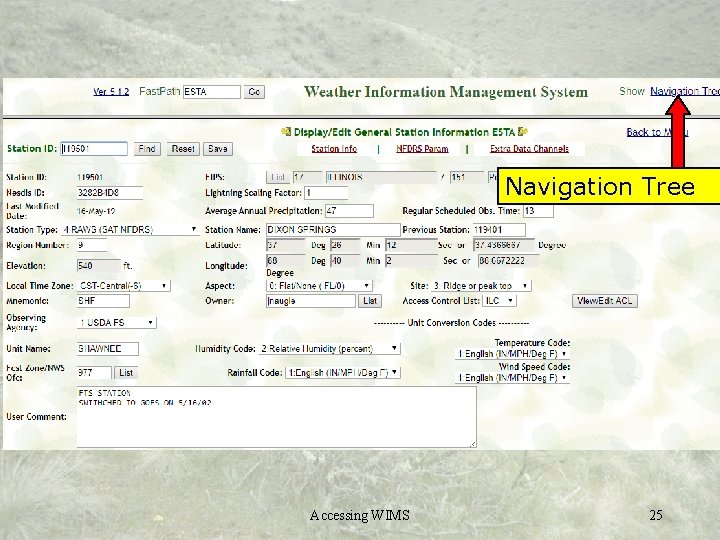
Navigation Tree Accessing WIMS 25
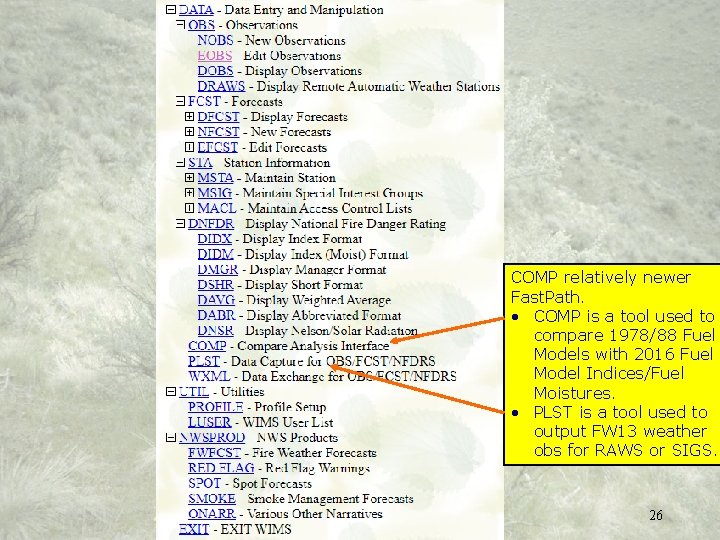
COMP relatively newer Fast. Path. • COMP is a tool used to compare 1978/88 Fuel Models with 2016 Fuel Model Indices/Fuel Moistures. • PLST is a tool used to output FW 13 weather obs for RAWS or SIGS. Accessing WIMS 26
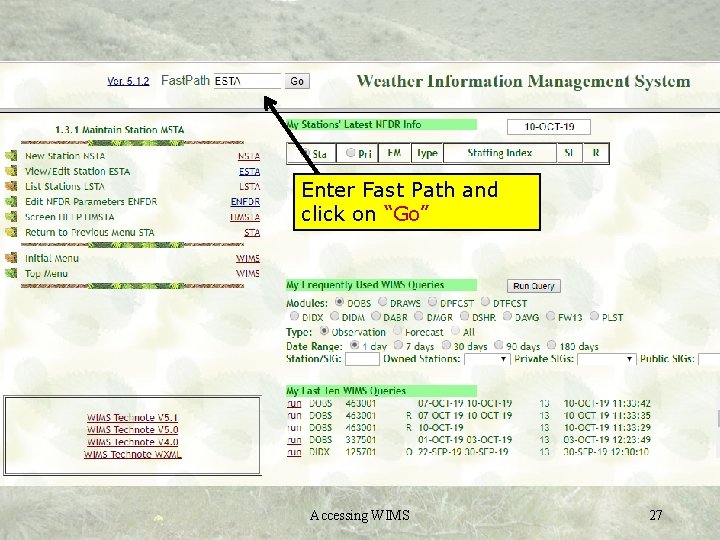
Enter Fast Path and click on “Go” Accessing WIMS 27
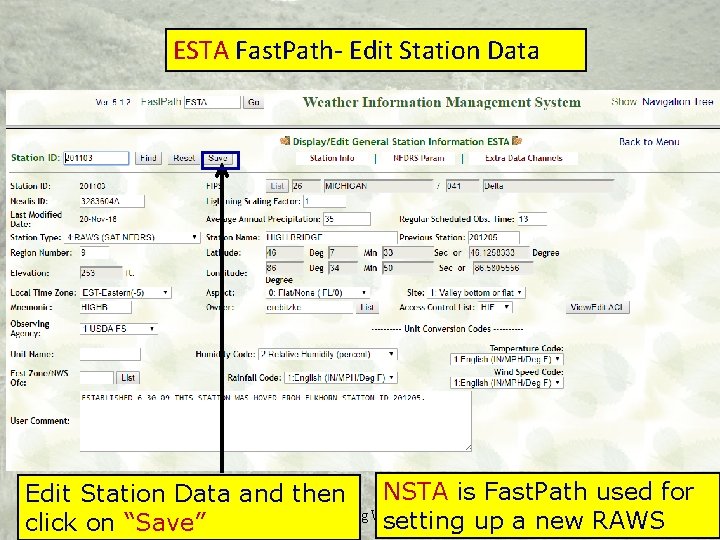
ESTA Fast. Path- Edit Station Data NSTA is Fast. Path used for Edit Station Data and then Accessing WIMS 28 setting up a new RAWS click on “Save”
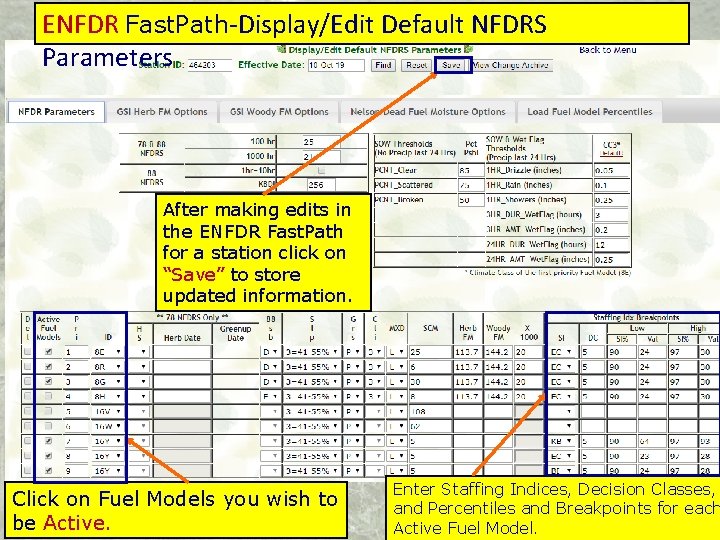
ENFDR Fast. Path-Display/Edit Default NFDRS Parameters After making edits in the ENFDR Fast. Path for a station click on “Save” to store updated information. Click on Fuel Models you wish to be Active. Enter Staffing Indices, Decision Classes, and Percentiles and Breakpoints 29 for each Active Fuel Model.
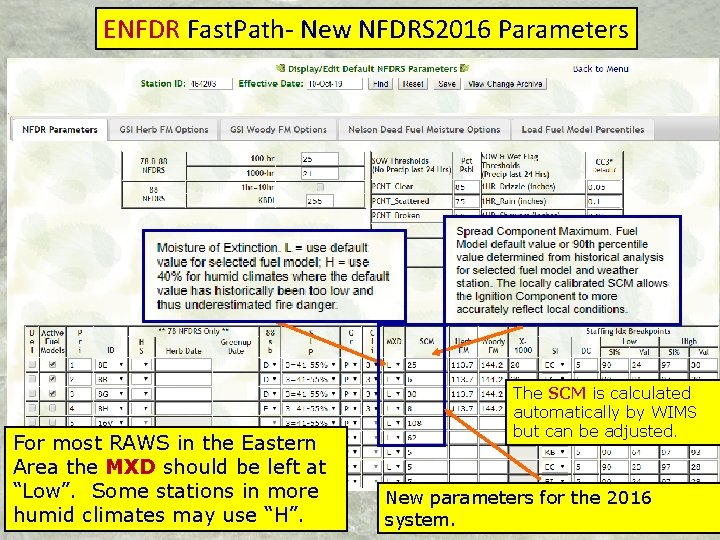
ENFDR Fast. Path- New NFDRS 2016 Parameters For most RAWS in the Eastern Area the MXD should be left at “Low”. Some stations in more humid climates may use “H”. The SCM is calculated automatically by WIMS but can be adjusted. New parameters for the 2016 30 system.
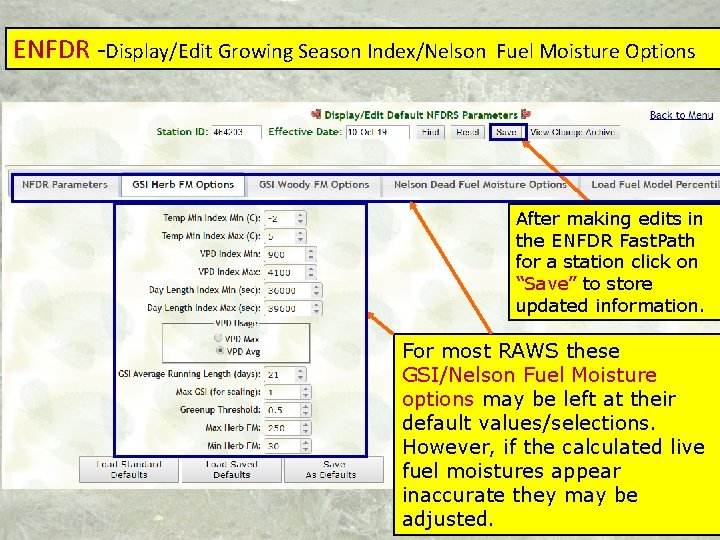
ENFDR -Display/Edit Growing Season Index/Nelson Fuel Moisture Options After making edits in the ENFDR Fast. Path for a station click on “Save” to store updated information. For most RAWS these GSI/Nelson Fuel Moisture options may be left at their default values/selections. However, if the calculated live fuel moistures appear inaccurate they may be 31 adjusted.
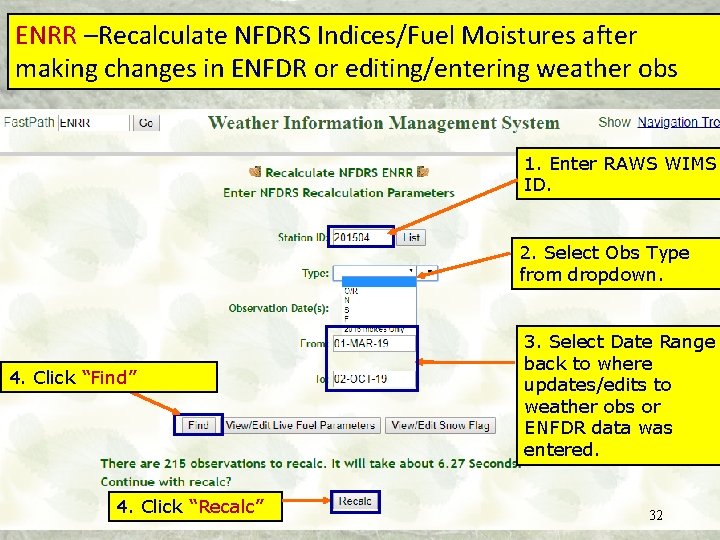
ENRR –Recalculate NFDRS Indices/Fuel Moistures after making changes in ENFDR or editing/entering weather obs 1. Enter RAWS WIMS ID. 2. Select Obs Type from dropdown. 4. Click “Find” 4. Click “Recalc” 3. Select Date Range back to where updates/edits to weather obs or ENFDR data was entered. 32
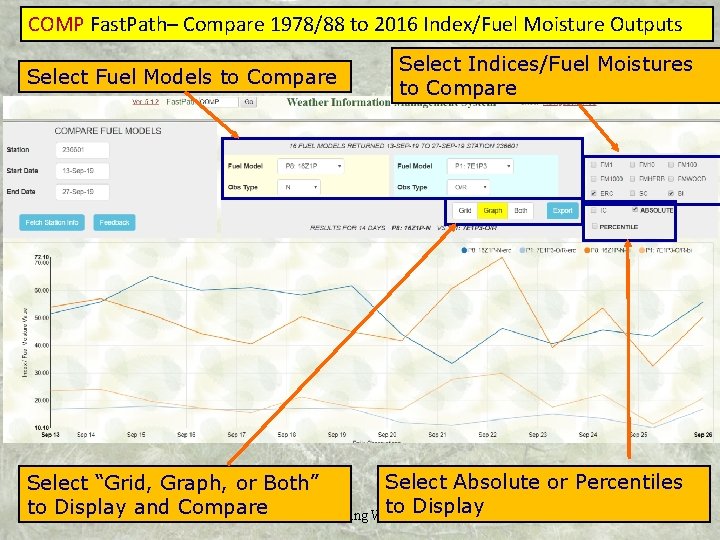
COMP Fast. Path– Compare 1978/88 to 2016 Index/Fuel Moisture Outputs Select Fuel Models to Compare Select Indices/Fuel Moistures to Compare Select Absolute or Percentiles Select “Grid, Graph, or Both” to Display and Compare Accessing WIMS 33
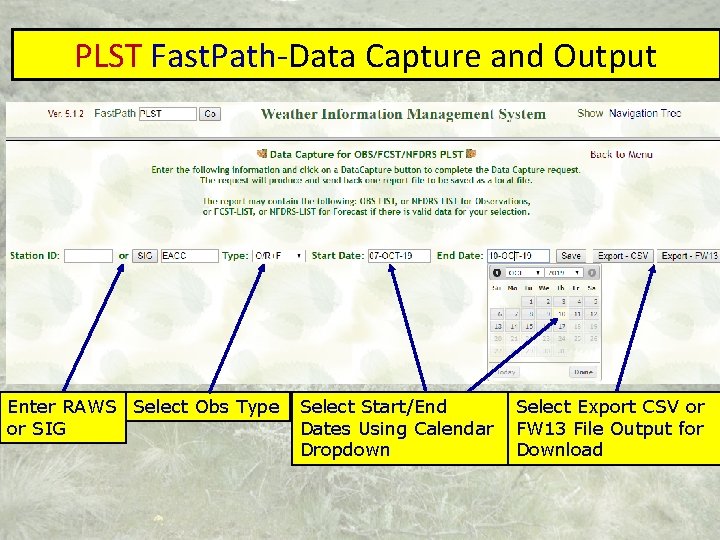
PLST Fast. Path-Data Capture and Output Enter RAWS Select Obs Type or SIG Select Start/End Dates Using Calendar Dropdown Select Export CSV or FW 13 File Output for Download
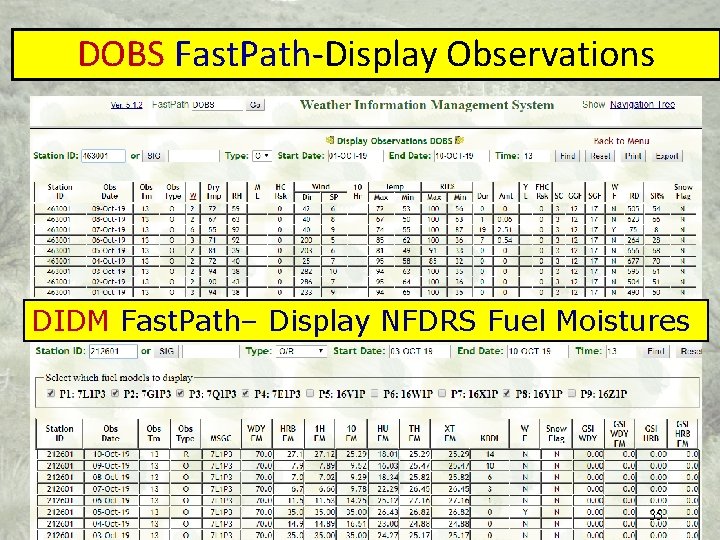
DOBS Fast. Path-Display Observations DIDM Fast. Path– Display NFDRS Fuel Moistures 35
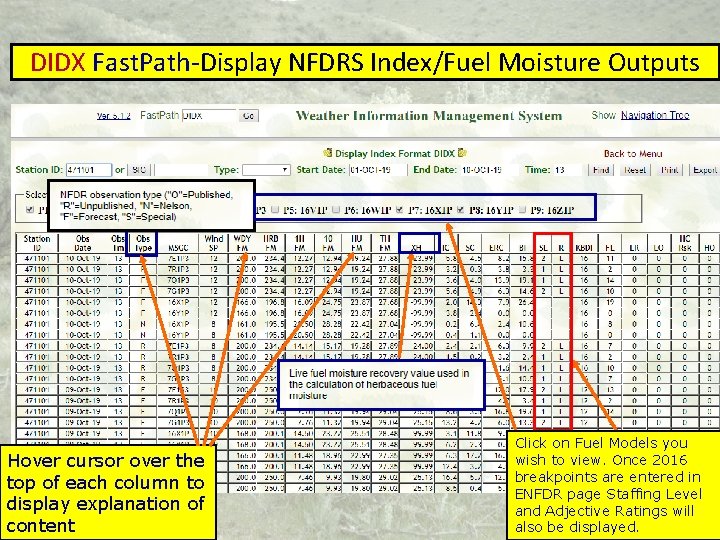
DIDX Fast. Path-Display NFDRS Index/Fuel Moisture Outputs Hover cursor over the top of each column to display explanation of content Click on Fuel Models you wish to view. Once 2016 breakpoints are entered in ENFDR page Staffing Level and Adjective Ratings 36 will also be displayed.
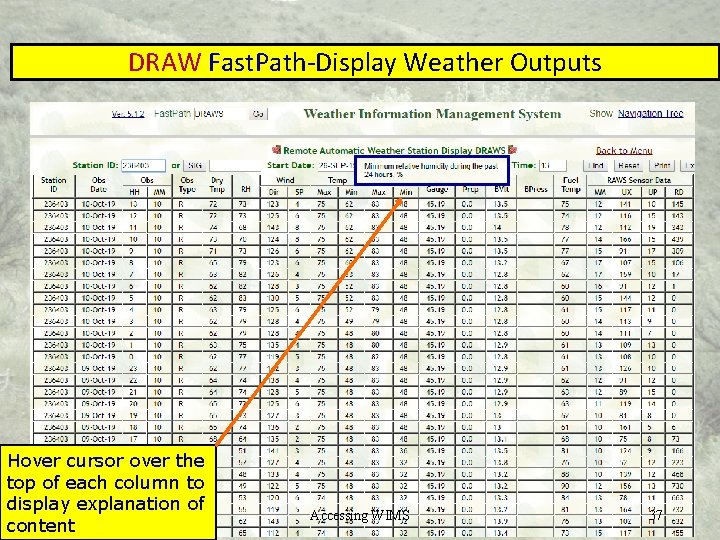
DRAW Fast. Path-Display Weather Outputs Hover cursor over the top of each column to display explanation of content Accessing WIMS 37
WIMS Observation Inputs
Objectives • Enter/edit observations • Wet Flag – when to force • Missing Data – how to enter • Editing observations from DRAWS • Special observation • Export/Print observations Accessing WIMS 39
Accessing WIMS 40
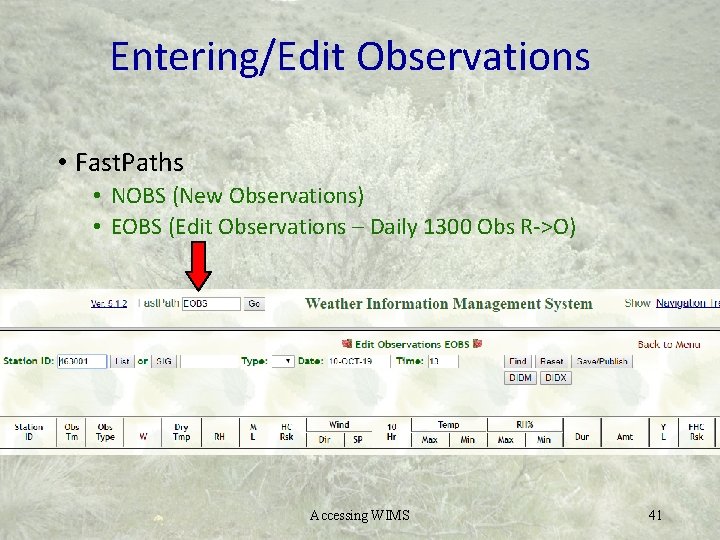
Entering/Edit Observations • Fast. Paths • NOBS (New Observations) • EOBS (Edit Observations – Daily 1300 Obs R->O) Accessing WIMS 41
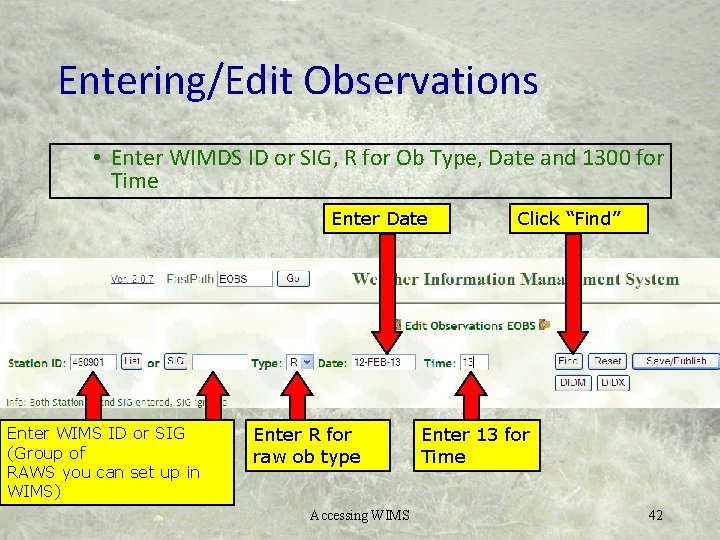
Entering/Edit Observations • Enter WIMDS ID or SIG, R for Ob Type, Date and 1300 for Time Enter Date Enter WIMS ID or SIG (Group of RAWS you can set up in WIMS) Enter R for raw ob type Accessing WIMS Click “Find” Enter 13 for Time 42
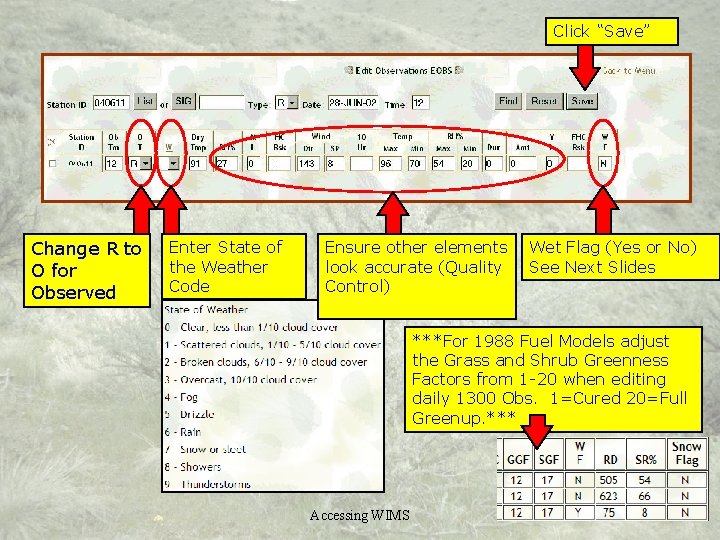
Click “Save” Change R to O for Observed Enter State of the Weather Code Ensure other elements look accurate (Quality Control) Wet Flag (Yes or No) See Next Slides ***For 1988 Fuel Models adjust the Grass and Shrub Greenness Factors from 1 -20 when editing daily 1300 Obs. 1=Cured 20=Full Greenup. *** Accessing WIMS 43
WET FLAG • Flag in the observation that notes the fuels are wet • The State of the Weather will set the Wet Flag to Y or N • The Wet Flag can be forced to Y even if the State of the Weather sets Wet Flag to N • Setting the WF to Y will drive up the 1000 hr and therefore effect live fuel moistures 44
Special Observations • Only one “O” observation per day • For additional use “S” 45
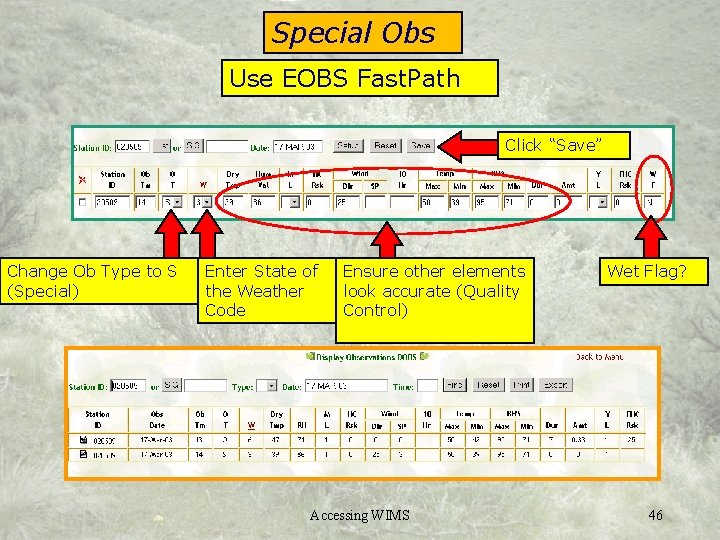
Special Obs Use EOBS Fast. Path Click “Save” Change Ob Type to S (Special) Enter State of the Weather Code Ensure other elements look accurate (Quality Control) Accessing WIMS Wet Flag? 46
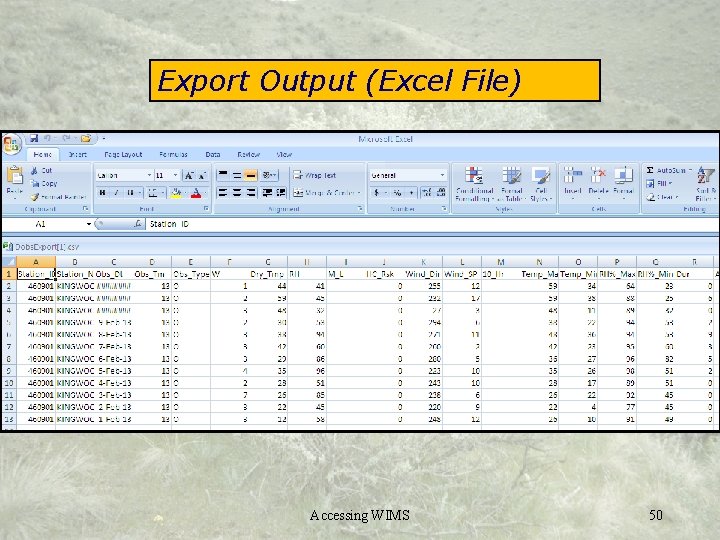
Print/Export Observations • Print – creates a file formatted for printing • Export – creates a comma delimited file • Maybe imported into spreadsheets, etc. Accessing WIMS 47
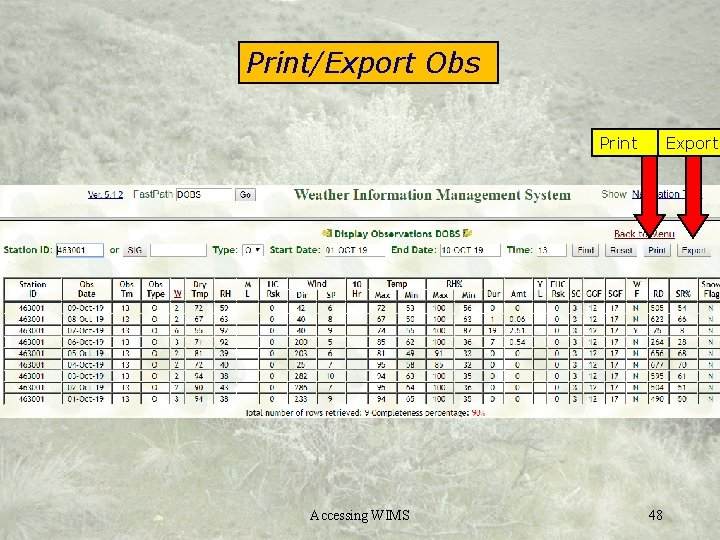
Print/Export Obs Print Accessing WIMS Export 48
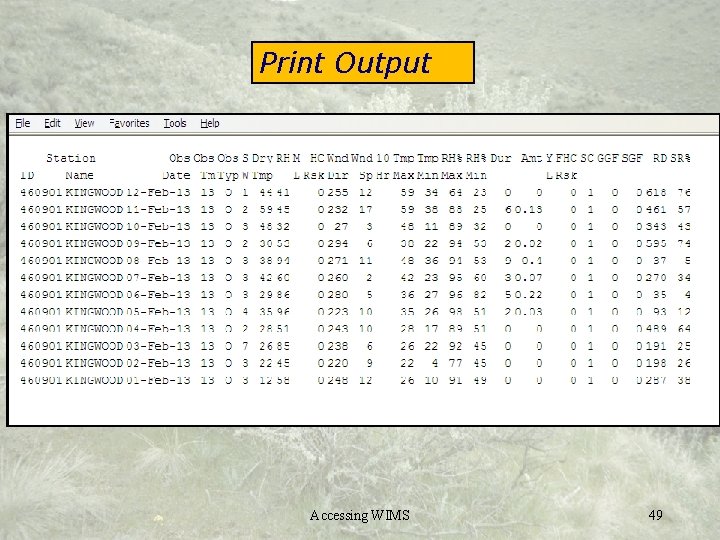
Print Output Accessing WIMS 49
Export Output (Excel File) Accessing WIMS 50
Questions? Accessing WIMS 51
- Slides: 51