
WIDA Online Screener Presented By Chris Williams Office

WIDA Online Screener Presented By: Chris Williams Office of Assessment and Accountability May 17, 2017 2
Screener Certification KDE: OAA: DAS: 5/17/2017 3
Kindergarten W-APT™ (K-WAPT) and WIDA Online Screener } Give each new student in the district the Home-Language Survey (HLS). } If the answer to any of the 4 required HLS questions is any language other than English, then administer the screener, W-APT™. } The K-W-APT™ is downloadable free to districts from the website: www. wida. us contact Chris Williams for a password. Contact Chris Williams for an ACCESS account to do the training certification for the WIDA Online Screener. Contact the District Assessment Coordinator (DAC) for a WIDA Assessment Management System (AMS) account for the WIDA online screener. } The results of the K W-APT™ and the WIDA Online Screener must be shared with parents within the first 30 days of enrollment or 2 weeks of enrollment during the school year. KDE: OAA: DAS: 5/17/2017 4
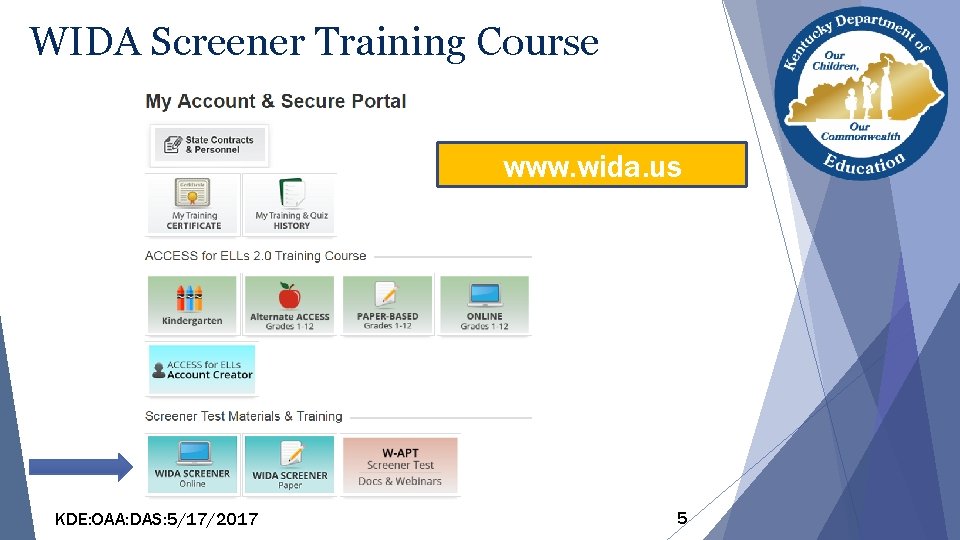
WIDA Screener Training Course www. wida. us KDE: OAA: DAS: 5/17/2017 5
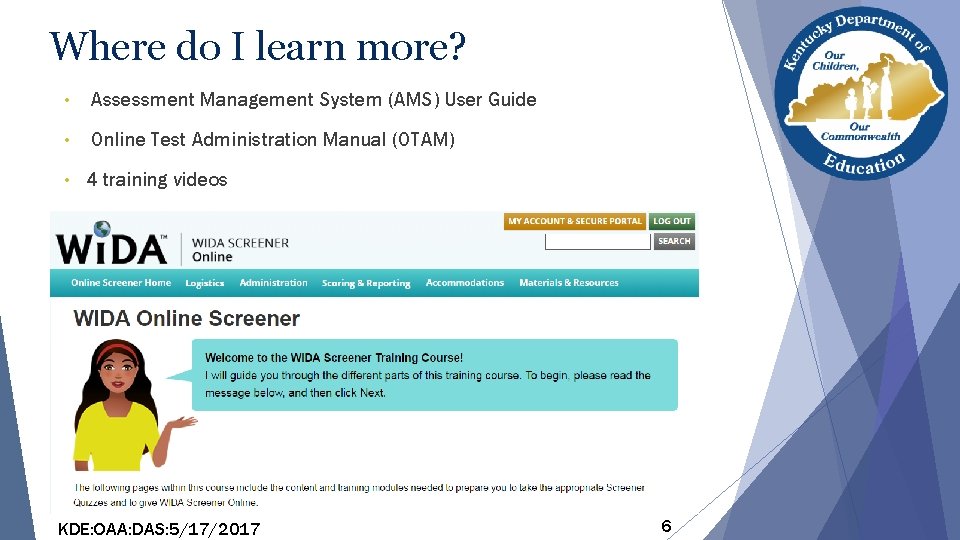
Where do I learn more? • Assessment Management System (AMS) User Guide • Online Test Administration Manual (OTAM) • 4 training videos KDE: OAA: DAS: 5/17/2017 6
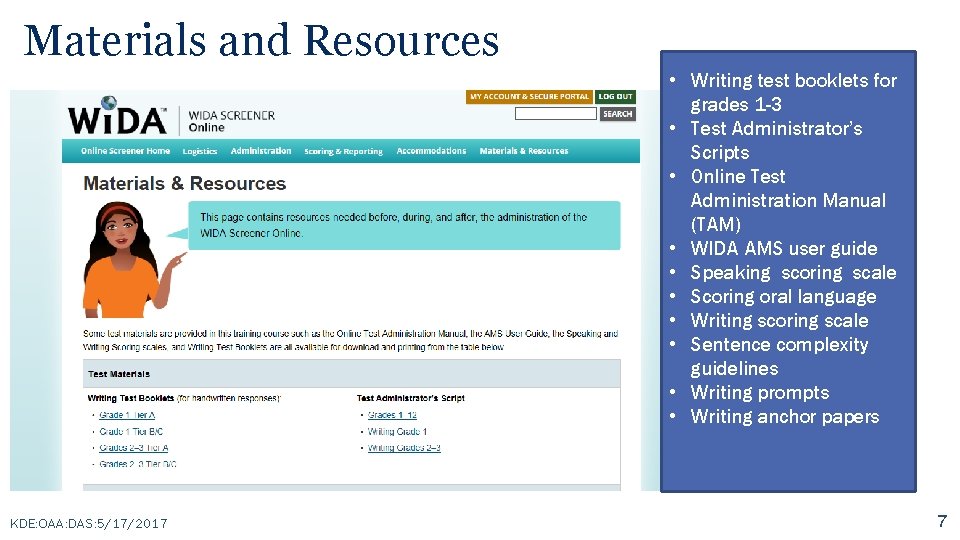
Materials and Resources • Writing test booklets for grades 1 -3 • Test Administrator’s Scripts • Online Test Administration Manual (TAM) • WIDA AMS user guide • Speaking scoring scale • Scoring oral language • Writing scoring scale • Sentence complexity guidelines • Writing prompts • Writing anchor papers KDE: OAA: DAS: 5/17/2017 7
Test Administration Roles • Test Coordinator is the individual responsible for facilitating overall test administration of the WIDA Online Screener from start to finish. This includes managing logistics and supporting others’ roles, making sure all test administrators are certified and trained to give the screener and have read the manuals and guides for the screener. Some places have District Test Coordinators and others have School Test Coordinators – and some have both. • Test Administrator completes the WIDA Online Screener training course, watches the webinars, gives the Online WIDA Screener and monitors the students while they complete it. • Technology Coordinator provides technological support prior to and during screener administration (for WIDA Online Screener only). KDE: OAA: DAS: 5/17/2017 8
Screener Administration KDE: OAA: DAS: 5/17/2017 9
Test Vendor Data Recognition Corporation (DRC) serves as the operational test vendor for ACCESS 2. 0, both online and paper as well as the WIDA Online Screener. KDE: OAA: DAS: 5/17/2017 10
Intended Use of WIDA Screener } WIDA Screener is an identification test. } It is intended to be used to identify students who should be placed into English language support services. } It primarily aids with binary decision making: ELL or non. ELL. } WIDA Screener is not intended to be used as a diagnostic or progress (interim) test. } The WIDA Online Screener will be available to districts starting July 5. KDE: OAA: DAS: 5/17/2017 11
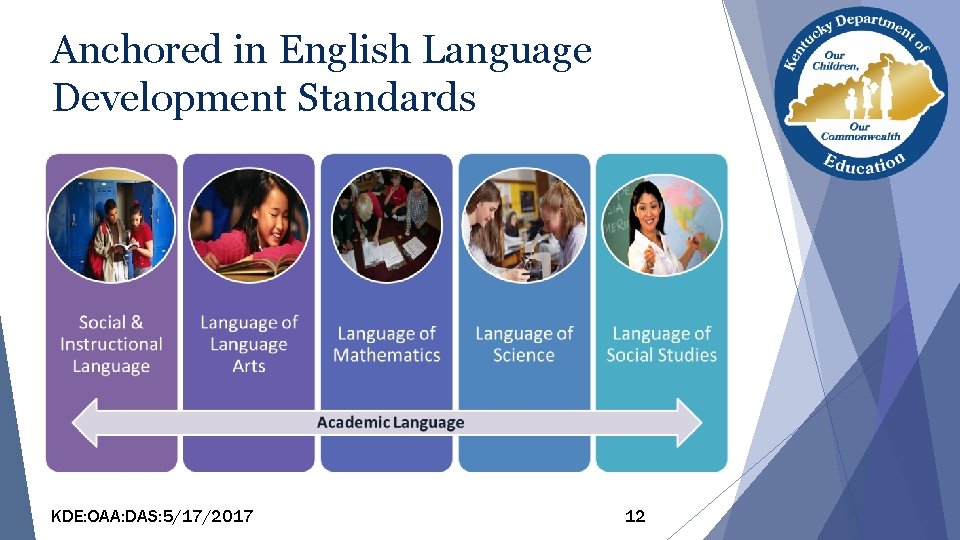
Anchored in English Language Development Standards KDE: OAA: DAS: 5/17/2017 12
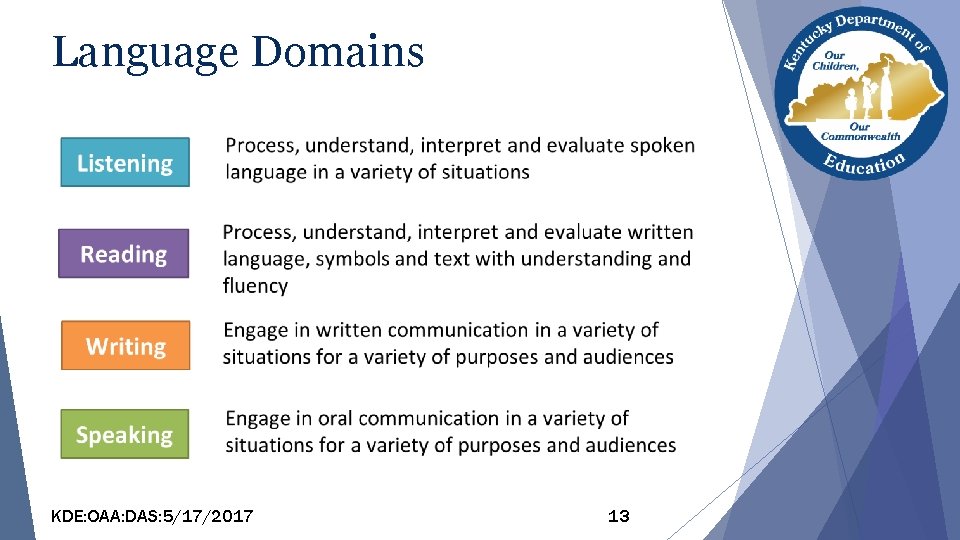
Language Domains KDE: OAA: DAS: 5/17/2017 13
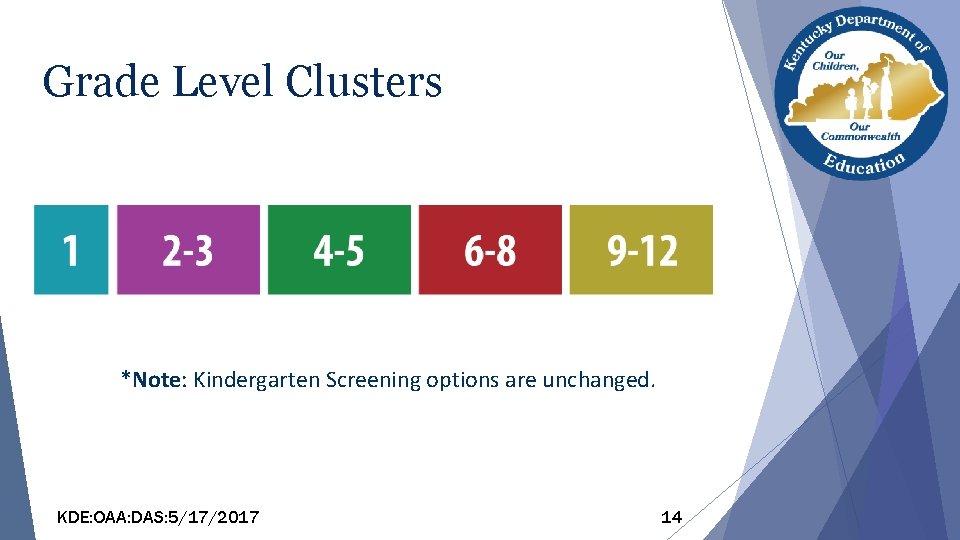
Grade Level Clusters *Note: Kindergarten Screening options are unchanged. KDE: OAA: DAS: 5/17/2017 14
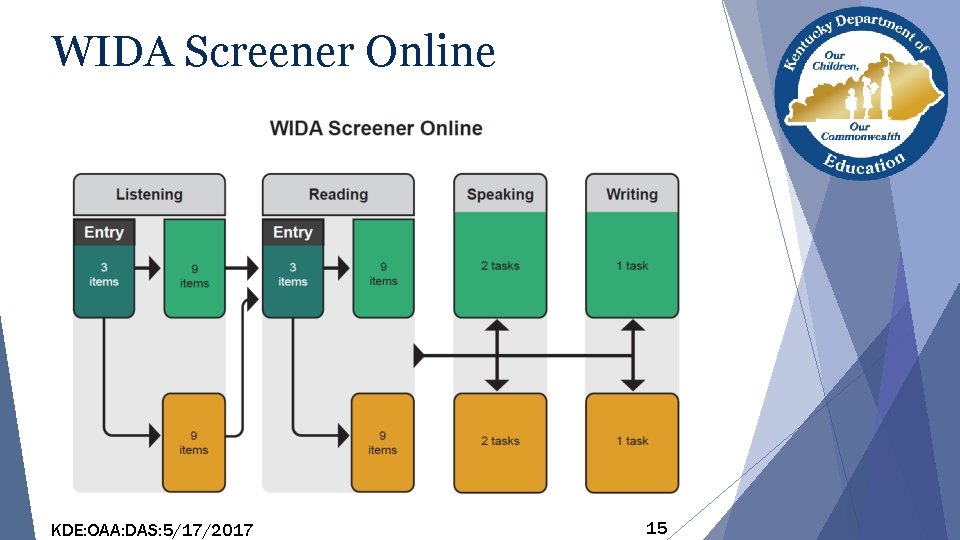
WIDA Screener Online KDE: OAA: DAS: 5/17/2017 15
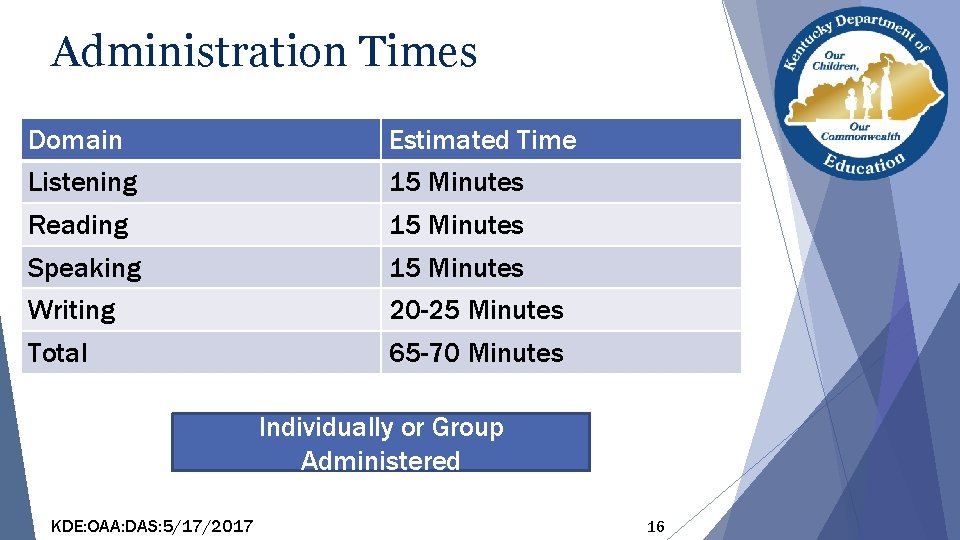
Administration Times Domain Estimated Time Listening 15 Minutes Reading 15 Minutes Speaking 15 Minutes Writing 20 -25 Minutes Total 65 -70 Minutes Individually or Group Administered KDE: OAA: DAS: 5/17/2017 16
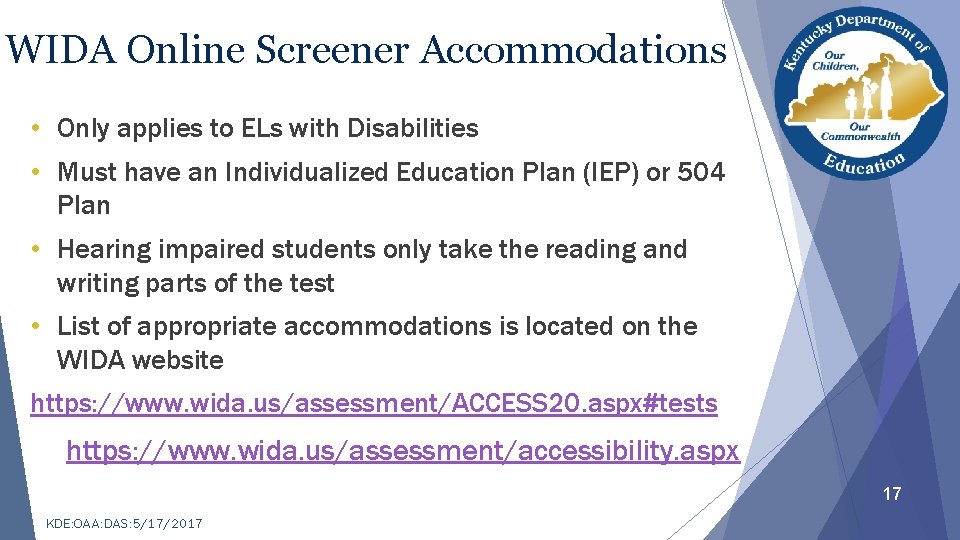
WIDA Online Screener Accommodations • Only applies to ELs with Disabilities • Must have an Individualized Education Plan (IEP) or 504 Plan • Hearing impaired students only take the reading and writing parts of the test • List of appropriate accommodations is located on the WIDA website https: //www. wida. us/assessment/ACCESS 20. aspx#tests https: //www. wida. us/assessment/accessibility. aspx 17 KDE: OAA: DAS: 5/17/2017
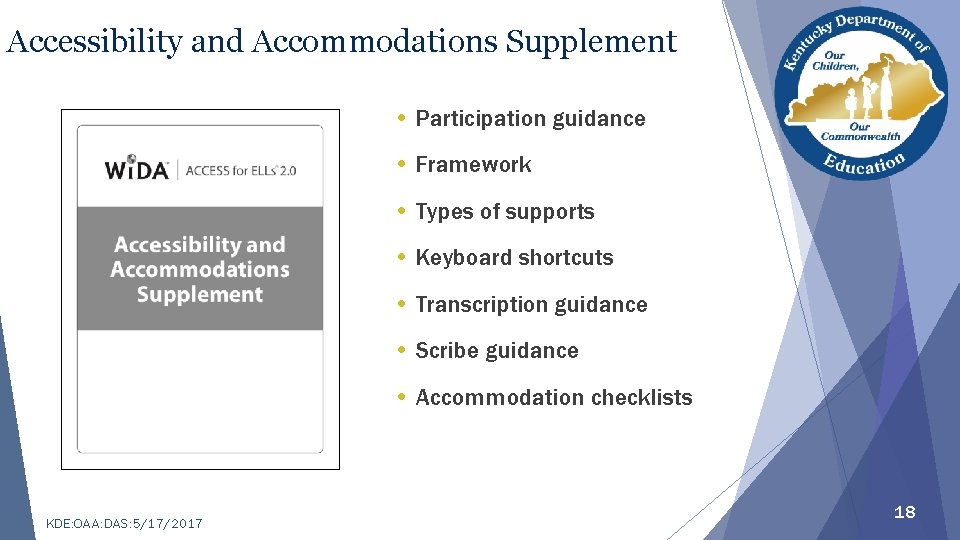
Accessibility and Accommodations Supplement • Participation guidance • Framework • Types of supports • Keyboard shortcuts • Transcription guidance • Scribe guidance • Accommodation checklists KDE: OAA: DAS: 5/17/2017 18
Technology Requirements } Technology requirements are the same as for ACCESS for ELLs 2. 0: ● WIDA AMS- WIDA Assessment Management System ● TSM-Testing Sight Manager ● INSIGHT Browser } What’s different? ● Use of WIDA AMS to locally score Speaking and Writing responses KDE: OAA: DAS: 5/17/2017 19
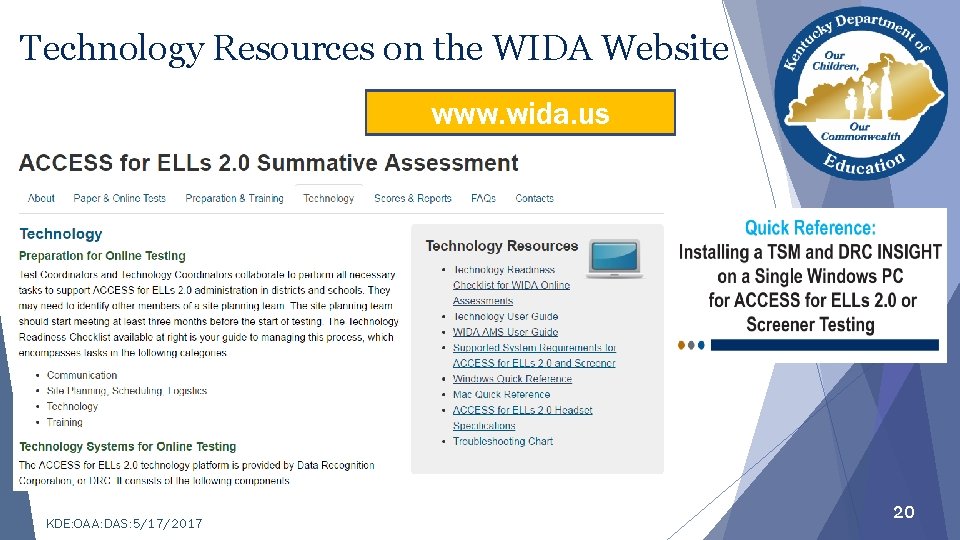
Technology Resources on the WIDA Website www. wida. us KDE: OAA: DAS: 5/17/2017 20
Software Notes } TSM: The Testing Site Manager (TSM) version 9. 1. 0_2 is required for WIDA Screener testing for both Content and Response Caching. } DRC INSIGHT: The INSIGHT application will need to be installed on every student testing device with the 7. 1 version. } Device Toolkit: Ensure you are copying/pasting the TSM Server Domain string, pictured below, for both the TSM Content Caching line and the Response Caching line in the Device Toolkit. IP Addresses or machine names will not work. KDE: OAA: DAS: 5/17/2017 21
Software Downloads } To access the TSM and INSIGHT downloads on WIDA AMS, in the top navigation panel click All Applications > General Information > Technology Downloads. } Then select the install under the correct operating system and click the download icon under the action column. } Please reference the INSIGHT Technology User Guide for install and setup instructions. } The i. Pad app is only available in the Apple App Store. KDE: OAA: DAS: 5/17/2017 22
Screener Permissions in WIDA AMS } DRC will give all users in the state access to the Screener administration for testing. } As with ACCESS for ELLs 2. 0, users are set up by the same roles and permissions sets can be used. The permissions sets will give the particular user role all of the permissions that are needed. } If you do not have an WIDA AMS account then you will need to contact your District Assessment Coordinator (DAC) KDE: OAA: DAS: 5/17/2017 23
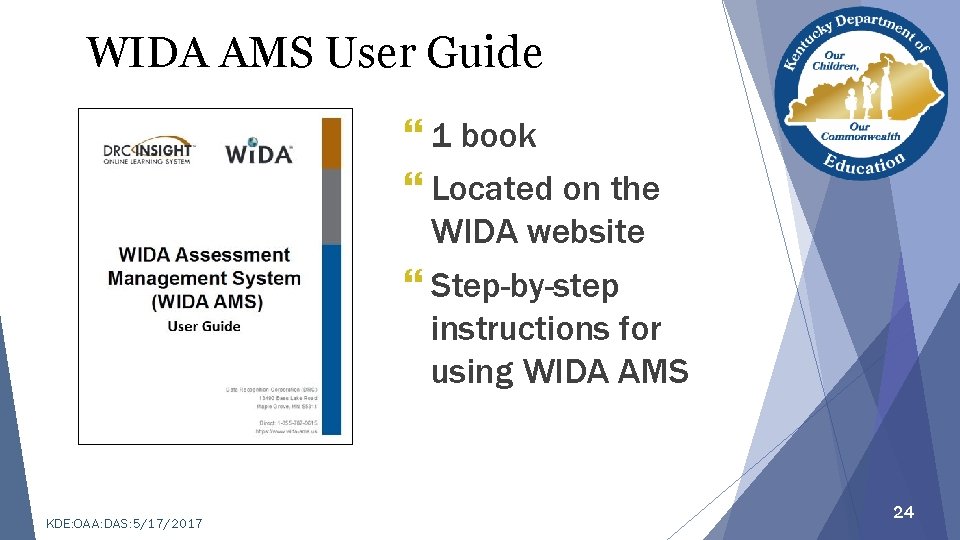
WIDA AMS User Guide } 1 book } Located on the WIDA website } Step-by-step instructions for using WIDA AMS KDE: OAA: DAS: 5/17/2017 24
WIDA AMS User Guide Resource KDE: OAA: DAS: 5/17/2017 25
WIDA Online Screener Exit Criteria for Grades 1 -12 Overall Composite of a 5. 0 KDE: OAA: DAS: 5/17/2017 26

WIDA Assessment Management System (WIDA AMS) KDE: OAA: DAS: 5/17/2017 27
WIDA Assessment Management System (WIDA AMS) Within the system, designated staff may: § Access any needed user guides or software downloads § Add students § Designate accommodations § Create test sessions § Print test tickets § Monitor student progress § View/print reports KDE: OAA: DAS: 5/17/2017 28
Adding Students to WIDA AMS To add a student to WIDA-AMS for the screener, a user will need to: } Verify selecting the Screener in the Administration filter under Student Management. } User will complete the district and school filters. } Select “Add Student” at the bottom of the screen. KDE: OAA: DAS: 5/17/2017 29
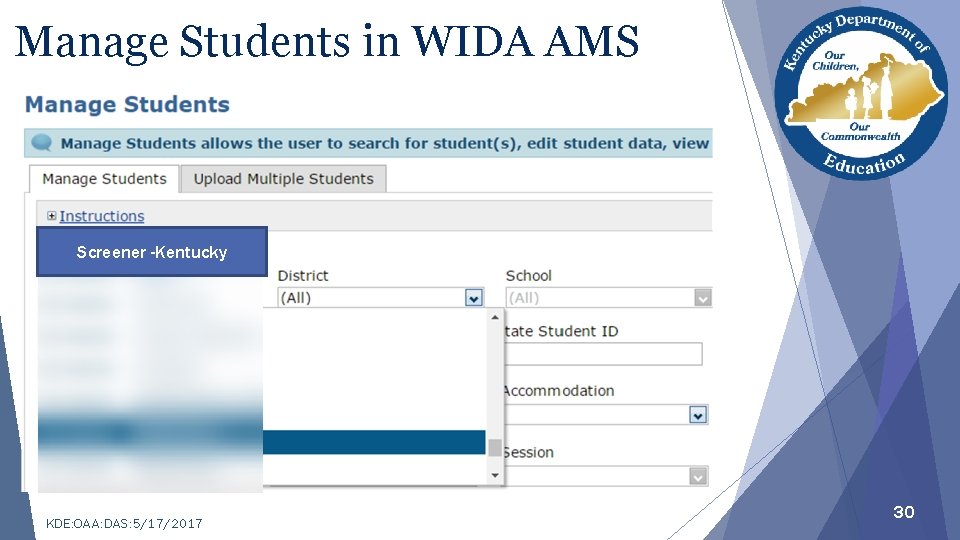
Manage Students in WIDA AMS Screener -Kentucky KDE: OAA: DAS: 5/17/2017 30
Test Sessions & Users } Same process as ACCESS for ELLs 2. 0 } Details are in WIDA AMS User Guide } Off grade-cluster testing is permitted KDE: OAA: DAS: 5/17/2017 31
Adding Students To Test Sessions To add a student to a Screener Test Session, a user will want to: } Select the Screener administration under Test Management } Select the district and the school } Click either “Add Session” or “Show Sessions” KDE: OAA: DAS: 5/17/2017 32
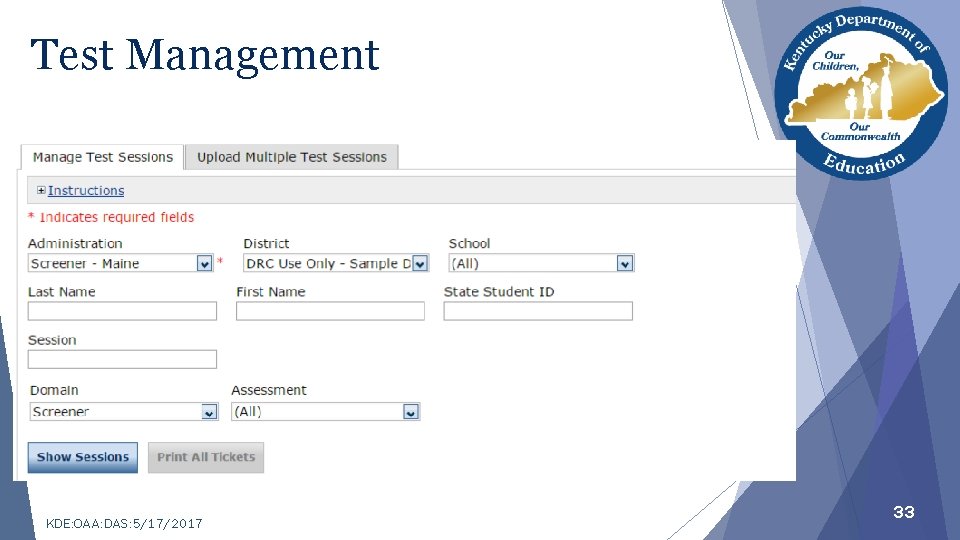
Test Management KDE: OAA: DAS: 5/17/2017 33
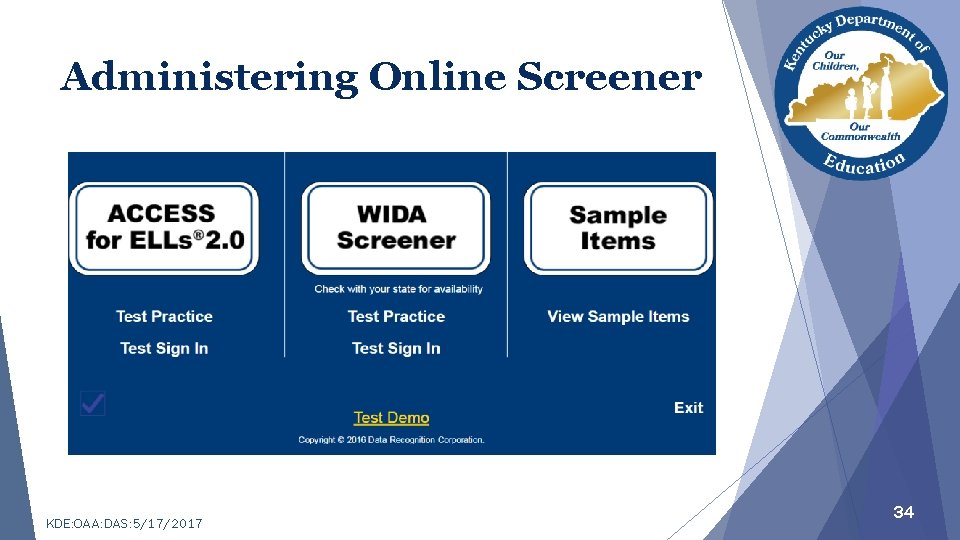
Administering Online Screener KDE: OAA: DAS: 5/17/2017 34
Administering Online Screener Logistics } One test ticket for the whole test } TA scripts are available on training course for local download and printing } TA must locally print Writing Test Booklets (Grades 1 -3) and distribute based on Tier assignment during test } Tier assignment shown on student screen } It is a secure test and all must maintain test security with all the materials and screener administration KDE: OAA: DAS: 5/17/2017 35
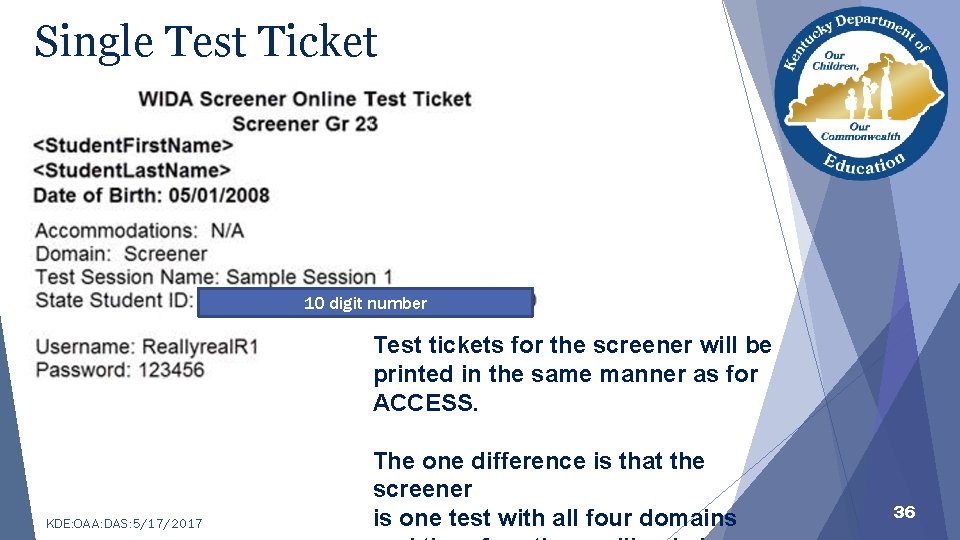
Single Test Ticket 10 digit number Test tickets for the screener will be printed in the same manner as for ACCESS. KDE: OAA: DAS: 5/17/2017 The one difference is that the screener is one test with all four domains 36
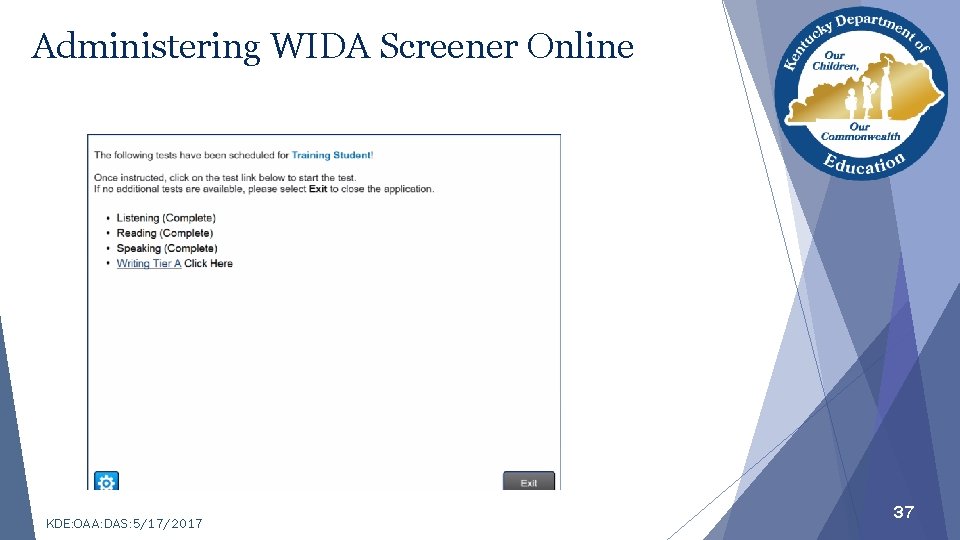
Administering WIDA Screener Online KDE: OAA: DAS: 5/17/2017 37
Screener Scoring KDE: OAA: DAS: 5/17/2017 38
Screener Scoring Certification } Is locally scored using WIDA AMS } Must pass the screener online course, speaking and writing quiz to administer } Completed by certified educators on any computer or laptop with Chrome or Internet Explorer 11 installed KDE: OAA: DAS: 5/17/2017 39
WIDA Screener Online Scoring } Listening and Reading scores automatically calculated } Speaking and Writing responses are retrievable in WIDA AMS } The responses are available within two hours of the student completing the test } Local rater scores Speaking and Writing responses KDE: OAA: DAS: 5/17/2017 40
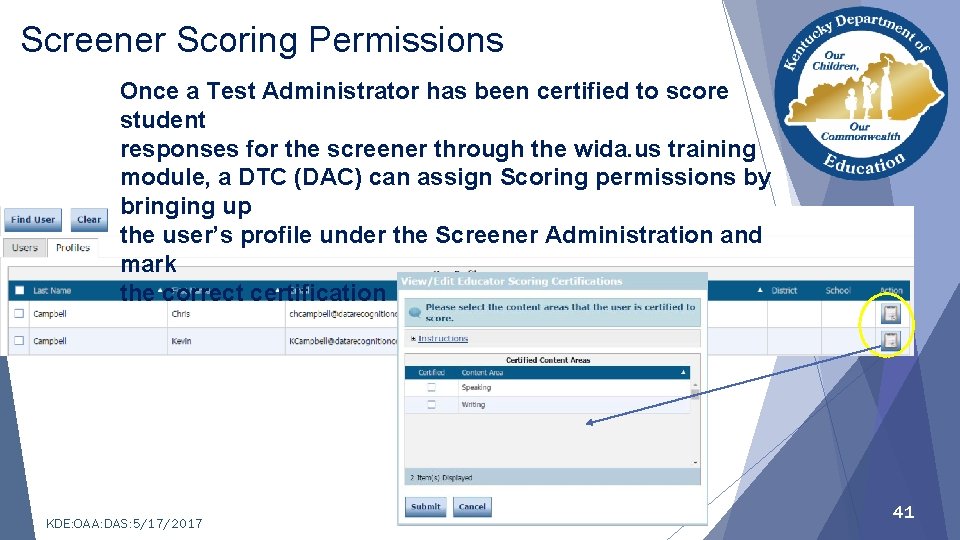
Screener Scoring Permissions Once a Test Administrator has been certified to score student responses for the screener through the wida. us training module, a DTC (DAC) can assign Scoring permissions by bringing up the user’s profile under the Screener Administration and mark the correct certification KDE: OAA: DAS: 5/17/2017 41
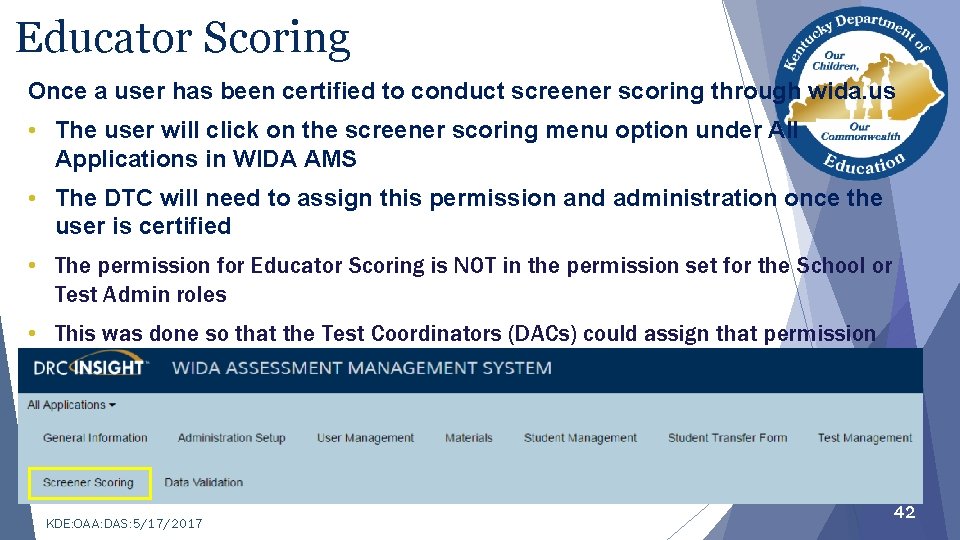
Educator Scoring Once a user has been certified to conduct screener scoring through wida. us • The user will click on the screener scoring menu option under All Applications in WIDA AMS • The DTC will need to assign this permission and administration once the user is certified • The permission for Educator Scoring is NOT in the permission set for the School or Test Admin roles • This was done so that the Test Coordinators (DACs) could assign that permission once the person was ‘qualified’ to score KDE: OAA: DAS: 5/17/2017 42
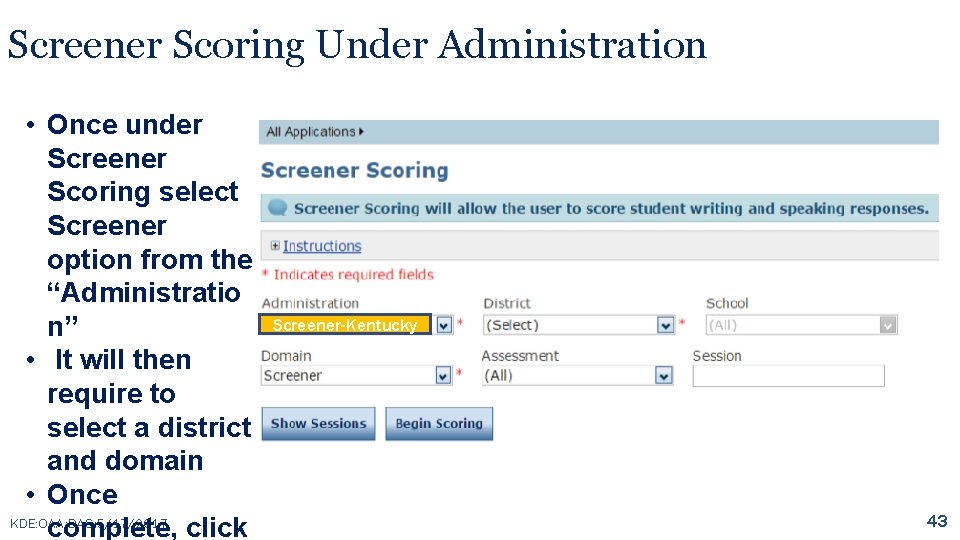
Screener Scoring Under Administration • Once under Screener Scoring select Screener option from the “Administratio n” • It will then require to select a district and domain • Once KDE: OAA: DAS: 5/17/2017 complete, click Screener-Kentucky 43
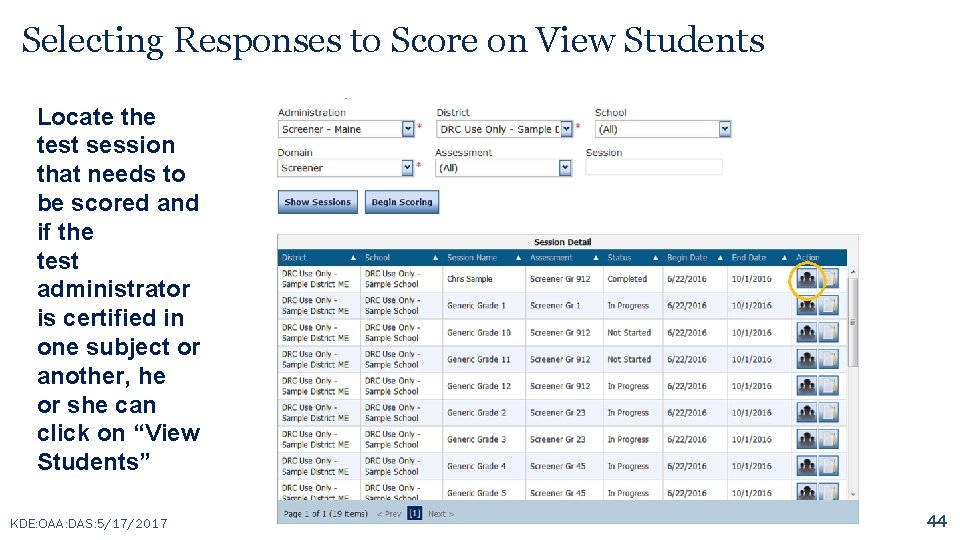
Selecting Responses to Score on View Students Locate the test session that needs to be scored and if the test administrator is certified in one subject or another, he or she can click on “View Students” KDE: OAA: DAS: 5/17/2017 44
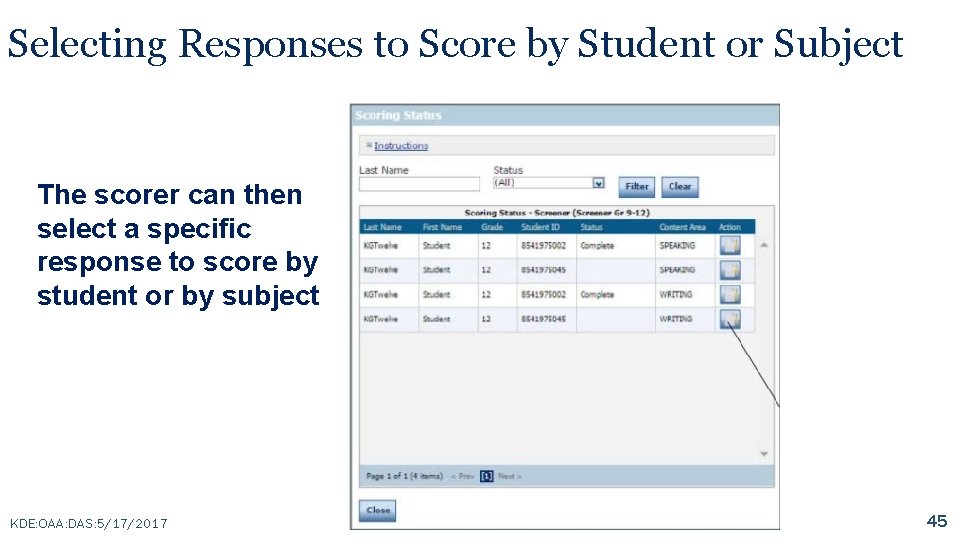
Selecting Responses to Score by Student or Subject The scorer can then select a specific response to score by student or by subject KDE: OAA: DAS: 5/17/2017 45
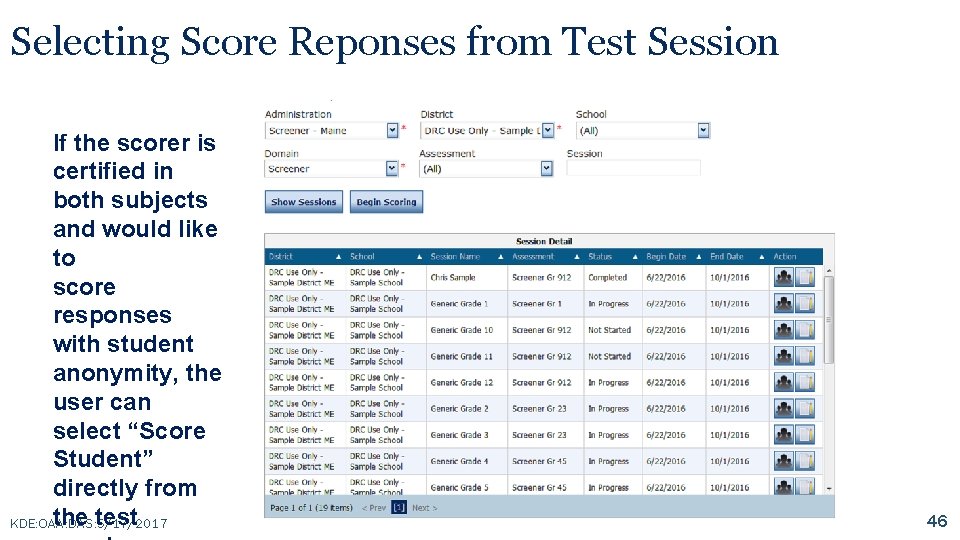
Selecting Score Reponses from Test Session If the scorer is certified in both subjects and would like to score responses with student anonymity, the user can select “Score Student” directly from the test KDE: OAA: DAS: 5/17/2017 46
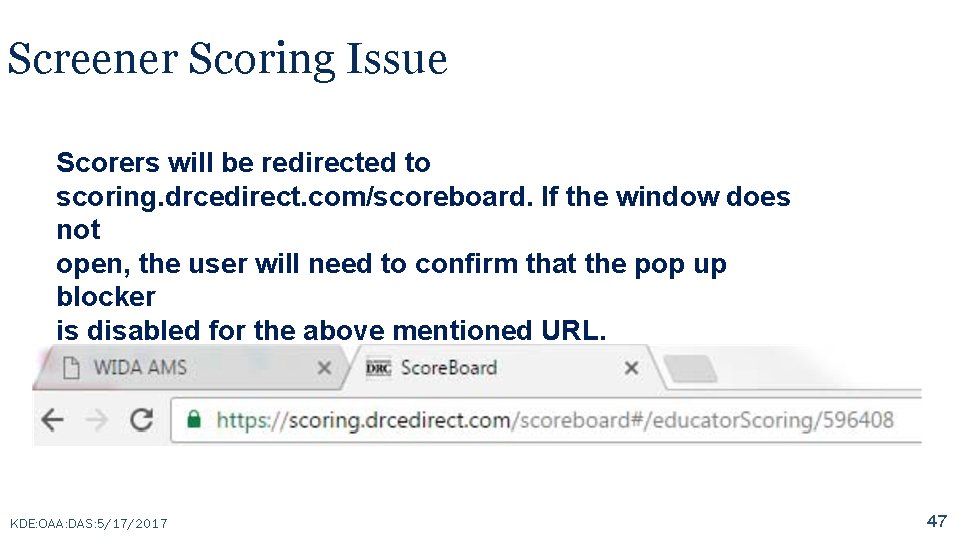
Screener Scoring Issue Scorers will be redirected to scoring. drcedirect. com/scoreboard. If the window does not open, the user will need to confirm that the pop up blocker is disabled for the above mentioned URL. KDE: OAA: DAS: 5/17/2017 47
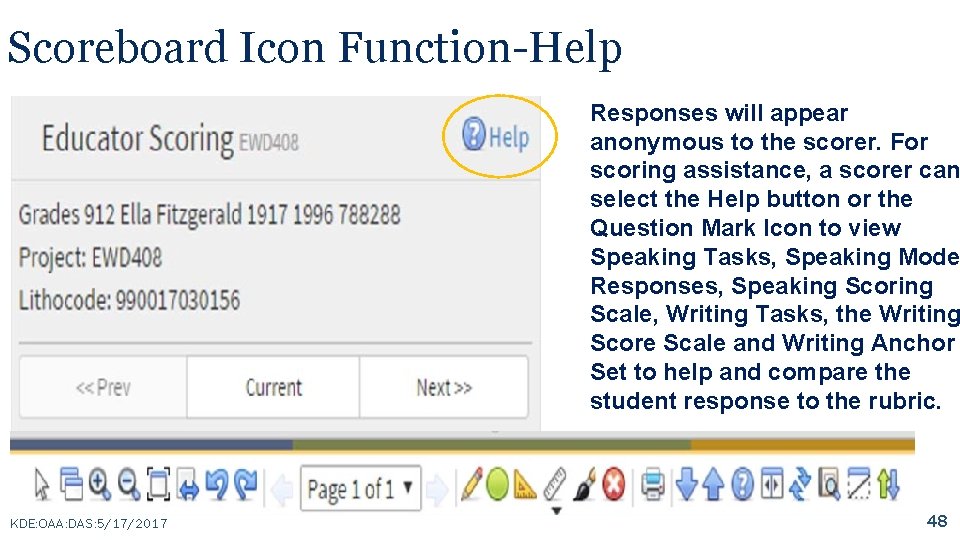
Scoreboard Icon Function-Help Responses will appear anonymous to the scorer. For scoring assistance, a scorer can select the Help button or the Question Mark Icon to view Speaking Tasks, Speaking Mode Responses, Speaking Scoring Scale, Writing Tasks, the Writing Score Scale and Writing Anchor Set to help and compare the student response to the rubric. KDE: OAA: DAS: 5/17/2017 48
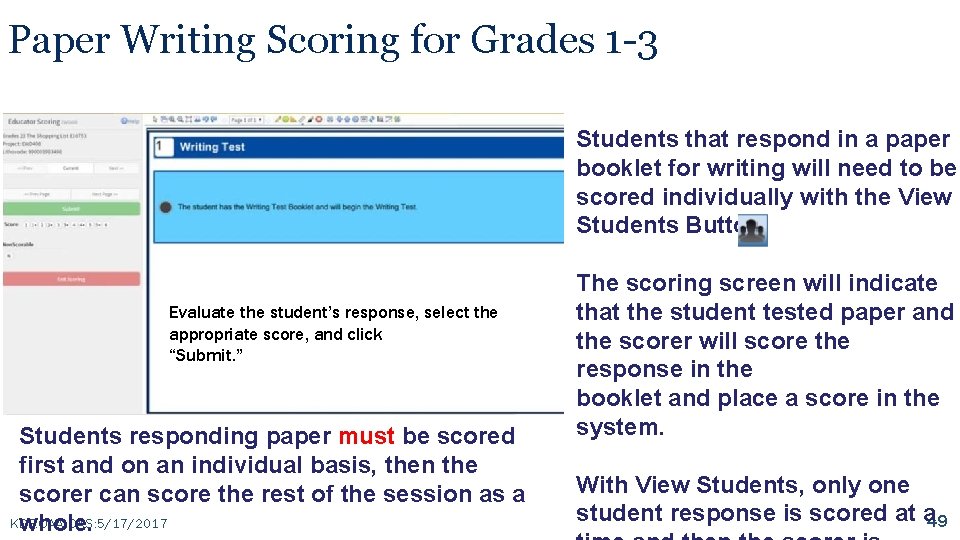
Paper Writing Scoring for Grades 1 -3 Students that respond in a paper booklet for writing will need to be scored individually with the View Students Button. Evaluate the student’s response, select the appropriate score, and click “Submit. ” Students responding paper must be scored first and on an individual basis, then the scorer can score the rest of the session as a KDE: OAA: DAS: 5/17/2017 whole. The scoring screen will indicate that the student tested paper and the scorer will score the response in the booklet and place a score in the system. With View Students, only one student response is scored at a 49
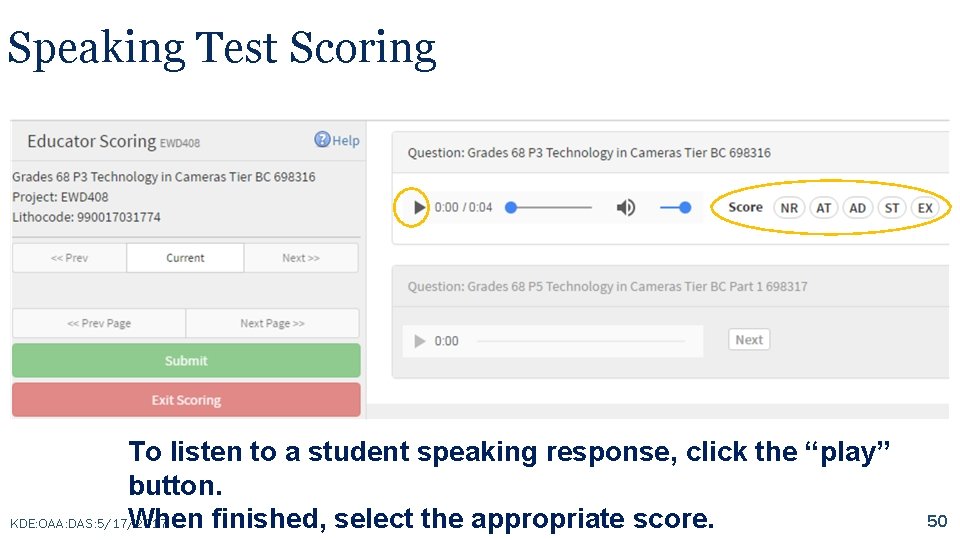
Speaking Test Scoring To listen to a student speaking response, click the “play” button. KDE: OAA: DAS: 5/17/2017 When finished, select the appropriate score. 50
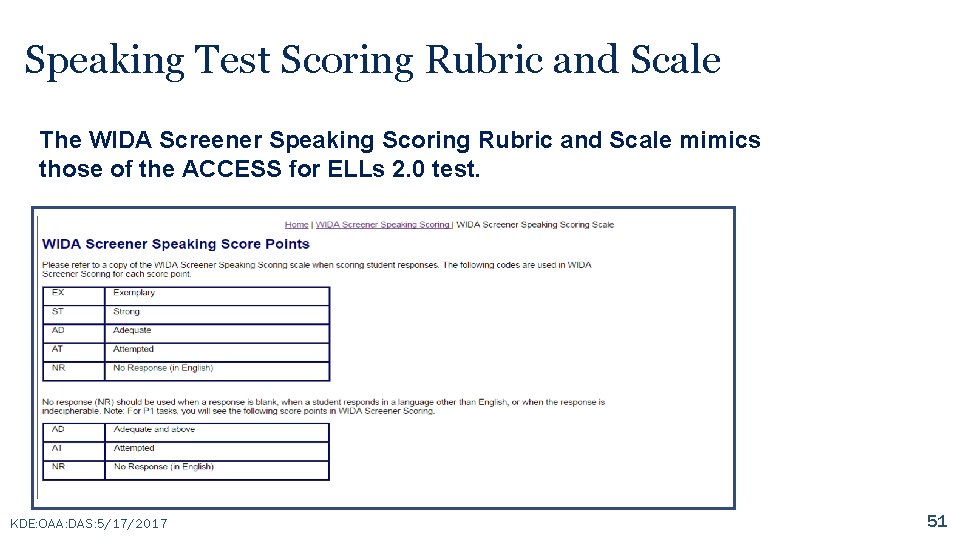
Speaking Test Scoring Rubric and Scale The WIDA Screener Speaking Scoring Rubric and Scale mimics those of the ACCESS for ELLs 2. 0 test. KDE: OAA: DAS: 5/17/2017 51
Scoring Complete } Once you have completed scoring responses, click “Submit. ” } After the last response is submitted, the system will prompt you to exit. } Once you exit, you will no longer be able to go back to re-score those responses. } Users must complete the Screener Scoring training on wida. us, and have to be authorized by the District Testing Coordinator in order to begin scoring the Screener test. KDE: OAA: DAS: 5/17/2017 52
WIDA Screener Online Score Reports } Accessed in WIDA AMS after scoring Speaking and Writing responses } Score reports show all domain and composite scores for individual student } Score report may be locally printed or downloaded from WIDA AMS KDE: OAA: DAS: 5/17/2017 53
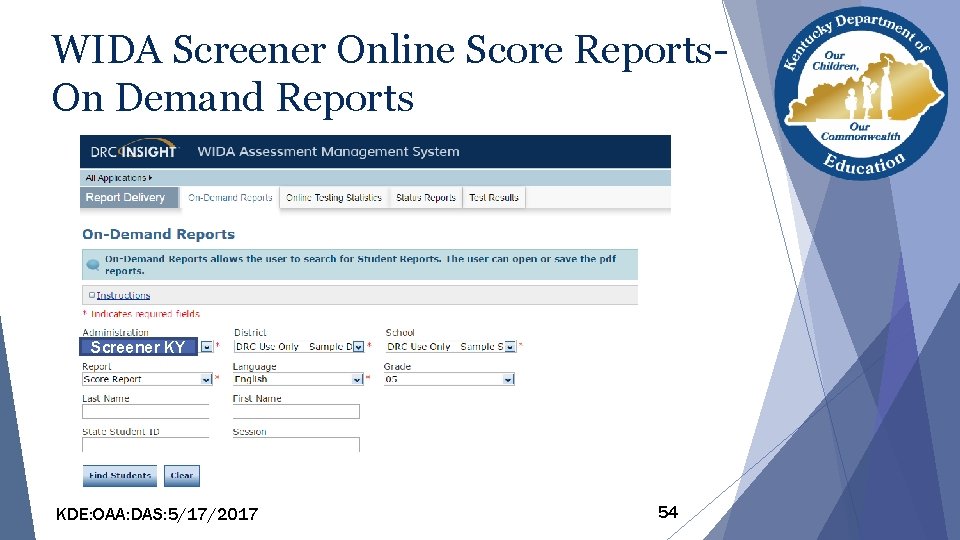
WIDA Screener Online Score Reports. On Demand Reports Screener KY KDE: OAA: DAS: 5/17/2017 54
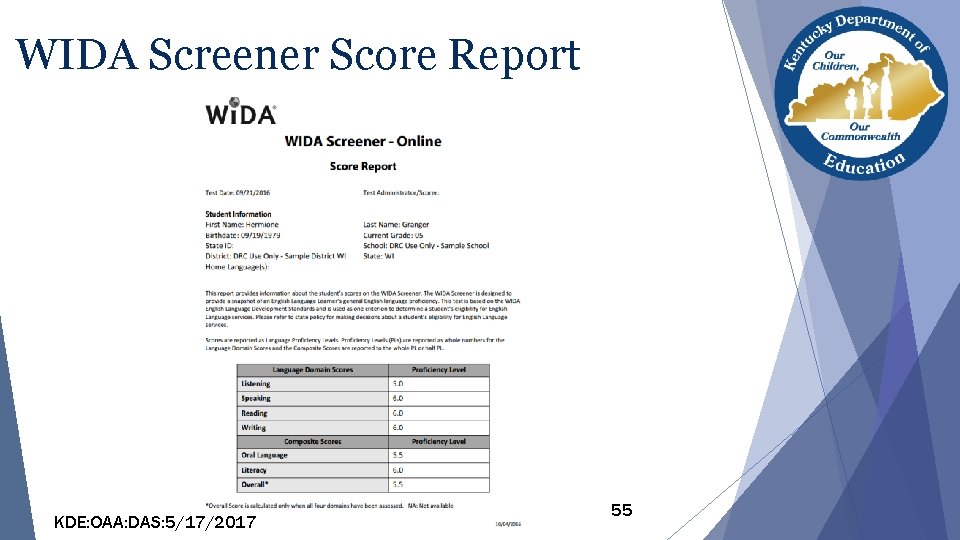
WIDA Screener Score Report KDE: OAA: DAS: 5/17/2017 55
WIDA Screener Online Summary • Same tech platform as ACCESS for ELLs 2. 0 • Student/User Management same as ACCESS • Single ticket admin is different • Need to locally print test materials (TA script and Writing Test Booklets for Grades 1 -3) • 4 -12 all Online, 1 -3 Paper Writing test • Local scoring of Speaking and Writing responses is major difference from ACCESS for ELLs 2. 0 • Score reports are generated in WIDA AMS for local download and/or printing KDE: OAA: DAS: 5/17/2017 56
Contact Chris Williams: 502 -564 -4394 ext. 4750 or chris. williams@education. ky. gov } Kentucky’s Administration of K W-APT™, WIDA Online Screener and ACCESS for ELLs 2. 0® } User accounts for K W-APT™ and ACCESS for ELLs 2. 0® } Ky. Specific Trainings for ACCESS for ELLS 2. 0®, ACCESS for ELLs Kindergarten®, Alternate ACCESS for ELLs® and ACCESS for ELLs® Rosters } Policy Questions for K W-APT™, WIDA Online Screener and ACCESS for ELLs 2. 0® KDE: OAA: DAS: 5/17/2017 57
Contact WIDA: WIDA Client Services Center: 866 -276 -7735 or help@wida. us ACCESS for ELLs 2. 0® Suite Training Kindergarten ACCESS for ELLs 2. 0® (Paper-based) ACCESS for ELLs 2. 0® Grades 1 -12 (Online Administration) Alternate ACCESS for ELLs 2. 0® Grades 1 -12 (Paper-based) ACCESS for ELLs 2. 0 Test® Administration Procedures (Online and Paper-based) WIDA MODEL Paper-based Test Administration and Procedures WIDA MODEL Online Kindergarten WIDA ACCESS Placement Test™ (K W-APT) Screener and WIDA Online/Paper Screener WIDA Standards and Can Do Descriptors WIDA Professional Learning WIDA Research KDE: OAA: DAS: 5/17/2017 58
Contact DRC: DRC Customer Support 855 -878 -9615 or WIDA@datarecognitioncorp. com } WIDA AMS ● WIDA AMS log ins ● Printing and unlocking test tickets ● Student transfer process ● Editing student grade information ● Generic test sessions ● Tier reports ● Entering accommodations ● Using Chromebooks and i. Pads } DRC Testing Site Manager (TSM) KDE: OAA: DAS: 5/17/2017 59
- Slides: 59