
Whats New in Microsoft Dynamics GP 2018 Shawn










- Slides: 51
What’s New in Microsoft Dynamics GP 2018 Shawn Dorward (Inter. Dyn Artis) @GPUG www. gpug. com info@gpug. com
Meet our Presenter Inter. Dyn Artis specializes in the implementation, service and support of Microsoft Dynamics Enterprise Resource Planning (ERP) and Customer Relationship Management (CRM) solutions. Headquartered in Charlotte, NC Founded in 1989 Microsoft Gold Certified Partner www. interdynartis. com Shawn Dorward Microsoft MVP, Business Solutions Sr. Implementation Consultant Shawn. Dorward@Interdyn. Artis. com Long Time Dynamics GP User and GPUG FAN! GPUG All-Star GPUG Summit Planning Committee (2014, 2015, 2016, 2017) GPUG Board of Advisors (2015) Charlotte Regional Chapter Leader (2012 -Present) Charleston Regional Chapter Leader (2017) Summit/Amplify/GPTech/Webinar Presenter! Personal Blog: Company Blog: http: //GPLife. Hacks. com http: //interdynartis. com/blog/ www. interdynartis. com
GP 2018 New Feature Categories • Sorting Options • Payroll • Document Attachment • Web Client • Sales • Administration • Payments • Purchasing • Workflow • Power Suite
Sort Options
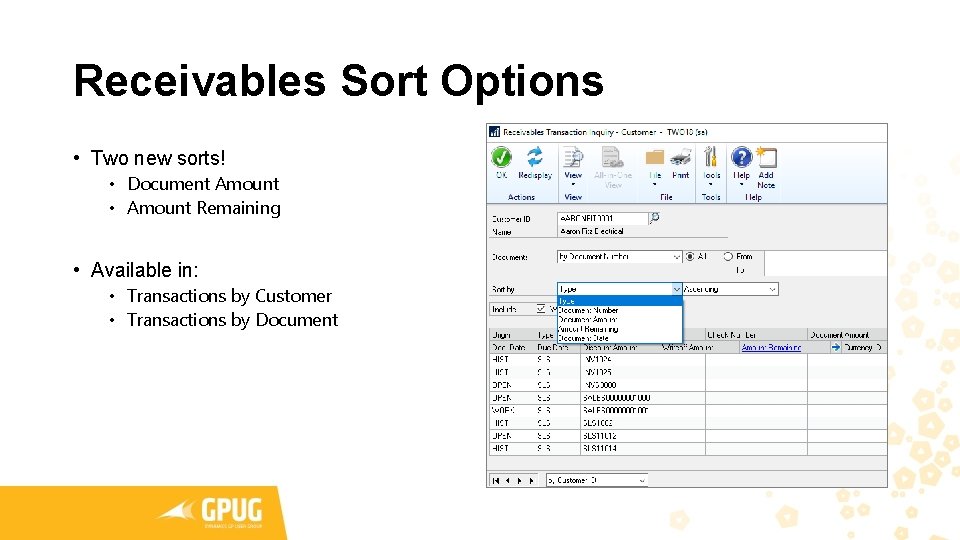
Receivables Sort Options • Two new sorts! • Document Amount • Amount Remaining • Available in: • Transactions by Customer • Transactions by Document
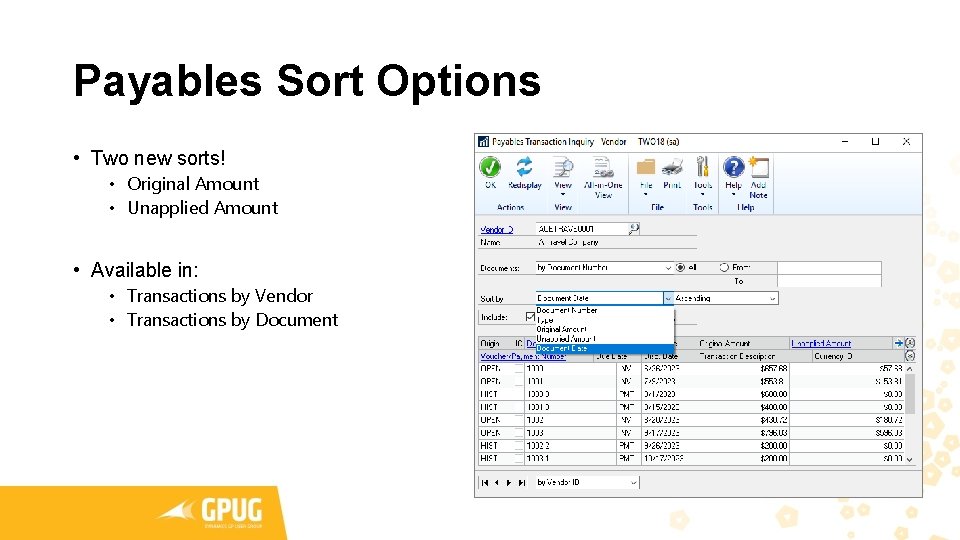
Payables Sort Options • Two new sorts! • Original Amount • Unapplied Amount • Available in: • Transactions by Vendor • Transactions by Document
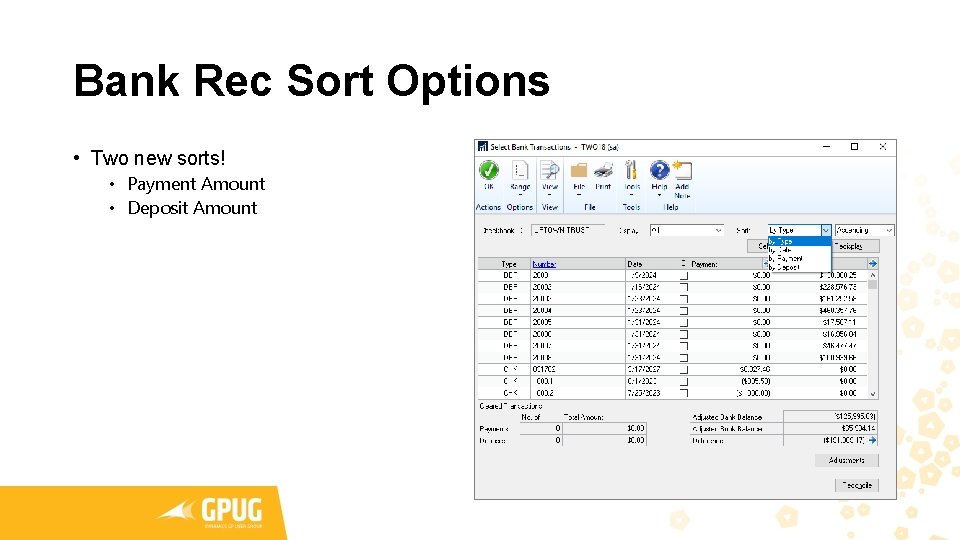
Bank Rec Sort Options • Two new sorts! • Payment Amount • Deposit Amount
Payroll
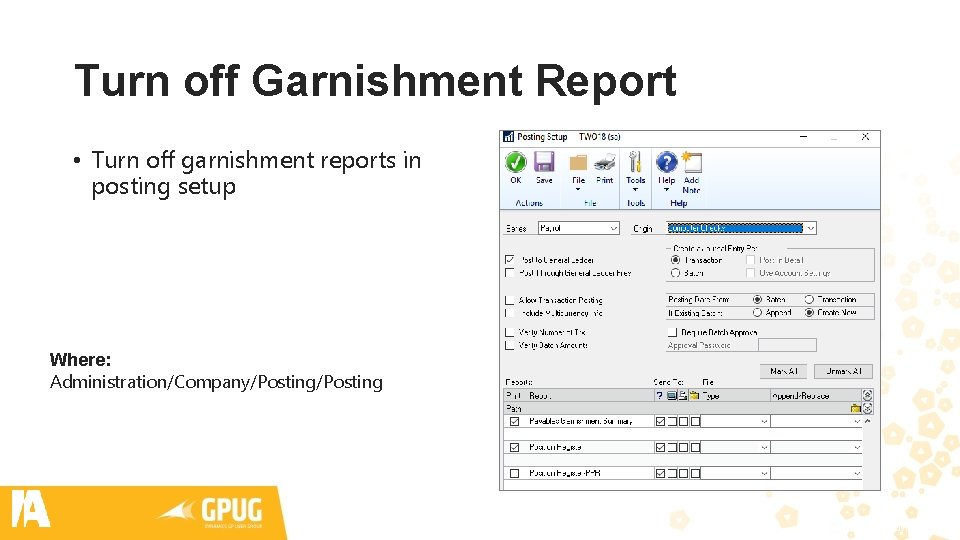
Turn off Garnishment Report • Turn off garnishment reports in posting setup Where: Administration/Company/Posting www. interdynartis. com
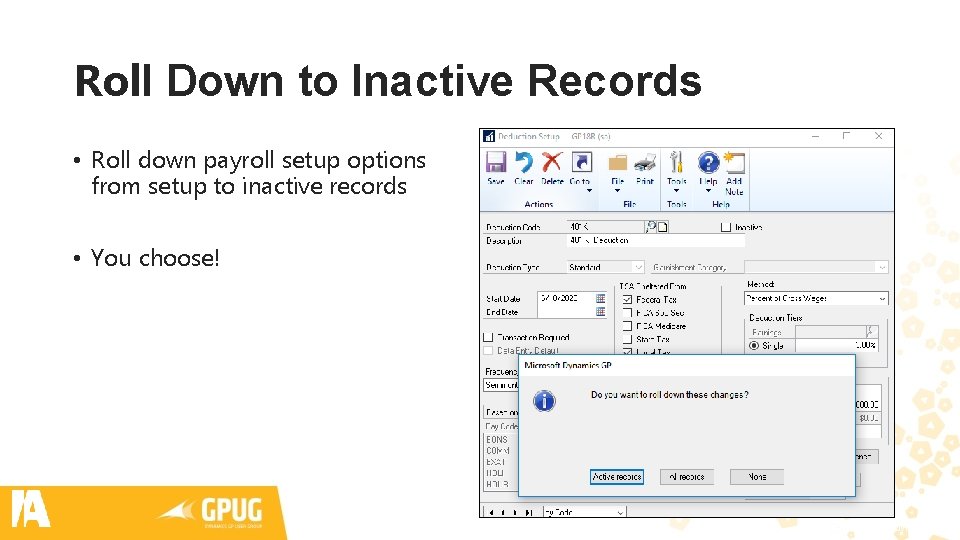
Roll Down to Inactive Records • Roll down payroll setup options from setup to inactive records • You choose! www. interdynartis. com
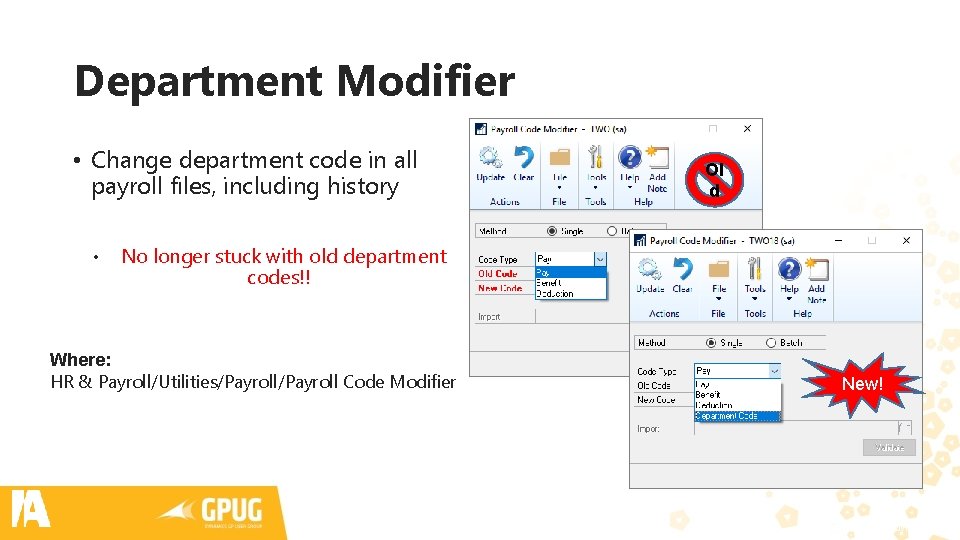
Department Modifier • Change department code in all payroll files, including history • Ol d No longer stuck with old department codes!! Where: HR & Payroll/Utilities/Payroll Code Modifier New! www. interdynartis. com
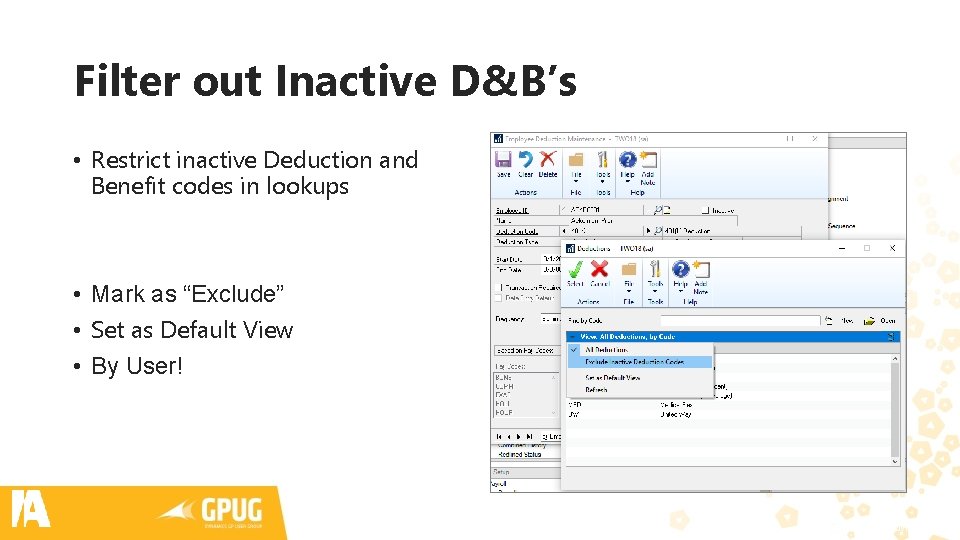
Filter out Inactive D&B’s • Restrict inactive Deduction and Benefit codes in lookups • Mark as “Exclude” • Set as Default View • By User! www. interdynartis. com
Document Attachment
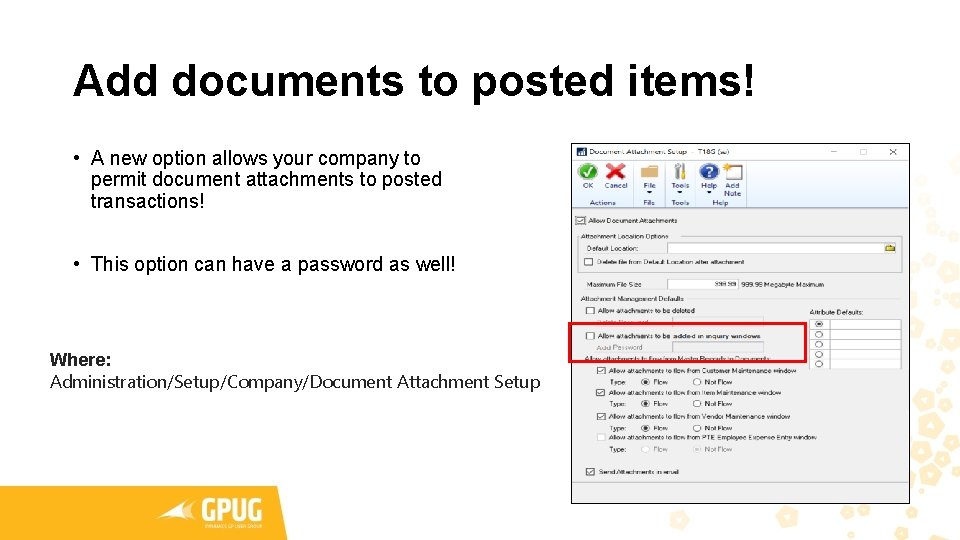
Add documents to posted items! • A new option allows your company to permit document attachments to posted transactions! • This option can have a password as well! Where: Administration/Setup/Company/Document Attachment Setup
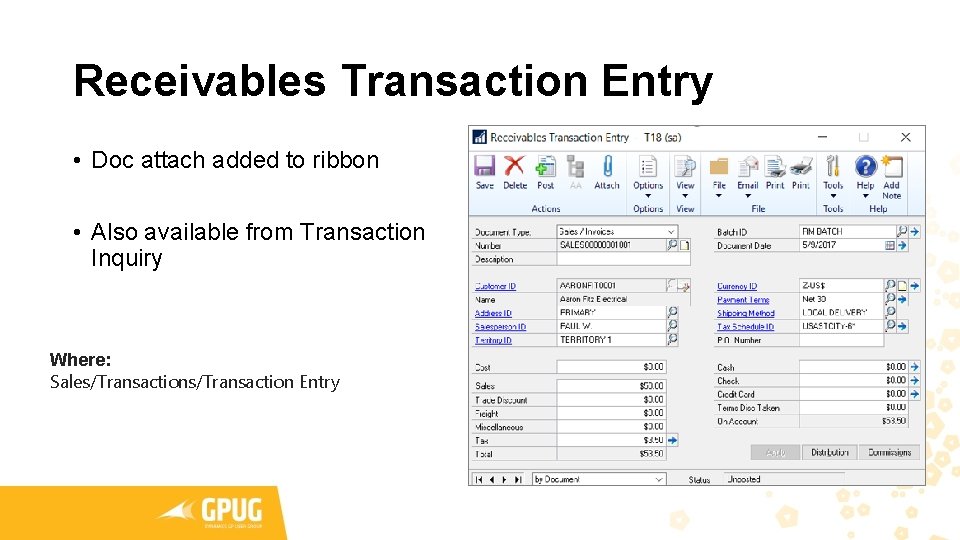
Receivables Transaction Entry • Doc attach added to ribbon • Also available from Transaction Inquiry Where: Sales/Transaction Entry
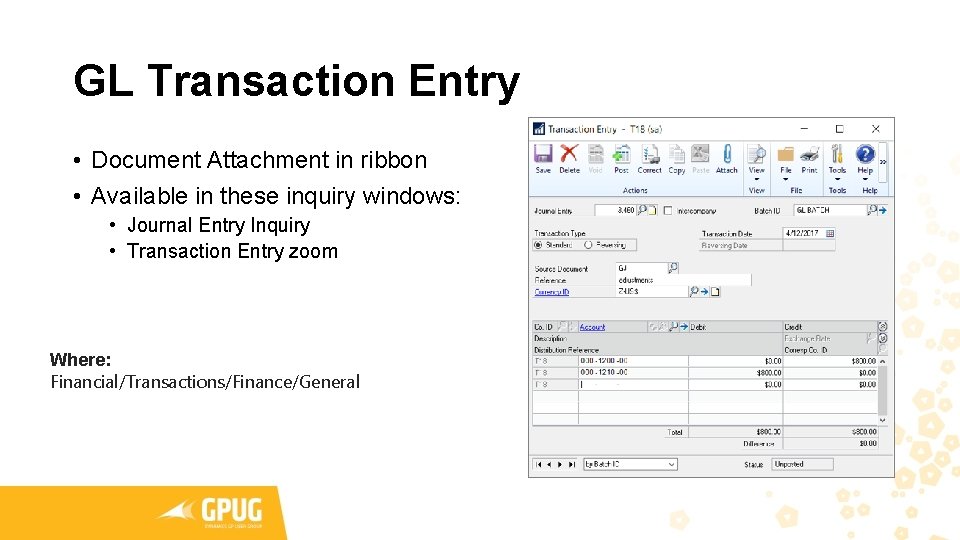
GL Transaction Entry • Document Attachment in ribbon • Available in these inquiry windows: • Journal Entry Inquiry • Transaction Entry zoom Where: Financial/Transactions/Finance/General
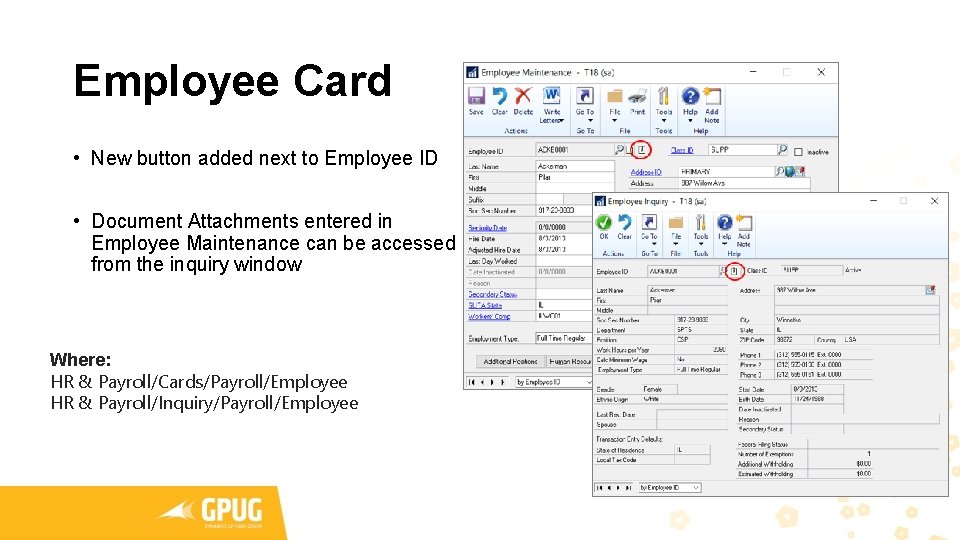
Employee Card • New button added next to Employee ID • Document Attachments entered in Employee Maintenance can be accessed from the inquiry window Where: HR & Payroll/Cards/Payroll/Employee HR & Payroll/Inquiry/Payroll/Employee
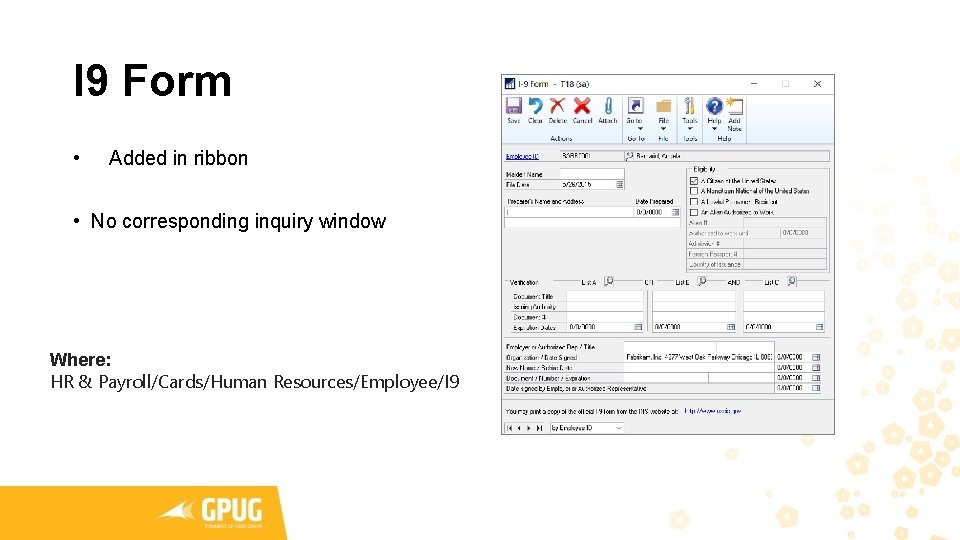
I 9 Form • Added in ribbon • No corresponding inquiry window Where: HR & Payroll/Cards/Human Resources/Employee/I 9
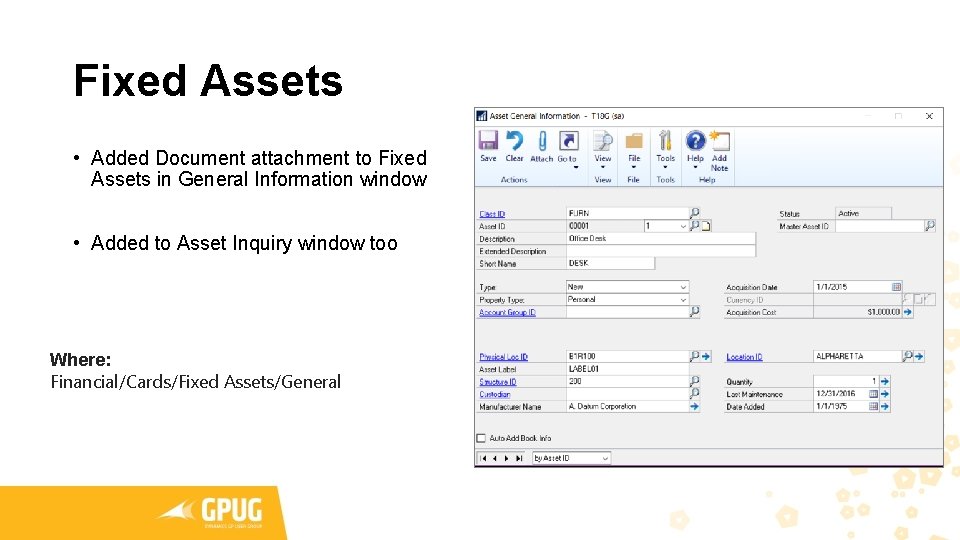
Fixed Assets • Added Document attachment to Fixed Assets in General Information window • Added to Asset Inquiry window too Where: Financial/Cards/Fixed Assets/General
Web Client
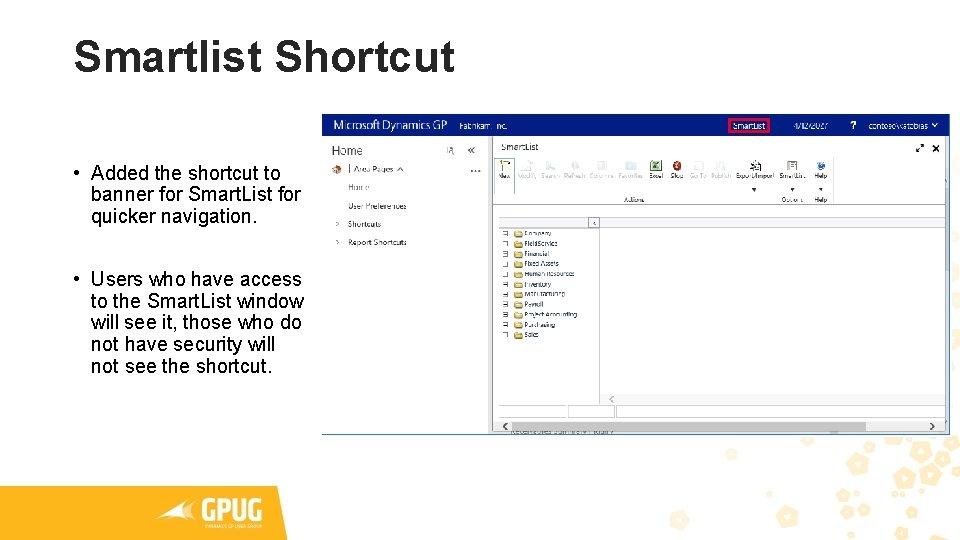
Smartlist Shortcut • Added the shortcut to banner for Smart. List for quicker navigation. • Users who have access to the Smart. List window will see it, those who do not have security will not see the shortcut.
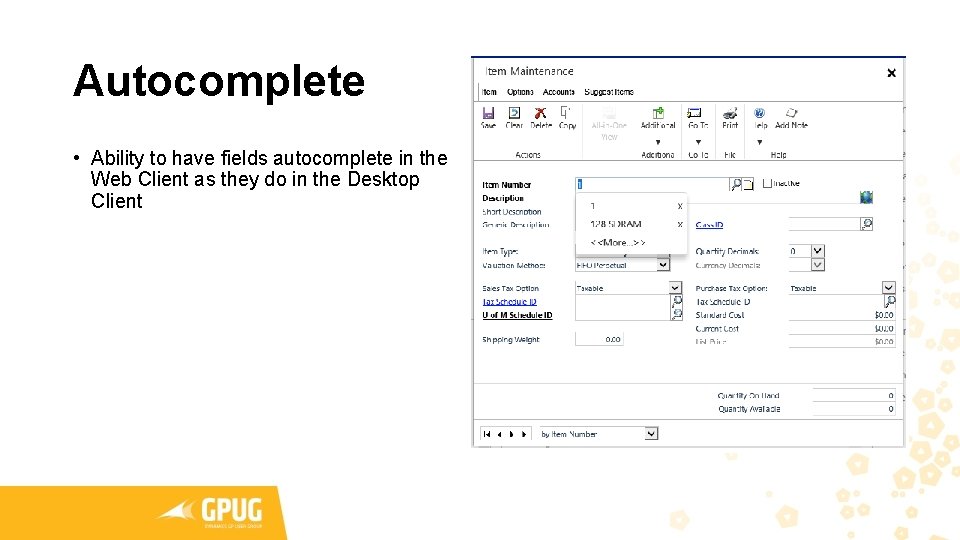
Autocomplete • Ability to have fields autocomplete in the Web Client as they do in the Desktop Client
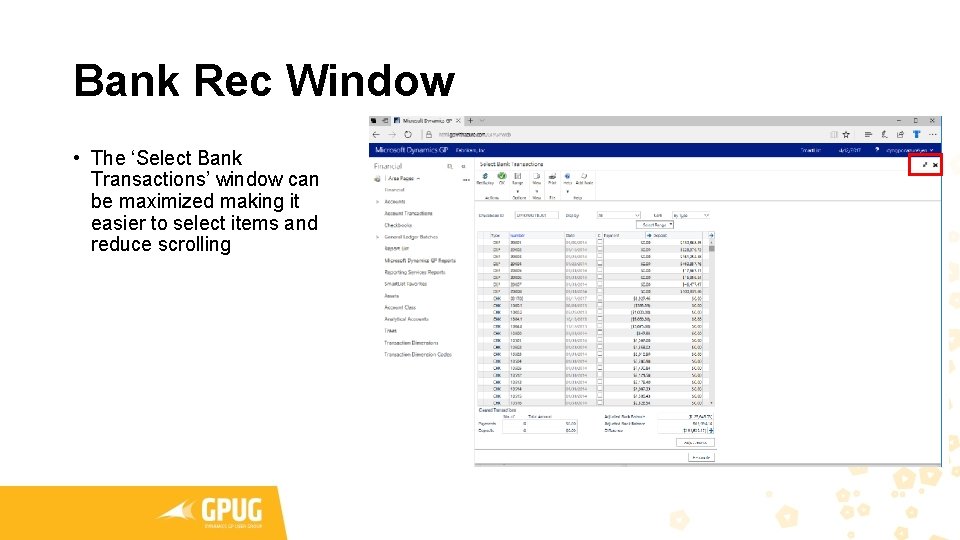
Bank Rec Window • The ‘Select Bank Transactions’ window can be maximized making it easier to select items and reduce scrolling
Sales
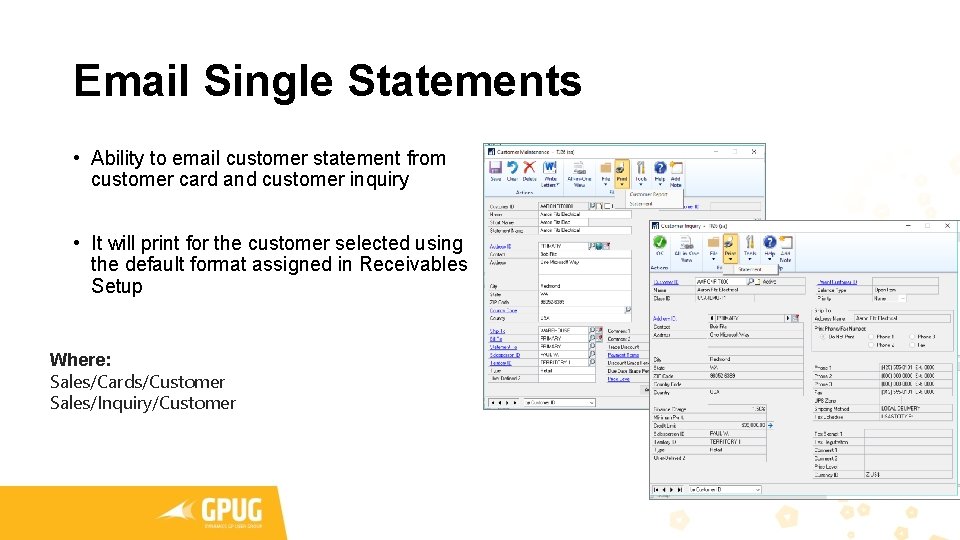
Email Single Statements • Ability to email customer statement from customer card and customer inquiry • It will print for the customer selected using the default format assigned in Receivables Setup Where: Sales/Cards/Customer Sales/Inquiry/Customer
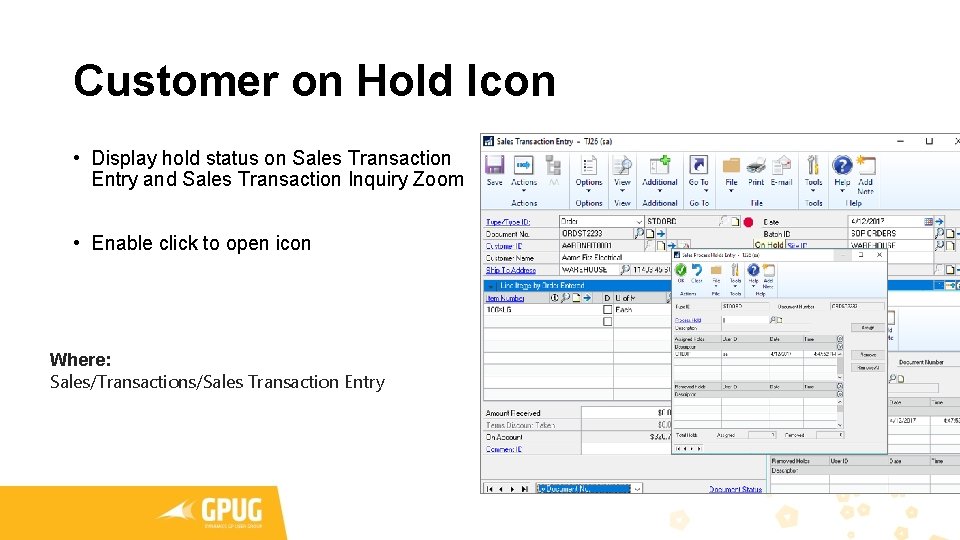
Customer on Hold Icon • Display hold status on Sales Transaction Entry and Sales Transaction Inquiry Zoom • Enable click to open icon Where: Sales/Transactions/Sales Transaction Entry
Administration
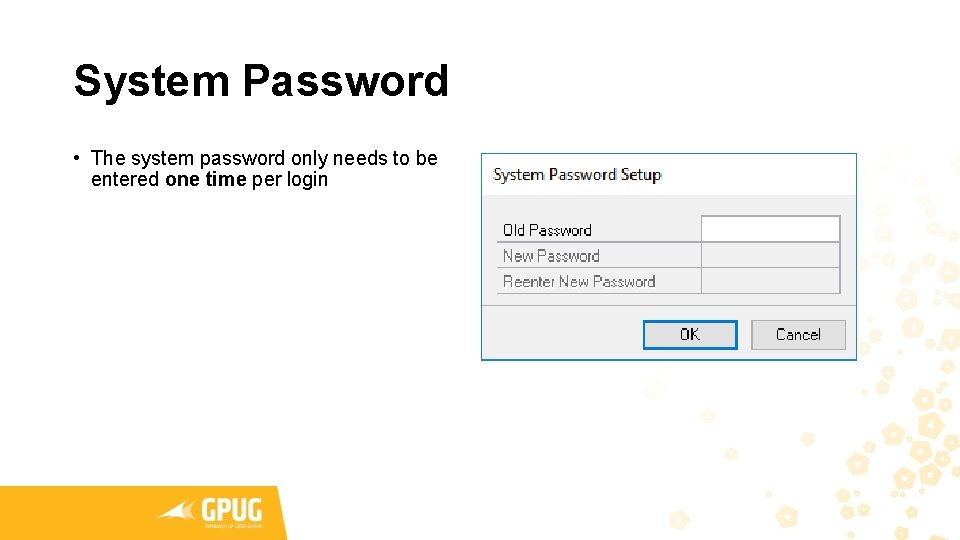
System Password • The system password only needs to be entered one time per login
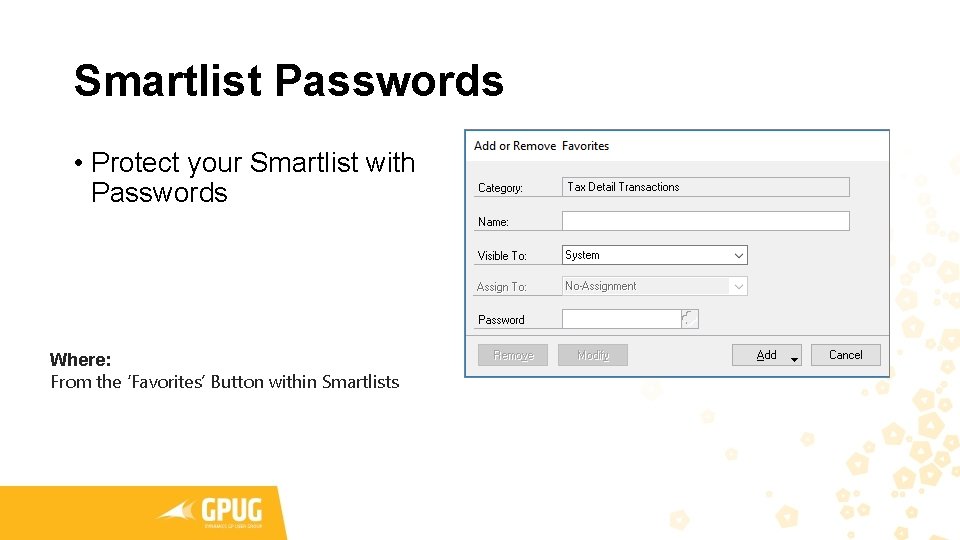
Smartlist Passwords • Protect your Smartlist with Passwords Where: From the ‘Favorites’ Button within Smartlists
Payments
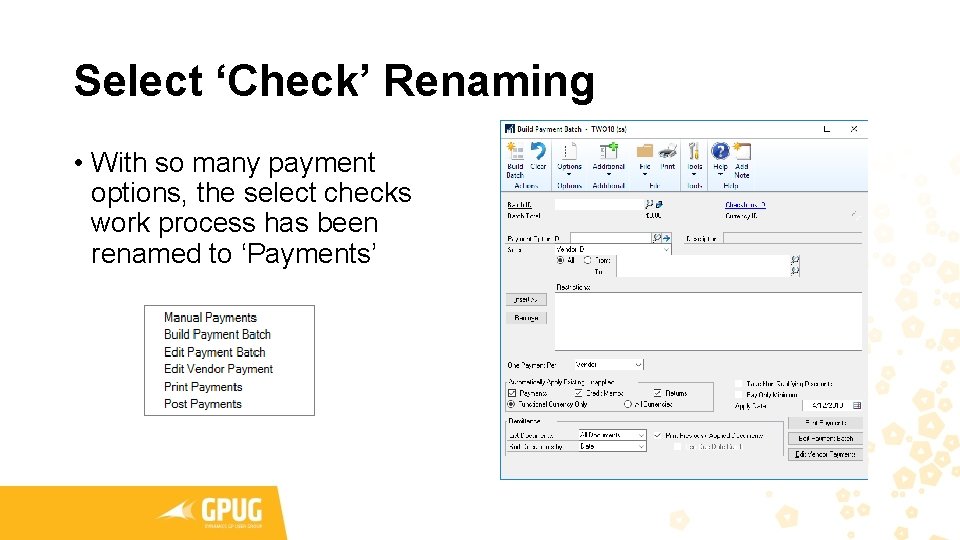
Select ‘Check’ Renaming • With so many payment options, the select checks work process has been renamed to ‘Payments’
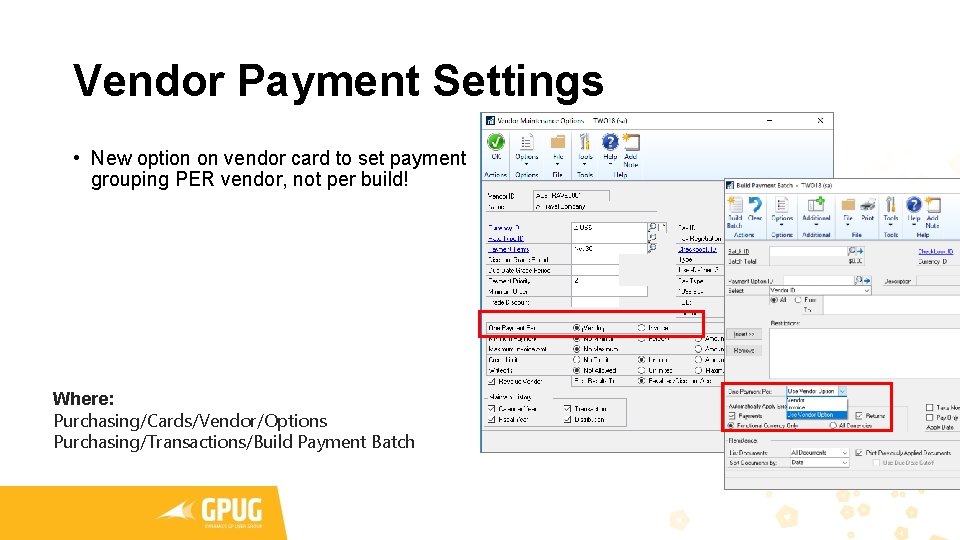
Vendor Payment Settings • New option on vendor card to set payment grouping PER vendor, not per build! Where: Purchasing/Cards/Vendor/Options Purchasing/Transactions/Build Payment Batch
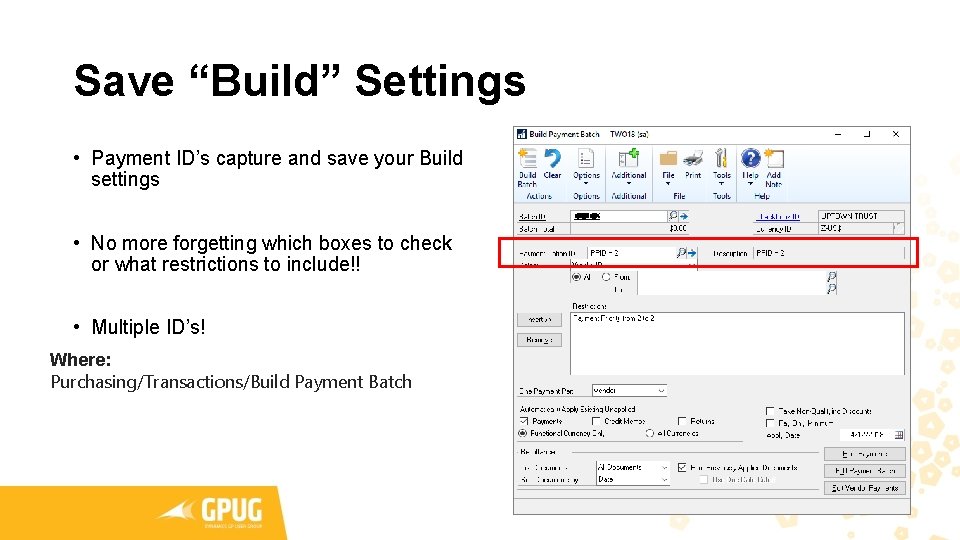
Save “Build” Settings • Payment ID’s capture and save your Build settings • No more forgetting which boxes to check or what restrictions to include!! • Multiple ID’s! Where: Purchasing/Transactions/Build Payment Batch
Purchasing
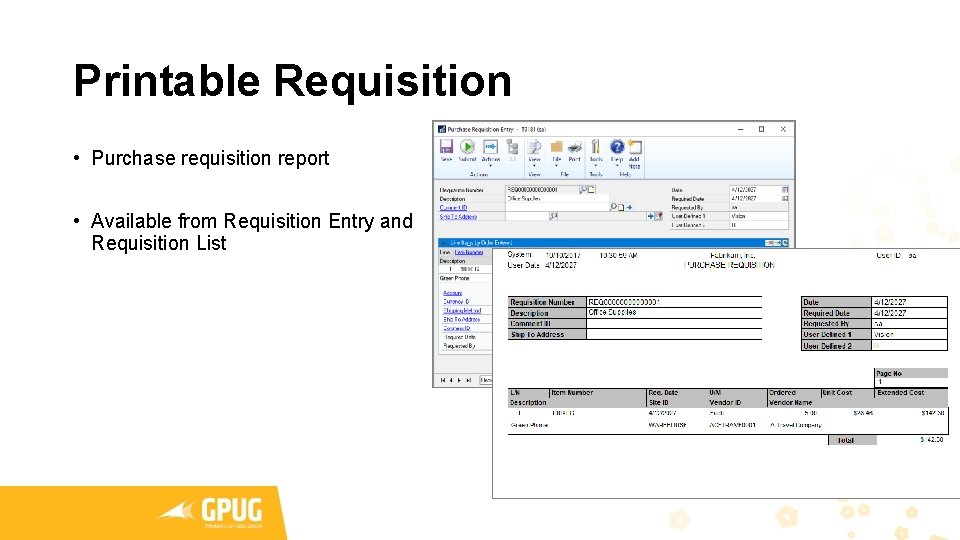
Printable Requisition • Purchase requisition report • Available from Requisition Entry and Requisition List
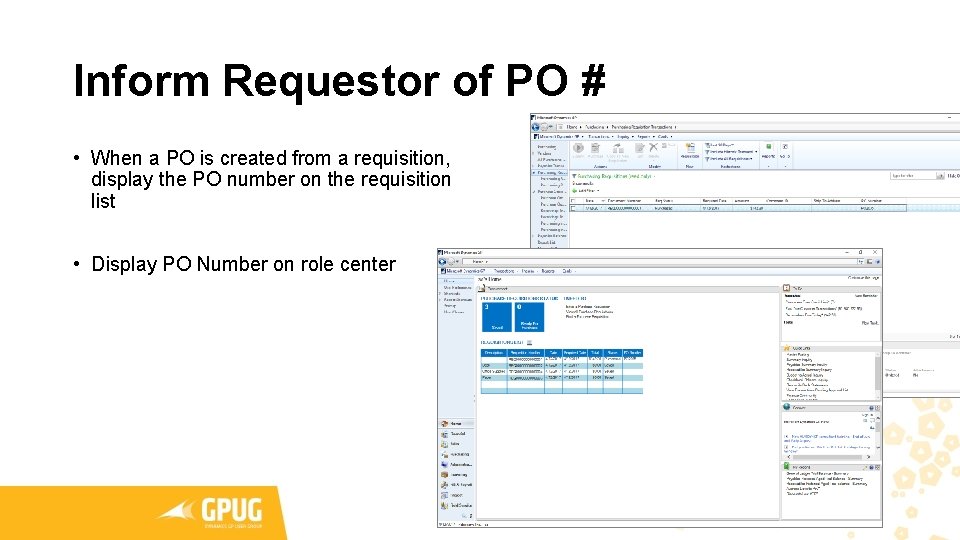
Inform Requestor of PO # • When a PO is created from a requisition, display the PO number on the requisition list • Display PO Number on role center
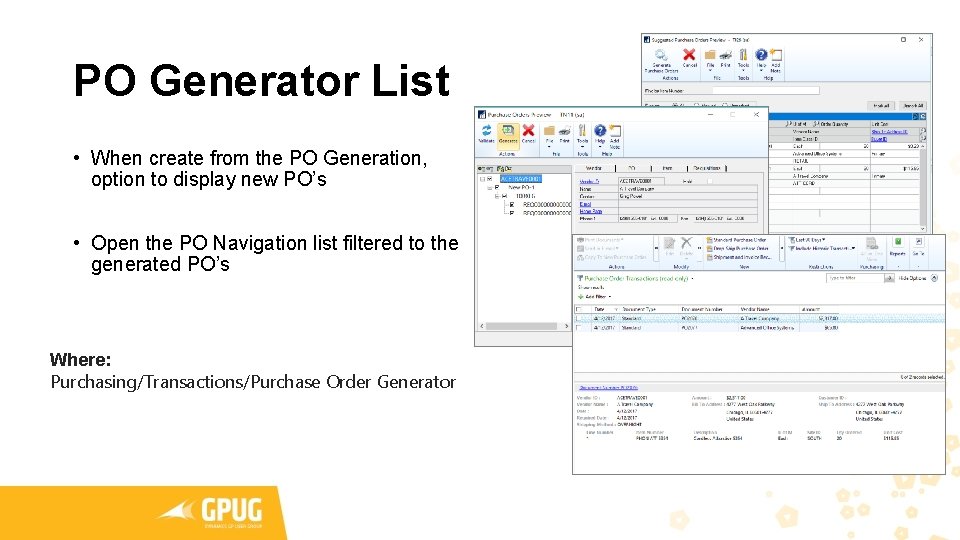
PO Generator List • When create from the PO Generation, option to display new PO’s • Open the PO Navigation list filtered to the generated PO’s Where: Purchasing/Transactions/Purchase Order Generator
Workflow
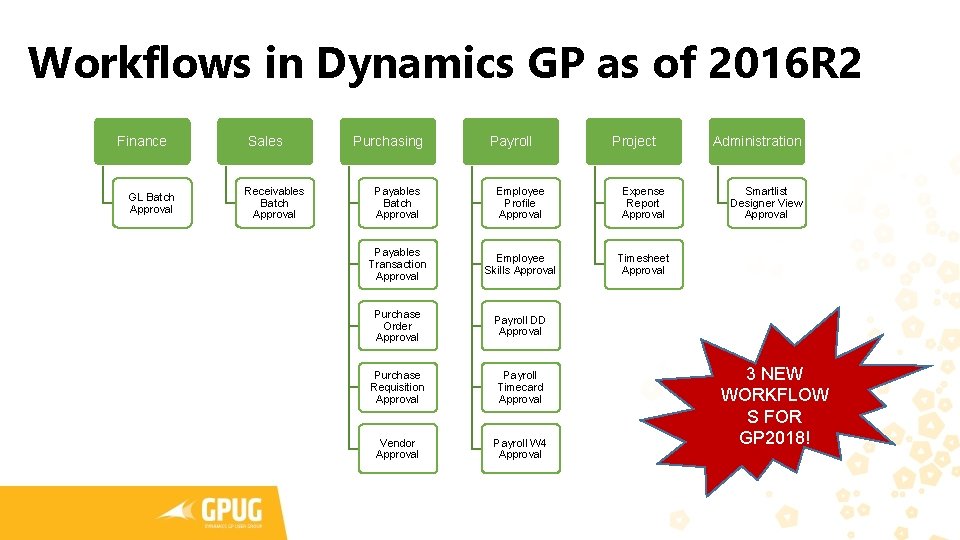
Workflows in Dynamics GP as of 2016 R 2 Finance GL Batch Approval Sales Receivables Batch Approval Purchasing Payroll Project Payables Batch Approval Employee Profile Approval Expense Report Approval Payables Transaction Approval Employee Skills Approval Timesheet Approval Purchase Order Approval Payroll DD Approval Purchase Requisition Approval Payroll Timecard Approval Vendor Approval Payroll W 4 Approval Administration Smartlist Designer View Approval 3 NEW WORKFLOW S FOR GP 2018!
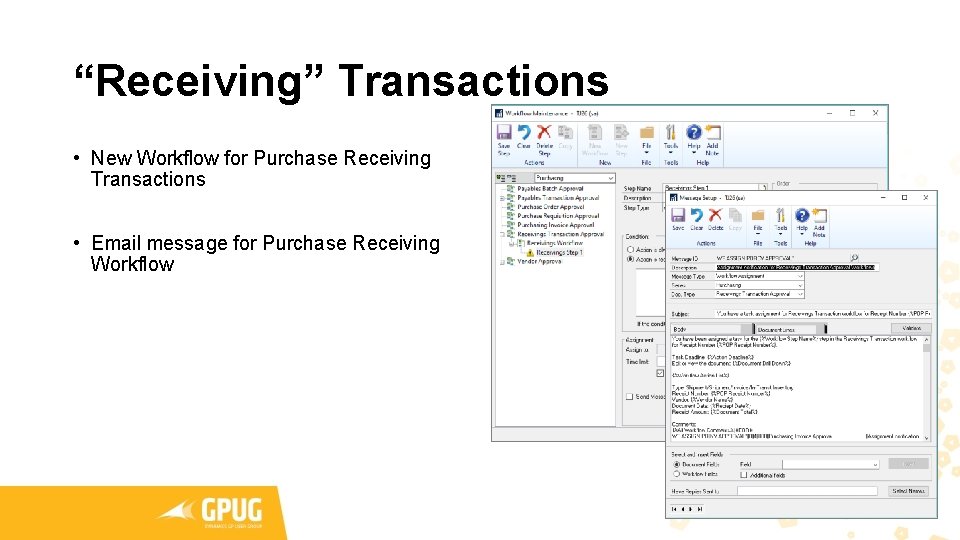
“Receiving” Transactions • New Workflow for Purchase Receiving Transactions • Email message for Purchase Receiving Workflow
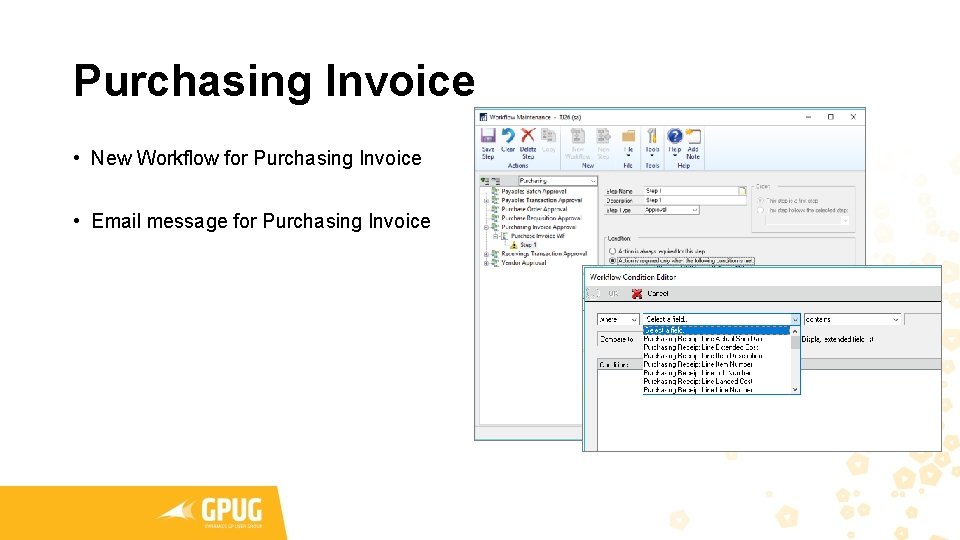
Purchasing Invoice • New Workflow for Purchasing Invoice • Email message for Purchasing Invoice
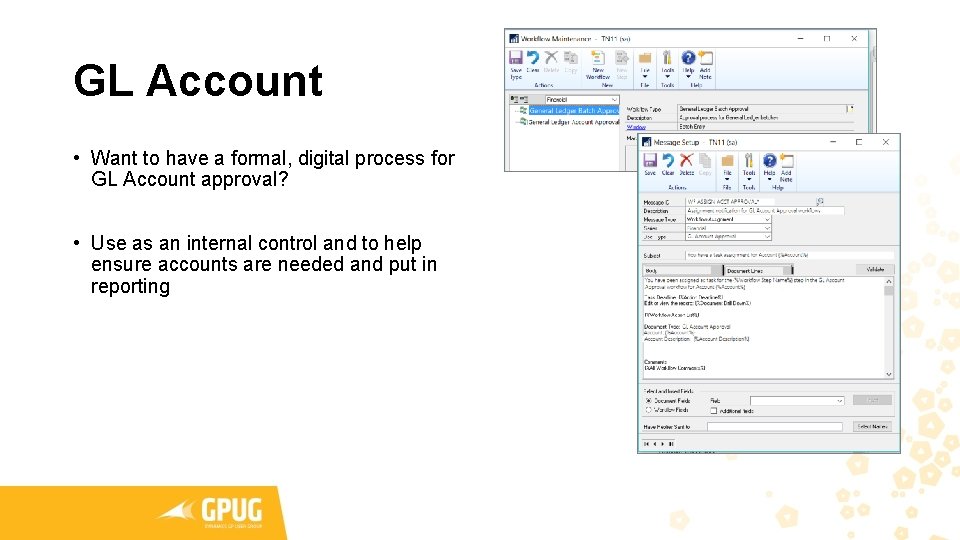
GL Account • Want to have a formal, digital process for GL Account approval? • Use as an internal control and to help ensure accounts are needed and put in reporting
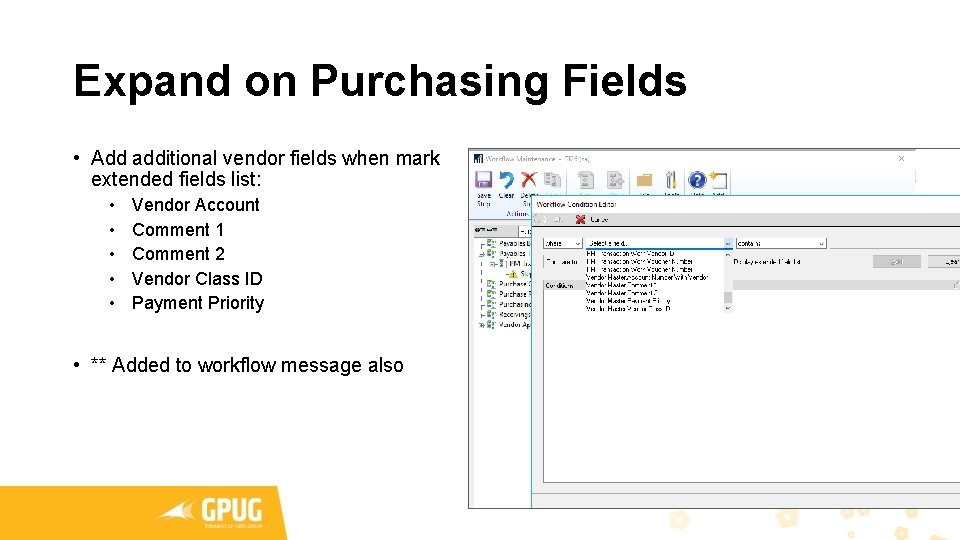
Expand on Purchasing Fields • Add additional vendor fields when mark extended fields list: • • • Vendor Account Comment 1 Comment 2 Vendor Class ID Payment Priority • ** Added to workflow message also
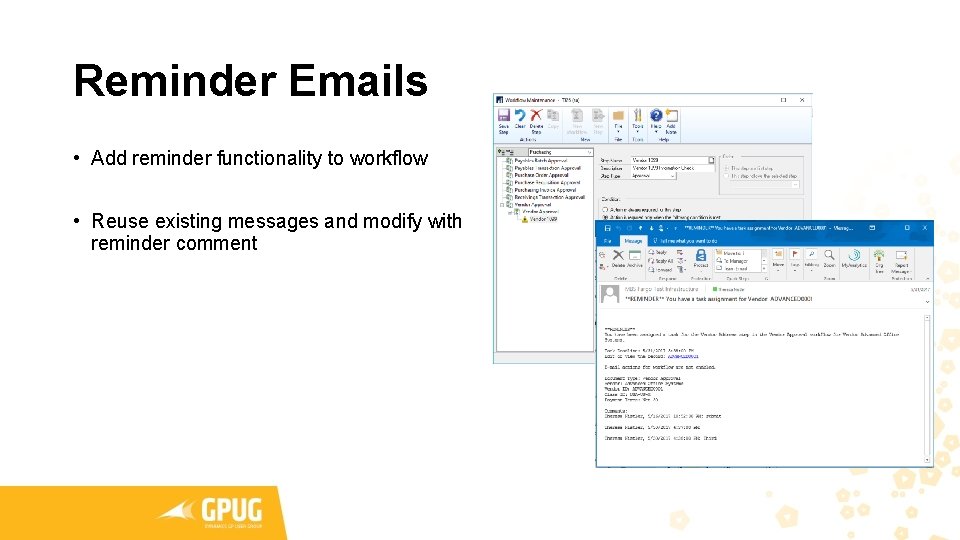
Reminder Emails • Add reminder functionality to workflow • Reuse existing messages and modify with reminder comment
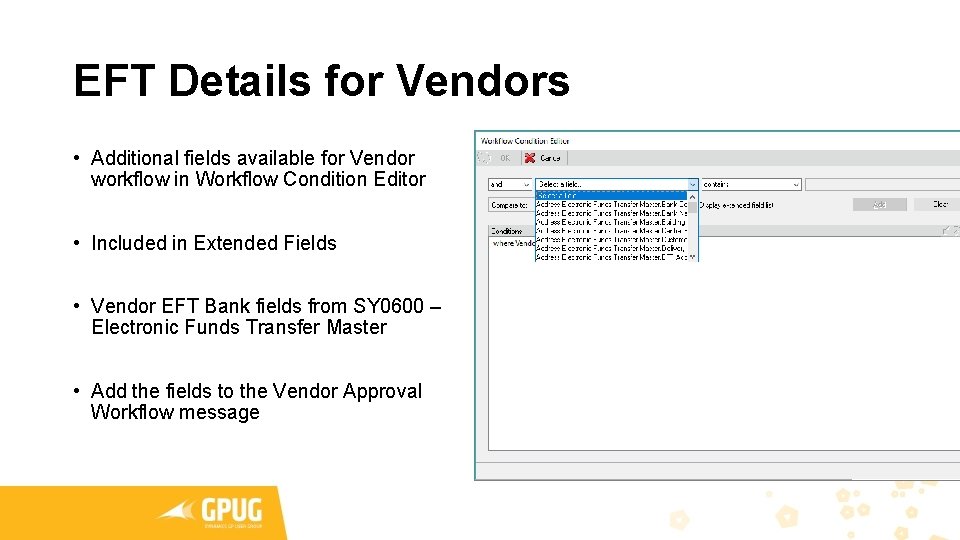
EFT Details for Vendors • Additional fields available for Vendor workflow in Workflow Condition Editor • Included in Extended Fields • Vendor EFT Bank fields from SY 0600 – Electronic Funds Transfer Master • Add the fields to the Vendor Approval Workflow message
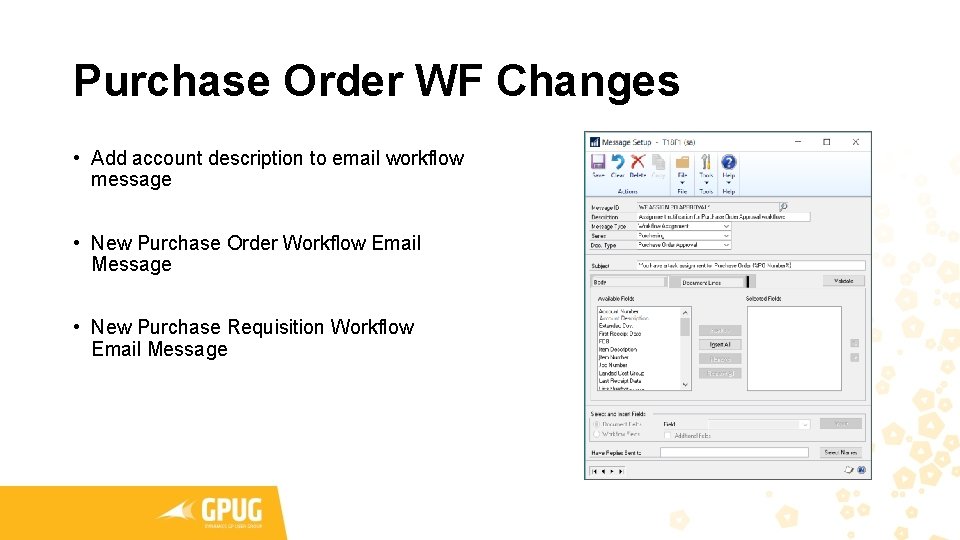
Purchase Order WF Changes • Add account description to email workflow message • New Purchase Order Workflow Email Message • New Purchase Requisition Workflow Email Message
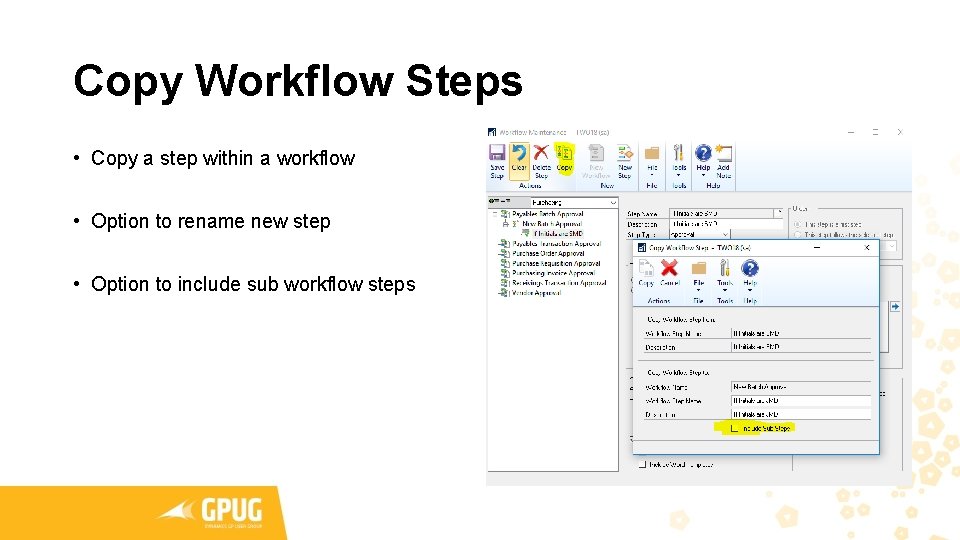
Copy Workflow Steps • Copy a step within a workflow • Option to rename new step • Option to include sub workflow steps
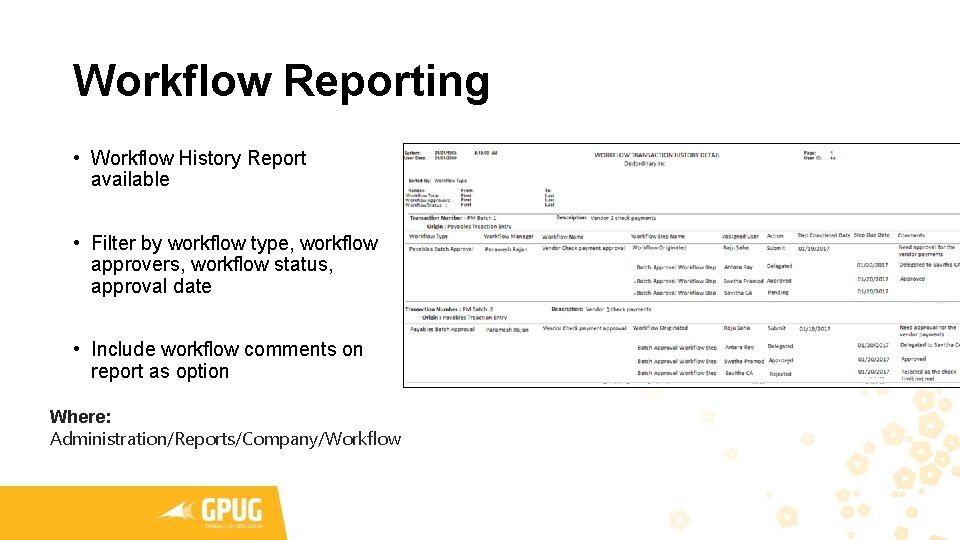
Workflow Reporting • Workflow History Report available • Filter by workflow type, workflow approvers, workflow status, approval date • Include workflow comments on report as option Where: Administration/Reports/Company/Workflow
Power Suite Evolution
Power BI
Q&A