
Whats Changed Service Dispatch Ticket Creation Quick Reference
- Slides: 28
What’s Changed: Service Dispatch & Ticket Creation Quick Reference Guide
What’s Changed The implementation of Astea officially transitions the service ticket creation and dispatch processes from SBN to the Astea back office. This implementation also creates the link between the mobile and back end applications. As a result, several changes have been made to the Astea Mobile application providing better functionality for the service technicians (SAs). The following changes to the Astea Mobile application are described in this training presentation: • Viewing Attachments • Viewing AKA, Fire Group Number, Subscriber Type, Monitor Status, and Customer Availability • Viewing Additional Customer Information • Viewing CID and Panel Information • Parts Pending Process Changes Note: to navigate throughout the training, click in the blue box to proceed to the next slide. If a blue box is not available, use the Next button to advance between slides. Previous Home End Next 2
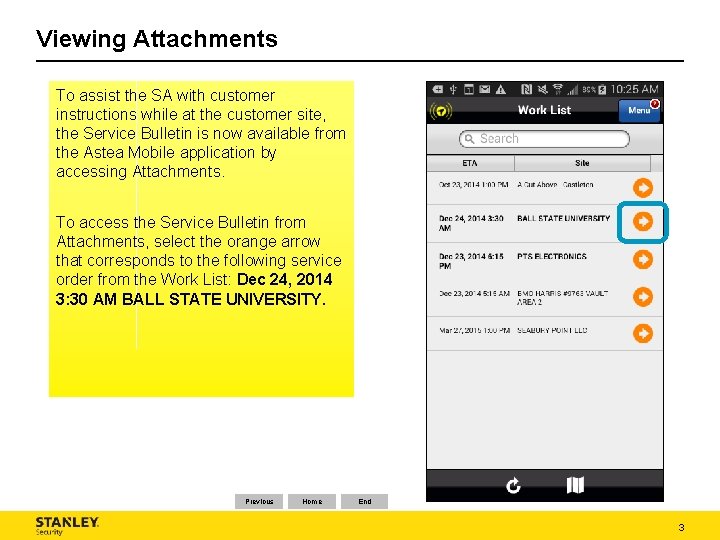
Viewing Attachments To assist the SA with customer instructions while at the customer site, the Service Bulletin is now available from the Astea Mobile application by accessing Attachments. To access the Service Bulletin from Attachments, select the orange arrow that corresponds to the following service order from the Work List: Dec 24, 2014 3: 30 AM BALL STATE UNIVERSITY. Previous Home End 3
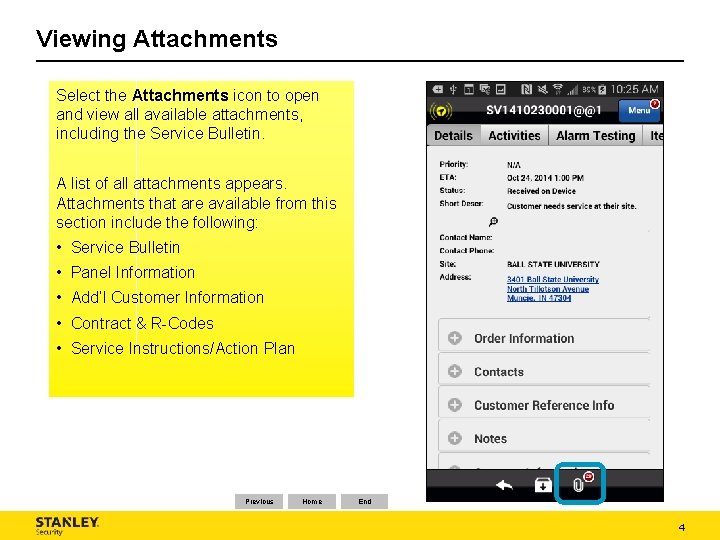
Viewing Attachments Select the Attachments icon to open and view all available attachments, including the Service Bulletin. A list of all attachments appears. Attachments that are available from this section include the following: • Service Bulletin • Panel Information • Add’l Customer Information • Contract & R-Codes • Service Instructions/Action Plan Previous Home End 4
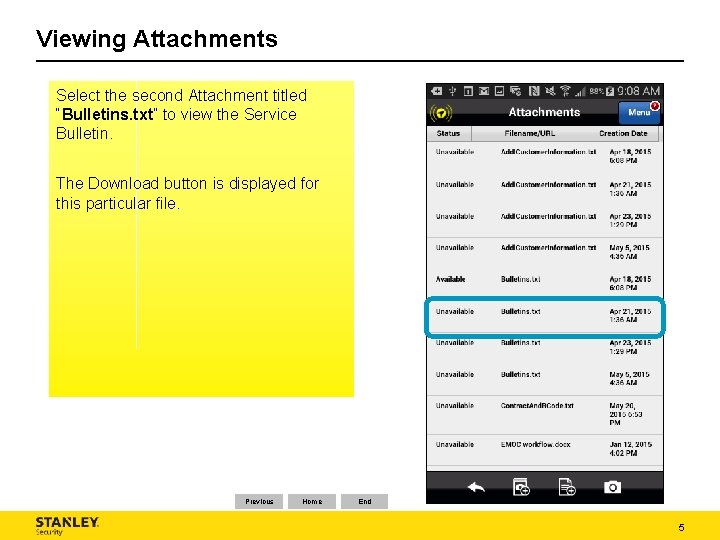
Viewing Attachments Select the second Attachment titled “Bulletins. txt” to view the Service Bulletin. The Download button is displayed for this particular file. Previous Home End 5
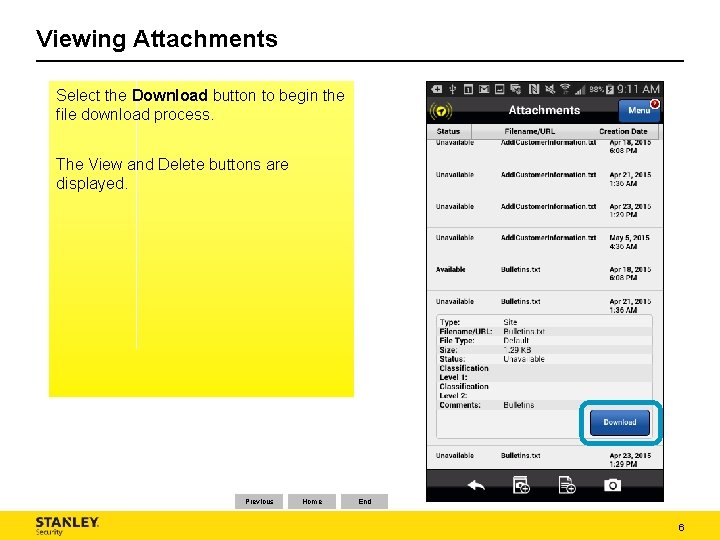
Viewing Attachments Select the Download button to begin the file download process. The View and Delete buttons are displayed. Previous Home End 6
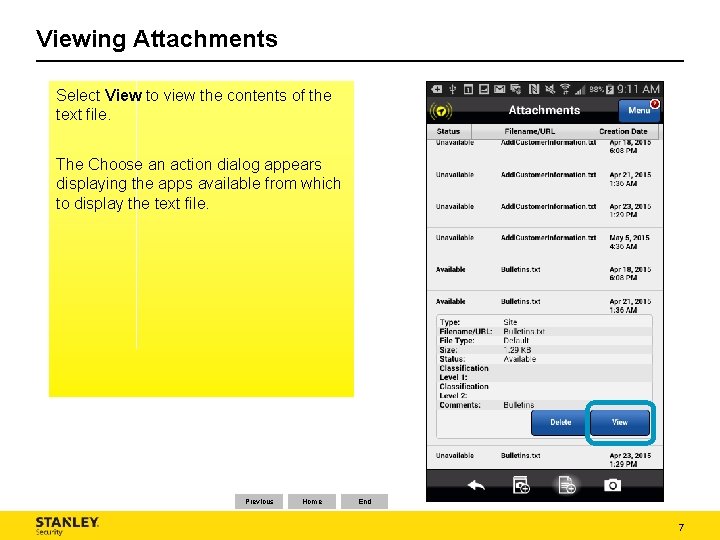
Viewing Attachments Select View to view the contents of the text file. The Choose an action dialog appears displaying the apps available from which to display the text file. Previous Home End 7
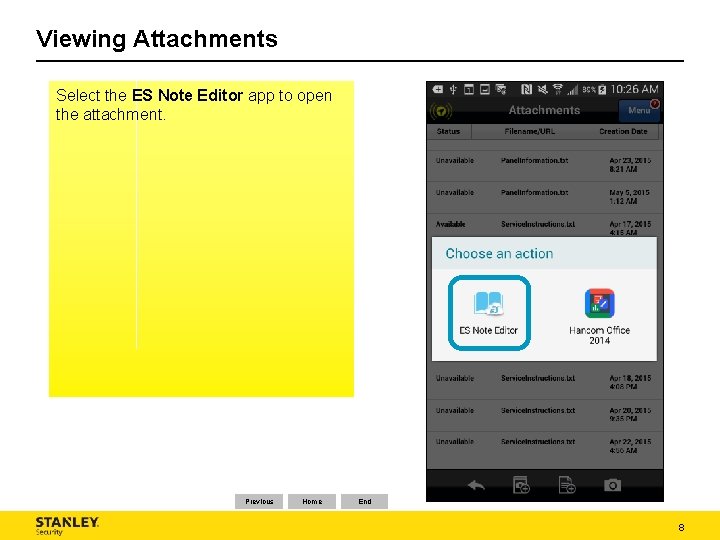
Viewing Attachments Select the ES Note Editor app to open the attachment. Previous Home End 8
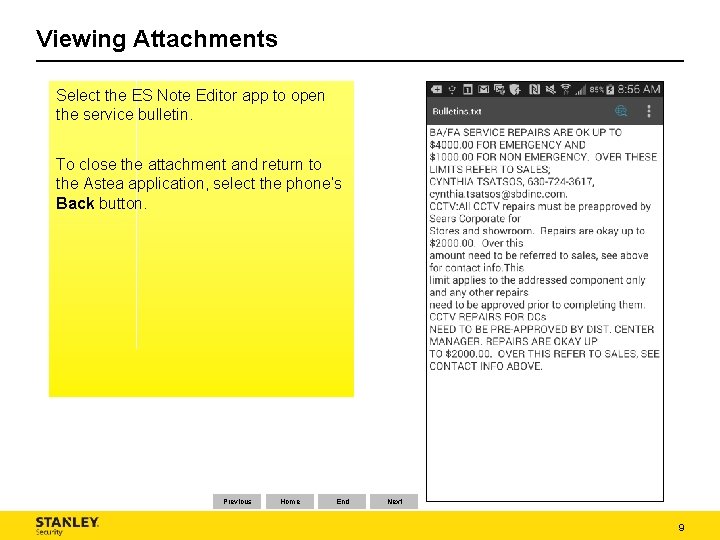
Viewing Attachments Select the ES Note Editor app to open the service bulletin. To close the attachment and return to the Astea application, select the phone’s Back button. Previous Home End Next 9
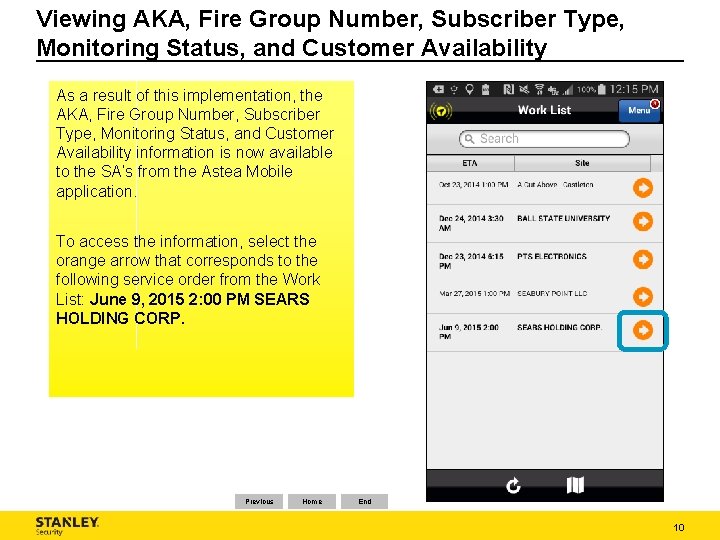
Viewing AKA, Fire Group Number, Subscriber Type, Monitoring Status, and Customer Availability As a result of this implementation, the AKA, Fire Group Number, Subscriber Type, Monitoring Status, and Customer Availability information is now available to the SA’s from the Astea Mobile application. To access the information, select the orange arrow that corresponds to the following service order from the Work List: June 9, 2015 2: 00 PM SEARS HOLDING CORP. Previous Home End 10
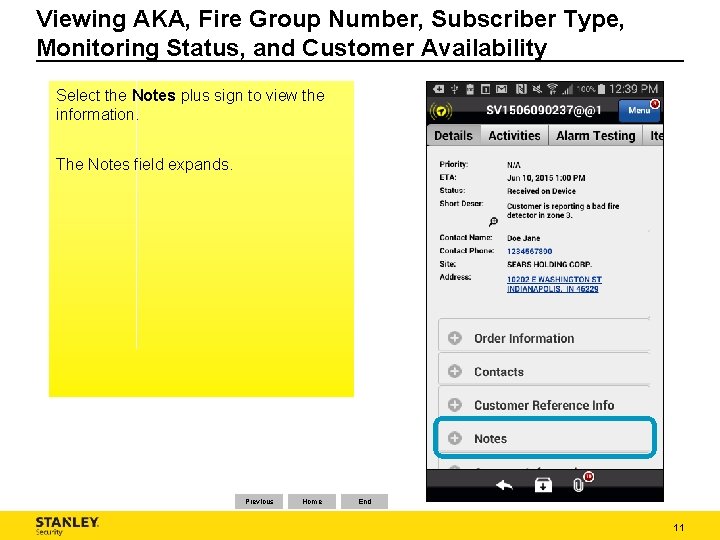
Viewing AKA, Fire Group Number, Subscriber Type, Monitoring Status, and Customer Availability Select the Notes plus sign to view the information. The Notes field expands. Previous Home End 11
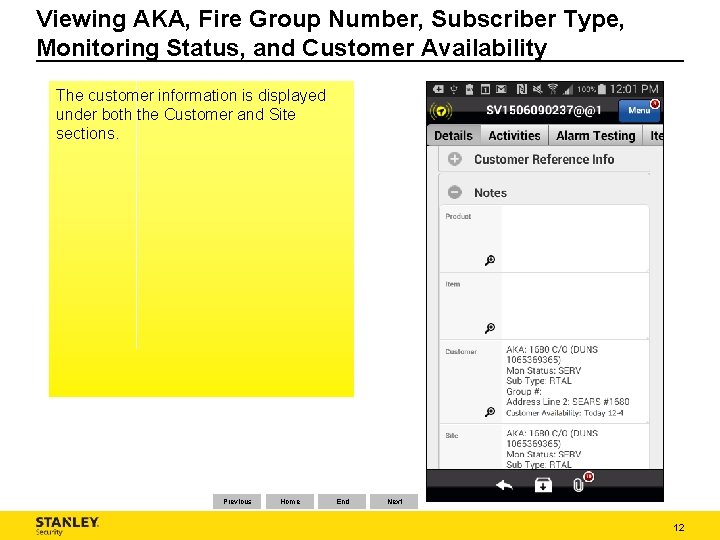
Viewing AKA, Fire Group Number, Subscriber Type, Monitoring Status, and Customer Availability The customer information is displayed under both the Customer and Site sections. Previous Home End Next 12
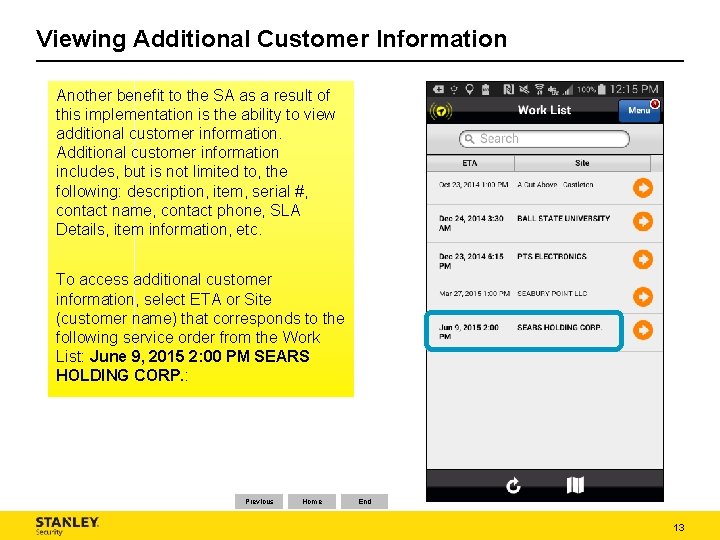
Viewing Additional Customer Information Another benefit to the SA as a result of this implementation is the ability to view additional customer information. Additional customer information includes, but is not limited to, the following: description, item, serial #, contact name, contact phone, SLA Details, item information, etc. To access additional customer information, select ETA or Site (customer name) that corresponds to the following service order from the Work List: June 9, 2015 2: 00 PM SEARS HOLDING CORP. : Previous Home End 13
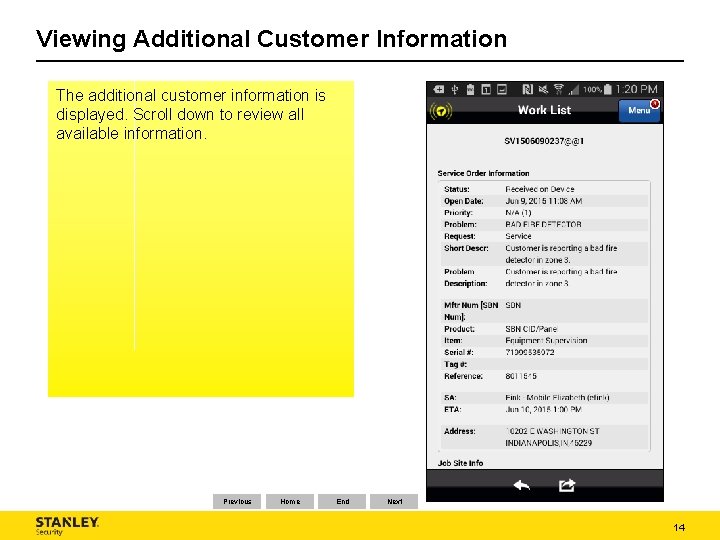
Viewing Additional Customer Information The additional customer information is displayed. Scroll down to review all available information. Previous Home End Next 14
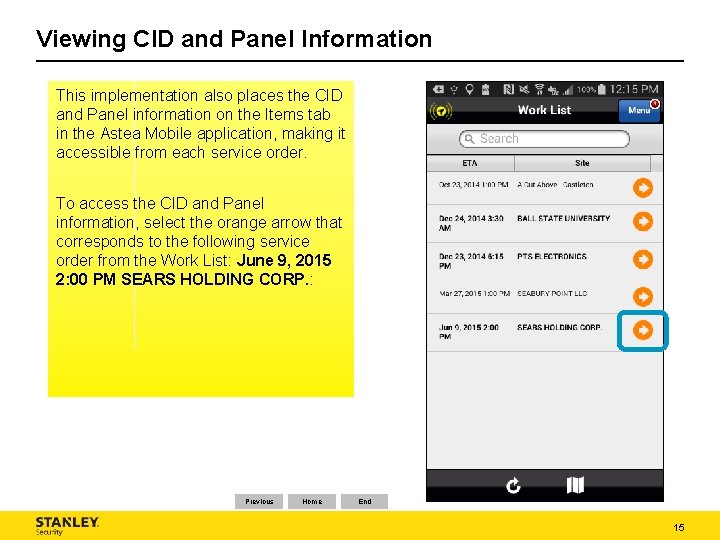
Viewing CID and Panel Information This implementation also places the CID and Panel information on the Items tab in the Astea Mobile application, making it accessible from each service order. To access the CID and Panel information, select the orange arrow that corresponds to the following service order from the Work List: June 9, 2015 2: 00 PM SEARS HOLDING CORP. : Previous Home End 15
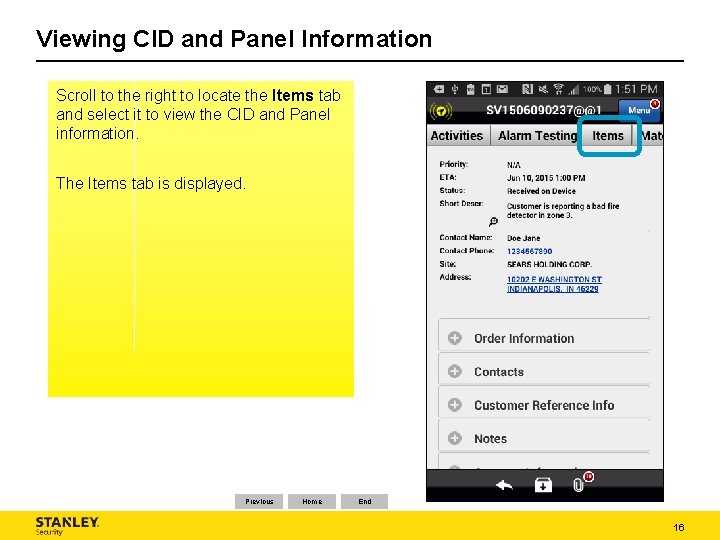
Viewing CID and Panel Information Scroll to the right to locate the Items tab and select it to view the CID and Panel information. The Items tab is displayed. Previous Home End 16
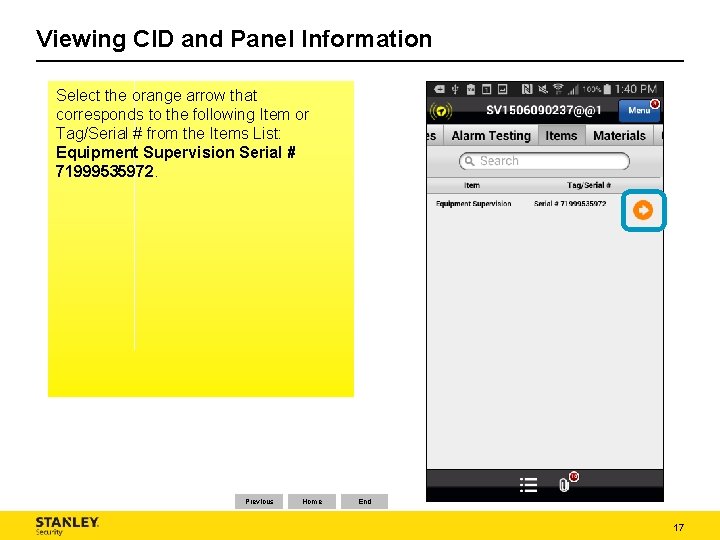
Viewing CID and Panel Information Select the orange arrow that corresponds to the following Item or Tag/Serial # from the Items List: Equipment Supervision Serial # 71999535972. Previous Home End 17
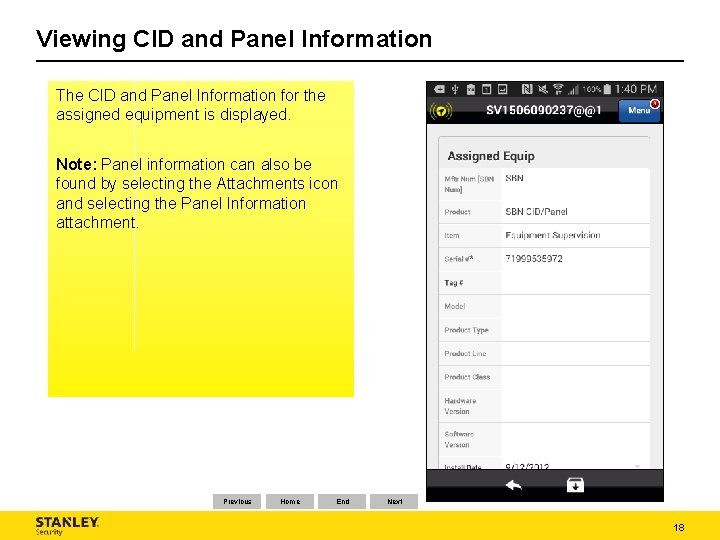
Viewing CID and Panel Information The CID and Panel Information for the assigned equipment is displayed. Note: Panel information can also be found by selecting the Attachments icon and selecting the Panel Information attachment. Previous Home End Next 18
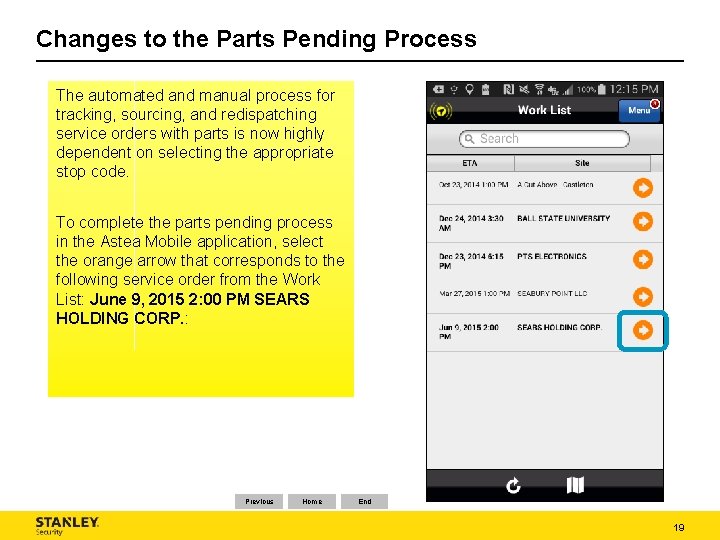
Changes to the Parts Pending Process The automated and manual process for tracking, sourcing, and redispatching service orders with parts is now highly dependent on selecting the appropriate stop code. To complete the parts pending process in the Astea Mobile application, select the orange arrow that corresponds to the following service order from the Work List: June 9, 2015 2: 00 PM SEARS HOLDING CORP. : Previous Home End 19
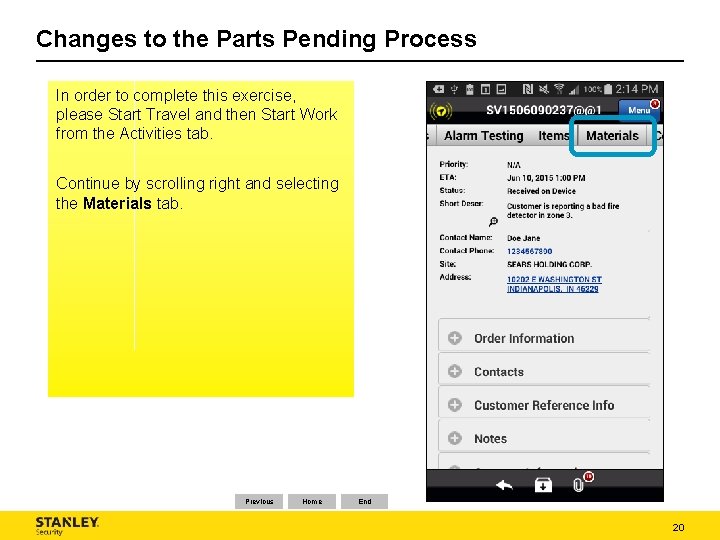
Changes to the Parts Pending Process In order to complete this exercise, please Start Travel and then Start Work from the Activities tab. Continue by scrolling right and selecting the Materials tab. Previous Home End 20
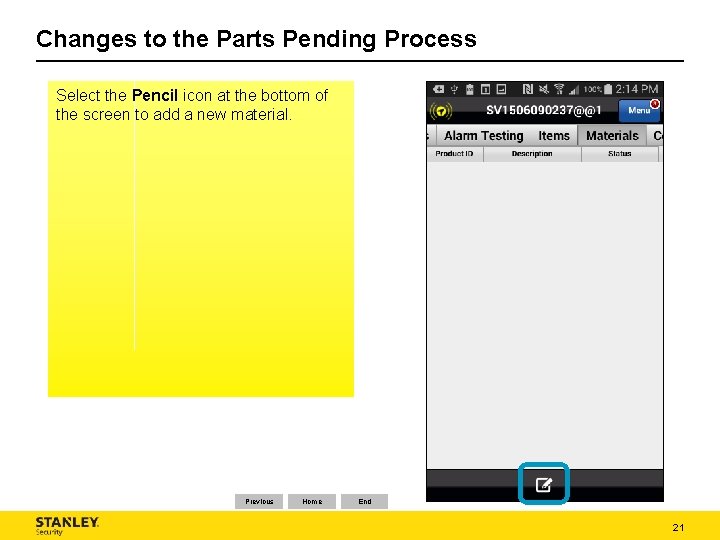
Changes to the Parts Pending Process Select the Pencil icon at the bottom of the screen to add a new material. Previous Home End 21
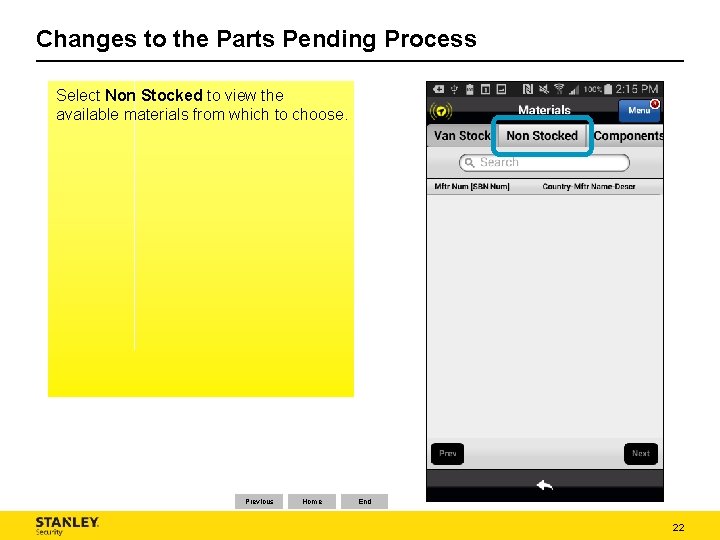
Changes to the Parts Pending Process Select Non Stocked to view the available materials from which to choose. Previous Home End 22
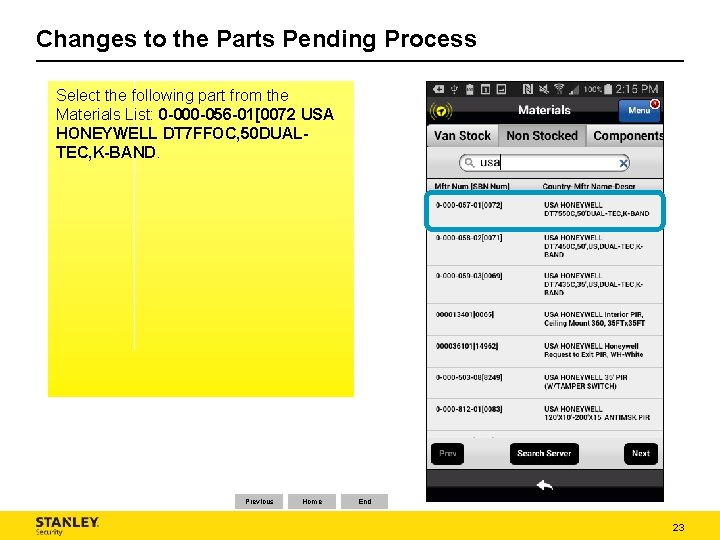
Changes to the Parts Pending Process Select the following part from the Materials List: 0 -000 -056 -01[0072 USA HONEYWELL DT 7 FFOC, 50 DUALTEC, K-BAND. Previous Home End 23
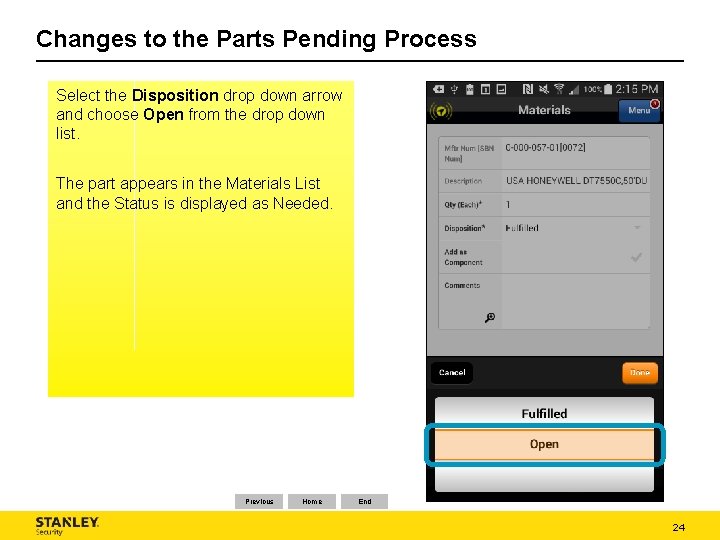
Changes to the Parts Pending Process Select the Disposition drop down arrow and choose Open from the drop down list. The part appears in the Materials List and the Status is displayed as Needed. Previous Home End 24
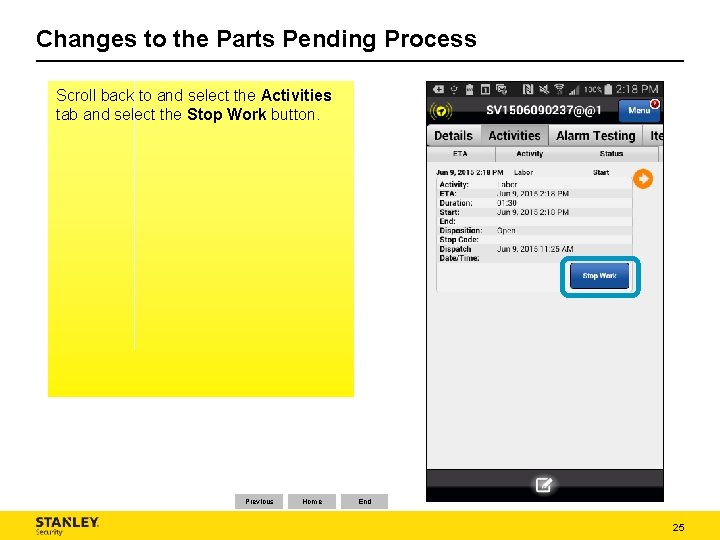
Changes to the Parts Pending Process Scroll back to and select the Activities tab and select the Stop Work button. Previous Home End 25
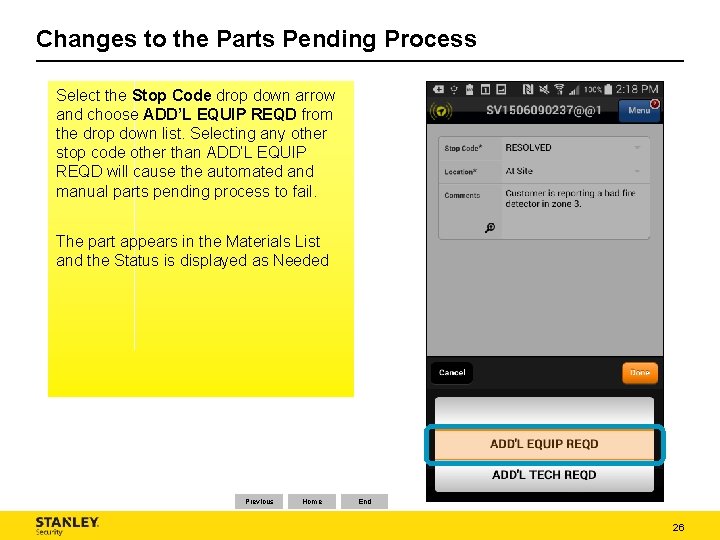
Changes to the Parts Pending Process Select the Stop Code drop down arrow and choose ADD’L EQUIP REQD from the drop down list. Selecting any other stop code other than ADD’L EQUIP REQD will cause the automated and manual parts pending process to fail. The part appears in the Materials List and the Status is displayed as Needed Previous Home End 26
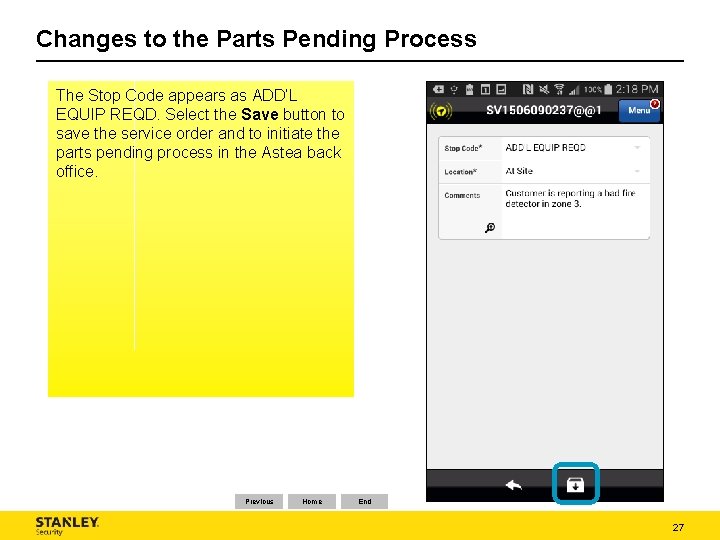
Changes to the Parts Pending Process The Stop Code appears as ADD’L EQUIP REQD. Select the Save button to save the service order and to initiate the parts pending process in the Astea back office. Previous Home End 27
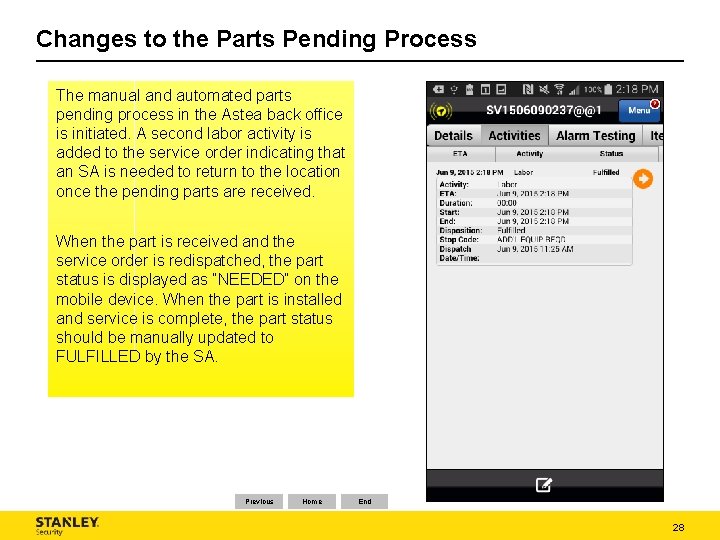
Changes to the Parts Pending Process The manual and automated parts pending process in the Astea back office is initiated. A second labor activity is added to the service order indicating that an SA is needed to return to the location once the pending parts are received. When the part is received and the service order is redispatched, the part status is displayed as “NEEDED” on the mobile device. When the part is installed and service is complete, the part status should be manually updated to FULFILLED by the SA. Previous Home End 28