
WhatIf Assist Setup Companion Tool for Information Builders
What-If Assist Setup Companion Tool for Information Builders Info. Assist Providing A Path to an Attainable Goal
What-If Assist Setup �What-If Assist can be used as an extension in the Web. Focus Info. Assist environment or as a Standalone application. �Web. Focus Extension � What-If Assist is available as an extension for users who have Web. Focus 8. 2 earlier versions of Web. Focus do not support extensions �Standalone � Allows a user to load their own data set via a. CSV file and perform What-If Analysis �The following slides describe how to: �Load data and setup What-If Assist as a Web. Focus extension �Startup What-If Assist in Standalone mode
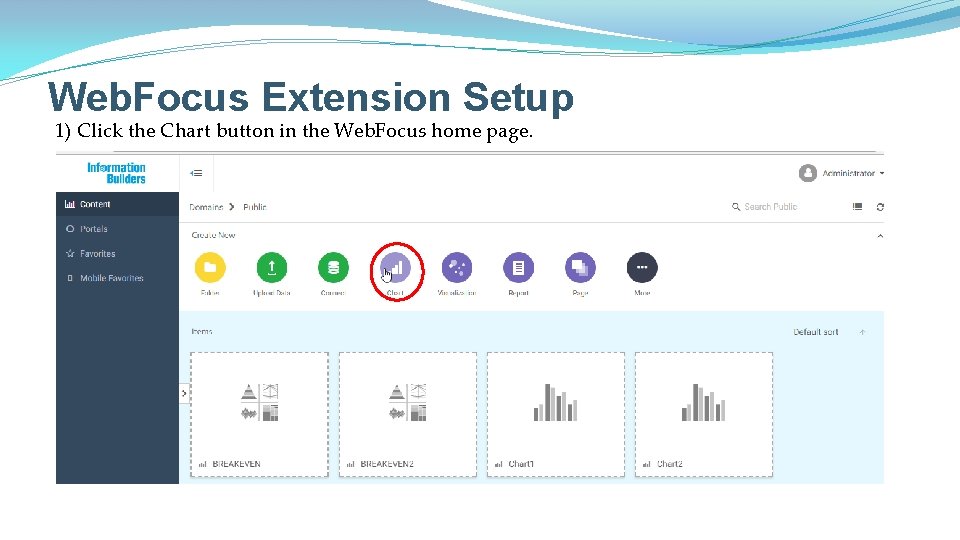
Web. Focus Extension Setup 1) Click the Chart button in the Web. Focus home page.
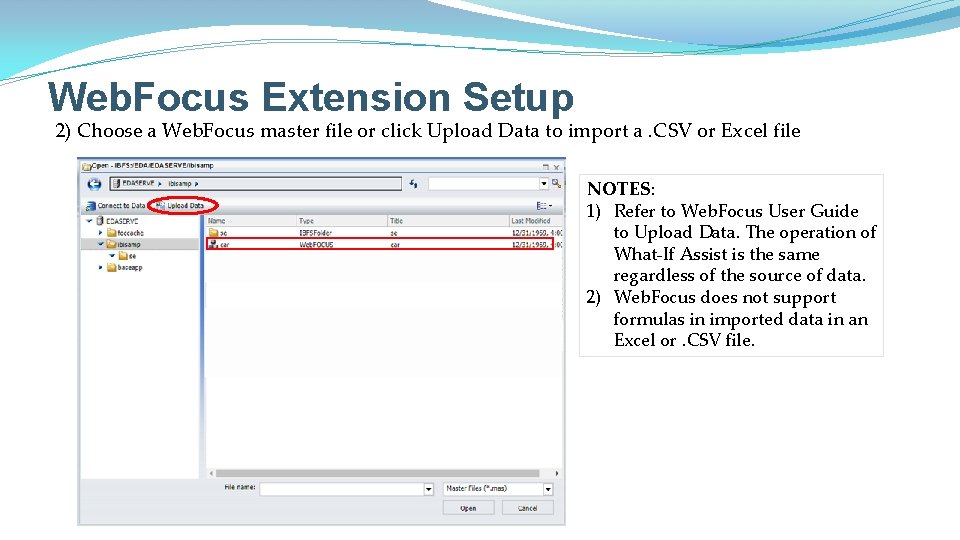
Web. Focus Extension Setup 2) Choose a Web. Focus master file or click Upload Data to import a. CSV or Excel file NOTES: 1) Refer to Web. Focus User Guide to Upload Data. The operation of What-If Assist is the same regardless of the source of data. 2) Web. Focus does not support formulas in imported data in an Excel or. CSV file.

Web. Focus Extension Setup 3) Variables from the selected master file or imported data are shown in the Measures column of the Data Panel of Web. Focus Info. Assist.
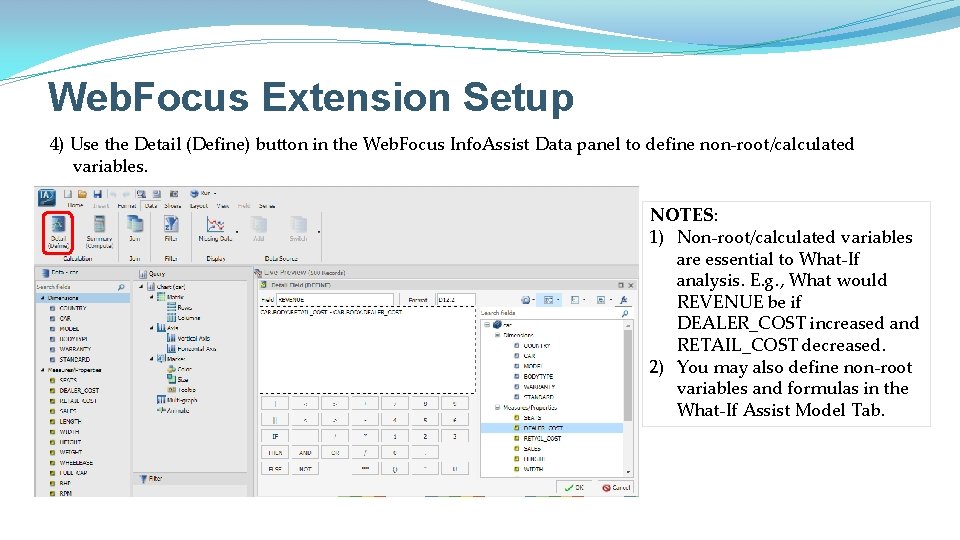
Web. Focus Extension Setup 4) Use the Detail (Define) button in the Web. Focus Info. Assist Data panel to define non-root/calculated variables. NOTES: 1) Non-root/calculated variables are essential to What-If analysis. E. g. , What would REVENUE be if DEALER_COST increased and RETAIL_COST decreased. 2) You may also define non-root variables and formulas in the What-If Assist Model Tab.
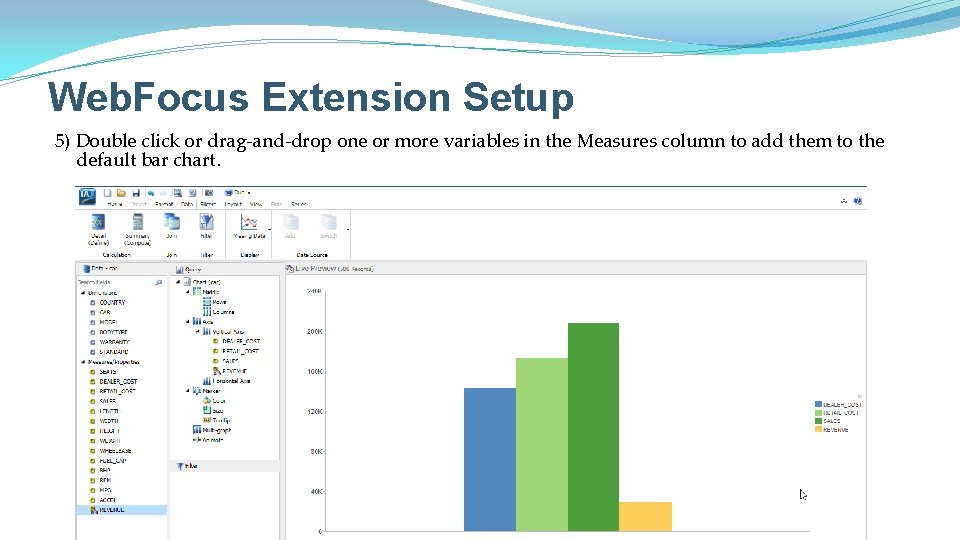
Web. Focus Extension Setup 5) Double click or drag-and-drop one or more variables in the Measures column to add them to the default bar chart.
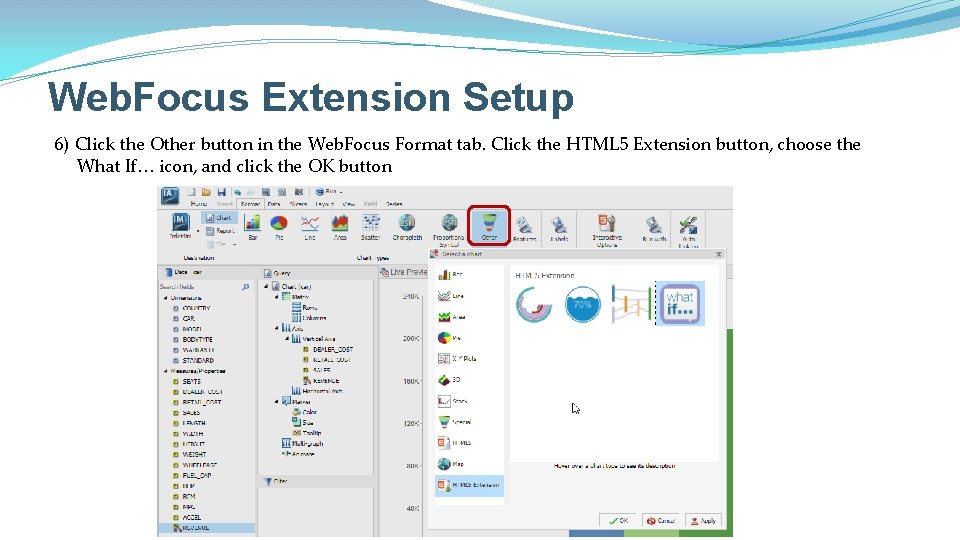
Web. Focus Extension Setup 6) Click the Other button in the Web. Focus Format tab. Click the HTML 5 Extension button, choose the What If… icon, and click the OK button

Web. Focus Extension Setup 7) Click the Save button.
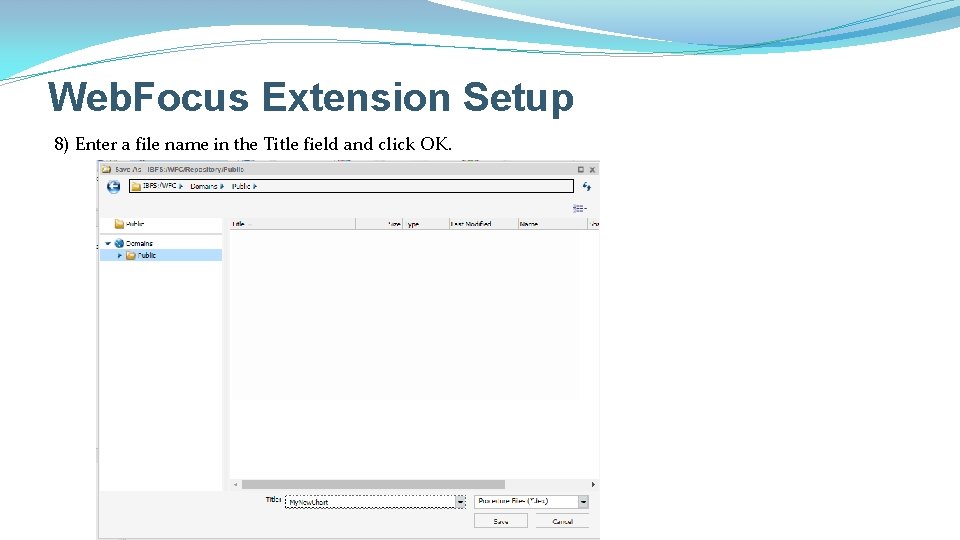
Web. Focus Extension Setup 8) Enter a file name in the Title field and click OK.
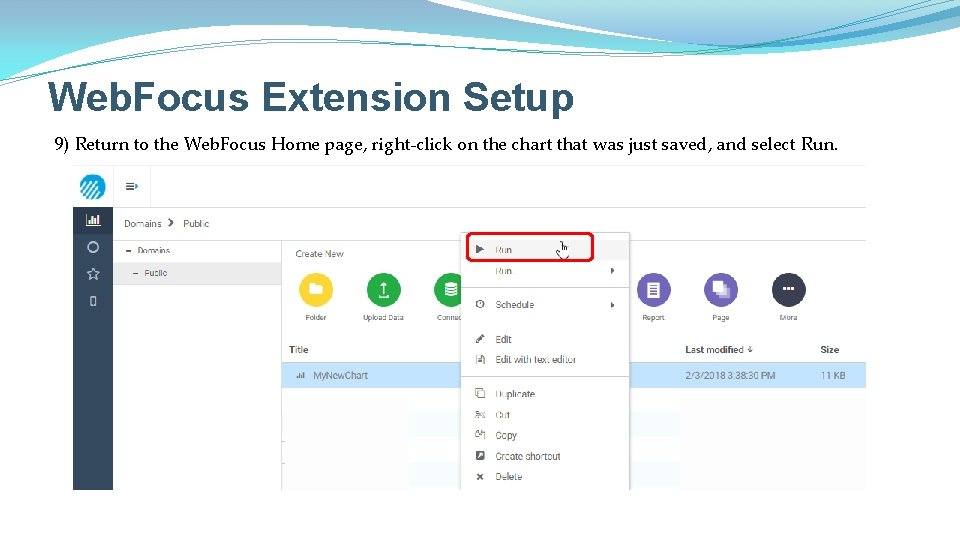
Web. Focus Extension Setup 9) Return to the Web. Focus Home page, right-click on the chart that was just saved, and select Run.
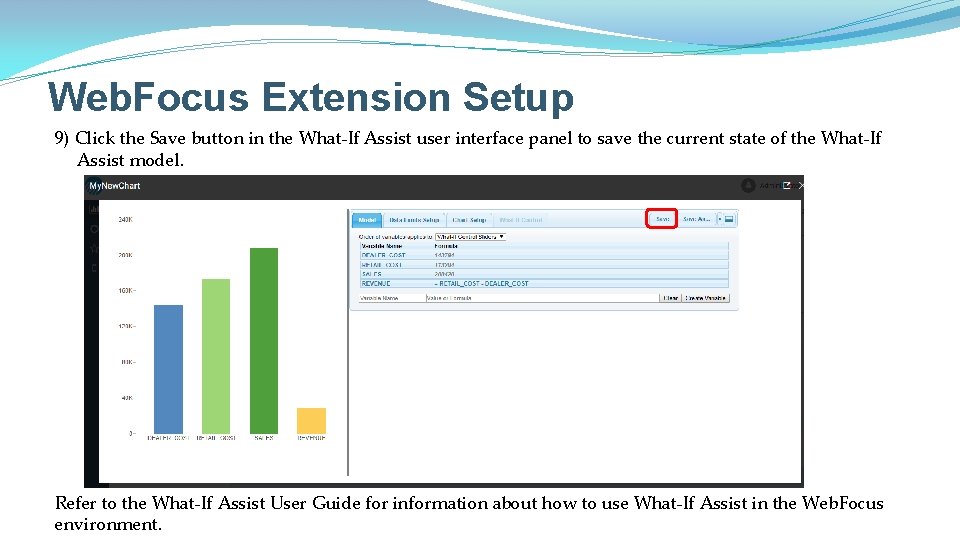
Web. Focus Extension Setup 9) Click the Save button in the What-If Assist user interface panel to save the current state of the What-If Assist model. Refer to the What-If Assist User Guide for information about how to use What-If Assist in the Web. Focus environment.
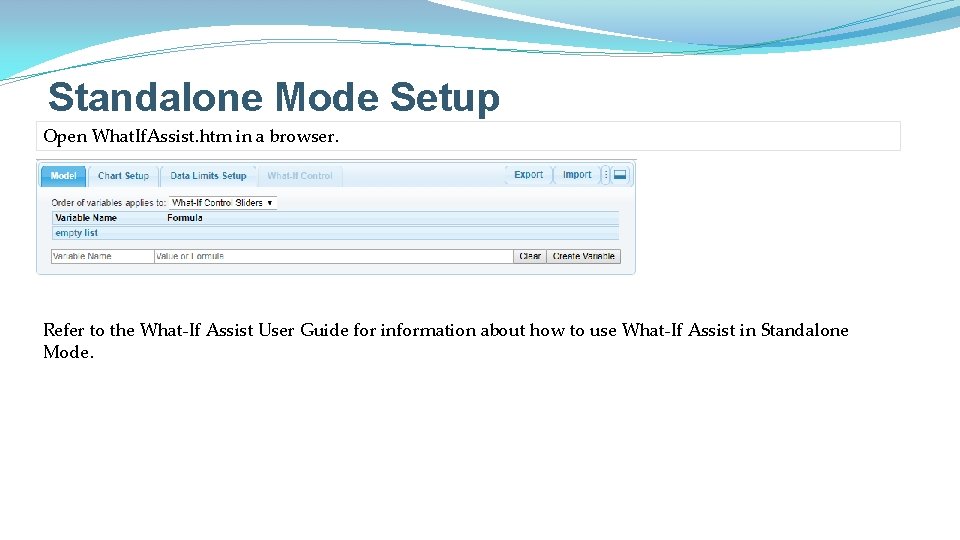
Standalone Mode Setup Open What. If. Assist. htm in a browser. Refer to the What-If Assist User Guide for information about how to use What-If Assist in Standalone Mode.
- Slides: 13