
What you need to build your own SQL
What you need to build your own SQL Queries • Data Connection • Server Name • Database Name • Table and Field Names • SQL or Windows (AD) Account • Query Tool
Options for Working with IT • Read-Only Access • Test Server • Report Server • Database Copy • Table Copy • TWO Database (Fabrikam) • Local GP
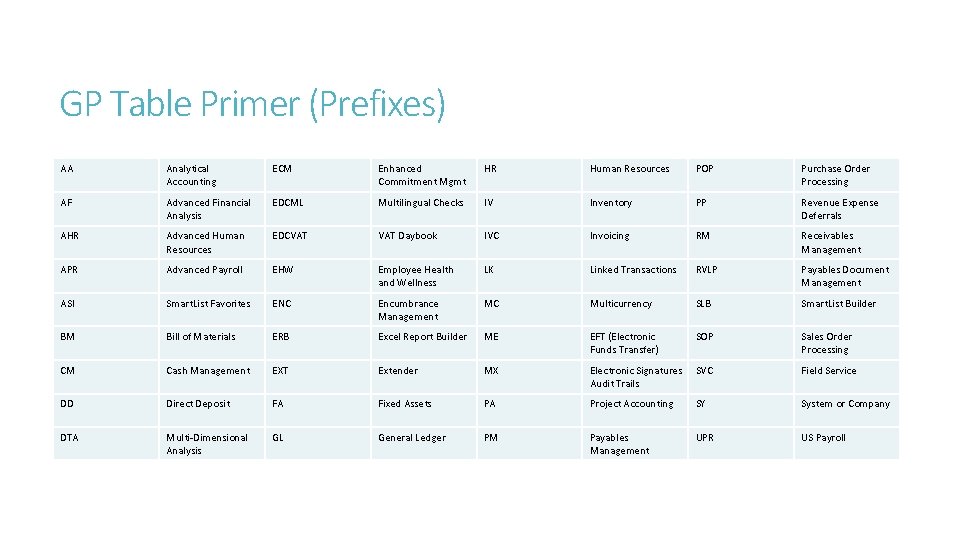
GP Table Primer (Prefixes) AA Analytical Accounting ECM Enhanced Commitment Mgmt HR Human Resources POP Purchase Order Processing AF Advanced Financial Analysis EDCML Multilingual Checks IV Inventory PP Revenue Expense Deferrals AHR Advanced Human Resources EDCVAT Daybook IVC Invoicing RM Receivables Management APR Advanced Payroll EHW Employee Health and Wellness LK Linked Transactions RVLP Payables Document Management ASI Smart. List Favorites ENC Encumbrance Management MC Multicurrency SLB Smart. List Builder BM Bill of Materials ERB Excel Report Builder ME EFT (Electronic Funds Transfer) SOP Sales Order Processing CM Cash Management EXT Extender MX Electronic Signatures Audit Trails SVC Field Service DD Direct Deposit FA Fixed Assets PA Project Accounting SY System or Company DTA Multi-Dimensional Analysis GL General Ledger PM Payables Management UPR US Payroll
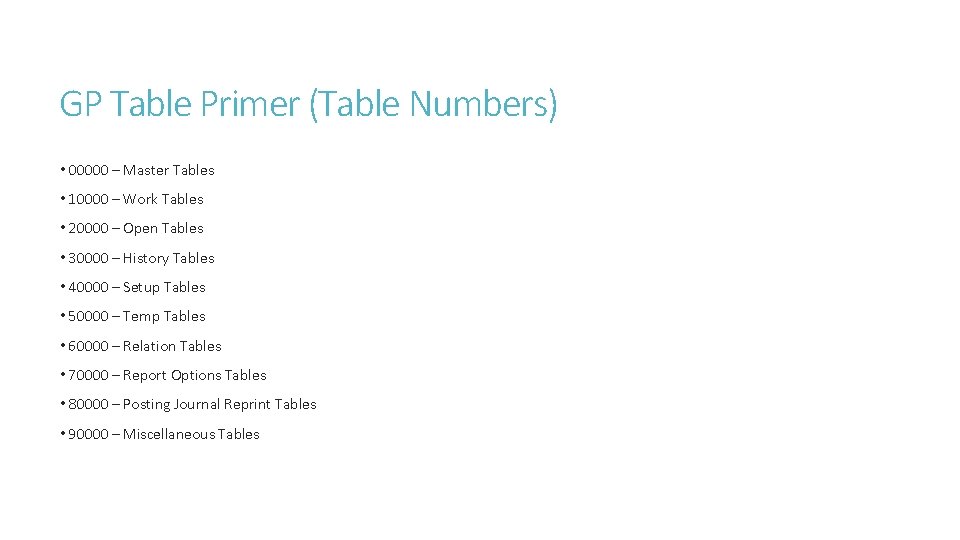
GP Table Primer (Table Numbers) • 00000 – Master Tables • 10000 – Work Tables • 20000 – Open Tables • 30000 – History Tables • 40000 – Setup Tables • 50000 – Temp Tables • 60000 – Relation Tables • 70000 – Report Options Tables • 80000 – Posting Journal Reprint Tables • 90000 – Miscellaneous Tables
Commonly Used Tables – General Ledger • GL 00100 – Chart of Accounts • GL 00201 – Budget and Forecast Data • GL 10110 – Open Year Summary Table • GL 10111 – Closed Year Summary Table • GL 20000 – Open Year Transaction Detail • GL 30000 – Closed Year Transaction Detail Key Fields: ACTINDX
Commonly Used Tables – Payables Management • PM 00200 – Vendor Master Table • PM 30200 – PM Paid Transaction History Table • PM 30300 – PM Apply To History Table • PM 30600 – PM Distribution History Table Key Fields: VENDORID, DOCNUMBR and DOCTYPE
Commonly Used Tables – Receivables Management • RM 00101 – Customer Master Table • RM 20101 – RM Open Table • RM 20201 – RM Apply Open Table • RM 30101 – RM History Table • RM 30201 – RM Apply History Table Key Fields: CUSTNMBR, DOCNUMBR and RMDTYPAL

SQL Select Statement Structure Keyed Order Processing Order SELECT FROM WHERE GROUP BY HAVING SELECT ORDER BY
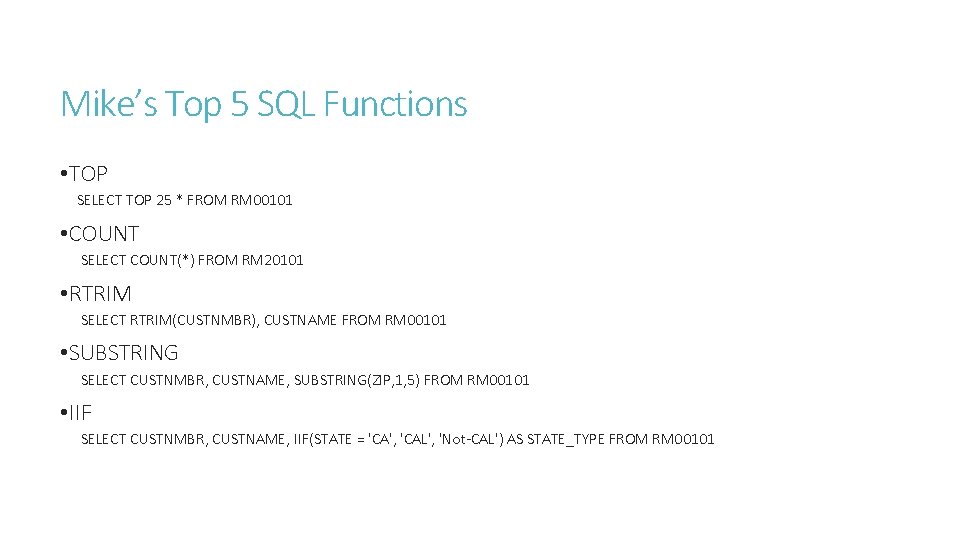
Mike’s Top 5 SQL Functions • TOP SELECT TOP 25 * FROM RM 00101 • COUNT SELECT COUNT(*) FROM RM 20101 • RTRIM SELECT RTRIM(CUSTNMBR), CUSTNAME FROM RM 00101 • SUBSTRING SELECT CUSTNMBR, CUSTNAME, SUBSTRING(ZIP, 1, 5) FROM RM 00101 • IIF SELECT CUSTNMBR, CUSTNAME, IIF(STATE = 'CA', 'CAL', 'Not-CAL') AS STATE_TYPE FROM RM 00101
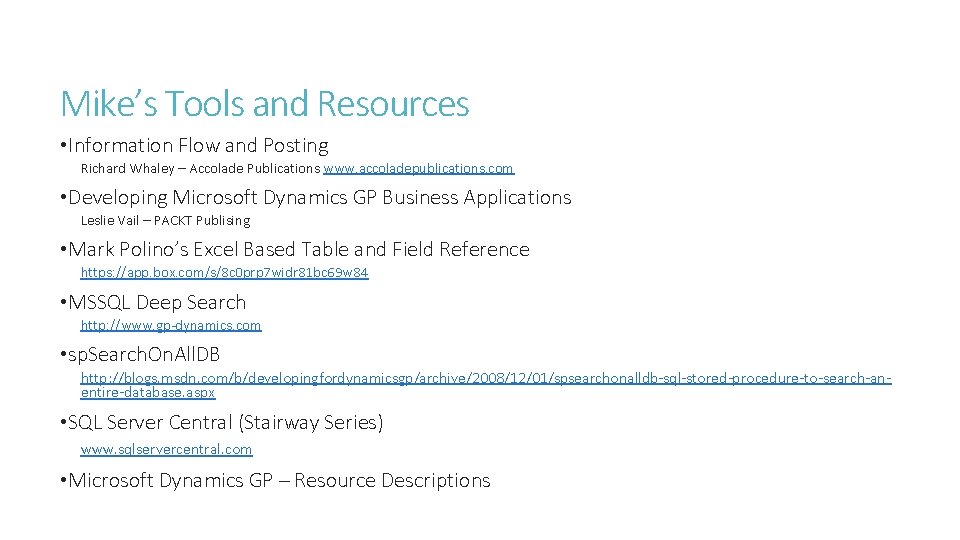
Mike’s Tools and Resources • Information Flow and Posting Richard Whaley – Accolade Publications www. accoladepublications. com • Developing Microsoft Dynamics GP Business Applications Leslie Vail – PACKT Publising • Mark Polino’s Excel Based Table and Field Reference https: //app. box. com/s/8 c 0 prp 7 widr 81 bc 69 w 84 • MSSQL Deep Search http: //www. gp-dynamics. com • sp. Search. On. All. DB http: //blogs. msdn. com/b/developingfordynamicsgp/archive/2008/12/01/spsearchonalldb-sql-stored-procedure-to-search-anentire-database. aspx • SQL Server Central (Stairway Series) www. sqlservercentral. com • Microsoft Dynamics GP – Resource Descriptions
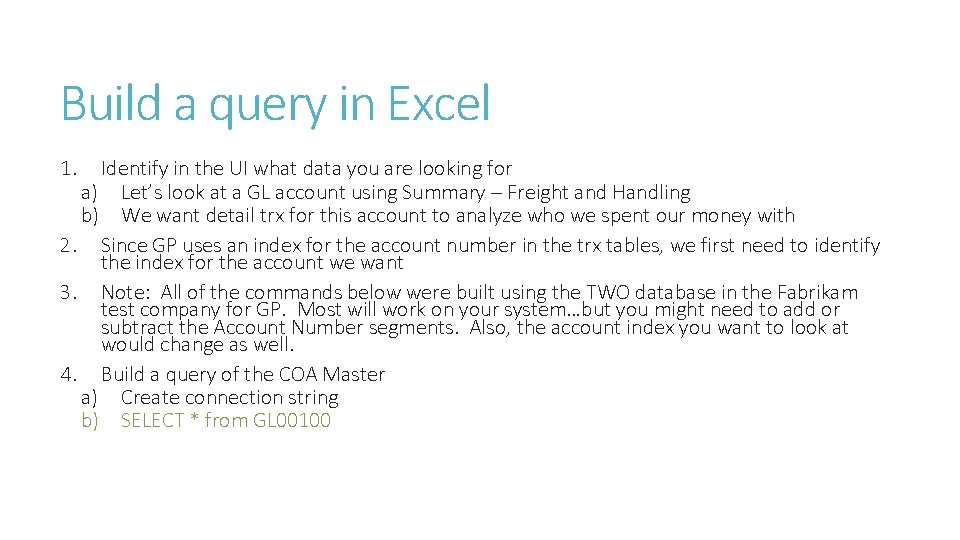
Build a query in Excel 1. Identify in the UI what data you are looking for a) Let’s look at a GL account using Summary – Freight and Handling b) We want detail trx for this account to analyze who we spent our money with 2. Since GP uses an index for the account number in the trx tables, we first need to identify the index for the account we want 3. Note: All of the commands below were built using the TWO database in the Fabrikam test company for GP. Most will work on your system…but you might need to add or subtract the Account Number segments. Also, the account index you want to look at would change as well. 4. Build a query of the COA Master a) Create connection string b) SELECT * from GL 00100
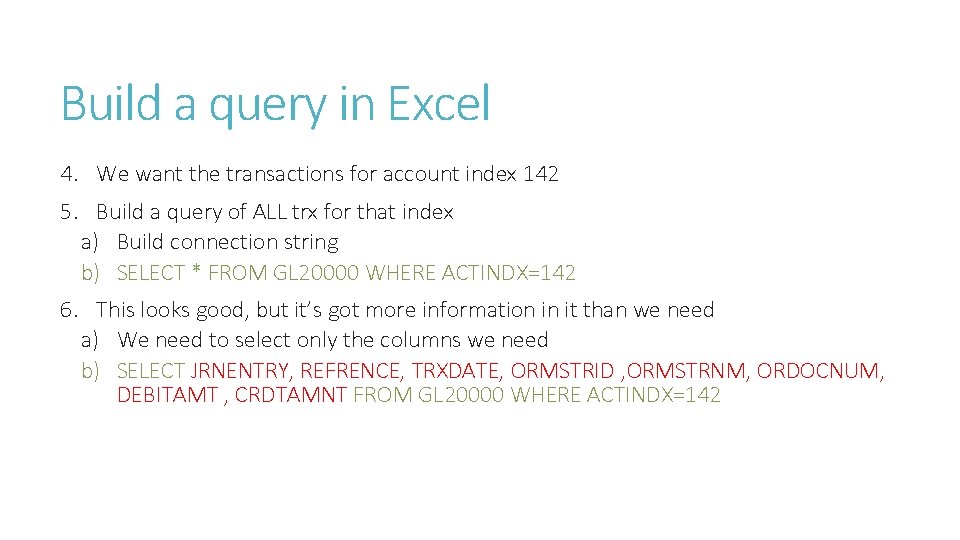
Build a query in Excel 4. We want the transactions for account index 142 5. Build a query of ALL trx for that index a) Build connection string b) SELECT * FROM GL 20000 WHERE ACTINDX=142 6. This looks good, but it’s got more information in it than we need a) We need to select only the columns we need b) SELECT JRNENTRY, REFRENCE, TRXDATE, ORMSTRID , ORMSTRNM, ORDOCNUM, DEBITAMT , CRDTAMNT FROM GL 20000 WHERE ACTINDX=142
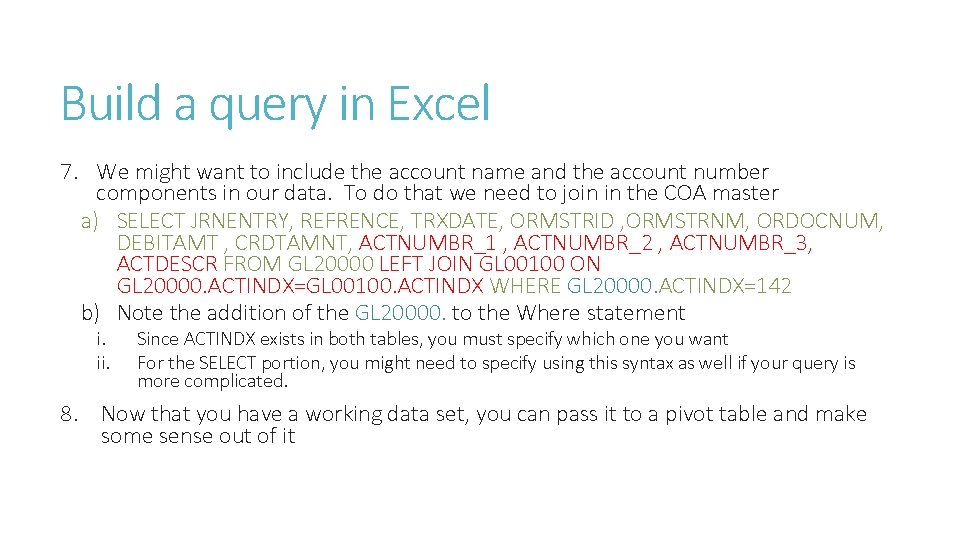
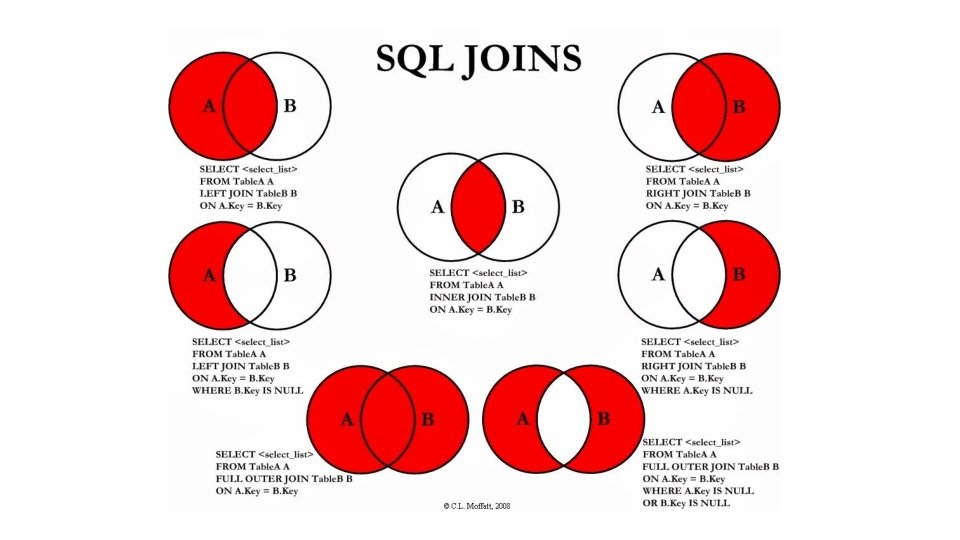
Build a query in Excel 7. We might want to include the account name and the account number components in our data. To do that we need to join in the COA master a) SELECT JRNENTRY, REFRENCE, TRXDATE, ORMSTRID , ORMSTRNM, ORDOCNUM, DEBITAMT , CRDTAMNT, ACTNUMBR_1 , ACTNUMBR_2 , ACTNUMBR_3, ACTDESCR FROM GL 20000 LEFT JOIN GL 00100 ON GL 20000. ACTINDX=GL 00100. ACTINDX WHERE GL 20000. ACTINDX=142 b) Note the addition of the GL 20000. to the Where statement i. ii. Since ACTINDX exists in both tables, you must specify which one you want For the SELECT portion, you might need to specify using this syntax as well if your query is more complicated. 8. Now that you have a working data set, you can pass it to a pivot table and make some sense out of it
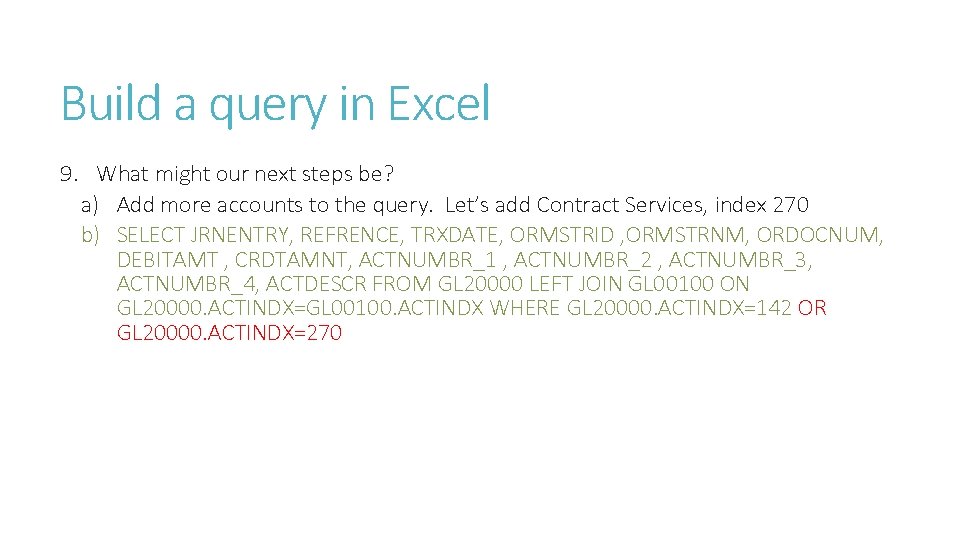
Build a query in Excel 9. What might our next steps be? a) Add more accounts to the query. Let’s add Contract Services, index 270 b) SELECT JRNENTRY, REFRENCE, TRXDATE, ORMSTRID , ORMSTRNM, ORDOCNUM, DEBITAMT , CRDTAMNT, ACTNUMBR_1 , ACTNUMBR_2 , ACTNUMBR_3, ACTNUMBR_4, ACTDESCR FROM GL 20000 LEFT JOIN GL 00100 ON GL 20000. ACTINDX=GL 00100. ACTINDX WHERE GL 20000. ACTINDX=142 OR GL 20000. ACTINDX=270
- Slides: 15