
What online platforms are you familiar with MCPS

- Slides: 18
What online platforms are you familiar with?
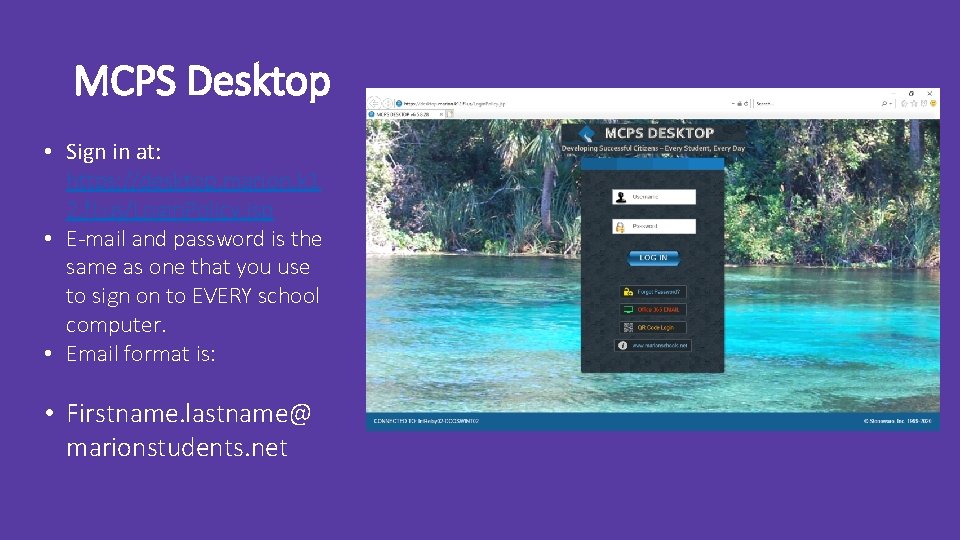
MCPS Desktop • Sign in at: https: //desktop. marion. k 1 2. fl. us/Login. Policy. jsp • E-mail and password is the same as one that you use to sign on to EVERY school computer. • Email format is: • Firstname. lastname@ marionstudents. net
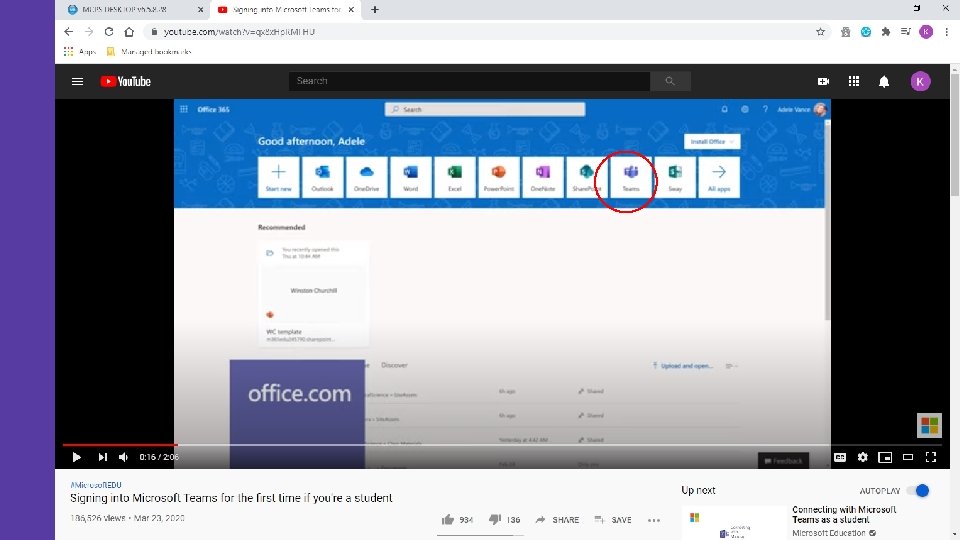
How to log on to Microsoft Teams 1. Once you are signed in on your desktop, click on Office 365 tile. 2. You will see a list of tiles. Click on Teams. 3. It will ask you to login. Use your student e-mail and password. 4. Firstname. lastname@marionstudents. net 5. You should already be automatically assigned to your class teams.
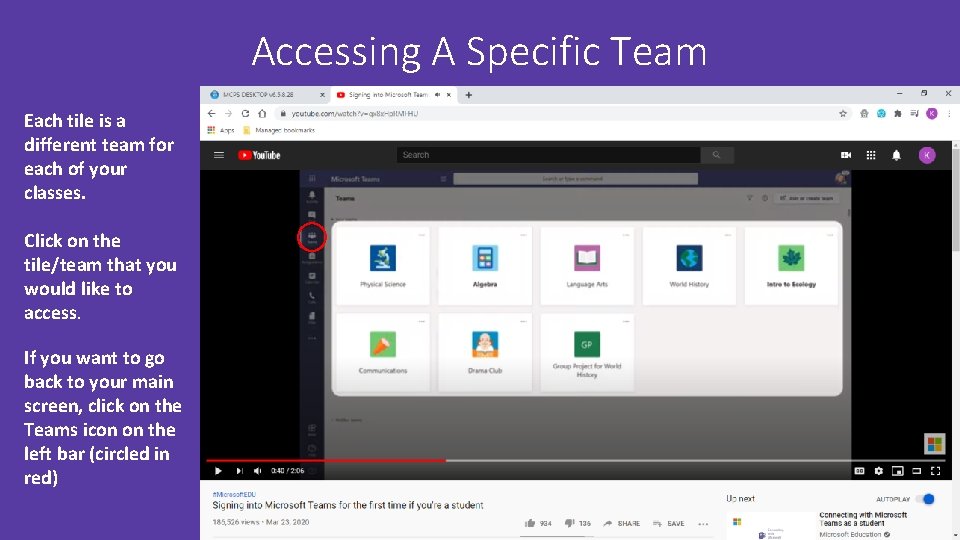
Accessing A Specific Team Each tile is a different team for each of your classes. Click on the tile/team that you would like to access. If you want to go back to your main screen, click on the Teams icon on the left bar (circled in red)
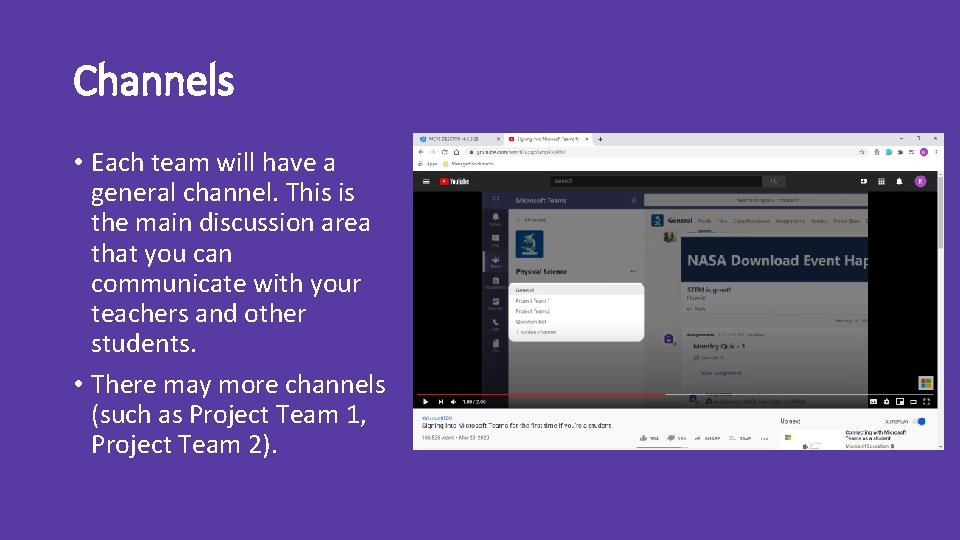
Channels • Each team will have a general channel. This is the main discussion area that you can communicate with your teachers and other students. • There may more channels (such as Project Team 1, Project Team 2).
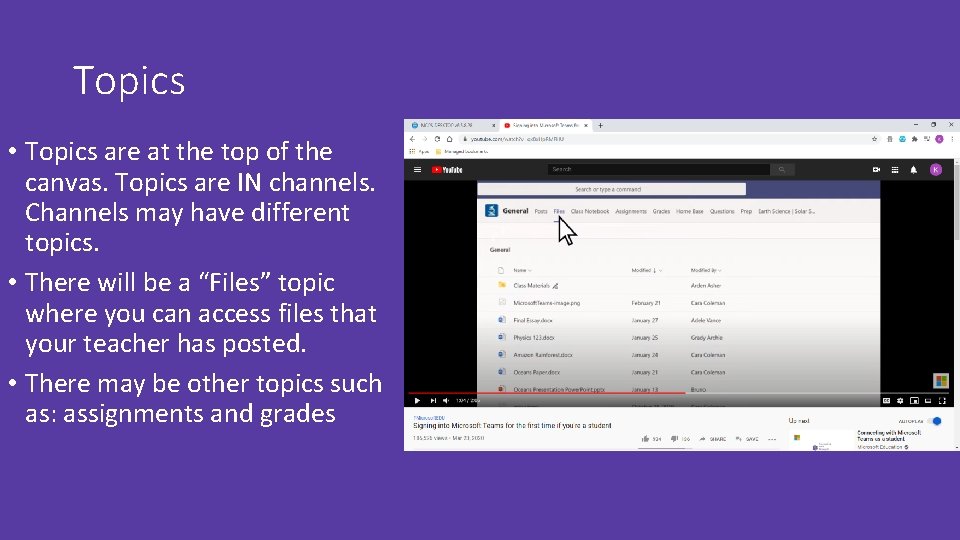
Topics • Topics are at the top of the canvas. Topics are IN channels. Channels may have different topics. • There will be a “Files” topic where you can access files that your teacher has posted. • There may be other topics such as: assignments and grades
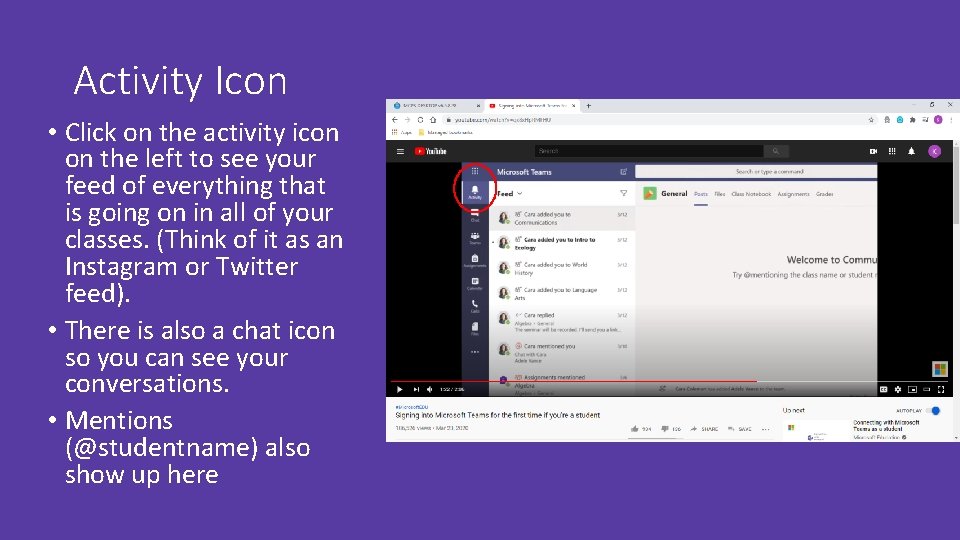
Activity Icon • Click on the activity icon on the left to see your feed of everything that is going on in all of your classes. (Think of it as an Instagram or Twitter feed). • There is also a chat icon so you can see your conversations. • Mentions (@studentname) also show up here
Introduction and Basics of Microsoft Teams • https: //www. youtube. com/watch? v=qx 8 x. Hp. RMFHU
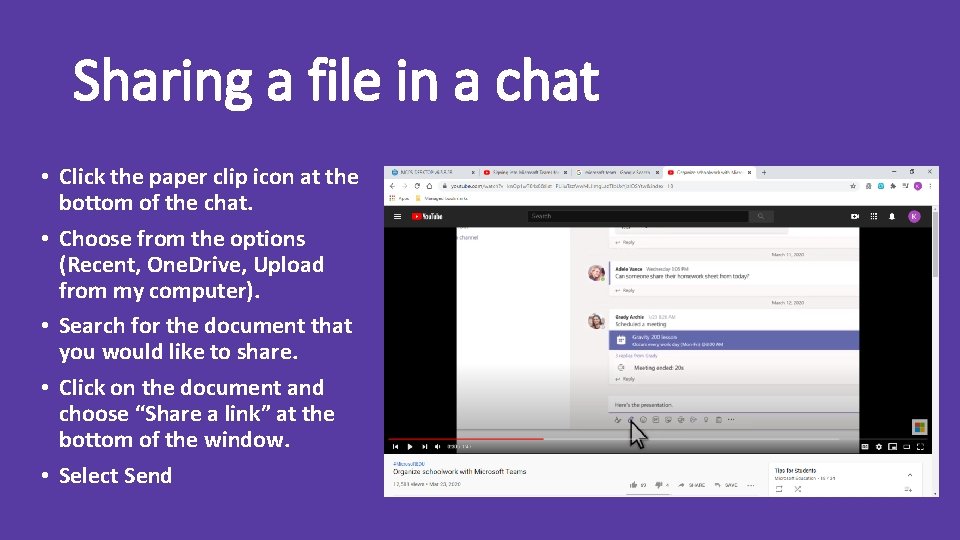
Sharing a file in a chat • Click the paper clip icon at the bottom of the chat. • Choose from the options (Recent, One. Drive, Upload from my computer). • Search for the document that you would like to share. • Click on the document and choose “Share a link” at the bottom of the window. • Select Send
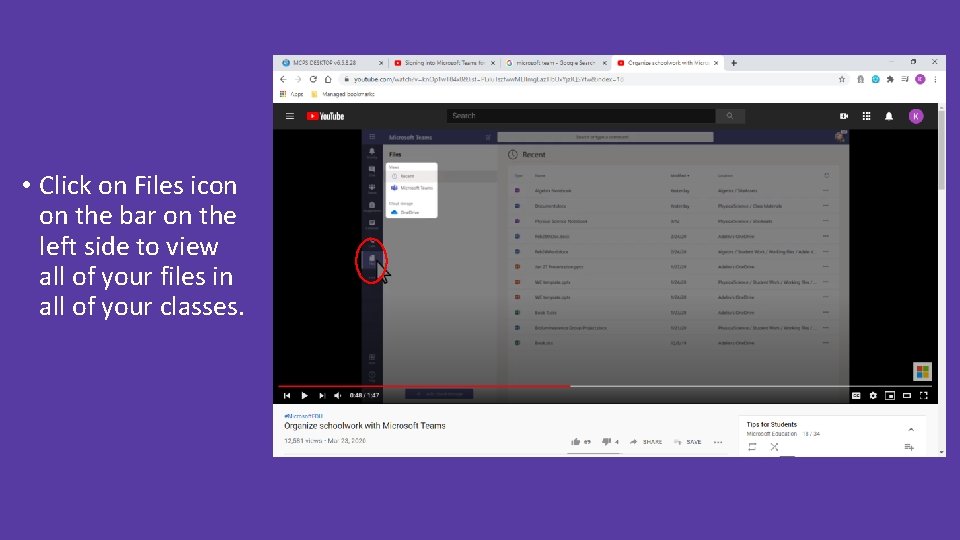
• Click on Files icon on the bar on the left side to view all of your files in all of your classes.
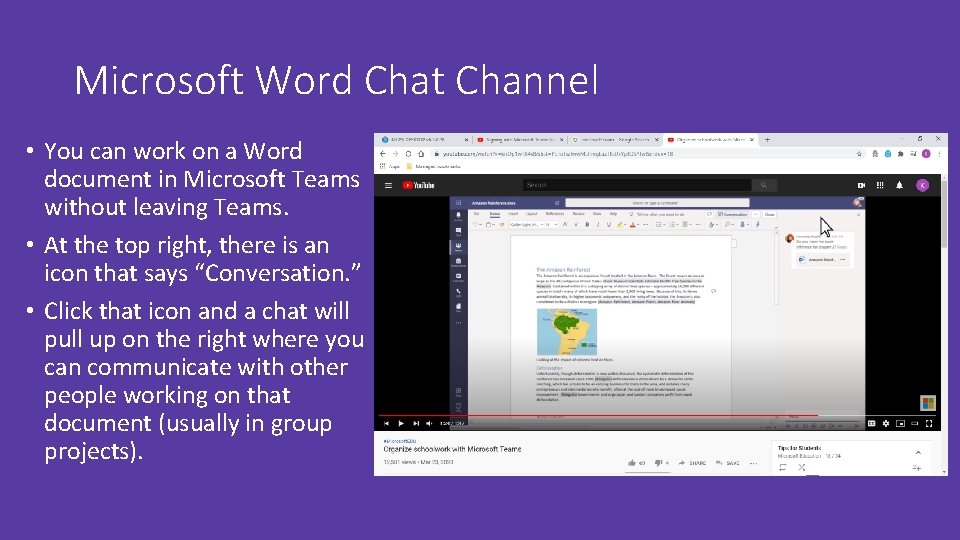
Microsoft Word Chat Channel • You can work on a Word document in Microsoft Teams without leaving Teams. • At the top right, there is an icon that says “Conversation. ” • Click that icon and a chat will pull up on the right where you can communicate with other people working on that document (usually in group projects).
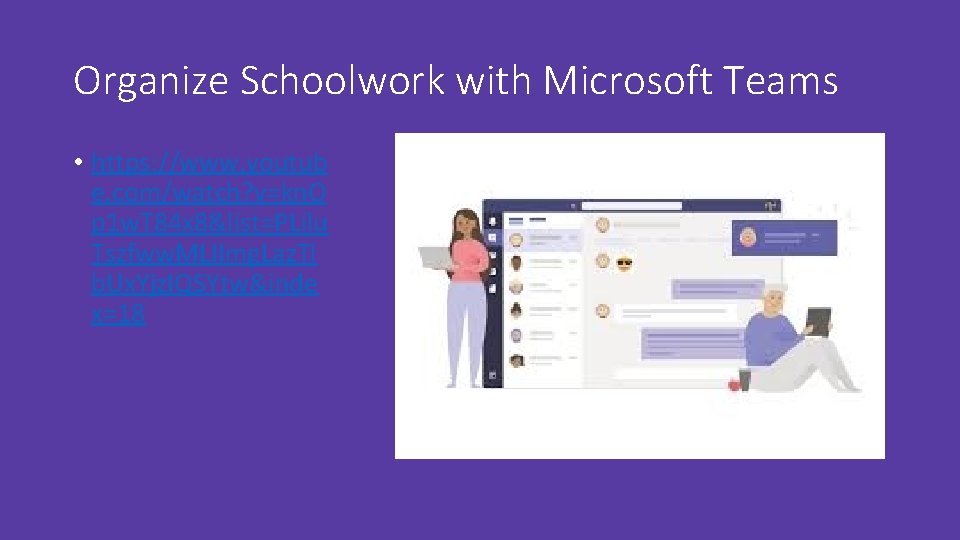
Organize Schoolwork with Microsoft Teams • https: //www. youtub e. com/watch? v=kn. O p 1 w. T 84 x 8&list=PLilu Tszfww. MLIImg. Laz. Tl b. Ux. Yjz. IQSYtw&inde x=18
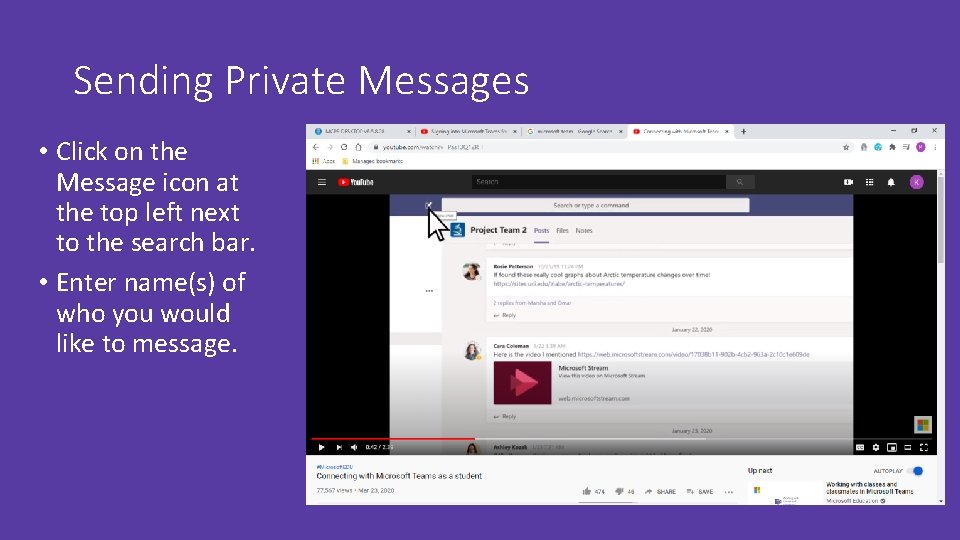
Sending Private Messages • Click on the Message icon at the top left next to the search bar. • Enter name(s) of who you would like to message.
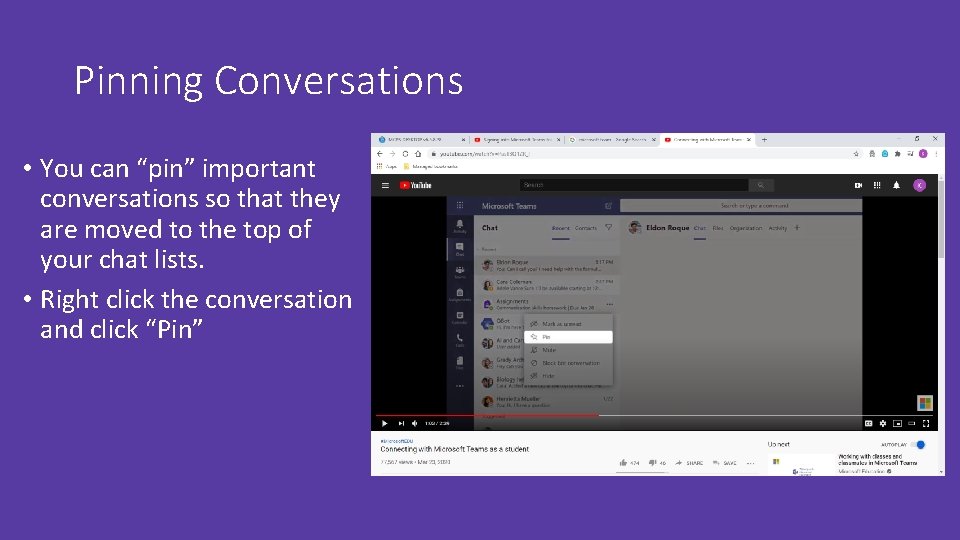
Pinning Conversations • You can “pin” important conversations so that they are moved to the top of your chat lists. • Right click the conversation and click “Pin”
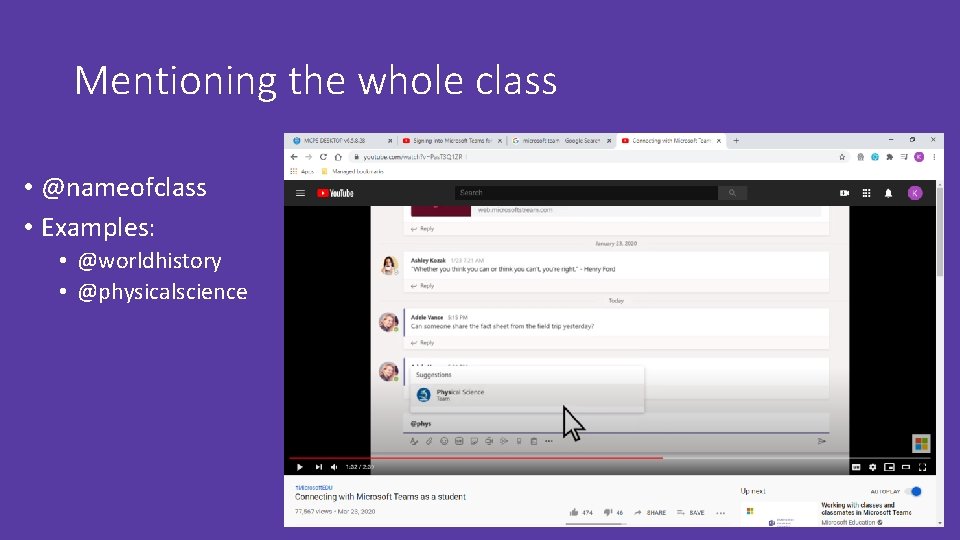
Mentioning the whole class • @nameofclass • Examples: • @worldhistory • @physicalscience
Connecting with Microsoft Teams as a Student • https: //www. youtube. com/watch? v=Pas. T 3 Q 1 ZR_I