
What is source control saves successive versions of

- Slides: 23
What is source control? • saves successive versions of a file • allows return to an earlier version • enables collaboration with multiple editors of the same file
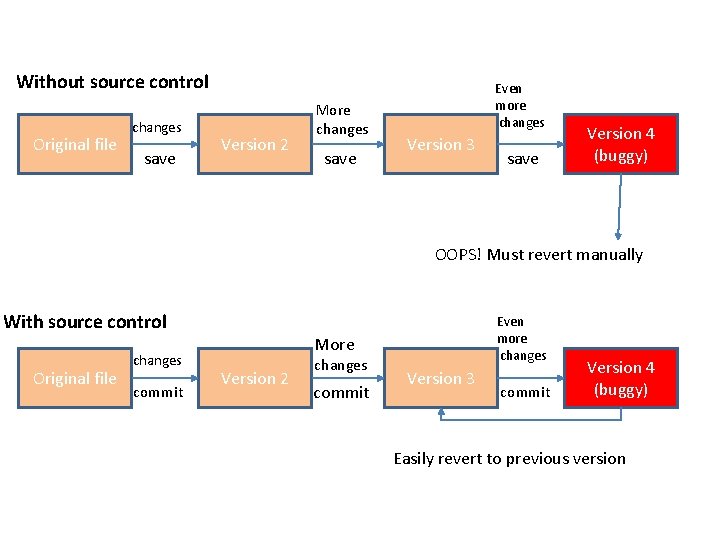
Without source control Original file changes save Version 2 More changes save Even more changes Version 3 save Version 4 (buggy) OOPS! Must revert manually With source control Original file changes commit Even more changes More Version 2 changes commit Version 3 commit Version 4 (buggy) Easily revert to previous version
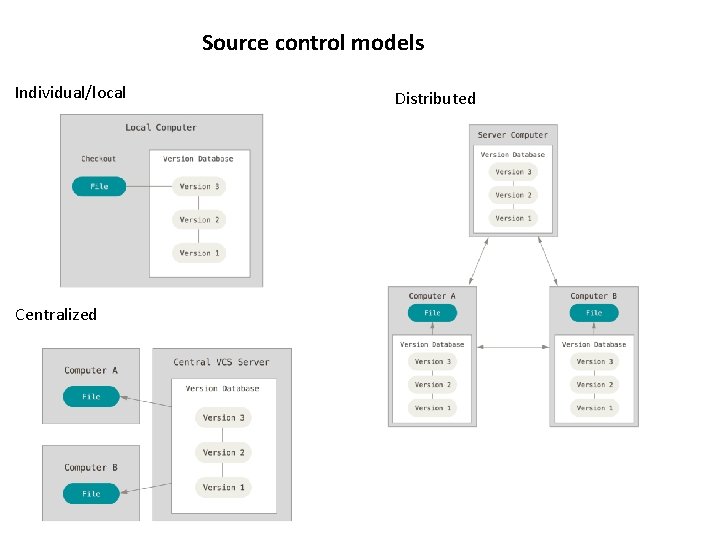
Source control models Individual/local Centralized Distributed
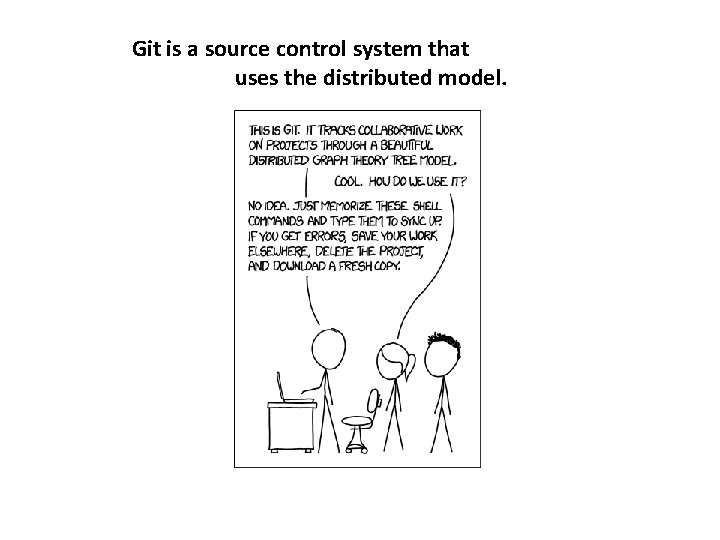
Git is a source control system that uses the distributed model.
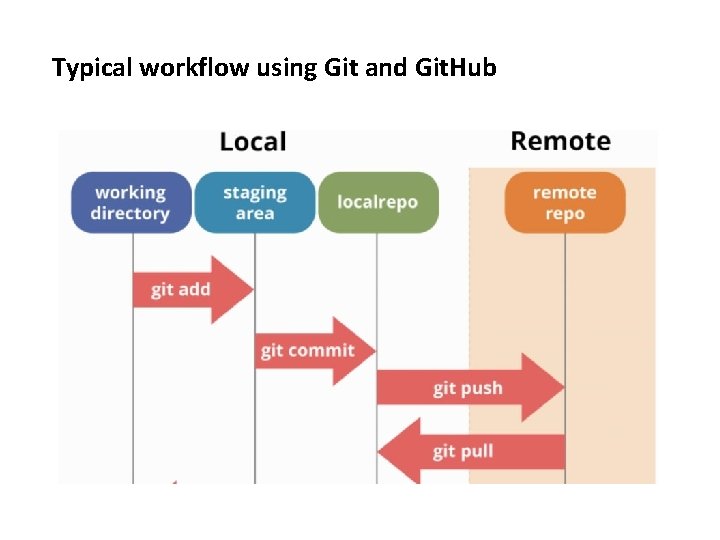
Basic Git commands • Clone: copy a repository to the location of your choice • Add: put a new file into source control • Commit: save changes to a version snapshot in local repository
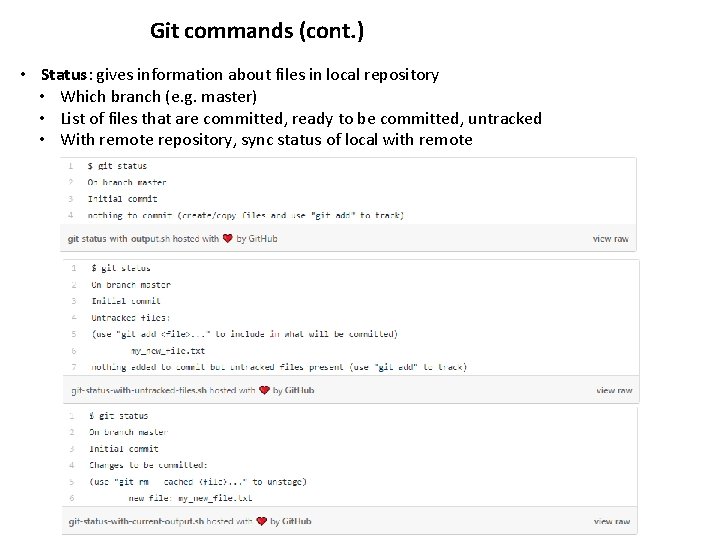
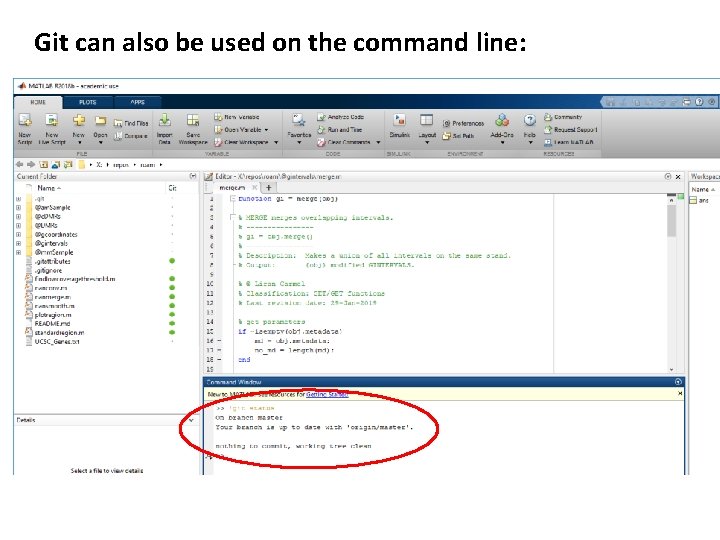
Git commands (cont. ) • Status: gives information about files in local repository • Which branch (e. g. master) • List of files that are committed, ready to be committed, untracked • With remote repository, sync status of local with remote
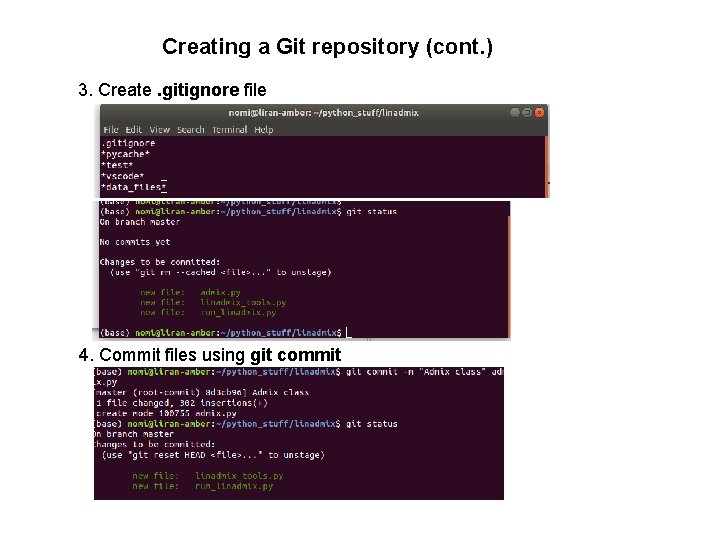
Some files don’t belong in repository • Data files • Test scripts • User-specific files Create a file called. gitignore and list filenames and types that should not be tracked (including. gitignore!).
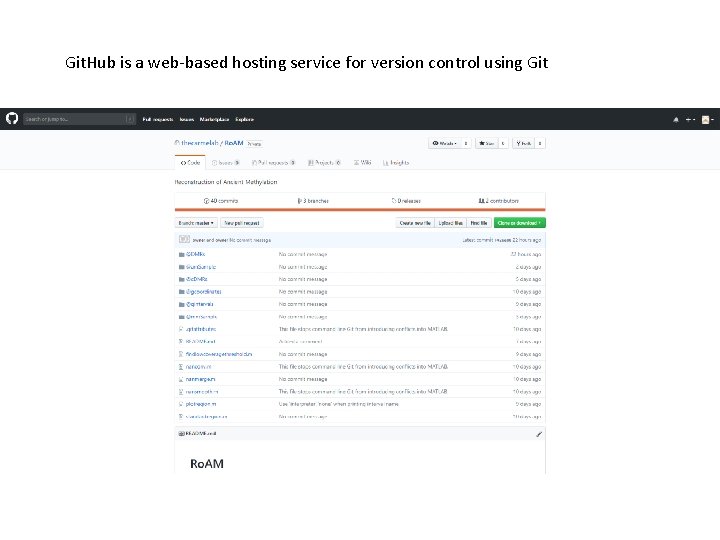
Git. Hub is a web-based hosting service for version control using Git
More Git commands • • • Push: upload commits to remote repository Fetch: get changes from remote repository Merge: combine fetched changes with local repository Pull: does Fetch and Merge in one step (may fail if there are conflicts)
Typical workflow using Git and Git. Hub Pull
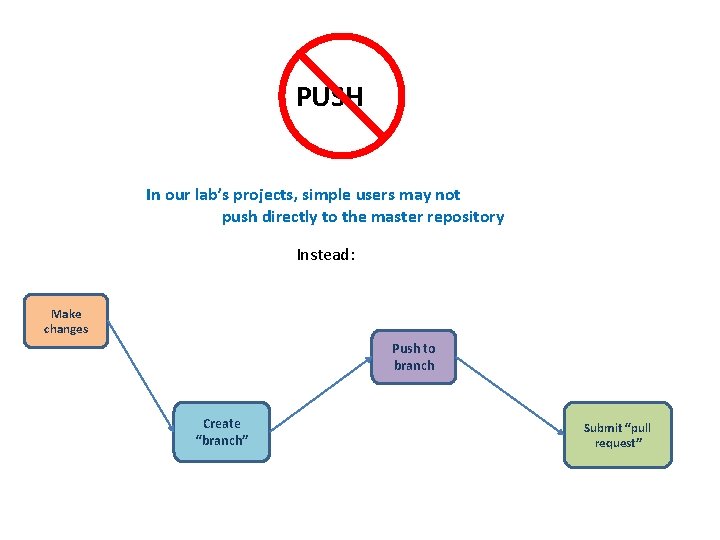
PUSH In our lab’s projects, simple users may not push directly to the master repository Instead: Make changes Push to branch Create “branch” Submit “pull request”
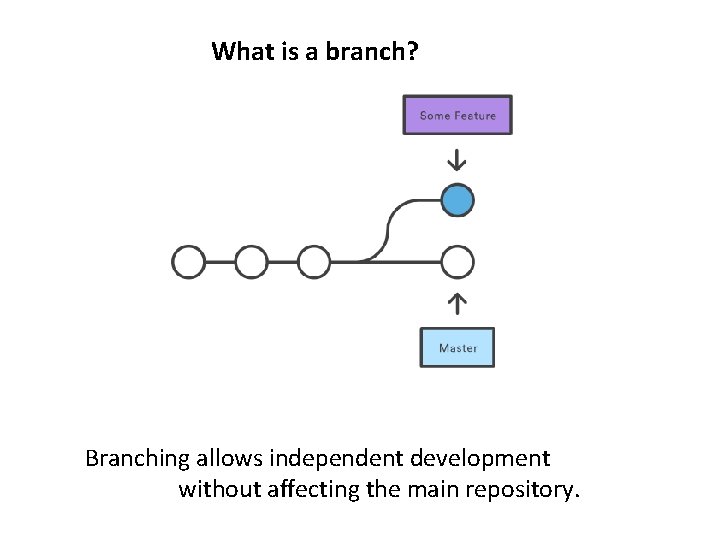
What is a branch? Branching allows independent development without affecting the main repository.
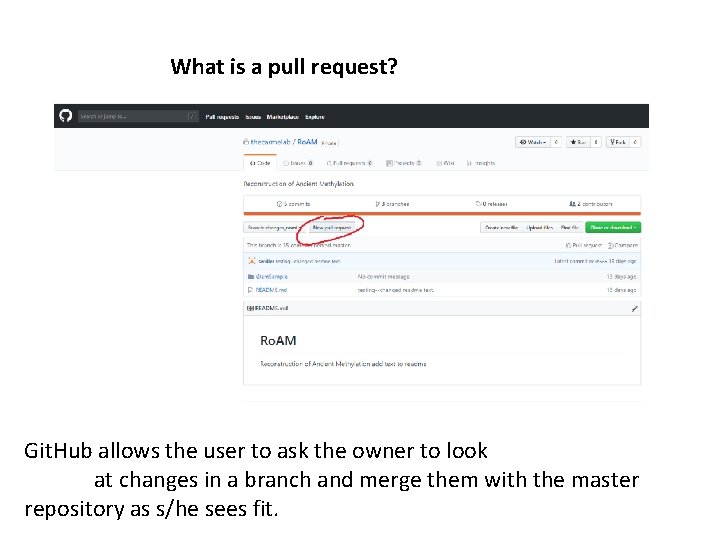
What is a pull request? Git. Hub allows the user to ask the owner to look at changes in a branch and merge them with the master repository as s/he sees fit.
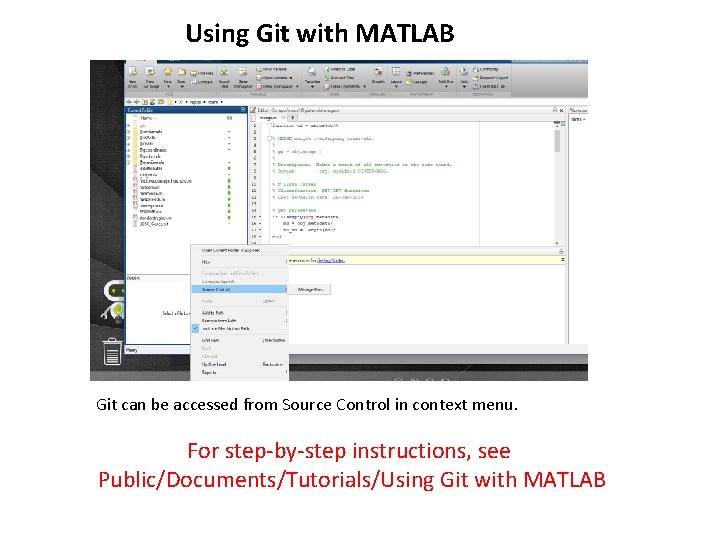
Using Git with MATLAB Git can be accessed from Source Control in context menu. For step-by-step instructions, see Public/Documents/Tutorials/Using Git with MATLAB
Git can also be used on the command line:
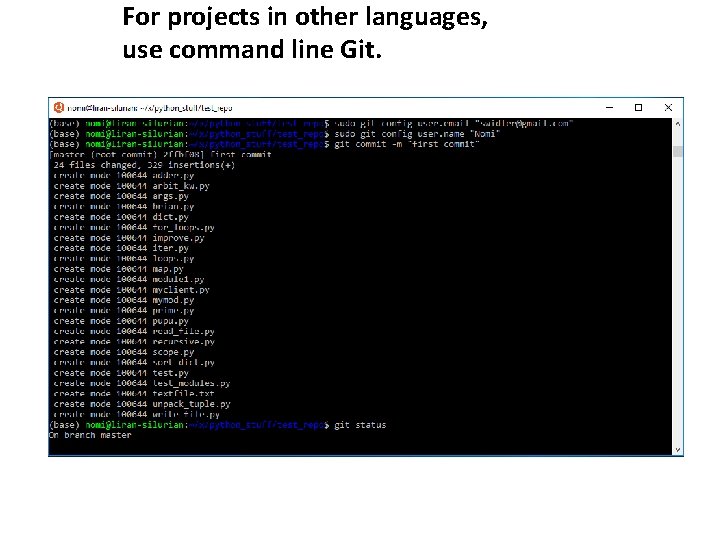
For projects in other languages, use command line Git.
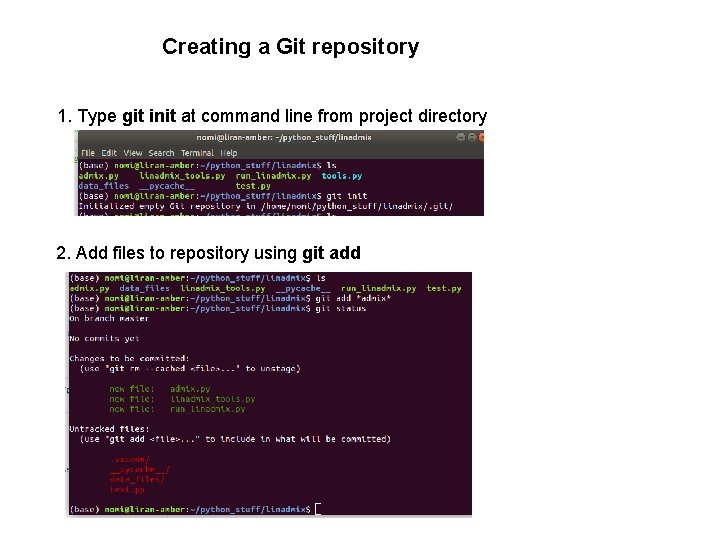
Creating a Git repository 1. Type git init at command line from project directory 2. Add files to repository using git add
Creating a Git repository (cont. ) 3. Create. gitignore file 4. Commit files using git commit
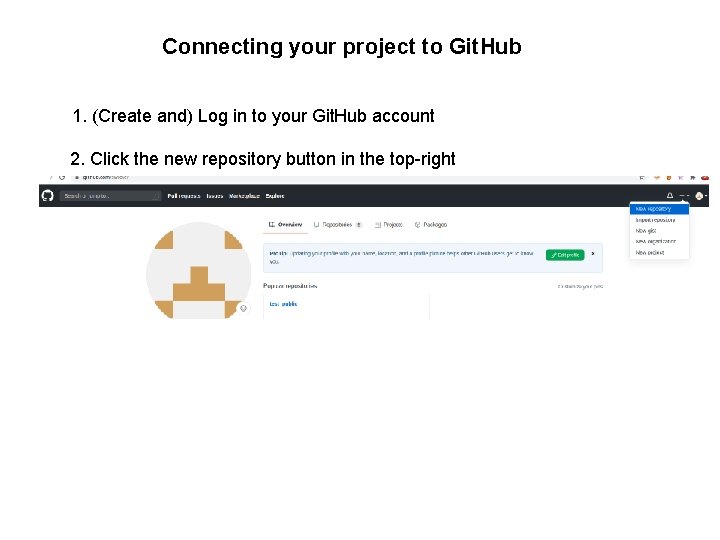
Connecting your project to Git. Hub 1. (Create and) Log in to your Git. Hub account 2. Click the new repository button in the top-right
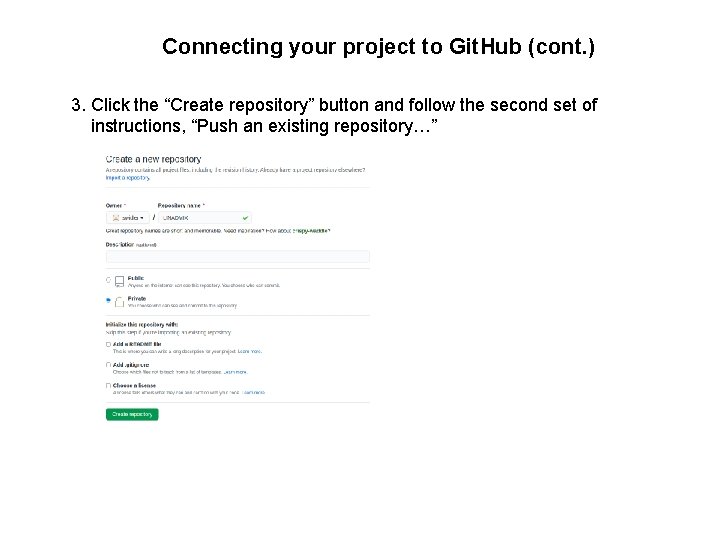
Connecting your project to Git. Hub (cont. ) 3. Click the “Create repository” button and follow the second set of instructions, “Push an existing repository…”
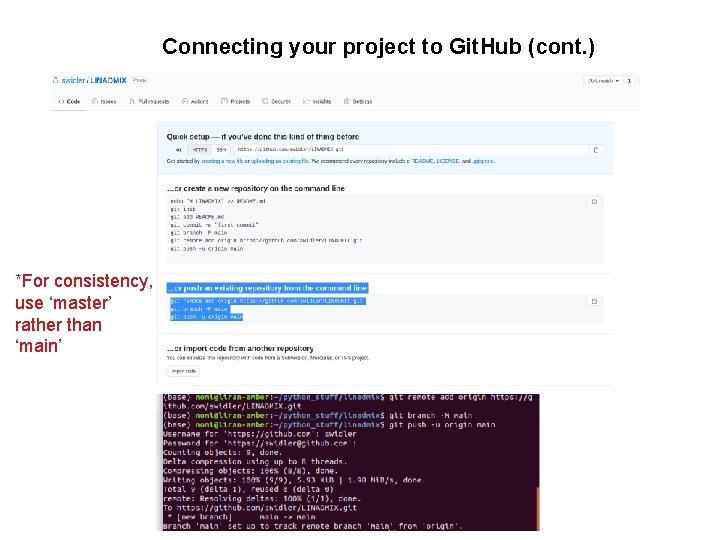
Connecting your project to Git. Hub (cont. ) *For consistency, use ‘master’ rather than ‘main’
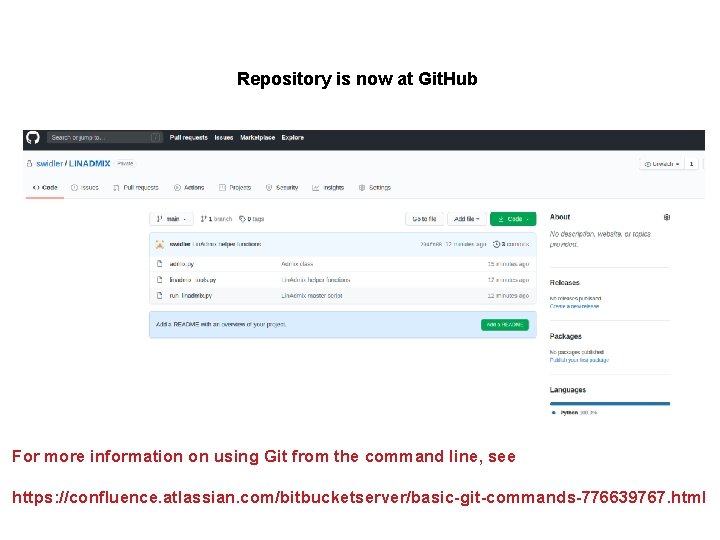
Repository is now at Git. Hub For more information on using Git from the command line, see https: //confluence. atlassian. com/bitbucketserver/basic-git-commands-776639767. html
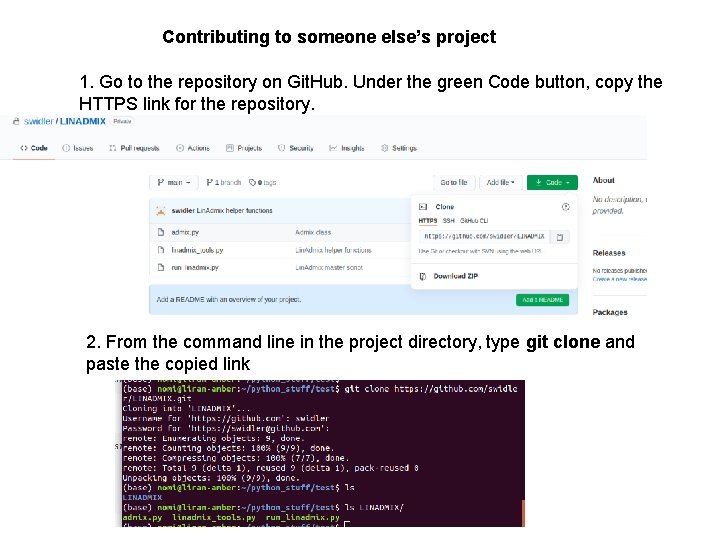
Contributing to someone else’s project 1. Go to the repository on Git. Hub. Under the green Code button, copy the HTTPS link for the repository. 2. From the command line in the project directory, type git clone and paste the copied link