
What is Simulation Introduction VDI Verein Deutscher Ingenieure


















- Slides: 60
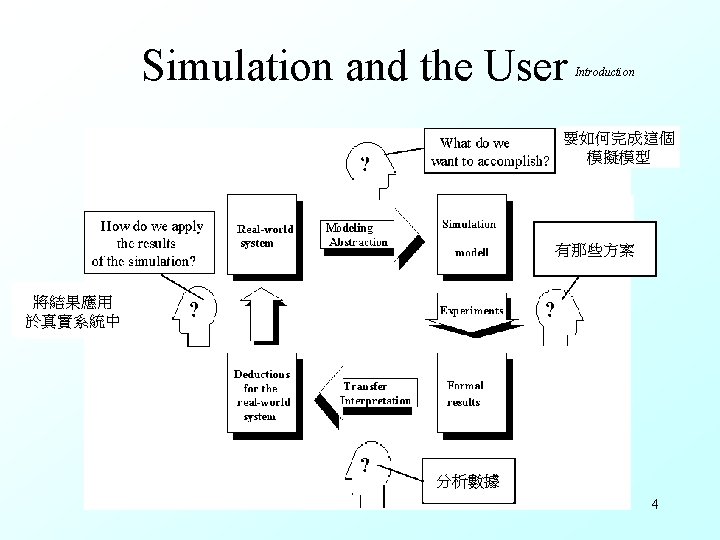
What is Simulation? Introduction VDI (Verein Deutscher Ingenieure =Association of German Engineers) guideline 3633 defines simulation as follows: Simulation is the imitation of dynamic processes within a model, to arrive at results that may be transferred to real systems. 真實系統 修改系統 模擬系統 數據分析 3
新增資料夾、Frame 在物件類別資料庫中新增一個Training_Model的 資料夾(Folder),並在Training_Model中建立一 個新的Folder及一個Frame,將Folder的名稱更 改為Mus(Move Units) 9
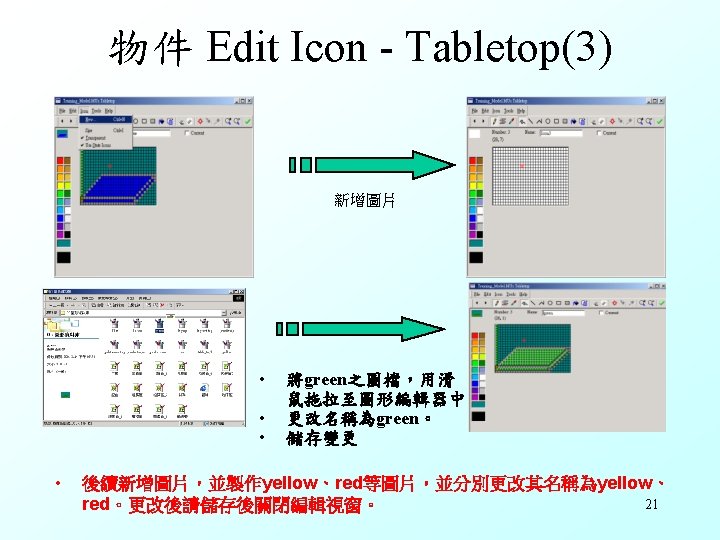
物件Icon Edit功能說明(1) Open 開啟圖檔 Cut Image 剪下 Save 儲存檔案 Copy Image 複製 Save As… 另存檔案 Paste Image 貼上 Apply Changes 變更並儲存 Paste Area 區域貼上 Apply Changes and Close 變更儲存並關 掉視窗 刪除圖片 繪製顏色指定 Discard Changes and Close 摒除變更並關 掉視窗 Delete Icon Drawing Color… Replace Color 顏色指定 13
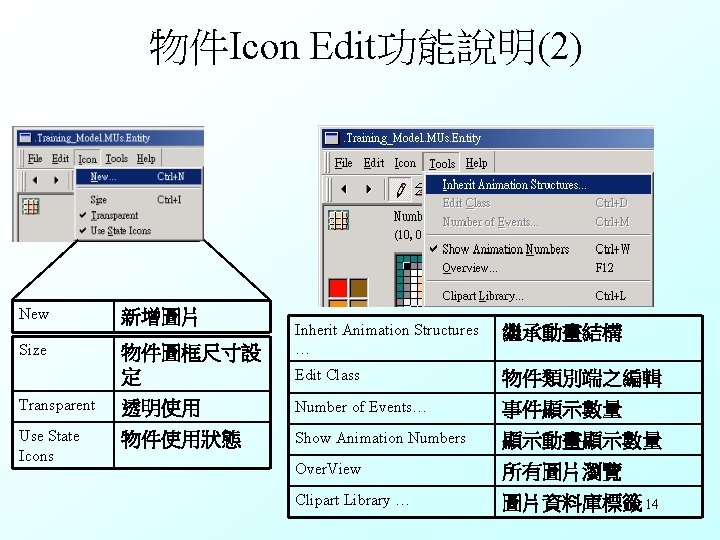
物件Icon Edit功能說明(2) New Size 新增圖片 物件圖框尺寸設 定 Inherit Animation Structures … 繼承動畫結構 Edit Class 物件類別端之編輯 Transparent 透明使用 Number of Events… 事件顯示數量 Use State Icons 物件使用狀態 Show Animation Numbers 顯示動畫顯示數量 Over. View 所有圖片瀏覽 Clipart Library … 圖片資料庫標籤 14
物件 Edit Icon - Tabletop(4) 黃色tabletop之圖形 紅色tabletop之圖形 22
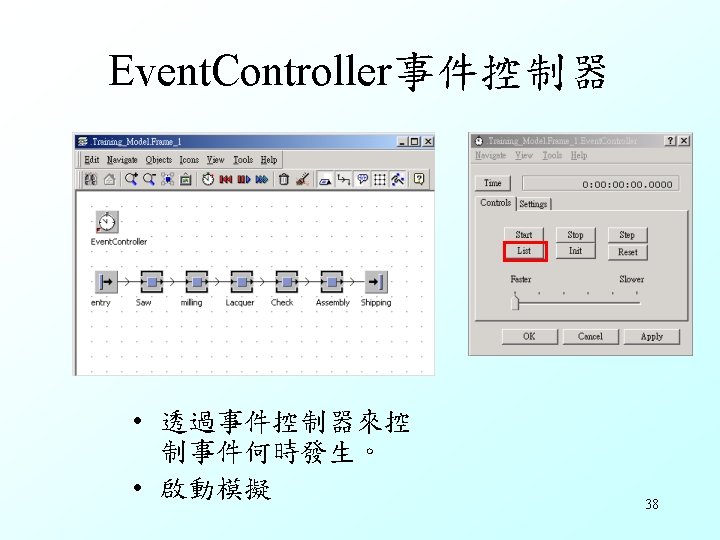
修改Frame之名稱 • 點選Training_Model中的Frame ,並將Frame更改成Frame_1 27
The Basic Object : Drain Features: Modeling • icon: • capacity: 1 • active material flow basic object 物件離開系統之處 32
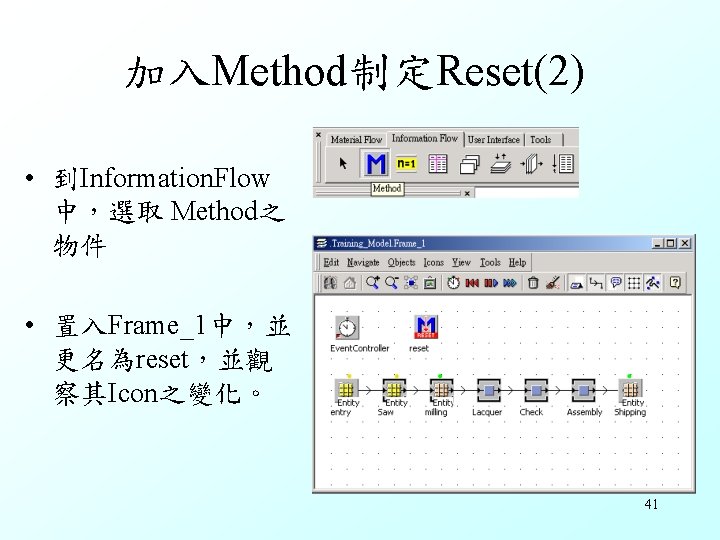
加入Method制定Reset(2) • 到Information. Flow 中,選取 Method之 物件 • 置入Frame_1中,並 更名為reset,並觀 察其Icon之變化。 41
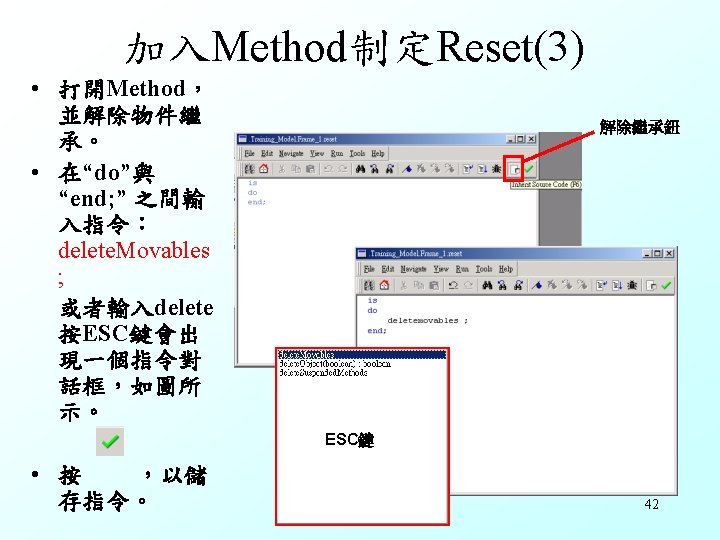
執行Reset 執行Event. Controller中的reset,則Frame_1中的 Mus全被刪除掉。 43
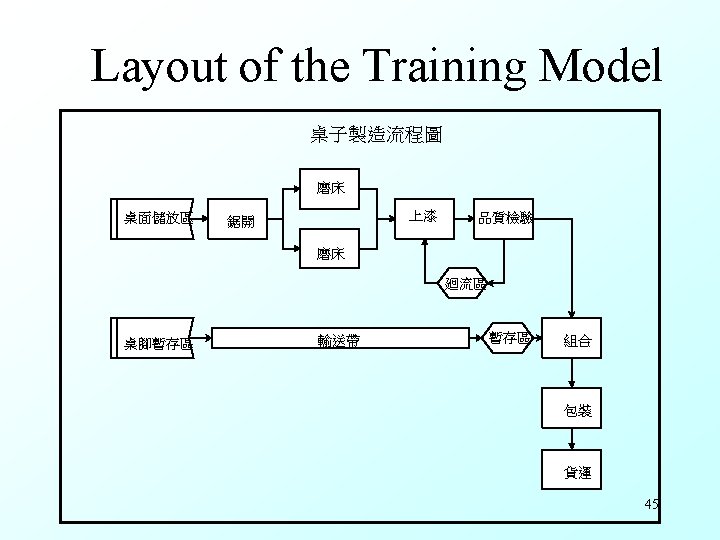
第二個model,Frame_2 44
加入Single. Proc物件 • 打開Frame_2之物 件 • 加入一個Single. Proc 物件,並與saw及 Lacquer站相互連結。 • 修改milling的名稱 為milling 1 • 修改Single. Proc的名 稱為milling 2 48
Frame_3分流 51
說明 • 在之前Frame_2時,entity是依照輪流的方式進 行配送給milling 1及milling 2。 • Frame_3系列將運用比例來分配entity。 • Frame_3_1將運用Flow. Control物件來分配entity • Frame_3_2將運用Saw(Single. Proc物件)中的Exit Strategy來分配entity • 觀察Frame_3_1及Frame_3_2的在有無block的情 況之下的運作情形。 52
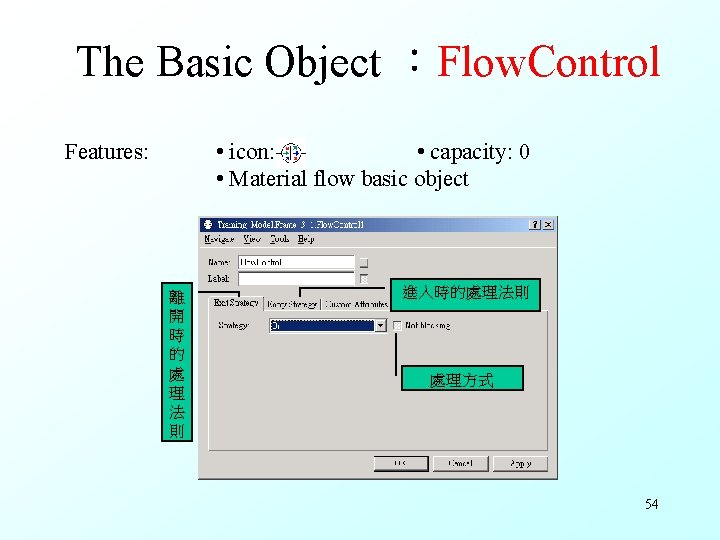
The Basic Object :Flow. Control Features: • icon: • capacity: 0 • Material flow basic object 離 開 時 的 處 理 法 則 進入時的處理法則 處理方式 54
Frame_3_1 • 移除saw與milling 1及 milling 2間之connector。 • 加入Flow. Control物件。 並變更名稱為: flow. Ctrl。 • 點選Connector,移動至 saw物件上點選saw,之 後連接saw-flow. Ctrl, flowctrl-milling 1及 flowctrl-milling 2 55
Flow. Control之設定(1) • 點選Frame_3_1中的 flow. Ctrl物件,打開 flow. Ctrl物件。 • 選擇Exit Strategy分 類頁,選擇Strategy 中的Percentage。 • 打開Open List 56
Frame_3_2 • 打開Frame_3_2,點選 Saw物件,並打開saw 物件屬性表。 • 選擇Exit Strategy分類 頁 • 將Exit Strategy中之 Strategy的Cyclic變更 成Percentage (請參考下一頁投影片) 59