
What IS it Seesaw is a digital journal



- Slides: 35
What IS it?
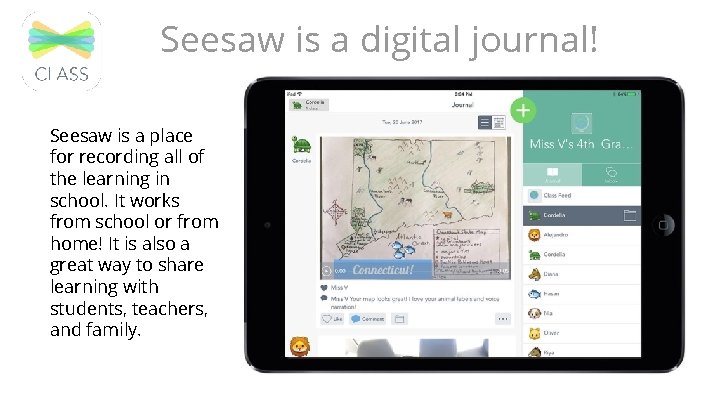
Seesaw is a digital journal! Seesaw is a place for recording all of the learning in school. It works from school or from home! It is also a great way to share learning with students, teachers, and family.
What equipment is needed?
works on any device. Computer Laptop Chromebook i. Pad / Tablet Smart Phone
Logging In
My. Humble is THE place to login ONCE with a student network login and immediately have access to ALL available applications. But, there are other options for our Littles, if needed. . .
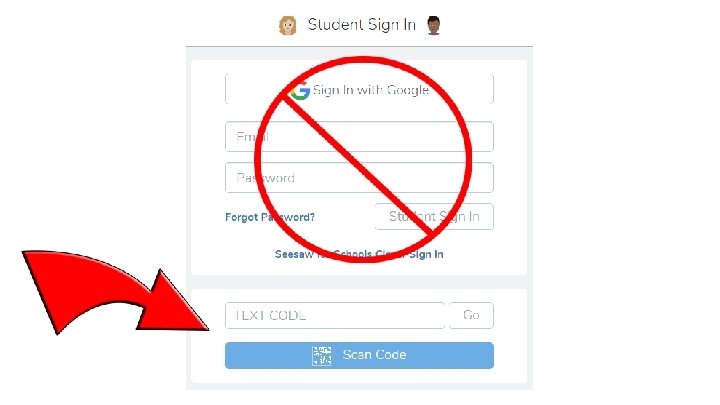
Kinder and 1 st Grade students may log in directly to Seesaw using the Home Learning Text or QR code.
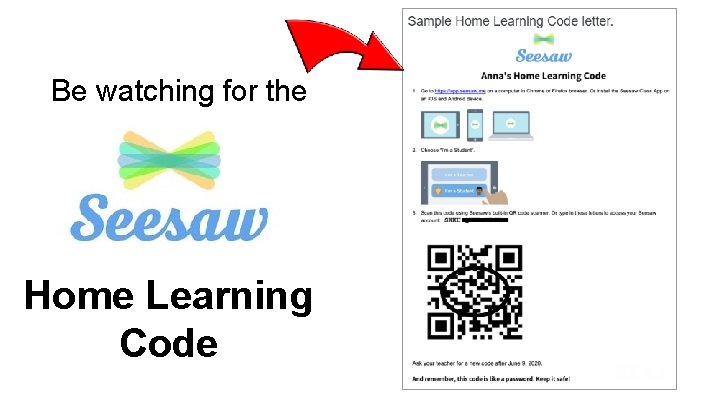
Be watching for the Home Learning Code
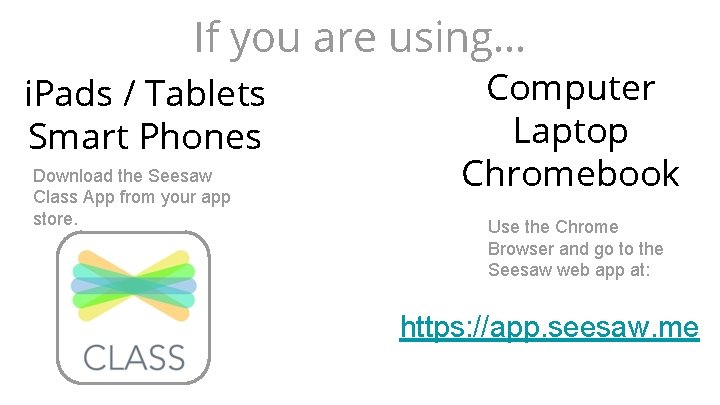
If you are using. . . i. Pads / Tablets Smart Phones Download the Seesaw Class App from your app store. Computer Laptop Chromebook Use the Chrome Browser and go to the Seesaw web app at: https: //app. seesaw. me
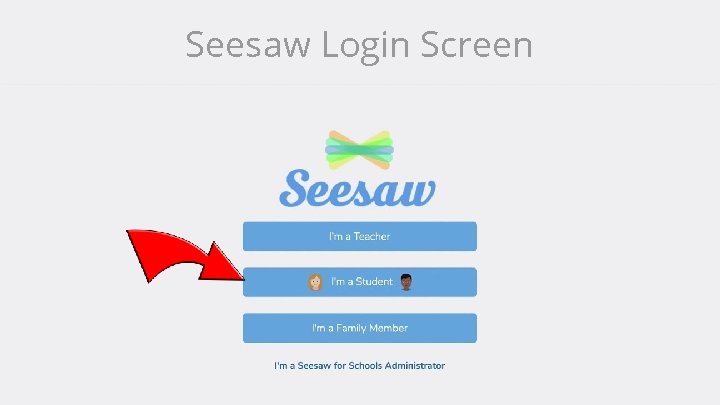
Seesaw Login Screen
What happens after logging in?
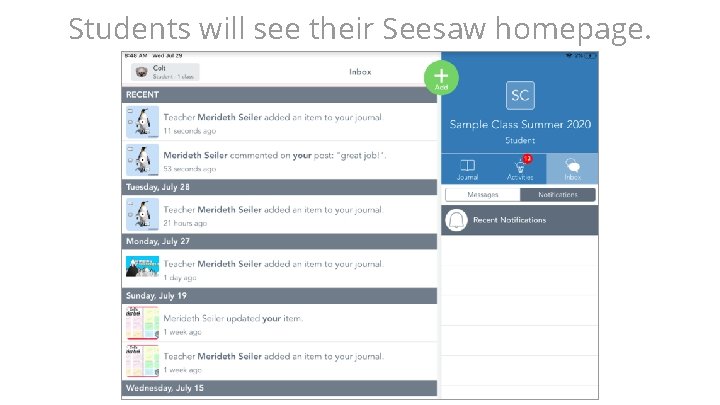
Students will see their Seesaw homepage.
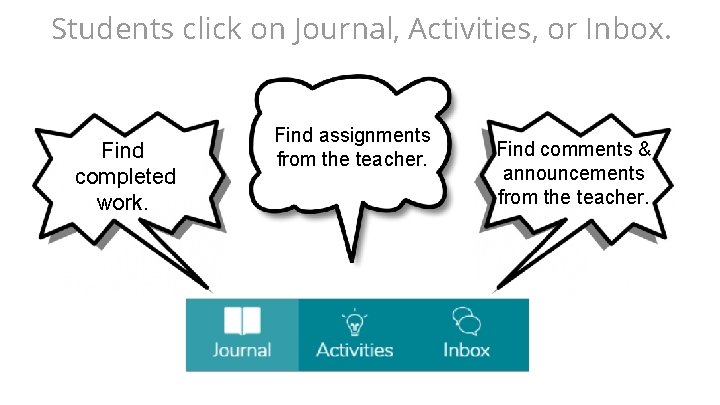
Students click on Journal, Activities, or Inbox. Find completed work. Find assignments from the teacher. Find comments & announcements from the teacher.
Completing an assignment
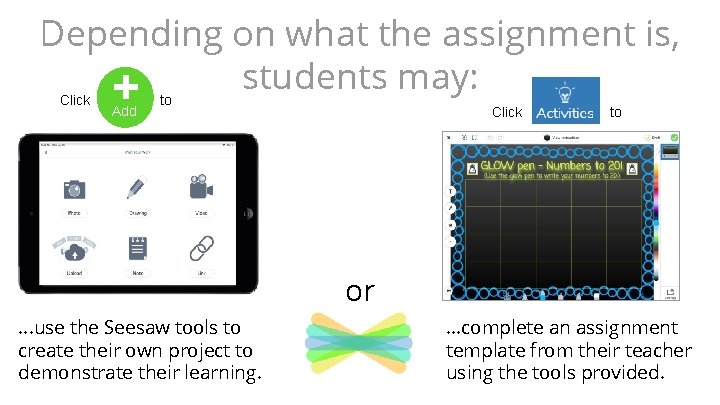
Depending on what the assignment is, students may: + Click Add to Click to or. . . use the Seesaw tools to create their own project to demonstrate their learning. . complete an assignment template from their teacher using the tools provided.
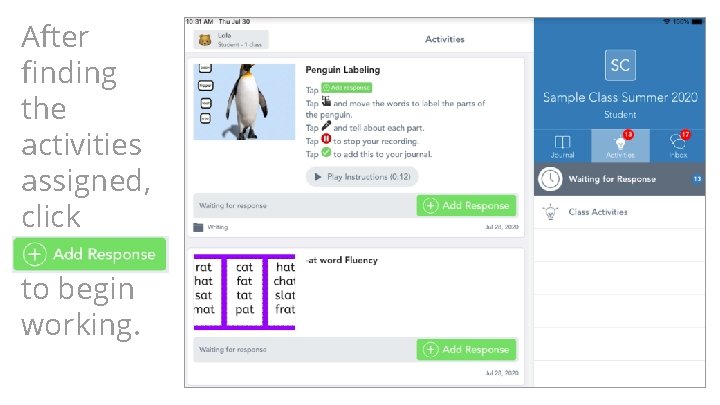
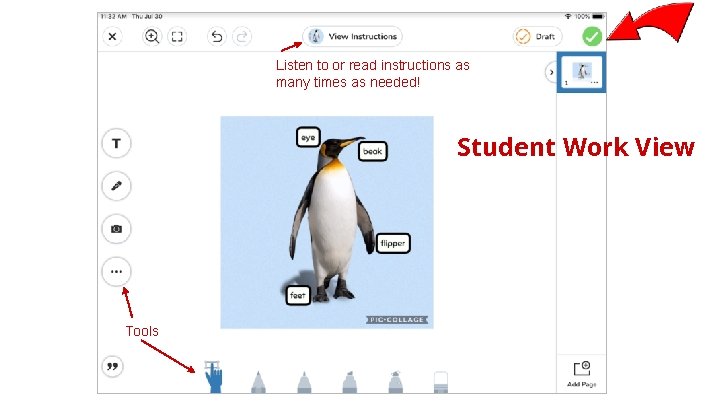
After finding the activities assigned, click to begin working.
Click the to turn in work.
Listen to or read instructions as many times as needed! Student Work View Tools
Once work has been graded, it can be found in the Journal feed.
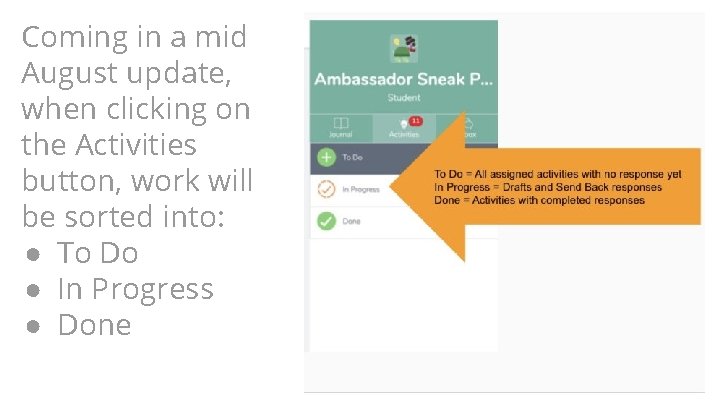
Coming in a mid August update, when clicking on the Activities button, work will be sorted into: ● To Do ● In Progress ● Done
Communication in Seesaw Class app
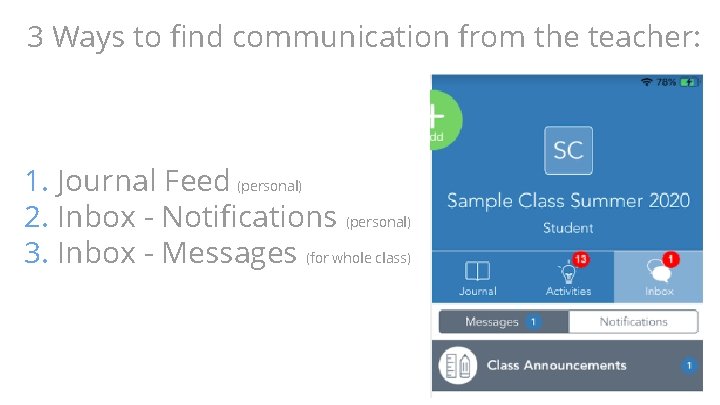
3 Ways to find communication from the teacher: 1. Journal Feed (personal) 2. Inbox - Notifications (personal) 3. Inbox - Messages (for whole class)
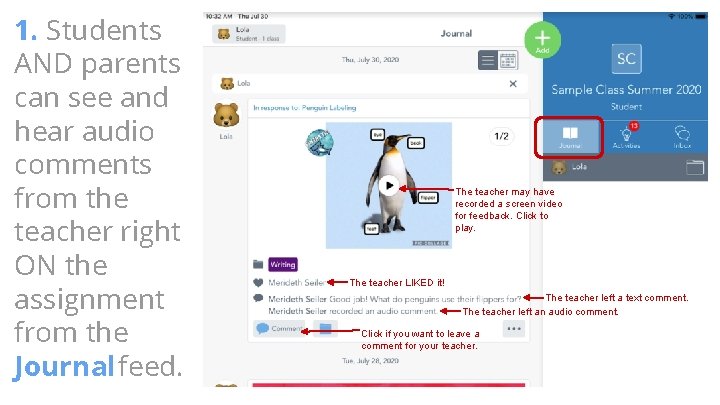
1. Students AND parents can see and hear audio comments from the teacher right ON the assignment from the Journal feed. The teacher may have recorded a screen video for feedback. Click to play. The teacher LIKED it! The teacher left a text comment. The teacher left an audio comment. Click if you want to leave a comment for your teacher.
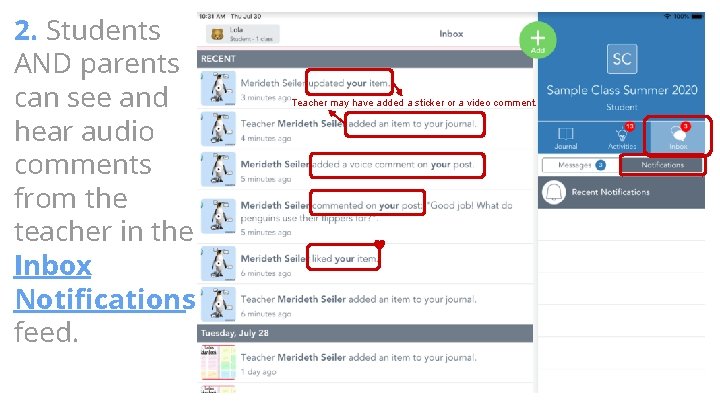
2. Students AND parents can see and hear audio comments from the teacher in the Inbox Notifications feed. Teacher may have added a sticker or a video comment.
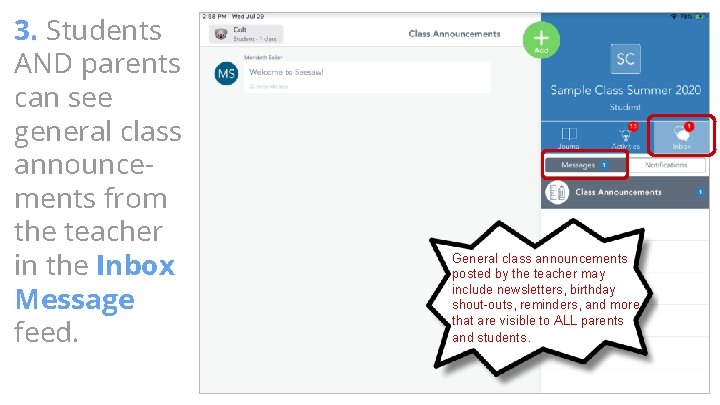
3. Students AND parents can see general class announcements from the teacher in the Inbox Message feed. General class announcements posted by the teacher may include newsletters, birthday shout-outs, reminders, and more that are visible to ALL parents and students.
Communication in Seesaw Family app
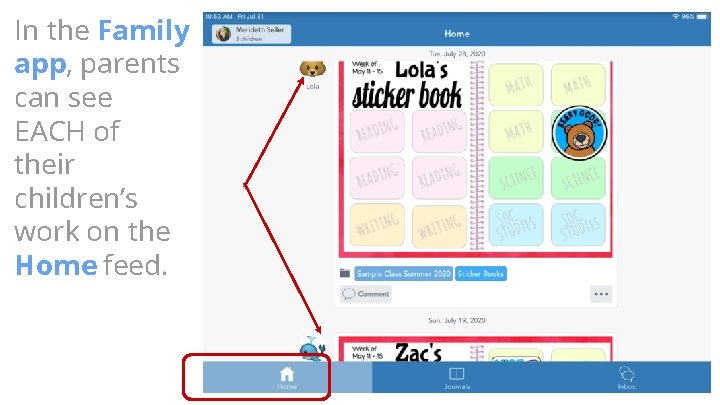
In the Family app, parents can see EACH of their children’s work on the Home feed.
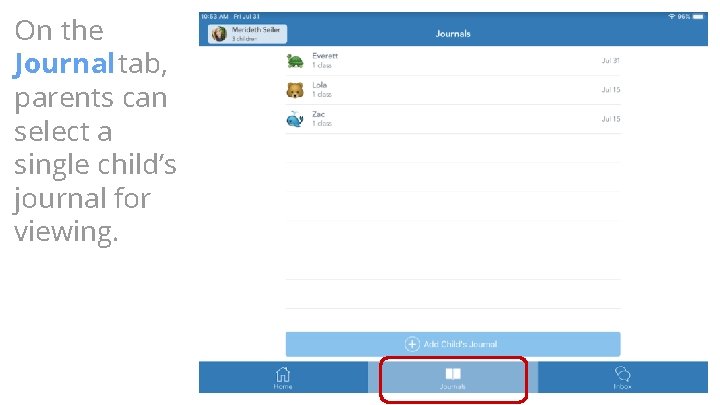
On the Journal tab, parents can select a single child’s journal for viewing.
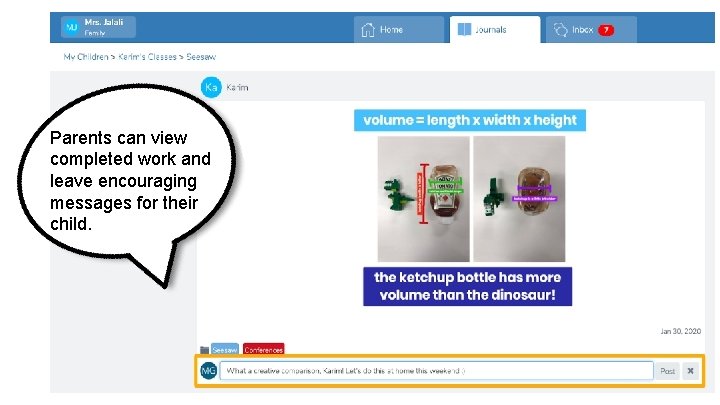
Parents can view completed work and leave encouraging messages for their child.
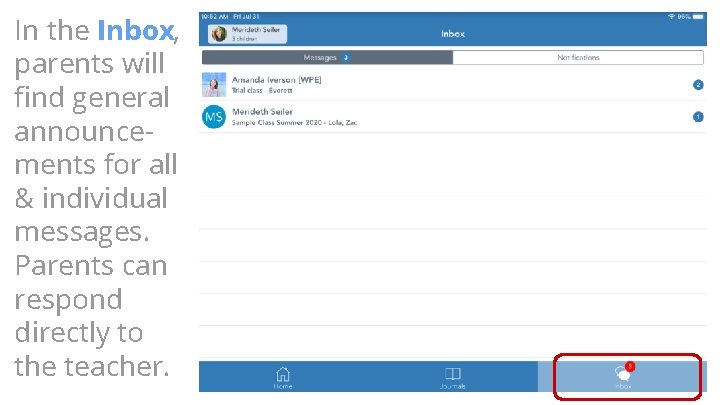
In the Inbox, parents will find general announcements for all & individual messages. Parents can respond directly to the teacher.
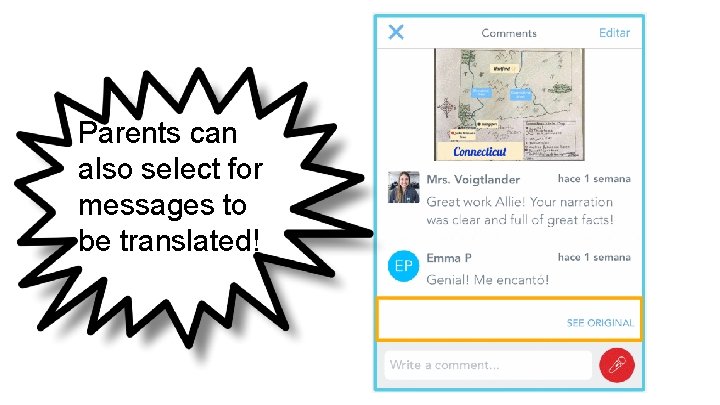
Parents can also select for messages to be translated!
Students cannot complete activities or post to their journal from.
Questions? Let’s have a GREAT year with Seesaw!