
What Is CSS stands fro Cascading Style Sheets
- Slides: 21
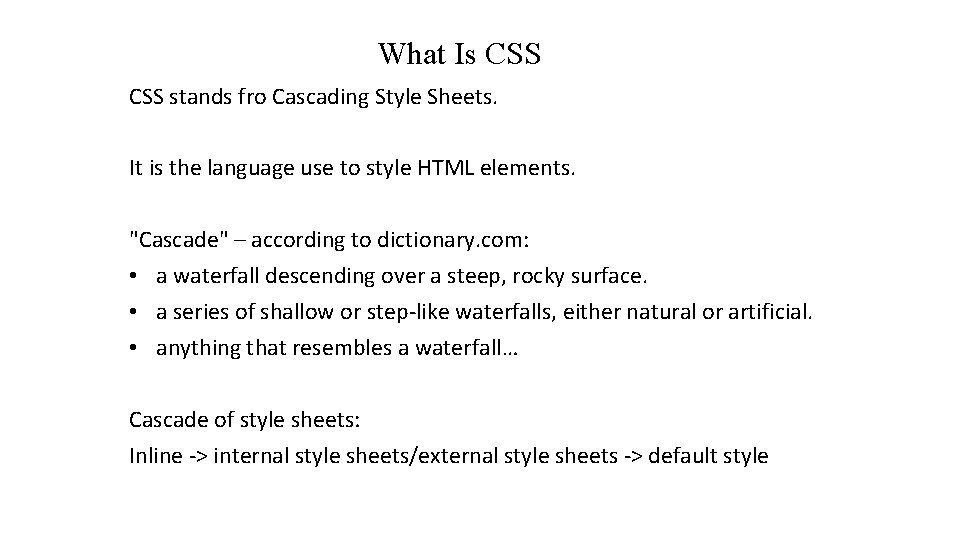
What Is CSS stands fro Cascading Style Sheets. It is the language use to style HTML elements. "Cascade" – according to dictionary. com: • a waterfall descending over a steep, rocky surface. • a series of shallow or step-like waterfalls, either natural or artificial. • anything that resembles a waterfall… Cascade of style sheets: Inline -> internal style sheets/external style sheets -> default style
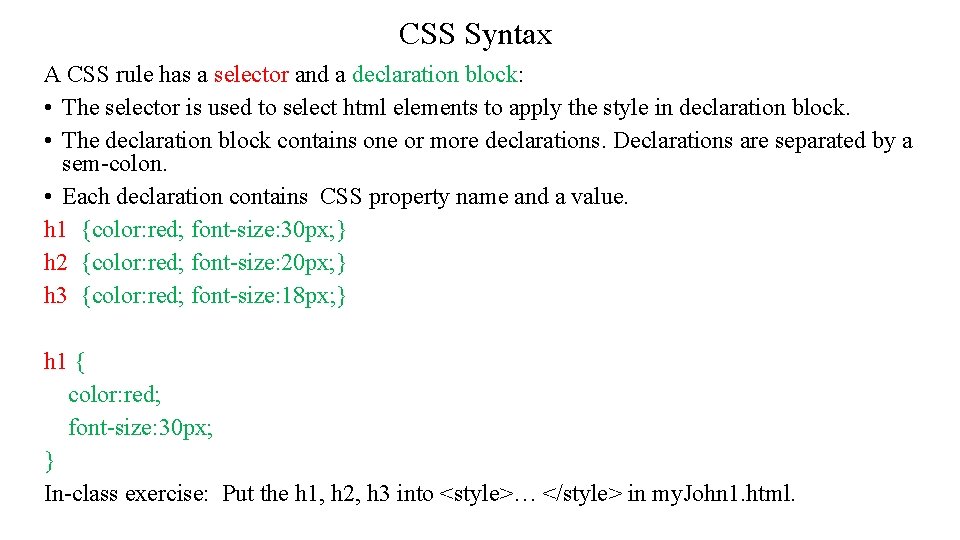
CSS Syntax A CSS rule has a selector and a declaration block: • The selector is used to select html elements to apply the style in declaration block. • The declaration block contains one or more declarations. Declarations are separated by a sem-colon. • Each declaration contains CSS property name and a value. h 1 {color: red; font-size: 30 px; } h 2 {color: red; font-size: 20 px; } h 3 {color: red; font-size: 18 px; } h 1 { color: red; font-size: 30 px; } In-class exercise: Put the h 1, h 2, h 3 into <style>… </style> in my. John 1. html.
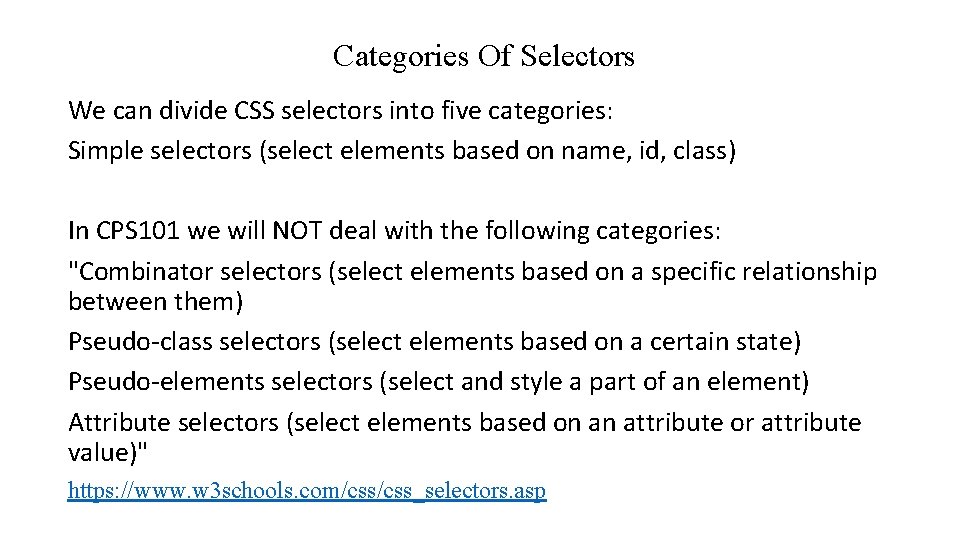
Categories Of Selectors We can divide CSS selectors into five categories: Simple selectors (select elements based on name, id, class) In CPS 101 we will NOT deal with the following categories: "Combinator selectors (select elements based on a specific relationship between them) Pseudo-class selectors (select elements based on a certain state) Pseudo-elements selectors (select and style a part of an element) Attribute selectors (select elements based on an attribute or attribute value)" https: //www. w 3 schools. com/css_selectors. asp
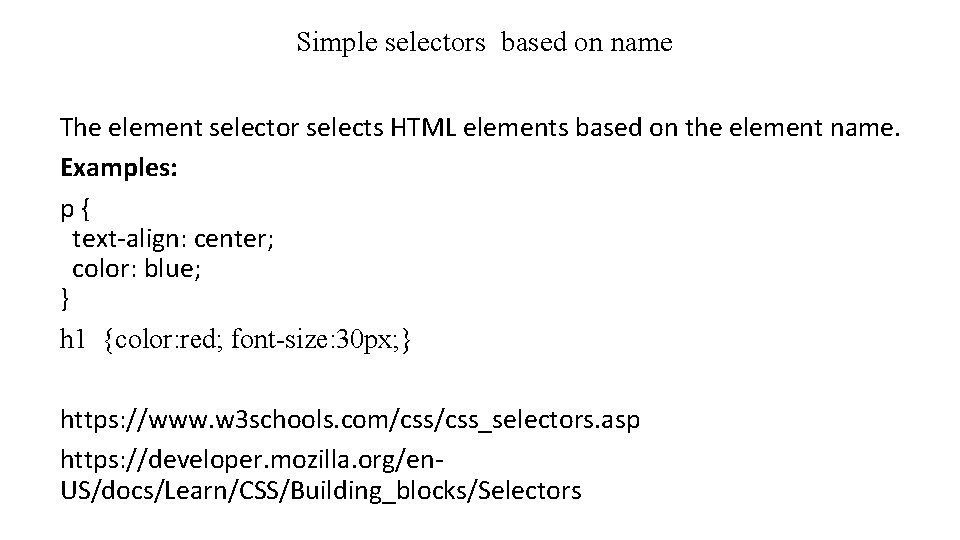
Simple selectors based on name The element selector selects HTML elements based on the element name. Examples: p { text-align: center; color: blue; } h 1 {color: red; font-size: 30 px; } https: //www. w 3 schools. com/css_selectors. asp https: //developer. mozilla. org/en. US/docs/Learn/CSS/Building_blocks/Selectors
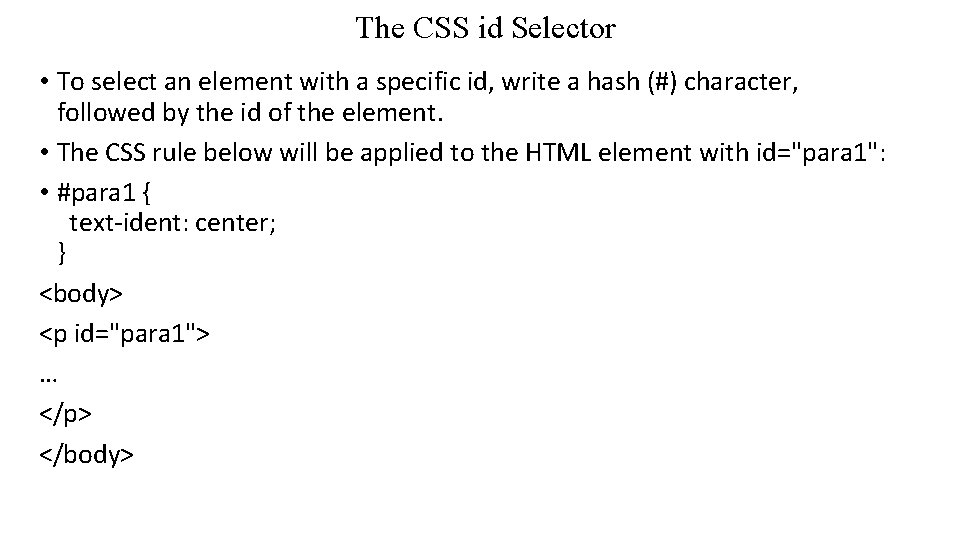
The CSS id Selector • To select an element with a specific id, write a hash (#) character, followed by the id of the element. • The CSS rule below will be applied to the HTML element with id="para 1": • #para 1 { text-ident: center; } <body> <p id="para 1"> … </p> </body>
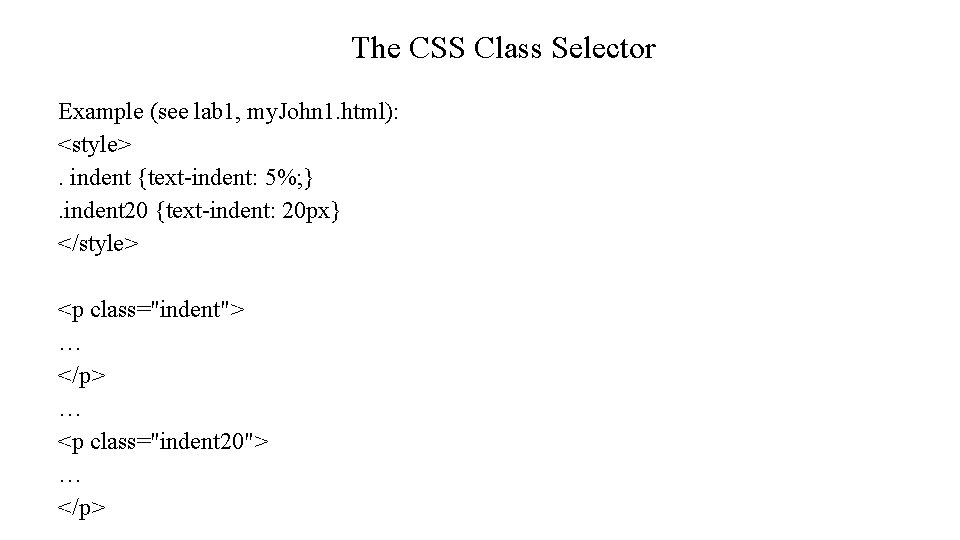
The CSS Class Selector Example (see lab 1, my. John 1. html): <style>. indent {text-indent: 5%; }. indent 20 {text-indent: 20 px} </style> <p class="indent"> … </p> … <p class="indent 20"> … </p>
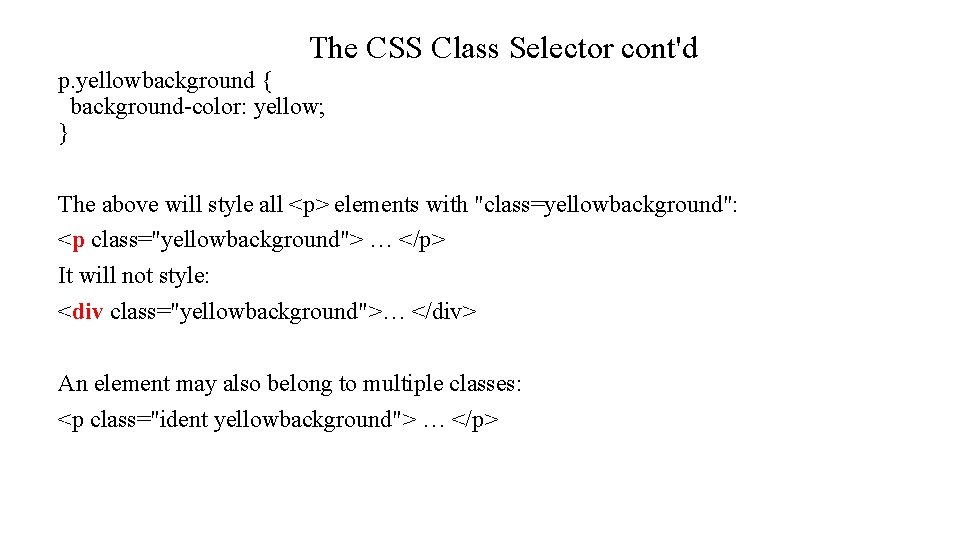
The CSS Class Selector cont'd p. yellowbackground { background-color: yellow; } The above will style all <p> elements with "class=yellowbackground": <p class="yellowbackground"> … </p> It will not style: <div class="yellowbackground">… </div> An element may also belong to multiple classes: <p class="ident yellowbackground"> … </p>
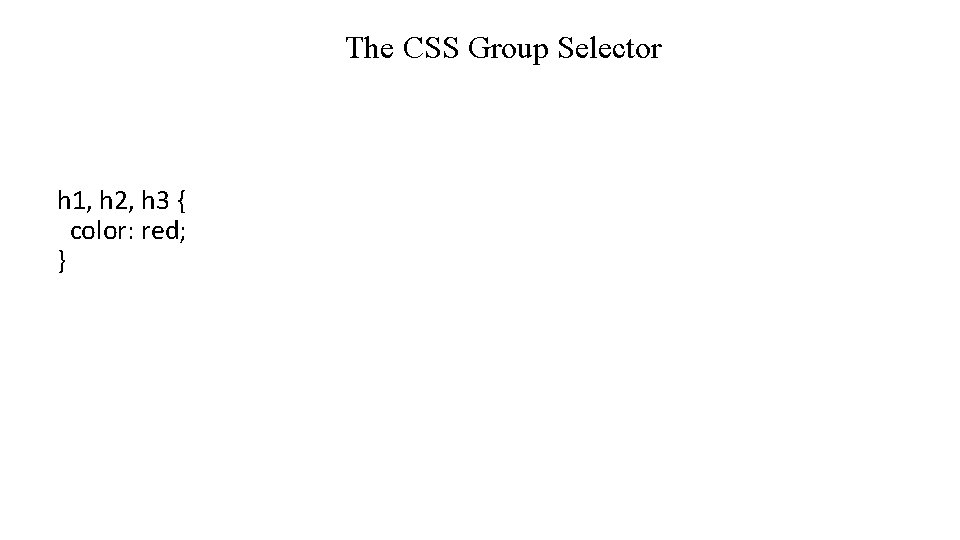
The CSS Group Selector h 1, h 2, h 3 { color: red; }
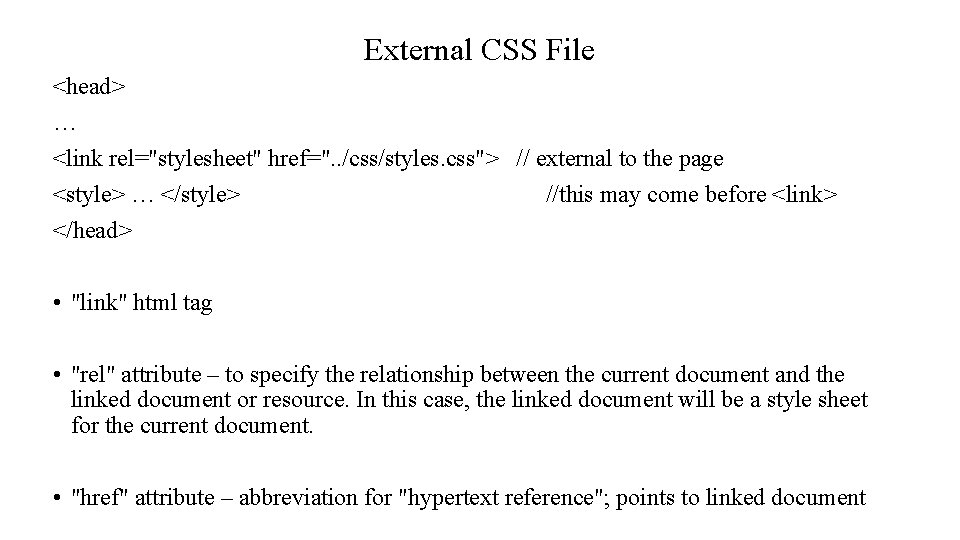
External CSS File <head> … <link rel="stylesheet" href=". . /css/styles. css"> // external to the page <style> … </style> //this may come before <link> </head> • "link" html tag • "rel" attribute – to specify the relationship between the current document and the linked document or resource. In this case, the linked document will be a style sheet for the current document. • "href" attribute – abbreviation for "hypertext reference"; points to linked document
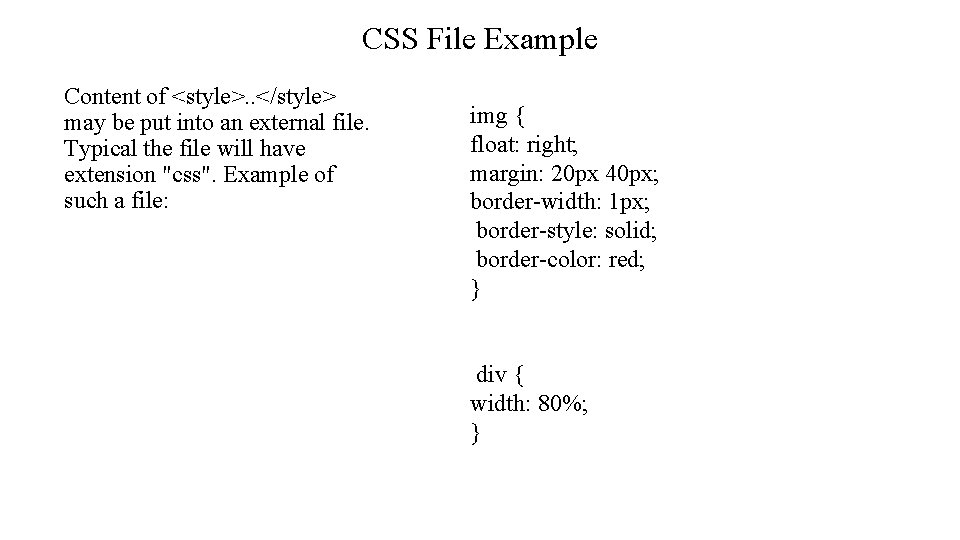
CSS File Example Content of <style>. . </style> may be put into an external file. Typical the file will have extension "css". Example of such a file: img { float: right; margin: 20 px 40 px; border-width: 1 px; border-style: solid; border-color: red; } div { width: 80%; }
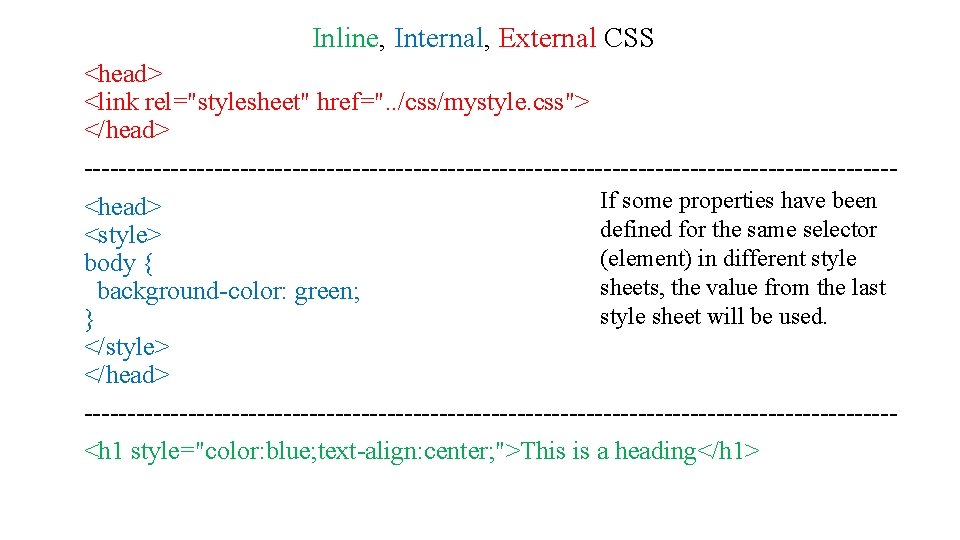
Inline, Internal, External CSS <head> <link rel="stylesheet" href=". . /css/mystyle. css"> </head> -----------------------------------------------If some properties have been <head> defined for the same selector <style> (element) in different style body { sheets, the value from the last background-color: green; style sheet will be used. } </style> </head> -----------------------------------------------<h 1 style="color: blue; text-align: center; ">This is a heading</h 1>
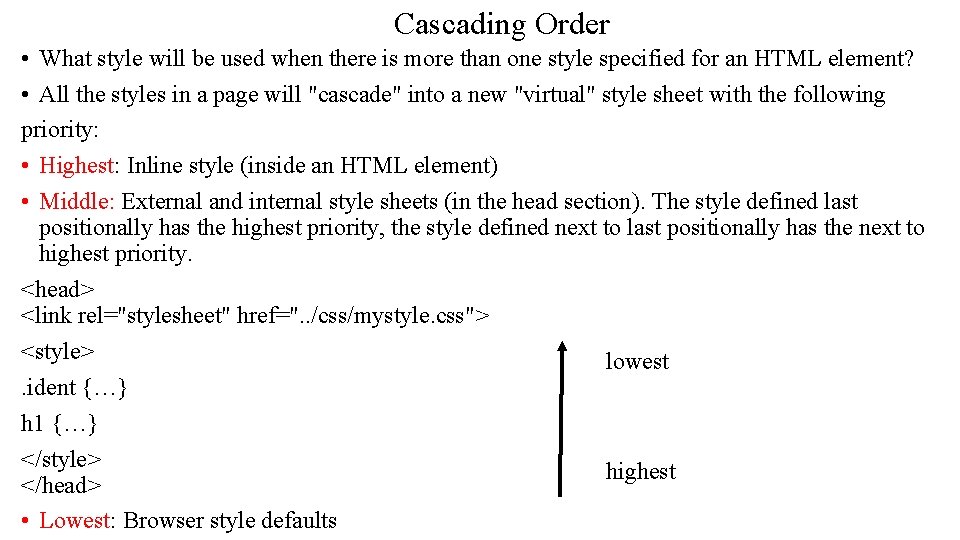
Cascading Order • What style will be used when there is more than one style specified for an HTML element? • All the styles in a page will "cascade" into a new "virtual" style sheet with the following priority: • Highest: Inline style (inside an HTML element) • Middle: External and internal style sheets (in the head section). The style defined last positionally has the highest priority, the style defined next to last positionally has the next to highest priority. <head> <link rel="stylesheet" href=". . /css/mystyle. css"> <style> lowest. ident {…} h 1 {…} </style> highest </head> • Lowest: Browser style defaults
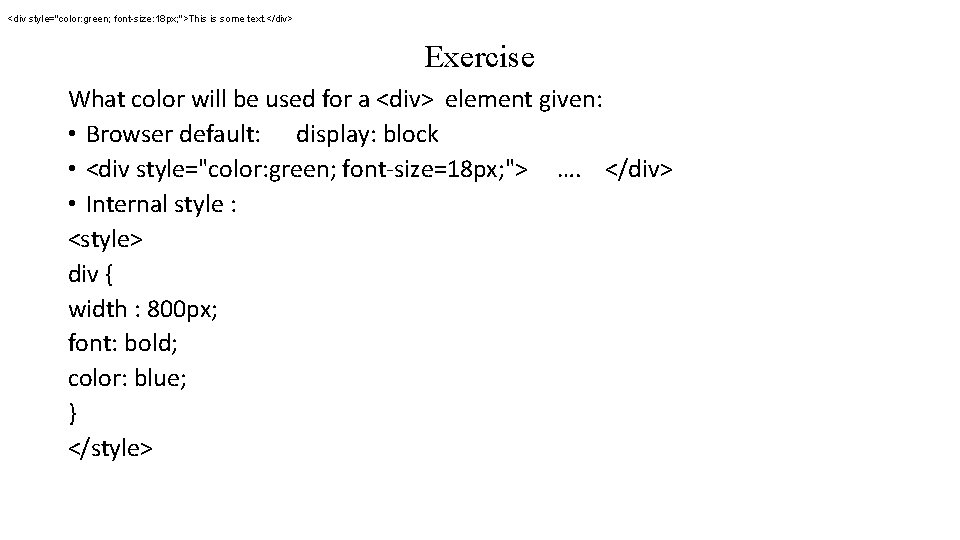
<div style="color: green; font-size: 18 px; ">This is some text. </div> Exercise What color will be used for a <div> element given: • Browser default: display: block • <div style="color: green; font-size=18 px; "> …. </div> • Internal style : <style> div { width : 800 px; font: bold; color: blue; } </style>
Advantages/Disadvantages of Each • Inline: (A), it is the least efficient implementation of CSS for maintenance. One single styling change might require multiple edits within a single web page. (B) Inline CSS also mixes style and content. In a large company, it is entirely possible to have one individual handle style, and another individual edit content. • Internal vs external • If a website has multiple pages with common stylistic designs, it would be best to put these common stylistic features in one single external style sheet so that one change in the external css file will affect all pages using that style.
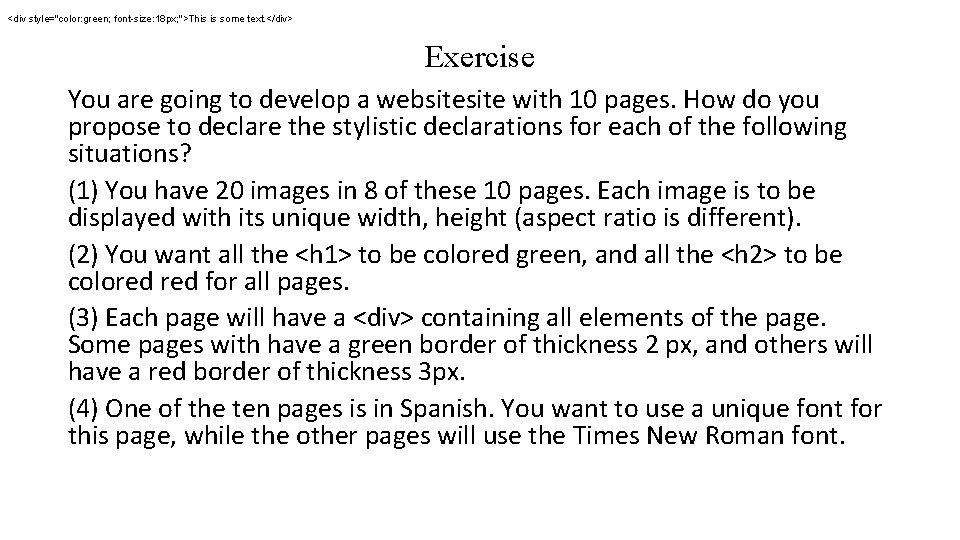
<div style="color: green; font-size: 18 px; ">This is some text. </div> Exercise You are going to develop a website with 10 pages. How do you propose to declare the stylistic declarations for each of the following situations? (1) You have 20 images in 8 of these 10 pages. Each image is to be displayed with its unique width, height (aspect ratio is different). (2) You want all the <h 1> to be colored green, and all the <h 2> to be colored for all pages. (3) Each page will have a <div> containing all elements of the page. Some pages with have a green border of thickness 2 px, and others will have a red border of thickness 3 px. (4) One of the ten pages is in Spanish. You want to use a unique font for this page, while the other pages will use the Times New Roman font.
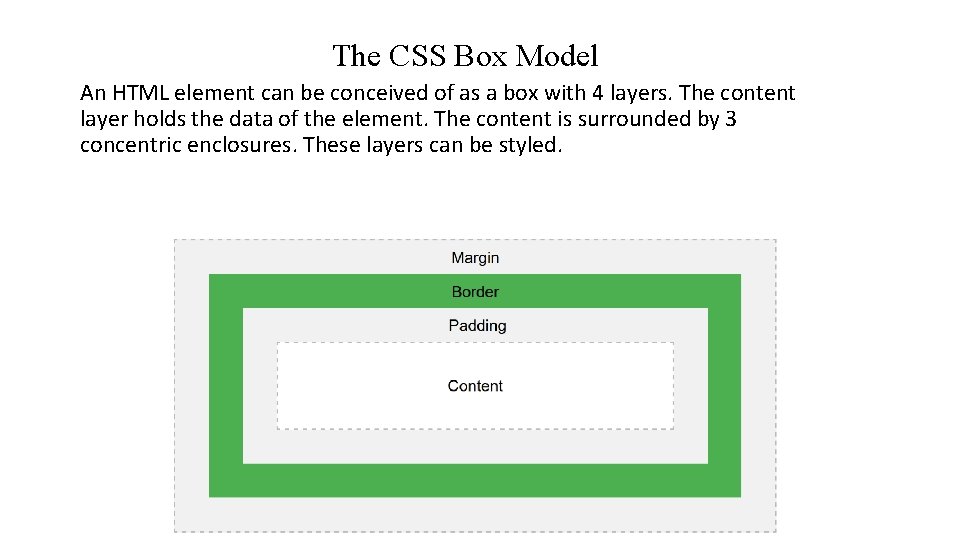
The CSS Box Model An HTML element can be conceived of as a box with 4 layers. The content layer holds the data of the element. The content is surrounded by 3 concentric enclosures. These layers can be styled.
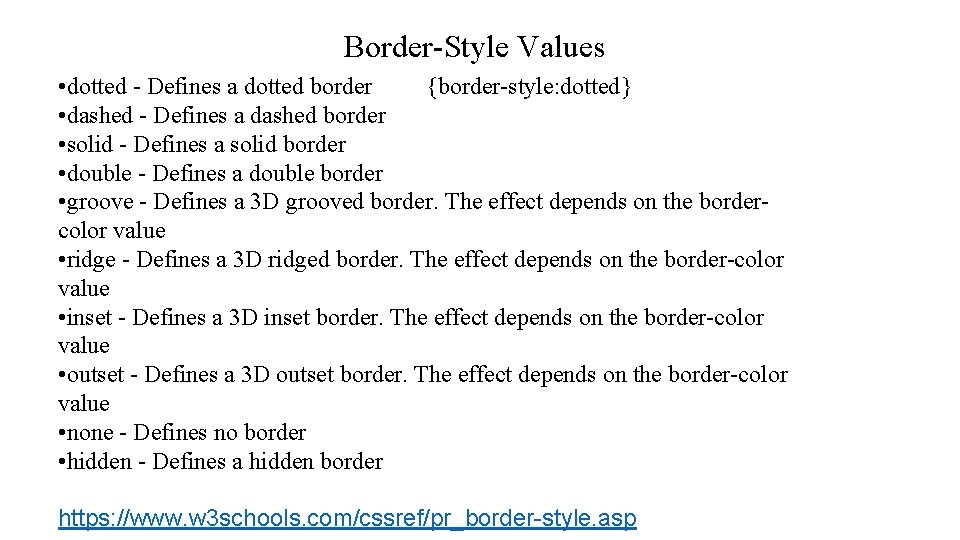
Border-Style Values • dotted - Defines a dotted border {border-style: dotted} • dashed - Defines a dashed border • solid - Defines a solid border • double - Defines a double border • groove - Defines a 3 D grooved border. The effect depends on the bordercolor value • ridge - Defines a 3 D ridged border. The effect depends on the border-color value • inset - Defines a 3 D inset border. The effect depends on the border-color value • outset - Defines a 3 D outset border. The effect depends on the border-color value • none - Defines no border • hidden - Defines a hidden border https: //www. w 3 schools. com/cssref/pr_border-style. asp
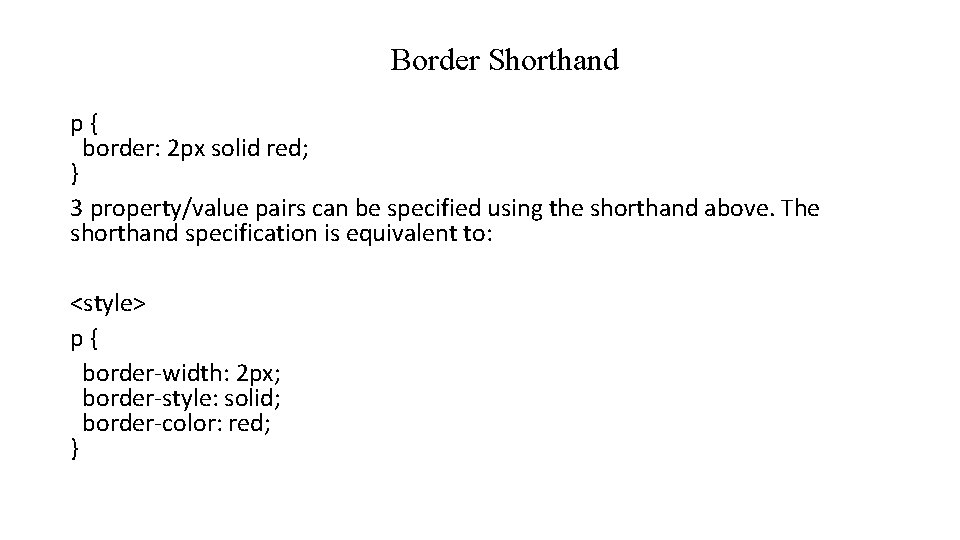
Border Shorthand p { border: 2 px solid red; } 3 property/value pairs can be specified using the shorthand above. The shorthand specification is equivalent to: <style> p { border-width: 2 px; border-style: solid; border-color: red; }
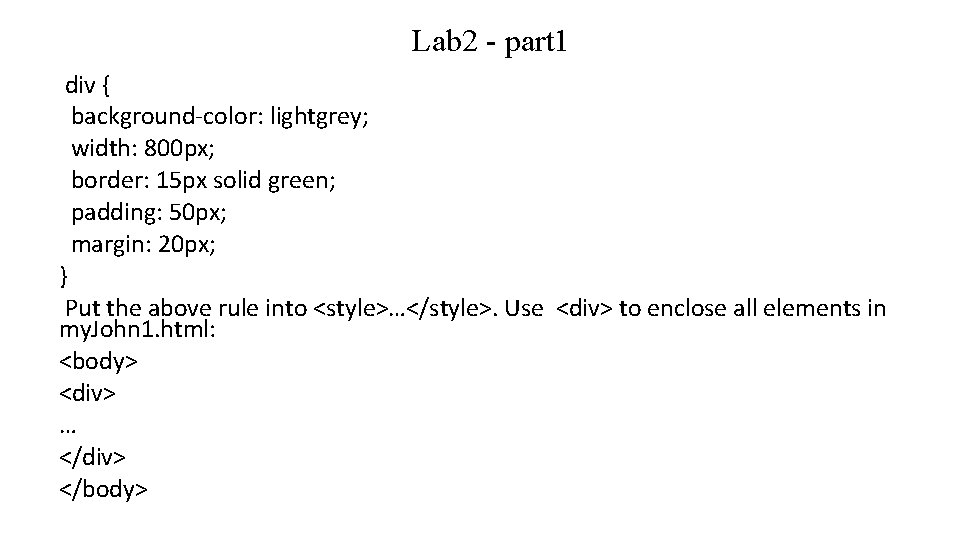
Lab 2 - part 1 div { background-color: lightgrey; width: 800 px; border: 15 px solid green; padding: 50 px; margin: 20 px; } Put the above rule into <style>…</style>. Use <div> to enclose all elements in my. John 1. html: <body> <div> … </div> </body>
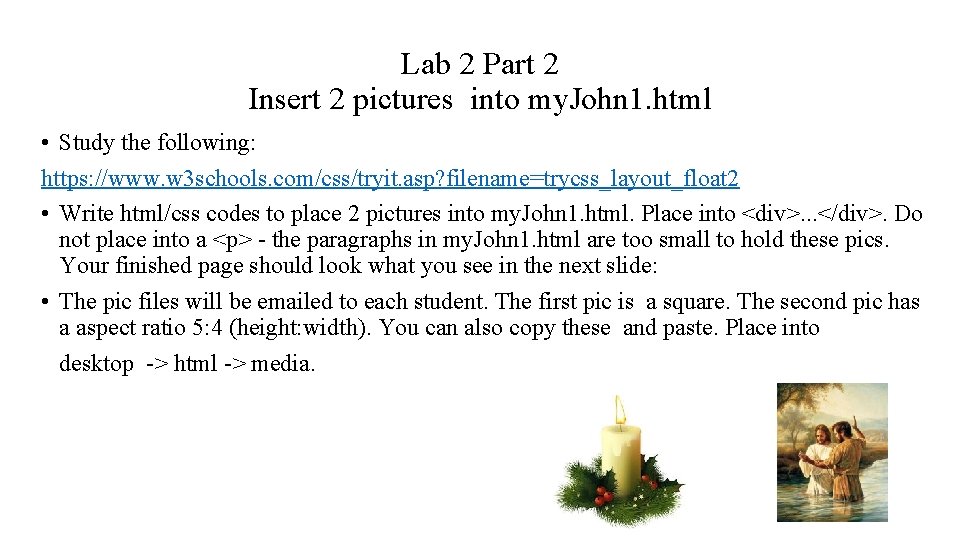
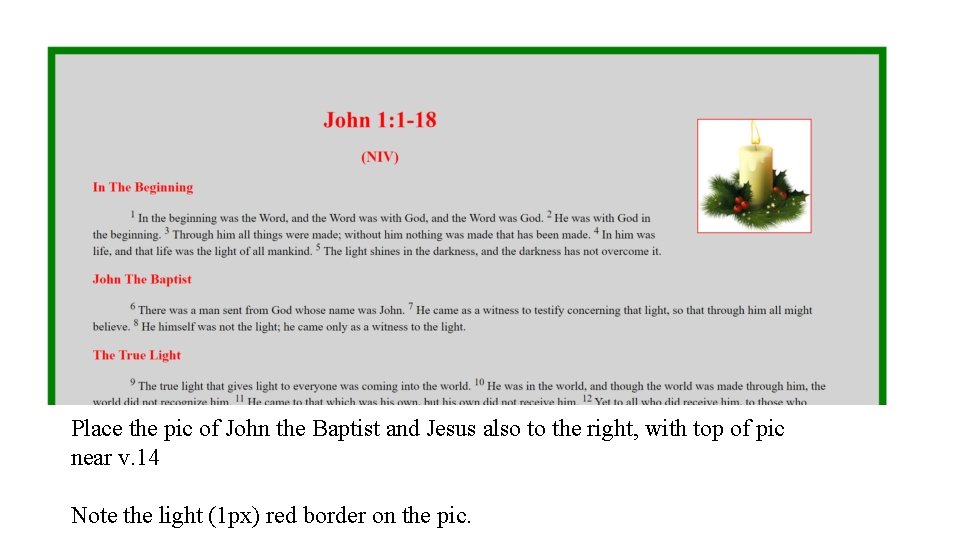
Lab 2 Part 2 Insert 2 pictures into my. John 1. html • Study the following: https: //www. w 3 schools. com/css/tryit. asp? filename=trycss_layout_float 2 • Write html/css codes to place 2 pictures into my. John 1. html. Place into <div>. . . </div>. Do not place into a <p> - the paragraphs in my. John 1. html are too small to hold these pics. Your finished page should look what you see in the next slide: • The pic files will be emailed to each student. The first pic is a square. The second pic has a aspect ratio 5: 4 (height: width). You can also copy these and paste. Place into desktop -> html -> media.
Place the pic of John the Baptist and Jesus also to the right, with top of pic near v. 14 Note the light (1 px) red border on the pic.