
West Virginia Bureau of Behavioral Health BBH System

West Virginia Bureau of Behavioral Health (BBH) System of Care Epi Info Implementation Training Last Updated: July 13, 2021

Packaging and Submitting Data to BBH
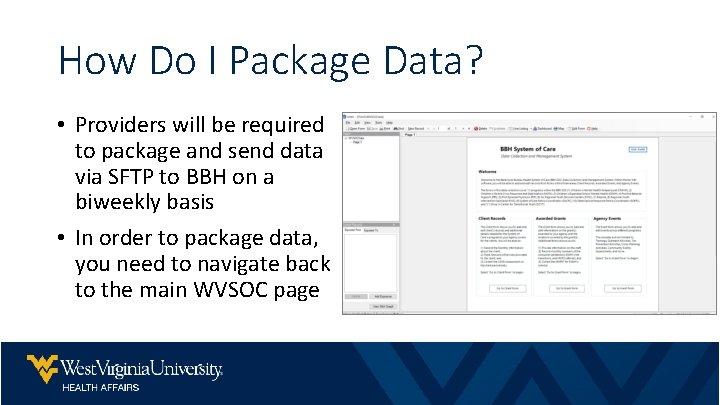
How Do I Package Data? • Providers will be required to package and send data via SFTP to BBH on a biweekly basis • In order to package data, you need to navigate back to the main WVSOC page
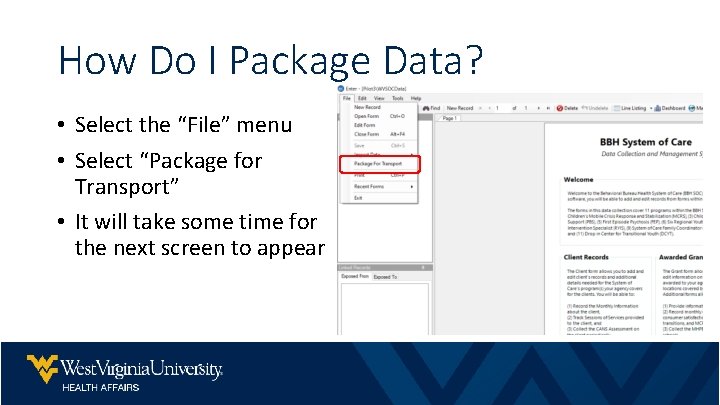
How Do I Package Data? • Select the “File” menu • Select “Package for Transport” • It will take some time for the next screen to appear
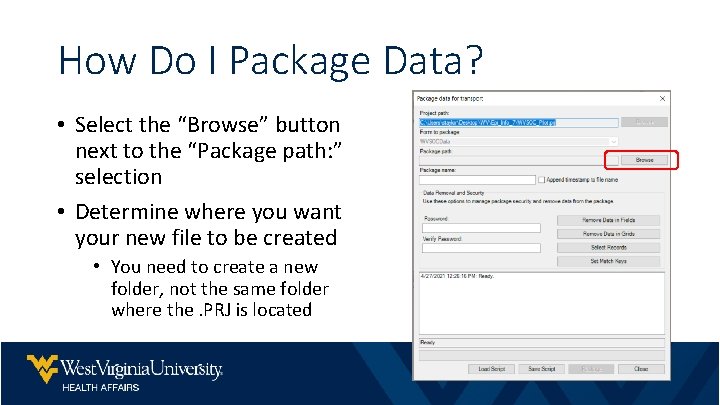
How Do I Package Data? • Select the “Browse” button next to the “Package path: ” selection • Determine where you want your new file to be created • You need to create a new folder, not the same folder where the. PRJ is located
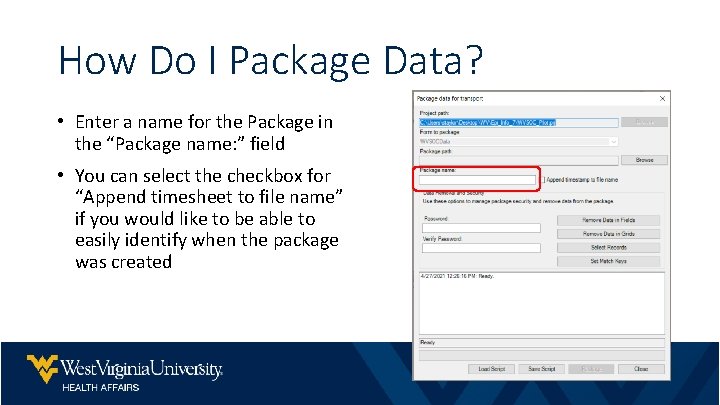
How Do I Package Data? • Enter a name for the Package in the “Package name: ” field • You can select the checkbox for “Append timesheet to file name” if you would like to be able to easily identify when the package was created
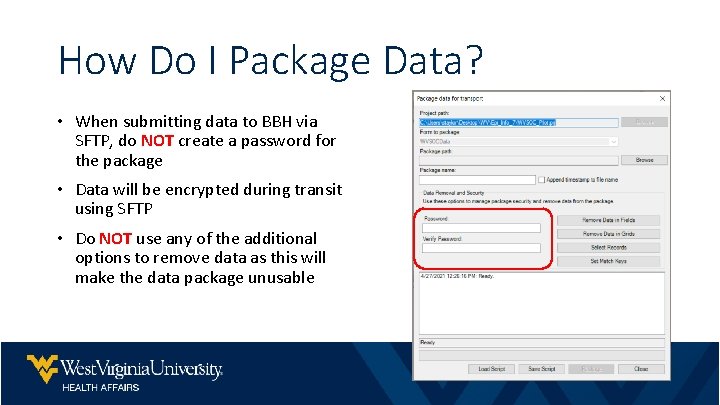
How Do I Package Data? • When submitting data to BBH via SFTP, do NOT create a password for the package • Data will be encrypted during transit using SFTP • Do NOT use any of the additional options to remove data as this will make the data package unusable
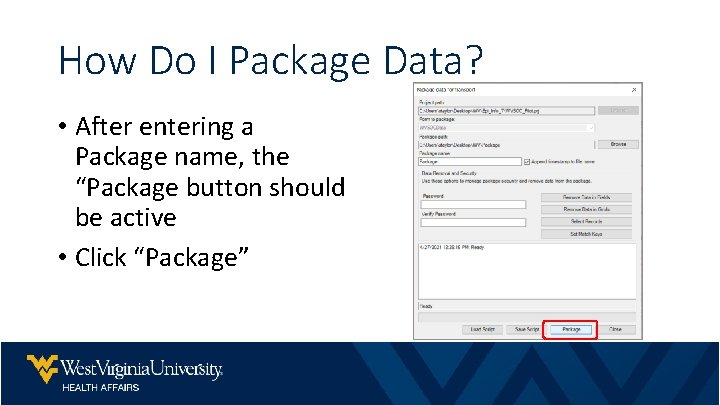
How Do I Package Data? • After entering a Package name, the “Package button should be active • Click “Package”
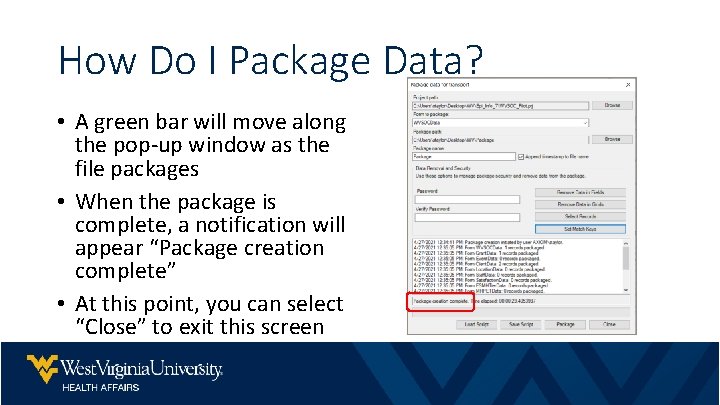
How Do I Package Data? • A green bar will move along the pop-up window as the file packages • When the package is complete, a notification will appear “Package creation complete” • At this point, you can select “Close” to exit this screen
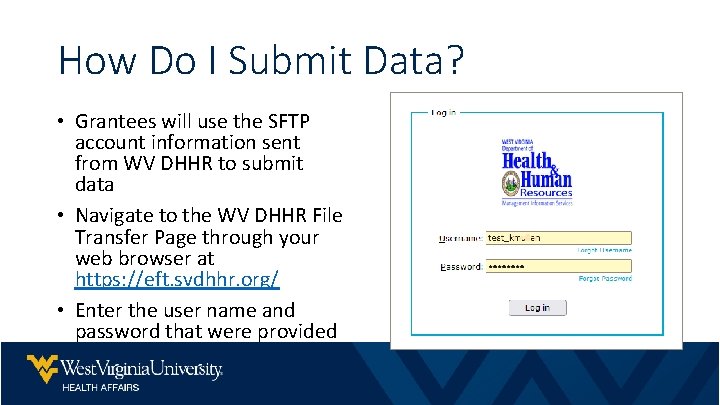
How Do I Submit Data? • Grantees will use the SFTP account information sent from WV DHHR to submit data • Navigate to the WV DHHR File Transfer Page through your web browser at https: //eft. svdhhr. org/ • Enter the user name and password that were provided
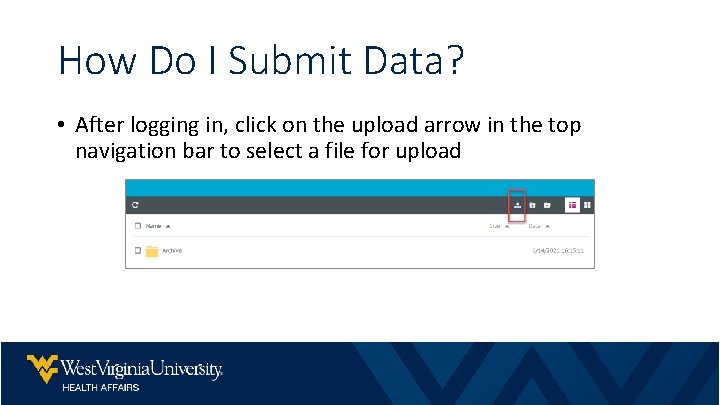
How Do I Submit Data? • After logging in, click on the upload arrow in the top navigation bar to select a file for upload
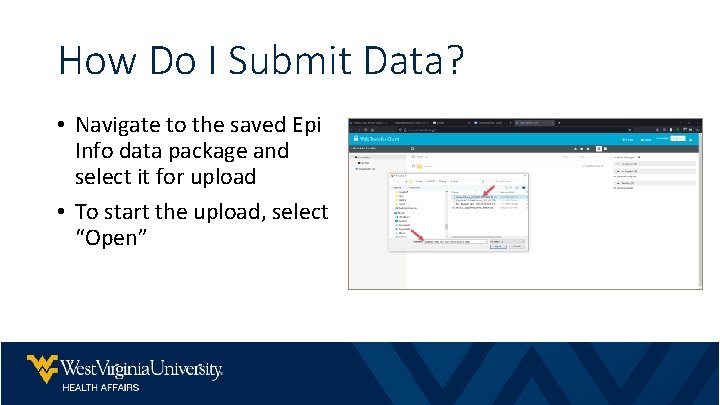
How Do I Submit Data? • Navigate to the saved Epi Info data package and select it for upload • To start the upload, select “Open”
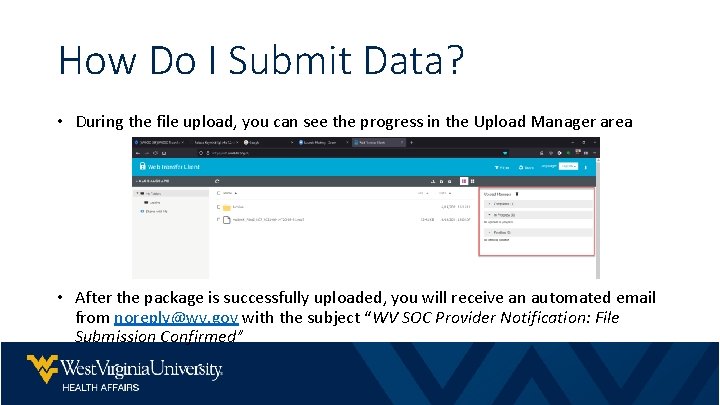
How Do I Submit Data? • During the file upload, you can see the progress in the Upload Manager area • After the package is successfully uploaded, you will receive an automated email from noreply@wv. gov with the subject “WV SOC Provider Notification: File Submission Confirmed”
Packaging Data for Internal Review and Consolidation For Users Not Submitting to BBH Directly
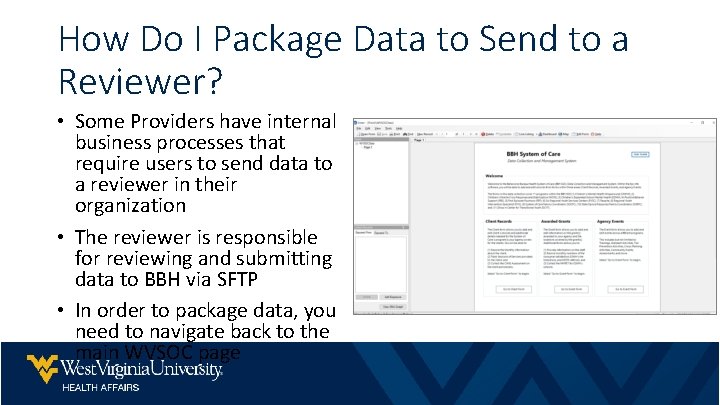
How Do I Package Data to Send to a Reviewer? • Some Providers have internal business processes that require users to send data to a reviewer in their organization • The reviewer is responsible for reviewing and submitting data to BBH via SFTP • In order to package data, you need to navigate back to the main WVSOC page
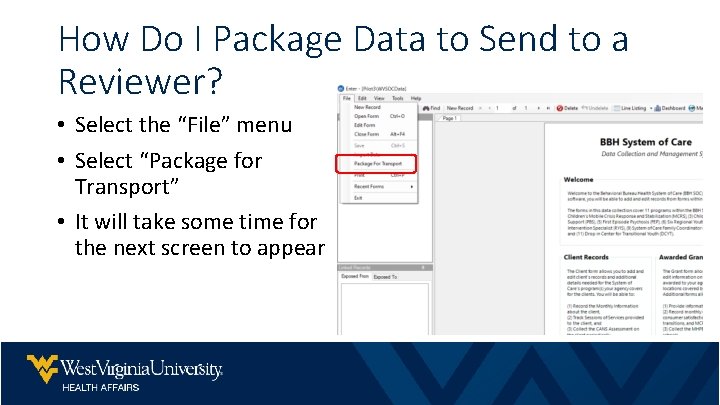
How Do I Package Data to Send to a Reviewer? • Select the “File” menu • Select “Package for Transport” • It will take some time for the next screen to appear
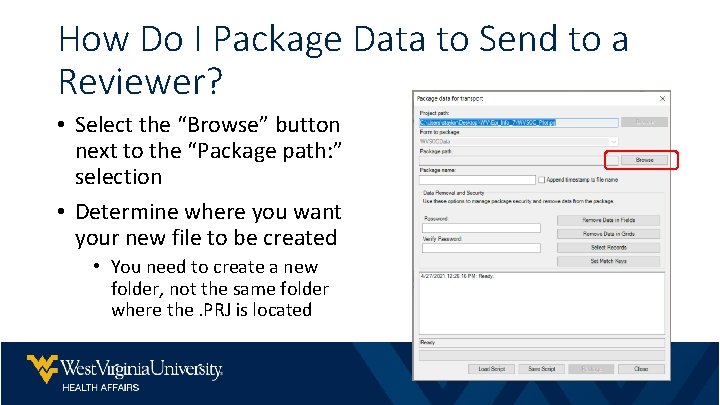
How Do I Package Data to Send to a Reviewer? • Select the “Browse” button next to the “Package path: ” selection • Determine where you want your new file to be created • You need to create a new folder, not the same folder where the. PRJ is located
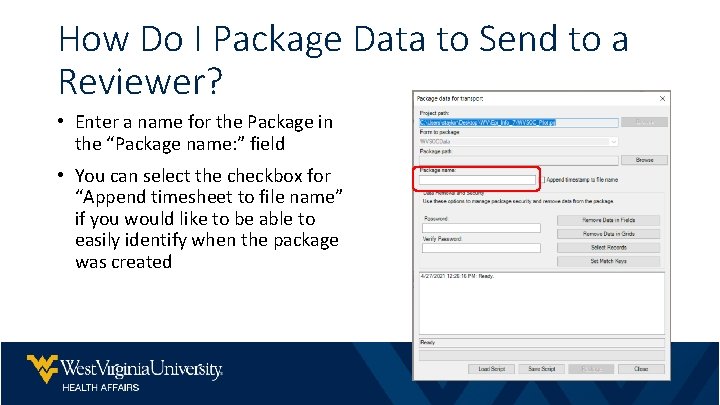
How Do I Package Data to Send to a Reviewer? • Enter a name for the Package in the “Package name: ” field • You can select the checkbox for “Append timesheet to file name” if you would like to be able to easily identify when the package was created
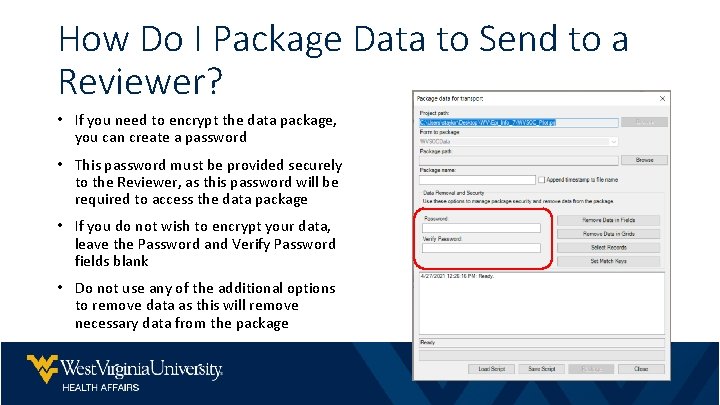
How Do I Package Data to Send to a Reviewer? • If you need to encrypt the data package, you can create a password • This password must be provided securely to the Reviewer, as this password will be required to access the data package • If you do not wish to encrypt your data, leave the Password and Verify Password fields blank • Do not use any of the additional options to remove data as this will remove necessary data from the package
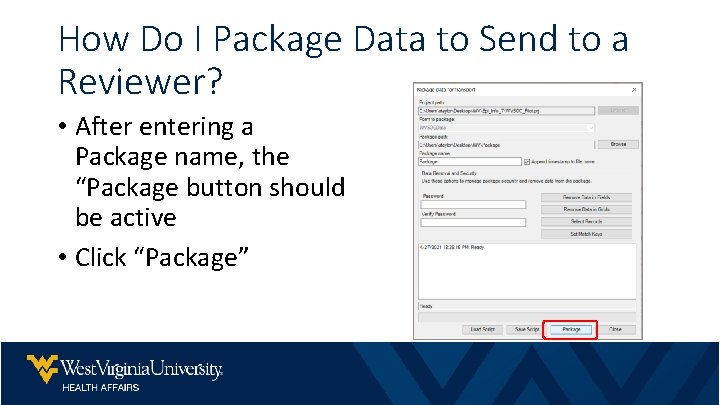
How Do I Package Data to Send to a Reviewer? • After entering a Package name, the “Package button should be active • Click “Package”
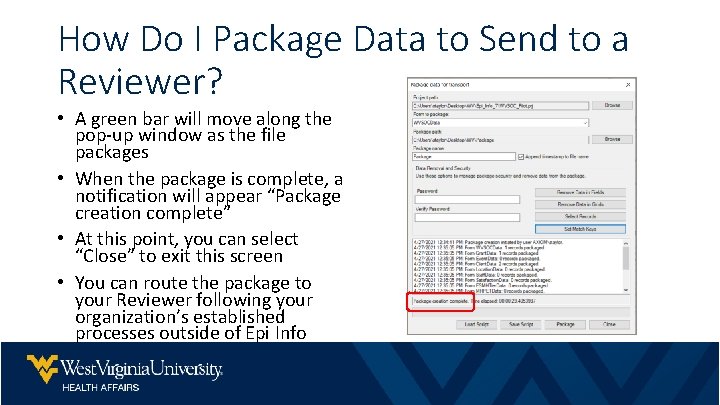
How Do I Package Data to Send to a Reviewer? • A green bar will move along the pop-up window as the file packages • When the package is complete, a notification will appear “Package creation complete” • At this point, you can select “Close” to exit this screen • You can route the package to your Reviewer following your organization’s established processes outside of Epi Info
Importing a Data for Internal Review and Consolidation For Users Reviewing and Consolidating Data
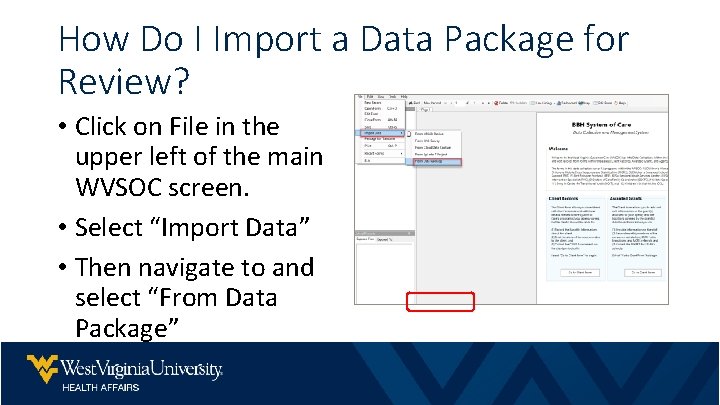
How Do I Import a Data Package for Review? • Click on File in the upper left of the main WVSOC screen. • Select “Import Data” • Then navigate to and select “From Data Package”
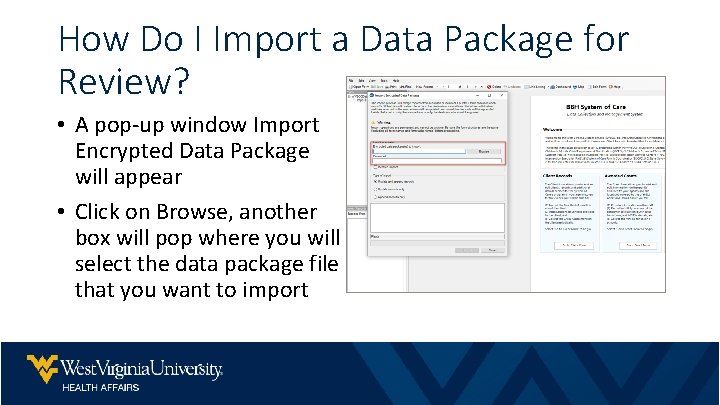
How Do I Import a Data Package for Review? • A pop-up window Import Encrypted Data Package will appear • Click on Browse, another box will pop where you will select the data package file that you want to import
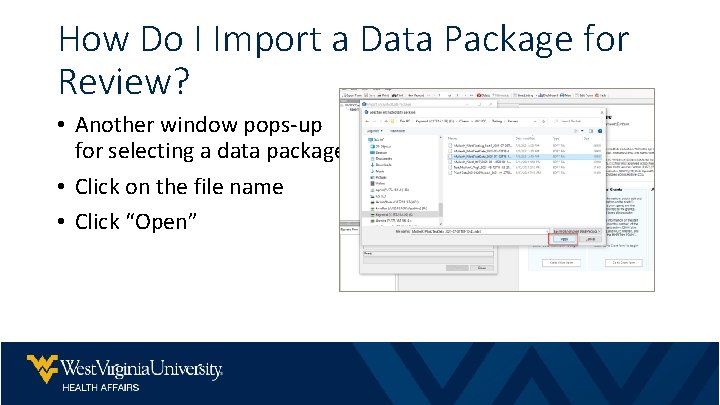
How Do I Import a Data Package for Review? • Another window pops-up for selecting a data package. • Click on the file name • Click “Open”
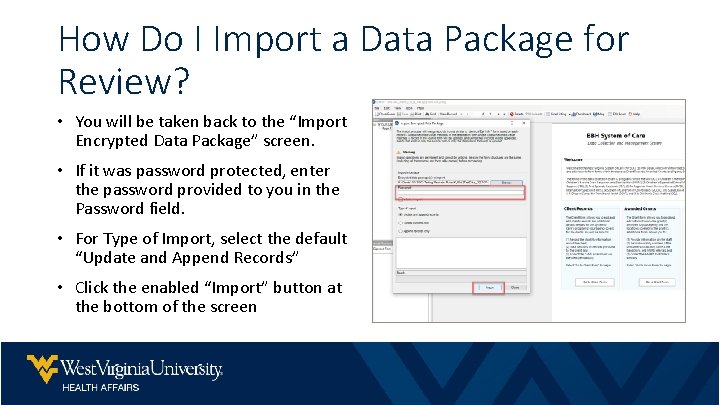
How Do I Import a Data Package for Review? • You will be taken back to the “Import Encrypted Data Package” screen. • If it was password protected, enter the password provided to you in the Password field. • For Type of Import, select the default “Update and Append Records” • Click the enabled “Import” button at the bottom of the screen
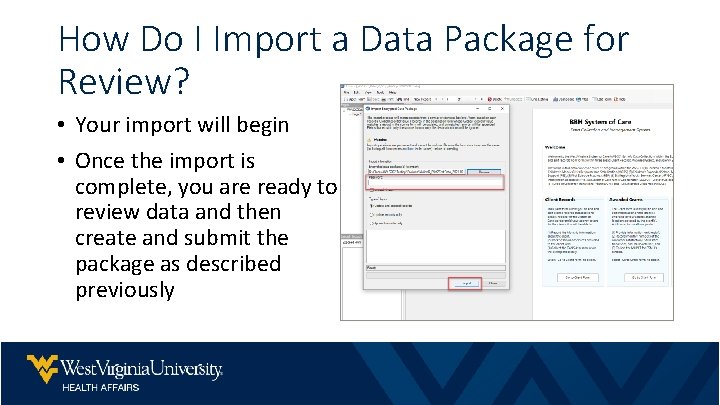
How Do I Import a Data Package for Review? • Your import will begin • Once the import is complete, you are ready to review data and then create and submit the package as described previously
- Slides: 27