
Welcome to Web CT at CSUB Web CT
Welcome to Web. CT at CSUB Web. CT Version 4. 1 Presented by Web Services
Introduction This presentation introduces several aspects of Web. CT, which include logging in, changing your password and login hint, and accessing course features. Web. CT course features include, but are not limited to, viewing course material, submitting assignments, e-mailing the professor and classmates, participating in discussion topics, chatting, and viewing your grades. Depending upon how the course is set up, you may not have access to all Web. CT features.
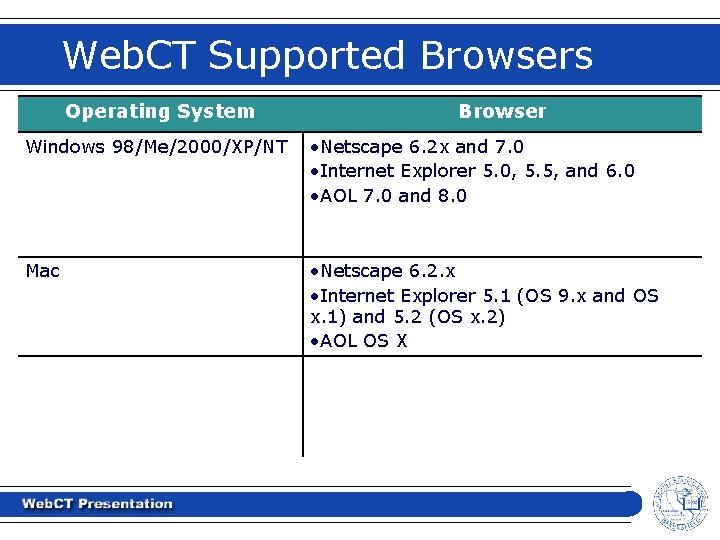
Web. CT Supported Browsers Operating System Browser Windows 98/Me/2000/XP/NT • Netscape 6. 2 x and 7. 0 • Internet Explorer 5. 0, 5. 5, and 6. 0 • AOL 7. 0 and 8. 0 Mac • Netscape 6. 2. x • Internet Explorer 5. 1 (OS 9. x and OS x. 1) and 5. 2 (OS x. 2) • AOL OS X
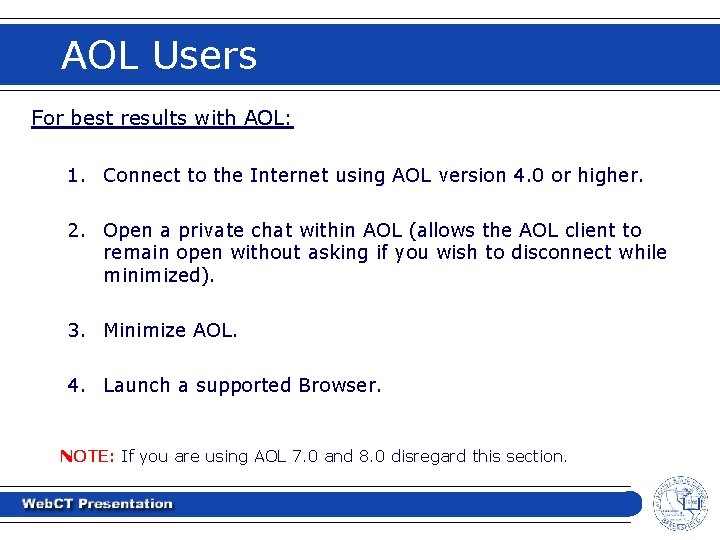
AOL Users For best results with AOL: 1. Connect to the Internet using AOL version 4. 0 or higher. 2. Open a private chat within AOL (allows the AOL client to remain open without asking if you wish to disconnect while minimized). 3. Minimize AOL. 4. Launch a supported Browser. NOTE: If you are using AOL 7. 0 and 8. 0 disregard this section.
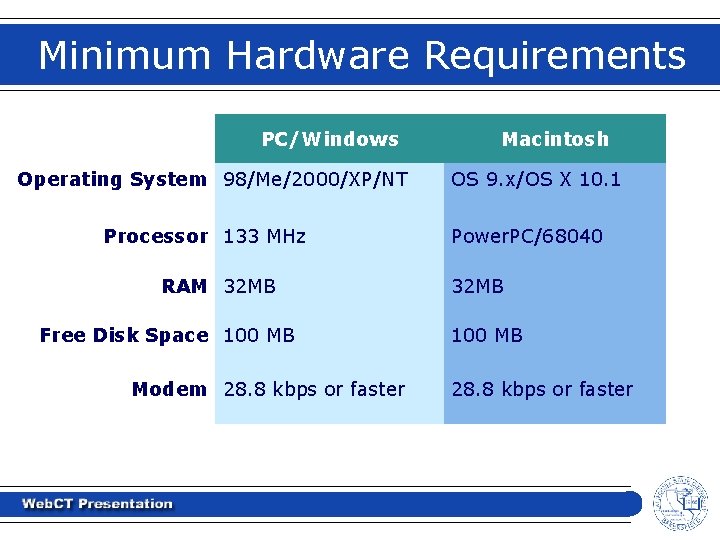
Minimum Hardware Requirements PC/Windows Operating System 98/Me/2000/XP/NT Processor 133 MHz RAM 32 MB Free Disk Space 100 MB Modem 28. 8 kbps or faster Macintosh OS 9. x/OS X 10. 1 Power. PC/68040 32 MB 100 MB 28. 8 kbps or faster
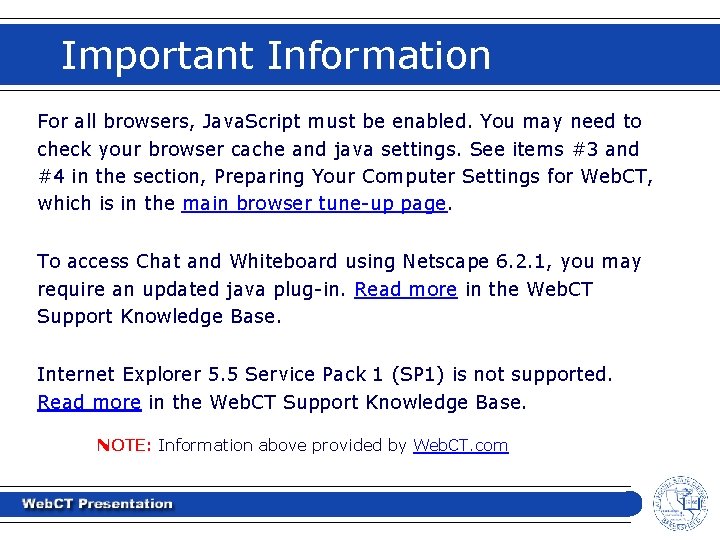
Important Information For all browsers, Java. Script must be enabled. You may need to check your browser cache and java settings. See items #3 and #4 in the section, Preparing Your Computer Settings for Web. CT, which is in the main browser tune-up page. To access Chat and Whiteboard using Netscape 6. 2. 1, you may require an updated java plug-in. Read more in the Web. CT Support Knowledge Base. Internet Explorer 5. 5 Service Pack 1 (SP 1) is not supported. Read more in the Web. CT Support Knowledge Base. NOTE: Information above provided by Web. CT. com
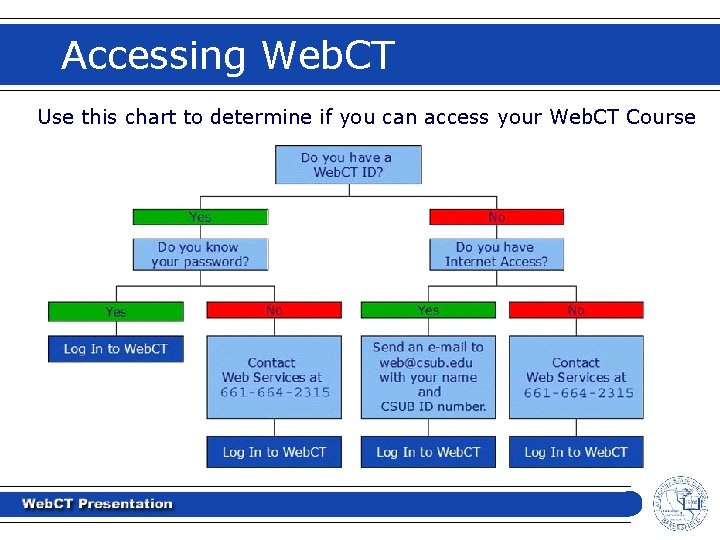
Accessing Web. CT Use this chart to determine if you can access your Web. CT Course
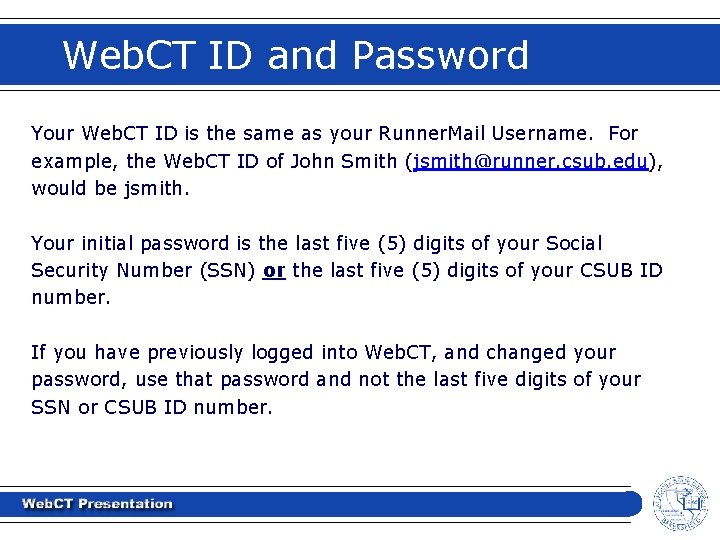
Web. CT ID and Password Your Web. CT ID is the same as your Runner. Mail Username. For example, the Web. CT ID of John Smith (jsmith@runner. csub. edu), would be jsmith. Your initial password is the last five (5) digits of your Social Security Number (SSN) or the last five (5) digits of your CSUB ID number. If you have previously logged into Web. CT, and changed your password, use that password and not the last five digits of your SSN or CSUB ID number.
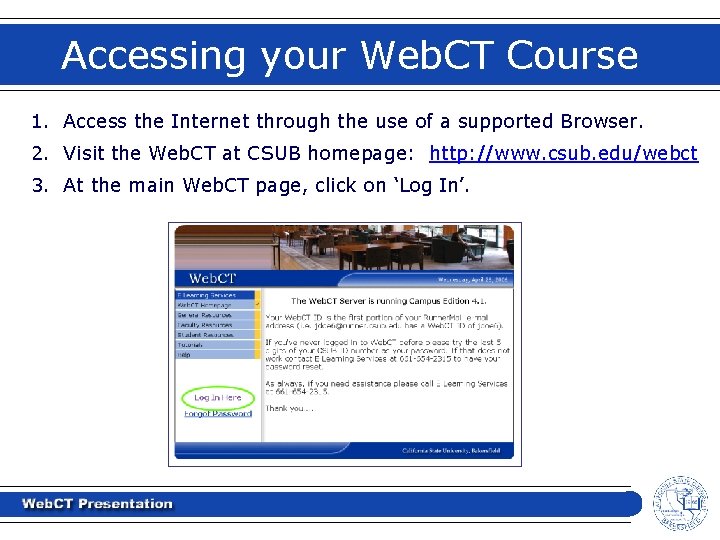
Accessing your Web. CT Course 1. Access the Internet through the use of a supported Browser. 2. Visit the Web. CT at CSUB homepage: http: //www. csub. edu/webct 3. At the main Web. CT page, click on ‘Log In’.
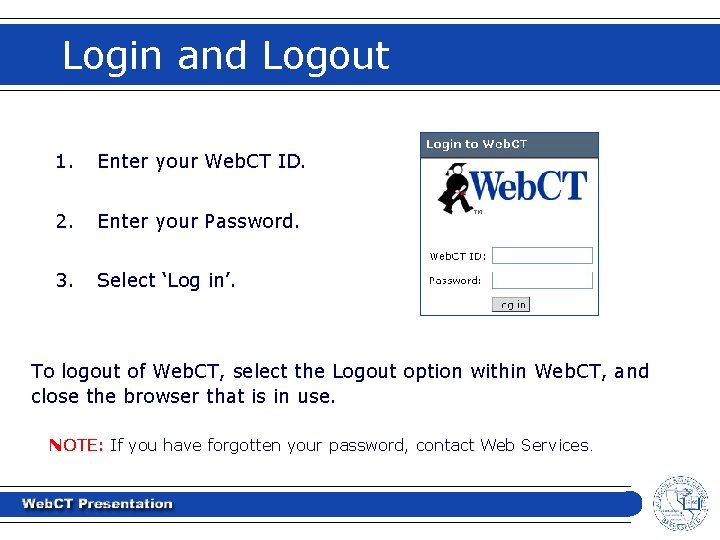
Login and Logout 1. Enter your Web. CT ID. 2. Enter your Password. 3. Select ‘Log in’. To logout of Web. CT, select the Logout option within Web. CT, and close the browser that is in use. NOTE: If you have forgotten your password, contact Web Services.
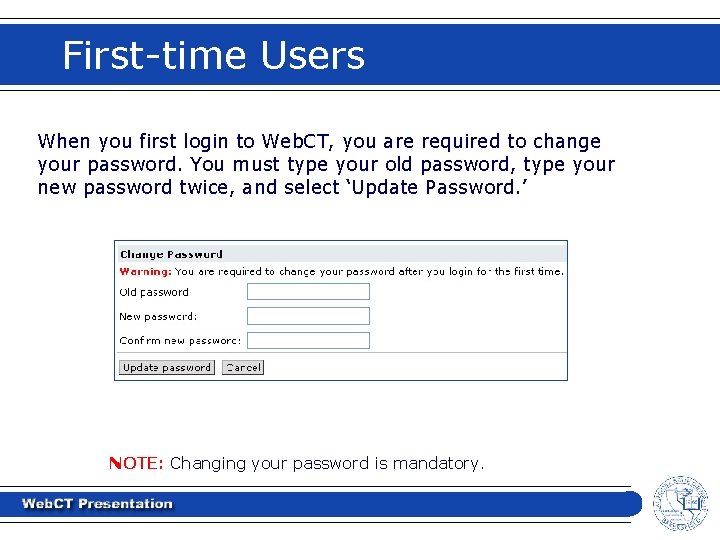
First-time Users When you first login to Web. CT, you are required to change your password. You must type your old password, type your new password twice, and select ‘Update Password. ’ NOTE: Changing your password is mandatory.
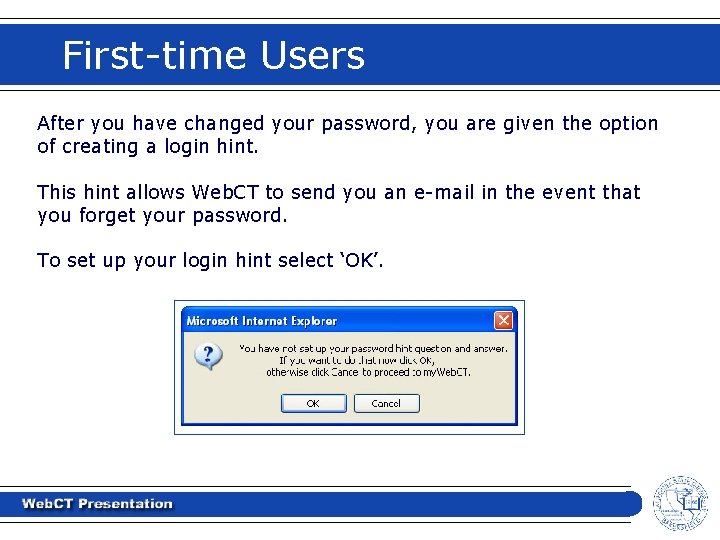
First-time Users After you have changed your password, you are given the option of creating a login hint. This hint allows Web. CT to send you an e-mail in the event that you forget your password. To set up your login hint select ‘OK’.
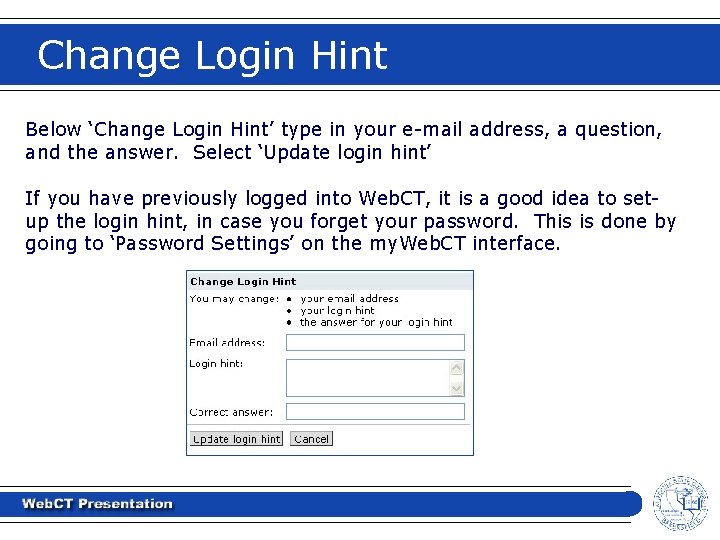
Change Login Hint Below ‘Change Login Hint’ type in your e-mail address, a question, and the answer. Select ‘Update login hint’ If you have previously logged into Web. CT, it is a good idea to setup the login hint, in case you forget your password. This is done by going to ‘Password Settings’ on the my. Web. CT interface.
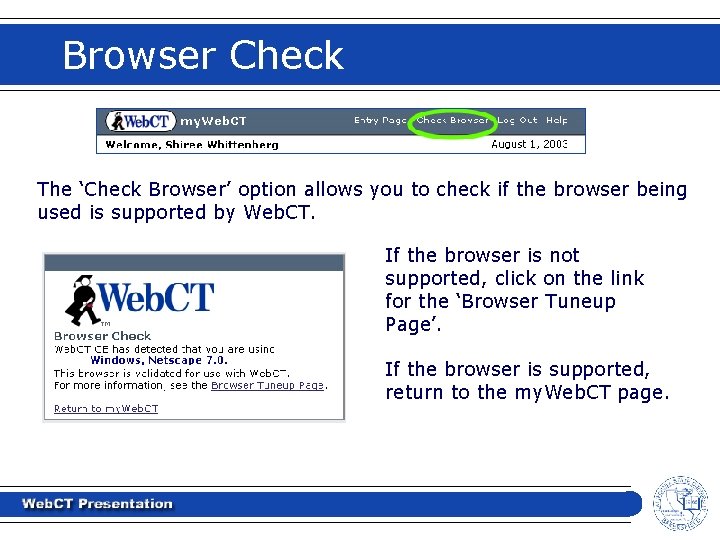
Browser Check The ‘Check Browser’ option allows you to check if the browser being used is supported by Web. CT. If the browser is not supported, click on the link for the ‘Browser Tuneup Page’. If the browser is supported, return to the my. Web. CT page.
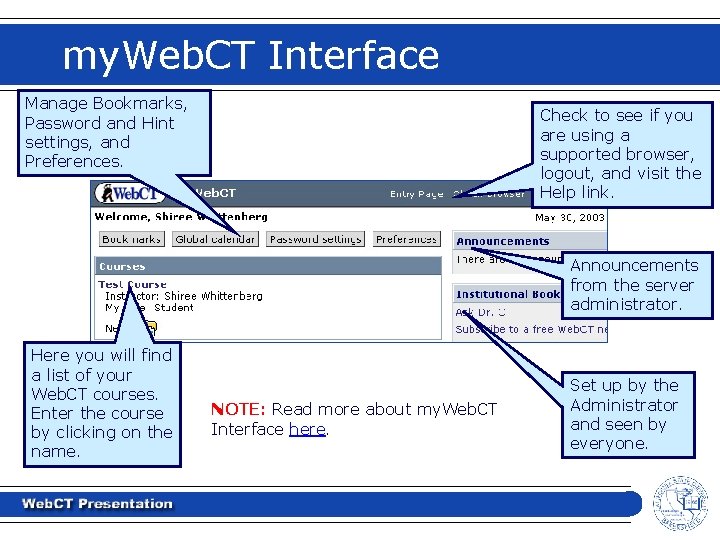
my. Web. CT Interface Manage Bookmarks, Password and Hint settings, and Preferences. Check to see if you are using a supported browser, logout, and visit the Help link. Announcements from the server administrator. Here you will find a list of your Web. CT courses. Enter the course by clicking on the name. NOTE: Read more about my. Web. CT Interface here. Set up by the Administrator and seen by everyone.
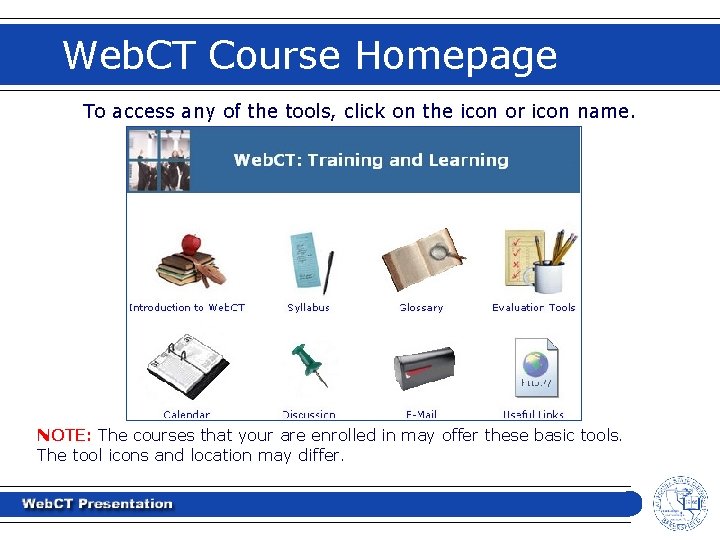
Web. CT Course Homepage To access any of the tools, click on the icon or icon name. NOTE: The courses that your are enrolled in may offer these basic tools. The tool icons and location may differ.
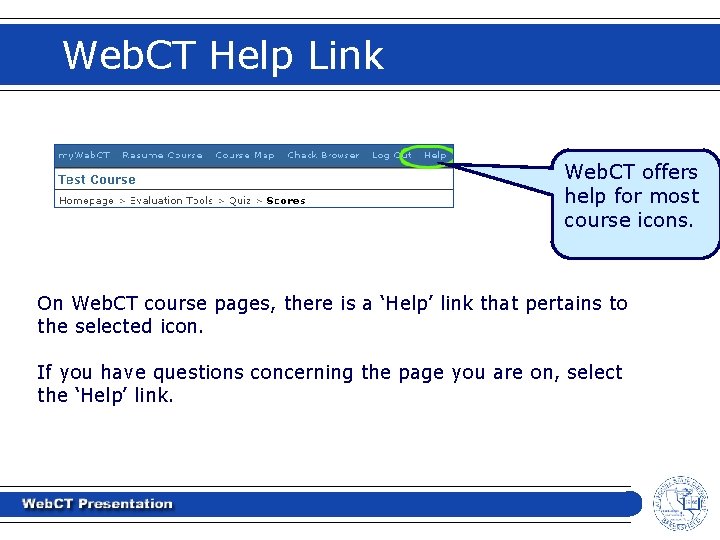
Web. CT Help Link Web. CT offers help for most course icons. On Web. CT course pages, there is a ‘Help’ link that pertains to the selected icon. If you have questions concerning the page you are on, select the ‘Help’ link.
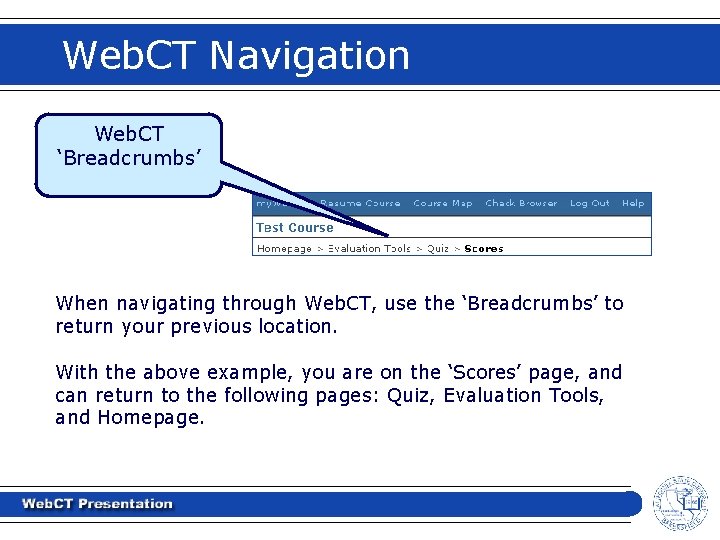
Web. CT Navigation Web. CT ‘Breadcrumbs’ When navigating through Web. CT, use the ‘Breadcrumbs’ to return your previous location. With the above example, you are on the ‘Scores’ page, and can return to the following pages: Quiz, Evaluation Tools, and Homepage.
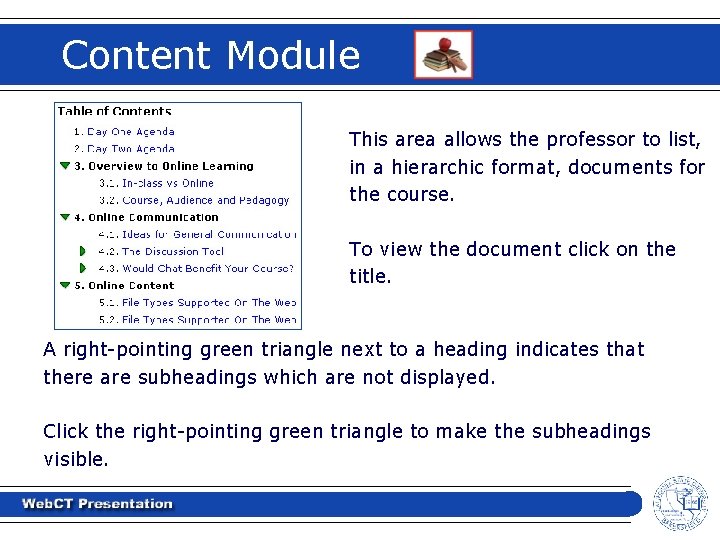
Content Module This area allows the professor to list, in a hierarchic format, documents for the course. To view the document click on the title. A right-pointing green triangle next to a heading indicates that there are subheadings which are not displayed. Click the right-pointing green triangle to make the subheadings visible.
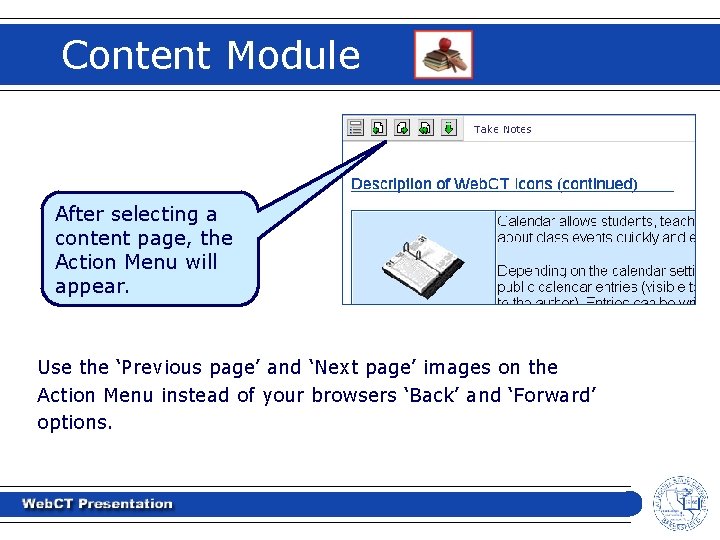
Content Module After selecting a content page, the Action Menu will appear. Use the ‘Previous page’ and ‘Next page’ images on the Action Menu instead of your browsers ‘Back’ and ‘Forward’ options.
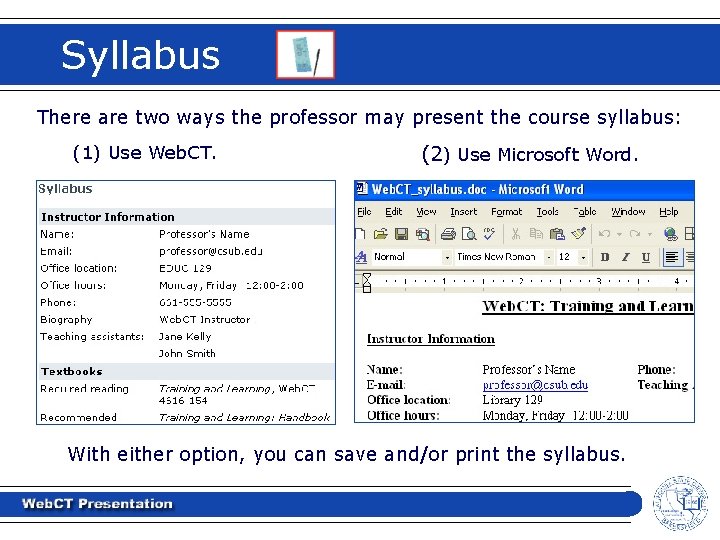
Syllabus There are two ways the professor may present the course syllabus: (1) Use Web. CT. (2) Use Microsoft Word. With either option, you can save and/or print the syllabus.
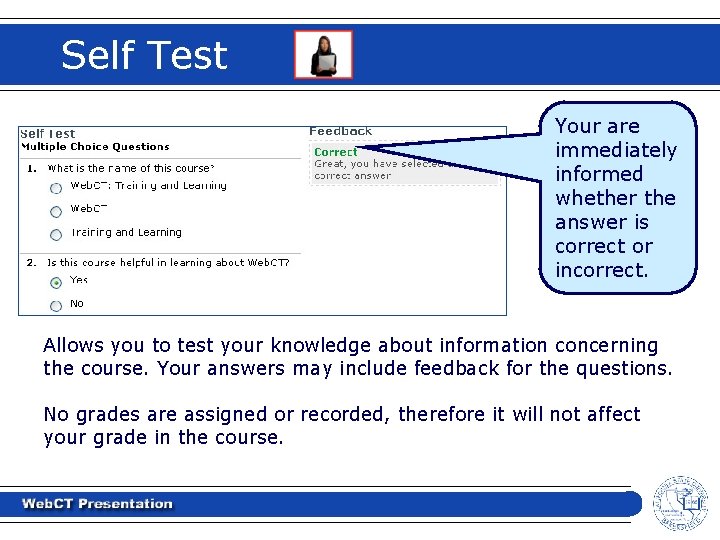
Self Test Your are immediately informed whether the answer is correct or incorrect. Allows you to test your knowledge about information concerning the course. Your answers may include feedback for the questions. No grades are assigned or recorded, therefore it will not affect your grade in the course.
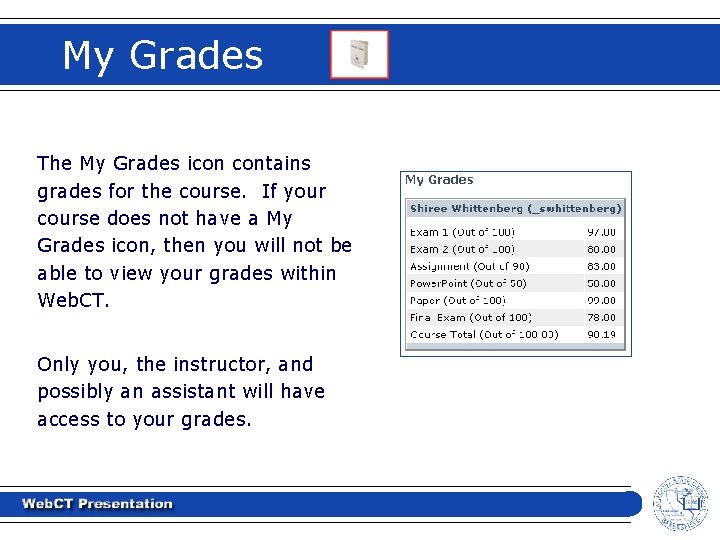
My Grades The My Grades icon contains grades for the course. If your course does not have a My Grades icon, then you will not be able to view your grades within Web. CT. Only you, the instructor, and possibly an assistant will have access to your grades.
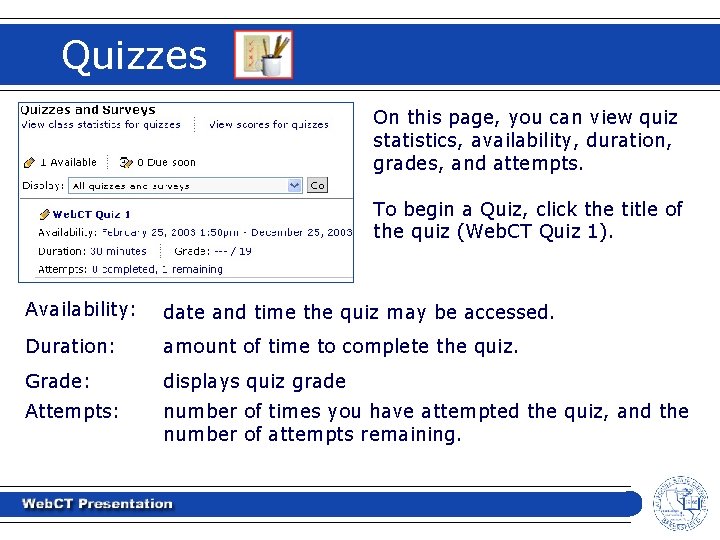
Quizzes On this page, you can view quiz statistics, availability, duration, grades, and attempts. To begin a Quiz, click the title of the quiz (Web. CT Quiz 1). Availability: date and time the quiz may be accessed. Duration: amount of time to complete the quiz. Grade: displays quiz grade Attempts: number of times you have attempted the quiz, and the number of attempts remaining.
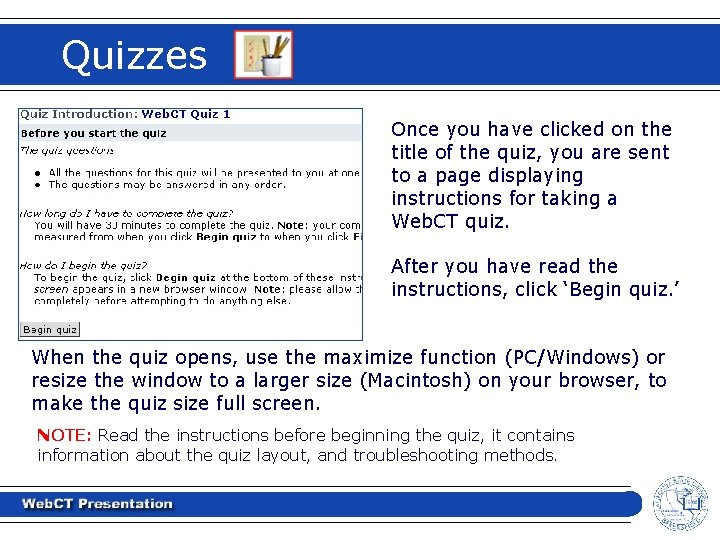
Quizzes Once you have clicked on the title of the quiz, you are sent to a page displaying instructions for taking a Web. CT quiz. After you have read the instructions, click ‘Begin quiz. ’ When the quiz opens, use the maximize function (PC/Windows) or resize the window to a larger size (Macintosh) on your browser, to make the quiz size full screen. NOTE: Read the instructions before beginning the quiz, it contains information about the quiz layout, and troubleshooting methods.
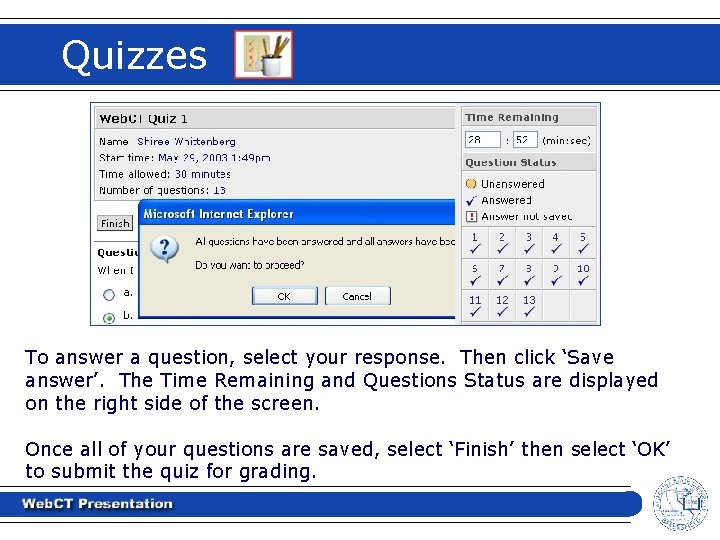
Quizzes To answer a question, select your response. Then click ‘Save answer’. The Time Remaining and Questions Status are displayed on the right side of the screen. Once all of your questions are saved, select ‘Finish’ then select ‘OK’ to submit the quiz for grading.
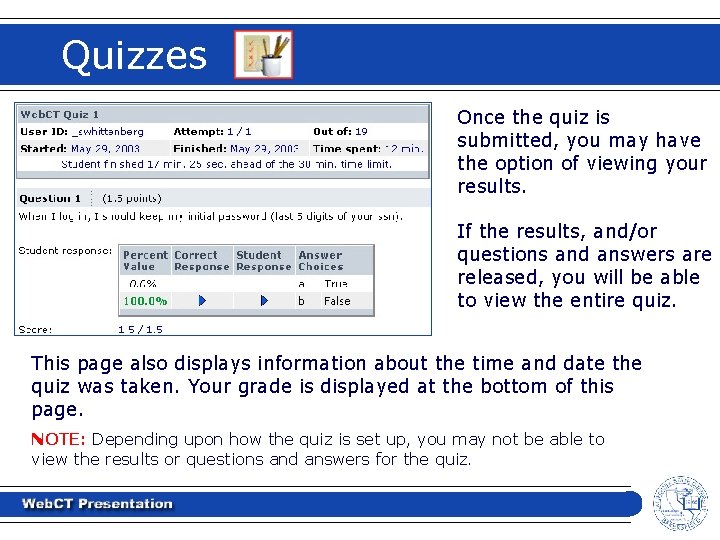
Quizzes Once the quiz is submitted, you may have the option of viewing your results. If the results, and/or questions and answers are released, you will be able to view the entire quiz. This page also displays information about the time and date the quiz was taken. Your grade is displayed at the bottom of this page. NOTE: Depending upon how the quiz is set up, you may not be able to view the results or questions and answers for the quiz.
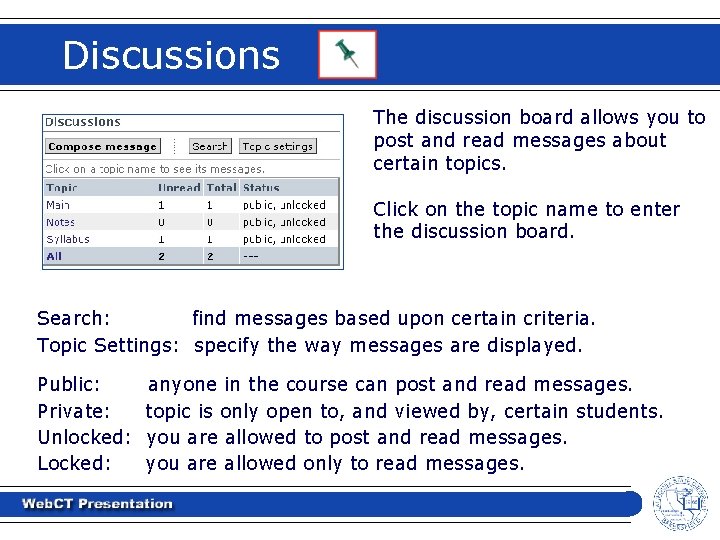
Discussions The discussion board allows you to post and read messages about certain topics. Click on the topic name to enter the discussion board. Search: find messages based upon certain criteria. Topic Settings: specify the way messages are displayed. Public: Private: Unlocked: Locked: anyone in the course can post and read messages. topic is only open to, and viewed by, certain students. you are allowed to post and read messages. you are allowed only to read messages.
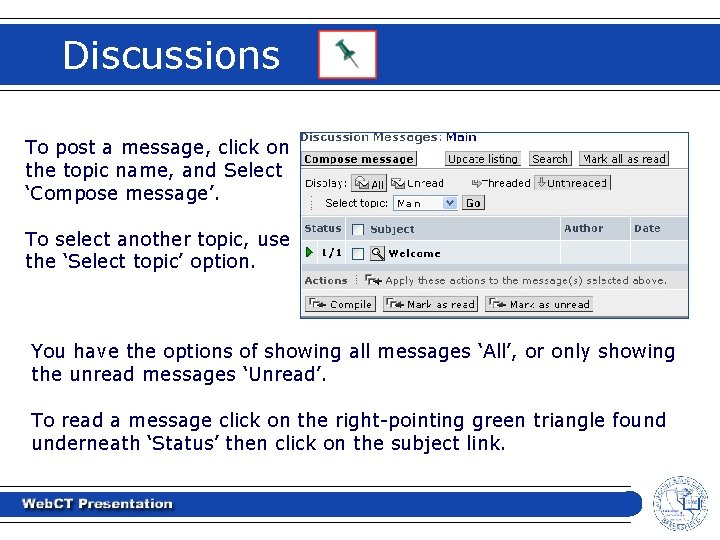
Discussions To post a message, click on the topic name, and Select ‘Compose message’. To select another topic, use the ‘Select topic’ option. You have the options of showing all messages ‘All’, or only showing the unread messages ‘Unread’. To read a message click on the right-pointing green triangle found underneath ‘Status’ then click on the subject link.
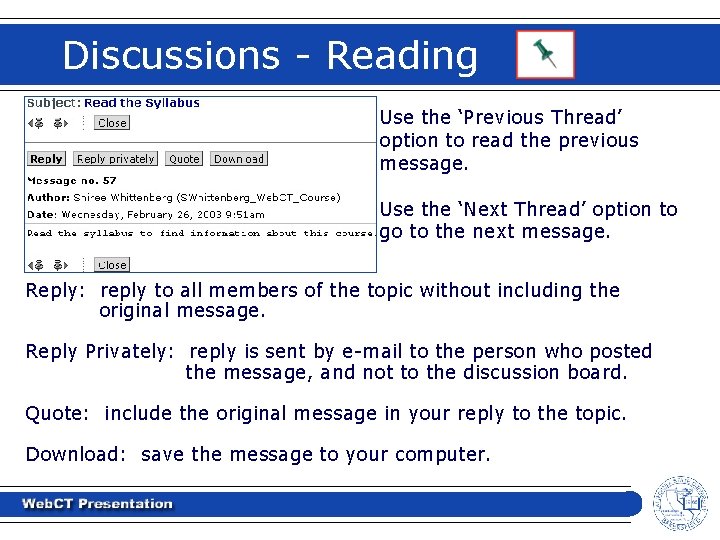
Discussions - Reading Use the ‘Previous Thread’ option to read the previous message. Use the ‘Next Thread’ option to go to the next message. Reply: reply to all members of the topic without including the original message. Reply Privately: reply is sent by e-mail to the person who posted the message, and not to the discussion board. Quote: include the original message in your reply to the topic. Download: save the message to your computer.
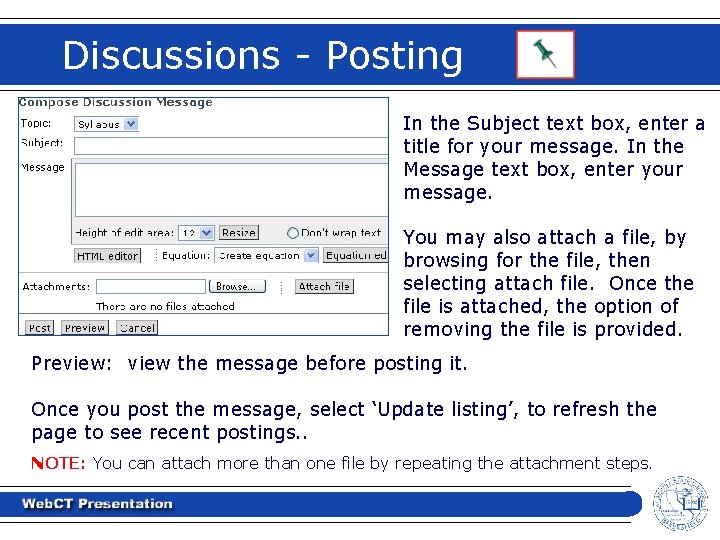
Discussions - Posting In the Subject text box, enter a title for your message. In the Message text box, enter your message. You may also attach a file, by browsing for the file, then selecting attach file. Once the file is attached, the option of removing the file is provided. Preview: view the message before posting it. Once you post the message, select ‘Update listing’, to refresh the page to see recent postings. . NOTE: You can attach more than one file by repeating the attachment steps.
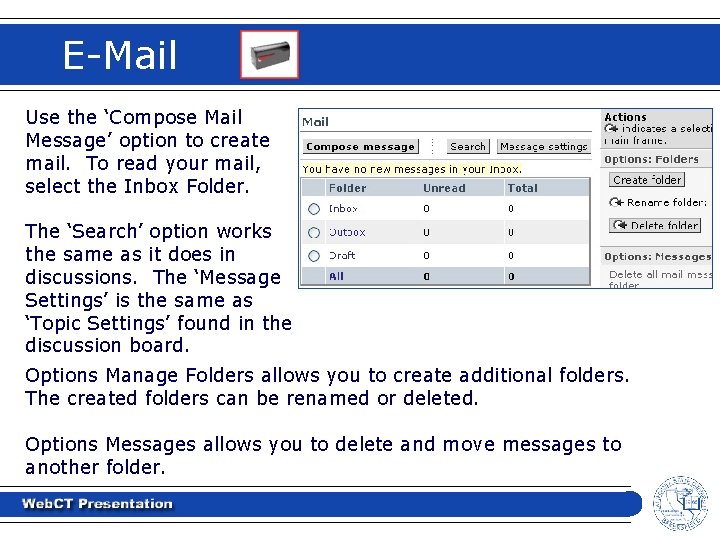
E-Mail Use the ‘Compose Mail Message’ option to create mail. To read your mail, select the Inbox Folder. The ‘Search’ option works the same as it does in discussions. The ‘Message Settings’ is the same as ‘Topic Settings’ found in the discussion board. Options Manage Folders allows you to create additional folders. The created folders can be renamed or deleted. Options Messages allows you to delete and move messages to another folder.
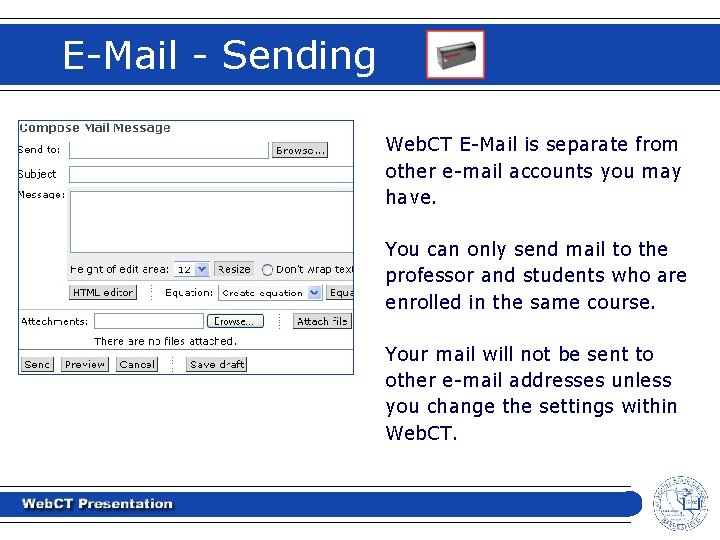
E-Mail - Sending Web. CT E-Mail is separate from other e-mail accounts you may have. You can only send mail to the professor and students who are enrolled in the same course. Your mail will not be sent to other e-mail addresses unless you change the settings within Web. CT.
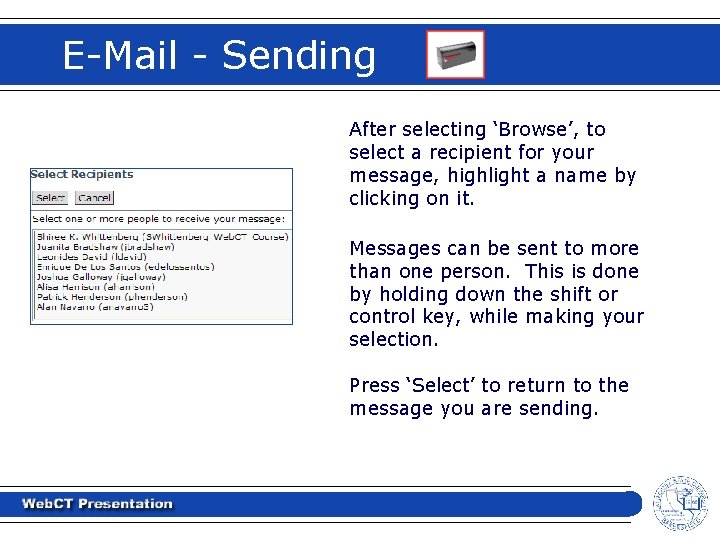
E-Mail - Sending After selecting ‘Browse’, to select a recipient for your message, highlight a name by clicking on it. Messages can be sent to more than one person. This is done by holding down the shift or control key, while making your selection. Press ‘Select’ to return to the message you are sending.
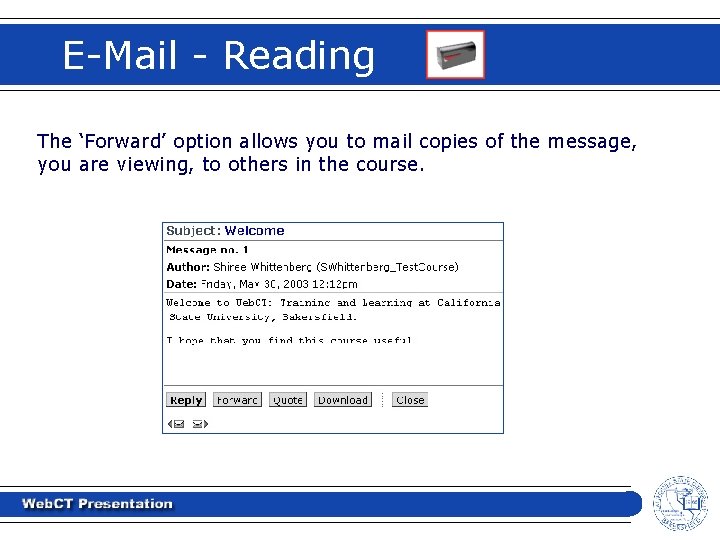
E-Mail - Reading The ‘Forward’ option allows you to mail copies of the message, you are viewing, to others in the course.
Equation and HTML Editor Equation Editor The Web. EQ Equation Editor allows you to create, view, and edit complex mathematical equations and is available in Discussions, E-Mail, Quiz, and Student Presentations. To learn more about the Equation Editor visit Equation Editor for Windows or Equation Editor for Macintosh. HTML Editor The HTML editor provides word-processor-like features that display text and graphics the same as they will appear in a browser and is available in Discussions, E-Mail, Student Presentations, and Student Homepages To learn more about the HTML Editor visit HTML Editor
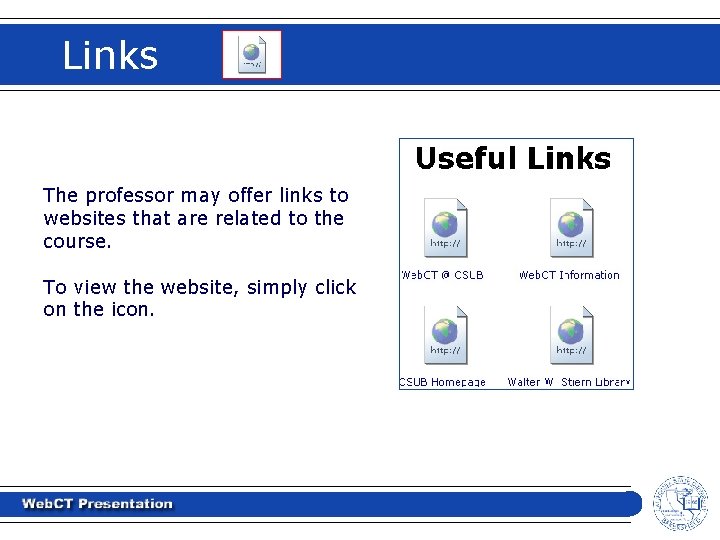
Links The professor may offer links to websites that are related to the course. To view the website, simply click on the icon.
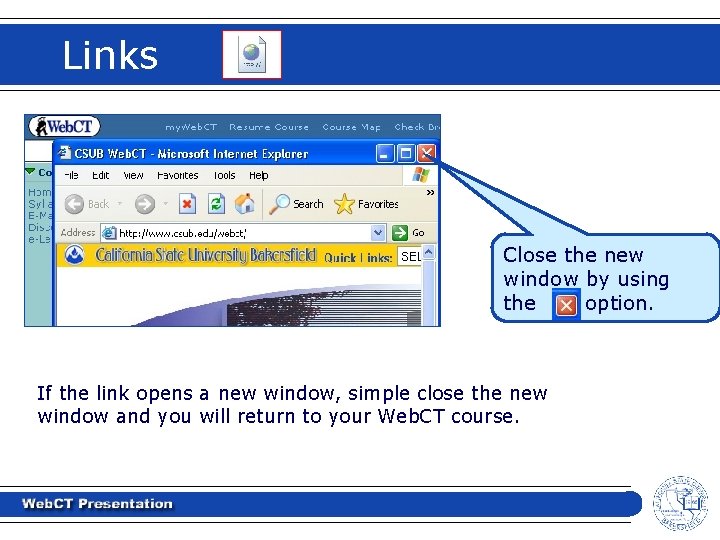
Links Close the new window by using the option. If the link opens a new window, simple close the new window and you will return to your Web. CT course.
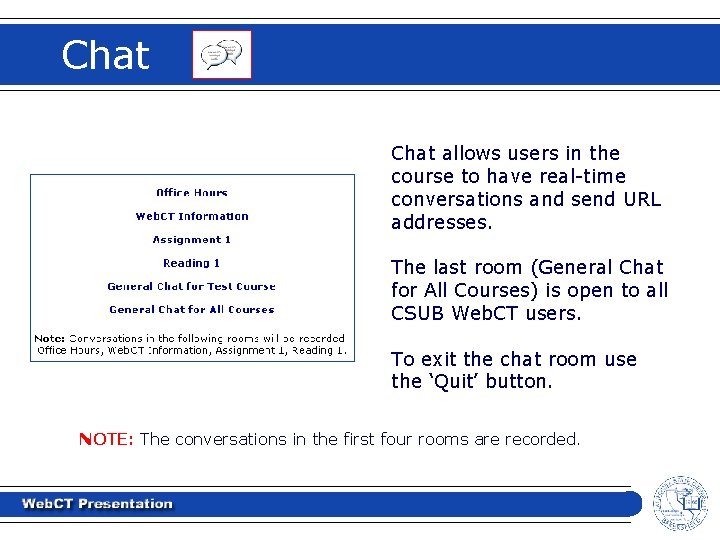
Chat allows users in the course to have real-time conversations and send URL addresses. The last room (General Chat for All Courses) is open to all CSUB Web. CT users. To exit the chat room use the ‘Quit’ button. NOTE: The conversations in the first four rooms are recorded.
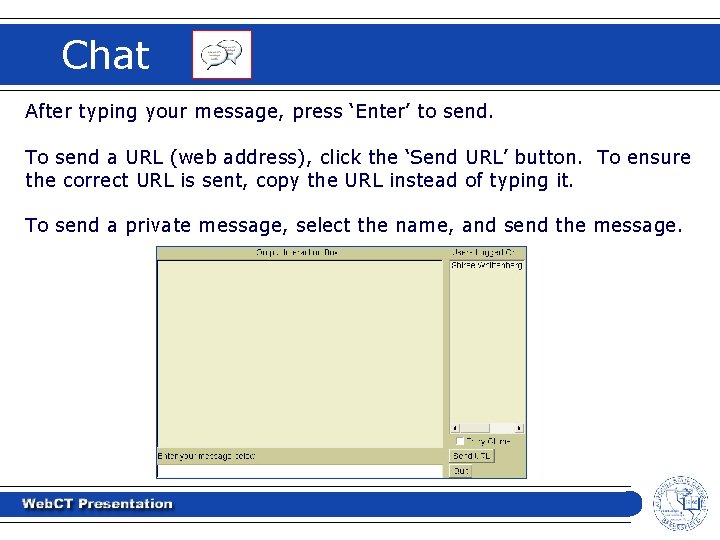
Chat After typing your message, press ‘Enter’ to send. To send a URL (web address), click the ‘Send URL’ button. To ensure the correct URL is sent, copy the URL instead of typing it. To send a private message, select the name, and send the message.
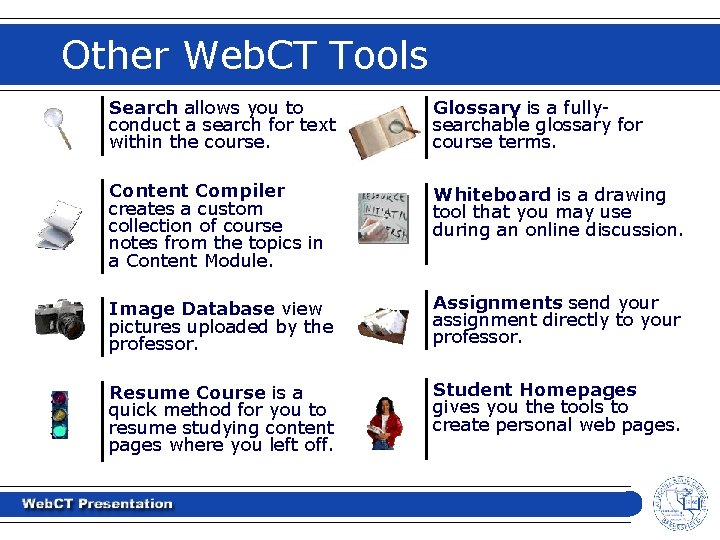
Other Web. CT Tools Search allows you to conduct a search for text within the course. Glossary is a fullysearchable glossary for course terms. Content Compiler creates a custom collection of course notes from the topics in a Content Module. Whiteboard is a drawing tool that you may use during an online discussion. Image Database view pictures uploaded by the professor. Assignments send your assignment directly to your professor. Resume Course is a quick method for you to resume studying content pages where you left off. Student Homepages gives you the tools to create personal web pages.
![Downloads and Plug-Ins Downloads • Netscape Communicator – [PC/Windows] [MAC] • Microsoft Internet Explorer](http://slidetodoc.com/presentation_image_h2/a5b2e55591e8d0cc497c837450e7ccc8/image-42.jpg "Downloads and Plug-Ins Downloads • Netscape Communicator – [PC/Windows] [MAC] • Microsoft Internet Explorer")
Downloads and Plug-Ins Downloads • Netscape Communicator – [PC/Windows] [MAC] • Microsoft Internet Explorer – [PC/Windows] [MAC] • Adobe Acrobat Reader Common Plug-Ins Allows you to view documents without having the program. • Microsoft Word Viewer • Microsoft Excel Viewer • Microsoft Power. Point Viewer
Useful Links Web. CT at CSUB http: //www. csub. edu/webct Web Services Phone: 661 -654 -2315 http: //www. csub. edu/webservices Web. CT Website http: //www. webct. com Student Technology Helpdesk Phone: 661 -654 -6677 http: //www. csub. edu/irts/sthd
Congratulations! You are now ready to begin online learning through the use of a Web. CT course. Good Luck!
- Slides: 44