
Welcome to Unix The Textbook Second Edition Presented
Welcome to Unix The Textbook Second Edition Presented by: Haroon Haider Khan Sarwar Koretsky Sarwar
Chapter 0 A quick start into the UNIX Operation System

Introduction � Founder • Names: Ken Thompson, Dennis Ritchie, Brian Kernighan, Douglas Mc. Ilroy, Michael Lesk and Joe Ossanna • Company: AT&T employees at Bell Labs, including • Year of introduction: 1969 � UNIX Coding • Language: C/C++
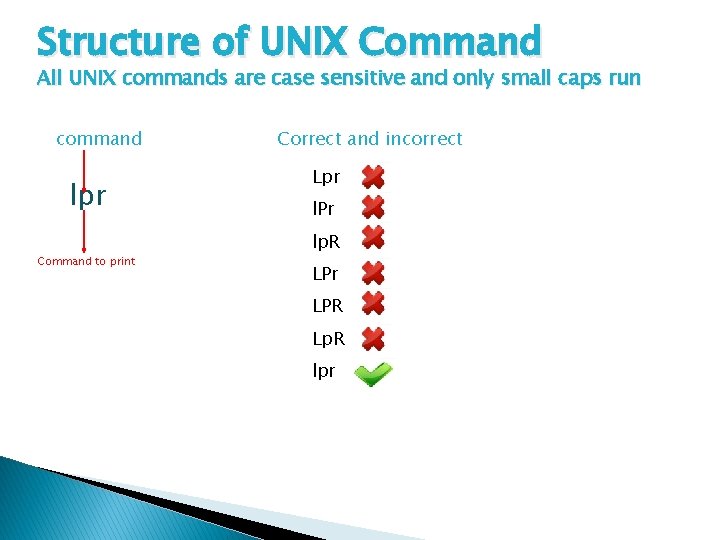
Structure of UNIX Command All UNIX commands are case sensitive and only small caps run command lpr Command to print Correct and incorrect Lpr l. Pr lp. R LPr LPR Lp. R lpr
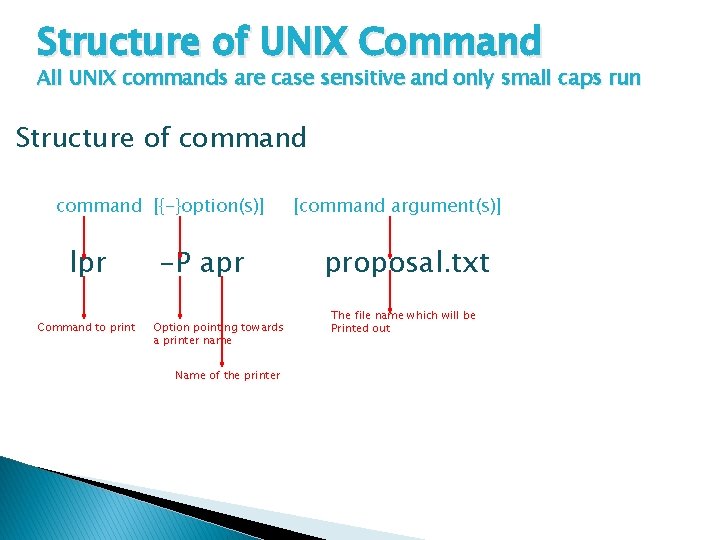
Structure of UNIX Command All UNIX commands are case sensitive and only small caps run Structure of command [{-}option(s)] lpr Command to print -P apr Option pointing towards a printer name Name of the printer [command argument(s)] proposal. txt The file name which will be Printed out
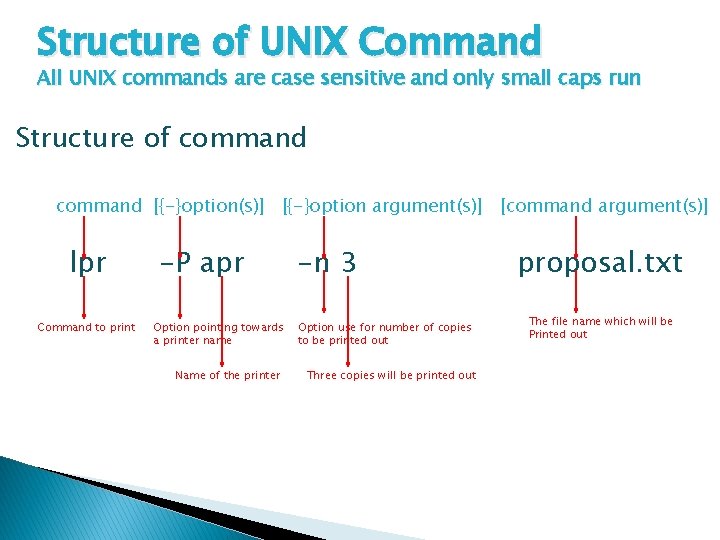
Structure of UNIX Command All UNIX commands are case sensitive and only small caps run Structure of command [{-}option(s)] [{-}option argument(s)] [command argument(s)] lpr Command to print -P apr Option pointing towards a printer name Name of the printer -n 3 Option use for number of copies to be printed out Three copies will be printed out proposal. txt The file name which will be Printed out
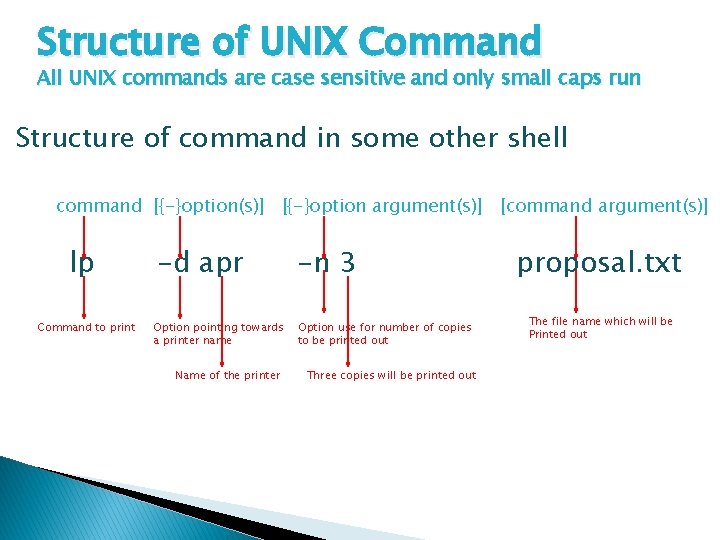
Structure of UNIX Command All UNIX commands are case sensitive and only small caps run Structure of command in some other shell command [{-}option(s)] [{-}option argument(s)] [command argument(s)] lp Command to print -d apr -n 3 Option pointing towards a printer name Option use for number of copies to be printed out Name of the printer Three copies will be printed out proposal. txt The file name which will be Printed out
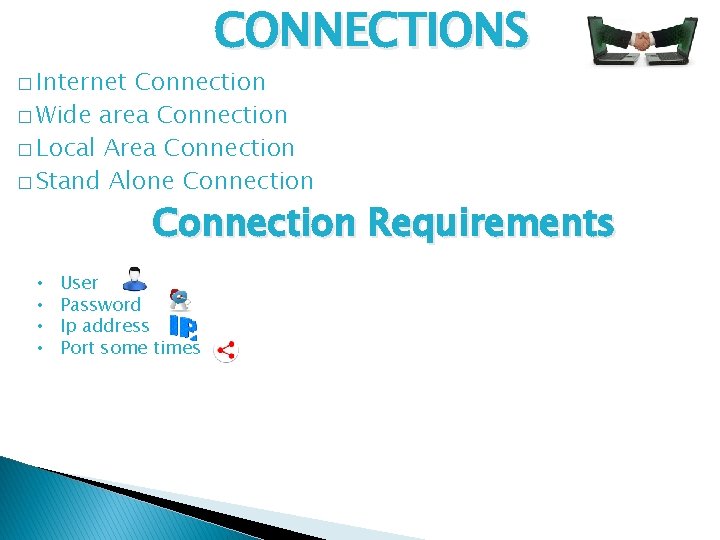
CONNECTIONS � Internet Connection � Wide area Connection � Local Area Connection � Stand Alone Connection Requirements • • User Password Ip address Port some times
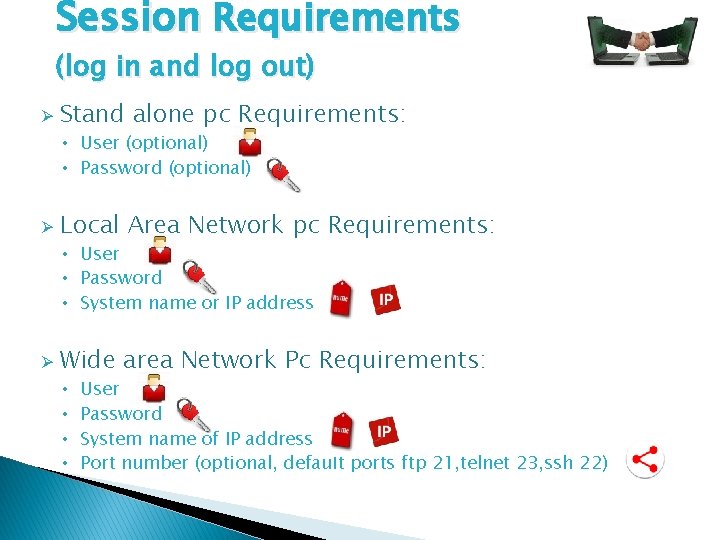
Session Requirements (log in and log out) Ø Stand alone pc Requirements: • User (optional) • Password (optional) Ø Local Area Network pc Requirements: • User • Password • System name or IP address Ø Wide area Network Pc Requirements: • • User Password System name of IP address Port number (optional, default ports ftp 21, telnet 23, ssh 22)
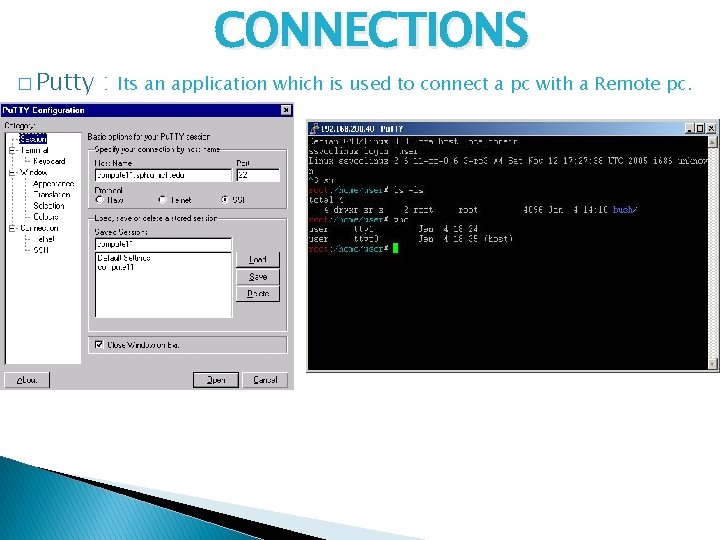
� Putty : CONNECTIONS Its an application which is used to connect a pc with a Remote pc.
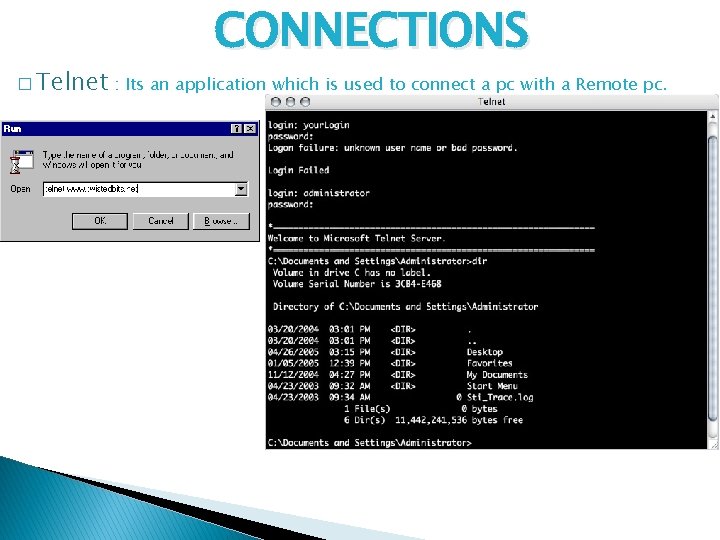
CONNECTIONS � Telnet : Its an application which is used to connect a pc with a Remote pc.
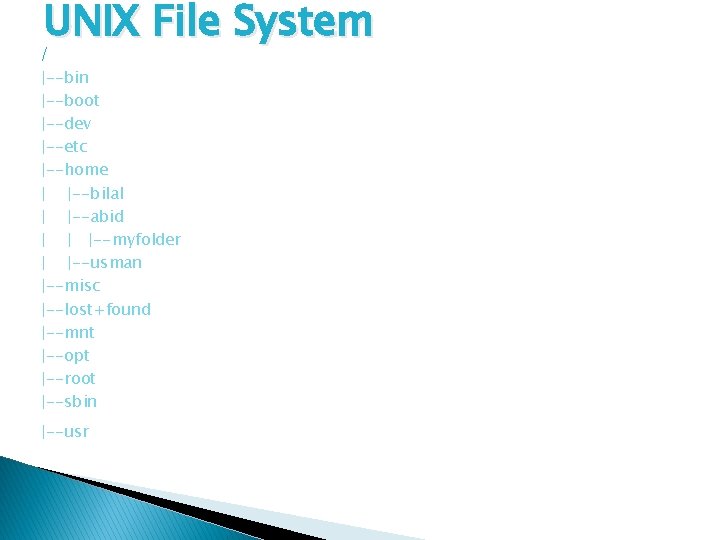
UNIX File System / |--bin |--boot |--dev |--etc |--home | |--bilal | |--abid | | |--myfolder | |--usman |--misc |--lost+found |--mnt |--opt |--root |--sbin |--usr
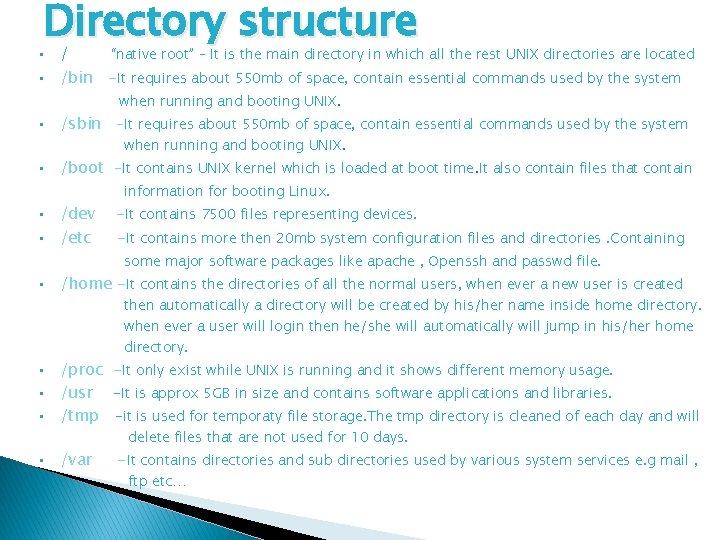
Directory structure • • / “native root” – It is the main directory in which all the rest UNIX directories are located /bin -It requires about 550 mb of space, contain essential commands used by the system when running and booting UNIX. • /sbin -It requires about 550 mb of space, contain essential commands used by the system when running and booting UNIX. • • • /boot -It contains UNIX kernel which is loaded at boot time. It also contain files that contain /dev /etc information for booting Linux. -It contains 7500 files representing devices. -It contains more then 20 mb system configuration files and directories. Containing some major software packages like apache , Openssh and passwd file. • /home -It contains the directories of all the normal users, when ever a new user is created then automatically a directory will be created by his/her name inside home directory. when ever a user will login then he/she will automatically will jump in his/her home directory. • • /proc -It only exist while UNIX is running and it shows different memory usage. /usr -It is approx 5 GB in size and contains software applications and libraries. /tmp -it is used for temporaty file storage. The tmp directory is cleaned of each day and will /var delete files that are not used for 10 days. -It contains directories and sub directories used by various system services e. g mail , ftp etc…
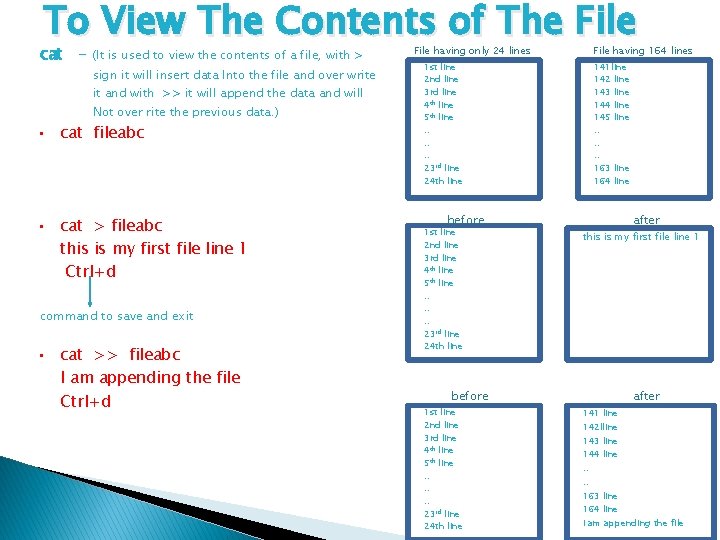
To View The Contents of The File cat - (It is used to view the contents of a file, with > sign it will insert data Into the file and over write it and with >> it will append the data and will Not over rite the previous data. ) • • cat fileabc cat > fileabc this is my first file line 1 Ctrl+d command to save and exit • cat >> fileabc I am appending the file Ctrl+d File having only 24 lines File having 164 lines 1 st line 2 nd line 3 rd line 4 th line 5 th line. . . 23 rd line 24 th line 141 line 142 line 143 line 144 line 145 line. . . 163 line 164 line before 1 st line 2 nd line 3 rd line 4 th line 5 th line. . . 23 rd line 24 th line after this is my first file line 1 before 1 st line 2 nd line 3 rd line 4 th line 5 th line. . . 23 rd line 24 th line after 141 line 142 lline 143 line 144 line. . 163 line 164 line I am appending the file
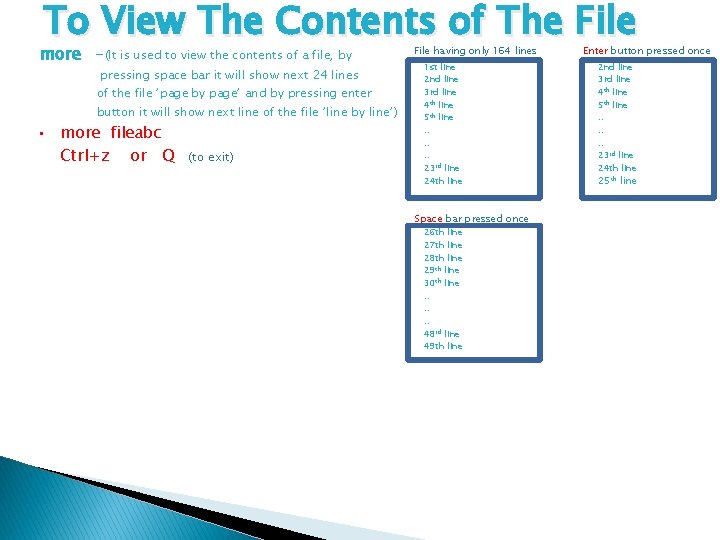
To View The Contents of The File more -(It is used to view the contents of a file, by pressing space bar it will show next 24 lines of the file ’page by page’ and by pressing enter button it will show next line of the file ’line by line’) • more fileabc Ctrl+z or Q (to exit) File having only 164 lines 1 st line 2 nd line 3 rd line 4 th line 5 th line. . . 23 rd line 24 th line Space bar pressed once 26 th line 27 th line 28 th line 29 th line 30 th line. . . 48 rd line 49 th line Enter button pressed once 2 nd line 3 rd line 4 th line 5 th line. . . 23 rd line 24 th line 25 th line
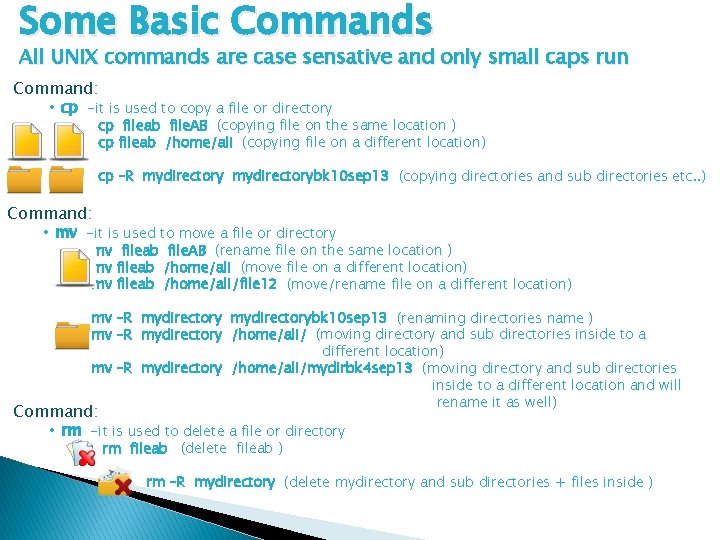
Some Basic Commands All UNIX commands are case sensative and only small caps run Command: • cp -it is used to copy a file or directory cp fileab file. AB (copying file on the same location ) cp fileab /home/ali (copying file on a different location) cp –R mydirectorybk 10 sep 13 (copying directories and sub directories etc. . ) Command: • mv -it is used to move a file or directory mv fileab file. AB (rename file on the same location ) mv fileab /home/ali (move file on a different location) mv fileab /home/ali/file 12 (move/rename file on a different location) mv –R mydirectorybk 10 sep 13 (renaming directories name ) mv –R mydirectory /home/ali/ (moving directory and sub directories inside to a different location) mv –R mydirectory /home/ali/mydirbk 4 sep 13 (moving directory and sub directories inside to a different location and will rename it as well) Command: • rm -it is used to delete a file or directory rm fileab (delete fileab ) rm –R mydirectory (delete mydirectory and sub directories + files inside )
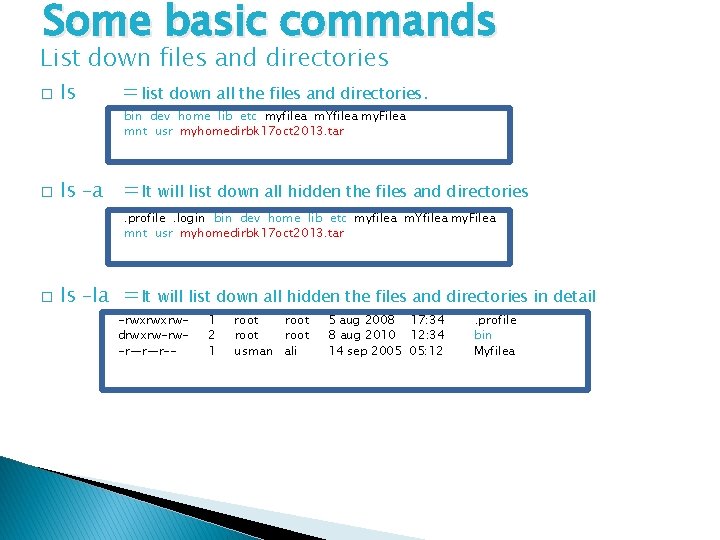
Some basic commands List down files and directories � ls =list down all the files and directories. bin dev home lib etc myfilea m. Yfilea my. Filea mnt usr myhomedirbk 17 oct 2013. tar � ls –a =It will list down all hidden the files and directories. profile. login bin dev home lib etc myfilea m. Yfilea my. Filea mnt usr myhomedirbk 17 oct 2013. tar � ls –la =It will list down all hidden the files and directories in detail -rwxrwxrwdrwxrw-rw-r—r—r-- 1 2 1 root usman ali 5 aug 2008 17: 34 8 aug 2010 12: 34 14 sep 2005 05: 12 . profile bin Myfilea
Commands • rm file* • rm file? • rm f? l? • touch • mkdir Creating files and directories+ special characters -It will remove all the files starting from the name file no matter how lengthy there name is, will remove file 1, file 111, fileabc 43 er, fileg * is a meta character which has a special meaning behind it (meaning every thing) -It will remove all the files starting from the name file and just one more extra character in the name, will remove file 1, file. B, filec, file 8. ? again is a meta character which has a special meaning behind it (meaning just one character or letter), it acts like a fill in the blank -It will remove all the files starting with the first letter f and the second may be any character/number , third letter must be l and fourth may be any character/number f just one more, will remove file, f. Bl 2, f 5 l 7, f 9 le, f 3 lg. ? again is a meta character which has a special meaning behind it (meaning just one character or letter), it acts like a fill in the blank, in this example there are two fill in the blanks -It will create an empty file, e. g touch mynewfile -It will create a directory , e. g mkdir mydir 32
Commands Back to user Home directory When ever a new user is created, UNIX will automatically create a folder by exact user name on the path /home • cd -To move and to go into the home directory of a user. If user usman • cd $HOME -To move and to go into the home directory of a user. If user usman is on the path /home/ali and he want to go to his home directory which will be /home/usman then he will type the command cd $HOME • cd ~ • cd. . • pwd is on the path /home/ali and he want to go to his home directory which will be /home/usman then he will type the command cd -To move and to go into the home directory of a user. If user usman is on the path /home/ali and he want to go to his home directory which will be /home/usman then he will type the command cd ~ -it will go one step back. Moving back one step in the directory structure. -it will show and print on the screen your present working directory path. meaning where you are your current position in the directory structure.
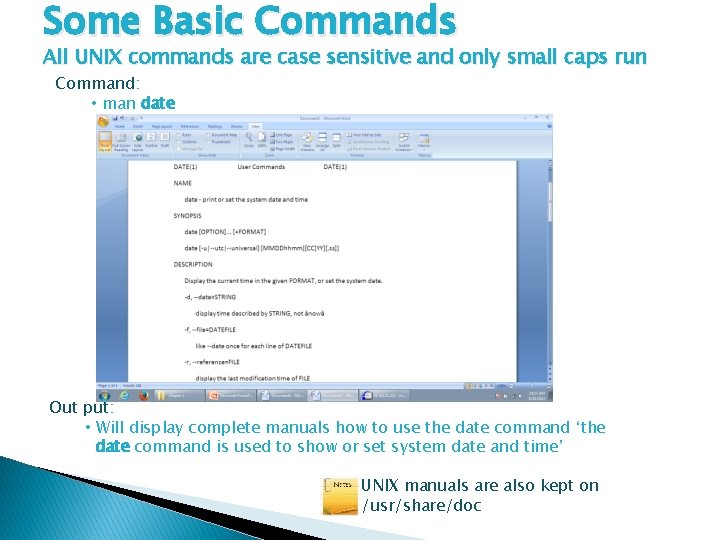
Some Basic Commands All UNIX commands are case sensitive and only small caps run Command: • man date Out put: • Will display complete manuals how to use the date command ‘the date command is used to show or set system date and time’ UNIX manuals are also kept on /usr/share/doc
Commands Some important commands of this chapter • whereis • whatis date • whoami • man ls | lpr -Pspr • cal • write -It will find out the command its documents on the entire file system and will display the ourput along with the path e. g whereis fdisk. -It will display the important options and how date command work with different options, basically it is a help command. -It will display a persons current user id -This is the combination of 2 commands by a piping ‘|’ it will print out the manuals of ls command from the Printer naming spr which is on a network. -To open up calandar -This command is used to send messages to others , useful Chat application. Ctrl+d is used to send a message. In order to communicate , both end users should accept messages by tying ‘mesg y’. If ‘mesg n’ is set by a use then no one can send him/her messages except the super user/root user/system admin.
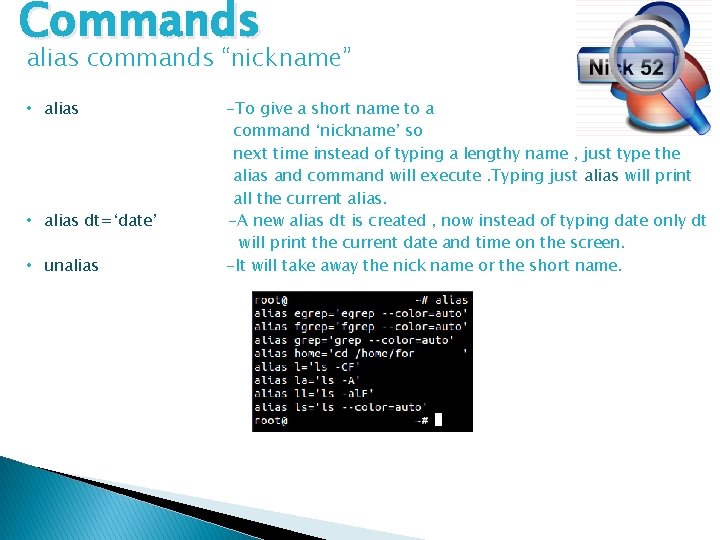
Commands alias commands “nickname” • alias dt=‘date’ • unalias -To give a short name to a command ‘nickname’ so next time instead of typing a lengthy name , just type the alias and command will execute. Typing just alias will print all the current alias. -A new alias dt is created , now instead of typing date only dt will print the current date and time on the screen. -It will take away the nick name or the short name.
- Slides: 22