
Welcome to the Library Eresources tutorial guide Steps

Welcome to the Library E-resources tutorial guide Steps in accessing E-journals (Emerald & Ebscohost)
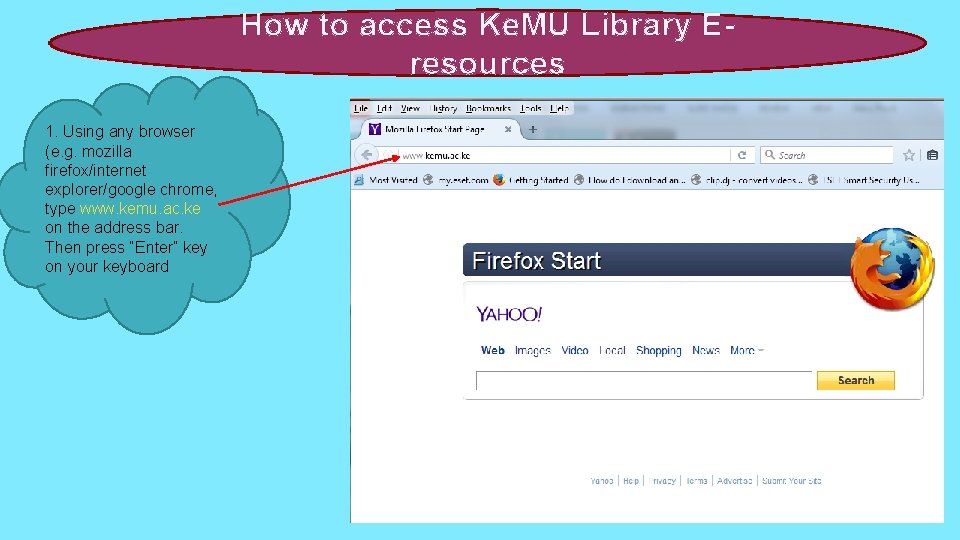
How to access Ke. MU Library Eresources 1. Using any browser (e. g. mozilla firefox/internet explorer/google chrome, type www. kemu. ac. ke on the address bar. Then press “Enter” key on your keyboard
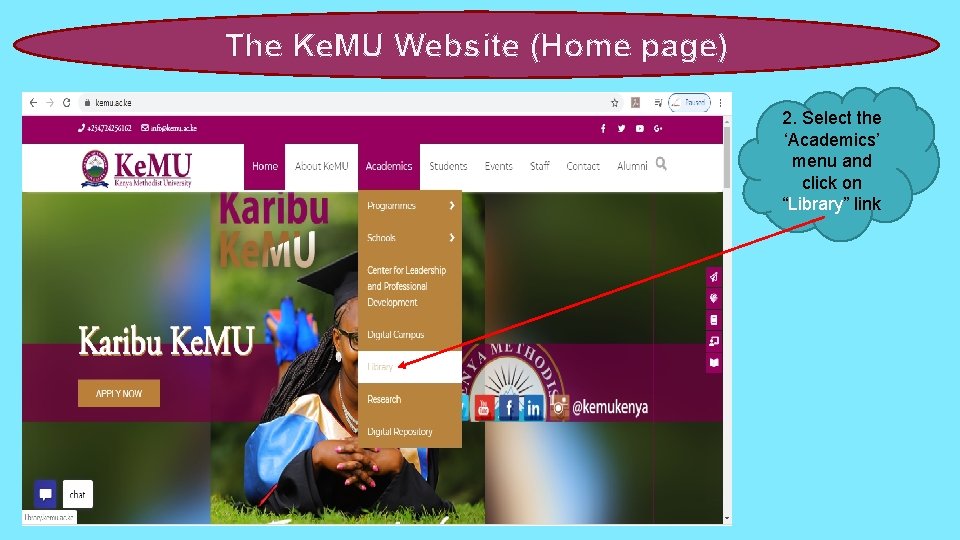
The Ke. MU Website (Home page) 2. Select the ‘Academics’ menu and click on “Library” link
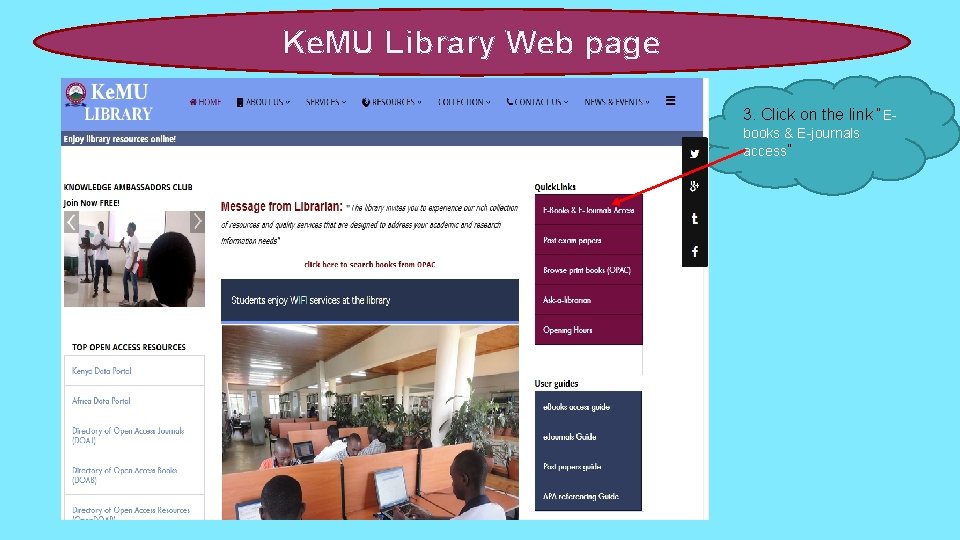
Ke. MU Library Web page 3. Click on the link “Ebooks & E-journals access”

Log in to e-resources portal 1. Login to the library eresources portal (enter your username & password and click “Login”) Note: For more details on how to login to library e-resources portal, refer to the slide on “Steps in logging into eresources” To log in, do as follows Students; User Name: Use your student registration number (without — or / ) e. g. “bis 1305232012” Password: Use your student portal password. Staff; User Name: Use your staff email (outlook) user ID e. g. “fredrick. onyango” Password: Use your staff PF number.
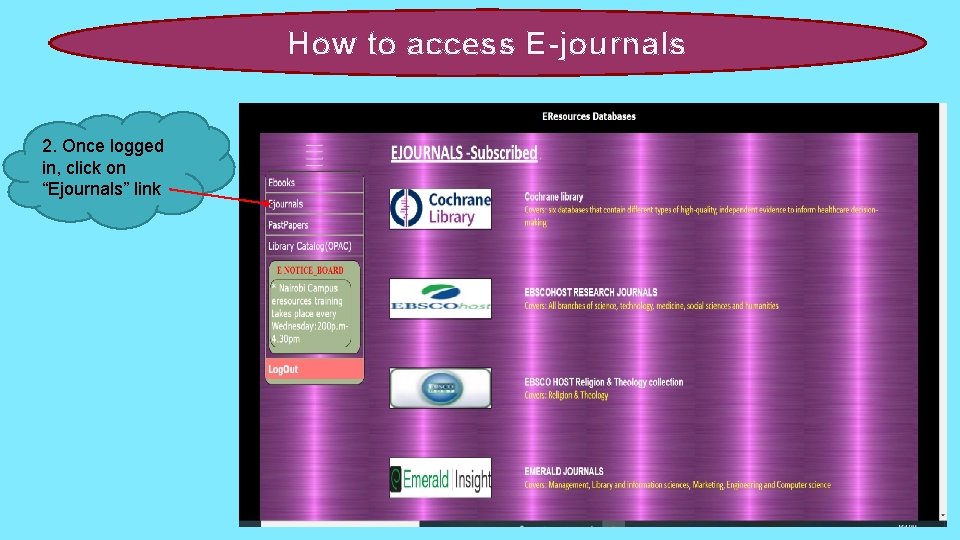
How to access E-journals 2. Once logged in, click on “Ejournals” link
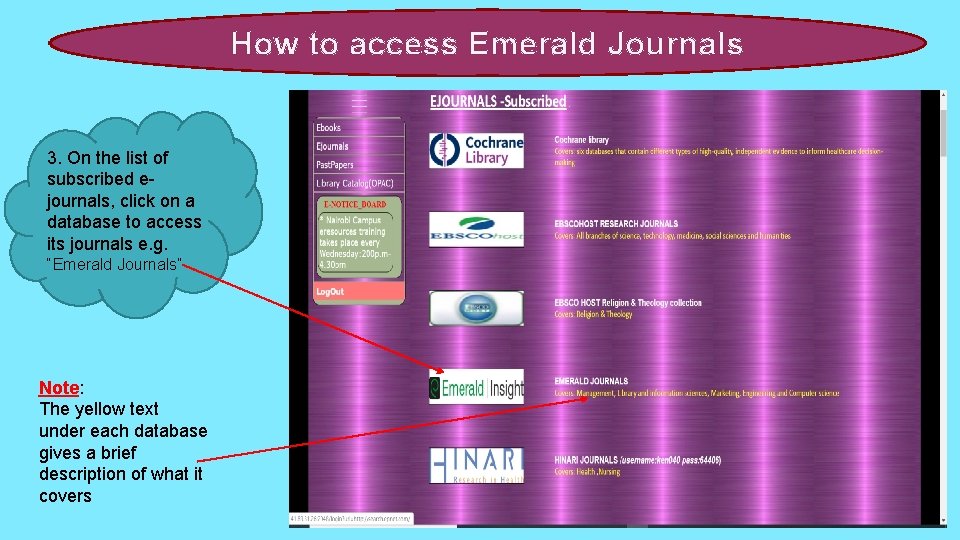
How to access Emerald Journals 3. On the list of subscribed ejournals, click on a database to access its journals e. g. “Emerald Journals” Note: The yellow text under each database gives a brief description of what it covers
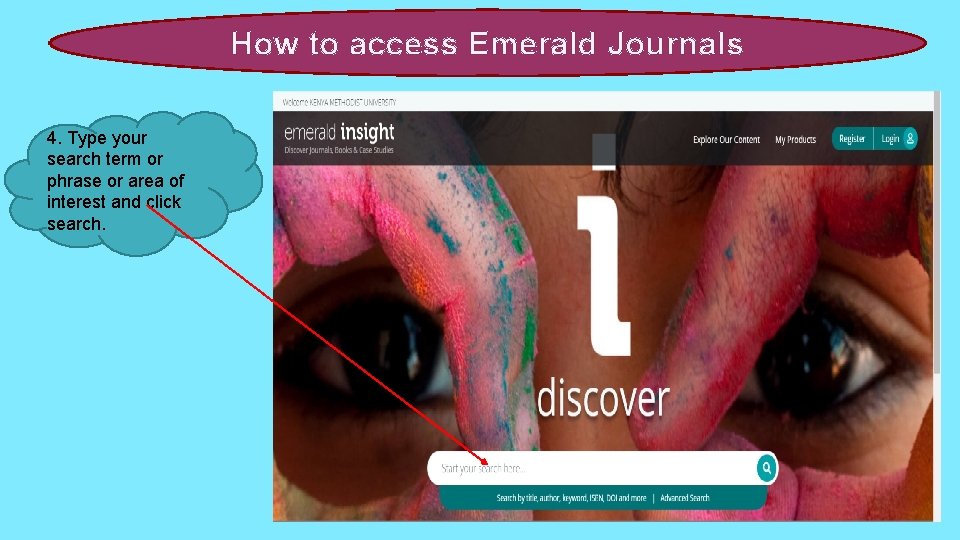
How to access Emerald Journals 4. Type your search term or phrase or area of interest and click search.
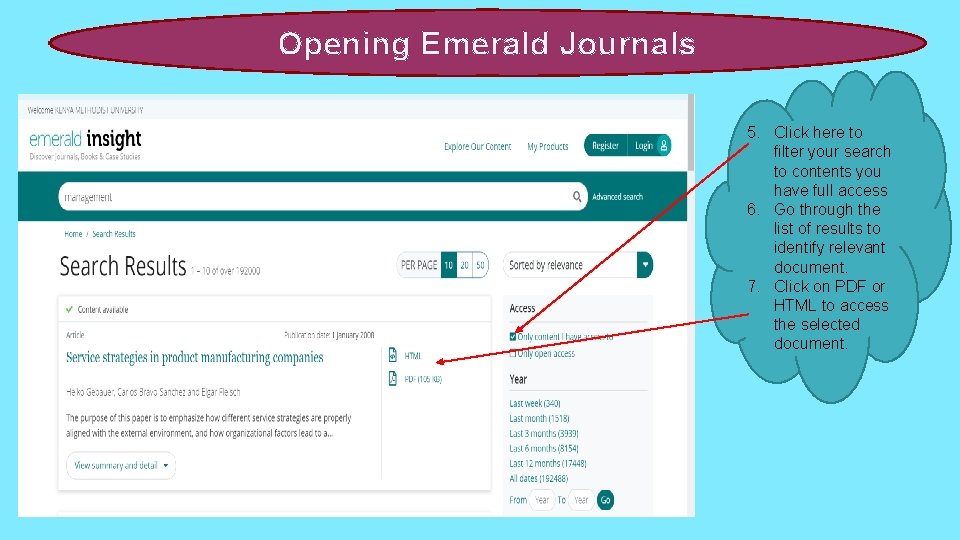
Opening Emerald Journals 5. Click here to filter your search to contents you have full access 6. Go through the list of results to identify relevant document. 7. Click on PDF or HTML to access the selected document.
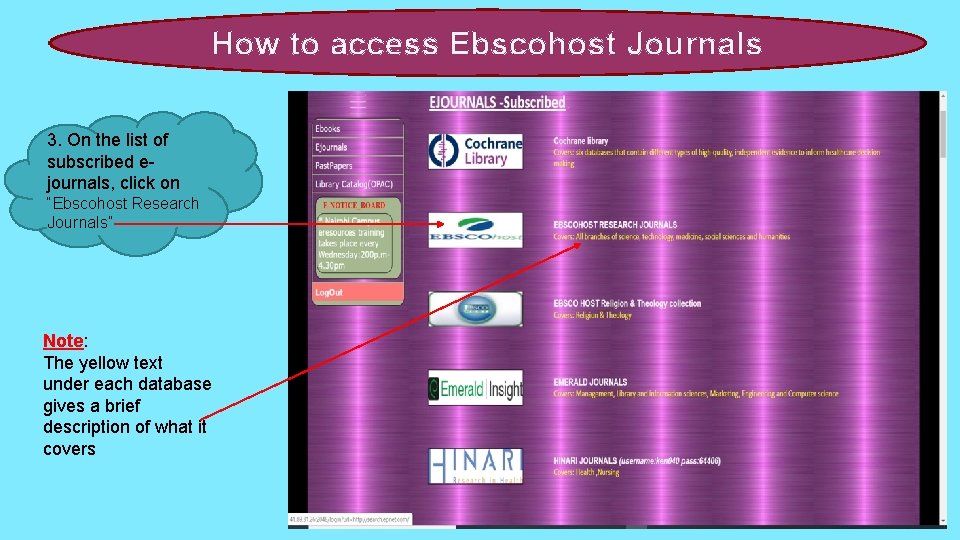
How to access Ebscohost Journals 3. On the list of subscribed ejournals, click on “Ebscohost Research Journals” Note: The yellow text under each database gives a brief description of what it covers
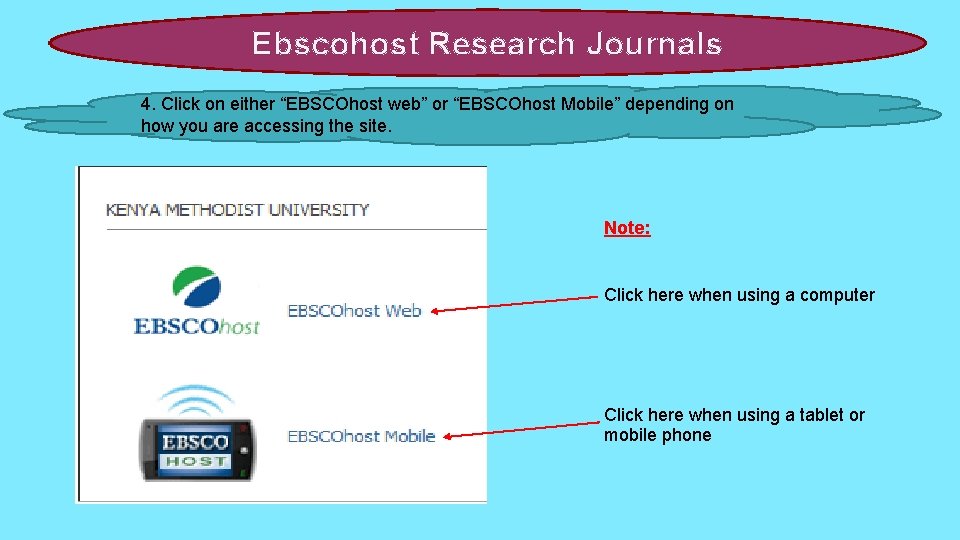
Ebscohost Research Journals 4. Click on either “EBSCOhost web” or “EBSCOhost Mobile” depending on how you are accessing the site. Note: Click here when using a computer Click here when using a tablet or mobile phone
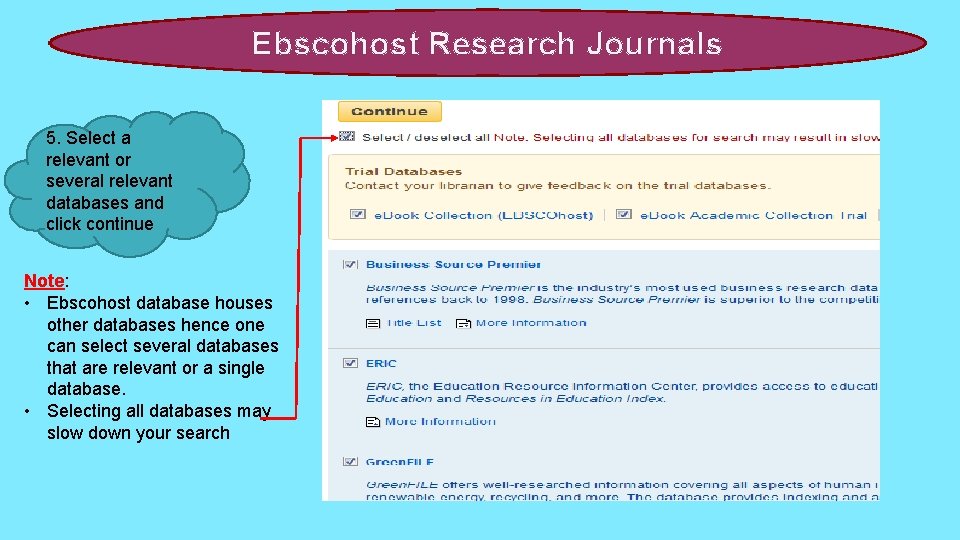
Ebscohost Research Journals 5. Select a relevant or several relevant databases and click continue Note: • Ebscohost database houses other databases hence one can select several databases that are relevant or a single database. • Selecting all databases may slow down your search
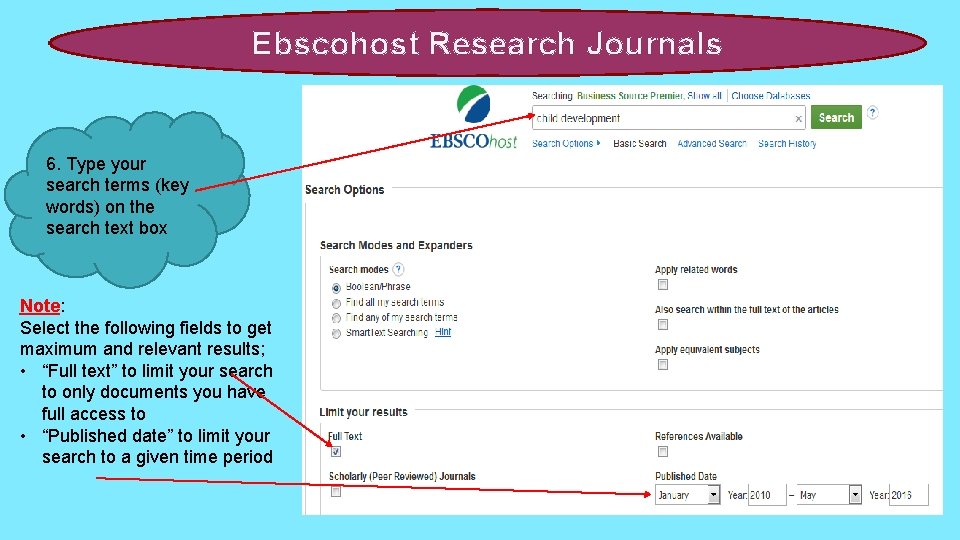
Ebscohost Research Journals 6. Type your search terms (key words) on the search text box Note: Select the following fields to get maximum and relevant results; • “Full text” to limit your search to only documents you have full access to • “Published date” to limit your search to a given time period
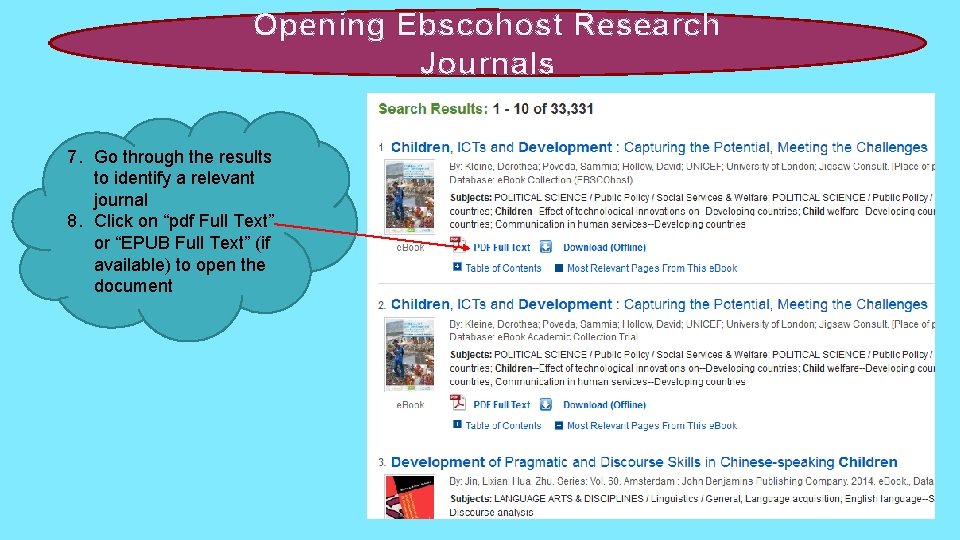
Opening Ebscohost Research Journals 7. Go through the results to identify a relevant journal 8. Click on “pdf Full Text” or “EPUB Full Text” (if available) to open the document
- Slides: 14