
Welcome to the Lab Web Portal Please contact
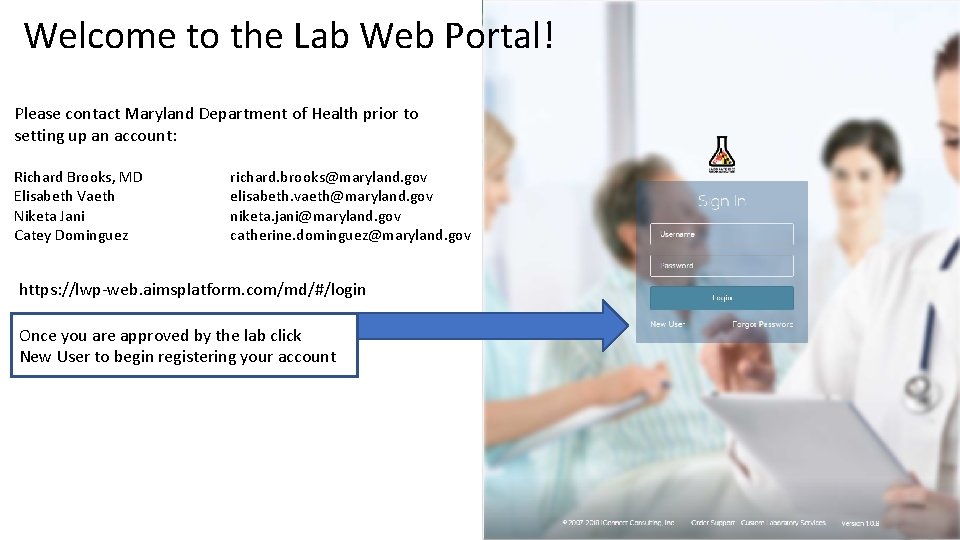
Welcome to the Lab Web Portal! Please contact Maryland Department of Health prior to setting up an account: Richard Brooks, MD Elisabeth Vaeth Niketa Jani Catey Dominguez richard. brooks@maryland. gov elisabeth. vaeth@maryland. gov niketa. jani@maryland. gov catherine. dominguez@maryland. gov https: //lwp-web. aimsplatform. com/md/#/login Once you are approved by the lab click New User to begin registering your account
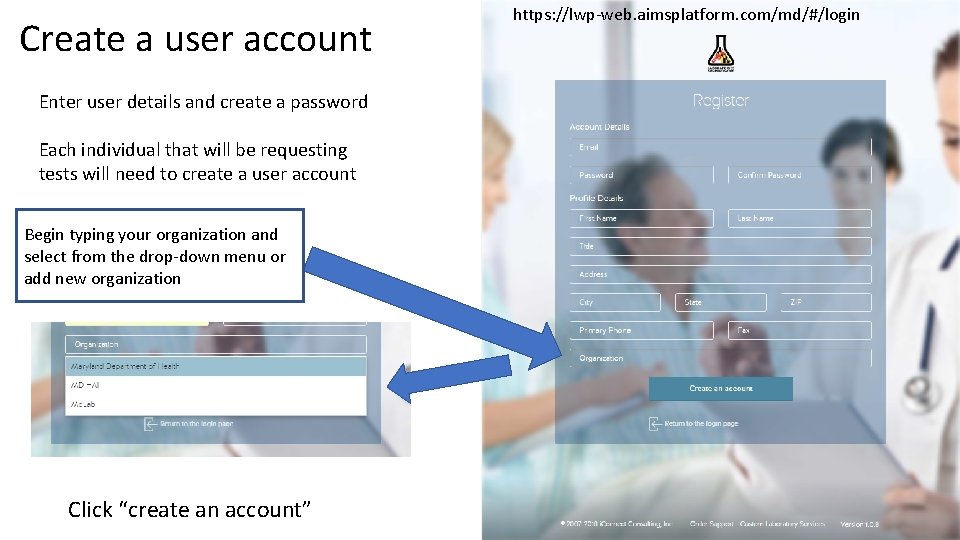
Create a user account Enter user details and create a password Each individual that will be requesting tests will need to create a user account Begin typing your organization and select from the drop-down menu or add new organization Click “create an account” https: //lwp-web. aimsplatform. com/md/#/login
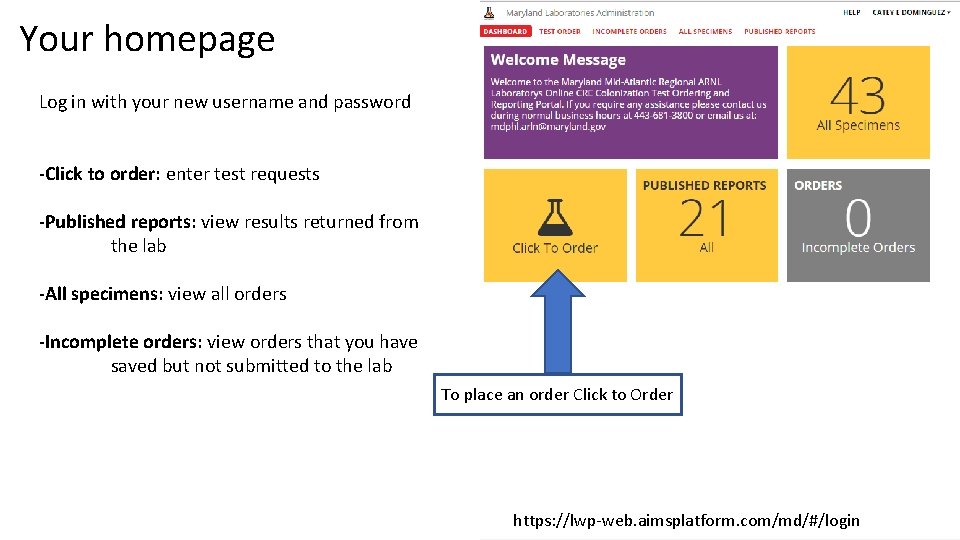
Your homepage Log in with your new username and password -Click to order: enter test requests -Published reports: view results returned from the lab -All specimens: view all orders -Incomplete orders: view orders that you have saved but not submitted to the lab To place an order Click to Order https: //lwp-web. aimsplatform. com/md/#/login
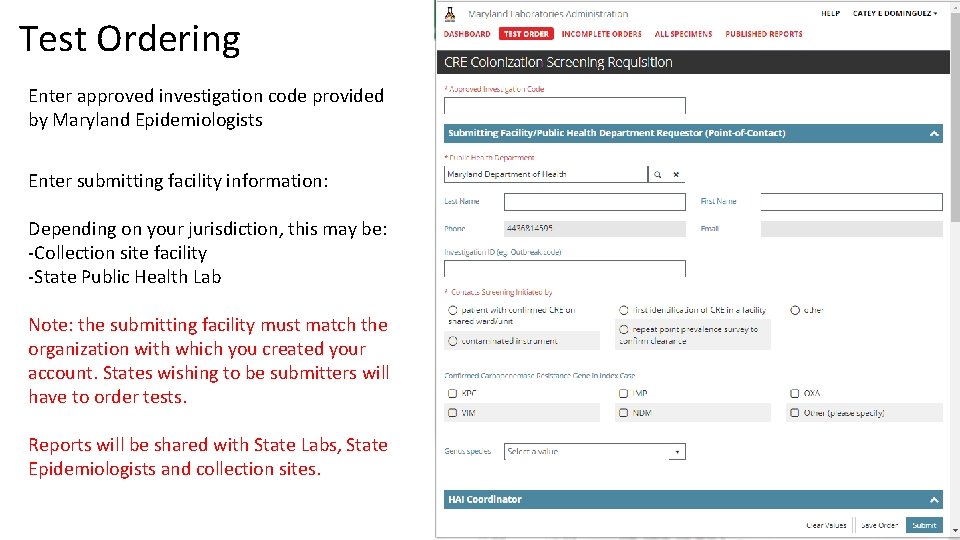
Test Ordering Enter approved investigation code provided by Maryland Epidemiologists Enter submitting facility information: Depending on your jurisdiction, this may be: -Collection site facility -State Public Health Lab Note: the submitting facility must match the organization with which you created your account. States wishing to be submitters will have to order tests. Reports will be shared with State Labs, State Epidemiologists and collection sites.
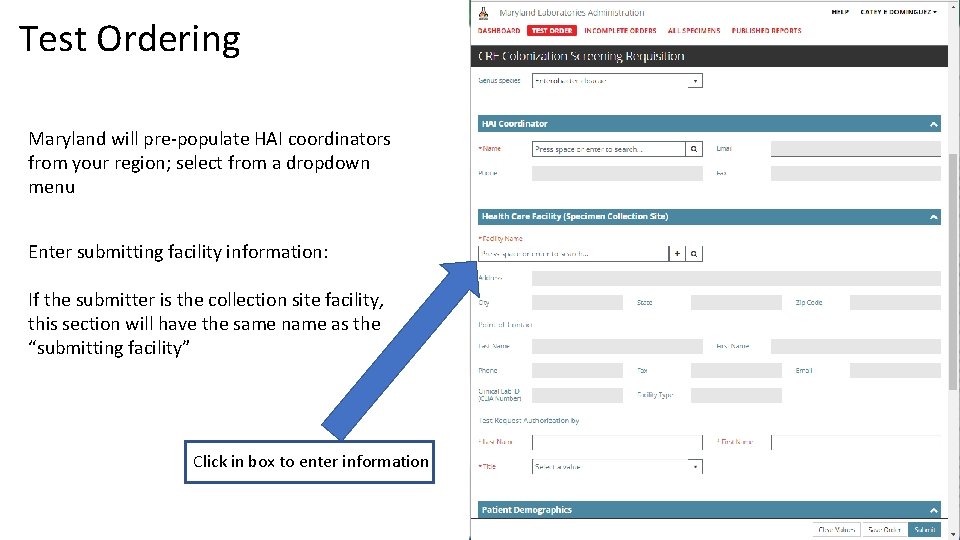
Test Ordering Maryland will pre-populate HAI coordinators from your region; select from a dropdown menu Enter submitting facility information: If the submitter is the collection site facility, this section will have the same name as the “submitting facility” Click in box to enter information
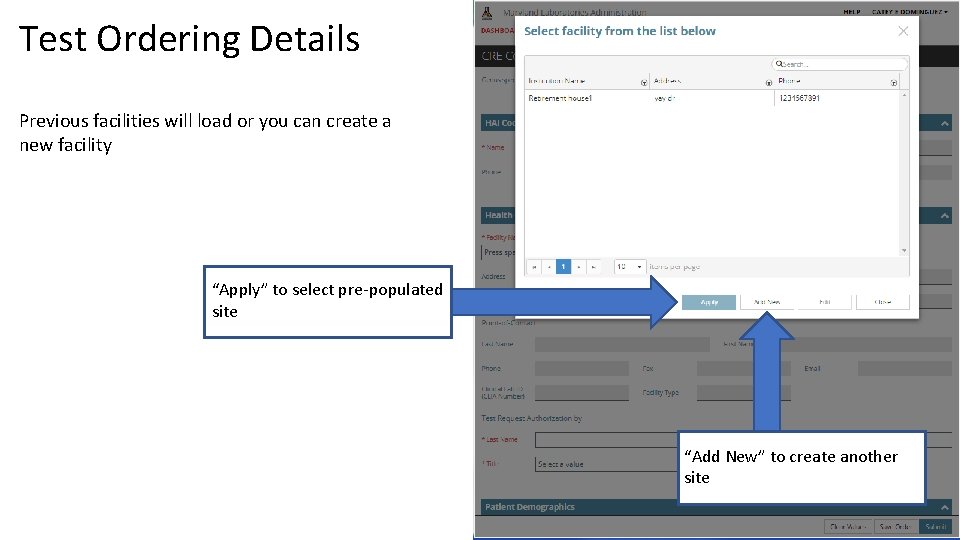
Test Ordering Details Previous facilities will load or you can create a new facility “Apply” to select pre-populated site “Add New” to create another site
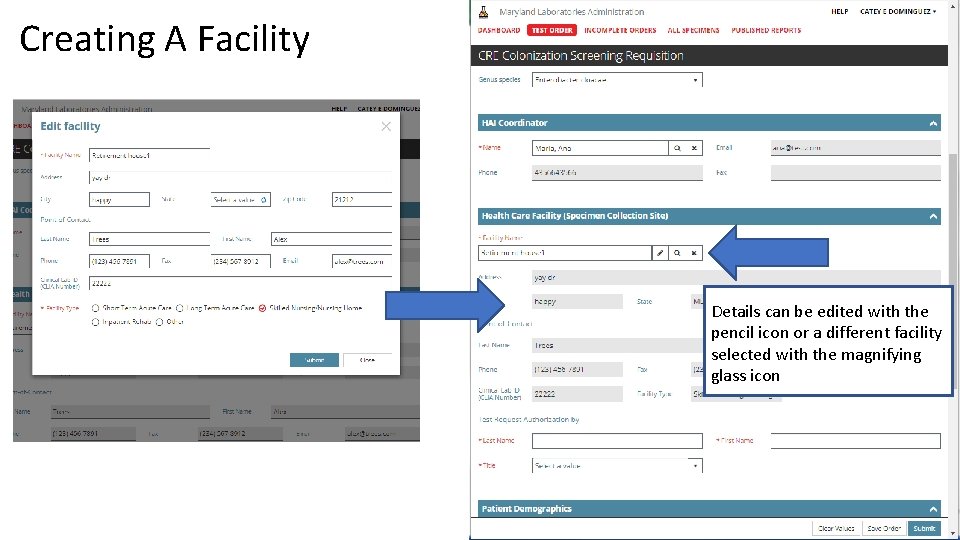
Creating A Facility Details can be edited with the pencil icon or a different facility selected with the magnifying glass icon
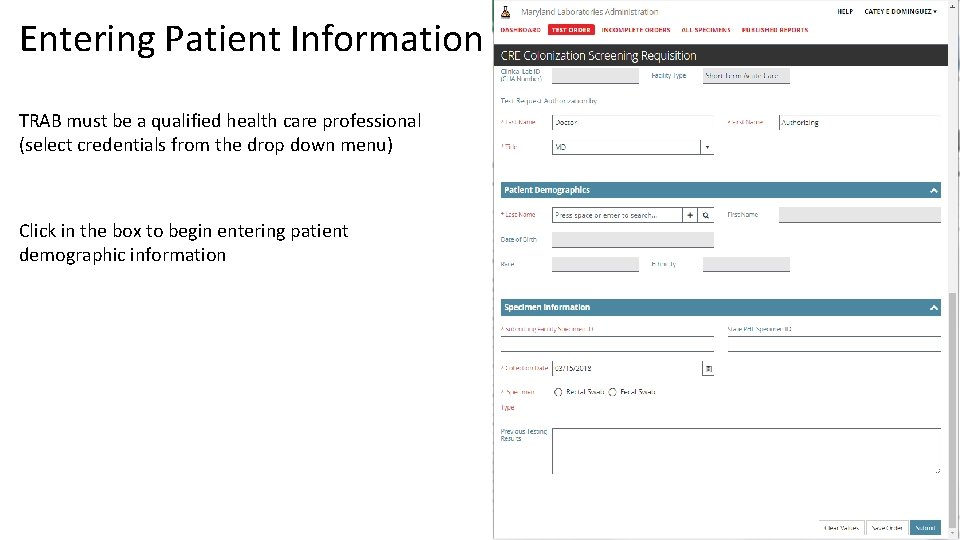
Entering Patient Information TRAB must be a qualified health care professional (select credentials from the drop down menu) Click in the box to begin entering patient demographic information
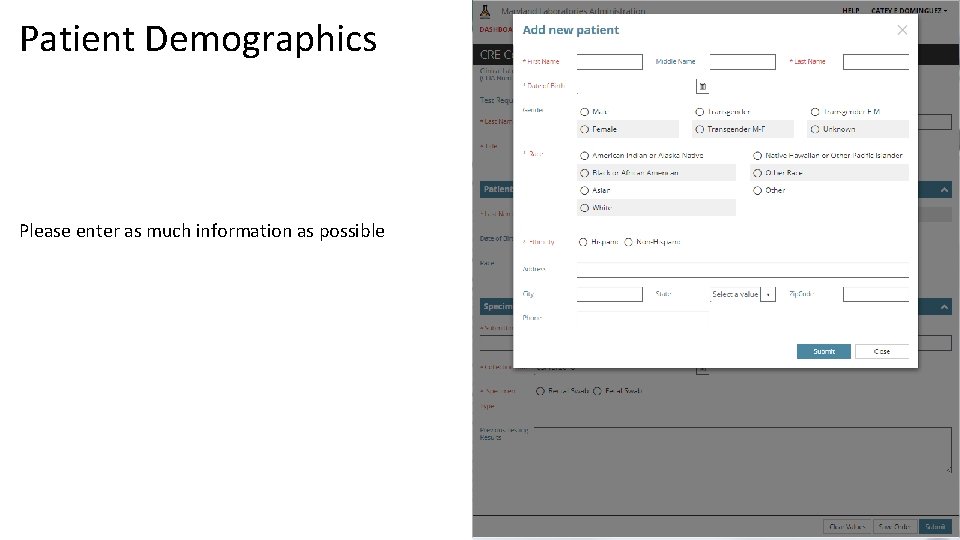
Patient Demographics Please enter as much information as possible
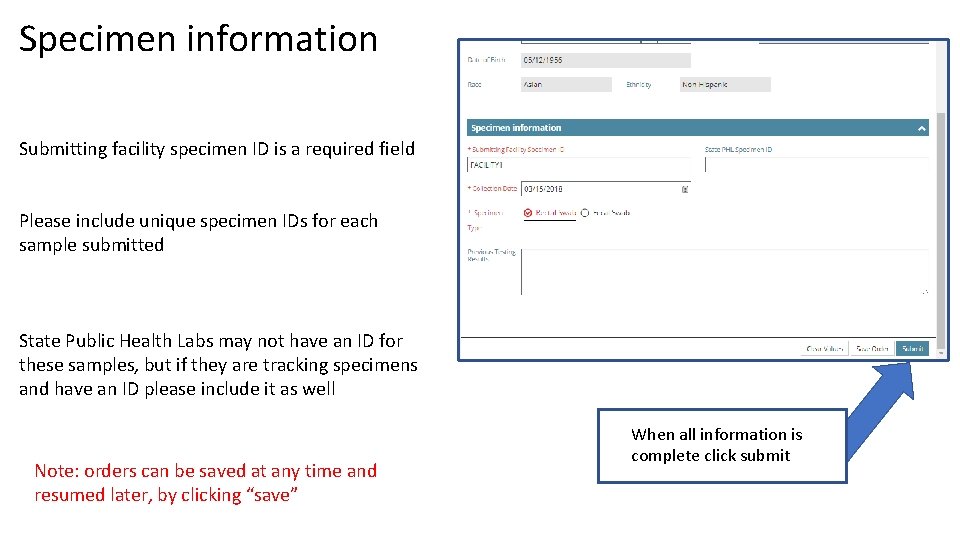
Specimen information Submitting facility specimen ID is a required field Please include unique specimen IDs for each sample submitted State Public Health Labs may not have an ID for these samples, but if they are tracking specimens and have an ID please include it as well Note: orders can be saved at any time and resumed later, by clicking “save” When all information is complete click submit
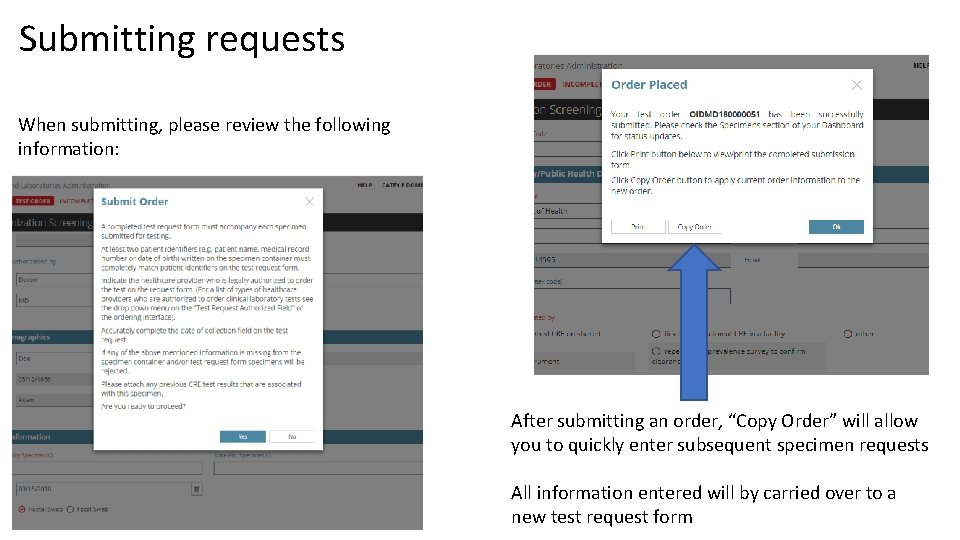
Submitting requests When submitting, please review the following information: After submitting an order, “Copy Order” will allow you to quickly enter subsequent specimen requests All information entered will by carried over to a new test request form
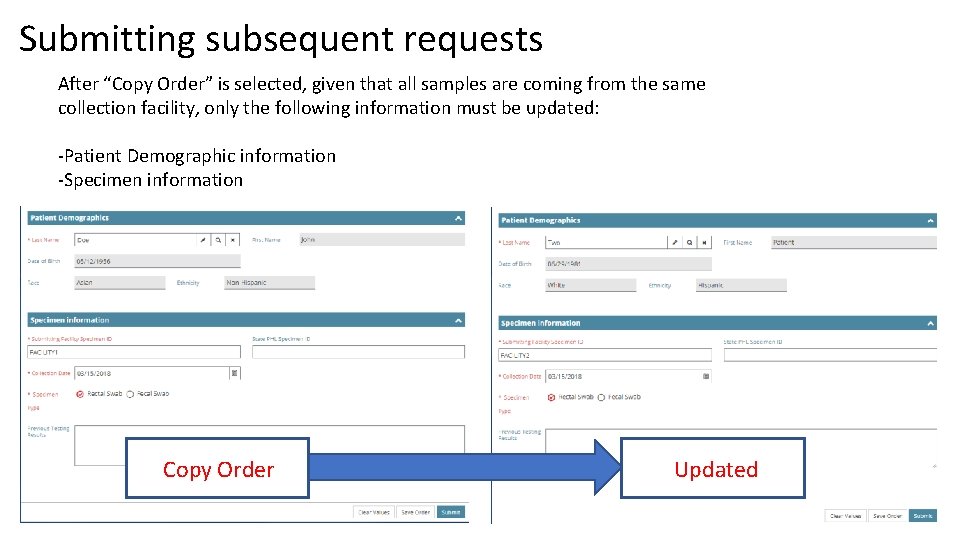
Submitting subsequent requests After “Copy Order” is selected, given that all samples are coming from the same collection facility, only the following information must be updated: -Patient Demographic information -Specimen information Copy Order Updated
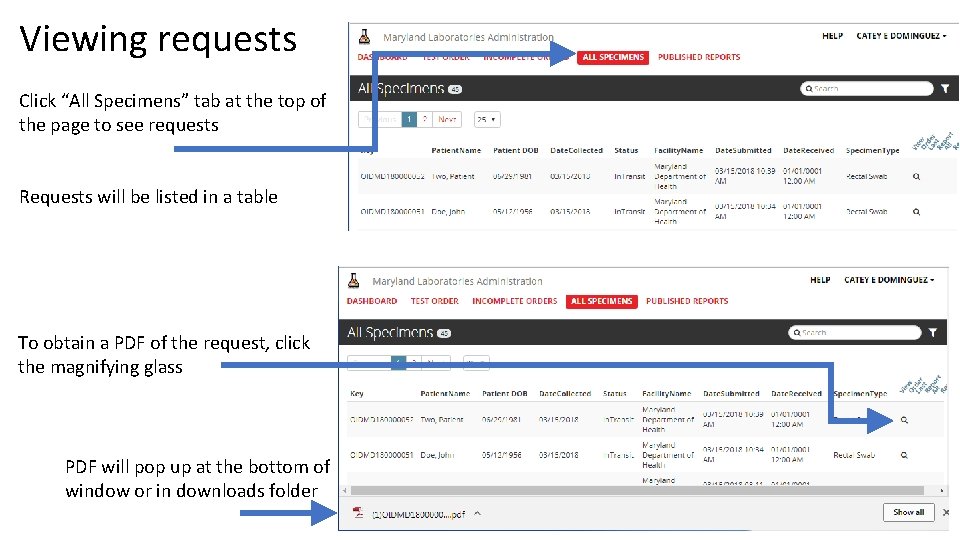
Viewing requests Click “All Specimens” tab at the top of the page to see requests Requests will be listed in a table To obtain a PDF of the request, click the magnifying glass PDF will pop up at the bottom of window or in downloads folder
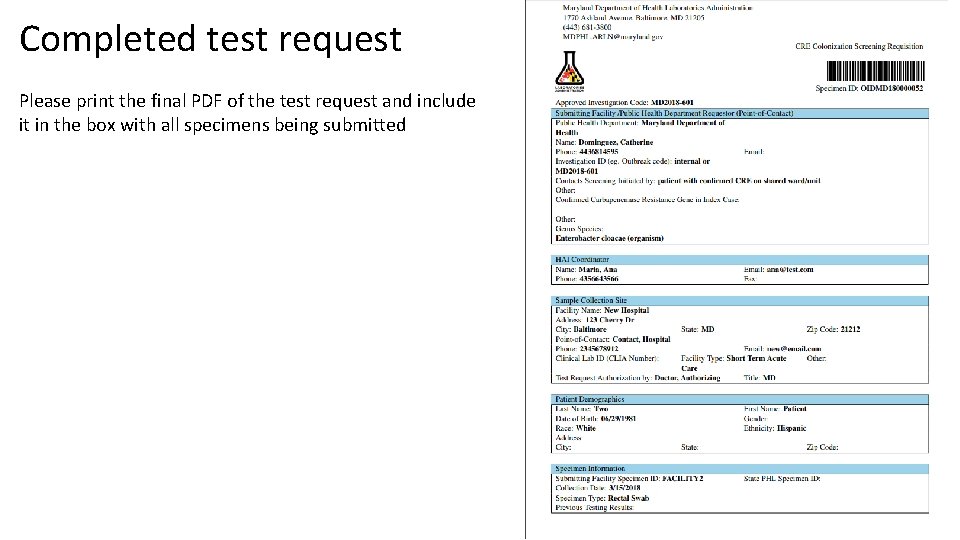
Completed test request Please print the final PDF of the test request and include it in the box with all specimens being submitted
- Slides: 14