
Welcome to Students Guide Contents Why Office 365




- Slides: 16
Welcome to Students Guide
Contents • Why Office 365? • Accessing Office 365 • Accessing Applications • Microsoft Teams (remote learning tool)
Why Office 365
Why Office 365? Office 365 is an internet based service that gives you the ability to access your school files and resources from anywhere as long as you have an internet connection. Additional benefits; 1. Remote learning 2. Makes collaborating easy 3. Data loss prevention features (i. e. auto save, auto backup etc. ) 4. Anti-virus protection for files and more….
Accessing Office 365
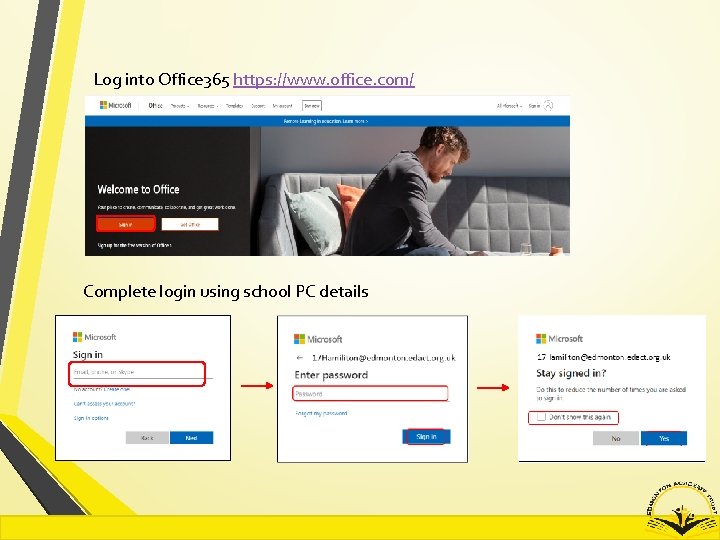
Log into Office 365 https: //www. office. com/ Complete login using school PC details
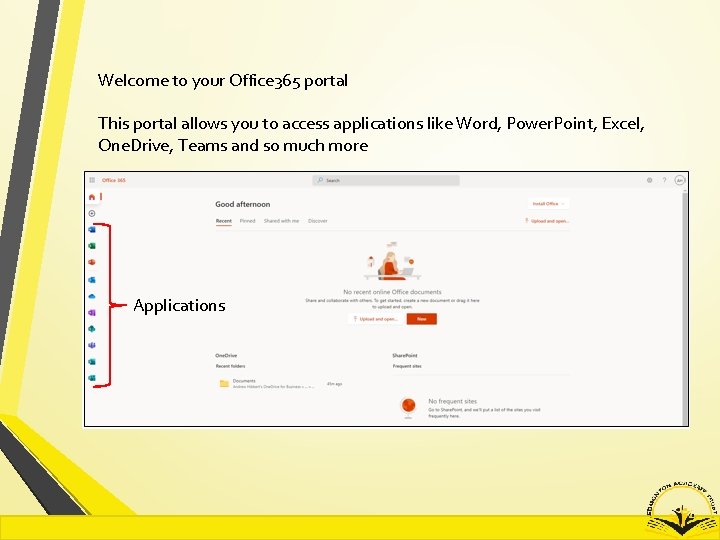
Welcome to your Office 365 portal This portal allows you to access applications like Word, Power. Point, Excel, One. Drive, Teams and so much more Applications
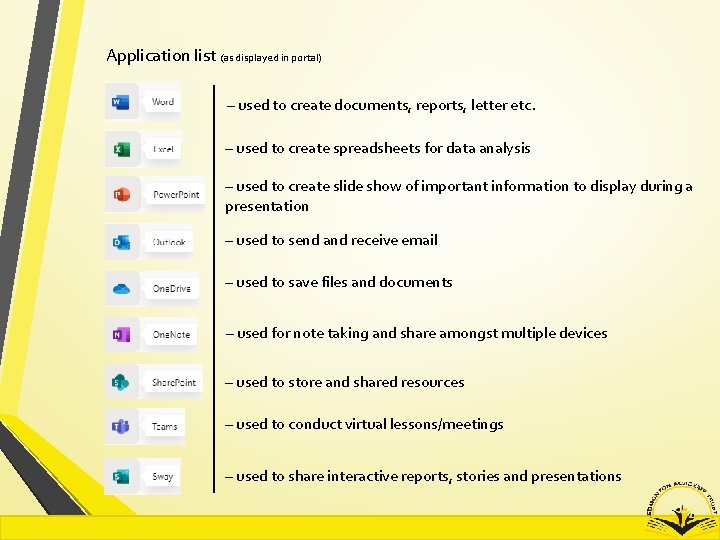
Application list (as displayed in portal) – used to create documents, reports, letter etc. – used to create spreadsheets for data analysis – used to create slide show of important information to display during a presentation – used to send and receive email – used to save files and documents – used for note taking and share amongst multiple devices – used to store and shared resources – used to conduct virtual lessons/meetings – used to share interactive reports, stories and presentations
Accessing Applications
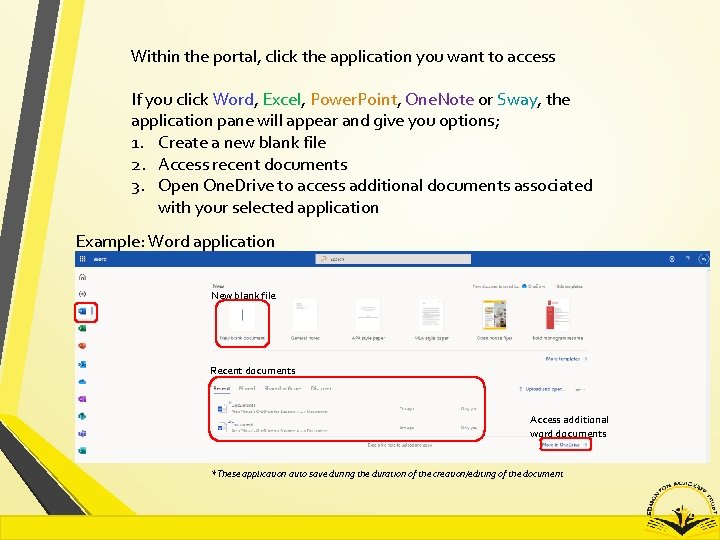
Within the portal, click the application you want to access If you click Word, Excel, Power. Point, One. Note or Sway, the application pane will appear and give you options; 1. Create a new blank file 2. Access recent documents 3. Open One. Drive to access additional documents associated with your selected application Example: Word application New blank file Recent documents Access additional word documents *These application auto save during the duration of the creation/editing of the document
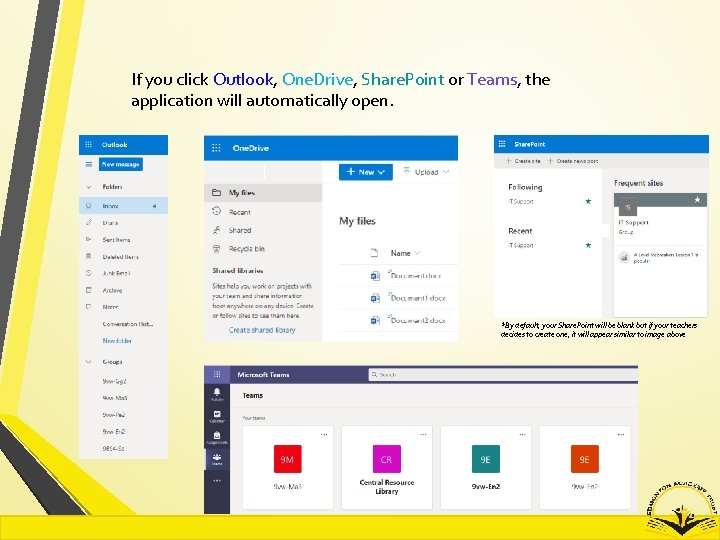
If you click Outlook, One. Drive, Share. Point or Teams, the application will automatically open. *By default, your Share. Point will be blank but if your teachers decides to create one, it will appear similar to image above
Microsoft Teams
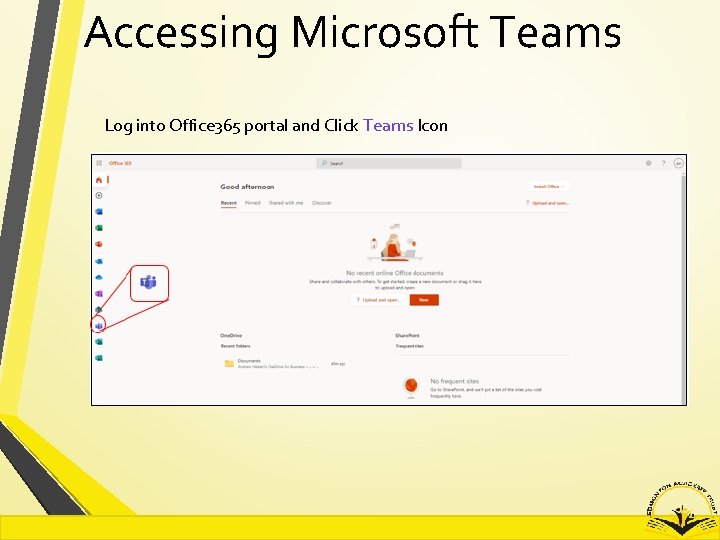
Accessing Microsoft Teams Log into Office 365 portal and Click Teams Icon
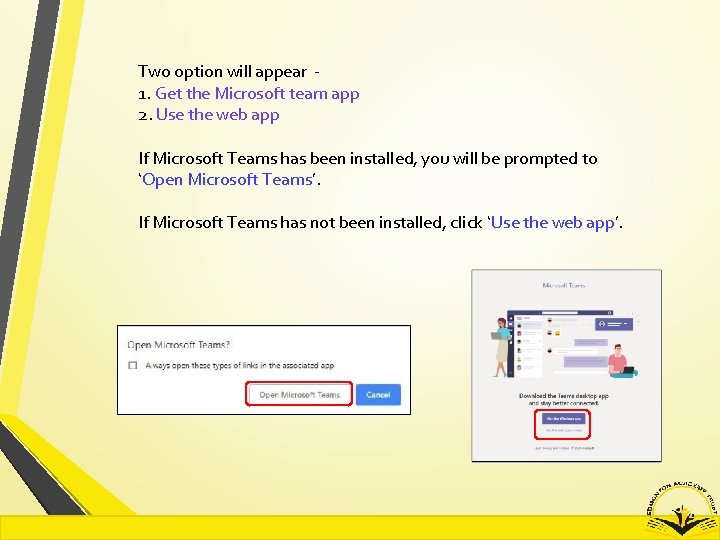
Two option will appear 1. Get the Microsoft team app 2. Use the web app If Microsoft Teams has been installed, you will be prompted to ‘Open Microsoft Teams’. If Microsoft Teams has not been installed, click ‘Use the web app’.
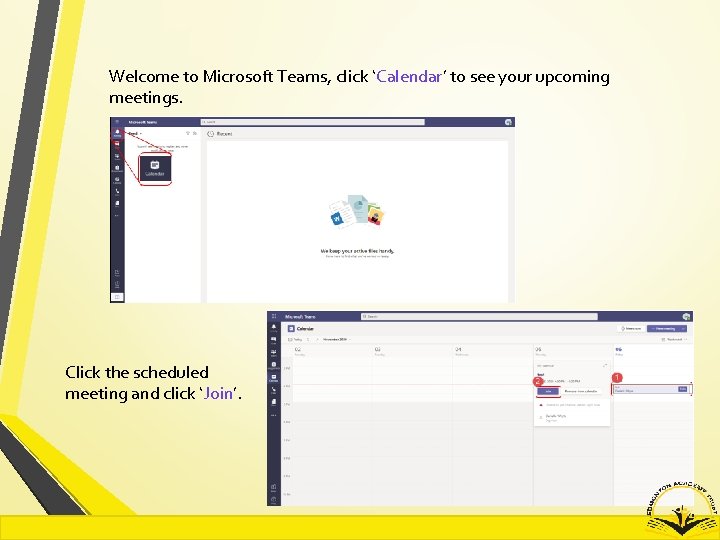
Welcome to Microsoft Teams, click ‘Calendar’ to see your upcoming meetings. Click the scheduled meeting and click ‘Join’.
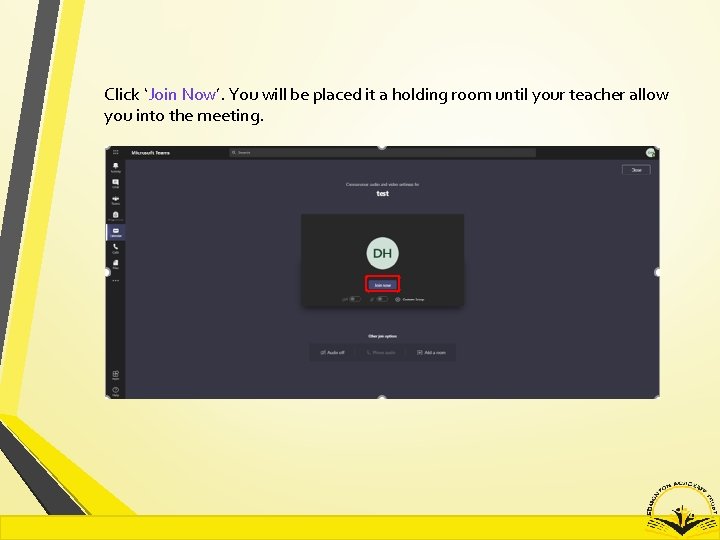
Click ‘Join Now’. You will be placed it a holding room until your teacher allow you into the meeting.