
Welcome to Regions Quick Deposit You may not


- Slides: 94
Welcome to Regions Quick Deposit You may not have access to all services discussed during this training. Please contact your System Administrator or Treasury Management Specialist to inquire about access or enrollment for particular services.
Agenda › System Login › Logging into One. Pass › Security Question Registration › Validating Email › Completing One. Pass Profile › Navigating One. Pass › Navigating Quick Deposit › Download Scanner Drivers › Administration › Creating a Deposit › Viewing Reports › Using Research 2
Logging into One. Pass › If this is the first time you have accessed One. Pass, you should have three emails from “onepass@regions. com” › One email will have a validation code › Another will have your temporary password › The last email is a notification that you have successfully registered for Quick Deposit To access Regions One. Pass, you may use the link below: https: //onepass. regions. com/One. Pass 3
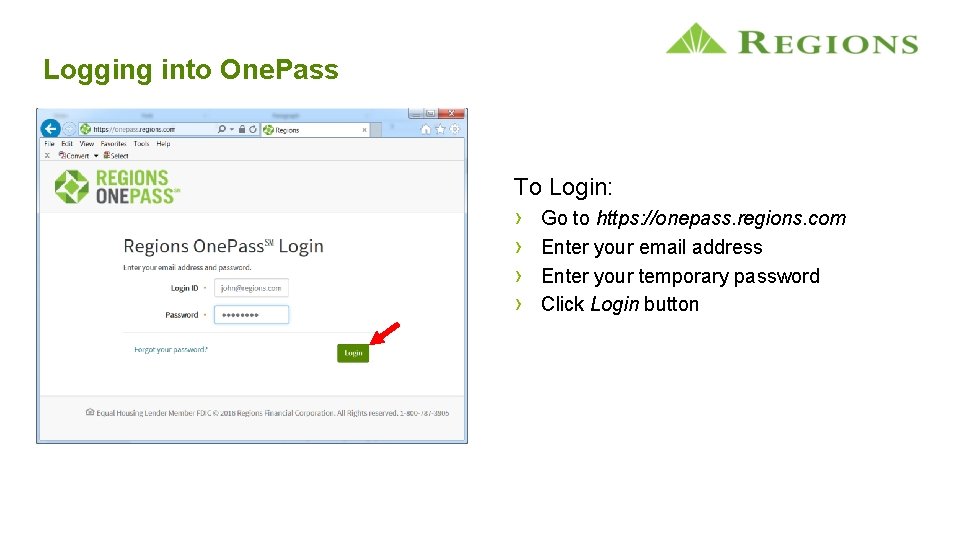
Logging into One. Pass To Login: › Go to https: //onepass. regions. com › Enter your email address › Enter your temporary password › Click Login button
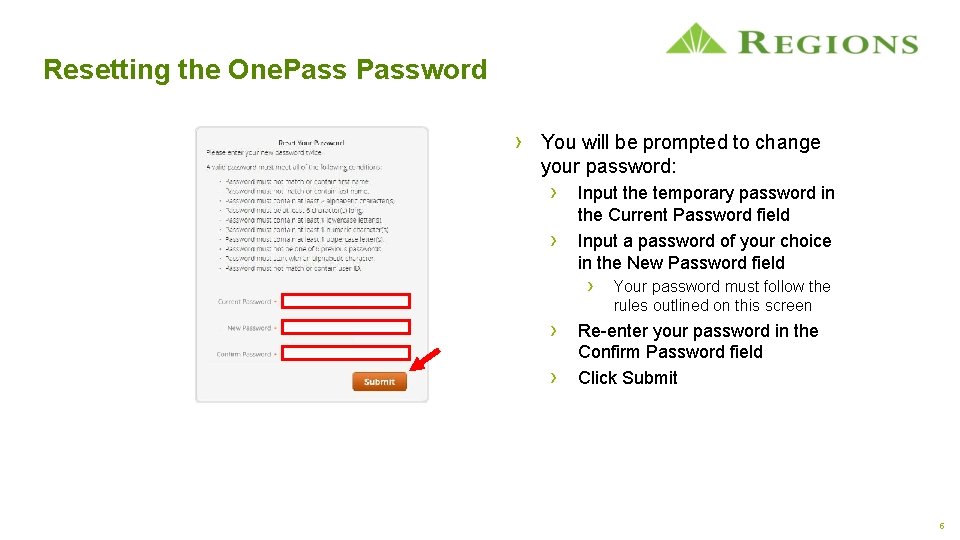
Resetting the One. Password › You will be prompted to change your password: › Input the temporary password in › the Current Password field Input a password of your choice in the New Password field › Your password must follow the rules outlined on this screen › Re-enter your password in the › Confirm Password field Click Submit 5
Agenda › System Login › Logging into One. Pass › Security Question Registration › Validating Email › Completing One. Pass Profile › Navigating One. Pass › Navigating Quick Deposit › Download Scanner Drivers › Administration › Creating a Deposit › Viewing Reports › Using Research 6
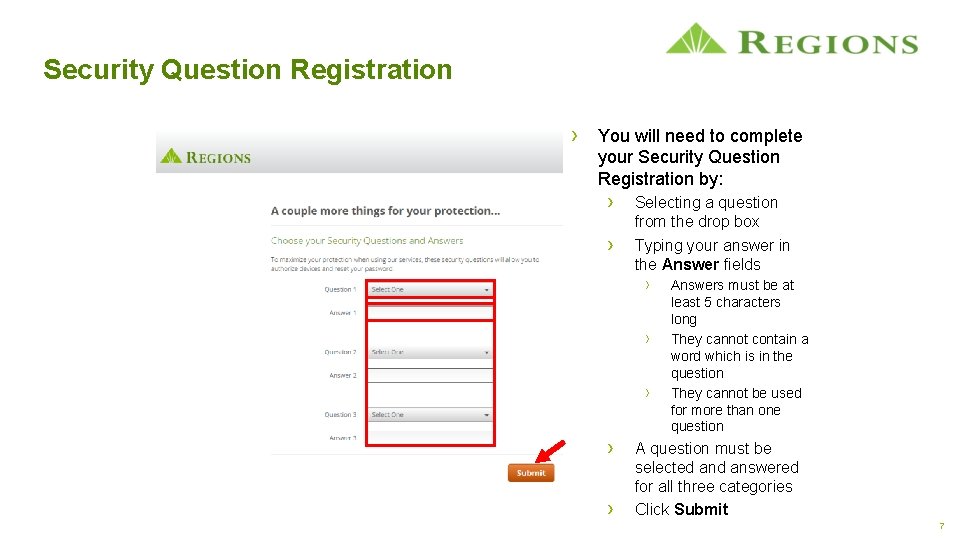
Security Question Registration › You will need to complete your Security Question Registration by: › › Selecting a question from the drop box Typing your answer in the Answer fields › › › Answers must be at least 5 characters long They cannot contain a word which is in the question They cannot be used for more than one question A question must be selected answered for all three categories Click Submit 7
Agenda › System Login › Logging into One. Pass › Security Question Registration › Validating Email › Completing One. Pass Profile › Navigating One. Pass › Navigating Quick Deposit › Download Scanner Drivers › Administration › Creating a Deposit › Viewing Reports › Using Research 8
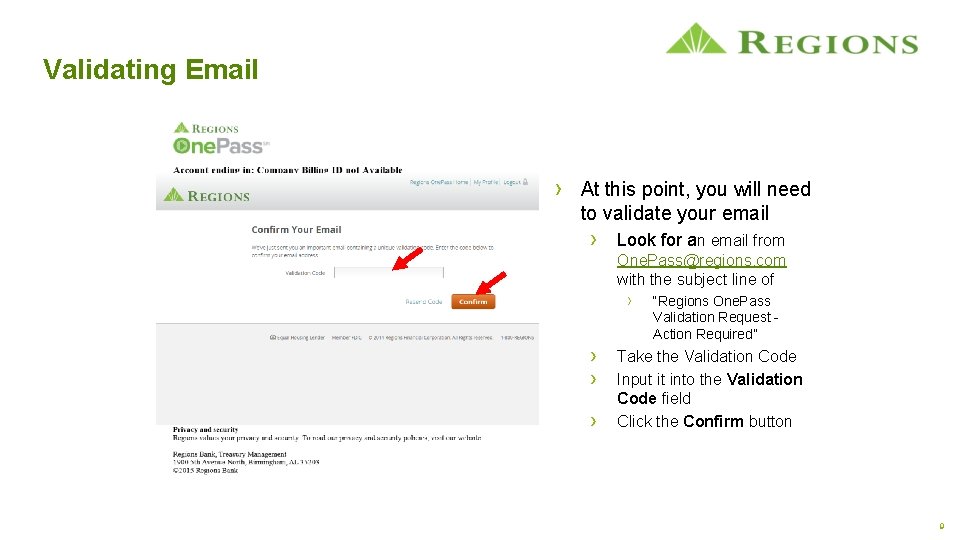
Validating Email › At this point, you will need to validate your email › Look for an email from One. Pass@regions. com with the subject line of › › “Regions One. Pass Validation Request Action Required” Take the Validation Code Input it into the Validation Code field Click the Confirm button 9
Agenda › System Login › Logging into One. Pass › Security Question Registration › Validating Email › Completing One. Pass Profile › Navigating One. Pass › Navigating Quick Deposit › Download Scanner Drivers › Administration › Creating a Deposit › Viewing Reports › Using Research 10
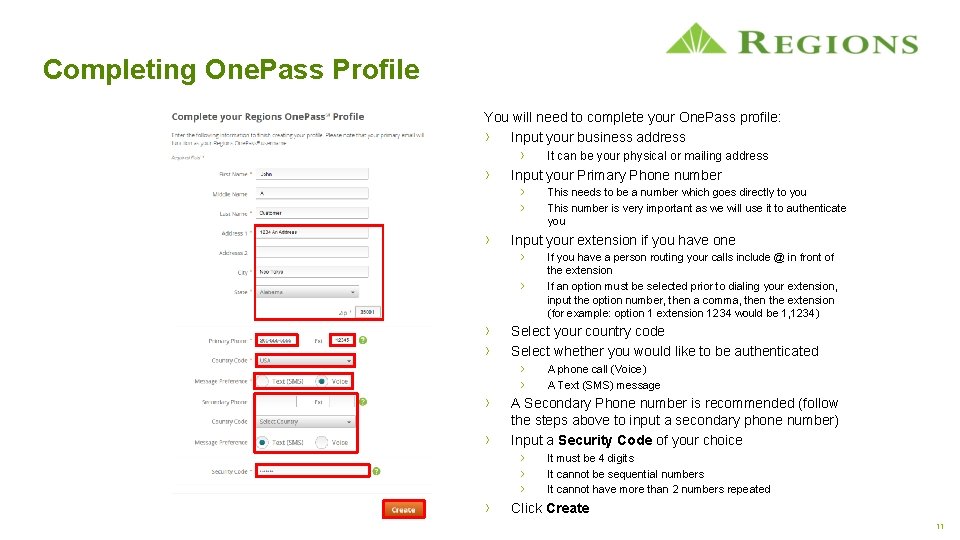
Completing One. Pass Profile You will need to complete your One. Pass profile: › Input your business address › › It can be your physical or mailing address Input your Primary Phone number › This needs to be a number which goes directly to you › This number is very important as we will use it to authenticate you › Input your extension if you have one › If you have a person routing your calls include @ in front of › › › the extension If an option must be selected prior to dialing your extension, input the option number, then a comma, then the extension (for example: option 1 extension 1234 would be 1, 1234) Select your country code Select whether you would like to be authenticated › A phone call (Voice) › A Text (SMS) message A Secondary Phone number is recommended (follow the steps above to input a secondary phone number) Input a Security Code of your choice › It must be 4 digits › It cannot be sequential numbers › It cannot have more than 2 numbers repeated Click Create 11
Agenda › System Login › Logging into One. Pass › Security Question Registration › Validating Email › Completing One. Pass Profile › Navigating One. Pass › Navigating Quick Deposit › Download Scanner Drivers › Administration › Creating a Deposit › Viewing Reports › Using Research 12
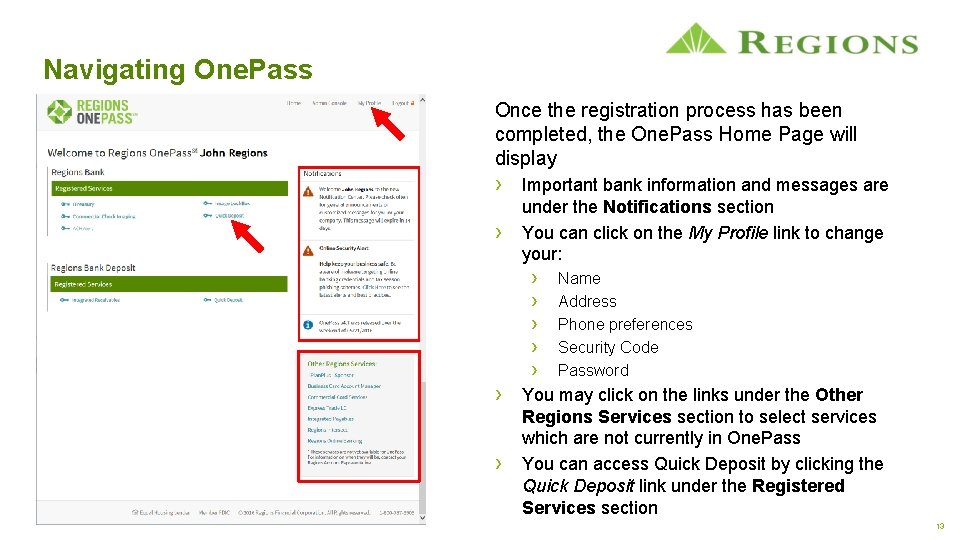
Navigating One. Pass Once the registration process has been completed, the One. Pass Home Page will display › Important bank information and messages are › under the Notifications section You can click on the My Profile link to change your: › › › Name Address Phone preferences Security Code Password › You may click on the links under the Other › Regions Services section to select services which are not currently in One. Pass You can access Quick Deposit by clicking the Quick Deposit link under the Registered Services section 13
Agenda › System Login › Logging into One. Pass › Security Question Registration › Validating Email › Completing One. Pass Profile › Navigating One. Pass › Navigating Quick Deposit › Download Scanner Drivers › Administration › Creating a Deposit › Viewing Reports › Using Research 14
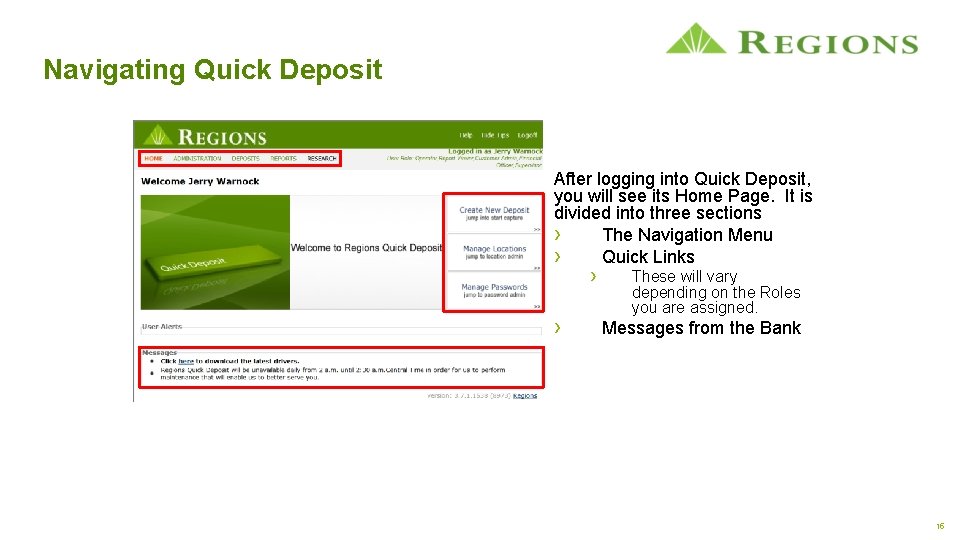
Navigating Quick Deposit After logging into Quick Deposit, you will see its Home Page. It is divided into three sections › The Navigation Menu › Quick Links › › These will vary depending on the Roles you are assigned. Messages from the Bank 15
Agenda › › › System Login Scanner Setup Administration Creating a Deposit Viewing Reports Using Research 16
Scanner Setup – Important Notice: › The Regions Quick Deposit Agreement requires all scanners be physically located inside the borders of the United States and/or its territories. › Regions will block any attempts to access Quick Deposit from a foreign country. 17
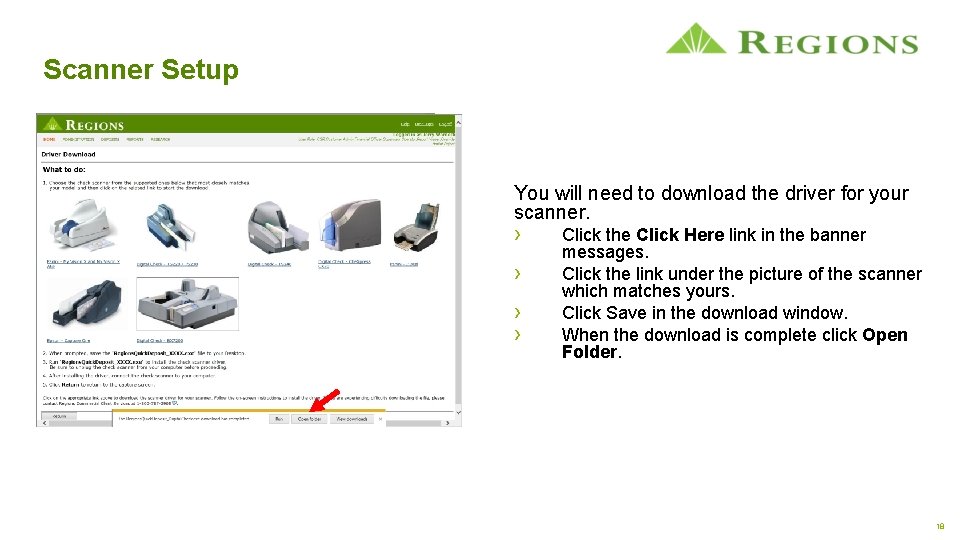
Scanner Setup You will need to download the driver for your scanner. › › Click the Click Here link in the banner messages. Click the link under the picture of the scanner which matches yours. Click Save in the download window. When the download is complete click Open Folder. 18
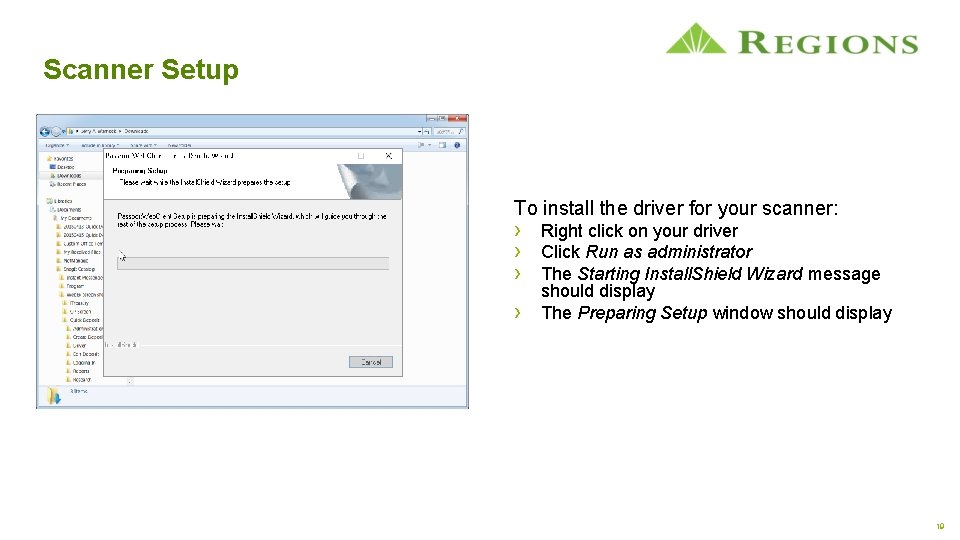
Scanner Setup To install the driver for your scanner: › Right click on your driver › Click Run as administrator › The Starting Install. Shield Wizard message › should display The Preparing Setup window should display 19
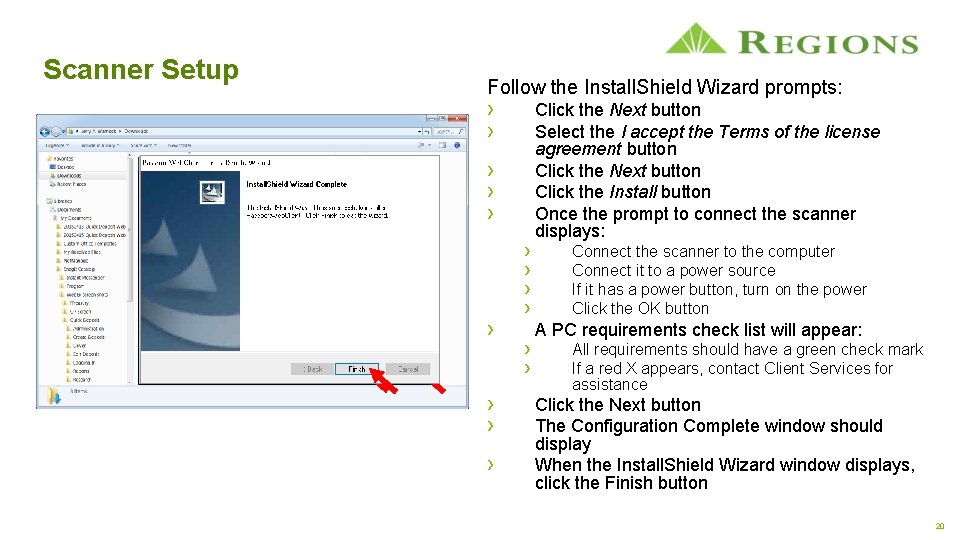
Scanner Setup Follow the Install. Shield Wizard prompts: › › › › Click the Next button Select the I accept the Terms of the license agreement button Click the Next button Click the Install button Once the prompt to connect the scanner displays: Connect the scanner to the computer Connect it to a power source If it has a power button, turn on the power Click the OK button A PC requirements check list will appear: All requirements should have a green check mark If a red X appears, contact Client Services for assistance Click the Next button The Configuration Complete window should display When the Install. Shield Wizard window displays, click the Finish button 20
Agenda › System Login › Scanner Setup › Administration › Add Users › User Search › Edit Users › Edit Locations › Creating a Deposit › Viewing Reports › Using Research 21
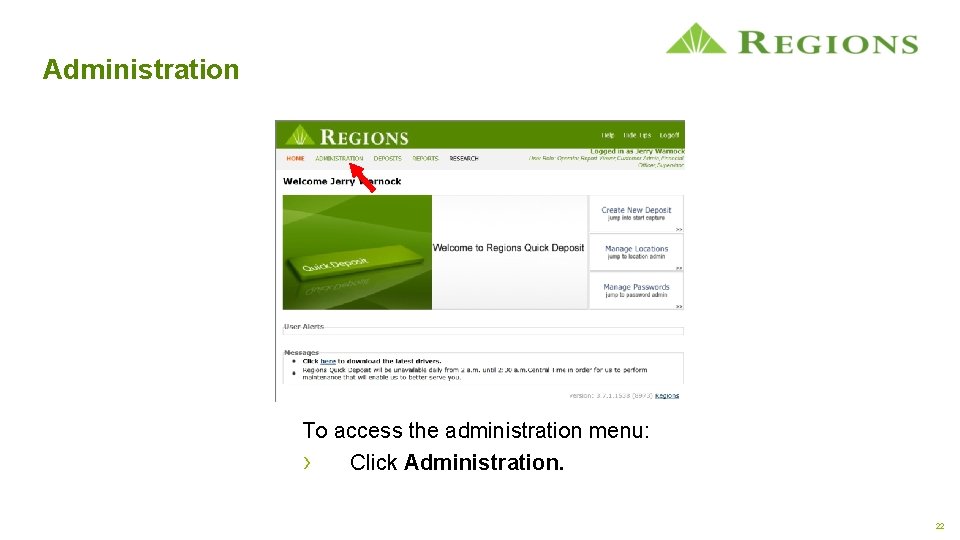
Administration To access the administration menu: › Click Administration. 22
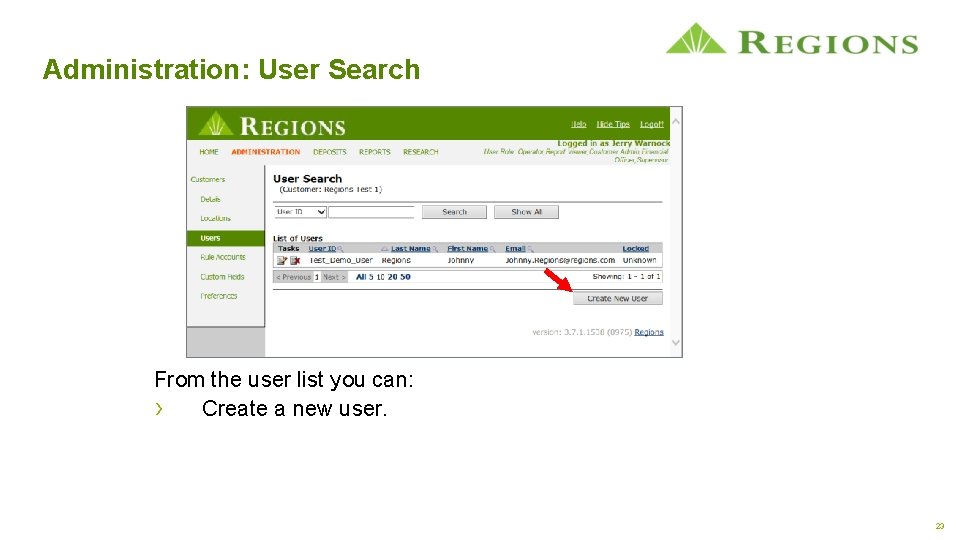
Administration: User Search From the user list you can: › Create a new user. 23
Administration – Best Practices › Administrators should assign a unique User ID to a specific individual user. › › › Generic User IDs should not be used. Login credential should not be shared between users. This practice will help with internal controls, audits, and system security. › Industry research has shown that utilizing a Dual Control Hierarchy prevents improper internal use of the system. Dual Control is the establishment of › › An Operator who can create deposits, scan checks, and balance deposits And a Supervisor who can review and submit the deposit to the bank. › It is important to limit access to Quick Deposit reports to only those users who will need these reports › due to the confidential information contained in the reports (check details and client non-public personal information). Storing the scanned checks in a safe, secure location will prevent confidential information from being compromised. › › Scanned checks should be securely stored for a minimum of 30 days. Scanned checks should be destroyed after they have been reconciled against the appropriate bank statement. 24
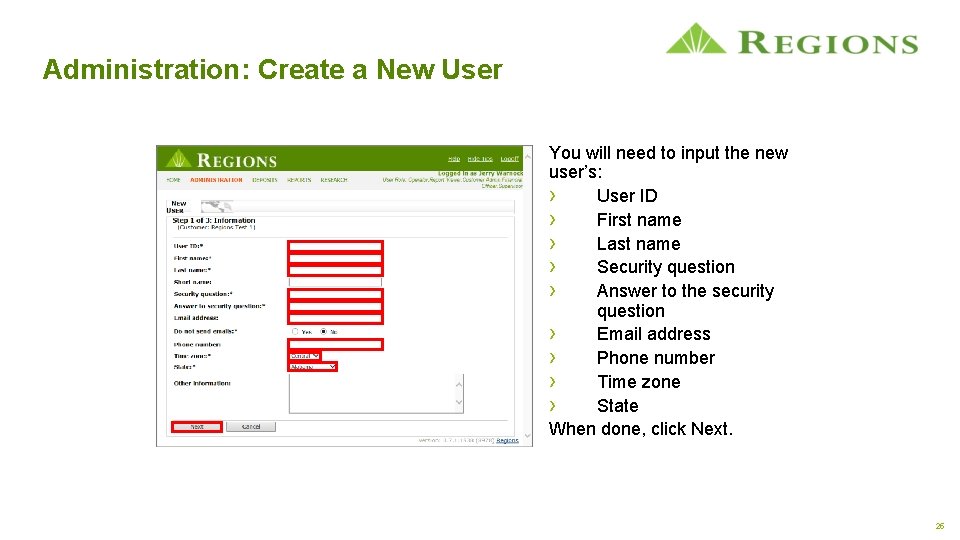
Administration: Create a New User You will need to input the new user’s: › User ID › First name › Last name › Security question › Answer to the security question › Email address › Phone number › Time zone › State When done, click Next. 25
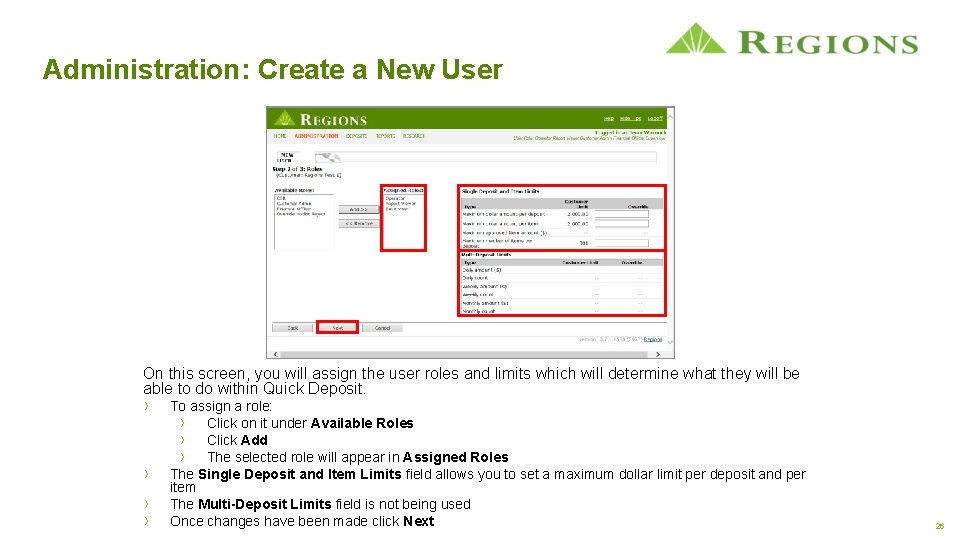
Administration: Create a New User On this screen, you will assign the user roles and limits which will determine what they will be able to do within Quick Deposit. › › To assign a role: › Click on it under Available Roles › Click Add › The selected role will appear in Assigned Roles The Single Deposit and Item Limits field allows you to set a maximum dollar limit per deposit and per item The Multi-Deposit Limits field is not being used Once changes have been made click Next 26
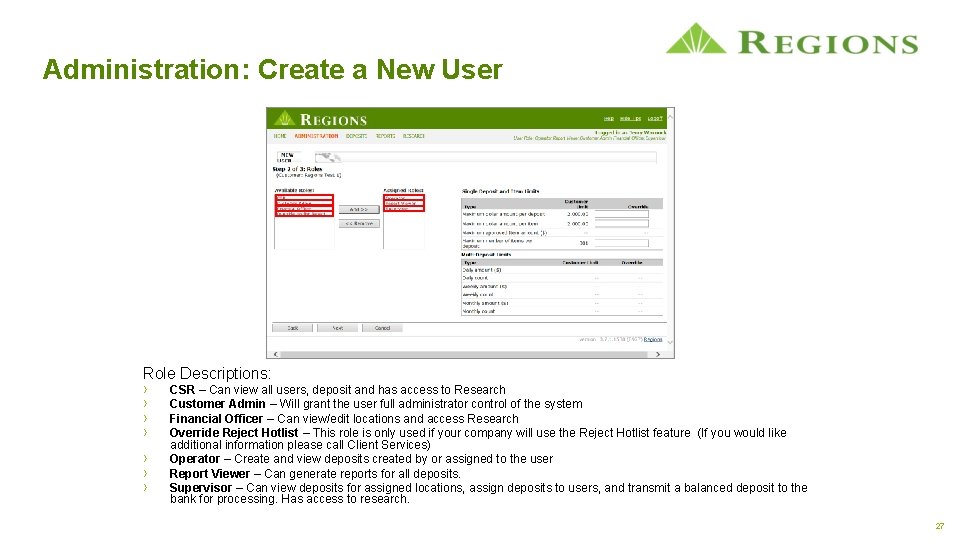
Administration: Create a New User Role Descriptions: › › › › CSR – Can view all users, deposit and has access to Research Customer Admin – Will grant the user full administrator control of the system Financial Officer – Can view/edit locations and access Research Override Reject Hotlist – This role is only used if your company will use the Reject Hotlist feature (If you would like additional information please call Client Services) Operator – Create and view deposits created by or assigned to the user Report Viewer – Can generate reports for all deposits. Supervisor – Can view deposits for assigned locations, assign deposits to users, and transmit a balanced deposit to the bank for processing. Has access to research. 27
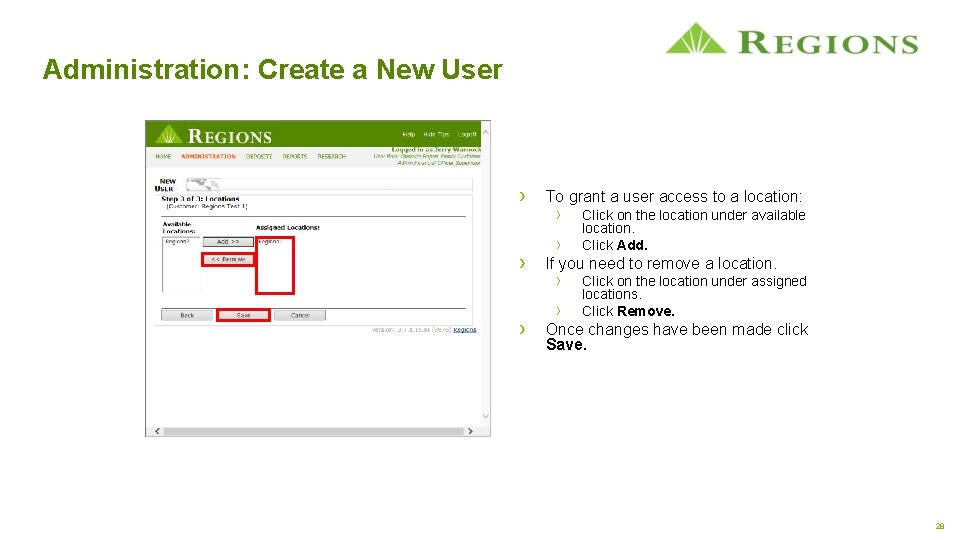
Administration: Create a New User › › › To grant a user access to a location: › › Click on the location under available location. Click Add. If you need to remove a location. › › Click on the location under assigned locations. Click Remove. Once changes have been made click Save. 28
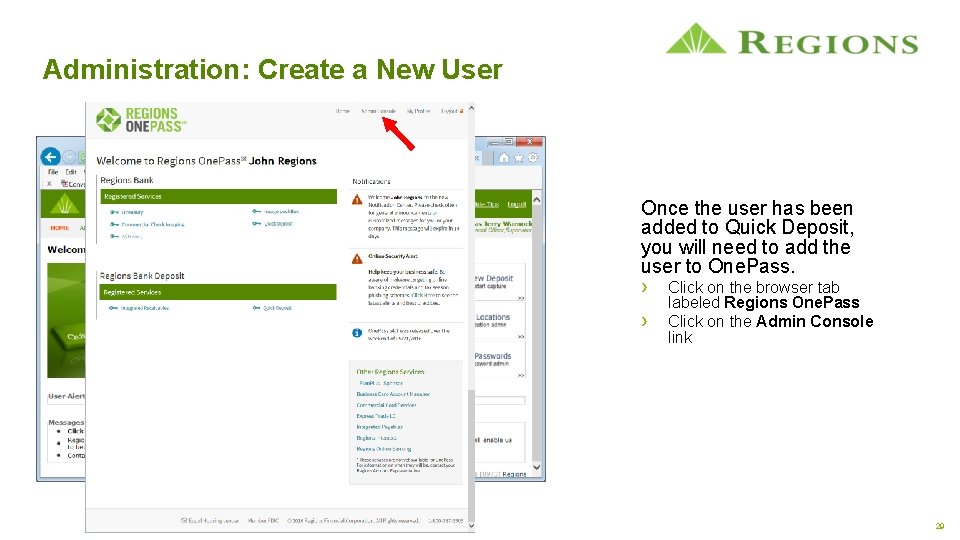
Administration: Create a New User Once the user has been added to Quick Deposit, you will need to add the user to One. Pass. › Click on the browser tab › labeled Regions One. Pass Click on the Admin Console link 29
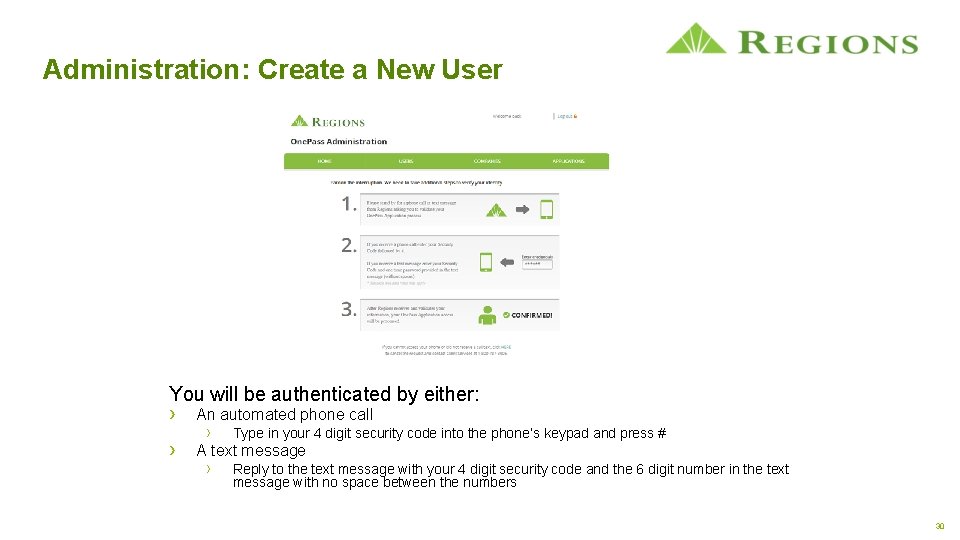
Administration: Create a New User You will be authenticated by either: › An automated phone call › › Type in your 4 digit security code into the phone’s keypad and press # A text message › Reply to the text message with your 4 digit security code and the 6 digit number in the text message with no space between the numbers 30
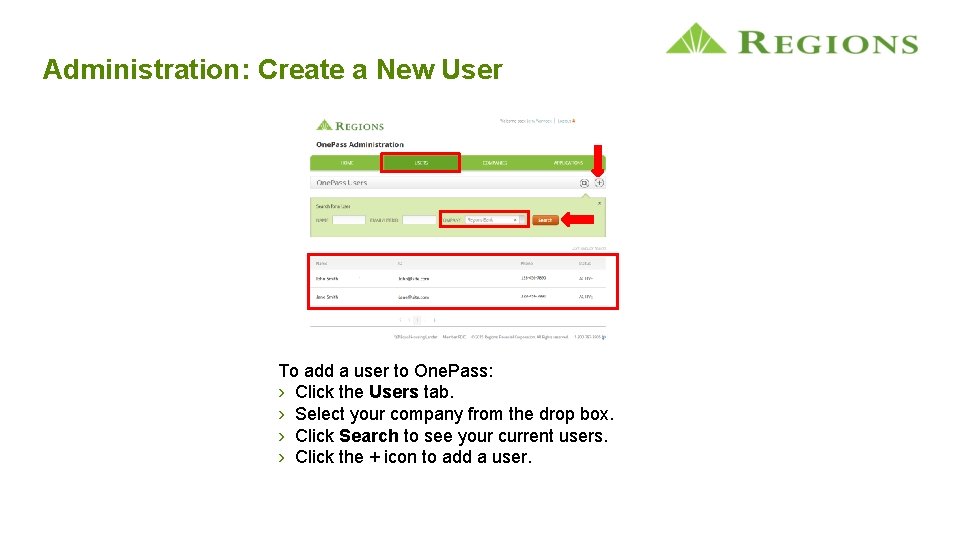
Administration: Create a New User To add a user to One. Pass: › Click the Users tab. › Select your company from the drop box. › Click Search to see your current users. › Click the + icon to add a user.
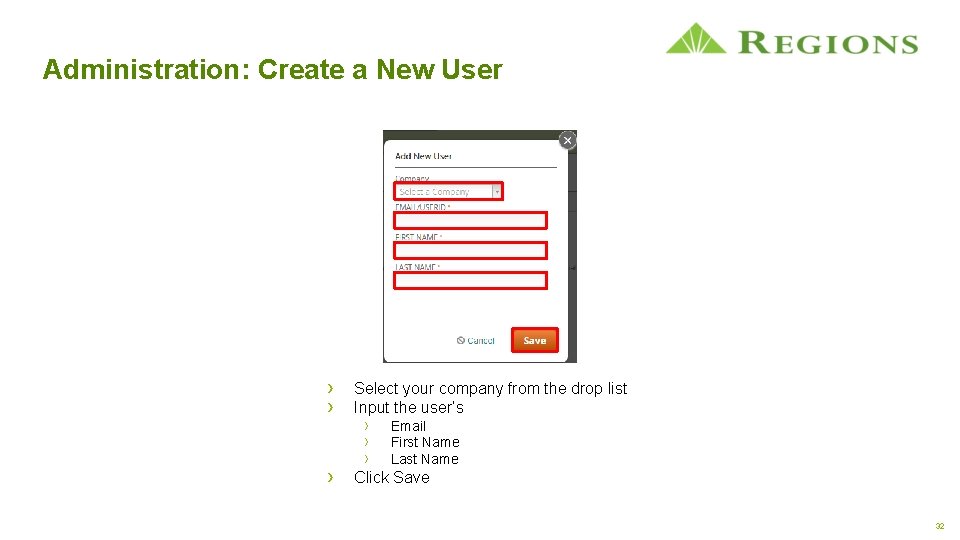
Administration: Create a New User › › › Select your company from the drop list Input the user’s › › › Email First Name Last Name Click Save 32
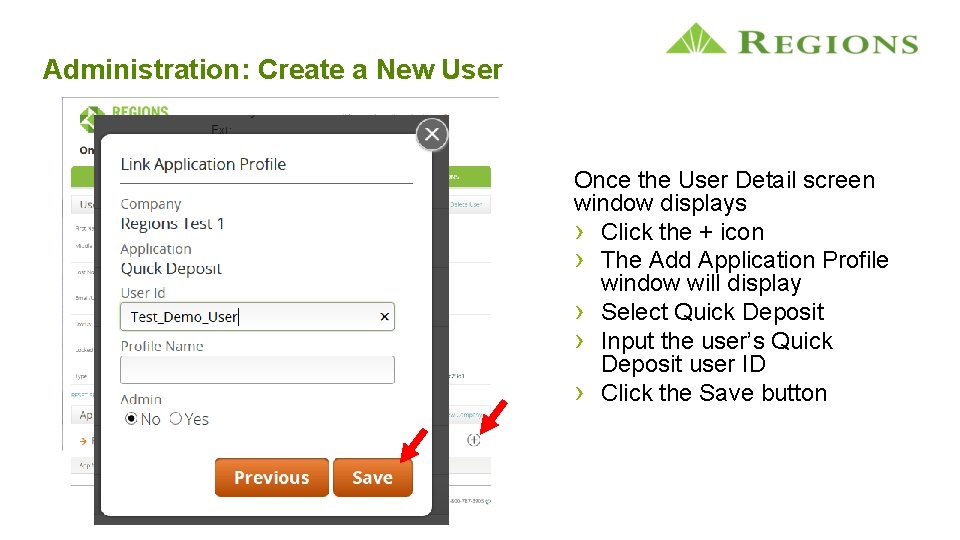
Administration: Create a New User Once the User Detail screen window displays › Click the + icon › The Add Application Profile window will display › Select Quick Deposit › Input the user’s Quick Deposit user ID › Click the Save button
Agenda › System Login › Scanner Setup › Administration › Add Users › User Search › Edit Users › Edit Locations › Creating a Deposit › Viewing Reports › Using Research 34
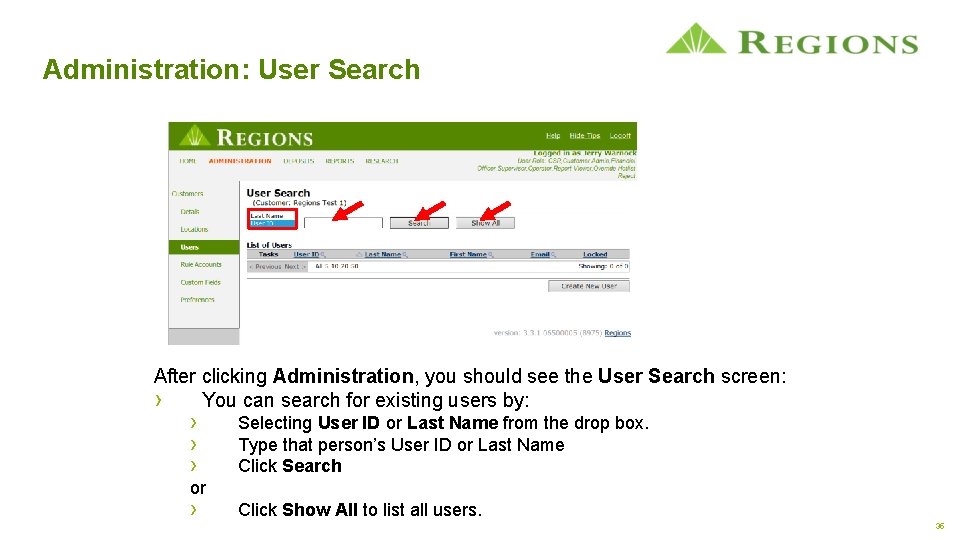
Administration: User Search After clicking Administration, you should see the User Search screen: › You can search for existing users by: › › › Selecting User ID or Last Name from the drop box. Type that person’s User ID or Last Name Click Search or › Click Show All to list all users. 35
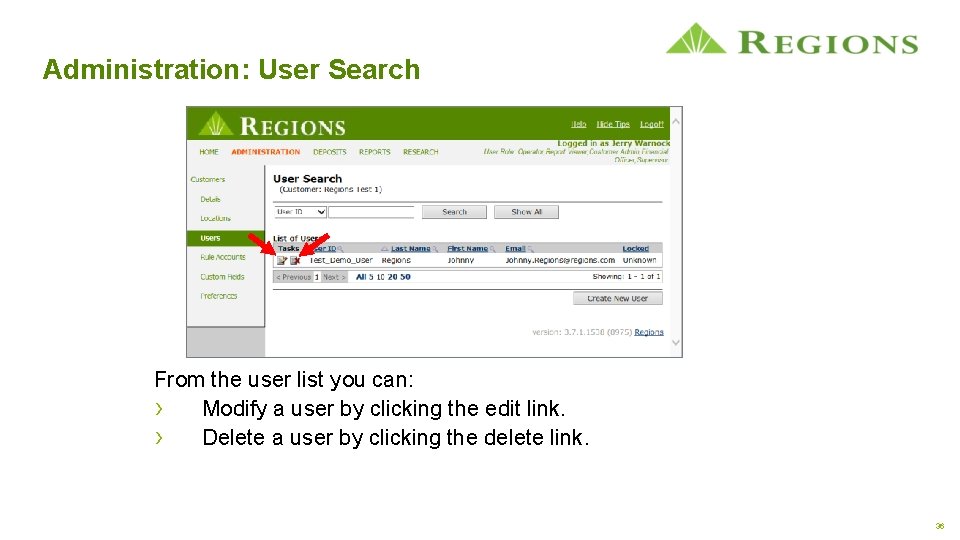
Administration: User Search From the user list you can: › Modify a user by clicking the edit link. › Delete a user by clicking the delete link. 36
Agenda › System Login › Scanner Setup › Administration › Add Users › User Search › Edit Users › Edit Locations › Creating a Deposit › Viewing Reports › Using Research 37
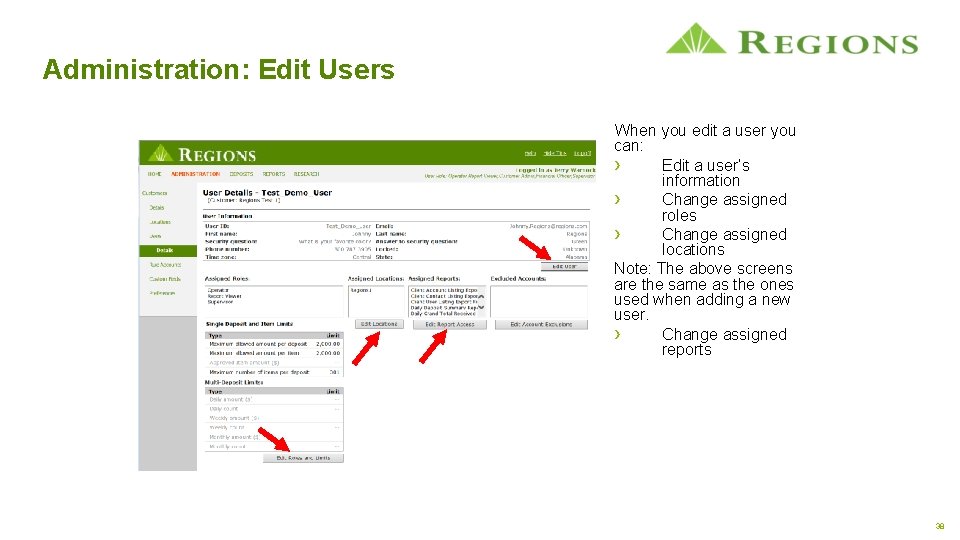
Administration: Edit Users When you edit a user you can: › Edit a user’s information › Change assigned roles › Change assigned locations Note: The above screens are the same as the ones used when adding a new user. › Change assigned reports 38
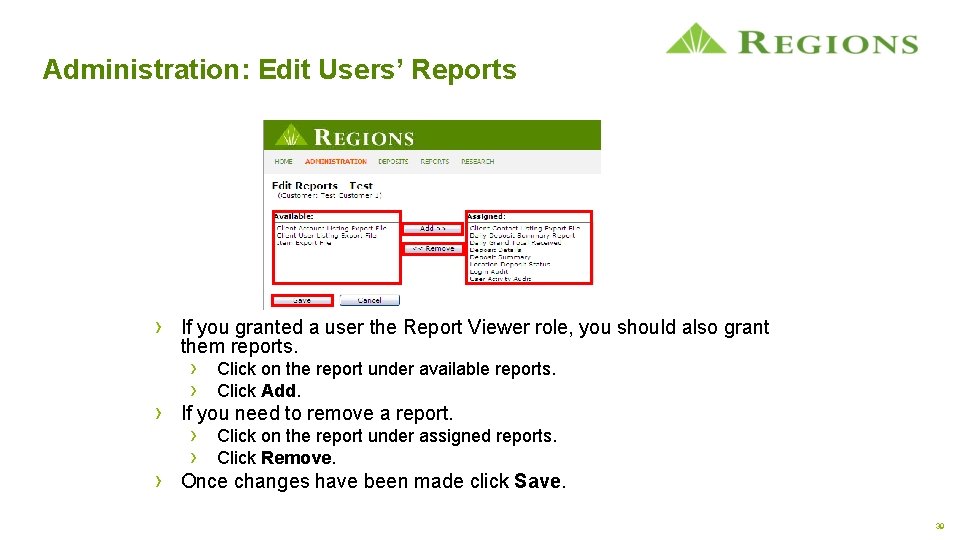
Administration: Edit Users’ Reports › If you granted a user the Report Viewer role, you should also grant them reports. › Click on the report under available reports. › Click Add. › If you need to remove a report. › Click on the report under assigned reports. › Click Remove. › Once changes have been made click Save. 39
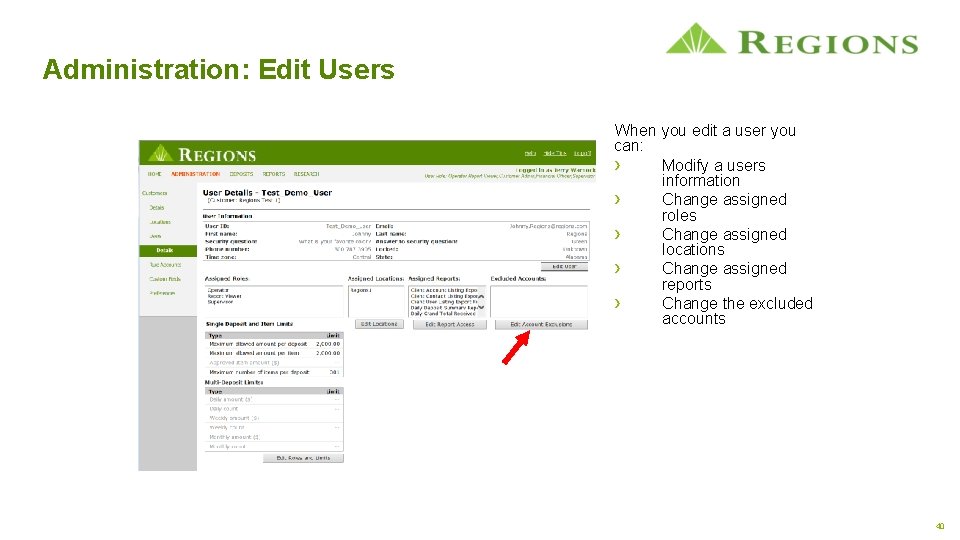
Administration: Edit Users When you edit a user you can: › Modify a users information › Change assigned roles › Change assigned locations › Change assigned reports › Change the excluded accounts 40
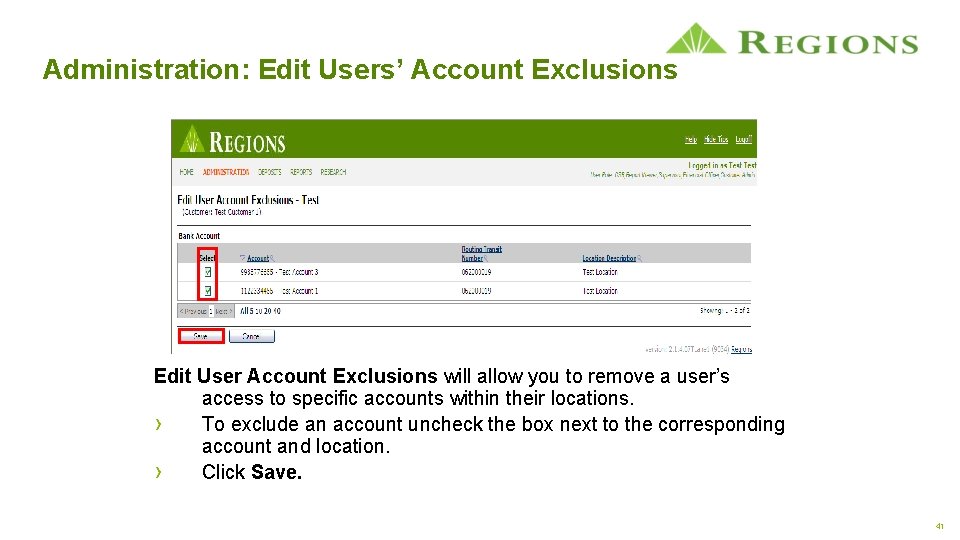
Administration: Edit Users’ Account Exclusions Edit User Account Exclusions will allow you to remove a user’s access to specific accounts within their locations. › To exclude an account uncheck the box next to the corresponding account and location. › Click Save. 41
Agenda › System Login › Scanner Setup › Administration › Add Users › User Search › Edit Users › Edit Locations › Creating a Deposit › Viewing Reports › Using Research 42
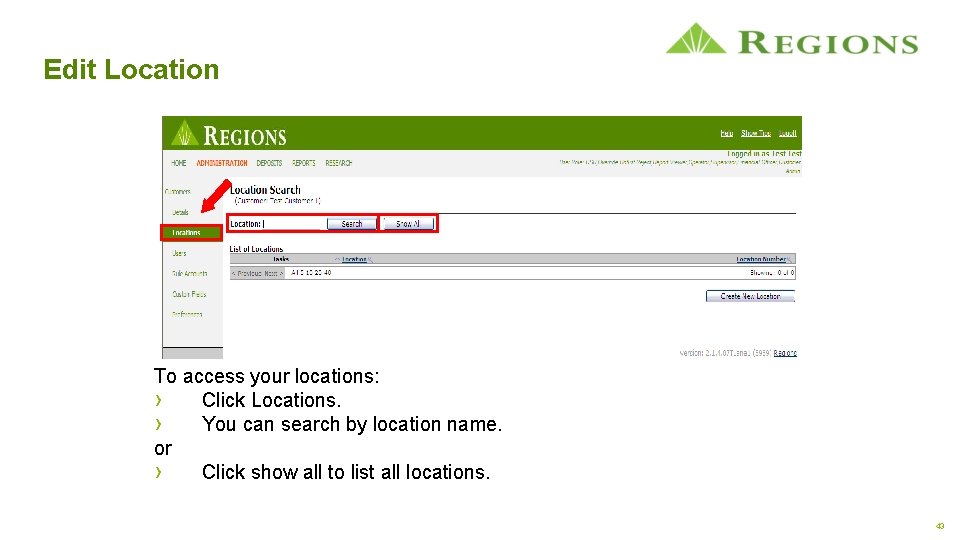
Edit Location To access your locations: › Click Locations. › You can search by location name. or › Click show all to list all locations. 43
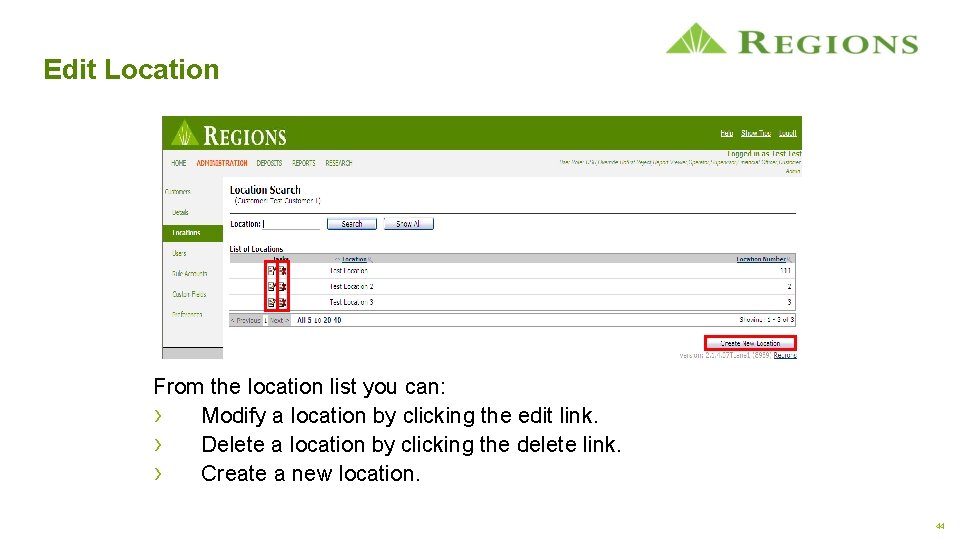
Edit Location From the location list you can: › Modify a location by clicking the edit link. › Delete a location by clicking the delete link. › Create a new location. 44
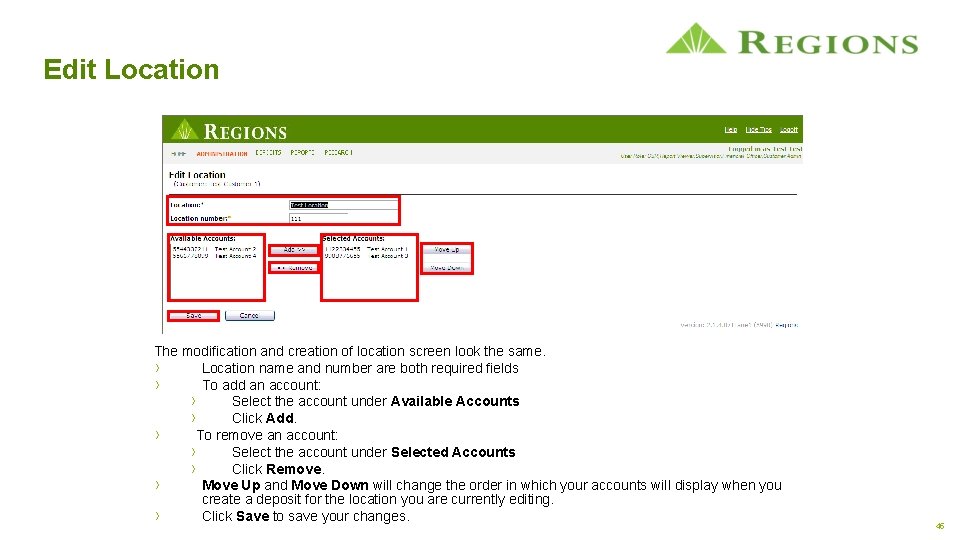
Edit Location The modification and creation of location screen look the same. › Location name and number are both required fields › To add an account: › Select the account under Available Accounts › Click Add. › To remove an account: › Select the account under Selected Accounts › Click Remove. › Move Up and Move Down will change the order in which your accounts will display when you create a deposit for the location you are currently editing. › Click Save to save your changes. 45
Agenda › › System Login Scanner Setup Administration Creating a Deposit › › New Deposit Item List Common Errors Completing the Deposit › Viewing Reports › Using Research 46
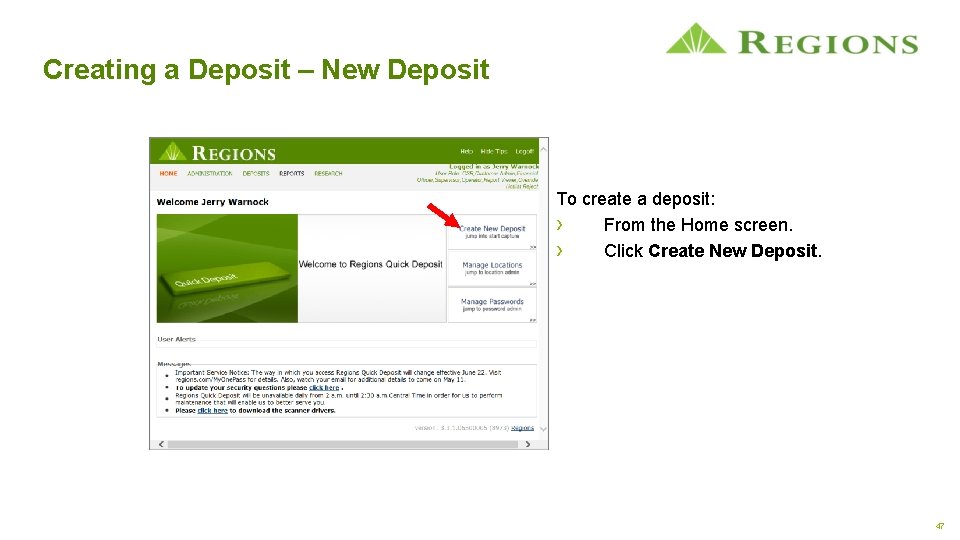
Creating a Deposit – New Deposit To create a deposit: › From the Home screen. › Click Create New Deposit. 47
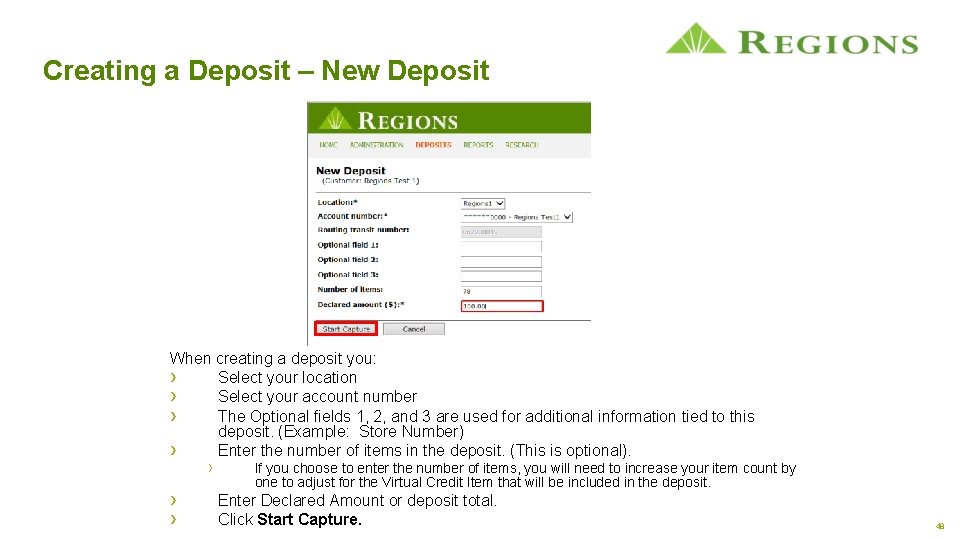
Creating a Deposit – New Deposit When creating a deposit you: › Select your location › Select your account number › The Optional fields 1, 2, and 3 are used for additional information tied to this deposit. (Example: Store Number) › Enter the number of items in the deposit. (This is optional). › › › If you choose to enter the number of items, you will need to increase your item count by one to adjust for the Virtual Credit Item that will be included in the deposit. Enter Declared Amount or deposit total. Click Start Capture. 48
Agenda › › System Login Scanner Setup Administration Creating a Deposit › › New Deposit Item List Common Errors Completing the Deposit › Viewing Reports › Using Research 49
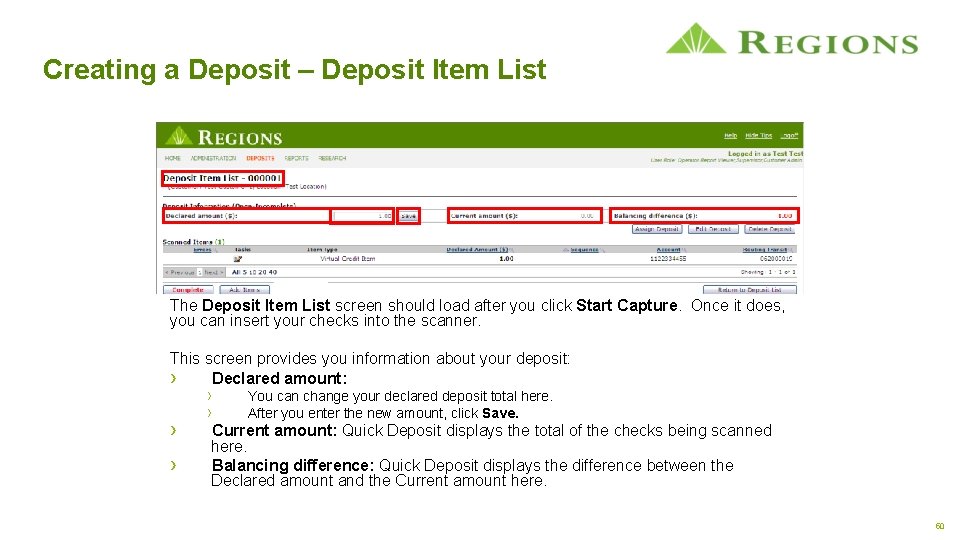
Creating a Deposit – Deposit Item List The Deposit Item List screen should load after you click Start Capture. Once it does, you can insert your checks into the scanner. This screen provides you information about your deposit: › Declared amount: › › You can change your declared deposit total here. After you enter the new amount, click Save. Current amount: Quick Deposit displays the total of the checks being scanned here. Balancing difference: Quick Deposit displays the difference between the Declared amount and the Current amount here. 50
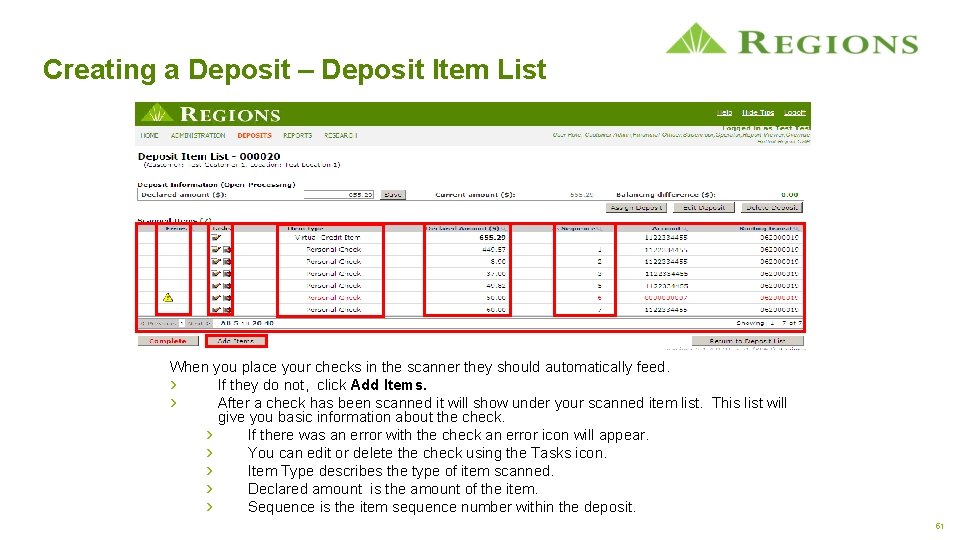
Creating a Deposit – Deposit Item List When you place your checks in the scanner they should automatically feed. › If they do not, click Add Items. › After a check has been scanned it will show under your scanned item list. This list will give you basic information about the check. › If there was an error with the check an error icon will appear. › You can edit or delete the check using the Tasks icon. › Item Type describes the type of item scanned. › Declared amount is the amount of the item. › Sequence is the item sequence number within the deposit. 51
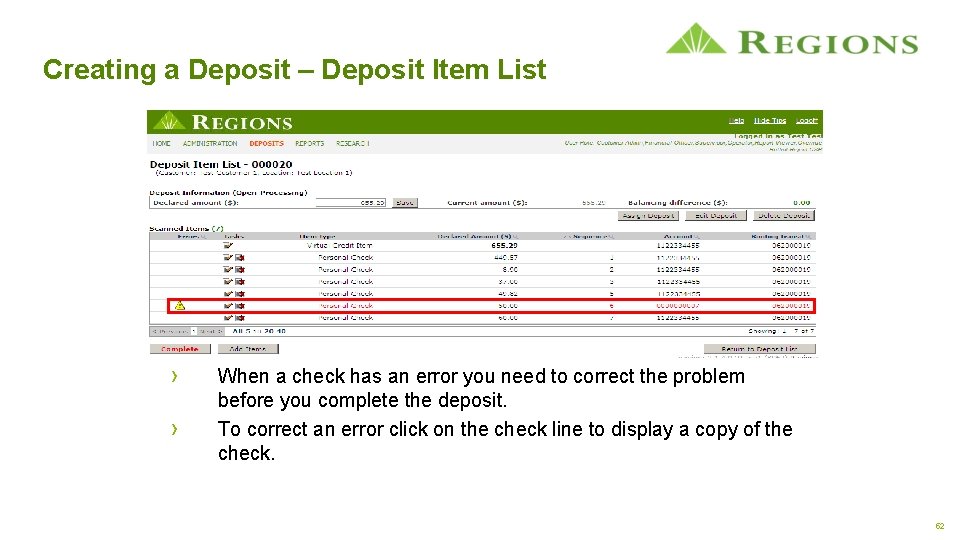
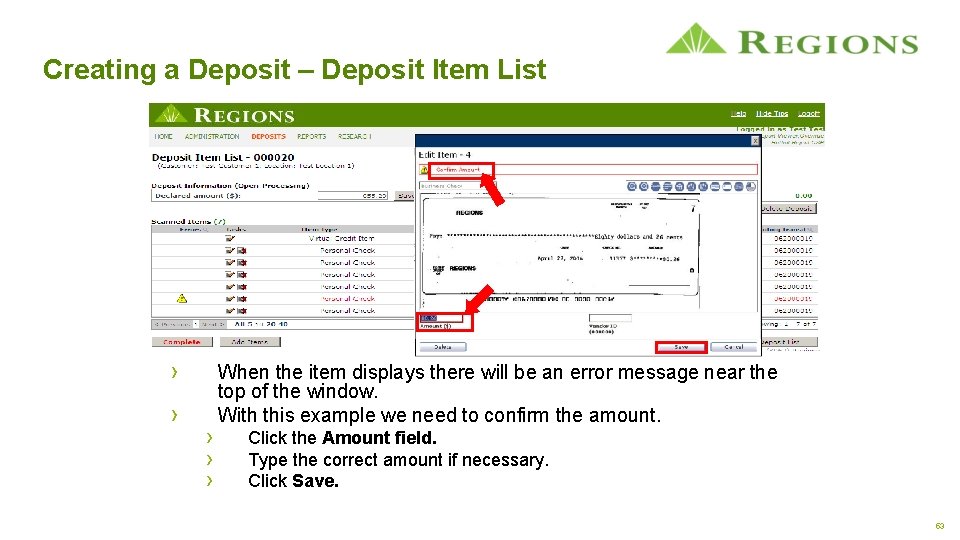
Creating a Deposit – Deposit Item List › › When a check has an error you need to correct the problem before you complete the deposit. To correct an error click on the check line to display a copy of the check. 52
Creating a Deposit – Deposit Item List › › › When the item displays there will be an error message near the top of the window. With this example we need to confirm the amount. Click the Amount field. Type the correct amount if necessary. Click Save. 53
Creating a Deposit – Deposit Item List › › › After saving the item: Either the next error check will display or if you have corrected all errors the check will stay on the screen, but will no longer have an error message. There will be a message stating that the check has been saved. Click Cancel 54
Agenda › › System Login Scanner Setup Administration Creating a Deposit › › New Deposit Item List Common Errors Completing the Deposit › Viewing Reports › Using Research 55
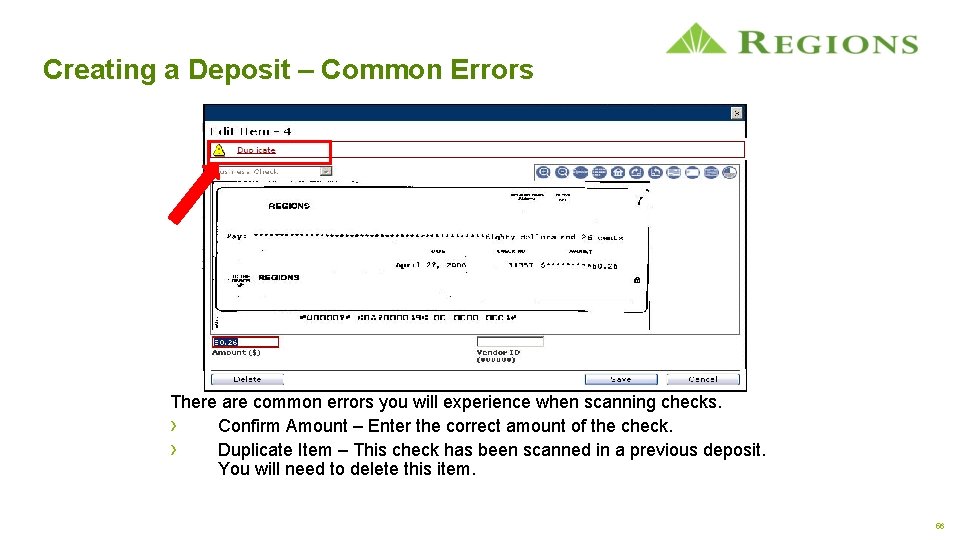
Creating a Deposit – Common Errors There are common errors you will experience when scanning checks. › Confirm Amount – Enter the correct amount of the check. › Duplicate Item – This check has been scanned in a previous deposit. You will need to delete this item. 56
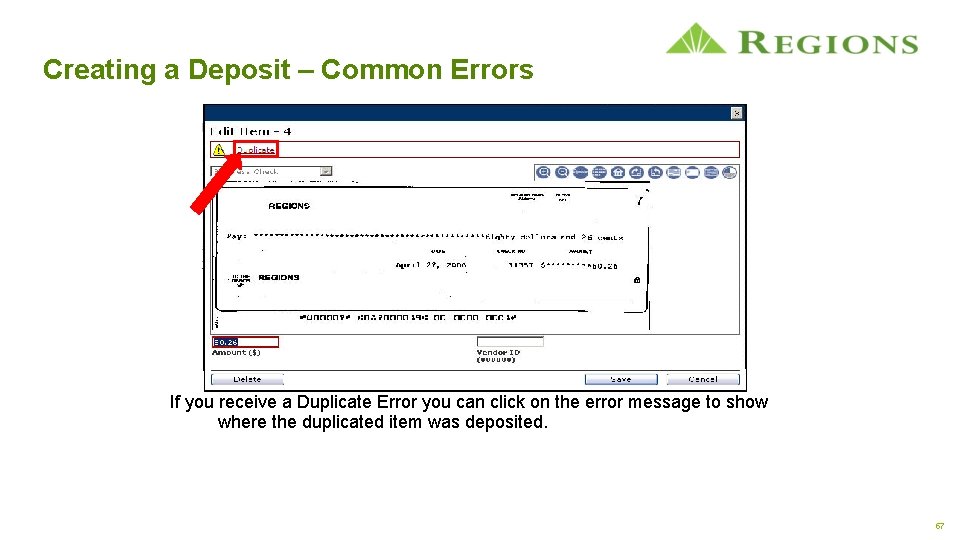
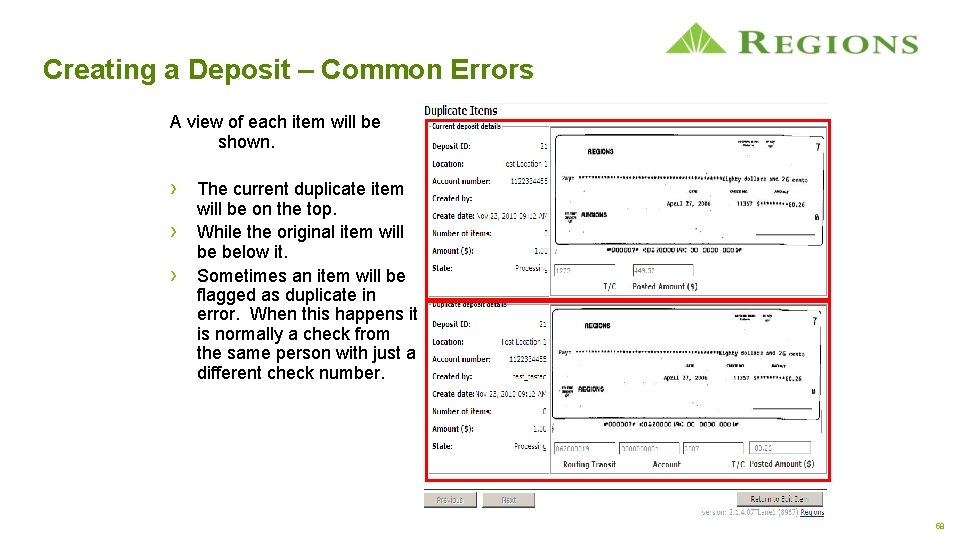
Creating a Deposit – Common Errors If you receive a Duplicate Error you can click on the error message to show where the duplicated item was deposited. 57
Creating a Deposit – Common Errors A view of each item will be shown. › The current duplicate item › › will be on the top. While the original item will be below it. Sometimes an item will be flagged as duplicate in error. When this happens it is normally a check from the same person with just a different check number. 58
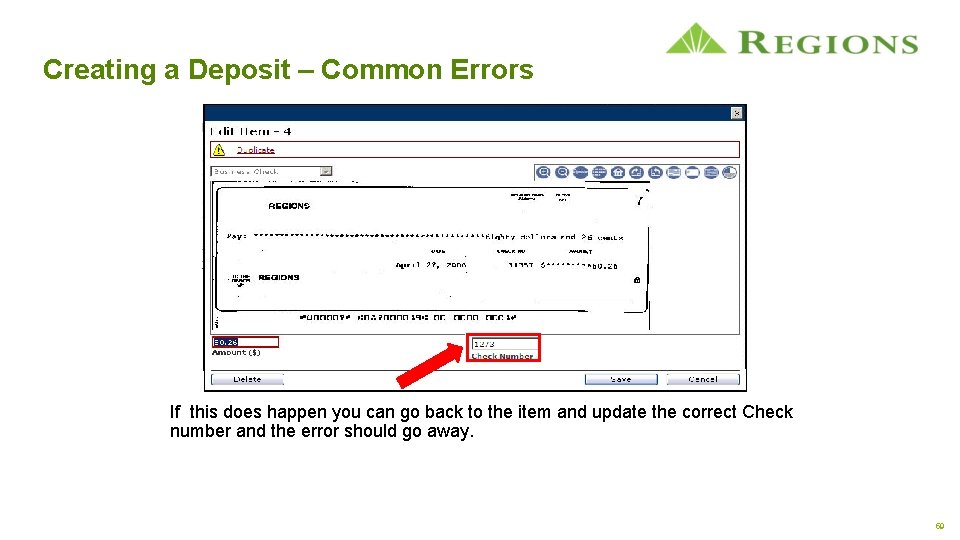
Creating a Deposit – Common Errors If this does happen you can go back to the item and update the correct Check number and the error should go away. 59
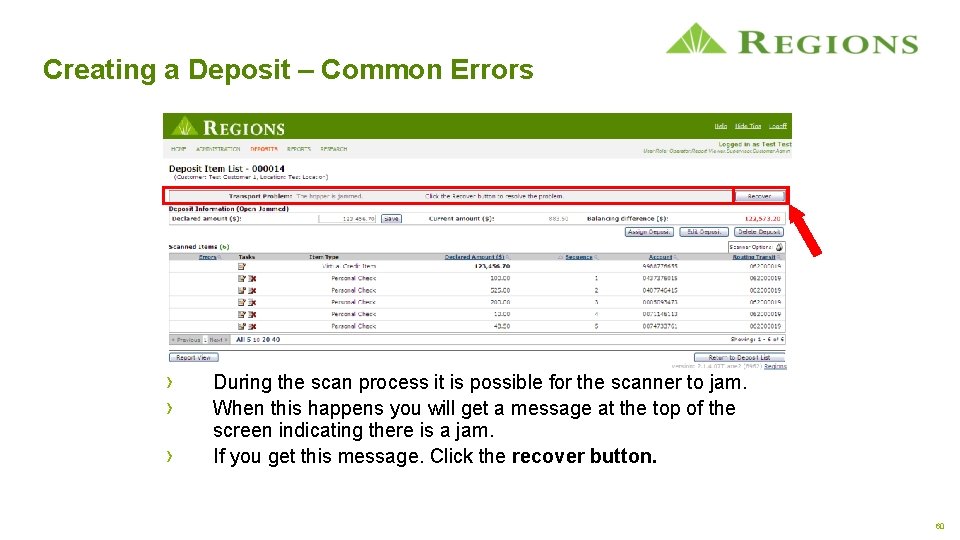
Creating a Deposit – Common Errors › › › During the scan process it is possible for the scanner to jam. When this happens you will get a message at the top of the screen indicating there is a jam. If you get this message. Click the recover button. 60
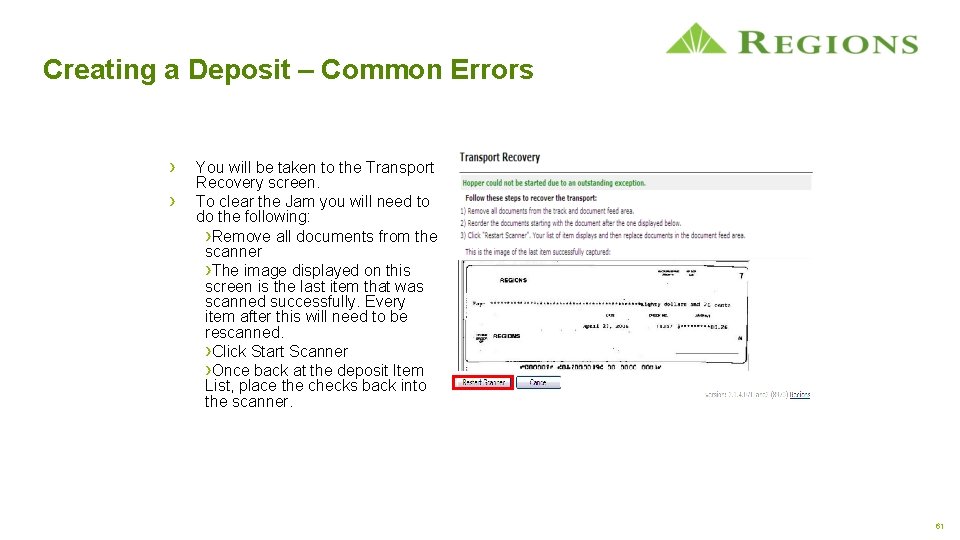
Creating a Deposit – Common Errors › › You will be taken to the Transport Recovery screen. To clear the Jam you will need to do the following: ›Remove all documents from the scanner ›The image displayed on this screen is the last item that was scanned successfully. Every item after this will need to be rescanned. ›Click Start Scanner ›Once back at the deposit Item List, place the checks back into the scanner. 61
Agenda › › System Login Scanner Setup Administration Creating a Deposit › › New Deposit Item List Common Errors Completing the Deposit › Viewing Reports › Using Research 62
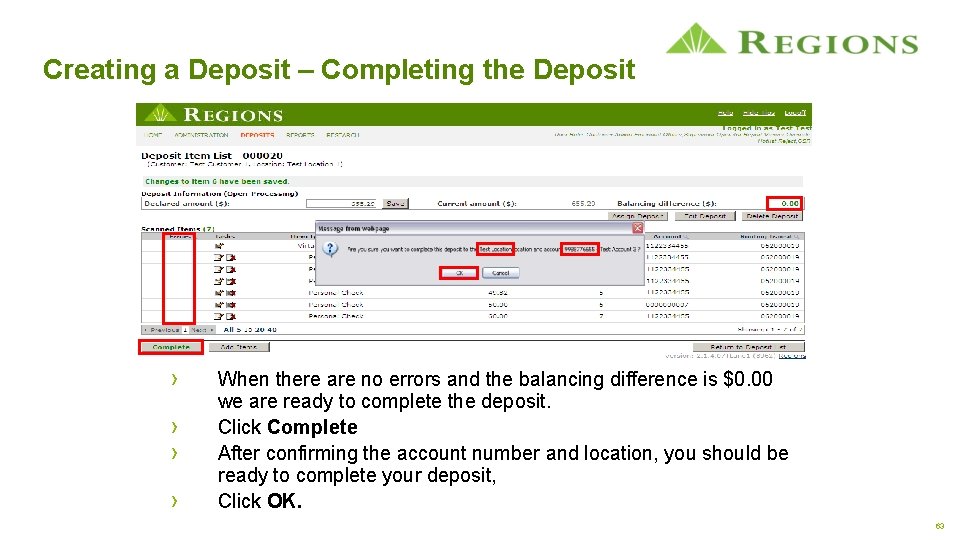
Creating a Deposit – Completing the Deposit › › When there are no errors and the balancing difference is $0. 00 we are ready to complete the deposit. Click Complete After confirming the account number and location, you should be ready to complete your deposit, Click OK. 63
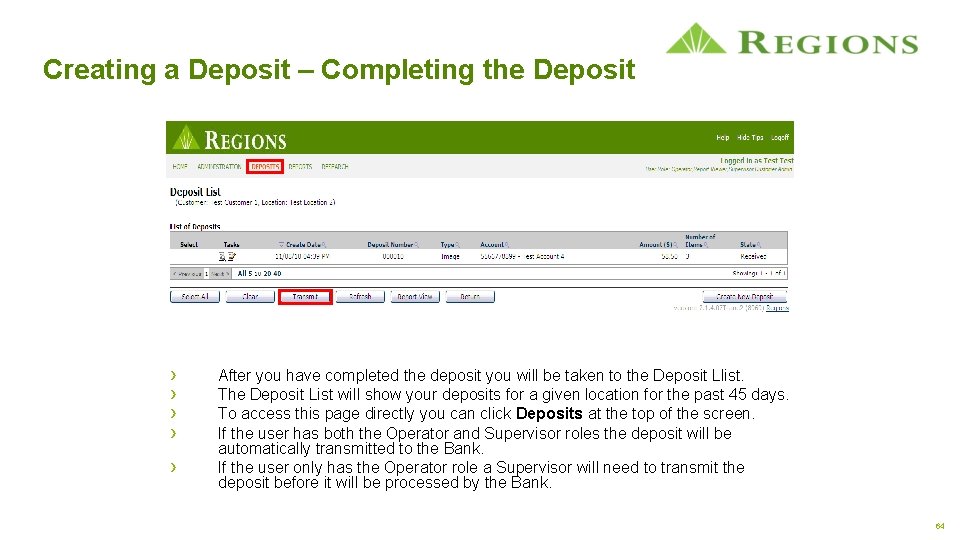
Creating a Deposit – Completing the Deposit › › › After you have completed the deposit you will be taken to the Deposit Llist. The Deposit List will show your deposits for a given location for the past 45 days. To access this page directly you can click Deposits at the top of the screen. If the user has both the Operator and Supervisor roles the deposit will be automatically transmitted to the Bank. If the user only has the Operator role a Supervisor will need to transmit the deposit before it will be processed by the Bank. 64
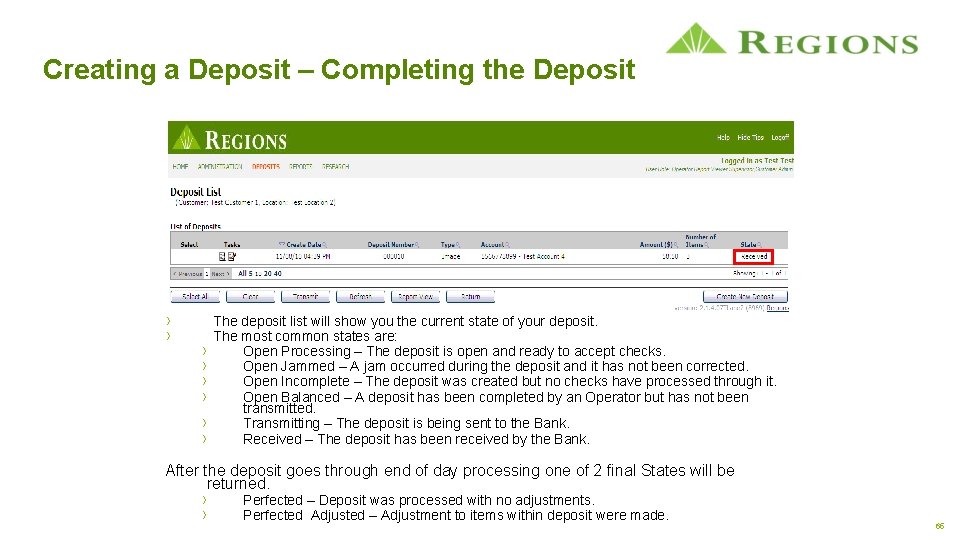
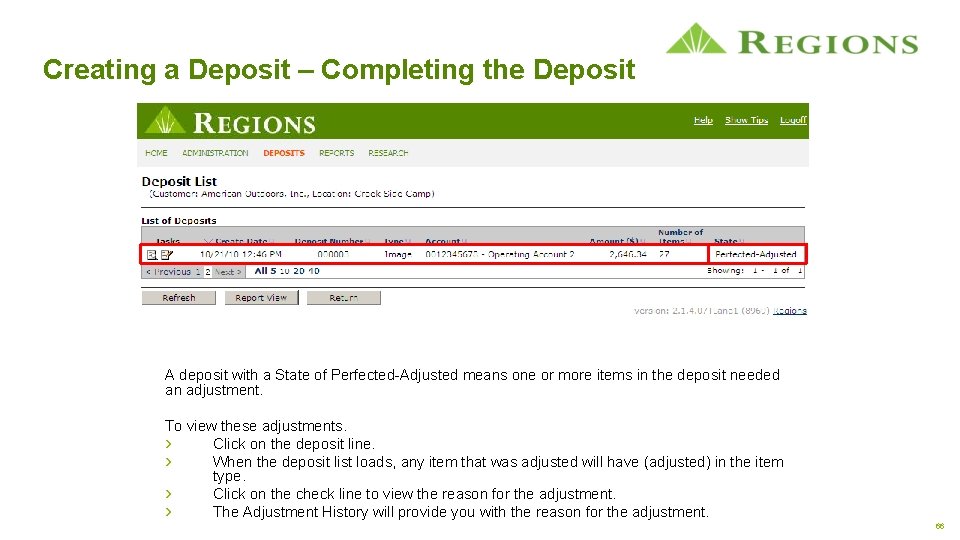
Creating a Deposit – Completing the Deposit › › › › The deposit list will show you the current state of your deposit. The most common states are: Open Processing – The deposit is open and ready to accept checks. Open Jammed – A jam occurred during the deposit and it has not been corrected. Open Incomplete – The deposit was created but no checks have processed through it. Open Balanced – A deposit has been completed by an Operator but has not been transmitted. Transmitting – The deposit is being sent to the Bank. Received – The deposit has been received by the Bank. After the deposit goes through end of day processing one of 2 final States will be returned. › › Perfected – Deposit was processed with no adjustments. Perfected Adjusted – Adjustment to items within deposit were made. 65
Creating a Deposit – Completing the Deposit A deposit with a State of Perfected-Adjusted means one or more items in the deposit needed an adjustment. To view these adjustments. › Click on the deposit line. › When the deposit list loads, any item that was adjusted will have (adjusted) in the item type. › Click on the check line to view the reason for the adjustment. › The Adjustment History will provide you with the reason for the adjustment. 66
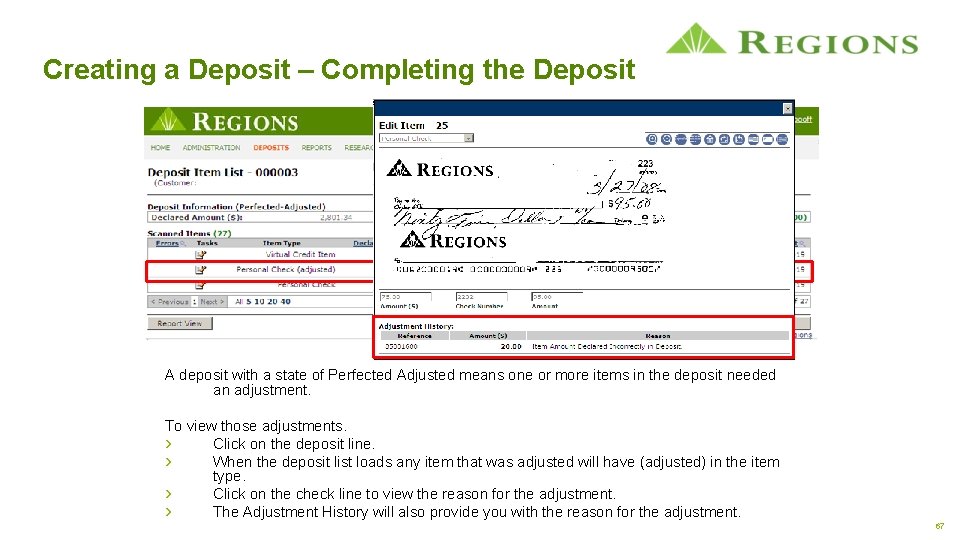
Creating a Deposit – Completing the Deposit A deposit with a state of Perfected Adjusted means one or more items in the deposit needed an adjustment. To view those adjustments. › Click on the deposit line. › When the deposit list loads any item that was adjusted will have (adjusted) in the item type. › Click on the check line to view the reason for the adjustment. › The Adjustment History will also provide you with the reason for the adjustment. 67
Creating a Deposit – Best Practices › Storing the scanned checks in a safe, secure location will prevent confidential information from being compromised. › › Scanned checks should be securely stored for a minimum of 30 days. Scanned checks should be destroyed after they have been reconciled against the appropriate bank statement. 68
Agenda › › › System Login Scanner Setup Administration Creating a Deposit Viewing Reports › Deposit Receipt › Report View › Export Reports Using Research 69
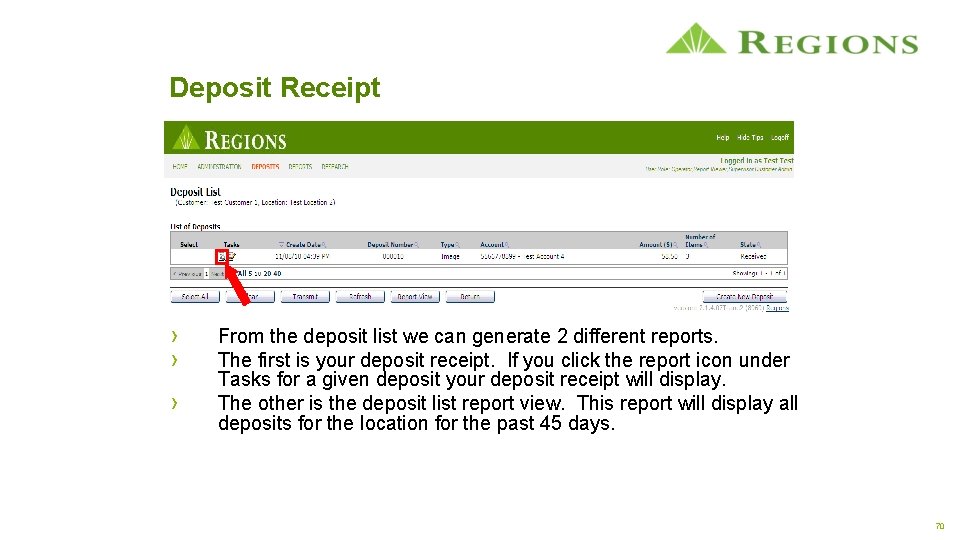
Deposit Receipt › › › From the deposit list we can generate 2 different reports. The first is your deposit receipt. If you click the report icon under Tasks for a given deposit your deposit receipt will display. The other is the deposit list report view. This report will display all deposits for the location for the past 45 days. 70
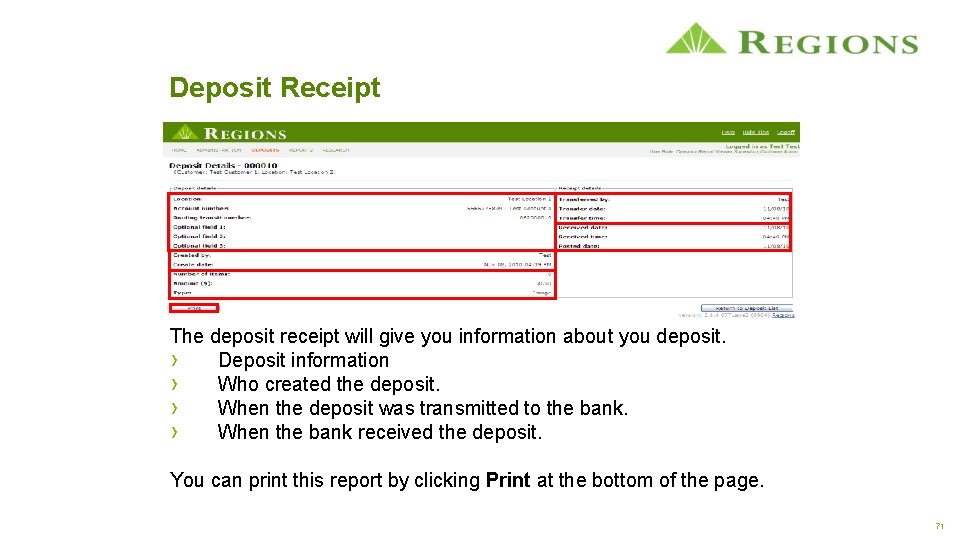
Deposit Receipt The deposit receipt will give you information about you deposit. › Deposit information › Who created the deposit. › When the deposit was transmitted to the bank. › When the bank received the deposit. You can print this report by clicking Print at the bottom of the page. 71
Agenda › › › System Login Scanner Setup Administration Creating a Deposit Viewing Reports › Deposit Receipt › Report View › Export Reports Using Research 72
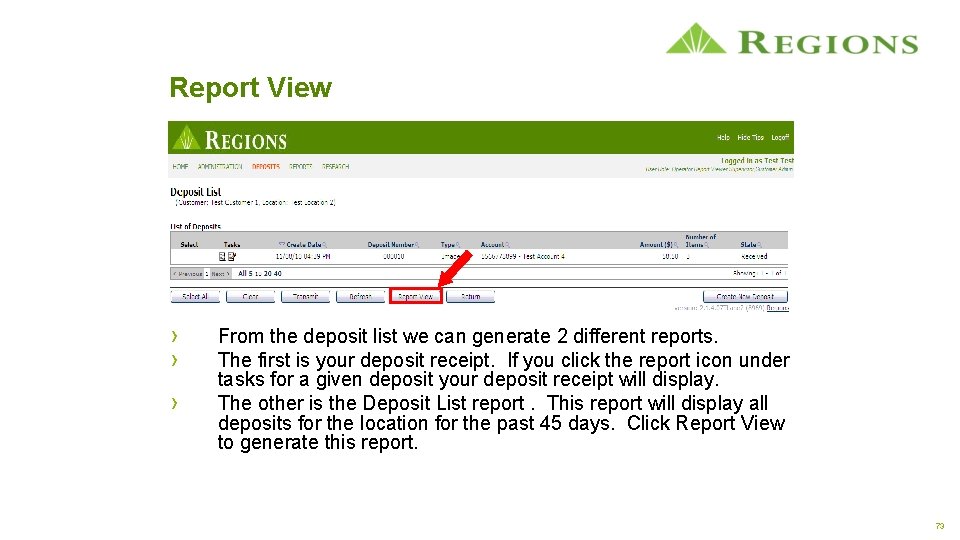
Report View › › › From the deposit list we can generate 2 different reports. The first is your deposit receipt. If you click the report icon under tasks for a given deposit your deposit receipt will display. The other is the Deposit List report. This report will display all deposits for the location for the past 45 days. Click Report View to generate this report. 73
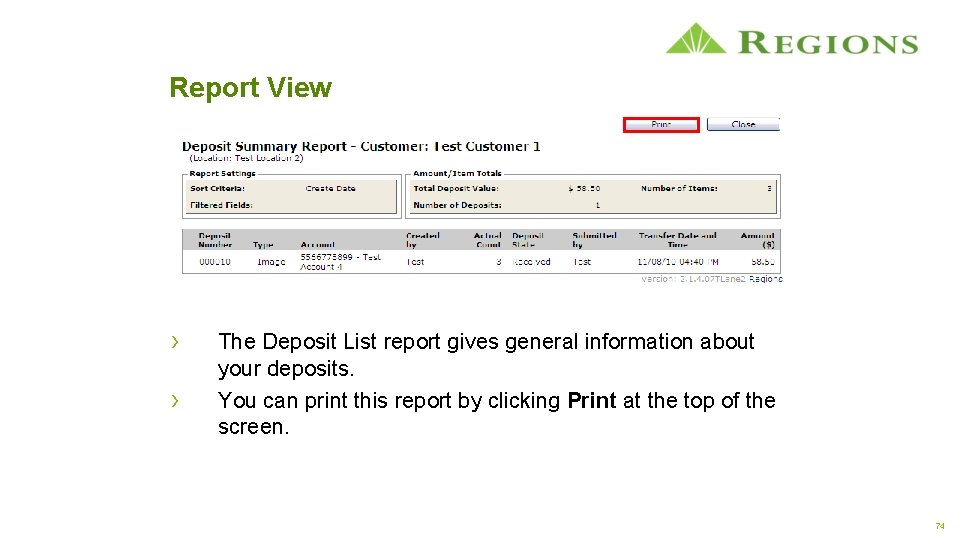
Report View › › The Deposit List report gives general information about your deposits. You can print this report by clicking Print at the top of the screen. 74
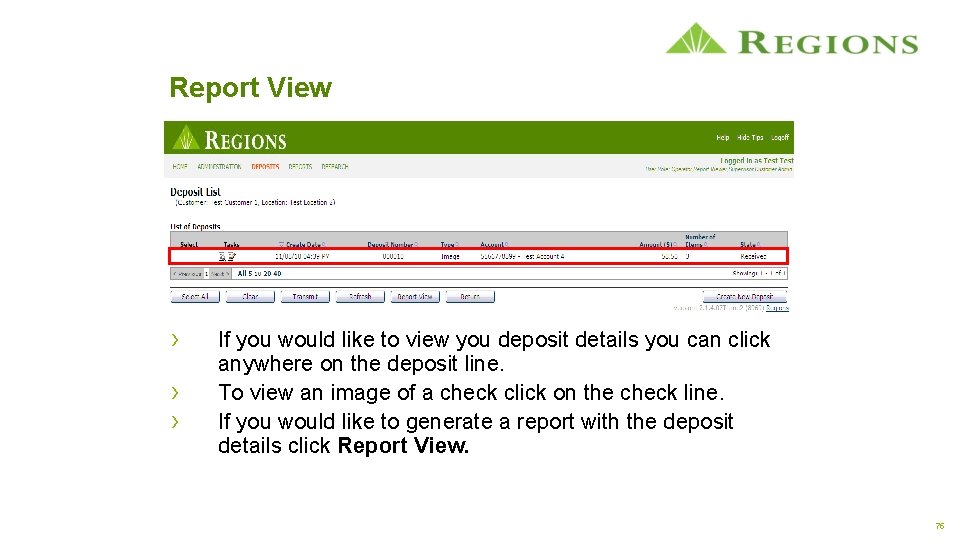
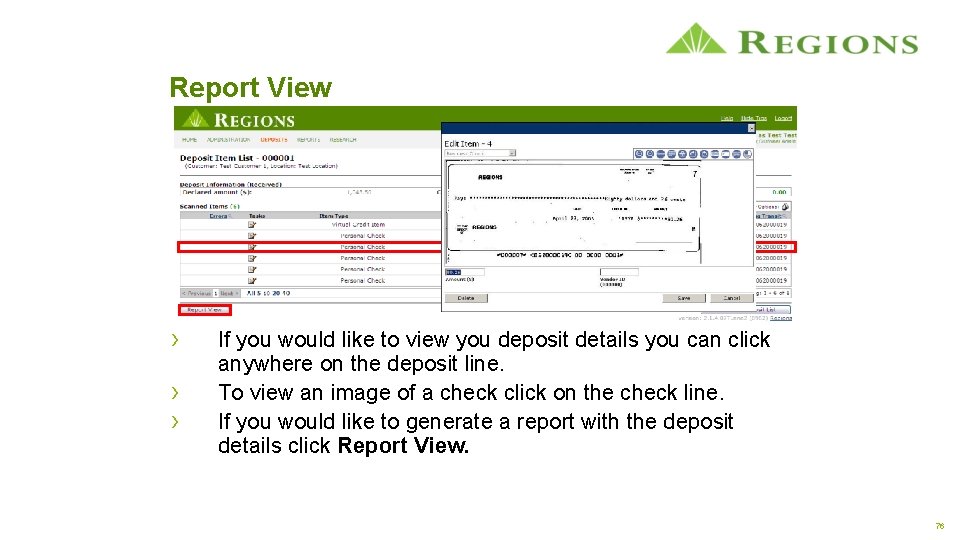
Report View › › › If you would like to view you deposit details you can click anywhere on the deposit line. To view an image of a check click on the check line. If you would like to generate a report with the deposit details click Report View. 75
Report View › › › If you would like to view you deposit details you can click anywhere on the deposit line. To view an image of a check click on the check line. If you would like to generate a report with the deposit details click Report View. 76
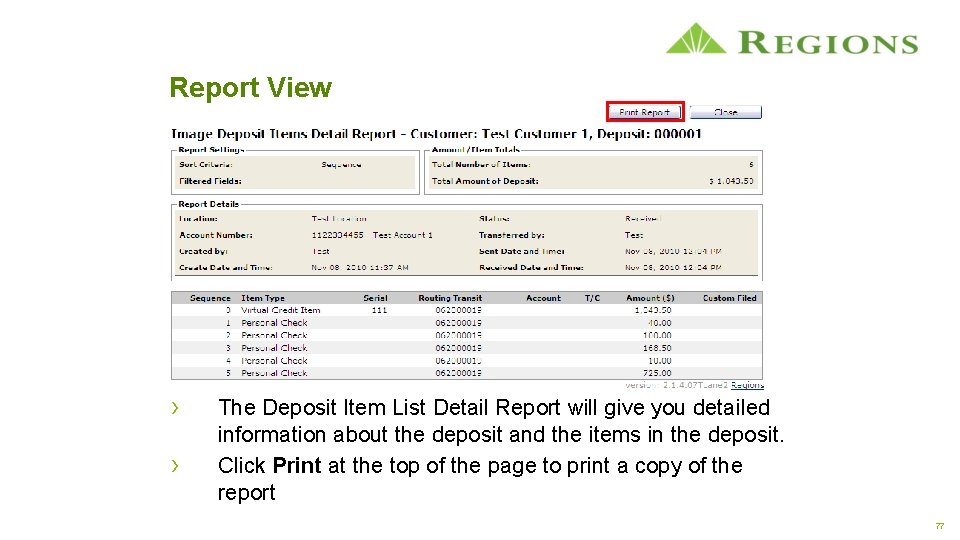
Report View › › The Deposit Item List Detail Report will give you detailed information about the deposit and the items in the deposit. Click Print at the top of the page to print a copy of the report 77
Agenda › › › System Login Scanner Setup Administration Creating a Deposit Viewing Reports › Deposit Receipt › Report View › Export Reports Using Research 78
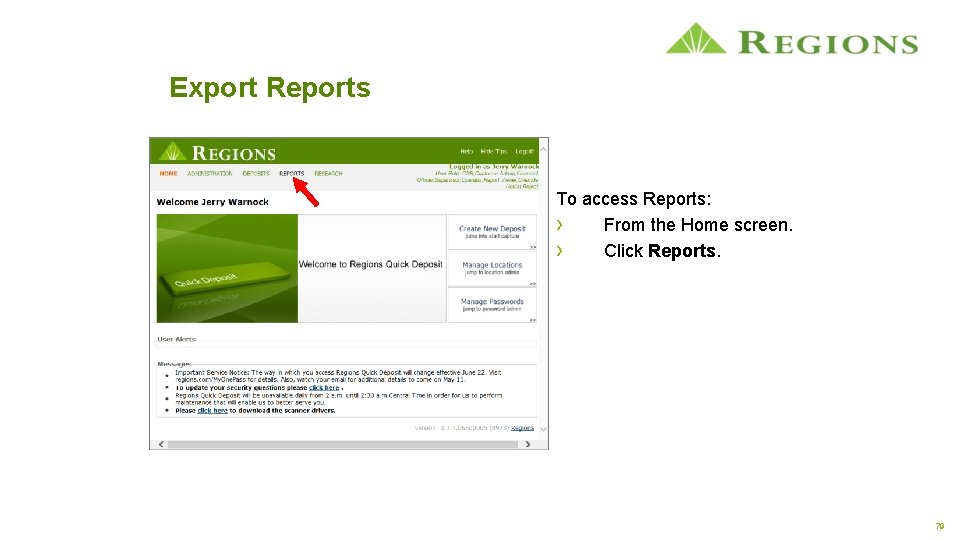
Export Reports To access Reports: › From the Home screen. › Click Reports. 79
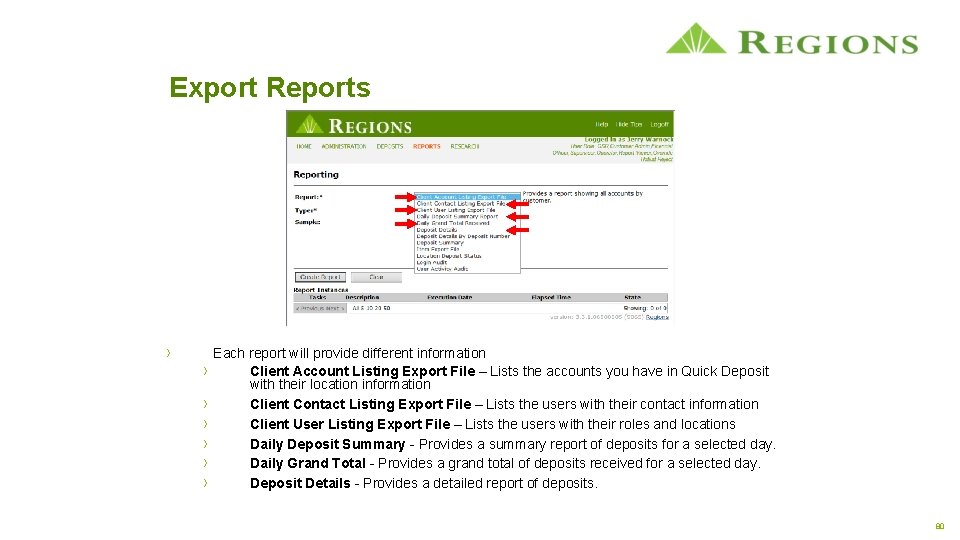
Export Reports › › › › Each report will provide different information Client Account Listing Export File – Lists the accounts you have in Quick Deposit with their location information Client Contact Listing Export File – Lists the users with their contact information Client User Listing Export File – Lists the users with their roles and locations Daily Deposit Summary - Provides a summary report of deposits for a selected day. Daily Grand Total - Provides a grand total of deposits received for a selected day. Deposit Details - Provides a detailed report of deposits. 80
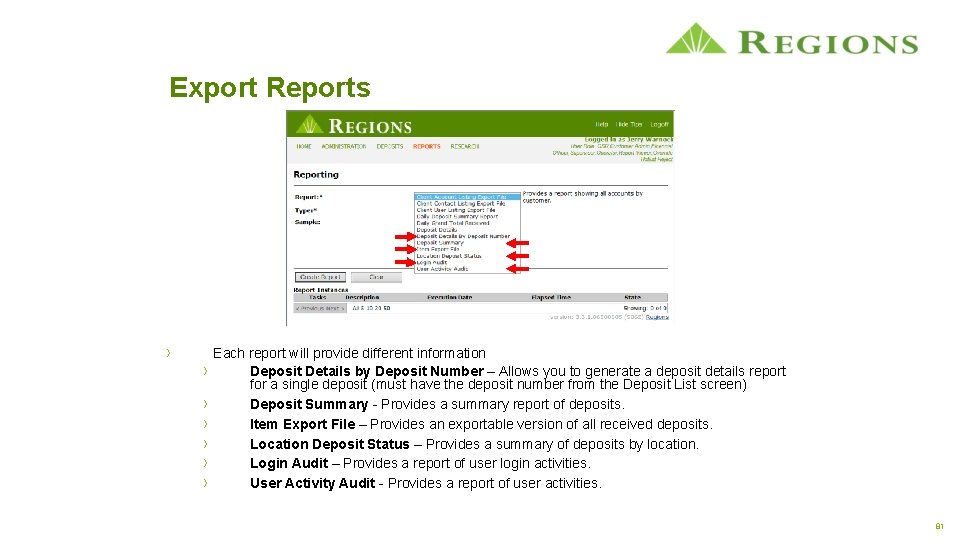
Export Reports › › › › Each report will provide different information Deposit Details by Deposit Number – Allows you to generate a deposit details report for a single deposit (must have the deposit number from the Deposit List screen) Deposit Summary - Provides a summary report of deposits. Item Export File – Provides an exportable version of all received deposits. Location Deposit Status – Provides a summary of deposits by location. Login Audit – Provides a report of user login activities. User Activity Audit - Provides a report of user activities. 81
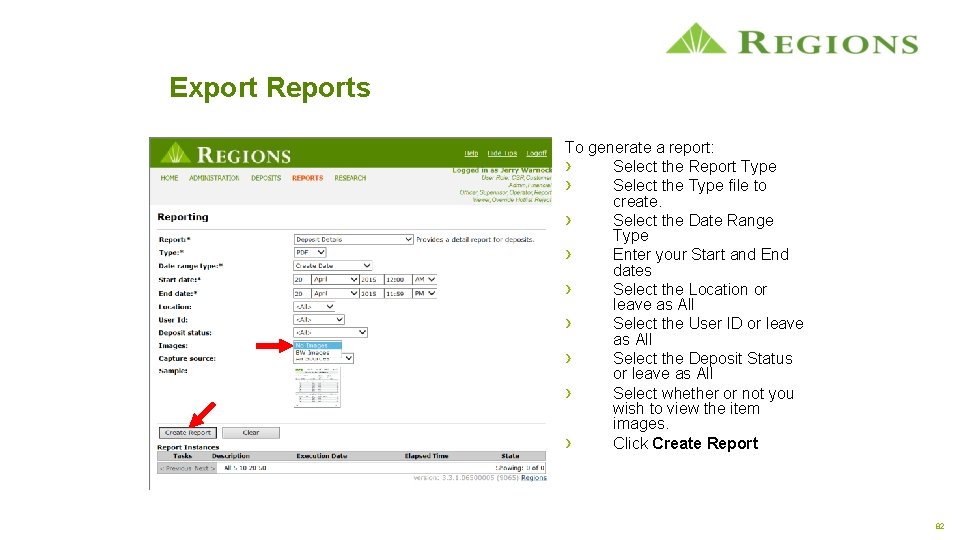
Export Reports To generate a report: › Select the Report Type › Select the Type file to create. › Select the Date Range Type › Enter your Start and End dates › Select the Location or leave as All › Select the User ID or leave as All › Select the Deposit Status or leave as All › Select whether or not you wish to view the item images. › Click Create Report 82
Export Reports There are some restrictions on the number of items which can be in a single report depending on whether or not images are included. › For reports without images › › › › Reports with less than 3, 000 items will be available immediately. Reports with between 3, 000 and 30, 000 items will not be available until the next day. Reports with more than 30, 000 items are not possible. For reports with images Reports with less than 500 items will be available immediately. Reports with between 500 and 5, 000 items will not be available until the next day. Reports with more than 5, 000 items are not possible. 83
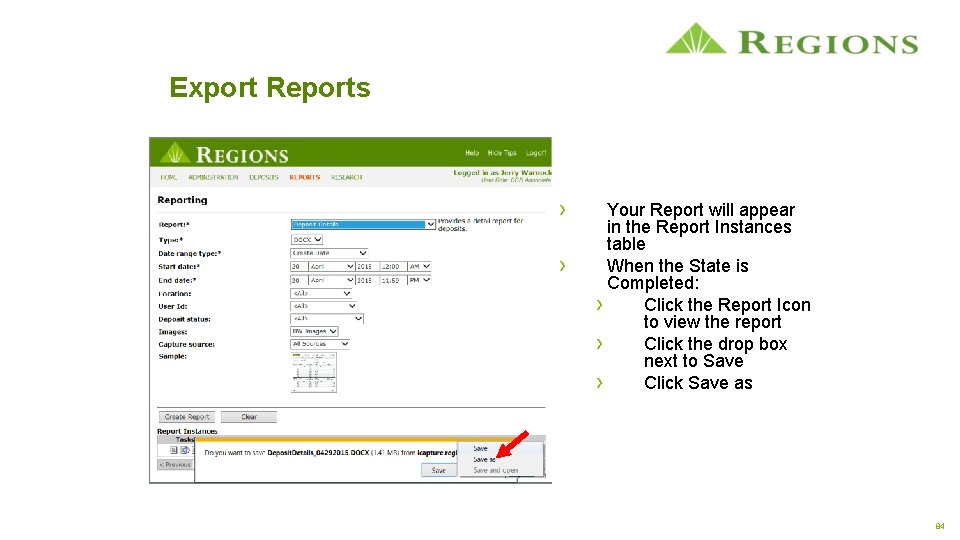
Export Reports › › Your Report will appear in the Report Instances table When the State is Completed: › Click the Report Icon to view the report › Click the drop box next to Save › Click Save as 84
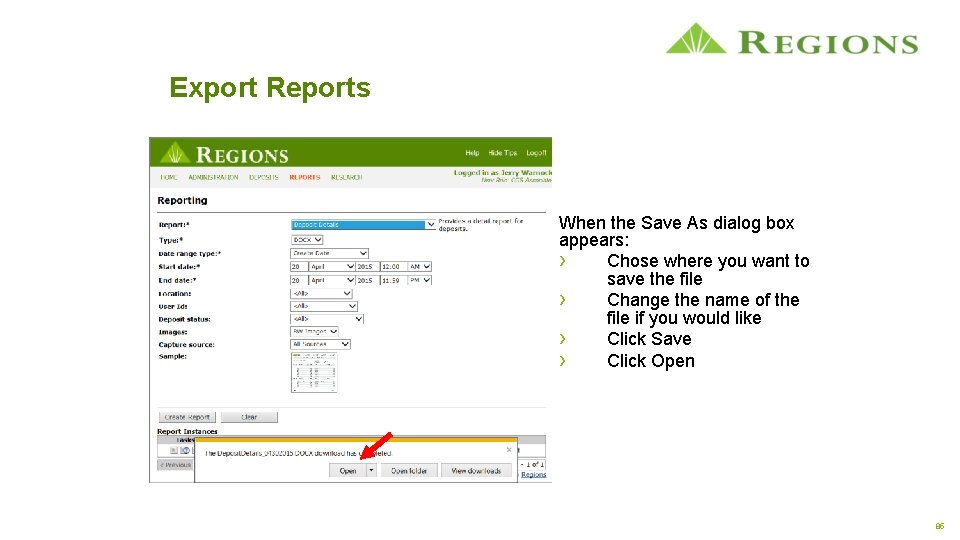
Export Reports When the Save As dialog box appears: › Chose where you want to save the file › Change the name of the file if you would like › Click Save › Click Open 85
Agenda › › › System Login Scanner Setup Administration Creating a Deposit Viewing Reports Using Research 86
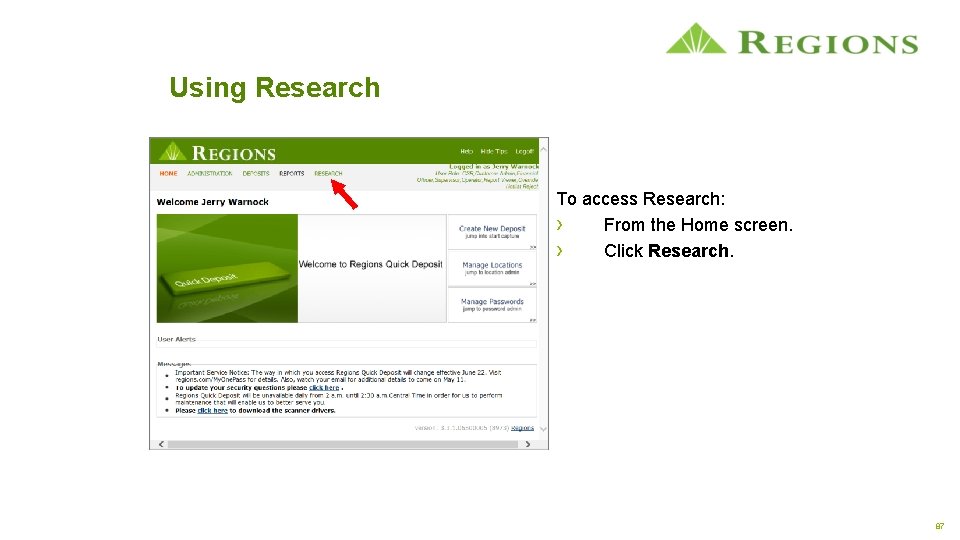
Using Research To access Research: › From the Home screen. › Click Research. 87
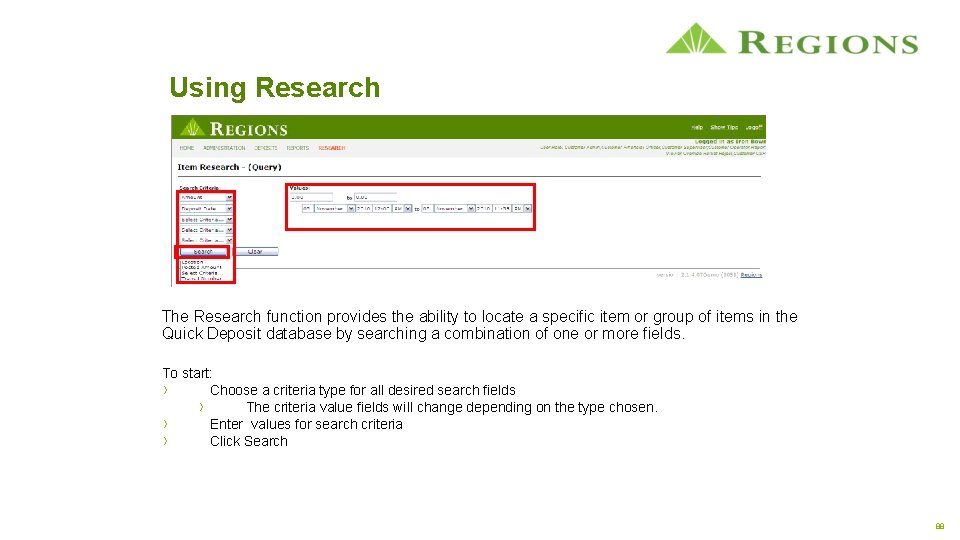
Using Research The Research function provides the ability to locate a specific item or group of items in the Quick Deposit database by searching a combination of one or more fields. To start: › Choose a criteria type for all desired search fields › The criteria value fields will change depending on the type chosen. › Enter values for search criteria › Click Search 88
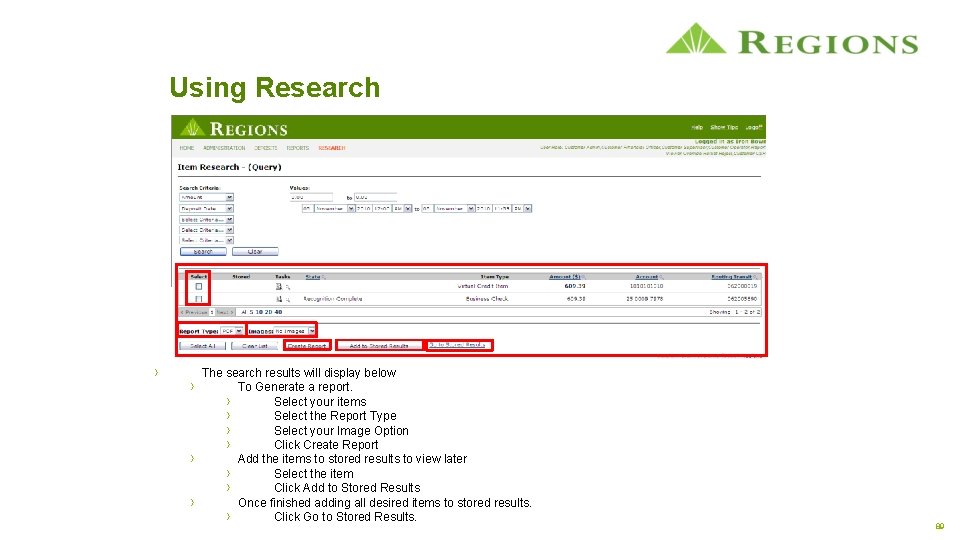
Using Research › › The search results will display below To Generate a report. › Select your items › Select the Report Type › Select your Image Option › Click Create Report Add the items to stored results to view later › Select the item › Click Add to Stored Results Once finished adding all desired items to stored results. › Click Go to Stored Results. 89
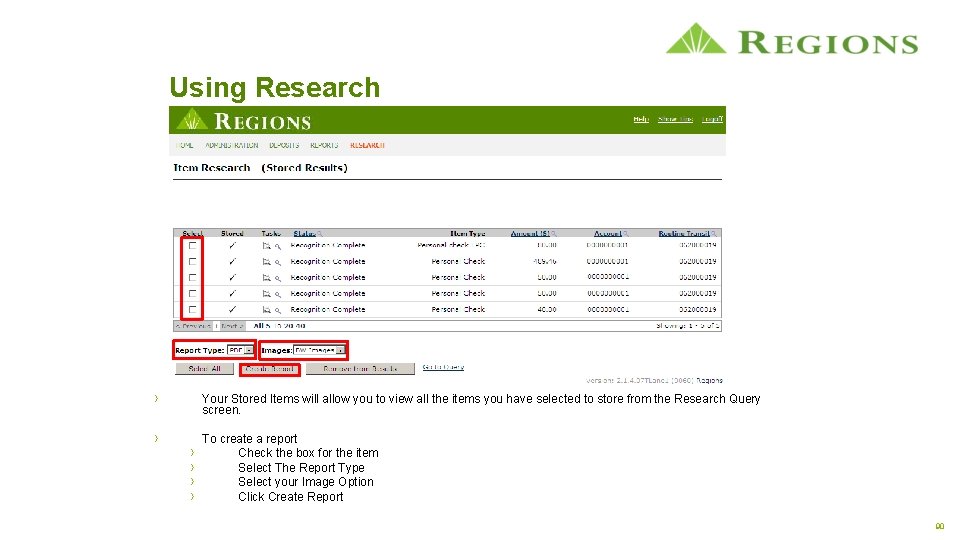
Using Research › Your Stored Items will allow you to view all the items you have selected to store from the Research Query screen. › To create a report Check the box for the item Select The Report Type Select your Image Option Click Create Report › › 90
Quick Deposit FAQ Frequently Asked Questions Q. My Deposit is in a Received Failed State. What do I do? A. The Received Failed State indicates there is a problem on the bank’s side. Please contact Client Services; in most cases you will not need to do anything else. We will be able to correct the problem on the bank’s end. Q. Why will the system not read the amount on Money Orders? A. Most money orders do not use the standard check format for the amount field. With some money orders the scanner is not able to read the amount. You may have to enter the amount when you scan certain money orders. Q. Can I change the order of my accounts? A. Yes, Under the edit locations screen you will have the option to change the order of your accounts by location. Q. Can I deposit a check drawn off a foreign bank. A. No, Quick Deposit will only accept checks drawn off a US bank even if the funds are US Dollars. Q. What is the cut-off time to submit a deposit? A. The cut-off time to submit a deposit for same day ledger post is 8: 00 pm Central Time. 91
Additional Resources › › Quick Deposit Manual at http: //www. regions. com/commercial_banking/tm_resources. rf Commercial Client Services at 1 -800 -787 -3905 Opt 4 92
Client Services Contact Information For Assistance Please Call 800 -787 -3905 Or 205 -560 -3999 Option 4 93
94